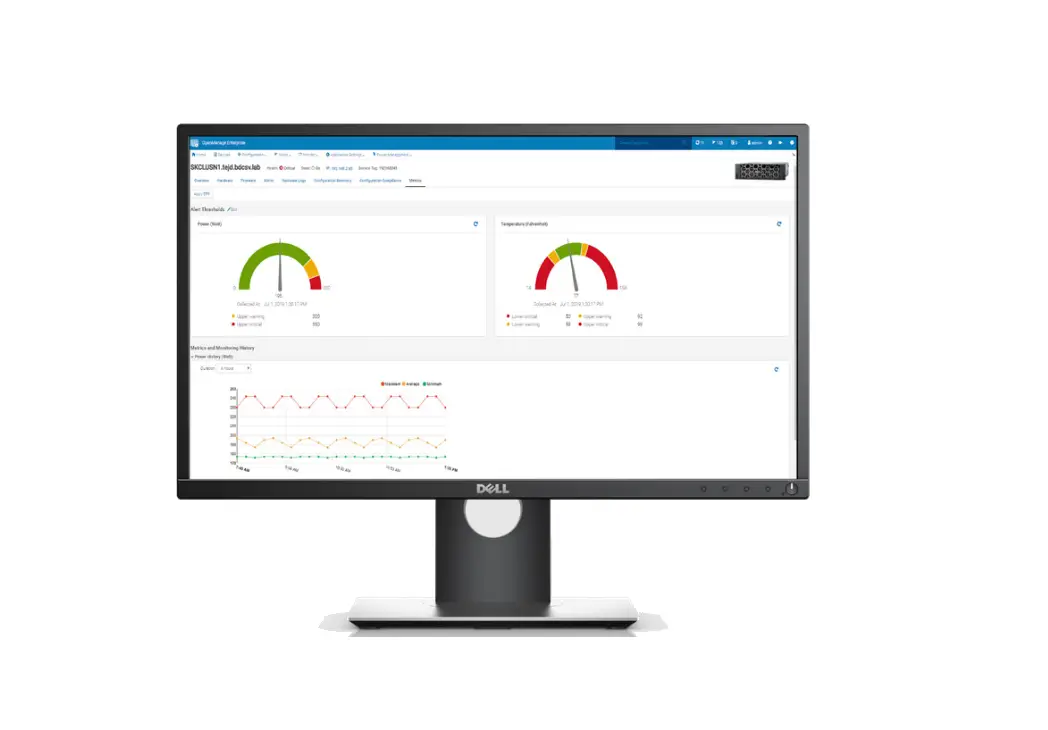
DELL EMC Open Manage Enterprise Power Manager Software User Guide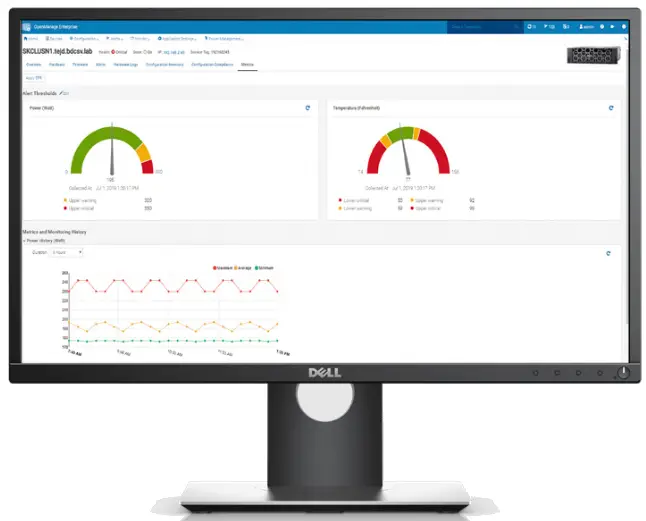
Introduction
This document describes the new features, changed features, resolved issues, known issues, and limitations in Dell EMC Open Manage Enterprise Power Manager.
Current Release Version: 3.0
Release Type: Major (MA)
Revision history
This section provides a description of document changes.
Table 1. Document Revision history
| Document Revision | Date | Description of changes |
| A00 | May 2022 | Initial release |
Product description
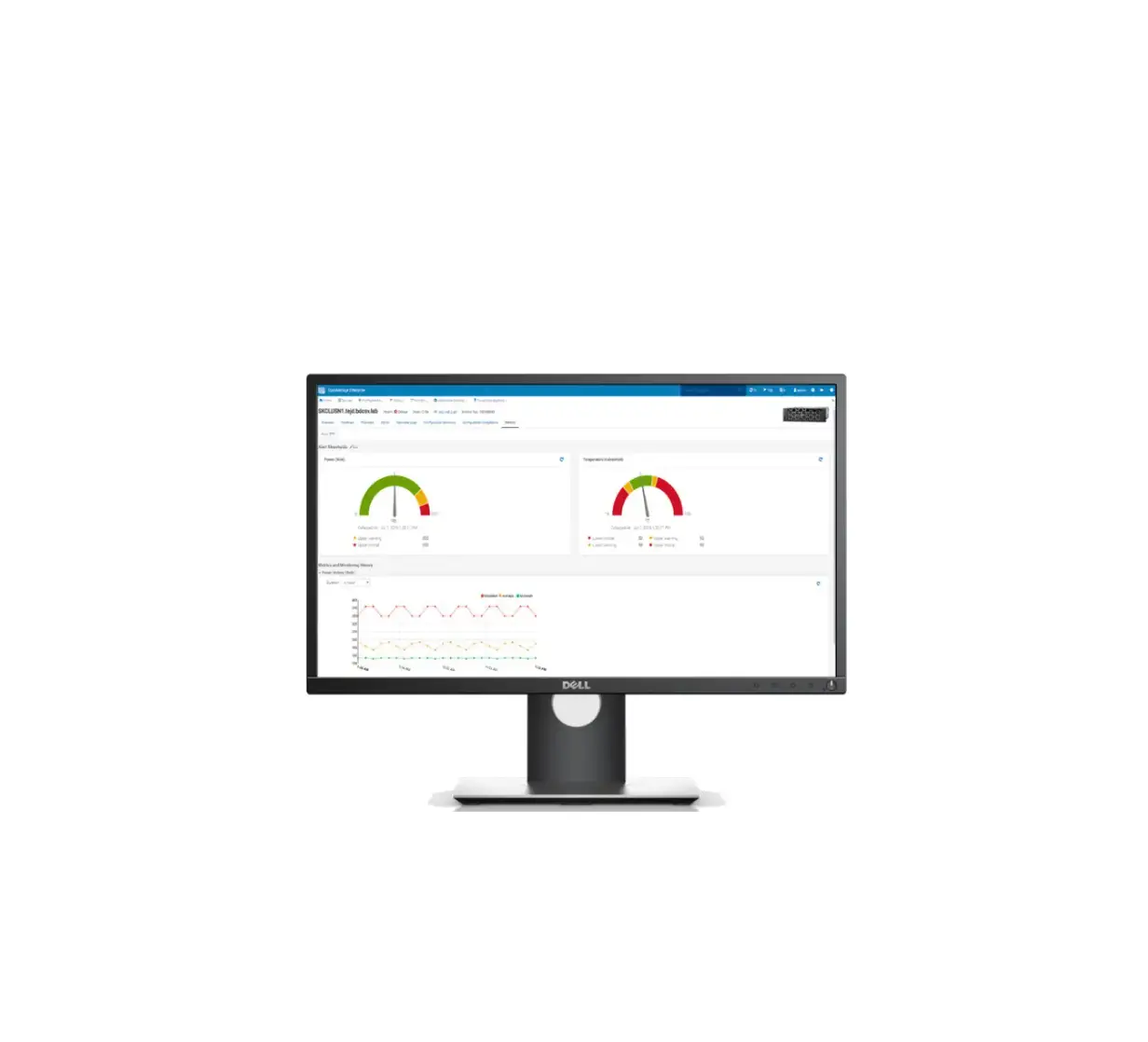
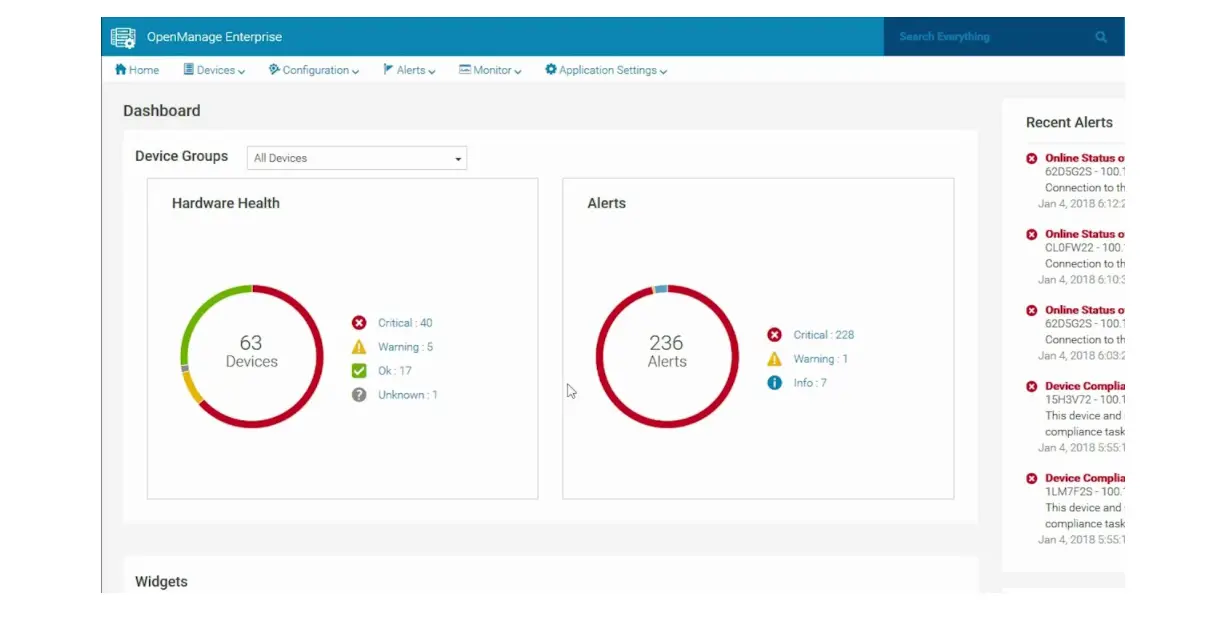
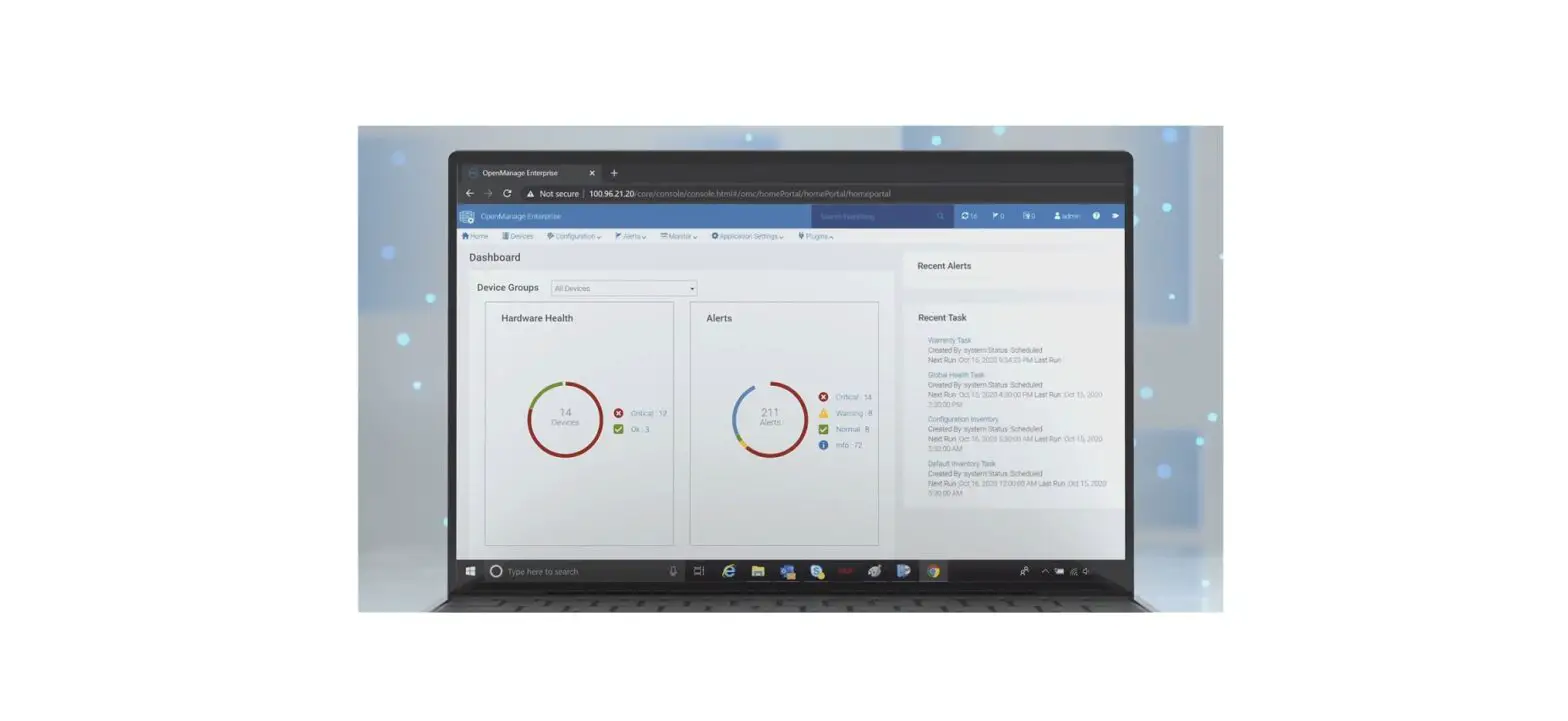
Dell EMC Open Manage Enterprise Power Manager is a plugin to the Dell EMC Open Manage Enterprise (OME) console and uses fine-grained instrumentation to provide increased visibility to power consumption, system anomalies, and resource utilization on Dell EMC servers. Also, Power Manager supports virtual machine monitoring, and alerts and reports about power and thermal levants in servers, chassis, and custom groups consisting of servers and chassis. This reporting enables increased control, faster response times, greater accuracy, and broader decision-making intelligence than is otherwise possible.
Table 2. Newly supported devices in Open Manage Enterprise Power Manager 3.0
| Model | Model numbers | Supported configurations |
| PowerEdge | R250 |
|
| VxRail | T150 |
|
| R350 |
| |
| T350 | ||
| T550 | ||
| Dell EMC VxRail E660 | ||
| Dell EMC VxRail E660F | ||
| Dell EMC VxRail E660N | ||
| Dell EMC VxRail P670F | ||
| Dell EMC VxRail V670F | ||
| Dell EMC VxRail S670 | ||
| Dell EMC VxRail P670N |
For more information about the user documentation, see the Open Manage Enterprise Power Manager product support page on https://www.dell.com/support.
New features
The following table describes the features and enhancements that are introduced with Open Manage Enterprise Power Manager 3.0.
Table 3. New features in Open Manage Enterprise Power Manager 3.0
| Functional area | Feature description | Summary of benefits |
| Virtual machine (VM) groups | Manage virtual machine groups | Create, edit, and delete virtual machine (VM) groups. |
| Devices and groups | Energy consumption cost | View energy consumption cost for VMs, VM groups, devices, and groups |
| Devices and groups | Carbon emission | View carbon emission for devices and groups. |
| Manage devices | Automatically create physical hierarchy | Automatically create physical hierarchy for unplaced devices that is based on location data in the device console. |
| Manage devices | Support for new devices | Added support for new devices. |
| Monitor servers | Compare server usage metrics | Analyze and compare the server utilization metrics—CPU, I/O, memory bandwidth, and system usage. |
| Monitor idle servers | Idle servers | Identify and view idle servers. |
| Manage policies | Power cap threshold | Generate alerts for devices and groups when power consumption approaches the power cap. |
| Manage Emergency Power Reduction (EPR) | Staggered EPR removal | Stagger power on of devices when EPR is disabled. |
| Manage devices | Update device location | Update the device location in the device console as per the data in Power Manager. |
| Reports | Reports | Support for new custom and integrated reports. |
| VMs | Manage VMs | View information about power and vCPU usage of VMs associated with a device. |
| Manage Emergency Power Reduction (EPR) | Manage EPR | Enable force shutdown of devices while enabling EPR. |
| Metrics | Metric information | View new metrics of PowerEdge servers |
| Manage Emergency Power Reduction (EPR) | Liquid Cooling System (LCS) | Added support for LCS Event-triggered EPR and alerts. |
| VMs and VM groups | Graphs of VMs and VM groups | View minimum and maximum power consumption graphs of virtual machines and virtual machine groups. |
| Metrics | Power cap value in graphs | View the power cap value that is applied on the device by power policy or EPR for a specified duration. |
| Metrics | Enlarged view of a graph | Select a section of the graph to zoom. For a simultaneous view of all the metrics at a specific time, hover over one of the graphs. |
| Dashboard | Open Manage Enterprise dashboard | Add groups to the Open Manage Enterprise dashboard |
For more information about the user documentation, see the Open Manage Enterprise Power Manager product support page on https://www.dell.com/support.
Resolved issues
Table 4. Resolved issues in Open Manage Enterprise Power Manager 3.0
| Issue ID | Functional area | Description |
| Not available | Manage groups | For Power Manager: Power Headroom Report for Physical Groups, the power value considered for calculation of stranded power is the most recent metric instead of the maximum power value for the selected report duration. |
| Not available | Manage groups | By default, the devices that are part of a physical group are automatically added to Power Manager as individual devices and as a part of the group. When you log in as a Device Manager with access to this physical group, you can remove devices from the Individual Devices tab, but cannot add the same devices back to the Individual Devices tab. However, you can view the devices in the All Monitored Devices list, since they are part of the group, and there is no data loss of that device. |
| Not available | Upgrade | After upgrading to Open Manage Enterprise version 3.6, discovery and inventory jobs run automatically, and if Redfish protocol is available for a device, the Redfish protocol takes precedence over WS-Man protocol and all operations for that device happen through Redfish protocol. And, Power Manager-specific capabilities are not supported for Redfish capable devices until Power Manager is upgraded to 2.0. Hence, devices that are Redfish capable are removed from Power Manager groups. |
| Not available | Scope-based access control | A Device Manager user can view details of all the Virtual Machines that are monitored in Power Manager through REST API. |
| Not available | Manage groups | When you import a CSV file with more than 100 groups and devices, the group creation is successful, but the association of devices to the groups may fail, with the following error message on the Jobs page under Physical Group CSV Import Task job: Unable to complete the action because the value entered for Group Id is invalid. |
| Not available | Power Distribution Unit (PDU) | When you log in to Power Distribution Units (PDUs) with wrong credentials, an alert with: OID : .1.3.6.1.6.3.1.1.5 specific trap ID: 0 generic trap ID: 5 is generated as an unknown trap in Open Manage Enterprise. |
| Not available | Manage groups | You can delete a physical group even if the EPR is applied on the group. |
| Not available | Alerts | Alerts are not generated in Open Manage Enterprise when the configured thresholds are violated on servers. |
| Not available | Alerts | Alerts are not generated in Open Manage Enterprise when the configured thresholds are violated on chassis. |
| Not available | Alerts | False critical alert is generated in Open Manage Enterprise versions 3.6.x even when the temperature value of monitored group is in the normal temperature range. |
| Not available | Metrics | In the Metrics and Monitoring History section, if you clear the selection of any metric type (maximum, average, and minimum), and place your cursor on the graph, the tooltip displays incorrect data |
| 212224 | Virtual machines | In Open Manage Enterprise version 3.8 and Power Manager 2.0, metric information of virtual machines is not retrieved by using REST API. |
| 212380 | Console and plugins | When a device that is also monitored in Open Manage Enterprise Cloud IQ Plugin is added again to Power Manager, the metric information is retained even though Delete Power Manager data is configured to delete metric data from Power Manager. |
Known issues
Table 5. Known issues in Open Manage Enterprise Power Manager 3.0
| Issue ID | Functional area | Description | Workaround or Resolution |
| Not available | Emergency Power Reduction (EPR) | When you are trying to apply EPR on a device, the EPR operation may fail and there is an entry in the Audit Logs. | Ensure that all the following conditions are met:
|
| Not available | Console and plugins | After rebooting Open Manage Enterprise, if you perform any plug-in lifecycle-related actions for Power Manager, the job is initiated in the back-end but you still see the Console and Plugins page. And, the following message is displayed after some time: This page isn’t working. | Wait for some time, and view the status. The plugin lifecycle-related action is completed successfully. |
| Not available | Policies | For an MX7000 chassis, the power cap value is displayed as same as the upper bound value. When you manually change the power cap percentage, the value is not updated and even if you change the value, the percentage is not updated. | Provide the power cap value, and save the policy. The policy imposes the specified power cap value on the selected devices or groups. |
| Not available | Policies | Events are not generated for the following combination of temperature threshold violations:
| Provide realistic warning and critical values so that there are no immediate alert generating temperature changes. |
| Not available | Manage groups using REST API | When you try to remove a device that is part of multiple groups using the REST API, then an error message is displayed. | To remove a device that is part of multiple groups, remove the device from the group in Open Manage Enterprise. The changes are automatically reflected in Power Manager. |
| Not available | Manage groups | When devices are simultaneously added to and removed from a static group through Open Manage Enterprise, there are multiple entries of this update in the Audit Logs and Alert Log. | |
| Not available | Manage settings using REST API | When you change the power and temperature units in Power Manager through REST APIs and check for the unit change updates in UI, the updates are not reflected on the UI. | To view the updates on the UI after changing the power and temperature units through REST APIs, refresh the browser. |
| Not available | Discovery | When you rediscover a device or an inventory job is in progress in OpenManage Enterprise, the following error message is displayed: Value entered for id is invalid | Add the devices in Power Manager after the discovery or inventory job is completed. |
| Not available | Manage groups | After creating a physical group, you may not see Create New Physical Group, Edit Group, Manage Rack, Delete Group, or Attributes options when you right-click any group. | As a workaround, wait for some time or refresh the page, and then right-click the group. All the relevant options are displayed. To view the devices that are Redfish capable after upgrading to Power Manager version 2.0:
|
| Not available | Power Distribution Unit (PDU) | If you search for a PDU device in the global search of Open Manage Enterprise when Power Manager is disabled, you can still view the PDU link in the search. However, the PDU devices are not visible if Power Manager is disabled. Hence, after clicking the PDU link, you are redirected to the Devices page. | |
| 209489 | Upgrade | Appliance upgrade time might be between 1–10 hours depending on the number of devices being monitored by Power Manager | |
| 230456 | Virtual Machines | When a VM is migrated from one hypervisor to another, the VM performance report—integrated and custom—displays only the data that is collected after the migration. | Before migrating the VMs, ensure that you run the reports. To view the VM metrics, use the REST API: /api/MetricService/ Metrics |
| 230262 | Virtual Machines | When a VM is migrated from one hypervisor to another, the VM and server power metrics on the View Metrics page are partially displayed. | To view the VM and server power metrics, use the REST API: /api/ Metric Service/Metrics |
Limitations
Table 6. Limitations in Open Manage Enterprise Power Manager 3.0
| Functional area | Limitation |
| Data retrieval | Data that is retrieved through WS-Man and Redfish protocols differ slightly due to the protocol designs. |
| Rack space capacity | When you add a device in a Rack physical group, the minimum size you can allocate for a device is 1U. In a PowerEdge C-Series platform, you can accommodate two servers in 1U space. Hence, the space capacity calculations are not accurate when C-Series platform servers are added to a Rack physical group. |
Environment and system requirements
For the complete list about supported devices, protocols, hardware, and web browsers, see Dell EMC Open Manage Enterprise Power Manager User’s Guide available at https://www.dell.com/support.
Installation and upgrade considerations
Installation instructions
To monitor power and thermal data for devices or groups, install Power Manager plugin or extension on Open Manage Enterprise.
NOTE: Installing a plugin on Open Manage Enterprise restarts the appliance services.
For information about installing Power Manager, see Dell EMC Open Manage Enterprise Power Manager User’s Guide.
Upgrade instructions
Ensure that you are using Open Manage Enterprise version 3.9.
To upgrade to Power Manager version 3.0 from Power Manager version 2.0, do the following:
- On the Console and Plugins page, click the refresh icon in the Check for Updates section.
To go to the Console and Plugins page, in Open Manage Enterprise, click Application Settings > Console and Plugins.
Power Manager version 3.0 is now available for update. - Upgrade to Power Manager version 3.0
NOTE: The settings that are configured in older version of Power Manager are retained in latest version of Power Manager.
Where to get help
The Dell Technologies Support site (https://www.dell.com/support) contains important information about products and services including drivers, installation packages, product documentation, knowledge base articles, and advisories.
A valid support contract and account might be required to access all the available information about a specific Dell Technologies product or service.
Notes, cautions, and warnings
 NOTE: A NOTE indicates important information that helps you make better use of your product.
 CAUTION: A CAUTION indicates either potential damage to hardware or loss of data and tells you how to avoid the problem.
 WARNING: A WARNING indicates a potential for property damage, personal injury, or death.

References
 Support | Dell US
-
Support | Dell US
-
Support for Dell OpenManage Enterprise | Dell India
-
Support for Dell OpenManage Enterprise Power Manager | Dell India
-
OpenManage Enterprise Power Manager RESTful API Guide version 2.0 | Dell India
-
Dell EMC OpenManage Enterprise Power Manager Version 2.0 Release Notes | Dell India
-
Dell EMC OpenManage Enterprise Power Manager Version 2.0 User’s Guide | Dell India
-
Computers, Monitors & Technology Solutions | Dell USA
 Support | Dell US
 Support | Dell US
 Computers, Monitors & Technology Solutions | Dell USA