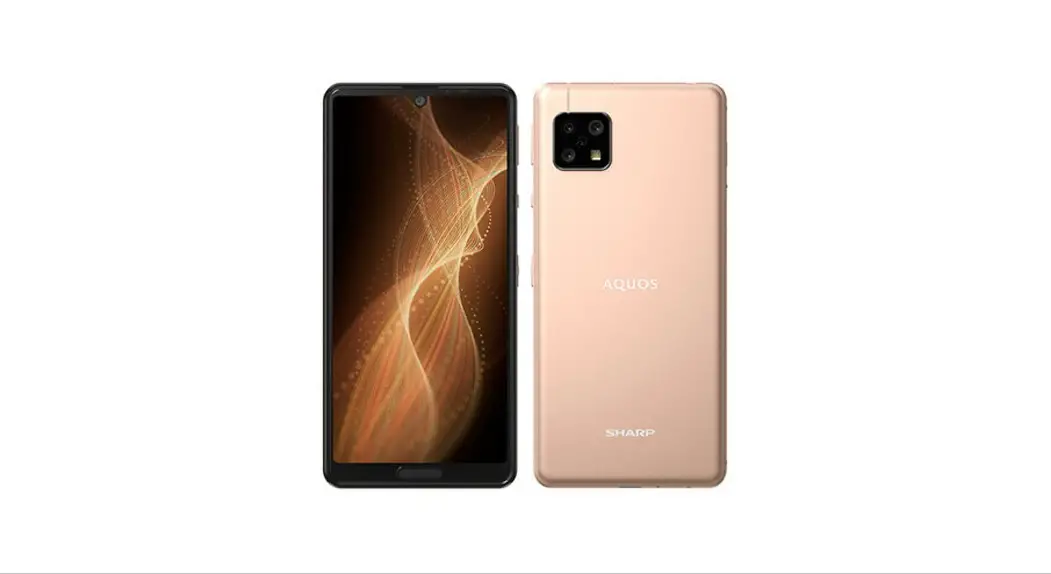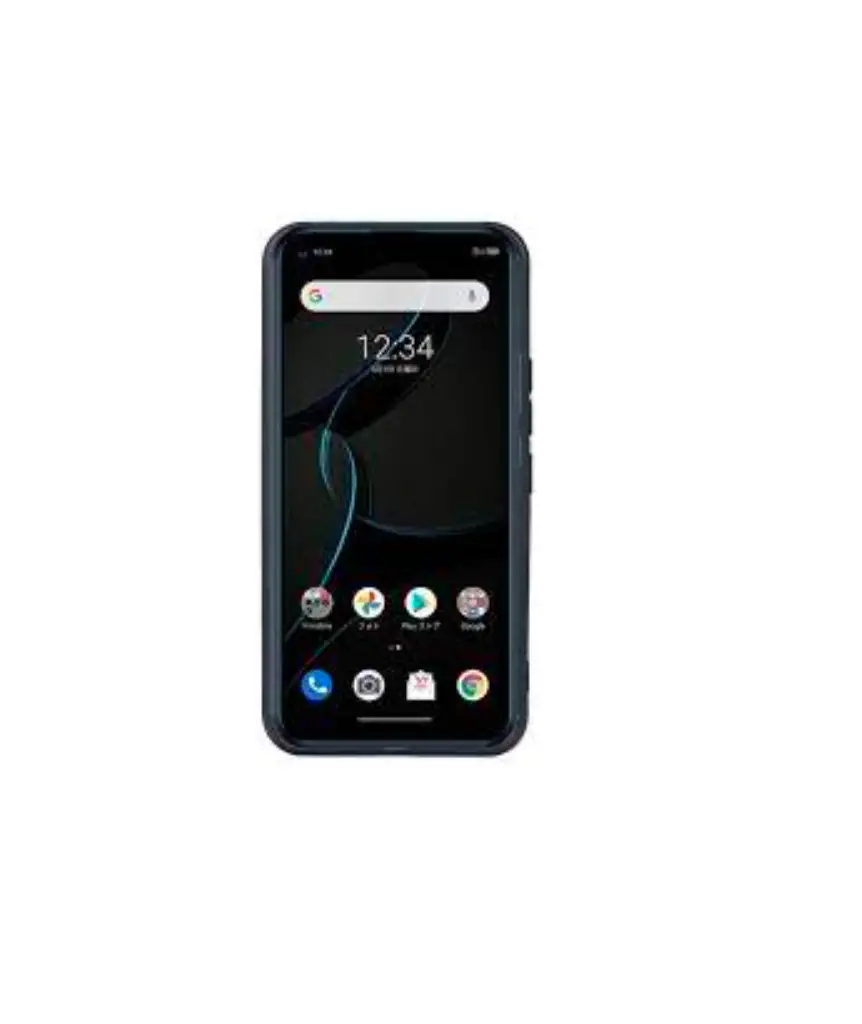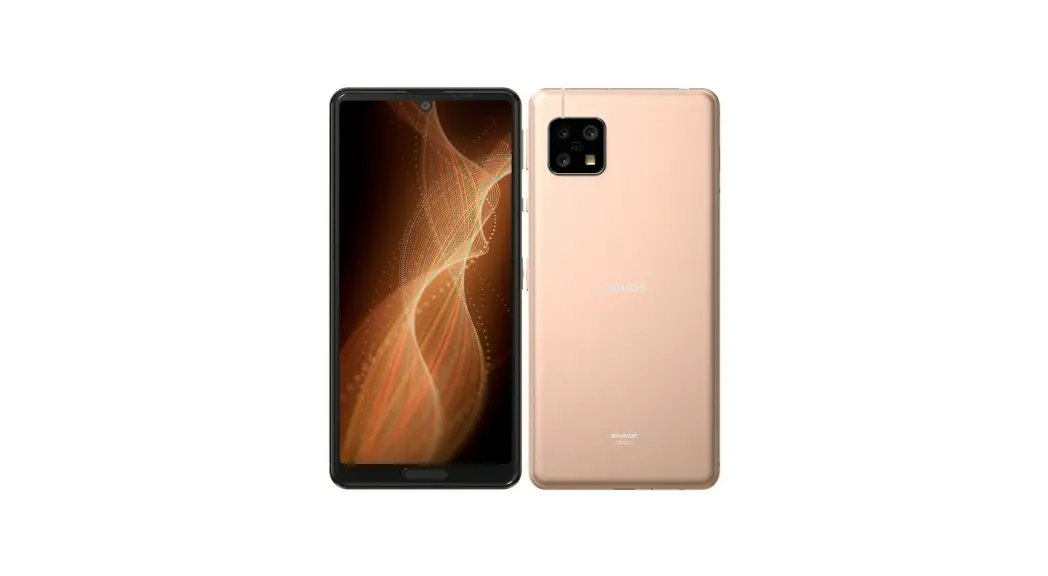
 Sense 5G
SHG03
Quick Start Guide
Instruction Manual
■ “Quick Stan Guide” (this Manual) “Notes on Usage”
The “Quick Start Guide” (this manual) and “Notes on Usage” available on the homepage of the network operator you contracted describe necessary information and precautions before using the product the first time.
■ “Full Instruction Manual” (Japanese)
You can check (Full Instruction Manual)” (Japanese) which describes detailed various functions on the homepage of the network operator you contracted.
- Descriptions in this manual are based on Androids”‘ 11.
- The company names and product names appearing in this manual are trademarks or registered trademarks of their respective holders.
- For exemptions, refer to “Notes on Usage” available on the homepage of the network operator you contracted.
February 2021, 1st Edition
Manufactured by: SHARP CORPORATION
Turning the Power On
8(0) (hold down for at least 2 seconds) while the product is turned off.
When you turn the power on for the first time after purchasing the product, the initial setting screen is displayed automatically. For details on the initial setting, refer to “If IREITIE g (Full Instruction Manual)” (Japanese).
Transferring data
If you connect an old smartphone and the product by connecting the included Quick Switch Adapter (sample) to the external connection jack of the product, you can easily transfer data.
- Using “Copy apps & data” in the initial settings of the product, follow the instructions on the screen, connect smartphones together, and transfer your data.
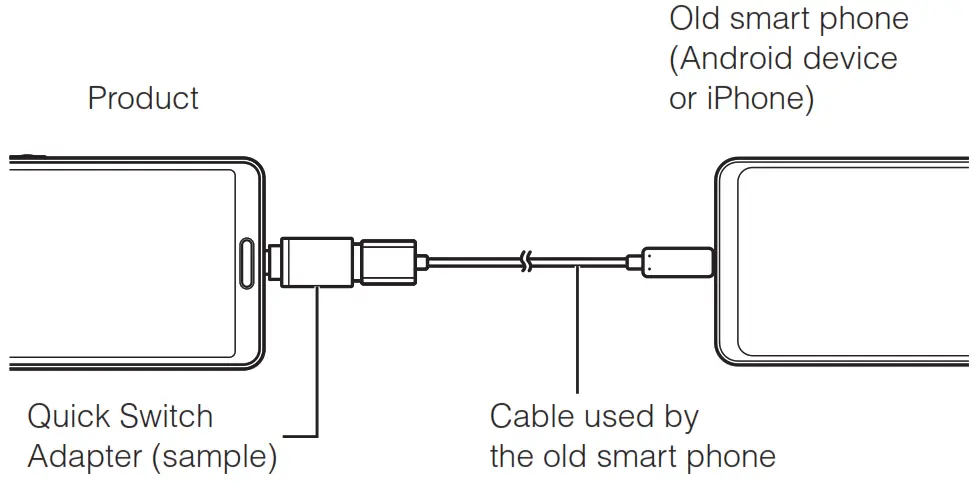 Do not use Quick Switch Adapter (sample) for intended uses other than transferring data (charging etc.).
Not all data can be transferred.
 Cell phone and PHS operators collect and recycle unused telephones, batteries, and battery chargers at stores bearing the logo regardless of brand and manufacturer to protect the environment and reuse valuable resources.
Names and Functions of Parts
Front
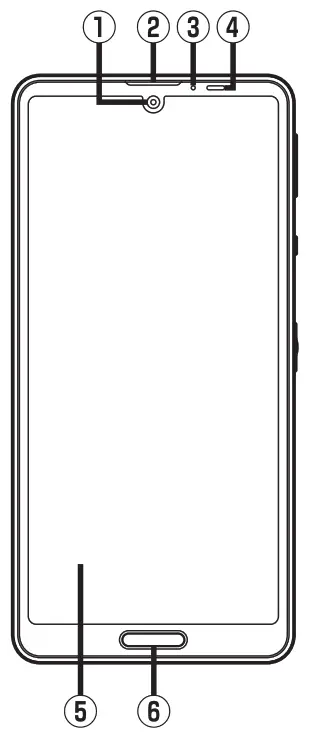
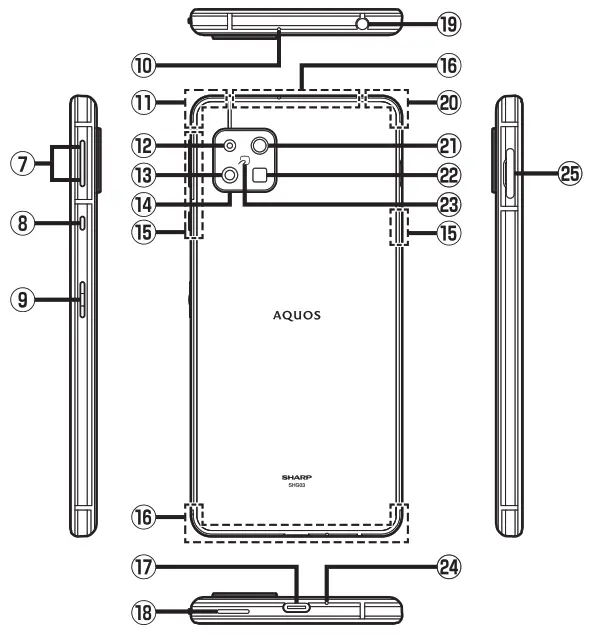
- In-camera lens
- Earpiece (Receiver)”
- Charging/Incoming indicator
- Proximity sensor/Light sensor
The proximity sensor prevents inadvertent operations of the touch panel during a call.
The light sensor detects the ambient brightness and adjusts the brightness of the display. - Display (Touch panel)
- Fingerprint sensor
■ Back/Top and Bottom/Left and Right
 Volume up key/
 ) Volume down key Adjust the volume. Also, set/disable manner mode.
 Assistant key
The key is meant to trigger the Google Assistant™
It can also be used to trigger functions chosen by the user.
• For details. refer to (Full Instruction Manual)” (Japanese). Power key
Use to turn the power on/off and turn the screen on/off.- Sub microphone” 1
- 5G/ 4G/GPS antennas.2
- Telephoto camera lens
- Standard camera lens
- Decoration of camera cover
Serves as an air vent for maintaining performance. - 5G/4G antennas’2
- 4G/UMTS antennas’2
- External connection jack
Use when connecting Quick Switch Adapter (sample), Type-C Common AC Adapter 01/02 (sold separately), USB Type-C”‘ cable (commercially available), USB cable for peripherals (commercially available), etc. to the product. - Speaker”
- Earphone/Microphone jack
- Wi-Fi®/Bluetooth® antenna 2
- Wide camera lens
- Mobile light
- mark
- Mouthpiece (Microphone)”
- nano-SIM Card/microSD memory card tray
‘1 Covering the sections with stickers, fingers. etc. may hinder product performance.
‘2 Antennas are built into the product. Do not cover with hand during calls or data communication. Doing so may affect call/communication quality.
 Volume up key/
 ) Volume down key Adjust the volume. Also, set/disable manner mode.
 Assistant key
The outer case (back) of the product cannot be removed. Removing it forcibly may cause damage or a fault.
The battery is built into the product, and cannot be removed by the customer. To force the power off if the screen freezes etc., hold down  for at least 8 seconds.
Proximity sensor/Light sensor
Placing stickers, etc. over the proximity sensor/light sensor may prevent the product from operating properly.
Do not stare into the proximity sensor.
May temporarily affect eyesight, leading to accidents.
Earphone/Microphone jack
• An earphone/microphone with the switch or depending on the type of the earphone/microphone, may not be available with the product.
IMEI plate
A plate with the sticker on which the IMEI number (International Mobile Equipment Identifier) is printed is stowed near the nano-SIM Card/ microSD memory card tray. Except when the IMEI number is required such as requesting servicing or repairs, do not pull out the plate or remove the sticker. For details on handling IMEI plates, refer to Full Instruction Manual)” (Japanese)
Attaching the nano-SIM Card
Before attaching the nano-SIM Card. turn the product off Also, attach it with the display side turned up.
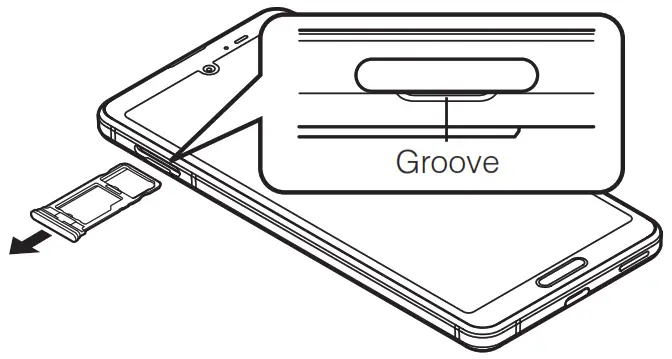
- Pull out the nano-SIM Card/microSD memory card tray with your finger on the groove.

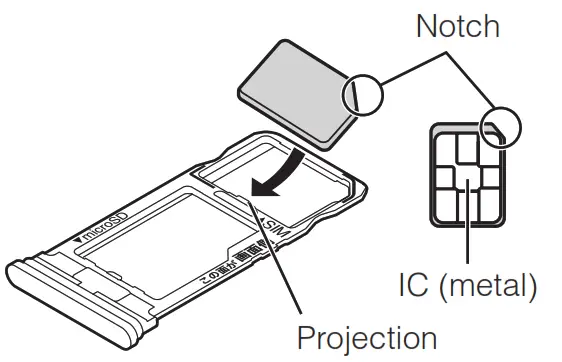
- Put the nano-SIM Card to the nano-SIM Card/microSD memory card tray with the IC (metal) side turned down while pressing the card against the projection of the tray. Check the direction of the nano-SIM Card and put it securely. Not to let the nano-SIM Card lift up from the card tray. If the nano-SIM card does not fit the card tray, may cause a fault.

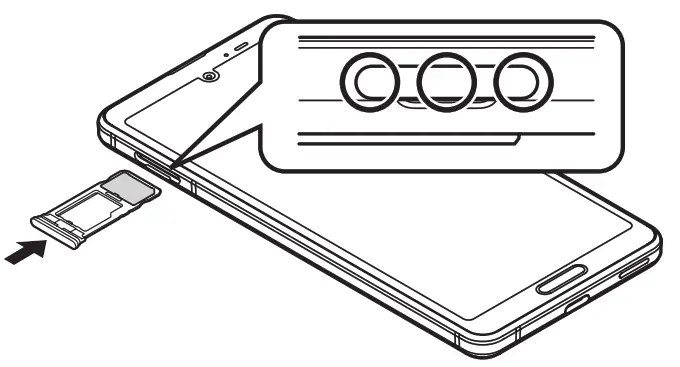
- Ej Insert the nano-SIM Card/microSD memory card tray all the way to the product straight and horizontally.
Push the 0 areas securely and make sure there is no space between the product and the card tray.
Attaching or removing the nano-SIM Card/microSD memory card tray
When pulling out the card tray from the product, pull it slowly and horizontally with the display side turned up.
• Pulling out the card tray forcefully or obliquely may cause damage.
When attaching the card tray, insert it slowly with the display side turned up and make sure there is no space between the product and the card tray.
• Do not insert the card tray with the wrong side down. Failure to do so may cause damage to it.
• Inserting the card tray not deeply enough may cause impairment of the waterproof /dustproof property or prevent the product from functioning properly.