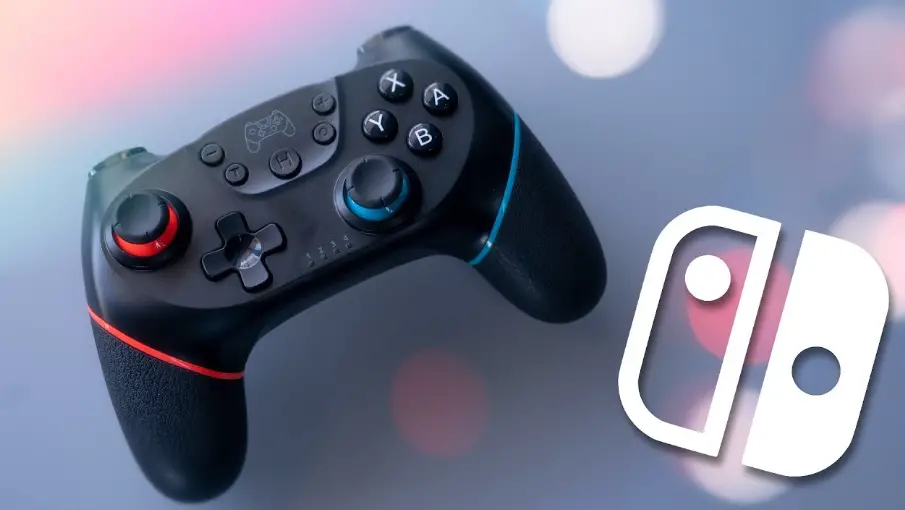
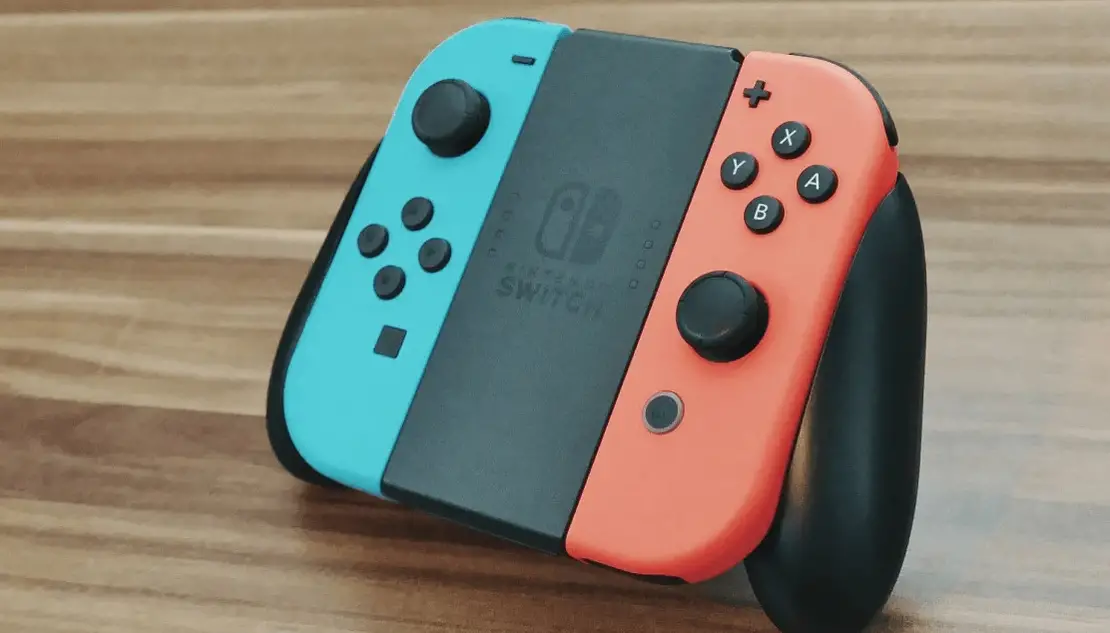
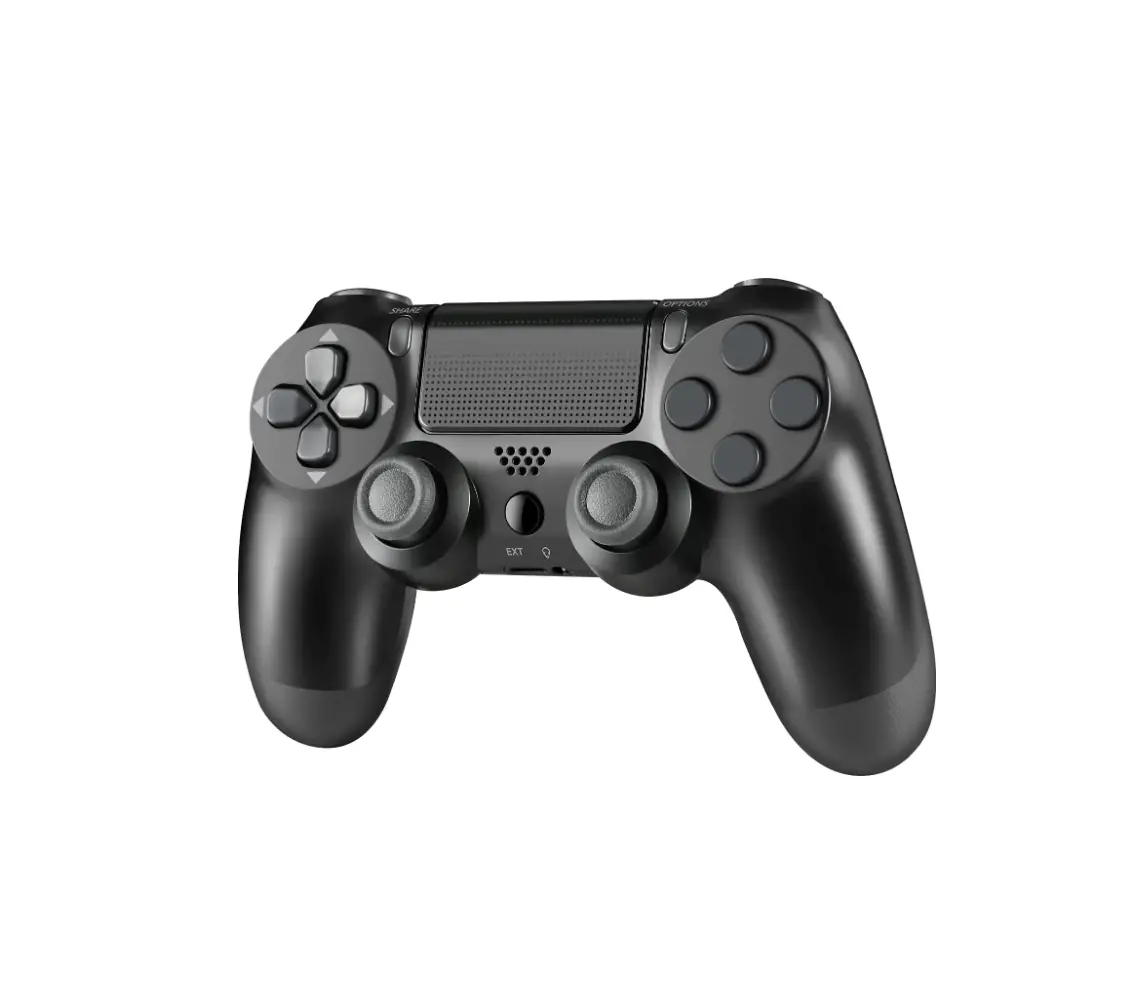
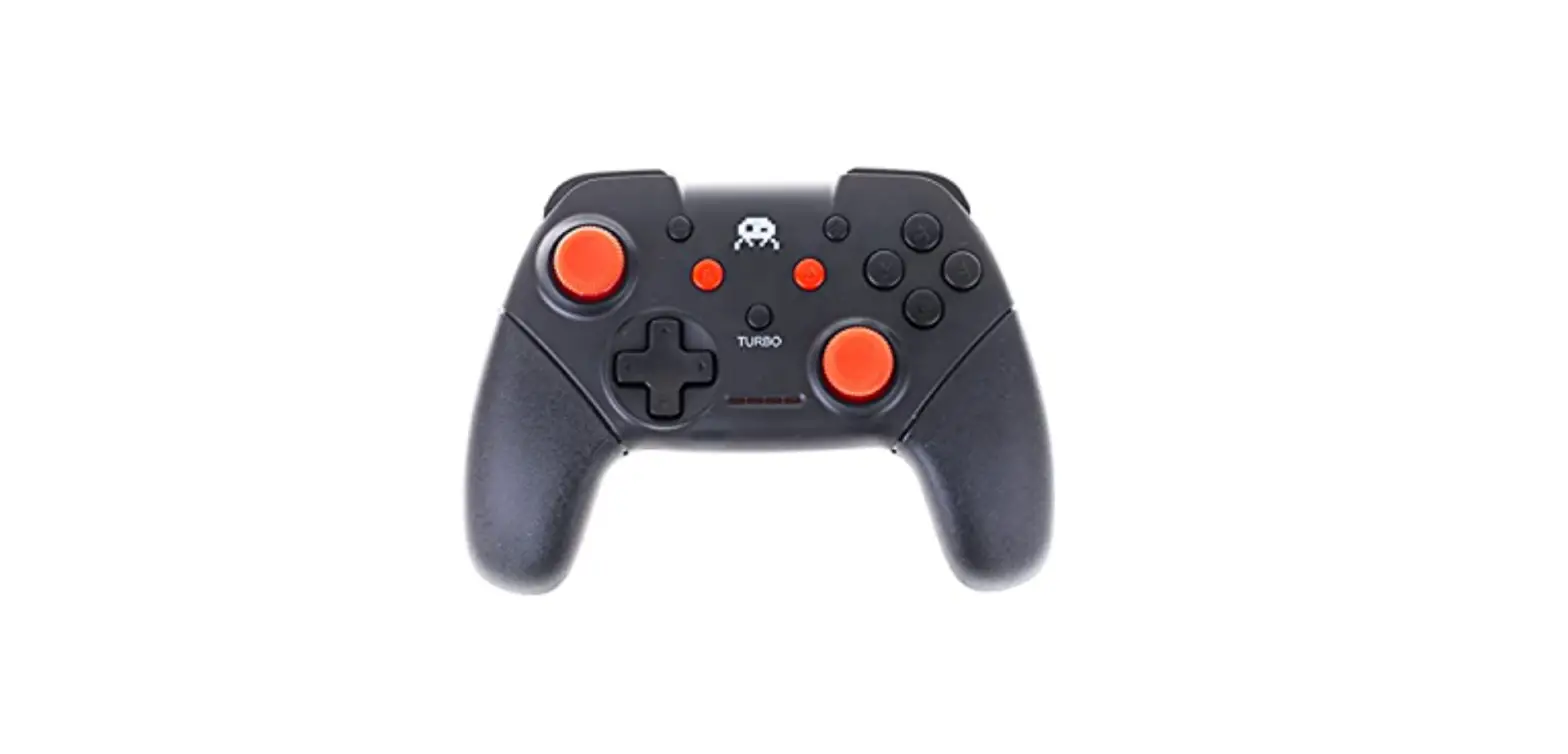
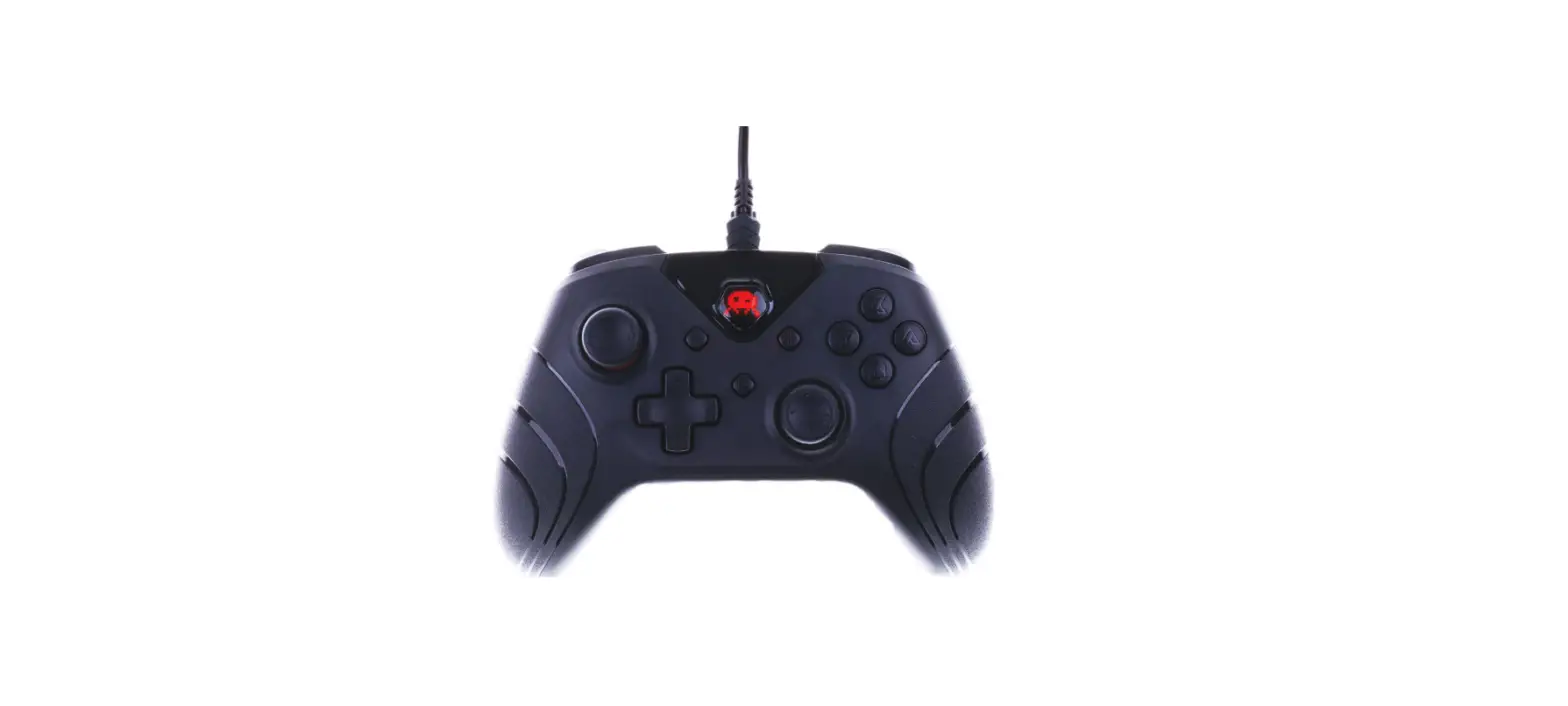
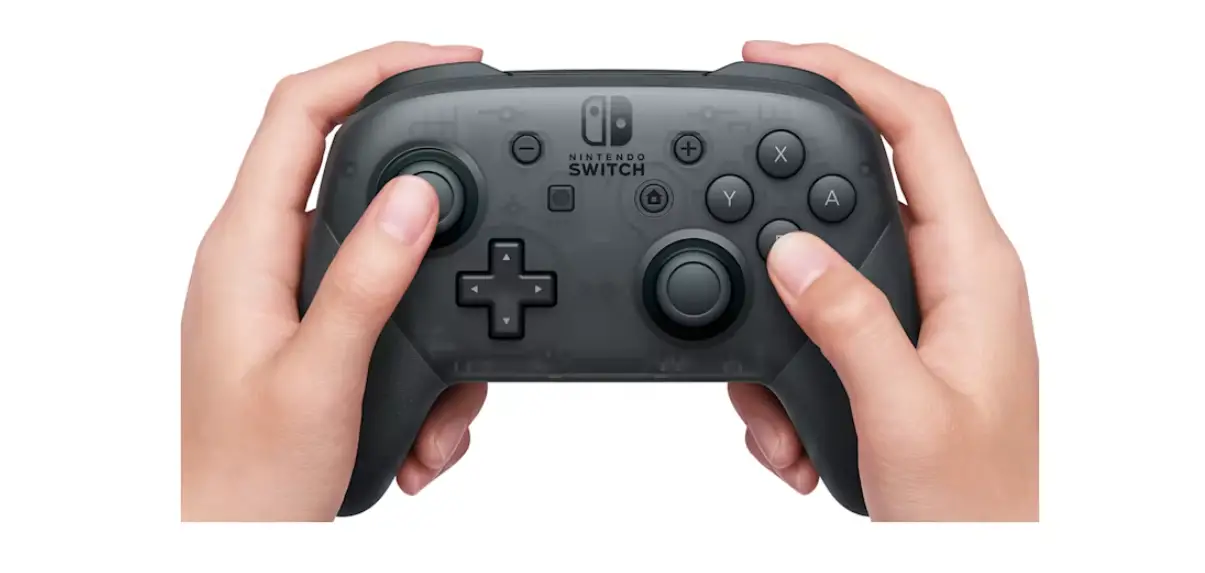
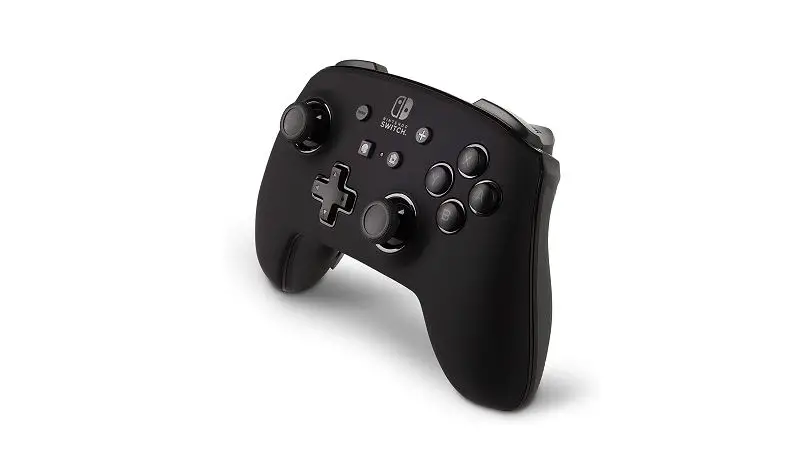
299296 Nintendo Switch Wireless Pro Controller Black
Product Information
The Polychroma Wireless Controller is designed for use with the
Switch and Switch OLED consoles. It offers a wireless connection
for convenient gaming. The package includes 1 gamepad, 1 user
manual, and 1 Type-C charging cable.
Technical Specifications
- Wireless Connection
- Type: Gamepad
- Charging Method: Type-C Cable
Product Usage Instructions
Wireless Connection
Please Note: Before using the controller, make
sure that airplane mode on the console is turned off.
First-Time Pairing:
- Find the Controllers Option on the console.
- Click Change Grip/Order.
Note: Enter the Change Grip/Order page, and complete
the connection within 30 seconds. If you stay on this page for too
long, you may not be able to connect to the switch console.
Console Wake Up and Wireless Re-connection
Once the controller has paired with the console:
- If the console is in SLEEP mode, press the HOME button on the
controller to wake up both the controller and the console. - If the console screen is on, any button can wake up the
controller and allow it to reconnect to the console.
If re-connection fails, follow these steps:
- Turn off Airplane mode on the console.
- Remove the controller’s information on the NS console (System
Setting > Controllers and Sensors > Disconnect
Controllers). - Follow the steps for First-Time Pairing.
Wired Connection
To use the controller with a wired connection, simply connect it
to the console using the included Type-C charging cable.
en user manual polychroma wireless controller for switch and switch oled
Product Overview
Technical Specifications
Input Voltage: 5V, 350mA Working Voltage: 3.7V Battery Capacity: 600mAh Product Size: 154*59*111mm Product Weight: 250±10g Product Material: ABS
fr notice d’utilisation manette sans fil polychroma pour switch et switch oled
Aperçu du produit
Spécifications techniques
Tension d’entrée : 5V, 350mA Tension de fonctionnement : 3.7V Capacité de la batterie : 600mAh Taille du produit : 154*59*111mm Poids : 250±10g Matériau : ABS
ES manual de usuario Mando inalámbrico polychroma para switch y switch oled
Resumen del producto
Especificaciones tecnicas
Voltaje de entrada: 5V, 350mA Voltaje de trabajo: 3.7V Capacidad de la batería: 600mAh Tamaño del producto: 154*59*111mm Peso del producto: 250±10g Material del producto: ABS
IT manuale d’uso controller wireless polychroma per switch e switch oled
Panoramica del prodotto
Specifiche tecniche
Tensione di ingresso: 5 V, 350 mA Tensione durante l’uso: 3,7V Capacità della batteria: 600mAh Dimensioni del prodotto: 154*59*111mm Peso del prodotto: 250±10g Materiale del prodotto: ABS
NL gebruikershandleiding controller draadloos polychroom voor switch en switch oled
Productoverzicht
Technische specificaties
Ingangsspanning: 5V, 350mA Werken Voltage: 3.7V Batterijcapaciteit: 600mAh Productgrootte: 154*59*111mm Productgewicht: 250±10g Productmateriaal: ABS
PT manual do utilizador controlador sem fios policromático para switch e switch oled
Visão Geral do Produto
Especificações técnicas
Tensão de entrada: 5V, 350mA Tensão de trabalho: 3.7V Capacidade da bateria: 600mAh Tamanho do produto: 154*59*111mm Peso do produto: 250±10g Material do produto: ABS
DE Benutzerhandbuch polychroma drahtloser Controller für switch und switch oled
Produktübersicht
Technische Daten
Eingangsspannung: 5V, 350mA Arbeitsspannung: 3.7V Batteriekapazität: 600mAh Produktgröße: 154*59*111mm Produktgewicht: 250±10g Material des Produkts: ABS
SV bruksanvisning polychroma wireless controller för switch och switch oled
Produktöversikt
Tekniska specifikationer
Ingångsspänning: 5V, 350mA Arbetsspänning: 3.7V Batterikapacitet: 600mAh Produktstorlek: 154*59*111mm Produktvikt: 250±10g Produktmaterial: ABS
Package
1 x Gamepad 1 x User Manual 1 x Type-C Charging Cable
Wireless Connection
Please Note: Please make sure that airplane mode on the console is turned off before use.
First-Time Pairing:
Step 1: Find Controllers Option
Step 2: Click Change Grip/Order
contenu du pack
1 x Manette de jeu 1 x Manuel de l’utilisateur 1 x Câble de chargement Type-C
Connexion sans fil
Remarque : Assurez-vous que le mode avion de la console est désactivé avant de l’utiliser.
Premier jumelage :
Étape 1 : sélectionnez l’icône Controllers
Étape 2 : Cliquez sur Changer de manette/d’ordre.
PACK incluido
1 x Gamepad 1 x Manual de Usuario 1 x Cable de carga Tipo-C
Conexión inalámbrica
Nota: Por favor, asegúrese de que el modo avión en la consola está desactivado antes de su uso.
Emparejamiento por primera vez:
Paso 1: Buscar la opción Controllers
Paso 2: Haz clic en Change Grip/Order
PACK incluso
1 x Gamepad 1 x Manuale d’uso 1 cavo di ricarica Tipo-C
Connessione wireless
Nota: assicurarsi che la modalità aereo della console sia disattivata prima dell’uso.
Accoppiamento per la prima volta:
Passo 1: trovare l’opzione Controllori
Passo 2: clicca su Cambia impugnatura/ordine
Het pakket omvatte
1 x Gamepad 1 x Gebruikershandleiding 1 x Type-C oplaadkabel
Draadloze verbinding
Let op: Zorg ervoor dat de vliegtuigmodus op de console is uitgeschakeld voor gebruik.
Eerste keer koppelen:
Stap 1: Zoek Controllers Optie
Stap 2: Klik op Wijzig greep/volgorde
Pacote Incluído
1 x Gamepad 1 x Manual do Utilizador 1 x Cabo de Carregamento Tipo C
Ligação sem fios
Nota: Por favor, certifique-se de que o modo de avião na consola está desligado antes de usar.
Emparelhamento de Primeira Vez:
Passo 1: Opção Encontrar Controladores
Passo 2: Clique em Change Grip/Order
Inklusive Paket
1 x Gamepad 1 x Benutzerhandbuch 1 x Typ-C-Ladekabel
Kabellose Verbindung
Bitte beachten Sie: Bitte stellen Sie sicher, dass der Flugzeugmodus der Konsole vor der Verwendung ausgeschaltet ist.
Erstmaliges Pairing:
Schritt 1: Finden Sie die Option Controller
Schritt 2: Klicken Sie auf Change Grip/Order
Paketet ingår
1 x Gamepad 1 x användarhandbok 1 x Typ-C-laddningskabel
Trådlös anslutning
Observera: Se till att flygplansläget på konsolen är avstängt innan du använder den.
Första gången du kopplar ihop dig:
Steg 1: Hitta kontrollerna
Steg 2: Klicka på Ändra grepp/ordning.
Step 3: Press the SYNC Button (on the back of the controller) for about 5 seconds, until the 4 Led lights flash quickly, then release your finger and wait for the connection to complete.
* NOTE: Enter the Change Grip/Order page, please complete the connection within 30 seconds as soon as possible. If you stay on this page for too long, you may not be able to connect to the switch console
Console Wake Up and Wireless Re-connection
Once the controller has paired with the console: . If the console is in SLEEP mode, the HOME button on the controller is able to wake up both the controller and the console. . If the console screen is on, any button can wake up the controller, which will allow the controller to reconnect to the console. . If re-connection failed, please follow the three steps:
1. Turn off Airplane mode on the console 2. Remove the controller’s information on the NS console (System Setting> Controllers and Sensors> Disconnect Controllers) 3. Follow the steps in First-Time Pairing
Wired Connection
1. Turn on the «Pro Controller Wired Communication» in the console: System Settings > Controllers and Sensors > Pro Controller Wired Communication>On Please Note: The «Pro Controller Wired Communication» must be turned on before connecting the controller and the Dock with the cable.
Étape 3 : Appuyez sur le bouton SYNC (à l’arrière de la manette) pendant environ 5 secondes, jusqu’à ce que les 4 voyants lumineux clignotent rapidement, puis relâchez et attendez que la connexion soit effective.
* NOTE: Sur la fenêtre de connexion des manettes, connectez-vous dans les 30 secondes. Si vous restez trop longtemps sur cette page, vous risquez de ne pas pouvoir vous connecter à la console.
sortie de veille et reconnexion sans fil
Une fois la manette appairée à la console : . Si la console est en mode SLEEP, la touche HOME de la manette permet de rallumer à la fois la manette et la console. . Si l’écran de la console est allumé, n’importe quel bouton peut rallumer la manette. . Si la reconnexion échoue, veuillez suivre les trois étapes suivantes :
1. désactiver le mode avion sur la console. 2. supprimez les informations relatives à la manette sur la console NS (System Setting> Controllers and Sensors> Disconnect Controllers). 3. suivez les étapes de la section « First-Time Pairing ».
Connexion filaire
1. Activez «Pro Controller Wired Communication» dans la console : Paramètres système > Manettes et capteurs > Pro Controller Wired Communication>On Remarque : La fonction «Pro Controller Wired Communication» doit être activée avant de connecter la manette et le Dock avec le câble.
Paso 3: Premere il pulsante SYNC (sul retro del controller) per circa 5 secondi, fino a quando le 4 luci led lampeggiano rapidamente, quindi rilasciare il dito e attendere il completamento della connessione.
* NOTA: Entre en la página de Cambio de Grip/Orden, por favor complete la conexión en 30 segundos lo antes posible. Si permanece demasiado tiempo en esta página, es posible que no pueda conectarse a la consola de conmutación.
Activación de la consola y reconexión inalámbrica
Una vez que el mando se ha emparejado con la consola: . Si la consola está en modo SLEEP, el botón HOME del mando puede despertar tanto al mando como a la consola. . Si la pantalla de la consola está encendida, cualquier botón puede despertar el mando, lo que permitirá que éste se vuelva a conectar a la consola. . Si la reconexión falla, por favor siga estos tres pasos: 1. Desactive el modo avión en la consola. 2.Elimine la información del controlador en la consola NS (Configuración del sistema> Controladores y Sensores> Desconectar Controladores) 3.Siga los pasos indicados en Emparejamiento por primera vez
Conexión por cable
1. Encienda la «Comunicación por cable del controlador Pro» en la consola: Ajustes del Sistema > Controladores y Sensores > Comunicación Cableada Pro Controller>On Nota: La «Comunicación por cable Pro Controller» debe estar encendida antes de conectar el controlador y el Dock con el cable.
Passo 3: Premere il pulsante SYNC (sul retro del controller) per circa 5 secondi, fino a quando le 4 luci led lampeggiano rapidamente, quindi rilasciare il dito e attendere il completamento della connessione.
* NOTA: nella pagina di modifica dell’impugnatura/ordine, completare la connessione entro 30 secondi il prima possibile. Se si rimane troppo a lungo in questa pagina, potrebbe non essere possibile connettersi alla console dello switch.
Risveglio della console e riconnessione wireless
Una volta che il controller si è accoppiato con la console: . Se la console è in modalità SLEEP, il pulsante HOME del controller è in grado di risvegliare sia il controller che la console. . Se lo schermo della console è acceso, qualsiasi pulsante può risvegliare il controller, consentendogli di riconnettersi alla console. . Se la riconnessione non riesce, seguire le tre fasi: 1. Disattivare la modalità aereo sulla console. 2. Rimuovere le informazioni del controllore dalla console NS (Impostazioni di sistema> Controllori e sensori> Disconnetti controllori). 3. Seguire la procedura descritta in Primo accoppiamento.
Connessione via cavo
1. Attivare la «Comunicazione cablata Pro Controller» nella console: Impostazioni di sistema > Controllori e sensori > Comunicazione cablata del controllore Pro>Acceso. Nota: la «Comunicazione cablata Pro Controller» deve essere attivata prima di collegare il controller e il Dock con il cavo.
Stap 3: Druk ongeveer 5 seconden op de SYNC-knop (op de achterkant van de controller), totdat de 4 ledlampjes snel knipperen, laat dan uw vinger los en wacht tot de verbinding is voltooid.
* OPMERKING: Op de pagina Wijziging van greep/bestelling dient u de verbinding zo snel mogelijk binnen 30 seconden te voltooien. Als u te lang op deze pagina blijft, kunt u mogelijk geen verbinding maken met de schakelconsole.
Wakker worden van de console en draadloze herverbinding
Zodra de controller met de console is gekoppeld: . Als de console in de SLEEP-modus staat, kan de HOME-knop op de controller zowel de controller als de console wekken. . Als het scherm van de console is ingeschakeld, kan elke knop de controller wekken, waardoor de controller opnieuw verbinding kan maken met de console. . Als de herverbinding mislukt, volg dan de drie stappen: 1.Schakel de vliegtuigmodus op de console uit. 2.Verwijder de informatie van de controller op de NS-console (Systeeminstelling> Controllers en sensoren> Ontkoppel controllers). 3.Volg de stappen in Eerste koppeling
Bedrade verbinding
1. Zet de «Pro Controller Wired Communication» aan in de console: Systeem Instellingen > Controllers en Sensoren > Pro Controller Bedrade Communicatie> Aan Opmerking: De «Pro Controller Wired Communication» moet worden ingeschakeld voordat u de controller en het Dock met de kabel verbindt.
Passo 3 : Pressione o botão SYNC (na parte de trás do controlador) durante cerca de 5 segundos, até as 4 luzes LED piscarem rapidamente, depois solte o dedo e aguarde que a ligação seja concluída.
* NOTA: Insira a página Change Grip/Order, por favor complete a ligação dentro de 30 segundos o mais rápido possível. Se permanecer nesta página durante demasiado tempo, poderá não conseguir ligar-se à consola de comutação.
Consola de despertar e religação sem fios
Uma vez que o controlador tenha emparelhado com a consola: . Se a consola estiver em modo SLEEP, o botão HOME no controlador é capaz de acordar tanto o controlador como a consola. . Se o ecrã da consola estiver ligado, qualquer botão pode acordar o controlador, o que permitirá que o controlador volte a ligar-se à consola. . Se a reconexão falhar, por favor siga os três passos: 1. Desligar o modo Avião na consola 2. Remover a informação do controlador na consola NS (System Setting> Controller and Sensors> Disconnect Controllers) 3. Siga as etapas do Primeiro Emparelhamento
Ligação por cabo
1. Ligue o «Pro Controller Wired Communication» na consola: Definições do sistema > Controladores e Sensores > Comunicação com fios Pro Controller>On Nota: O «Pro Controller Wired Communication» deve ser ligado antes de ligar o controlador e o Dock com o cabo.
Schritt 3: Drücken Sie die SYNC-Taste (auf der Rückseite des Controllers) für ca. 5 Sekunden, bis die 4 Led-Leuchten schnell blinken, lassen Sie dann Ihren Finger los und warten Sie, bis die Verbindung hergestellt ist.
* HINWEIS: Wenn Sie die Seite «Griff/Auftrag ändern» aufrufen, schließen Sie die Verbindung bitte so schnell wie möglich innerhalb von 30 Sekunden ab. Wenn Sie zu lange auf dieser Seite bleiben, können Sie möglicherweise keine Verbindung zur Switch-Konsole herstellen.
Aufwachen der Konsole und erneute drahtlose Verbindung
Sobald das Steuergerät mit der Konsole gepaart ist: . Wenn sich die Konsole im SLEEP-Modus befindet, können Sie mit der HOME-Taste an der Steuerung sowohl die Steuerung als auch die Konsole aufwecken. . Wenn der Bildschirm der Konsole eingeschaltet ist, kann jede beliebige Taste das Steuergerät aufwecken, wodurch das Steuergerät die Verbindung zur Konsole wiederherstellen kann. . Wenn die Verbindung nicht wiederhergestellt werden kann, führen Sie bitte die folgenden drei Schritte aus: 1. schalten Sie den Flugzeugmodus an der Konsole aus 2. entfernen Sie die Informationen des Steuergeräts auf der NS-Konsole (Systemeinstellung> Steuergeräte und Sensoren> Steuergeräte abtrennen) 3. folgen Sie den Schritten unter Erstes Pairing
Kabelgebundene Verbindung
1. Schalten Sie die «Pro Controller Wired Communication» in der Konsole ein: Systemeinstellungen > Steuerungen und Sensoren > Pro Controller Kabelgebundene Kommunikation>Ein Hinweis: Die «Kabelgebundene Pro-Controller-Kommunikation» muss eingeschaltet werden, bevor Sie den Controller und die Dockingstation mit dem Kabel verbinden.
Steg 3: Tryck på SYNC-knappen (på kontrollerns baksida) i cirka 5 sekunder, tills de 4 led-lamporna blinkar snabbt, släpp sedan fingret och vänta tills anslutningen är klar.
* OBS: Gå in på Change Grip/Order-sidan, slutför anslutningen inom 30 sekunder så snart som möjligt. Om du stannar på den här sidan för länge kan det hända att du inte kan ansluta till växelkonsolen.
Uppvaknande av konsolen och trådlös återanslutning
När kontrollenheten har kopplats ihop med konsolen: . Om konsolen är i SLEEP-läge kan knappen HOME på kontrollern väcka både kontrollern och konsolen. . Om konsolskärmen är på kan vilken knapp som helst väcka kontrollern, vilket gör det möjligt för kontrollern att återansluta till konsolen. . Om återanslutningen misslyckas, följ de tre stegen: 1.Stäng av flygplansläget på konsolen. 2. Ta bort informationen om styrenheten på NS-konsolen (Systeminställning> Styrenheter och sensorer> Koppla bort styrenheter). 3. Följ stegen i Första gången du parar dig.
Trådbunden anslutning
1. Slå på «Pro Controller Wired Communication» i konsolen: Systeminställningar > Styrenheter och sensorer > Pro Controller Wired Communication>On. Observera: «Pro Controller Wired Communication» måste vara påslagen innan du ansluter styrenheten och dockan med kabeln.
2. Set the Switch on the dock to activate TV mode. Connect the Switch Dock and the controller directly via the USB Type C cable.
Audio Function
The controller has a 3.5mm audio port, supports 3.5mm wired headset and microphone. Please note: The audio function will ONLY work in Wired Connection Mode with a NS console. It will not work in wireless connection or PC platform.
Please Note: The «Pro Controller Wired Communication» must be turned on BEFORE connecting the controller and the Dock with the cable.
2. Activer le mode TV depuis le dock. Connectez la console et la manette directement via le câble USB C.
Fonction audio
La manette est dotée d’un port audio de 3,5 mm, prenant en charge les casques filaires et les microphones 3,5 mm. Remarque : la fonction audio fonctionne UNIQUEMENT en mode de connexion filaire avec une console Nintendo Switch. Elle ne fonctionnera pas en connexion sans fil ou sur PC.
Note : La « communication filaire de la manette Pro » doit être activée AVANT de connecter la manette au dock avec le câble.
2. Ajusta el interruptor del Dock para activar el modo TV. 3. Conecta el Switch Dock y el mando directamente mediante el cable USB Tipo C.
Función de audio
El mando tiene un puerto de audio de 3,5 mm, compatible con auriculares con cable de 3,5 mm y micrófono. Nota: La función de audio SÓLO funcionará en modo de conexión por cable con una consola NS.No funcionará en conexión inalámbrica o plataforma PC.
Tenga en cuenta: La «Comunicación por cable del mando Pro» debe estar activada ANTES de conectar el mando y el Dock con el cable.
2. Impostare l’interruttore sul dock per attivare la modalità TV. Collegare il Dock Switch e il controller direttamente tramite il cavo USB di tipo C.
Funzione audio
Il controller è dotato di una porta audio da 3,5 mm, che supporta cuffie cablate e microfono da 3,5 mm. Nota bene: la funzione audio funziona SOLO in modalità di connessione cablata con una console NS.Non funziona con la connessione wireless o con la piattaforma PC.
NB: la «Comunicazione cablata del controller Pro» deve essere attivata PRIMA di collegare il controller e il Dock con il cavo.
2. Stel de schakelaar op het dock in om de TV-modus te activeren. Sluit de Switch Dock en de controller rechtstreeks aan via de USB Type C-kabel.
Audiofunctie
De controller heeft een audiopoort van 3,5 mm, die een bedrade headset van 3,5 mm en een microfoon ondersteunt. Let op: de audiofunctie werkt ALLEEN in de bedrade verbindingsmodus met een NS-console. Het zal niet werken in draadloze verbinding of PC platform.
Let op: De «Pro Controller Wired Communication» moet worden ingeschakeld VOORDAT de controller en het Dock met de kabel worden verbonden.
2. Colocar o interruptor na doca para activar o modo TV. Ligar o Interruptor Dock e o controlador directamente através do cabo USB Tipo C.
Função de áudio
O controlador tem uma porta de áudio de 3,5mm, suporta auscultadores com fio de 3,5mm e microfone. Atenção: A função de áudio funcionará APENAS em modo de ligação com fios com uma consola NS. Não funcionará em ligação sem fios ou plataforma de PC.
Nota: O «Pro Controller Wired Communication» deve ser ligado ANTES de ligar o controlador e o Dock com o cabo.
2. Stellen Sie den Schalter an der Dockingstation so ein, dass der TV-Modus aktiviert wird. Verbinden Sie das Switch Dock und den Controller direkt über das USB-Typ-C-Kabel.
Audiofunktion
Der Controller verfügt über einen 3,5-mm-Audioanschluss, der ein kabelgebundenes 3,5-mm-Headset und ein Mikrofon unterstützt. Bitte beachten Sie: Die Audiofunktion funktioniert NUR im kabelgebundenen Verbindungsmodus mit einer NS-Konsole. Sie funktioniert nicht bei drahtloser Verbindung oder auf der PC-Plattform.
Bitte beachten Sie: Die «Pro Controller Wired Communication» muss eingeschaltet werden, BEVOR Sie den Controller und das Dock mit dem Kabel verbinden.
2. Ställ in omkopplaren på dockningsstationen för att aktivera TV-läget. Anslut Switch Dock och styrenheten direkt via USB Typ C-kabeln.
Ljudfunktion
Kontrollenheten har en 3,5 mm ljudport, stöder 3,5 mm trådbundet headset och mikrofon. Observera: Ljudfunktionen fungerar ENDAST i läget för trådbunden anslutning med en NSkonsol. Den kommer inte att fungera vid trådlös anslutning eller på PC-plattformen.
Observera: «Pro Controller Wired Communication» måste vara påslagen INNAN du ansluter kontrollern och dockningsstationen med kabeln.
1/ System settings > Controllers and Sensors > Pro Controller Wired Communication > On 2/ Set the Switch console on the dock to TV mode. 3/ Connect the Switch Dock and the controller with the USB cable. 4/ The icon with «USB» displayed indicates the wired connection is successful. 5/ Plug the 3.5mm audio jack into the audio port on the bottom of the controller.
Turbo and Auto-Fire
Buttons Available to Set the Turbo Function: A/B/X/Y/L/ZL/R/ZR button
Enable/disable the manual and auto turbo speed function: Step1: Press the TURBO button and one of the function button simultaneously, to enable the manual turbo speed function. Step2: Repeat the step 1, to enable the auto turbo speed function Step3: Repeat the step 1 again, to disable the manual and auto turbo speed function of this button.
There are 3 levels of turbo speed: Minimum 5 shoots per-second, the corresponding channel light flash slowly. Moderate 12 shoots per-second, the corresponding channel light flash at a moderate rate. Maximum 20 shoots per-second, the corresponding channel light flash quickly. How to increase the turbo speed: When the manual turbo function is on, upward the right joystick meanwhile press and hold the TURBO button, which can increase one level of turbo speed. How to decrease the turbo speed: When the manual turbo function is on, downward the right joystick meanwhile press and hold the TURBO button, which can decrease one level of turbo speed. Turn off all the turbo functions for all buttons: Press and hold the Turbo button for 6 seconds until the controller vibrates, which will turn off the turbo functions of all buttons.
Adjust Vibration Intensity
There are 4 levels of vibration intensity: 100%-70%-30%-0%(no vibration) How to increase the vibration intensity: upward the left joystick meanwhile press the TURBO button, which can increase one level of vibration intensity. How to decrease the vibration intensity: downward the left joystick meanwhile press the TURBO button, which can decrease one level of vibration intensity.
1/ Paramètres système > Contrôleurs et capteurs > Pro Controller Wired Communication > On 2/ Réglez la console Switch sur le dock en mode TV. 3/ Connectez la station d’accueil Switch et la manette avec le câble USB. 4/ L’icône avec «USB» affiché indique que la connexion filaire est réussie. 5/ Branchez la prise audio 3,5 mm au port audio situé en bas de la manette.
Turbo et Auto-Fire
Boutons disponibles pour régler la fonction Turbo : Bouton A/B/X/Y/L/ZL/R/ZR Activez/désactivez la fonction de vitesse turbo manuelle et automatique : Étape 1 : Appuyez simultanément sur le bouton TURBO et sur l’un des boutons de fonction pour activer la fonction de vitesse turbo manuelle. Étape 2 : Répétez l’étape 1, pour activer la fonction de vitesse turbo automatique. Étape 3 : Répétez l’étape 1 pour désactiver la fonction de vitesse turbo manuelle et automatique de ce bouton. Il y a 3 niveaux de vitesse turbo : Minimum 5 prises de vue par seconde, la lumière du canal correspondant clignote lentement. Modérée 12 tirs par seconde, la lumière du canal correspondant clignote à une vitesse modérée. Maximum 20 tirs par seconde, la lumière du canal correspondant clignote rapidement. Comment augmenter la vitesse du turbo : Lorsque la fonction de turbo manuel est activée, en levant le joystick droit et en maintenant enfoncé le bouton TURBO, vous pouvez augmenter la vitesse du turbo d’un niveau. Comment diminuer la vitesse du turbo : Lorsque la fonction turbo manuelle est activée, appuyez sur le joystick droit vers le bas et maintenez le bouton TURBO enfoncé, ce qui permet de réduire la vitesse du turbo d’un niveau. Désactiver toutes les fonctions turbo pour tous les boutons : Maintenez le bouton TURBO enfoncé pendant 6 secondes jusqu’à ce que le contrôleur vibre, ce qui désactivera les fonctions turbo de tous les boutons.
Régler l’intensité des vibrations
Il existe 4 niveaux d’intensité de vibration : 100 %-70 %-30 %-0 % (aucune vibration). Comment augmenter l’intensité de la vibration : En levant le joystick gauche et en appuyant simultanément sur le bouton TURBO, vous pouvez augmenter d’un niveau l’intensité des vibrations. Comment diminuer l’intensité des vibrations : vers le bas, le joystick gauche et le bouton TURBO, ce qui permet de diminuer l’intensité des vibrations d’un niveau.
1/ Ajustes del sistema > Controladores y sensores > Comunicación por cable del controlador Pro > Activado. 2/ Coloca la consola Switch del Dock en modo TV. 3/ Conecte el Switch Dock y el controlador con el cable USB. 4/ El icono con «USB» en pantalla indica que la conexión por cable se ha realizado correctamente. 5/ Conecta el conector de audio de 3,5 mm al puerto de audio de la parte inferior del mando.
Turbo y Auto-Fire
Botones disponibles para ajustar la función Turbo: Botón A/B/X/Y/L/ZL/R/ZR Habilitar/deshabilitar la función de velocidad turbo manual y automática: Paso1: Pulse el botón TURBO y uno de los botones de función simultáneamente, para habilitar la función de velocidad turbo manual. Paso 2: Repita el paso 1 para activar la función de velocidad turbo automática. Paso3: Repita el paso 1 de nuevo, para desactivar la función de velocidad turbo manual y automática de este botón. Hay 3 niveles de velocidad turbo: Mínimo 5 disparos por segundo, la luz del canal correspondiente parpadea lentamente. Moderado 12 disparos por segundo, la luz del canal correspondiente parpadea a un ritmo moderado. Máximo 20 disparos por segundo, la luz del canal correspondiente parpadea rápidamente. Cómo aumentar la velocidad turbo: Cuando la función turbo manual está activada, pulse y mantenga pulsado el botón TURBO hacia arriba con el joystick derecho para aumentar un nivel la velocidad turbo. Cómo reducir la velocidad del turbo: Cuando la función turbo manual está activada, presione hacia abajo el joystick derecho mientras mantiene presionado el botón TURBO, lo que puede reducir un nivel de velocidad turbo. Desactivar todas las funciones turbo de todos los botones: Mantenga pulsado el botón Turbo durante 6 segundos hasta que el mando vibre, lo que desactivará las funciones turbo de todos los botones.
Ajustar la intensidad de la vibración
Hay 4 niveles de intensidad de vibración: 100%-70%-30%-0%(sin vibración) Cómo aumentar la intensidad de la vibración Pulse el botón TURBO para aumentar la intensidad de la vibración. Cómo disminuir la intensidad de la vibración Presione el botón TURBO hacia abajo, para disminuir un nivel la intensidad de la vibración.
1/ Impostazioni di sistema > Controllori e sensori > Comunicazione cablata del controller Pro > On 2/ Impostare la console Switch sul dock in modalità TV. 3/ Collegare il dock Switch e il controller con il cavo USB. 4/ L’icona con la scritta «USB» indica che la connessione via cavo è riuscita. 5/ Inserire il jack audio da 3,5 mm nella porta audio sul fondo del controller.
Turbo e fuoco automatico
Pulsanti disponibili per impostare la funzione Turbo: Pulsante A/B/X/Y/L/ZL/R/ZR
Abilitare/disabilitare la funzione di velocità turbo manuale e automatica: Passo 1: Premere contemporaneamente il pulsante TURBO e uno dei pulsanti funzione per attivare la funzione di velocità turbo manuale. Passo 2: Ripetere la fase 1 per attivare la funzione di velocità turbo automatica. Passo 3: ripetere nuovamente la fase 1 per disattivare la funzione di velocità turbo manuale e automatica di questo pulsante.
Ci sono 3 livelli di velocità turbo: Minimo 5 scatti al secondo, la luce del canale corrispondente lampeggia lentamente. Moderata 12 scatti al secondo, la luce del canale corrispondente lampeggia a velocità moderata. Massimo 20 scatti al secondo, la luce del canale corrispondente lampeggia rapidamente. Come aumentare la velocità del turbo: Quando la funzione turbo manuale è attivata, premere il joystick destro verso l’alto e nel frattempo tenere premuto il pulsante TURBO per aumentare la velocità del turbo di un livello. Come diminuire la velocità del turbo:
Quando la funzione turbo manuale è attiva, abbassare il joystick destro e tenere premuto il pulsante TURBO per diminuire il livello di velocità del turbo. Disattivare tutte le funzioni turbo per tutti i pulsanti: Tenere premuto il pulsante Turbo per 6 secondi finché il controller non vibra: in questo modo si disattivano le funzioni Turbo di tutti i pulsanti.
Regolazione dell’intensità della vibrazione
Ci sono 4 livelli di intensità della vibrazione: 100%-70%-30%-0% (nessuna vibrazione). Come aumentare l’intensità della vibrazione: premendo il joystick sinistro verso l’alto e nel frattempo il pulsante TURBO, è possibile aumentare l’intensità della vibrazione di un livello. Come diminuire l’intensità della vibrazione: abbassare il joystick sinistro e premere il pulsante TURBO per diminuire l’intensità della vibrazione.
1/ Systeeminstellingen > Regelaars en sensoren > Pro Controller Bedrade Communicatie > Aan 2/ Zet de Switch-console op het dock in de TV-modus. 3/ Sluit het Switch-dock en de controller aan met de USB-kabel. 4/ Het pictogram met «USB» geeft aan dat de bekabelde verbinding succesvol is. 5/ Steek de 3,5 mm audio-aansluiting in de audiopoort aan de onderkant van de controller.
Turbo en automatisch branden
Beschikbare knoppen om de Turbo-functie in te stellen: A/B/X/Y/L/ZL/R/ZR knop In-/uitschakelen van de handmatige en automatische turbofunctie: Stap1: Druk tegelijkertijd op de toets TURBO en een van de functietoetsen, om de handmatige turbosnelheidsfunctie in te schakelen. Stap2: Herhaal stap 1 om de automatische turbo snelheid functie in te schakelen. Stap3: Herhaal stap 1 nogmaals om de handmatige en automatische turbo snelheid functie van deze knop uit te schakelen. Er zijn 3 niveaus van turbosnelheid: Minimaal 5 opnamen per seconde, het bijbehorende kanaallampje knippert langzaam. Matig 12 opnamen per seconde, het bijbehorende kanaallicht knippert matig. Maximaal 20 opnamen per seconde, het overeenkomstige kanaallicht knippert snel. Hoe verhoogt u de turbosnelheid: Wanneer de handmatige turbofunctie is ingeschakeld, houdt u de rechter joystick omhoog en houdt u ondertussen de TURBO-knop ingedrukt, waarmee u één niveau van turbosnelheid kunt verhogen. Hoe verlaagt u de turbosnelheid: Als de handmatige turbofunctie is ingeschakeld, drukt u de rechter joystick naar beneden en houdt u de TURBO-knop ingedrukt. Alle turbofuncties voor alle knoppen uitschakelen: Houd de Turbo-toets 6 seconden ingedrukt tot de controller trilt, waardoor de turbofuncties van alle knoppen worden uitgeschakeld.
Trillingsintensiteit aanpassen
Er zijn 4 niveaus van vibratie-intensiteit: 100%-70%-30%-0% (geen vibratie) Hoe verhoogt u de vibratie-intensiteit: Druk de linker joystick omhoog en druk ondertussen op de TURBO-knop. Hoe verlaagt u de vibratie-intensiteit: Druk de linker joystick naar beneden en druk ondertussen op de TURBO-knop.
1/ Definições do sistema > Controladores e Sensores > Comunicação com o Controlador Pro com fio > Ligado 2/ Configurar a consola Switch na doca para o modo TV. 3/ Ligar o Dock de Interruptor e o controlador com o cabo USB. 4/ O ícone com «USB» apresentado indica que a ligação por cabo é bem sucedida. / Ligar a tomada de áudio de 3,5 mm à porta de áudio na parte inferior do controlador.
Turbo e Auto-Fire
Botões disponíveis para definir a função Turbo: Botão A/B/X/Y/L/ZL/R/ZR
Activar/desactivar a função de velocidade manual e auto turbo: Passo1: Premir o botão TURBO e um dos botões de função simultaneamente, para activar a função de velocidade do turbo manual. Passo2: Repetir o passo 1, para activar a função de velocidade do turbo automático Passo3: Repetir novamente o passo 1, para desactivar a função de velocidade manual e auto turbo deste botão. Existem 3 níveis de velocidade do turbo: Mínimo 5 disparos por segundo, a luz do canal correspondente pisca lentamente. 12 disparos por segundo moderados, o correspondente canal de flash de luz a uma velocidade moderada. Máximo de 20 disparos por segundo, o correspondente canal de flash de luz piscar rapidamente. Como aumentar a velocidade do turbo: Quando a função de turbo manual está ligada, subir o joystick direito enquanto se pressiona e segura o botão TURBO, o que pode aumentar um nível de velocidade do turbo. Como diminuir a velocidade do turbo: Quando a função turbo manual está ligada, para baixo, o joystick direito enquanto se prime e mantém premido o botão TURBO, o que pode diminuir um nível de velocidade do turbo. Desligar todas as funções do Turbo para todos os botões: Manter premido o botão Turbo durante 6 segundos até o controlador vibrar, o que irá desligar as funções de turbo de todos os botões.
Ajustar a Intensidade da Vibração
Há 4 níveis de intensidade de vibração: 100%-70%-30%-0%(sem vibração) Como aumentar a intensidade de vibração: subir o joystick da esquerda enquanto pressiona o botão TURBO, que pode aumentar um nível de intensidade de vibração. Como diminuir a intensidade de vibração: para baixo o joystick da esquerda, enquanto pressiona o botão TURBO, o que pode diminuir um nível de intensidade de vibração.
1/ Systemeinstellungen > Steuerungen und Sensoren > Pro Controller Kabelgebundene Kommunikation > Ein 2/ Schalten Sie die Switch-Konsole am Dock in den TV-Modus. 3/ Verbinden Sie das Switch Dock und den Controller mit dem USB-Kabel. 4/ Das Symbol mit «USB» zeigt an, dass die kabelgebundene Verbindung erfolgreich ist. 5/ Stecken Sie den 3,5-mm-Audiostecker in den Audioanschluss an der Unterseite des Controllers.
Turbo und Auto-Fire
Verfügbare Tasten zur Einstellung der Turbofunktion: A/B/X/Y/L/ZL/R/ZR-Taste Aktivieren/Deaktivieren der manuellen und automatischen Turbogeschwindigkeitsfunktion: Schritt 1: Drücken Sie die TURBO-Taste und eine der Funktionstasten gleichzeitig, um die manuelle Turbogeschwindigkeitsfunktion zu aktivieren. Schritt 2: Wiederholen Sie Schritt 1, um die automatische Turbogeschwindigkeitsfunktion zu aktivieren. Schritt 3: Wiederholen Sie Schritt 1, um die manuelle und automatische Turbogeschwindigkeitsfunktion dieser Taste zu deaktivieren. Es gibt 3 Stufen der Turbogeschwindigkeit: Minimum 5 Aufnahmen pro Sekunde, die entsprechende Kanalbeleuchtung blinkt langsam. Mäßig 12 Aufnahmen pro Sekunde, das entsprechende Kanallicht blinkt mäßig schnell. Maximal 20 Aufnahmen pro Sekunde, das entsprechende Kanallicht blinkt schnell. So erhöhen Sie die Turbogeschwindigkeit: Wenn die manuelle Turbofunktion eingeschaltet ist, drücken Sie den rechten Joystick nach oben und halten Sie die TURBO-Taste gedrückt, um die Turbogeschwindigkeit um eine Stufe zu erhöhen. Verringern der Turbogeschwindigkeit: Wenn die manuelle Turbofunktion eingeschaltet ist, drücken Sie den rechten Joystick nach unten und halten Sie die TURBO-Taste gedrückt, um die Turbogeschwindigkeit um eine Stufe zu verringern. Schalten Sie alle Turbofunktionen für alle Tasten aus: Halten Sie die Turbotaste 6 Sekunden lang gedrückt, bis der Controller vibriert, wodurch die Turbofunktionen aller Tasten ausgeschaltet werden.
Einstellen der Vibrationsintensität
Es gibt 4 Stufen der Vibrationsintensität: 100%-70%-30%-0%(keine Vibration) So erhöhen Sie die Vibrationsintensität: Halten Sie den linken Joystick nach oben und drücken Sie gleichzeitig die TURBO-Taste, um die Vibrationsintensität um eine Stufe zu erhöhen.
1/ Systeminställningar > Styrenheter och sensorer > Pro Controller Wired Communication > On (på). 2/ Ställ in Switch-konsolen på dockan i TV-läge. 3/ Anslut Switch Dock och styrenheten med USB-kabeln. 4/ Ikonen med «USB» som visas indikerar att den trådbundna anslutningen har lyckats. 5/ Anslut 3,5 mm-ljuduttaget till ljudporten på undersidan av kontrollern.
Turbo och automatisk eld
Knappar som är tillgängliga för att ställa in turbofunktionen: A/B/X/Y/L/ZL/R/ZR-knappen Aktivera/avaktivera funktionen för manuell och automatisk turbohastighet: Steg 1: Tryck samtidigt på TURBO-knappen och en av funktionsknapparna för att aktivera den manuella turbohastighetsfunktionen. Steg 2: Upprepa steg 1 för att aktivera den automatiska turbohastighetsfunktionen. Steg 3: Upprepa steg 1 igen för att inaktivera den manuella och automatiska turbohastighetsfunktionen för denna knapp.
Det finns 3 nivåer av turbohastighet: Minsta 5 skott per sekund, motsvarande kanalbelysning blinkar långsamt. Måttlig 12 skott per sekund, motsvarande kanalljus blinkar i måttlig takt. Maximalt 20 skott per sekund, motsvarande kanalljus blinkar snabbt. Hur man ökar turbohastigheten: När den manuella turbofunktionen är aktiverad, tryck uppåt på den högra joysticken samtidigt som du trycker och håller in TURBO-knappen, vilket kan öka turbohastigheten med en nivå. Hur man minskar turbohastigheten: När den manuella turbofunktionen är aktiverad, tryck nedåt på den högra joysticken och håll in TURBO-knappen för att minska turbohastigheten med en nivå. Stäng av alla turbofunktioner för alla knappar: Tryck och håll in Turbo-knappen i 6 sekunder tills kontrollenheten vibrerar, vilket stänger av turbofunktionerna för alla knappar.
Justera vibrationsintensiteten
Det finns 4 nivåer av vibrationsintensitet: 100 %-70 %-30 %-0 % (ingen vibration). Hur du ökar vibrationsintensiteten: Hur man ökar vibrationsintensiteten: När du trycker på TURBO-knappen med vänster joystick uppåt kan du öka vibrationsintensiteten med en nivå. Hur man minskar vibrationsintensiteten: Om du trycker på TURBO-knappen kan du sänka vibrationsintensiteten med en nivå.
Macro Function
There are two macro-enabled programmable buttons «ML/MR» on the back of the controller. Macro buttons can be programmed into function buttons or button sequences respectively.
Macro Buttons Can Be Programmed to: A/B/X/Y/L/ZL/R/ZR/up/down/left/right buttons. The default mapping buttons of ML&MR are A&B.
Enter the Macro Definition Mode and Set Up the Button(s): 1.Press and hold the «Turbo» + «ML» / «MR» together for 2 seconds, LED2-LED3 will stay lighting. The controller is ready to record the macro setting. 2.Press the function buttons that need to be set sequentially, the controller will record the button with the time interval between each button pressed. 3.Press macro button ML or MR shortly to save, the corresponding player LED light will stay lighting. The macro definition setting has been saved. When the controller re-connects to the console, it will automatically apply the last macro definition setting.
Clear the Macro Definition Settings: Press the «Turbo» + «ML»/»MR» together for 2 seconds to enter settings mode, the LED2LED3 will stay lit, then directly exit setting mode by pressing the same ML/MR buttons. The corresponding player LED will light up again. The macro definition setting within the current slot will be removed.
RGB Lights ON/OFF
Turn on/off ABXY button lights: Hold down the «L+R» together for 6 seconds Turn on/off Joystick lights: Hold down the «ZL+ZR» together for 6 seconds
RGB Brightness Settings
Hold the «-» then press the Up of the D-Pad to increase the light brightness Hold the «-» then press the Down of the D-Pad to decrease the light brightness
Color Breathing Mode
The color automatically breathes and changes every second following the color breathing sequence: Green>Yellow>Red> Purple>Blue>Cyan>Warm White (for Touro) or Cool White (for Zero-Kirin)
Single Color Mode
Steady single color: Hold the «+» then press the Right of D-pad to switch to the next steady color within the Single Color Mode.
Joystick Operation RGB Mode
Hold the»-» then press the Left of D-pad to enter the Joystick Operation RGB Mode, the joystick RGB lights will light up following the moving direction of the joystick and will be off if the joystick has no movements.
Fonction Macro
Il y a deux boutons programmables «ML/MR» à l’arrière de la manette. Les boutons macro peuvent être programmés respectivement en boutons de fonction ou en séquences de boutons.
Les boutons macro peuvent être programmés pour : A/B/X/Y/L/ZL/R/ZR/up/down/left/right buttons. Les boutons de mappage par défaut de ML&MR sont A&B.
Entrez dans le mode de définition des macros et configurez le(s) bouton(s) : 1. Appuyez et maintenez la combinaison «Turbo» + «ML» / «MR» pendant 2 secondes, les LED2-LED3 restent allumées. La manette est prête à enregistrer le réglage de la macro. 2. Appuyez sur les boutons de fonction qui doivent être réglés de manière séquentielle, la manette enregistrera le bouton avec l’intervalle de temps souhaité 3. Appuyer brièvement sur la touche macro ML ou MR pour enregistrer, le voyant du lecteur correspondant reste allumé. La définition de la macro a été sauvegardée. Lorsque la manette se reconnecte à la console, il applique automatiquement la dernière définition de macro.
Effacer les paramètres de définition des macros : Appuyez simultanément sur les touches «Turbo» + «ML»/»MR» pendant 2 secondes pour entrer dans le mode de réglage, les LED2-LED3 restent allumées, puis quittez directement le mode de réglage en appuyant sur les mêmes touches ML/MR. La LED correspondante s’allumera à nouveau. Le réglage de la macro-définition dans l’emplacement actuel sera supprimé.
Activation et désactivation des lumières RVB
Allumez/éteignez les lumières des boutons ABXY : Maintenez les touches «L+R» enfoncées simultanément pendant 6 secondes. Allumer/éteindre les lumières du Joystick : Maintenez les touches «ZL+ZR» enfoncées simultanément pendant 6 secondes.
Réglages de la luminosité RVB
Maintenez la touche «-» enfoncée, puis appuyez sur le haut du D-Pad pour augmenter l’intensité de la lumière. Maintenez la touche «-» enfoncée et appuyez sur le bas du D-Pad pour diminuer l’intensité de la lumière.
Mode Color Breathing
La couleur évolue et change automatiquement toutes les secondes en suivant la séquence de changements : Vert>Jaune>Rouge> Violet>Bleu>Cyan>Blanc chaud (pour Touro) ou Blanc froid (pour Zero-Kirin).
Mode monochrome
Couleur unique constante : maintenez la touche «+» enfoncée puis appuyez sur la droite du D-pad pour passer à la couleur constante suivante dans le mode monochrome.
The RGB Color Mode is still adjustable when the Joystick Operation RGB Mode is on. Please make sure the Joystick lights are active before trying to enter the Joystick Operation RGB Mode (Hold down the «ZL+ZR» together for 6 seconds to switch on/off the joystick lights)
Connect With Windows PC
PC Xbox Wired Connection (X-INPUT) Connect the controller to a Windows system computer with a USB cable, it will automatically be recognized as «Xbox 360» mode. The first and the fourth LED lights (LED1 and LED4) will have a steady light and they will flash when the controller is charging.
PC Xbox Wireless Connection Press the «Sync» and «X» buttons together for 3 seconds, the first and fourth lights (LED1 and LED4) will flash. Turn on your PC’s Bluetooth and select the device: Xbox Wireless Controller. The first and the fourth lights (LED1 and LED4) will have a steady light after a successful connection. Please Note: In the Xbox mode, button «A» becomes «B», «B» becomes «A», «X» becomes «Y», and «Y» becomes «X».
STEAM Xbox Mode Connection
We can connect with the STEAM platform via Xbox wired and wireless modes above.
STEAM Switch Pro Controller Wired Connection
1.Press down the right joystick vertically and connect the controller to the computer with the USB cable. The first LED (LED1) will have a steady light and it will flash when the controller is charging. (Note: Please press the joystick vertically when plugging in the USB cable to avoid causing the joystick drifting issue; In case of the drifting, please try moving the joysticks in circle to let it reconcile) 2.It will be recognized on Steam as a Pro controller and can be used for supported games.
STEAM Switch Pro Controller Mode Wireless Connection
1. Press the «Sync» pairing button and the four lights will all flash in turn. 2. Turn on your PC’s Bluetooth and select the device «Pro Controller». 3. The first LED (LED1) will have a steady light after a successful connection.
Connect With IOS Devices
*Compatible with IOS 13.4 above devices Press the «Sync» and «X» buttons together for 3 seconds, and the first and fourth lights (LED1 and LED4) will flash.
Fonctionnement du joystick Mode RVB
Maintenez le bouton «-» enfoncé, puis appuyez sur le bouton gauche du D-pad pour accéder au mode RVB du joystick. Les lumières RVB du joystick s’allument en fonction de la direction du mouvement du joystick et s’éteignent si le joystick ne bouge pas. Le mode de couleur RVB est toujours réglable lorsque le mode de fonctionnement RVB du joystick est activé. Assurez-vous que les lumières du joystick sont actives avant d’essayer d’accéder au mode RVB (maintenez les touches «ZL+ZR» enfoncées simultanément pendant 6 secondes pour activer/désactiver les lumières du joystick).
Connexion avec un PC Windows
PC Xbox Connexion filaire (X-INPUT) Connecter la manette à un ordinateur Windows avec un câble USB, elle sera automatiquement reconnue comme étant en mode «Xbox 360». Les premier et quatrième voyants (LED1 et LED4) sont allumés en permanence et clignotent lorsque la manette est en charge.
Connexion sans fil PC Xbox Appuyez simultanément sur les boutons «Sync» et «X» pendant 3 secondes, les premier et quatrième voyants (LED1 et LED4) clignoteront. Activez le Bluetooth de votre PC et sélectionnez le périphérique : Xbox Wireless Controller. Les premier et quatrième voyants (LED1 et LED4) seront allumés en continu après une connexion réussie. Remarque : En mode Xbox, le bouton «A» devient «B», «B» devient «A», «X» devient «Y», et «Y» devient «X».
Connexion STEAM en mode Xbox
Vous pouvez vous connecter à la plateforme STEAM via les modes Xbox filaire et sans fil ci-dessus.
Connexion filaire de la manette Switch Pro de STEAM
Appuyez verticalement sur le joystick droit et connectez la manette à l’ordinateur avec le câble USB. La première LED (LED1) est allumée en permanence et clignote lorsque la manette est en charge. (Note : Veuillez appuyer verticalement sur le joystick lorsque vous branchez le câble USB afin d’éviter tout problème de dérive du joystick ; en cas de dérive, essayez de déplacer les joysticks en cercle pour les réconcilier). Il sera reconnu sur Steam comme une manette Pro et pourra être utilisé pour les jeux supportés.
STEAM Switch Pro Controller Mode Connexion sans fil
1. Appuyez sur le bouton de jumelage «Sync» et les quatre lumières clignoteront tour à tour. 2. Activez le Bluetooth de votre PC et sélectionnez le périphérique «Pro Controller». 3. La première DEL (DEL1) s’allume en continu après une connexion réussie.
Función Macro
Hay dos botones programables habilitados para macros «ML/MR» en la parte posterior del mando. Los botones macro se pueden programar como botones de función o secuencias de botones respectivamente.
Los botones macro se pueden programar para: Botones A/B/X/Y/L/ZL/R/ZR/arriba/abajo/ izquierda/derecha. Los botones de asignación por defecto de ML&MR son A&B.
Acceda al modo de definición de macros y configure los botones: 1.Mantenga pulsado «Turbo» + «ML» / «MR» a la vez durante 2 segundos, el LED2-LED3 permanecerá encendido. El controlador está listo para grabar la configuración macro. 2.Pulse secuencialmente los botones de función que desee ajustar, el controlador registrará el botón con el intervalo de tiempo entre cada botón pulsado. 3.Pulse brevemente el botón de macro ML o MR para guardar, la luz LED del reproductor correspondiente permanecerá encendida. El ajuste de definición de macro se ha guardado. Cuando el mando se vuelva a conectar a la consola, se aplicará automáticamente la última configuración de definición de macro.
Borrar la configuración de definición de macro:
Pulsa a la vez «Turbo» + «ML»/»MR» durante 2 segundos para entrar en el modo de configuración, el LED2-LED3 permanecerá encendido, después sal directamente del modo de configuración pulsando los mismos botones ML/MR. El LED del reproductor correspondiente se encenderá de nuevo. Se eliminará el ajuste de definición de macro de la ranura actual.
Luces RGB ON/OFF
Enciende/apaga las luces del botón ABXY: Mantener pulsado «L+R» a la vez durante 6 segundos Encender/apagar las luces del Joystick: Mantén pulsado «ZL+ZR» a la vez durante 6 segundos.
Ajustes de brillo RGB
Mantén pulsado «-» y pulsa arriba en el D-Pad para aumentar el brillo de las luces. Mantenga pulsado «-» y pulse Abajo en el D-Pad para disminuir el brillo de la luz.
Modo de respiración del color
El color respira automáticamente y cambia cada segundo siguiendo la secuencia de respiración de color: Verde>Amarillo>Rojo>Púrpura>Azul>Cian>Blanco cálido (para Touro) o Blanco frío (para Zero-Kirin)
Modo de un solo color
Un solo color fijo: Mantenga pulsado «+» y pulse el botón derecho del D-pad para cambiar al siguiente color fijo dentro del modo de un solo color.
Funcionamiento del joystick Modo RGB
Mantenga pulsado el botón «-» y pulse el botón izquierdo del D-pad para entrar en el modo RGB de funcionamiento del joystick. Las luces RGB del joystick se iluminarán siguiendo la dirección de movimiento del joystick y se apagarán si el joystick no se mueve. El Modo de Color RGB es todavía ajustable cuando el Modo RGB de Operación del Joystick está activado. Por favor, asegúrese de que las luces del Joystick están activas antes de intentar entrar en el Modo RGB de Operación del Joystick (Mantenga pulsado «ZL+ZR» a la vez durante 6 segundos para encender/apagar las luces del joystick).
Conexión con PC Windows
Conexión por cable PC Xbox (X-INPUT) Conecta el mando a un ordenador con sistema Windows mediante un cable USB, se reconocerá automáticamente como modo «Xbox 360». La primera y la cuarta luces LED (LED1 y LED4) tendrán una luz fija y parpadearán cuando el mando se esté cargando.
Conexión inalámbrica PC Xbox Pulsa los botones «Sync» y «X» a la vez durante 3 segundos, la primera y cuarta luces (LED1 y LED4) parpadearán. Enciende el Bluetooth de tu PC y selecciona el dispositivo: Mando Inalámbrico Xbox. La primera y la cuarta luz (LED1 y LED4) se iluminarán de forma fija después de una conexión exitosa. Nota: En el modo Xbox, el botón «A» se convierte en «B», «B» en «A», «X» en «Y» e «Y» en «X».
Conexión al modo Xbox de STEAM
Podemos conectarnos con la plataforma STEAM a través de los modos Xbox con cable e inalámbrico anteriores.
STEAM Switch Pro Controller Conexión con cable
1.Presiona el joystick derecho verticalmente y conecta el mando al ordenador con el cable USB. El primer LED (LED1) tendrá una luz fija y parpadeará cuando el mando se esté cargando. (Nota: Por favor, presiona el joystick verticalmente cuando conectes el cable USB para evitar que el joystick se desvíe; En caso de que se desvíe, por favor, intenta mover los joysticks en círculo para que se reconcilie). 2.Será reconocido en Steam como un controlador Pro y se puede utilizar para los juegos compatibles.
STEAM Switch Pro Controller Modo Conexión Inalámbrica
1. Pulsa el botón de emparejamiento «Sync» y las cuatro luces parpadearán sucesivamente. 2. Enciende el Bluetooth de tu PC y selecciona el dispositivo «Pro Controller». 3. 3. El primer LED (LED1) se iluminará de forma fija tras una conexión correcta.
Funzione macro
Sul retro del controller sono presenti due pulsanti macro programmabili «ML/MR». I pulsanti macro possono essere programmati rispettivamente come pulsanti funzione o sequenze di pulsanti.
I pulsanti macro possono essere programmati per: A/B/X/Y/L/ZL/R/ZR/su/giù/sinistra/destra. I pulsanti di mappatura predefiniti di ML&MR sono A&B.
Accedere alla modalità di definizione delle macro e impostare i pulsanti: 1.Tenere premuto «Turbo» + «ML» / «MR» insieme per 2 secondi, il LED2-LED3 rimarrà acceso. Il controller è pronto a registrare l’impostazione macro. 2.Premere in sequenza i pulsanti di funzione da impostare; il controller registrerà il pulsante con l’intervallo di tempo tra ciascun pulsante premuto. 3.Premere brevemente il pulsante macro ML o MR per salvare, la spia LED del lettore corrispondente rimarrà accesa. L’impostazione della definizione macro è stata salvata. Quando il controller si ricollega alla console, applica automaticamente l’ultima impostazione di definizione macro.
Cancellare le impostazioni di definizione delle macro: Premere insieme «Turbo» + «ML»/»MR» per 2 secondi per accedere alla modalità di impostazione; i LED2-LED3 rimarranno accesi, quindi uscire direttamente dalla modalità di impostazione premendo gli stessi pulsanti ML/MR. Il LED del lettore corrispondente si accenderà nuovamente. L’impostazione della definizione macro all’interno dello slot corrente verrà rimossa.
Luci RGB ON/OFF
Accendere/spegnere le luci del pulsante ABXY: Tenere premuto il tasto «L+R» per 6 secondi. Accensione/spegnimento delle luci del joystick: Tenere premuti insieme «ZL+ZR» per 6 secondi.
Impostazioni di luminosità RGB
Tenere premuto «-» e premere il pulsante D-Pad verso l’alto per aumentare la luminosità delle luci. Tenere premuto «-» e premere il pulsante D-Pad verso il basso per diminuire la luminosità della luce.
Modalità di respirazione del colore
Il colore cambia automaticamente ogni secondo seguendo la sequenza di respirazione del colore: Verde>Giallo>Rosso>Viola>Blu>Ciano>Bianco caldo (per Touro) o Bianco freddo (per Zero-Kirin)
Modalità monocolore
Colore singolo fisso: tenere premuto «+», quindi premere la parte destra del D-pad per passare al colore fisso successivo nella modalità Colore singolo.
Funzionamento del joystick Modalità RGB
Tenere premuto il pulsante «-» e premere il pulsante D a sinistra per accedere alla modalità RGB di funzionamento del joystick; le luci RGB del joystick si accendono seguendo la direzione di movimento del joystick e si spengono se il joystick non si muove. La modalità colore RGB è ancora regolabile quando la modalità Joystick Operation RGB è attiva. Assicurarsi che le luci del joystick siano attive prima di provare ad accedere alla modalità Joystick Operation RGB (tenere premuti insieme «ZL+ZR» per 6 secondi per accendere/spegnere le luci del joystick).
Collegamento con il PC Windows
Connessione cablata PC Xbox (X-INPUT) Collegando il controller a un computer con sistema Windows con un cavo USB, verrà automaticamente riconosciuto come modalità «Xbox 360». Il primo e il quarto LED (LED1 e LED4) sono a luce fissa e lampeggiano quando il controller è in carica.
Connessione wireless PC Xbox Premere insieme i pulsanti «Sync» e «X» per 3 secondi; la prima e la quarta spia (LED1 e LED4) lampeggiano. Accendere il Bluetooth del PC e selezionare il dispositivo: Xbox Wireless Controller. La prima e la quarta spia (LED1 e LED4) si accenderanno in modo fisso dopo una connessione riuscita. Nota: in modalità Xbox, il pulsante «A» diventa «B», «B» diventa «A», «X» diventa «Y» e «Y» diventa «X».
Connessione alla modalità STEAM Xbox
È possibile connettersi alla piattaforma STEAM tramite le modalità cablate e wireless di Xbox.
Connessione via cavo del controller Switch Pro di STEAM
1.Premere il joystick destro in verticale e collegare il controller al computer con il cavo USB. Il primo LED (LED1) sarà acceso fisso e lampeggerà quando il controller è in carica. (Nota: premere il joystick in verticale quando si collega il cavo USB per evitare il problema della deriva del joystick; in caso di deriva, provare a muovere i joystick in cerchio per farli riconciliare). 2. Sarà riconosciuto su Steam come controller Pro e potrà essere utilizzato per i giochi supportati.
Modalità controller pro STEAM Switch Connessione wireless
1. Premere il pulsante di accoppiamento «Sync» e le quattro luci lampeggeranno a turno. 2. Attivare il Bluetooth del PC e selezionare il dispositivo «Pro Controller». 3. Il primo LED (LED1) si accenderà a luce fissa dopo una connessione riuscita.
Macrofunctie
Er zijn twee programmeerbare macroknoppen «ML/MR» op de achterkant van de controller. De macroknoppen kunnen worden geprogrammeerd in respectievelijk functieknoppen of knoppenreeksen.
Macroknoppen kunnen worden geprogrammeerd als: A/B/X/Y/L/ZL/R/ZR/up/down/left/right knoppen.
De standaard mapping knoppen van ML&MR zijn A&B. Ga naar de Macro Definition Mode en stel de knop(pen) in: 1.Houd de «Turbo» + «ML» / «MR» samen gedurende 2 seconden ingedrukt, LED2-LED3 blijft branden. De controller is klaar om de macro-instelling op te nemen. 2.Druk achtereenvolgens op de in te stellen functieknoppen, de controller zal de knop opnemen met het tijdsinterval tussen elke ingedrukte knop. 3.Druk kort op de macrotoets ML of MR om op te slaan, het bijbehorende LED-lampje blijft branden. De instelling van de macrodefinitie is opgeslagen. Wanneer de controller opnieuw verbinding maakt met de console, zal deze automatisch de laatste macro-instelling toepassen.
Wissen van de macro definitie instellingen: Druk de «Turbo» + «ML»/»MR» samen gedurende 2 seconden om de instellingsmodus binnen te gaan, de LED2-LED3 zullen blijven branden, verlaat dan direct de instellingsmodus door op dezelfde ML/MR knoppen te drukken. De corresponderende speler-LED zal weer oplichten. De instelling van de macrodefinitie in het huidige slot wordt verwijderd.
RGB-lichten AAN/UIT
Zet de ABXY knopverlichting aan/uit: Houd «L+R» samen gedurende 6 seconden ingedrukt. Zet de verlichting van de joystick aan/uit: Houd «ZL+ZR» gedurende 6 seconden ingedrukt.
RGB-helderheidsinstellingen
Houd de «-» ingedrukt en druk dan op de bovenkant van de D-Pad om de lichtsterkte te verhogen. Houd de «-» ingedrukt en druk op de Onderkant van de D-Pad om de helderheid van het licht te verminderen.
Kleur ademende modus
De kleur ademt automatisch en verandert elke seconde volgens de kleur ademhalingsvolgorde: Groen>Geel>Rood>Paars>Blauw>Cyaan>Warm wit (voor Touro) of Koel wit (voor Zero-Kirin).
Modus enkele kleur
Stabiele enkele kleur: Houd de «+» ingedrukt en druk dan op de rechterzijde van de D-pad om over te schakelen naar de volgende stabiele kleur in de Single Color Mode.
Joystickbediening RGB-modus
Houd de «-» ingedrukt en druk vervolgens op de linkerkant van het D-pad om de RGB-modus voor joystickbediening te openen. De RGB-lampjes van de joystick lichten op als de joystick beweegt en zijn uit als de joystick niet beweegt. De RGB-kleurmodus is nog steeds instelbaar wanneer de RGB-modus van de joystickbediening is ingeschakeld. Zorg ervoor dat de joystickverlichting actief is voordat u de RGB-modus van de joystick gebruikt (houd «ZL+ZR» 6 seconden ingedrukt om de joystickverlichting in of uit te schakelen).
Verbinding maken met Windows PC
PC Xbox Bedrade Aansluiting (X-INPUT) Sluit de controller aan op een Windows systeem computer met een USB kabel, het zal automatisch worden herkend als «Xbox 360» modus. Het eerste en het vierde LED-lampje (LED1 en LED4) branden constant en knipperen wanneer de controller wordt opgeladen.
PC Xbox draadloze verbinding Druk de knoppen «Sync» en «X» samen gedurende 3 seconden, het eerste en vierde lampje (LED1 en LED4) zullen knipperen. Zet de Bluetooth van uw PC aan en selecteer het apparaat: Xbox Wireless Controller. Het eerste en het vierde lampje (LED1 en LED4) blijven branden na een succesvolle verbinding. Let op: In de Xbox-modus wordt knop «A» «B», «B» wordt «A», «X» wordt «Y», en «Y» wordt «X».
STEAM Xbox Modus Verbinding
We kunnen verbinding maken met het STEAM-platform via de bovenstaande Xbox bedrade en draadloze modi.
STEAM Switch Pro Controller Bedrade verbinding
1.Druk de rechter joystick verticaal naar beneden en sluit de controller aan op de computer met de USB-kabel. De eerste LED (LED1) brandt constant en knippert wanneer de controller wordt opgeladen. (Nota: Gelieve te drukken verticaal de joystick wanneer het stoppen in de USB-kabel om het veroorzaken van de joystick drifting kwestie te vermijden; In het geval van het driften, gelieve te proberen bewegend de joysticks in cirkel om het te laten verzoenen) 2.It zal op Stoom als Pro-controlemechanisme worden erkend en kan voor gesteunde spelen worden gebruikt.
STEAM Schakelaar Pro Controlemechanismemodus Draadloze Verbinding
1. Druk de «Sync» koppelingsknoop en de vier lichten zullen allen beurtelings knipperen. 2. Zet de Bluetooth van uw pc aan en selecteer het apparaat «Pro Controller». 3. De eerste LED (LED1) blijft branden na een succesvolle verbinding.
Função Macro
Existem dois botões programáveis «ML/MR» na parte de trás do controlador. Os botões de macro podem ser programados em botões de função ou sequências de botões, respectivamente.
Os botões de macro podem ser programados para: A/B/X/Y/L/ZL/R/ZR/up/down/left/right buttons. Os botões de mapeamento por defeito do ML&MR são A&B.
Entrar no Modo de Definição de Macro e Configurar o(s) Botão(s): 1.Prima e mantenha premido o «Turbo» + «ML» / «MR» durante 2 segundos, o LED2-LED3 permanecerá iluminado. O controlador está pronto para gravar a definição da macro. 2.Prima os botões de função que precisam de ser definidos sequencialmente, o controlador irá gravar o botão com o intervalo de tempo entre cada botão premido. 3.Prima brevemente o botão macro ML ou MR para gravar, a luz LED do leitor correspondente permanecerá acesa. A definição de macro foi gravada. Quando o controlador voltar a ligar-se à consola, aplicará automaticamente a última definição de macro.
Apagar as definições de macro: Prima o «Turbo» + «ML»/»MR» em conjunto durante 2 segundos para entrar no modo de definições, o LED2-LED3 permanecerá aceso, depois sairá directamente do modo de definição pressionando os mesmos botões ML/MR. O LED do leitor correspondente acender-se-á novamente. A definição de macro dentro da ranhura actual será removida.
Luzes RGB ON/OFF
Ligar/desligar as luzes do botão ABXY: Manter o «L+R» junto durante 6 segundos Ligar/desligar as luzes do Joystick: Manter o «ZL+ZR» junto durante 6 segundos
Definições de luminosidade RGB
Segure o «-» e pressione a tecla «Up of the D-Pad» para aumentar o brilho da luz Segure o «-» e pressione o botão «Down of the D-Pad» para diminuir o brilho da luz
Modo de Respiração por Cor
A cor respira automaticamente e muda a cada segundo, seguindo a sequência de respiração da cor: Green>Yellow>Red> Purple>Blue>Cyan>Warm Branco (para o Touro) ou Branco Frio (para o Kirin Zero)
Modo cor única
Cor fixa única: Segure o «+» e depois prima o botão direito do D-pad para mudar para a próxima cor fixa dentro do Modo de cor única.
Operação de Joystick Modo RGB
Segure o «-» e pressione a Esquerda do D-pad para entrar na Operação Joystick Modo RGB, as luzes do joystick RGB acender-se-ão seguindo a direcção do movimento do joystick e apagar-seão se o joystick não tiver movimentos.
So verringern Sie die Vibrationsintensität: Halten Sie den linken Joystick nach unten und drücken Sie gleichzeitig die TURBO-Taste, um die Vibrationsintensität um eine Stufe zu verringern.
Makro-Funktion
Auf der Rückseite der Steuerung befinden sich zwei programmierbare Makro-Tasten «ML/ MR». Die Makrotasten können als Funktionstasten bzw. Tastensequenzen programmiert werden. Die Makro-Tasten können programmiert werden auf: A/B/X/Y/L/ZL/R/ZR/Auf/Ab/Links/Rechts-Tasten. Die Standardzuordnungstasten von ML&MR sind A&B.
Rufen Sie den Makrodefinitionsmodus auf und richten Sie die Taste(n) ein: 1. Drücken und halten Sie «Turbo» + «ML» / «MR» zusammen für 2 Sekunden, LED2-LED3 leuchtet weiter. Der Controller ist bereit für die Aufzeichnung der Makroeinstellungen. 2. Drücken Sie die einzustellenden Funktionstasten nacheinander, die Steuerung speichert die Taste mit dem Zeitintervall zwischen den einzelnen Tastendrücken. 3. drücken Sie kurz die Makrotaste ML oder MR, um die Einstellung zu speichern. Die Einstellung der Makrodefinition wurde gespeichert. Wenn die Steuerung erneut mit der Konsole verbunden wird, wird automatisch die letzte Makrodefinitionseinstellung übernommen.
Löschen Sie die Makrodefinitionseinstellungen: Drücken Sie die Tasten «Turbo» + «ML»/»MR» zusammen für 2 Sekunden, um in den Einstellungsmodus zu gelangen, die LED2-LED3 leuchten weiter, dann verlassen Sie den Einstellungsmodus direkt durch Drücken der gleichen ML/MR-Tasten. Die entsprechende Player-LED leuchtet wieder auf. Die Makrodefinitionseinstellung im aktuellen Slot wird gelöscht.
RGB-Lichter EIN/AUS
Schalten Sie die ABXY-Tastenbeleuchtung ein/aus: Halten Sie «L+R» zusammen für 6 Sekunden gedrückt Joystick-Beleuchtung ein-/ausschalten: Halten Sie die Tasten «ZL+ZR» zusammen 6 Sekunden lang gedrückt.
RGB-Helligkeitseinstellungen
Halten Sie die «-»-Taste gedrückt und drücken Sie dann den oberen Rand des D-Pads, um die Helligkeit zu erhöhen. Halten Sie die «-»-Taste gedrückt und drücken Sie dann die Abwärtstaste des Steuerkreuzes, um die Helligkeit zu verringern.
Farbatmungsmodus
Die Farbe wird automatisch geatmet und ändert sich jede Sekunde gemäß der Farbatemsequenz: Grün>Gelb>Rot> Lila>Blau>Cyan>Warmweiß (für Touro) oder Kaltweiß (für Zero-Kirin)
Makrofunktion
Det finns två makroaktiverade programmerbara knappar «ML/MR» på baksidan av styrenheten. Makroknapparna kan programmeras till funktionsknappar eller knappsekvenser.
Makroknapparna kan programmeras till: A/B/X/Y/L/ZL/R/ZR/upp/ned/vänster/högerknappar. ML&MR:s standardknappar för mappning är A&B.
Gå in i läget för makrodefinition och ställ in knapparna: 1.Tryck och håll in «Turbo» + «ML»/»MR» tillsammans i 2 sekunder, LED2-LED3 kommer att fortsätta att lysa. Kontrollenheten är redo att spela in makroinställningen. 2.Tryck på de funktionsknappar som ska ställas in sekventiellt, styrenheten registrerar knappen med tidsintervallet mellan varje knapptryckning. 3.Tryck kort på makroknappen ML eller MR för att spara, motsvarande spelares LED-ljus kommer att fortsätta lysa. Makrodefinitionsinställningen har sparats. När kontrollenheten återansluts till konsolen kommer den automatiskt att tillämpa den senaste inställningen av makroddefinitionen.
Rensa inställningarna för makrodefinitionen: Tryck på «Turbo» + «ML»/»MR» tillsammans i 2 sekunder för att komma in i inställningsläget, LED2-LED3 lyser, och avsluta sedan direkt inställningsläget genom att trycka på samma ML/ MR-knappar. Motsvarande spelares LED lyser igen. Makrodefinitionsinställningen inom den aktuella luckan kommer att tas bort.
RGB-lampor ON/OFF
Slå på/av ABXY-knappens lampor: Håll ner «L+R» tillsammans i 6 sekunder. Slå på/av Joystickljus: Håll ned «ZL+ZR» tillsammans i 6 sekunder.
Inställningar för RGB-ljusstyrka
Håll in «-» och tryck sedan på uppåt på D-Pad för att öka ljusstyrkan. Håll in «-» och tryck sedan på D-padens nedåt för att minska ljusstyrkan.
Läge för färgandning
Färgen andas automatiskt och ändras varje sekund enligt färgandningssekvensen: Grön>Gul>Röd>Lila>Blå>CyanvVarmt vitt (för Touro) eller kallt vitt (för Zero-Kirin).
Läge med en enda färg
Stadig enkel färg: Håll in «+» och tryck sedan på höger sida av D-padden för att växla till nästa stadiga färg inom Single Color Mode.
O Modo de Cor RGB ainda é ajustável quando a Operação de Joystick Modo RGB está ligada. Certifique-se de que as luzes do Joystick estão activas antes de tentar entrar no Modo RGB de Operação do Joystick (Mantenha premida a tecla «ZL+ZR» durante 6 segundos para ligar/desligar as luzes do joystick).
Ligar com PC Windows
Ligação com fios Xbox para PC (X-INPUT) Ligar o controlador a um computador do sistema Windows com um cabo USB, será automaticamente reconhecido como modo «Xbox 360». A primeira e a quarta luzes LED (LED1 e LED4) terão uma luz constante e piscarão quando o controlador estiver a carregar.
Ligação sem fios Xbox para PC Pressionar os botões «Sync» e «X» em conjunto durante 3 segundos, a primeira e quarta luzes (LED1 e LED4) piscarão. Ligue o Bluetooth do seu PC e seleccione o dispositivo: Controlador sem fios Xbox. A primeira e a quarta luzes (LED1 e LED4) terão uma luz constante após uma ligação bem sucedida. Nota: No modo Xbox, o botão «A» passa a «B», «B» passa a «A», «X» passa a «Y», e «Y» passa a «X».
Ligação STEAM Xbox Mode
Podemos ligar com a plataforma STEAM através dos modos com e sem fios da Xbox acima.
STEAM Switch Pro Conexão com fios do Controlador
1.Prima o joystick direito na vertical e ligue o controlador ao computador com o cabo USB. O primeiro LED (LED1) terá uma luz constante e piscará quando o controlador estiver a carregar. (Nota: Por favor, prima o joystick na vertical ao ligar o cabo USB para evitar causar o problema de deriva do joystick; em caso de deriva, tente mover os joysticks em círculo para o deixar reconciliar) 2. será reconhecido no Steam como um controlador Pro e pode ser utilizado para jogos suportados.
STEAM Switch Pro Modo Controlador Ligação sem fios
1. Prima o botão de emparelhamento «Sync» e as quatro luzes piscarão todas à vez. 2. Ligue o Bluetooth do seu PC e seleccione o dispositivo «Pro Controller». 3. O primeiro LED (LED1) terá uma luz constante após uma ligação bem sucedida.
Ligar com dispositivos IOS
*Compatível com os dispositivos IOS 13.4 acima Prima os botões «Sync» e «X» em conjunto durante 3 segundos, e a primeira e quarta luzes (LED1 e LED4) irão piscar.
Einzelfarbmodus
Gleichmäßige Einzelfarbe: Halten Sie die Taste «+» gedrückt und drücken Sie dann die rechte Seite des Steuerkreuzes, um zur nächsten gleichmäßigen Farbe im Einzelfarbmodus zu wechseln.
Joystick-Betrieb RGB-Modus
Halten Sie die «-»-Taste gedrückt und drücken Sie dann die linke Seite des Steuerkreuzes, um in den RGB-Modus zu wechseln. Die RGB-Lichter des Joysticks leuchten entsprechend der Bewegungsrichtung des Joysticks auf und erlöschen, wenn der Joystick nicht bewegt wird. Der RGB-Farbmodus ist auch dann einstellbar, wenn der RGB-Modus für den Joystickbetrieb aktiviert ist. Vergewissern Sie sich, dass die Joystick-Beleuchtung aktiv ist, bevor Sie versuchen, den Joystick-RGB-Modus aufzurufen (halten Sie die Tasten «ZL+ZR» zusammen 6 Sekunden lang gedrückt, um die Joystick-Beleuchtung ein- oder auszuschalten).
Verbindung mit Windows PC
PC-Xbox-Kabelverbindung (X-INPUT) Schließen Sie den Controller mit einem USB-Kabel an einen Windows-Computer an, er wird automatisch als «Xbox 360»-Modus erkannt. Die erste und die vierte LED-Leuchte (LED1 und LED4) leuchten konstant und blinken, wenn der Controller geladen wird. Drahtlose PC-Xbox-Verbindung Drücken Sie die Tasten «Sync» und «X» gleichzeitig für 3 Sekunden, die erste und vierte LED (LED1 und LED4) blinken. Schalten Sie das Bluetooth Ihres PCs ein und wählen Sie das Gerät aus: Xbox Wireless Controller. Die erste und die vierte Leuchte (LED1 und LED4) leuchten nach erfolgreicher Verbindung konstant. Bitte beachten Sie: Im Xbox-Modus wird die Taste «A» zu «B», «B» zu «A», «X» zu «Y» und «Y» zu «X».
STEAM-Verbindung im Xbox-Modus
Wir können mit der STEAM-Plattform über Xbox kabelgebundene und drahtlose Modi oben verbinden.
STEAM Switch Pro Controller Kabelgebundene Verbindung
1. drücken Sie den rechten Joystick senkrecht nach unten und verbinden Sie den Controller mit dem USB-Kabel mit dem Computer. Die erste LED (LED1) leuchtet konstant und blinkt, wenn der Controller geladen wird. (Hinweis: Bitte drücken Sie den Joystick vertikal, wenn Sie das USB-Kabel einstecken, um das Joystick-Drift-Problem zu vermeiden; Im Falle des Drifts, versuchen Sie bitte, die Joysticks im Kreis zu bewegen, um es zu versöhnen) 2. er wird auf Steam als Pro-Controller erkannt und kann für unterstützte Spiele verwendet werden.
Joystickfunktion RGB-läge
Håll in «-» och tryck sedan på vänster D-pad för att gå in i RGB-läget för joystickdrift, joystickens RGB-lampor tänds i enlighet med joystickens rörelseriktning och är släckta om joysticken inte rör sig. RGB-färgläget är fortfarande justerbart när joystickfunktionen är aktiverad. Kontrollera att joystickljusen är aktiva innan du försöker gå in i läget Joystick Operation RGB (håll ned «ZL+ZR» tillsammans i 6 sekunder för att slå på/av joystickljusen).
Anslut med Windows PC
Xbox-anslutning via kabel (X-INPUT) Om du ansluter kontrollern till en Windows-dator med en USB-kabel kommer den automatiskt att kännas igen som «Xbox 360»-läge. Den första och fjärde LED-lampan (LED1 och LED4) lyser stadigt och blinkar när kontrollern laddas.
Trådlös anslutning till Xbox för PC Tryck på knapparna «Sync» och «X» tillsammans i 3 sekunder, den första och fjärde lampan (LED1 och LED4) blinkar. Slå på datorns Bluetooth och välj enheten: Xbox Wireless Controller. Den första och fjärde lampan (LED1 och LED4) lyser stadigt efter en lyckad anslutning. Observera: I Xbox-läget blir knappen «A» till «B», «B» till «A», «X» till «Y» och «Y» till «X».
Anslutning för STEAM Xbox-läge
Vi kan ansluta till STEAM-plattformen via Xbox trådbundet och trådlöst läge ovan.
STEAM Switch Pro Controller trådbunden anslutning
1.Tryck ner den högra joysticken vertikalt och anslut kontrollern till datorn med USB-kabeln. Den första lysdioden (LED1) kommer att ha ett konstant ljus och den kommer att blinka när kontrollern laddas. (Observera: Tryck in joysticken vertikalt när du ansluter USB-kabeln för att undvika att joysticken driver; om joysticken driver, försök att flytta joysticken i en cirkel för att låta den återförenas). 2.Den kommer att erkännas på Steam som en Pro-kontroller och kan användas för spel som stöds.
STEAM Switch Pro Controller Mode Trådlös anslutning
1. Tryck på parningsknappen «Sync» och de fyra lamporna blinkar alla i tur och ordning. 2. Slå på datorns Bluetooth och välj enheten «Pro Controller». 3. Den första lysdioden (LED1) kommer att lysa stadigt efter en lyckad anslutning.
Turn on your Mobile’s Bluetooth and select the device: Xbox Wireless Controller. The first and the fourth LEDs will have a steady light after the successful connection.
Connect With Android Devices
*Compatible with Android 10.0 above devices Press the «Sync» and «Y» buttons together for 3 seconds, and the second and third lights (LED 2 and LED3) will flash. Turn on your Mobile’s Bluetooth and select the device: Xbox Wireless Controller. The second and third LED lights (LED 2 and LED3) will have a steady light after the successful connection.
Functions Comparison
Warning
· Use only the supplied charging cable to charge this product. · If you hear a suspicious sound, smoke, or a strange smell, stop using this product. · Do not expose this product or the battery it contains to microwaves, high temperatures, or direct sunlight. · Do not let this product come in contact with liquids or handle it with wet or greasy hands. If liquid gets inside, stop using this product · Do not subject this product or the battery it contains to excessive force. Do not pull on the cable or bend it sharply. · Do not touch this product while it is charging during a thunderstorm. · Keep this product and its packaging out of reach of young children. Packaging elements could be ingested. The cable could wrap around children’s necks. · People with injuries or problems with fingers, hands or arms should not use the vibration function · Do not attempt to disassemble or repair this product or the battery pack. If either is damaged, stop using the product. · If the product is dirty, wipe it with a soft, dry cloth. Avoid the use of thinner, benzene or alcohol.
Charging Instructions
The controller can be charged using the Switch charger, the Switch Dock, 5V 2A power adapter, or USB power supplies with the USB Type C to A cable. · If the controller is connected with the console while charging, the corresponding channel LED light(s) on the controller will flash. The channel LED light(s) will stay lit if the controller has been fully charged. · If the controller is not connected with the console while charging, the 4 LED lights will flash. The LED lights will go off when the controller has been fully charged. When the battery is low, the corresponding channel LED light(s) will flash; the controller will turn off and need to be charged if the battery is exhausted.
Connexion avec les appareils IOS *Compatible avec les appareils IOS 13.4 et plus.
Appuyez simultanément sur les boutons «Sync» et «X» pendant 3 secondes, et les premier et quatrième voyants (LED1 et LED4) clignoteront. Activez le Bluetooth de votre mobile et sélectionnez le périphérique : Xbox Wireless Controller. Les premier et quatrième voyants s’allument en continu une fois la connexion établie.
Connexion avec les appareils Android
*Compatible avec les appareils Android 10.0 et plus. Appuyez simultanément sur les boutons «Sync» et «Y» pendant 3 secondes, et les deuxième et troisième voyants (LED 2 et LED3) clignoteront. Activez le Bluetooth de votre mobile et sélectionnez le périphérique : Xbox Wireless Controller. Les deuxième et troisième voyants (LED 2 et LED3) s’allument en continu une fois la connexion établie.
Comparaison des fonctions
Freaks and Geeks® is a registered trademark of Trade Invaders®. Produced and imported by Trade Invaders, 28 av. Ricardo Mazza, 34630 Saint-Thibéry, France. www.trade-invaders.com. All trademarks are the property of their respective owners. These owners did not design, manufacture, sponsor or endorse this product.
Support et infos techniques www.freaksandgeeks.fr
Sécurité
· Si vous entendez un bruit suspect, que vous voyez de la fumée ou que vous sentez une odeur étrange, cessez d’utiliser ce produit. · N’exposez pas ce produit ou la batterie qu’il contient à des micro-ondes, à des températures élevées ou à la lumière directe du soleil. · Ne laissez pas ce produit entrer en contact avec des liquides et ne le manipulez pas avec des mains humides ou grasses. Si du liquide pénètre à l’intérieur, cessez d’utiliser ce produit · Ne soumettez pas ce produit ou la batterie qu’il contient à une force excessive. Ne tirez pas sur le câble et ne le pliez pas fortement. · Ne touchez pas ce produit lorsqu’il est en charge pendant un orage. · Gardez ce produit et son emballage hors de portée des jeunes enfants. Des éléments d’emballage pourraient être ingérés. Le câble pourrait s’enrouler autour du cou des enfants. · Les personnes souffrant de blessures ou de problèmes aux doigts, mains ou bras ne doivent pas utiliser la fonction de vibration · N’essayez pas de démonter ou de réparer ce produit ou la batterie qu’il contient. Si l’un ou l’autre est endommagé, cessez d’utiliser le produit. · Si le produit est sale, essuyez-le à l’aide d’un chiffon doux et sec. Évitez l’utilisation de diluant, de benzène ou d’alcool.
Instructions de chargement
La manette peut être chargée à l’aide du chargeur Switch, de la station d’accueil Switch, de l’adaptateur secteur 5V 2A ou des alimentations USB avec le câble USB C vers A. · Si la manette est connectée à la console pendant la charge, le(s) voyant(s) LED du canal correspondant clignote(nt), il restera(ont) allumé(s) une fois la charge complète. · Si la manette n’est pas connectée à la console pendant la charge, les 4 voyants LED clignotent, ils s’éteignent une fois la charge complète. Lorsque la batterie est faible, le(s) voyant(s) LED clignote(nt) ; la manette s’éteint et doit être rechargée si la batterie est épuisée.
Conectar con dispositivos IOS
*Compatible con dispositivos IOS 13.4 o superior Pulsa los botones «Sync» y «X» a la vez durante 3 segundos, y la primera y cuarta luces (LED1 y LED4) parpadearán. Enciende el Bluetooth de tu móvil y selecciona el dispositivo: Mando Inalámbrico Xbox. El primer y el cuarto LED tendrán una luz fija después de la conexión exitosa.
Conexión con dispositivos Android
*Compatible con dispositivos Android 10.0 o superior Pulsa los botones «Sync» e «Y» a la vez durante 3 segundos, y la segunda y tercera luces (LED 2 y LED3) parpadearán. Enciende el Bluetooth de tu móvil y selecciona el dispositivo: Mando Inalámbrico Xbox. La segunda y tercera luces LED (LED 2 y LED3) tendrán una luz fija después de la conexión exitosa.
Comparación de funciones
Freaks and Geeks® is a registered trademark of Trade Invaders®. Produced and imported by Trade Invaders, 28 av. Ricardo Mazza, 34630 Saint-Thibéry, France. www.trade-invaders.com. All trademarks are the property of their respective owners. These owners did not design, manufacture, sponsor or endorse this product.
Support et infos techniques www.freaksandgeeks.fr
Seguridad
· Utilice únicamente el cable de carga suministrado para cargar este producto. · Si oye un ruido sospechoso, ve humo o huele un olor extraño, deje de usar este producto. · No exponga este producto ni la batería que contiene a microondas, altas temperaturas o luz solar directa. · No permita que este producto entre en contacto con líquidos y no lo manipule con las manos mojadas o grasientas. Si entra líquido, interrumpa el uso de este producto · No aplique una fuerza excesiva a este producto ni a la batería que contiene. No tire del cable ni lo doble bruscamente. · No toque este producto mientras se está cargando durante una tormenta eléctrica. · Mantenga este producto y su envase fuera del alcance de los niños pequeños. Las partes del envase podrían ser ingeridas. El cable podría enredarse en el cuello de los niños. · Las personas con lesiones o problemas en los dedos, manos o brazos no deben utilizar la función de vibración · No intente desmontar o reparar este producto o la batería que contiene. Si alguno de ellos está dañado, deje de utilizar el producto. · Si el producto está sucio, límpielo con un paño suave y seco. Evite el uso de diluyentes, benceno o alcohol.
Instrucciones de carga
El mando se puede cargar utilizando el cargador Switch, el Switch Dock, el adaptador de corriente de 5V 2A o fuentes de alimentación USB con el cable USB Tipo C a A. · Si el mando está conectado a la consola mientras se carga, la luz LED del canal correspondiente parpadeará. La(s) luz(es) LED del canal permanecerá(n) encendida(s) si el mando se ha cargado completamente. · Si el mando no está conectado a la consola durante la carga, las 4 luces LED parpadearán. Las luces LED se apagarán cuando el controlador se haya cargado por completo. Cuando la batería esté baja, la(s) luz(es) LED del canal correspondiente parpadeará(n); el controlador se apagará y necesitará ser cargado si la batería está agotada.
Collegamento con i dispositivi IOS
*Compatibile con i dispositivi IOS 13.4 e successivi Premere insieme i pulsanti «Sync» e «X» per 3 secondi; la prima e la quarta spia (LED1 e LED4) lampeggeranno. Accendere il Bluetooth del cellulare e selezionare il dispositivo: Xbox Wireless Controller. Dopo l’avvenuta connessione, il primo e il quarto LED si accenderanno a luce fissa.
Connessione con dispositivi Android
*Compatibile con dispositivi Android 10.0 o superiori Premete insieme i pulsanti «Sync» e «Y» per 3 secondi; la seconda e la terza spia (LED 2 e LED3) lampeggeranno. Accendere il Bluetooth del cellulare e selezionare il dispositivo: Xbox Wireless Controller. Il secondo e il terzo LED (LED 2 e LED3) si accenderanno a luce fissa dopo l’avvenuta connessione.
Funzioni a confronto
Freaks and Geeks® is a registered trademark of Trade Invaders®. Produced and imported by Trade Invaders, 28 av. Ricardo Mazza, 34630 Saint-Thibéry, France. www.trade-invaders.com. All trademarks are the property of their respective owners. These owners did not design, manufacture, sponsor or endorse this product.
Support et infos techniques www.freaksandgeeks.fr
Securità
· Per caricare questo prodotto utilizzare solo il cavo di carica fornito in dotazione. · Se sentite un suono sospetto, fumo o uno strano odore, smettete di usare questo prodotto. · Non esporre questo prodotto o la batteria in esso contenuta a microonde, alte temperature o luce solare diretta. · Non lasciare che questo prodotto entri in contatto con liquidi o maneggiarlo con mani bagnate o grasse. Se il liquido entra all’interno, smettere di usare questo prodotto · Non sottoporre questo prodotto o la batteria in esso contenuta ad una forza eccessiva. Non tirare il cavo e non piegarlo in modo brusco. · Non toccare questo prodotto mentre è in carica durante un temporale. · Tenere questo prodotto e la sua confezione fuori dalla portata dei bambini. Gli elementi dell’imballaggio potrebbero essere ingeriti. Il cavo potrebbe avvolgere il collo dei bambini. · Le persone con lesioni o problemi alle dita, alle mani o alle braccia non devono utilizzare la funzione di vibrazione. · Non tentare di smontare o riparare questo prodotto o il pacco batteria. Se uno dei due è danneggiato, interrompere l’uso del prodotto. · Se il prodotto è sporco, pulirlo con un panno morbido e asciutto. Evitare l’uso di diluente, benzene o alcol.
Istruzioni per la ricarica
Il controller può essere caricato utilizzando il caricabatterie Switch, lo Switch Dock, l’alimentatore da 5V 2A o gli alimentatori USB con il cavo USB Tipo C-A. · Se il controller è collegato alla console durante la ricarica, la spia LED del canale corrispondente sul controller lampeggia. Se il controller è completamente carico, la spia LED del canale rimane accesa. · Se il controller non è collegato alla console durante la ricarica, i 4 LED lampeggiano. Le spie LED si spengono quando il controller è completamente carico. Quando la batteria è scarica, la spia LED del canale corrispondente lampeggia; se la batteria è esaurita, il controller si spegne e deve essere ricaricato.
Verbinding met IOS-apparaten *Geschikt voor IOS 13.4 en hoger
Druk de knoppen «Sync» en «X» samen gedurende 3 seconden in, en het eerste en vierde lampje (LED1 en LED4) knipperen. Schakel de Bluetooth van uw mobiel in en selecteer het apparaat: Xbox draadloze controller. Het eerste en het vierde lampje branden nu constant na een succesvolle verbinding.
Verbinding maken met Android-apparaten
*Compatibel met Android 10.0 boven apparaten Druk de knoppen «Sync» en «Y» samen gedurende 3 seconden in, en het tweede en derde lampje (LED 2 en LED3) knipperen. Schakel de Bluetooth van uw mobiel in en selecteer het apparaat: Xbox draadloze controller. Het tweede en derde LED-lampje (LED 2 en LED3) branden constant na een succesvolle verbinding.
Functies Vergelijking
Freaks and Geeks® is a registered trademark of Trade Invaders®. Produced and imported by Trade Invaders, 28 av. Ricardo Mazza, 34630 Saint-Thibéry, France. www.trade-invaders.com. All trademarks are the property of their respective owners. These owners did not design, manufacture, sponsor or endorse this product.
Support et infos techniques www.freaksandgeeks.fr
Waarschuwing
· Gebruik alleen de meegeleverde oplaadkabel om dit product op te laden. · Als u een verdacht geluid, rook of een vreemde geur hoort, dient u het gebruik van dit product te staken. · Stel dit product of de batterij die het bevat niet bloot aan microgolven, hoge temperaturen of direct zonlicht. · Laat dit product niet in contact komen met vloeistoffen en hanteer het niet met natte of vette handen. Als er vloeistof in het product komt, stop dan met het gebruik van dit product · Oefen geen overmatige druk uit op dit product of de batterij die het bevat. Trek niet aan de kabel en buig hem niet scherp. · Raak dit product niet aan terwijl het wordt opgeladen tijdens onweer. · Houd dit product en de verpakking buiten het bereik van jonge kinderen. Verpakkingselementen kunnen worden ingeslikt. Het snoer zou zich om de nek van kinderen kunnen wikkelen. · Mensen met verwondingen of problemen met vingers, handen of armen mogen de trilfunctie niet gebruiken · Probeer dit product of de batterij niet uit elkaar te halen of te repareren. Als een van beide beschadigd is, stop dan met het gebruik van het product. · Als het product vuil is, veeg het dan af met een zachte, droge doek. Vermijd het gebruik van thinner, benzeen of alcohol.
Instructies voor het opladen
De controller kan worden opgeladen met de Switch oplader, de Switch Dock, 5V 2A voedingsadapter, of USB voedingen met de USB Type C naar A kabel. – Als de controller tijdens het opladen met de console is verbonden, knippert het (de) LED-lampje(s) van het betreffende kanaal op de controller. De kanaal-LED’s blijven branden als de controller volledig is opgeladen. – Als de controller tijdens het opladen niet met de console is verbonden, knipperen de 4 LED-lampjes. De LED-lampjes gaan uit als de controller volledig is opgeladen. Als de batterij bijna leeg is, knippert het (de) LED-lampje(s) van het betreffende kanaal; de controller wordt uitgeschakeld en moet worden opgeladen als de batterij leeg is.
Ligue o Bluetooth do seu telemóvel e seleccione o dispositivo: Controlador sem fios Xbox. O primeiro e o quarto LED terão uma luz constante após a ligação bem sucedida.
Ligar com dispositivos Android
*Compatível com os dispositivos Android 10.0 acima Pressionar os botões «Sync» e «Y» em conjunto durante 3 segundos, e a segunda e terceira luzes (LED 2 e LED3) piscarão. Ligue o Bluetooth do seu telemóvel e seleccione o dispositivo: Controlador sem fios Xbox. A segunda e a terceira luzes LED (LED 2 e LED3) terão uma luz constante após a ligação bem sucedida.
Comparação de funções
Freaks and Geeks® is a registered trademark of Trade Invaders®. Produced and imported by Trade Invaders, 28 av. Ricardo Mazza, 34630 Saint-Thibéry, France. www.trade-invaders.com. All trademarks are the property of their respective owners. These owners did not design, manufacture, sponsor or endorse this product.
Support et infos techniques www.freaksandgeeks.fr
Advertência
– Utilize apenas o cabo de carregamento fornecido para carregar este produto. – Se ouvir um som suspeito, fumo, ou um cheiro estranho, pare de utilizar este produto. – Não exponha este produto ou a bateria que contém a micro-ondas, altas temperaturas ou luz solar directa. – Não deixar este produto entrar em contacto com líquidos ou manuseá-lo com as mãos molhadas ou gordurosas. Se entrar líquido, deixar de usar este produto – Não submeter este produto ou a bateria que ele contém a uma força excessiva. Não puxar o cabo ou dobrá-lo bruscamente. – Não tocar neste produto enquanto ele estiver a carregar durante uma trovoada. – Manter este produto e a sua embalagem fora do alcance de crianças pequenas. Os elementos da embalagem podem ser ingeridos. O cabo pode enrolar-se à volta do pescoço das crianças. – Pessoas com lesões ou problemas com dedos, mãos ou braços não devem utilizar a função de vibração. – Não tentar desmontar ou reparar este produto ou o conjunto de baterias. Se algum deles estiver danificado, deixar de utilizar o produto. – Se o produto estiver sujo, limpá-lo com um pano macio e seco. Evitar o uso de diluente, benzeno ou álcool.
Instruções de Carregamento
O controlador pode ser carregado utilizando o carregador Switch, o Dock Switch, o adaptador de alimentação 5V 2A, ou fontes de alimentação USB com o cabo USB tipo C a A. – Se o controlador for ligado com a consola durante o carregamento, a(s) luz(es) LED do canal correspondente no controlador piscará(ão). A(s) luz(ões) LED do canal ficará(ão) acesa(s) se o controlador tiver sido totalmente carregado. – Se o controlador não estiver ligado com a consola durante o carregamento, as 4 luzes LED piscarão. As luzes LED apagar-se-ão quando o controlador tiver sido totalmente carregado. Quando a bateria estiver fraca, a(s) luz(ões) LED do canal correspondente piscará(ões); o controlador desligar-se-á e terá de ser carregado se a bateria estiver esgotada.
STEAM Switch Pro Controller Modus Drahtlose Verbindung
1. Drücken Sie den «Sync»-Kopplungsknopf und die vier Lichter blinken nacheinander. 2. Schalten Sie das Bluetooth Ihres PCs ein und wählen Sie das Gerät «Pro Controller». 3. Die erste LED (LED1) leuchtet nach erfolgreicher Verbindung konstant.
Verbindung mit Android-Geräten *Kompatibel mit Geräten ab Android 10.0
Drücken Sie die Tasten «Sync» und «Y» gleichzeitig für 3 Sekunden. Die zweite und dritte LED (LED 2 und LED3) blinken. Schalten Sie das Bluetooth Ihres Handys ein und wählen Sie das Gerät aus: Xbox Wireless Controller. Die zweite und dritte LED-Leuchte (LED 2 und LED3) leuchten nach erfolgreicher Verbindung konstant.
Funktionen im Vergleich
Freaks and Geeks® is a registered trademark of Trade Invaders®. Produced and imported by Trade Invaders, 28 av. Ricardo Mazza, 34630 Saint-Thibéry, France. www.trade-invaders.com. All trademarks are the property of their respective owners. These owners did not design, manufacture, sponsor or endorse this product.
Support et infos techniques www.freaksandgeeks.fr
Warnung
– Verwenden Sie zum Aufladen dieses Produkts nur das mitgelieferte Ladekabel. – Wenn Sie ein verdächtiges Geräusch, Rauch oder einen seltsamen Geruch hören, verwenden Sie dieses Produkt nicht mehr. – Setzen Sie dieses Produkt oder den darin enthaltenen Akku nicht Mikrowellen, hohen Temperaturen oder direktem Sonnenlicht aus. – Lassen Sie dieses Produkt nicht mit Flüssigkeiten in Kontakt kommen und fassen Sie es nicht mit nassen oder fettigen Händen an. Wenn Flüssigkeit ins Innere gelangt, verwenden Sie dieses Produkt nicht mehr. – Setzen Sie dieses Produkt oder die darin enthaltene Batterie nicht übermäßiger Gewalt aus. Ziehen Sie nicht am Kabel und knicken Sie es nicht abrupt. – Berühren Sie das Produkt nicht, während es bei einem Gewitter aufgeladen wird. – Bewahren Sie dieses Produkt und seine Verpackung außerhalb der Reichweite von kleinen Kindern auf. Verpackungselemente könnten verschluckt werden. Das Kabel könnte sich um den Hals von Kindern wickeln. – Personen mit Verletzungen oder Problemen mit Fingern, Händen oder Armen sollten die Vibrationsfunktion nicht verwenden. – Versuchen Sie nicht, dieses Produkt oder den Akku zu zerlegen oder zu reparieren. Wenn eines der Teile beschädigt ist, verwenden Sie das Gerät nicht mehr. – Wenn das Gerät verschmutzt ist, wischen Sie es mit einem weichen, trockenen Tuch ab. Vermeiden Sie die Verwendung von Verdünner, Benzol oder Alkohol..
Anweisungen zum Aufladen
Der Controller kann mit dem Switch-Ladegerät, dem Switch-Dock, einem 5V-2A-Netzteil oder einem USB-Netzteil mit dem USB-Typ-C-auf-A-Kabel aufgeladen werden. – Wenn der Controller während des Ladevorgangs mit der Konsole verbunden ist, blinken die entsprechenden Kanal-LED-Leuchten am Controller. Die Kanal-LED-Leuchte(n) leuchtet (leuchten) weiter, wenn das Steuergerät vollständig aufgeladen ist. – Wenn das Steuergerät während des Ladevorgangs nicht mit der Konsole verbunden ist, blinken die 4 LED-Leuchten. Die LED-Leuchten erlöschen, wenn das Steuergerät vollständig aufgeladen ist. Bei niedrigem Akkustand blinken die entsprechenden Kanal-LED-Leuchten; das Steuergerät schaltet sich aus und muss aufgeladen werden, wenn der Akku leer ist.
Freaks and Geeks® is a registered trademark of Trade Invaders®. Produced and imported by Trade Invaders, 28 av. Ricardo Mazza, 34630 Saint-Thibéry, France. www.trade-invaders.com. All trademarks are the property of their respective owners. These owners did not design, manufacture, sponsor or endorse this product.
Support et infos techniques www.freaksandgeeks.fr
Anslut med Android-enheter
*Kompatibel med Android 10.0-apparater och enheter över 10.0. Tryck på knapparna «Sync» och «Y» tillsammans i 3 sekunder, så blinkar den andra och tredje lampan (LED 2 och LED3). Slå på mobilens Bluetooth och välj enheten: Xbox Wireless Controller. Den andra och tredje LED-lampan (LED 2 och LED3) kommer att lysa stadigt efter en lyckad anslutning.
Jämförelse av funktioner
Varning
– Använd endast den medföljande laddningskabeln för att ladda produkten. – Om du hör ett misstänkt ljud, rök eller en konstig lukt ska du sluta använda produkten. – Utsätt inte den här produkten eller batteriet som den innehåller för mikrovågor, höga temperaturer eller direkt solljus. – Låt inte den här produkten komma i kontakt med vätskor och hantera den inte med våta eller feta händer. Om vätska tränger in i produkten ska du sluta använda den. – Utsätt inte den här produkten eller det batteri som den innehåller för mycket våld. Dra inte i kabeln och böj den inte kraftigt. – Rör inte den här produkten när den laddas under ett åskväder. – Förvara den här produkten och dess förpackning utom räckhåll för små barn. Förpackningsdelar kan intas. Kabeln kan slå sig runt barnens halsar. – Personer med skador eller problem med fingrar, händer eller armar bör inte använda vibrationsfunktionen. – Försök inte demontera eller reparera denna produkt eller batteripaketet. Om någon av dem är skadad ska du sluta använda produkten. – Om produkten är smutsig, torka av den med en mjuk, torr trasa. Undvik att använda thinner, bensen eller alkohol.
Laddningsinstruktioner
Kontrollenheten kan laddas med hjälp av Switch-laddaren, Switch Dock, 5V 2A nätadapter eller USB-strömförsörjning med USB Typ C till A-kabeln. – Om kontrollern är ansluten till konsolen under laddning kommer motsvarande LED-lampor för kanalerna på kontrollern att blinka. Kanalens LED-lampor lyser om kontrollenheten har laddats fullt ut. – Om kontrollenheten inte är ansluten till konsolen medan den laddas, blinkar de fyra LED-lamporna. LED-lamporna släcks när kontrollern är helt laddad. När batteriet är svagt blinkar motsvarande LED-lampor för kanalerna. Kontrollenheten stängs av och måste laddas om batteriet är slut.
Freaks and Geeks® is a registered trademark of Trade Invaders®. Produced and imported by Trade Invaders, 28 av. Ricardo Mazza, 34630 Saint-Thibéry, France. www.trade-invaders.com. All trademarks are the property of their respective owners. These owners did not design, manufacture, sponsor or endorse this product.
Support and technical information www.freaksandgeeks.fr
 Accueil - Freaks and Geeks
 Trade Invaders