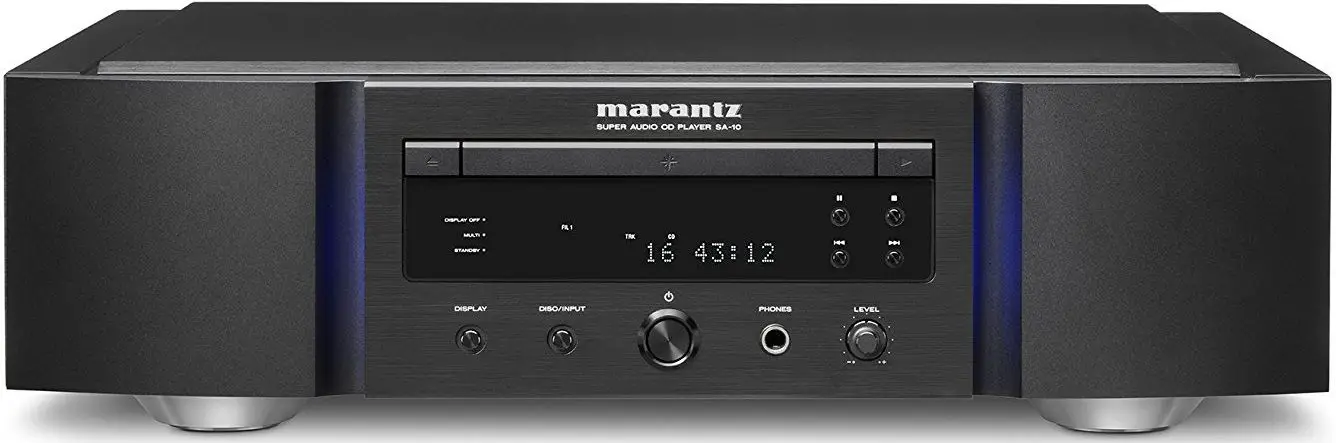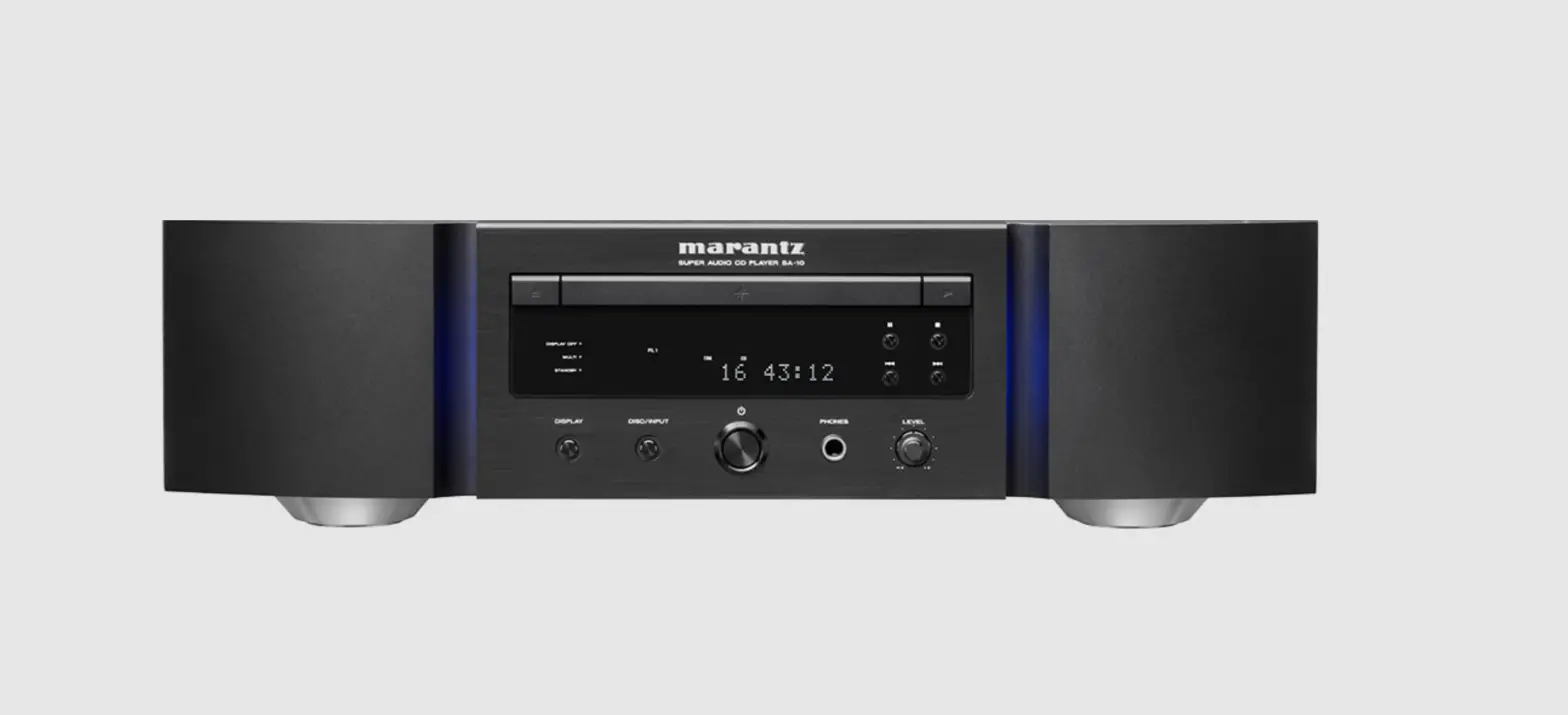

Model SA-10 Quick Start Guide
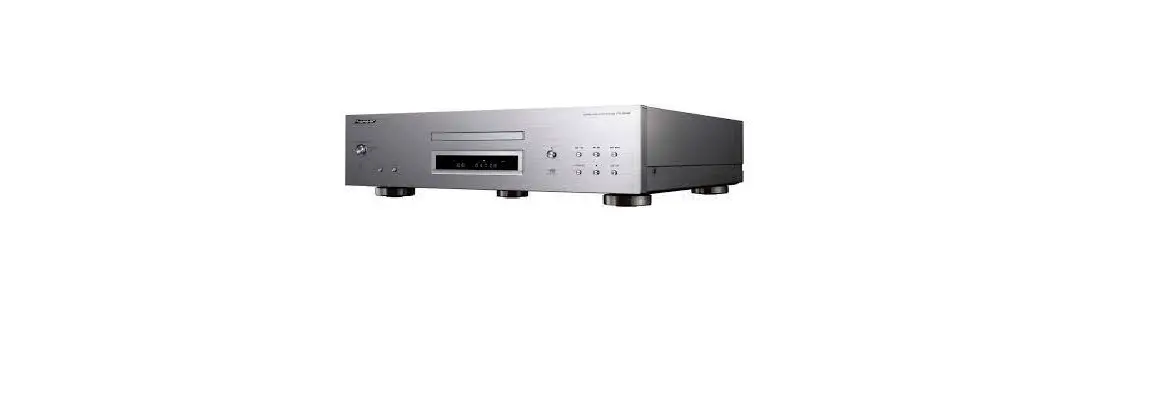
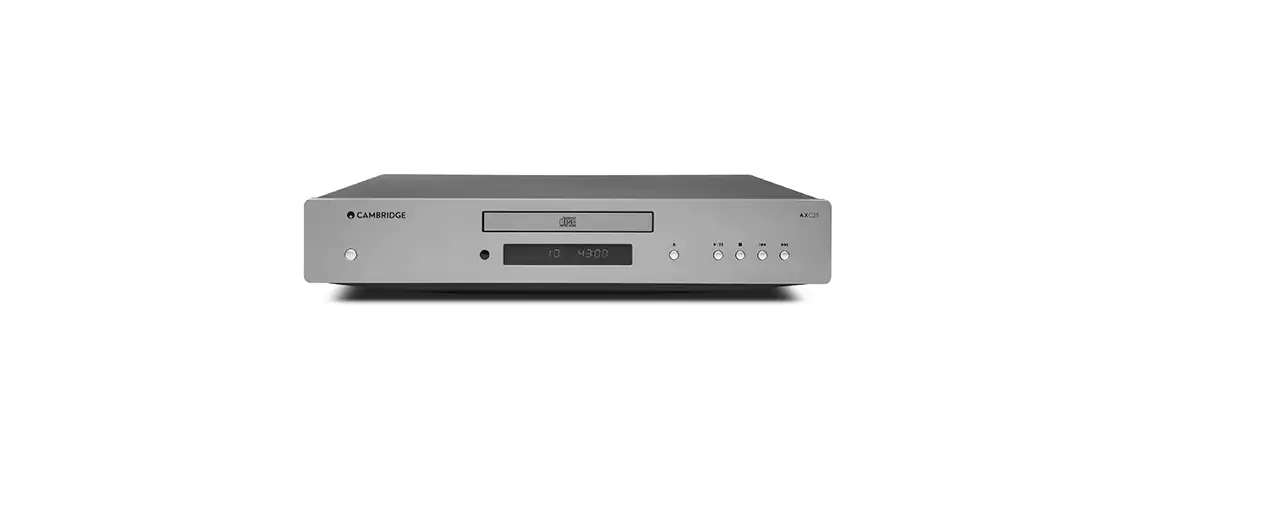
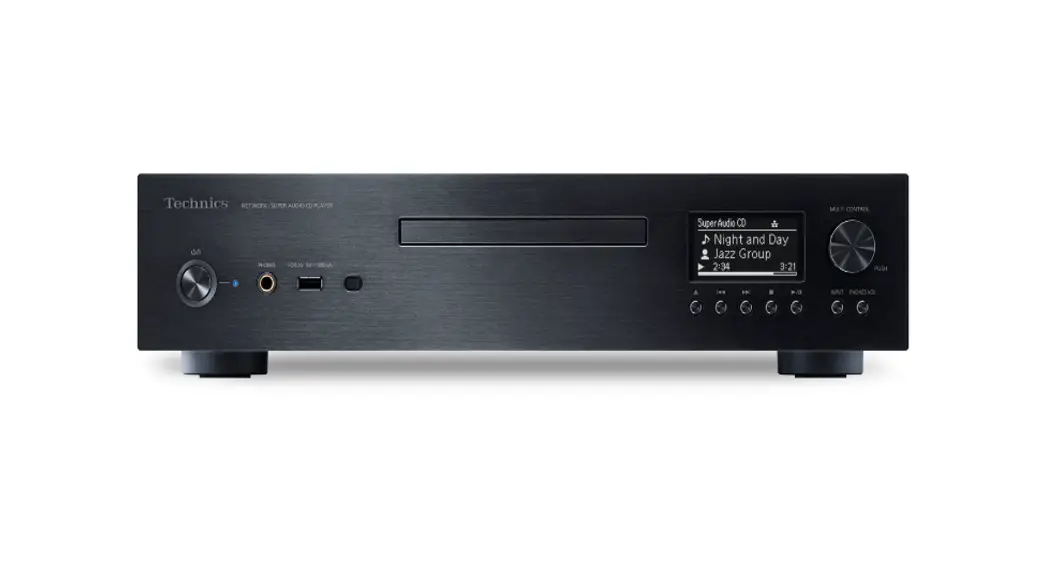
Super Audio CD Player
Welcome
Thank you for choosing a Marantz CD player. This guide provides step-by-step instructions for setting up your CD player.
Please do not return this unit to the store call for assistance.
If you need help… :
If you need additional help in solving problems, contact Marantz customer service in your area.
For details, see the Marantz homepage.
www.marantz.com
Before You Begin
What’s In the Box
Quick Start Guide  | Remote control unit 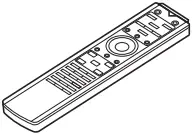 |
Owner’s Manual  | R03/AAA batteries  |
Safety Instructions 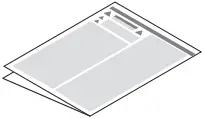 | Audio cable 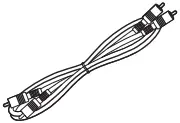 |
CD Player 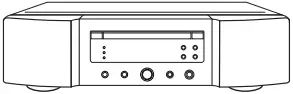 | Remote connector cable 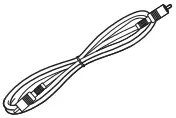 |
Power cord 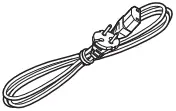 |
Required for Basic connections
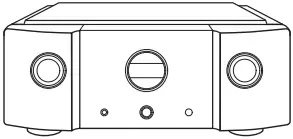 | 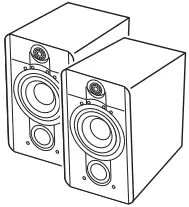 | 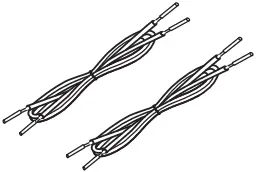 |
| Amplifier | Speaker systems | Speaker cables |
Optional
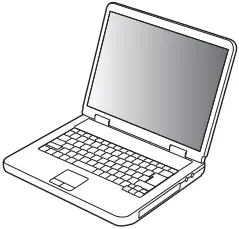 | 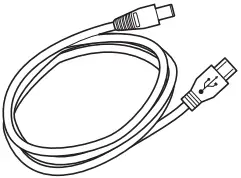 |
| Computer | USB cable |

- These drawings are for illustrative purposes only and may not represent the actual product(s).
Setup
There are seven steps to the setup process.
1 Install batteries in the remote control unit
2 Connect the CD player to the amplifier
3 Plug the power cord into a power outlet
4 Turn the CD player’s power on
5 Begin music playback
 Play a CD or Super Audio CD Play an iPod Play from a USB memory device
6 Installing the Windows driver software
7 Enjoying music using PC or Mac
1 Install batteries in the remote control unit
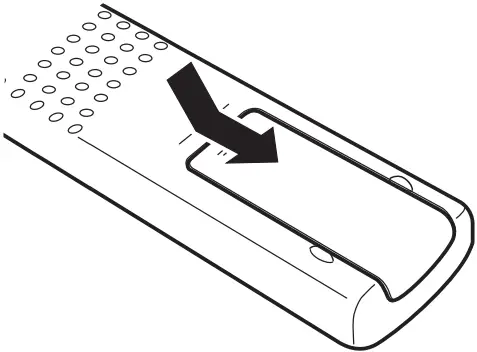

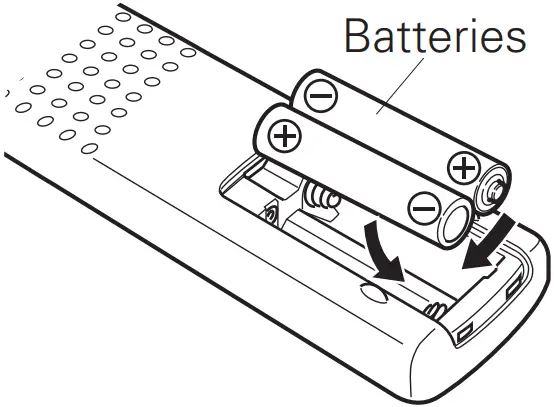
2 Connect the CD player to the amplifier
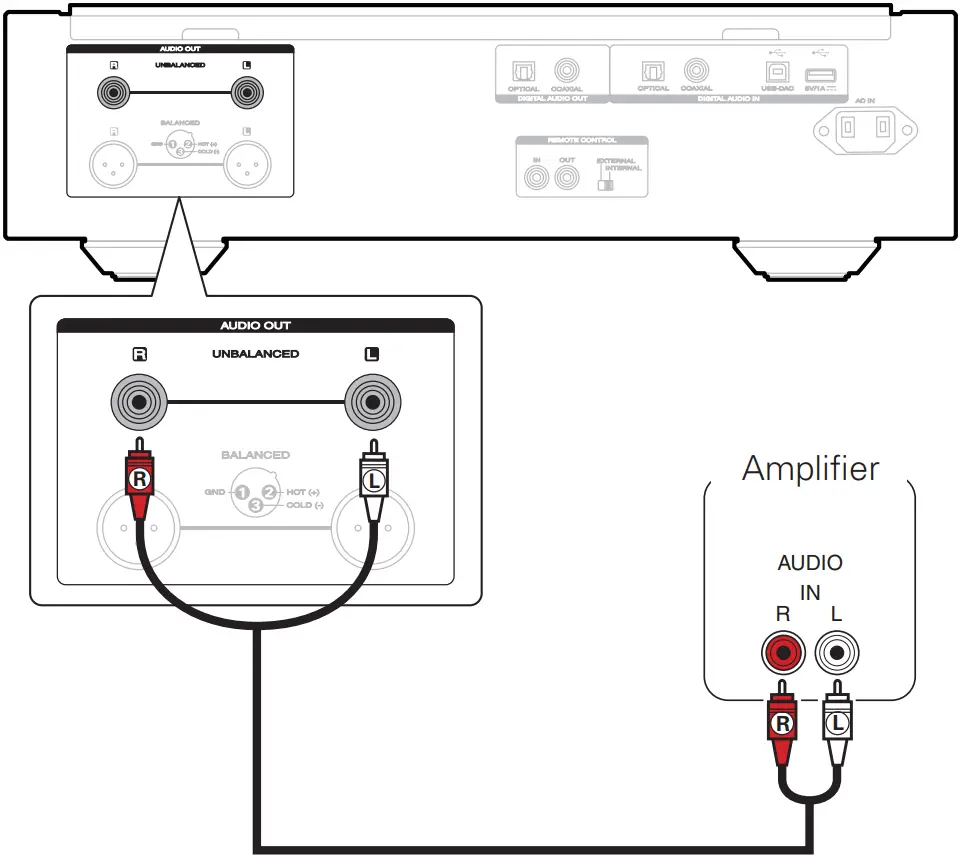
- This unit has both unbalanced and balanced connectors. The features of the balanced connectors are little effect of external noise and little shaking in the connector area. For details, see the included owner’s manual.
3 Plug the power cord into a power outlet
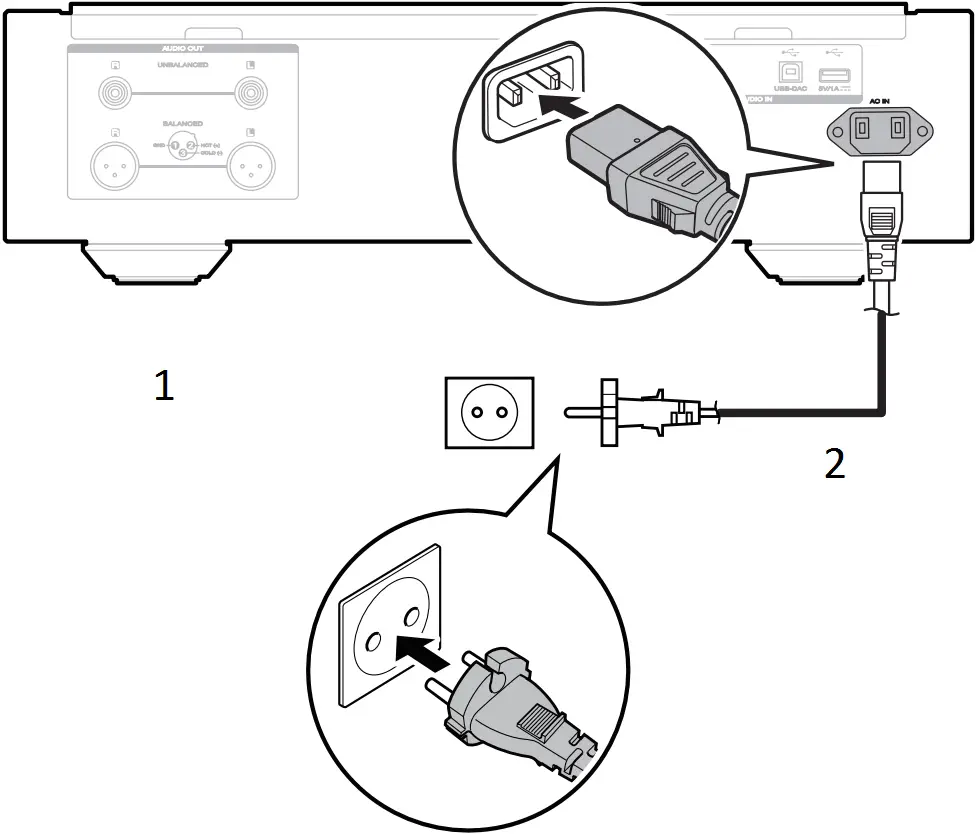
- Connect to household power outlet
(AC 230 V, 50/60 Hz) - Power cord
(supplied)
4 Turn the CD player’s power on
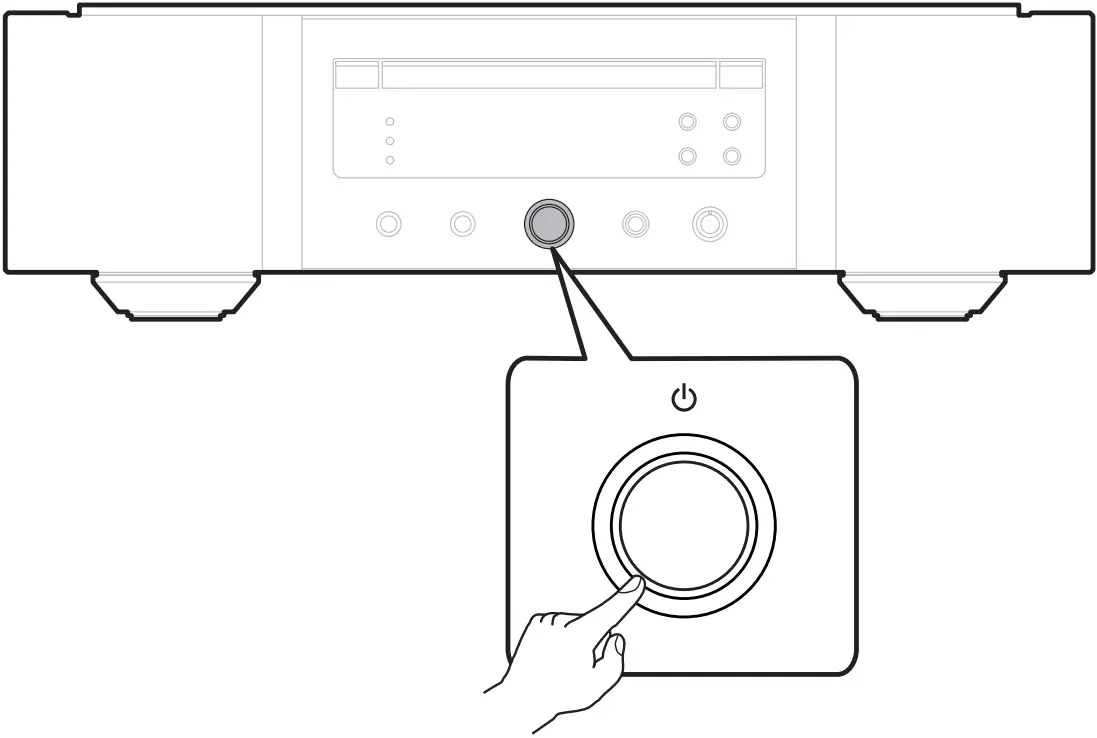
5 Begin music playback
 Play a CD or Super Audio CD
 Play a CD or Super Audio CD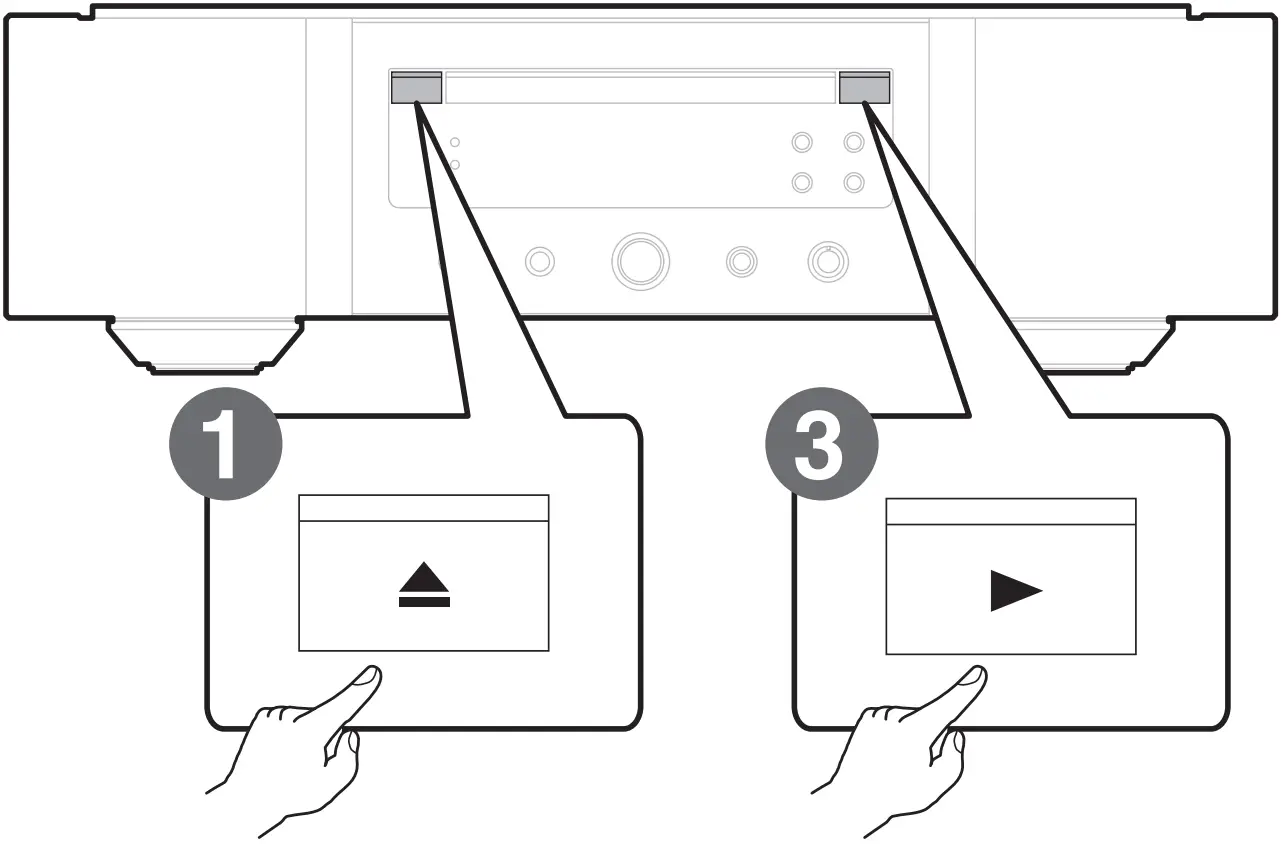
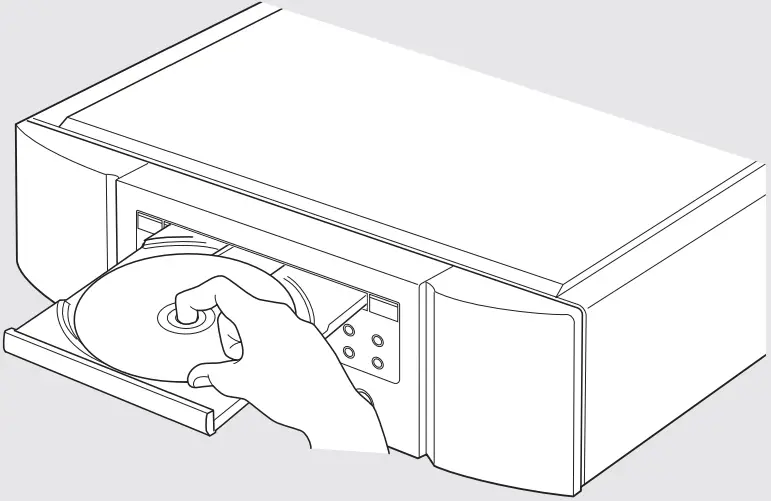
1 Press  to open the disc tray.
2 Place CD in the disc tray.
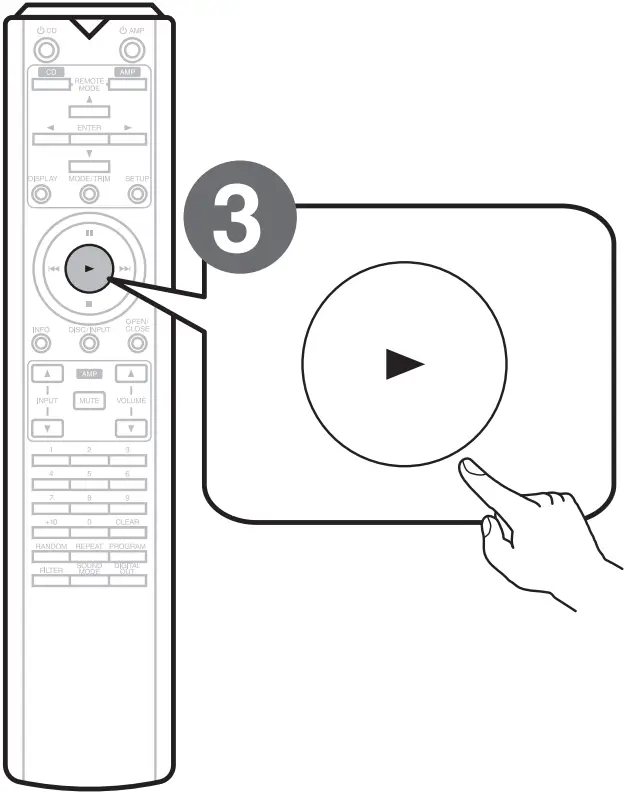
3 Press  .
.
Playback starts.
Play an iPod
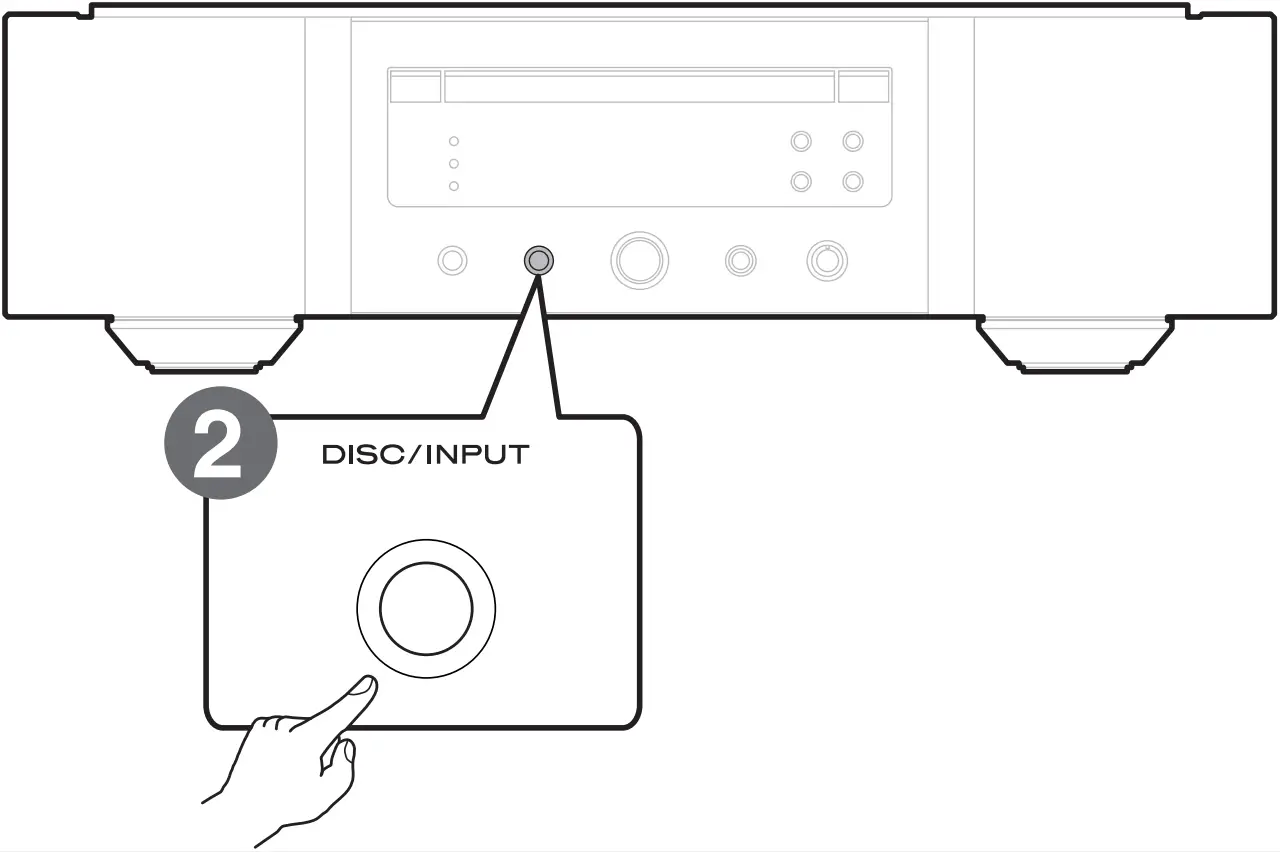
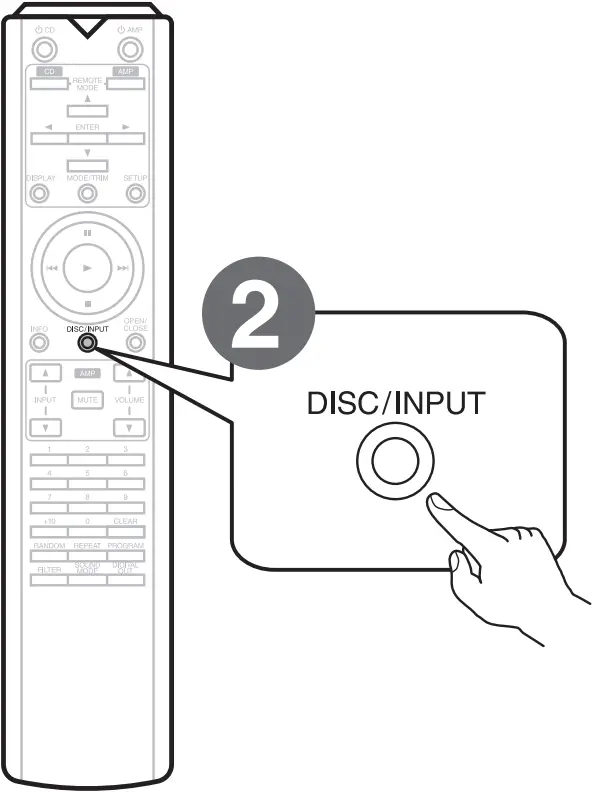
1 Connect the iPod to the USB port.
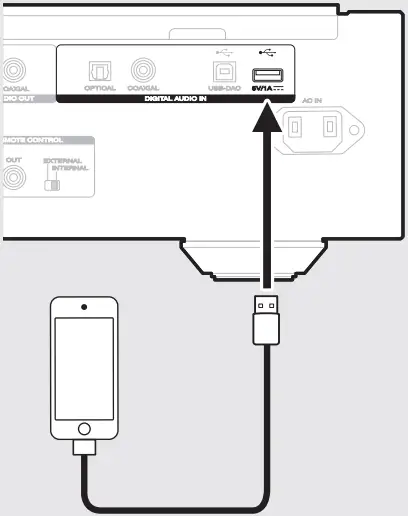
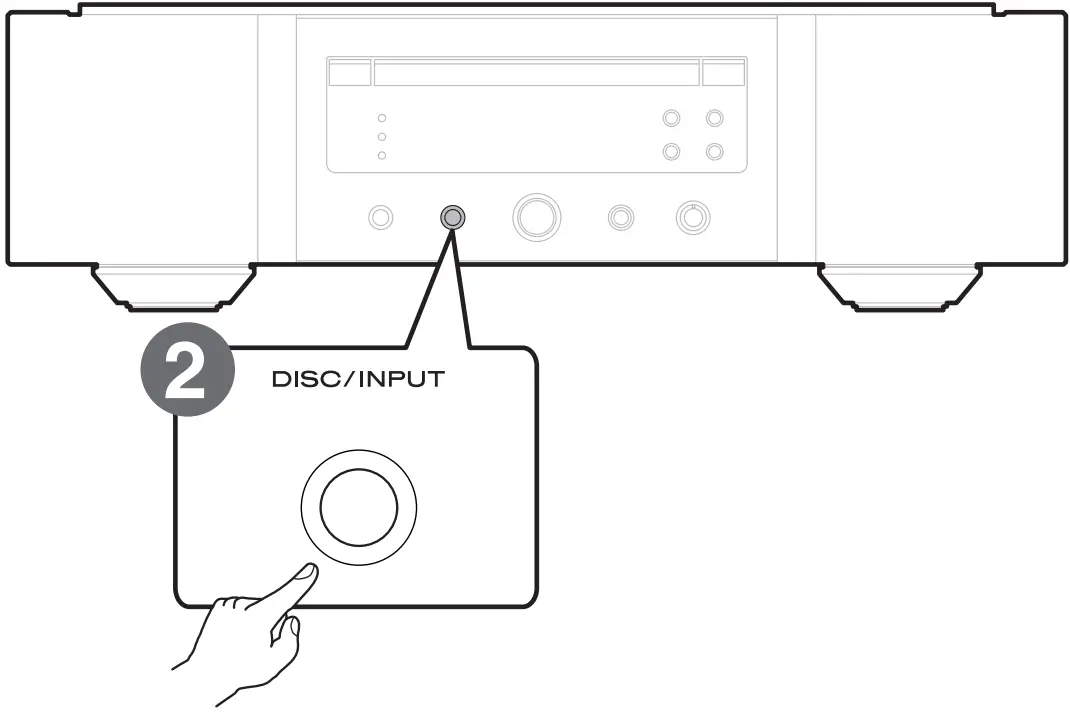
2 Press DISC/INPUT to select the playback media mode to “iPod/USB”.
• You can also select the playback media mode by pressing DISC/INPUT on the unit.
3 Operate iPod itself directly while seeing the iPod screen to play back music.
Playback starts.
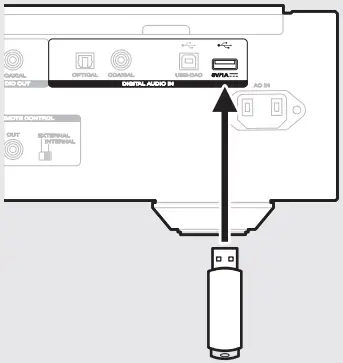
Play from a USB memory device
1 Connect the USB memory device to the USB port.
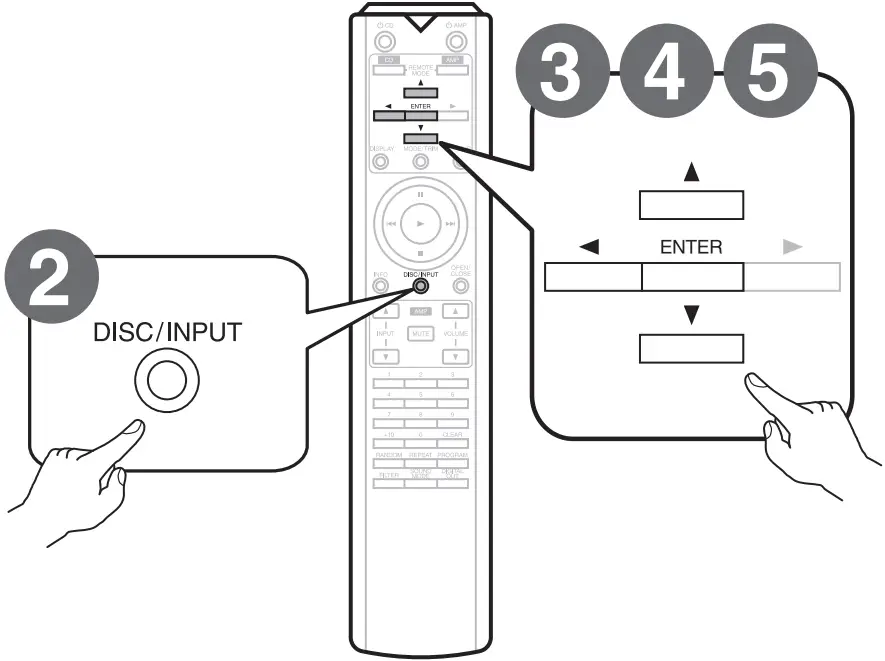
2 Press DISC/INPUT to select the playback media mode to “iPod/USB”.
- You can also select the playback media mode by pressing DISC/INPUT on the unit.
3 Press  .
.
The file/folder list appears in the display of this unit.
4 Use  to select the folder, then press ENTER.
5 Use to select the file, then press ENTER.
Playback starts.
6 Installing the Windows driver software
NOTE
The installation of the driver software is not necessary in the following cases.
- When you do not play back the music from a PC using USB-DAC of this unit.
- When using a Mac OS.
1 Download the dedicated driver from the “Download” section of the SA-10 page of the Marantz website (http://www.marantz.com/ pages/home.aspx) onto your PC.
2 Unzip the downloaded file, and double-click the exe file.
3 Install the driver.
1 Select the language to use for the installation.
2 Click “OK”.
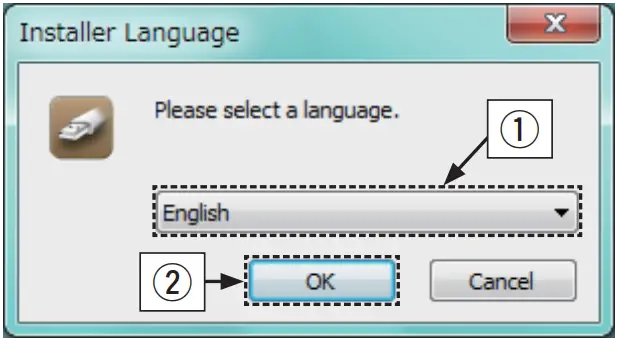
3 The wizard menu is displayed. Follow the instructions on the screen.
4 When the wizard is completed, click “Yes”.
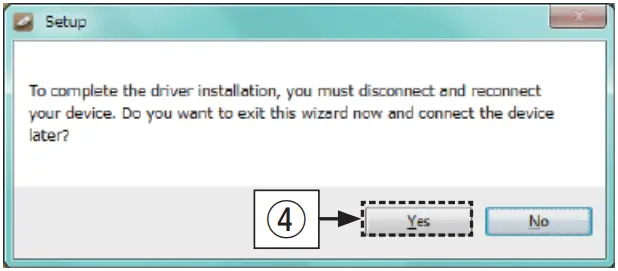
NOTE
- The driver software cannot be installed correctly if your PC is connected to the unit by a USB cable.
- If the unit and your computer are connected by a USB cable and the computer is switched on before installation, disconnect the USB and restart the computer.
- Please see the FAQ at www.marantz.com if you experience any issues getting audio to play from your computer through the SA-10. You may also want to check the support pages for your audio player application.
7 Enjoying music using PC or Mac
 Connect to PC or Mac
1 Connect to PC or Mac.
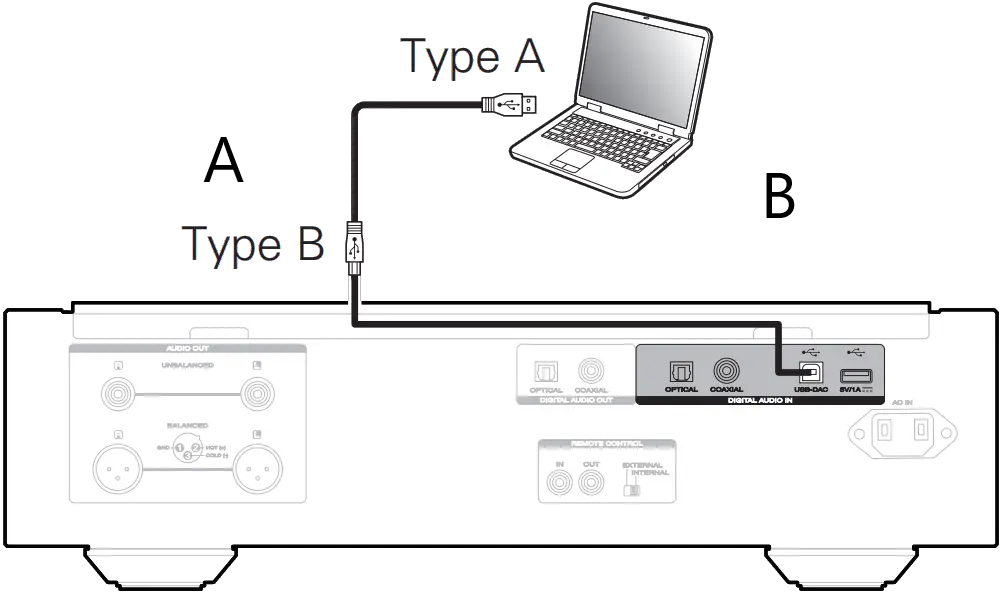
A USB 2.0 cable
(Sold separately)
B Computer on which the driver software and audio player software are installed
2 Press  on this unit.
- When the unit power is turned on, the computer automatically finds and connects to the unit.
Listen to PC or Mac Audio
1 Press DISC/INPUT to change the playback media mode to “USB-DAC”.
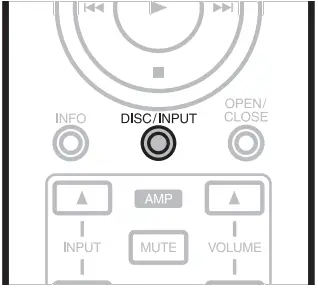
2 Set the audio signal destination to this unit on the computer.
System Requirements
- Windows 7, Windows 8, Windows 8.1 or Windows 10
- Mac OS X 10.9, 10.10 or 10.11
[Windows OS]
1 Click the “Start” button and click “Control Panel” on the PC.
• The control panel setting list is displayed.
2 Click the “Sound” icon.
• The sound menu window is displayed.
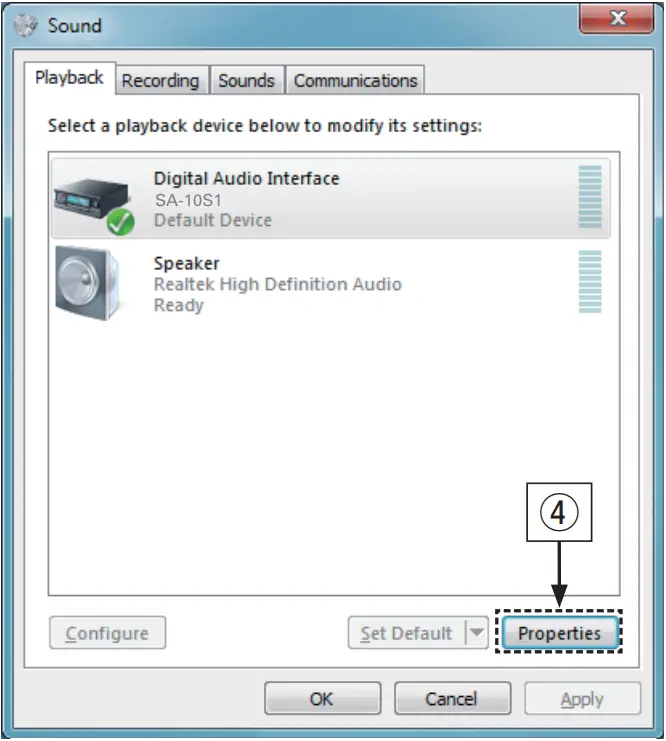
3 Check that there is a checkmark next to “Default Device” under in “SA-10S1” of the “Playback” tab.
• When there is a checkmark for a different device, click “SA-10S1” and “Set Default”.
4 Select “SA-10S1” and click “Properties”.
• The SA-10S1 Properties window is displayed.
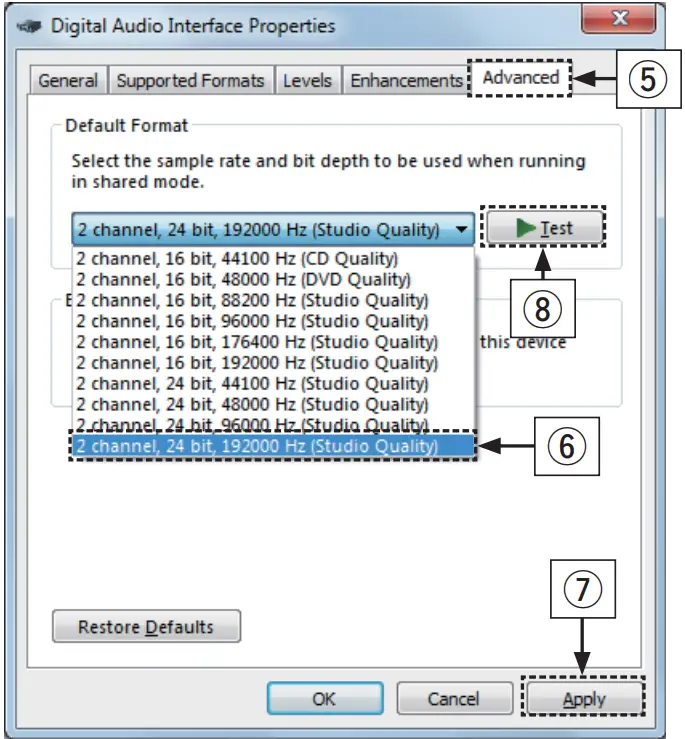
5 Click the “Advanced” tab.
6 Select the sampling rate and bit rate to be applied to the D/A converter.
• It is recommended that “2 channel, 24 bit, 192000 Hz (Studio Quality)” is selected. (Windows 7)
• It is recommended that “2 channel, 32 bit, 192000 Hz (Studio Quality)” is selected.
(Windows 8/Windows 8.1/Windows 10)
7 Click “Apply”.
8 Click “Test”.
• Check that audio from this unit is output from the PC.
[Mac OS X]
1 Move the cursor to “Go” on the computer screen, and then click “Utilities”.
• The utility list is displayed.
2 Double-click “Audio MIDI Setup”.
• The “Audio Devices” window is displayed.
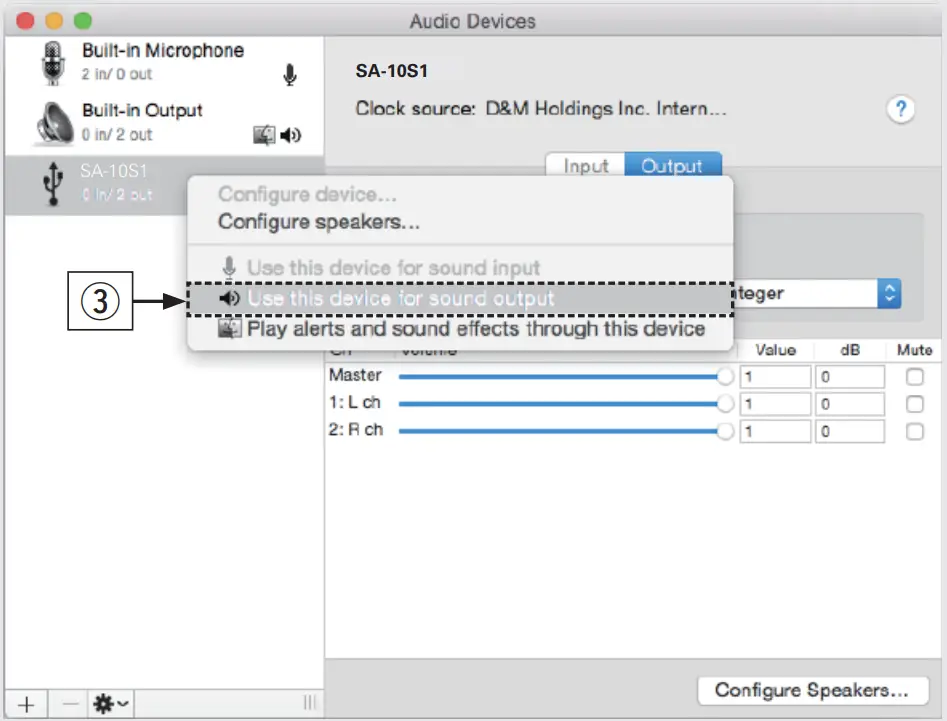
3 Check that “Use this device for sound output” is checked in “SA-10S1”.
• If a different device is checked, select and “Secondary click” on “SA-10S1”, and then select “Use this device for sound output”.
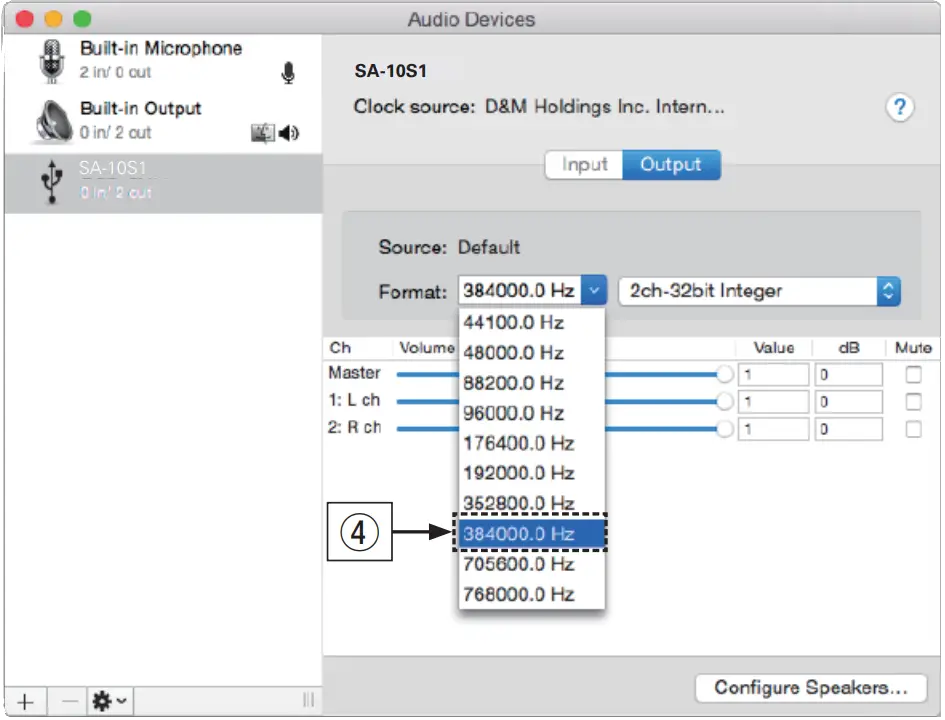
4 Select the “SA-10S1” format.
• It is normally recommended to set the format to “384000.0 Hz” and “2ch-32 bit Interger”.
5 Click “Quit Audio MIDI Setup”.
3 Use your favorite music applications on your PC/Mac to play audio through the SA-10.
- For high resolution audio playback you will need to obtain an advanced audio player software such as JRiver Media Center or Audirvana.
USB : DSD11.2M
The sampling frequency of the music file is displayed.
NOTE
- Additional settings to output audio to the SA-10 may have to be selected in your advanced audio player application.
Owner’s Manual
Please reference to the Owner’s Manual for more details about the setup and operation of the CD player and its features.
 Online Version
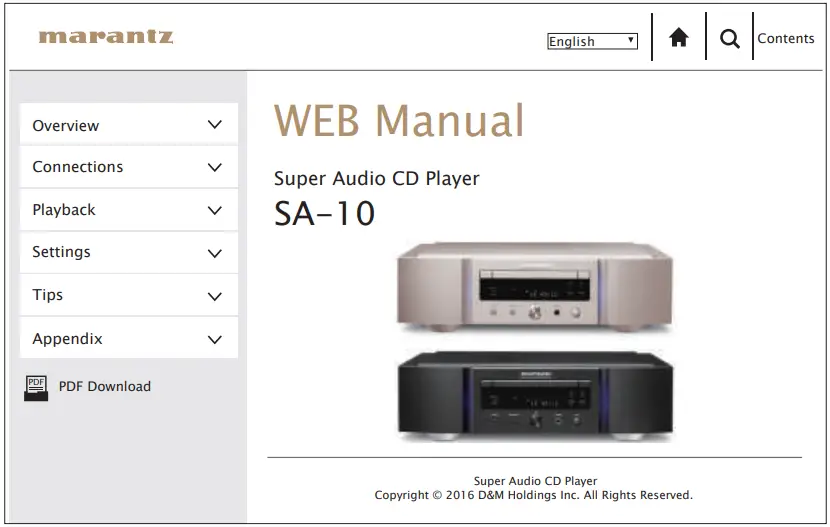
Enter the following URL into your web browser: manuals.marantz.com/SA10/EU/EN/
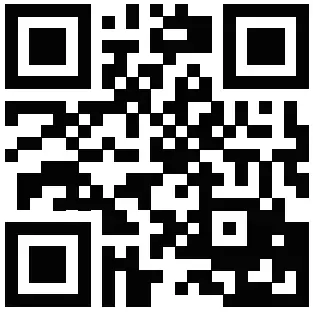
Online Manual
Printable Version
Access the print version of the owner’s manual from the included CD-ROM or select the “PDF Download” link from the
Online Version.
1 Insert the disc into your PC.
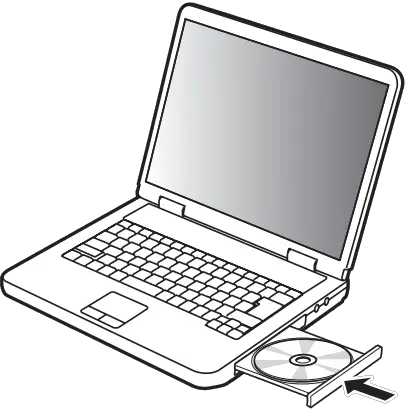
2 Follow the screen or double click on the PDF file.
www.marantz.com
You can find your nearest authorized distributor or dealer on our website.
 is a registered trademark.
Printed in Japan 5411 11354 00AM
Copyright © 2016 D&M Holdings Inc. All Rights Reserved.
 SA-10
SA-10 Marantz™ - Quality Receivers, Amplifiers, & Hi-Fi Components