
GSR
Generationx2
SiriusXM Satellite Radio interface
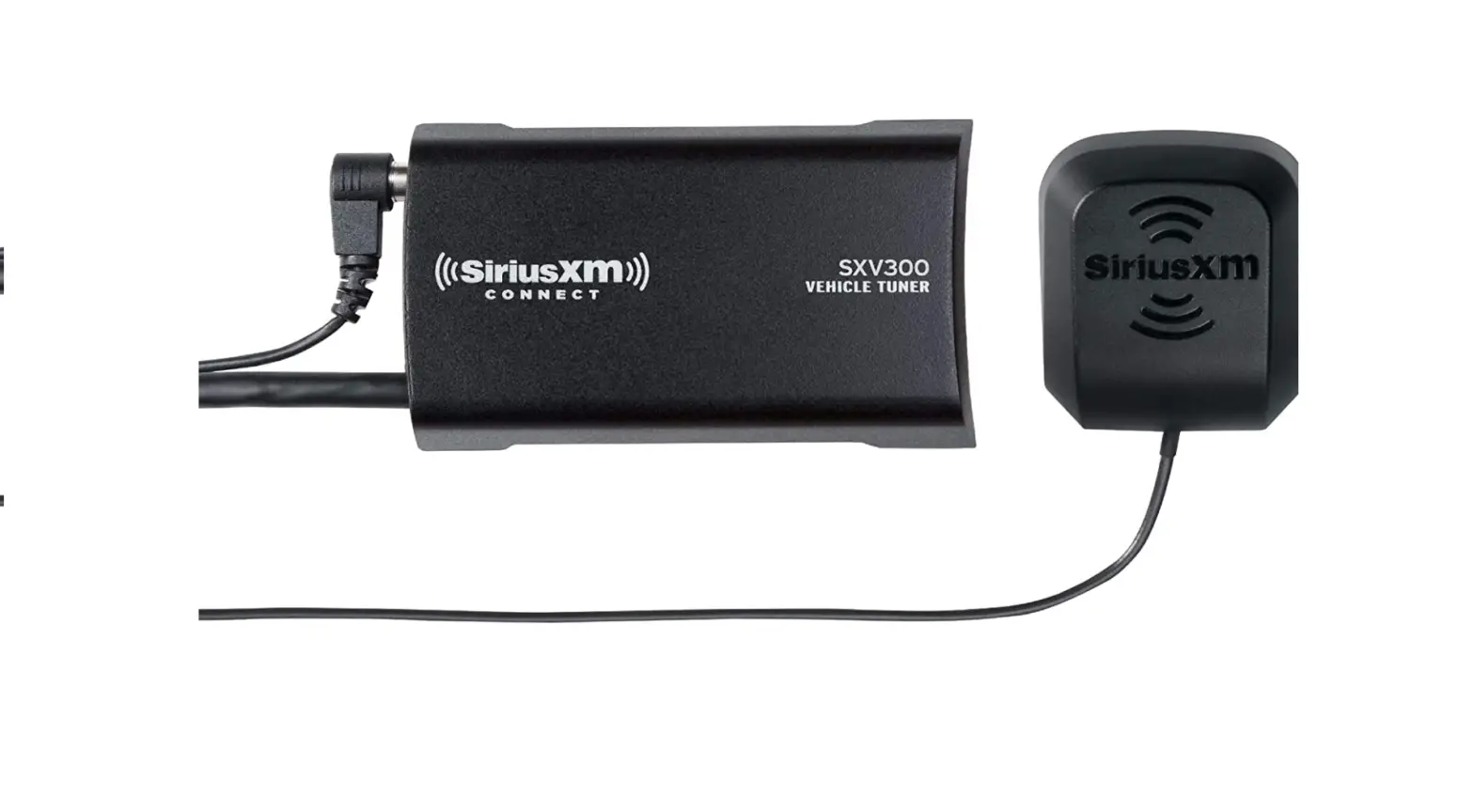
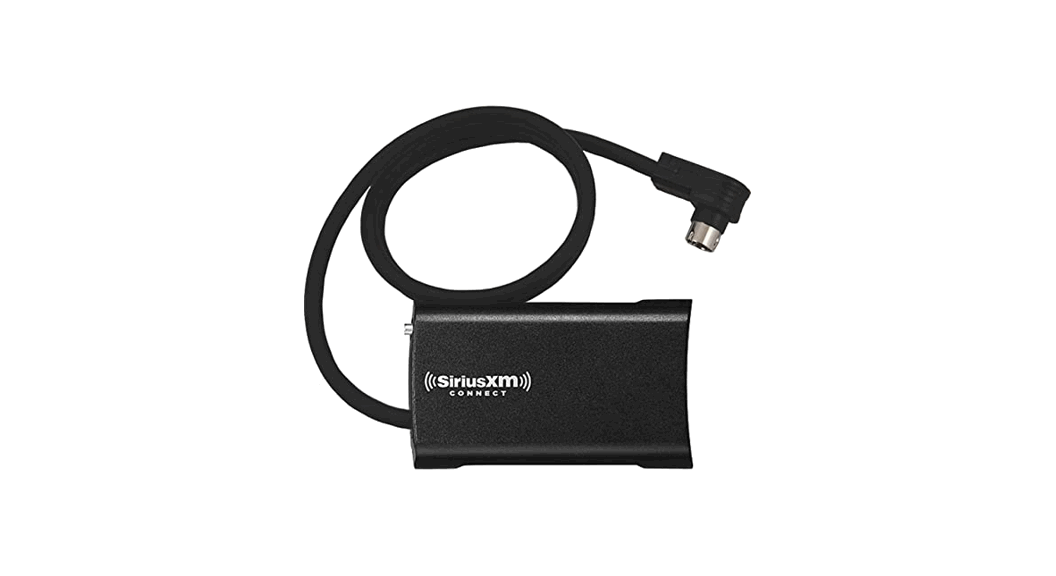
(SXV300 SiriusXM Tuner required)
Owner’s Manual
UNIVERSAL
WARNING: Cancer and Reproductive Harm – www.P65Warnings.ca.gov.
Installation
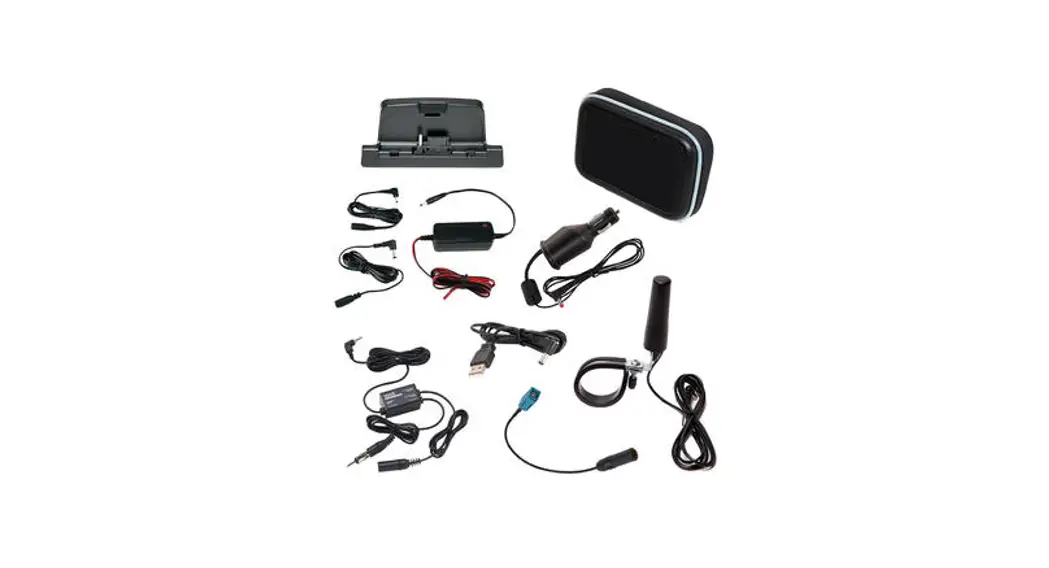
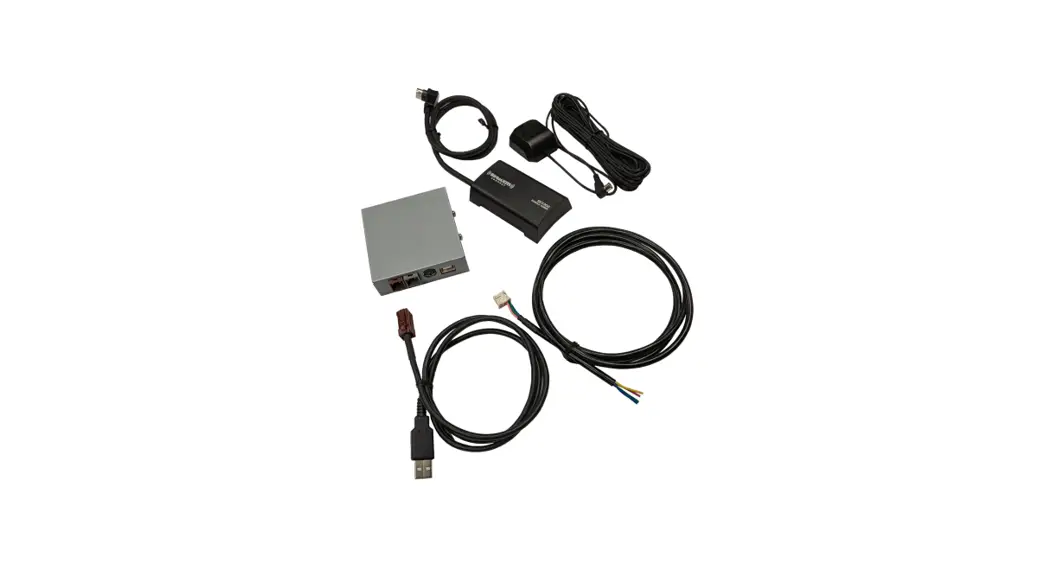
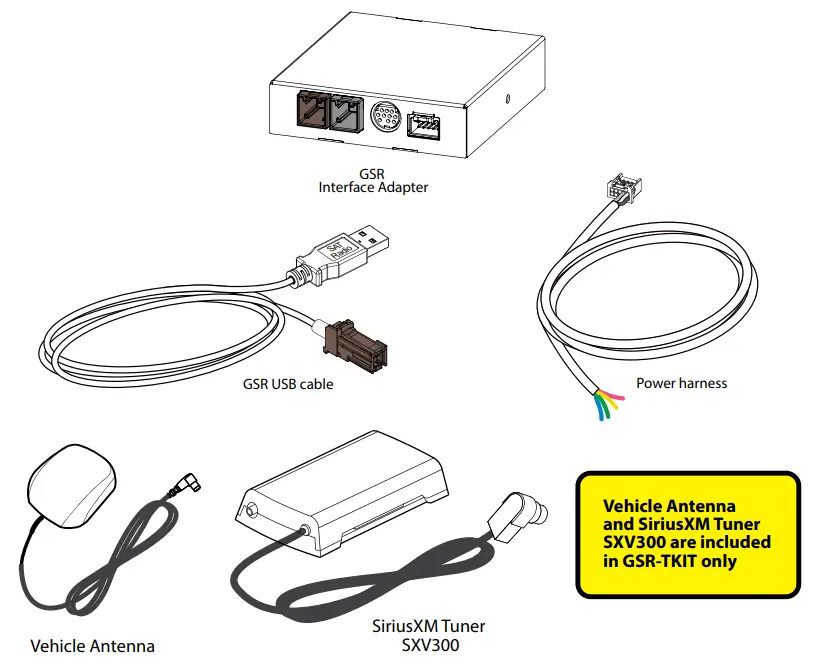
What’s Included
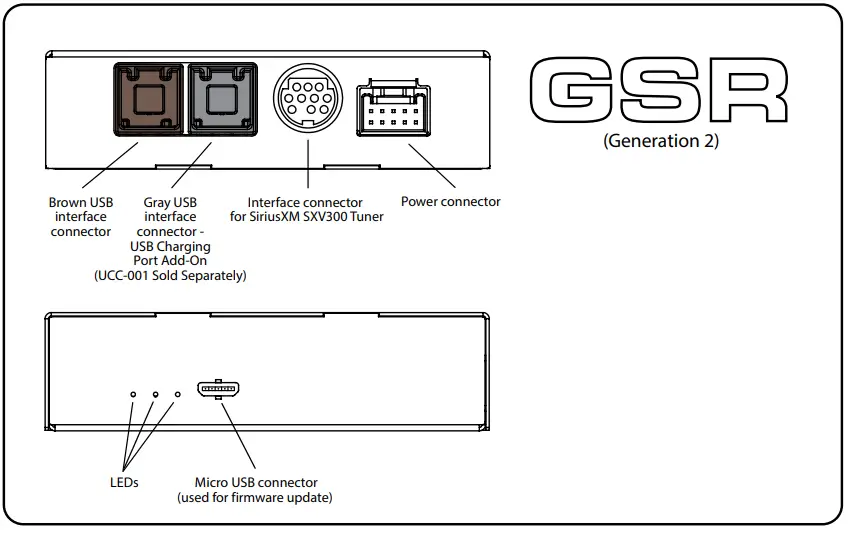
GSR Connectors and Ports
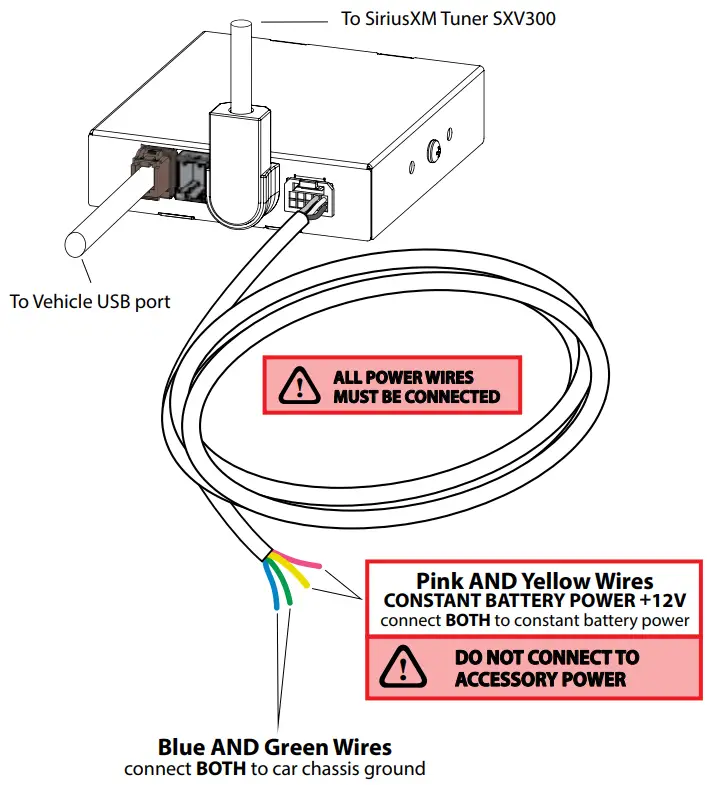
Connecting GSR CONSTANT BATTERY POWER ONLY
GSR-UVxx Firmware Update
GSR-UVxx Universal Unit is the ONLYONLY Model you must flash
A vehicle-specific firmware update is ONLY necessary for a GSR-UVxx model.
There is no need to update the firmware if you have a different model.
If you have a GSR-UVxx model, see below and the next page for information on configuring this unit for your vehicle.
We strongly recommend that you install the unit in an easily accessible location, so you can later update the firmware.
About GSRxx (Gen 2) firmware update

LED Guide
- Red LED lights up and then Yellow and Green – Update was sucessful.
- Red LED lights up, and then Yellow and Red LED – Corrupt file, no file, error during update.
- Red LED lights up, and Red steady and Green blinking – update failed.
- If Red LED never lights up, and LEDs just go to Yellow and Green LEDs then GSR didn’t detect the flash drive and loaded normally.
- Green LED is blinking – Firmware loading failed.
Update instructions YouTube Video can also be viewed here: https://youtu.be/w0W9DbNy1Nc

Log in to Dealer Portal at www.vaistech.com to download the firmware and update instructions.
Firmware Update Troubleshooting
| Problem | Solution |
| I connected the flash drive with a firmware on it and nothing happened | a. Verify to make sure your PC didn’t add special characters after the file name. Sometimes (1) is added by PC operating system. File name should read gsr_XXXX_1_03_XXX.bin – no characters should be added after .bin b. Plug the flash drive back to your PC and check the file name. If your extension didn’t change from .bin to .ok it means that GSR: 1. doesn’t recognize the flash drive or 2. doesn’t recognize the file c. Format your flash drive to FAT32 and make sure no other files are present on your flash drive |
| I can’t open update file if I double click on it | Update file is a bin file and not designed to be opened. You need to save it on your flash drive in order to flash the GSR-UVXX unit |
Source Selection
 General Information
- Illustrations in this Owners Manual are for reference only. Your radio and the screens displayed will vary by car manufacturer and radio.
- Some functions of your radio may not be available while the vehicle is in motion. When present, steering wheel controls are always available.
- For questions about your SiriusXM subscription contact SiriusXM at 1-866-635-2349.
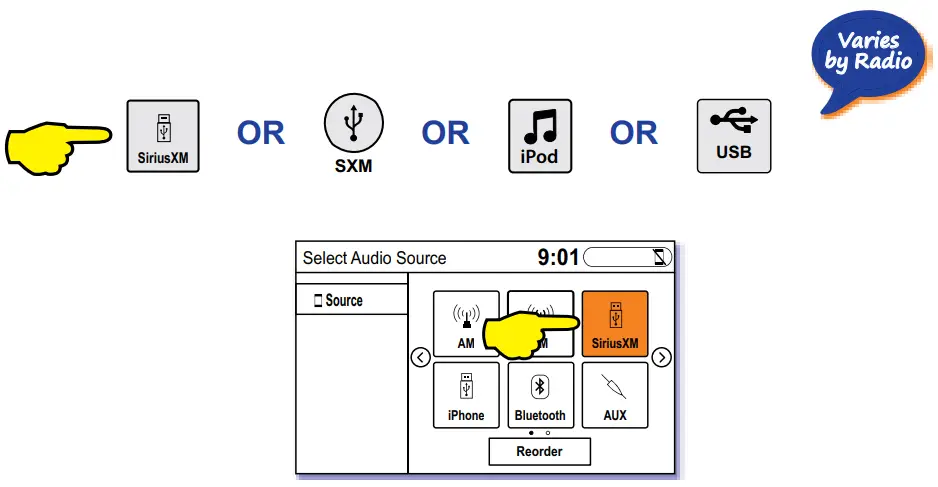
Select SiriusXM as the Audio Source
A. Select Audio or Media or Source: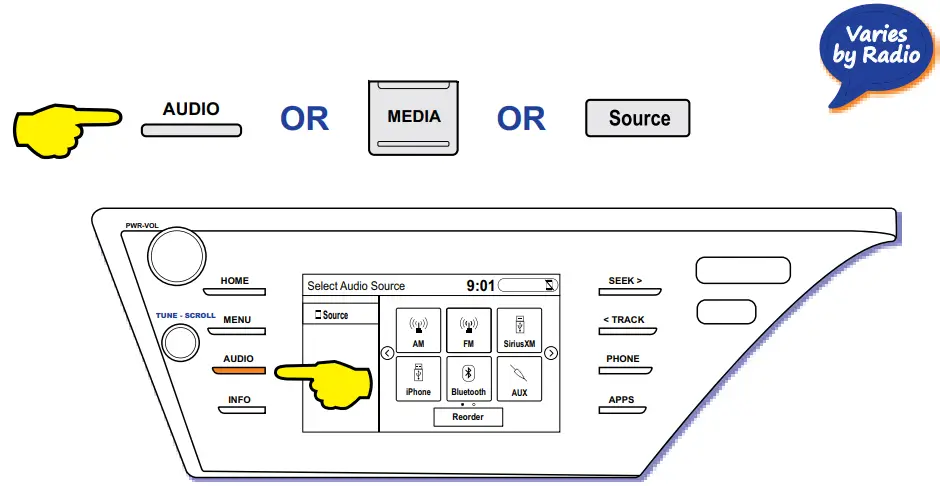
B. Select SiriusXM or SXM or iPod or USB:
Channel Selection
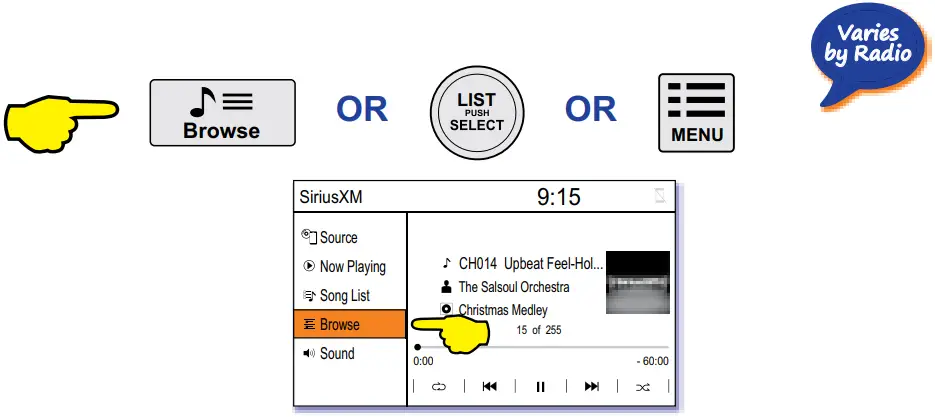
Browse and Select SiriusXM Channels
A. Select Browse or List or Menu:
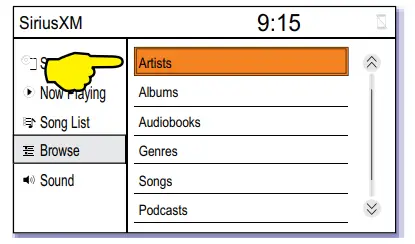
B. Select Artists:
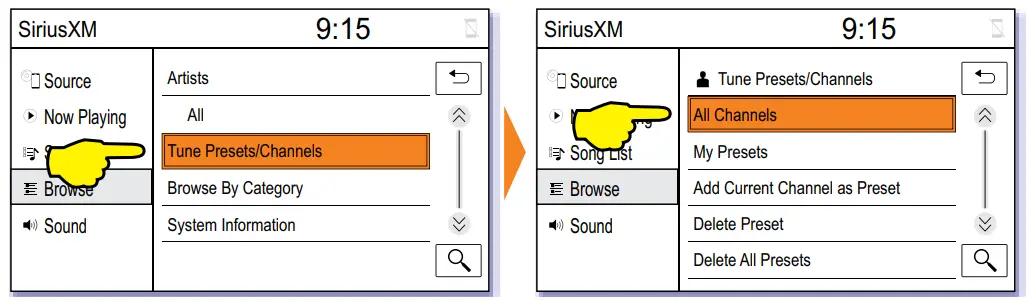
C. Select Tune Presets/Channels, select All Channels, and select a channel:
D. Use Track Seek or Tune to tune previous/next channel:
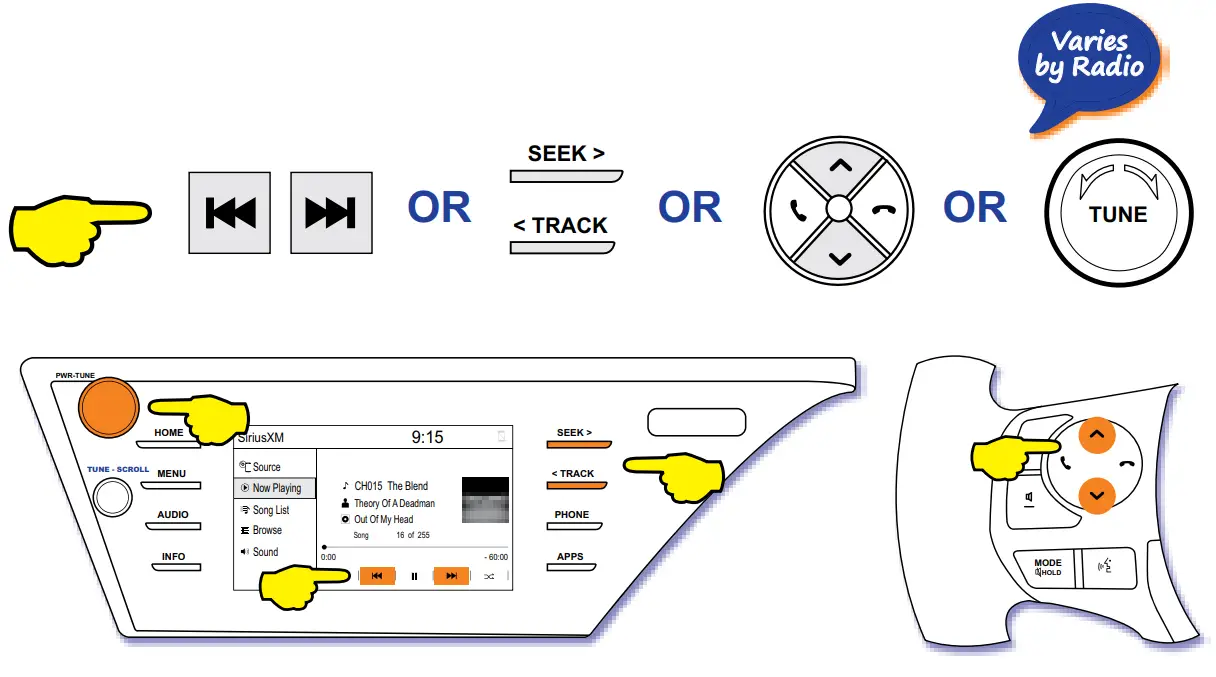
Presets
Add a Preset
A. Follow A and B on page 9 (select Browse or List or Menu and then select Artists).
B. Select Tune Presets/Channels:
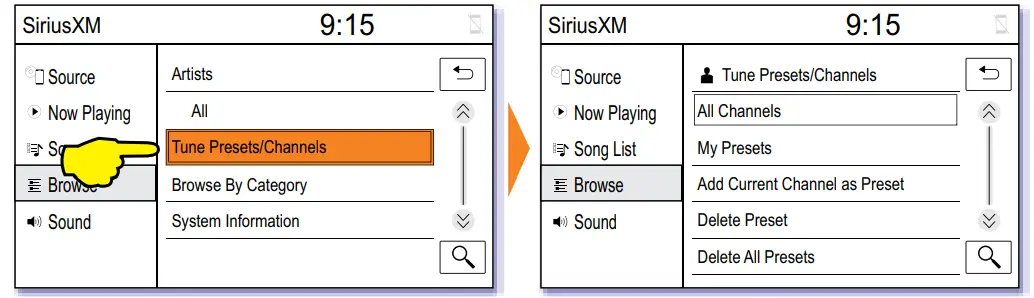
C. Select Add Current Channel as Preset, and select the channel:
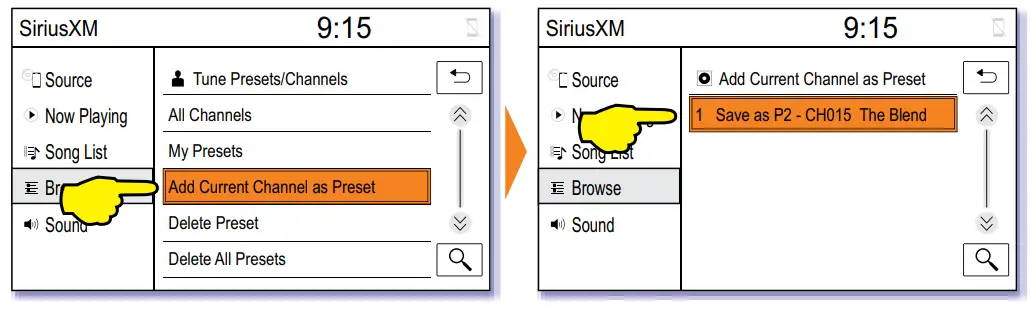
Tune a Preset
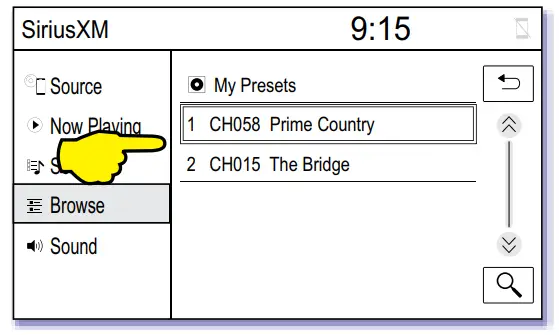
To select a specific Preset:
A. Select Tune Presets/Channels, and select My Presets:
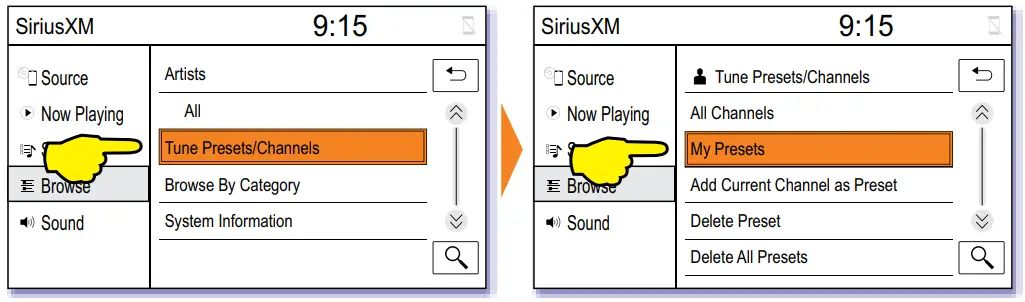
B. Select a preset:
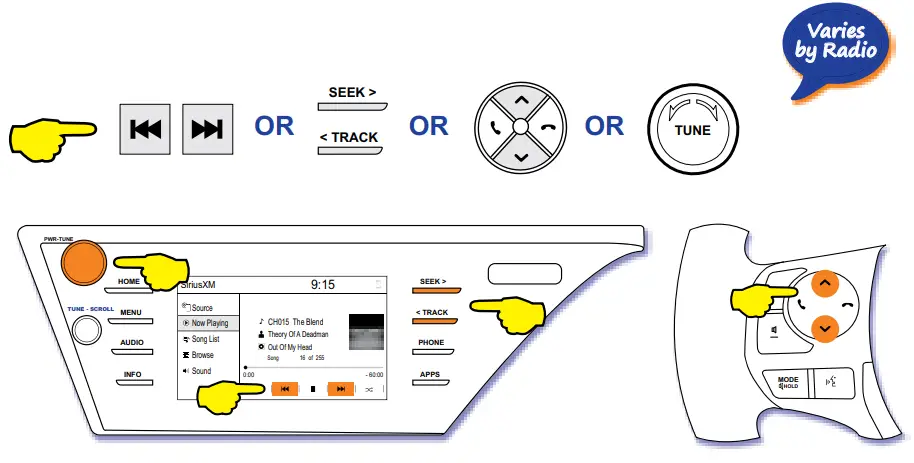
To quickly tune the previous or next Preset:
Long press Track Seek to tune previous/next preset:
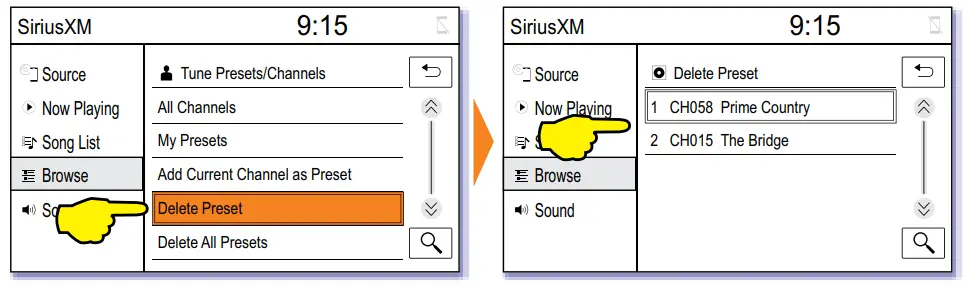
Delete a Preset
Select Delete Preset, and select the preset to be deleted:
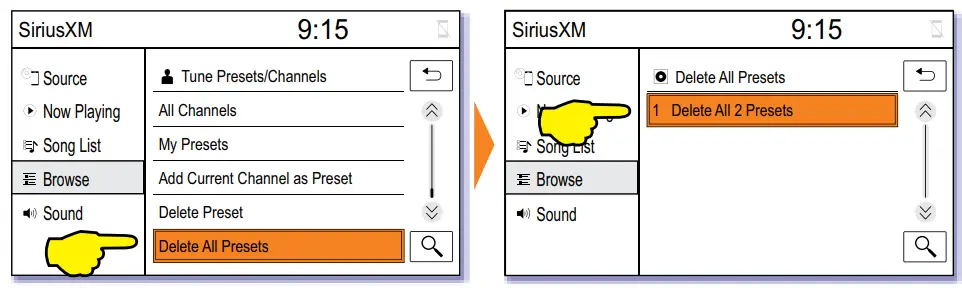
Delete All Presets
Select Delete All Presets, and select Delete All [x] Presets:
Categories, System Information, and Troubleshooting
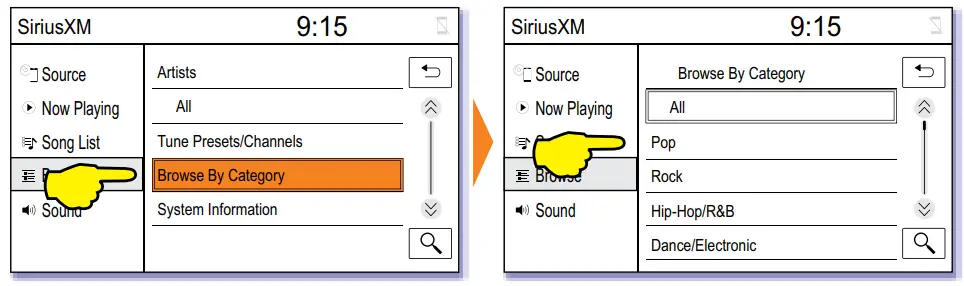
Browse SiriusXM Categories
A. Follow A and B on page 9 (select Browse or List or Menu and then select Artists).
B. Select Browse By Category and select a category:
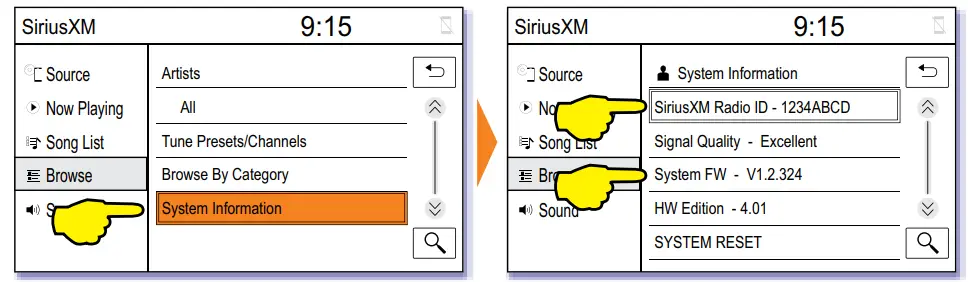
System Information
A. Follow A and B on page 9 (select Browse or List or Menu and then select Artists).
B. Select System Information to show the SiriusXM Radio ID and the System FW (Firmware):
Troubleshooting
| Problem | Solution |
| My presets are gone after I turn the car off | GSR requires constant 12V power connection. If the GSR doesn’t keep presets after the car is turned off, this means GSR was connected to Accessory power source |
| SiriusXM doesn’t appear as the source | Verify the power connection by checking the power harness connection or by verifying the lights at LEDs on the GSR module Verify the USB connection between the GSR and vehicle’s USB port |
| Check Antenna message | Verify the antenna connection to the tuner |
| No Signal message | Make sure the SiriusXM antenna has a clear view of the southern sky |
| Check Tuner message | Verify the tuner connection to the GSR module or replace the tuner |
Disclaimers & Warnings
WARNING
DO NOT DISASSEMBLE OR ALTER
Doing so may result in an accident, fire or electric shock
Do not block the airbag
Do not mount product or any added audio and/or video equipment where it can obstruct the operation of any safety devices such as the airbag.
Distraction warning
Do not let product or any added audio and/or video equipment distract you while you are driving.
BEFORE WIRING, DISCONNECT THE CABLE FROM THE NEGATIVE BATTERY TERMINAL
Before starting any installation work , you must wait 90 seconds after turning the ignition switch to the LOCK position and disconnecting the negative (-) terminal from the battery. The supplemental restraint system (airbag) is equipped with a backup power source. If installation work is started less 90 seconds after disconnection of the negative (-)battery terminal, the SRS may deploy. When the negative (-) terminal cable is disconnected from the battery the clock and audio systems memory will be erased. Before starting installation work make a record of the clock and audio systems memory settings. When installation is complete, reset the clock and audio systems to their previous settings. Check power tilt, power telescopic steering column, front power seats, power mirrors, and power shoulder belt anchorage are equipped with a memory function. When installation is complete, it is necessary to readjust the features to their previous settings Never use a backup power supply (such as another battery) during installation work to avoid losing these memory settings.
CAUTION
DO NOT SPLICE INTO ELECTRICAL CABLES
Never cut away cable insulation to supply power to other equipment. Doing so will exceed the current carrying capacity of the wire and result in fire or electric shock .
DO NOT ALLOW CABLES TO BECOME ENTANGLED IN SURROUNDING OBJECTS
Cables or wiring that obstruct or get caught on places such as the steering wheel, shift lever, brake pedals, etc. can be extremely hazardous.
DO NOT INSTALL IN LOCATIONS WITH HIGH MOISTURE OR DUST
Moisture or dust may result in product failure.
HAVE THE WIRING AND INSTALLATION DONE BY EXPERTS
The wiring and installation of this product requires special technical skills and experience.
USE ONLY SPECIFIED ACCESSORY PARTS
Use of other than specified parts may damage product internally.
FOLLOW THE OPERATIONAL AND INSTALLATION MANUALS.
YOU SHOULD READ AND FAMILIARIZE YOURSELF THOROUGHLY WITH THE FOLLOWING INFORMATION PRIOR TO INSTALLING AND USING THIS UNIT. IN ADDITION, YOU MUST CAREFULLY READ AND FOLLOW THE INSTALLATION SCHEMATICS/INSTRUCTIONS FOR THE PRODUCT AND THE VEHICLE IN WHICH IT IS BEING INSTALLED. FAILURE TO FOLLOW INSTALLATION INSTRUCTIONS MAY DAMAGE THE PRODUCT AND THE VEHICLE, WILL VOID THE PRODUCT WARRANTY, AND MAY VOID THE VEHICLE WARRANTY
CHECK YOUR LOCAL LAWS
Some States/Provinces or other governmental jurisdictions (such as cities) may have laws that prohibit the operation of a video screen within the sight of the Driver. If you have purchased such a product, you should use the product only in locations where it is legal to do so, and if you do use the product, set up the screen so it is only visible to passengers.
TROUBLESHOOTING
Should this product fail to operate properly, please contact your Dealer or our Customer Service Department at [email protected].
 About SiriusXM Satellite Radio Operation
The unit may refuse to change the channel if your reception is going ON and OFF.
Please wait until your reception stabilizes in order for the unit to allow you to change the channel easily.
Due to bad reception in some areas, SiriusXM Satellite Radio may not work and/or not able to display text.

Warranty is available for download: https://www.vaistech.com/download/15244/
To request a paper warranty copy please contact us:
VAIS Technology
Warranty Department
8811 American Way
Unit 125
Englewood, CO 80112
720-733-2348
[email protected]
VAIS Technology, 8811 American Way, Englewood, CO 80112 www.vaistech.com Phone: 720-733-2348 [email protected]
VAIS Technology SiriusXM integration application guide
8811 American Way, Suite 125. Englewood CO 80112
Tel: 720-733-2348 Fax: 720-528-7683 E-mail: [email protected]
| Make | Model | Year | Audio System | SiriusXM Integration | |||
| Pre-programmed by VAIS prior to shipping | Requires firmware flash by VAIS Dealer | Emulation for SL3sat-T programing | |||||
| Back of the radio Connection | USB Connection | USB Connection | |||||
| Toyota | |||||||
| 4 Runner | 2005-2013 | Without JBL | SL3sat-T | CD | |||
| With JBL, Navigation or AM/SAT button | SL3sat-T | SAT | |||||
| 2014-2016 | With factory USB | GSR-TY51 | GSR-TY01 | GSR-UV01 | |||
| 86 | 2017 – 2019 | Without Navigation | GSR-TY51 | GSR-TY01 | GSR-UV01 | ||
| With Navigation | GSR-TY03 | GSR-UV01 | |||||
| Avalon | 2005-2011 | Without JBL | SL3sat-T | CD | |||
| With JBL, Navigation or AM/SAT button | SL3sat-T | SAT | |||||
| 2012-2014 | With Touch screen or AM/SAT button | SL3sat-T | SAT | ||||
| 2015 | With factory USB | GSR-TY51 | GSR-TY01 | GSR-UV01 | |||
| Camry/Solara | 2005-2014* | Without JBL | SL3sat-T | CD | |||
| With JBL, Navigation or AM/SAT button | SL3sat-T | SAT | |||||
| 2014.5-2017 | With factory USB | GSR-TY51 | GSR-TY01 | GSR-UV01 | |||
| 2018 – 2022 | With factory USB | GSR-TY52 | GSR-TY02 | GSR-UV01 | |||
| C-HR | 2018 | With factory USB | GSR-TY51 | GSR-TY01 | GSR-UV01 | ||
| 2019-2022 | With factory USB | GSR-TY52 | GSR-TY02 | GSR-UV01 | |||
| Corolla/Matrix/Yaris | 2007-2011 | Without AM/SAT button | SL3sat-T | CD | |||
| With AM/SAT button | SL3sat-T | SAT | |||||
| 2012-2013 | With multi-touch display or SAT button | SL3sat-T | SAT | ||||
| Corolla/Corolla Hybrid | 2014-2019 | With factory USB | GSR-TY51 | GSR-TY01 | GSR-UV01 | ||
| 2020-2022 | With factory USB | GSR-TY52 | GSR-TY02 | GSR-UV01 | |||
| Corolla Hatchback | 2019-2022 | With factory USB | GSR-TY52 | GSR-TY02 | GSR-UV01 | ||
| FJ Cruiser | 2006-2011 | Without JBL | SL3sat-T | CD | |||
| With JBL, Navigation or AM/SAT button | SL3sat-T | SAT | |||||
| Highlander | 2007-2011 | Without JBL | SL3sat-T | CD | |||
| With JBL, Navigation or AM/SAT button | SL3sat-T | SAT | |||||
| 2012-2013 | With multi-touch display or SAT button | SL3sat-T | SAT | ||||
| 2014-2019 | With factory USB | GSR-TY51 | GSR-TY01 | GSR-UV01 | |||
| 2020-2022 | With factory USB | GSR-TY52 | GSR-TY02 | GSR-UV01 | |||
| Land Cruiser | 2003-2004 | With Navigation | SL3sat-T | MD | |||
| 2005-2011 | All Packages | SL3sat-T | SAT | ||||
| Prius | 2004-2011 | All Packages | SL3sat-T | SAT | |||
| 2012-2014 | With Touch screen (except 2012 Prius C) | SL3sat-T | SAT | ||||
| 2015 | Prius II & V | SL3sat-T | SAT | ||||
| Prius C | GSR-TY51 | GSR-TY01 | GSR-UV01 | ||||
| 2016-2019 | With factory USB | GSR-TY51 | GSR-TY01 | GSR-UV01 | |||
| 2020-2022 | With factory USB | GSR-TY52 | GSR-TY02 | GSR-UV01 | |||
| RAV4 | 2008-2011 | Without JBL | SL3sat-T | CD | |||
| With JBL, Navigation or AM/SAT button | SL3sat-T | SAT | |||||
| 2013-2014 | With Touch screen or AM/SAT button | SL3sat-T | SAT | ||||
| 2014.5-2018 | With factory USB | GSR-TY51 | GSR-TY01 | GSR-UV01 | |||
| 2019-2022 | With factory USB | GSR-TY52 | GSR-TY02 | GSR-UV01 | |||
| Sequoia | 2005-2011 | Without JBL | SL3sat-T | CD | |||
| JBL | SL3sat-T | CD | |||||
| With Navigation or AM/SAT button | SL3sat-T | SAT | |||||
| Sienna | 2004-2005 | With Navigation | SL3sat-T | SAT | |||
| 2006-2014 | Without JBL | SL3sat-T | CD | ||||
| With JBL, Navigation or AM/SAT button | SL3sat-T | SAT | |||||
| 2015-2018 | With factory USB | GSR-TY51 | GSR-TY01 | GSR-UV01 | |||
| 2019-2020 | With factory USB | GSR-TY52 | GSR-TY02 | GSR-UV01 | |||
| Tacoma | 2005-2011 | Without JBL | SL3sat-T | CD | |||
| With JBL, Navigation or AM/SAT button | SL3sat-T | SAT | |||||
| 2012-2013 | With Touch screen or AM/SAT button | SL3sat-T | SAT | ||||
| 2014-2019 | With factory USB | GSR-TY51 | GSR-TY01 | GSR-UV01 | |||
| 2020-2022 | With factory USB | GSR-TY52 | GSR-TY02 | GSR-UV01 | |||
|
Tundra | 2005-2006 | Without JBL | SL3sat-T | CD | |||
| JBL | SL3sat-T | CD | |||||
| With Navigation | SL3sat-T | SAT | |||||
| 2007-2013 | All Packages | SL3sat-T | SAT | ||||
| 2014-2019 | With factory USB | GSR-TY51 | GSR-TY01 | GSR-UV01 | |||
| Venza | 2019-2014 | All Packages | SL3sat-T | SAT | |||
| Yaris / Yaris iA | 2018-2019 | With factory USB | GSR-MZ01 | GSR-UV01 | |||
| Scion | |||||||
| All | 2005-2015 | With AM/SAT button | SL3sat-T | SAT | |||
| Radio model T10015 | GSR-011 | ||||||
| Radio model T10015 with Add On Navigation | GSR-012 | ||||||
| iM, tC | 2016 | With factory USB | GSR-TY51 | GSR-TY01 | GSR-UV01 | ||
| iA | 2017 | With factory USB | GSR-MZ01 | GSR-UV01 | |||
| Notes: SAT emulation mode available for most ’05-’14 vehicles. Radio doesn’t have to have SAT button in order for SAT emulation to work. Please use CD emulation mode if after SAT programming AM button didn’t switch to SAT or SAT didn’t become available as the source. * P10069, 518C1, 100201 radio models are NOT compatible with SL3sat | |||||||
| Make | Model | Year | Audio System | SiriusXM Integration | |
| Pre-programmed | Requires firmware | ||||
| Alfa Romeo | |||||
| Giulia | 2017-2019 | With Factory USB | GSR-AR01 | GSR-UV01 | |
| Stelvio | |||||
| Ford | |||||
| Bronco Sport | 2021-2023 | With factory USB port and SYNC | GSR-FD02 | GSR-UV01 | |
| C-Max | 2014-2018 | GSR-FD01*** | |||
| EcoSport | 2018-2022 | GSR-FD02 | |||
| Edge | 2014-2018 | GSR-FD01*** | |||
| Escape | 2014-2019 | GSR-FD01*** | |||
| 2020-2022 | GSR-FD02 | ||||
| 2023 | GSR-FD04 | ||||
| Expedition | 2022-2023 | GSR-FD04 | |||
| Explorer | 2014-2019 | GSR-FD01*** | |||
| Fiesta | 2014-2019 | ||||
| Flex | 2014-2018 | ||||
| Focus | 2014-2018 | ||||
| Fusion | 2014-2019 | ||||
| 2020 | GSR-FD02 | ||||
| Maverick | 2022-2023 | All Packages | GSR-FD05 | ||
| Mustang | 2015-2018 | With factory USB port and SYNC | GSR-FD01*** | ||
| 2019-2023 | 4.2″ or 8″ Screen with Sync 3 | GSR-FD02 | |||
| Ranger | 2019-2023 | With factory USB port and SYNC | GSR-FD02 | ||
| Taurus | 2014-2019 | GSR-FD01*** | |||
| Transit Connect | 2014-2018 | ||||
| 2019-2021 | GSR-FD03 | ||||
| 2023 | 4.2″ Screen | GSR-FD03 | |||
| 8″ Screen | GSR-FD02 | ||||
| Transit | 2014-2019 | With factory USB port and SYNC | GSR-FD01*** | ||
| 2020-2023 | 4.2″ Screen | GSR-FD03 | |||
| Sync 3 | GSR-FD02 | ||||
| 2023 | Sync 4 | GSR-FD04 | |||
| F-150/SuperDuty | 2014-2017 | With factory USB port and SYNC | GSR-FD01*** | ||
| 2018 | 4.2″ Sync with MyFord (Sync 2) | GSR-FD01*** | |||
| 4.2″ with Sync 3 | GSR-FD02 | ||||
| 8″ Screen with Sync 3, Version 2.3 or older | GSR-FD01*** | ||||
| 2019 | 4.2″ Sync with MyFord (Sync 2) | GSR-FD01*** | |||
| 2019-2020 | 4.2″ or 8″ Screen with Sync 3, Version 3.3 and newer | GSR-FD02 | |||
| F-150 | 2021-2023 | Sync 4 | GSR-FD04 | ||
| SuperDuty | 2021-2022 | 4.2″ or 8″ Screen with Sync 3 | GSR-FD02 | ||
| 2023 | Sync 4 | GSR-FD04 | |||
| GM | |||||
| Blazer Camaro | 2019-2021 | With Factory USB Without Wireless CarPlay | GSR-GM03 | ||
| 2019-2021 | GSR-GM03 | ||||
| 2022-2023 | With Factory USB | GSR-GM05 | |||
| Colorado/Canyon | 2016-2017 | 7″ Screen with USB port (NOT 4.2″ screen) | GSR-GM01 | ||
| 2018 | GSR-GM02 | ||||
| 2019-2021 | With Touch Screen and Factory USB | GSR-GM03 | |||
| Cruze | 2016-2017 | GSR-GM01 | |||
| 2018 | GSR-GM02 | ||||
| 2019 | GSR-GM03 | ||||
| Equinox | 2018 | GSR-GM01 | |||
| 2019-2021 | GSR-GM03 | ||||
| Enclave | 2019 | GSR-GM04 | |||
| Encore GX | 2020 | GSR-GM03 | |||
| Malibu | 2016-2017 | GSR-GM01 | |||
| 2018 | GSR-GM02 | ||||
| 2019-2020 | GSR-GM03 | ||||
| 2021-2023 | GSR-GM05 | ||||
| Regal | 2018 | With Factory USB | GSR-GM02 | ||
| 2019-2020 | GSR-GM03 | ||||
| Silverado/Sierra | 2016-2017 | With Touch Screen Radio | GSR-GM01 | ||
| 2015-2017 | With Non Touch Screen Radio | GSR-GM02 | |||
| 2018 | With Factory USB | GSR-GM02 | |||
| 2019 | Classic & 2500HD (Old body style) | GSR-GM02 | |||
| All-New Silverado | GSR-GM03 | ||||
| 2020-2021 | With Factory USB | GSR-GM03 | |||
| Sierra | 2022-2023 | With Factory USB | GSR-GM05 | ||
| Silverado | 2022-2023 | With Factory USB | GSR-GM03 | ||
| Sonic | 2017 | With Factory USB | GSR-GM01 | ||
| 2018-2020 | GSR-GM03 | ||||
| Spark | 2017 | GSR-GM02 | |||
| 2018-2022 | GSR-GM03 | ||||
| Suburban/Tahoe | 2018-2020 | GSR-GM04 | |||
| 2021-2023 | GSR-GM05 | ||||
| Trailblazer | 2021 | Without Wireless CarPlay | GSR-GM03 | ||
| With Wireless CarPlay | GSR-GM05 | ||||
| Traverse/Acadia | 2018-2019 | With Factory USB | GSR-GM02 | ||
| 2020-2021 | GSR-GM03 | ||||
| Terrain | 2018-2021 | GSR-GM03 | |||
| Trax | 2016 | GSR-GM02 | |||
| 2017 | GSR-GM01 | ||||
| 2018-2020 | GSR-GM03 | ||||
| Make | Model | Year | Audio System | SiriusXM Integration | ||
| Pre-programmed by VAIS prior to shipping | Requires firmware flash by VAIS Dealer | |||||
| Back of the radio Connection | USB Connection | USB Connection | ||||
| Harley-Davidson | ||||||
| Electra Glide Ultra Classic | 2014-2019 | Boom! Box Standard 4.3 | GSR-HM51 | |||
| 2014-2018 | Boom! Box Premium 6.5 GT | |||||
| Street Glide | 2014-2019 | Boom! Box Standard 4.3 | ||||
| 2014-2018 | Boom! Box Premium 6.5 GT | |||||
| Road Glide | 2014-2019 | Boom! Box Standard 4.3 | ||||
| 2014-2018 | Boom! Box Premium 6.5 GT | |||||
| Honda / Acura | ||||||
| Accord | 2013-2014 | With factory USB | GSR-HD05 | |||
| 2015-2017 | With factory USB | GSR-HD01 | GSR-UV01 | |||
| 2018-2020 | LX | |||||
| Sport | GSR-HD02 | |||||
| 2021-2022 | With factory USB | GSR-HD02 | ||||
| 2023 | With factory USB | GSR-HD07 | ||||
| Civic | 2014 | Non Touch Screen Radio | GSR-HD05 | |||
| 2015 | Non Touch Screen Radio | GSR-HD06 | ||||
| 2014-2015 | Touch Screen Radio | GSR-HD03 | GSR-UV01 | |||
| 2016 | Non Touch Screen Radio | GSR-HD01 | ||||
| Touch Screen Radio | GSR-026 | |||||
| 2017-2018 | With factory USB | GSR-HD01 | GSR-UV01 | |||
| 2019-2021 | Non Touch Screen Radio | GSR-HD01 | ||||
| Touch Screen Radio | GSR-HD03 | |||||
| 2022-2023 | With factory USB | GSR-HD07 | ||||
| CR-V | 2012-2016 | Non Touch Screen Radio | GSR-HD06 | |||
| 2015-2021 | Touch Screen Radio | GSR-HD01 | ||||
| 2022 | LX | GSR-HD01 | ||||
| SE (Special Edition) | GSR-HD03 | |||||
| 2023 | With factory USB | GSR-HD07 | GSR-UV01 | |||
| CRZ | 2014 | With factory USB | GSR-HD05 | |||
| Fit | 2015-2017 | 5″ Screen Radio | ||||
| Touch Screen 7″ Radio | GSR-HD03 | GSR-UV01 | ||||
| 2018 – 2020 | All Packages | GSR-HD01 | ||||
| HR-V | 2016-2022 | LX | GSR-HD01 | |||
| Sport | GSR-HD03 | |||||
| 2023 | With factory USB | GSR-HD07 | ||||
| Insight | 2019-2021 | With factory USB | GSR-HD01 | |||
| Integra | 2023 | GSR-HD07 | ||||
| Odyssey | 2014-2015 | GSR-023 | ||||
| 2018 – 2022 | GSR-HD01 | GSR-UV01 | ||||
| Passport | 2019-2020 | GSR-HD01 | ||||
| 2021 | GSR-HD04 | |||||
| Pilot | 2013-2015 | GSR-022 | ||||
| 2017-2021 | GSR-HD01 | |||||
| 2023 | GSR-HD07 | GSR-UV01 | ||||
| Ridgeline | 2017-2019 | GSR-HD01 | ||||
| 2020-2023 | GSR-HD03 | |||||
| Hyundai | ||||||
| Accent | 2019-2021 | With factory USB | GSR-HY02 | GSR-UV01 | ||
| Elantra | 2018 | GSR-HY01 | ||||
| 2019-2020 | GSR-HY02 | |||||
| Kona | 2018-2021 | GSR-HY02 | ||||
| Palisade | 2020 | GSR-HY02 | ||||
| Sonata | 2018-2019 | GSR-HY02 | ||||
| Santa Fe | 2018 | GSR-HY01 | ||||
| 2019-2020 | GSR-HY02 | |||||
| Tucson | 2018 | GSR-HY01 | ||||
| 2019-2021 | GSR-HY02 | |||||
| Veloster | 2019-2020 | GSR-HY02 | ||||
| Jaguar | ||||||
| E-Pace | 2019 | With factory USB | GSR-LR03 | GSR-UV01 | ||
| F-Pace | 2017 | GSR-LR01 | ||||
| 2018-2019 | GSR-LR03 | |||||
| XE | 2020 | GSR-LR03 | ||||
| Jeep / Chrysler / Fiat /Dodge / RAM | ||||||
| 200 | 2015-2017 | UConnect 3.0, Non-Touch Screen | GSR-FC02 | GSR-UV01 | ||
| 500/500L | 2018-2019 | UConnect 4 | GSR-FC04 | |||
| 500x | 2016-2017 | UConnect 3.0, Non-Touch Screen | GSR-FC02 | |||
| 2018 | UConnect 4 | GSR-FC04 | ||||
| Challenger | 2019-2022 | UConnect 4 | GSR-FC04 | |||
| Cherokee | 2019-2021 | UConnect 4 | GSR-FC03 | |||
| Compass | 2018 | UConnect 4 | GSR-FC03 | |||
| 2019-2021 | UConnect 4 | GSR-FC04 | ||||
| Durango | 2018-2019 | UConnect 4 | GSR-FC03 | |||
| Gladiator | 2020-2022 | Uconnect 3.0 with 5″ Screen | GSR-FC02 | |||
| 2022-2023 | Uconnect 4 | GSR-FC03 | ||||
| Grand Cherokee | 2018-2021 | UConnect 4 | GSR-FC03 | |||
| 2022-2023 | Uconnect 5 | GSR-FC06 | ||||
| Journey | 2014-2020 | Uconnect 4.3/Radio 4.3 | GSR-FC01 | |||
| Pacifica | 2018-2019 | UConnect 4 | GSR-FC03 | |||
| ProMaster/City | 2018-2022 | Uconnect 3.0 with 5″ Screen | GSR-FC05 | |||
| RAM Truck | 2013-2018 | Radio 3.0, Non-Touch Screen (no BT) | GSR-FC02 | |||
| 2019-2023 | Uconnect 3.0 with 5″ Screen | GSR-FC02 | ||||
| 2019-2022 Classic | Radio 3.0, Non-Touch Screen (no BT) | GSR-FC02 | ||||
| Renegade | 2015-2017 | Radio 3.0, Non-Touch Screen | GSR-FC02 | |||
| 2018 | UConnect 4 | GSR-FC04 | ||||
| Spider | 2017-2019 | With Factory USB | GSR-MZ01 | |||
| Voyager | 2020 | With Factory USB | GSR-FC03 | |||
| Wrangler JL | 2018-2022 | Uconnect 3.0 with 5″ Screen | GSR-FC02 | |||
| 2019-2023 | Uconnect 4 | GSR-FC03 | ||||
| Kia | ||||||
| Forte | 2019-2021 | With factory USB | GSR-HY02 | GSR-UV01 | ||
| Optima | 2019-2020 | |||||
| Sedona | 2019-2021 | |||||
| Sorento | 2019-2020 | |||||
| Soul | 2020-2021 | |||||
| Sportage | 2020-2022 | |||||
| Rio | 2020 | |||||
| Land Rover | ||||||
| Evoque | 2015-2019 | 8″ Screen Radio | GSR-LR01 | GSR-UV01 | ||
| 10″ Screen Radio | GSR-LR02* | |||||
| 2020 | All Packages | GSR-LR03 | ||||
| Discovery Sport | 2016-2019 | 8″ Screen Radio | GSR-LR01 | |||
| 10″ Screen Radio | GSR-LR02* | |||||
| 2020 | All Packages | GSR-LR03 | ||||
| Discovery | 2019-2020 | All Packages | GSR-LR03 | |||
| Velar | 2018-2019 | 10″ Screen Radio | GSR-LR03 | |||
| Make | Model | Year | Audio System | SiriusXM Integration | |
| Lexus | SL3sat-L emulation programing | ||||
| GS 300/350/430//450H | 2001-2005 | All Packages | SL3sat-L | CD | |
| 2006-2009 | SAT | ||||
| ES 300/330/350 | 2002-2003 | With Navigation | MD | ||
| 2004 | Without Navigation | CD | |||
| With Navigation | CD | ||||
| 2005-2009 | All Packages | SAT | |||
| GX 470 | 2003-2004 | With Navigation | MD | ||
| Without Navigation | CD | ||||
| 2005-2009 | All Packages | SAT | |||
| RX 300/330/400H/350 | 2001-2003 | With Navigation | CD | ||
| 2004 | All Packages | CD | |||
| 2005-2009 | All Packages | SAT | |||
| LX 470/LX570 | 2004 | All Packages | MD | ||
| 2005-2009 | SAT | ||||
| LS 430 | 2001-2003 | All Packages | MD | ||
| 2004-2006 | SAT | ||||
| SC 430 | 2002-2004 | All Packages | N/A | ||
| 2005-2009 | SAT | ||||
| IS 300/250/350 | 2001-2005 | All Packages | CD | ||
| 2006-2009 | SAT | ||||
| Mazda | Pre-programmed | Requires firmware | |||
| 3 | 2015-2017 | With factory USB | GSR-MZ01 | GSR-UV01 | |
| 2018 | GSR-MZ02 | ||||
| 2019-2020 | GSR-MZ03 | ||||
| 2021-2023 | GSR-MZ04 | ||||
| 6 | 2016-2017 | GSR-MZ01 | |||
| 2018-2021 | GSR-MZ02 | ||||
| CX-30 | 2020 | GSR-MZ03 | |||
| 2021-2023 | GSR-MZ04 | ||||
| CX3 | 2016-2017 | GSR-MZ01 | |||
| 2018-2020 | GSR-MZ02 | ||||
| CX5 | 2016-2017 | GSR-MZ01 | |||
| 2018-2020 | GSR-MZ02 | ||||
| 2021-2023 | GSR-MZ04 | ||||
| CX-50 | 2023 | GSR-MZ04 | |||
| CX9 | 2016-2017 | GSR-MZ01 | |||
| 2018-2020 | GSR-MZ02 | ||||
| 2021-2023 | GSR-MZ04 | ||||
| Miata/MX5 | 2017 | GSR-MZ01 | |||
| 2018-2019 | GSR-MZ02 | ||||
| Mercedes | |||||
| B250 | 2016 | With Factory USB | GSR-MB01 | GSR-UV01 | |
| A Class | 2020-2023 | GSR-MB04 | |||
| C Class | 2015-2018 | GSR-MB01 | |||
| 2019-2021 | GSR-MB03 | ||||
| 2022-2023 | GSR-MB04 | ||||
| CLA | 2015-2019 | GSR-MB01 | |||
| 2020-2023 | GSR-MB04 | ||||
| CLS | 2022-2023 | GSR-MB04 | |||
| E Class | 2015-2018 | GSR-MB01 | |||
| 2019-2020 | GSR-MB03 | ||||
| 2021-2023 | GSR-MB04 | ||||
| GLB | 2020-2023 | GSR-MB04 | |||
| GLS | 2017 | GSR-MB01 | |||
| GLE | 2017-2019 | GSR-MB01 | |||
| GLC | 2016-2019 | GSR-MB01 | |||
| 2020-2023 | GSR-MB04 | ||||
| GLA | 2016-2020 | GSR-MB01 GSR-MB04 | |||
| 2021-2023 | |||||
| Metris | 2016-2022 | GSR-MB02 | |||
| Sprinter Van | 2016-2018 | GSR-MB02 | |||
| 2019-2023 | GSR-MB04 | ||||
| Nissan | |||||
| Altima | 2016-2018 | With Factory USB | GSR-NN01 | GSR-UV01 | |
| 2021-2023 | |||||
| Frontier | 2019-2021 | ||||
| Juke | 2015-2016 | ||||
| Kicks | 2019-2020 | ||||
| Maxima | 2015 | ||||
| NV | 2019-2021 | ||||
| Rogue | 2014-2016 | ||||
| Sentra | 2015-2020 | ||||
| Titan | 2019 | ||||
| Versa | 2015-2021 | ||||
| Z370 | 2015-2017 | ||||
| Porsche | |||||
| 911 | 2013-2014 | With Factory USB | GSR-PR01 | ||
| Cayenne | 2011-2016 | ||||
| Macan | 2015-2016 | ||||
| Panamera | 2011-2014 | ||||
| Subaru | |||||
| Forester | 2014-2015 | Non Touch Screen Radio model CF625UM | GSR-031 | ||
| 2015-2018 | Touch Screen Radio model 617UL,658UL,759UL | GSR-SB01 | GSR-UV01 | ||
| Impreza/Crosstrek | 2013-2014 | With factory USB, Radio model CM621UB | GSR-032 | ||
| With factory USB, Radio model CM631UD | GSR-033 | ||||
| 2015-2016 | Radio # CM644UL, CM695UL, & PF3678 | GSR-SB01 | GSR-UV01 | ||
| 2018 – 2023 | Touch Screen Radio | GSR-SB02 | |||
| Crosstrek | 2017 | Touch Screen Radio | GSR-SB01 | ||
| Impreza | 2017 | Touch Screen Radio | GSR-SB02 | ||
| Outback | 2014 | With factory USB | GSR-031 | ||
| 2018 | With factory USB | GSR-SB02 | GSR-UV01 | ||
| Legacy | 2017 | With factory USB | GSR-SB01 | ||
| 2018 | Touch Screen Radio | GSR-SB02 | |||
| WRX | 2014 | With factory USB | GSR-031 | ||
| Volkswagen | |||||
| Atlas / Atlas Cross | 2018-2019 | With Factory USB | GSR-VW01 | GSR-UV01 | |
| 2020-2023 | GSR-VW02 | ||||
| Beetle | 2016-2019 | GSR-VW01 | |||
| Golf | 2019 | GSR-VW01 | |||
| 2020-2023 | GSR-VW02 | ||||
| Jetta | 2016-2019 | GSR-VW01 | |||
| 2020-2023 | GSR-VW02 | ||||
| Passat | 2016-2018 | GSR-VW01 | |||
| 2020-2022 | GSR-VW02 | ||||
| Taos | 2022-2023 | GSR-VW02 | |||
| Tiguan | 2018-2019 | GSR-VW01 | |||
| 2020-2023 | GSR-VW02 | ||||
© Copyright 2006-2018 VAIS Technology All right reserved.
Liability Disclaimer: This application guide is based on the testing results at the time of publishing. VAIS Technology can not be held liable for damages or injuries caused by, or resulting from use of this guide.
Strictly adhere to all car manufacturer warnings that pertain to the disassembly, maintenance, or servicing of the vehicle and any of its associated part systems.
VAIS Technology can not be responsible for discrepancies, or inconsistencies that may occur due to automobile manufacturing changes. www.vaistech.com
 P65Warnings.ca.gov
 VAIS Technology - Automotive Electronics Manufacturer- VAIS Technology