
User Manual
SD-Series

Important Notices
- Please keep the device away from excess temperature (50 degrees C above), too cold (-10 degrees C below) or wet places.
- Do not grievous hit the device or place something heavy on it.
- Only use the accessories specified by the manufacturer.
- Please keep the device away from benzene, diluents or other chemical.
- Keep the device away from water.
- The product should be serviced by the professional serviceman.
- Please unplug the power plug of the product when not in use for a long time or during the rainstorm.
- In order to avoid damaging the touch panel, never place the heavy or sharp objects on the touch panel when use or transport it.
- Arrange all cables and cords so that people and pets are not likely to trip over or accidentally pull on them move around or walk through the area. Do not allow children to play with cables and cords.
Features
❖ Full HD Screen, LED Backlight
❖ High Resolution
❖ Width viewing angle
❖ Compatible with SD/MMC Card
❖ HDMI input
❖ AV input
❖ USB Host 2.0
❖ 3.5mm earphone
❖ Support: MPEG2, MPEG4, H.264, RM, RMVB, MPG, MOV, AVI, MKV, TS, M2TS et.
Video Format Support up to 1920 x 1080.
❖ Support: JPEG/MP# music play
❖ 2 x 3W speaker
❖ VESA 100
❖ Full function remote control
❖ Auto playback and loop function for video files
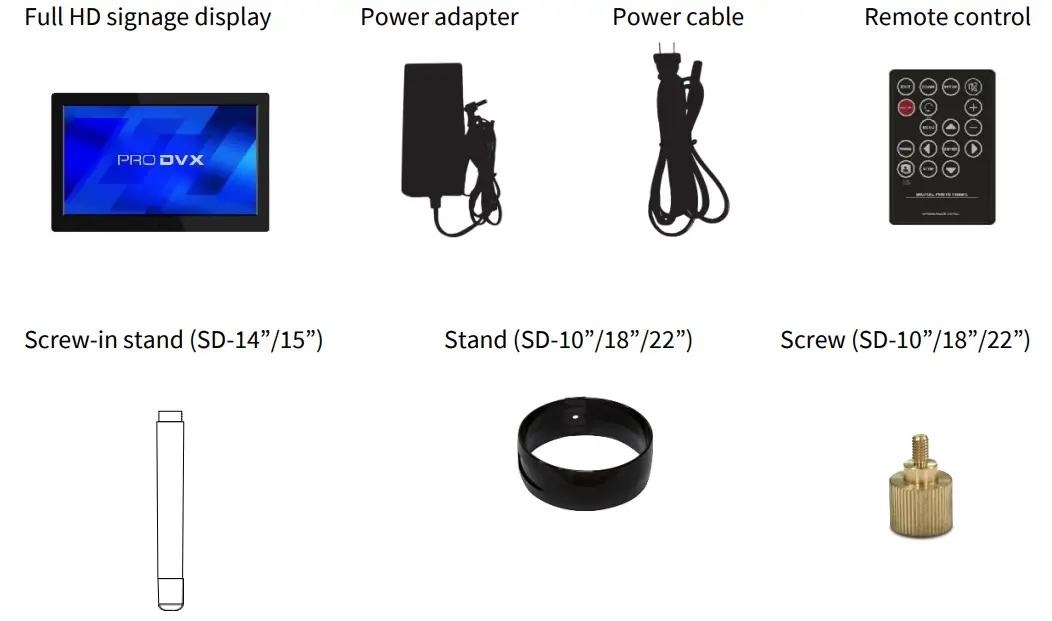
Package Contents:
Drawing (14” – 15.6”)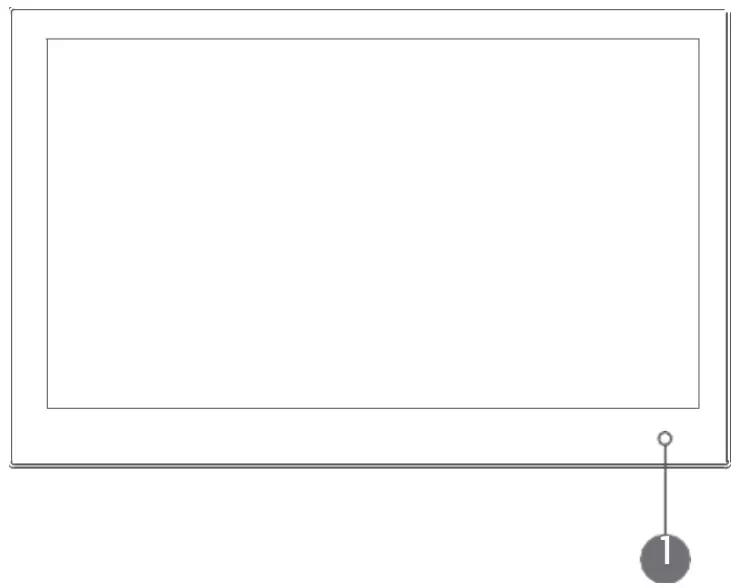
| Serial number | Function |
| 1 | Remote receiver |
| 2 | SD/MCC card slot |
| 3 | Earphone |
| 4 | AV Input |
| 5 | USB2.0 |
| 6 | HDMI Input |
| 7 | DC In |
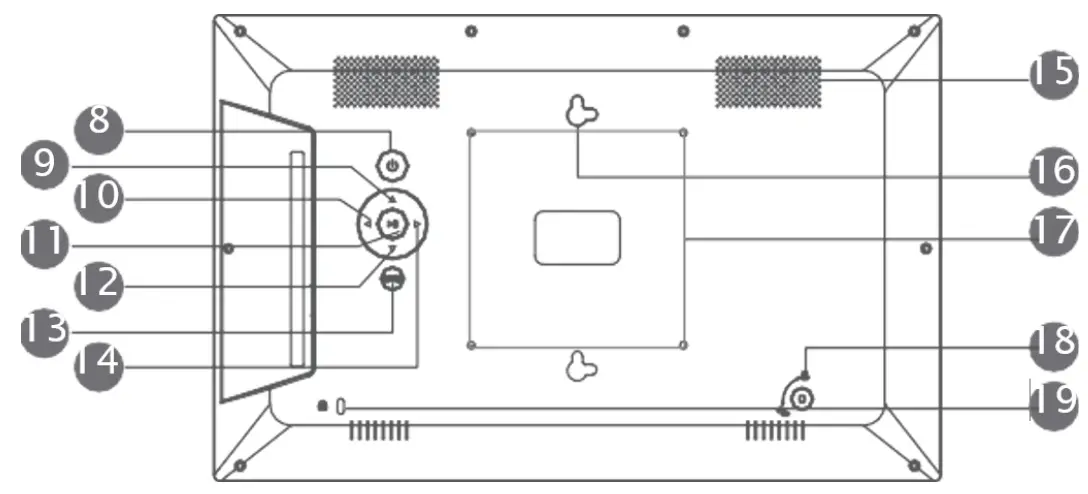
| Serial numbe | Function |
| 8 | Power |
| 9 | Up |
| 10 | Right |
| 11 | Menu/Play/Enter/Pause |
| 12 | Down |
| 13 | Exit |
| 14 | Left |
| 15 | Speaker |
| 16 | Keyholes for Wall-Mounting |
| 17 | VESA 100 |
| 18 | Stand |
| 19 | Kensington Lock |
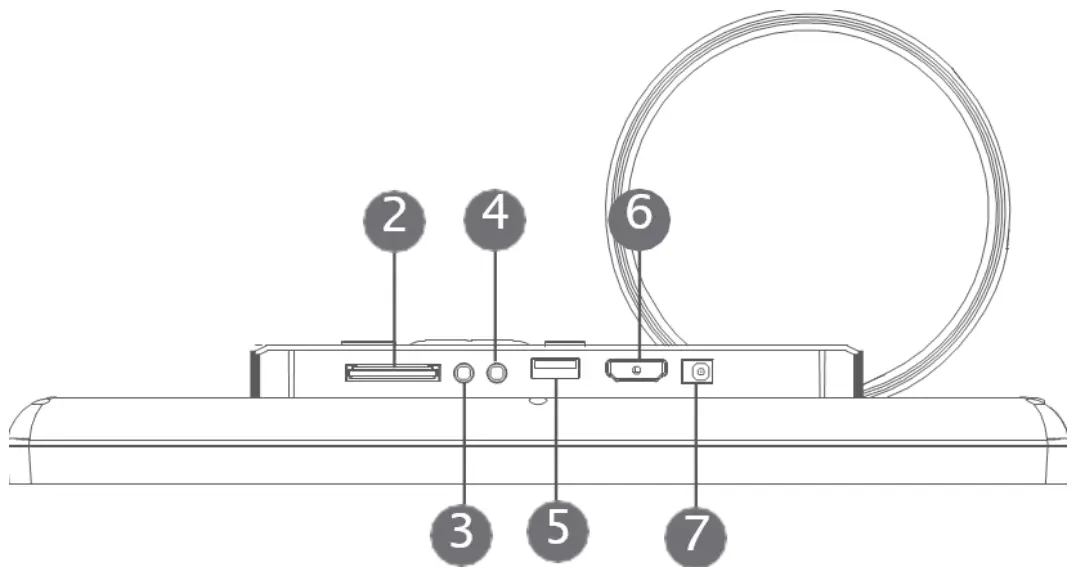
Drawing (18.5” – 21.5”)
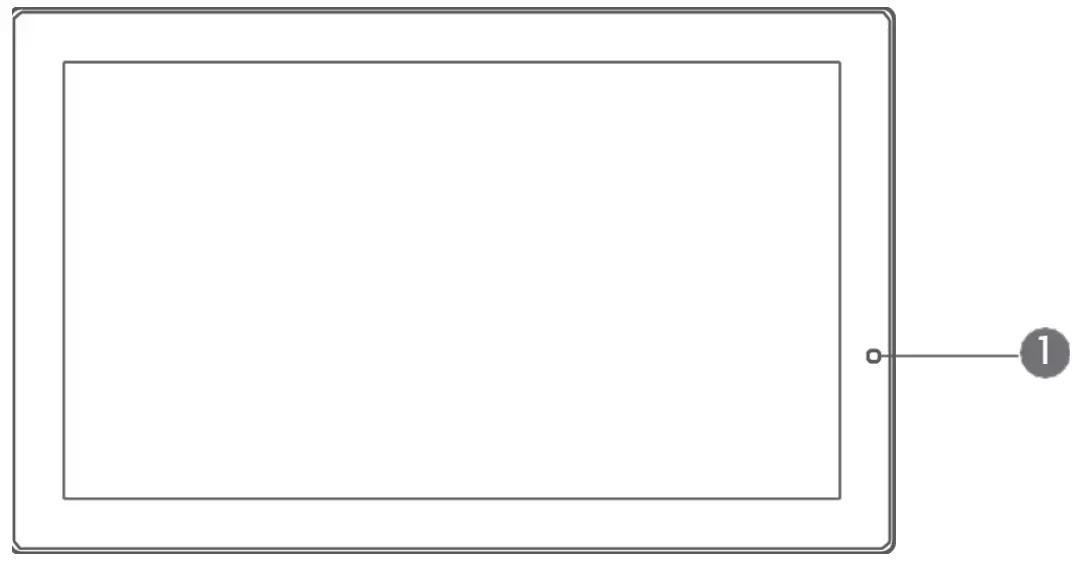
| Serial numbe8 | Function |
| 1 | Remote receiver |
| 2 | SD/MCC card slot |
| 3 | Earphone |
| 4 | AV Input |
| 5 | USB2.0 |
| 6 | HDMI Input |
| 7 | DC In |
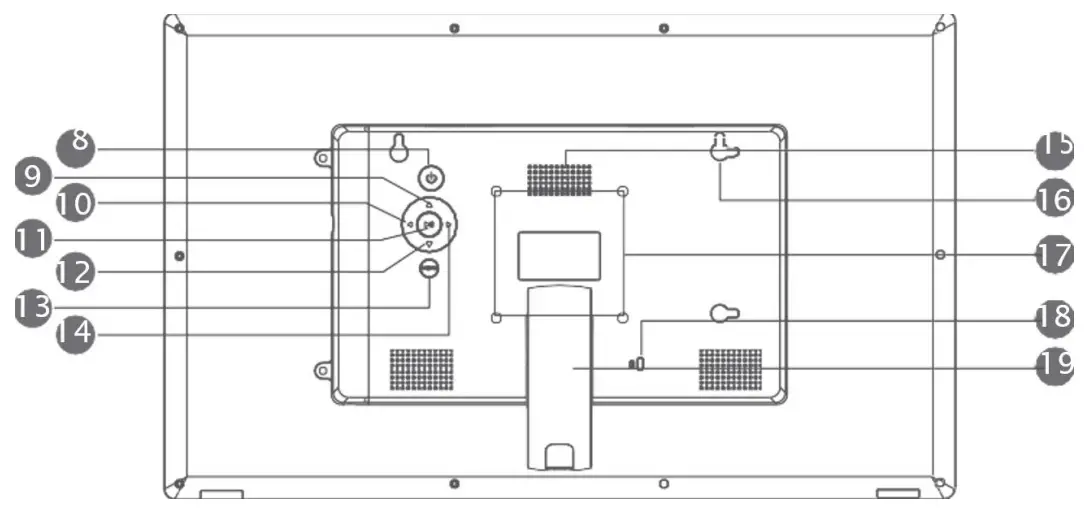
| Serial numbe8 | Function |
| 8 | Power |
| 9 | Up |
| 10 | Right |
| 11 | Menu/Play/Enter/Pause |
| 12 | Down |
| 13 | Exit |
| 14 | Left |
| 15 | Speaker |
| 16 | Keyholes for Wall-Mounting |
| 17 | VESA 100 |
| 18 | Kensington Lock |
| 19 | Stand |
Remote Control
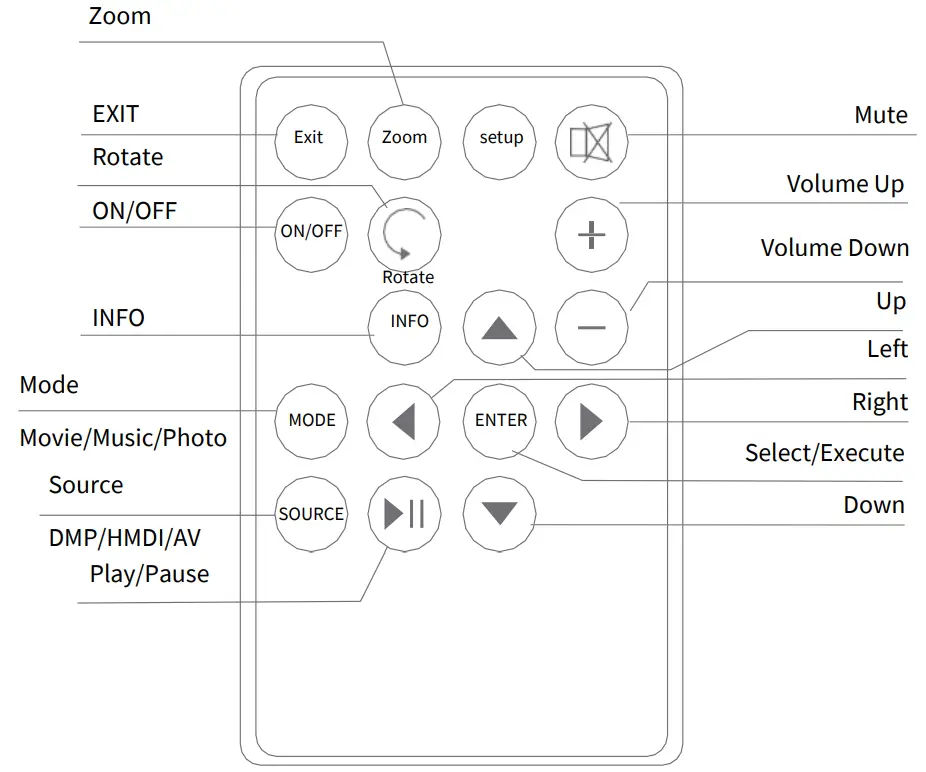
Note:
- Please remove the plastic tab between the Remote control battery door and the battery.
- Please point the Remote control toward the Remote sensor, which is located towards the lower right of the frame’s panel.
Getting Started
- To set up your digital photo frame, you first need to attach the stand

- Place the frame horizontally on a flat surface
- Insert the power lead into the digital photo frame’s socket marked dc.
- Turn on the digital photo frame by either pressing the power button on the back of the unit or pressing the power button on the remote control.
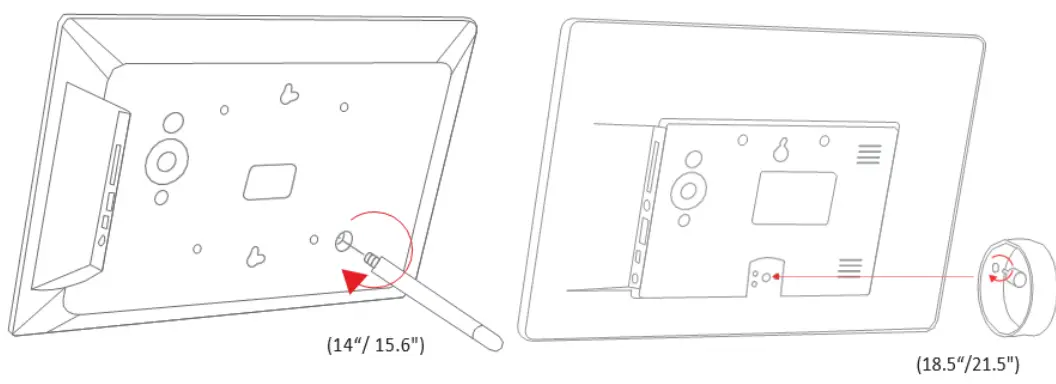
After turning on the unit, this screen will appear: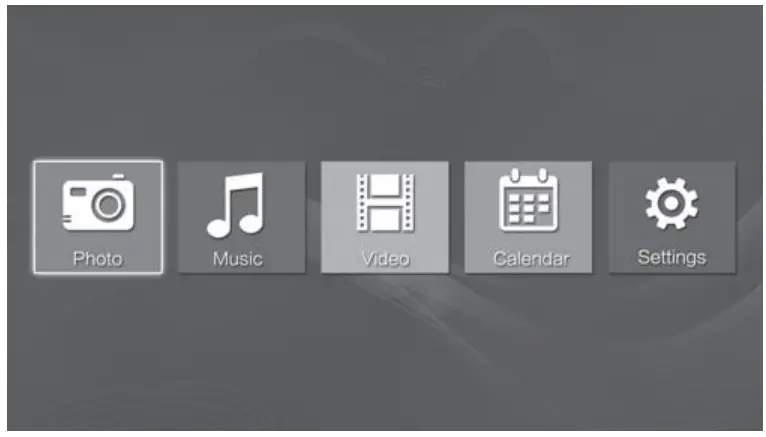
The memory device (USB/SD) you have inserted, you can use the  buttons on your remote control to choose the function you want, then press ok to select the menu item.
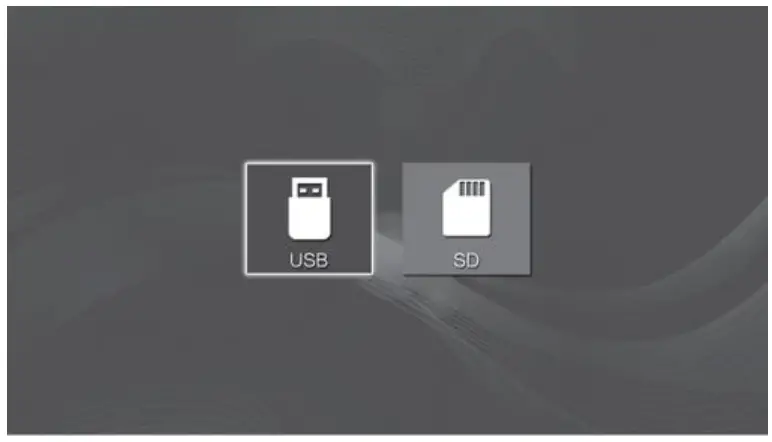
Viewing Your Photos
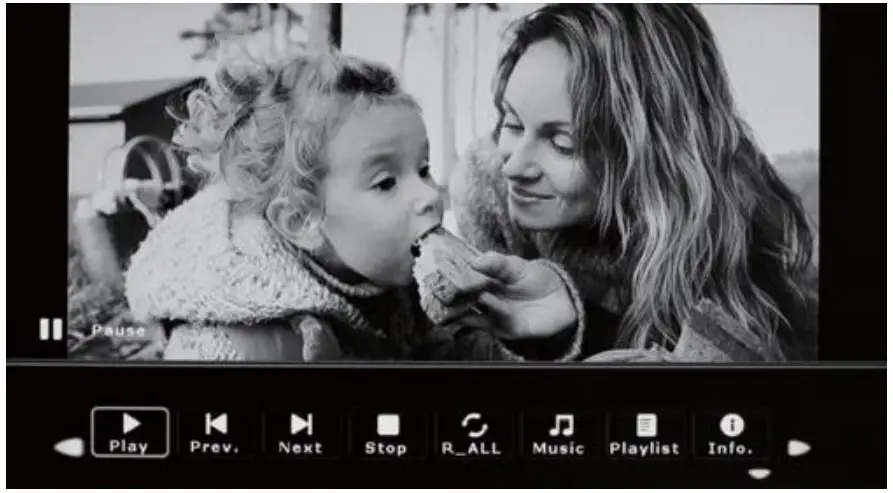
Select the photo icon form the main menu and then press ENTER, us the buttons to select the memory device and the press ENTER, you will now have access to your photos in thumbnail view. You can navigate through your photos using the  buttons. Press ENTER to start playing your photos.
Listening To Your Music
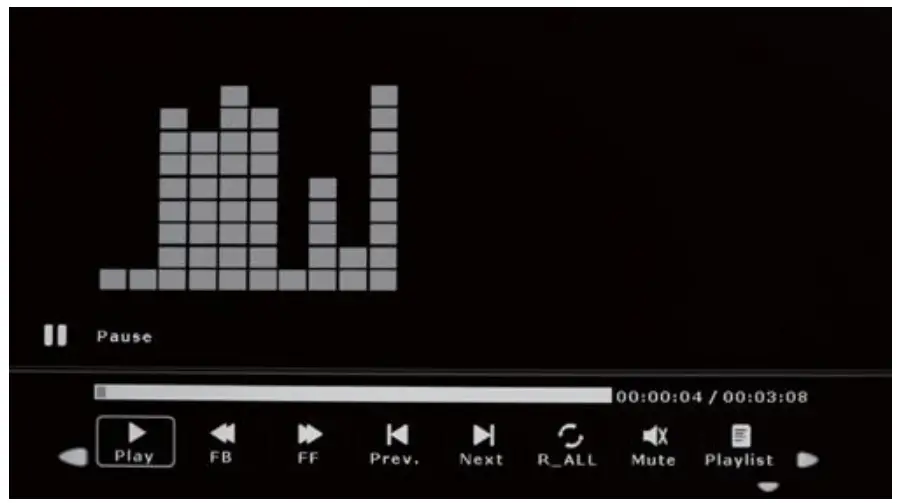
Select the music icon form the main menu and then press ENTER, us the buttons to select the memory device and then press ENTER, your music files will now be shown on the screen. You can navigate through your music using the buttons. Press ENTER to play.
Viewing Your Videos
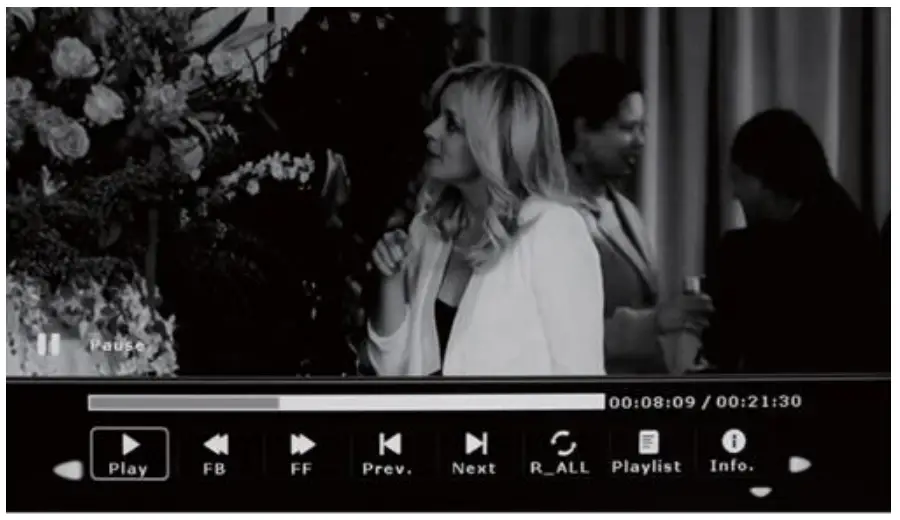
Select the video icon form the main menu and then press ENTER, us the buttons to select the memory device and then press ENTER, your video files will now be shown on the screen. You can navigate through your videos using the buttons. Press ENTER to play.
Calendar and Clock Display
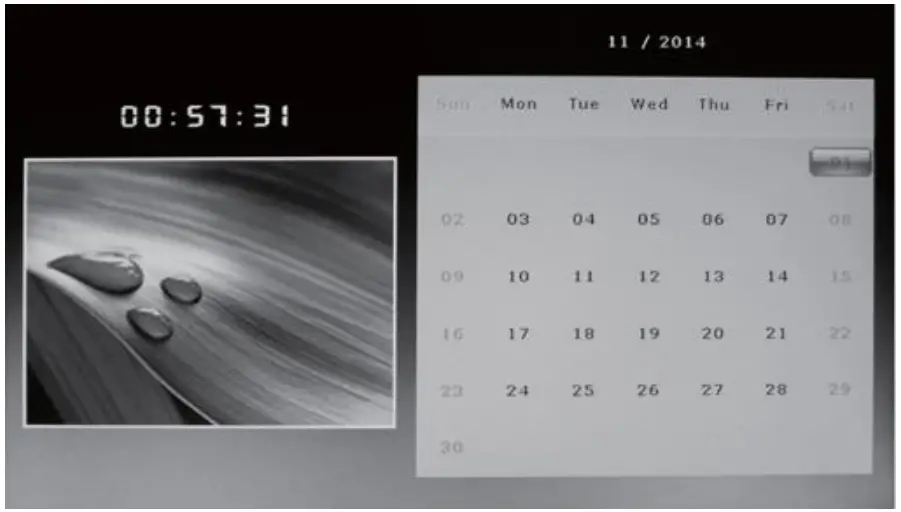
To view the calendar, choose the calendar icon from the main menu. A photo slideshow will play in a small window on the left side of the screen.
Feature Setup
Select the ‘setup’ icon from the main menu, to adjust settings on your digital photo frame.
Alternatively, just press the ‘setup’ button on the remote control.
From here, you will see the various options:
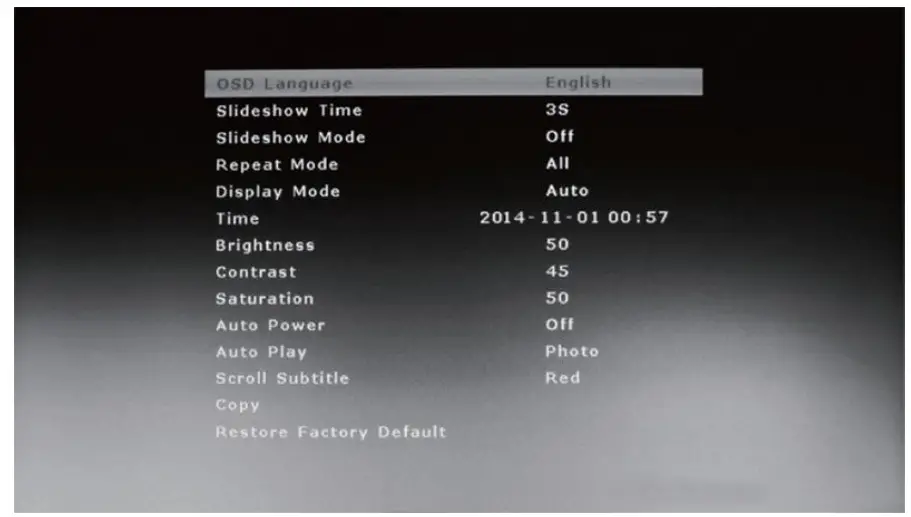
Button: Move through items or choose parameters. Button: Change the parameters.
ENTER: Confirm/save changes.
EXIT: Back to item list.