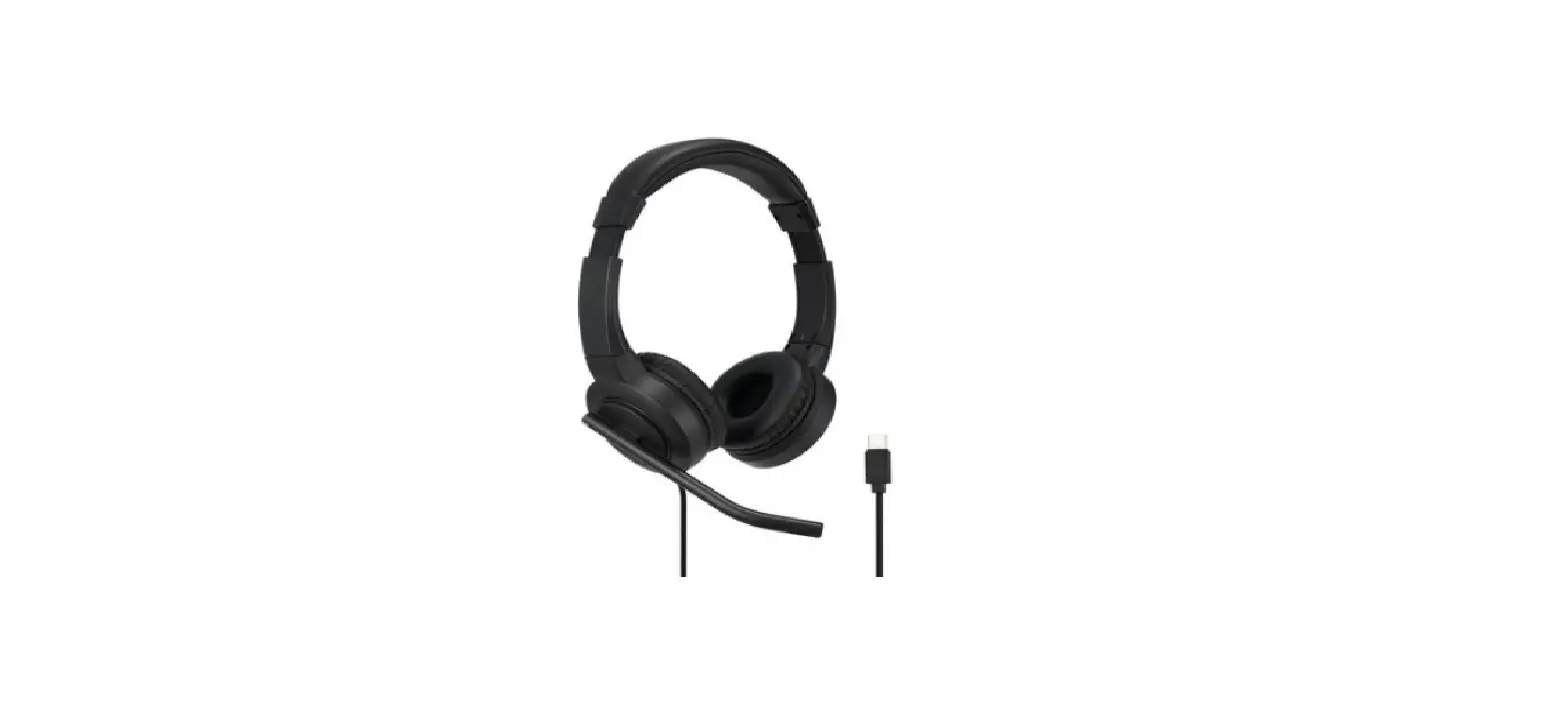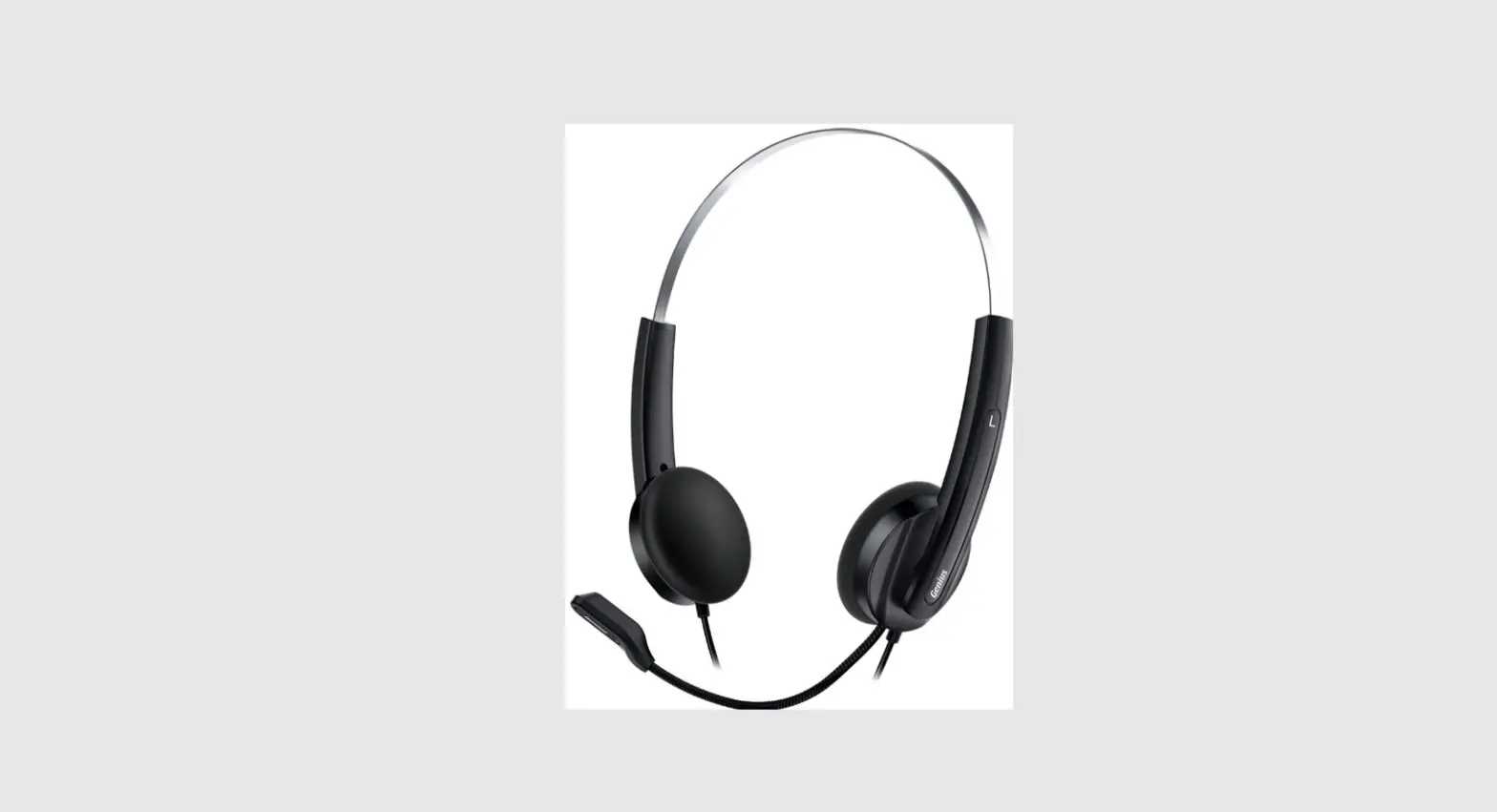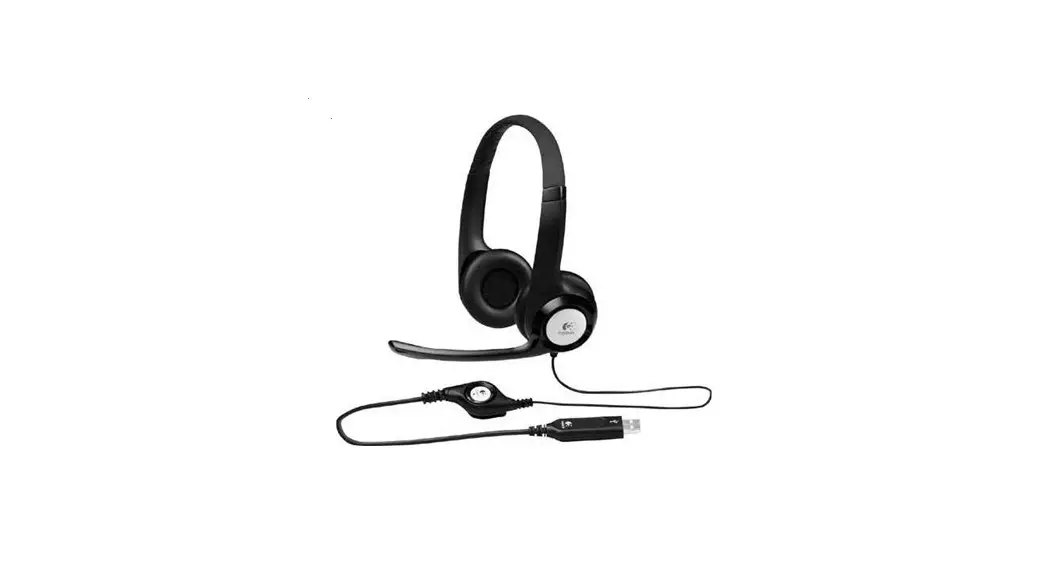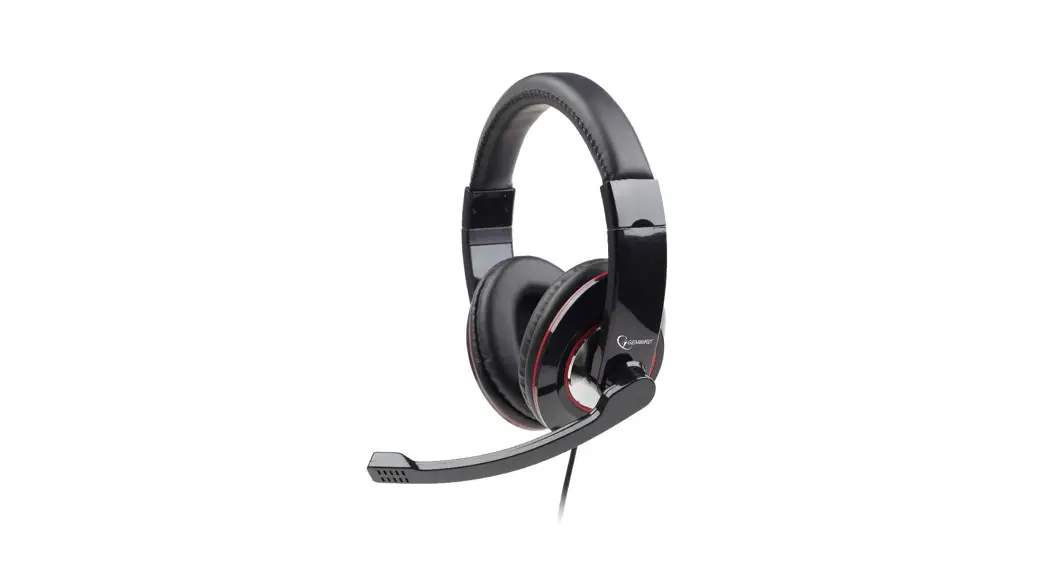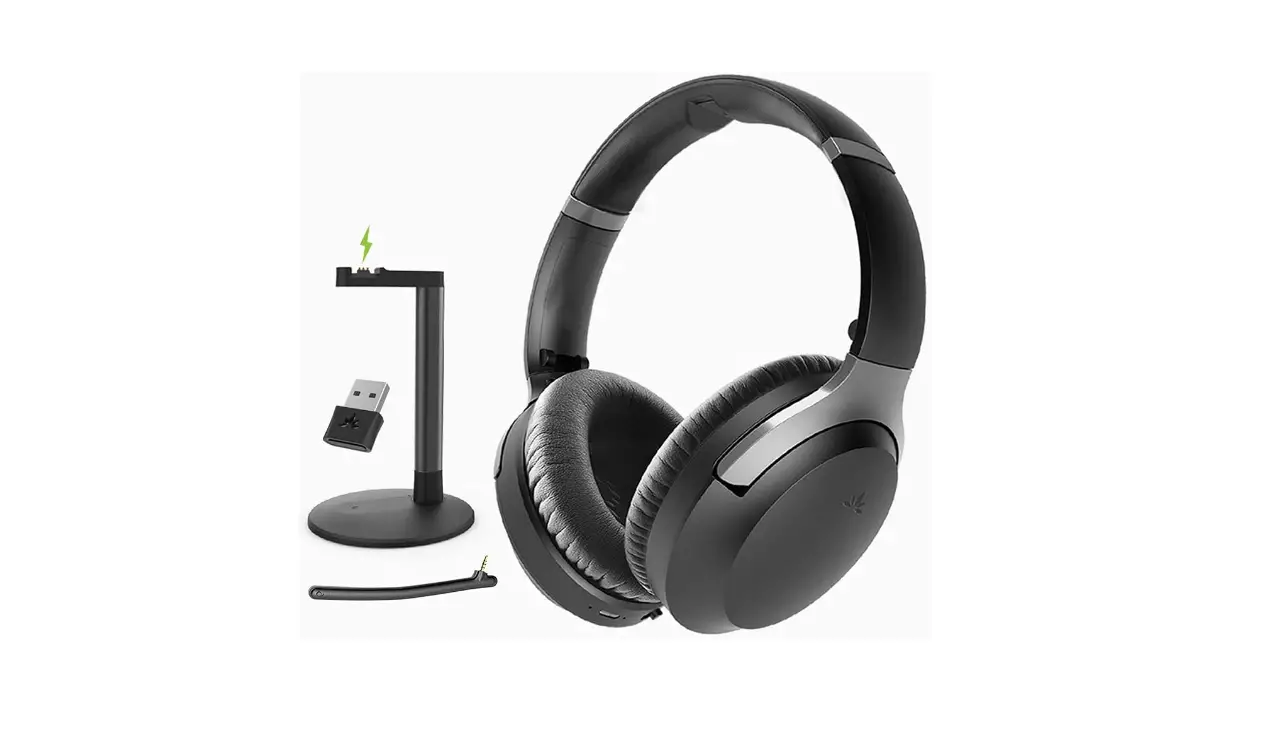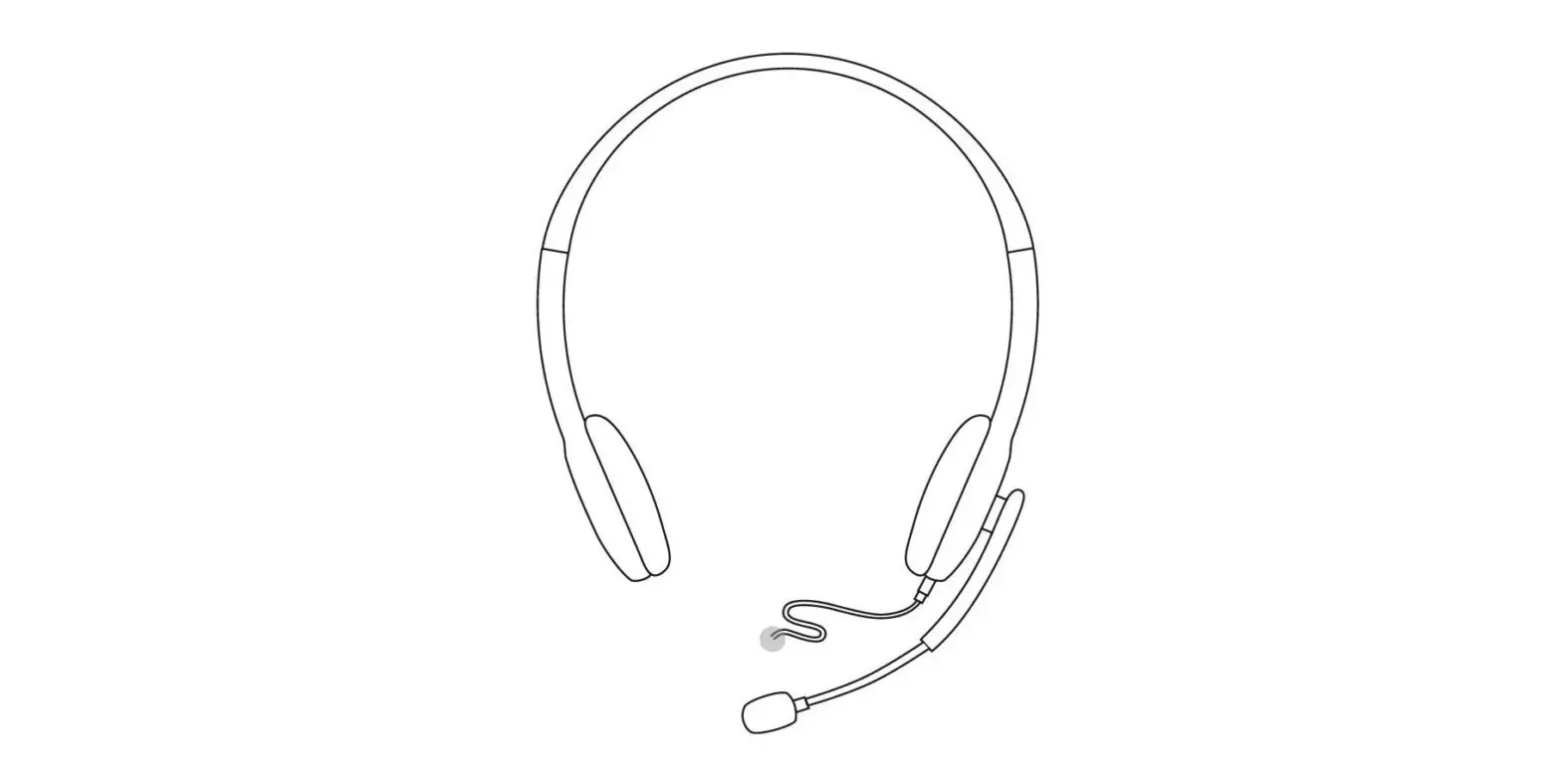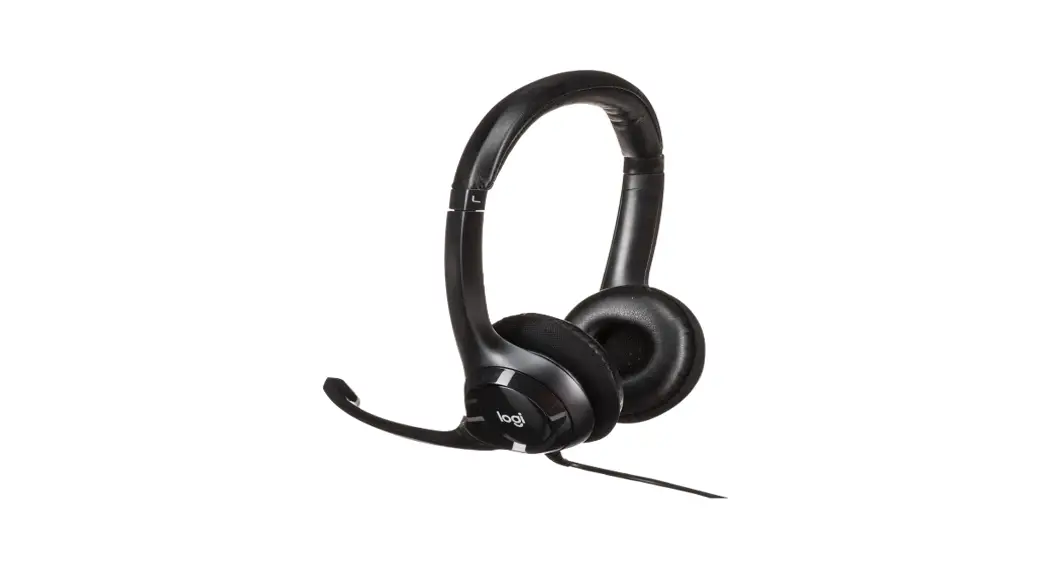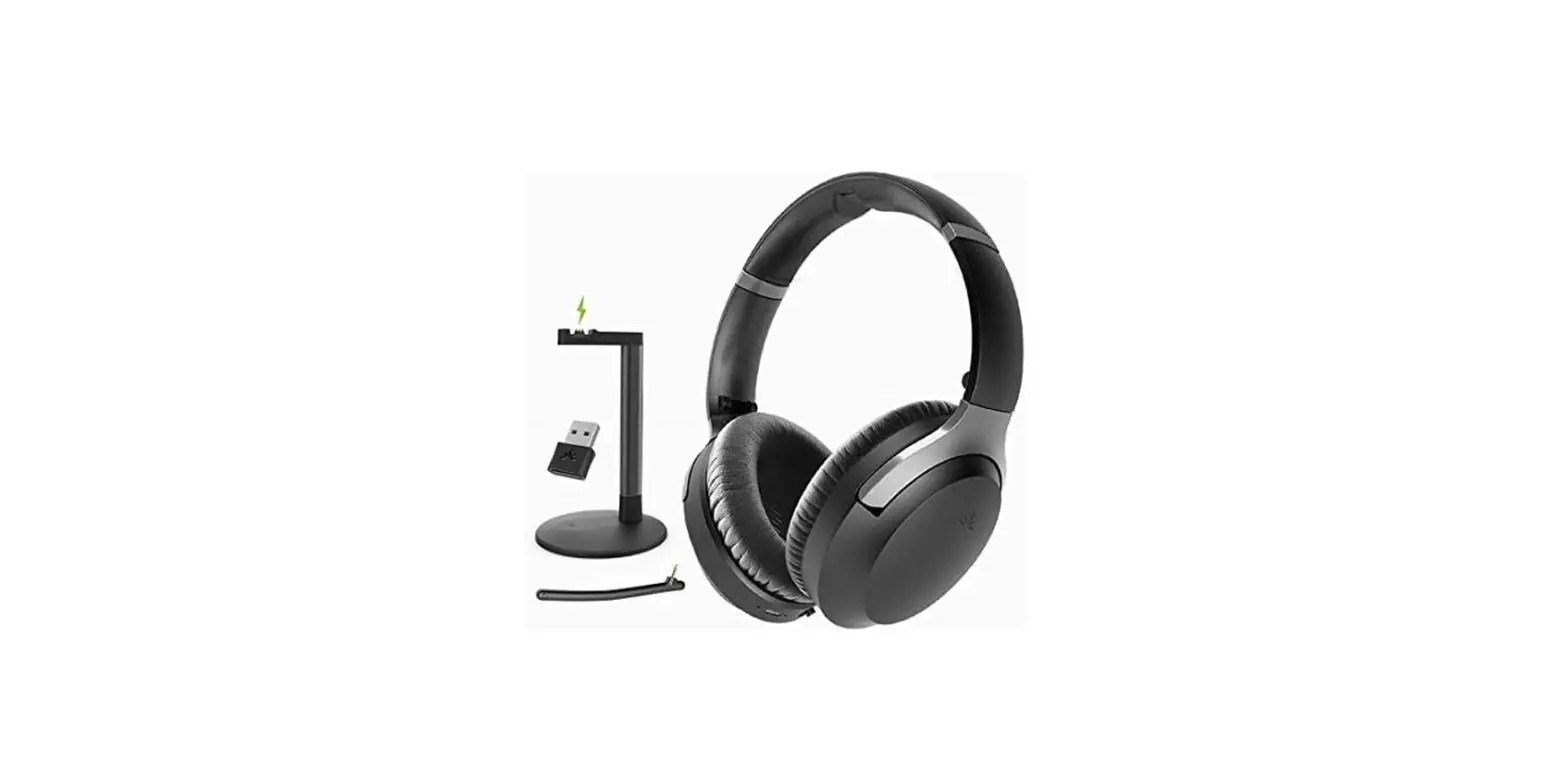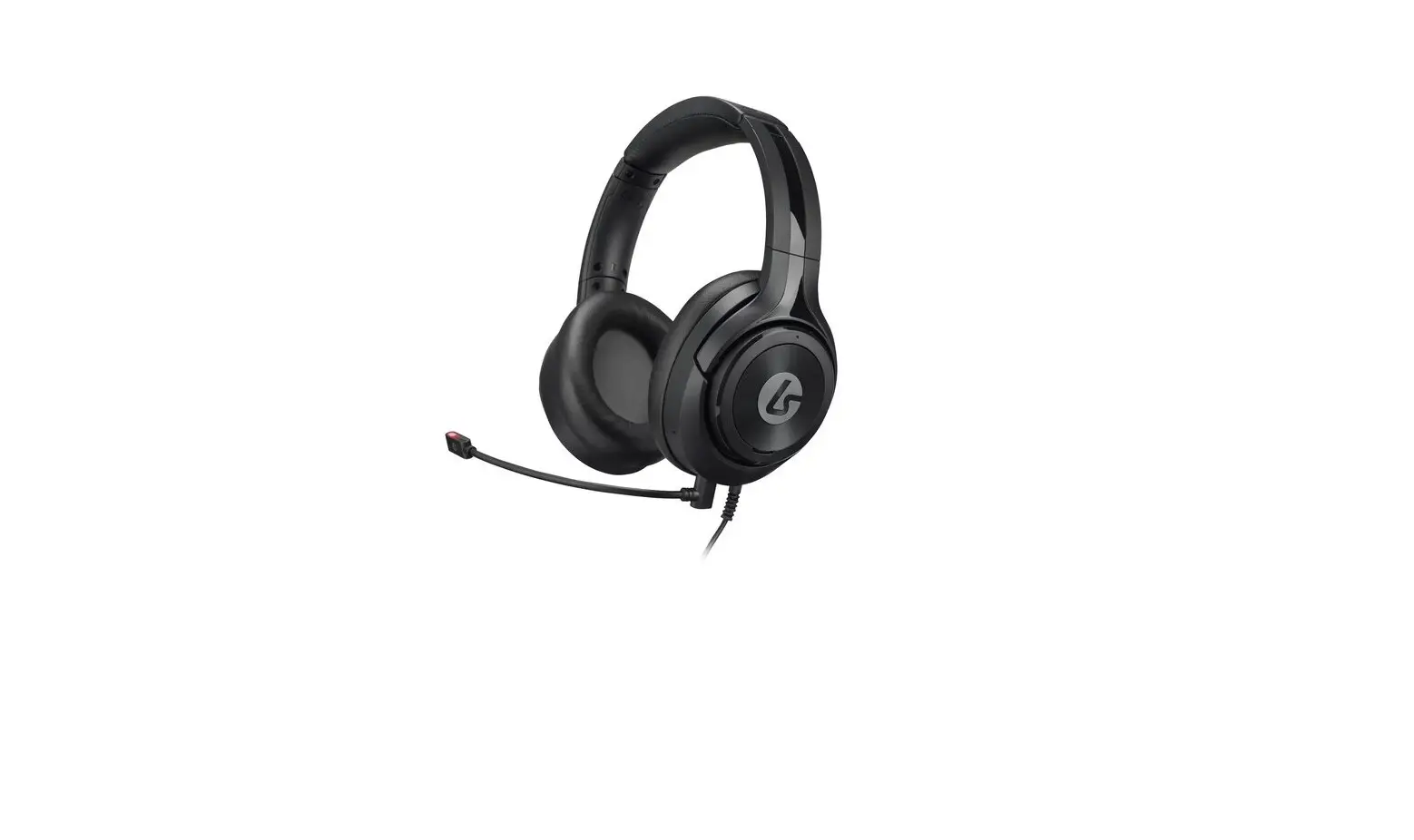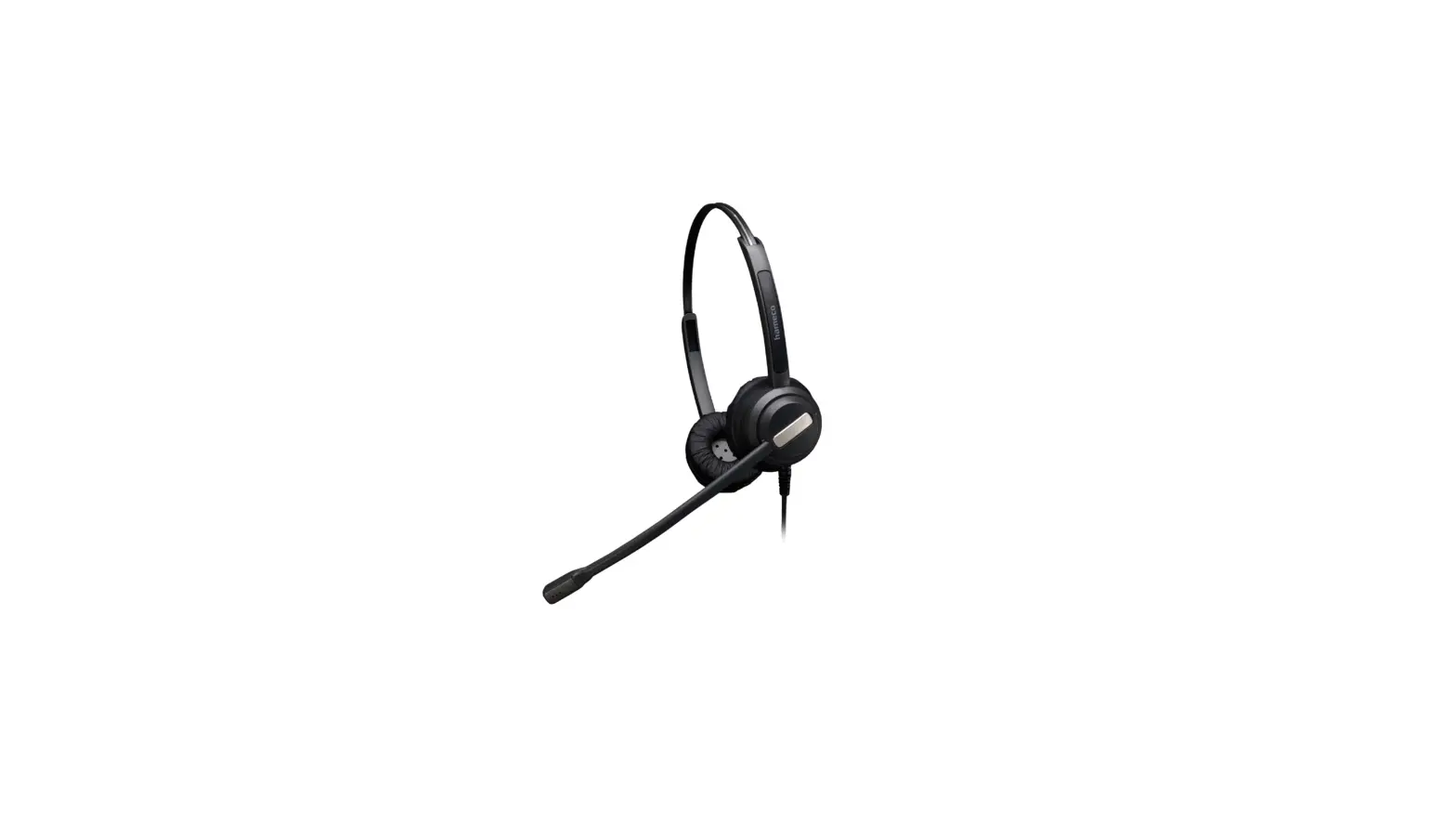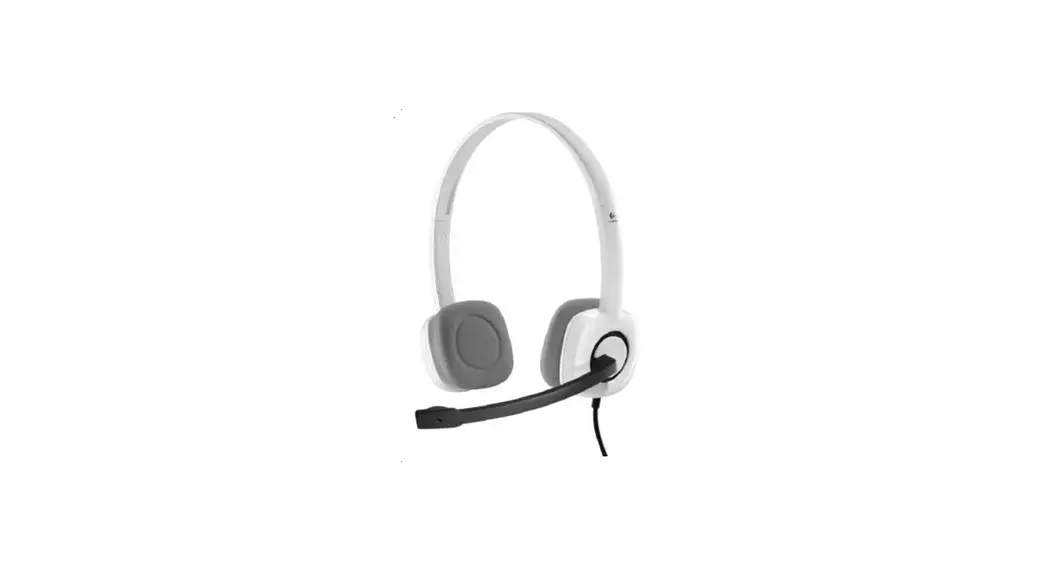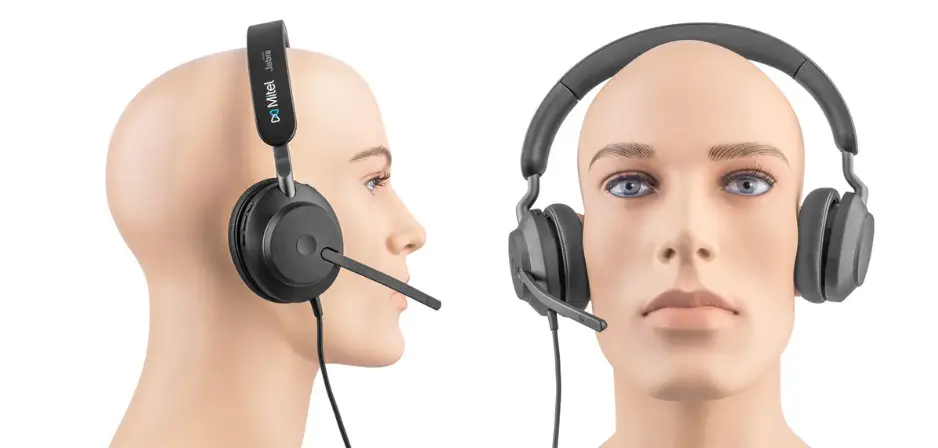

Mitel H10 Stereo USB Headset
NOTICE
The information contained in this document is believed to be accurate in all respects but is not warranted by Mitel Networks™ Corporation (MITEL®). The information is subject to change without notice and should not be construed in any way as a commitment by Mitel or any of its affiliates or subsidiaries. Mitel and its affiliates and subsidiaries assume no responsibility for any errors or omissions in this document. Revisions of this document or new editions of it may be issued to incorporate such changes.
No part of this document can be reproduced or transmitted in any form or by any means – electronic or mechanical – for any purpose without written permission from Mitel Networks Corporation.
TRADEMARKS
The trademarks, service marks, logos and graphics (collectively “Trademarks”) appearing on Mitel’s Internet sites or in its publications are registered and unregistered trademarks of Mitel Networks Corporation (MNC) or its subsidiaries (collectively “Mitel”) or others. Use of the Trademarks is prohibited without the express consent from Mitel. Please contact our legal department at [email protected] for additional information. For a list of the worldwide Mitel Networks Corporation registered trademarks, please refer to the website: http://www.mitel.com/trademarks
About This Document
This guide provides compatibility details of headsets that were tested against various Mitel products. Our partners and customers should consider these when deploying Mitel solutions.
IP Phones Scope
This document only covers the 6900 IP Phones, 6800 SIP Phones, and IP400 Phones
Mitel Headset Support
Mitel-Branded Headsets
The following is list of supported Mitel branded headsets for both SIP and MiNET. See Appendix for specific callouts on feature limitations or special configuration requirements.
| Jabra Model | Mitel Model Name |
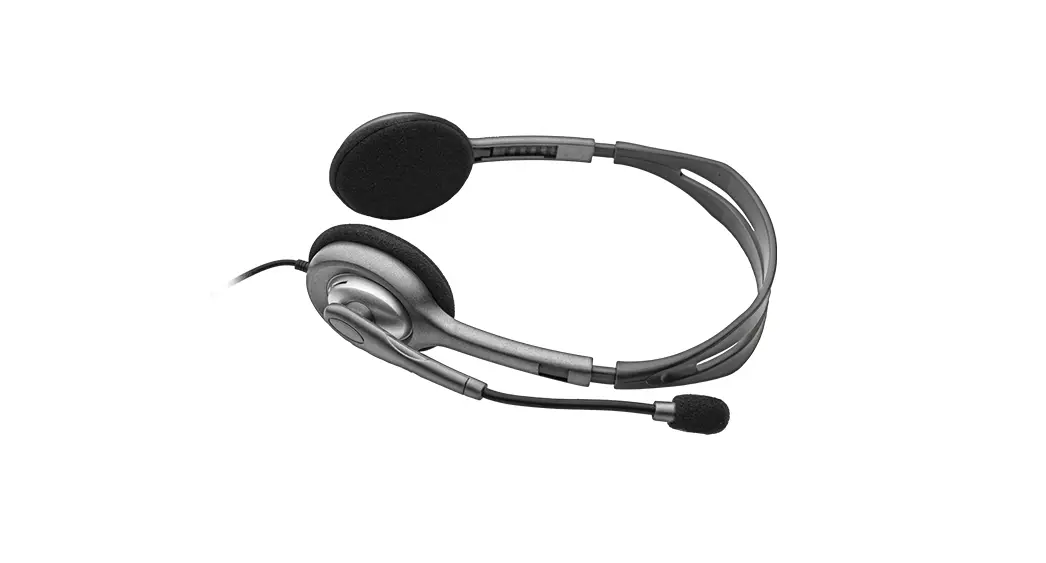
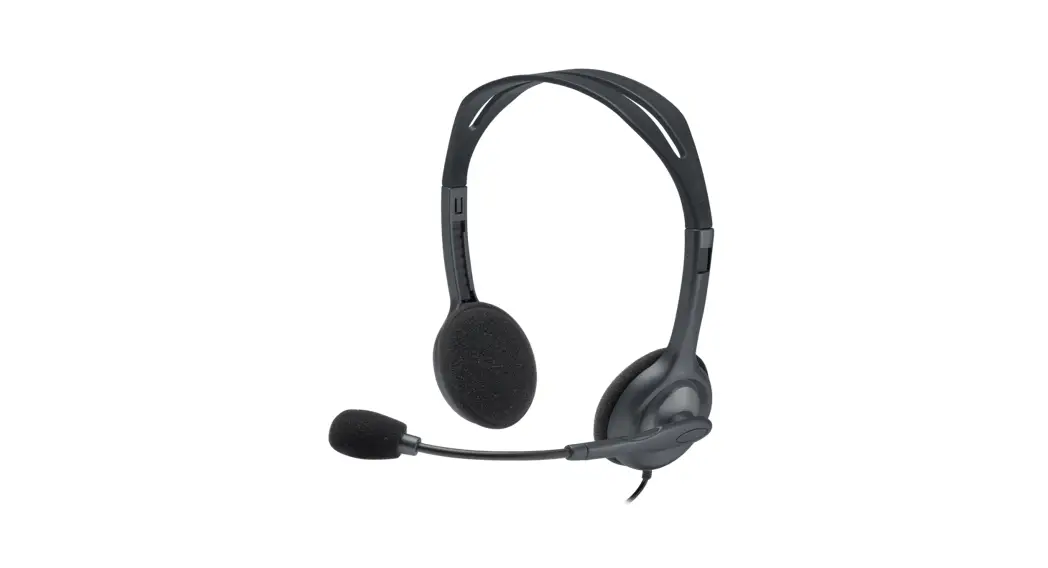
| Evolve2 40 (1) | H10 Stereo USB Headset |
| Biz2400 II | H20 Mono Analog Headset |
| Engage 50 (2) | H30 Stereo CC USB Headset |
| Engage 65 (3) | H40 DECT Stereo Headset |
Legend:
- See Configuring Jabra Evolve2 40 USB Headset.
- See Configuring Jabra Engage 50 USB Headset.
- See Configuring Jabra Engage 65 USB Headset.
Note: The IP400 series phones support only H20 and H40 headsets. These phones do not support H10 and H30 headsets.
For Mitel branded headsets, Mitel’s support policy is as follows:
- Mitel branded and marketed headsets are fully supported by Mitel.
- Headsets must be deployed as per published Engineering Guidelines, especially for dense deployments (for example, Call Centers) in which wireless technology is used.
- Support includes ensuring software compatibility and feature interoperability between Mitel headsets and applicable products defined in this document.
Third-Party Headsets
For third-party vendor headsets, Mitel’s policy is as follows:
- Mitel does not guarantee the compatibility, interoperability, or individual feature operation for any third-party headset as Mitel is not in control of the hardware design, manufacturing, and software releases/evolution of such products. Although Mitel does not guarantee the compatibility of any third-party headset, we have tested the headsets listed in this document against the specified devices / firmware releases and certified their interoperability as captured herein.
- Third-party headset vendor software (for example, PC utilities) is not supported nor managed by Mitel. Customers should contact the third-party headset vendor directly for any questions or issues on such products.
- Mitel does not guarantee any compatibility claims or statements made on third-party headset vendor websites. Mitel does offer third-party headset vendors access to our MSA partner program to validate compatibility in their own labs. Mitel is enhancing the value of the MSA based, vendor conducted interoperability by performing our own testing of a number of headset models from different vendors such that we can certify their interoperability. This document captures the list of headsets that have successfully passed this Mitel testing.
Mitel Applications
The following Mitel applications are compatible with Mitel branded headsets (H10 Stereo USB Headset, H30 Stereo CC USB Headset, and H40 DECT Stereo Headset (USB)):
- Mitel One / CX
- MiTeam Meetings
- MiCollab Softphone
- MiCloud Connect Client
- MiVoice Connect Client
- MiCC Business
- MiCC Enterprise
- MiCloud Connect CC
- MiVoice Connect CC
- Business Console
- MiVoice Office Web Application (MOWA)
Note: For third-party headsets supported with Mitel applications, refer to the application’s documentation for a list of compatible headsets.
Supporting Documentation
To access phone-specific and system-specific documentation:
- Visit Document Center.
- Click DEVICES AND ACCESSORIES and navigate to the required documentation.
IP Phones
Mitel has verified the following headsets. The specific Mitel release is provided for headsets that passed testing. Headsets that have been tested but failed to meet compatibility requirements will be marked as non-compliant (NC). See Appendix for specific callouts on feature limitations or special configuration requirements.
Tested functionality
- 2-way audio
- Volume Up/Down – not synchronized with the IP phone
- Answer Call via Headset button
- Hang-up Call via Headset button
- Mute/Unmute via Headset button – not synchronized with the IP Phone
- Basic subjective audio quality tests
- Basic Headset Profile features for Bluetooth Headsets
Testing excluded
- Advanced call control features unique to a specific headset
- Headset software upgrade process as defined by each headset vendor
- Multiple device pairing support and call control options, for Bluetooth headsets
- Advanced buttons unique to a specific headset.
Supported Mitel Branded Headsets for SIP and MiNET
The following is a summary of the Mitel branded headsets supported with the various models of Mitel’s phones for SIP and MiNET.
6900 Series Phones
| Headset Model | 6910 | 6920 | 6930/6930L | 6940 | 6865 | 6867 | 6869 | 6873 |
| H10 Stereo USB Headset | X | USB | USB | USB | X | USB | USB | USB |
| H20 Mono Analog Headset | Analog RJ9 | Analog RJ9 | Analog RJ9 | X | Analog RJ9 | Analog RJ9 | Analog RJ9 | X |
| H30 Stereo CC USB Headset | X | USB* | USB* | USB* | X | USB* | USB* | USB* |
| H40 DECT Stereo Headset | Analog RJ9 | USB/ Analog RJ9 | USB/ Analog RJ9 | USB | Analog RJ9 | USB/ Analog RJ9 | USB/ Analog RJ9 | USB |
indicates that an optional Jabra Engage 50 Link Controller is required when used with a Mitel phone. Not required when used with a Mitel PC application.
x indicates not supported
*IP400 Series Phones
| Headset Model | IP480g | IP485g |
| H20 Mono Analog Headset | Analog RJ9 | Analog RJ9 |
| H40 DECT Stereo Headset | Analog RJ9 | Analog RJ9 |
* applicable for SIP only.
Supported Third-Party Headsets and Features for SIP
The following is a summary of the features supported on third-party headsets for SIP.
- For Analog and EHS/DHSG headsets: Testing is done on 6865i, 6867i, 6869i, 6910, 6920, 6930, IP480g, and IP485g
- For Bluetooth headsets: Testing is done on 6930, 6940, and 6873i
- For USB headsets: Testing is done on 6867i, 6869i, 6973i, 6920, 6930, and 6940.
Headset Type
Vendor Headset Model
Headset Version
Phone Firmware
Hookswitch Ringing Flashing (LED)
Volume Sync
Mute Sync
Analog Jabra GN2100 Not Applicable SIP 6.0 No No No No No Analog Jabra Biz 2400 II Mono
Not Applicable SIP 6.0, R2109
No No No No No Analog Sennheiser SC 260 with Quick Connect (QC) RJ9 Cable
Not Applicable SIP 6.1 No No No No No EHS/DHSG
Jabra
Pro 9470 with DHSG EHS cable(incl.)
FW 4.7.0 Value Pack 4
SIP 6.0 Yes
Yes
Yes
No
No
EHS/DHSG
Jabra
Engage 65 with DHSG EHS cable (1)
FW 4.2.0 Value Pack 3 (Base)
FW 4.2.0
(Headset)
SIP 6.0, R2109 Yes
Yes
Yes
No
No
EHS/DHSG
Jabra
Pro 925 DHSG with 14201 EHS Cable
1.4.6
SIP 6.1
Yes
Yes
Yes
No
No
EHS/DHSG
Plantronics
CS540 with EHS 37818-11 Cable
Not Applicable
SIP 6.1
Yes
Yes
Yes
No
No
Bluetooth Jabra Evolve 75 Version: 2.32.0 (Value Pack 2)
SIP 6.0 Yes Yes Yes No No Bluetooth
Jabra
Evolve2 65
Headset 2.4.5 Base 1.6.0
Jabra Evolve 1.9.1
SIP 6.0 Yes
Yes
Yes
No
No
Bluetooth Plantronics Voyager Legend v.110 SIP 6.0 Yes Yes Yes No No Bluetooth Plantronics Voyager 5200 UC
v.510 SIP 6.1 Yes Yes Yes No No USB Jabra Jabra Evolve2 40 (2)
1.19.0 (Service Pack 2)
SIP 6.0 Yes Yes Yes No Yes USB
Jabra
Engage 50 + Jabra Engage LINK(USB-A) (3) (6)
Headset and controller v2.3.1 (Value Pack 1 Service Pack 1)
SIP 6.0 Yes
Yes
Yes (5)
No
Yes
USB
Jabra
Engage 65 via USB (4)
Base: 4.2.0 (Value Pack 3)
Headset: 4.2.0
SIP 6.0 Yes
Yes
Yes
No
Yes
USB
Jabra
Evolve 75 + Link370 USB dongle Version: 2.32.0 (Value Pack 2)
Link 370 Version:
1.82.0
SIP 6.0 Yes
Yes
Yes
No
Yes
USB
Plantronics
Voyager Focus + USB Dongle (BT600)
Headset Version: V.1723 BT600 Version:
V.500
SIP 6.0 Yes
No
Yes
No
Yes
Headset Compatibility Guide
| USB | Plantronics | Blackwire 7225 | SetId v1.1144.1.1060 USB v.1060 | SIP 6.0 | Yes | Yes (7) | Yes | No | Yes |
| USB | Plantronics | Savi WS440 + USB DECT dongle | Base v28.27, Headset v28.28, Tuning v15, USB v138 | SIP 6.0 | Yes | Yes | Yes | No | Yes |
| USB | Sennheiser | SC260 USB CTRL II (6) | 15.05.4D.413 | SIP 6.0 | Yes | No | Yes | No | Yes |
| USB | Sennheiser | SD Pro 2 ML | 175 | SIP 6.1 | Yes | Yes | Yes | No | Yes |
Legend:
- See Configuring Jabra Engage 65 EHS/DHSG Headset.
- See Configuring Jabra Evolve2 40 USB Headset.
- See Configuring Jabra Engage 50 USB Headset.
- See Configuring Jabra Engage 65 USB Headset.
- On remote (Jabra Engage Link P/N: 50-219), inbuilt LED indicator flashes to indicate an incoming call.
- No keys on Headset, everything is controlled from USB cable controller.
- There is no actual ringing, headset announces “Incoming Call”.
Supported Third-Party Headsets and Features for MiNet
The following is a summary of the features supported on third-party headsets for MiNet:
- For Analog and EHS/DHSG headsets: Testing is done on 6910, 6920, and 6930
- For Bluetooth headsets: Testing is done on 6930, and 6940
- For USB headsets: Testing is done on 6920, 6930, and 6940
Headset Type
Vendor Headset Model
Headset Version
Phone Firmware
Hookswitch Ringing Flashing (LED)
Volume Sync
Mute Sync
Analog Jabra GN2100 Not Applicable MiNet 1.6 No No No No No Analog Jabra Biz 2400 II Mono
Not Applicable MiNet 1.6 No No No No No Analog
Sennheiser
SC 260 Headset- Bianaural, ED + Quick Disconnect RJ9
(4 Pin)
Not Applicable
MiNet 1.7
No
No
No
No
No
EHS/DHSG
Jabra
Pro 9470 with DHSG EHS cable(incl.)
4.7.0 Value Pack 4 MiNet 1.6 Yes
Yes
Yes
No
No
EHS/DHSG
Jabra
Engage 65 with DHSG (1)
4.2.0 (Value Pack 3) – Base 4.2.0 – Headset
MiNet 1.6 Yes
Yes
Yes
No
No
EHS/DHSG
Jabra
PRO 925 + DHSG/EHS cable
1.4.6
MiNet 1.7
Yes
Yes
Yes
No
No
EHS/DHSG
Plantronics
CS540 + EHS/APS-11 cable
(8)
Not Applicable
MiNet 1.7
Yes
Yes
Yes
No
No
Bluetooth Jabra Evolve 75 2.32.0 (Value Pack 2)
MiNet 1.6 Yes Yes Yes No No Bluetooth Jabra Evolve2 65 Headset 2.4.5 MiNet 1.6 Yes Yes Yes No No Bluetooth
Plantronics
Voyager Legend
Base: v.6108 Headset with case: v.b001 Headset with stand v.110
MiNet 1.6 Yes
Yes
Yes
No
No
Bluetooth Plantronics Voyager 5200 UC
v.510 MiNet 1.7 Yes Yes Yes No No USB Jabra Jabra Evolve2 40 (2)
1.15.0 MiNet 1.6 Yes Yes Yes No Yes USB
Jabra
Engage 50 + Jabra Engage LINK(USB-A) (3) (6) 2.3.1 (Value Pack 1 Service Pack 1) Headset and Controller
MiNet 1.6 Yes
Yes
Yes (5)
No
Yes
USB
Jabra
Engage 65 with USB (4)
4.2.0 (Value Pack 3)- Base 4.2.0 – Headset
MiNet 1.6 Yes
Yes
Yes
No
Yes
USB
Jabra
Evolve 75 + Link370 USB dongle Version: 2.32.0 (Value Pack 2)
Link 370
Version: 1.82.0
MiNet 1.6 Yes
Yes
Yes
No
Yes
USB
Plantronics
Voyager Focus + USB Dongle (BT600)
Headset Version: V.500 BT600 Version: V.2006
MiNet 1.6 Yes
Yes
Yes
No
Yes
USB
Plantronics
Blackwire 7225
Firmware Version: SetId: v.1.1144.1.1060; USB: v.1060
MiNet 1.6 Yes
Yes (7)
No
No
Yes
USB
Plantronics
Savi WS440 + USB Adapter (D100Y) Base v28.27, Headset v28.28, Tuning v.15, USB v.138
MiNet 1.6 Yes
Yes
Yes
No
Yes
USB Sennheiser SC260 USB CTRL II (6)
15.05.83.83 MiNet 1.6 Yes No Yes No Yes USB
Sennheiser
SD Pro 2 ML (9)
SD Headset 175 SD for Lync (Base) 175
MiNet 1.7 Yes (10) (11)
Yes
Yes
No
Yes
USB
Sennheiser
SC 260 Headset + USB-ED CC 01 MS (QC)
Cable
USB-ED CC 01 MS FW: 15.05.89.89 MiNet 1.7 Yes (12)
No
Yes
Yes
Yes
Legend:
- See Configuring Jabra Engage 65 EHS/DHSG Headset.
- See Configuring Jabra Evolve2 40 USB Headset.
- See Configuring Jabra Engage 50 USB Headset.
- See Configuring Jabra Engage 65 USB Headset.
- On remote (Jabra Engage Link P/N: 50-219), inbuilt LED indicator flashes to indicate an incoming call.
- No keys on Headset, everything is controlled from USB cable controller.
- There is no actual ringing, headset announces “Incoming Call”.
- Headset LED and Headset Base LEDs still flash for about 5 to 7 seconds after incoming call is answered on Handset of 69xx phone.
- Set DIP Switch 4 (Auto Link) to ON. Rest of DIP switches are at default.
- Taking headset off base only automatically answers incoming call on every other attempt.
- Taking headset off base when phone is idle does not cause dialtone to be heard.
- Opening idle line using inline controller takes longer using SC260 with USB-ED CC 01 MS as compared to SC260 USB CTRL II.
Appendix A
Configuring Jabra Engage 65 USB Headset
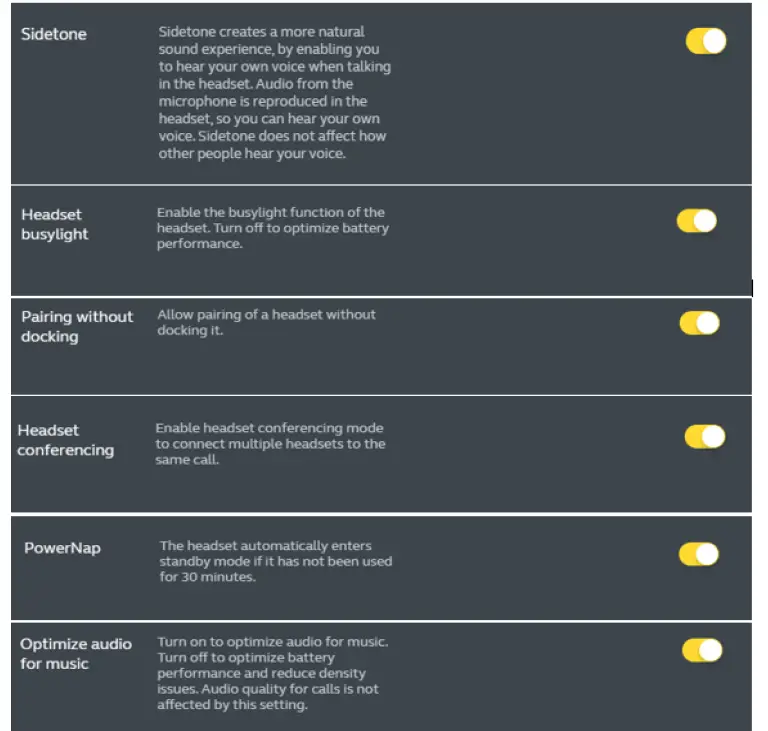
- On Jabra Direct, navigate to Jabra Engage 65 > Device > Headset and
- Set Sidetone to ON.
- Set Headset busylight to ON.
- Set Pairing without docking to ON.
- Set Headset conferencing to ON.
- Set Powernap to ON.
- Set Optimize audio for music to ON.
- Click Apply.

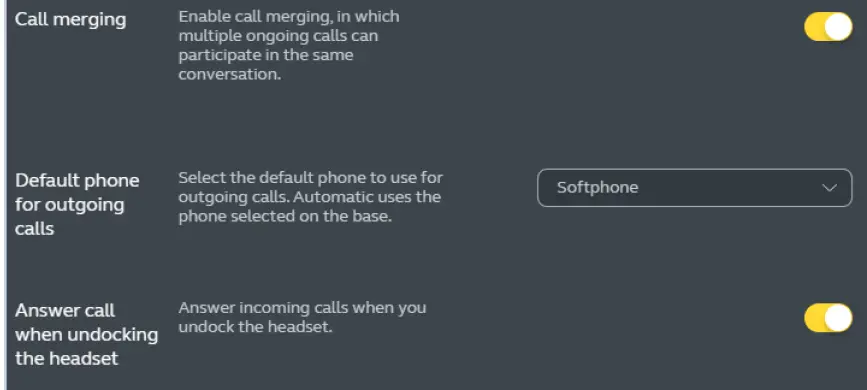
- On Jabra Direct, navigate to Jabra Engage 65 > Device > Base and
- Set Call merging to ON.
- Set Default phone for outgoing calls to Softphone.
- Set Answer call when undocking the headset to ON.
- Click Apply.

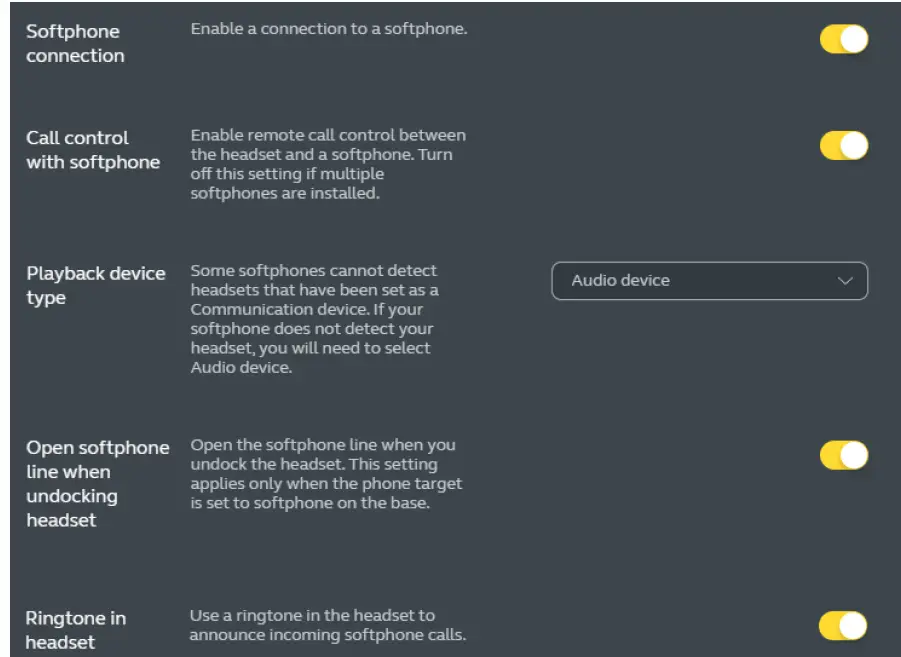
- On Jabra Direct, navigate to Jabra Engage 65 > Device > Softphone (PC) and
- Set Softphone connection to ON.
- Set Call control with softphone to ON.
- Set Playback device type to Audio device.
- Set Open softphone line when undocking headset to ON.
- Set Ringtone in headset to ON.
- Click Apply

- On Jabra Direct, navigate to Jabra Engage 65 > Device > Desk Phone and
- Set Desk phone connection to OFF.
- Click Apply.


Configuring Jabra Engage 65 EHS/DHSG Headset
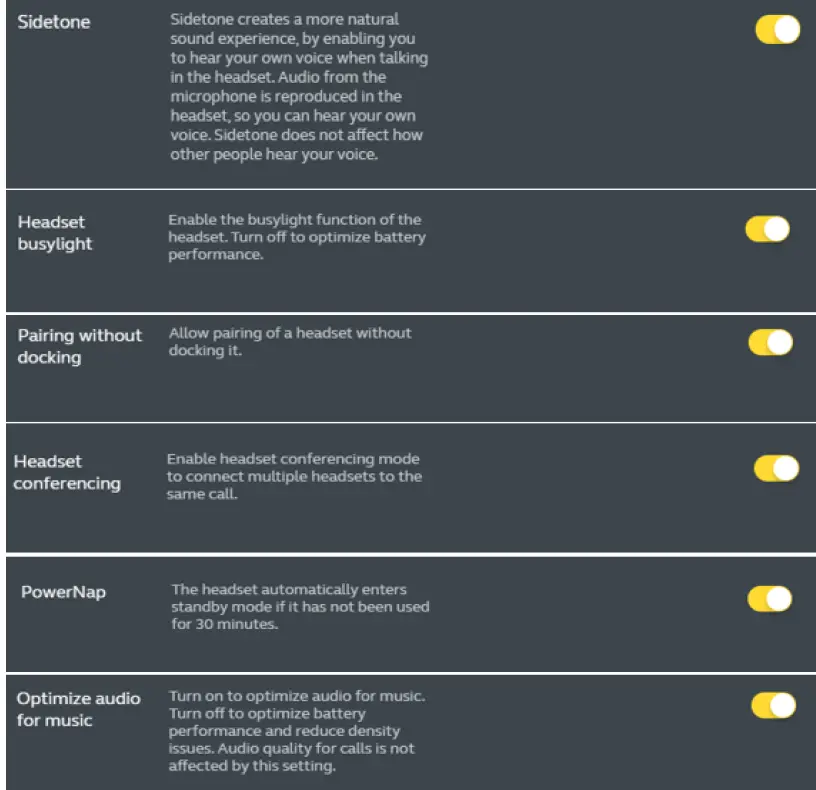
- On Jabra Direct, navigate to Jabra Engage 65 > Device > Headset and
- `Set Sidetone to ON.
- Set Headset busylight to ON.
- Set Headset conferencing to ON.
- Set Pairing without docking to ON.
- Set Powernap to ON.
- Set Optimize audio for music to ON.
- Click Apply

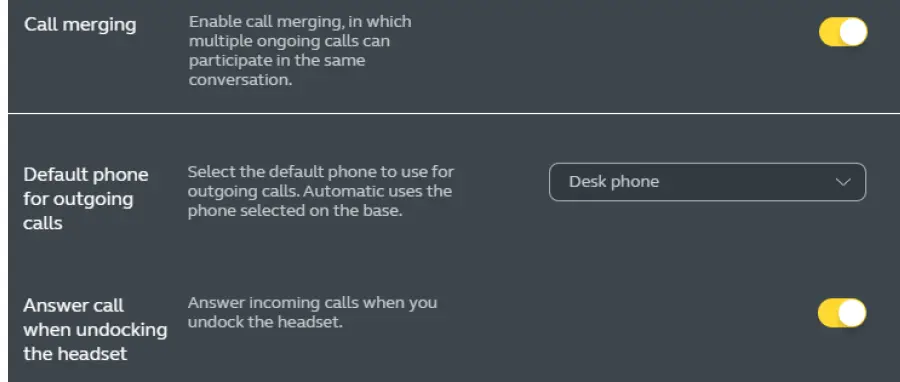
- On Jabra Direct, navigate to Jabra Engage 65 > Device > Base and
- Set Call merging to ON.
- Set Default phone for outgoing calls to Desk phone.
- Set Answer call when undocking the headset to ON.
- Click Apply.

- On Jabra Direct, navigate to Jabra Engage 65 > Device > Softphone (PC) and
- Set Softphone connection to OFF.
- Click Apply.

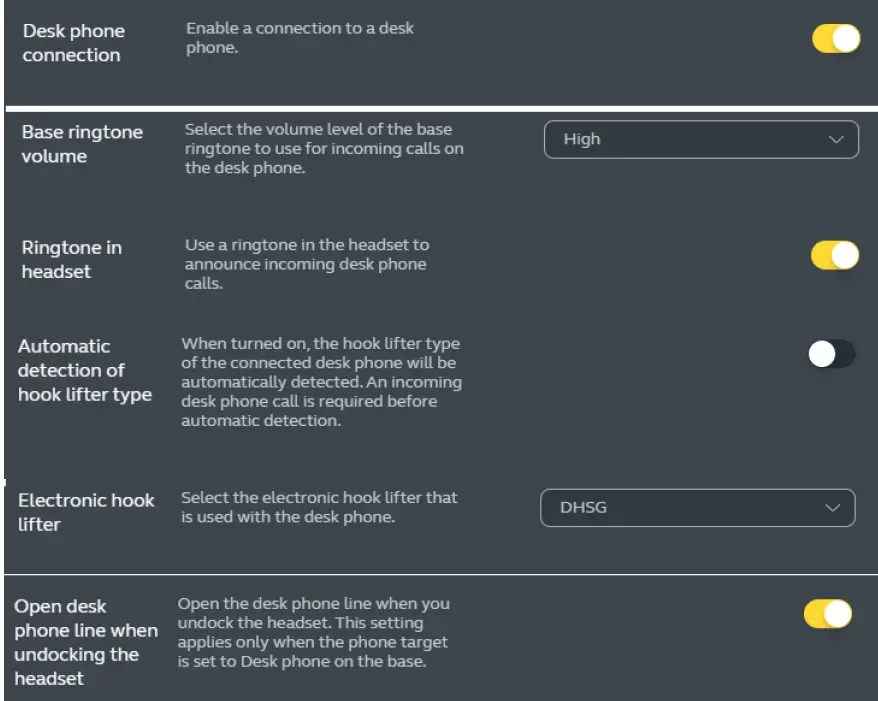
- On Jabra Direct, navigate to Jabra Engage 65 > Device > Desk Phone and
- Set Desk phone connection to ON.
- Set Base ringtone volume to High.
- Set Ringtone in headset to ON.
- Set Automatic detection of hook lifter type to OFF.
- Set Electronic hook lifter to DHSG.
- Set Open desk phone line when undocking the headset to ON.
- Click Apply.


Appendix B
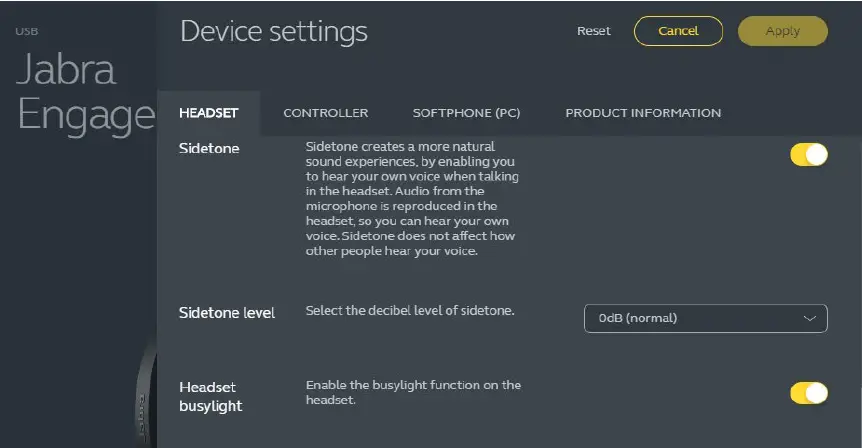
Configuring Jabra Engage 50 USB Headset
Note: Jabra Engage Link (USB-A connection) is required.
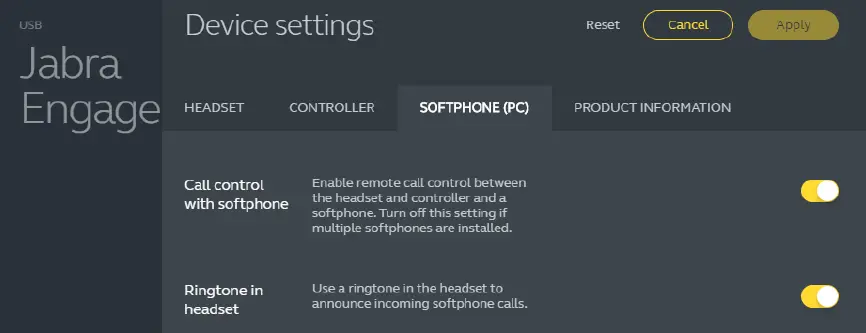
- On Jabra Direct, navigate to Jabra Engage 50 > Device > Softphone (PC) and
- Set Call control with softphone to ON.
- Set Ringtone in headset to ON.
- Click Apply.

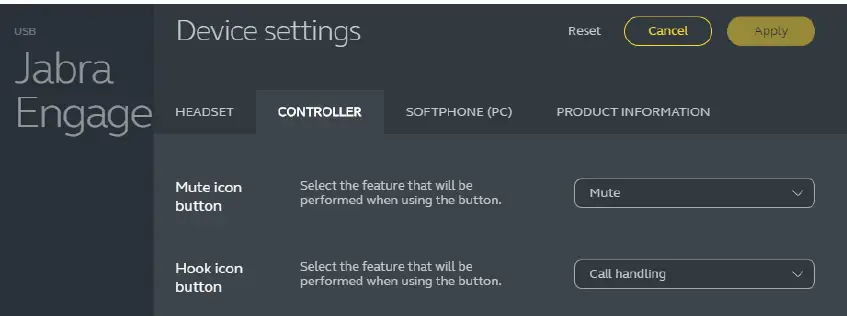
- On Jabra Direct, navigate to Jabra Engage 50 > Device > Controller and
- Set Mute icon button to Mute.
- Set Hook icon button to Call Handling.
- Click Apply.

- On Jabra Direct, navigate to Jabra Engage 50 > Device > Headset and
- Set Headset busylight to ON.
- Click Apply.

Appendix C
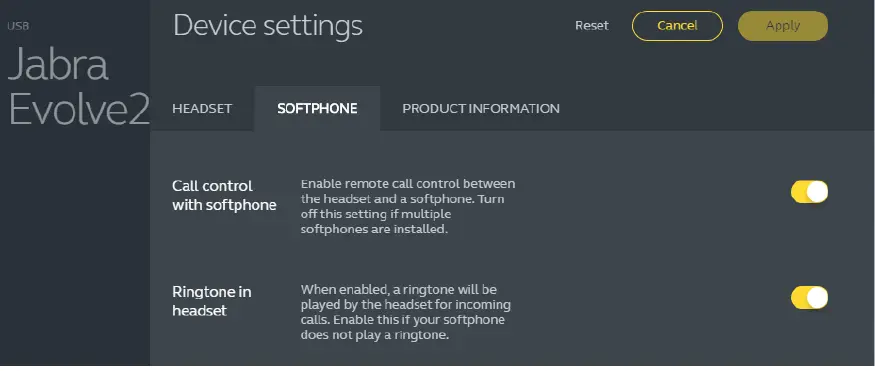
Configuring Jabra Evolve2 40 USB Headset
- On Jabra Direct, navigate to Jabra Evolve2 40 > Device > Softphone and
- Set Call control with softphone to ON.
- Set Ringtone in headset to ON.
- Click Apply.

®,™ Trademark of Mitel Networks Corporation
© Copyright 2021 Mitel Networks Corporation All rights reserved.