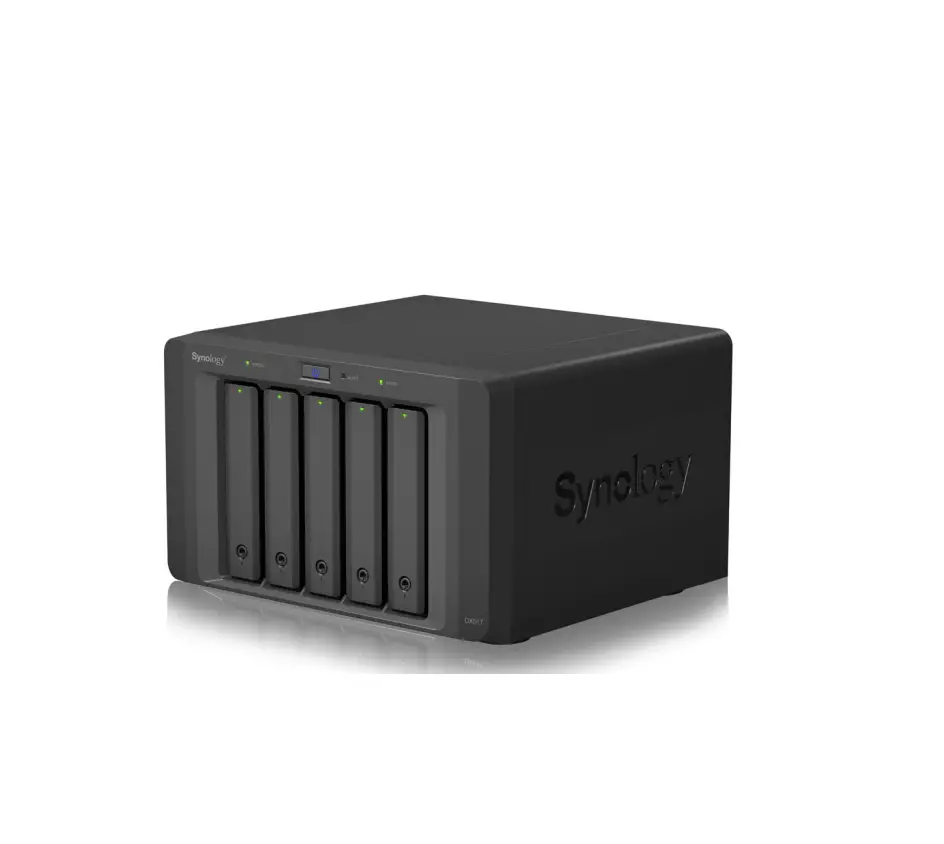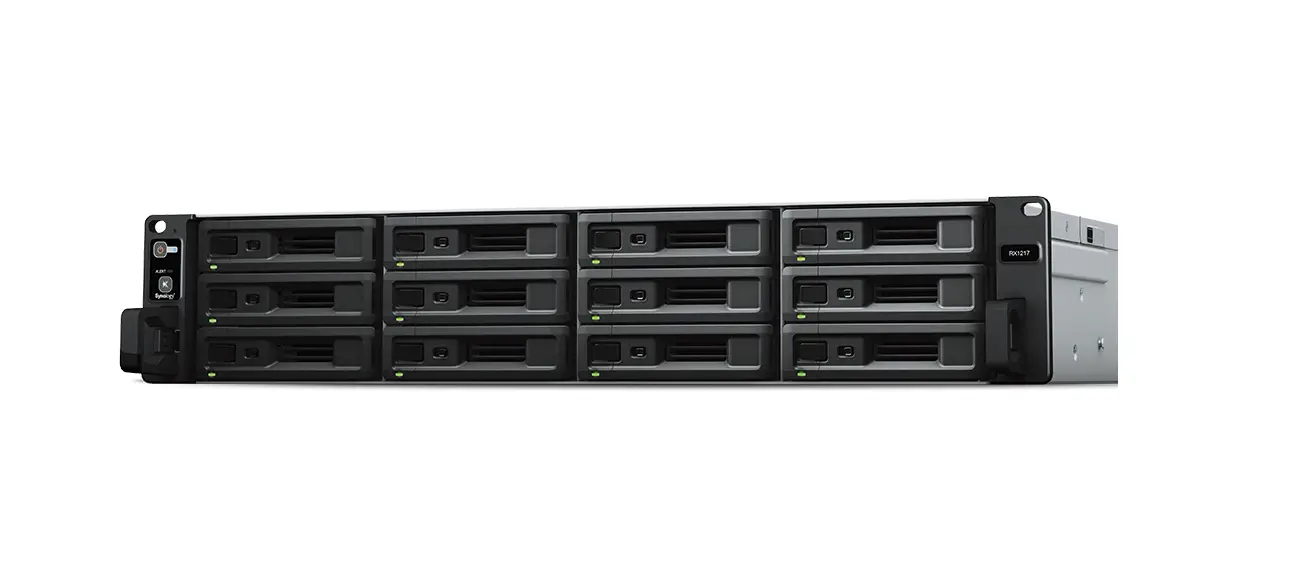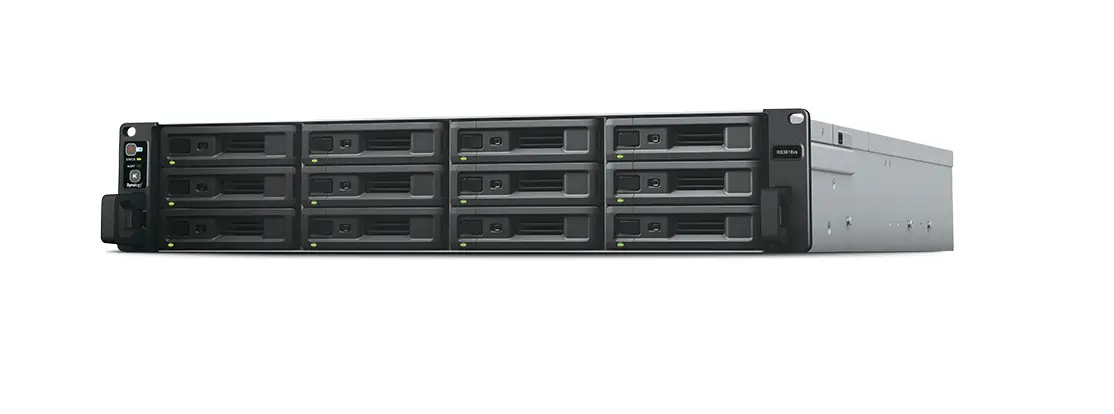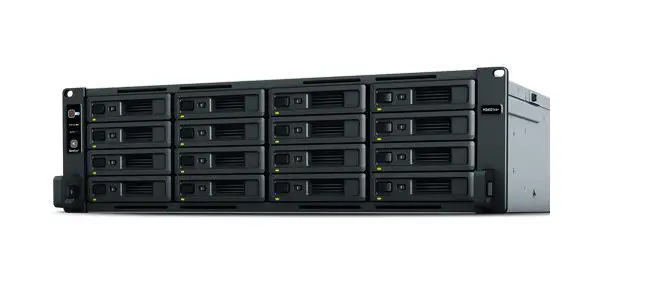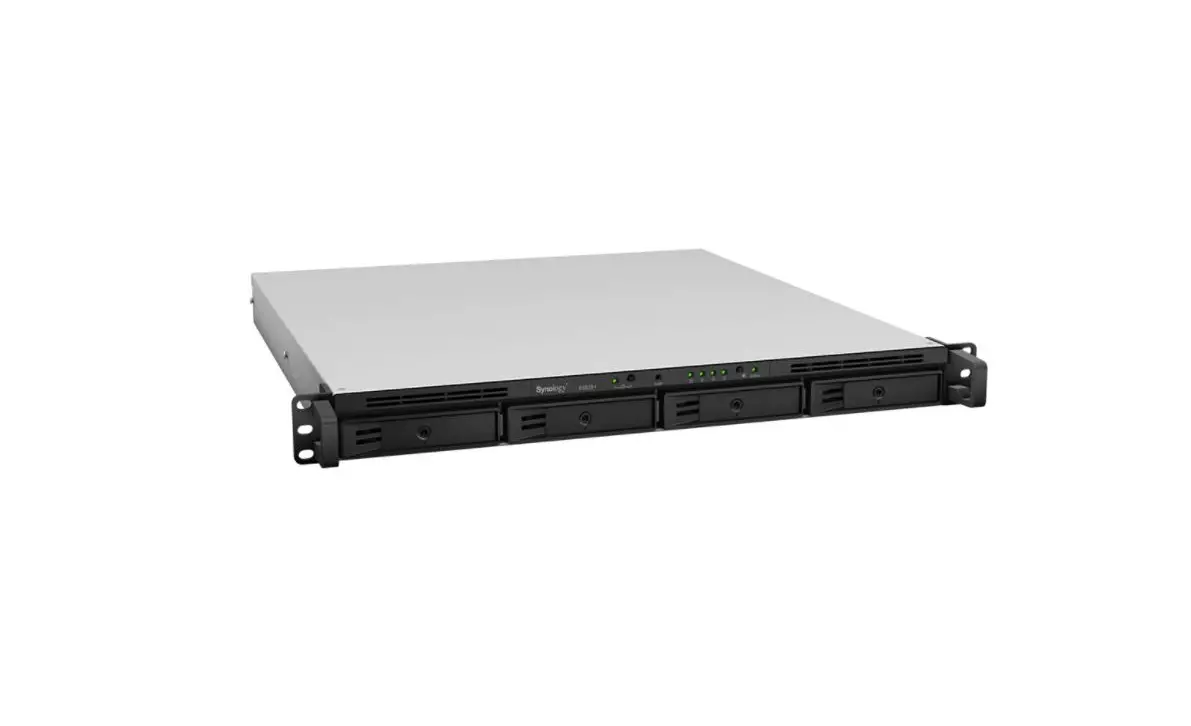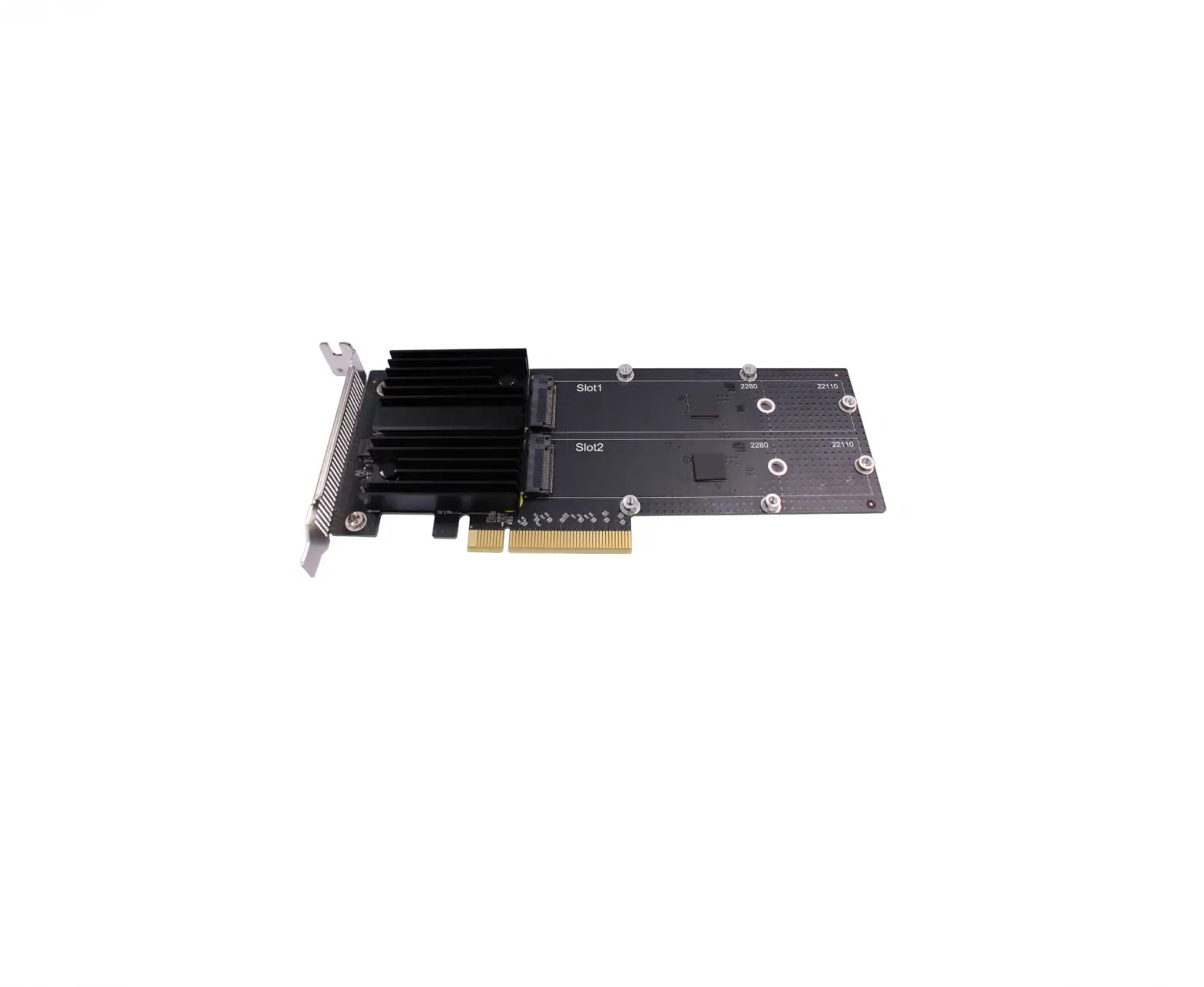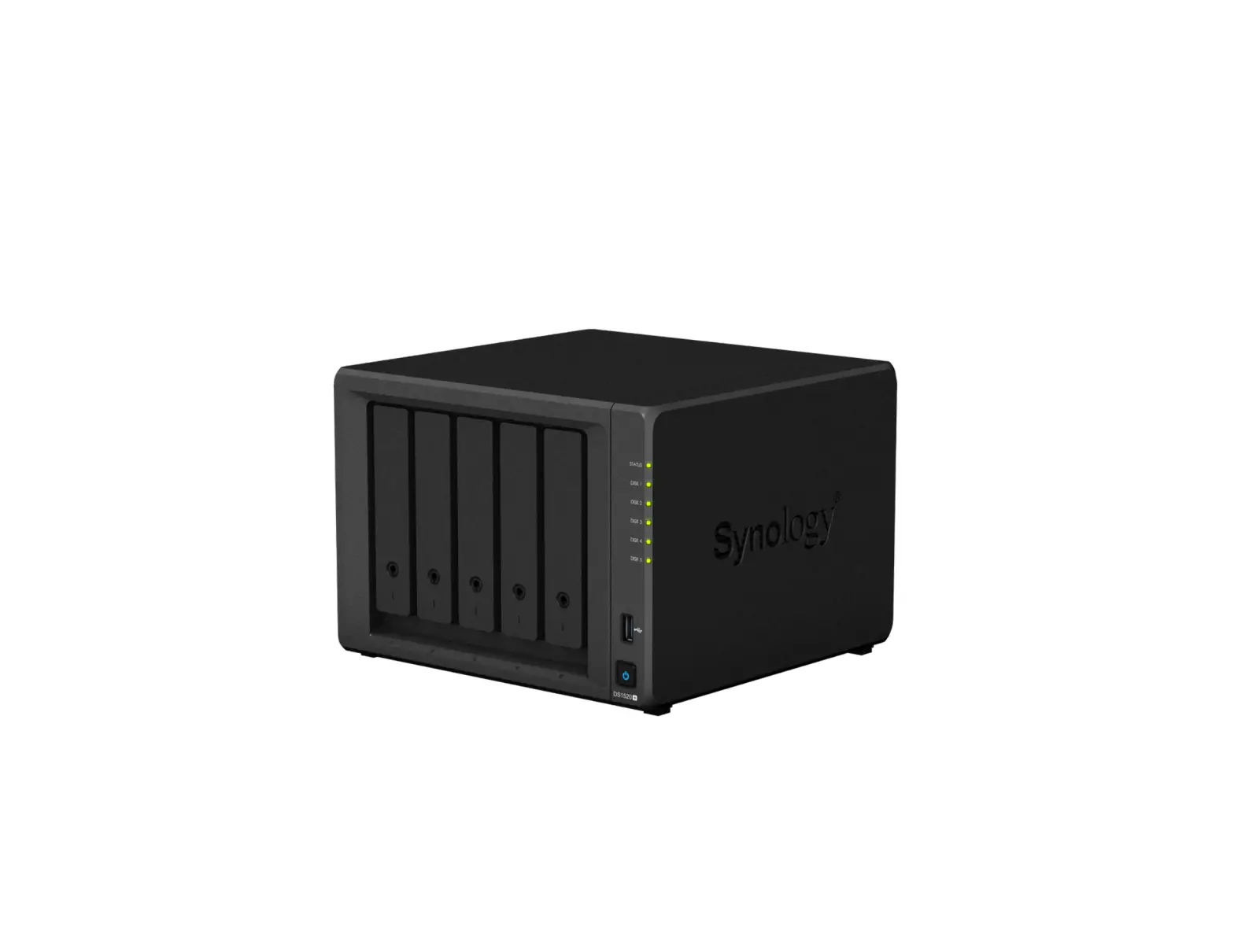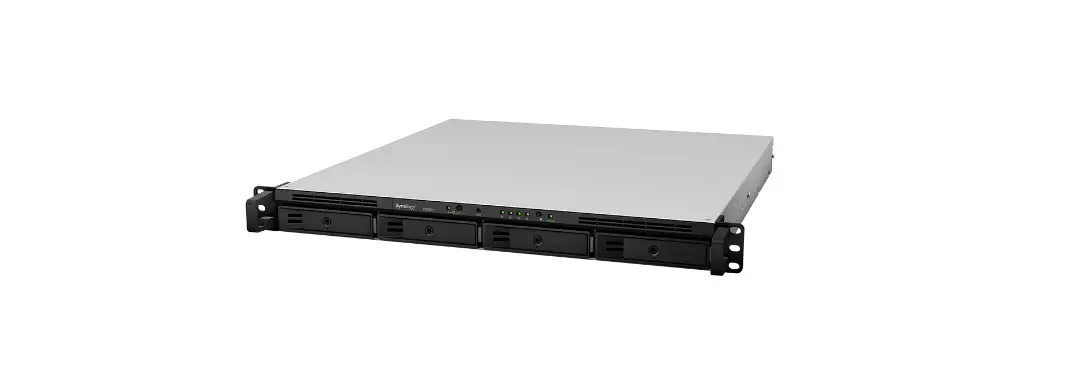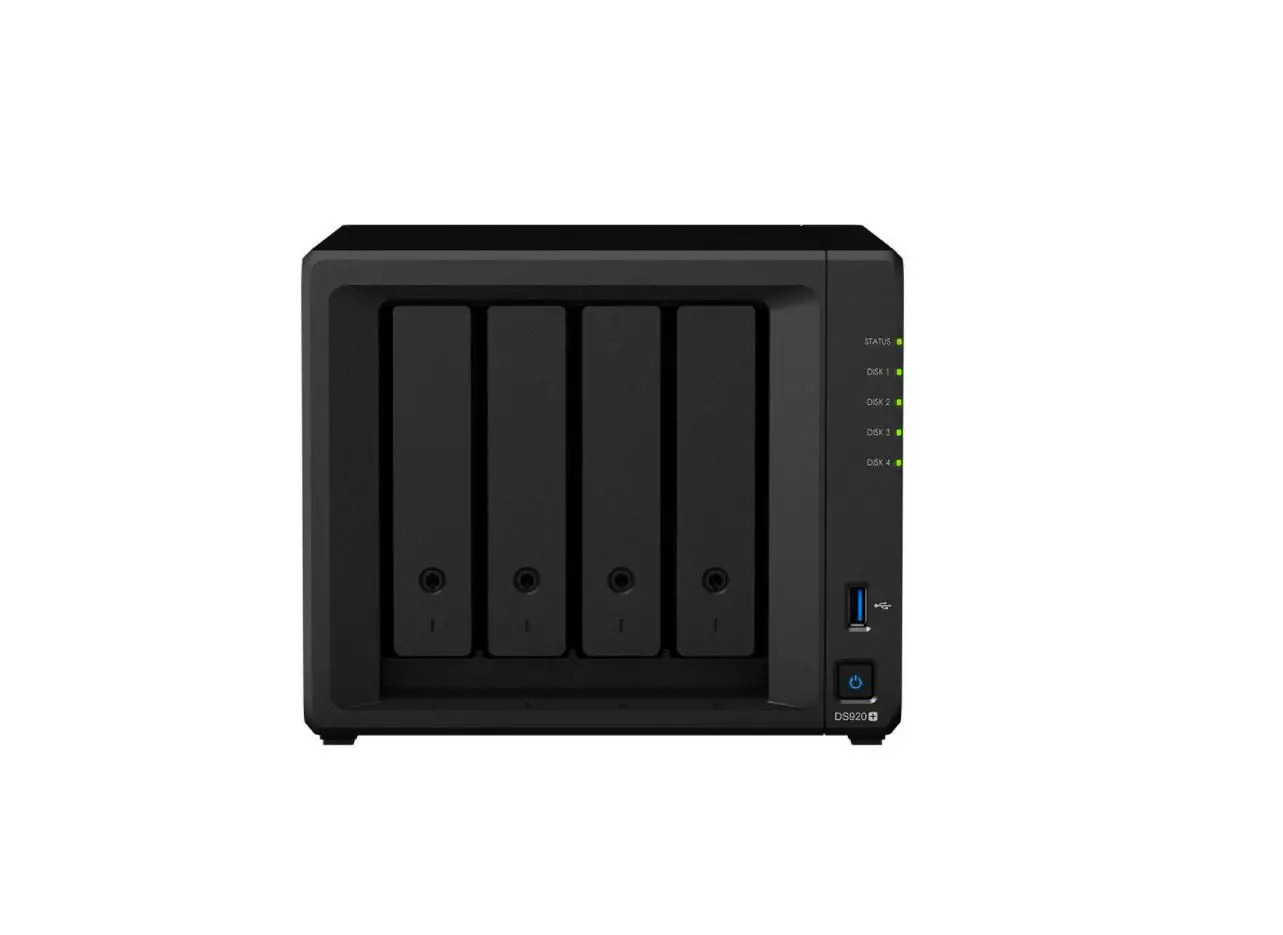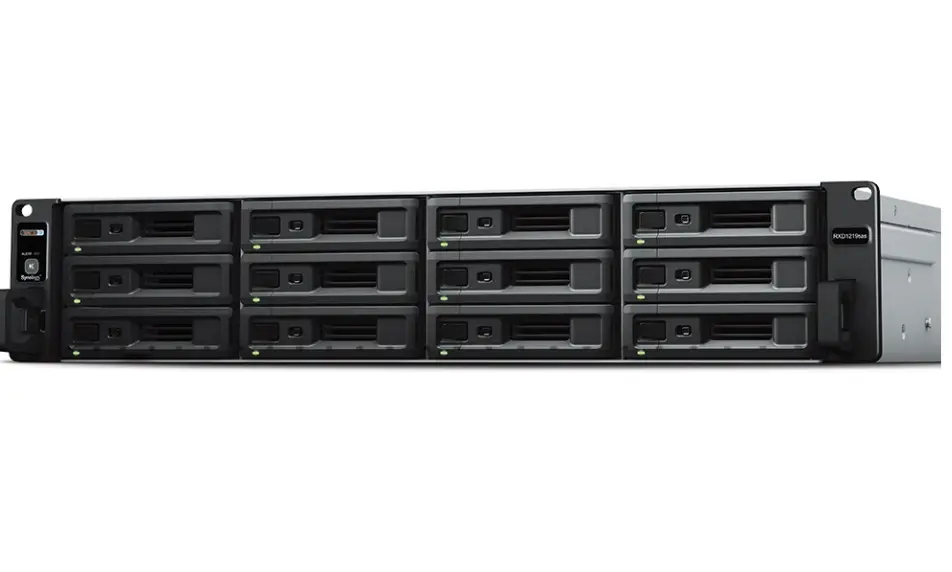

Synology RX1217RP Expansion Unit
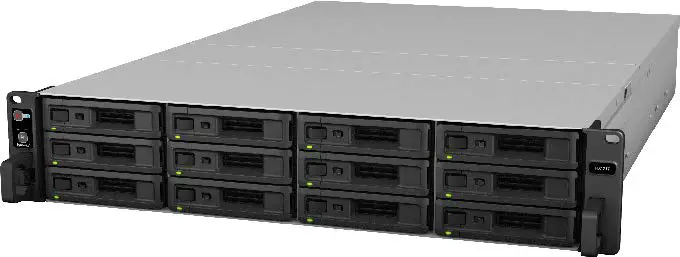
Before You Start
Thank you for purchasing Synology RX1217/RX1217RP expansion unit! Before setting up your new expansion unit, please check the package contents to verify that you have received the items below. Also, make sure to read the safety instructions carefully to avoid harming yourself or damaging your Synology product.
Note: All images below are for illustrative purposes only, and may differ from the actual product.
Package Contents
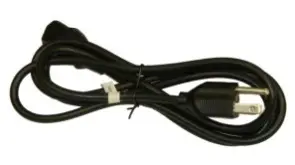
| Expansion unit x 1 | AC power cord (RX1217: x 1; RX1217RP: x 2) | |
|
| 
| |
| Screws for 3.5” drives x 52 | Screws for 2.5” drives x 52 | Expansion cable (InfiniBand) x 1 |
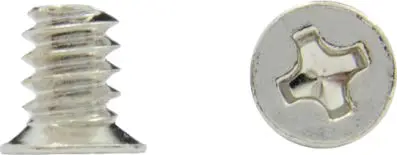
|
| 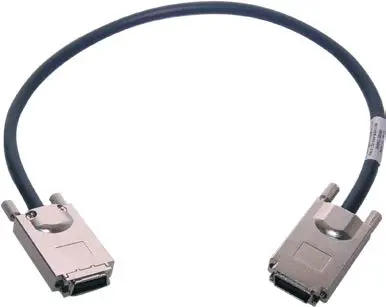 |
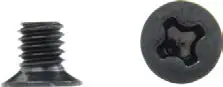
Expansion Unit at a Glance
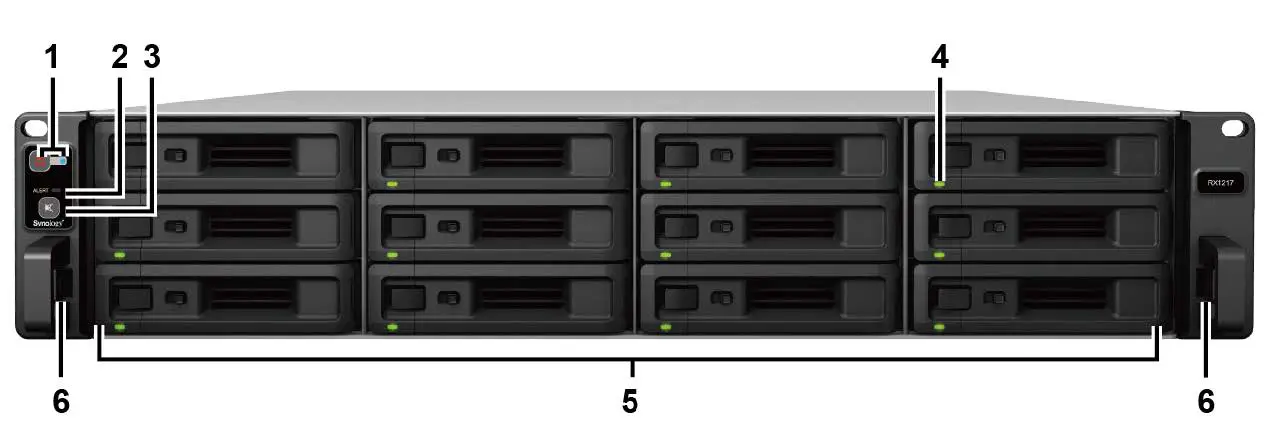
Front
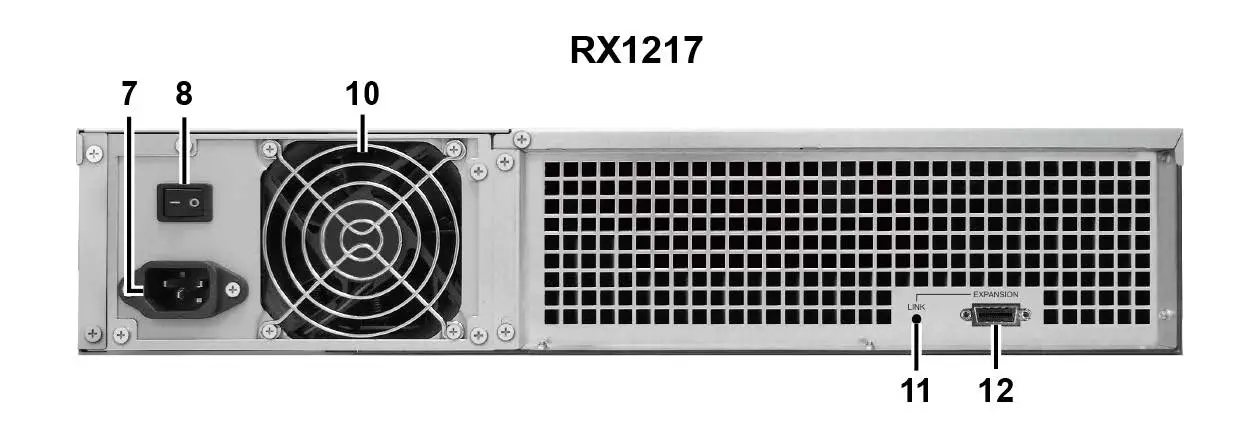
Back
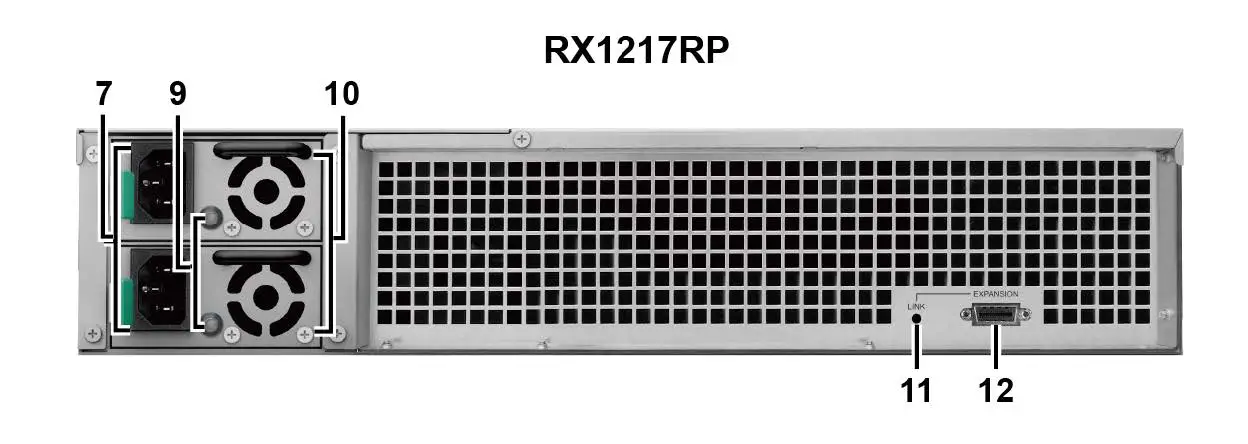
| No. | Article Name | Location | Description |
| 1 | Power Button and Indicator |
Front | Press to manually power on the expansion unit. For more information, please see “Appendix B: LED Indicator Table“. |
| 2 | ALERT Indicator | Displays warnings regarding fan or temperature status. For more information, please see “Appendix B: LED Indicator Table“. | |
| 3 | Beep Off Button | Press to deactivate the beeping sound that is emitted when a malfunction occurs. | |
| 4 | Drive Status Indicator | Displays the status of drives. For more information, please see “Appendix B: LED Indicator Table“. | |
| 5 | Drive Tray | Install drives here. | |
| 6 | Rail Kit Release Tab | Push in and hold to release the RackStation from the rail kit lock.1 | |
| 7 | Power Port |
Back | Connect power cords here. |
| 8 | PSU On/Off Switch | Press to switch the power supply unit (PSU) on or off. | |
| 9 | PSU Indicator and Beep Off Button | Displays the status of the PSU. Press to deactivate the beeping sound that is emitted when a malfunction occurs. For more information, please see “Appendix B: LED Indicator Table“.2 | |
| 10 | PSU Fan | Disposes of excess heat and cools the PSU. | |
| 11 | LINK Indicator | Displays the status of the link between the expansion unit and the main RackStation unit. For more information, please see “Appendix B: LED Indicator Table“. | |
| 12 | EXPANSION Port | Connect the expansion unit to a Synology RackStation here. For compatible models, please visit www.synology.com. |
Safety Instructions
 | Keep away from direct sunlight and away from chemicals. Make sure the environment does not experience abrupt changes in temperature or humidity. |
 | Place the product right side up at all times. |
 | Do not place near any liquids. |
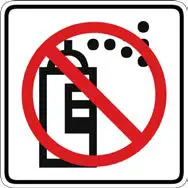 | Before cleaning, unplug the power cord. Wipe with damp paper towels. Do not use chemical or aerosol cleaners. |
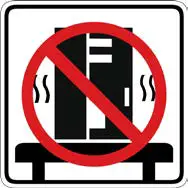 | To prevent the unit from falling over, do not place on carts or any unstable surfaces. |
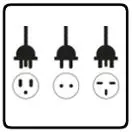 | The power cord must plug in to the correct supply voltage. Make sure that the supplied AC voltage is correct and stable. |
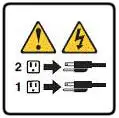 | To remove all electrical current from the device, ensure that all power cords are disconnected from the power source. |
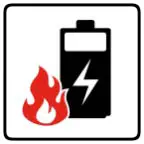 | Risk of explosion if battery is replaced with an incorrect type. Dispose of used batteries appropriately. |
Hardware Setup
Tools and Parts for Drive Installation
- A screwdriver
- At least one 3.5” or 2.5” SATA drive (please visit www.synology.com for compatible drive models)
Warning: If you install a drive that contains data, the system will format the drive and erase all existing data. Please back up any important data before installation.
Install Drives
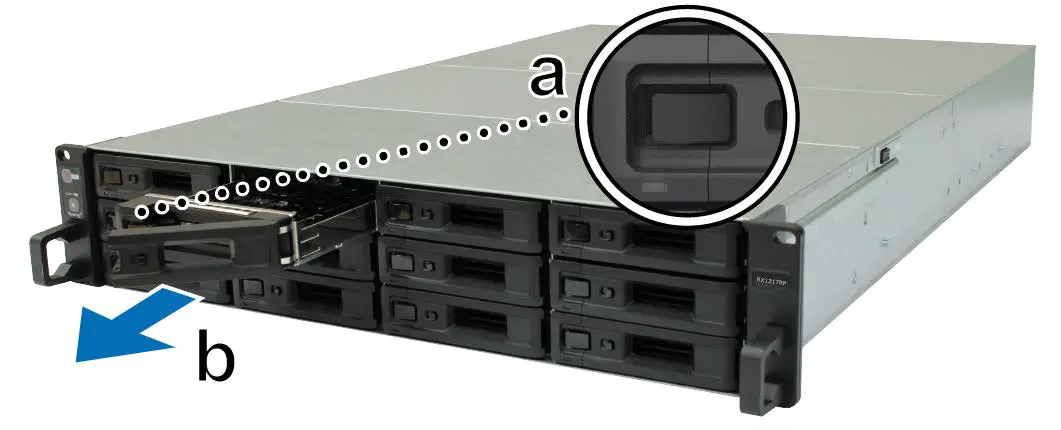
- Open the drive tray.
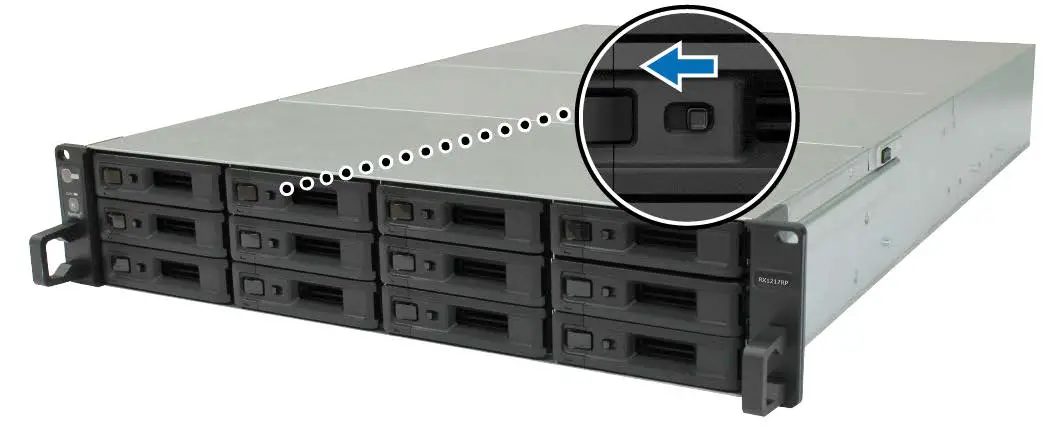
- Find the small button located on the left side of the drive tray handle. Press the button down, and the drive tray handle will pop out.
- Pull the drive tray handle out as illustrated above.

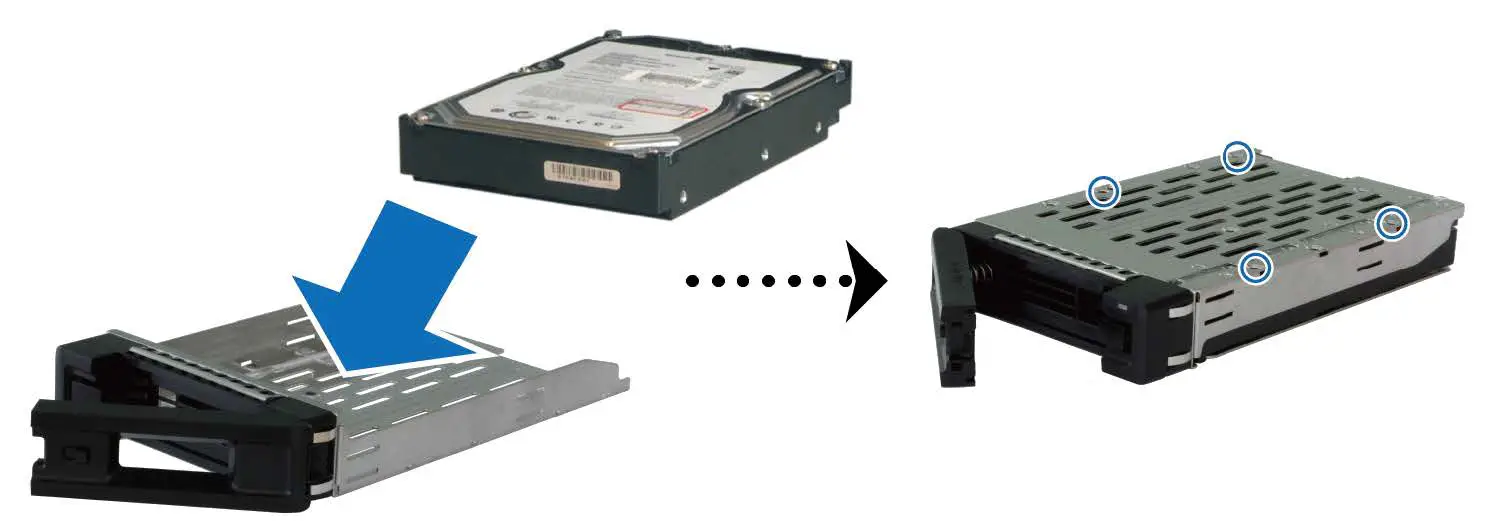
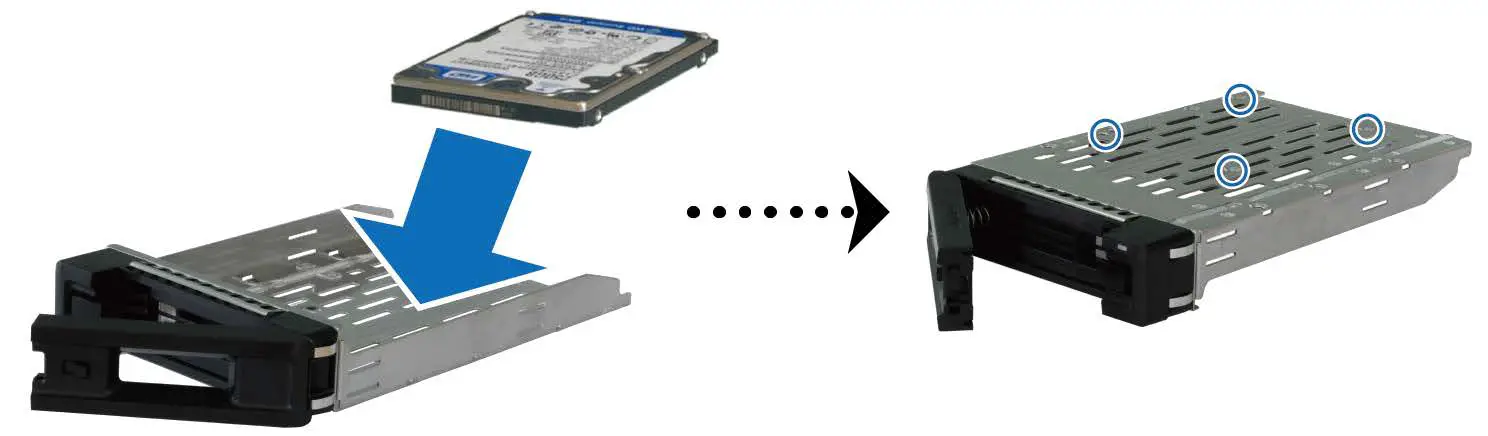
- Load drives in the drive trays.
- For 3.5” drives: Place the drive in the drive tray. Turn the tray upside down and tighten screws into the four spots indicated below to secure the drive.

- For 2.5” drives: Place the drive in the drive tray. Turn the tray upside down and tighten screws into the four spots indicated below to secure the drive.

- For 3.5” drives: Place the drive in the drive tray. Turn the tray upside down and tighten screws into the four spots indicated below to secure the drive.
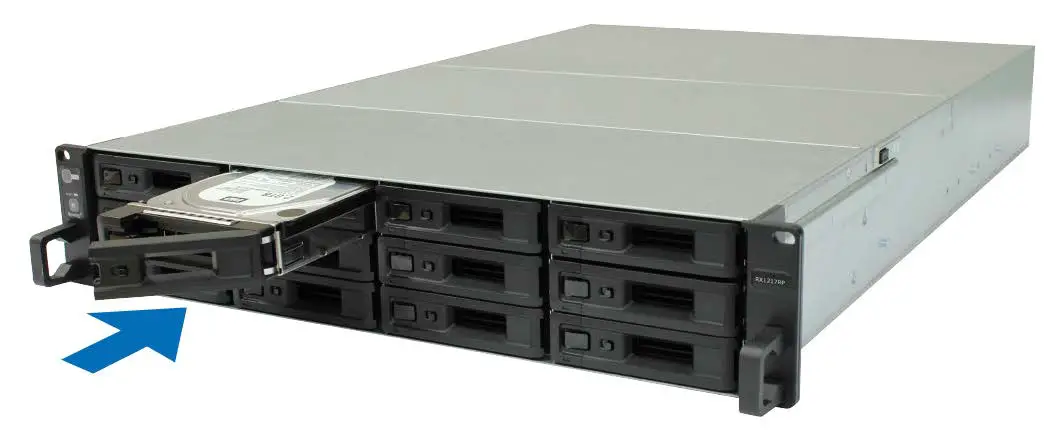
- Insert the loaded drive tray into the empty drive bay.
Note: Make sure the tray is pushed in all the way. Otherwise, the drive might not be able to function properly. - Push the handle inward to secure the drive tray.
- Push the switch on the drive tray handle to the left to lock the drive tray.
- Repeat the steps above to assemble the other drives you have prepared.
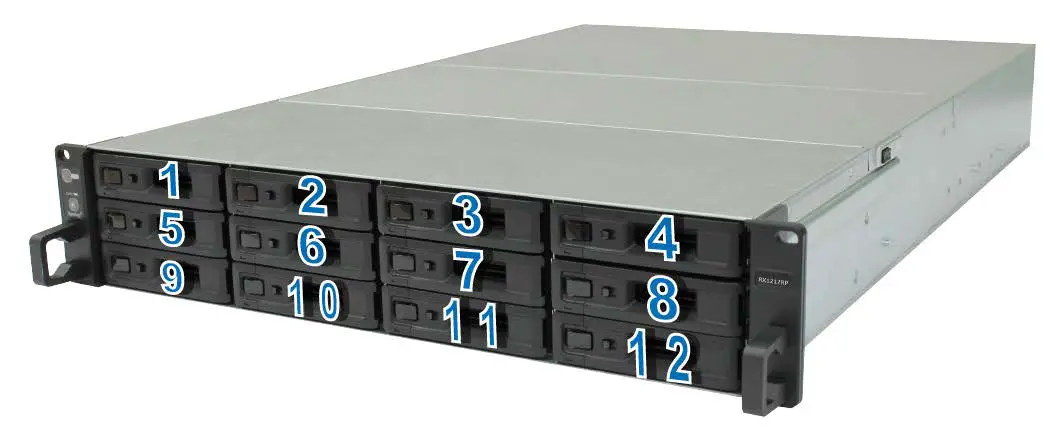
- Drives are numbered as shown below.
Note: If you want to create a RAID volume, we recommend that all installed drives are of the same size to make the best use of drive capacity.
Connect with Synology RackStation
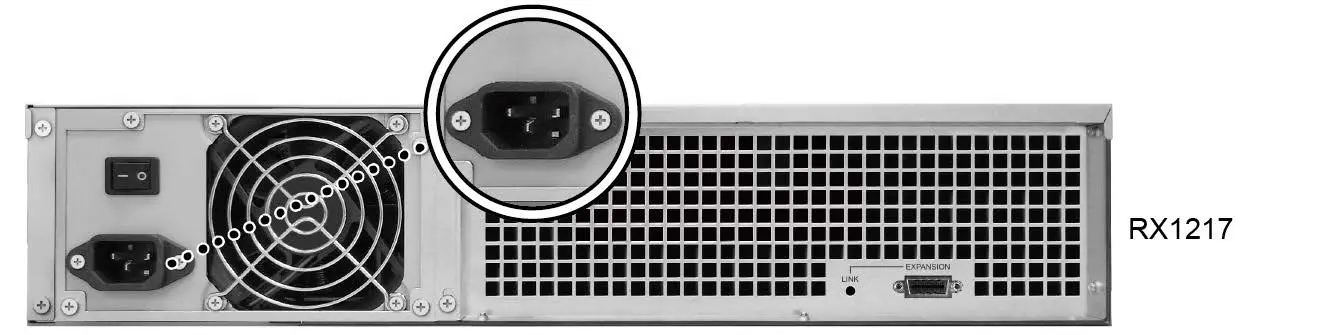
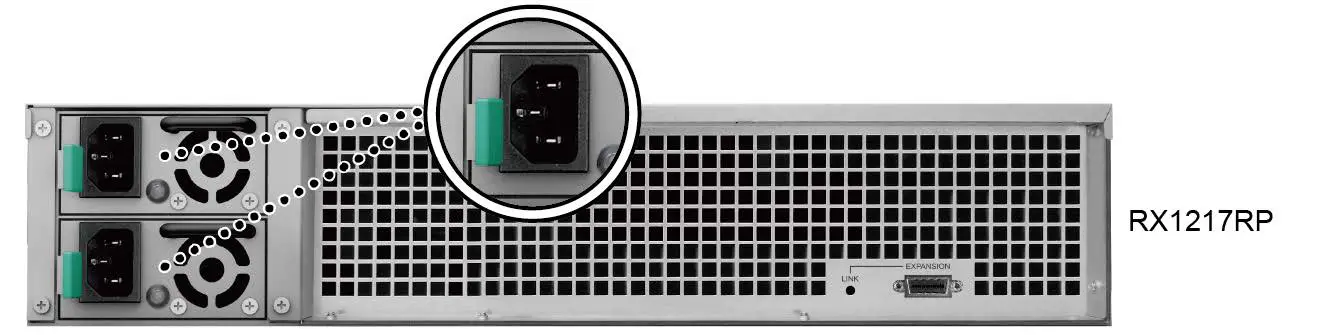
- Connect one end of the power cord to the power port of RX1217/RX1217RP, and the other to the power outlet.
Note: RX1217RP comes equipped with a redundant power supply system, allowing two power cords to be connected. The system may be powered on with only one power cord, but we recommend using two power cords to avoid unexpected power failures.
- Connect one end of the expansion cable to the expansion port of RX1217/RX1217RP and the other to the expansion port of the RackStation.

- For RX1217, press the PSU on/off switch located on the back panel to switch the PSU on. Press the power buttons on the front panel to power on the RackStation and RX1217/RX1217RP.
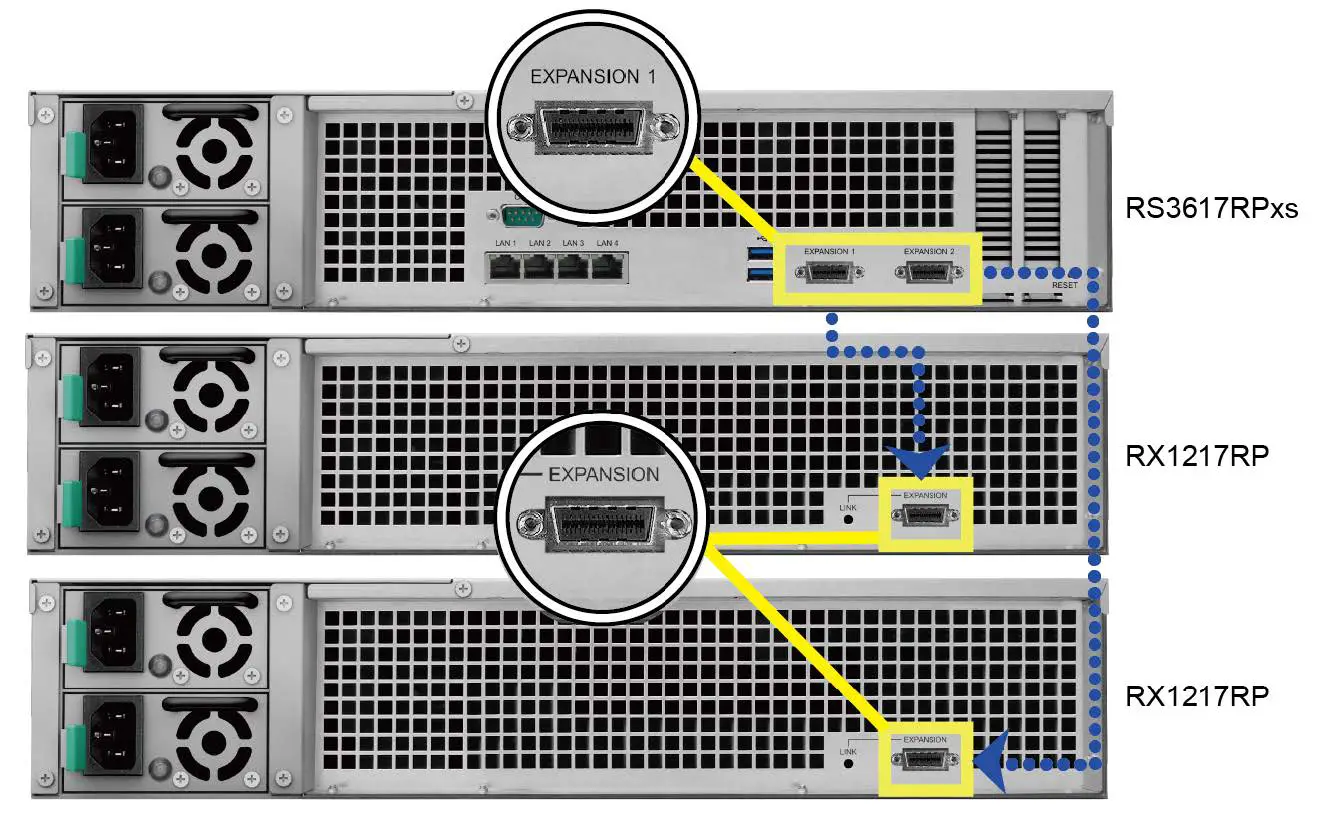
Note:
- Once you power on/off the RackStation unit, your expansion unit(s) will automatically power on/off one by one if they are correctly connected.
- Even with the RackStation and expansion unit powered on, you can connect the RackStation to another RX1217/RX1217RP if needed. To do so, repeat step 1 and 2 above to connect the expansion cable and power cords of the other expansion unit. Your expansion unit will automatically power on if it is correctly connected.
Important: Do not remove the expansion cable while the host device is still powered on. Doing so may result in data loss.
Learn More
Congratulations! Your expansion unit is set up now. For more information or online resources, please visit www.synology.com.
Maintenance
Replace Malfunctioning Fan
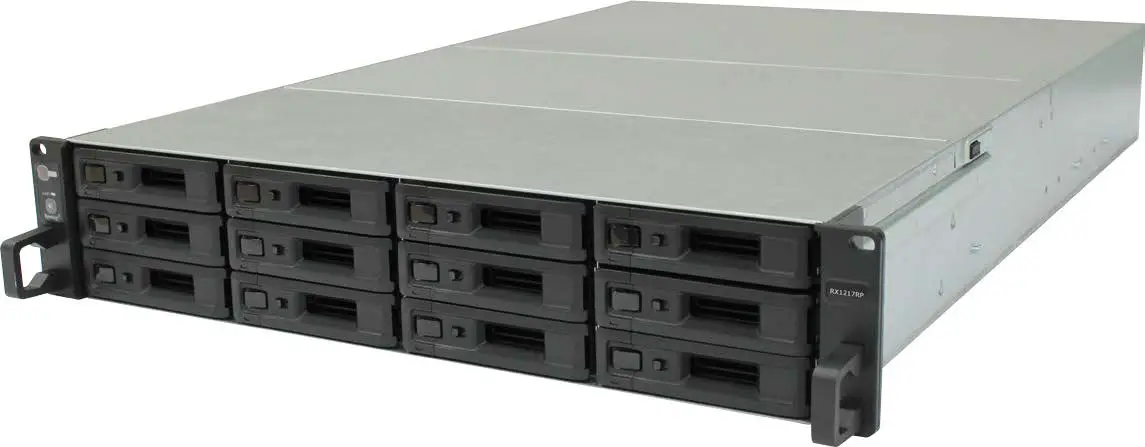
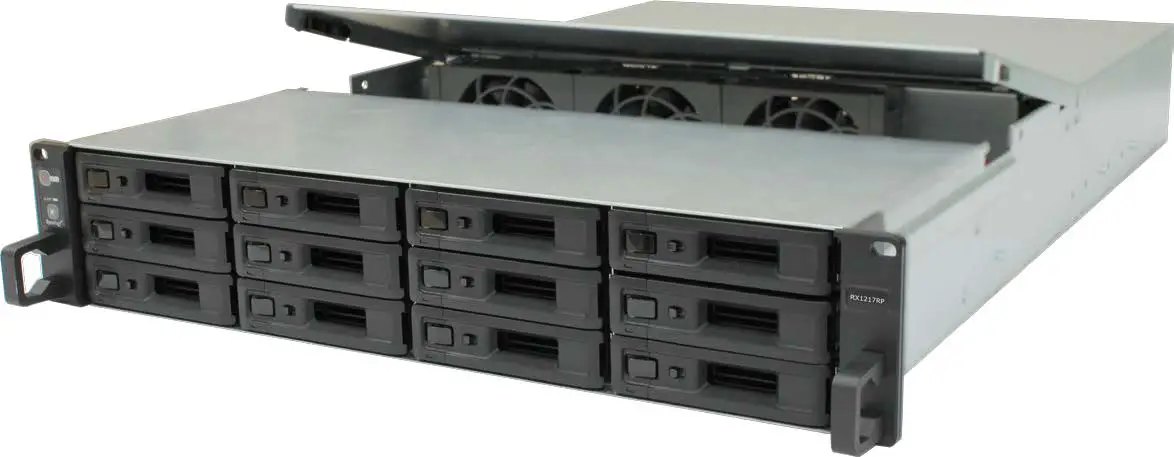
If a system cooling fan malfunctions, please see the instructions below to open the expansion unit and replace the malfunctioning fan.
- Press the small buttons located on the sides of the expansion unit.

- Lift to remove the fan cover.

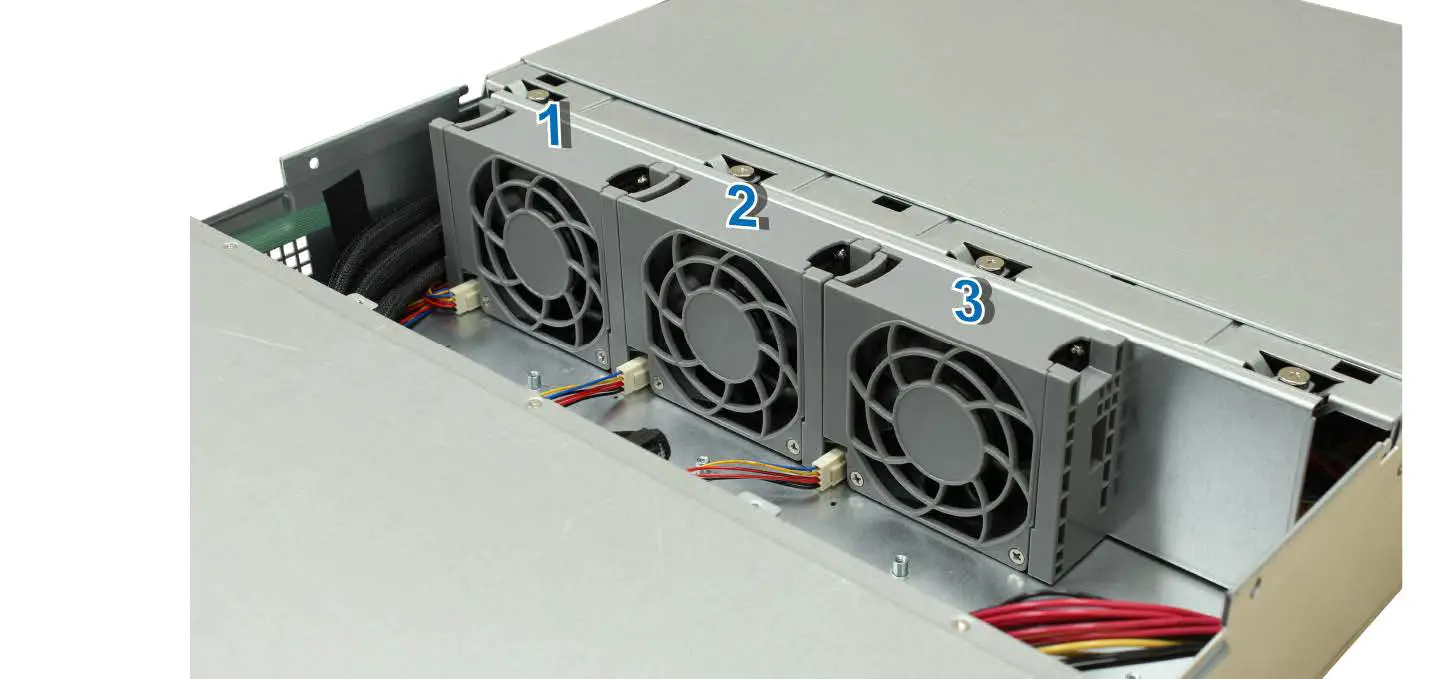
- Cooling fans are numbered as below:

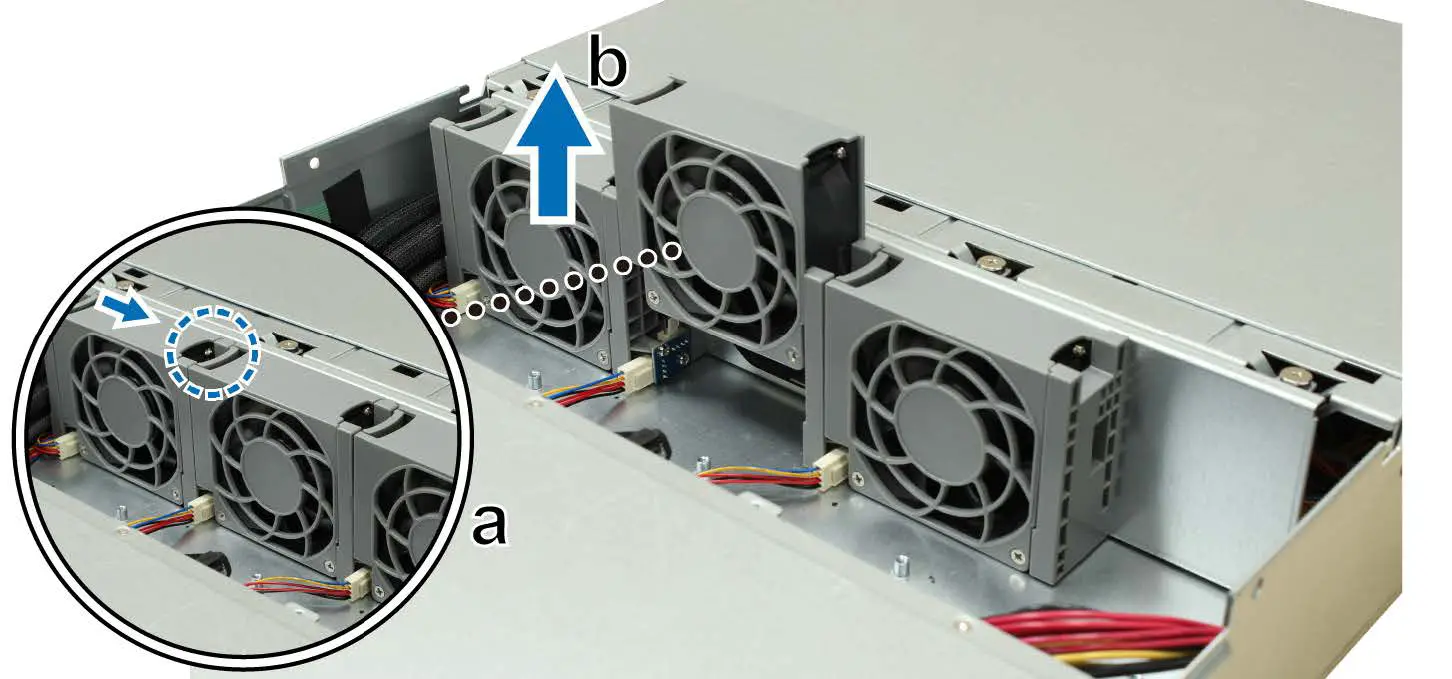
- Remove the malfunctioning fan.
- Find the malfunctioning fan. Press and hold the tab located on the left of the fan.
- Lift the fan upward to remove it.
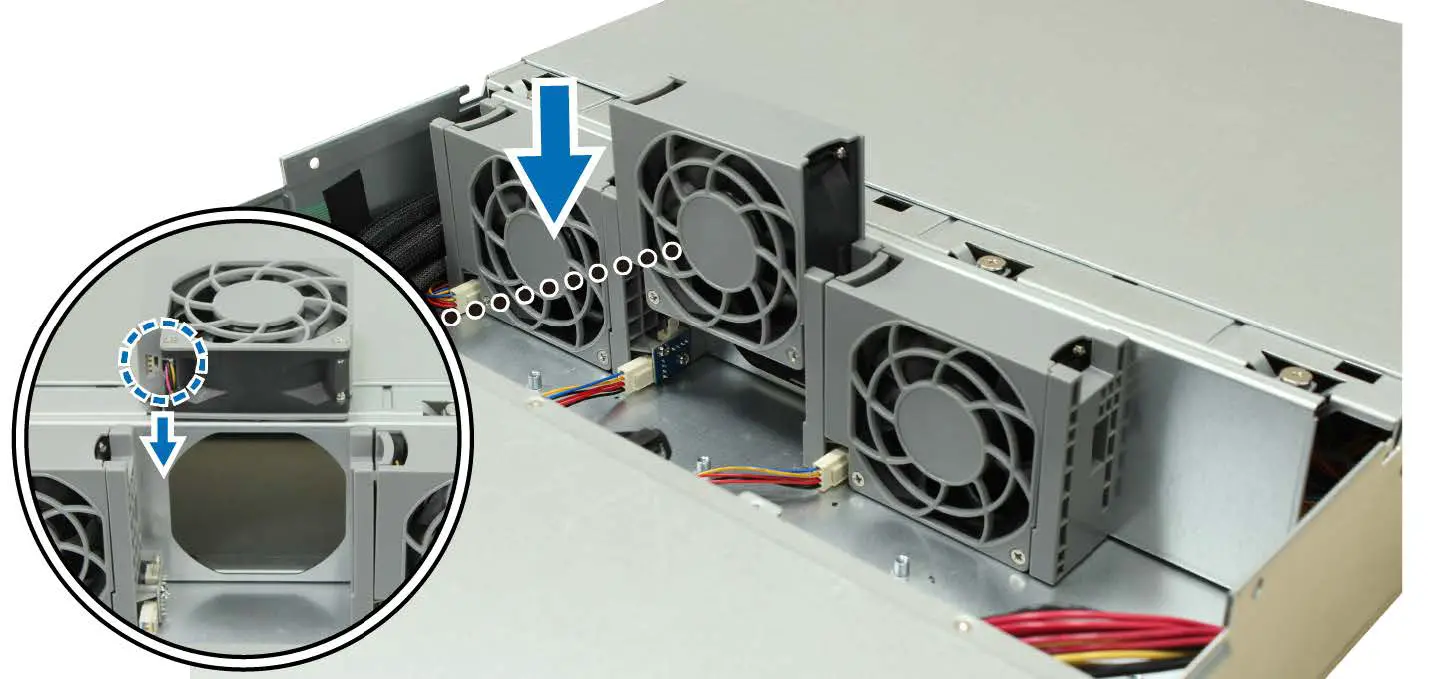
- Slide the new cooling fan into the expansion unit. Make sure the fan is aligned properly as illustrated below.
Replace Malfunctioning PSU for RX1217RP
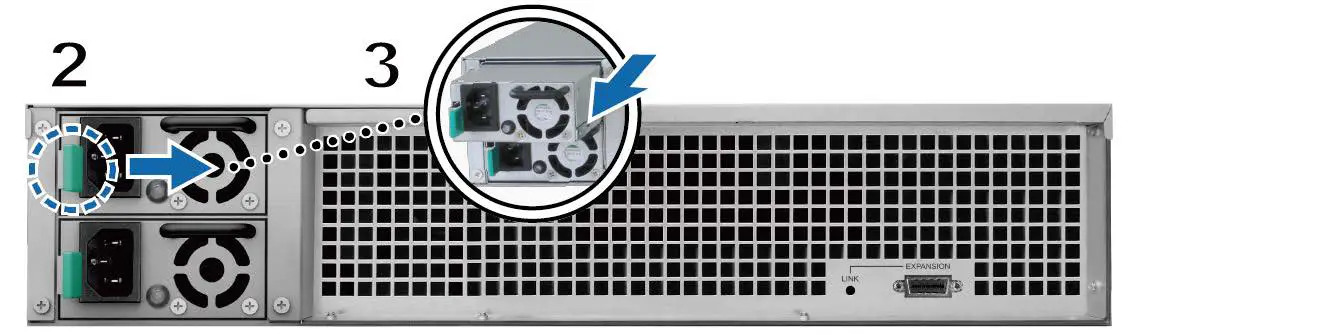
- If a PSU or its fan malfunctions, please see the instructions below to replace the malfunctioning PSU. 1 Unplug the power cord from the PSU to be replaced.
Note: By pressing the Beep Off button, you can silence the long beeping sound when you hear it. - Push the lever of the PSU at the back panel in the indicated direction.
- Pull out the PSU from the expansion unit.
- Prepare a new PSU, and push it back to the slot until you hear a click.
Specifications
| Item | RX1217/RX1217RP |
| Compatible Drive Type | 3.5” / 2.5” SATA III / SATA II x 12 |
| Maximum Internal Raw Capacity | 96TB (12 x 8TB HDD) |
| Expansion Port | 1 x InfiniBand |
| Hot Swappable Drive | Yes |
| Size (H x W x D) (mm) | RX1217: 88 x 430.5 x 664; RX1217RP: 88 x 430.5 x 692 |
| Weight (kg) | RX1217: 12.7; RX1217RP: 13.4 |
| System Fan | 3 x (80 x 80 x 32mm) |
| Power Fan | RX1217: 1 x (80 x 80mm); RX1217RP: 2 x (38 x 38mm) |
| Power Recovery | Synchronized with RackStation |
| Agency Certification | • FCC Class A • CE Class A • BSMI Class A |
|
Environment Requirements | • Line voltage: 100V to 240V AC • Frequency: 50/60Hz • Operating Temperature: 40 to 95˚F (5 to 35˚C) • Storage Temperature: -5 to 140˚F (-20 to 60˚C) • Relative Humidity: 5% to 95% RH |
Note: Model specifications are subject to change without notice. Please refer to www.synology.com for the latest information.
LED Indicator Table
| LED Indicator | Color | Status | Description |
| Power | Blue | Static | Powered on |
| Off | Powered off | ||
| ALERT | Orange | Blinking | Fan failure / Over termperature |
| Off | System normal | ||
|
Drive Status Indicator (on tray) | Green | Static | Drive ready and idle |
| Blinking | Accessing drive | ||
| Red | Static | Drive error | |
| Off | No internal drive | ||
| PSU Indicator* | Green | Static | Power supply unit normal |
| Off | Power supply unit off | ||
| LINK | Green | Static | Connected to Synology RackStation |
| Off | Not connected to Synology RackStation | ||
| * RX1217RP only. | |||
Note: Model specifications are subject to change without notice. Please refer to www.synology.com for the latest information.
 Synology Inc.