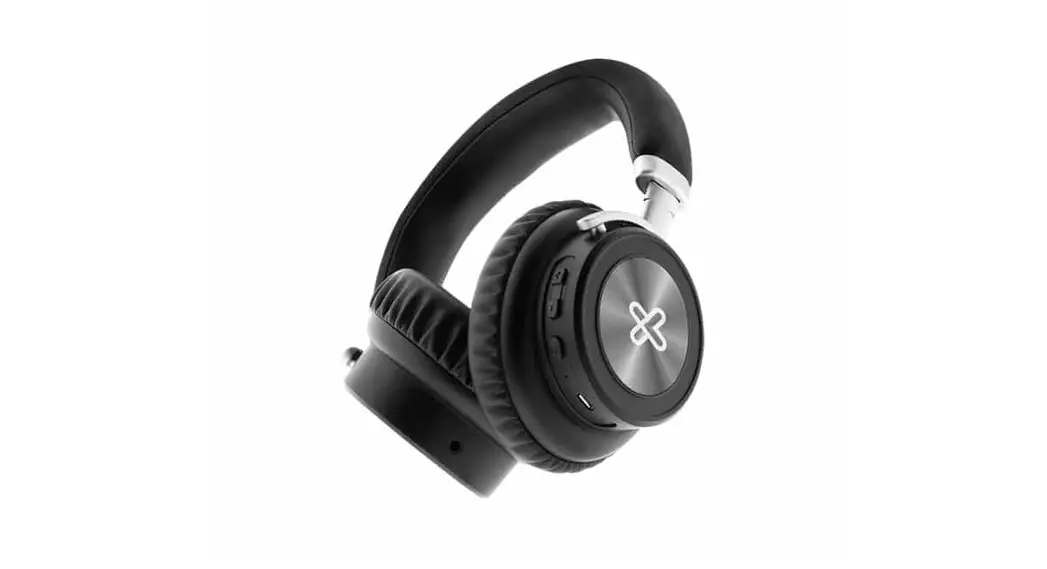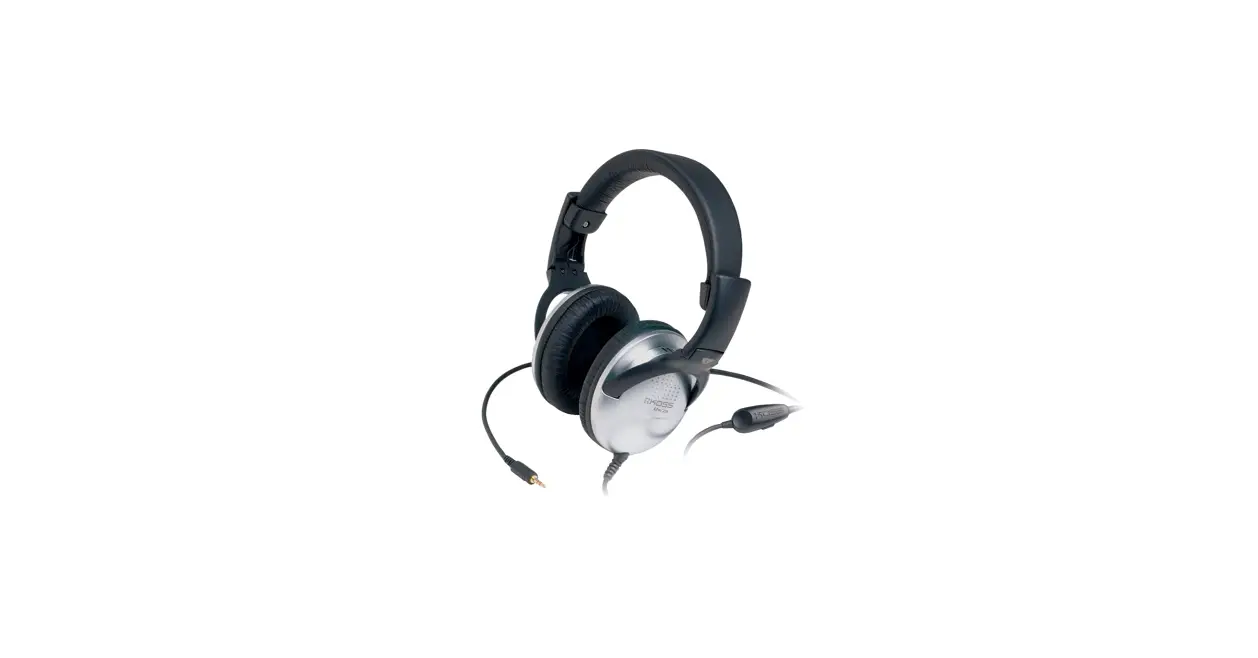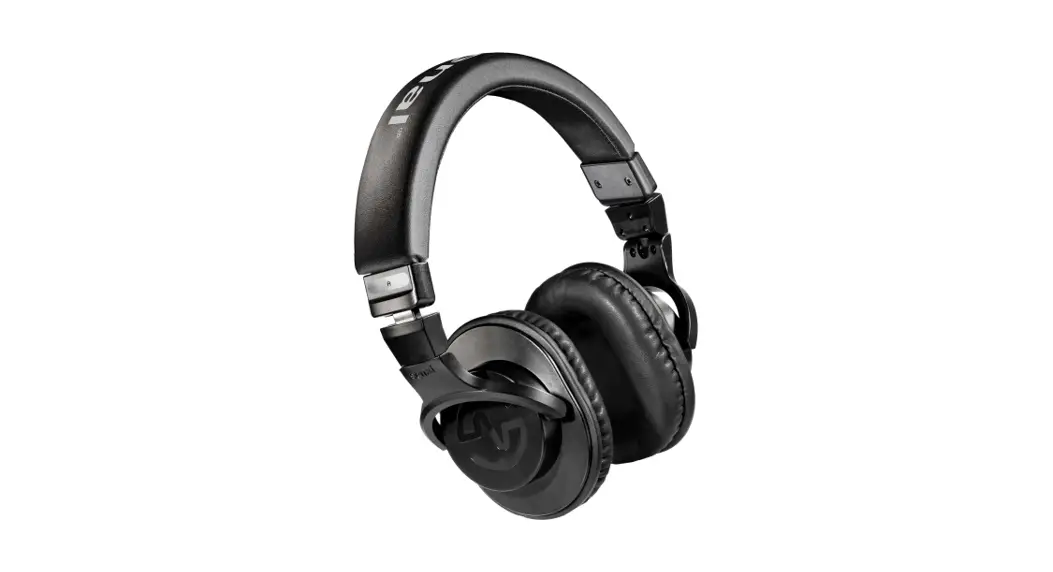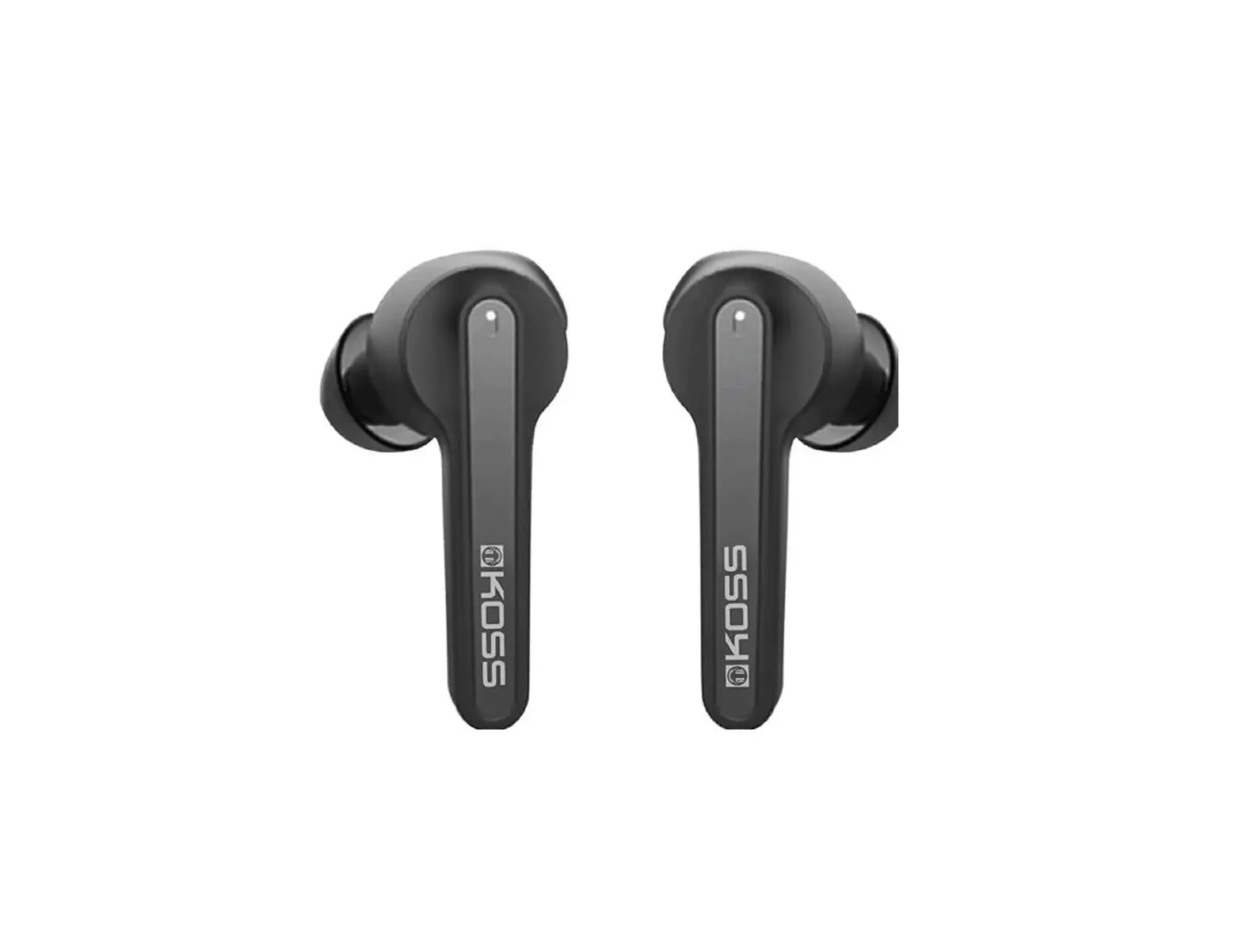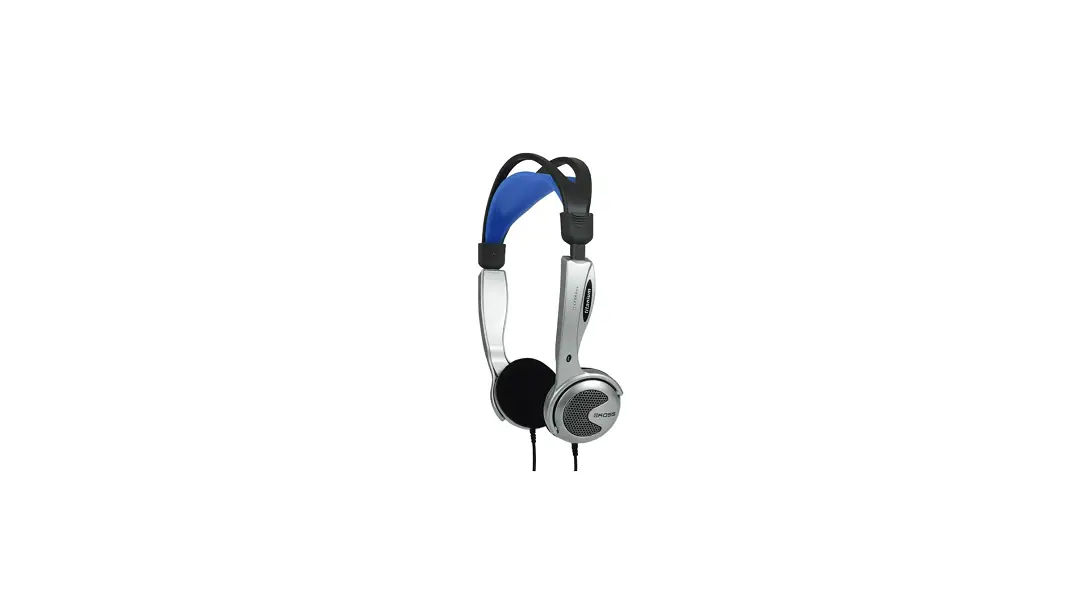

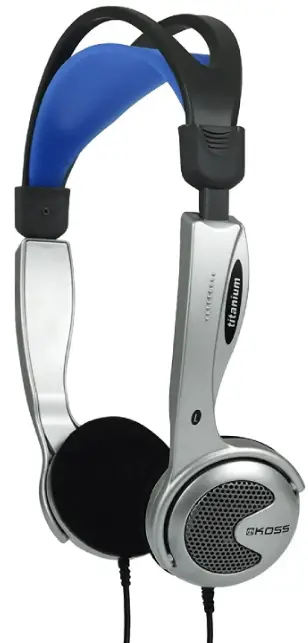
Koss KTXPRO1 Titanium Portable Headphones
SPECIFICATION
- BRAND Koss
- MODEL NAME KTXPRO1
- COLOR Black, Silver
- FORM FACTOR Semi-open-back
- CONNECTIVITY TECHNOLOGY Wired
- PRODUCT DIMENSIONS 2 x 7.2 x 2 inches
- ITEM WEIGHT 4 ounces
- FIT On-Ear
- CONNECTION Wired (3.5mm plug)
- MICROPHONE No
- CONTROLS In-Line Volume Control
- SOUND Koss Titanium drivers tuned for personal listening
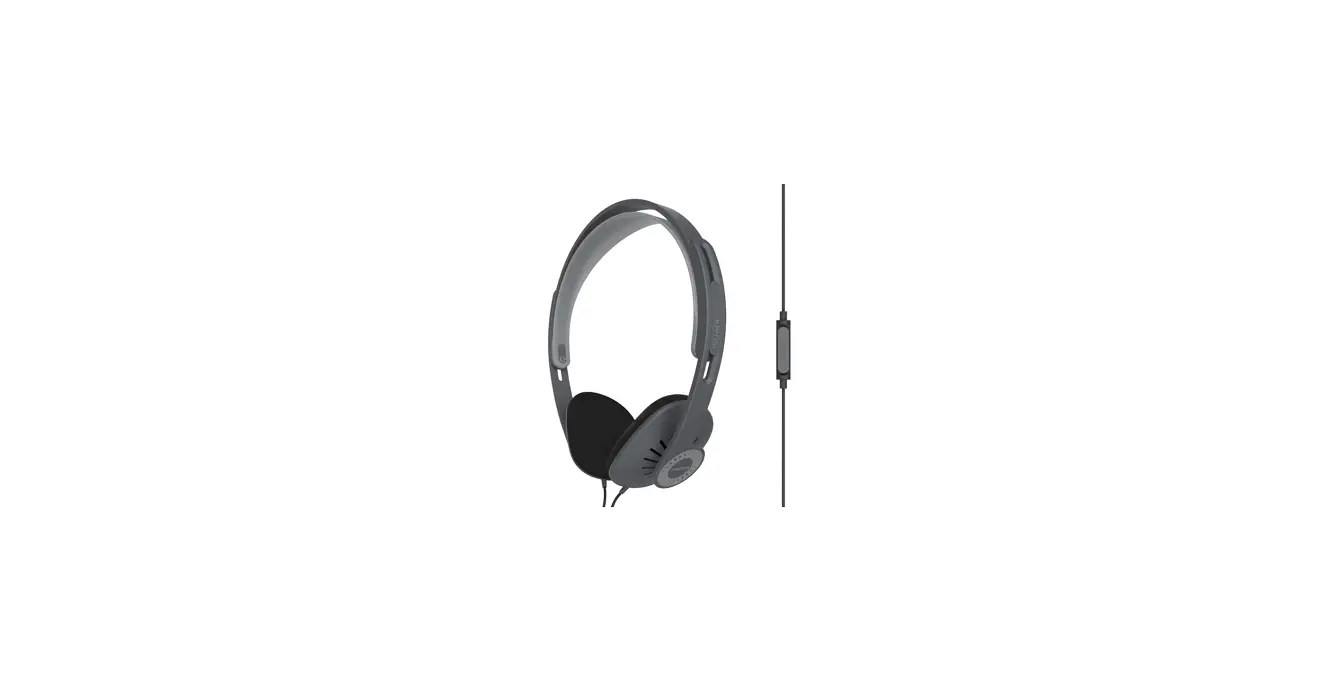
- COMFORT Sling headband
- CUSHION Soft foam (replaceable)
- PORTABILITY & TRAVEL Lightweight design
WHAT’S IN THE BOX
- Titanium Portable Headphones
ON EAR HEADPHONES
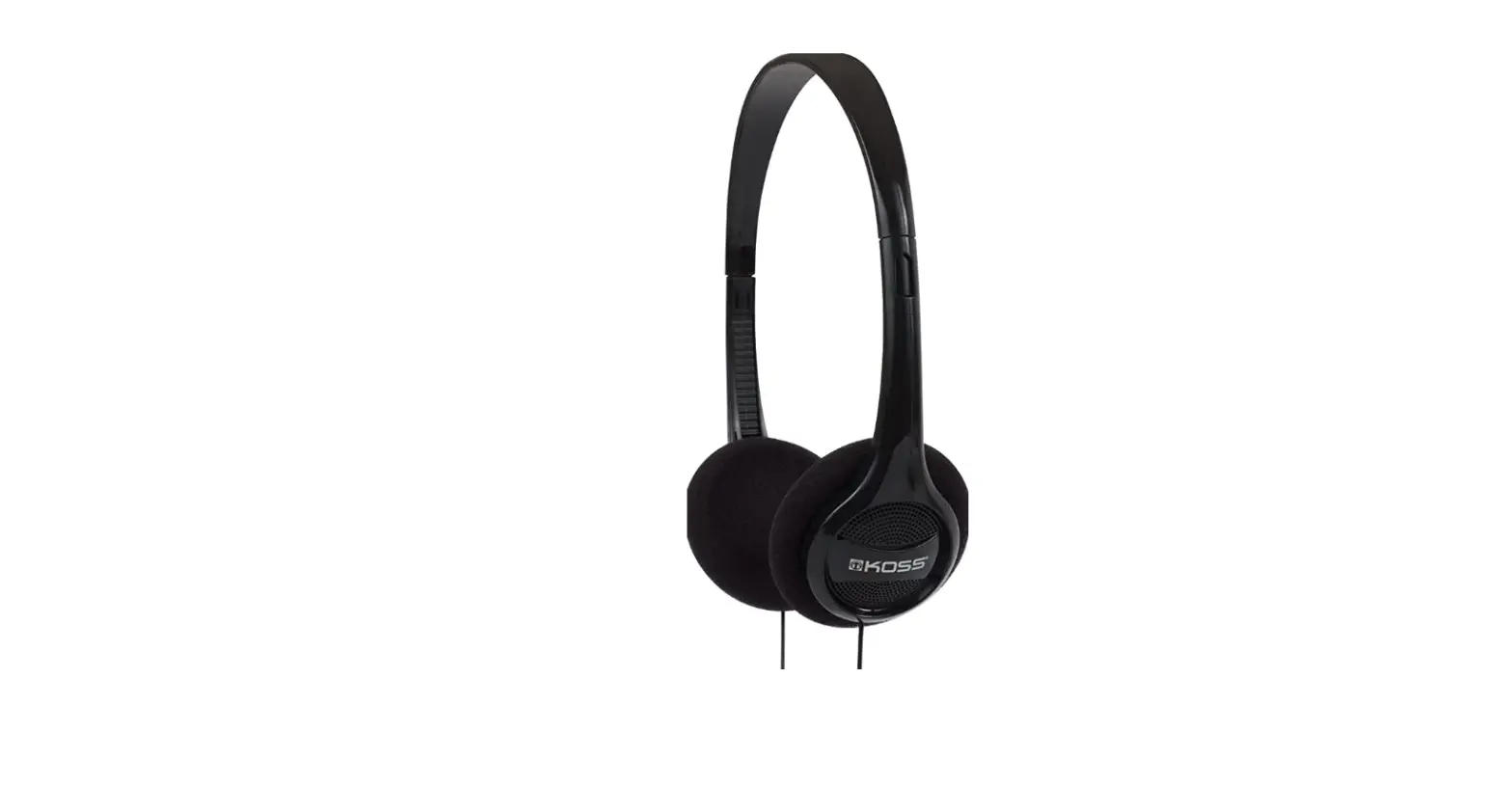
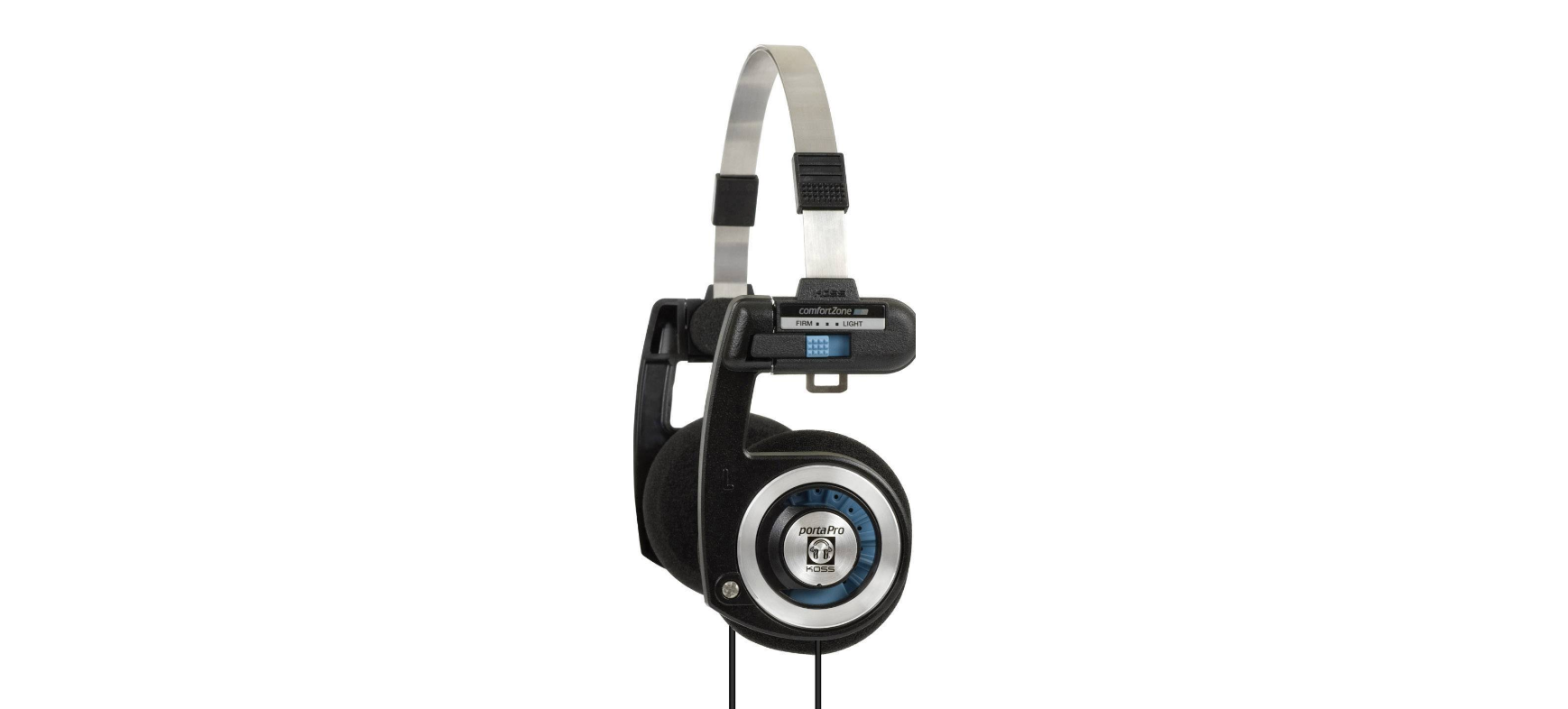
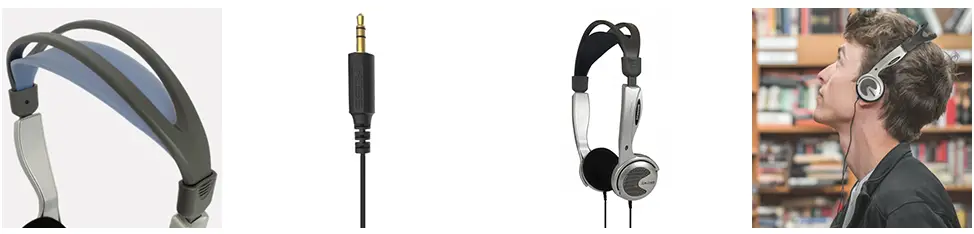
Lightweight on-ear portable headphones with a soft, flexible sling headband
CONNECTIVITY
Wired, Dual entry 4-foot headphone cable with in-line volume control connects to devices via 3.5mm plug.
GREAT SOUND
High quality headphones with Titanium Coated Drivers that create exceptional sound, designed for frequent use. Great for use at school, work, home, and on-the-go travel
WORKS WITH
Any Smartphone, Tablet, PC, Laptop, Studio Equipment, DJ Equipment, Portable DVD player, radio and any other device, with a 3.5mm plug
Product Description
Always a popular model in the Koss Stereophone lineup, Koss’ KTXPRO1 Titanium Portable Headphones deliver serious sound reproduction. Enjoy your music to the fullest, whether you’re at home or on-the-move.
The Koss KTXPRO1 headphones provide lightweight, adjustable portability with great titanium sound. The adjustable headband on these active headphones guarantees a comfortable, secure fit as you listen at home, work or anywhere in-between. The Koss KTXPRO1’s in-line volume control allows for convenient control in the portable headphone.
SAFETY INSTRUCTION
- Turn down the volume. Turning down the level is the best approach to preserve your hearing while listening to music.
- Take advantage of noise-canceling headphones.
- Opt for headphones rather than earbuds.
- abide by the 60/60 rule.
- Decide on a volume cap.
HOW TO CONNECT
- Verify the physical audio output of the computer. Finding your computer’s audio ports and making sure they are not physically damaged is the first step.
- Connect the Connector to the Port.
- Set the PC’s Sound Output preferences.
- Make a mic check
FEATURES
- Frequency Response – 15-25,000 Hz and Impedance – 60 ohms
Note:Products with electrical plugs are designed for use in the US. Outlets and voltage differ internationally and this product may require an adapter or converter for use in your destination. Please check compatibility before purchasing.
Frequently Asked Questions
There could be dirt and debris blocking the audio jack on your phone. Use a can of compressed air or blow into the jack to clean it. You can also try to remove the material by using a cotton swab with a few drops of alcohol put to the end of it. No matter the problem, our professionals can fix your damaged equipment.
Connect your headset to the USB 3.0 connection on your computer. The USB cord needs to be connected to your computer’s USB 3.0 port. Connect your headset to the HDMI out connection on your computer. After identifying the HDMI out port on your computer, attach the HDMI cable that was included with the headset. You must connect your headphones to your headset. typical problems
This indicates that the product has a microphone integrated into the headphone cable, enabling voice controls or smartphone calls without taking off your headphones.
Make the earphone cord straight. Use a different set of earbuds if you can. Make the headphone jack seem nice. Restart the apparatus. Check the audio settings on the gadget. Examine the earphone cables for wear.
A pair of headphones may only output sound to one ear for a variety of reasons. The wires surrounding the audio jack have most frequently been bent back and forth so many times that they have resulted in a wiring problem, which is the most common cause of sound coming from only one side.
Your headphones are susceptible to water damage, just like any other electrical gadget. And it might occur anywhere, at any time.
The maximum number of plug-and-unplug cycles that a 3.5mm headphone connector can withstand is 5000. 10,000 cycles can be put through Type-C and Micro USB ports.
Whether wired or wireless, headsets have a tendency to continually disconnect from a device. This recurring problem may destroy your overall device experience. The headset, the device you’re trying to connect it to, or outside interference could be the cause of the frequent disconnections.
Simply placing them into another device will prove this without a doubt. It’s not necessary for this to be a smartphone. Any computer, television, or other device having a 3.5 mm jack will work with it. When using your headphones with a separate device and hearing nothing, you know there is an issue.
The headphone jack is one of the most important and delicate parts of every pair of headphones. A small misalignment could also completely ruin a beloved pair of headphones. Headphone jacks are twisted a startling amount of the time.
Clean up after each usage. Never let someone else use your headphones. Gently wipe out any dirt or earwax from the driving unit. Remember to bring the jack, please. You shouldn’t immediately put them in your pocket. Do not let the wires hang. Keep your wiring organised and clean. Do not coil your cables tightly.
One of the most crucial and delicate components of every pair of headphones is the headphone jack. A minor misalignment could even damage a cherished set of headphones entirely. Unbelievably frequently, headphones jacks are bent.
After each use, clean up. Never permit a third party to use your headphones. Remove any debris or earwax from the driving unit by gently wiping it. Please don’t forget to bring the jack. You shouldn’t put them in your pocket right away. Keep the cables from dangling. Keep your wiring neat and organised. Your cables shouldn’t be tightly wound.
An army knife, a lighter, and heat-shrinking tubing are required to patch and repair headphone wires and cables. Before using heat-shrinking tape or electric tape to finish the repair, you must first strip the cable, remove the wire wrapping, and reattach the wires.
Use your thumb and index finger to grip the wire. Maintaining a slightly tight grip, move the wire between your fingers from the bottom of your headphones to the end where the jack is. After doing this two or three times you should notice your headphone cables starting to untwist.