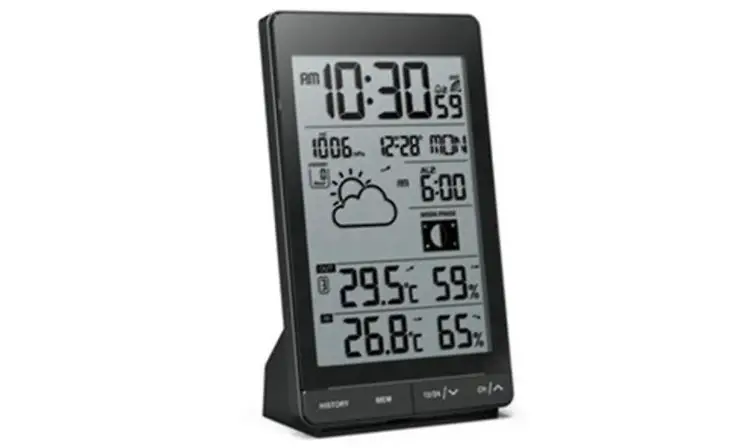
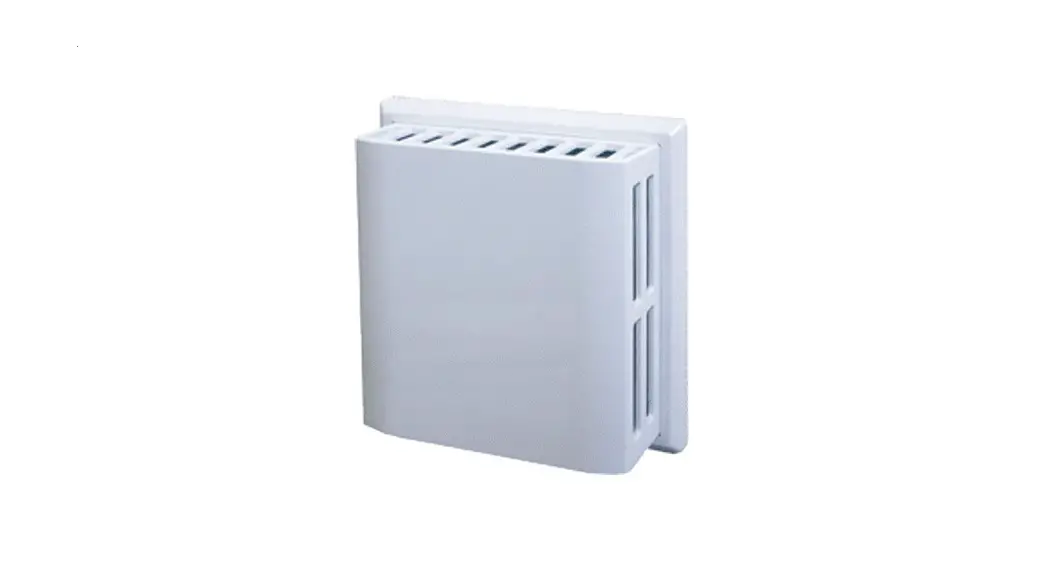
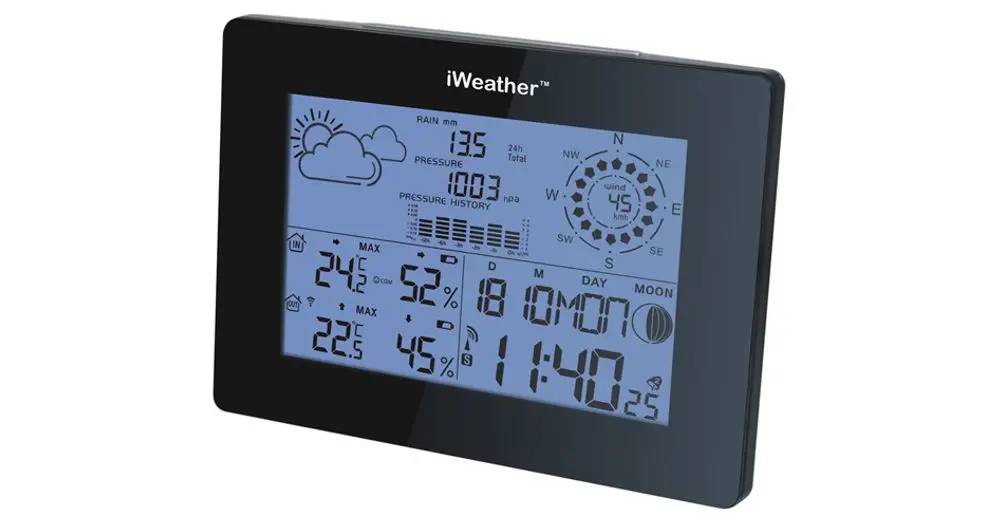
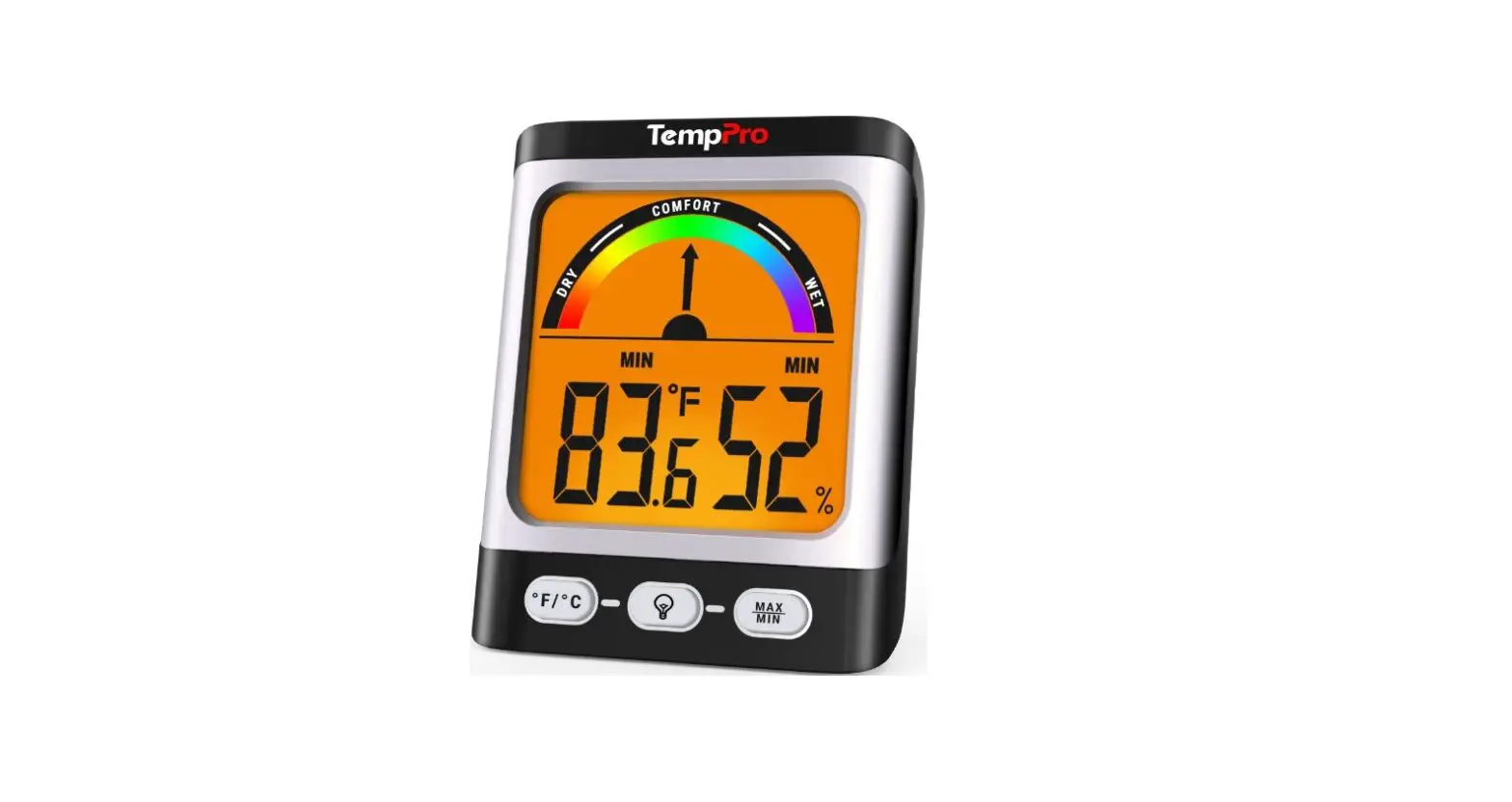
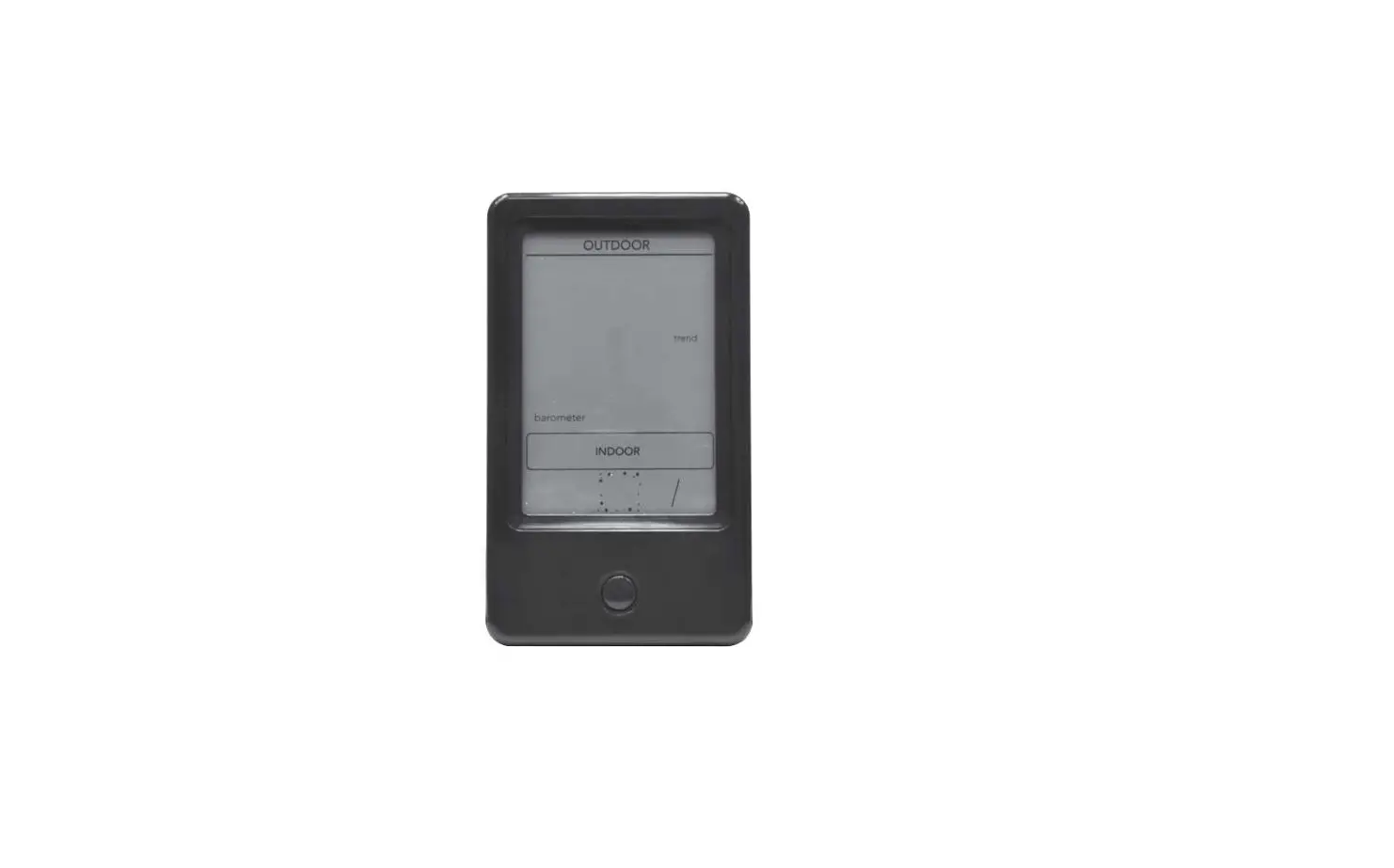
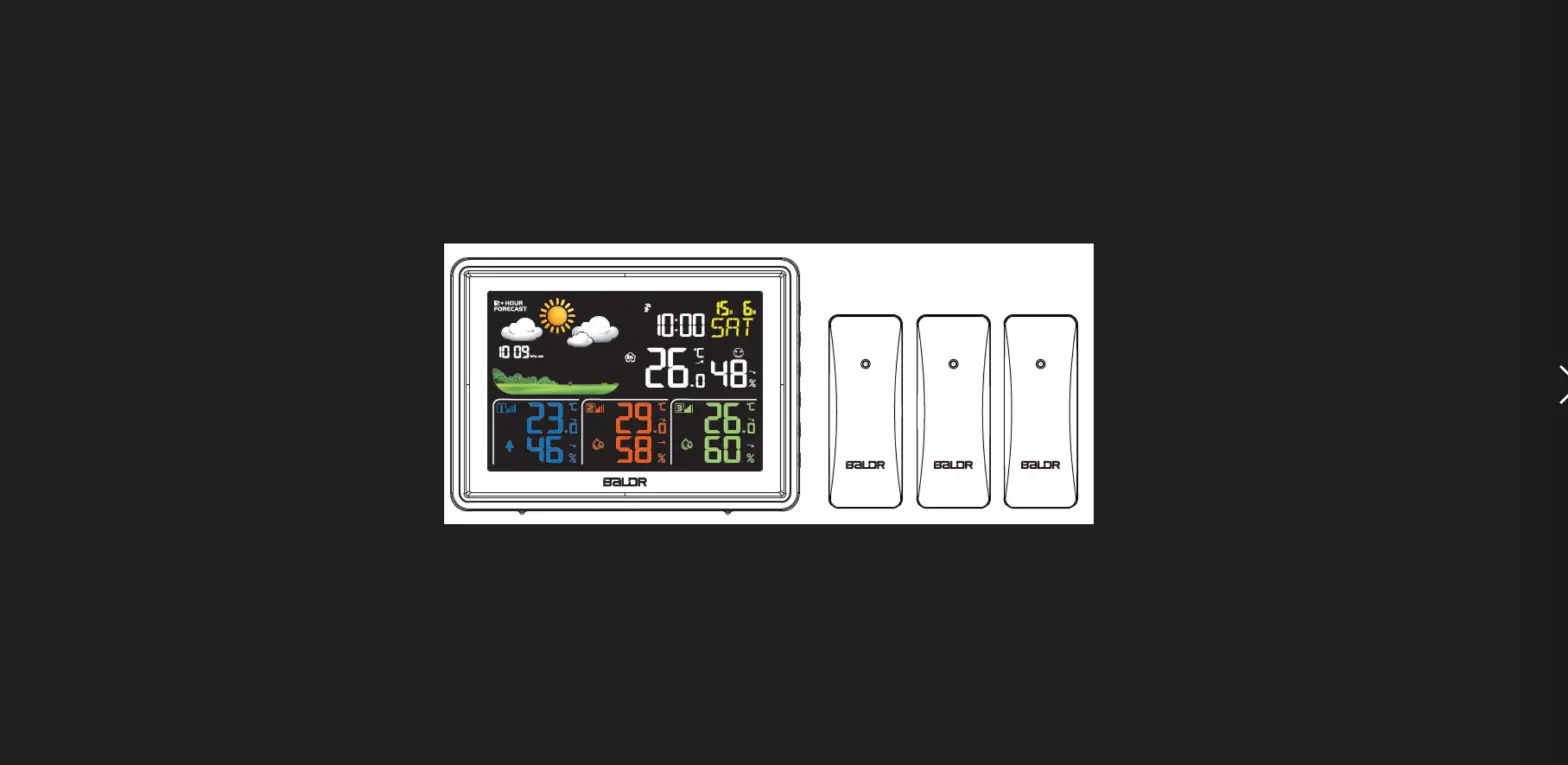
YT60234 Outdoor Temperature or Humidity Weather Station
Product Information
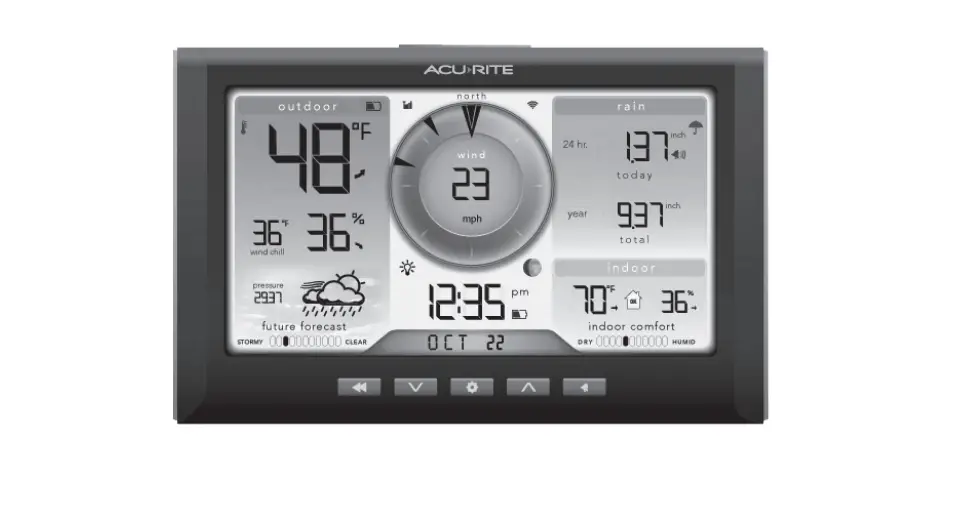
The YT60234 weather station is a multi-functional device that
provides you with various weather-related information. It features
the following:
- Outdoor temperature and humidity reading
- Weather index
- Wind direction and speed
- Indoor temperature and humidity reading
- Weather forecast
- Time and date, moon phase, weekday
- Light intensity
- UV index
- Rain measurement
- Barometer for pressure measurement
Product Usage Instructions
Follow these instructions to use your YT60234 weather
station:
- Power on the weather station. It should automatically search
for and connect to the wireless sensors. If it fails to connect
within the first 5 minutes, refer to the “RE-PAIRING SENSOR”
section. - Once connected, you will see the icon of an antenna scrolling
in the outdoor temperature and humidity section of the
display. - After the pairing process completes, the antenna icon will
appear solid (not flashing), and the readings for outdoor
temperature and humidity, wind speed, wind direction, UV index,
light intensity, and rainfall will appear in their designated
sections of the LCD display. - If the connection fails or the weather station is reset, press
and hold the CHANNEL button for over 2 seconds to enter pairing
mode. The weather station will re-register all the sensors that
were previously paired. - Once the weather station has connected to the internet, it will
attempt to connect to the internet time server to obtain the UTC
time. The icon SYNC will appear on the LCD once the connection
succeeds and the weather station’s time has updated. - To set the time, press and hold the SET button for over 2
seconds in normal time display mode. Use the WIND/+ and BARO/-/
buttons to adjust the values. Press and release SET to confirm and
move to the next item. Press the LIGHT/SNOOZE button to exit the
setting mode. - To set the alarm time, press the SET button to switch to alarm
time display mode. Press and hold the SET button for over 2 seconds
to enter alarm setting mode. Adjust the hour and minute of the
alarm using the WIND/+ and BARO/-/ buttons. Press SET to confirm
each selection. - In alarm time display mode, press the TEMP/ button to turn the
alarm on or off. The corresponding alarm icon will be shown on the
display when the alarm is on. To stop the alarm signal, press any
buttons except the LIGHT/SNOOZE button. The alarm will
automatically reactivate at the same time the next day. - When the alarm rings, press the LIGHT/SNOOZE button to pause
the alarm. The snooze indicator icon will keep flashing, and the
alarm will resume after 5 minutes. - In normal mode, press the BARO/-/ button to switch between
absolute and relative pressure display. - In normal display mode, press the WIND/+ button to switch
between current average wind speed, gust wind speed, and wind
direction. - In normal display mode, press the RAIN button to switch between
different rain measurements, including Rain Rate, Rain Event, Rain
Hourly, Rain Daily, Rain Weekly, Rain Monthly, and Rain Total.
Press and hold the RAIN button for over 2 seconds to reset the rain
record.
Operation instruction
Model number: YT60234 Main Features:
Outdoor temperature/humidity reading, weather index Wind direction & speed Indoor temperature/humidity reading Weather forecast Time & date, moon phase, Weekday Light intensity UV index Rain Barometer
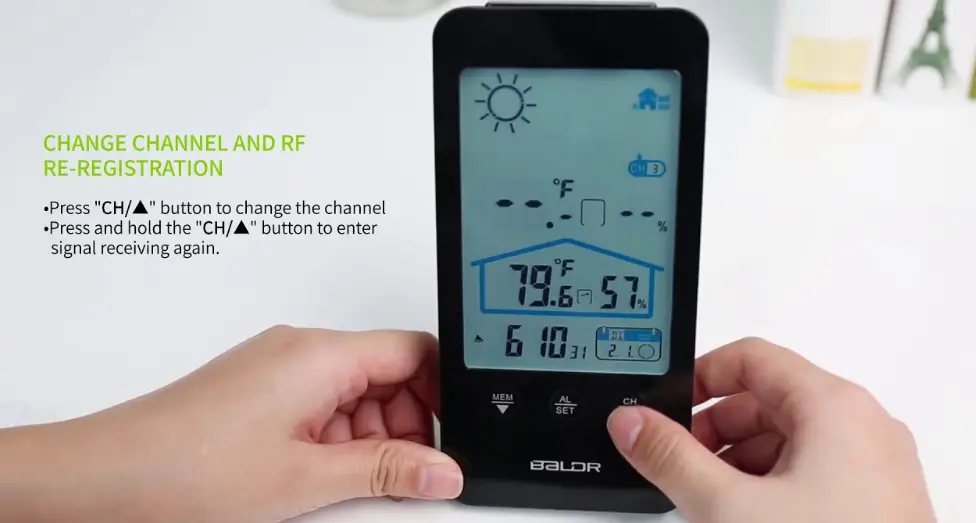
Operating instructions: Once your weather station powers on, it should automatically search for and connect to the wireless sensors. If the weather station does not connect within the first 5 minutes, refer to the following section, “RE-PAIRING SENSOR”.
You will see the icon of an antenna scrolling in the temperature and humidity (outdoor) section of the display. Once the pairing process completes, the antenna icon will appear solid (not flashing), and the readings for outdoor temperature and humidity, wind speed, wind direction, UV, light intensity, and rainfall will appear in their designated sections of the LCD display.
If the connection fails or the weather station is reset, then press and hold theCHANNELbutton over 2 seconds to enter pairing mode, and the weather station will re-register all the sensors that have already been registered to it before, (i.e. the weather station will not lose the connection of the sensors that you’d paired up before.)
Press and hold BARO/-/ button over 3 seconds, the weather station LCD display will show the letter “AP” that it has entered Access Point (AP) mode. At this time it will be ready for the Wi-Fi settings to be adjusted. Use your smartphone, tablet, or computer to connect to the weather station via Wi-Fi by following these steps: 1.) On PC, open your Wi-Fi network settings. On AndroidTM or iOS devices, go to settings menu and then select Connections/WI-FI to open the network settings. 2.) Locate the weather station SSID from the list. It should appear as WWS-XXXXXX (where all the X’s are integers) in the list. Tap on the SSID to connect. This step will take several seconds. 3.) Once you are connected to the weather station, open up your internet or mobile web browser, and enter the following address into the address bar: http://192.168.1.1 to access the weather station web interface. (Make sure to include the http:// or else the web browser may interpret the address as a search query). We recommend using the latest version of reputable web browsers. 4.) Enter the following information into the web-interface. Make sure all of the information is entered prior to selecting Save. If you choose not to upload Wunderground.com, or upload weathercloud.net, leave the check boxes unchecked. 5.) If all of the information you entered is correct, press “Apply” to confirm. If it does not, check your web interface information again. When the weather station successfully connects to your Wi-Fi router, the Wi-Fi signal will appear on the LCD display. If the Wi-Fi signal is not stable or the weather station is trying to connect to the router, the icon will flash. If the icon disappeared, it means the weather station is not connected to the Wi-Fi router.
After the weather station has connected to the internet, it will attempt to connect to the internet time server to obtain the UTC time. Once the connection succeeds and the weather station’s time has updated. The icon “SYNC” will appear on the LCD.
In Normal time display, press and hold SETover 2 seconds to enter time setting mode. Press and release WIND/+ and BARO/-/ to adjust the values. Hold WIND/+ and BARO// over 2 seconds to adjust the values rapidly. Press and release SETto confirm and move to the next item. To exit the setting mode any time, press LIGHT/SNOOZEbutton.
In normal time display, press SETbutton to switch display alarm time (alarm time mode). In alarm time display, press and hold SETbutton over 2 seconds to enter alarm setting mode. Hour of alarm starts to flash. Press WIND/+button or BARO/-/ button to set required alarm hours. Press SETbutton to select minute of Alarm. Minute of alarm starts to flash. Press WIND/+ button or BARO/-/ button to set required alarm minutes.
In alarm time display, press TEMP/ button to select the Alarm on or off. If the alarm is on, its corresponding alarm icon will be shown on the display. When the alarm is ringing, press any buttons except LIGHT/SNOOZEbutton to stop the alarm signal. It is not necessary to reactivate the alarm. It will ring again this time next day.
When the alarm rings, press LIGHT/SNOOZEbutton to pause the alarm. The snooze indicator icon keep flashing. The alarm will resume after 5 minutes.
In normal mode, press BARO/-/ button switch between absolute and relative pressure.
In normal display mode, press WIND/+button to switch between current average wind speed, gust wind speed and wind direction.
In normal display mode, press RAINbutton to switch between Rain Rate, Rain Event, Rain Hourly ,Rain Daily, Rain Weekly, Rain Monthly and Rain Total. In normal display mode, press and hold RAINbutton over 2 seconds to reset the rain record.
When reading the Weather Index display, you can press TEMP/ button to cycle through different weather indexes in the following order: Feels Like > Heat Index > Wind Chill
In normal display mode, press MAX/MINbutton switching between maximum and minimum value. To clear the max value, press and hold MAX/MINbutton over 2 seconds while max values are displayed. To clear the min value, press and hold MAX/MINbutton over 2 seconds while min values are displayed.
In normal display mode, press and hold ALERTbutton over 2 seconds to enter the alert setting mode. Press WIND/+button and BARO/-/ button to adjust the value up or down, then press TEMP/ button to turn on/off the alert. Press ALERTbutton to confirm and jump to next setting. The icon will display when the alert is on.
Manufacturer: FUJIAN YOUTONG INDUSTRIES CO.,LTD. Address: North part of 1st, 2nd~3rd floor, Building 1#, M9511 industries park, No.18, Majiang Road, Mawei DISTRICT, Fuzhou City, Fujian, China
FCC STATEMENT This device complies with Part 15 of the FCC Rules. Operation is subject to the following two conditions: (1) This device may not cause harmful interference, and (2) This device must accept any interference received, including interference that may cause undesired operation. This equipment has been tested and found to comply with the limits for a Class B digital device, pursuant to part 15 of the FCC Rules. These limits are designed to provide reasonable protection against harmful interference in a residential installation. This equipment generates, uses and can radiate radio frequency energy and, if not installed and used in accordance with the instructions, may cause harmful interference to radio communications. However, there is no guarantee that interference will not occur in a particular installation. If this equipment does cause harmful interference to radio or television reception, which can be determined by turning the equipment off and on, the user is encouraged to try to correct the interference by one or more of the following measures: –Reorient or relocate the receiving antenna. –Increase the separation between the equipment and receiver. –Connect the equipment into an outlet on a circuit different from that to which the receiver is connected. –Consult the dealer or an experienced radio/ TV technician for help.
Caution: Any changes or modifications to this device not explicitly approved by manufacturer could void your authority to operate this equipment.
FCC Radiation Exposure Statement: This equipment complies with FCC radiation exposure limits set forth for an uncontrolled environment. In order to avoid the possibility of exceeding the FCC radio frequency exposure limits, Human proximity to the antenna shall not be less than 20cm(8 inches)during normal operation.
 ground.com is coming soon
 Weathercloud | Global network of weather stations