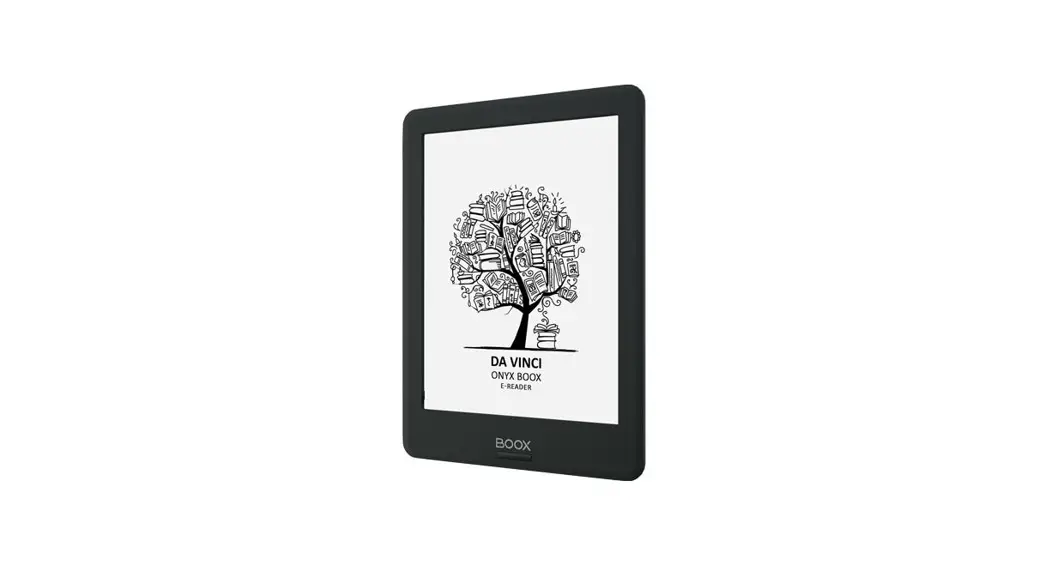
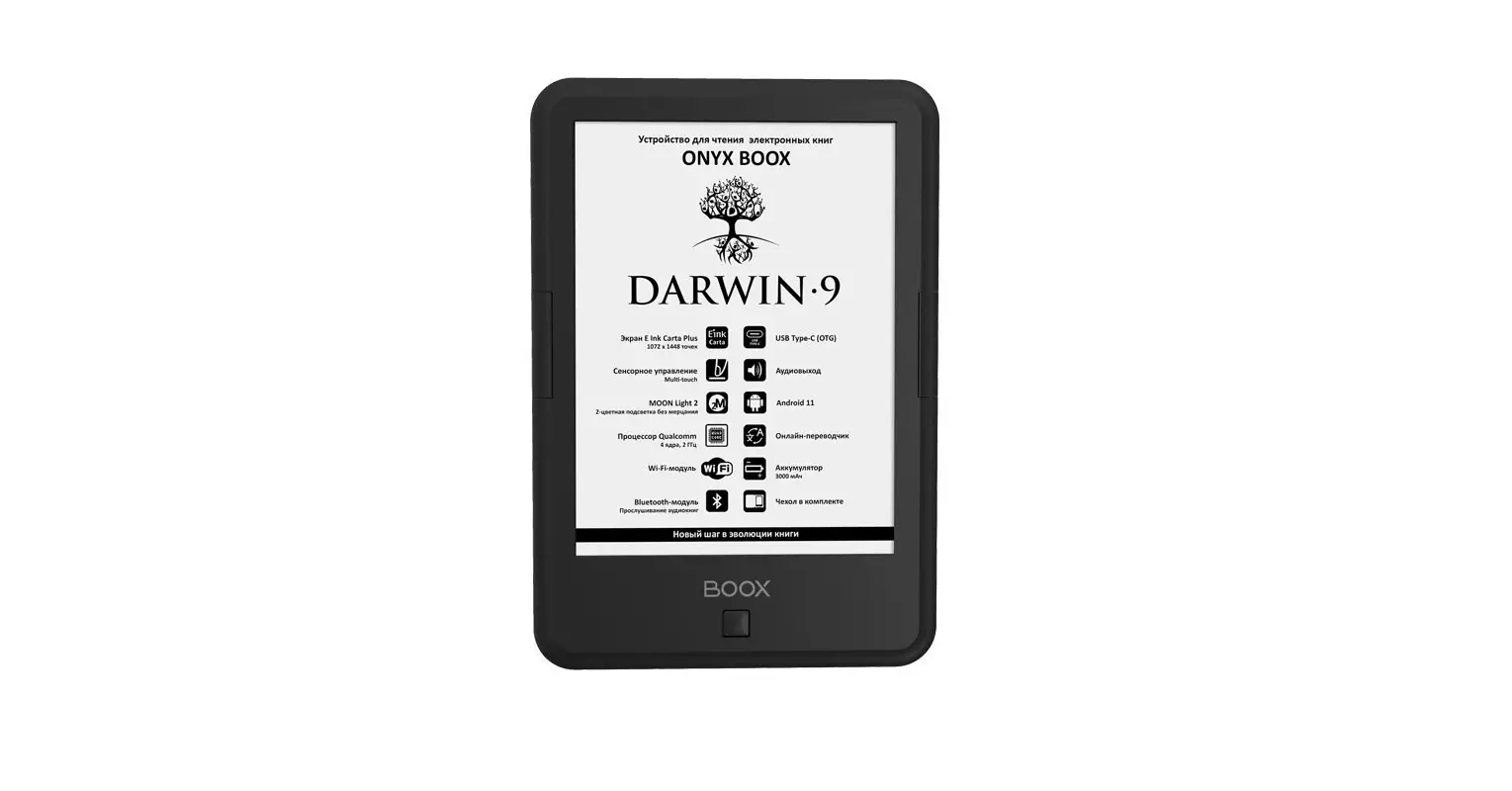
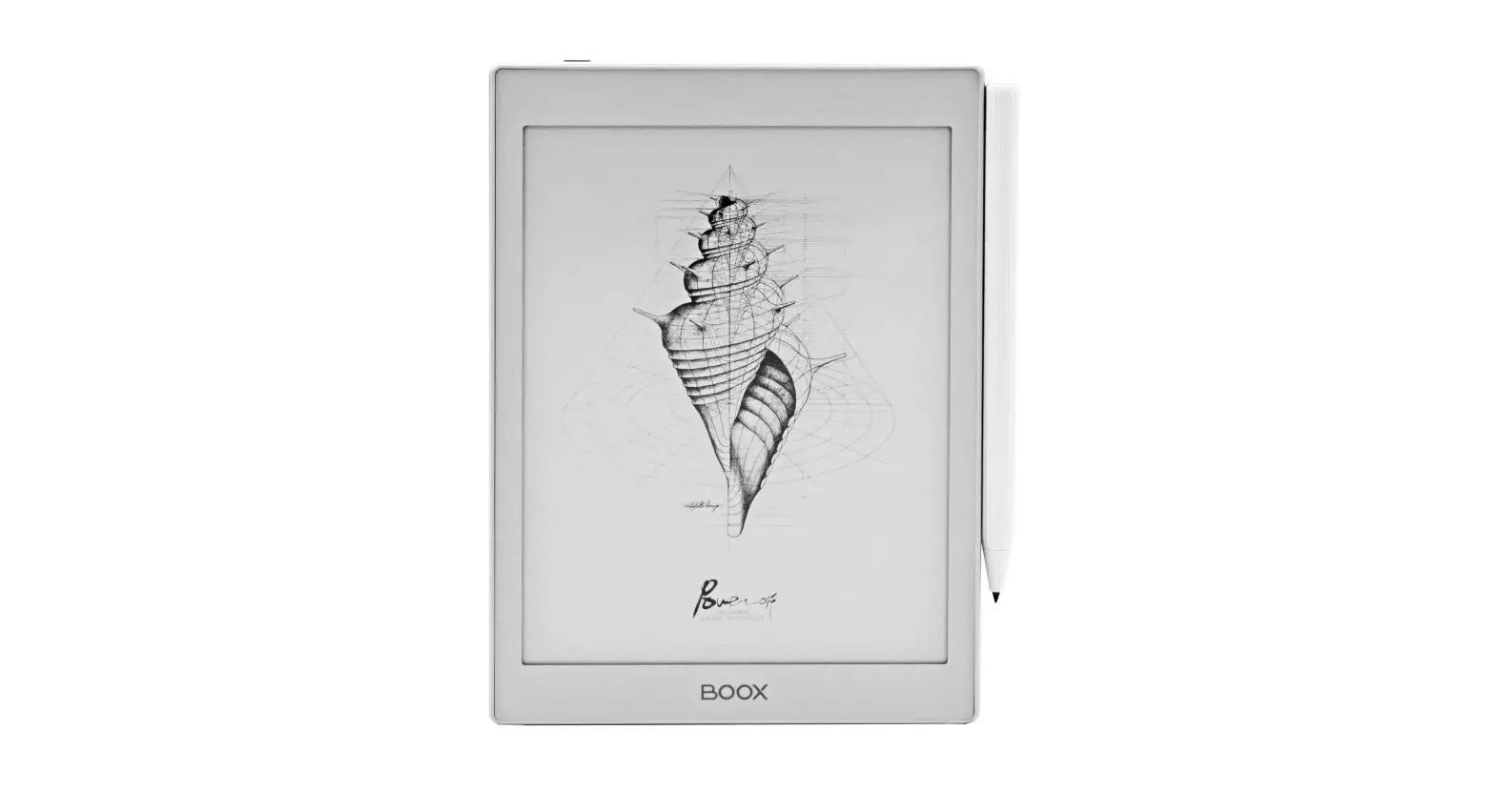
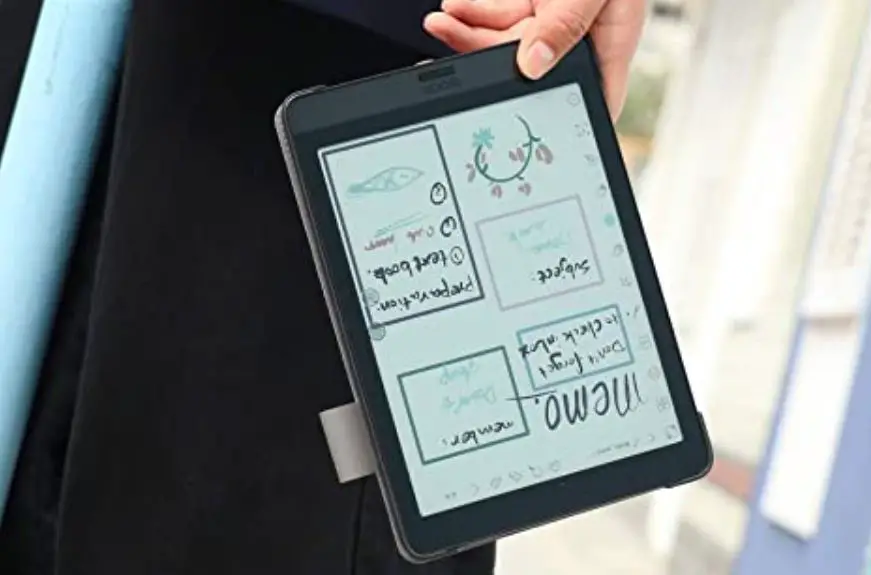
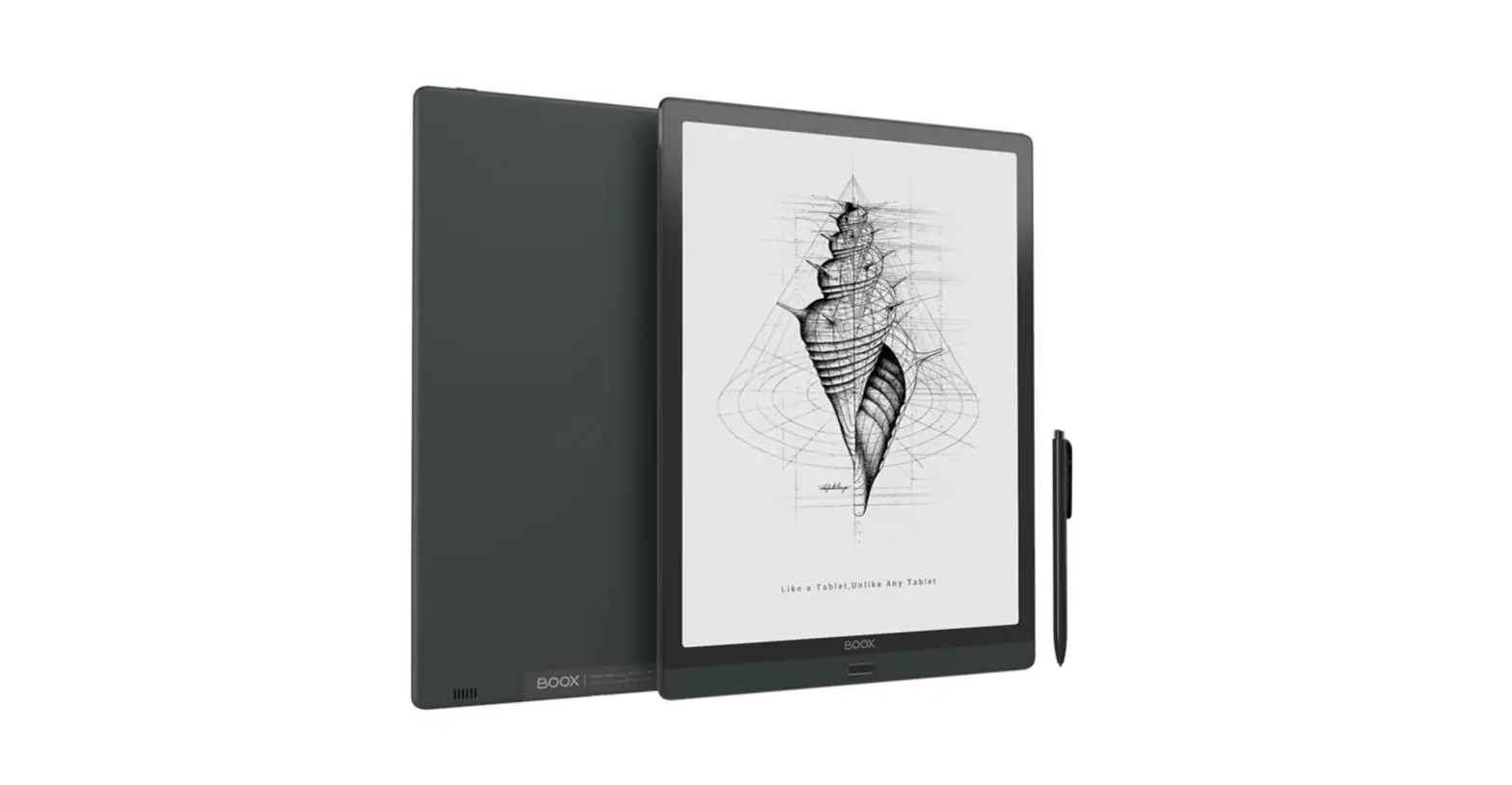
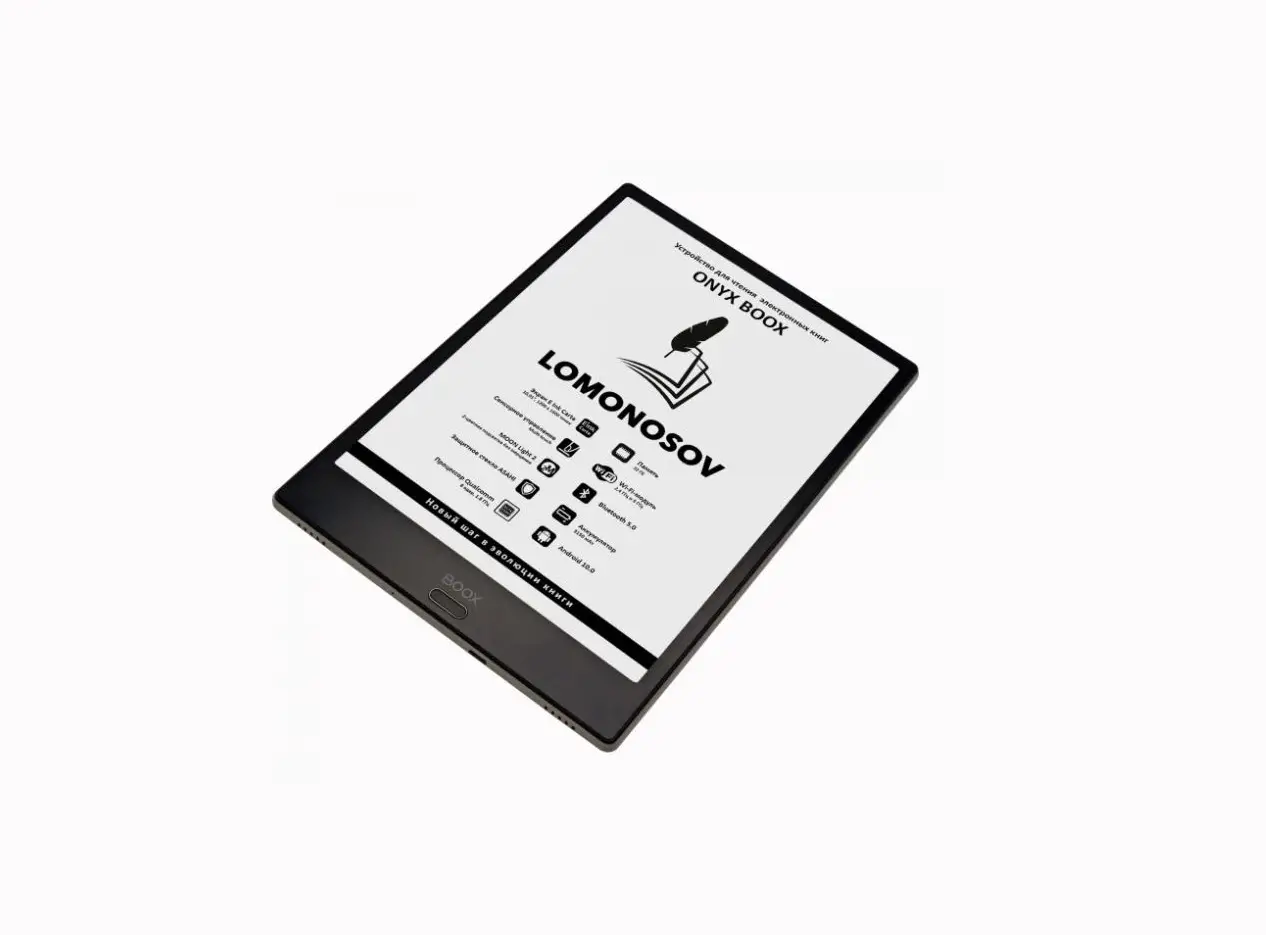
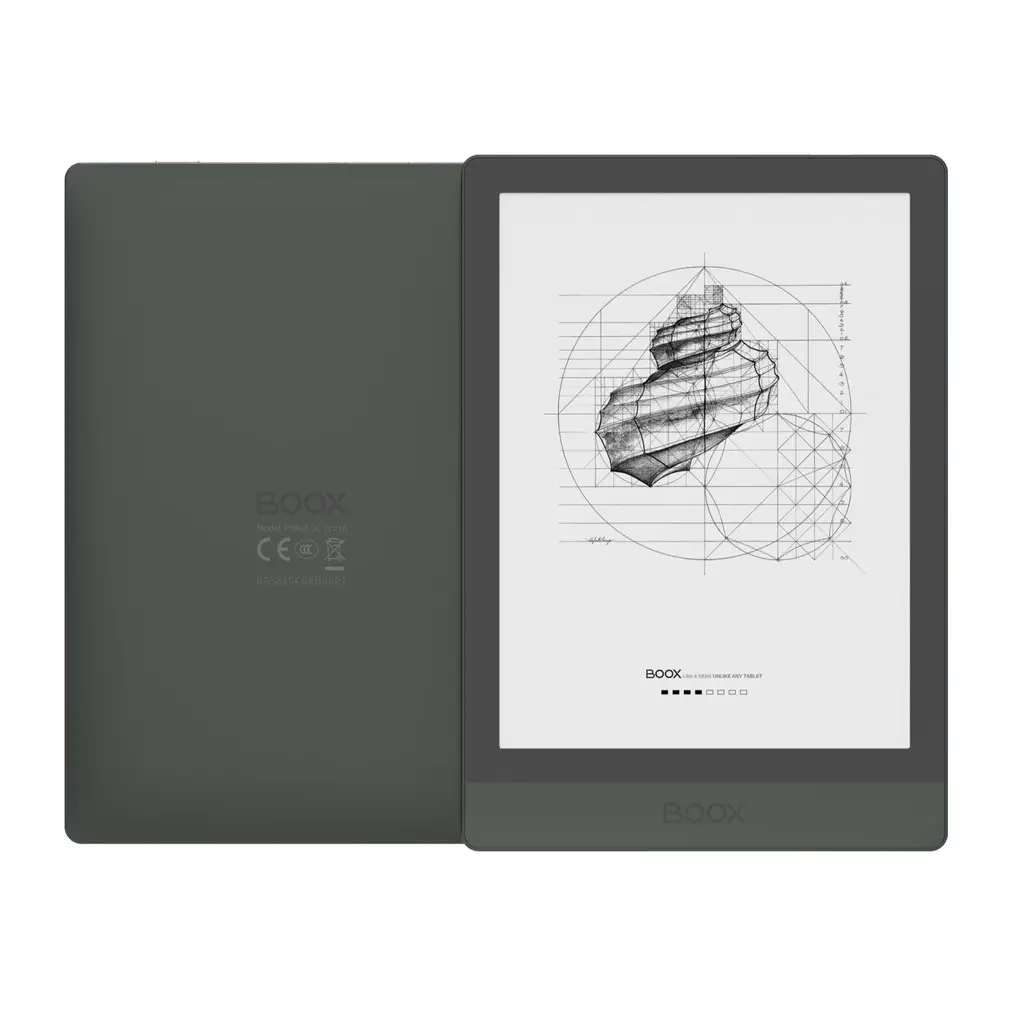
VOLTA 3 E-Book Reader
Product Information:
Product Name: ONYX BOOX VOLTA 3 Ebook
Reader
Complete Set: ONYX BOOX device, Cover case, USB
cable, Quick start guide, Warranty card
Purpose and Functionality: The ONYX BOOX VOLTA
3 Ebook Reader is designed for operating and storing different
types of text and graphic files. It also allows for internet
connectivity. However, it does not support video playback.
Product Usage Instructions:
1. VIEW AND CONTROL
1.1. Front
- POWER button: Press and hold for about 23 seconds to turn on
the ereader. A longer press for 15-20 seconds reboots the device. A
short press turns the device into standby mode. - NEXT button: Moves to the next page.
- PREV button: Moves to the previous page.
- Back button: Exits applications and ebooks or cancels a current
operation.
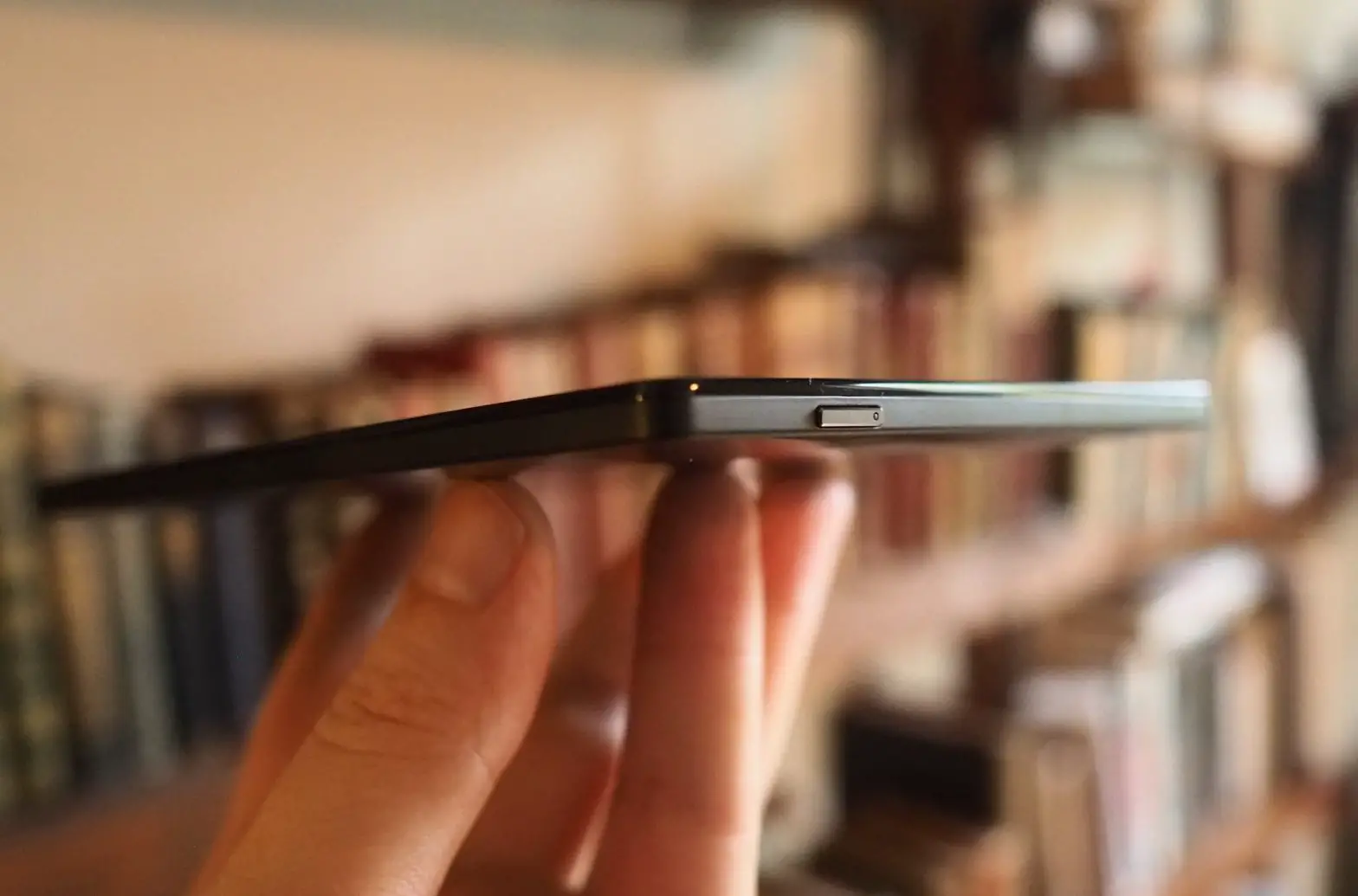
1.2. Bottom
- microSD port: Allows connection of a microSD card (not
included) to burn files for use on the ONYX BOOX. - USBC jack: Connects the device to a computer using the included
USB cable for data sharing or charging the ereader.
1.3. Back side
The contact platform is designed to communicate with the buttons
of the case.
2. GETTING STARTED
2.1. How to turn on the device?
- Press and hold the Power button for about 3 seconds.
- Release the power button.
- Wait for the device to load.
2.2. How to charge the battery of the device?
Plug the USB cable into the jack of the device and connect it to
a USB port on a PC. The full charge time depends on the voltage of
the PC.
2.3. How to connect the device to a PC?
- Turn on the ONYX BOOX VOLTA 3 Ebook Reader.
- Connect the device to a USB port of a PC using the USB
cable. - After the device is detected, an actions selection menu will
appear on the computer screen. - Choose “Open the device to view files”.
- Now you have access to files in the internal memory.
NOTE: The device should not be operated when
connected to the PC. Before turning off the device, disconnect it
from the PC. Recommended versions of Windows are 7 and higher. Mac
OS requires the Android File Transfer application.
2.4. How to turn off the device?
- Press and hold the Power button for about 2 seconds.
- The menu with “Power off” and “Restart” options will appear.
Choose “Power off”.
3. MAIN PAGE
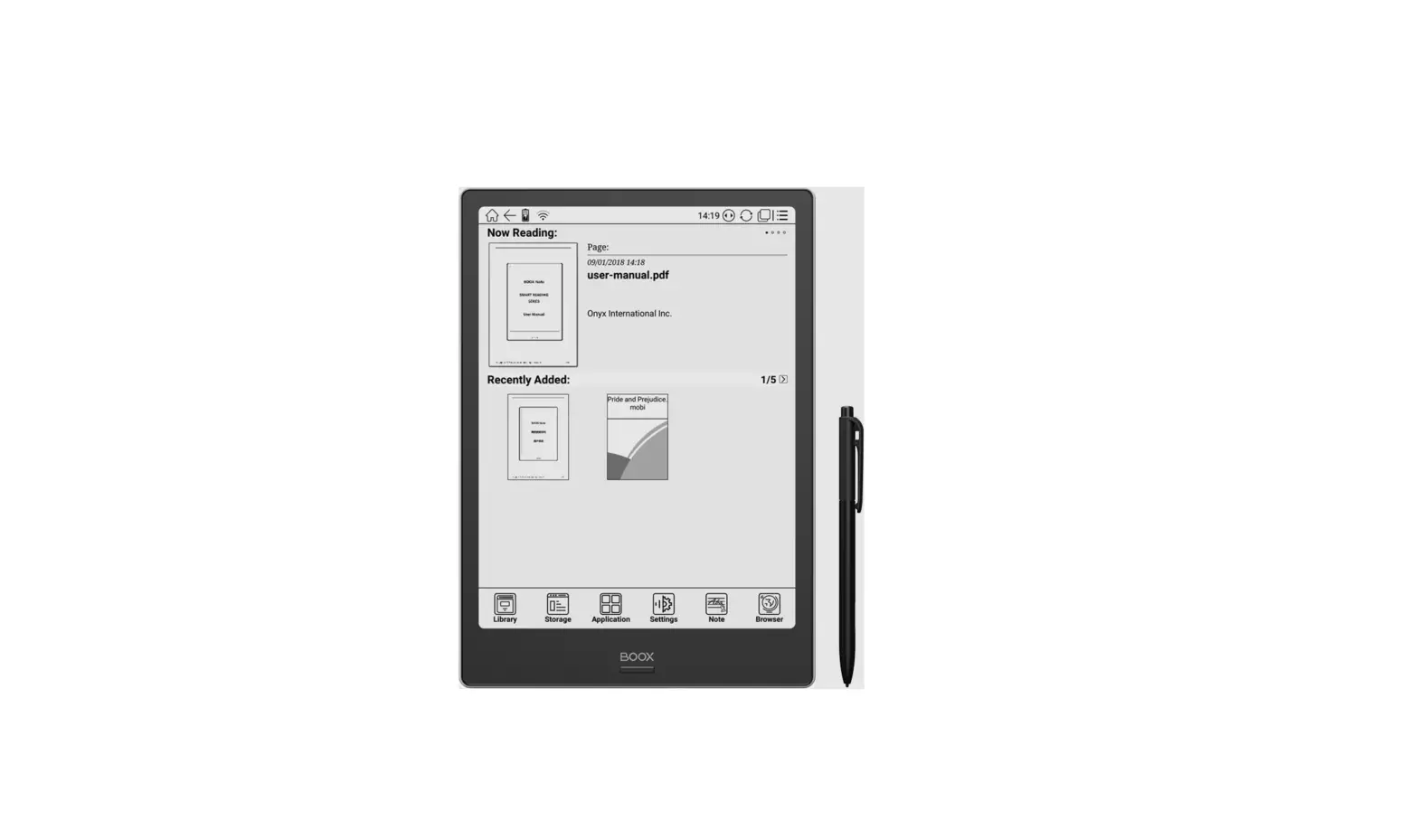
The main page of the ONYX BOOX VOLTA 3 Ebook Reader provides
quick access to ebooks, files, installed applications, and
settings. It includes the following virtual buttons and
indicators:
- Home
- Back
- Charge indicator
- Network connection
- Time
- Lighting indicator
- Screen mode switcher
- Turn page buttons mode
- APPS in memory
- Book number indicator
- Appearance
- Information type
3.1. The Library
The library feature displays ebook format files in a sorted
view. Grouping and search options by authors, genre, and series are
available for formats containing this information (fb2, epub, mobi,
pdf). For other files, the file name is shown as the title, and the
document type is shown as the series and author (txt, doc, etc.).
This feature eliminates the need for manual sorting and renaming of
files.
Ebook reader
ONYX BOOX
VOLTA 3
Quick start guide
Thank you for choosing our product. We would like to remind you that the device requires careful handling in accordance with operating rules. New software versions may change the device’s functions and their number. In these cases, the information, con tained in this manual, may become outdated. New versions of user manuals will be available on the webpage http://onyxboox.com/
2
Complete set: ONYX BOOX device; Cover case; USB cable; Quick start guide; Warranty card. The purpose and functionality of the device The main purpose of the device is operating and storing different types of text and graphic files. Also, connection to the Internet is possible. Video files, however, cannot be played back.
3
1. VIEW AND CONTROL
1.1. Front
POWER button
NEXT button PREV button
Back button
Power button
Back button PREV button NEXT button
Press and hold for about 23 seconds, if the ereader is off, this turns it on. A longer press for 1520 seconds reboots the device. A short press turns the device into a standby (sleeping) mode. Exits applications and ebooks or cancels a current operation. Previous page. Next page.
4
1.2.Bottom
microSD
USBC jack
USBC jack microSD port
Connects the device to a computer using the enclosed USB cable to share data or to charge the ereader. To a microSD card (not included) you can burn any files to use on BOOX.
1.3. Back side
Contact pla orm
Contact pla orm
5
Designed to communicate with the bu ons of the case
2. GETTING STARTED
2.1. How to turn on the device? a) Press and hold the Power button for about 3 seconds.
The device will start loading. b) Release the power button. c) Wait for the device to load. 2.2. How to charge the battery of the device? Plug the USB cable into the jack of the device and connect it to a USB port on a PC. Full charge time depends on the voltage of the PC. 2.3. How to connect the device to a PC? a) Turn on the BOOX. b) Connect the BOOX to a USB port of a PC using the USB
cable. c) After the device is detected, an actions selection menu
will appear on the computer screen. d) Choose “Open the device to view files”. e) Now you have access to files in the internal memory.
6
NOTE 1. The device should not be operated when connected to the PC. NOTE 2. Before turning off the device, disconnect it from the PC. NOTE 3. Recommended versions of Windows are 7 and higher. NOTE 4. Mac OS requires the Android File Transfer application. 2.4. How to turn off the device? a) Press and hold the Power button for about 2 seconds. b) The menu with “Power off” and “Restart” will appear.
Choose “Power off”.
7
3. MAIN PAGE
The main page allows the user to get quick access to e books, files, installed applications and settings. The description of virtual buttons and indicators is given below.
1 234
5 67 8 9
10
11 12
1 Home / 2 Back / 3 Charge indicator / 4 Network connection / 5 Time / 6 Lighting indicator / 7 Screen mode switcher / 8 Turn page buttons mode / 9 APPs in memory / 10 Book number indicator / 11 Appearance / 12 Information type
8
3.1. The Library
The library displays ebookformat files in sorted view. Grouping and search by authors, genre, series are possible only for formats containing this information (fb2, epub, mobi, pdf). For other files, the file name is shown as the title and the document type is shown as the series and author (txt, doc etc.). Thanks to this feature you don’t have to spend time sorting books into folders and renaming files.
3.2. The “Now reading” section
This section appears when a book is opened for the first time. It contains the cover of the last book that was opened. Additional information can be found on the right: The number of a page being read and the total number of pages in the book; Reading progress scale; Date and time of the last opening; Book title (if there are no titles in metadata, the file name is displayed); Name of the author or authors (if this information is contained in metadata). At the top right there is an indicator of the book currently being read as well as the three previous books. To access a previously read book, swipe from the right to the left on the “Now reading” field. The indicator will show which of the four recently read books is displayed at the moment. 9
4. WORK WITH BOOKS AND FILES
4.1. Getting started with the library The first time you open the library, you must scan the internal memory. This will help the system extract metadata, add books to the catalogue and sort them. To launch this procedure, press the SCAN LIBRARY button. Each time you record or delete books from the memory of the device it is necessary to launch the scan manually to refresh the library. 4.2. Sorting and filtering In the library, books are grouped by authors, series and titles (for each group the number of items in it is dis played). Within these groups the items are sorted alpha betically (in the series books are sorted by their numbers in the series), for authors and series the number of books is indicated. The items beginning with digits or without a name are located at the end of the list. On the main page of the library it is possible to set the filter by language, genre, text, date of the book’s publication and date of file creation. After setting the filter in the groups “Authors”, “Series”, “Titles” books will be displayed by their corresponding filter parameters.
10
The “Text” filter allows the user to sort books by a part of the title, the name of the author or by a part of the series name. For this filtering it is necessary to enter at least two letters. If the entered text is contained in the name of the element (title of a book or of series, name of the author), this element and all the elements related to it will be selected. For example, if the searched text is contained in the name of the series, this same series will be shown in the “Series” group after filtering, in the “Authors” group authors from this series, in the “Titles” group all the books from this series, even though the names of the authors and the book titles do not contain the entered text. The “Clear all” option clears all the filter parameters. If you want to clear only one of the filters, go to the corre sponding filter and choose “Clear” or erase the text in the “Text” filter. 4.3. Working with lists and books A short tap on a list opens it and shows its content. To return to a level up on the list, touch the arrow in the upper part of the list or press the BACK button. A short tap on a book opens the page with the description of the book. Here you can read the details of the book: title, author, genre and annotations. But these details appear only if they are contained in the file metadata. Unfortunately, not all the ebook files contain them or contain them entirely. In this case the corresponding fields will be empty. 11
A long tap on a book calls the following menu: Read choose a reading app; Properties the book information; Delete deleting the book from the device. If the book is in the archive, all of the archive with all the files in it will be deleted. To go to the main page of the library press the BACK button several times or press the “Arrow to the left” icon in the top tray. 4.4. The library view setup You can change the view of the library by touching the `’eye” icon and choosing one of two variants One column Two columns 4.5. Choosing the type of displayed information Touching the “Information types” icon (three dots) calls the following menu: Open File The file manager (storage) displaying folders. Favorites A user’s list of favorite books. Recent Files The list of recently opened books. Sort Ordering books. This option is only available in the file manager.
12
4.6. The file manager To launch the file manager of the library, press the “Infor mation type” icon (three dots) and choose “Open file”. In the file manager only those files are displayed which can be opened with one of the reading programs. NOTE: A folder containing thousands of files may not display the entire list of files but only its beginning. In the upper line the current path is shown. The “Arrow’ icon on the right as well as the BACK button serves to go a level up in the catalogue. Attention! The Library, the file manager, Favorites and Recent files are singlelevel types of displaying informa tion. Multiple presses of the BACK button in the file manager will lead to the root directory of the file system. To go to the library, use the “Information types” icon (three dots) and then choose the “Library” option. Files and folders can be sorted (Menu ort) by name, by date and by size. A short tap on a file opens it. A long tap on a file calls up the following menu: Read choose a reading app; Properties the book information; Delete deleting the book file from the device. If the book is in the archive, the entire archive with all the files in it will be deleted. 13
4.7. Recent Files To go to the list of recently opened books, touch the “Information types” icon (three dots) on the main page of the library and choose “Recent files”. The size of this list is limited to 256 books. The view and the actions here are similar to those in the file manager except displaying folders. To go to the library, to the file manager or to “Favorites” use the “Information types” icon (three dots). 4.8. Favorites To go to the list of favorite books, touch the “Information types” icon (three dots) on the home page and choose “Favorites”. The view and the actions here are similar to those in the file manager except displaying folders. To add a book to the Favorites, you need to open the “Properties” windows then press the “Star” icon in the top right. The star will become dark. To delete the book from the favorite list press briefly the book icon the “Properties” window will open. Press the “Star” icon in the top right. The star will become light. You can also completely clear the list of favorites by pressing the “Information types” icon (three dots) and choosing “Remove all”. The files themselves in this case are not deleted and remain in storage. Files” list use the “Information types” icon (three dots).
14
Attention! When retrieving the context menu by pressing the book pictogram for several seconds, the option “Delete” will become available. Choosing this action will delete the book not only from the “Favorites” list but from storage as well. To go to the Library, to the file manager or to the “Recent Files” list use the “Information types” icon (three dots).
5. GENERAL PRINCIPLES OF THE WORK WITH READING PROGRAMS
The reading programs preinstalled in the ereader serve for reading the following files TXT, HTML, RTF, FB2, FB2.zip, DOC, MOBI, CHM, EPUB, PDF, DJVU and others. To turn pages simply touch the sensor screen. The reading program allows you to add bookmarks. In the AlReaderX app bring up the menu and then choose the option “Add Bookmark”. In the NeoReader program it is enough to go to a desired page and briefly press the icon in the upper right corner of the screen. It will change. Clicking the icon again will delete the bookmark and the icon will return to its original state. The menu in both programs will allow you to see previously added bookmarks and to go to a corresponding page. You can open settings with a short touch to the center of the screen
15
6. WORKING WITH PROGRAMS
Android is an opensource operating system specially developed for mobile devices. The Android OS is con stantly being improved because it occupies one of the leading positions on the world market. On the Internet there are many developer societies who create programs and applications for the Android operat ing system. Most of them are written in the Java program ming language. Installation files for these apps are files in .apk format. ONYX BOOX VOLTA 3 runs on the Android OS version 4.4.
6.1. Installing apps Besides a standard package of basic applications and the preinstalled software, you can install additional software if you wish. To install apps by yourself it is necessary: a) To write an installation file (in .apk format) into the internal memory of the device; b) To find this file in the File manager or in a different similar program; c) Open the file and confirm the installation.
6.2. Deleting apps
To delete an installed app, do the following:
a) Go to the main page;
b) Choose “Settings”;
c) Open the “Application” section;
d) Then “Manage apps”;
e) Find and choose the app in the list;
f) Press “delete” and confirm the deletion.
16
NOTE 1: The apps included in the operating system are impossible to remove. NOTE 2: Writing and installing of applied programs are performed without changing the firmware (operating system) and without making changes to the device design. NOTE 3: Before installing a thirdparty app, make sure that it is designed for this version of Android and adapted for devices with E Ink screens.
7. REPROGRAMMING THE DEVICE
Onyx International is constantly improving the software of our devices. Detected errors and flaws are being fixed, new features are implemented and new programs become available. Reprogramming the device can be performed both by changing the firmware and by installing and deleting different programs without changing the firmware. You can find updates for ONYX devices on our webpage: http://onyxboox.com/firmware
7.1. The software update. The detailed information about this procedure is pre sented on the webpage http://onyxboox.com/firmware
7.2. Apps development. The information about personal apps development and necessary tools can be found on the site https://github.com/onyxintl/booxopensource
17
Besides that, there is a repository (storage) of program libraries used by ONYX and which are created under the open source condition. These programs (libraries) under the terms of the license are open.
8. WARNINGS AND SAFETY CONDITIONS
8.1. A new battery achieves its maximum capacity after 23 cycles of recharging.
8.2. To avoid important data loss, we strongly recommend you to save them periodically on alternative data storages. It is especially important to save data before updating the device. Our company does not bear any responsibility for your data preservation.
8.3. Please, do not dismantle the device on your own. 8.4. Avoid twisting and bending the device and other
deformations of the casing. 8.5. Avoid hitting the device against hard surfaces. 8.6. Avoid placing excessive pressure on the screen or
hitting it. The screen has a glass base. 8.7. Do not allow water to get into or onto your device. Do
not use it close to open water sources. 8.8. Avoid using the BOOX in the following conditions:
Low temperature; High temperature; Intense magnetic field; High humidity; High dust content; Direct sunlight.
18
NOTE: The range of temperature and humidity is indicated in the Product specifications of this manual. 8.9. Do not use concentrated detergents. To clean the
device, use a dry cotton cloth. 8.10. Do not replace parts of the device. 8.11. Use batteries, power adaptors and other accessories
recommended by the manufacturer. Using thirdparty accessories may be dangerous and can invalidate the warranty. 8.12. When recycling outdated products, follow the rules and laws of the territory of usage. 8.13. If any problems occur with the device, get in touch with a nearest service center. Information about how to contact service centers can be found on the warranty card. 8.14. The manufacturer reserves the right to make changes to the device without notifying the consumers.
19
9. PRODUCT SPECIFICATIONS
Display Frontlight Processor
E Ink Carta, 6″ touch capacitive, resolution 758×1024, 16 shades of grey, with the SNOW Field function MOON Light 2 4core, 1.2 GHz
RAM
512 MB
ROM
8 GB
Wireless intarfaces
WiFi IEEE 802.11 b/n/g Bluetooth 4.1
Wired interface
USB
Operating system
Supported file formats
Battery Radeacopmtomr ended power Size Weight aOcpceerpattainbgletehmumpeidriattyure /
Android 4.4 TXT, HTML, RTF, FB2, FB2.zip, FB3, DOC, DOCX, PRC, MOBI, CHM, PDB, EPUB, JPG, PNG, GIF, BMP, PDF, DjVu, CBR, CBZ, MP3, WAV 3000 mAh AC input: 100 240 V, 50/60 GHz D output: 5V 1 A 156 112.5 8.8 mm 160 gr
0 50 / 0% 90%
Durability Warranty period Standards conformity
2 years 1 year /
Note: Since part of the flash memory volume is occupied by the system software, the portion available to the user, is less than the total size of the memory chip.
Detailed information is available on the webpage http://onyxboox.com/
Notes:
Notes:
 ONYX BOOX electronic books
 GitHub - onyx-intl/boox-opensource: Open source projects for the Boox ebook reader.