
SIGHT CARE K0942 CLOVER Assist Stand 
Overview
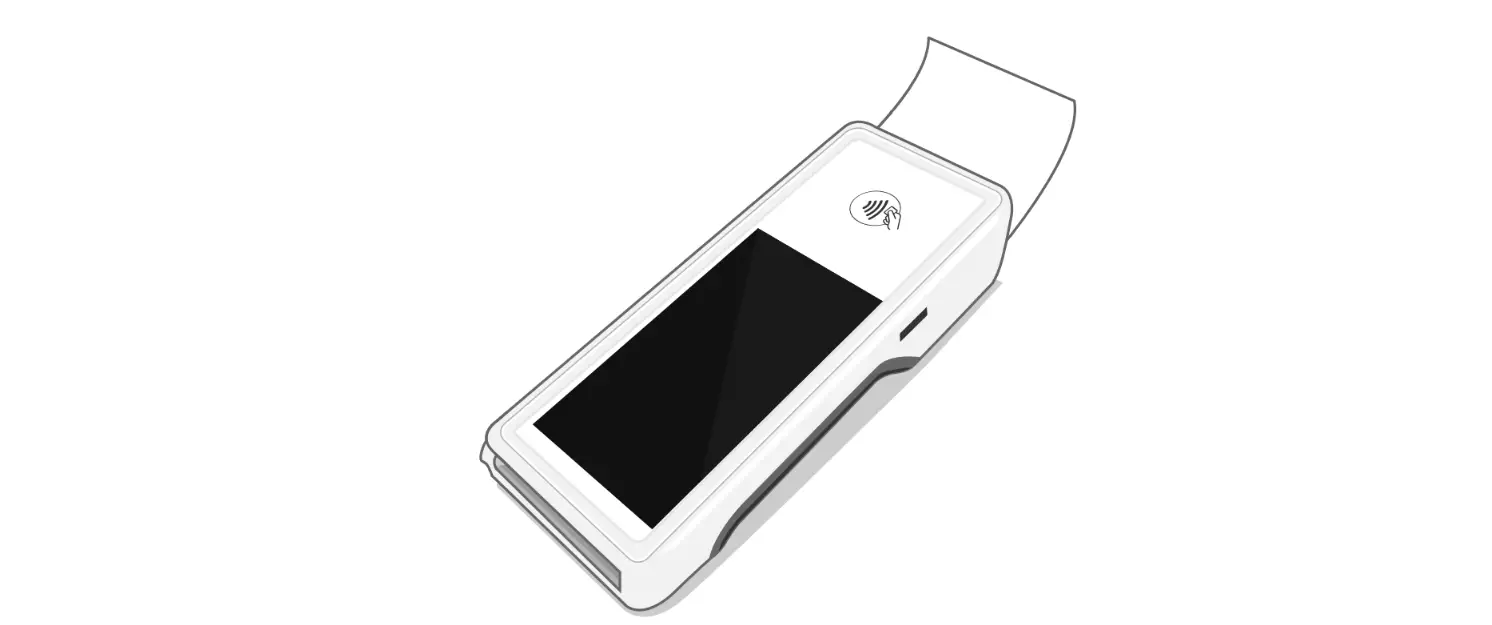
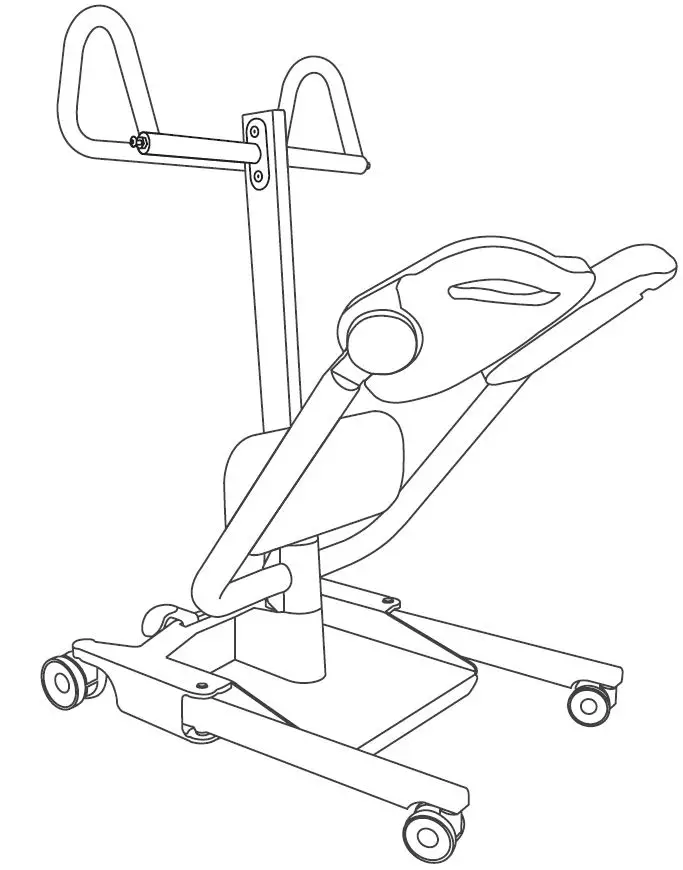
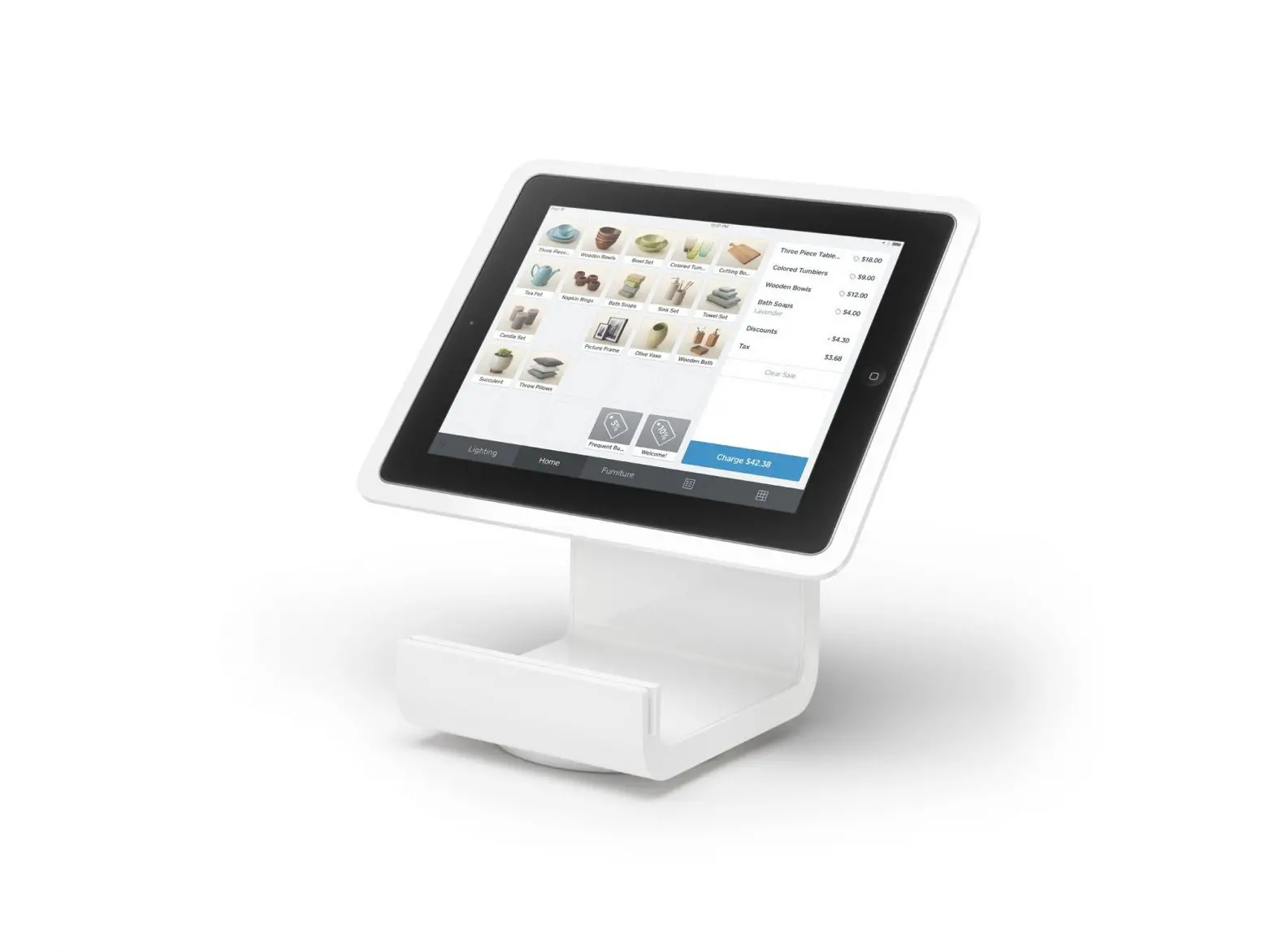
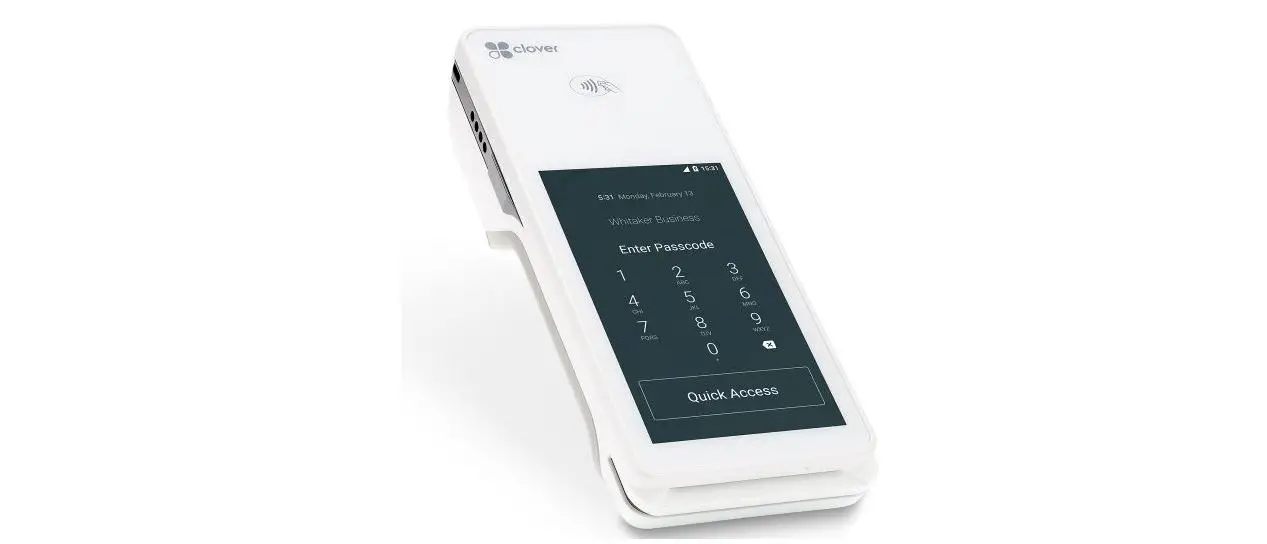
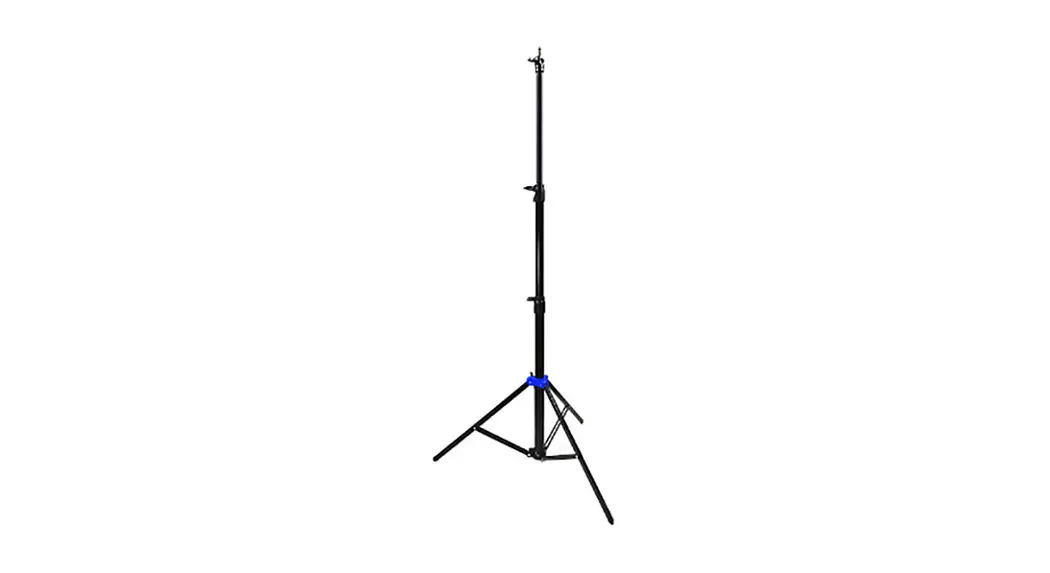
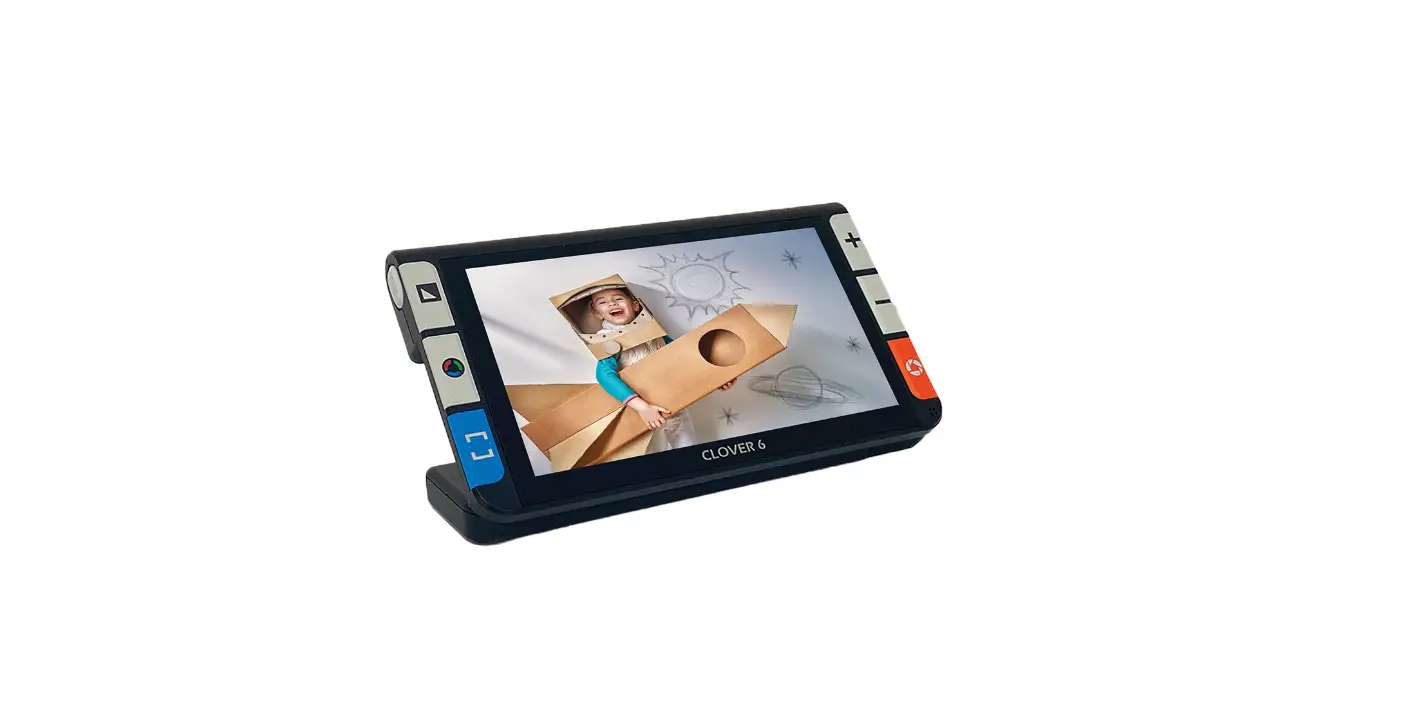
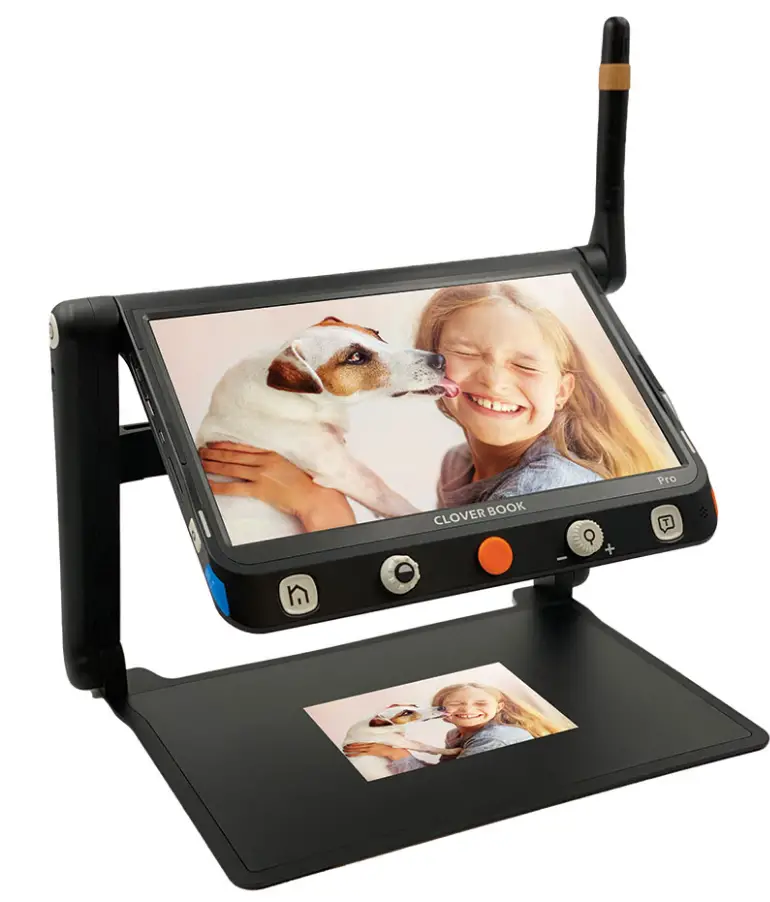
Clover Assist Stand is elaborately designed for the Clover 10/7S to make reading/handwriting easier for visual impaired people. The stand is extremely compact and lightweight, and the operation is also very simple and intuitive. Enjoy hand-free reading and handwriting with a sufficient space.
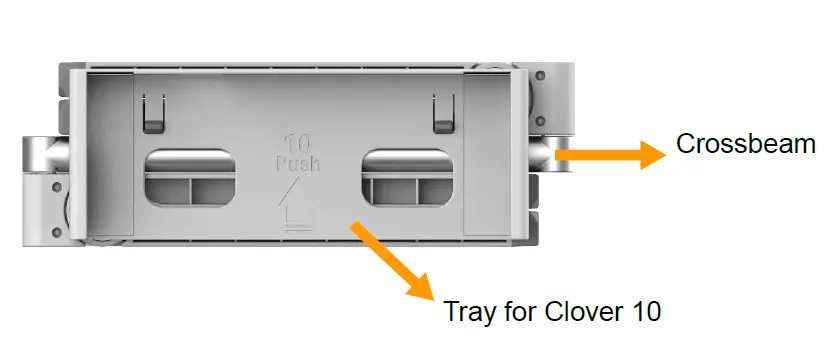
Compositions
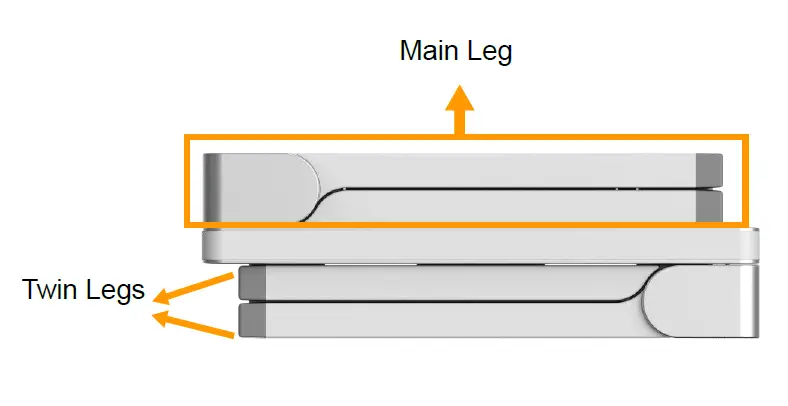
Operation
Unfold procedure
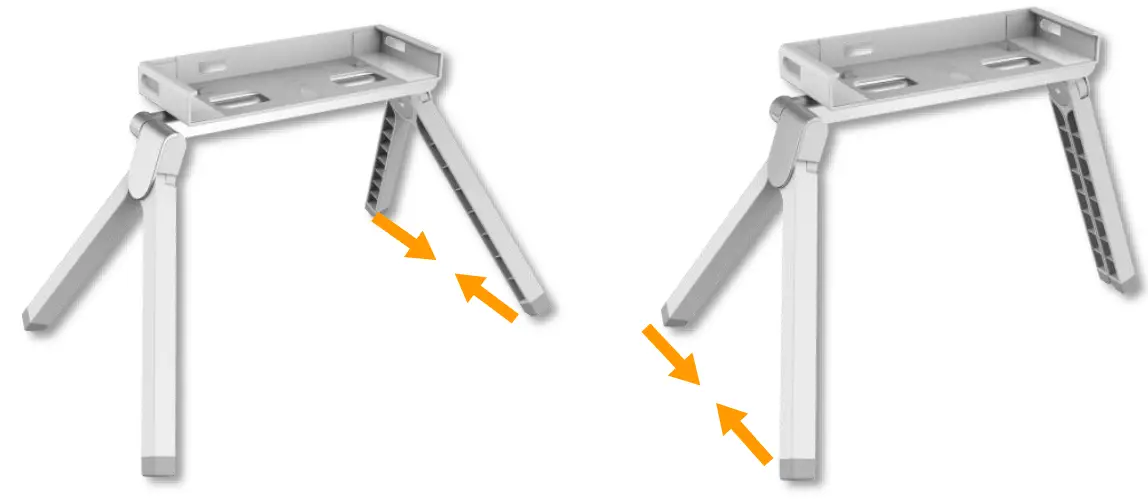
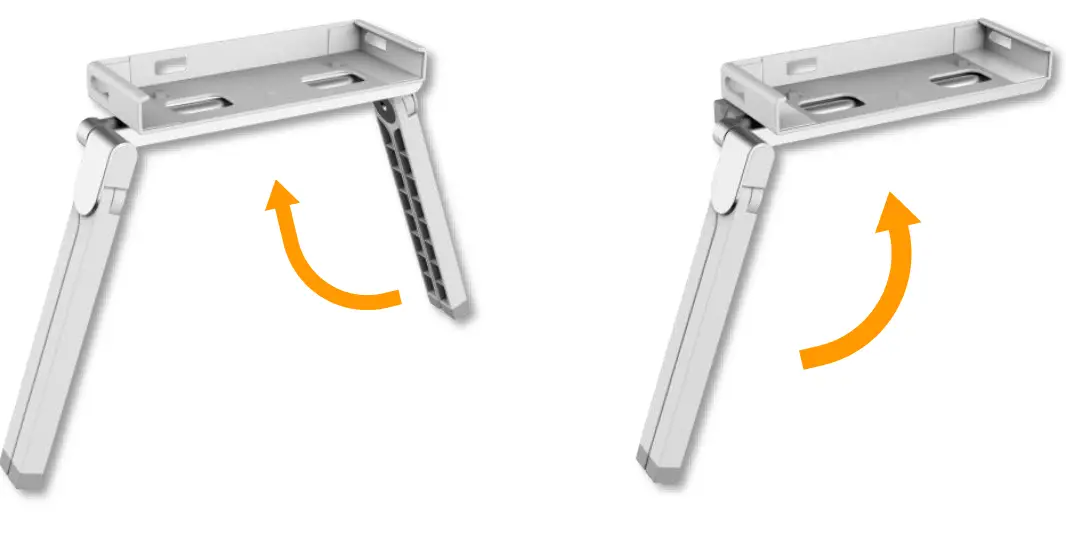
- Step 1: Separate the main legs apart

- Step 2: Split the twin legs to form the V shape

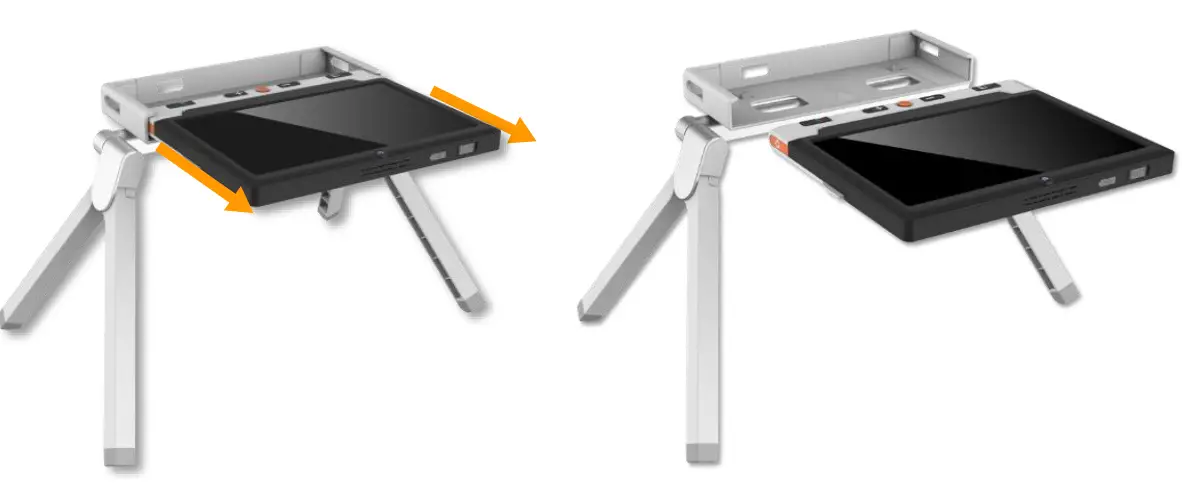
- Step 3: Slide the device into the slot of tray

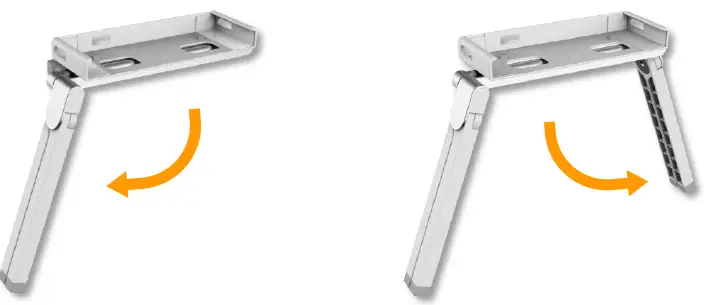
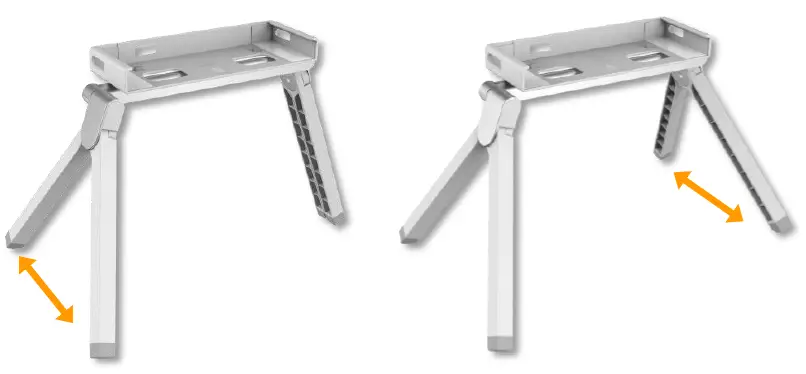
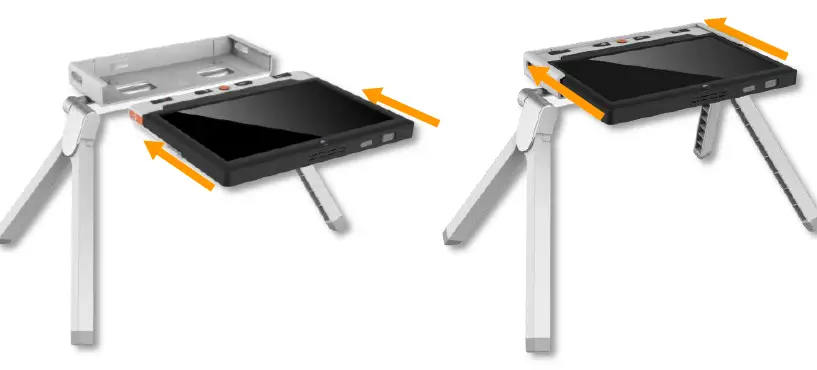
Use Case
The stand is multifunctional to assist:
- Reading
- Handwriting
- Far view
- Mirror view
The operations may be varied based on different use cases. The followings are our recommended operations.
Case 1: Reading Mode
- Adjust your comfortable reading angle.

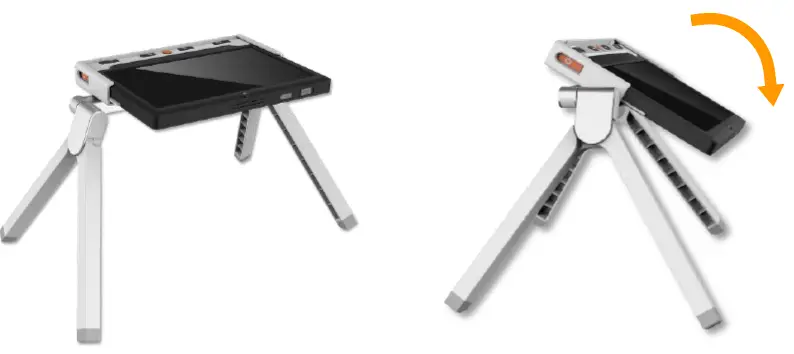
With the built-in stand of the device closed, the device is actually in the far view mode, the LED lights are off by default. However, for reading mode, we recommend to enter the reading/handwriting mode with both lights on for a better experience.
Enter the reading/handwriting mode by using one of the following device button operations:
- Press and hold the Focus Control button
 for 3 seconds
 - Press and hold the color mode button
 and the True Color button
 at the same time for 3 seconds (For old devices without the Focus Control button)
 for 3 seconds
 and the True Color button
 at the same time for 3 seconds (For old devices without the Focus Control button
In this mode, the LED lights will be turned on and the lights are all on the highest illumination. Notice: For old devices with old Firmware, there may no reading/handwriting mode. You can also press and hold the. Power the button and click the Freeze button
 to turn on the lights for a better reading experience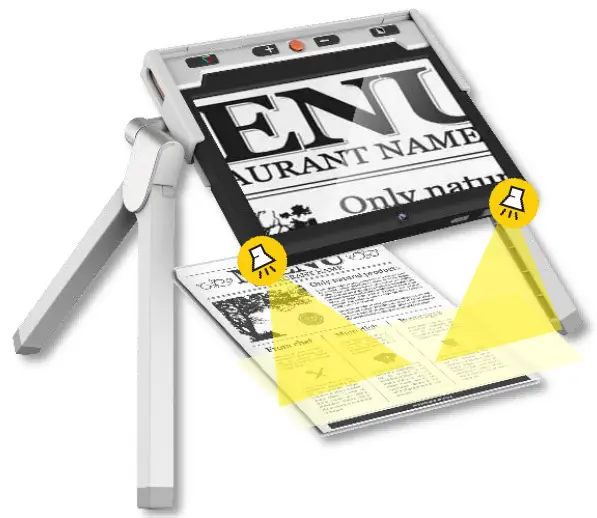
Case 2: Handwriting Mode
The following operations are the same as the reading mode described above:
- Adjust your comfortable reading angle
- Enter the reading/handwriting mode
There are four light statuses that can be applied to help the handwriting.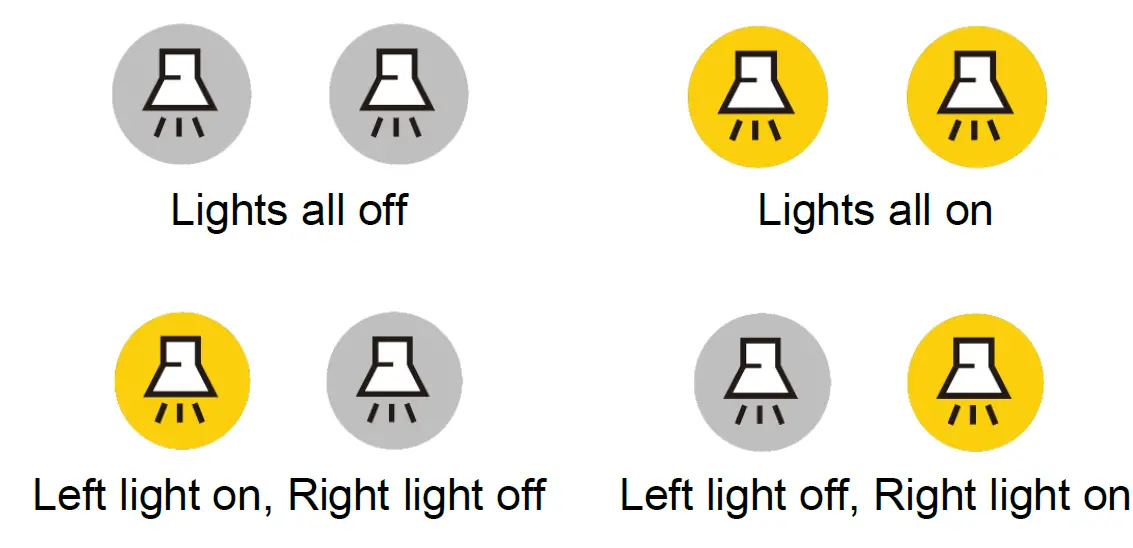
- Press and hold the Power button
 and click the Freeze button
 to turn on/off the two LED lights simultaneously
 - (The operation is compatible for all firmware versions)
- Press and hold the Power button and press the Focus Control button to switch from three light statuses:
- Left light on, Right light on, and All lights on/off (based on the latest setting).
- Shadow reducing when handwriting
- For the new device with AF-button, the lights can be controlled separately to reduce the shadow when writing.
- For example, if you are left-handed, turn off the left LED light. If you are right-handed, you can turn off the right LED light to reduce the shadow.
Notice: The Left/Right light individual control and the shadow reducing feature are only available for a new device with the AF-button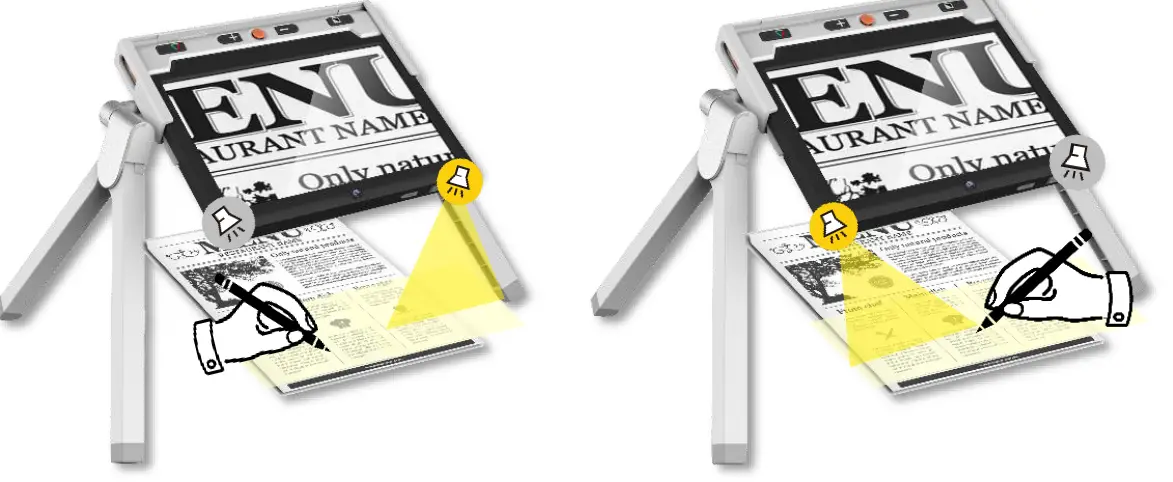
Case 3: Far View
If the device is in the reading/writing mode, it is recommended to exit the mode first.
- Press and hold the Focus Control button for 3 seconds
- Press and hold the color mode button and the True Color button at the same time for 3 seconds.For old device without the Focus Control button
Notice: For old devices with old Firmware, there may be no reading/handwriting mode. You can also press and hold the Power button and click the Freeze button to turn off lights.
- Adjust the viewing angle as the picture shows
- Rotate the device around and face the back camera to the object which you want to view

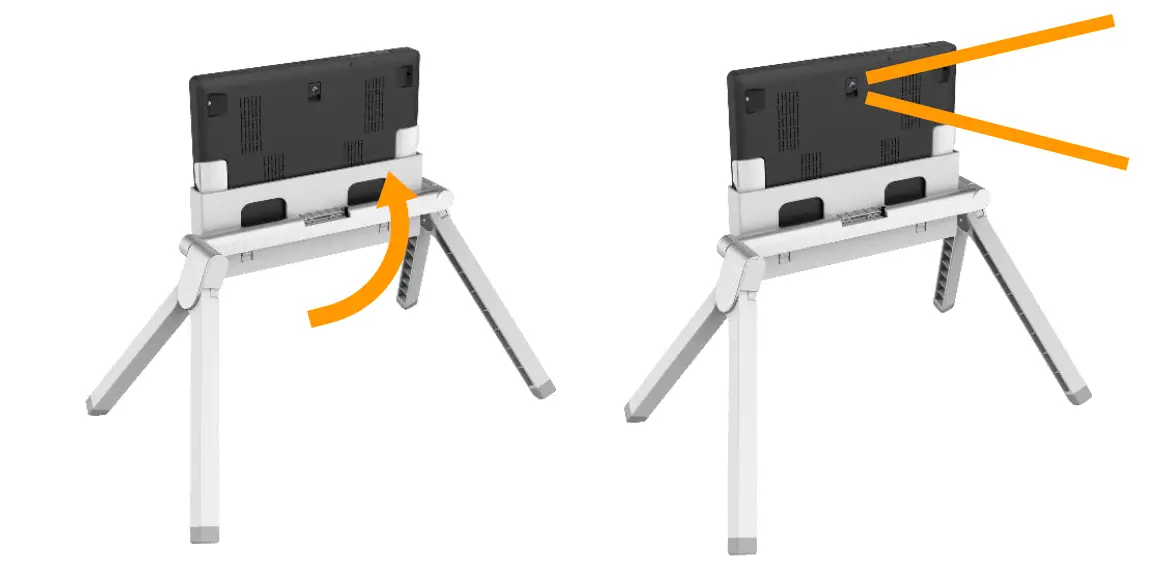
Case 4: Mirror View
The following operations are the same as the far view mode described above
- If you are in the reading/writing mode, exit first
- Adjust the angle
- Rotate the device around and face the front camera to the object which you want to view
- Turn the Camera Switch
 right to open the front camera for Mirror View.
 right to open the front camera for Mirror View.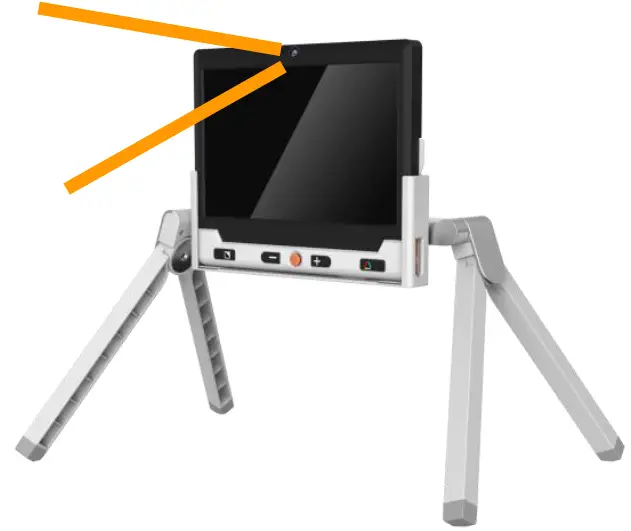
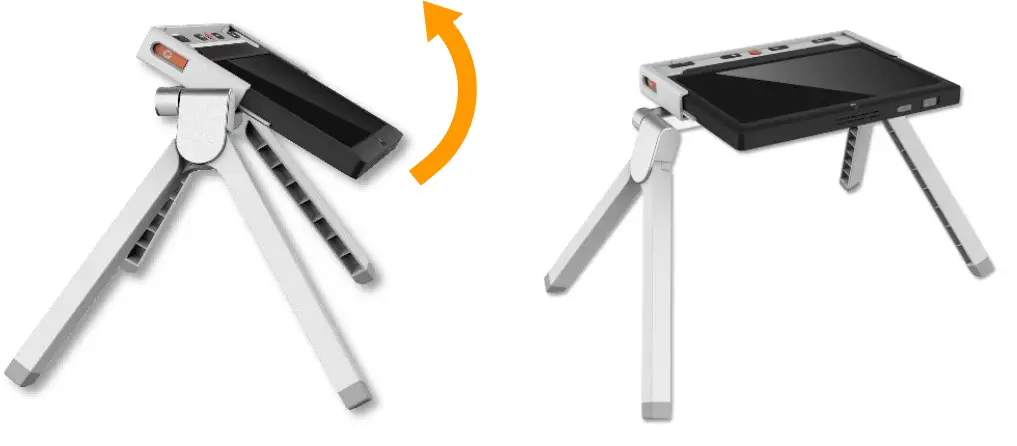
Fold procedure
The folding procedure is as simple as unfolding.
- Step 1

- Step 2

- Step 3

- Step 4

- Step 1
Specifications
- Dimension: <= 305 x 102 x 53 mm
- Weight: <560 grams
- Adjust angle:
- 0-30°in the reading/handwriting mode
- 0-90°in the far view/mirror view mode
 百度翻译-200种语言互译、沟通全世界!