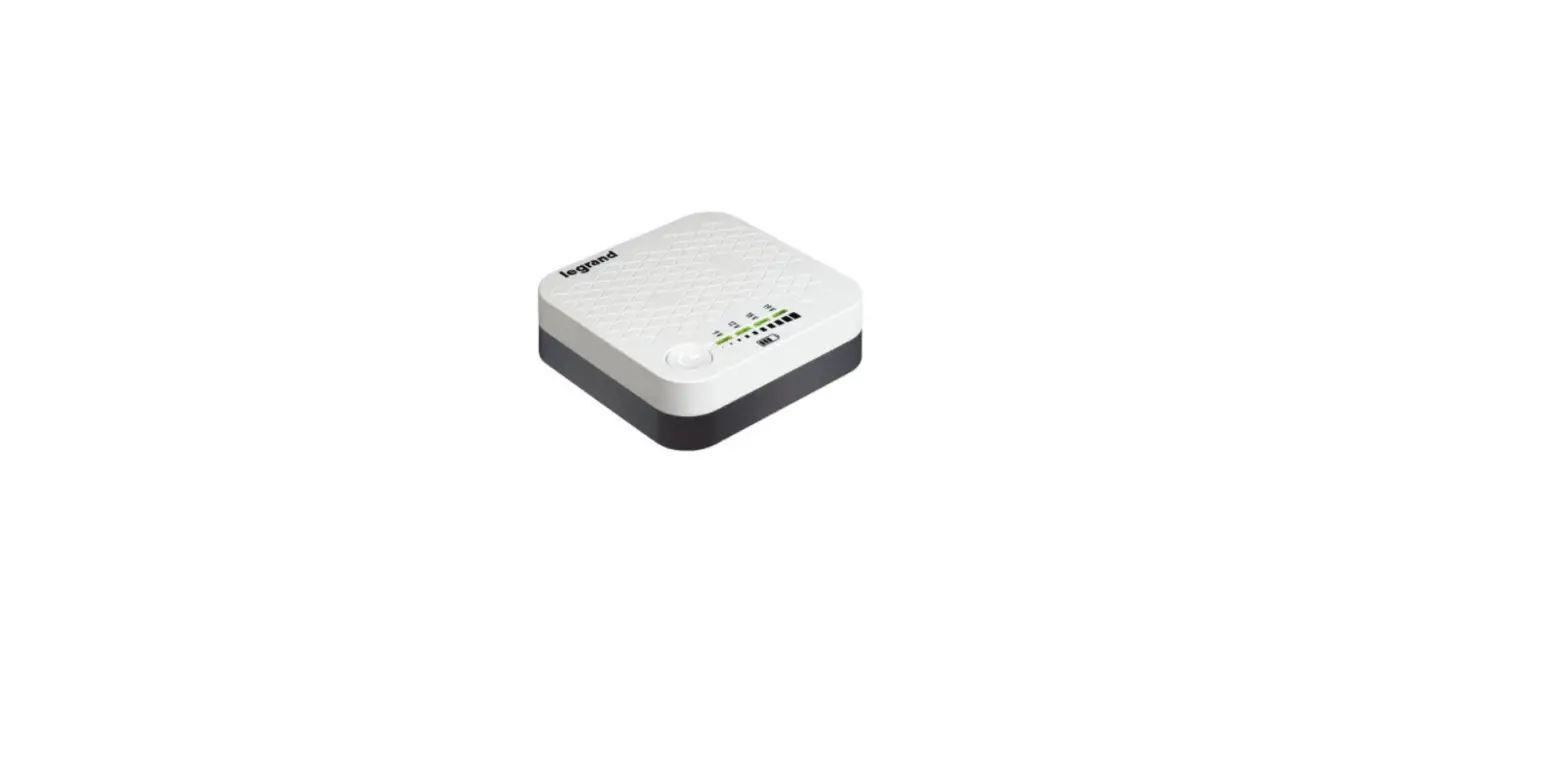

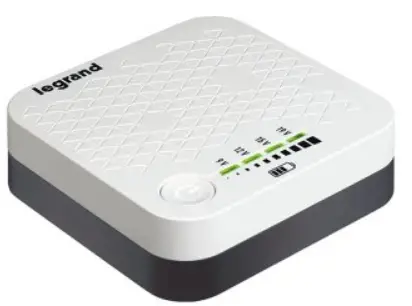
legrand RT-20 Router
How can it use
- Setting up your router:

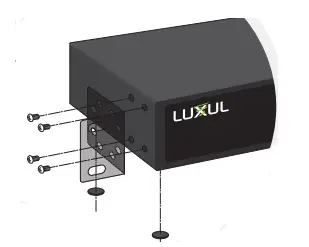
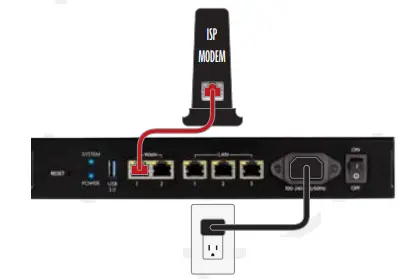
Place your router in a rack or on a desktop - Connect an Ethernet cable from your telco/ISP modem/router to the WAN 1 port of your router. Connect the included power cable from your router to your power source

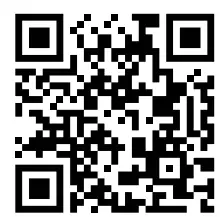
- Download the Easy Setup App

or search “Luxul Easy Setup App” on:
- Connect a computer to one of the LAN ports of your router. Open a web browser and go to 192.168.0.1

Login with the default User Name and password
- User Name: admin
- Password: Unique to device, found on device label
NOTE: You will be required to change the default administrator password. The WAN port will be disabled until a new password is selected
NOTE: If your computer or device isn’t set to obtain an IP address automatically, you’ll need to set a temporary static IP address on that device. Set the IP address of your computer to an address in the 192.168.0.X range, then set the Gateway/router address to 192.168.0.1
How Do I
Restore factory default settings?
To restore factory default settings to your router, press and hold the button labeled ‘RESET’ until the ‘System LED’ starts blinking rapidly
Restart my router?
To restart your router, press and quickly release the button labeled ‘RESET’.
Perform advanced configuration?
- Open a web browser and go to 192.168.0.1 or the IP address you specified during the setup process
- Enter the login credentials you created during the setup process
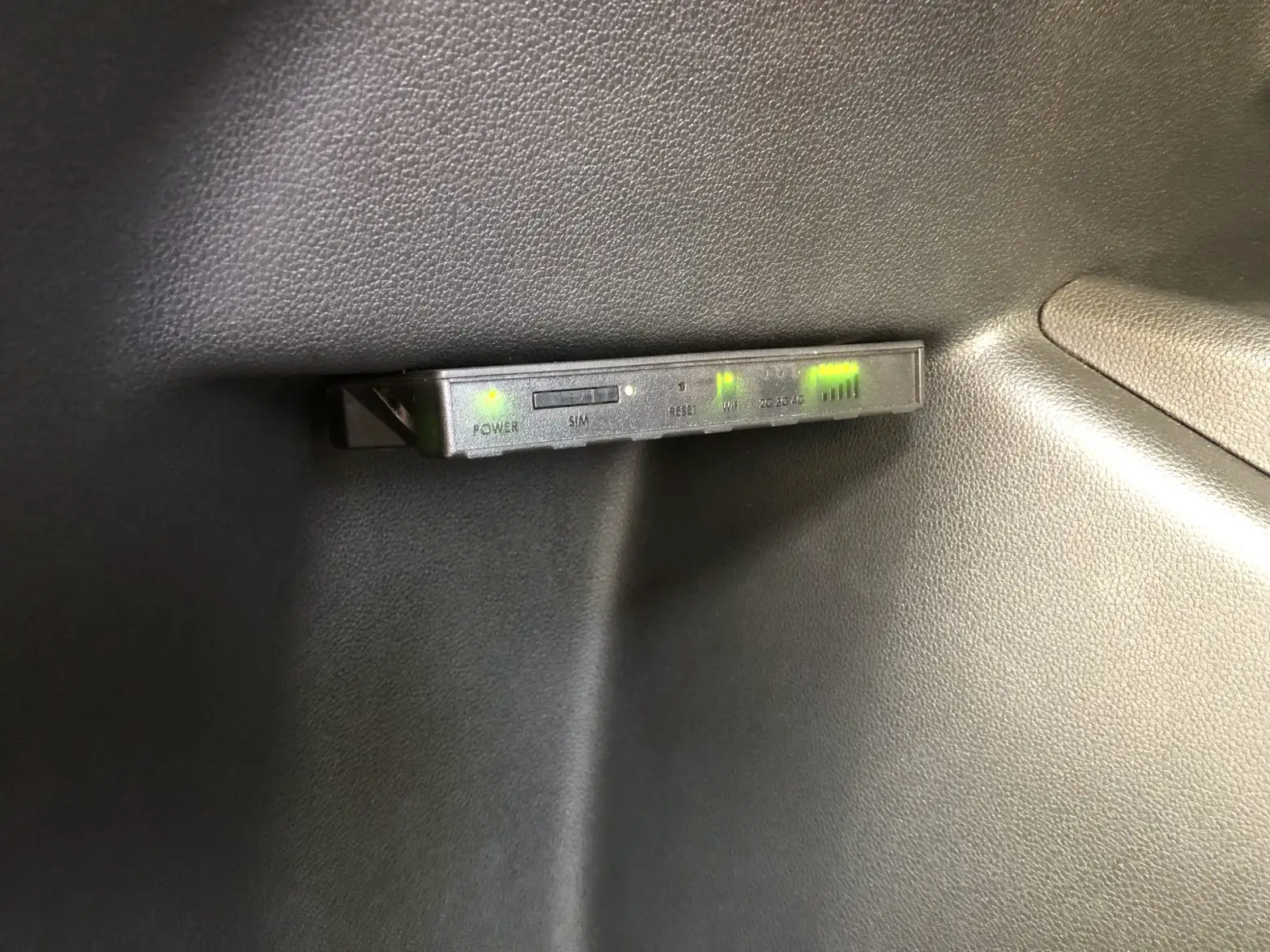
What do the LEDs on my router indicate?
| Indicator | State | Description |
| Power | On | Router is powered |
| Off | Power disconnected or router off | |
| System | Heartbeat | Normal operation |
| Slow blinking | Router rebooting | |
| Fast blinking | Router returning to factory default settings | |
| Off | Router error | |
| USB | On | USB device is connected |
| Blinking | USB device activity | |
| WAN/LAN Front | Top row on | 10/100Mbps device connected |
| Bottom row on | 1000Mbps device connected | |
| Blinking | Data being transferred | |
| WAN/LAN Rear | Yellow on | 10/100Mbps device connected |
| Green on | 1000Mbps device connected | |
| Blinking | Data being transferred |
View Luxul’s Privacy policy at:
https://www.legrandav.com/legal/privacy_policy
The marking information is located at the bottom of the apparatus
Copyright and Trademark Notices
No part of this document may be modified or adapted in any way, for any purpose without permission in writing from Luxul. The material in this document is subject to change without notice. Luxul reserves the right to make changes to any product to improve reliability, function, or design. No license is granted, either expressly or by implication or otherwise under any Luxul intellectual property rights. An implied license only exists for equipment, circuits and subsystems contained in this or any Luxul product. © Copyright 2022 Legrand AV Inc. All rights reserved. The name Luxul, the Luxul logo, the Luxul logo mark and Simply Connected are all trademarks and or registered trademarks of Legrand AV Inc. All other trademarks and registered trademarks are the property of their respective holders.
Technical Support
P: 801-822-5450
E: [email protected]
Support chat: LegrandAV.com click ‘Live Chat’ (upper right) and select Luxul under ‘Brand’
Sales
P: 801-822-5450
E: [email protected]
 Privacy Policy | Legrand AV