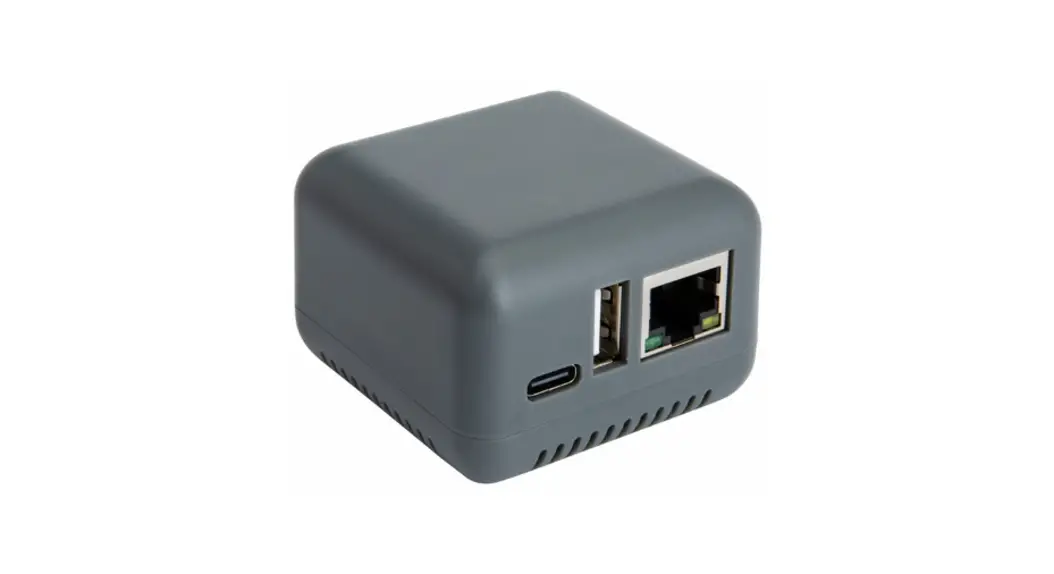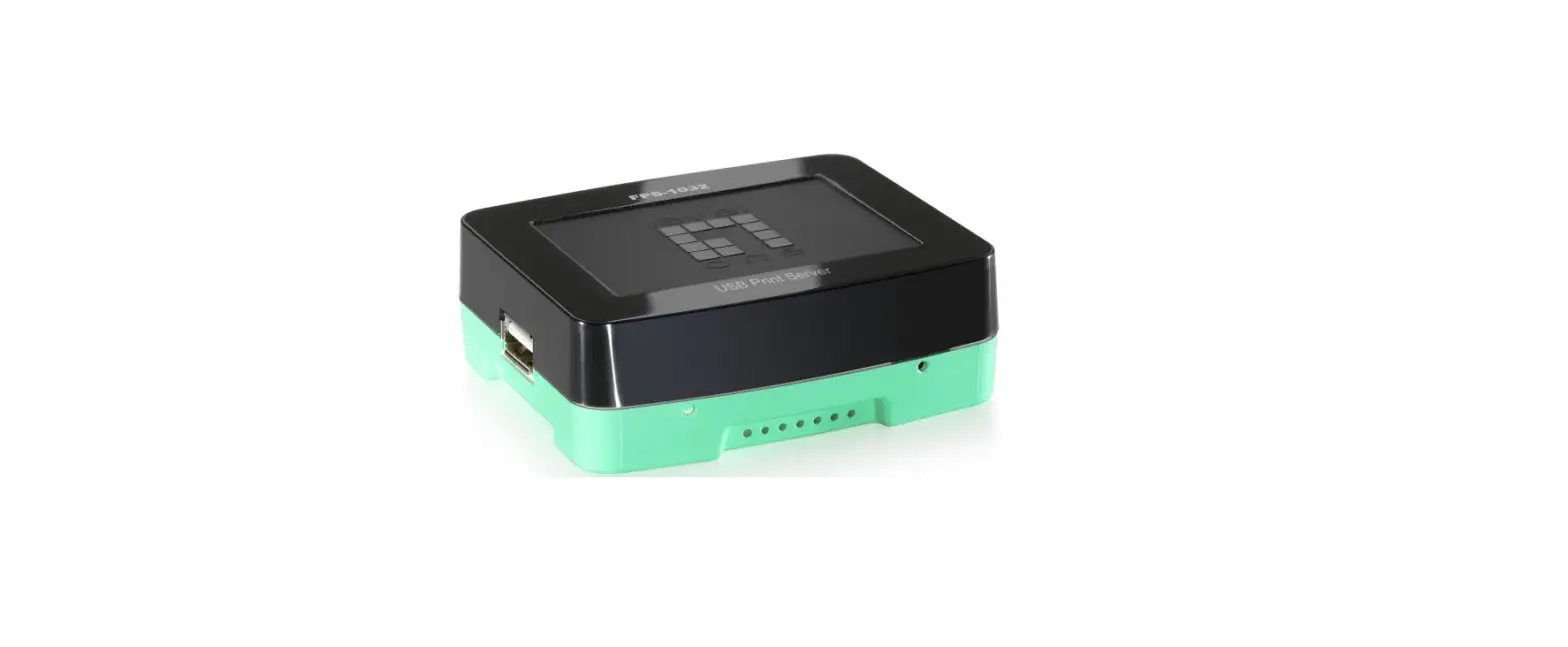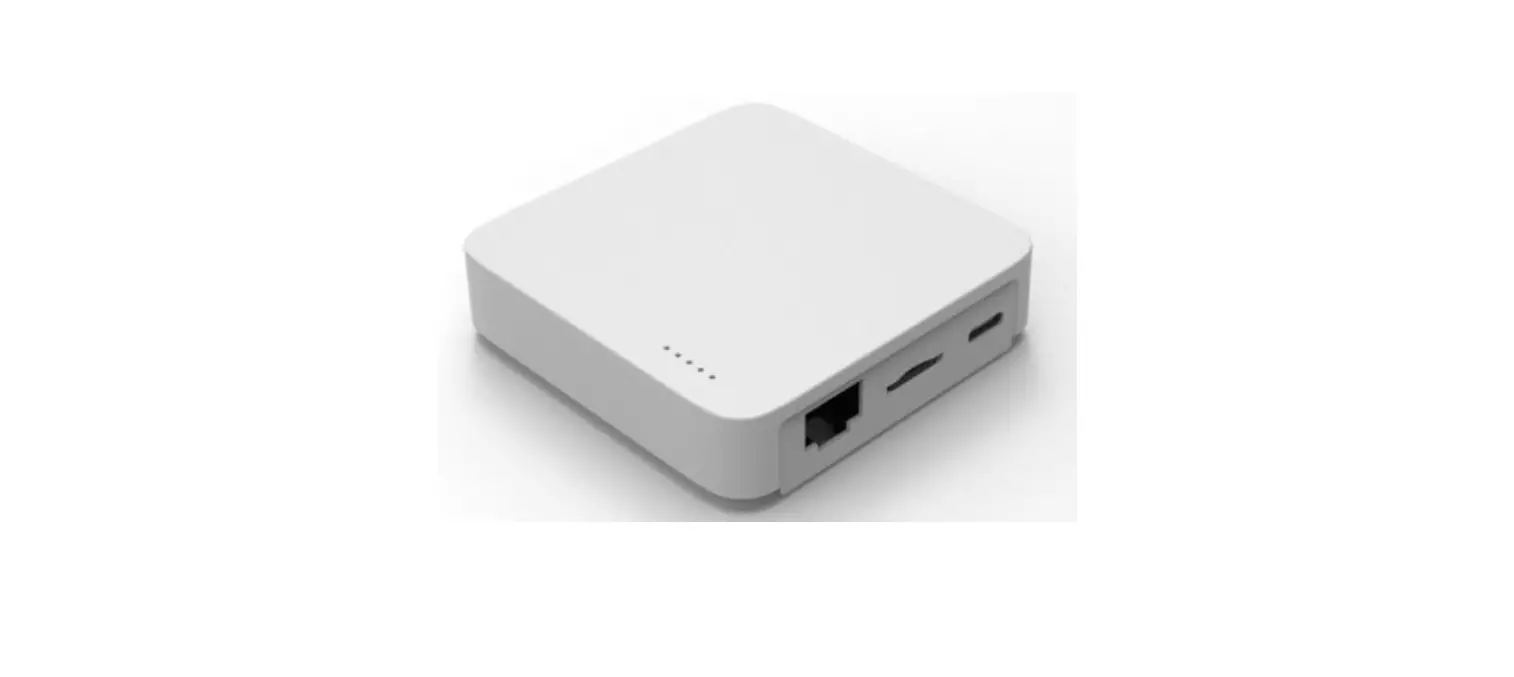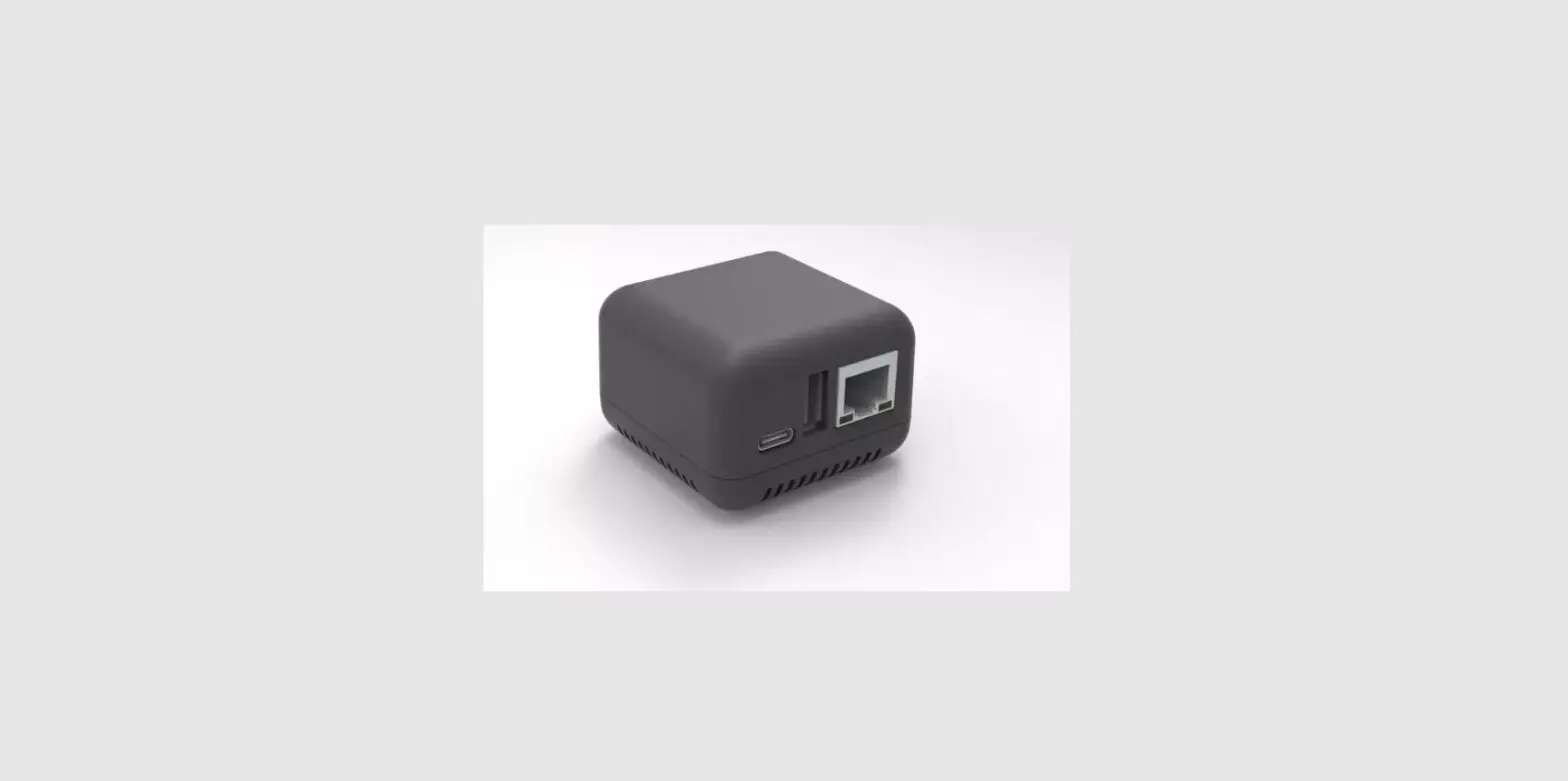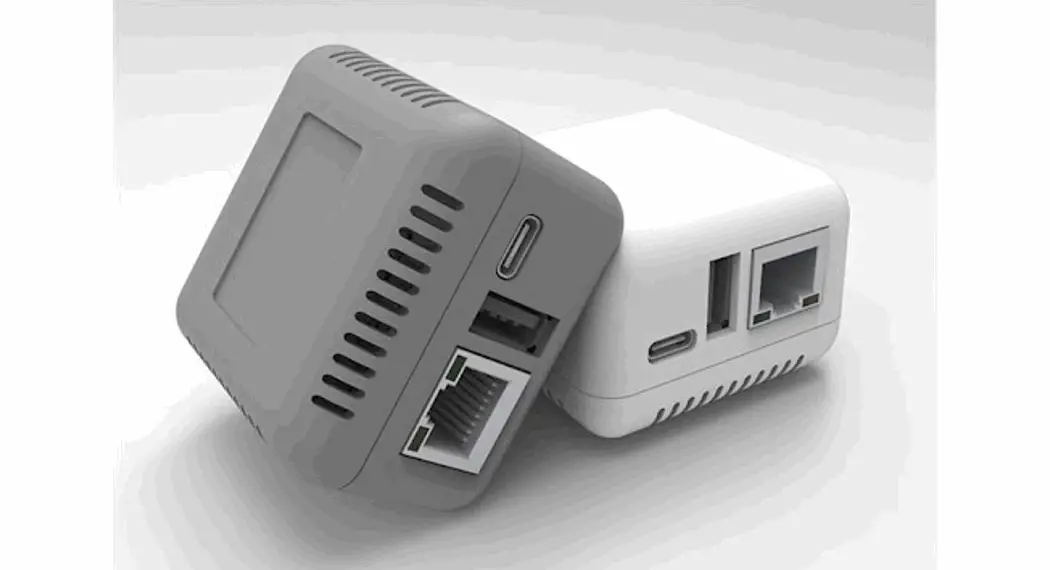

USB Print Server
User Manual
(2021-06 Version)
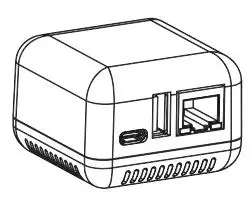
Summary
Product Main Features
- ◼Standard 100M network interface
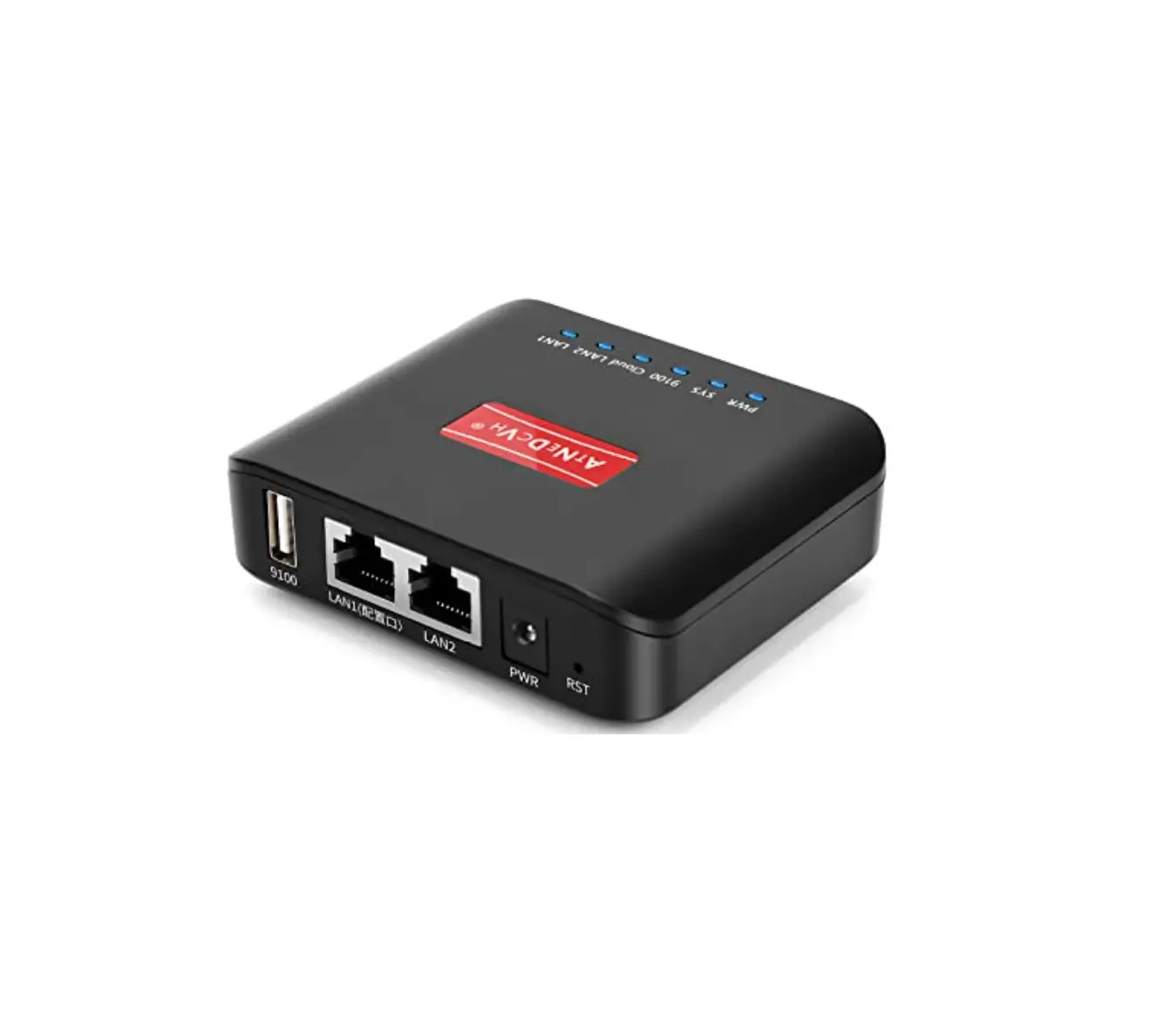
- Small Size: 53x53x40mm
- Default Configuration: RJ-45 LAN Port, WiFi/Bluetooth version is available
Communication Method via USB 2.0 interface. - Support Multi-users sharing one printer of a wireless network simultaneously.
- Simple and compact design, low power, small footprint, easy to carry.
- Support print directly from operating the mobile phone (work with APP: PrinterShare or PrintHand )
Product Description
LY-MPS-N01 is a Mini USB Print Server, a 10/100Mbps Ethernet to USB 2.0 Network LPR Print Server, after connected to the local area network (LAN) through the RJ45 network cable; it is an independent network device in LAN, which allows multiple computers in the local area network to share a USB printer. It’s replacing the computers which worked as the print server with the high cost, spacy-occupying, high energy consumption, not easy to manage later disadvantages. USB print server allows users to use mobile phones, tablets, computers, or other devices to print files.
Product Series
LOYALTY-SECU Network print servers with 3 versions for option:
| Model | Communication Method | Remarks |
| LY-MPS-N01/ LY-MPS-N01-G | Ethernet | RJ45 LAN Port |
| LY-MPS-BN01/ LY-MPS-BN01-G | Ethernet &Bluetooth4.0 | Support Android/10S (BLE) RJ45 LAN Port+ Bluetooth |
| LY-MPS-WN01/ LY-MPS-WN01-G/ LY-MPS-WNO1C-G | Ethernet &WiFi | RJ45 LAN Port+ WIFi |
Technical Specifications
Technical Parameters
| Product Parameters | |
| CPU | ARM9 |
| RAM | 64MB DDR2 |
| FLASH | 128MB NAND FLASH |
| USB Printer Interface | USB2.0 HOST |
| USB Configuration Port | USB2.0 DEVICE |
| Network Port | 10/100M |
| Bluetooth Interface | Classic Bluetooth +BLE (Bluetooth 4.0) ( for optional ) |
| WiFi Interface | 802.11BGN ( for optional ) |
| Power Supply | DC 5V/lA |
| Product Dimension | 53x53x40mm |
| Product Weight | 25g |
| Packing Size | 11.7k12.4.3CM |
| Packing Weight | 150g |
| Operating Environment | Temperature -10°C–50°C Humidity 2014-85% |
| Storage Environment | Temperature -10°C–50°C Humidity 20%-85% |
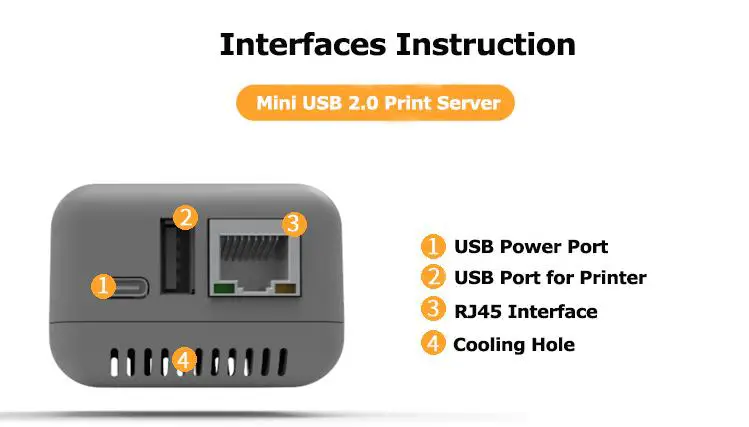
Interfaces Instruction
Network Configuration Instruction
Configuration Tool Preparation
Please download the configuration tool from Loyalty-Secu official website:
https://loyalty-secu.com/print-server-download/ or contact our customer service to obtain the configuration tool of the print server. Contact email: [email protected]
Configuration Tool File Description
The compression file package will be shown as below after decompression:
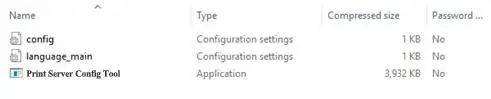
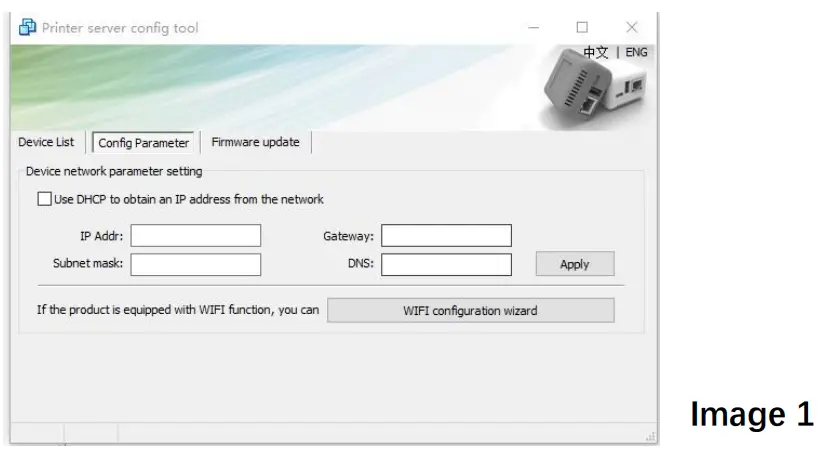
Double-click [Print Server Config Tool.exe] to configure the parameters, it’s no need any the software installation process, the interface as shown as Image 1:
Preparation before Using
- A computer with WINDOWS operating system
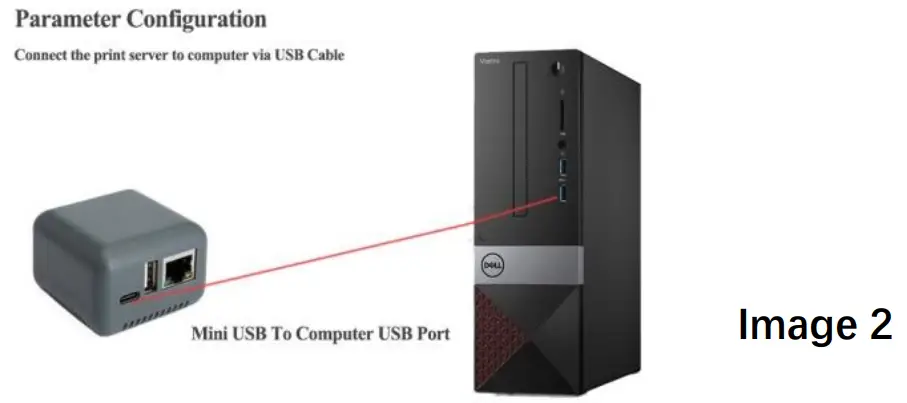
- A USB cable with TYPE C interface (Included in the packing box)
- Print Server Config Tool (WINDOWS version)
Connect the print server to the computer via the USB cable, as shown as Image 2 :
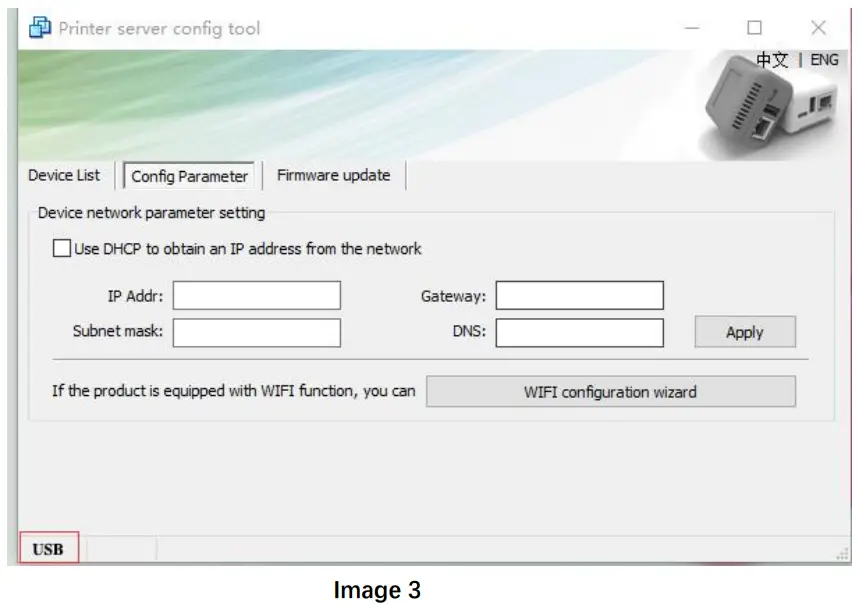
After being connected to the computer, the print server will automatically power on and start. The entire startup process takes about 20 seconds, then the print server config tool will display a USB sign in the lower-left corner, indicating that the config tool has been identified as the print server as shown as Image 3:
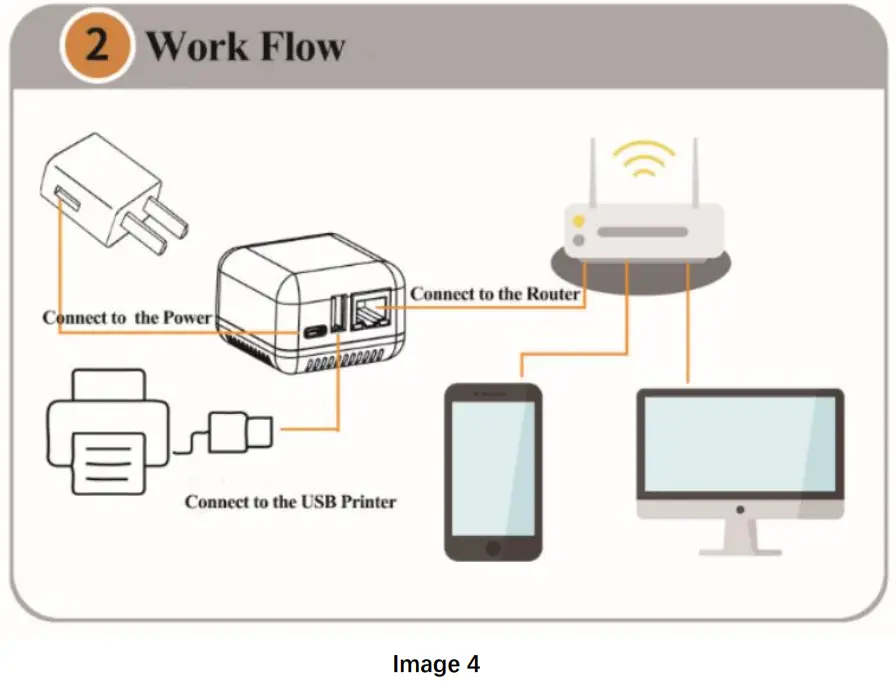
After configuring the corresponding parameters, remove the USB cable between the print server and the computer. Starts the connection between several devices as shown as Image 4 :
Set the Ethernet IP Address of the Print Server
Two ways for the print server to obtain the IP Address:
Method 1: Use DHCP to obtain an IP address from the network
Method 2: Obtain a fixed IP Address
The advantage of method 1 is very simple and time-saving, however, the disadvantage is that it is easy to forget the IP address and may assign a different IP address for the print server brings the IP Address conflict problem.
For method 2, it can assign a fixed IP address to the print server according to the current network environment, this method is more reliable and stable (Highly Recommended), the users need to know their own network attributes.
Tips for how to get a fixed IP Address
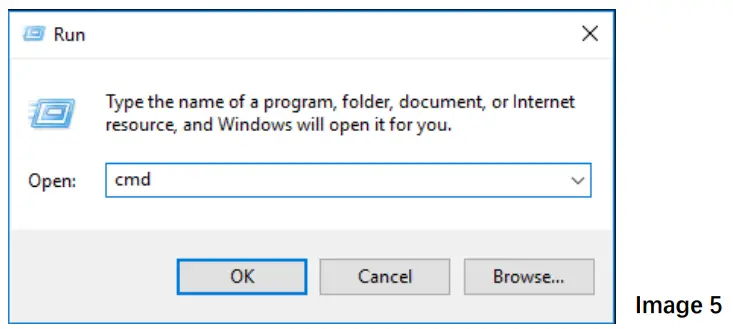
Click “Start Menu—Run”, or use the WIN+R key combination to call the run window, enter “cmd” in the Run window, click OK (as shown in Image 5 ).
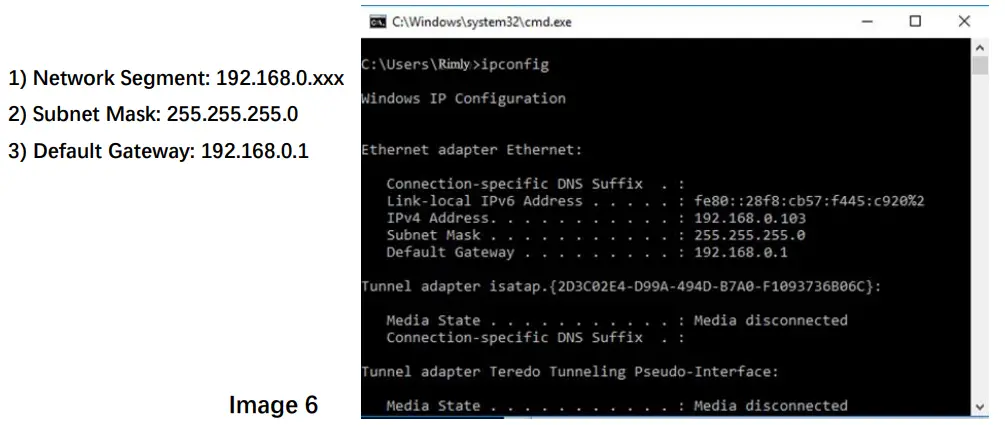
After inputting “ipconfig”, click the “Enter” button, then the IP Address, Subnet Mask, Gateway information will be displayed as shown as Image 6:
Open the config tool and select the “Config Parameter” tab
A: If you use DHCP to obtain an IP address
Please check “Use DHCP to obtain an IP address from the network” as shown in Image 7:
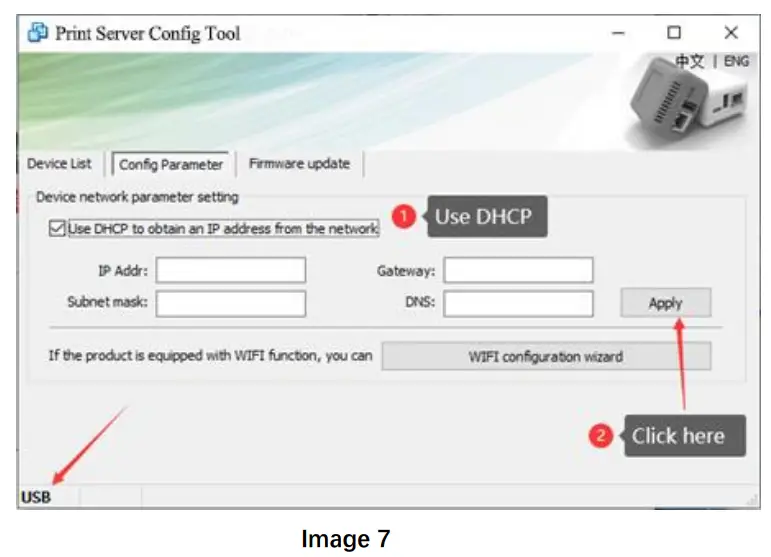
Click the “Apply” button, restart the print server, the print server will work successfully.
B: Assign a fixed address
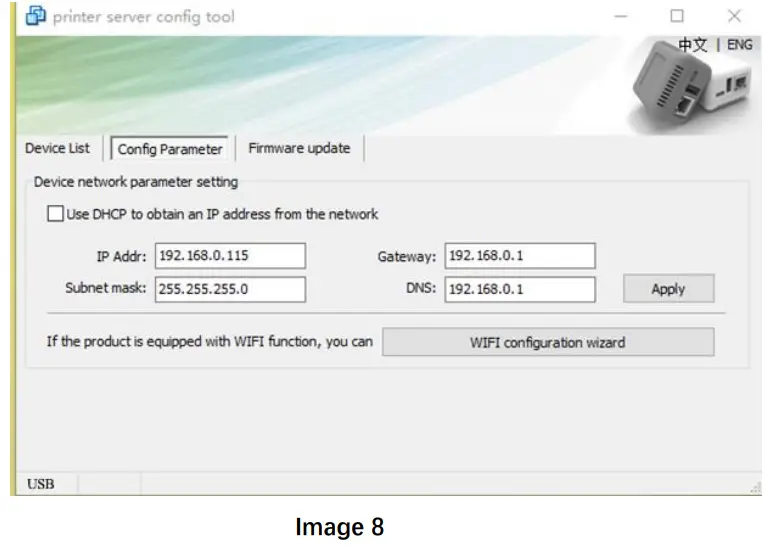
Uncheck “Use DHCP to obtain an IP address from the network” and enter fixed new parameters in the config menu. Different network environments will have different parameters. Please obtain the corresponding information based on the actual internet situation, as shown as Image 8:
Query Current Status
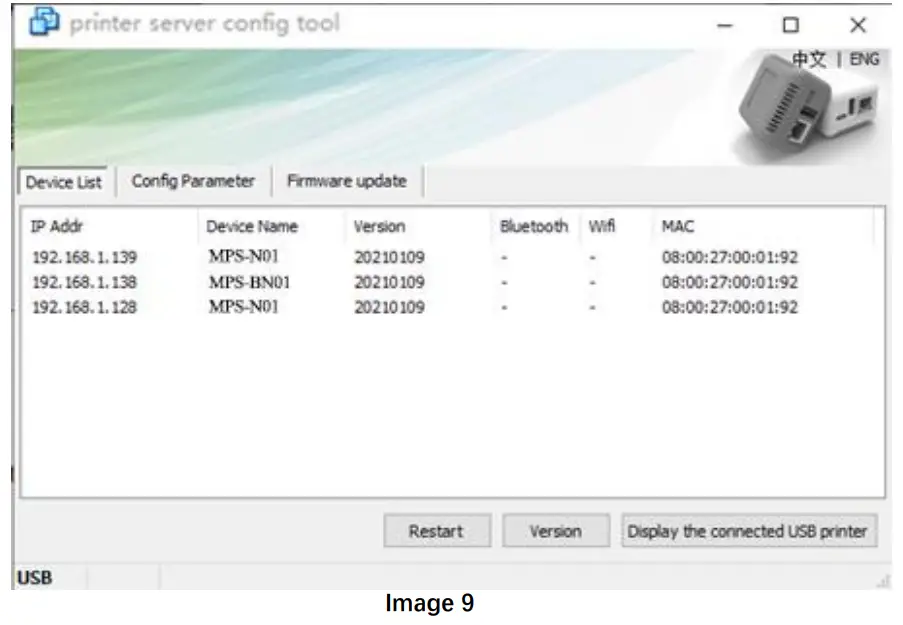
On the “Device List” page, all the print servers will be listed in the current network, as shown as Image 9:
WiFi Parameter Configuration
Note: Only the print server with WiFi function, can proceed on the WiFi Wizard process.
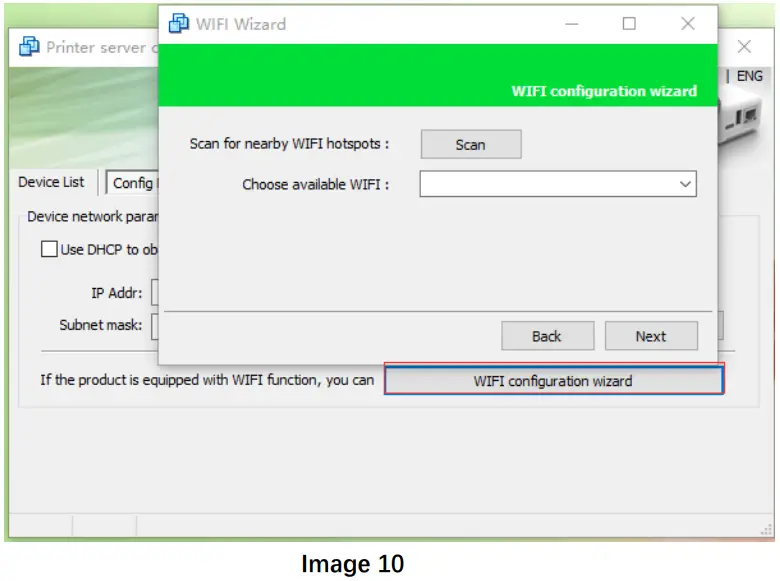
In the “Config Parameter” page, click “WIFI configuration wizard” to continue the WiFisetting as shown as Image 10:
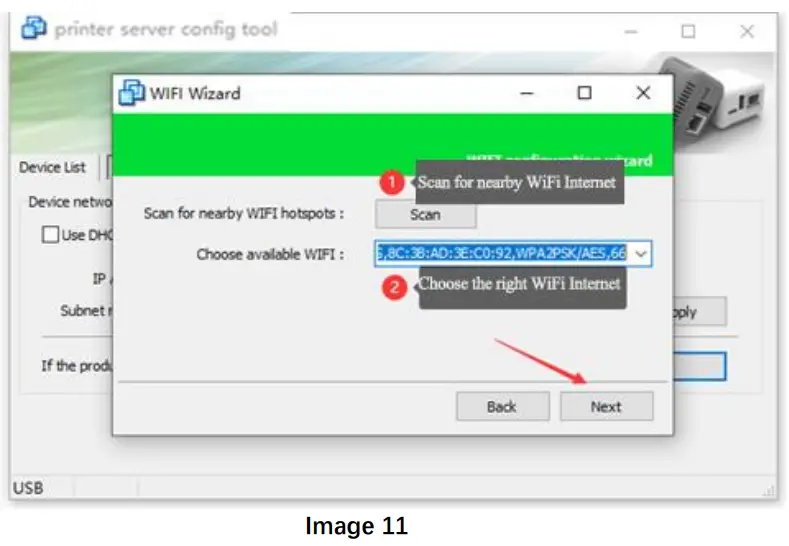
Click “Scan” to scan for nearby WiFi hotspots, the result will be displayed in the drop-down the list within 5 seconds, select the right WiFi hotspot you need to connect to, then click “Next”, as shown as Image 11:
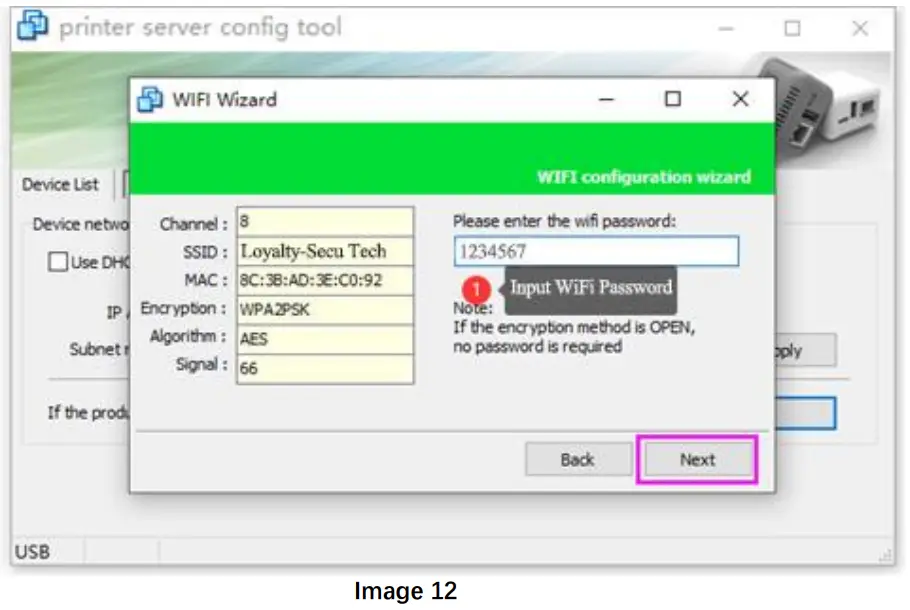
Enter to the WiFi Password Setting Menu, input the WiFi password and click “Next”, as shown as Image 12:
After connected to the WiFi internet, need to configure the WiFi Parameter to obtain an IP address for the WiFi print server.
There are also have two methods for getting an IP address for the print server:
Method 1: Use DHCP to obtain an IP address;
Method 2: Obtain a fixed IP Address (the procedure is the same as 4.4 above ).
After entering the parameter,please click “Modify network parameters” write the parameter into the WiFi module as shown in Image 13:
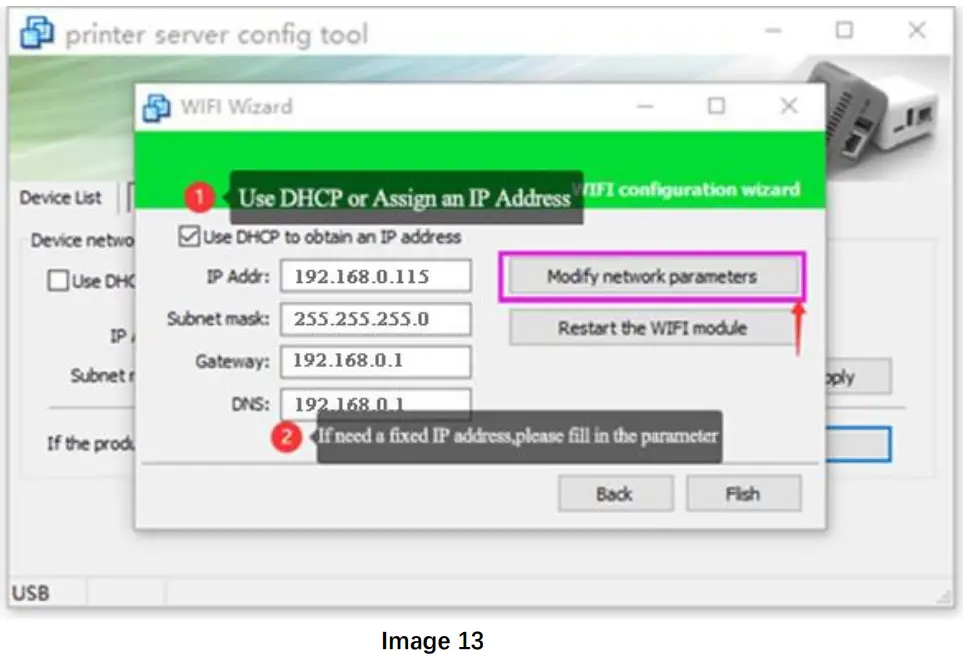
After configuring the parameters, please restart the print server.
Print Server Port
The print server uses a standard RAW interface, the port number is 9100
WINDOWS Printer Driver Installation
Example
When the network parameter configuration of the print server is completed, please power on the print server, make sure it works under stable conditions.
Install the Printer Driver
Installing the printer driver is the same procedure as the normal USB printer driver (will not explain here)
Configure the Printer Port
After installing the printer driver, select the newly installed printer in the control panel, select printer, and right-click printer properties. as shown as Image 14/15/16, different operating systems may have some differences.
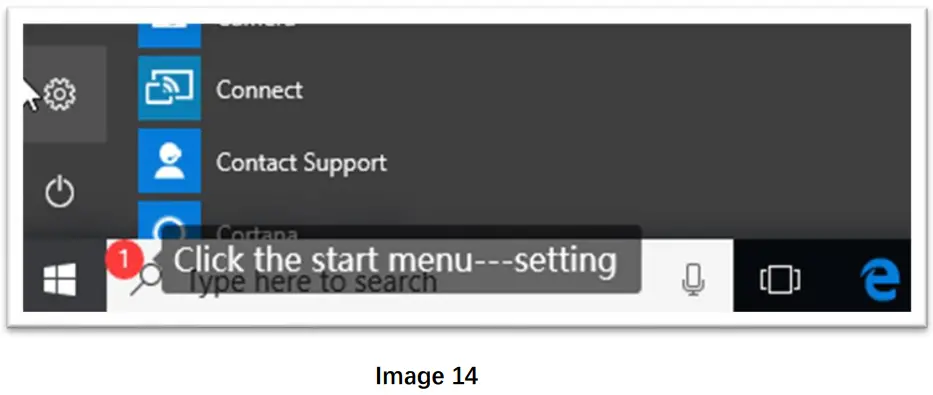
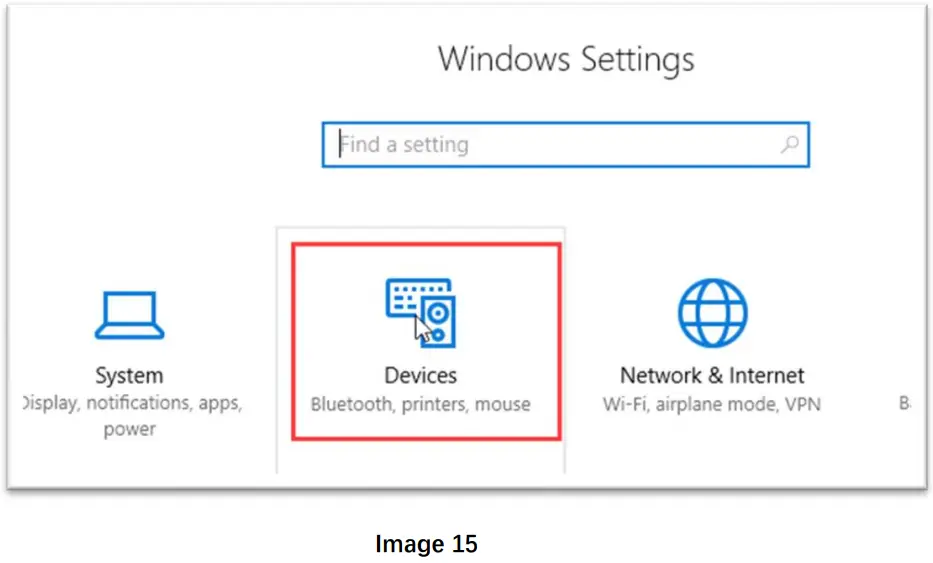
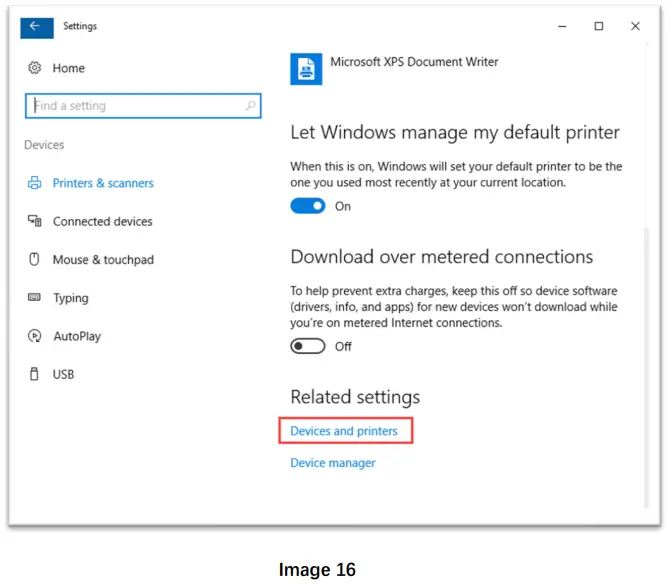
Image 17 demonstrates an example of installing the HP 1020 printer for reference:
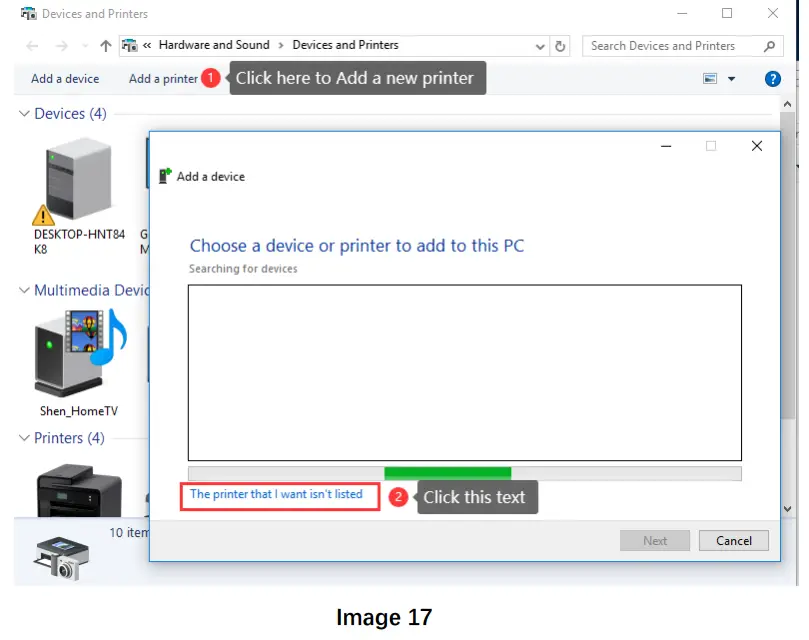
After clicking “Add a printer”, choose and click “ The Printer that I want isn’t listed” as shown as Image 18:
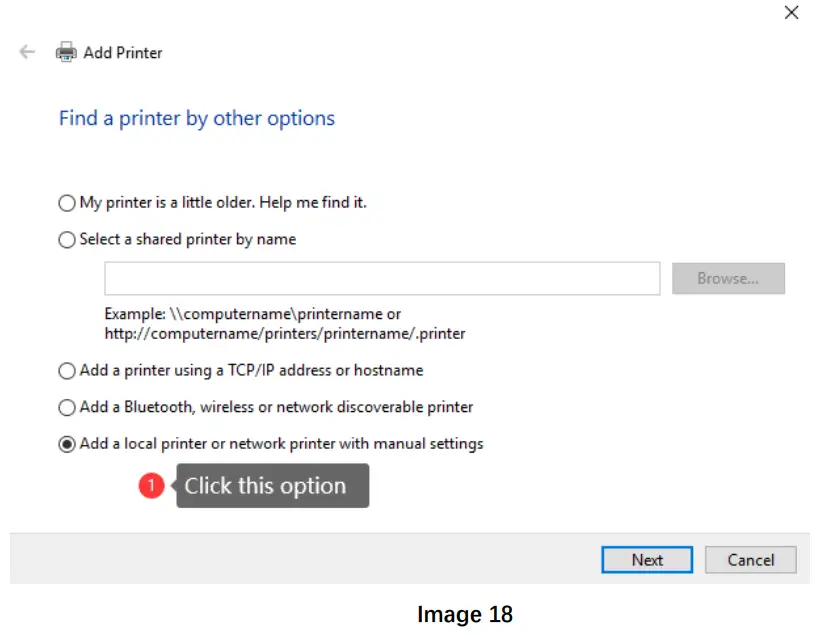
Click the “Next ”button
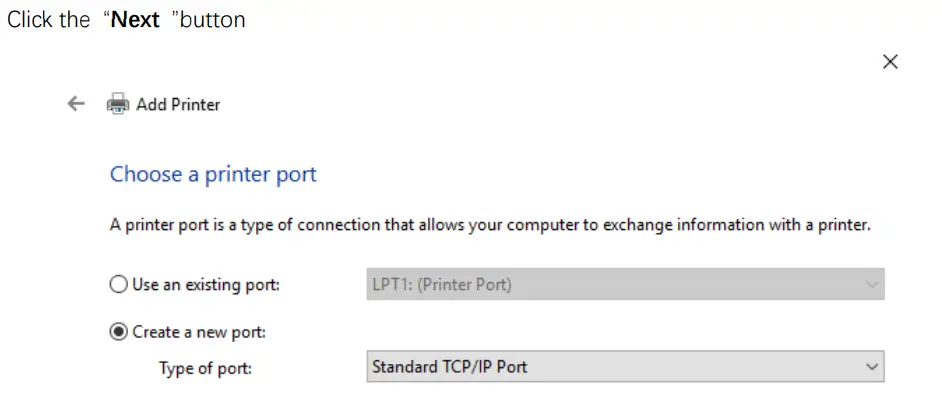

Create a new port, and the type of port is “Standard TCP/IP Port”, Click the” Next” button.
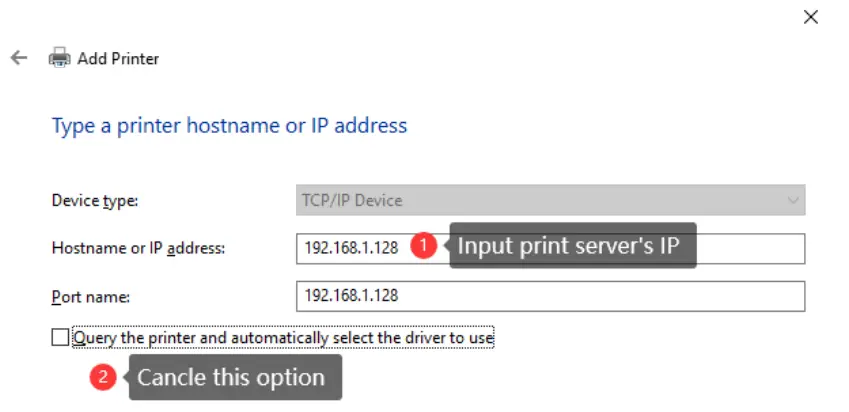
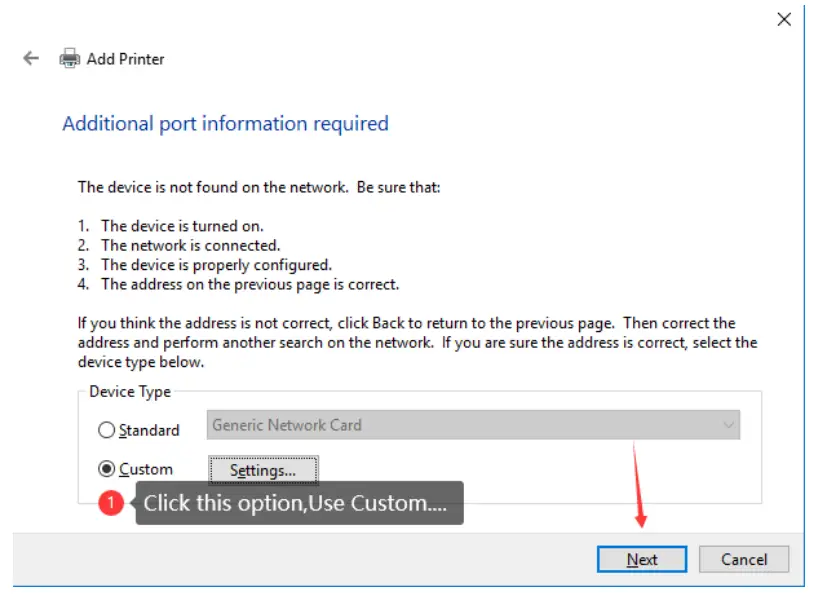
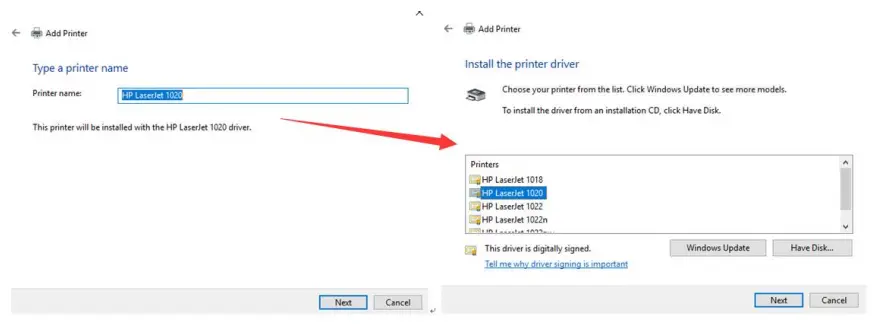
Click the “Next “button, then now start to install the printer driver
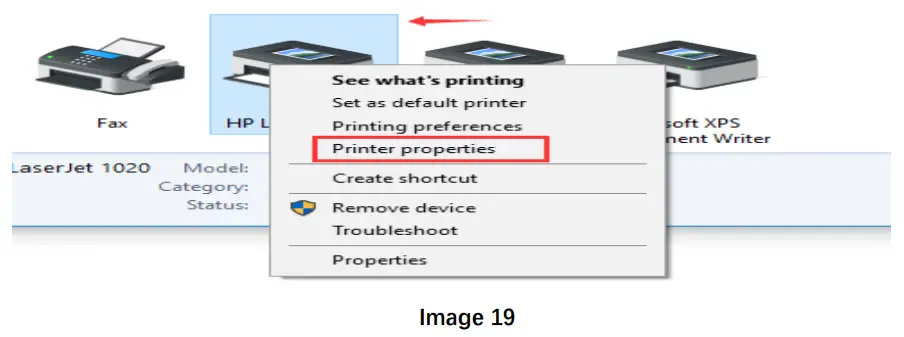
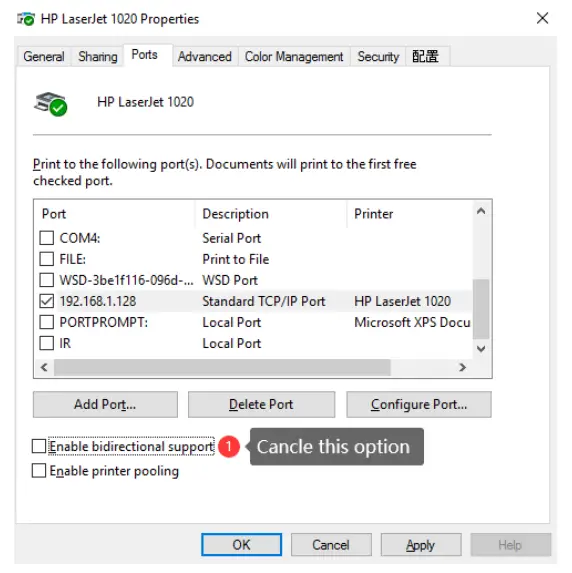
The next step is to configure the printer properties, as shown as Image 19:
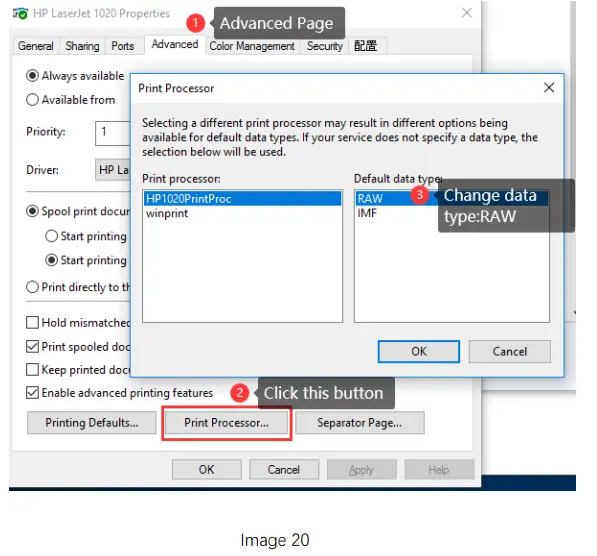
After installing the printer driver, some printers come with the default IMF data format, so we need to change it into RAW data format. Please refer to Image 20:
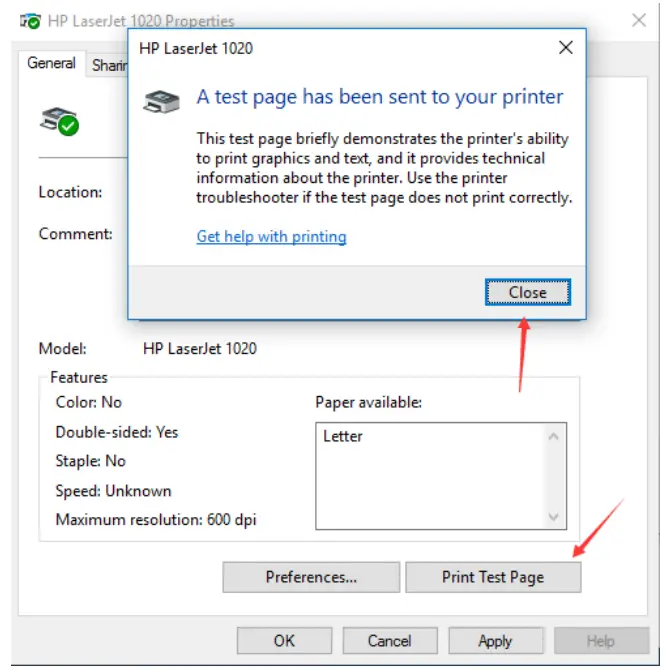
Now all settings have been completed, we can start to print a test page.
Bluetooth Print Server Quick Setting
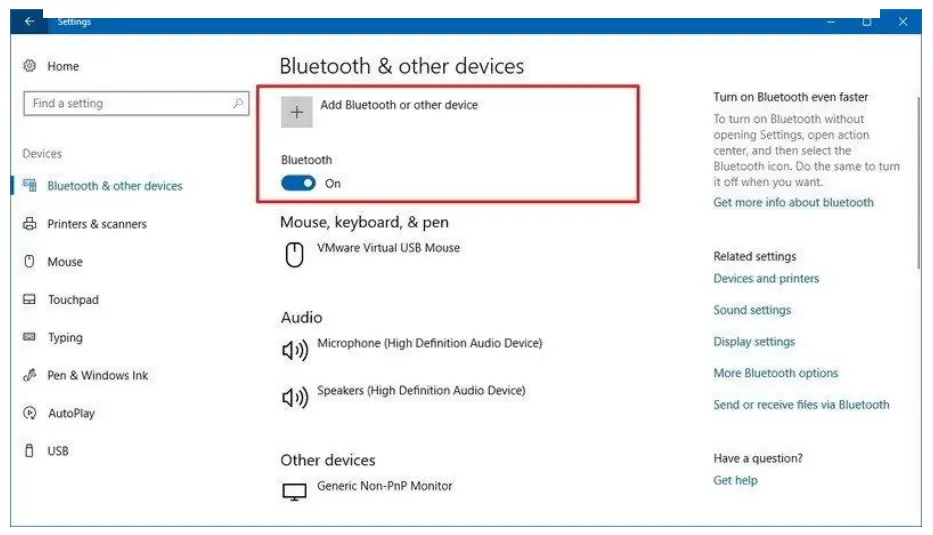
To connect a print server to a computer using Bluetooth
- Open Settings.
- Click on Devices.
- Click on Bluetooth & other devices.
- Turn on the Bluetooth toggle switch.
- Click the Add Bluetooth or other device button to connect the print server.
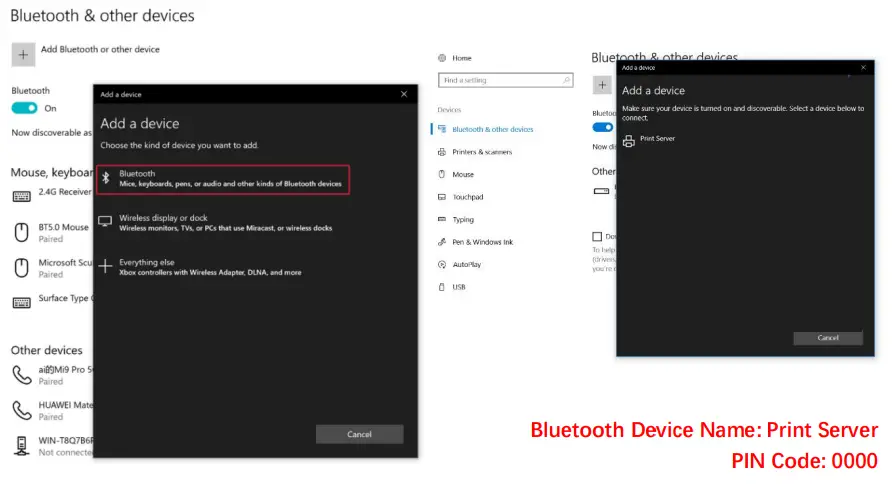
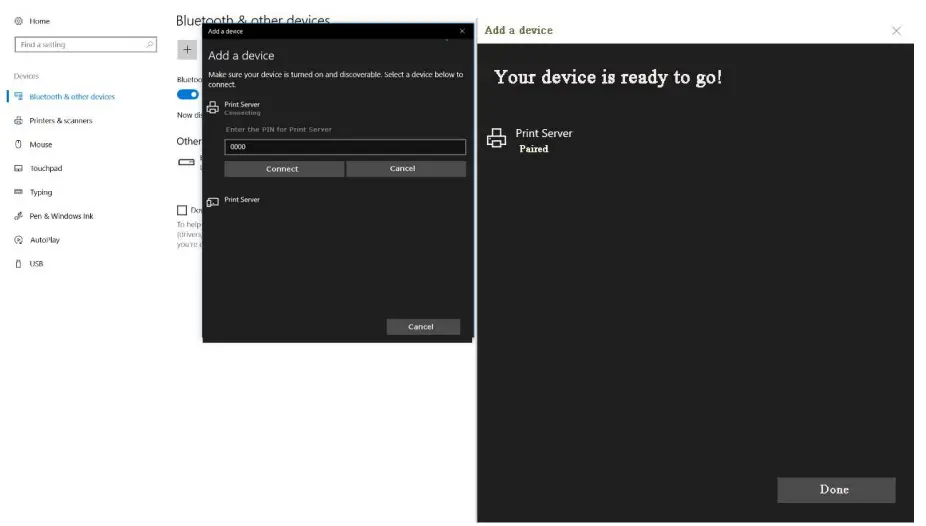
Get the Bluetooth Networking COM Number of the Print Server
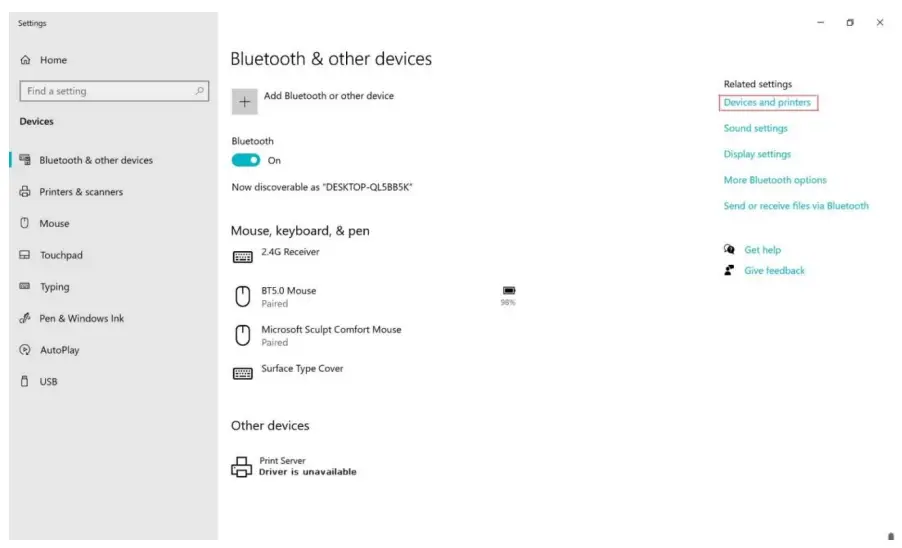
After the computer is paired with the Print Server, the Print Server is already listed in the Other Devices area, as below image shows, Click the “Devices and Printers”, to get the Bluetooth Networking COM Number
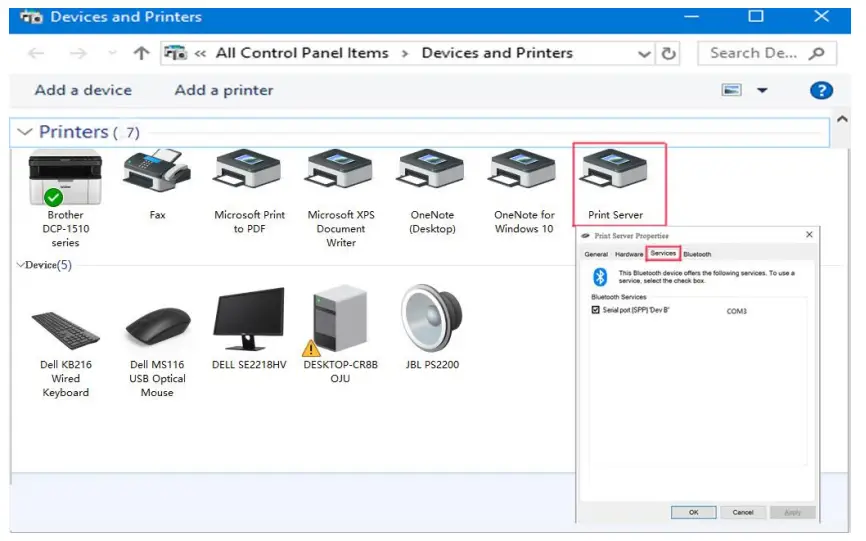
Right-Click the “Print Server”-> “Print Server Properties”—> Choose “Service” To get the Print Server Bluetooth SPP Port Number, as the below image shows: SPP: COM3
Choose the corresponding COM Number for the Printer
Choose “Brother DCP-1510 Series”-> Printer Properties-> Choose “COM3”->OK
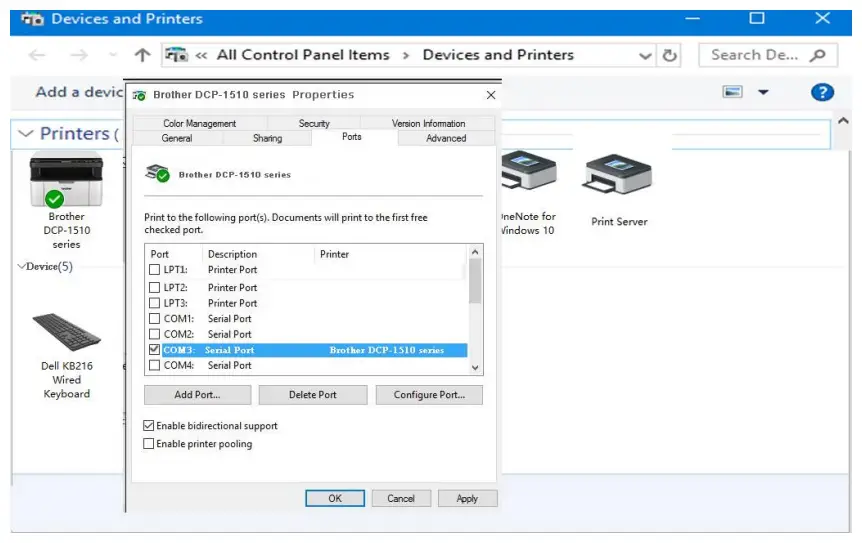
Exploring the printing via Bluetooth from Computer to the Printer
Steps for Adding the Network Print (Mac OS)
Before proceeding on the setting, please notice the below items in advance:
- Make sure the MAC computer can print directly when connected to the printer.
- MAC System can recognize the printer with 9100 Port only and is unable to recognize the printers with 9101/9102/9103 Port.
- MAC System supports most of the brand printers such as HP, Brother, Samsung; Supports few limited models for Canon and Epson.
- MAC System support to print via HP Jetdirect-Socket Protocol, not support the IPP,LPD Protocol
Steps for MAC system to add the printer:
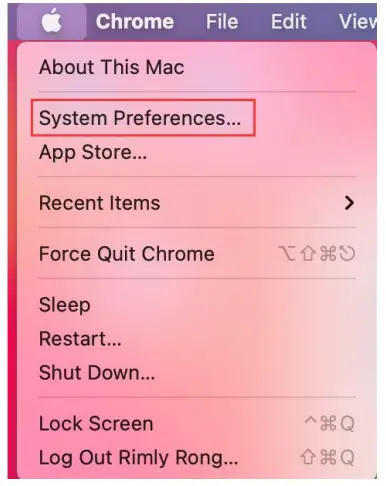
Choose the “System Preferences”:
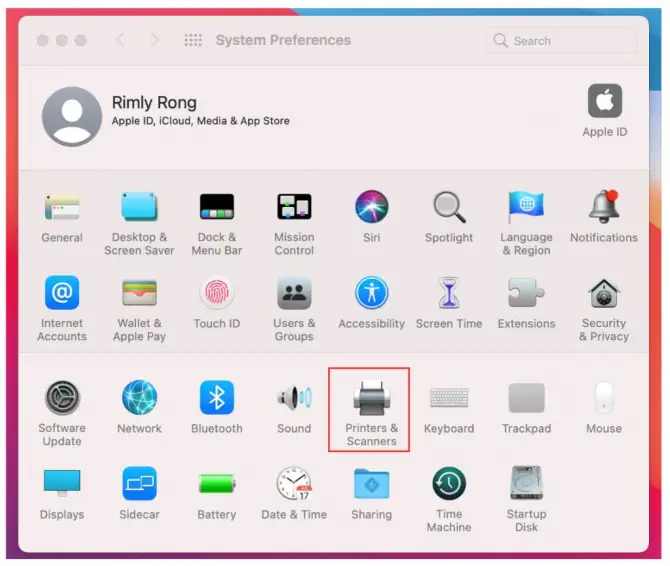
Choose the “Printers & Scanners”
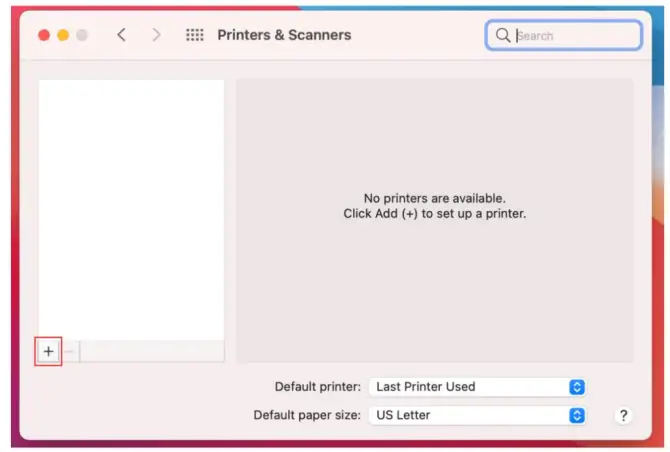
Click“+”, to add the Printer
Choose the “IP” Option, to fill in the printer information
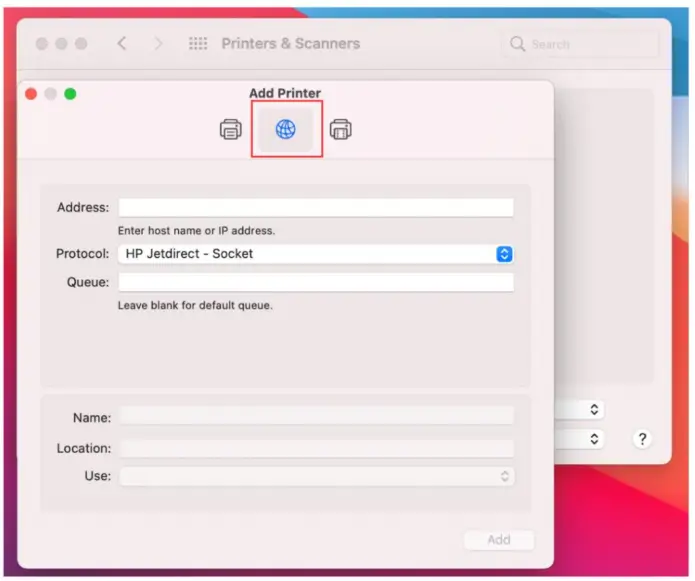
Remarks:
- Address: Input IP Address or Host Name (the print server IP address)
- Protocol: HP Jetdirect-Socket (HP and other printer manufactures are using this protocol)
- Use: Select Software
- For other items just keep the default options.
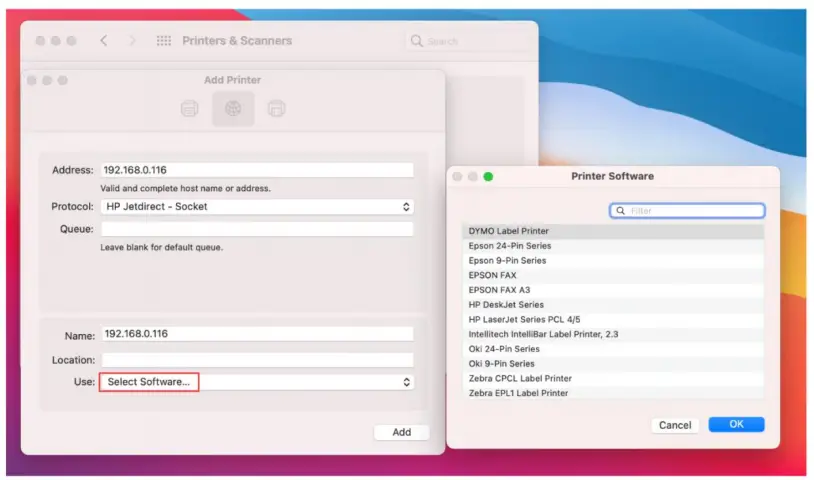
Choose the right printer software from the listing.
You can use the “Filter” function for a quick search. If you can not find your printer software from the existing listing, please go to the printer’s website to download the MAC driver. After finding your printer software, please click “OK”
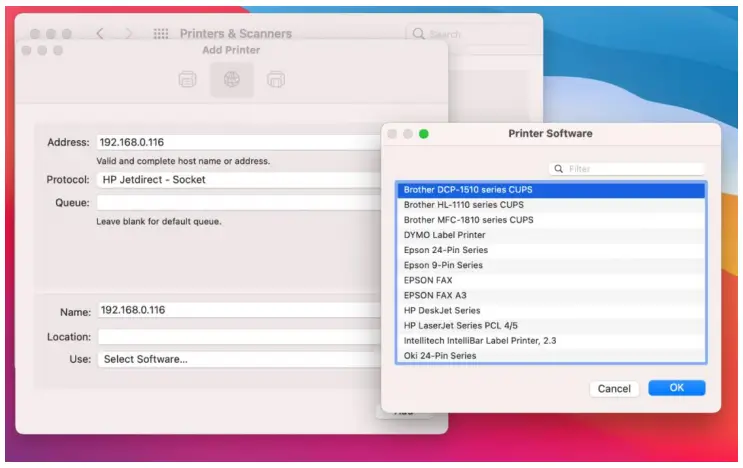
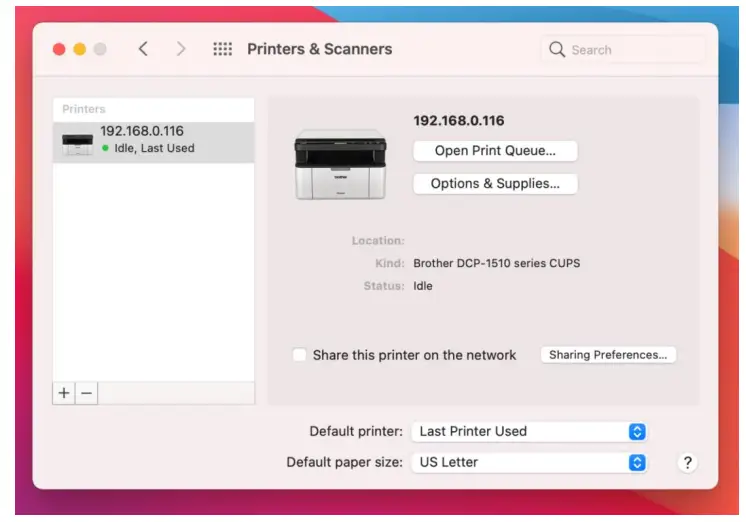
Finish the printer software installation
(The Brother DCP-1510 printer can print now)
Printing to a Bluetooth Printer Android
Device Setting (PrinterShare)
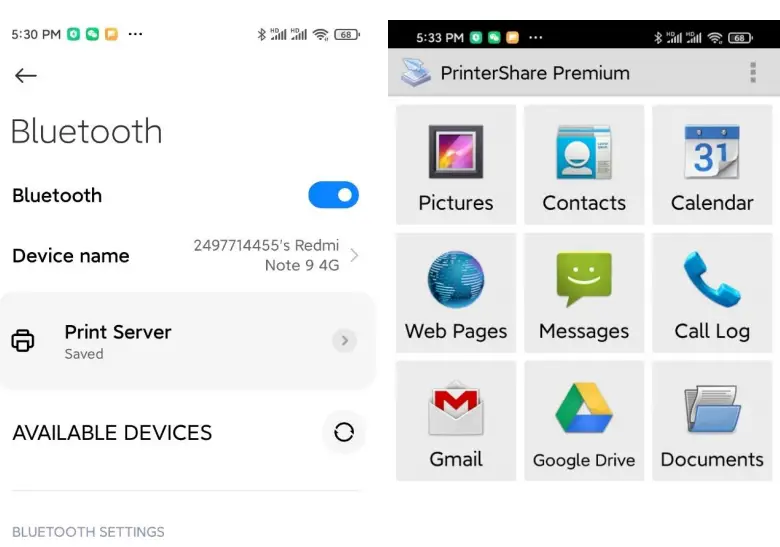
Before you start printing, you will need to make sure that Bluetooth is active on your Android device; also make sure that your Android device is paired with your printer. The first time you connect to your printer you will have to download a driver for it as well as document
rendering libraries (Office or PDF) if you choose to print documents.
Make sure that Bluetooth is set to On in Android Settings.
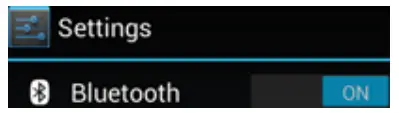
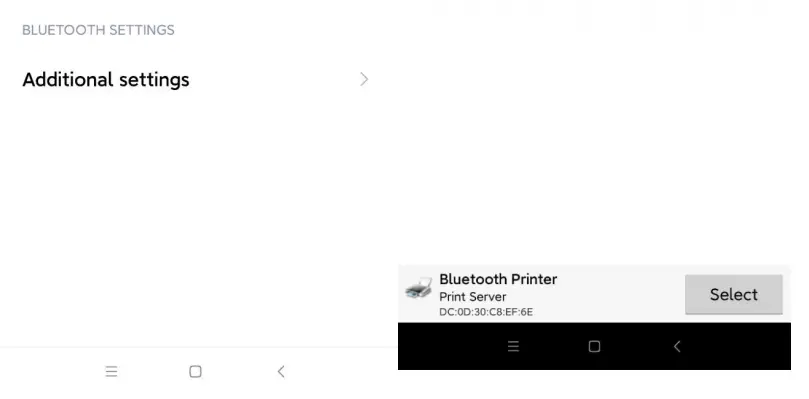
Now that you are certain that Bluetooth is active, make sure that your Android device is paired with your printer in Android Settings>Bluetooth. You may need to input a pairing code for your printer.
Take your android device and open PrinterShare by tapping on its icon. If that is the first time you run PrinterShare, you will see a splash screen with two buttons: Read More (which will provide you with general information on PrinterShare’s functionality) and Continue.
Tap Continue once you are ready to proceed.
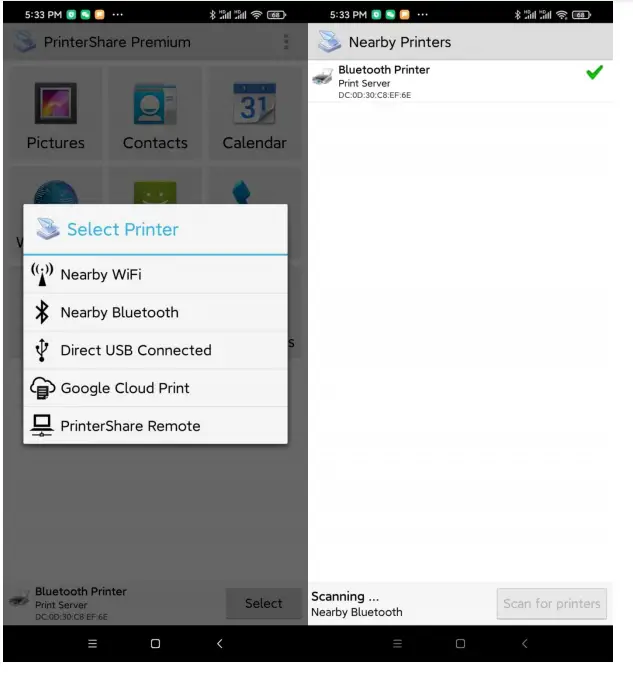
You will see the main PrinterShare screen with a grid of icons that allow you to access various items that can be printed. Below the grid of icons, you will see an icon of a printer with Printer Not Selected text and a Select button displayed beside it. To select your Bluetooth printer, press the Select button.

Now, tap the Nearby – Bluetooth button and wait for the app to detect your printer.
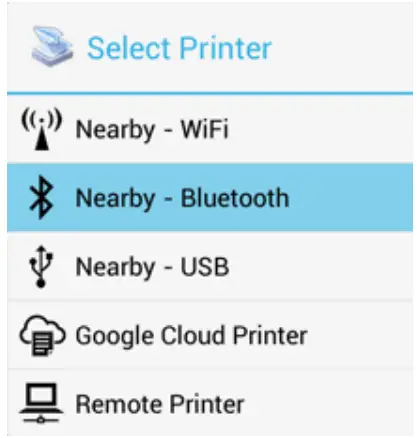
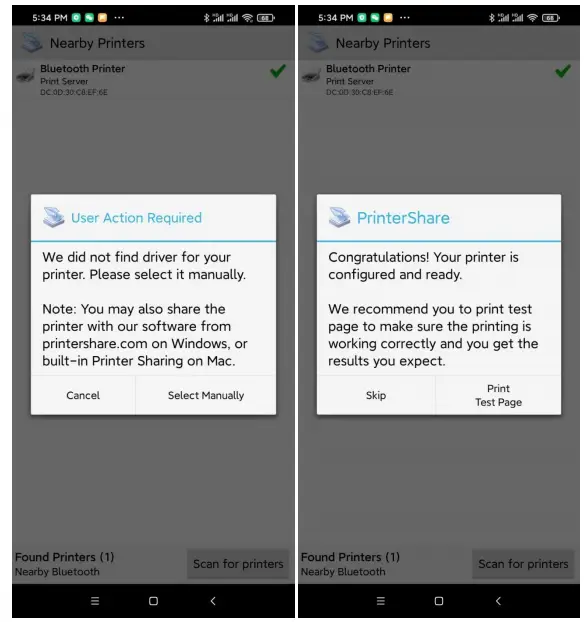
When your printer is detected, tap it. The app will then ask for your permission to download a driver for it which will require at least 4MB on your SD card.
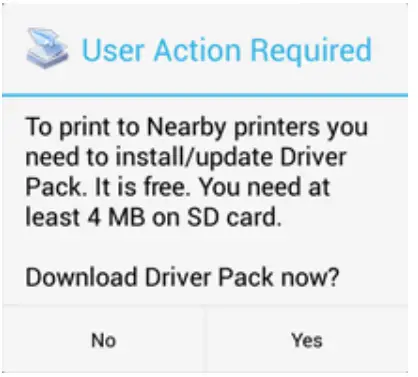
Tap yes and you will be ready to print once the app finishes downloading and installing the driver pack.
Here’s the demo setting:
Bluetooth Printer Name: Print Server
Bluetooth Pin Code: 0000
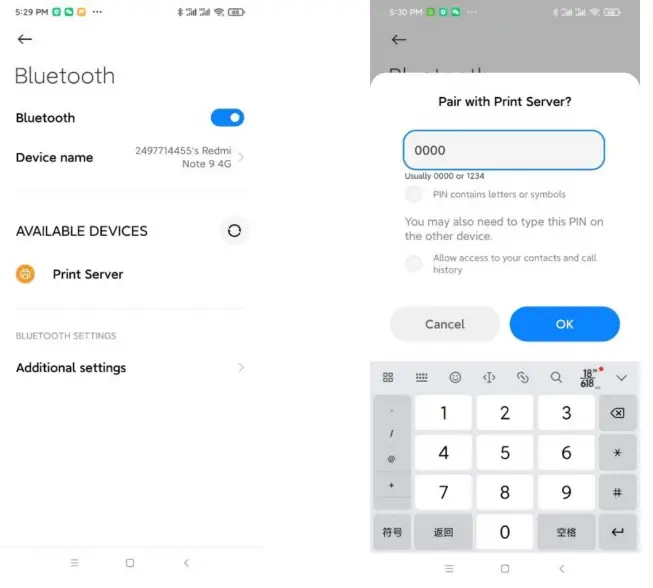
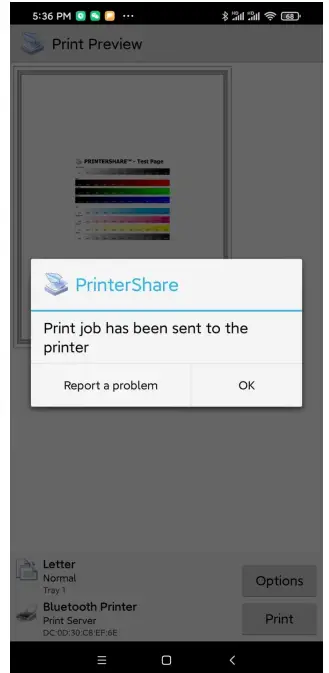
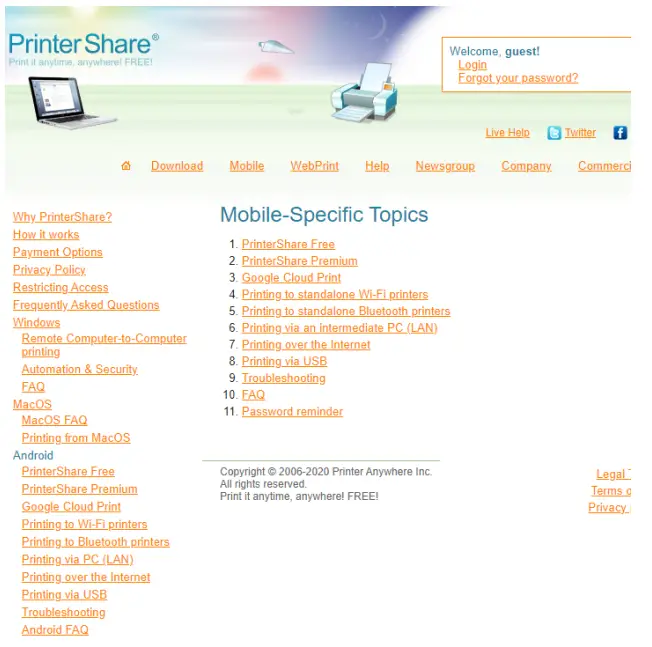
For more information, for Printing to a WiFi Printer or Network Printer, please refer to PrinterShare Online Support: http://www.printershare.com/help-mobile.sdf
 📧
📧 secu.com
 Loyalty-Secu Specialized in Video Surveillance System Since 2007
 PrinterShare® - Help