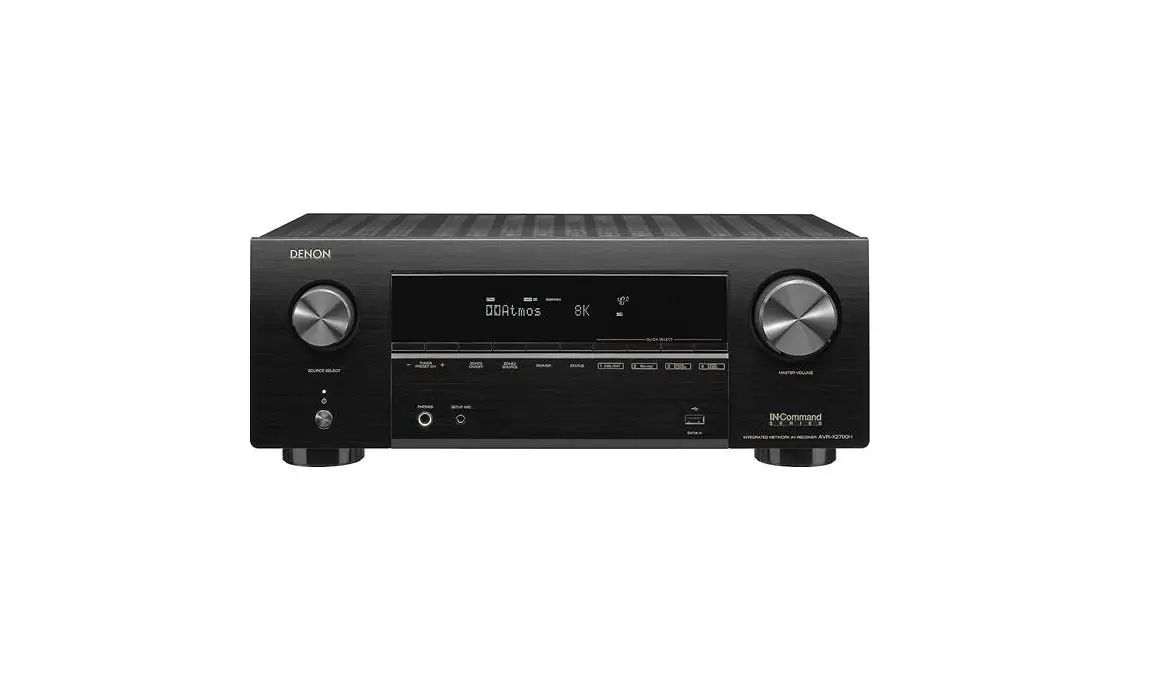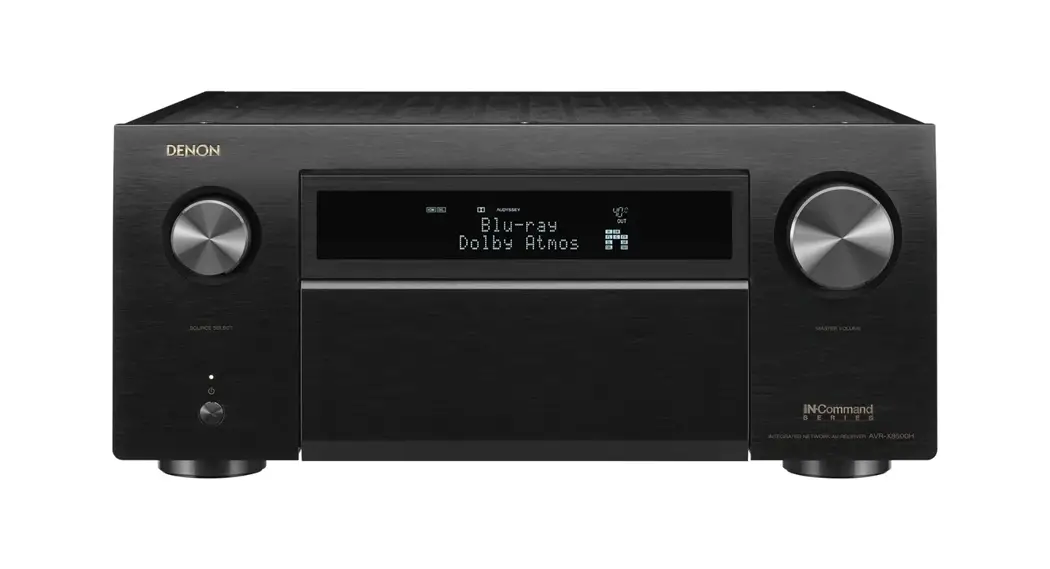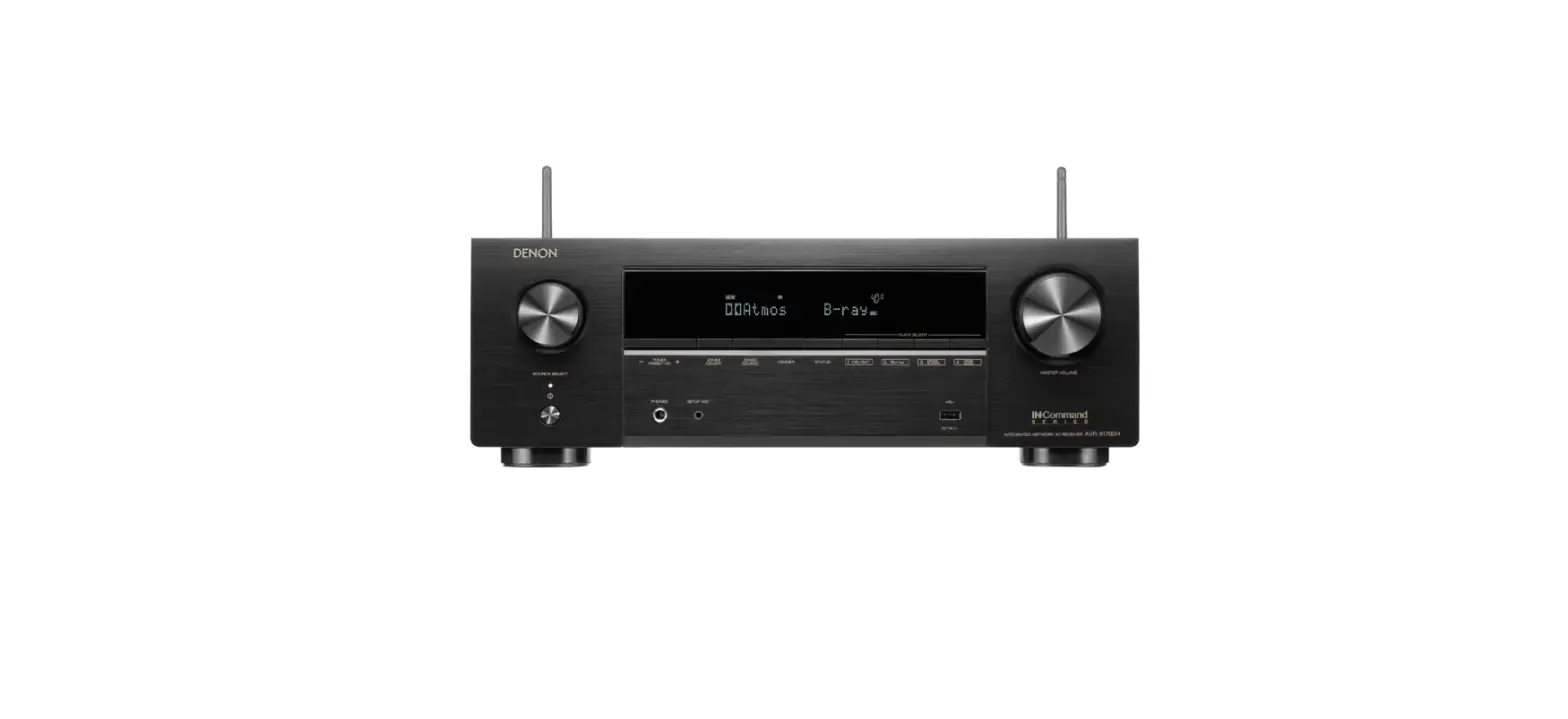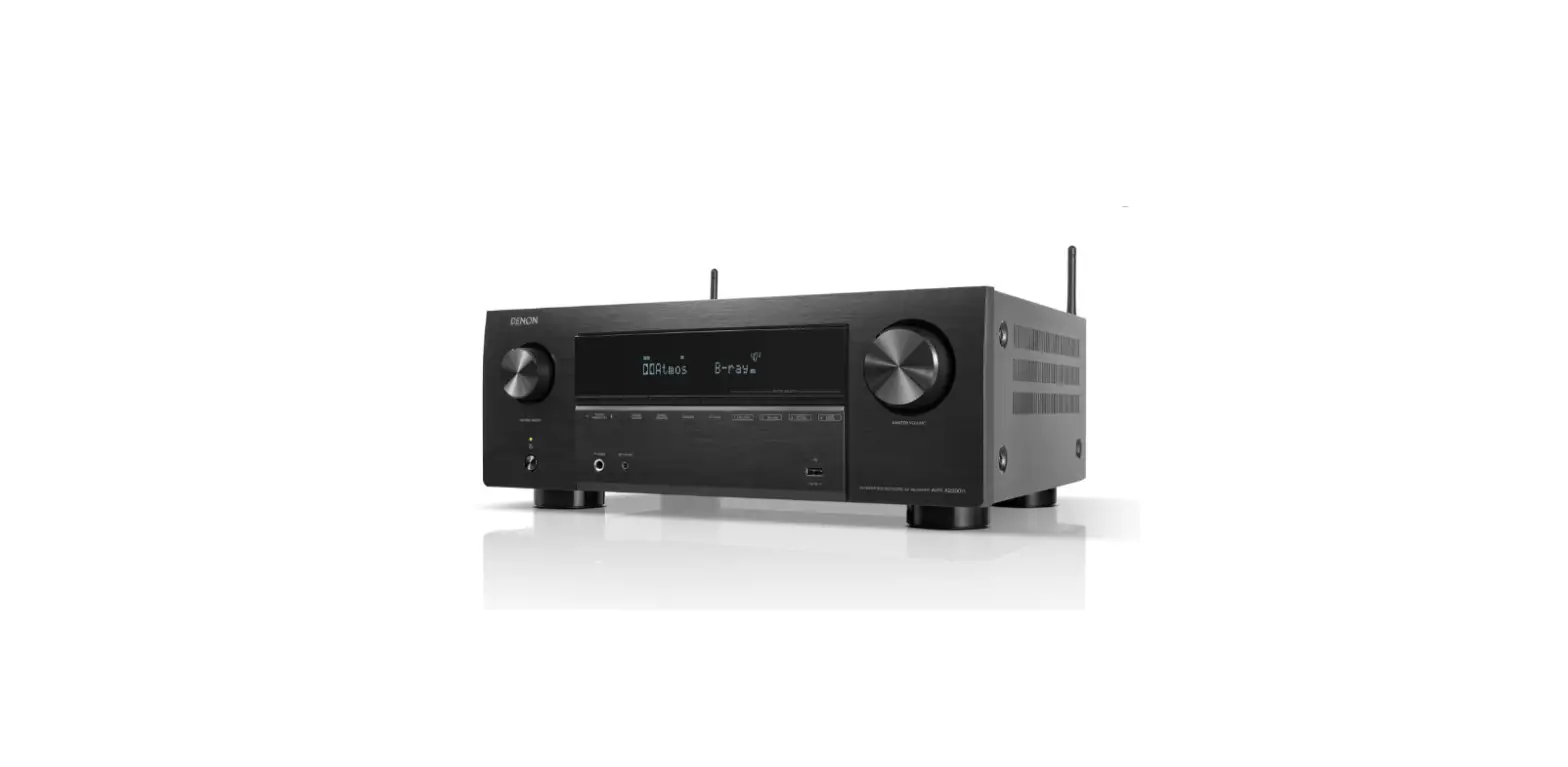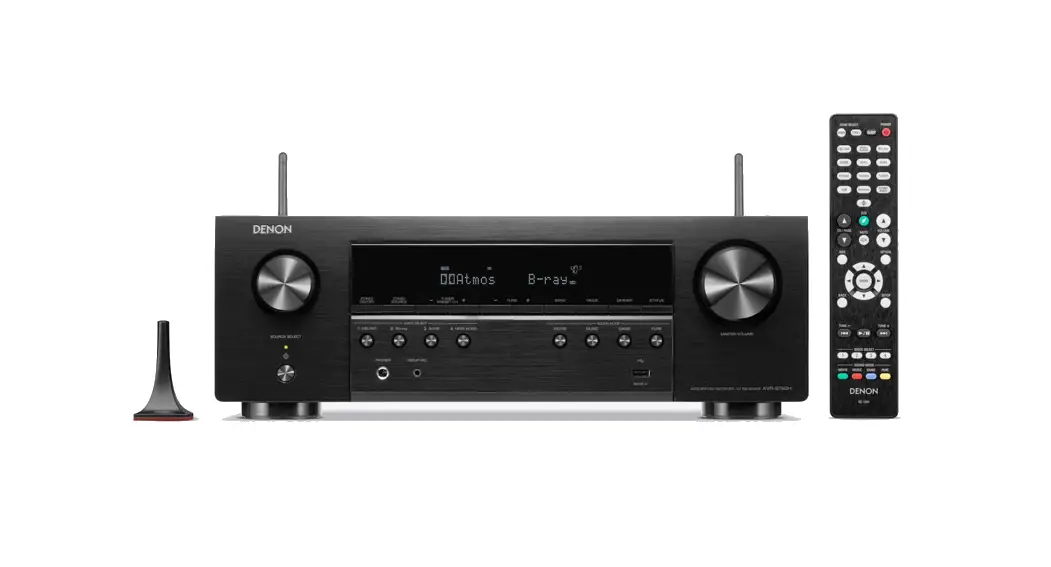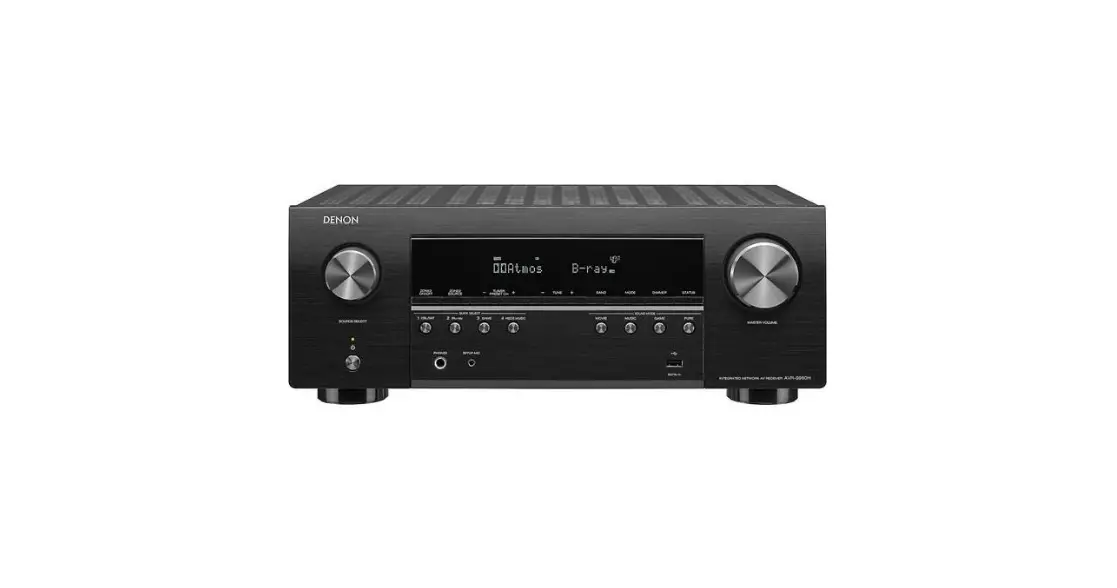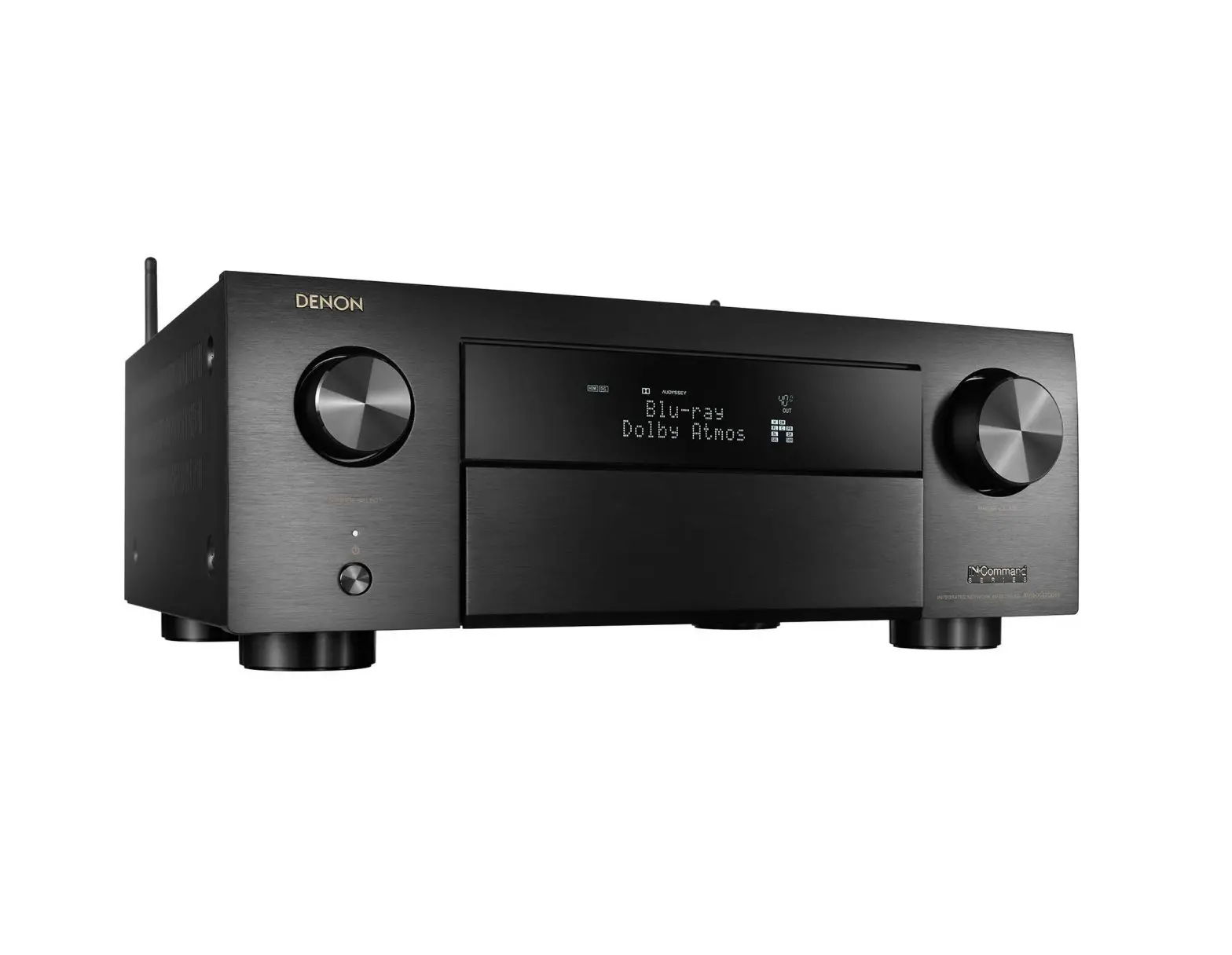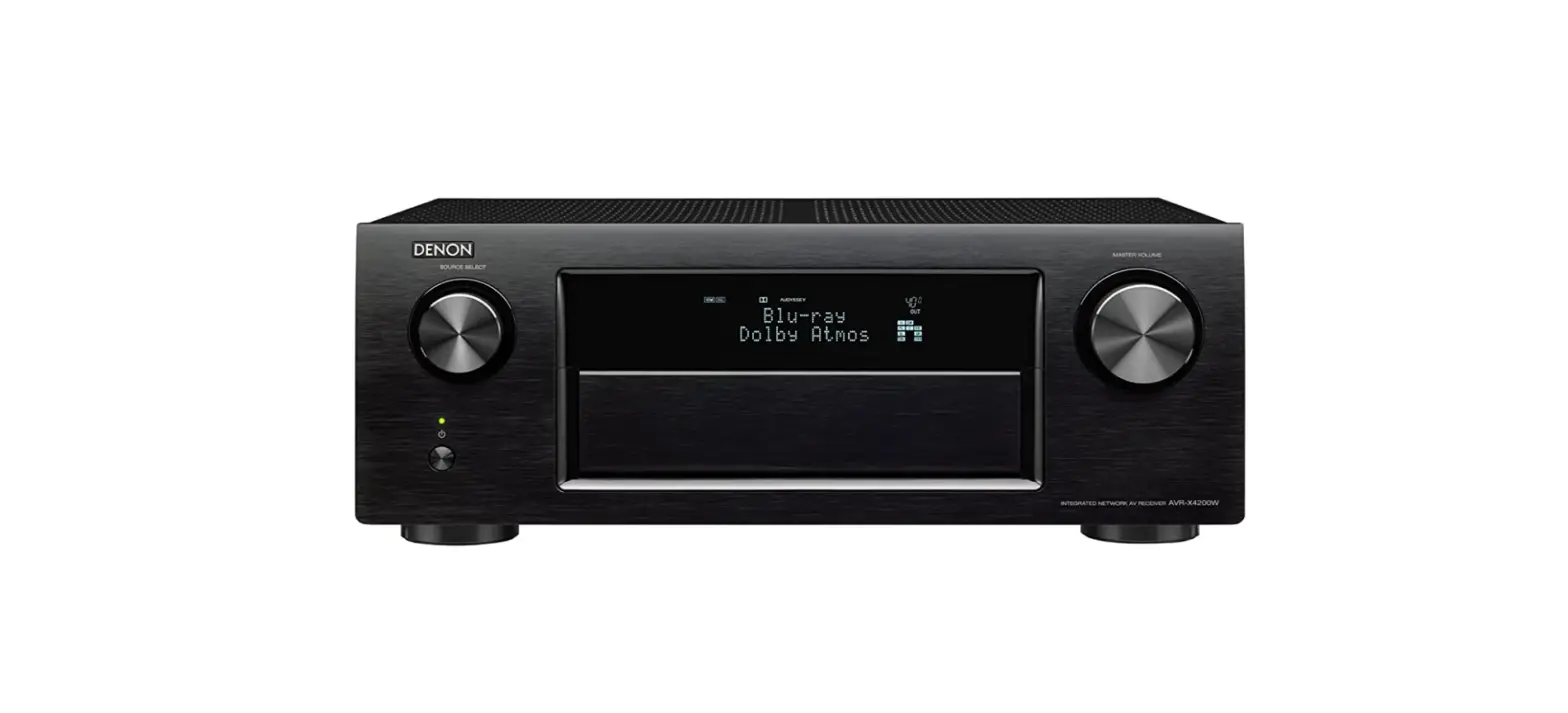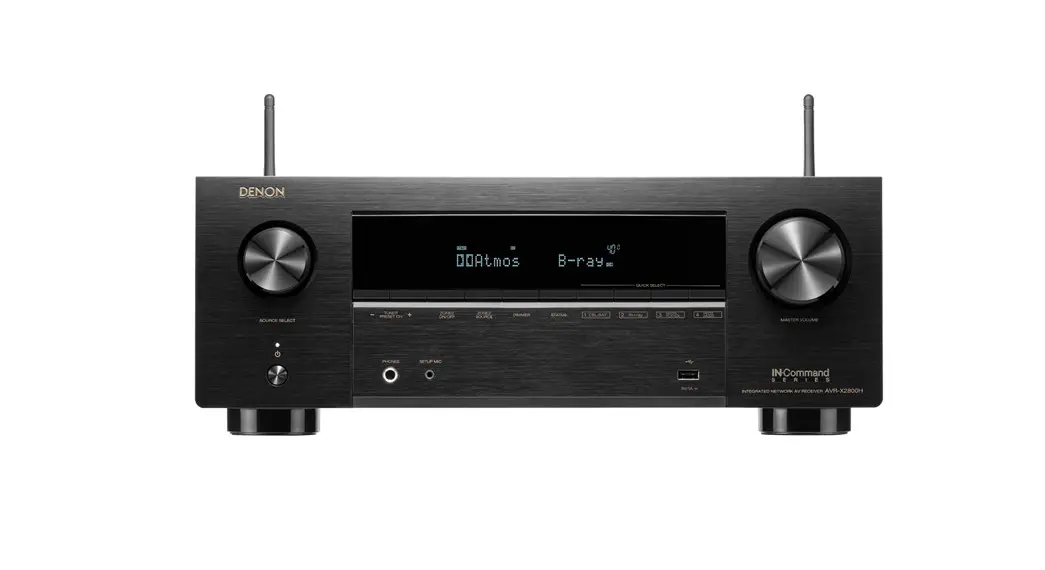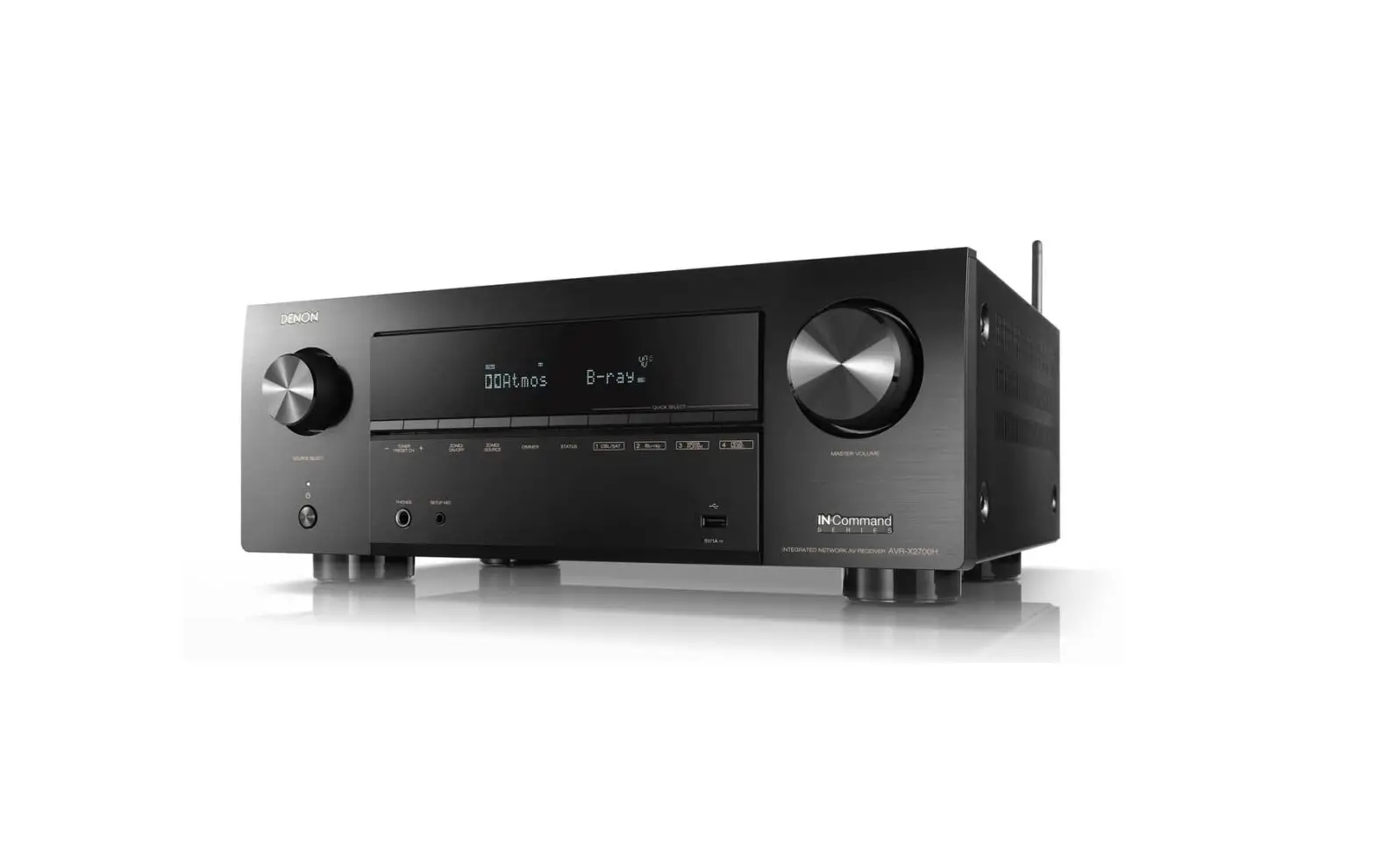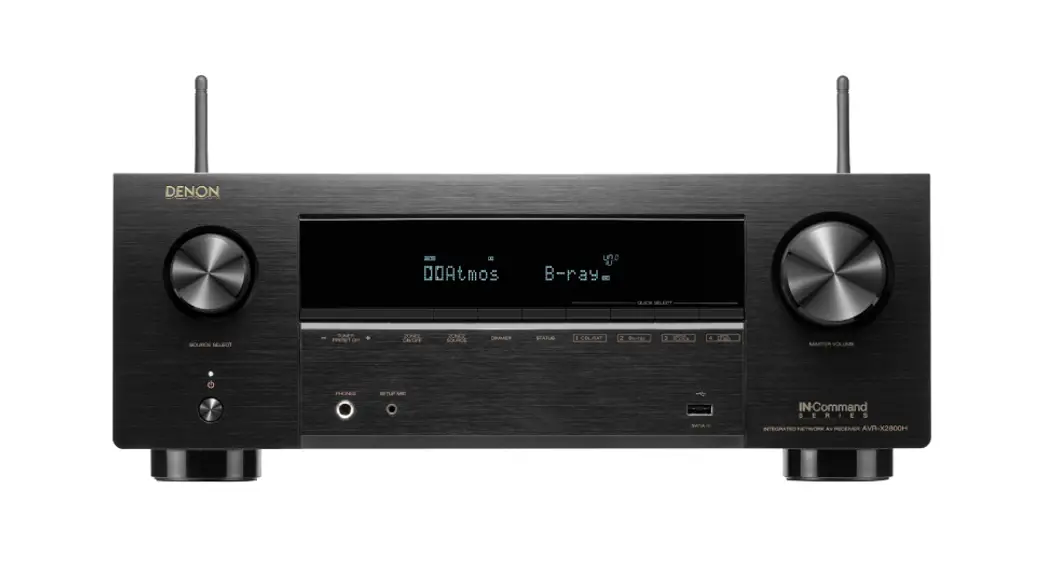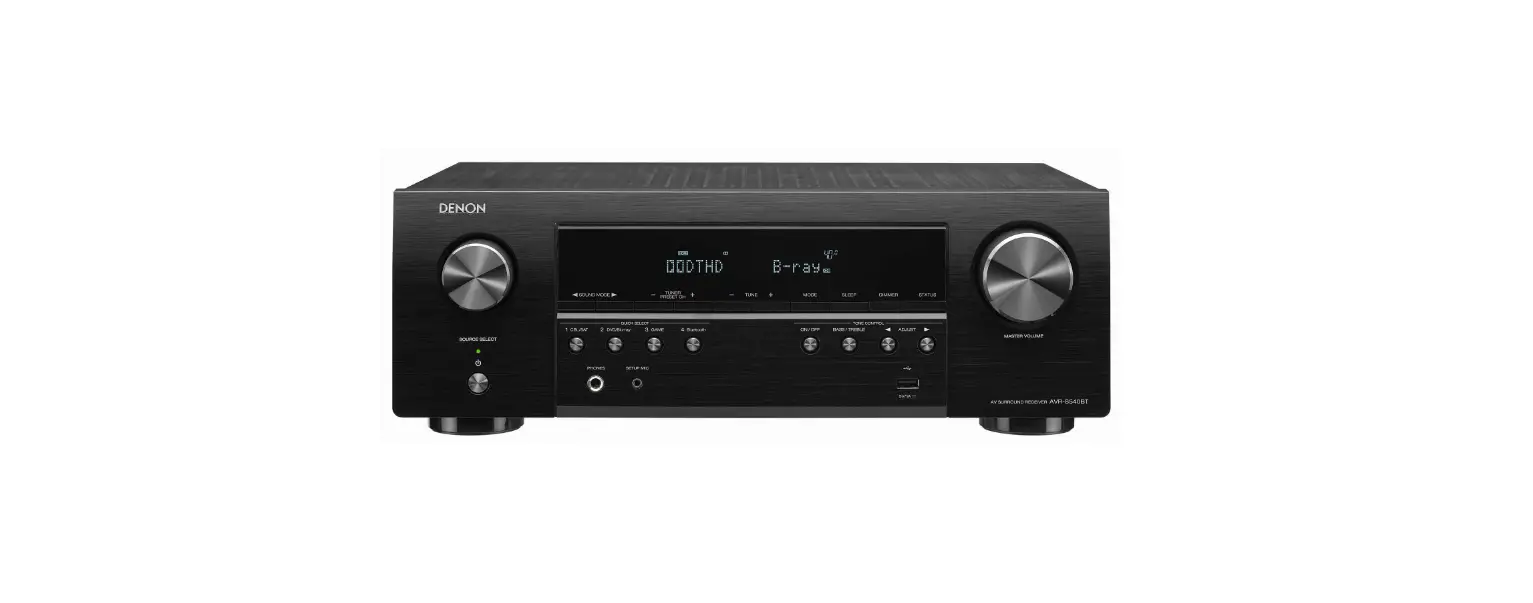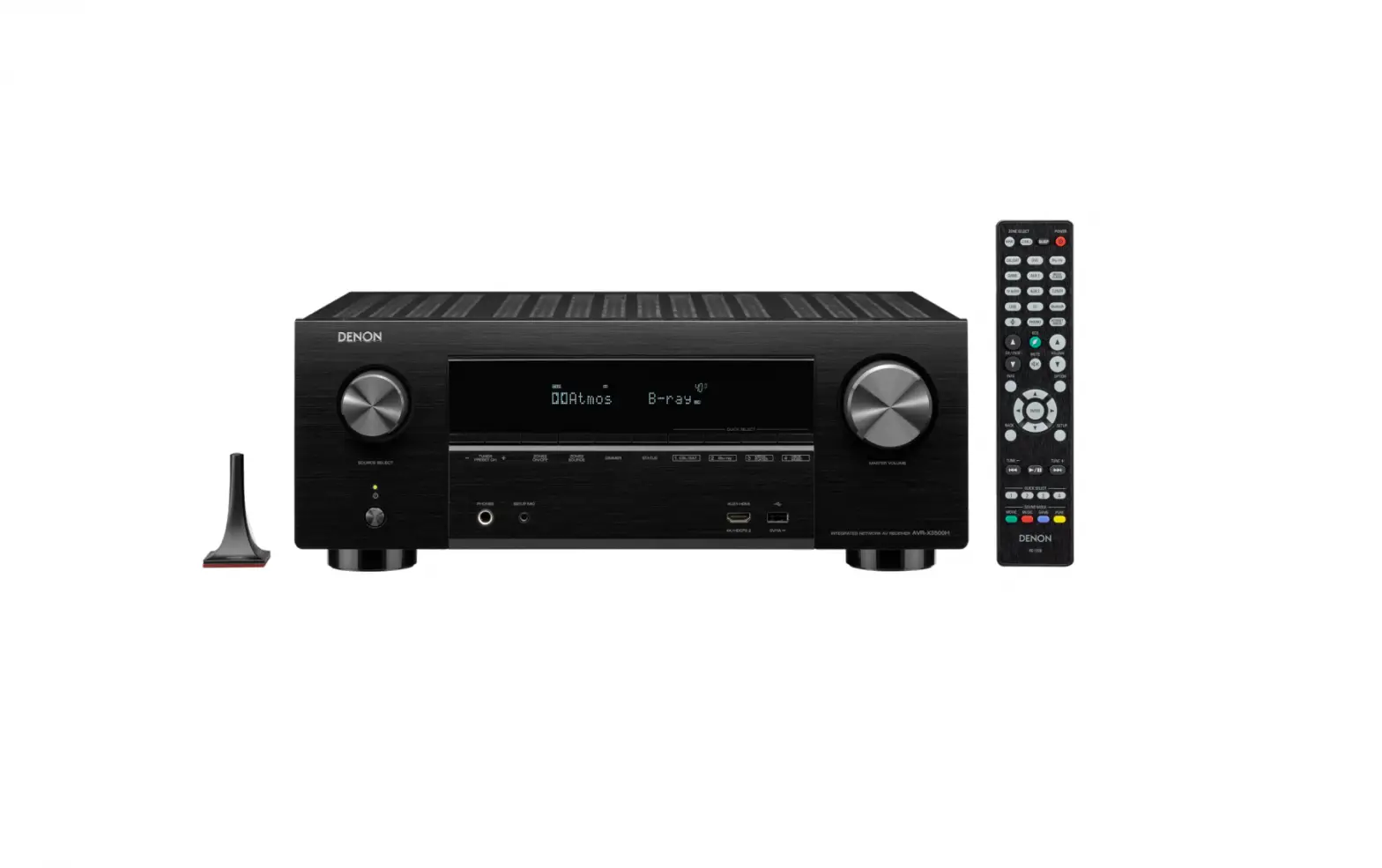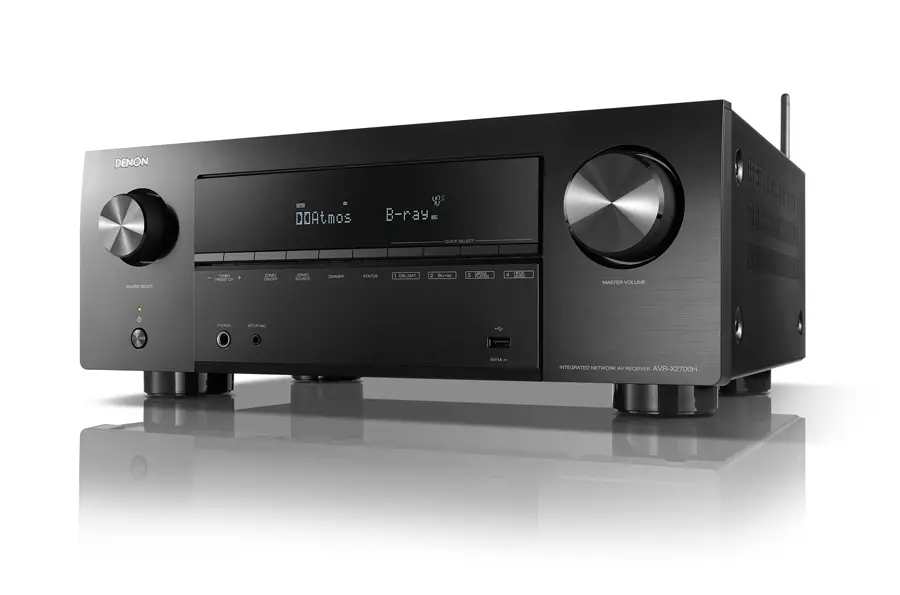
DENON Integrated Network Av Receiver User Guide
AVR-X2500H
Please do not return this unit to the store. If you need help…
Check our AVR setup tips online
Usa.denon.com/SetupTips
Ca.Denon.com/SetupTips
Call for Assistance
1-855-MY.DENON (USA)
1-855-693-3666 1-800-668-0652 (Canada)
Monday - Friday 10:00AM to 10:00PM E.S.T
Saturday 12:00PM to 8:00PM E.S.T
Welcome
Thank you for choosing a Denon AV receiver. This guide provides step-by-step instructions for setting up your AV receiver.
Before You Begin
Required for Setup
|
|
|
|
|
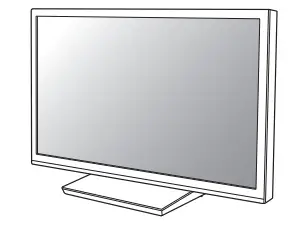
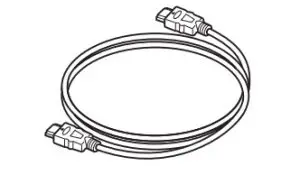
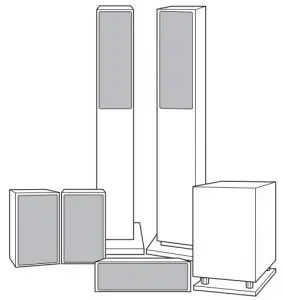
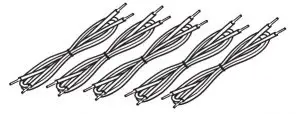
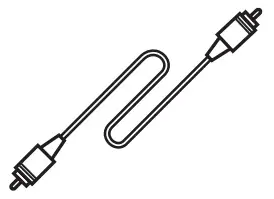
Optional
|
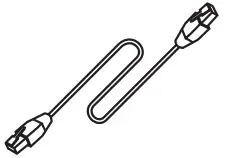
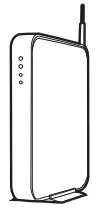
NOTE:
- When connecting this unit to a device that is compatible with the Deep Color, 4K and ARC functions, use a “High Speed HDMI cable with Ethernet” that displays the HDMI logo.
- These drawings are for illustrative purposes only and may not represent the actual product(s).
What’s In the Box
|
|
|
|
|
|
|
|
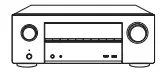
| 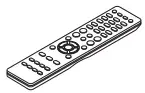 Remote control unit (RC-1228) Remote control unit (RC-1228) |
|
|
|
|
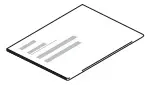
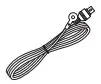
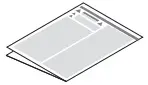

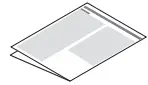


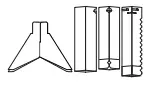
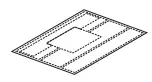

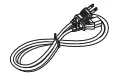
Note:
- The included sound calibration microphone stand is convenient for use when performing Speaker Calibration. Using your own tripod or the supplied Sound calibration microphone stand enables settings to be automatically configured to the optimum listening environment, providing exceptionally high performance.
Important: External Antennas
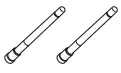
The removable external antennas are required for both Bluetooth and Wireless network connectivity. Please make sure to connect the antennas before attempting to use the Bluetooth or Wi-Fi features of the AVR-X2500H.
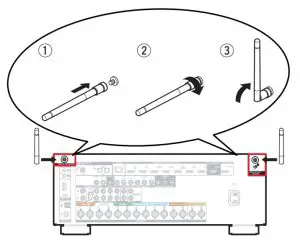
Connecting the external antennas for Bluetooth / Wireless connectivity
For each of the two antennas:
- Place the antenna evenly over the antenna terminal located at the upper left or right corner of the rear panel.
- Turn the antenna clockwise until it is fully connected. Do not over tighten.
- Rotate the antenna upwards for the best possible reception.
Setup
There are four steps to the setup process.
- Installing batteries in the remote control unit
- Connecting the receiver
- Following the On-Screen Setup Assistant
- Downloading the Mobile Apps
1 Installing batteries in the remote control unit
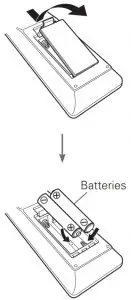
2 Connecting the receiver
1) Place the receiver near your TV and connect the power cord TV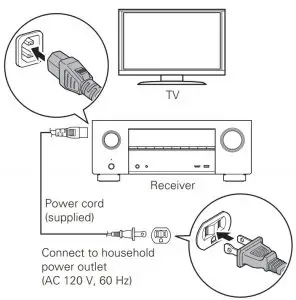
2) Connect the receiver to your home network
Wired LAN
Connect an Ethernet cable (not included) between your receiver and your network router.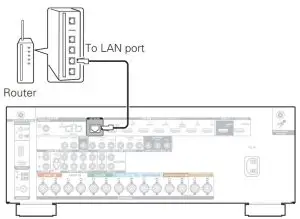
Wireless LAN
When connecting to wireless LAN (Wi-Fi), follow the instructions in “Connecting the external antennas for Bluetooth / Wireless connectivity” and connect the antennas.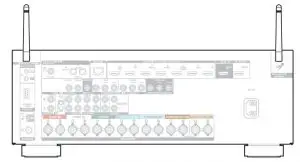
3) Connect the receiver to your TV with an HDMI cable HDMI IN (ARC)
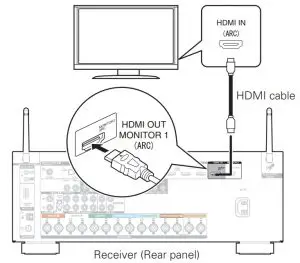
ARC (Audio Return Channel) :
If your TV supports ARC, your TV can send audio back to the AV receiver when you are using your TV’s built-in video sources (TV tuner, Smart TV streaming services, etc…) ARC requires that you enable HDMI CEC on your TV. Please refer to your TV’s Owner’s Manual for instructions on how to setup HDMI CEC. Note that some TV manufacturers use other names for the HDMI CEC function.
4) Turn on the TV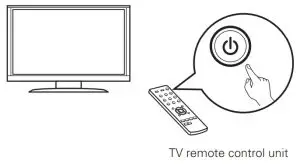
5) Select the appropriate HDMI input on your TV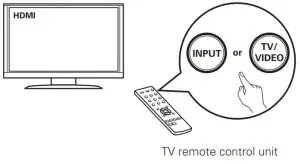
6) Turn on the receiver
- Press
 to turn on the receiver.
 to turn on the receiver.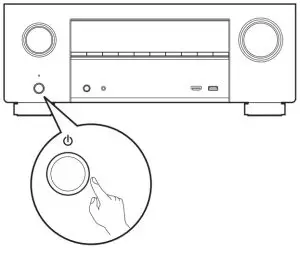
7) Verify the connection
- Verify that you can see this screen on your TV.

If this screen is not displayed, please go back and retry the steps again in the recommended sequence.
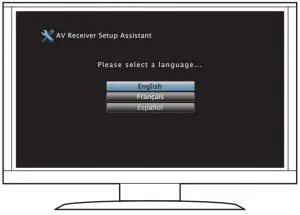
3 Following the On-Screen Setup Assistant
The Setup Assistant will walk you through connecting and configuring your speakers and components to your Denon receiver. Please use the remote control and follow the on-screen instructions.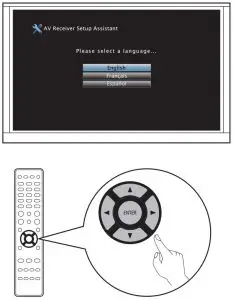
4 Downloading the Mobile Apps
Download both the “HEOS” App and the “Denon 2016 AVR Remote” App for the full home entertainment experience.
The HEOS App is required to access online music through your AVR.
HEOS

The HEOS App allows you to explore, browse, and play music from many online streaming services or from your own music library.
HEOS APP FOR ANDROID: HEOS FOR ANDROID
HEOS APP FOR APPLE: HEOS FOR APPLE
Denon 2016 AVR Remote
Control your new AVR with the latest Denon 2016 AVR Remote App. Volume control, sound mode selection and advanced settings are always only a tap away.
Denon App For Android: DENON FOR ANDROID
Denon App For Apple: DENON FOR APPLE
 AVR-X2500H
 Denon™ Home Theater | Enhance the Entertainment Experience