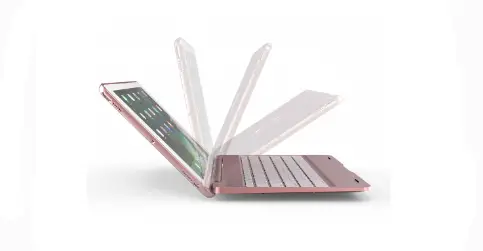
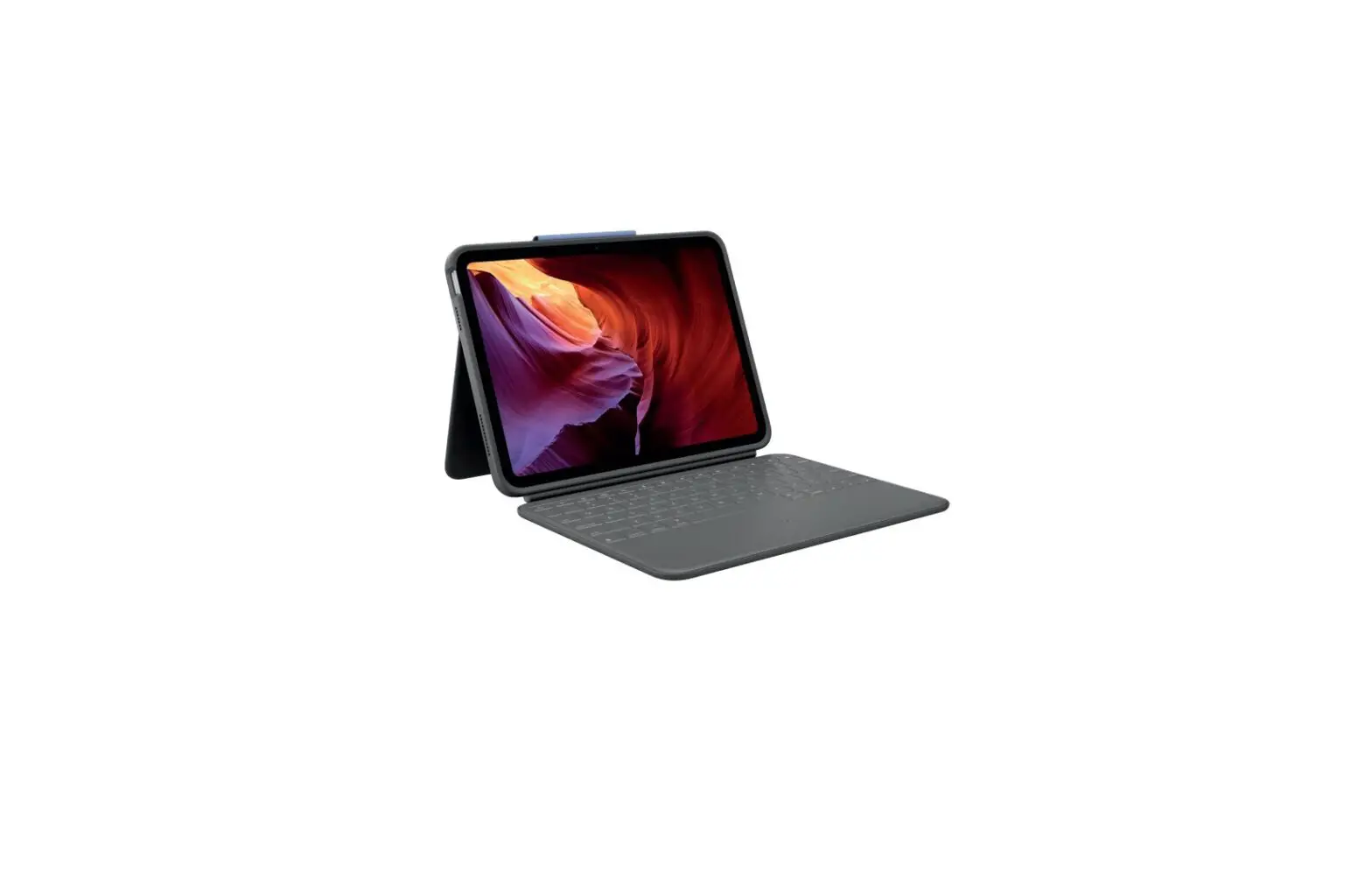
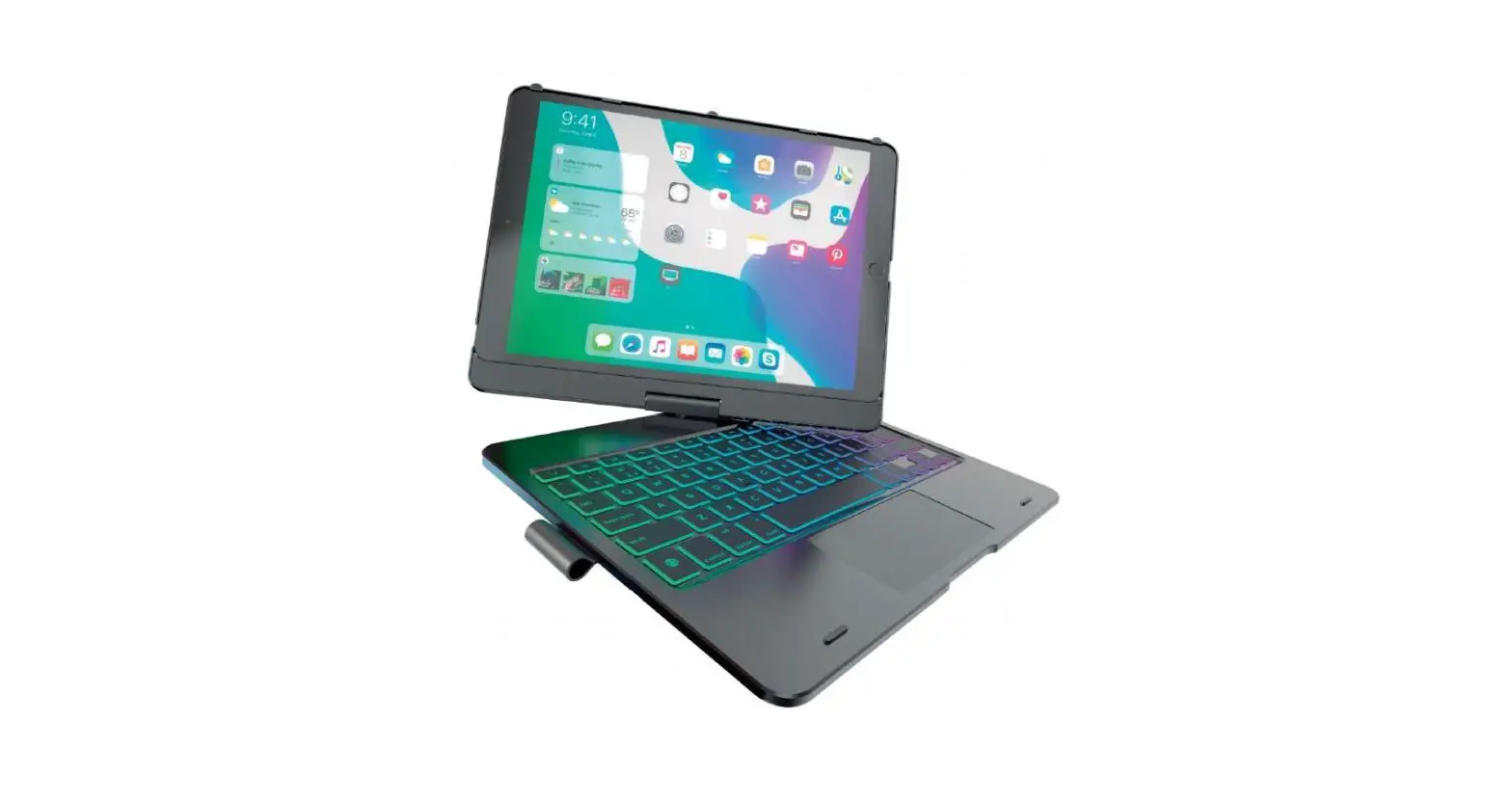
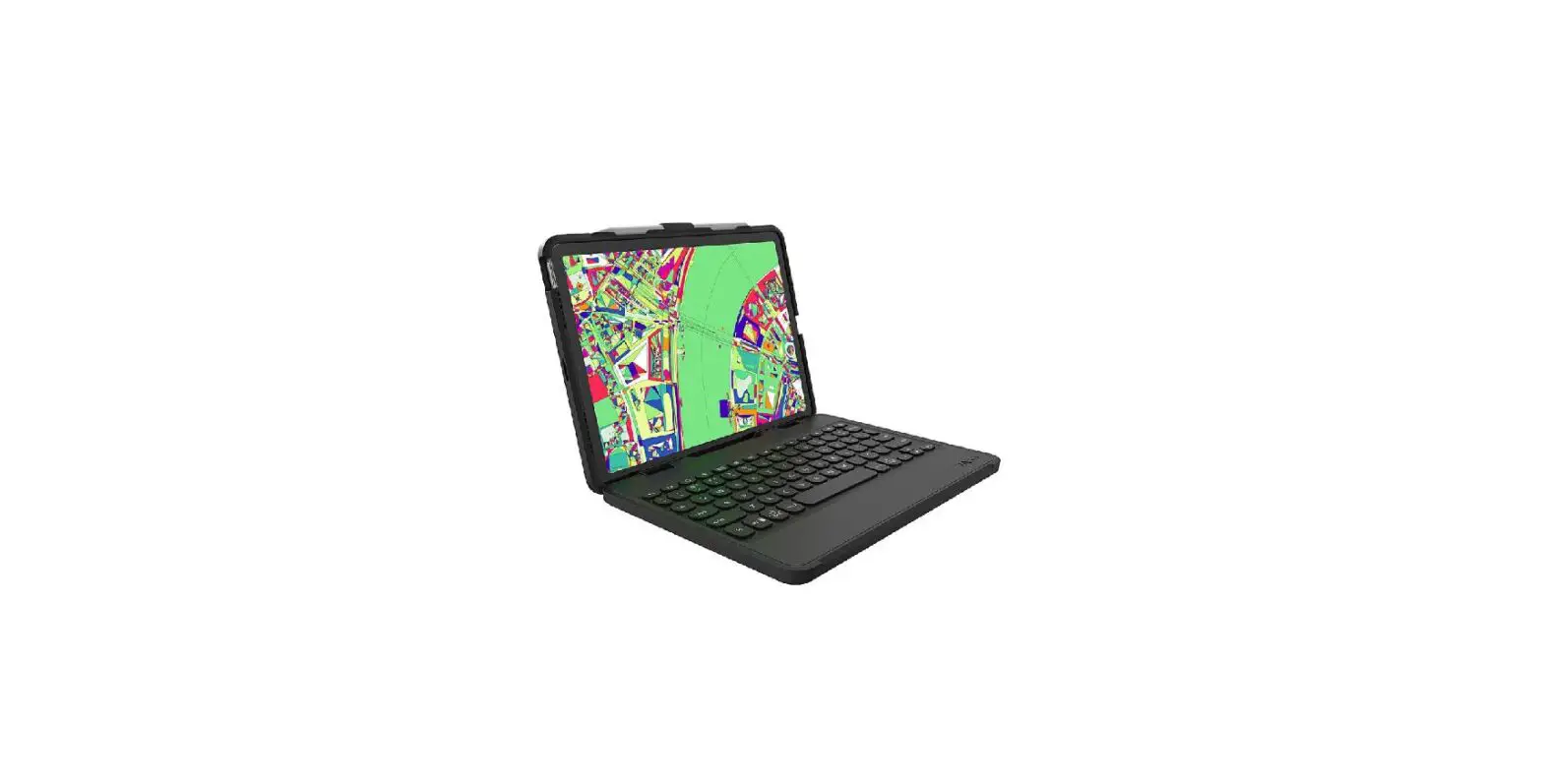
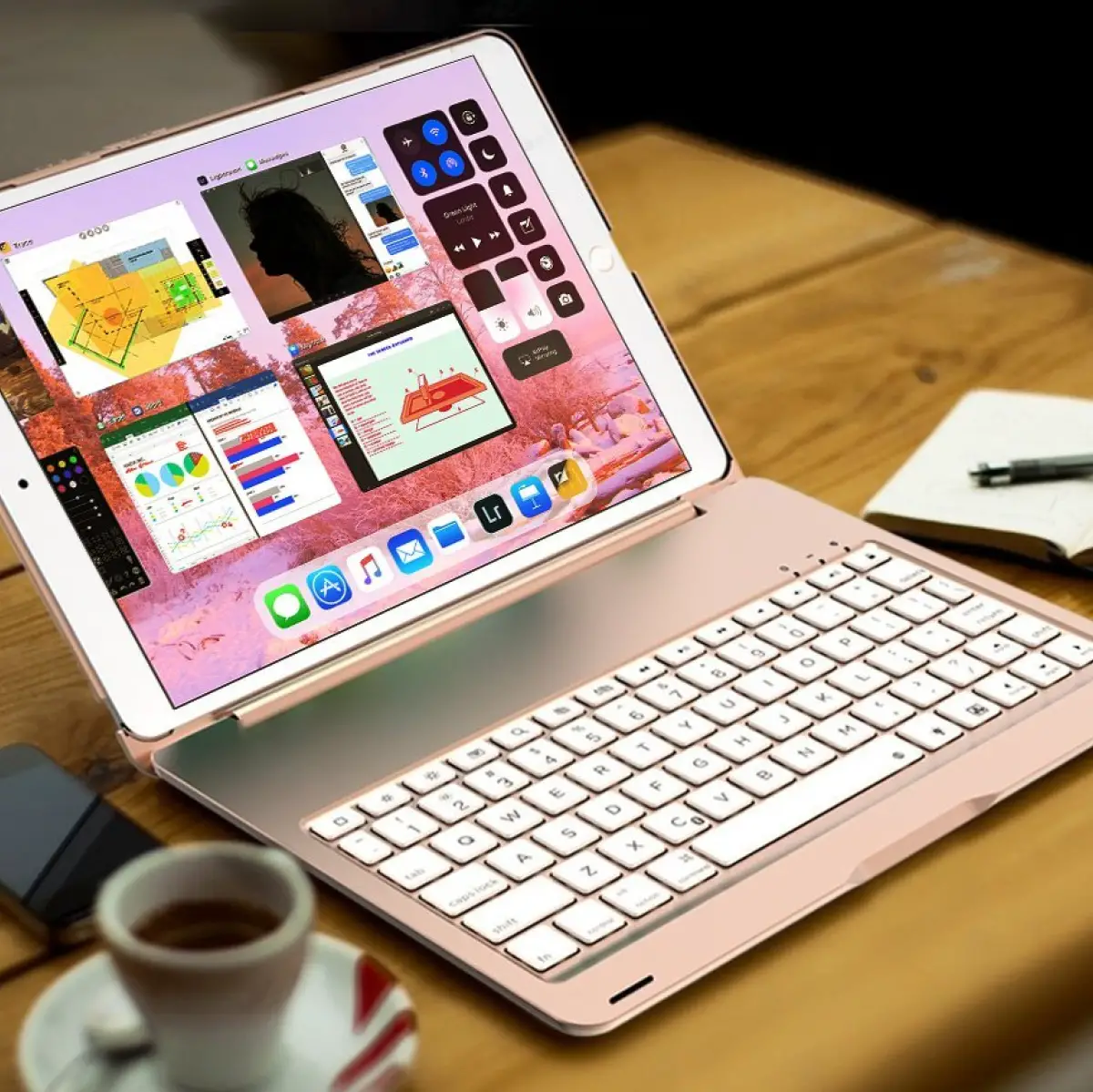
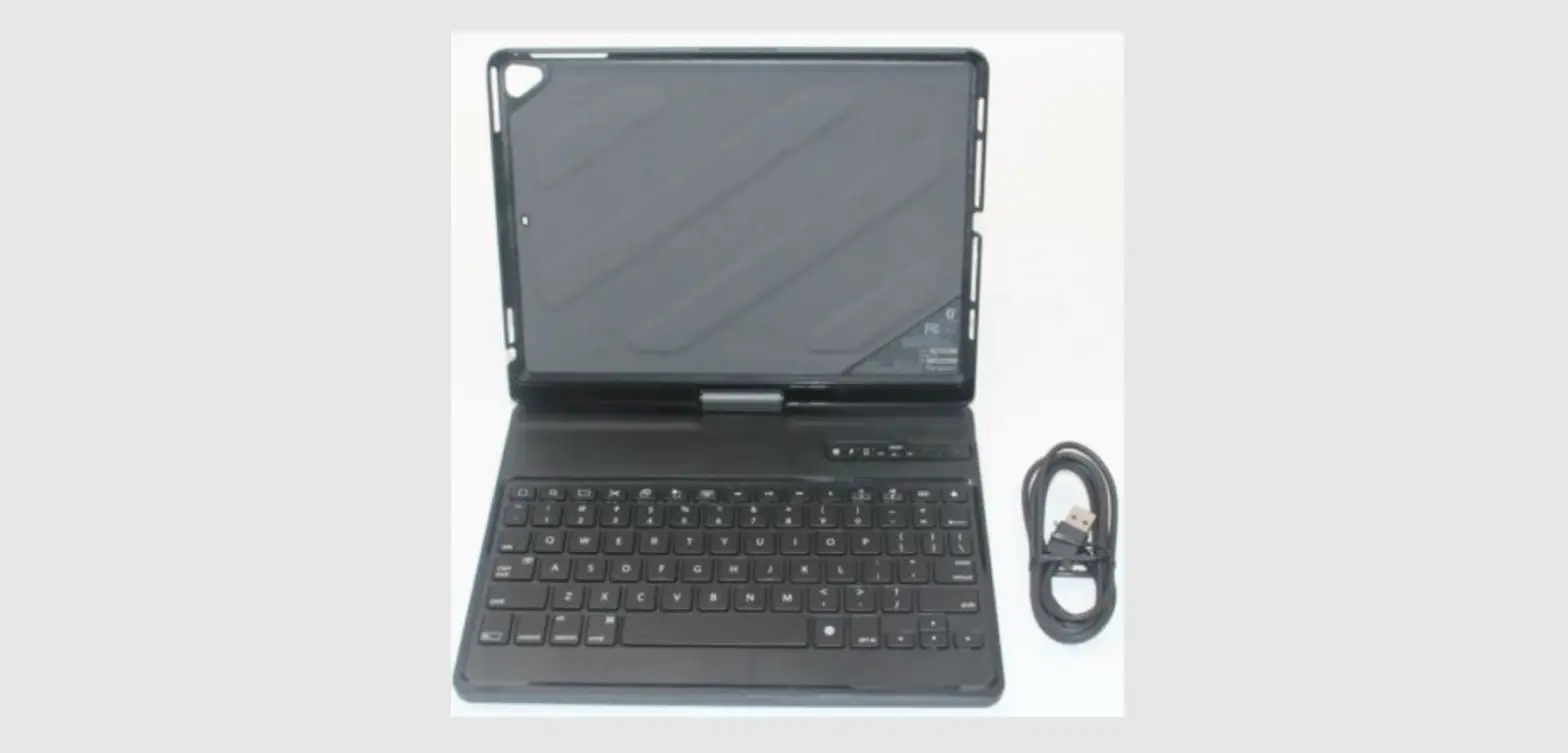
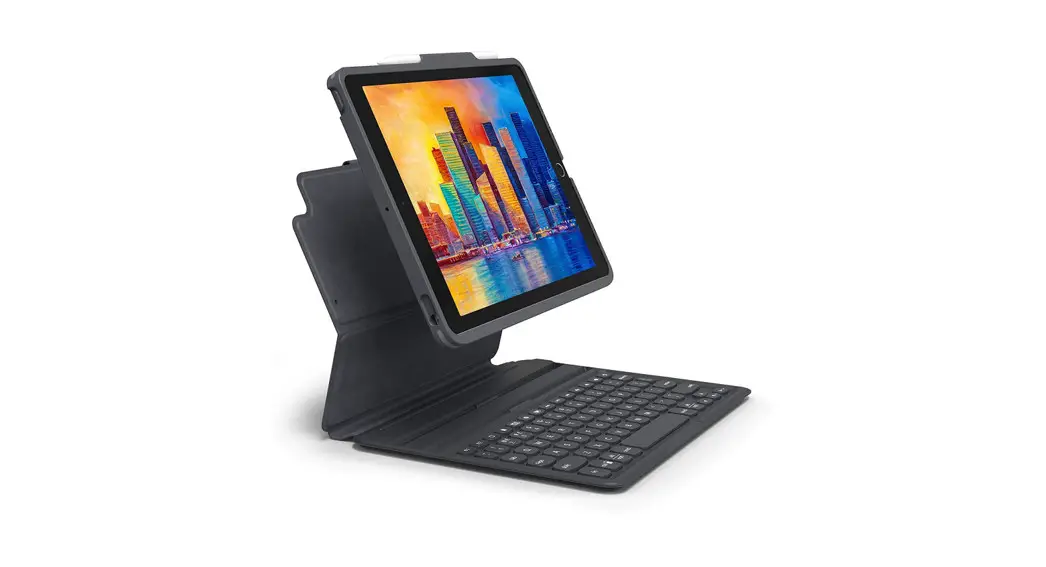
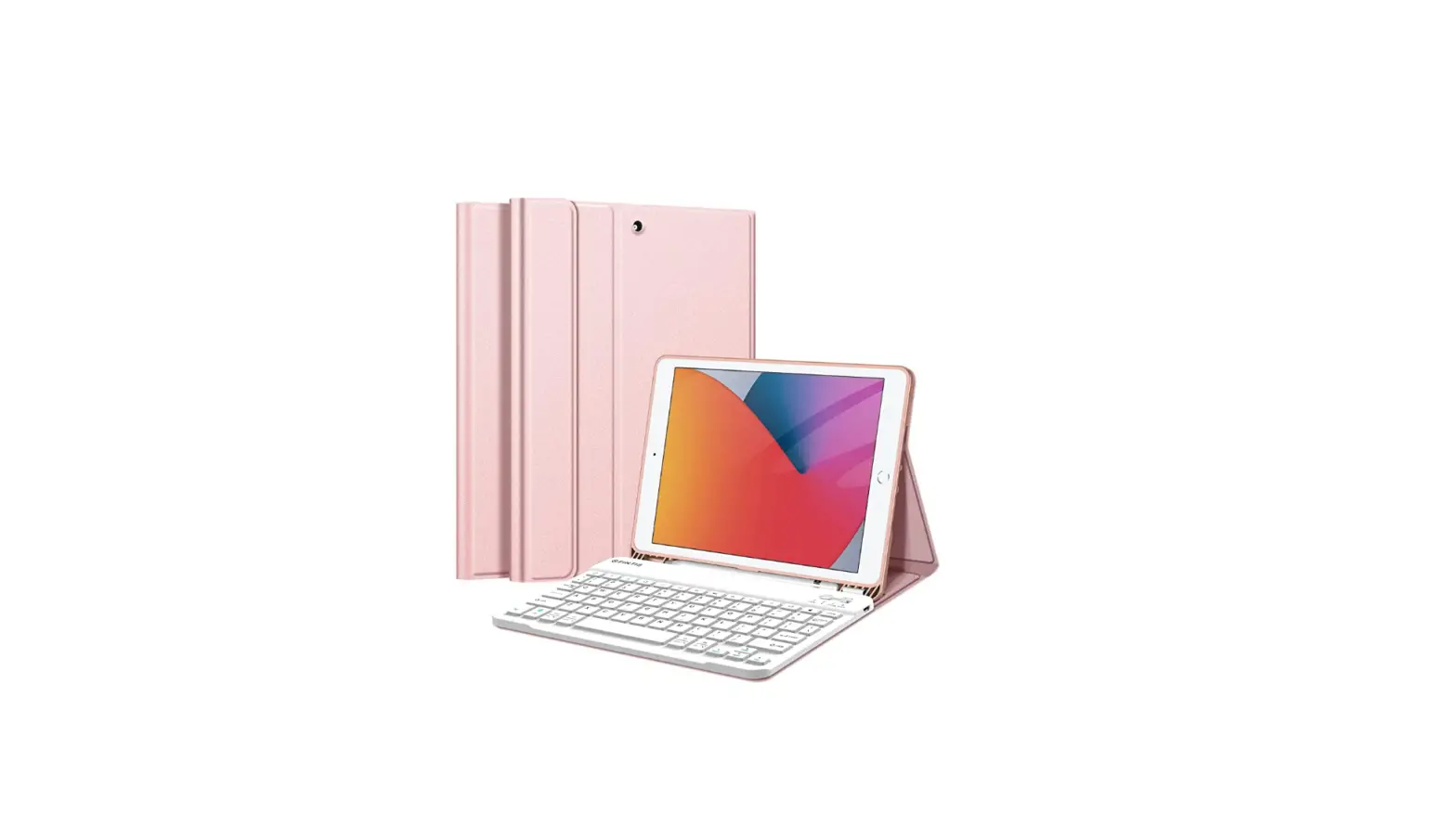
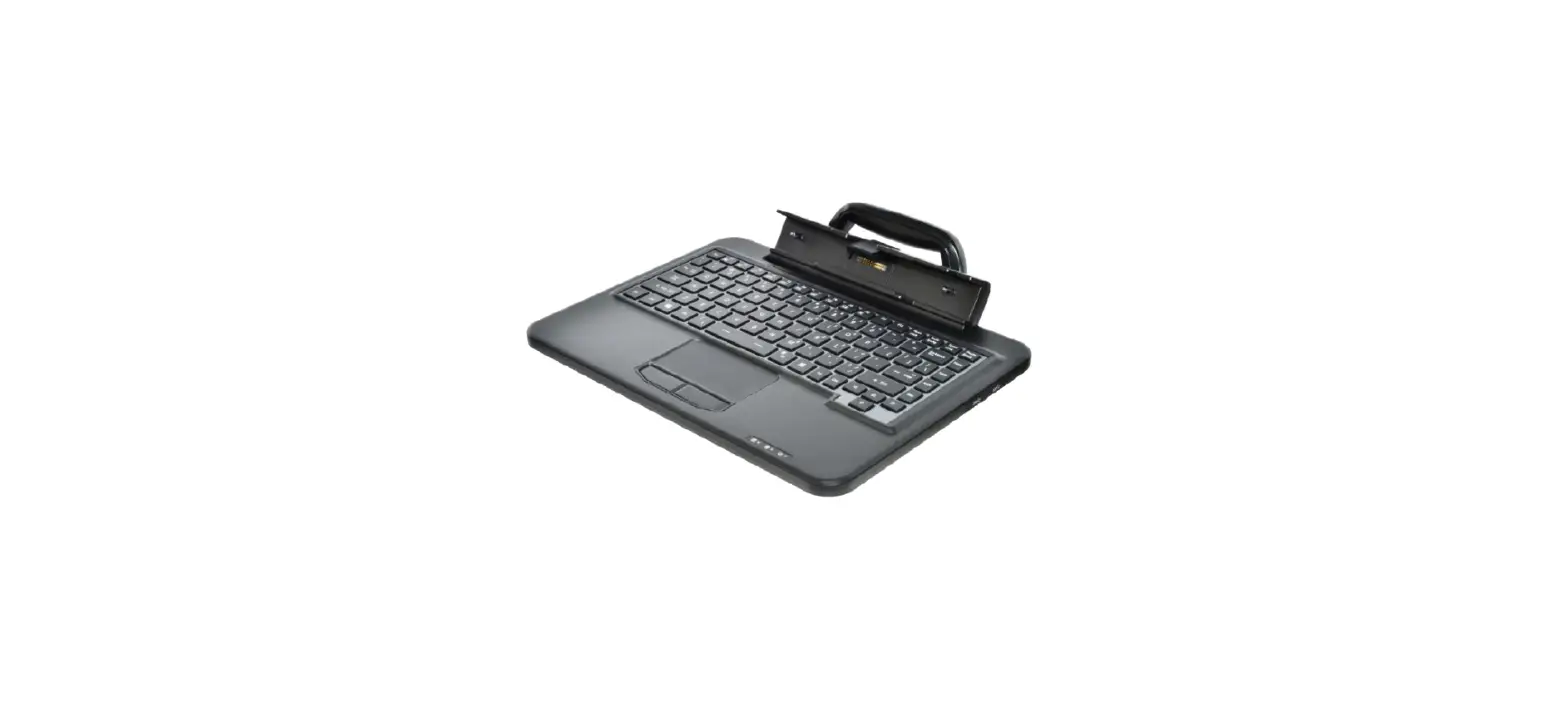
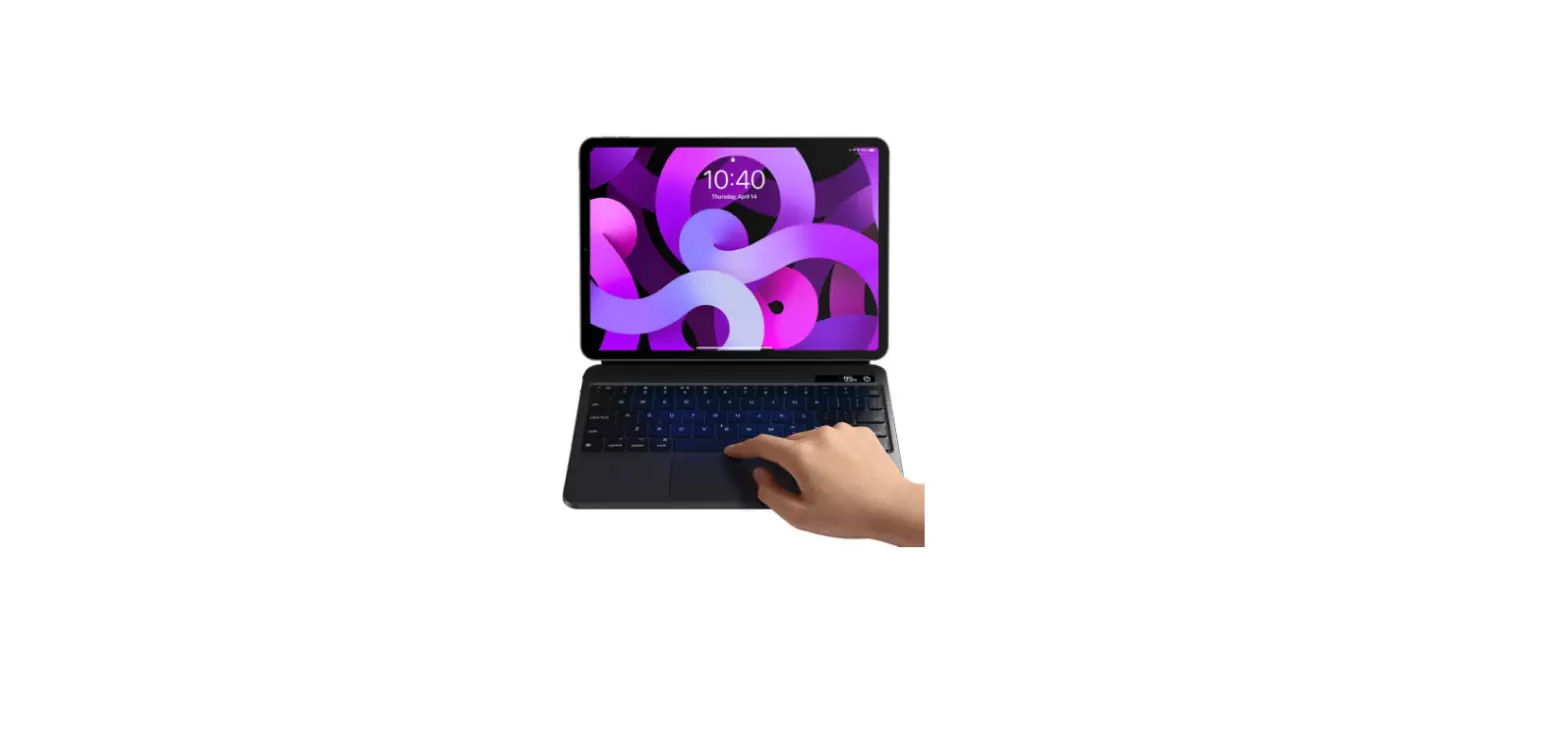
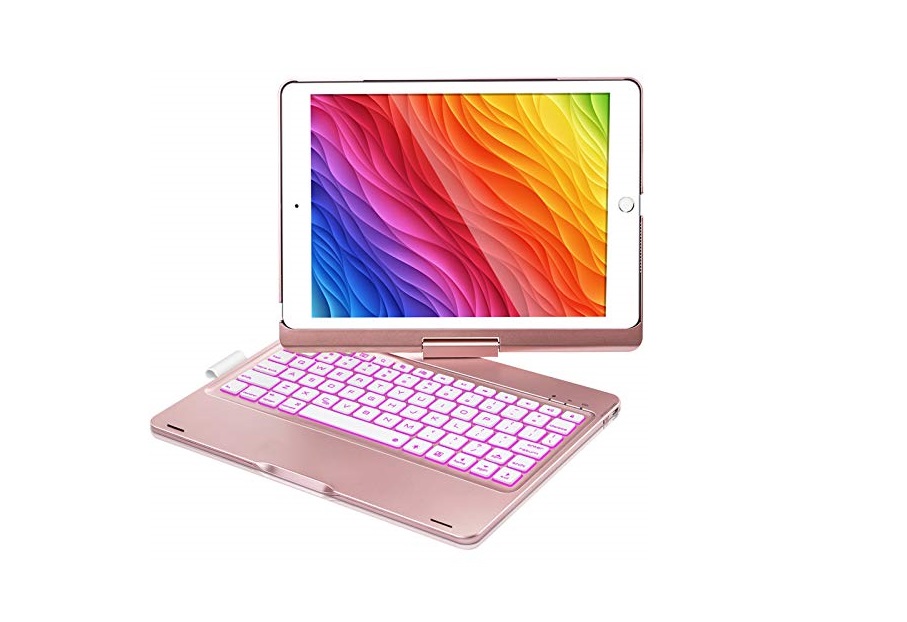
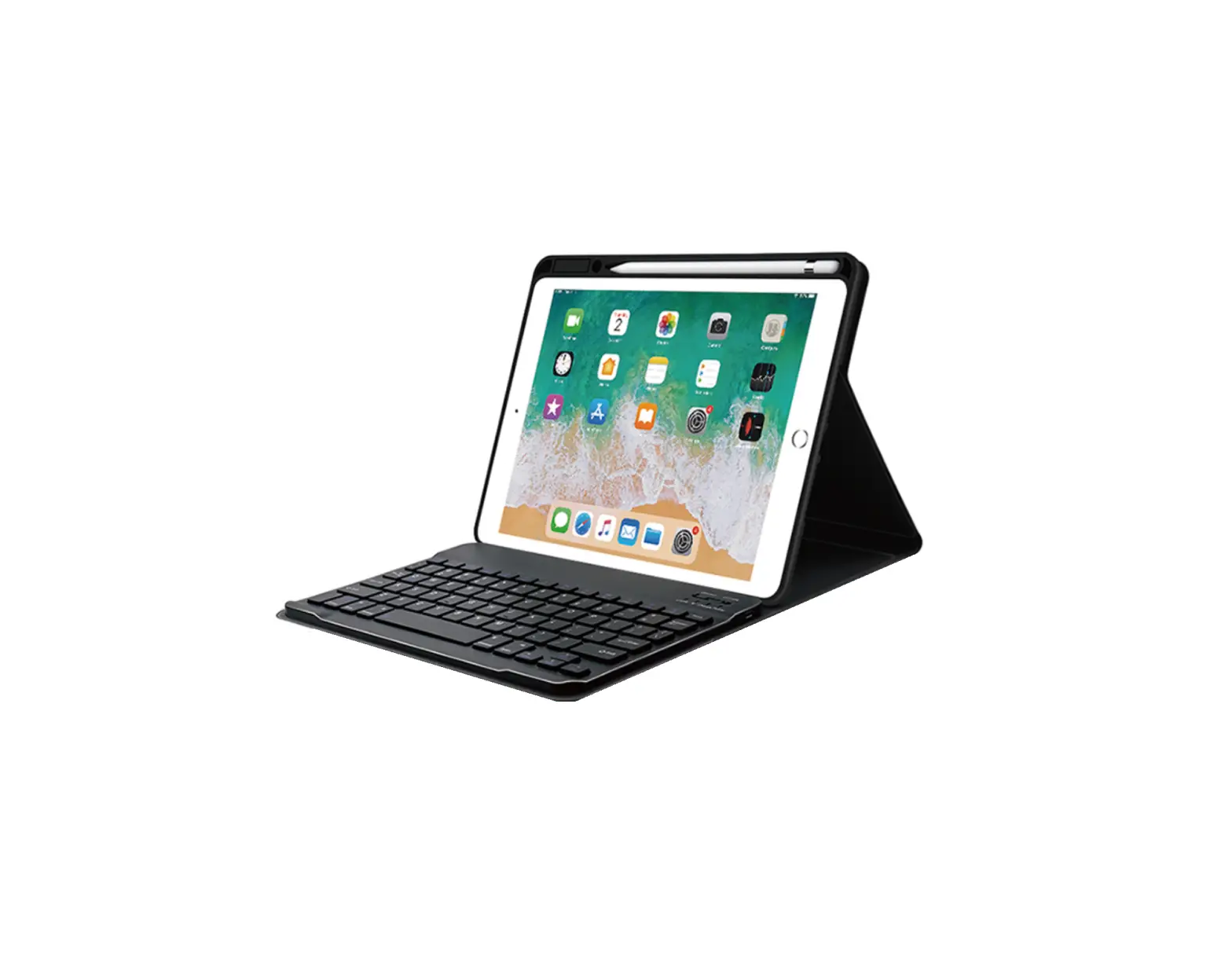
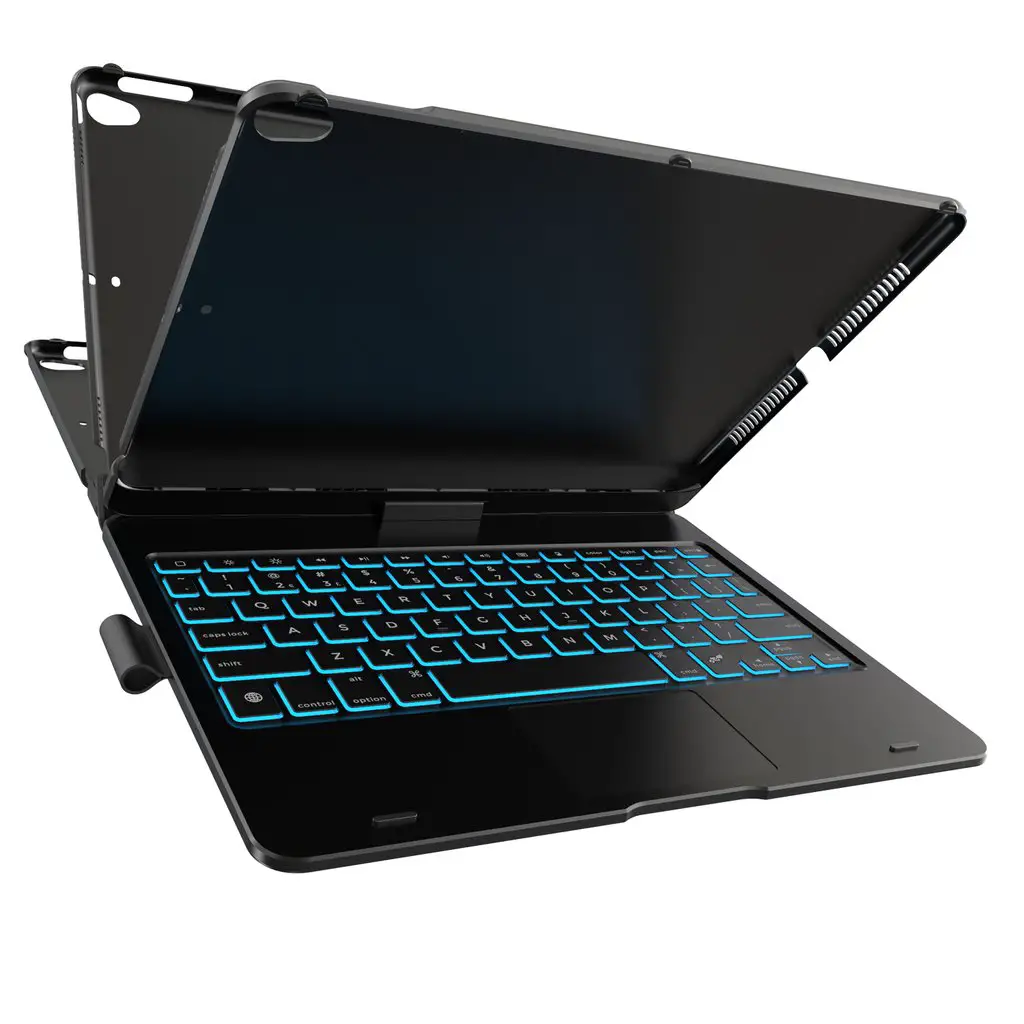
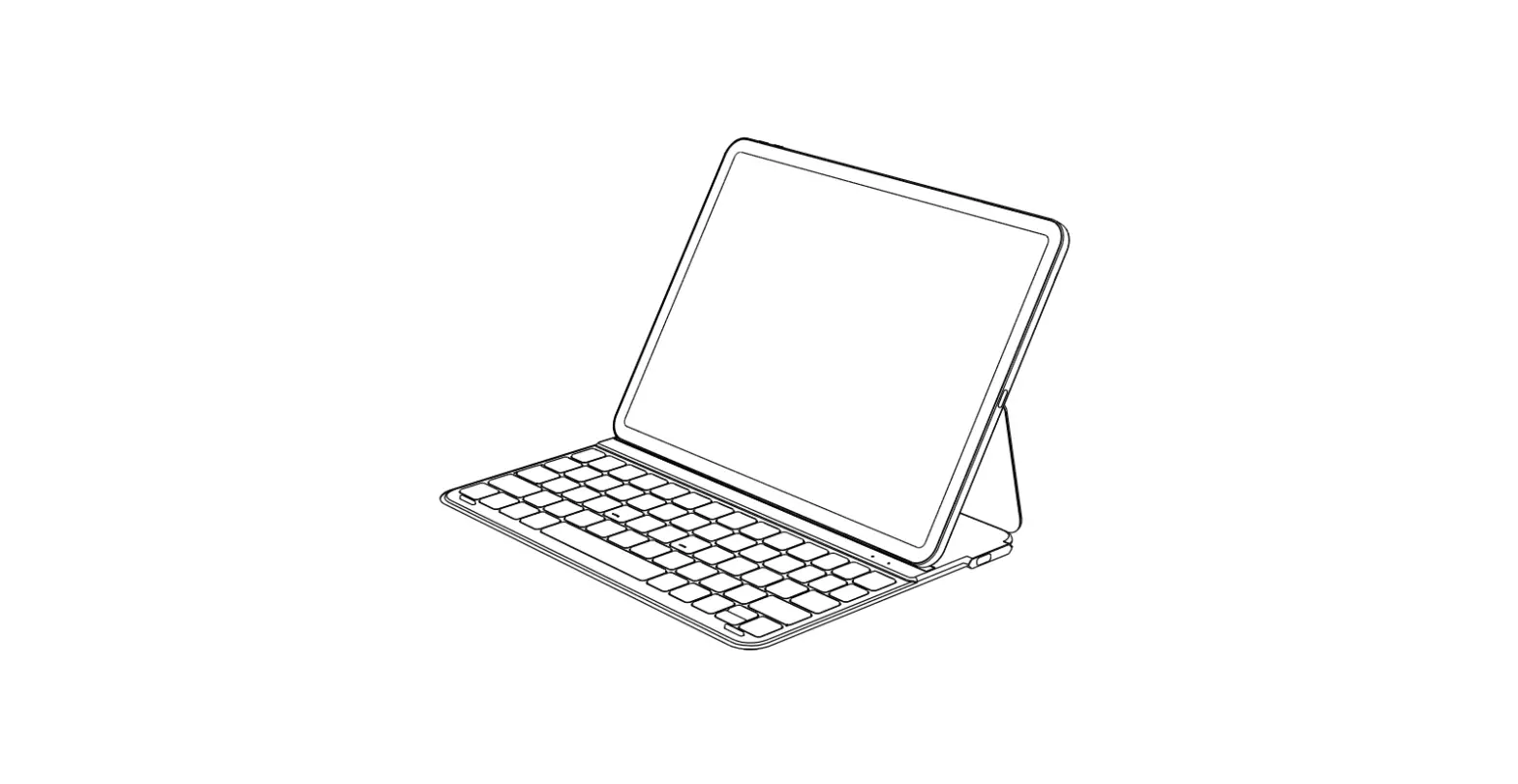
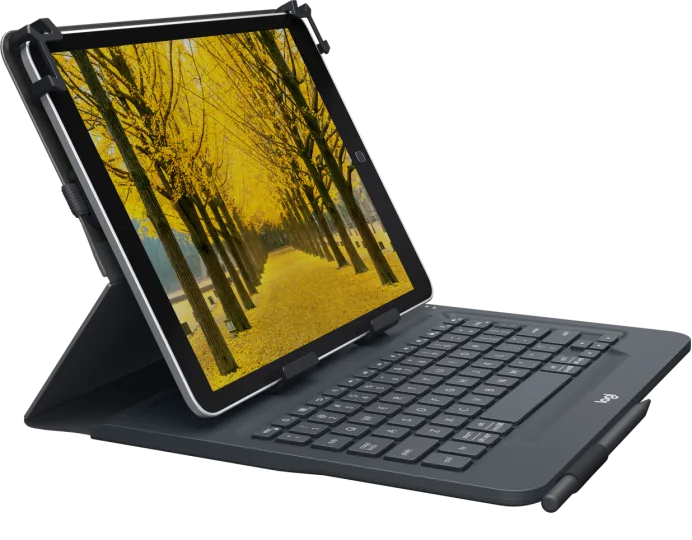
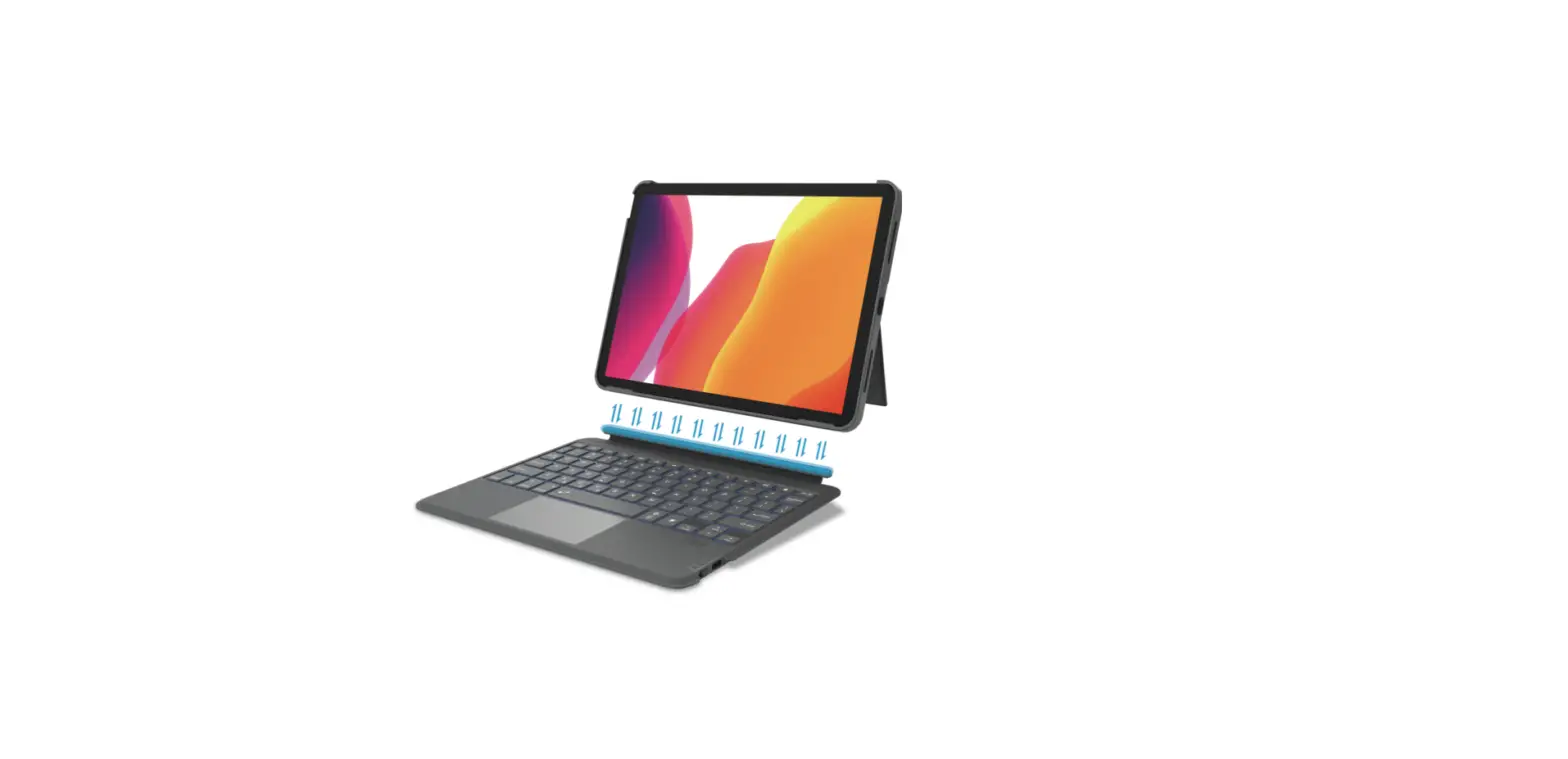
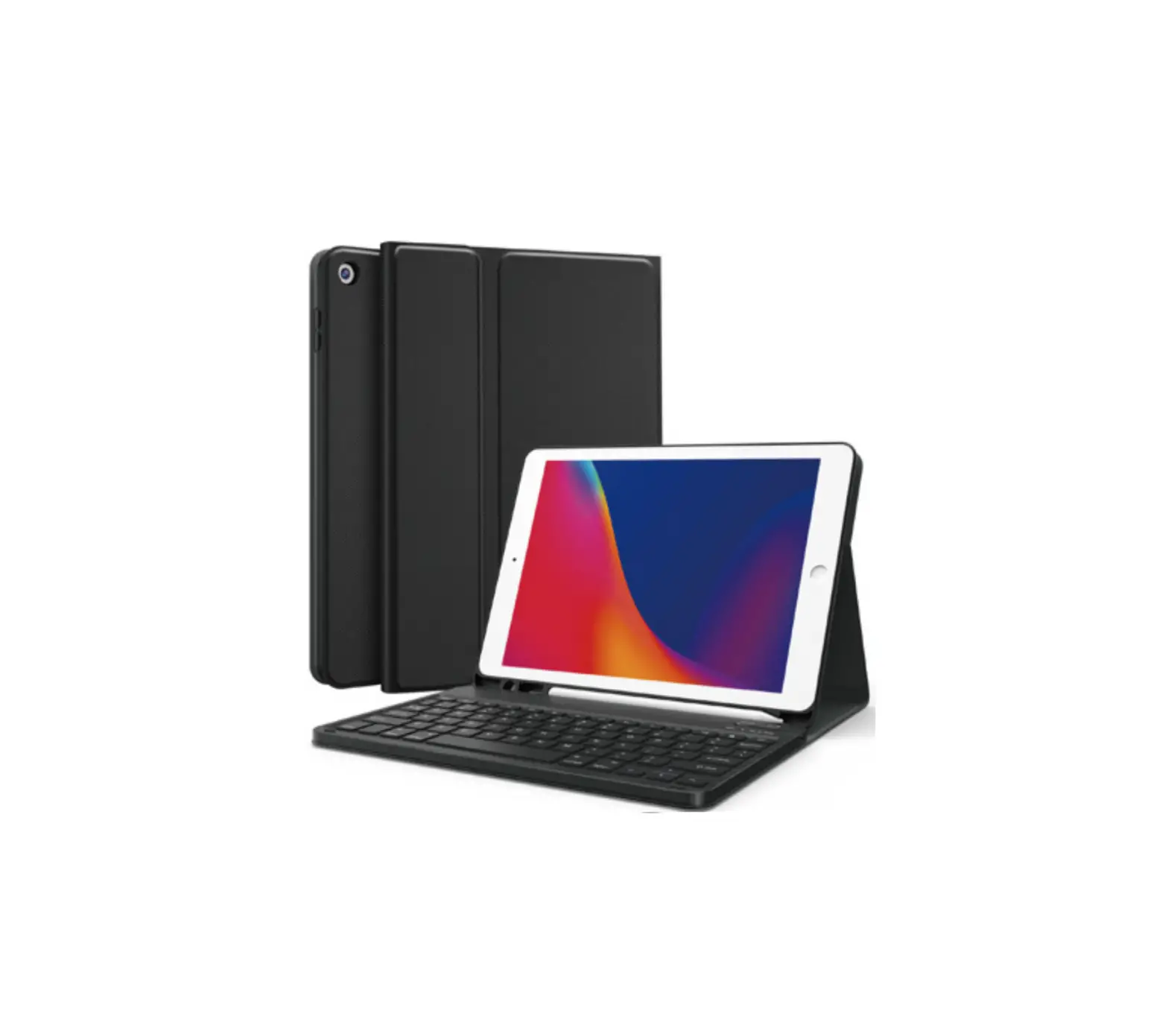
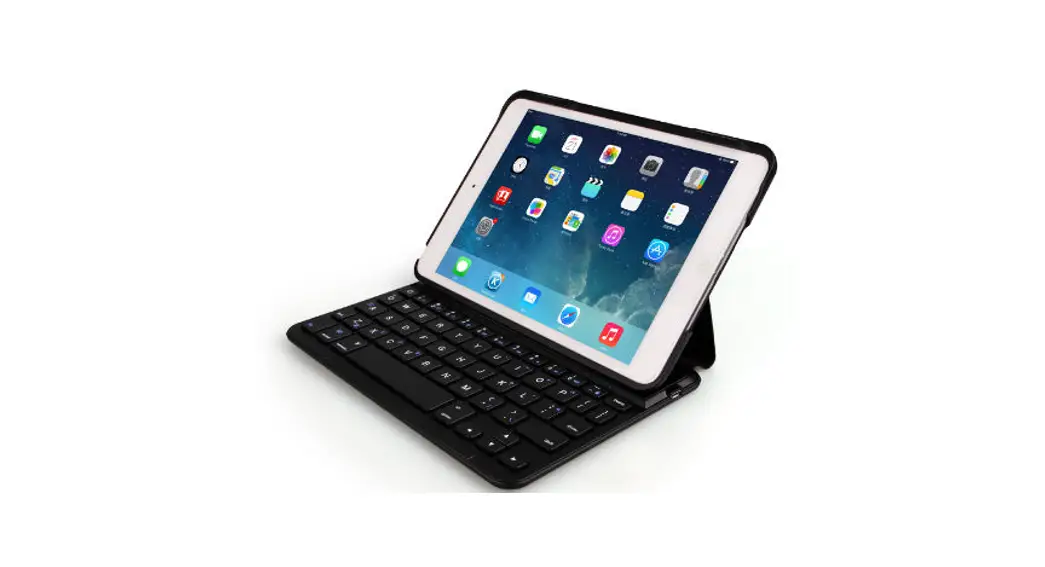
TABOOKUNIKEYBOARDV Case with Detachable Keyboard
Product Information:
- Product Name: Case with Detachable Keyboard
- Compatibility: Universal for Tablets up to 11 inches
- Model Number: TABOOKUNIKEYBOARDV
- Charging Port: Type-C
Product Usage Instructions:
- Pairing the Keyboard:
- Make sure Bluetooth is turned on both your device and the
keyboard. - If it’s the first-time pairing, your device should
automatically recognize and connect to the keyboard. - If the connection fails, try the following steps:
- Delete the Bluetooth device from your device.
- Switch off the Bluetooth function on your device.
- Reboot your device.
- Turn on Bluetooth on your device.
- Switch the keyboard off and then on.
- Repeat the steps described on pages 2 and 3 of the user manual
to pair the keyboard.
- On your device, go to SETTINGS > system > Languages.
- Choose Physical keyboard and press TABOOKUNIKEYBOARDV to select
the desired keyboard layout.
- Delete
- Esc: Home
- F1: Search
- F2: Select All
- F3: Copy
- F4: Paste
- F5: Cut
- F6: Change keyboard layout (only for Android and iOS)
- F7: Previous
- F8: Play/Pause
- F9: Next
- F10: Volume ON/OFF
- F11: Volume –
- F12: Volume +
Case with Detachable Keyboard
Universal for Tablet up to 11″
TABOOKUNIKEYBOARDV
Type-C charging port
Delete
6
9
0
alt option Ctrl
SPECIFICATION
QWERTY Italian layout Size: 247,5 x 150 x 6 mm Frequency 2.4 GHz Input: 5 V D.C. 0,5 A max Working current: <8 mA Standby current: 0.3 mA
Sleeping current: 0.1mA Working distance: 10 meters Battery 180 mAh Charging time: 2-3 hours Prf: max 3 mW
UK
User Manual
4
IT
Manuale di istruzioni
8
F
Mode d’emploi
12
D
Bedienungsanleitung
14
ES
Manual de instrucciones
18
For other informations please contact us at [email protected]
UK USER MANUAL
CONNECT TO THE DEVICE
A) First time pairing: · Turn ON keyboard’s Bluetooth®. · Switch the on /off controller. · Keyboard will identify Bluetooth signal automatically for your first device. · For your second device, Press the `Connect’ button to turn keyboard Bluetooth on (the Bluetooth light will blink in blue). · Turn ON your device’s Bluetooth and connect: · On the device, go to Settings > Bluetooth; · Turn on Bluetooth and search for “TABOOKUNIKEYBOARDV” in available devices; · Tap “TABOOKUNIKEYBOARDV” on your device -the pairing process is considered complete after “Connected” indicator appears.
B) Future pairings: After successful first-time pairing, your device will automatically remember the keyboard. To connect again, please turn On Bluetooth on both device and keyboard. The device should automatically connect. If it does not, please tap it in My Devices list to establish the connection. After “Connected” indicator appears.
6
Troubleshooting
If the keyboard is not working correctly, please check the following: · The Bluetooth function on the
device (or other Bluetooth devices) is enabled; · The Bluetooth keyboard is within 33 feet/10 meters. · The Bluetooth keyboard is charged · Check your device: fn+Q for Android, fn+W for Windows, fn+E for iOS. · Check fn setting of your device. · Make sure the keyboard is turned on (the battery indicator is illuminated) · Ensure the battery has enough power; · Make sure that Bluetooth in your device(e.g. tablet, table pc) is turned on; · Press the key ” Connect ” and check the Bluetooth status; · Make sure the keyboard has paired via Bluetooth.
*If failed to connect with bluetooth,
please try the following steps: – Delete bluetooth device on your
device; – Switch off the Bluetooth function
on your device; – Reboot the device; – Turn on the Bluetooth on vour
device; – Switch the keyboard off and on; – Repeat the steps described on
page 2 and 3 to pair the keyboard;
UK
Change system keyboard layout 1 – on the device, GO TO SETTINGS > system > Languages. 2 – Choose “Physical keyboard” and press “TABOOKUNIKEYBOARDV” to
choose keyboard layout.
Function Keys
Delete
Esc:
Home
F1:
Search
F2:
Select All
F3:
Copy
F4:
Paste
F5:
Cut
F6:
Change keyboard layout
(ony for Android and iOS)
F7:
Previous
F8:
Play/Pause
F9:
Next
F10:
Volume ON/OFF
F11:
Volume –
F12:
Volume +
7
IT MANUALE DI ISTRUZIONI
CONNESSIONE COL DISPOSITIVO
A) Primo abbinamento: · Attivare il Bluetooth® della tastiera. · Premere il controller on/off. · La tastiera identificherà automaticamente il segnale Bluetooth per il primo dispositivo. · Per il secondo dispositivo, premere il pulsante `Connetti’ per attivare il Bluetooth della tastiera (la spia Bluetooth lampeggerà in blu). · Accendere il Bluetooth del dispositivo e connettere: · Sul dispositivo, andare su Impostazioni > Bluetooth; · Attivare il Bluetooth e cercare “TABOOKUNIKEYBOARDV” tra i dispositivi disponibili; · Toccare”TABOOKUNIKEYBOARDV” sul dispositivo: il processo di abbinamento si considera concluso quando si visualizza l’indicatore “Connesso”.
B) Abbinamenti futuri:
Una volta riuscito il primo
abbinamento, il dispositivo
ricorderà
la
tastiera
automaticamente. Per connetterli
di nuovo, attivare il Bluetooth
sia sul dispositivo che sulla
tastiera. Il dispositivo dovrebbe
connettersi automaticamente.
In caso contrario, toccarlo
nell’elenco I miei dispositivi
per stabilire la connessione. In
seguito si visualizza l’indicazione
“Connesso”.
8
Risoluzione dei problemi
Se la tastiera non funziona correttamente, controllare quanto segue: · La funzione Bluetooth sul
dispositivo (o altri dispositivi Bluetooth) è abilitata; · La tastiera Bluetooth si trova entro
10 metri. · La tastiera Bluetooth è carica · Controllare il dispositivo: fn+Q per
Android, fn+W per Windows, fn+E per iOS. · Controllare l’impostazione fn del dispositivo. · Assicurarsi che la tastiera sia accesa (che l’indicatore della batteria sia illuminato) · Assicurarsi che la batteria sia sufficientemente carica; · Assicurarsi che il Bluetooth del dispositivo (es. tablet, desktop PC) sia attivo; · Premere il tasto “Connetti” e verificare lo stato del Bluetooth; · Assicurarsi che la tastiera sia stata accoppiata tramite Bluetooth.
*Se la connessione con il Bluetooth
non riesce, provare i seguenti
passaggi: – Eliminare il dispositivo Bluetooth
dal proprio dispositivo; – Disattivare la funzione Bluetooth
sul dispositivo; – Riavviare il dispositivo; – Attivare il Bluetooth sul dispositivo; – Spegnere e riaccendere la tastiera; – Ripetere i passaggi descritti a
pagina 2 e 3 per abbinare la tastiera;
IT
Cambiare il layout della tastiera di sistema 1 – Nel dispositivo, ANDARE SU IMPOSTAZIONI > Sistema > Lingue. 2 – Selezionare “Tastiera fisica” e premere “TABOOKUNIKEYBOARDV” per scegliere
il layout della tastiera
Funzione tasti
Delete
Esc:
Home
F1:
Cerca
F2:
Seleziona tutto
F3:
Copia
F4:
Incolla
F5:
Taglia
F6:
Cambiare il layout della tastiera
(solo per Android e iOS)
F7:
Precedente
F8:
Riproduci/Pausa
F9:
Avanti
F10:
Volume ON/OFF
F11:
Volume –
F12:
Volume +
9
F MANUEL DE L’UTILISATEUR
SE CONNECTER À L’APPAREIL
A) Première connexion:
· Activez le Bluetooth® du clavier.
· Allumez le contrôleur on/off.
· Le
clavier
identifiera
automatiquement le signal
Bluetooth pour votre premier
appareil.
· Pour votre deuxième appareil,
appuyez sur le bouton “Connect”
pour activer le Bluetooth du
clavier (le voyant Bluetooth
clignote en bleu).
· Activez le Bluetooth de votre
appareil et connectez-vous :
· Sur l’appareil, allez dans
Réglages > Bluetooth ;
· Activez le Bluetooth et recherchez
“TABOOKUNIKEYBOARDV” dans
les appareils disponibles ;
· Appuyez
sur
“TABOOKUNIKEYBOARDV” sur
votre appareil – le processus
d’appairage est considéré
comme terminé lorsque
l’indication “Connecté” apparaît.
B) Connexions ultérieures:
Après un premier jumelage
réussi,
votre
appareil
mémorisera automatiquement le
clavier. Pour vous reconnecter,
activez le Bluetooth sur l’appareil
et le clavier. L’appareil devrait
se connecter automatiquement.
Si ce n’est pas le cas, appuyez
sur l’appareil dans la liste
Mes appareils pour établir
la connexion. L’indication
“Connecté” s’affiche alors.
10
Dépannage
Si le clavier ne fonctionne pas correctement, vérifiez les points suivants: · La fonction Bluetooth de
l’appareil (ou d’autres appareils Bluetooth) est activée; · Le clavier Bluetooth se trouve à moins de 10 mètres / 33 pieds. · Le clavier Bluetooth est chargé · Vérifiez votre appareil : fn+Q pour Android, fn+W pour Windows, fn+E pour iOS. · Vérifiez le réglage fn de votre appareil. · Vérifiez que le clavier est allumé (l’indicateur de batterie est allumé) · Vérifier que la batterie est suffisamment chargée; · Vérifiez que le Bluetooth de votre appareil (par exemple, tablette, ordinateur portable) est activé; · Appuyez sur la touche “Connect” et vérifiez l’état du Bluetooth; · VAssurez-vous que le clavier est couplé via Bluetooth.
*Si la connexion Bluetooth échoue,
essayez les étapes suivantes: – Supprimez le périphérique
Bluetooth de votre appareil; – Désactivez la fonction Bluetooth
sur votre appareil; – Redémarrez l’appareil; – Activez le Bluetooth sur votre
appareil; – Éteignez et allumez le clavier; – Répétez les étapes décrites aux
pages 2 et 3 pour appairer le clavier;
F
Modifier la disposition du clavier système 1 – Sur l’appareil, allez dans PARAMÈTRES > système > langues. 2 – Choisissez “Clavier physique” et appuyez sur “TABOOKUNIKEYBOARDV” pour
choisir la disposition du clavier.
Fonctionnalité Touches
Delete
Esc:
Accueil
F1:
Recherche
F2:
Sélectionner tout
F3:
Copier
F4:
Coller
F5:
Couper
F6:
Changer la disposition du clavier
(uniquement pour Android et iOS)
F7:
Précédent
F8:
Lecture/Pause
F9:
Suivant
F10:
Volume ON/OFF
F11:
Volume –
F12:
Volume +
11
D BENUTZERHANDBUCH
MIT DEM GERÄT VERBINDEN
A) Erstmaliges Pairing:
· Schalten Sie das Bluetooth® der
Tastatur ein.
· Schalten Sie den Regler ein/aus.
· Die Tastatur erkennt das
Bluetooth-Signal automatisch
für Ihr erstes Gerät.
· Drücken Sie bei Ihrem zweiten
Gerät die Taste ,,Verbinden”,
um das Bluetooth der Tastatur
einzuschalten (die Bluetooth-
Anzeige blinkt blau).
· Schalten Sie das Bluetooth Ihres
Geräts ein und stellen Sie eine
Verbindung her:
· Gehen Sie auf dem Gerät zu
Einstellungen > Bluetooth;
· Schalten Sie Bluetooth ein
und suchen Sie unter den
verfügbaren Geräten nach
,,TABOOKUNIKEYBOARDV”;
· Tippen
Sie
auf
,,TABOOKUNIKEYBOARDV” auf
Ihrem Gerät der Pairing-
Prozess ist abgeschlossen,
wenn die Anzeige ,,Verbunden”
erscheint.
B) Weiteres Pairing:
Nach dem ersten erfolgreichen Pairing erkennt Ihr Gerät automatisch die Tastatur. Um die Verbindung wiederherzustellen, schalten Sie bitte Bluetooth sowohl am Gerät als auch an der Tastatur ein. Das Gerät sollte sich automatisch verbinden. Falls dies nicht der Fall ist, wählen Sie es bitte in der Liste ,,Meine Geräte” aus, um die Verbindung herzustellen. Danach erscheint die Anzeige ,,Verbunden”.
12
Fehlerbehebung
Wenn die Tastatur nicht richtig funktioniert, überprüfen Sie bitte Folgendes: · Die Bluetooth-Funktion auf dem
Gerät (oder anderen BluetoothGeräten) ist aktiviert; · Die Bluetooth-Tastatur befindet sich innerhalb von 33 Fuß/10 Metern. · Die Bluetooth-Tastatur ist geladen · Überprüfen Sie Ihr Gerät: fn+Q für Android, fn+W für Windows, fn+E für iOS. · Überprüfen Sie die fn-Einstellung Ihres Geräts. · Vergewissern Sie sich, dass die Tastatur eingeschaltet ist (die Batterieanzeige leuchtet) · Stellen Sie sicher, dass der Akku genügend Ladung hat; · Stellen Sie sicher, dass Bluetooth in Ihrem Gerät (z. B. Tablet, Desktop) eingeschaltet ist; · Drücken Sie die Taste ,,Verbinden” und prüfen Sie den BluetoothStatus; · Stellen Sie sicher, dass die Tastatur über Bluetooth verbunden ist.
*Wenn die Verbindung mit
Bluetooth fehlschlägt, versuchen
Sie bitte die folgenden Schritte: – Löschen Sie das Bluetooth-Gerät
auf Ihrem Gerät; – Schalten Sie die Bluetooth-
Funktion auf Ihrem Gerät aus; – Starten Sie das Gerät neu; – Schalten Sie Bluetooth auf Ihrem
Gerät ein; – Schalten Sie die Tastatur aus und
wieder ein; – Wiederholen Sie die auf Seite 2
und 3 beschriebenen Schritte, um die Tastatur zu koppeln;
D
Systemtastaturlayout ändern 1 – Am Gerät: GEHEN SIE ZU EINSTELLUNGEN > System > Sprachen. 2 – Wählen Sie ,,Physikalische Tastatur” und drücken Sie ,,TABOOKUNIKEYBOARDV”,
um das Tastaturlayout.
Funktionstasten Tasten
Delete
Esc:
Startseite
F1:
Suche
F2:
Alles auswählen
F3:
Kopieren
F4:
Einfügen
F5:
Ausschneiden
F6:
Tastaturlayout ändern
(nur für Android und iOS)
F7:
Zurück
F8:
Wiedergabe/Pause
F9:
Weiter
F10:
Lautstärke EIN/AUS
F11:
Lautstärke
F12:
Lautstärke +
13
ES MANUAL DEL USUARIO
CONECTARSE AL DISPOSITIVO
A) Primer emparejamiento:
· Primero, encender el Bluetooth®
del teclado.
· Encender y apagar el mando.
· El
teclado
identificará
automáticamente la señal
Bluetooth del primer dispositivo.
· Para el segundo dispositivo,
pulsar el botón “Conectar” para
activar el Bluetooth del teclado
(la luz Bluetooth parpadeará en
azul).
· Encender el Bluetooth del
dispositivo y conectarse:
· En el dispositivo, ir a Ajustes >
Bluetooth;
· Encender el Bluetooth y buscar
“TABOOKUNIKEYBOARDV” en los
dispositivos disponibles;
· Seleccionar “TABOOKUNIKEYBOARDV”
en el dispositivo -El proceso de
emparejamiento se considerará
completado cuando aparezca el
indicador “Conectado”.
B) Futuros emparejamientos:
Una
vez
emparejado
correctamente por primera
vez, el dispositivo recordará
automáticamente el teclado.
Para volver a conectarse, activar
la función Bluetooth tanto en el
dispositivo como en el teclado.
El dispositivo debería conectarse
automáticamente. Si no lo
hace, se debe seleccionar en
la lista “Mis dispositivos” para
establecer la conexión. Después
de que aparezca el indicador
“Conectado”.
14
Solución de problemas
Si el teclado no funciona correctamente, comprobar lo siguiente: · La función Bluetooth del
dispositivo (u otros dispositivos Bluetooth) está activada; · El teclado Bluetooth está a menos de 33 pies/10 metros. · El teclado Bluetooth está cargado · Comprobar el dispositivo: fn+Q para Android, fn+W para Windows, fn+E para iOS. · Comprobar la configuración fn del dispositivo. · Es importante verificar que el teclado esté encendido (el indicador de batería está iluminado) · Verificar que la batería tiene suficiente carga; · Comprobar que el Bluetooth del dispositivo (por ejemplo, tableta, ordenador de sobremesa) está activado; · Pulsar la tecla “Conectar” y comprobar el estado del Bluetooth; · Asegúrese de que el teclado se ha emparejado a través de Bluetooth.
*Si falla la conexión con bluetooth,
seguir los siguientes pasos: – Borrar el dispositivo bluetooth del
dispositivo; – Desactivar la función Bluetooth
del dispositivo; – Reiniciar el dispositivo; – Encender el Bluetooth del
dispositivo; – Apagar y encender el teclado; – Repetir los pasos descritos en las
páginas 2 y 3 para emparejar el teclado;
ES
Cambiar la disposición del teclado del sistema 1 – En el dispositivo, IR A AJUSTES > sistema > Idiomas. 2 – Elegir “Teclado físico” y pulsar “TABOOKUNIKEYBOARDV” para elegir la
distribución del teclado.
Función Teclas
Delete
Esc:
Inicio
F1:
Buscar
F2:
Seleccionar todo
F3:
Copiar
F4:
Pegar
F5:
Cortar
F6:
Cambiar la distribución del
teclado (sólo para Android e iOS)
F7:
Anterior
F8:
Iniciar/Pausa
F9:
Siguiente
F10:
Volumen ENCENDIDO/APAGADO
F11:
Volume –
F12:
Volume +
15
SBS spa – Via Circonvallazione s/n 28010 Miasino (No) – Italy
sbsmobile.com
TABOOKUNIKEYBOARDV
Made in China
Printed in China REV1_04-23
 SBS store: Hi-Tech accessories for smartphones, tablets, PC | SBS