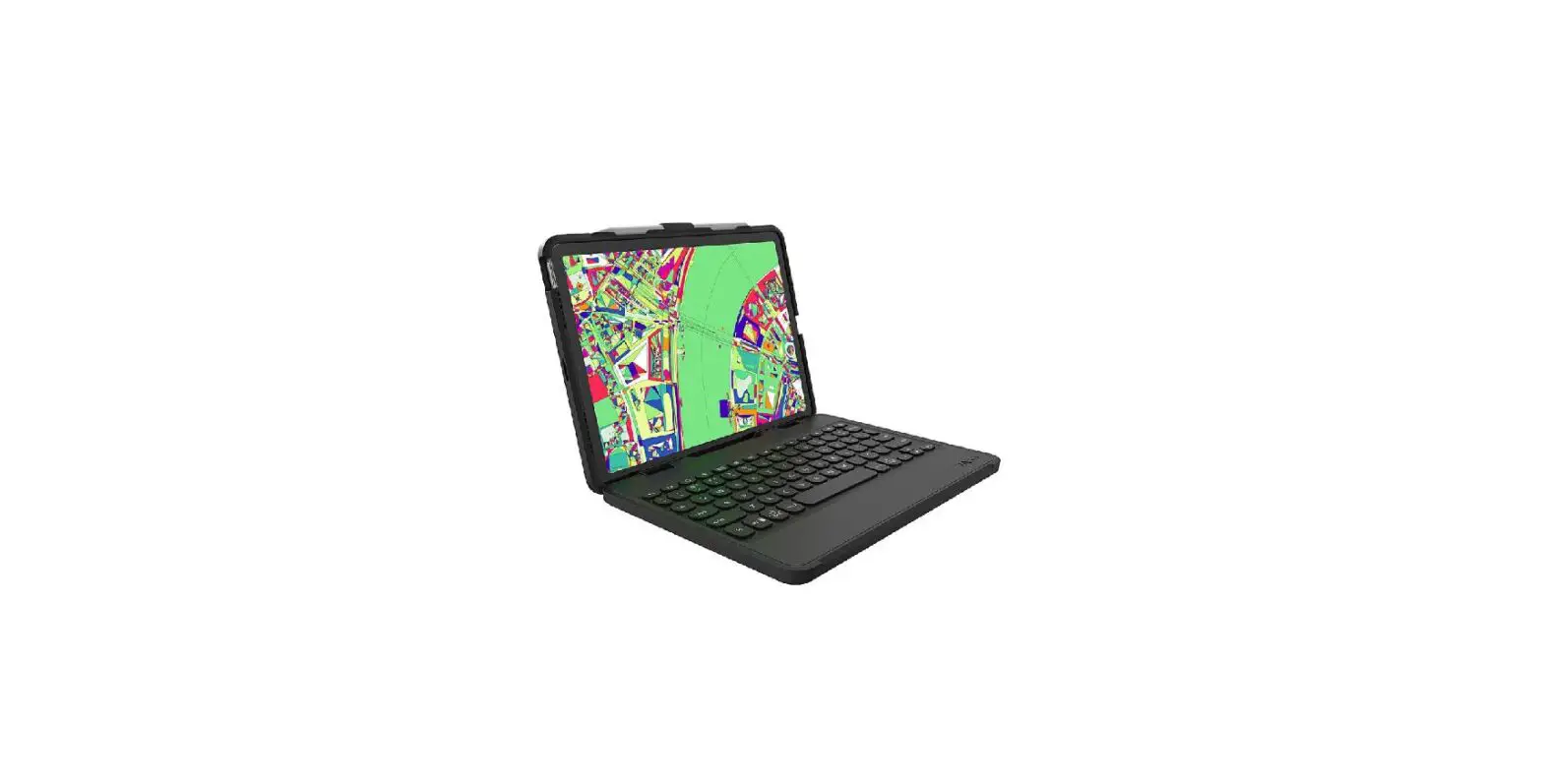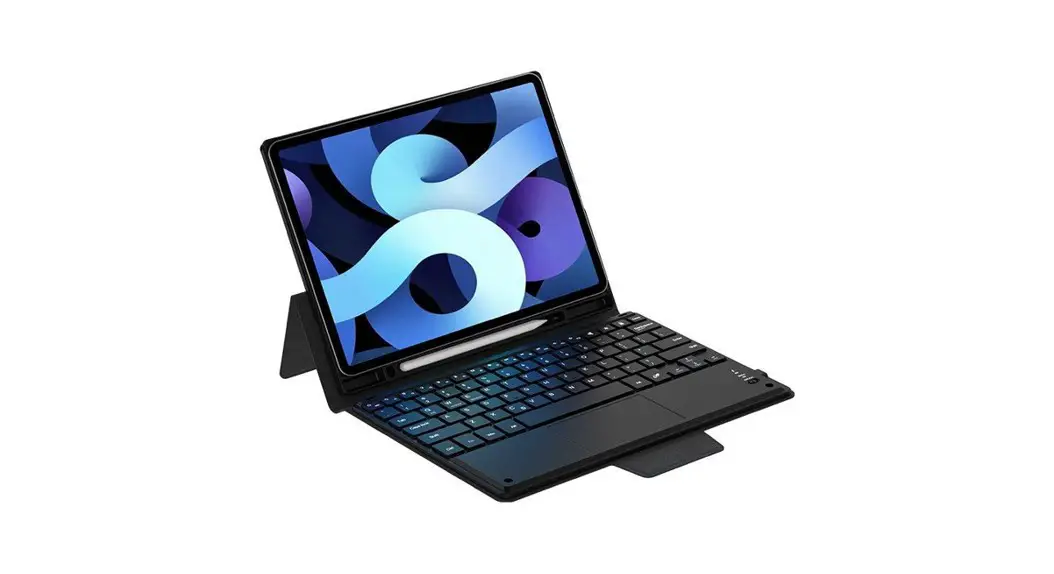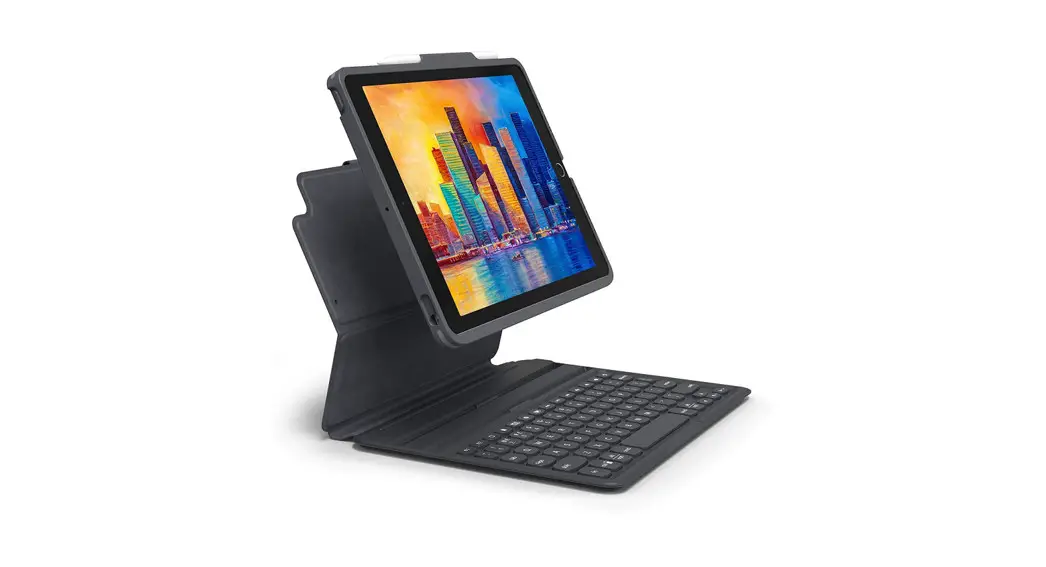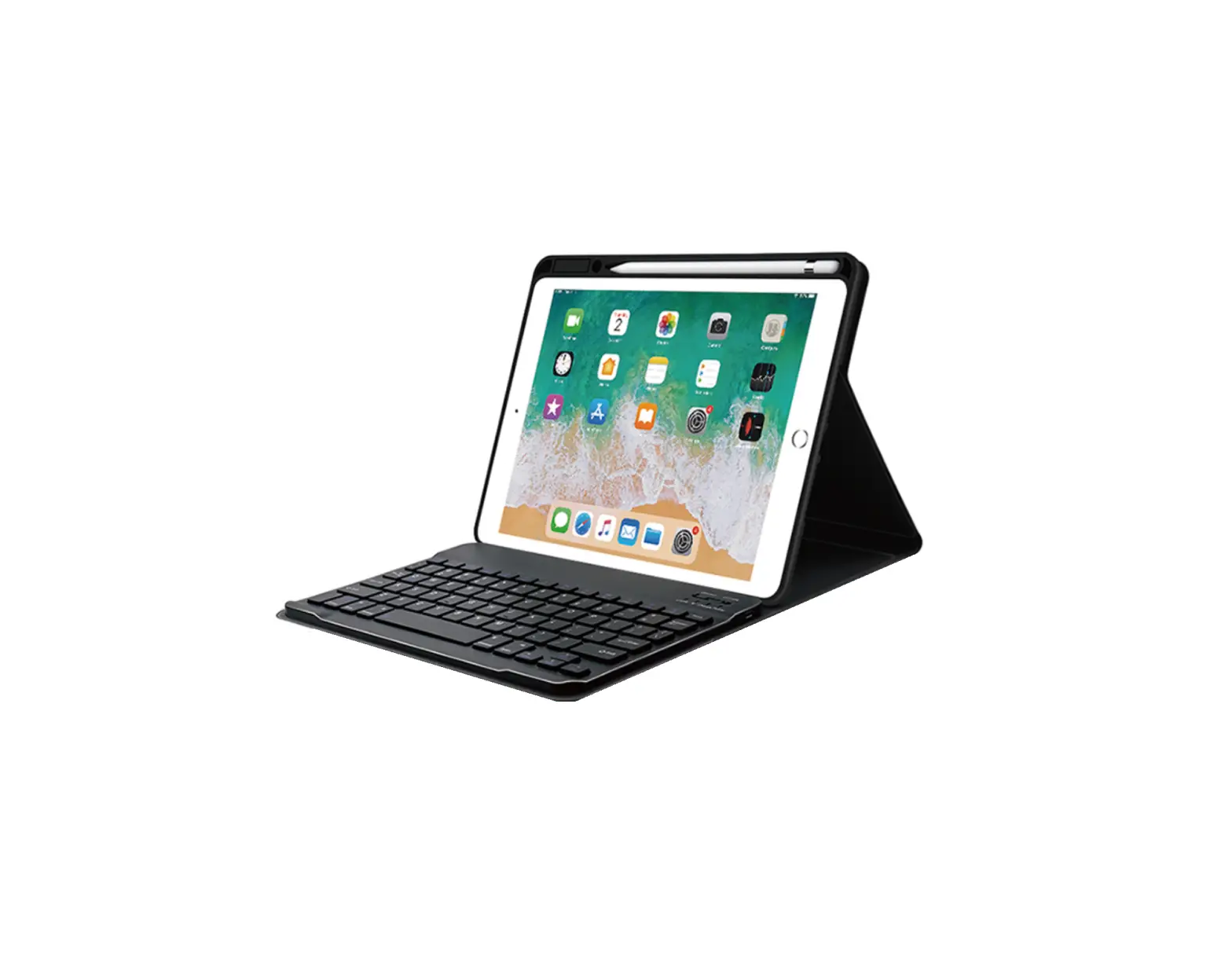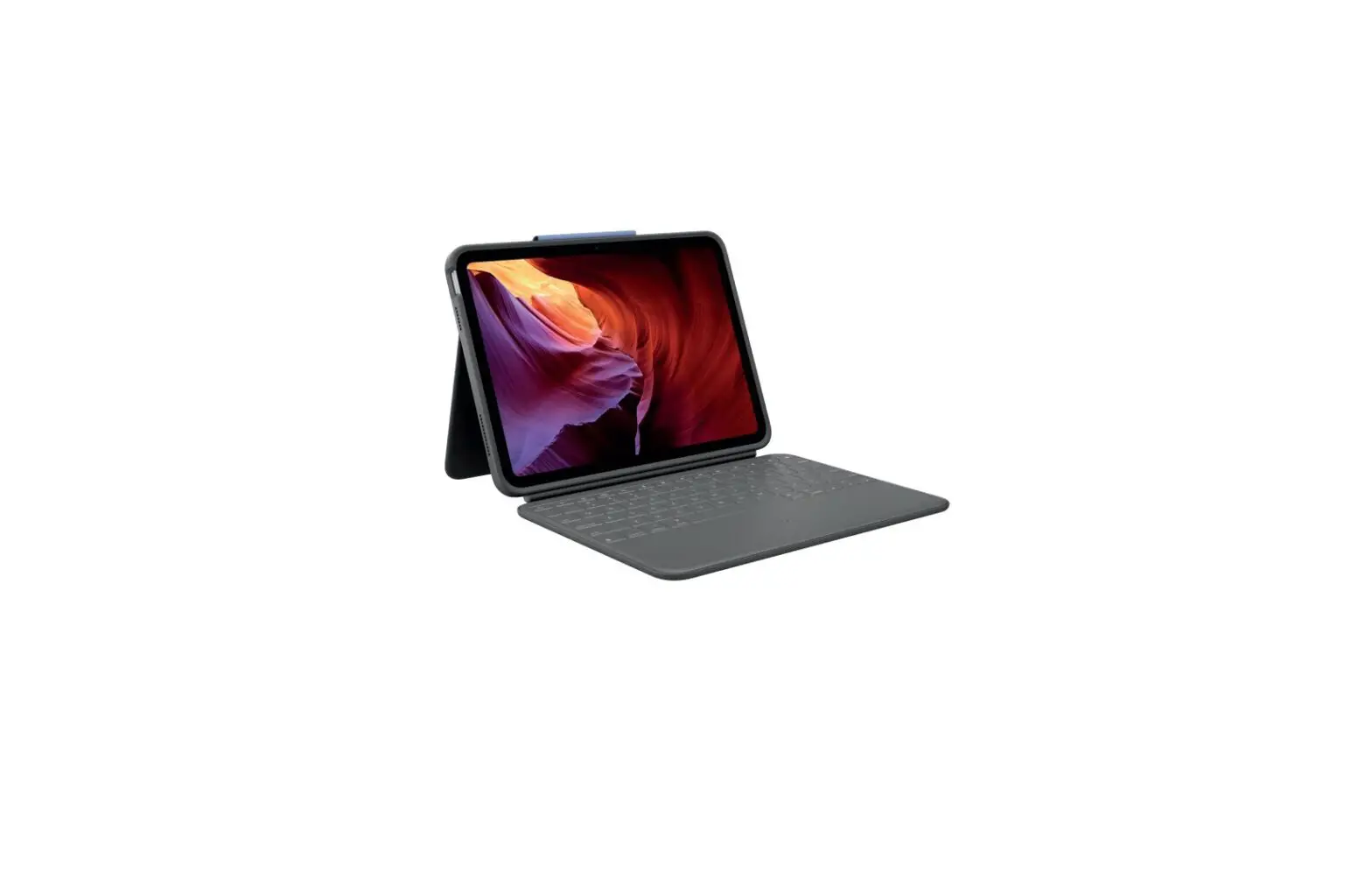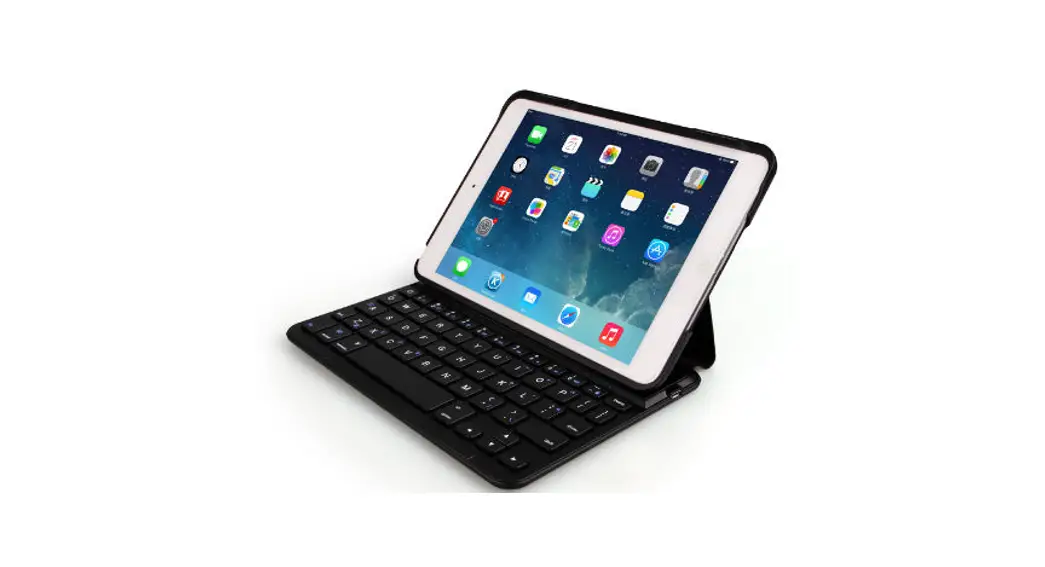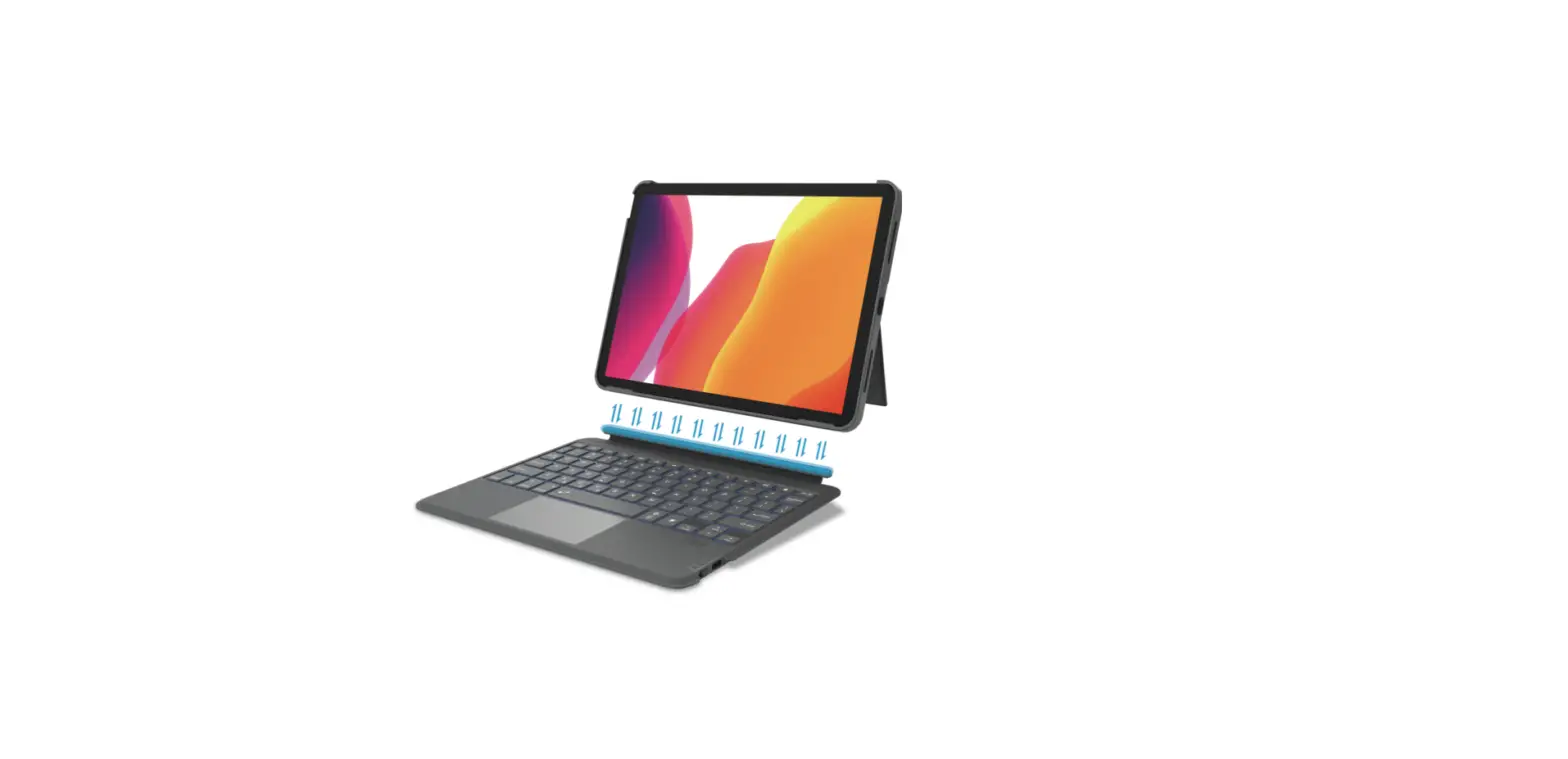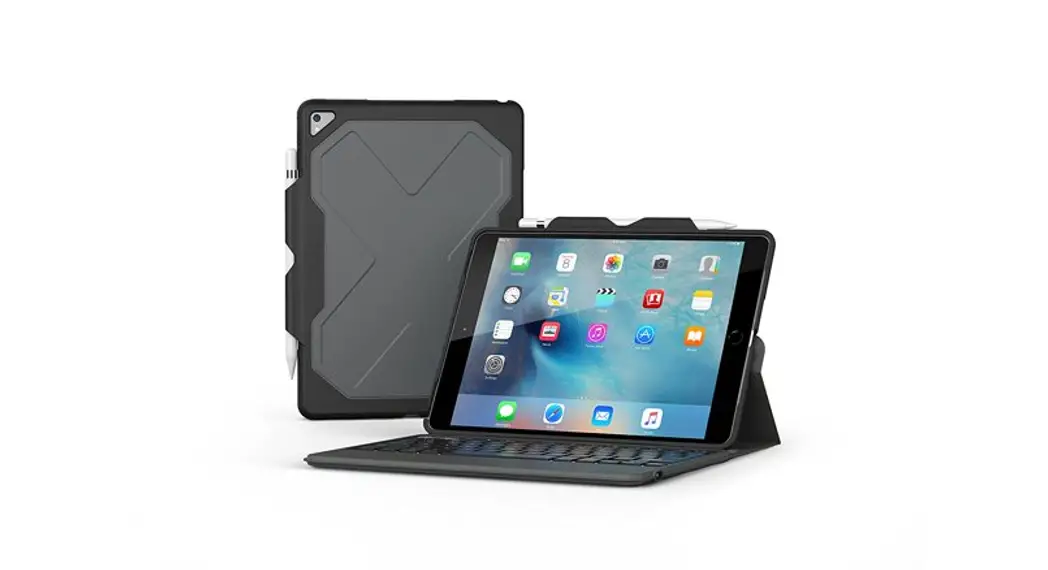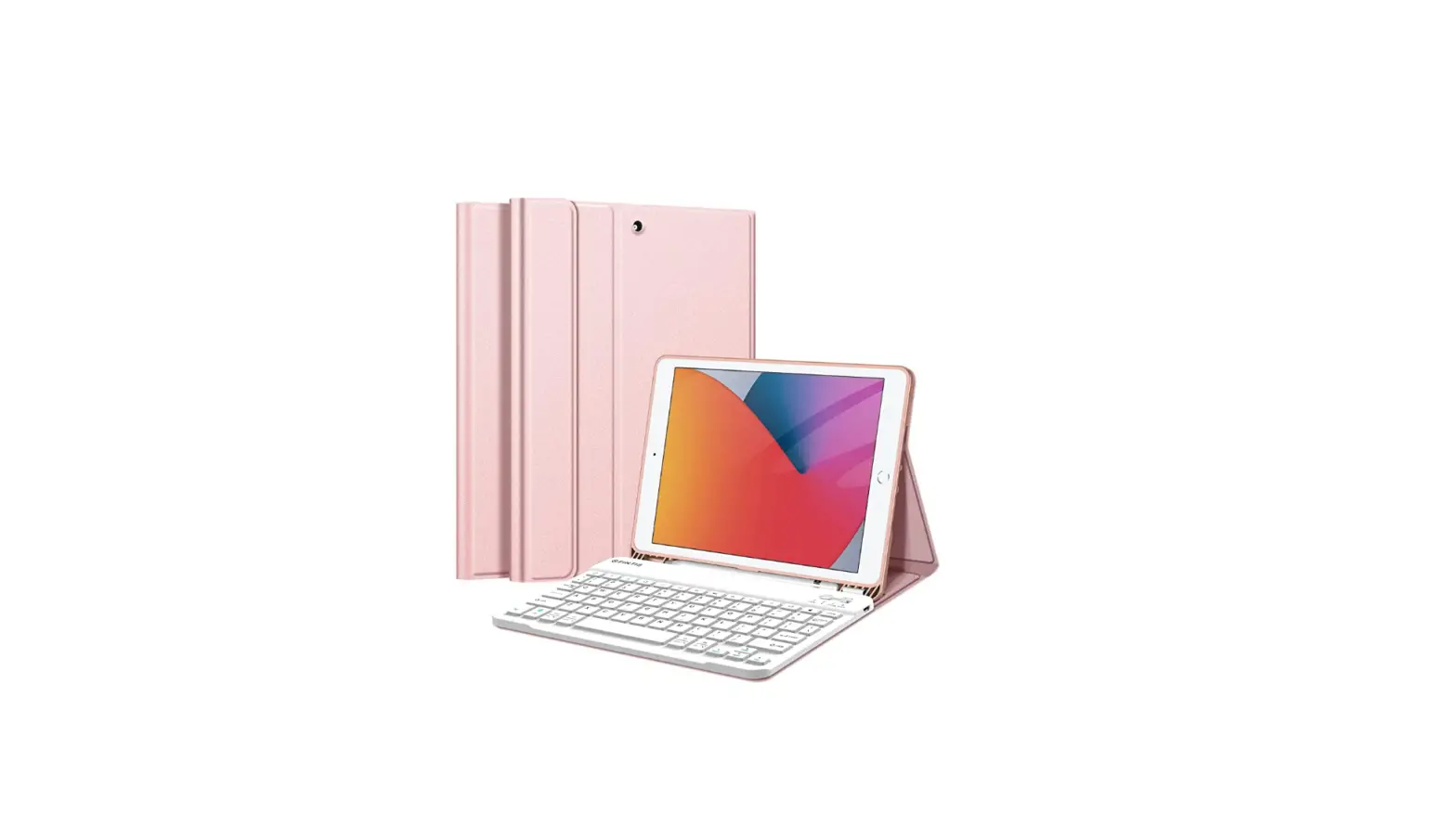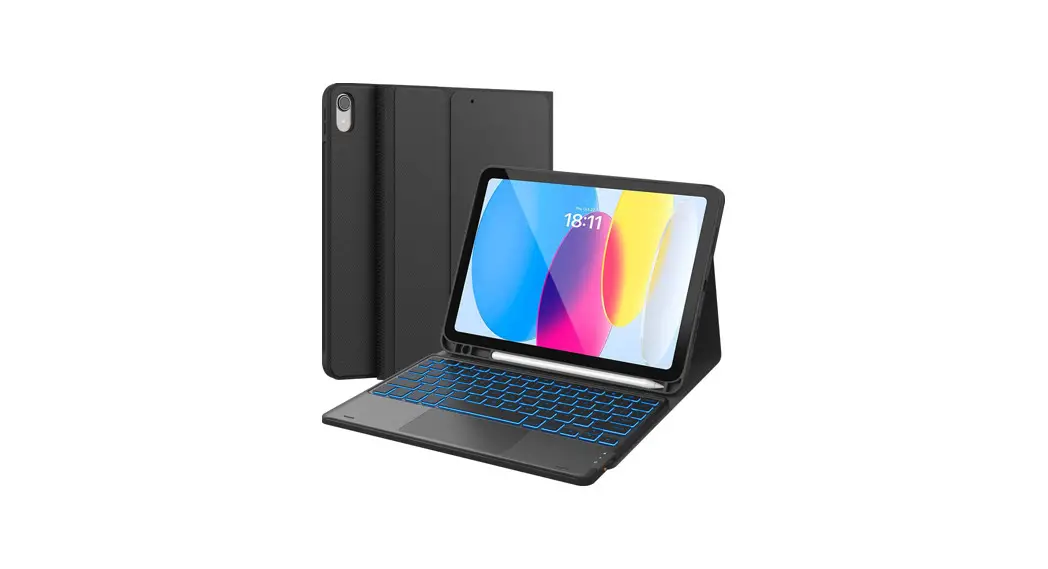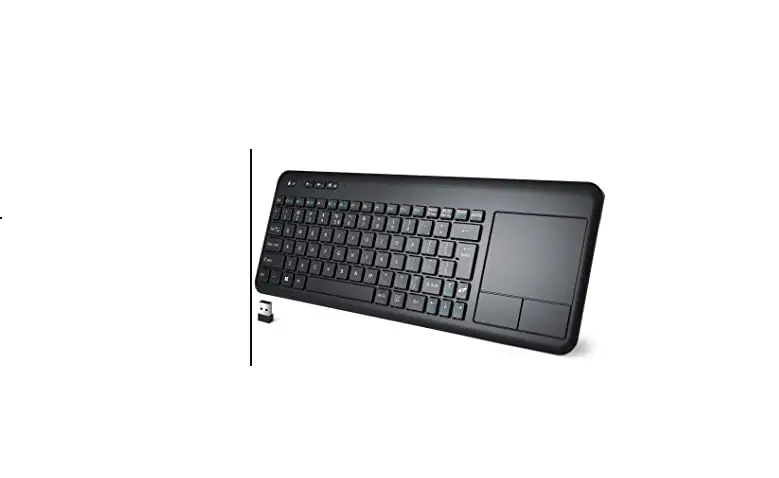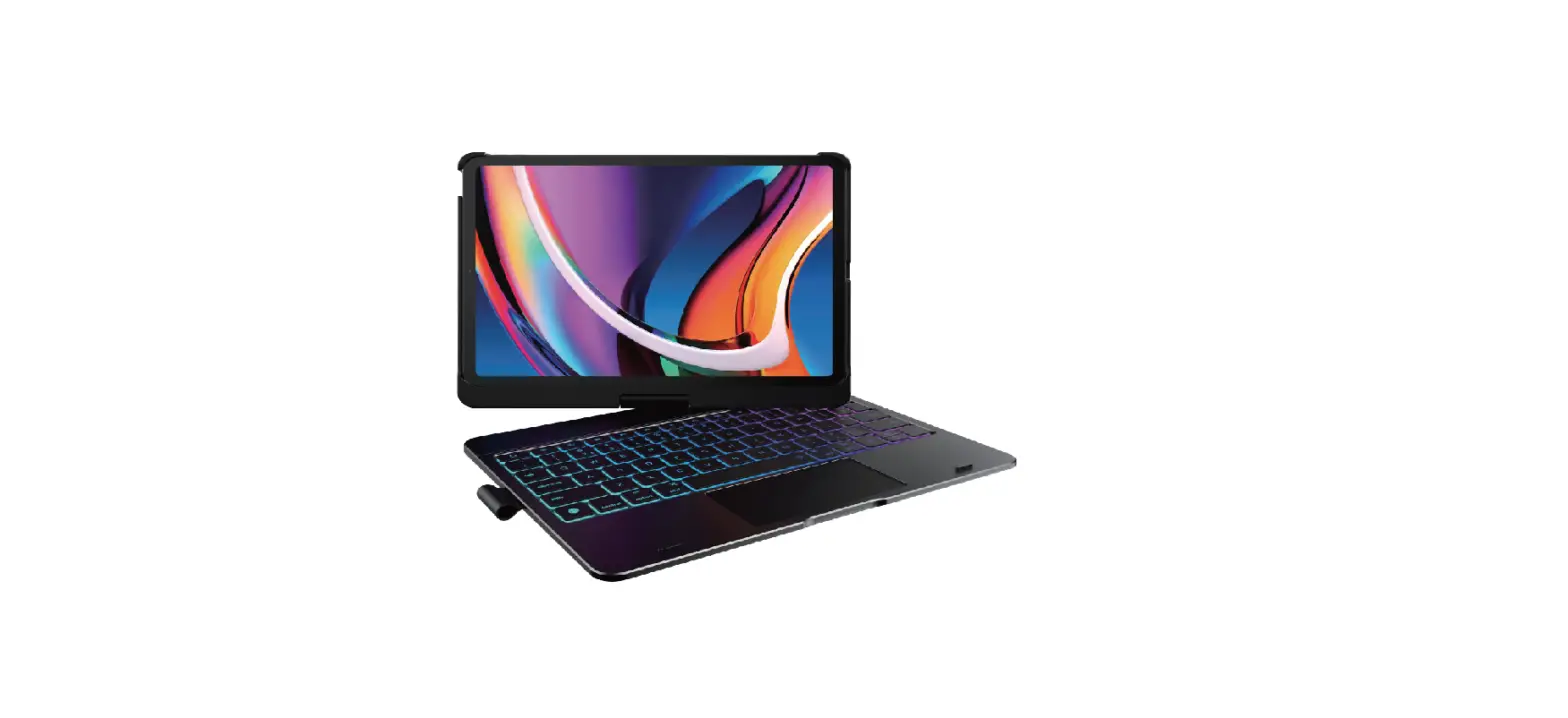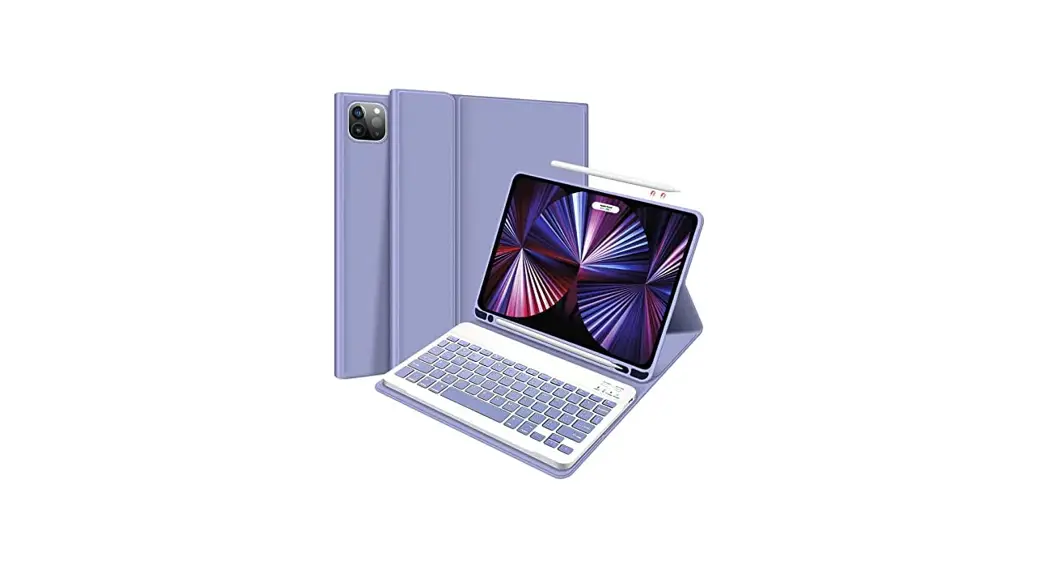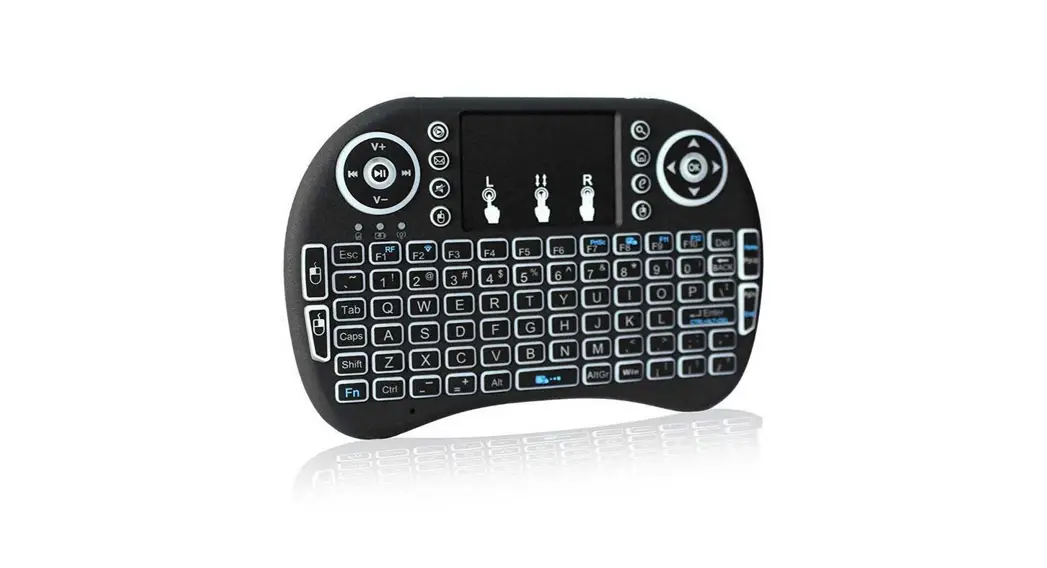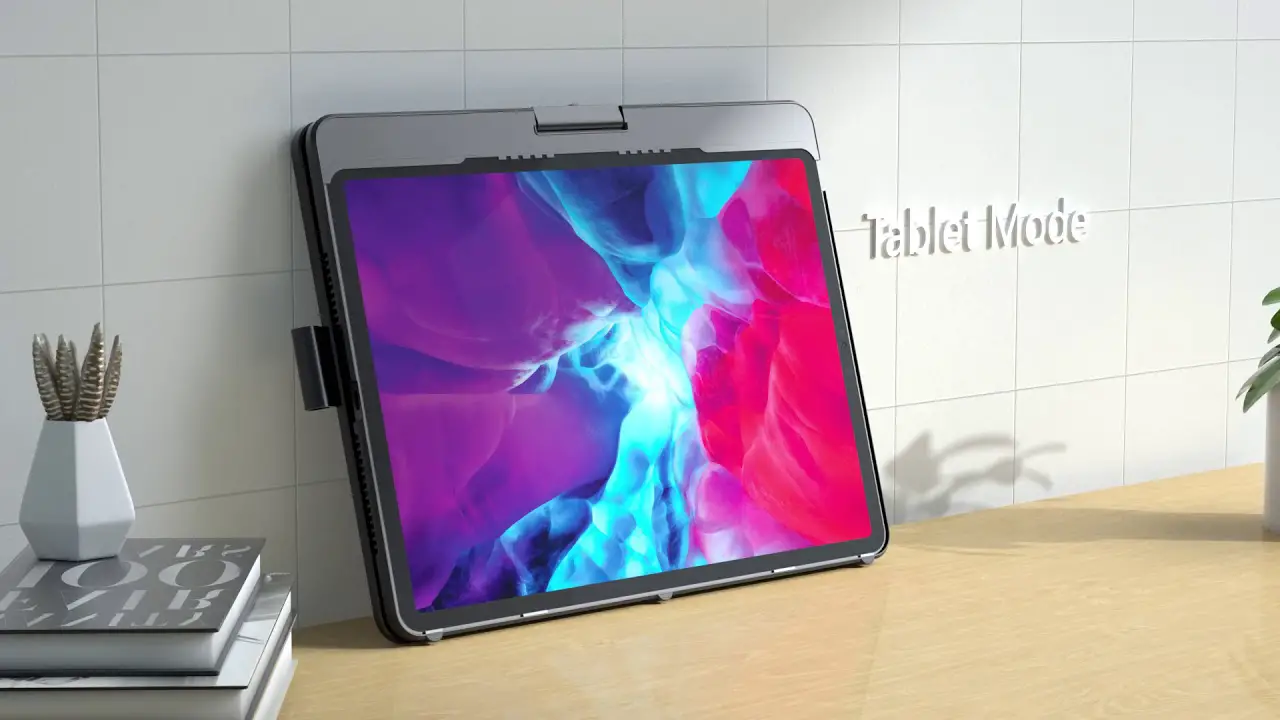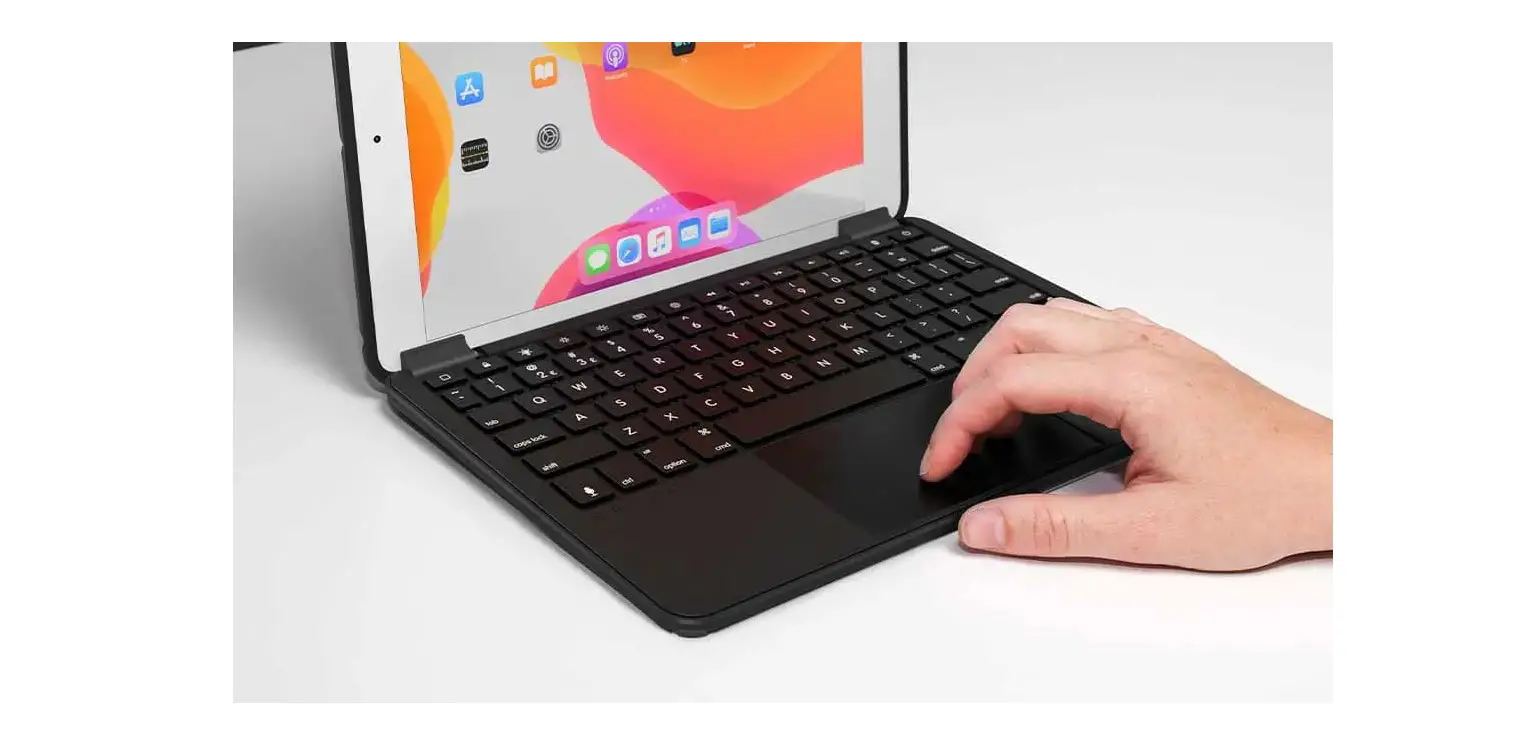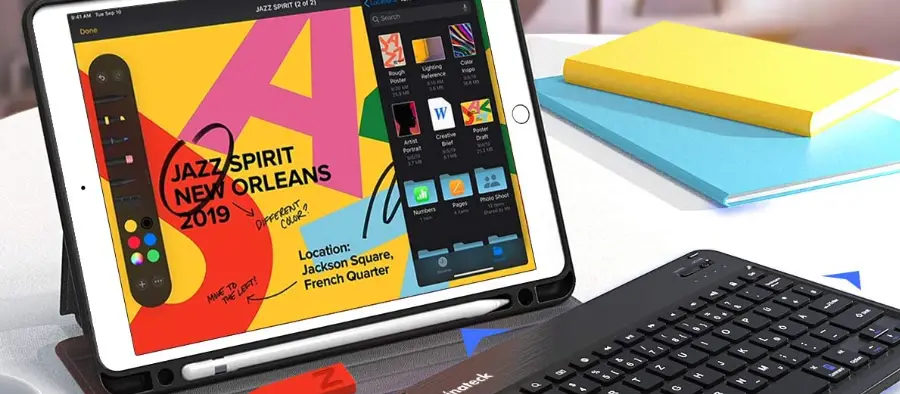

FINTIE KAW000X Kids Wireless Touchpad Keyboard with Detachable Case User Manual
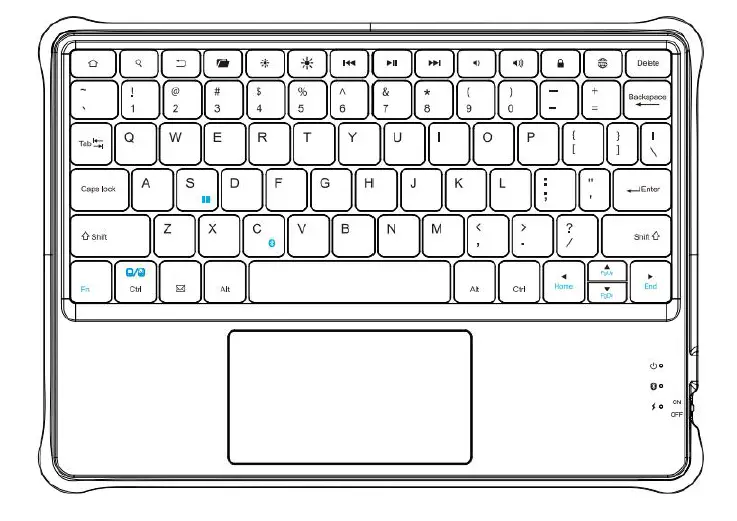
Pairing Steps
Note: See Product overview section below for more details.
- Step 1. Switch Power switch On to turn your keyboard on.
- Step 2. Press the “Fn + C” keys together to enter pairing mode.
- Step 3. Verify your device’s Bluetooth® settings are on. Select Settings > Bluetooth > On.
- Step 4. Select “Pair new device”.
- Step 5. Select “Fintie Keyboard” from your device’s list of available devices to complete pairing.
- Step 6. The Bluetooth pairing indicator will turn off after your device has paired successfully.
Sleep Mode
The keyboard will enter sleep mode after being idle for 30 minutes. Press any key to wake the keyboard. Wait up to 2 seconds for the keyboard to reconnect with the tablet before starting to type.
Charging Your Keyboard
- Plug the USB-C end of the charging cable into the keyboard and the other USB end into your preferred USB charger. (USB charger is not included.)
- When charging, the power indicator will turn red. Generally, it takes approximately 2 hours for a full charge. (Output: DC 5 V/500 mA.)
Package Contents
- 1 x Keyboard
- 1 x Protective Case
- 1 x USB-C Charging Cable
- 1 x User Manual
Specifications
| Bluetooth Version | BLE 5.0 |
| Operating Range | Up to 10 metres |
| Working Voltage | 3.0-4.2 V |
| Working Current | 1 mA |
| Charging Current | 200 mA |
| Sleeping Current | 0.01 mA |
| Re-connect Time | Apx. 2 seconds |
| Stand-by Time | 365 days |
| Charge Time | ≤ 2 hours |
| Uninterrupted Work Time | Up to 500 hours |
| Lithium Battery Capacity | 300 mAh |
| Frequency Band | 2400 to 2483.5 MHz |
| Maximum Radio-frequency power | 0 dBm |
Product Overview
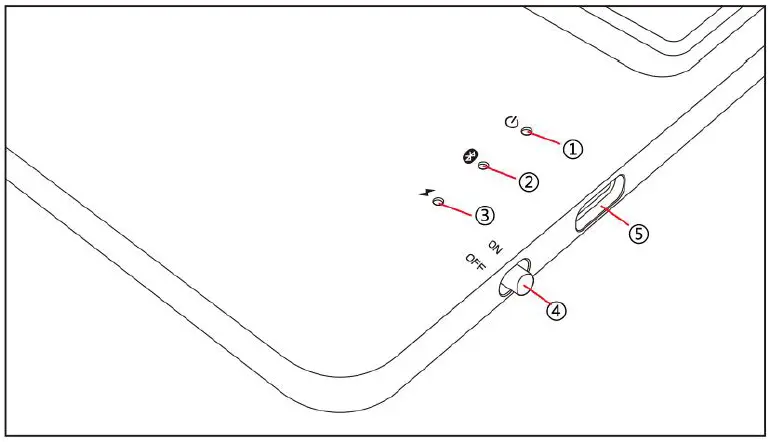
- Power indicator: Turns green for 3 seconds. Caps Lock indicator: Green light is on.
- Bluetooth indicator: Flashes blue when pressing “Fn + C”.
- Charging indicator: Red while charging. Green when fully charged.
Low battery indicator: Flashes red when charging is required. - Power Switch: Slide “on” to power on and “OFF” to power off the keyboard.
- Charging port: Only used for charging.
Keys and Function
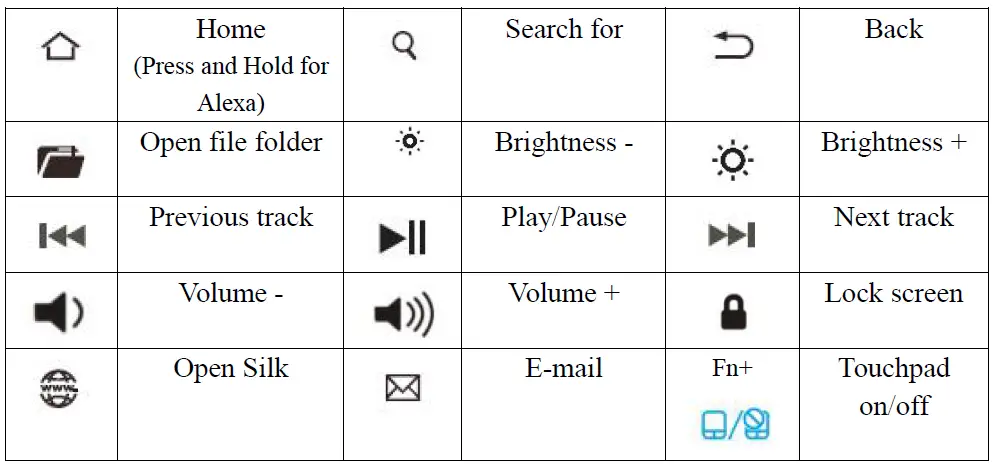
Touchpad Function
| Gesture | Finger action picture | Function |
| 1-finger tap |  | Left-Click |
| 1-finger slide |  | Move cursor |
| 1-finger double-click and hold |  | Drag and Drop |
| 2-fingers tap | 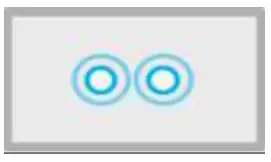 | Right-Click |
| 2-fingers vertical/horizontal movement | 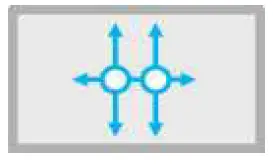 | Scroll / Pan |
| 3-fingers slide up | 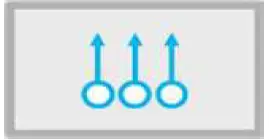 | See all open windows |
| 3-fingers slide down | 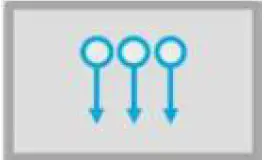 | Show the desktop |
| 3-fingers slide to the left | 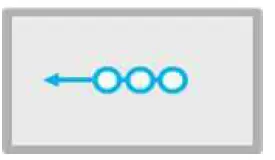 | Switch between open windows |
| 3-fingers slide to the right |  | Switch between open windows |
Troubleshooting
If your device does not respond to the keyboard, try the following.
- On your Fire HD tablet, navigate to “Settings > Connected Devices > Previously connected devices” and delete any entries for unused Bluetooth devices including “Fintie Keyboard”.
- Restart your device.
- Turn your keyboard off and back on.
- Forget and re-pair your keyboard.
- If your keyboard does not establish or maintain a Bluetooth connection, reset the Bluetooth module by charging your keyboard.
- If your keyboard does not operate correctly after charging it, please contact your authorized retailer.
Safety Tips
- Do not place heavy objects on the keyboard.
- Do not disassemble the product
- Keep the product away from oils, chemicals and organic liquids.
- Use only a damp, soft cloth, like microfibre, to wipe the keyboard.
- Dispose of the battery according to local laws.
- Keep the product away from sharp objects.
For UK customers only
Recycling Your Old Electricals Is Easy!
Recycle your electrical and electronic devices for free at your local recycling centre. To find your nearest centre, visit www.recycle-more.co.uk and type in your postcode.
Why Recycle?
Unwanted electrical equipment is the UK’s fastest growing type of waste. Many electrical items can be repaired or recycled, saving natural resources and the environment. If you do not recycle, electrical equipment will end up in landfill where hazardous substances will leak out and cause soil and water contamination–harming wildlife and also human health.
We’re proud to support your local authority in providing local recycling facilities for electrical equipment. To remind you that old electrical equipment can be recycled, it is now marked with the crossed-out wheeled bin symbol. Please do not throw any electrical equipment (including those marked with this symbol) in your bin.
What is WEEE?
The Waste Electrical or Electronic Equipment (WEEE) Directive requires countries to maximise separate collection and environmentally friendly processing of these items
How Are We Helping?
In the UK, distributors including retailers must provide a system which allows all customers buying new electrical equipment the opportunity to recycle their old items free of charge. As a responsible retailer, we have met the requirements placed on us by financially supporting the national network of WEEE recycling centres established by local authorities. This is achieved through membership of the national Distributor Take-back Scheme (DTS). To find more information on WEEE recycling and to locate your nearest recycling centre, please visit www.recycle-more.co.uk.
IC Caution
This device complies with Industry Canada license-exempt RSS standard(s). Operation is subject to the following two conditions:
- This device may not cause interference, and
- This device must accept any interference, including interference that may cause undesired operation of the device
Contact Us
Website: www.fintie.com
E-mail: [email protected]
North America
Tel: 1-888-249-8201
(Monday-Friday: 9:00 AM – 5:00 PM EST)
FCC Warning
This device complies with part 15 of the FCC Rules. Operation is subject to the following two conditions (1) This device may not cause harmful interference, and (2) this device must accept any interference received, including interference that may cause undesired operation. The device has been evaluated to meet general RF exposure requirement. The device can be used in portable condition without restriction.
IC Caution
This device contains licence-exempt transmitter(s)/receiver(s) that comply with Innovation, Science and Economic Development Canada’s licence-exempt RSS(s). Operation is subject to the following two conditions:
- This device may not cause
- This device must accept any interference, including interference that may cause undesired operation of the device.