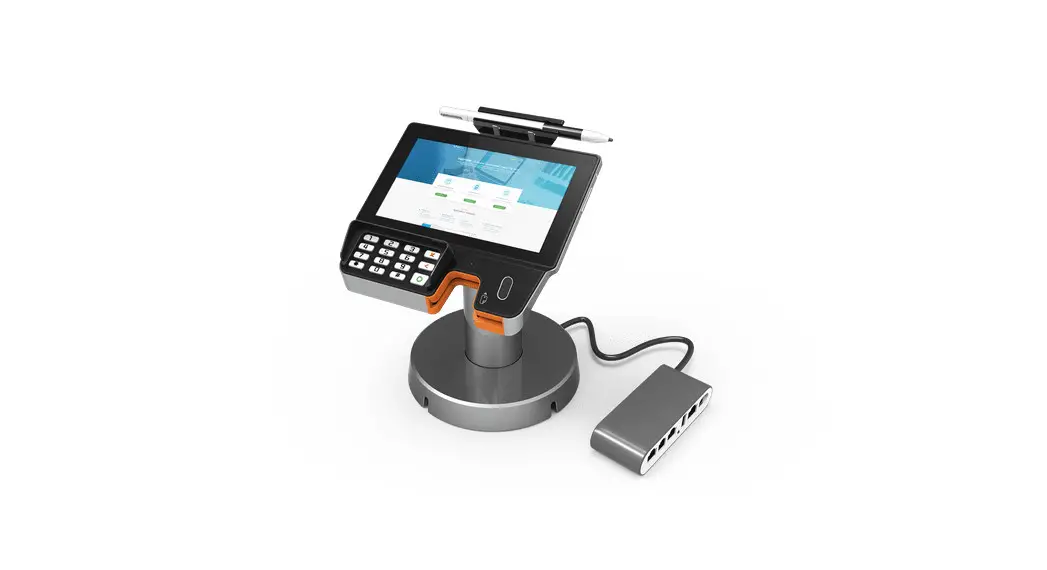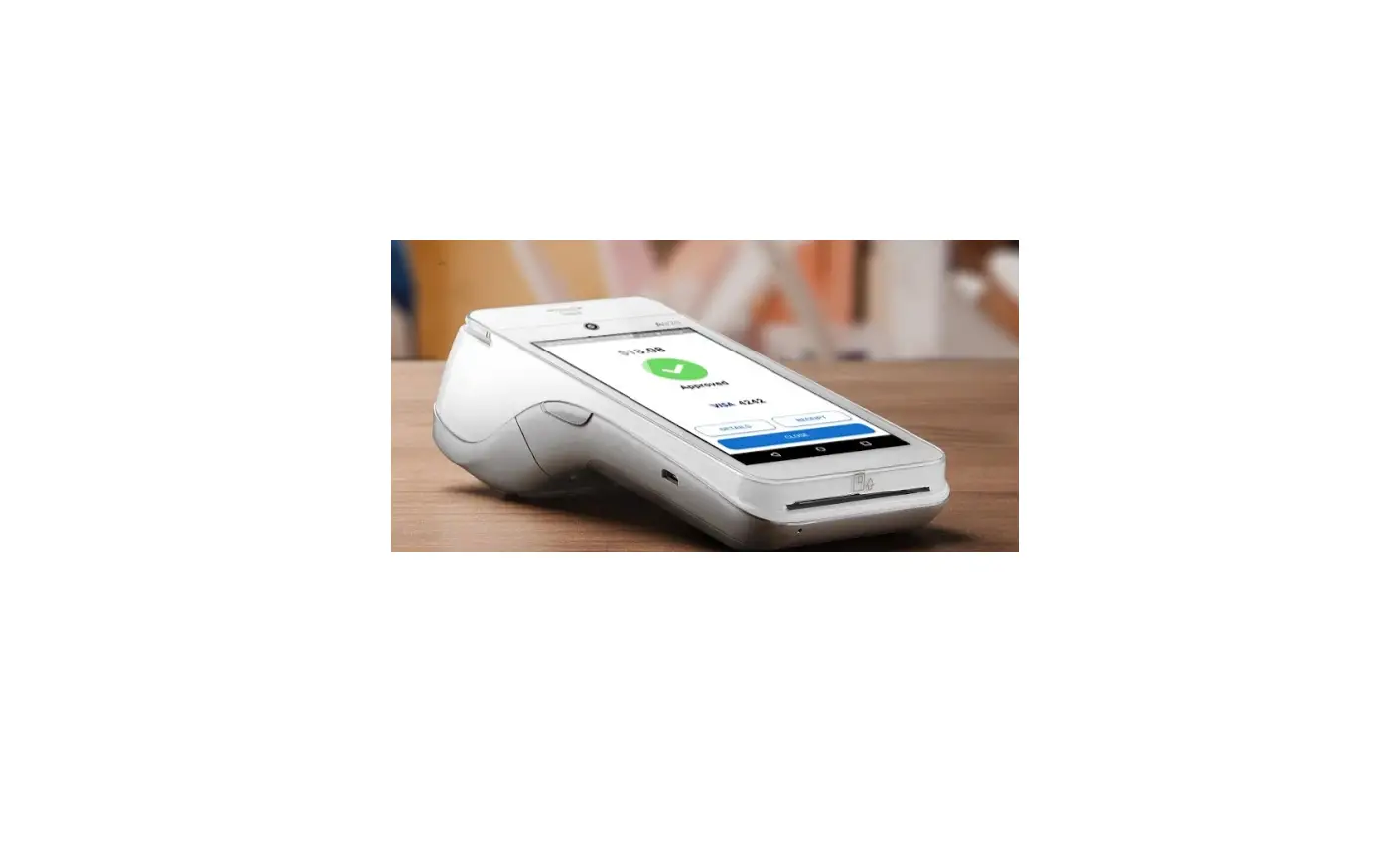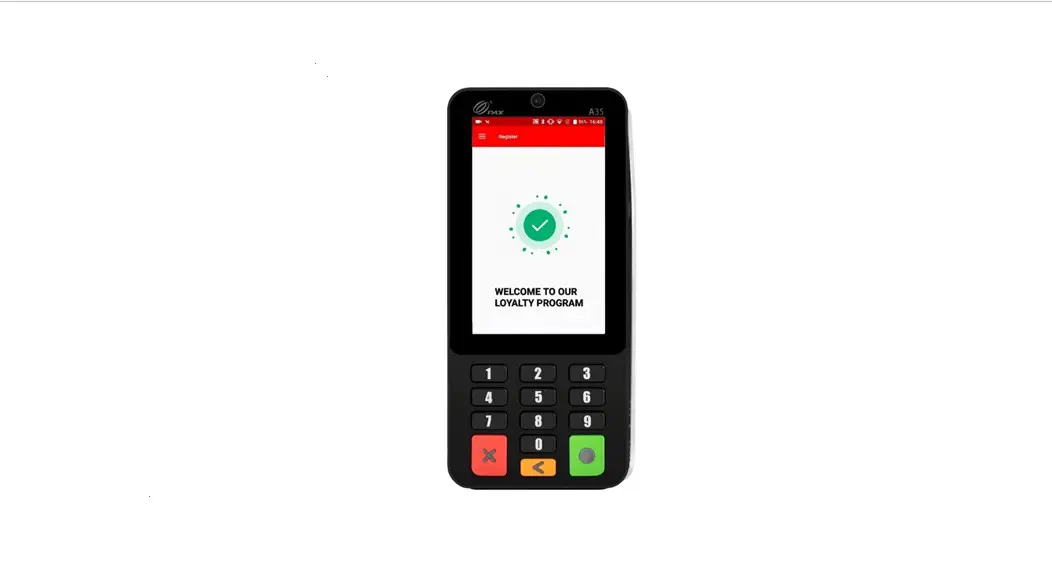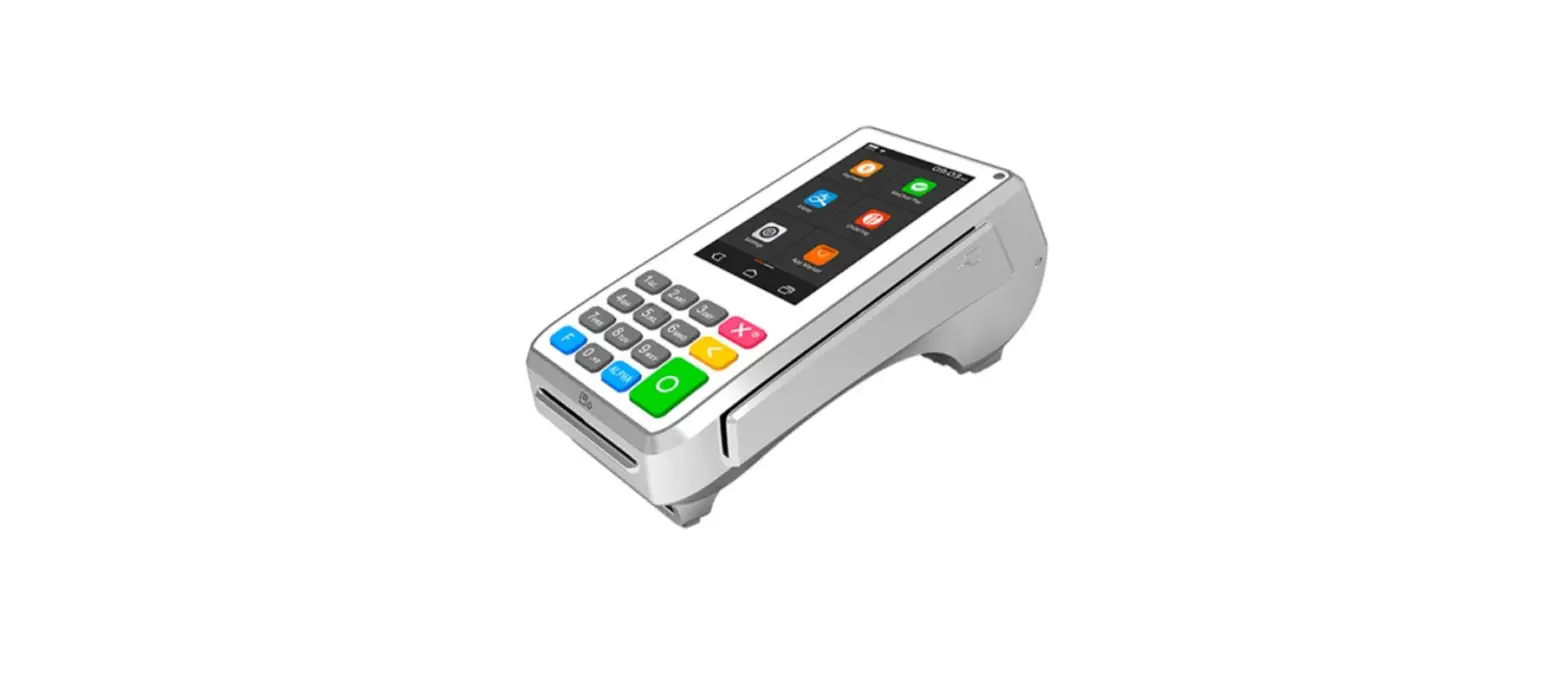
 PAX A77
User Manual
User manual for the basic functions of the PAX A77
Overview of the device
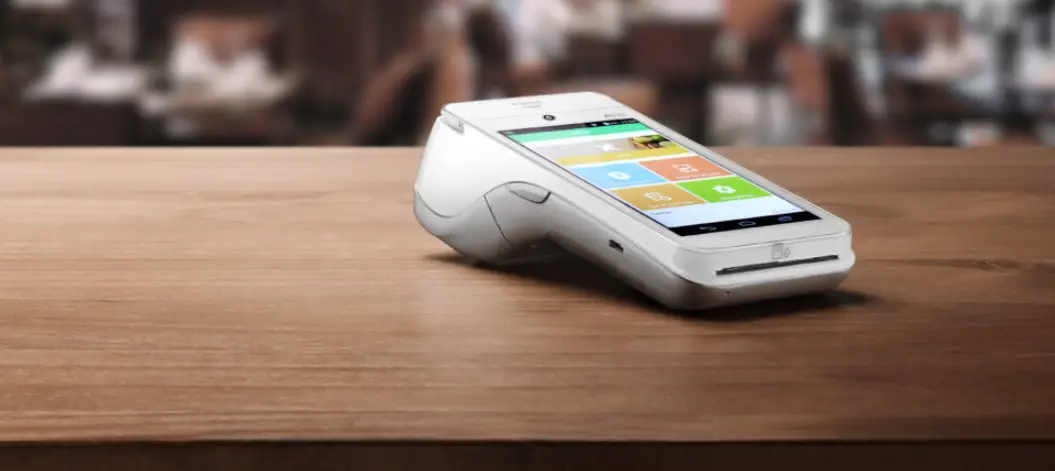
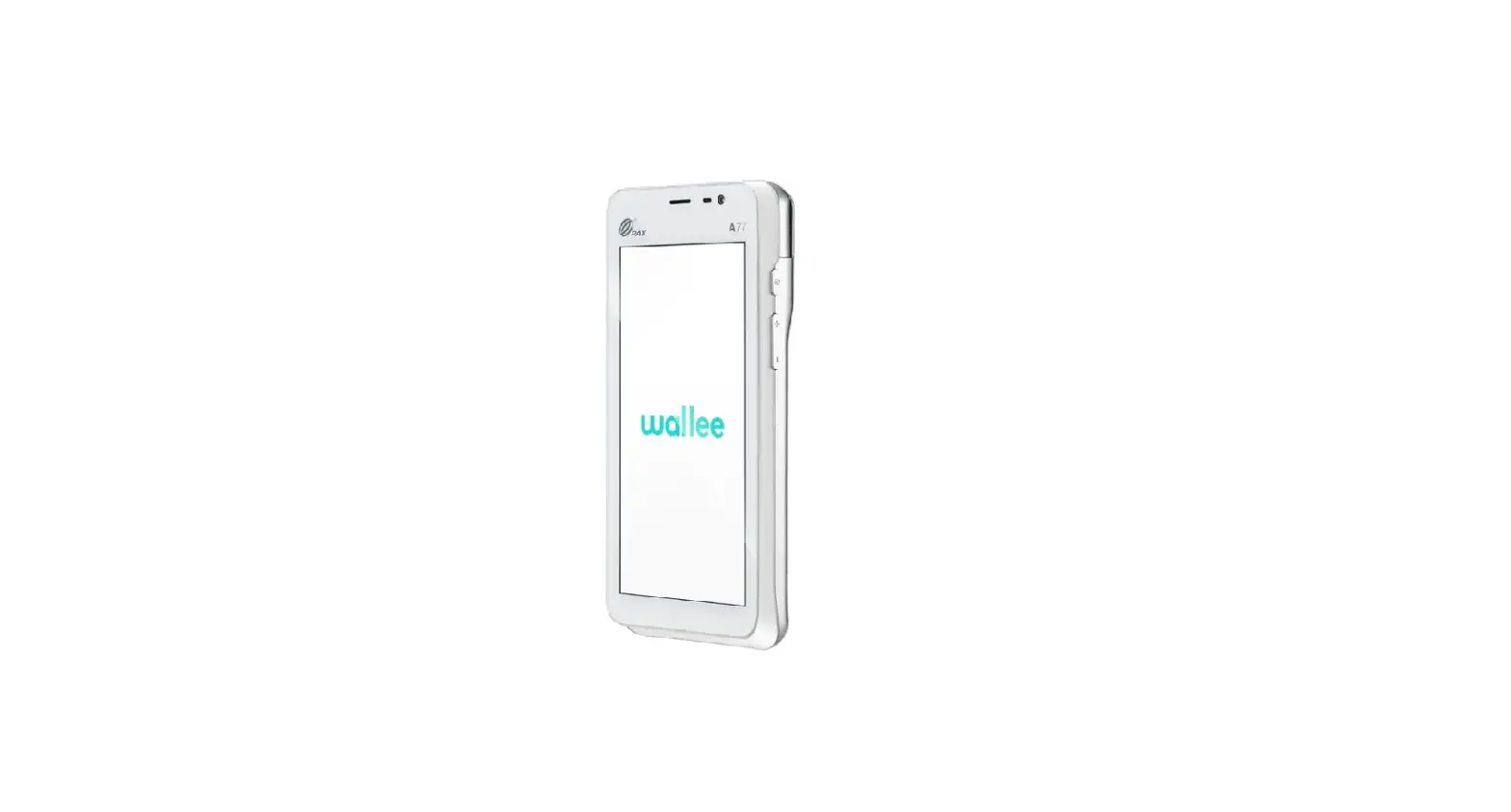
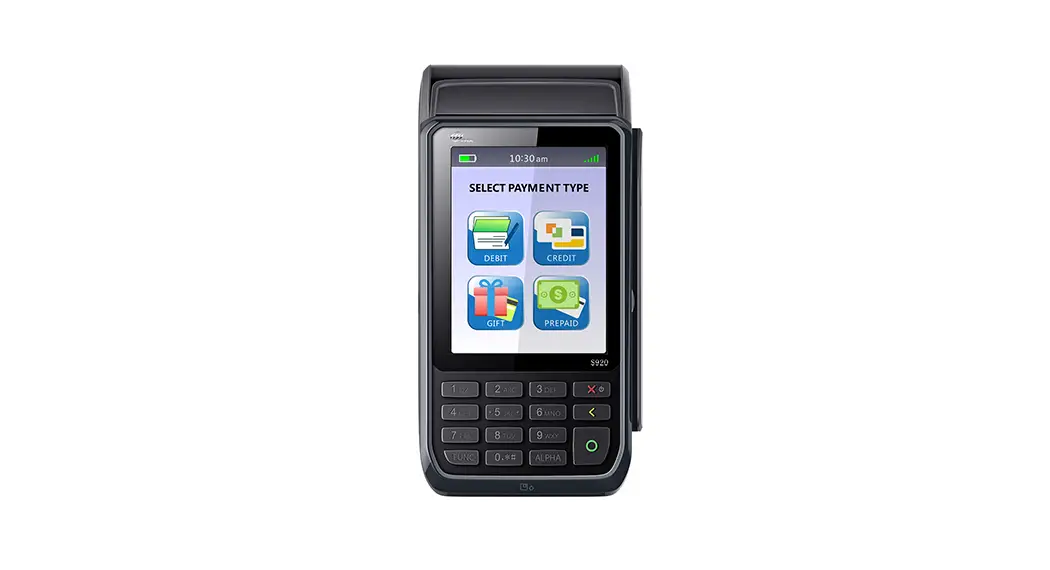
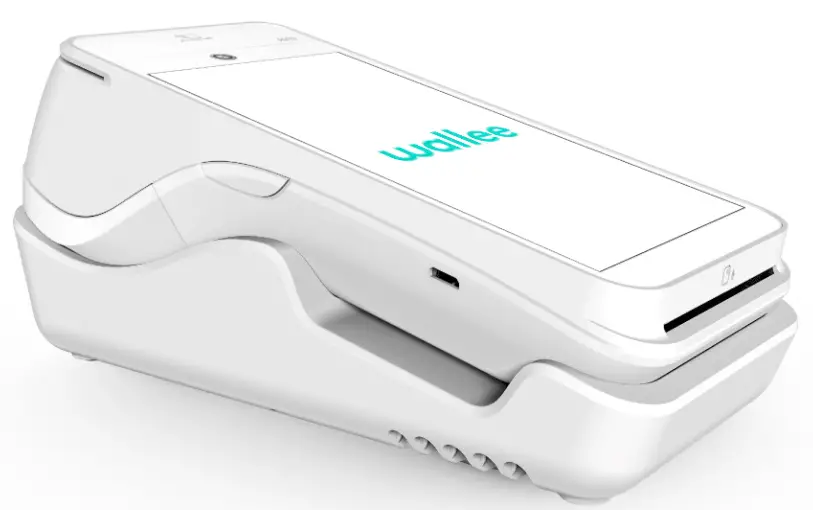
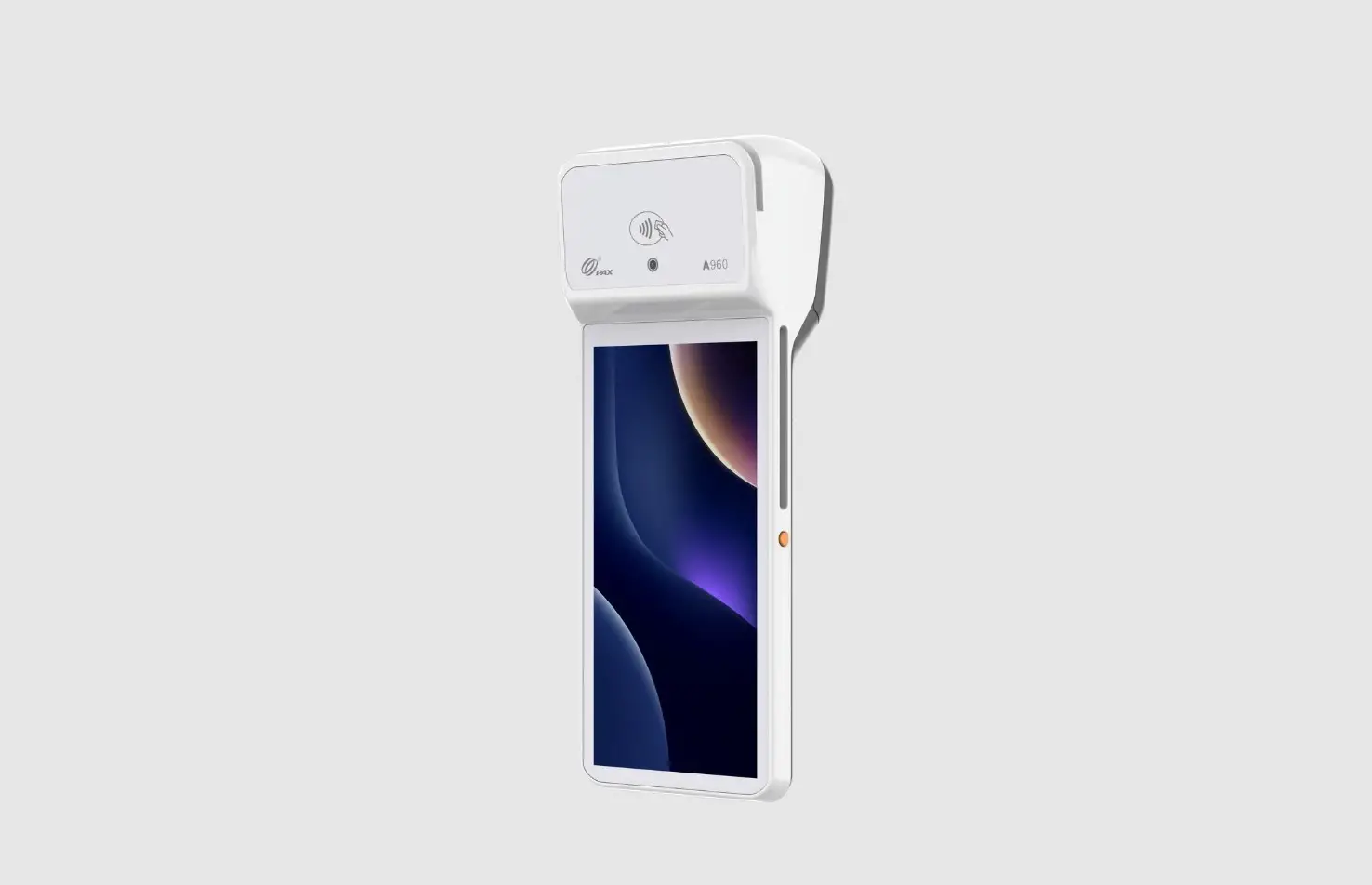
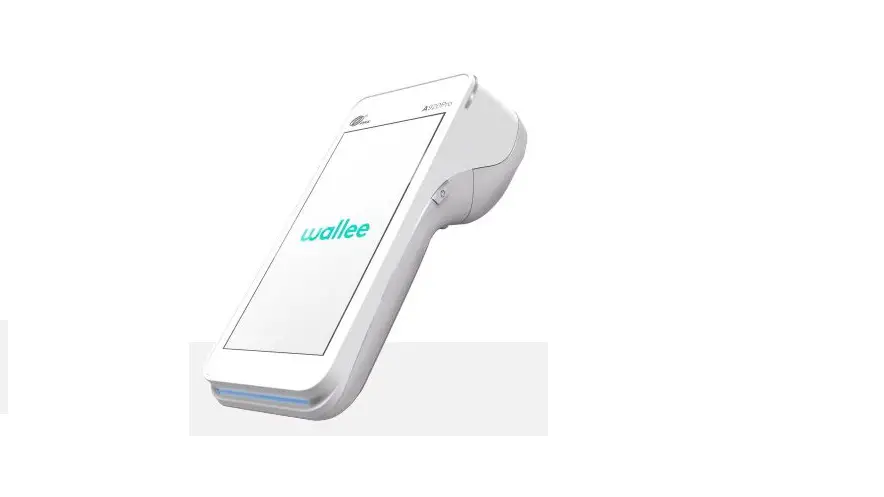
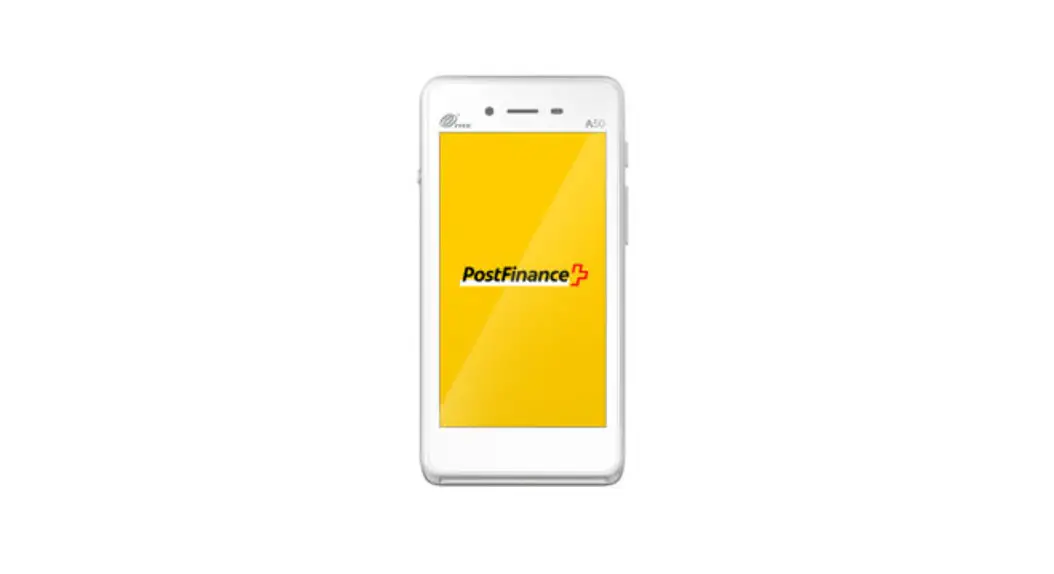
With the PAX A77, you have chosen a top-quality terminal based on Android that offers you numerous possibilities with intuitive operation. With its integrated reader for contactless payment methods, card reader, cameras and much more, the lightweight terminal is the perfect choice for accepting modern payment methods in your business.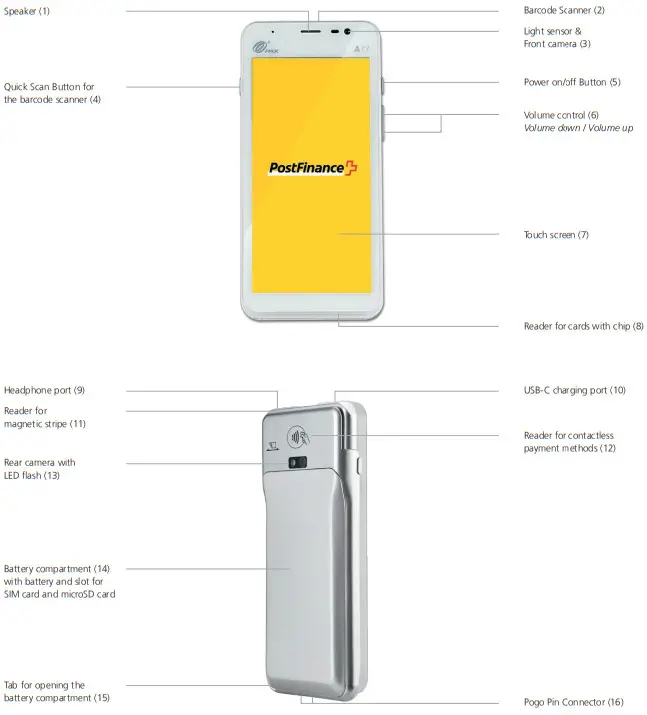
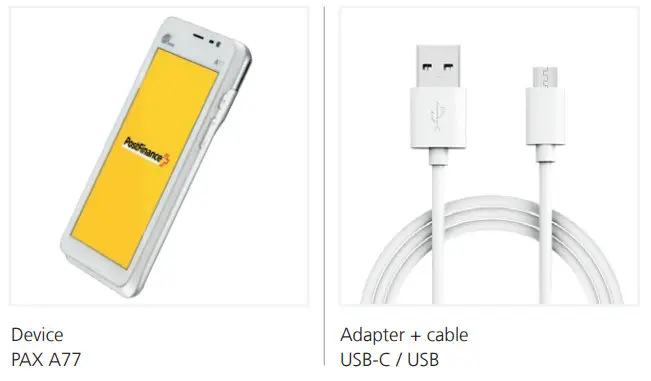
Delivery contents
Setup
The initial setup and installation of your new PAX A77 is very simple.
In just a few steps, your device is ready to handle your payment transactions. If you have any questions during setup, our support team will be happy to help.
- Charging the device
Before using the unit for the first time, it should be fully charged. To do this you can charge the terminal directly via the USB cable supplied. Use the the USB-C port on the top side of the unit (10). - Switching the device on / off
Press and hold the Power on/off button (5) for 2 seconds. To switch the unit off again, press the same button until you see a button until you see a selection menu with four options (Flight mode, Silent mode, Restart, Power off) and select the option „Power off“. - Set up Wi-Fi® / WLAN
Once your device is fully charged and switched on, you must first set up your Wi-Fi connection before you can you can enter the activation code (step 4).
- Select the settings icon in
 the upper left corner
 - Select „Device settings“
 and enter your merchant password if necessary
 - Select „Configuration WiFi“

- Select your Wi-Fi® / WLAN network, enter the password of your of your network and confirm
- Once you are connected to your WLAN, return to the start screen and return to the home screen and continue with the activation of your account (step 4).
 the upper left corner
 and enter your merchant password if necessary
4G data connection
All PAX A77 are equipped with a SIM card, already installed in advance and thus ready for use immediately when switching on. Therefore, you can also use the mobile data connection for activation.
4. Activate account
As soon as you have a WIFI connection (or mobile data connection), you can activate your account. Return to the the start screen and enter the activation code that you will receive from PostFinance. You will find this code in your „Space“ in the checkout back-office-tool under „Terminals“. The current configuration will automatically be loaded onto the device. Please do not interrupt this process until you see the start screen again. If you have any questions our support team will be happy to help you.
Perfect!
You have completed the initial setup of your PAX A77 and can now start using your terminal to accept modern payment methods.
Accept payments
Many functions on your PAX A77 are intuitive to find and easy to use thanks to the modern touchscreen.
Below you will find the basic functions for processing payments directly via the terminal (stand-alone use).
For integration into your POS system, you can obtain application instructions directly from the respective manufacturer.
Accept a payment
To accept a payment or make a sale on your device on your device:
- Click on the Card icon
 on the home screen
 - Enter the payment amount and confirm
- If the tip function has been activated, you will see a second input window in which you can enter and confirm the tip (optional)
- Now your customer can present the card or contactless payment method
- The transaction will be completed
Manual entry of payment details (optional)
Accept a new payment by clicking on the Card icon on the home screen and entering the payment amount. Then click on „Manual entry“. Your customerthen has the opportunity to enter his card details (card number, security code CVV, validity). Finally, the total amount is displayed once again and asked for confirmation.
The functionality for manual entry is not available for all payment methods, is optional and must be activated by PostFinance.
Refund a payment
To refund a payment to an existing card on your device:
- Click on the menu icon
 and enter your merchant password when required
 - Select the menu item „Credit“
 and enter the merchant password if necessary
 - Enter the total amount to be refunded
- Now your customer can present the card or contactless payment method to which the refund should be made
Refund for manual entry (optional)
Click on the menu icon  , enter your merchant password, select the menu item „Credit“
  and confirm again with your merchant password if necessary. Select „Manual entry“. You can then enter the card details of the card to which you want to refund (card number, security code, CVV, validity). Finally, the total amount will be will be displayed and you will be asked to confirm.
The functionality for manual entry is not available for all payment methods, is optional and must be activated by PostFinance.
Daily closing
You can call up all individual receipts, reports and much more at any time conveniently in your account in the checkout back-office-tool. The daily statement is created on your terminal:
- Select the menu icon
- Now select „Reports“
 and then „Daily closing“
 and then „Daily closing“
The transactions of the day are now sent to the acquirer and you will see a confirmation on the display. You can then view the report in the checkout back-office-tool. The reports should be generated every day.
Cancel the last transaction
The last transaction can be cancelled very easily. To do this, you need the means of payment with which the payment was made:
- Select the menu icon
- Select „Cancel“
 from the menu
 - Enter your merchant password
 from the menu
Payment reservation (Pre-auth)1
If required, you can pre-authorise a means of payment or reserve the payment:
- Select the menu icon
- Now select the area „Reservations“
 and then „Reservation“
- Enter the amount and present the card or contactless payment method (or optionally enter the card details manually, as required).
 and then „Reservation“
Adjust a payment reservation (Incremental auth)1
To adjust an existing payment reservation:
- Select the menu icon
- Now select the area „Reservations“and then „Increase Reservation“

- Enter the amount by which you want to increase the existing reservation
- Now enter the Acquirer Id (Acq-Id) and the corresponding relevant Transaction Reference Number (Trx. Ref-No) and confirm

1 Note on Pre-auth functions
The functions for pre-auth / payment reservations are only available to certain industries, e.g. hotels, and must be approved by your acquirer. In order to complete, adjust or cancel the payment reservation you will need the Acquirer Id (Acq-Id) and the Transaction Reference Number (Trx. Ref-No). Make sure that you make a note of these numbers or that you keep the receipt of the reservation.
Finalise a payment reservation (Pre-auth compl.) 1
To complete an existing payment reservation:
- Select the menu icon
- Now select the area „Reservations“and then „Booking Reservation“

- Enter the Acquirer Id (Acq-Id) and the Transaction Reference Number (Trx. Ref. No.) of the original reservation and confirm

Cancelation of a payment reservation (Pre-auth cancelation)1
To delete an existing payment reservation:
- Select the menu icon
- Now select the area „Reservations“and then „Cancelation Reservation“

- Enter the Acquirer Id (Acq-Id) and the Transaction Reference Number (Trx. Ref. No.) of the original reservation and confirm

Further Settings
Changing the Merchant Password
If required, you can also change your merchant password of the terminal directly via the terminal. As a general rule we recommend that you update your merchant password via the checkout back-officetool.
However, to change the merchant password directly via the terminal proceed as follows:
- Select the settings icon
- Now select the area „Change password“ and confirm with your current merchant password
- Now enter a new password and confirm by pressing confirm with Enter / the green button
Any questions?
We are available from 8 a.m. to 12 noon and from 1 p.m. to 5 p.m., Monday to Friday, to answer your questions and enquiries.
Telephone 0848 382 423
(max. CHF 0.08/min. in Switzerland)
E-mail [email protected]
Change language settings
Language settings can be changed in the checkout back-office tool in the terminal configurations if necessary.
This document is for information purposes only. PAX and the PAX logo are trademarks or registered
trademarks of PAX Technology Limited in China and/or other countries. Other trademarks or trade
names are the property of their respective companies. © 2022 PostFinance Ltd. All rights reserved.
As at 3/2022. Subject to changes, and errors excepted.
460.280.2 en 03.2022