
MODIO M3 Kids Tablet
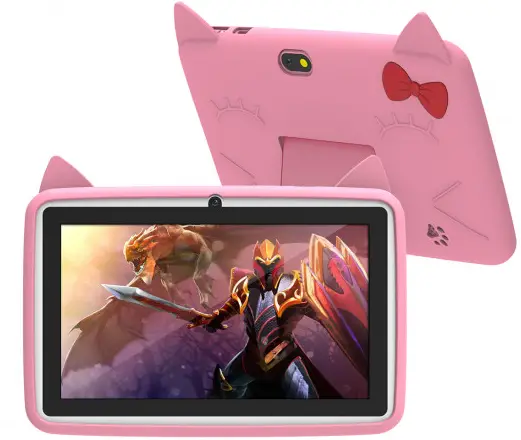
Please read the notes and important tips in this instruction before using.
Overview
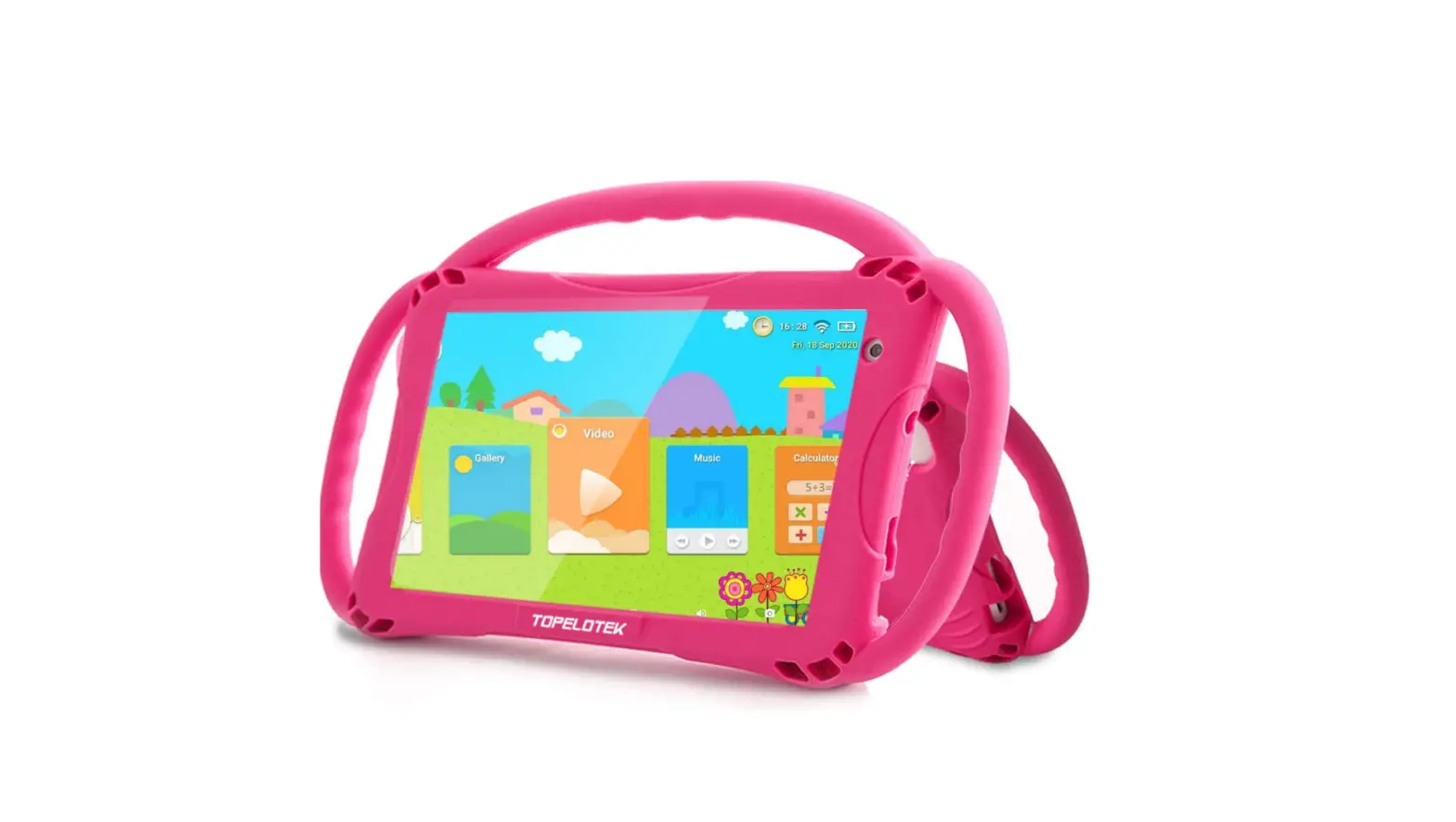
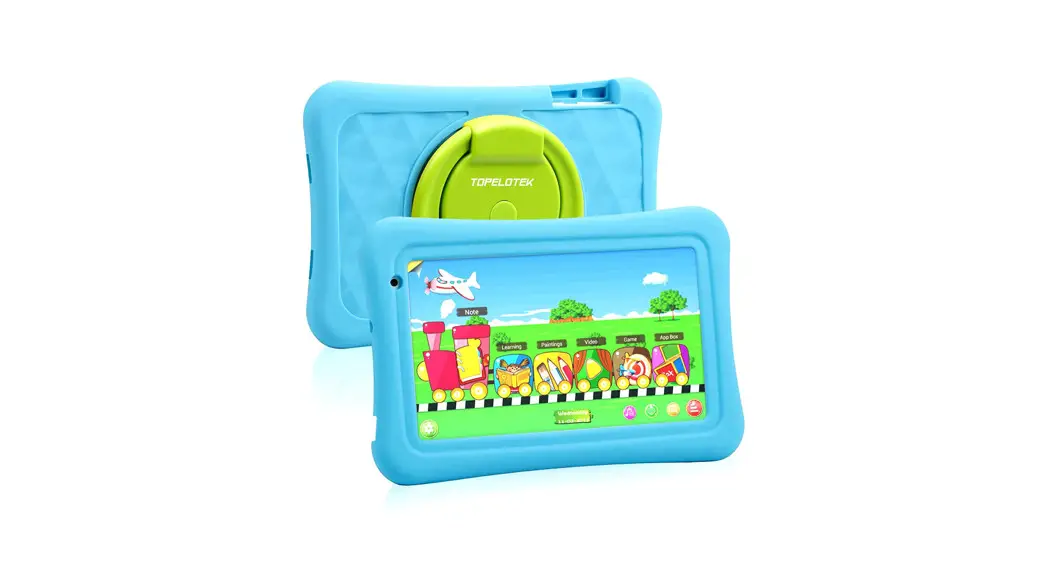
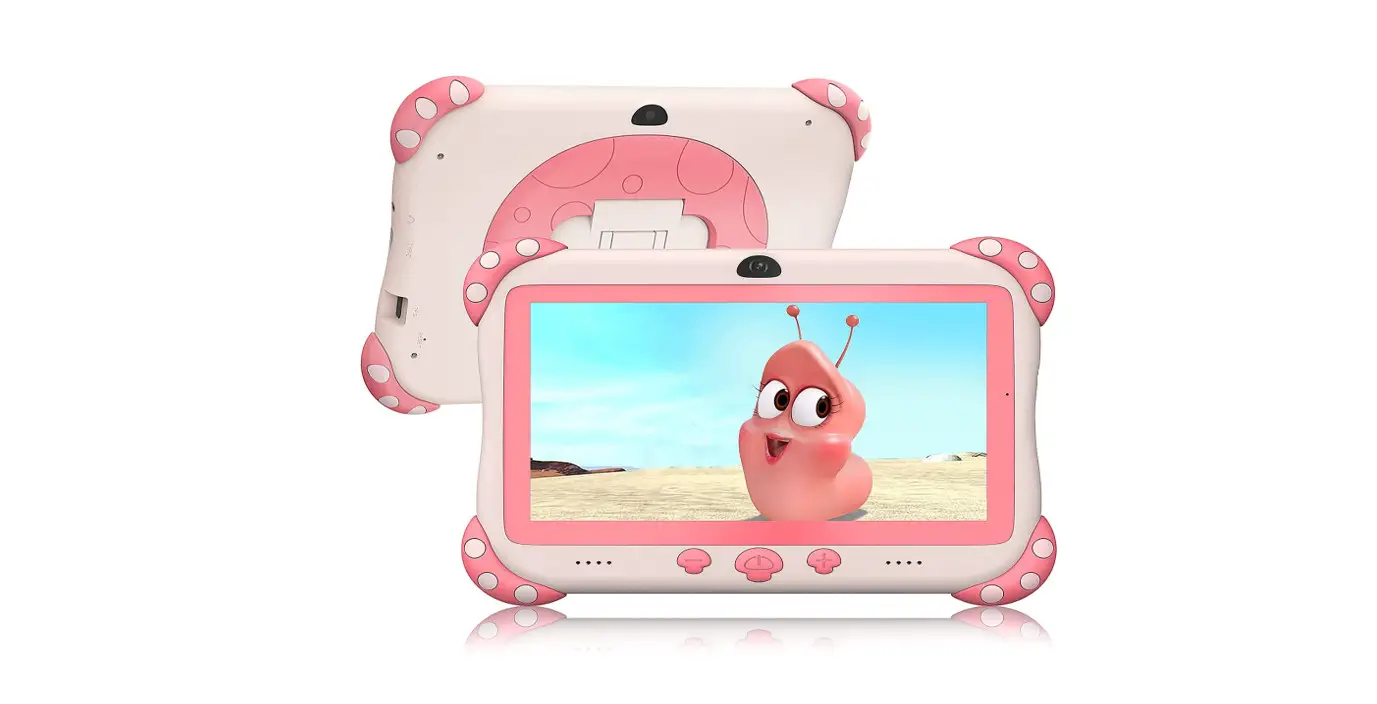
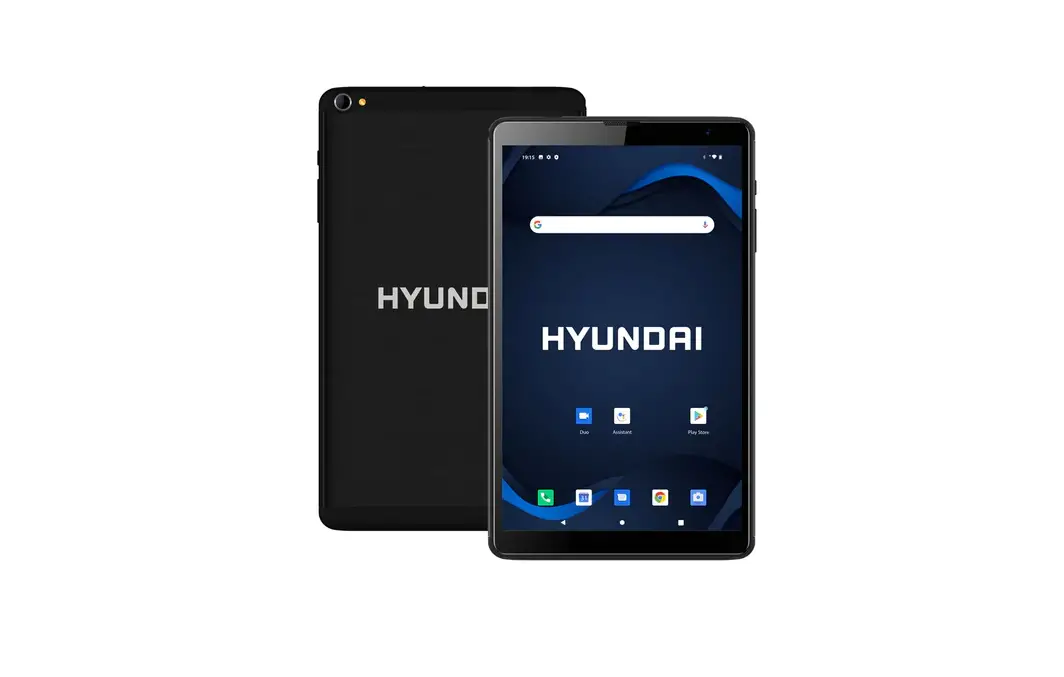
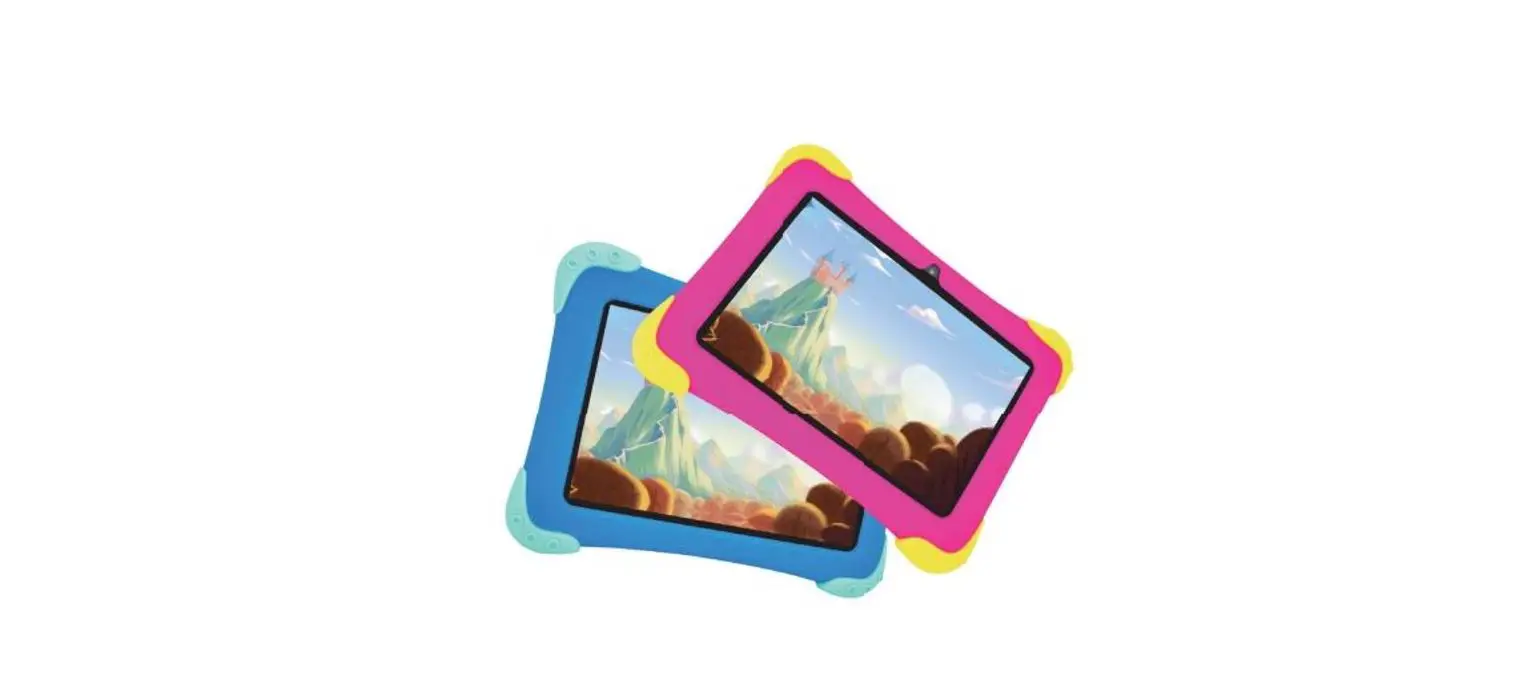
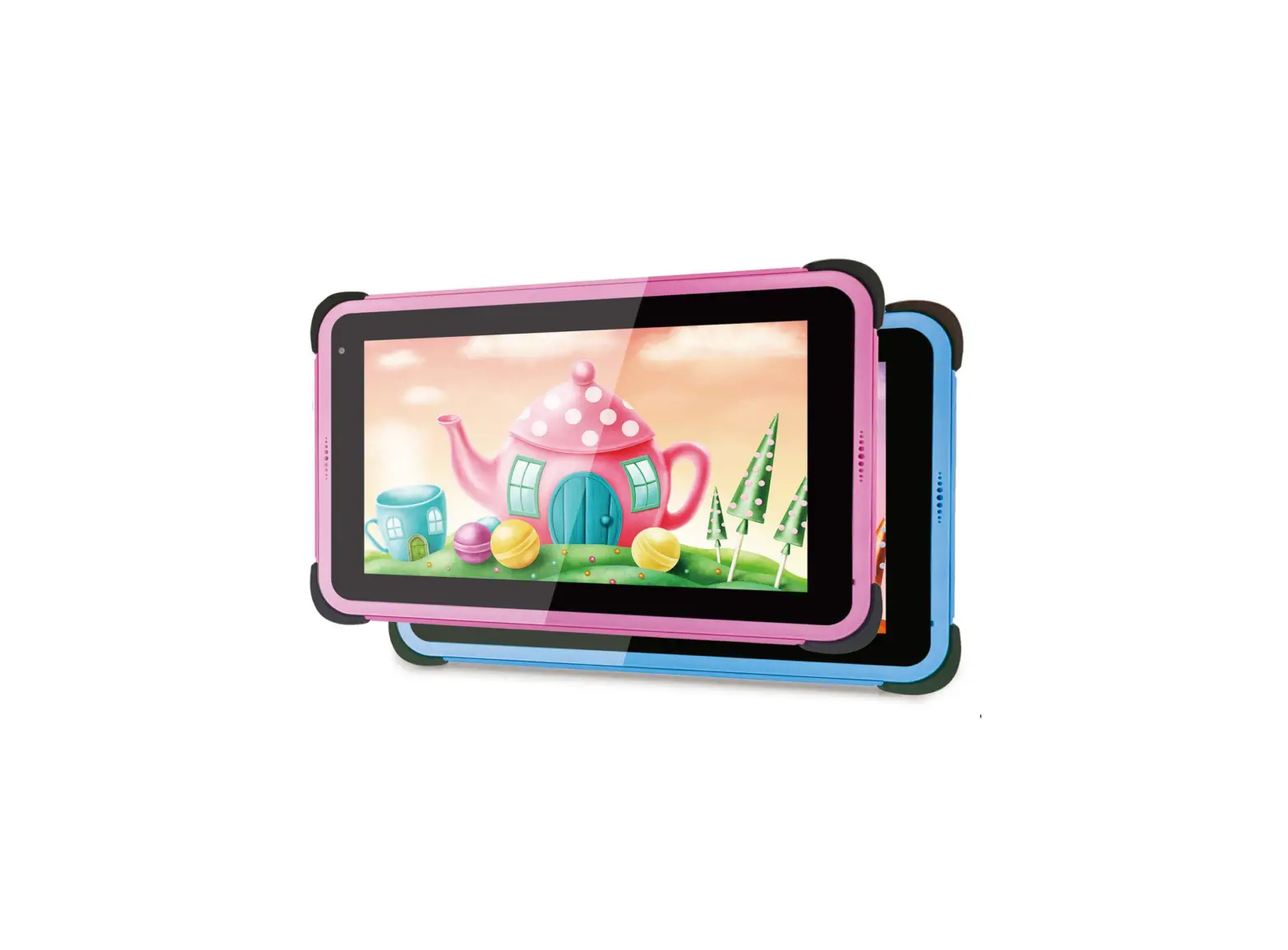
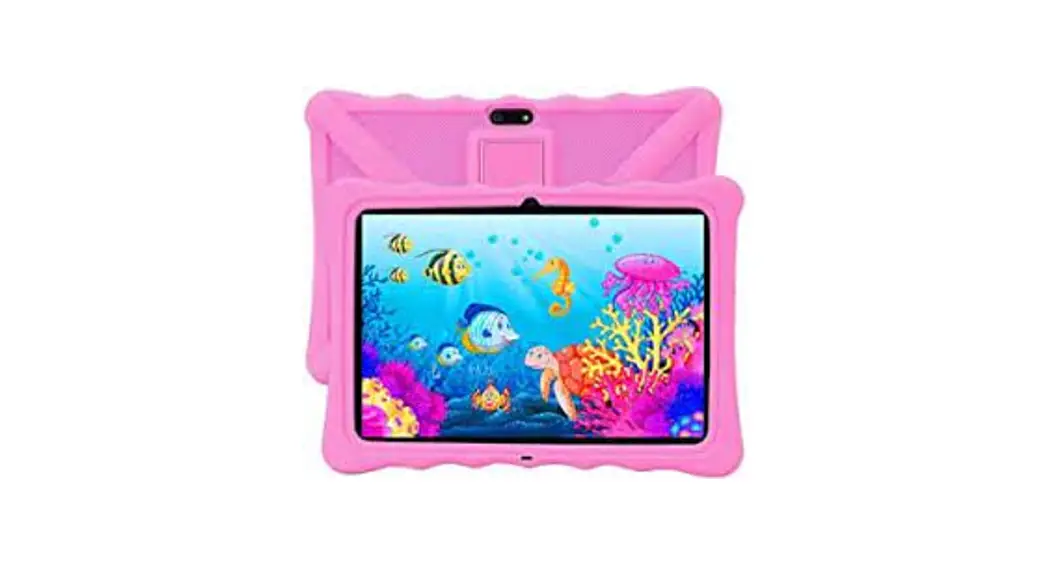
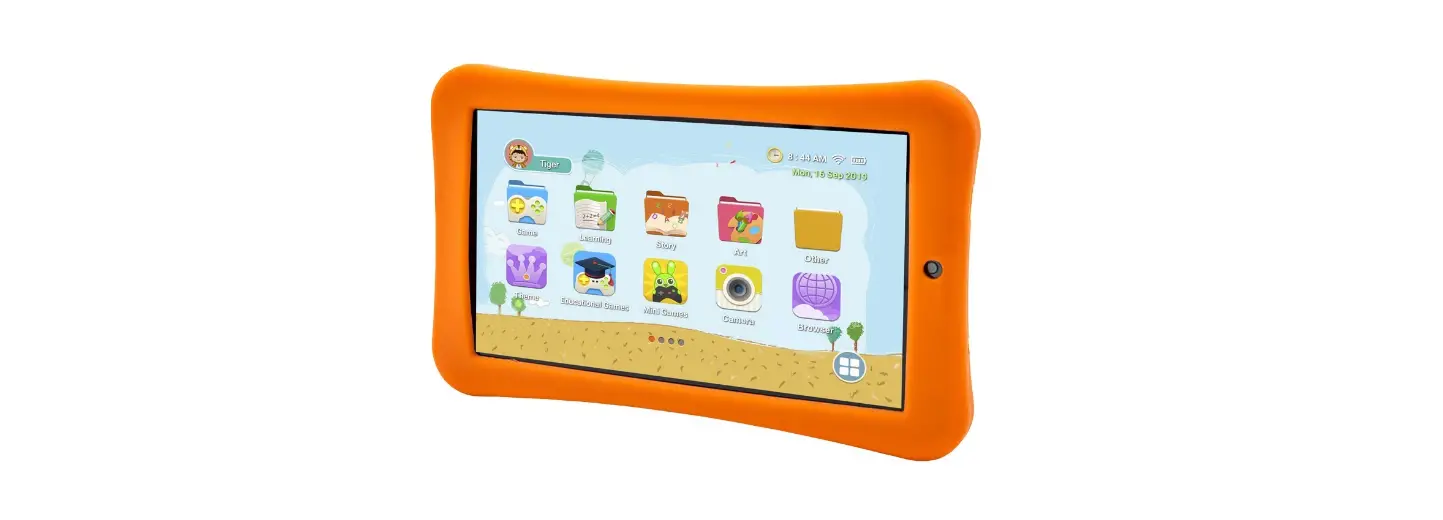
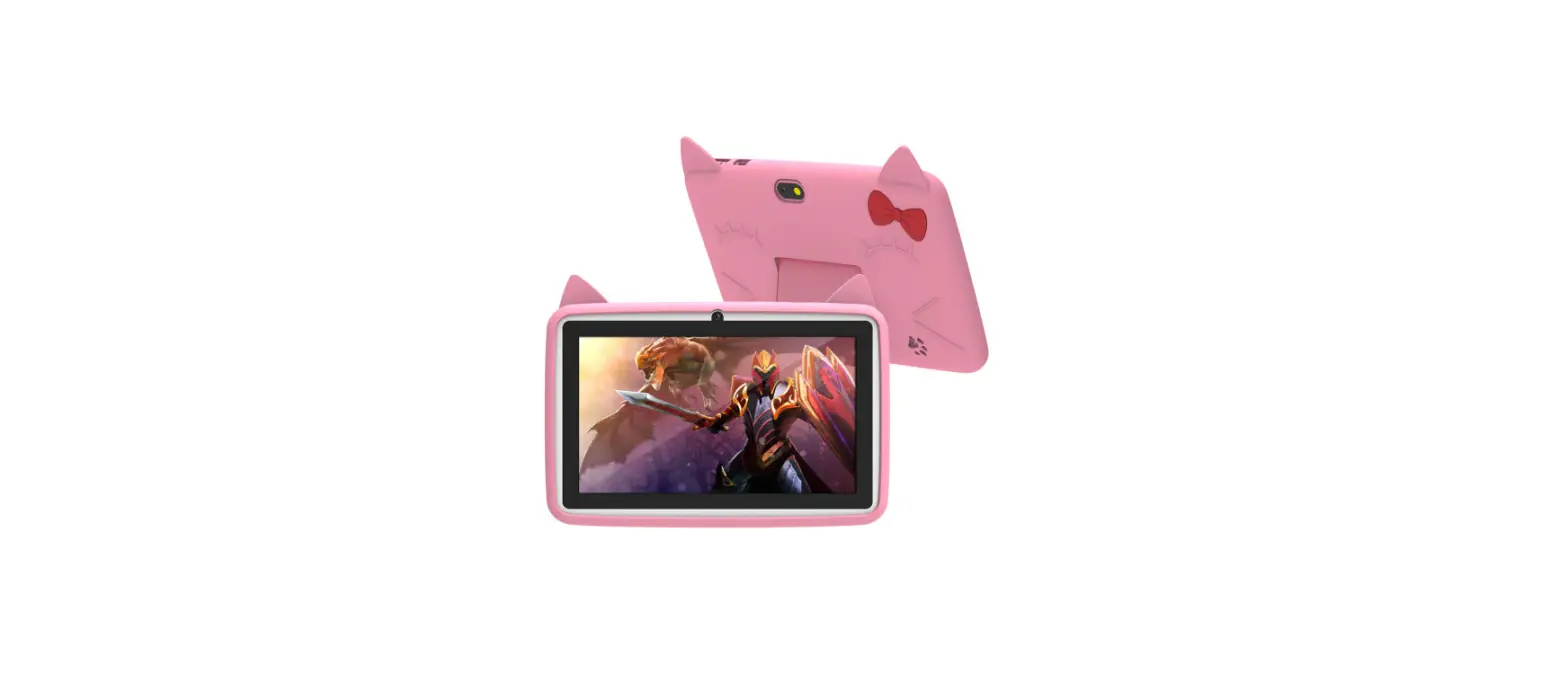
Appearance
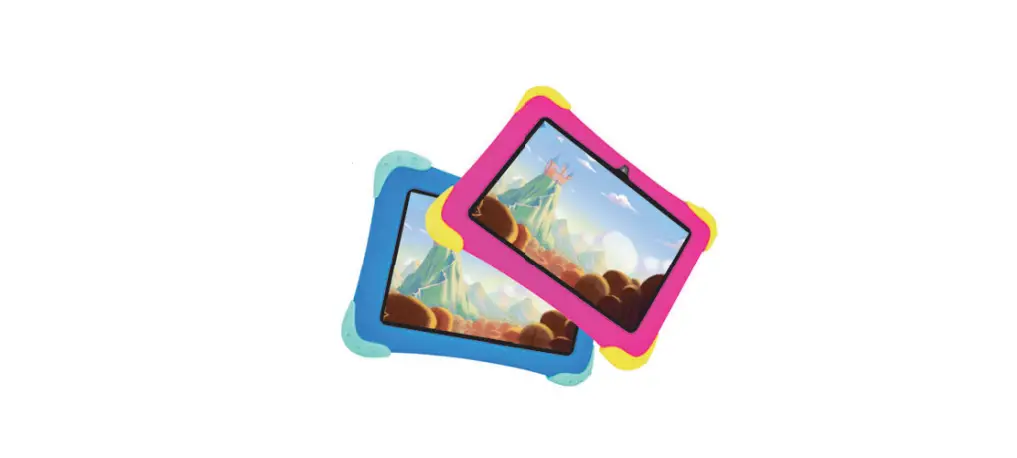
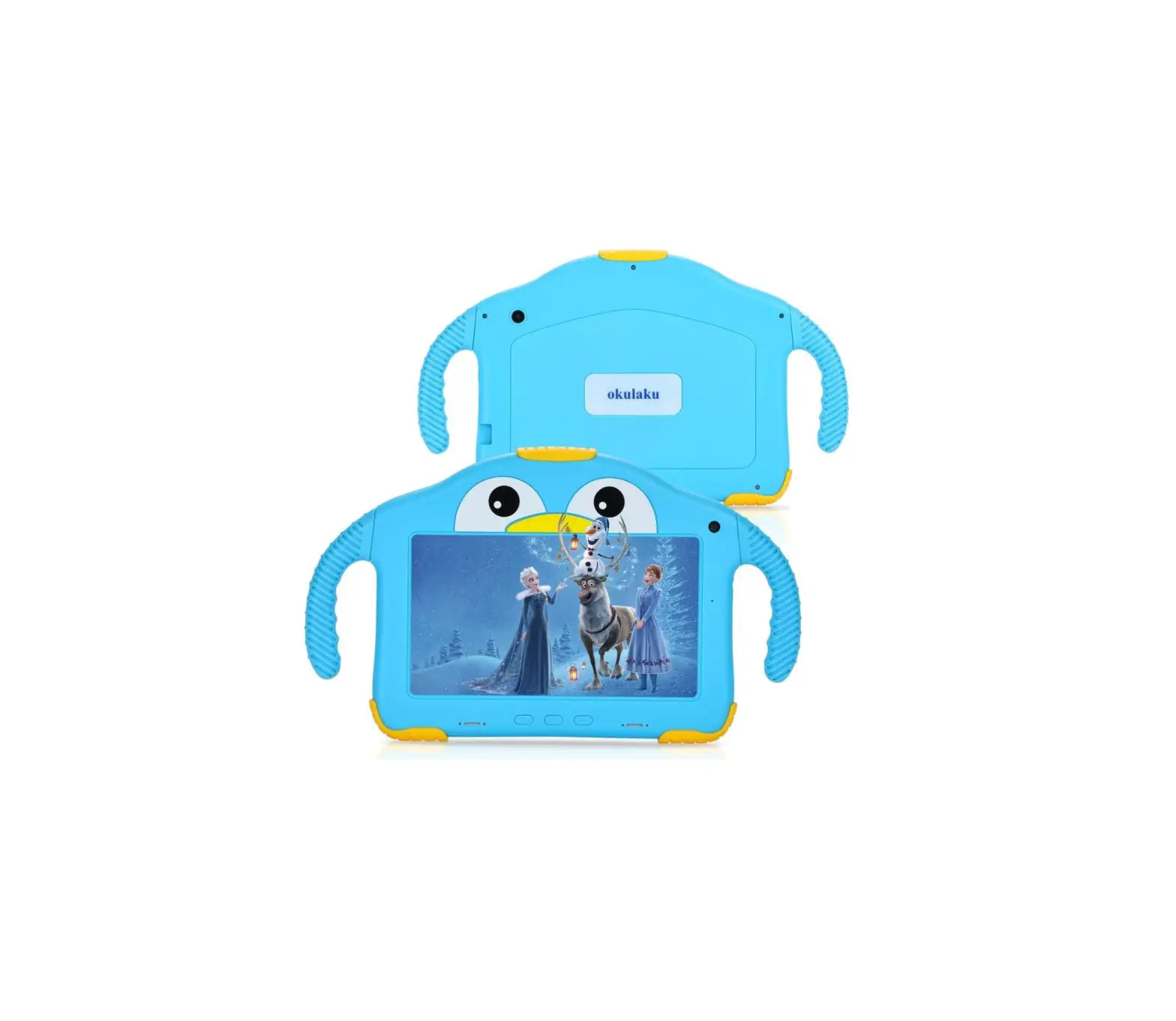
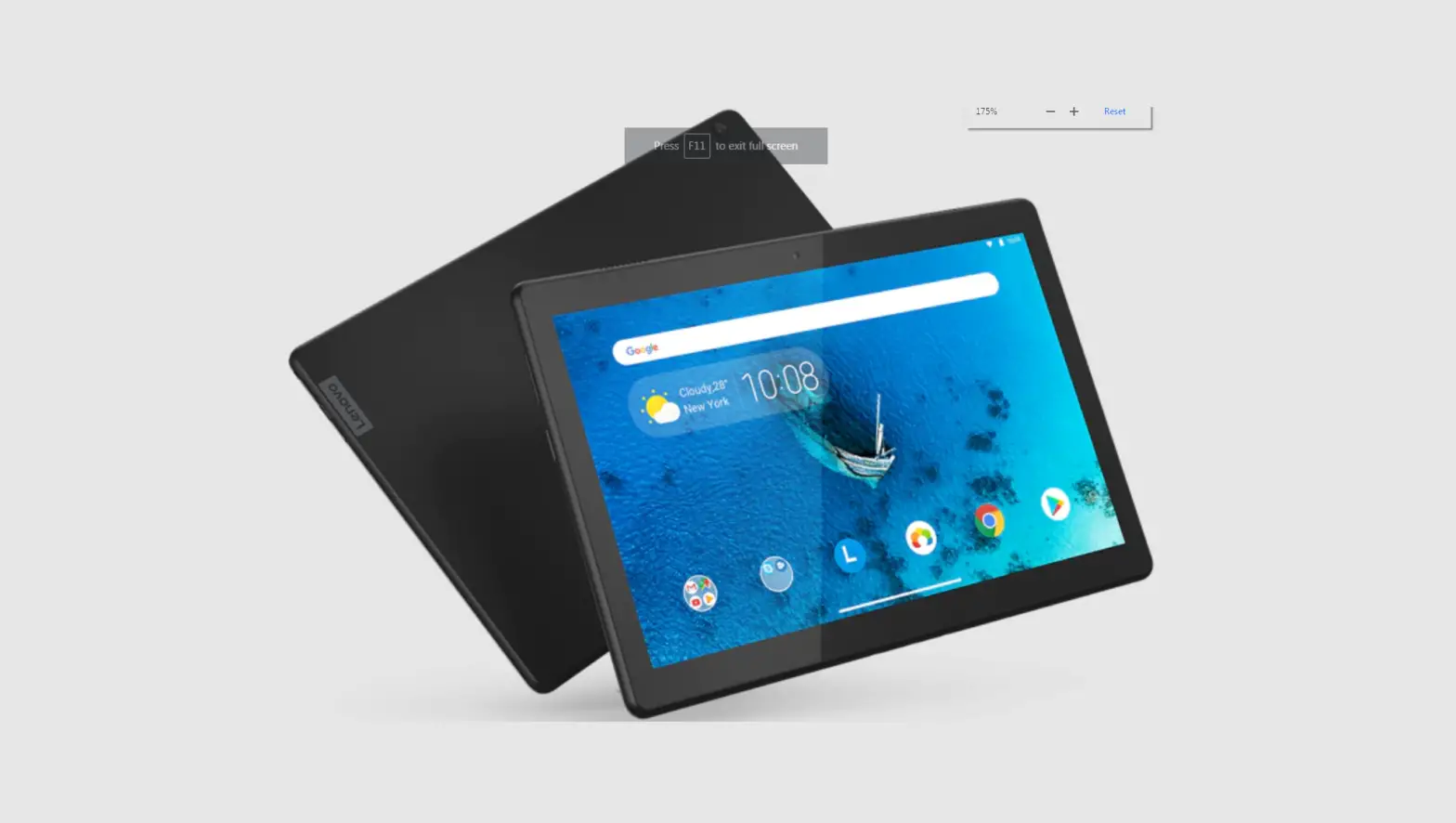
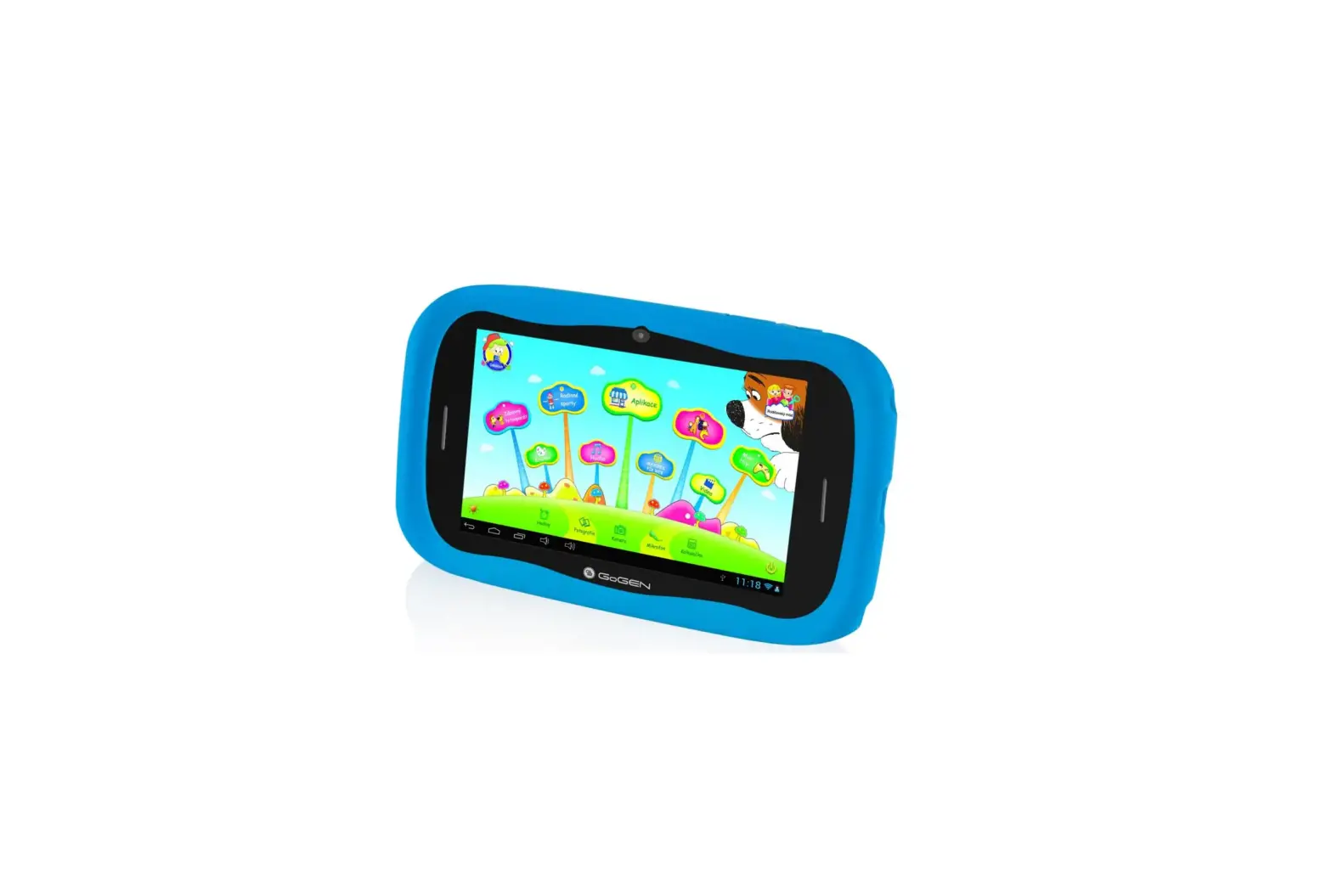
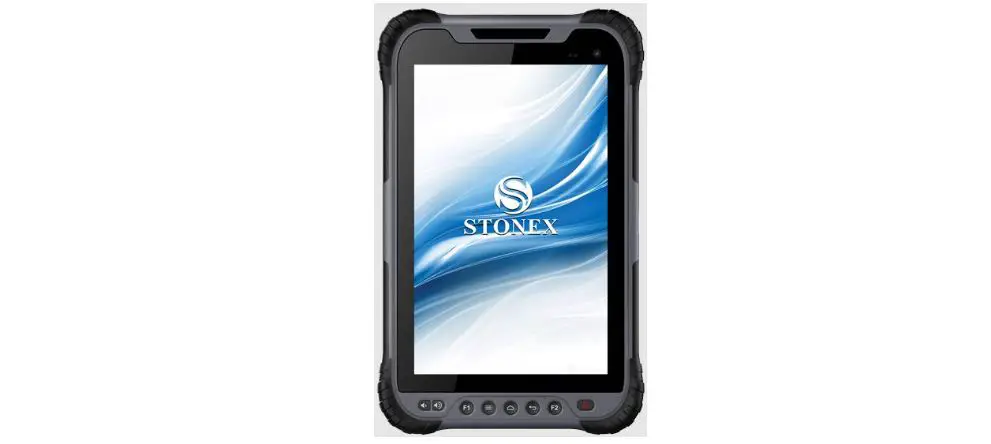
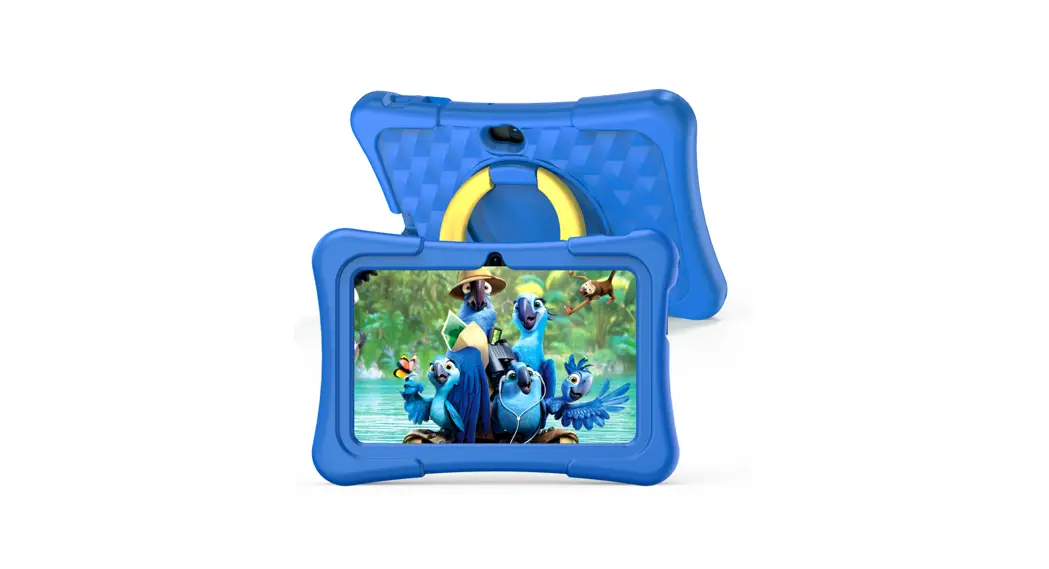
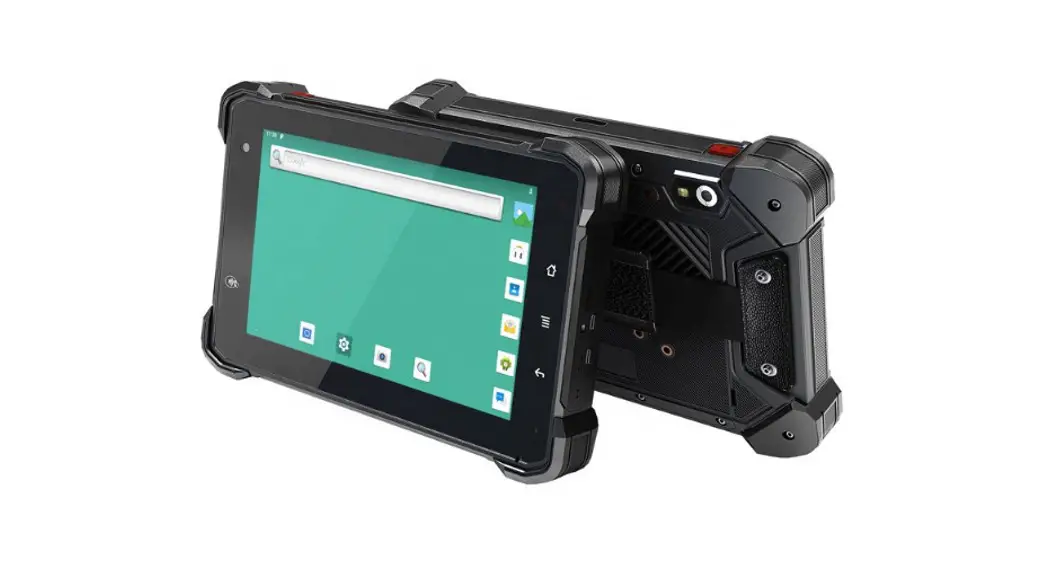
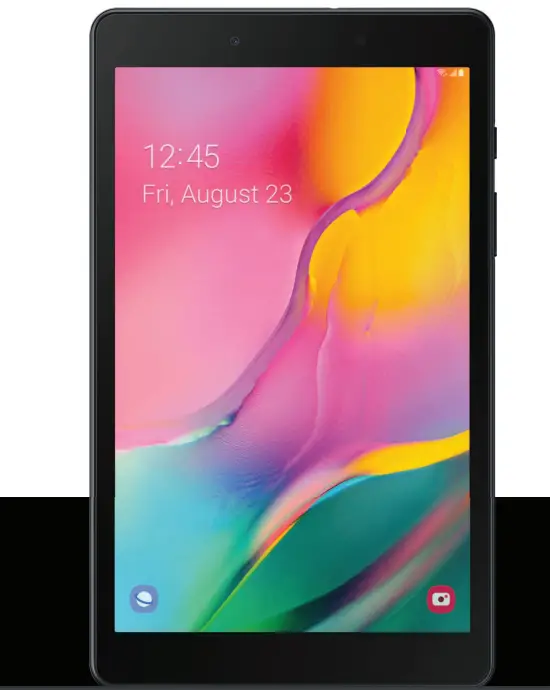
The picture is for reference only, please refer to the specific product.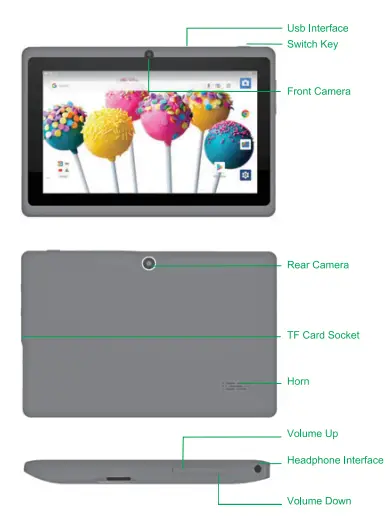
Button
- Power button
Press the power button for 2-3 seconds to turn on the tablet.
When the tablet is turned on, press this button to find pause mode. If you press this button again, the tablet will wake up. - volume
“+ and “” buttons to adjust the volume, - Edit
This button is used to edit the application.
Turn on and off
- Ignition
Press the right power button for 2-3 seconds, and the A9 logo and picture will appear alternately until the interface is entered. - Close
Press the power button for 2-3 seconds because lf you want to turn it off > appears on the screen, press OK to turn it off.
When the drive is turned off and charged, press the power button to view the charging process, and press again, it will turn on the tablet.
Enter pause and wake up mode
- Enter pause mode
Click the power button and the tablet will enter pause mode to save energy. - Exit pause mode
When you are in suspend mode, click the power button and the tablet will exit this mode and wake up.
Enter pause and wake up mode
- Enter pause mode
Click the power button and the tablet will enter pause mode to save energy. - Exit pause mode
When you are in suspend mode, click the power button and the tablet will exit this mode and wake up.
Lock and unlock
Locking
You can adjust the screen timeout and manage it from settings screen. If you do not use the tablet before the screen times out, the system will enter pause mode and lock.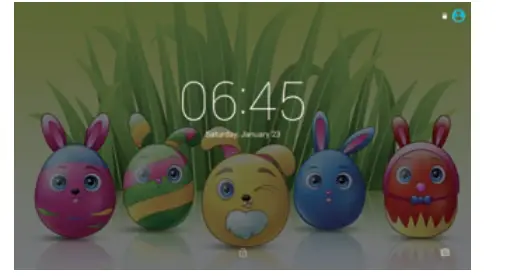
Unlock
Put your finger in the shape of the lock  Move it to the right and you’ll see that the lock is open. In the application interface.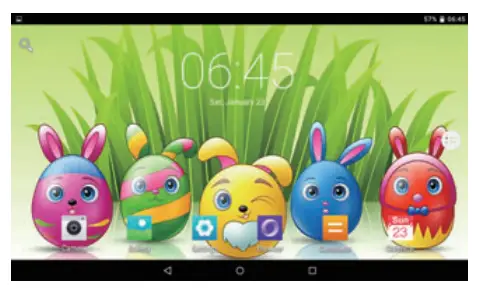
Start screen command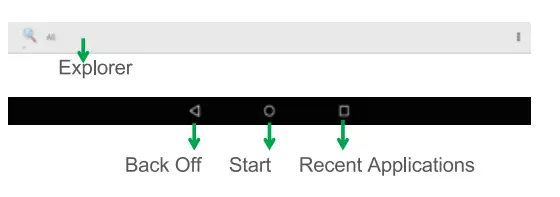
Text Input
Your tablet has a virtual touch keyboard that allows you to enter text, numbers, and symbols. To access the keyboard, simply place yourself in the writing area and the keyboard will appear on the Screen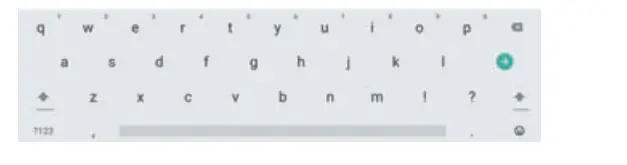
- You can switch between numbers and letters by pressing ?1234
- You can switch between uppercase and lowercase by pressing
Browser
- You must be connected to the network before you can access the browser. If you have any questions, please consult your service provider.
- Tablet browser can connect to Interner via WiFi to meet your needs.
Click on  To adjust WiFi, you can use the browser.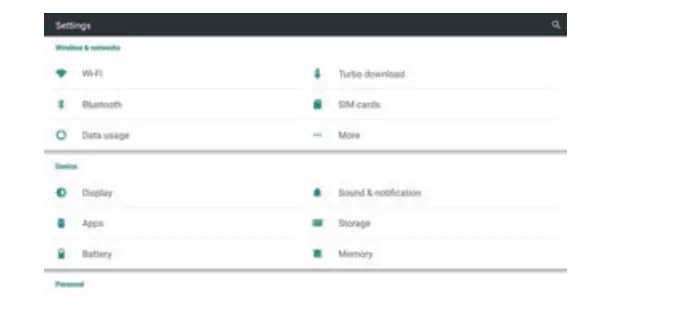
You can access your browser from the application screen by clicking  . On the default home page, the most recent page is displayed.
The following functions are supported.
- Type the email address you want to access in the browser bar.
- To save your favorite page or old visit, click Add to favorites
 .
. - Touch this
 Displays the activity of the saved page.
 - Touch this
 Search or type an email address.
 - Touch this
 Close the navigation bar.
 .
. Displays the activity of the saved page.
 Search or type an email address.
 Close the navigation bar.
Application
Camera
Touch this  Access the camera from the application screen and the image will appear on the screen. You can do the following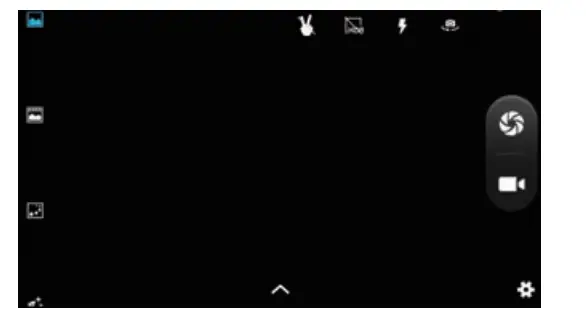
- Camera
Touch this to select photography mode
  . Draw pictures
 - Video
Touch this to select video mode
  Capture video
 to select photography mode
  . Draw pictures
 to select video mode
  Capture video
View photos and videos
In the preview interface, click the screen to preview, or you can adjust the picture to movie view.
Photos
Touch this  From the application screen, it includes all the photos.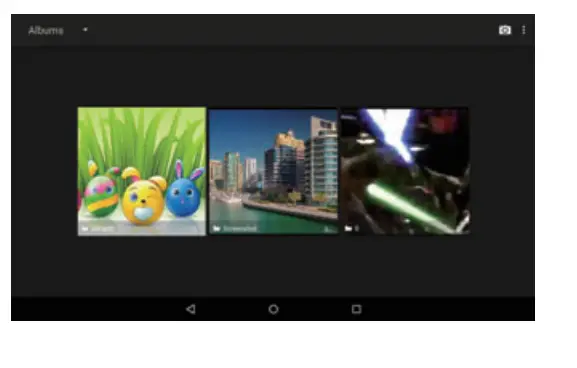
- Touch this
 You can sort photos by date and place.
 - Touch this
 To select an album, edit or delete it.
 - Touch this
 Select the disk you want to edit or delete.
 - Touch this
 go to see the films.
 You can sort photos by date and place.
 To select an album, edit or delete it.
 Select the disk you want to edit or delete.
 go to see the films.
Video player
Touch this  Access the video player. You can see the video in these files. There are buttons in the background to control the video.
Music
Touch this  Visit music. You can sort them by artist or album.
In this page, the music is arranged in alphabetical order. Press the music you want to listen to and play it. Click < current song> to display the page of this album; the lyrics wll be displayed on the right.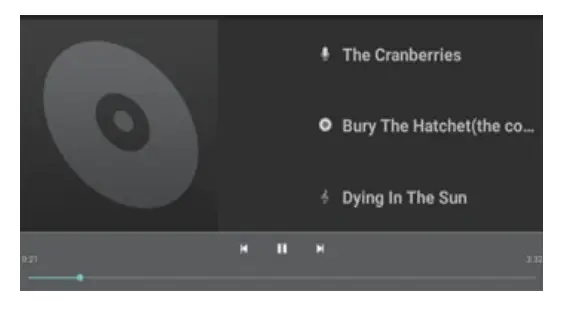
- Artists
On the < artists > page, artists are classified according to their initials, play one of them, and you will see the artisť’s album and music, because you can listen to music - Album
In the albums page, you can view all albums by sliding. Click on the album cover and it will automatically switch to the background. When all the music is ove, you can play them again.
Organization
Touch this  To access the calendar, display the month on the page and click
  Look at that day
- Data view: press a few seconds on the topic to recode, view, edit and delete; Click inthe space to set a new theme; In the blank, press to adjust the new theme or show/ not show the lunar day.
- Weekly view: press a few seconds to recode, view, edit and delete;
- In the blank, press to schedule new activities or show / not show the lunar week.
- Month view: click long date to set a new case or show/ don’t show the lunar month.
- Agenda: list all activities and click View Details.
In any view, when you switch to another date, you can return to the current day, week or month through the < Today> button.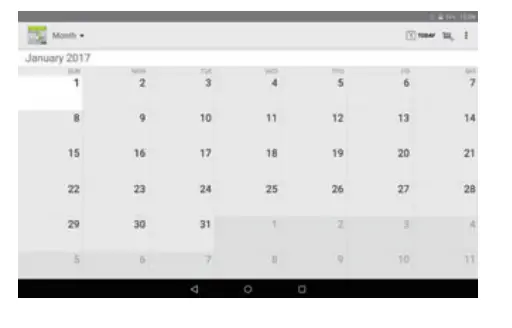
You can play  Search task memos, edit, country and share.
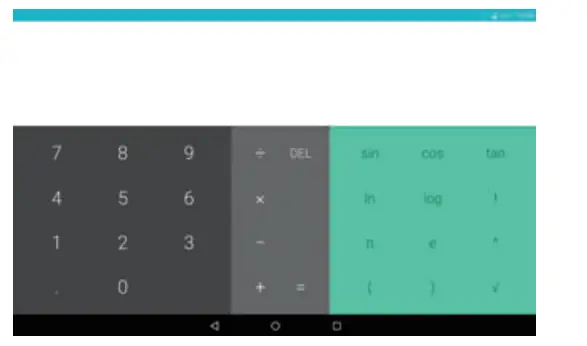
Calculadora
Touch this Access the calculator from the application screen.
File explorer
Touch here  in the application list; supports the mutual file copy in these two internal memory places and the SD tab.
Descargar
- Click here
 in the list of applications; you can preview the download or index of documents already downloaded.
 - Click download file to stop or delete download content.
 in the list of applications; you can preview the download or index of documents already downloaded.
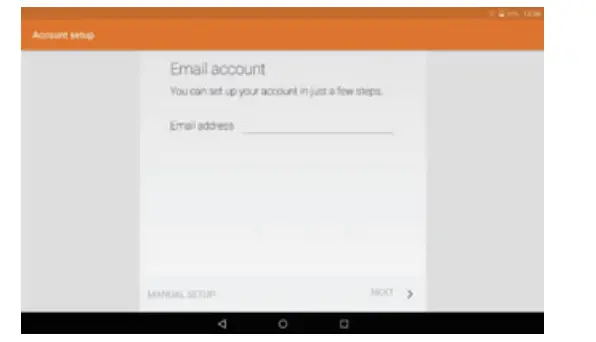
You must be connected to the network before you can use e-mail. If you have problems with your network connection, please contact your service provider
Set up an account
- If you don’t have an email account, follow the instructions to access email to configure it
- If you want to add an email, click settings to add the email, and then click Add account.

Other Organiser
In the sinbox> page, you can click on this  e mail quickly. on the top right to edit On the draft page, you can:
Add containers quickly.
Enter the recipient’s email address or click list of contacts tos elect the e-mail directory, allows you to copy the blur to the directory you sent to.
Write the subject and text of the email. (in the text area, copy and share content are supported).
Additional documents
Add a file from document management, and when you are finished, the file will appear on the new message page; click to open or delete the file. Reply, forward message Click the right page of the preview area to reply or forward Basic operation is equal to eraser operation
System configuration
Click here  to enter the system setup interface.
Sound adjustment
Click here to  access sound settings. If you need more details, please press the mute button. Click < volume settings> to set volume notification, multimedia and alarm sounds, and allow you to select ringtones, operate and start software disks.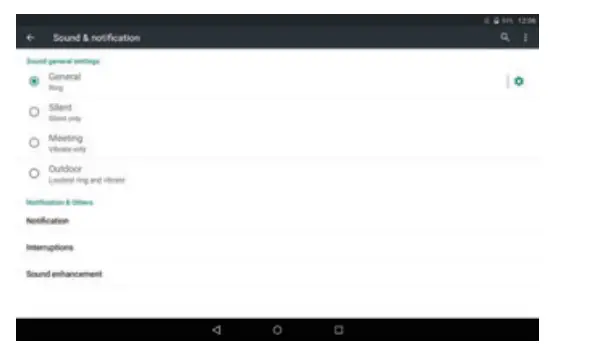
Wireless network settings
This part includes: wireless network configuration.
Select the Wi Fi option, set the button to “on” and the system will automatically search for available networks and display a list.
Among them, if you have this logo  Next to you, that is to say, the network does not need a password, you can use it directly.
The logo  Indicates that the network is protected. You must enter a password to connect.
screen setting
 Display Screen settings include: setting wallpaper, idle time, brightness, auto rotation.
Set Wallpaper
On the background settings screen, you can adjust the background and dynamic background; you can select it from the library.
Screen Waiting
When the monitor is in the light state for a period of time and not in use, it will automatically lock to save power.
Bright
You can adjust the brightness to get your favorite brightness.
Font Size
Allows you to adjust the font size according to your preferences, including: small font, standard font, large font, large font.
FCC
This device complies with part 15 of the FCC Rules. Operation is subject to the following two conditions:
- This device may not cause harmful interference
- this device must accept any interference received, including interference that may cause undesired operation.
Any changes or modifications not expressly approved by the party responsible for compliance could void the user’s authority to operate the equipment.
NOTE: This equipment has been tested and found to comply with the limits for a Class B digital device, pursuant to Part 15 of the FCC Rules. These limits are designed to provide reasonable protection against harmful interference in a residential installation. This equipment generates, uses and can radiate radio frequency energy and, if not installed and used in accordance with the instructions, may cause harmful interference to radio communications. However, there is no guarantee that interference will not occur in a particular installation.
If this equipment does cause harmful interference to which can be determined by turning the equipment off and on, the user is encouraged to try to correct the interference by one or more of the following measures: radio or television reception,
- Reorient or relocate the receiving antenna.
- Increase the separation between the equipment and receiver.
- Connect the equipment into an outlet on a circuit different from that to which the receiver is connected.
- Consult the dealer or an experienced radio/TV technician for help
The device has been evaluated to meet general RF exposure requirement. The device can be used in portable exposure condition without restriction.