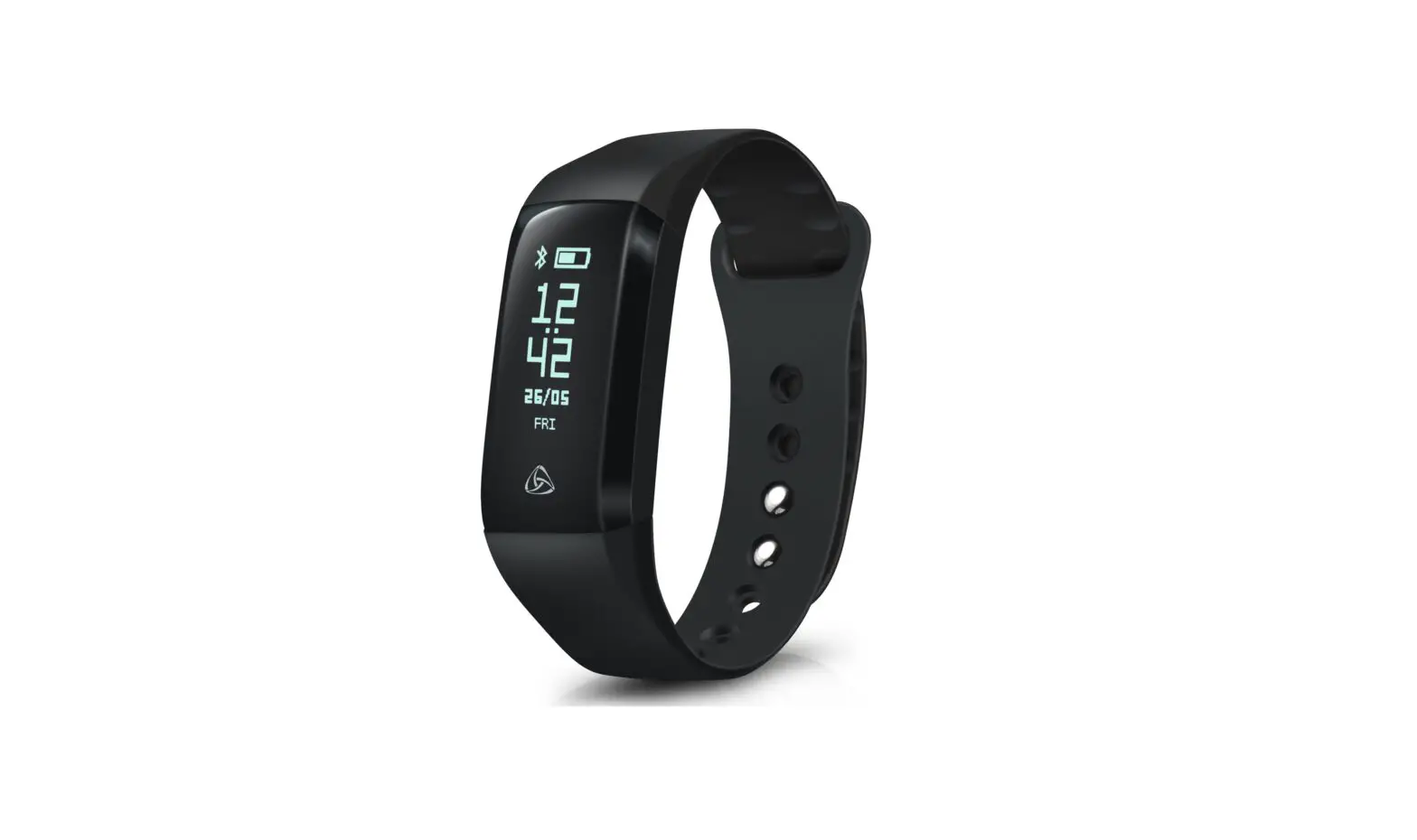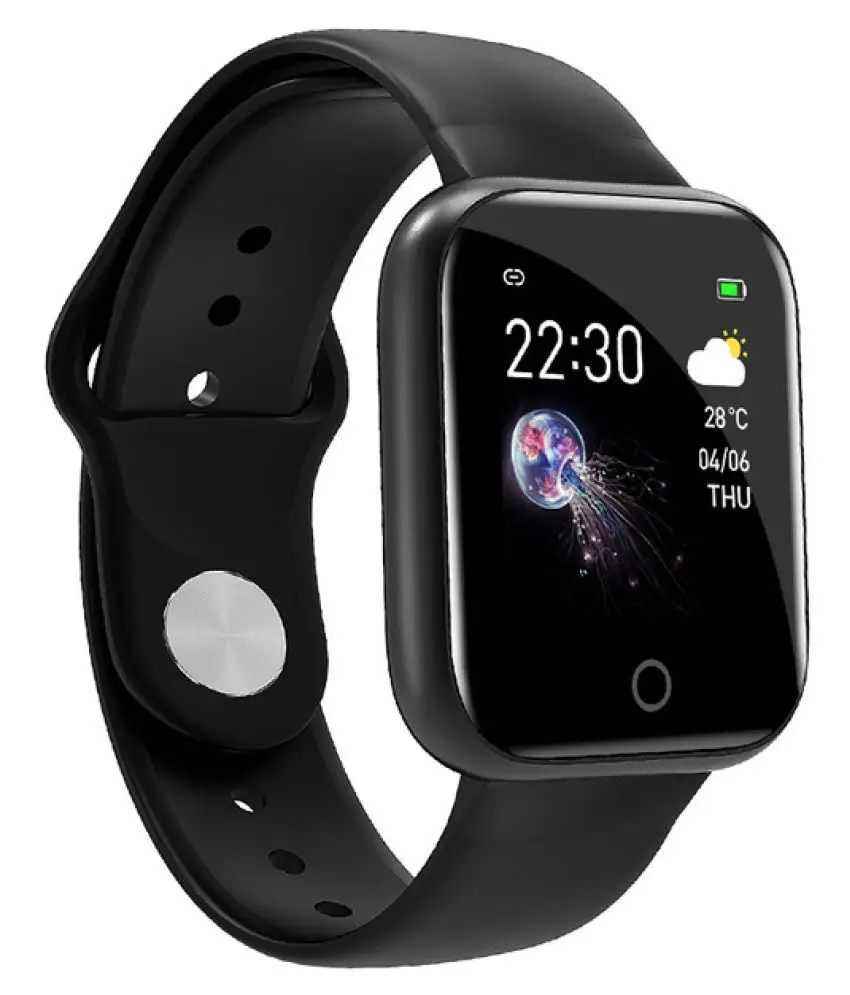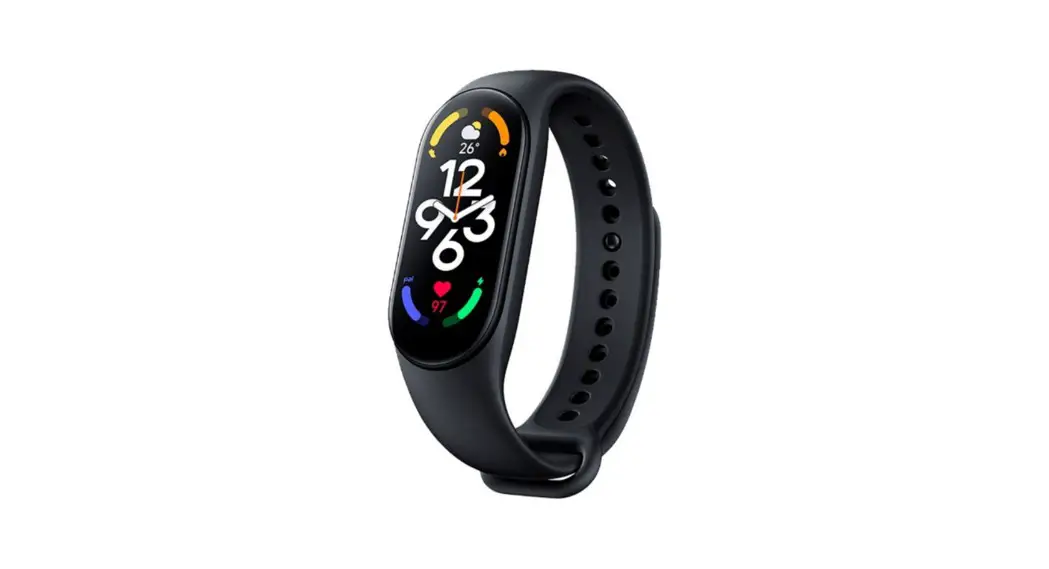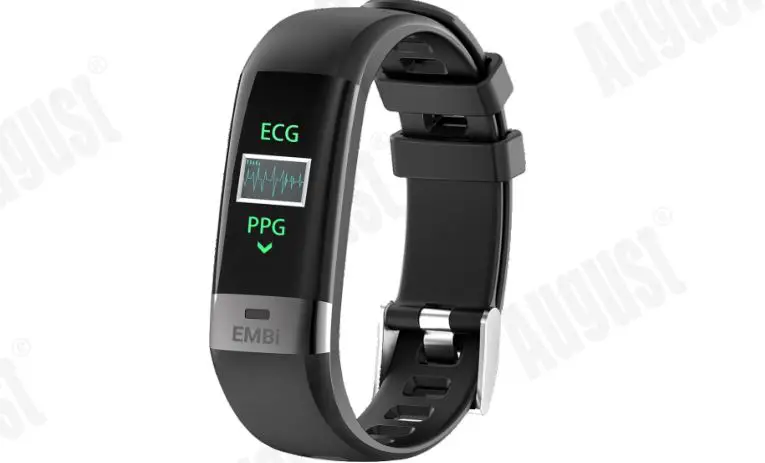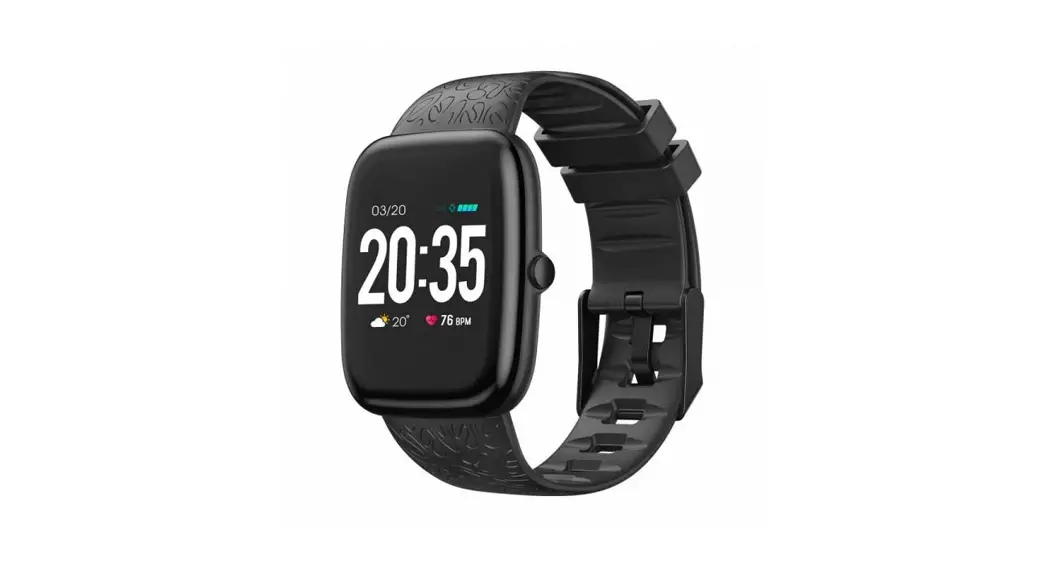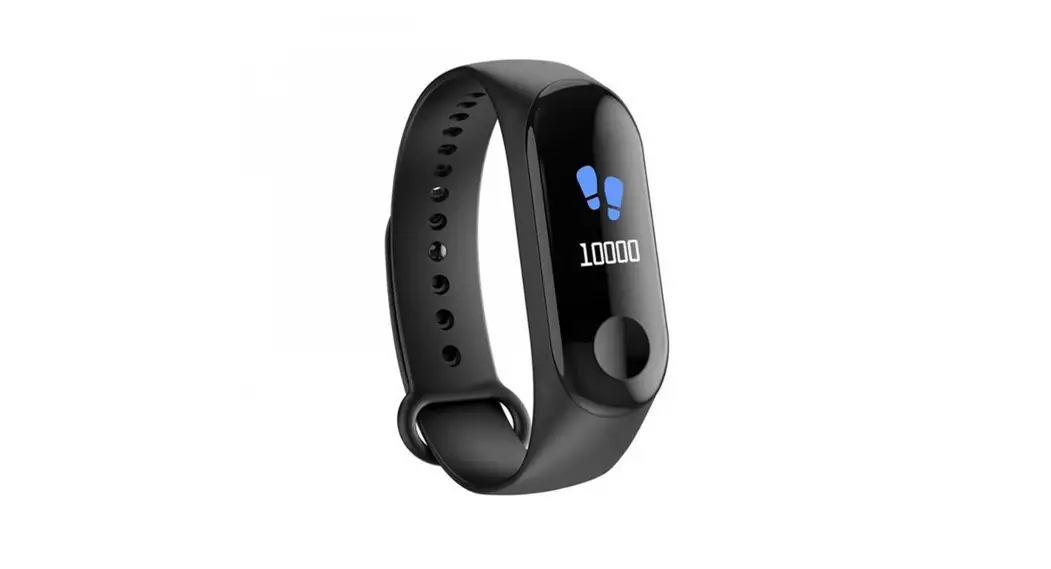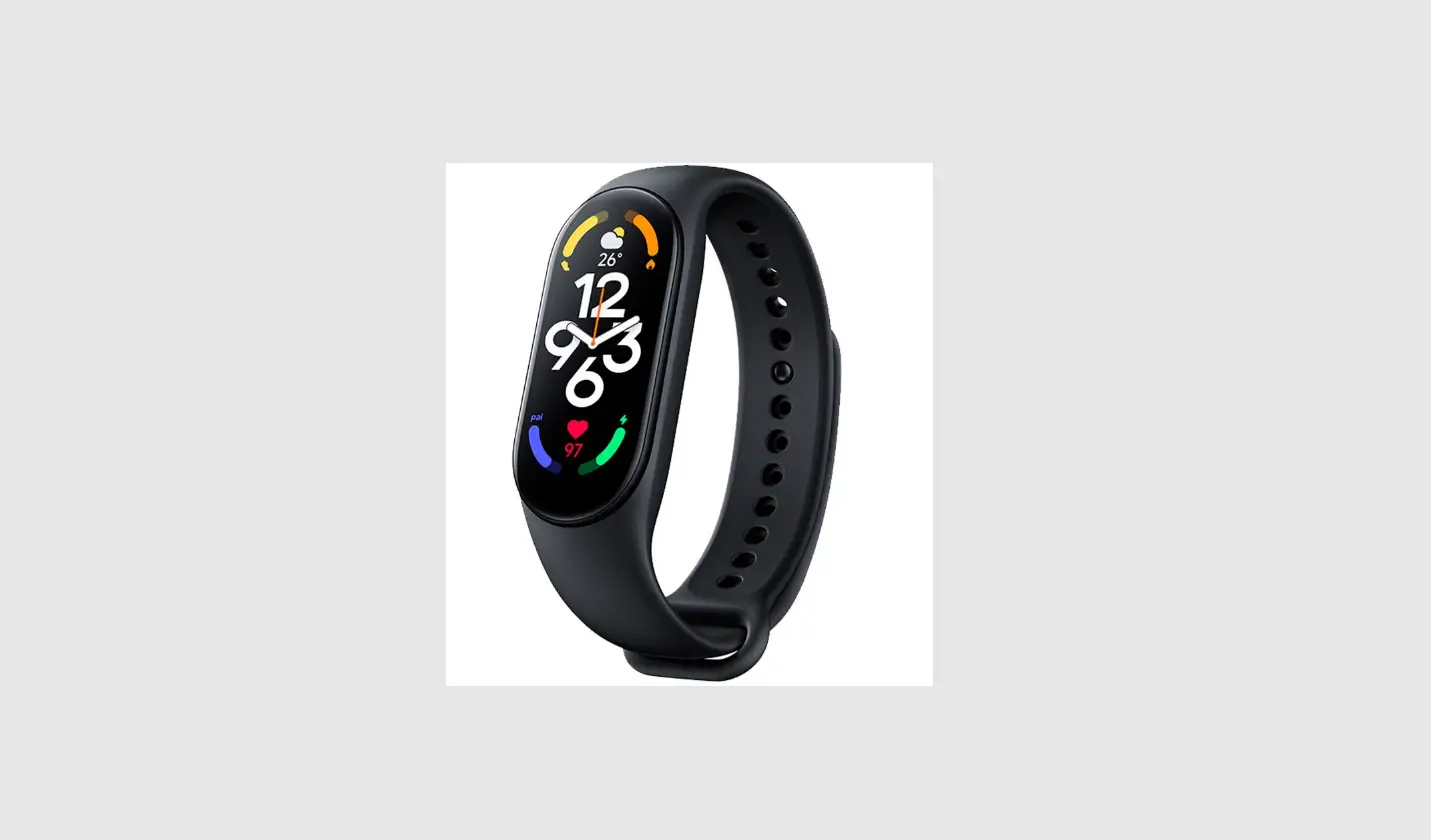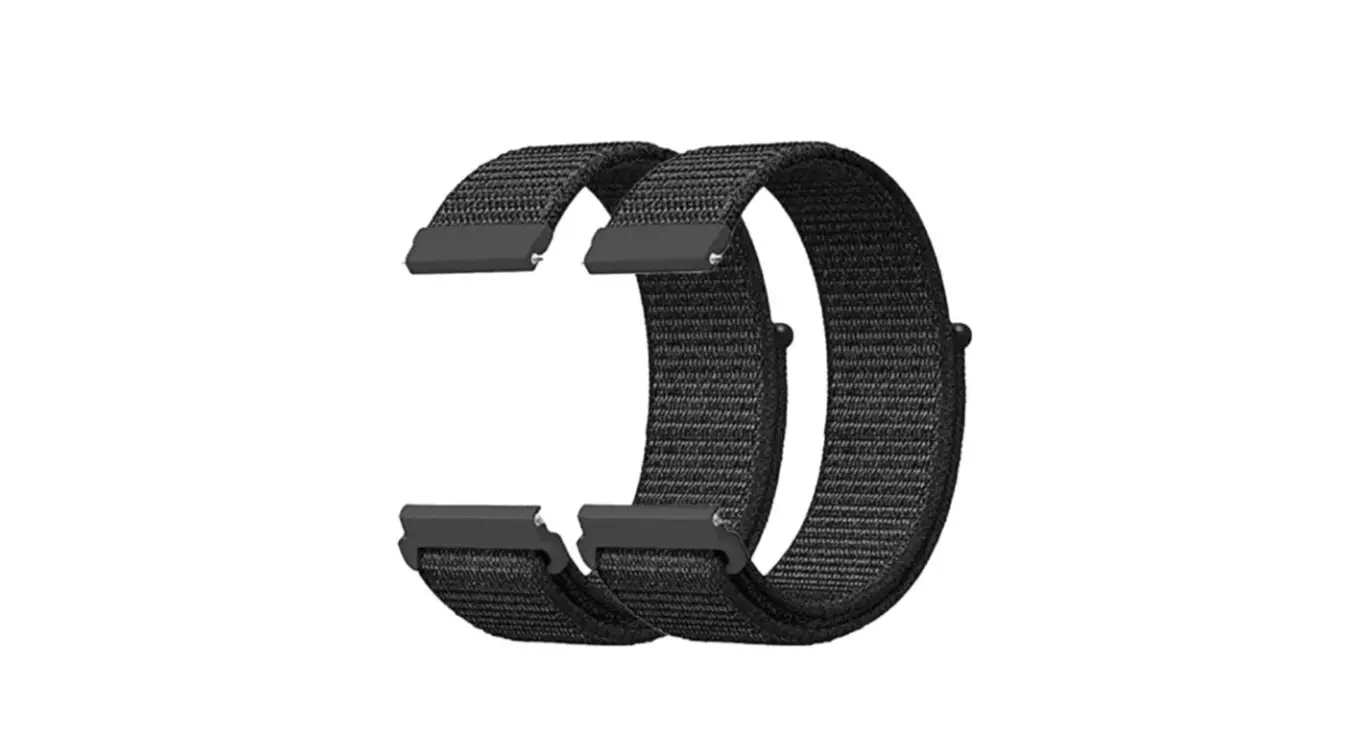
TOUCHPOINTS Velcro Wristbands User Manual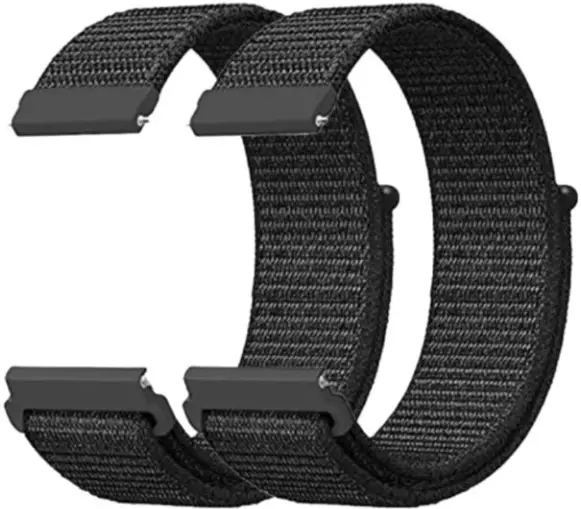
- Device won’t charge or display a red light when plugged in? OR
- Device charges but won’t turn on? Turns off quickly? OR Lights won’t shut off?
It sounds like you need a hard reset. Here’s what to do:
NOTE: A RED LIGHT WILL NOT APPEAR ON A TOUCHPOINT IF THE DEVICE IS FULLY CHARGED.
Please start by verifying the dual-pronged charging cable is working on both sides:
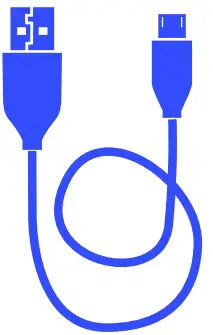
Plug the dual-pronged charging cable into a working Touch Point.

Plug the dual-pronged charging cable into a computer.
 It is important for the reset that you plug the cable into the device before plugging it into the computer.
Computer must be on, open, awake, and logged-in

Allow at least 10 seconds for the red light to show on the device.

Repeat these steps on each side prong of the dual-pronged charging cable.

The Touch Points should show a red light when plugged in on each side. Once you verify the cable is working okay, proceed with a hard reset.
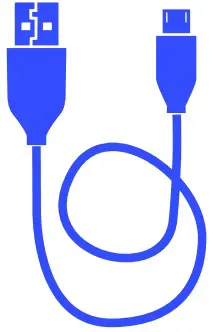
Plug the dual-pronged charging cable into a non-working Touch Point.

Plug the dual-pronged charging cable into a computer.
It is important for the reset that you plug the cable into the device before plugging it into the computer
Computer must be on, open, awake, and logged-in

While plugged in, hold down the button for 5 seconds
Charge overnight (computer must stay on)
Verify success of the reset instructions by taking the device off of the charger and attempting to turn on the device as normal. Note, if the reset is successful, the device will not show the red light until the device has been cycled enough to drain the battery; the red charging light will not appear if device is fully charged.
Device making a rattling noise?
Let’s head to YouTube. Here’s what to do:

Take a moment troubleshoot using this short video tutorial:
https://youtu.be/ydQf1upxxEM
- Device intermittently turns off and back on, or has faint vibrations? OR
- Device displays all lights but does not vibrate?
It’s time to request a replacement device, and don’t worry – You’re covered by the manufacturer’s warranty and/or damage insurance.
Please make a warranty claim

Email [email protected] with a brief description of the defect. Be sure to include the serial number on the back of the device (or attach a picture), and please confirm you have followed the troubleshooting steps without success.
If you are submitting a claim for more than one device, then please specify which serial number is experiencing what issue (e.g., “123456789123, lights no vibrations and 098765432123, does not charge/display red light”)

If the defect or troubleshooting results fall outside of what’s been provided above, then please include a detailed description of such.
Learn what to do if your devices aren’t working properly