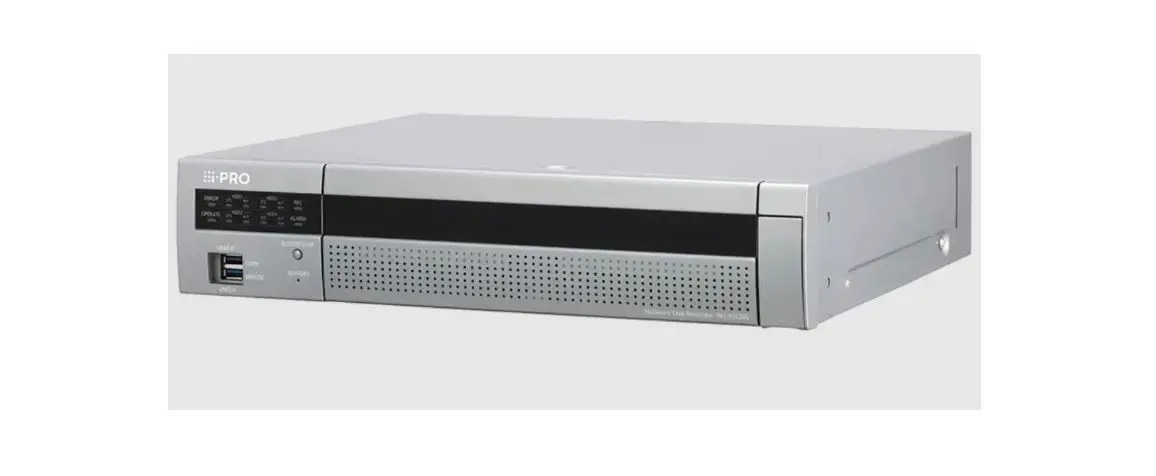
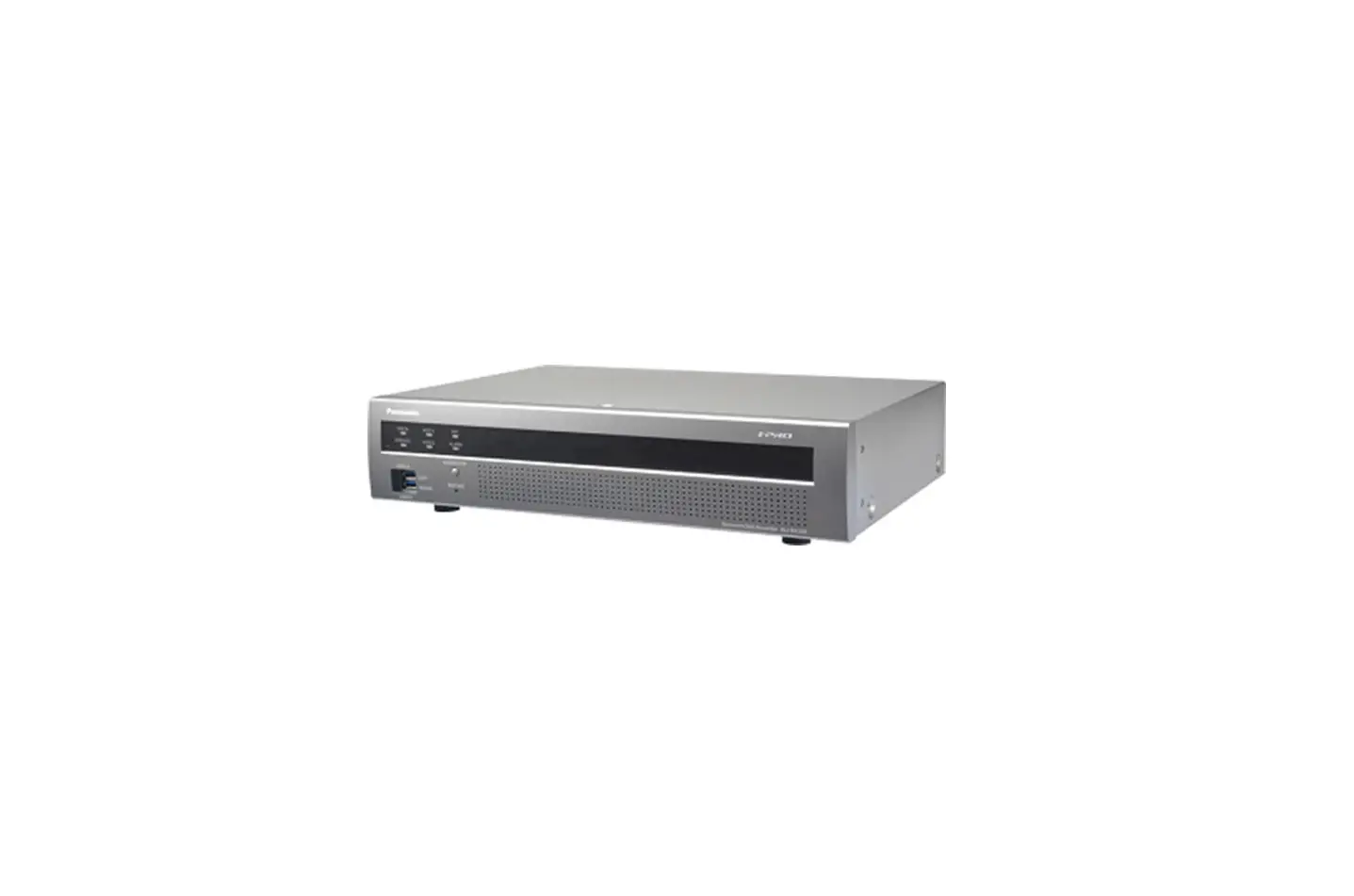
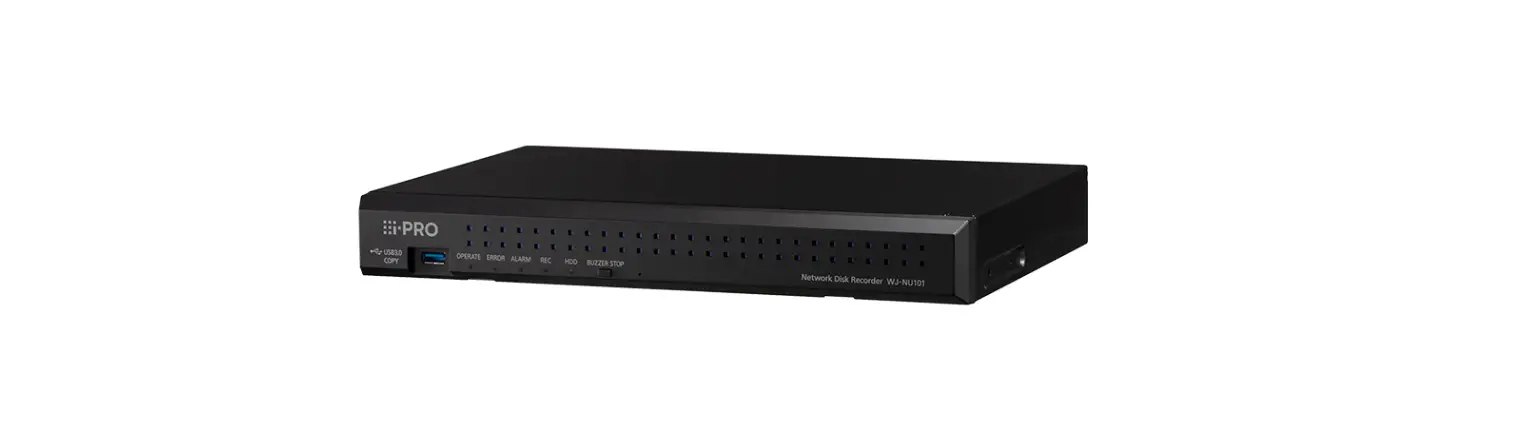
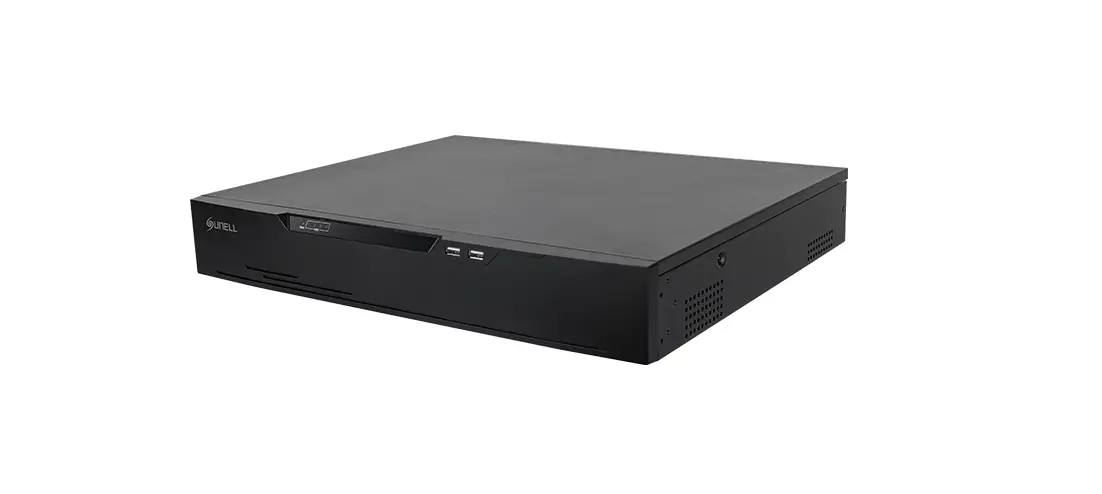
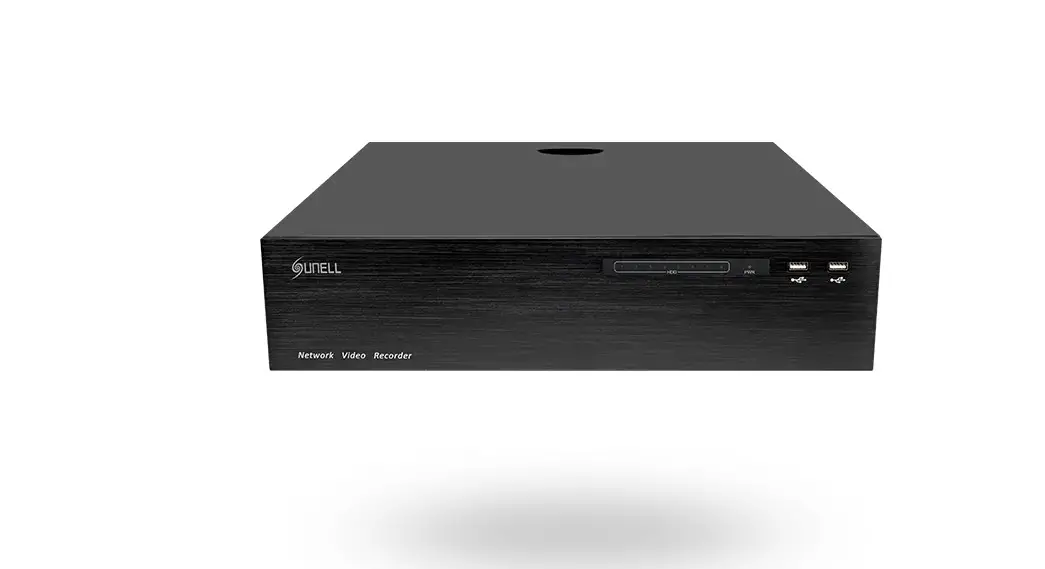
WJ-NU101K Network Disk Recorder
Product Information
The Network Disk Recorder is a professional-grade device
designed for surveillance purposes. It comes in three series:
WJ-NU101K, WJ-NU201K, and WJ-NU300K. Each series has different
variations, denoted by the abbreviations “G” and “GV”.
Before using the product, it is important to read and understand
the Operating Instructions and Important Information provided on
the support website https://i-pro.com/global/en/surveillance/documentation_database.
The model number may be abbreviated in some descriptions in the
user manual.
Product Usage Instructions
1. Installation of the Hard Disk Drive
To install the hard disk drive, please follow these steps:
- Refer to section 12 of the Installation Guide for detailed
instructions on installing the hard disk drive. - If you are replacing the hard disk drives, refer to section 13
of the Installation Guide for instructions specific to this
scenario.
2. Installation
To install the Network Disk Recorder, please follow these
steps:
- Refer to section 14 of the Installation Guide for detailed
installation instructions.
3. Connections
To establish connections with other devices, please follow these
steps:
- Refer to section 17 of the Installation Guide for detailed
instructions on making connections.
4. Turn on the Devices
To power on the Network Disk Recorder, please follow these
steps:
- Refer to section 23 of the Installation Guide for instructions
on turning on the power of the recorder. - If you need to turn off the power of the recorder, refer to
section 24 of the Installation Guide for instructions specific to
this scenario.
Troubleshooting
If you encounter any issues or difficulties, please refer to
section 25 of the Installation Guide for troubleshooting
information.
Installation Guide
Network Disk Recorder
Model No. WJ-NU101K Series WJ-NU201K Series WJ-NU300K Series
For professional use only
WJ-NU101K Series refer to WJ-NU101K, WJ-NU101KG and WJ-NU101KGV. WJ-NU201K Series refer to WJ-NU201K, WJ-NU201KG and WJ-NU201KGV. WJ-NU300K Series refer to WJ-NU300K, WJ-NU300KG and WJ-NU300KGV.
The Operating Instructions and Important Information (PDF) is on our support website (https://i-pro.com/global/en/surveillance/documentation_database). Before attempting to connect or operate this product, please read these instructions carefully and save this manual for future use. The model number is abbreviated in some descriptions in this manual.
Contents
Introduction……………………………………………………………………………………………………………… 4
Standard accessories …………………………………………………………………………………………………………………………………………… 4 About the user manuals ………………………………………………………………………………………………………………………………………… 4 About the symbol mark…………………………………………………………………………………………………………………………………………. 4 When the product is accessible from the Internet …………………………………………………………………………………………………….. 5 GPL/LGPL …………………………………………………………………………………………………………………………………………………………… 5 AVC Patent Portfolio License …………………………………………………………………………………………………………………………………. 5 Precautions for installation…………………………………………………………………………………………………………………………………….. 5 Basic operations ………………………………………………………………………………………………………………………………………………….. 7 Setup menu…………………………………………………………………………………………………………………………………………………………. 9
Operations flow ……………………………………………………………………………………………………… 10 1 Installation of the hard disk drive ……………………………………………………………………….. 12
Install the hard disk drives …………………………………………………………………………………………………………………………………… 12 (When replacing the hard disk drives) ……………………………………………………………………………………………………………………. 13
2 Installation ………………………………………………………………………………………………………… 14
Rack mounting …………………………………………………………………………………………………………………………………………………… 14 Install vertically…………………………………………………………………………………………………………………………………………………… 15 Wall Mounting ……………………………………………………………………………………………………………………………………………………. 16
3 Connections………………………………………………………………………………………………………. 17
Connection of cameras, a mouse and a PC …………………………………………………………………………………………………………… 17 Connection of monitors ………………………………………………………………………………………………………………………………………. 18 How to use the terminals of the ALARM/CONTROL ……………………………………………………………………………………………….. 19 ALARM/CONTROL terminal on the rear side………………………………………………………………………………………………………….. 19 Connection example for emergency recording……………………………………………………………………………………………………….. 19 Time and polarities of the ALARM/CONTROL connector…………………………………………………………………………………………. 21 Connect AC adapter …………………………………………………………………………………………………………………………………………… 22
4 Turn on the devices……………………………………………………………………………………………. 23
Turn on the power of the recorder ………………………………………………………………………………………………………………………… 23 (When turn off the power of the recorder)………………………………………………………………………………………………………………. 24
Troubleshooting……………………………………………………………………………………………………… 25
2
Contents (continued)
Important Information
Refer to the Important Information (PDF) on our support website for the following items.
Safety Information Introduction
Precautions Major operating controls User management Others
· Important safety instructions · Preface · System requirements for a PC · Network security · Precautions for use · Major operating controls and their functions · User/Host management · Specifications
Operating Instructions
Refer to the Operating Instructions (PDF) on our support website for the following items.
Setup via recorder’s main monitor
Operation via recorder’s main monitor
Operation via PC web browser
· Basic setup Set up date & time and language [Date/Language] Camera setup [Camera] Set up recording/events [REC & event]
· Advanced setup Configure the settings relating to monitors [Monitor] Configure the settings relating to network [Network] Configure the settings relating to remote monitoring [Remote monitoring] Configure the settings relating to the user management [User management] Configure the settings relating to maintenance [Maintenance] Manage the hard disk drives [HDD management] Configure the settings relating to the security [Security]
· Lists of the setting items
· Monitor live images Operate the camera
· Event function · Record images · Play recorded images · Useful functions
Copy recorded images Play back copied images with this recorder
· Monitor live images Operate the camera
· Event function · Play recorded images · Copy and download
Copy recorded images Download Play back the copied/downloaded images on a PC · Setup
3
Introduction
Standard accessories
Mouse …………………………………………………………………………………………..1 pc. Installation Guide …………………………………………………………………………….1 pc. Easy Start Guide……………………………………………………………………………..1 pc. Quick Reference Guide…………………………………………………………………….1 pc. Cable Clamp (for DC cable) ………………………………………………………………1 pc. Switching Power Adapter (hereinafter, AC power adapter)……………………..1 pc. Power Cord (WJ-NU101K, WJ-NU201K, WJ-NU300K) …………………………1pc. Power Cord (WJ-NU101KG, WJ-NU201KG, WJ-NU300KG) ………………….2pcs. Power Cord (WJ-NU101KGV, WJ-NU201KGV, WJ-NU300KGV)…………….1pc.
About the user manuals
There are 5 manuals provided for this product as follows.
Installation Guide (this book): Important Information (PDF):
Operating Instructions (PDF):
Easy Start Guide: Quick Reference Guide:
Contains procedures of how to install/connect this product with devices. Contains preface, precautions, and major operating controls and their functions and specifications. Refer to our support website (https://i-pro.com/global/en/surveillance/documentation_database). Contains descriptions of how to configure the required settings and how to operate this product. Refer to our support website. This guide describes how to set up the minimum required settings for this product. Contains descriptions of how to operate functions frequently used.
“WJ-NU101”, “WJ-NU201”, and “WJ-NU300” in this manual refer to WJ-NU101K Series, WJ-NU201K Series, WJ-NU300K Series respectively. Unless otherwise specified, the descriptions of installation, connection, etc. in this manual are based on the WJ-NU101 as an example and the descriptions of the screens are based on the WJ-NU300. For the latest information on the part numbers, versions and network cameras that can be connected (hereinafter referred to as cameras), and information such as the addition of functions by upgrading the software of this product, please refer to our support website (https://i-pro.com/global/en/surveillance/training_support/support/technical_information).
In the manuals of this product, the personal computer hereinafter referred to as PC.
The external appearance in the document may differ from the actual product within no influence range on operation due to improvement of the product.
About the symbol mark
The explanation of the symbol marks used in this product are as follows.
Alternation current symbol
Computer network
Direct current symbol
Mouse port
For indoor use only
USB port
Polarity of d.c. power connector
Functional earthing;functional grounding (US) symbol
4
Introduction (continued)
When the product is accessible from the Internet
To prevent unauthorized access, note the following. · Leave user authentication turned on. · Periodically change passwords that are used to access the product.
Refer to the Operating Instructions (PDF) on our support website for information about how to change passwords.
GPL/LGPL
· This product contains software licensed under GPL (GNU General Public License), LGPL (GNU Lesser General Public License), etc.
· Customers can duplicate, distribute and modify the source code of the software under license of GPL and/or LGPL. · For details on open source software licenses and source code, on the “Maintenance > System Management” page of the
browser settings of this product, click “Click here for more information on the OSS used in this product.” and then read the information displayed. · Please note that i-PRO Co., Ltd. shall not respond to any inquiries regarding the source code.
AVC Patent Portfolio License
THIS PRODUCT IS LICENSED UNDER THE AVC PATENT PORTFOLIO LICENSE FOR THE PERSONAL USE OF A CONSUMER OR OTHER USES IN WHICH IT DOES NOT RECEIVE REMUNERATION TO (i) ENCODE VIDEO IN COMPLIANCE WITH THE AVC STANDARD (“AVC VIDEO”) AND/OR (ii) DECODE AVC VIDEO THAT WAS ENCODED BY A CONSUMER ENGAGED IN A PERSONAL ACTIVITY AND/OR WAS OBTAINED FROM A VIDEO PROVIDER LICENSED TO PROVIDE AVC VIDEO. ADDITIONAL INFORMATION MAY BE BTAINED FROM MPEG LA, L.L.C. SEE HTTP://WWW.MPEGLA.COM
Precautions for installation
This product is designed to be used indoors. This product is not operable outdoors. Do not expose this product to direct sunlight for hours and do not install the product near a heater or an air conditioner. Otherwise, it may cause deformation, discoloration and malfunction. Keep this product away from water and moisture.
i-PRO Co., Ltd. assumes no responsibility for injuries or property damage resulting from failures arising out of improper installation or operation inconsistent with this documentation or through use of parts other than this product, such as locally procured parts.
Do not place this product in the following places: · Locations exposed to direct sunlight · Locations subject to having strong vibration or impact · Locations near magnetic field sources such as a television or speakers
· Locations near the devices that emit large sound and generate vibration by sound pressure
· Locations where condensation forms easily, where temperature changes greatly or where humidity level is high
· Locations subject to steam and oil smoke such as a kitchen
· Locations which are not level · Locations subject to dust · Locations where it may get wet from rain or water splash
Do not install this product in locations where the product or the cables can be destroyed or damaged by persons with malicious intent.
In order to prevent injury, the product must be securely mounted to a wall according to Installation Guide.
5
Introduction (continued)
Clear a space when placing this recorder. When stacking multiple recorders, clear a space of more than 5 cm {2 inches} from both sides, the top, the bottom and the rear of the recorders.
More than 5 cm {2 inches}
More than 5 cm {2 inches}
More than 5 cm {2 inches}
More than 5 cm {2 inches}
· Do not stack this product in a stack. · Do not place anything that can generate vibration on the
top of this product.
Heat dissipation To prevent this product from overheating, heed the following. Failure to observe this may cause fire or trouble.
· Do not block the cooling fan outlet or the ventilation holes with a wall, rack, cloth, etc. Maintain the product periodically to prevent dust from blocking ventilation holes.
· The lifetime of the cooling fan is limited by use. It is recommended to replace them after around 30000 hours of operation. Contact your dealer for replacement of the cooling fans.
· When the internal temperature rises, the fan noise may become louder.
· Clear a space of more than 5 cm {2 inches} from both sides, the top, and the rear of the product. Do not block the ventilation holes on the front side since this product is designed to cool the hard disk drives by drawing in air from the front.
Grounding Confirm that the wire is connected from the SIGNAL GND terminal to earth ground. A grounding connection must be made before connecting the power plug or this product to the main power supply. When disconnecting the grounding wire, make sure that the power plug of this product is disconnected from the main power supply.
Avoid placing receptacles that contain liquids such as water near this product. If liquid spills onto this product, it may cause fire or an electric shock.
Shielded (STP) LAN cables must be used with this unit to ensure compliance with EMC standards. (Excluding U.S.A. and Canada)
About sulfuration of rubber products Do not leave rubber products containing sulfur (packing and rubber feet) close to the recorder or in the same storing box. Sulfur constituent from the rubber products may cause sulfuration corrosion on electrical parts or terminals and defects in the recorder.
Equipment classification and power source indication label Refer to the indication label on the bottom side of this unit for the equipment classification, power source, and other information.
Avoid placing this product near noise sources If the cables are placed near noise sources such as fluorescent lamps, noises may be produced. In this case, rewire avoiding the noise sources, or move the product to a place far from the source.
6
Introduction (continued)
Basic operations
This section explains operation of a mouse and the soft keyboard, and setting screen only. The recorder can be operated using the mouse (included) connected to the mouse connection port on the rear side of the recorder. It is also possible to perform settings and some operations of the recorder from the web browser. Refer to the Operating Instructions (PDF) for descriptions of how to operate from the web browser and the configurable settings using the web browser.
Connection of a mouse
Connect the included mouse to the mouse connection port on the rear side of the recorder. The mouse cursor will be displayed on the main monitor.
Display method of the setting screen
Click the [Setup] button. The top screen of the setup menu will be displayed.
Mouse operation
Left-click the desired buttons and tabs on the screen. (Hereinafter, “Left-click…” will be described as “Click…” in this document.) When the entry field has the [] and [] buttons or the [] button, the setting value can be changed using the mouse wheel. When no operation is made for 10 seconds or more, the mouse cursor will be hidden. The mouse cursor will be displayed again when the mouse is moved.
7
Introduction (continued)
About the operation of on-screen keyboard
Use the on-screen keyboard to enter characters for the setting items. When clicking the [ ] icon beside the entry field, the on-screen keyboard will be displayed, and it will become possible to enter characters by clicking the character keys on the keyboard.
On-screen keyboard screen
Entry field Language selection pull-down menu Click the [] button to select the language for character entry.
[Del all] button
Deletes all the characters in the entry field.
[]/[] button
Move the cursor in the entry field to either direction.
[Delete] button
Deletes a character pointed by the cursor in the entry field.
[A/a] button
This button changes the characters to be entered between capital letters and small letters.
[Next] button
Changes the keys to be displayed for character entry. The displayed keys are changed as follows:
Keys for the language selected by the language selection pull-down menu Combination characters Special characters
[Enter] button
Determines the entered characters and closes the on-screen keyboard.
Note: · Basic operations are also applied to the “Login” window. · Click the [×] button to close the window without
determining the entered characters.
8
Introduction (continued)
Setup menu
Configuration of each setting item in the setup menu should be completed in advance to use this recorder. The setup menu has the following levels for the setting items. On “Easy Start”, the minimum settings required to operate the recorder will be performed, but other settings will remain default. On the [Basic setup] or [Advanced setup] page, the settings can be customized in accordance with a variety of operational modes. The following is the example of the setup menu that describes the features and operations. The setup menu will be displayed when clicking the [Setup] button ( Page 7) at the upper right corner of the operational screen on the main monitor. The buttons of the setup pages will be displayed on the left column of the setup menu.
[Home] button It is possible to return to the top screen ( Page 7) of the setup menu from any setup page.
Setup menu panel Displays buttons of the setup pages.
[Easy Start] button It is possible to configure the minimum settings required to operate the recorder, such as date & time and camera registration.
[Basic setup] Setup page buttons Each “Basic setup” page will be displayed.
[Advanced setup] button The buttons to open the corresponding setup pages of the “Advanced setup” menu will be displayed. When clicking this button again, the buttons will be hidden.
[Advanced setup] Setup page buttons Each “Advanced setup” page will be displayed.
Hierarchical display The name of the current setup page will be displayed in the hierarchy. The tab name will also be included.
Setup page Displays each setup page. If the current setup page is composed of two or more tabs, it is possible to change the page display by clicking the tabs.
[Exit] button Applies the settings to the recorder and closes the setup menu to return to the operational screen ( Page 11).
Except for some cases, the descriptions of this document follow the hierarchical display and setup pages.
Important: · If the settings are applied, all login users will be forcibly
logged out.
9
Operations flow
· The main monitor is required for the settings. * The settings can be done through a web browser on the PC (Refer to the Operating Instructions (PDF)).
· The PC is required for reading the Important Information, the Operating Instructions (PDF) and camera settings.
1 Installation of the hard disk drive Page 12
Install the hard disk drives in the recorder.
2
Installation
Page 14
Install this product on a rack or wall. When using it flat without installation, go to Step 3.
3
Connections
Page 17
Connect a camera, mouse, PC, monitor, alarm input/output cable, AC adapter, etc. to this product.
4
Turn on the devices
Page 23
Configure the minimum settings
5
[Easy Start]Refer to the attached “Easy Start Guide”
Turn on the power to launch in the following order. Turn on the power of the monitor. Turn on the power of the recorder. Register as an administrator.
Register the date & time and cameras on “Easy Start”. When it is not necessary to change other default settings, it is possible to start operations.
Setup
Operating Instructions (PDF file on our support website)
If necessary, perform the detailed settings for each function.
Start operations
When the camera image is displayed on the main monitor or the web browser on the PC and can be recorded or played, the recorder is ready for operation.
10
Operations flow (continued)
Example of an operational screen
11
1 Installation of the hard disk drive
Before installing the hard disk drives, turn off the power of the recorder first. When replacing the hard disk drives, the procedures will be same as those of installation. When installing or replacing the hard disk drives for playback use only (hard disk drives that are formerly used for recording), perform the link process.
Important: · Firstly, turn off the power of the recorder. · To discharge your own static electricity, touch a metal part such as a work desk with your hand before starting work. · HDD is a precision device. Handle carefully so as not to give strong impacts. · When handling the HDD, hold it by the side. Make sure not to touch the label surface or the board surface of the HDD.
Note: · Hard disk drives are locally procured. Contact your dealer for purchasing, installing, and replacing the hard disk drives.
Install the hard disk drive
Step 1 Unplug the DC plug of the AC power adapter from the DC jack of the recorder.
Step 2 Remove the two screws on the left and right sides of the main unit, remove the three screws on the back, and then remove the top cover.
Step 4 Remove the AIR CAP that protects the cable connector.
Step 5 Tilt the HDD at an angle and insert the cable connected to the board into the HDD.
HDD
Step 3
Clip the top of the hook on the HDD HOLDER TOP with your finger and thumb. Push inward with your thumb to release the hook, and open the HDD HOLDER TOP.
Cable
Step 6
Make sure that the cable passes through the HDD HOLDER BASE slot so that they do not come apart, and place the HDD with the cable plugged in on the HDD HOLDER BASE. If the cable is not threaded through the slot, pass it through before placing the HDD.
Pass the cable through the HDD HOLDER BASE slot.
Hook HDD HOLDER TOP HDD HOLDER BASE
HDD
12
1 Installation of the hard disk drive (continued)
Step 7 Pass the hook of the HDD HOLDER TOP through the inside of the HDD HOLDER BASE. Push in the arrow on the HDD HOLDER TOP, close the HDD HOLDER TOP, and then fix HDD.
Hook
Step 8 Install the top cover as before, and tighten the two screws on the left and right sides of the main unit, and the three screws on the back to secure it.
Step 9 After installation, format the HDD. Refer to “HDD management” of Operating Instructions (PDF).
(When replacing the hard disk drives)
When replacing a hard disk drive with another one, it is necessary to perform the removal process. In this case, do the following.
Step 1 Perform the removal process of the hard disk drive. ( Operating Instructions (PDF))
Step 2 Turn off the power of the recorder. ( Page 24)
Step 3 Remove the existing HDD and install a new HDD by referring to the above procedures.
Step 4
Turn on the power of the recorder. ( Page 23) Then, format the new HDD.
When the formatting is completed, the hard disk drive will become operable. When the hard disk drive is formerly used for recording, perform the link process ( Operating Instructions (PDF)) on the “HDD management” page. The status of hard disk drive can be checked on the setup menu – the “Maintenance” page – the “HDD information” tab. ( Operating Instructions (PDF))
13
2 Installation
Rack mounting
Use a rack equivalent to the EIA standard for mounting this product. * EIA standard equivalent (manufactured by other companies): EIA 19-inch, depth of 550 mm or more
Note: · Use four M5 × 12 mm screws (locally procured) to install the recorder in a rack. · The illustrations on this page omit details of the shape.
Step 1
Remove the four rubber feet from the bottom of the recorder.
Note: · For positioning of the forward screw holes, tighten from
the screws marked with . · Mounting bracket (large) and mounting bracket (small)
can be used interchangeably on both sides.
Remove the rubber feet
Step 2 Remove the screws (2 pcs.) at the front of both sides of the product. Keep the removed screws (M3 × 6 mm) securely.
Step 4
Install the recorder in the rack by using four rack mounting screws. Secure with rack mounting screws (4 pcs.). · Screw tightening torque:
2.0 N·m to 2.4 N·m (20.5 kgf·cm to 24.5 kgf·cm) {1.48 lbf·ft – 1.78 lbf·ft}
Step 3
Attach the rack mount brackets (WV-QRM101: option) to both sides of the recorder. Secure with rack mount bracket fixing screws (4 pcs.) (included with WV-QRM101). · Screw tightening torque:
0.59 N·m to 0.78 N·m (6.0 kgf·cm to 8.0 kgf·cm) {0.43 lbf·ft – 0.58 lbf·ft}
Note: · Use the following standard accessories included with the
rack mount bracket WV-QRM101. Rack mount bracket (large) × 1, Rack mount bracket (small) × 1 Rack mount bracket fixing screws (M3 × 10 mm) × 4
Rack mount bracket fixing screw (M3 × 10 mm: included with WV-QRM101) × 2
Rack mount bracket fixing screw (M3 × 10 mm: included with WV-QRM101) × 2
Rack mounting screws (M5 × 12 mm, locally procured)
Important: · The operating temperature range of this product is
0 °C ~ +45 °C. * HDDs deteriorate at high temperatures, affecting their
service life. It is recommended that the product (including the AC adapter) be used at a temperature of about +25 °C. · The following measures should be taken when installing the rack to ensure that the product is used within the operating temperature range. Install a fan or other equipment to lower the
temperature inside the rack. Allow a distance of at least 1U (44 mm) between the
top and bottom of the product. Do not put doors on the front of the rack or block
the sides. · Install the AC adapter so that the cable (including the DC
cable of the AC adapter) is not pulled or bent, and the AC adapter itself is not suspended in midair.
Rack mount bracket (small)
14
Rack mount bracket (large)
2 Installation (continued)
Install vertically
Rack mount bracket WV-QRM001 (option) is required when installing the product vertically. Important: · Rack mount bracket (WV-QRM001) does not guarantee that the product will not tip over.
Step 1 Use a screwdriver to remove the screw at the front of the right side face.
Remove the screw on the front right side Keep the removed screws (M3 × 6 mm) securely.
Step 2
With the right side of the product facing down, install the rack mound bracket (WV-QRM001: option) and rubber foot. Secure with rack mount bracket fixing screws (2 pcs.) (included with WV-QRM001). · Screw tightening torque:
0.59 N·m to 0.78 N·m (6.0 kgf·cm to 8.0 kgf·cm) {0.43 lbf·ft – 0.58 lbf·ft} Attach the rubber foot that is included with the WV-QRM001 to the position as shown in the illustration.
Note: · Use the following standard accessories included with the
WV-QRM001 rack mount bracket. Rack mount bracket × 1 Rack mount bracket fixing screws (M3 × 10 mm) × 2 Rubber foot × 1 · This product can be mounted upside down, but the distance from the product to the edge of the rack mount bracket should be the same on both sides.
Rubber foot × 1 (Included with WV-QRM001)
Rack mount bracket fixing screws × 2 (M3 × 10 mm: included with WV-QRM001)
13 mm {1/2 inches}
22 mm {7/8 inchis}
Attachment position of the rubber foot
Important: · The operating temperature range of the product is 0 °C
to +45 °C. * HDDs deteriorate at high temperatures, affecting their
service life. It is recommended that the product (including the AC adapter) be used at a temperature of about +25 °C.
15
2 Installation (continued)
Wall Mounting
Rack mount bracket WV-QRM201 (set of 2, option) is required for wall mounting this product.
Step 1 Remove the screws (2 pcs.) at the front of both sides of the product. Keep the removed screws (M3 × 6 mm) securely.
Step 3 Mount the product vertically on the wall. Securely fix the product to the wall with mounting screws (4 pcs.) (M5, 10 mm or longer, locally procured).
Cooling fan outlet
Step 2 Attach the rack mount brackets (WV-QRM201: option) to both sides of the product. Secure with four rack mount bracket fixing screws (included with WV-QRM201). · Screw tightening torque:
0.59 N·m to 0.78 N·m (6.0 kgf·cm to 8.0 kgf·cm) {0.43 lbf·ft – 0.58 lbf·ft} Note: · Use the following standard accessories included with the
WV-QRM201 rack mount bracket. Rack mount brackets × 2 Rack mount bracket fixing screws (M3 × 10 mm) × 4
Rack mount bracket fixing screws (M3 × 10 mm: included with WV-QRM201) × 4
16
Important: · When installing the recorder on a wall, the height should
be no more than 2 m {6.6 ft}. · Make sure to mount on the wall so that the cooling fan
outlets are always on the top or to the left and right. Do not face the cooling fan outlets downwards. · Make sure that the minimum pullout strength of the mounting screws is 196 N (20 kgf) {44 lbf} per screw. · Select the type of screws according to the material of the wall. Do not use wood screws or nails. · Adequately reinforce the wall when mounting on a wall that is not strong enough, like a wall made of gypsum boards. · The operating temperature of the recorder ranges from +0 °C to +45 °C {32 °F – 113 °F}. * When the temperature of HDD rises, the features may
deteriorate and the service life may be affected. It is recommended to use the recorder (including the AC power adapter) at approx. +25 °C {77 °F}. · Route the cables (including the DC cable of the AC power adapter) properly so that they will not be pulled or bent and the AC power adapter will not be hung in the air.
Note: · If you install the recorder on a wall in the direction as
shown in the above-mentioned Step 3, the cooling fan outlet will be located at the top, and the cooling effect will be higher.
3 Connections
Connection of cameras, a mouse and a PC
Connect the camera to the camera port on the rear side of this product. Connect the included mouse to the mouse connection port on the rear side of the recorder. Connect PC to the PC port on the rear side of this product via a Network switch. Connect this product to the camera and Network switch by using an Ethernet cable (locally procured: category 5e or higher, straight).
Recorder
IP address: 192.168.0.250 Subnet mask: 255.255.255.0 Default gateway: 192.168.0.1
WJ-NU101 Mouse (included)
IP address: 192.168.0.x (0, 1, 250, 255, Except the camera’s IP address) Subnet mask: 255.255.255.0 Default gateway: 192.168.0.1
Camera (×4 max.) IP address (example): 192.168.0.101~
192.168.0.104 Subnet mask: 255.255.255.0
PoE+ Network switch (locally procured)
Ethernet cable (locally procured: category 5e or above, straight)
Network
Note: · The camera port comes with the PoE+ power supply function that complies with IEEE802.3at. · If the camera is located at a distance (approx. 100 m) greater than the PoE+ power supply capacity, connect it to the PC
port via the PoE+ camera power supply unit (locally procured) or use WJ-PU201*(option). · For WJ-NU300, connect the 9th to 16th cameras to the PC port via PoE+ Network switch (locally procured) or use
WJ-PU201*(option). * WJ-PU201 refer to WJ-PU201 (For U.S.), WJ-PU201/G (For Europe), WJ-PU201F/G (For Europe).
17
3 Connections (continued)
Connection of monitors
The main monitor (HDMI), which displays live images as well as playback images and setting menus, is connected to the HDMI (MAIN) terminal using an HDMI cable (locally procured). The sub monitor (HDMI) is also connected to the HDMI (SUB) terminal using an HDMI cable (locally procured).
Main monitor (HDMI)
Sub monitor (HDMI)
HDMI cable (locally procured)
HDMI cable (locally procured)
Recorder
WJ-NU101 Note: · Use a “High Speed HDMI® Cable”. Also, when the main monitor is used in 4K/30P, use a 10.2 Gbps compatible HDMI cable. · To maintain the stable performance without deteriorating the image quality, use an HDMI cable which is 5 m or shorter. · Audio can be output from the main monitor. · Audio cannot be output from the sub monitor.
18
3 Connections (continued)
How to use the terminals of the ALARM/CONTROL
The ALARM/CONTROL terminals on the rear side is used when connecting an external device such as a sensor that outputs alarm signals or when installing an external alarm device such as a buzzer or a lamp outside. Insert the unarmored cable into the ALARM/CONTROL terminals on the rear side. * The cable should be a single or twisted wire with AWG 26~16 and an exposed length of 9 mm {11/32 inches}.
ALARM/CONTROL terminal on the rear side
Cable connections
Press the button.
Insert the cable all the way into the hole and release the button.
Important: Do not connect two or more wires to a single terminal. When connecting two or more wires, branch the wires outside the recorder before connection.
Terminals
Pin No. 1 2 3 4 5
6 7
8 9
10
11
12
Signal Alarm input 1 Alarm input 2 Alarm input 3 Alarm input 4 Emergency recording input Signal ground Alarm output
Camera error output HDD error output/ Recording error output General-purpose input/output 1 General-purpose input/output 2
+5 V output
Operation Event action will be performed according to the settings
Starting emergency recording signal input
Alarm signal will be supplied at an event occurrence Signal output upon detection of a camera error Signal output upon detection of an HDD error or recording error in this product · Input and output can be assigned in the setting
menu of this product. · The default value of the setting menu is “Not
set”
+5 V output
Remarks Non-voltage make contact input +3.3 V pull-up Approx. 23 k
Open collector output 24 V DC max., 200 mA max.
Input: Non-voltage make-contact input 3.3 V pull-up approx. 23 k Output: Open collector output Max. 24 V DC, -200 mA +5 V±0.5 V, 200 mA max.
Connection example for emergency recording
When the external switch is turned on, emergency recording will start. Recording time and recording rate for emergency recording differ according to the settings of “Emergency rec.” on the setup menu. (Refer to the Operating Instructions.)
External switch
(Emergency recording input) (Signal ground)
65
19
3 Connections (continued)
Connection example of control output
When an alarm device such as a buzzer or a lamp is connected, the signal output from pin No.7 – No.9 can be used to notify the status by sounding a buzzer or lighting a lamp. The following example is of a connection with the HDD error output /Recording error output terminal (pin no.9).
(HDD error output/Recording error output) 9
Alarming device
Relays, etc.*
(Signal ground)
6
* Attached when necessary
Alarm connection example
When a signal output from the other device is supplied to the Alarm input 1 terminal (pin No.1) or Alarm input 2 terminal (pin No.2), recording or an alarm action will be performed in accordance with the settings. When an alarm device such as a buzzer, a lamp, etc., is installed outside, connect them to the Alarm output terminal (pin No. 7).
(Alarm output)
Alarming device
Relays, etc.* * Attached when necessary
Sensor
(Signal ground)
Door security switch
2
76
1
(Alarm input 2) (Signal ground) (Alarm input 1)
20
3 Connections (continued)
Time and polarities of the ALARM/CONTROL connector
Terminal name Alarm input
Active Time 100 ms or more
Emergency recording input HDD error output/ Recording error output Camera error output
Alarm output General-purpose input/output (when set to input) General-purpose input/output (when set to output)
100 ms or more At an error occurrence until the period selected for “Error output duration” has passed* At an error occurrence until the period selected for “Error output duration” has passed* or the camera reset The set time on the setup menu 100 ms or more
At an error occurrence until the period selected for “Error output duration” has passed *
Remarks N.O.: L active N.C.: H active L active L active
L active
L active For N.O.: L active For N.C.: H active L active
* The error output duration is configured on the “Advanced setup” menu – the “Maintenance” page – “System management” of the setup menu. ( Operating Instructions (PDF))
Note: · During “L active (Low active)”, the logic will be implemented when the voltage level of signal is low. · During “H active (High active)”, the logic will be implemented when the voltage level of signal is high.
21
3 Connections (continued)
Connect AC adapter
Connect the power cord (included) to the AC power adapter (included), and insert the DC plug of the AC power adapter to the DC jack on the rear panel.
Important: · Do not insert the power plug into the power outlet yet as
it will be plugged in “4 Turn on the devices ( Page 23)”. · Insert the DC plug all the way into the DC jack so that it will not loosen or come out. · Secure the DC cable with the included cable clamp to prevent the DC plug from disconnection.
DC jack
DC plug
DC cable
AC power adapter (included)
How to prevent DC plug disconnection
Fix a 10 cm ~ 15 cm {4 inches ~ 6 inches} space of the DC
cable from the DC plug with the included cable clamp
passed through the clamp mount.
Clamp mount
Right side slit
Cable clamp (included)
Pass the cable clamp (included) through the right side slit of clamp mount.
To tighten the DC cable, make a loop with the cable clamp as shown in the illustration.
Power cord (included)
Power plug
5 cm ~10 cm Tighten the DC cable at 10 cm to 15 cm
{4 inches ~ 6 inches} from the DC plug and fix it to the clamp mount. Cut the surplus part of the cable clamp as necessary.
22
4 Turn on the devices
Turn on the power of the recorder
Turn on the power of the recorder. First, turn on the power of the monitor.
Step 1
Connect the included power cord to the AC power adapter, and insert the power plug to an outlet whose rating is as follows. 100 V – 240 V AC, 50 Hz/60 Hz The [OPERATE] indicator on the front of the recorder will
light, the system check will start, and the startup window will be displayed on the main monitor.
Step 2
The administration registration window is displayed on the main monitor.
Important: · Never turn off the power of the recorder during startup.
Enter an administrator, a password and a password confirmation following the instruction on the display, and click [Registration]. Clicking [OK] on the displayed confirmation screen completes the administration registration.
Important: · Change the password periodically.
Precautions on storing the administrator name and the password If you forget the set administrator name and password, you need to initialize* the recorder. Once the recorder is initialized, all the settings are deleted. Keep information on the administrator name and the password in a safe place where nobody can see it except you. * Contact your dealer for initializing.
23
4 Turn on the devices (continued)
(When turn off the power of the recorder)
Follow the procedure below to turn off the power.
Step 1
During recording, set “Recording mode” on [Advanced setup] tab under “REC & event” under [Basic Setup] from Setup menu to “Off” to stop all recordings. ( Operating Instructions (PDF))
Step 2
Unplug the power plug from the power outlet after confirming that the [REC] indicator is off. [OPERATE] indicator on the front of the recorder will
go off.
Important: · Remove the plug from the outlet if not operating the recorder for a long period.
Note: · Be sure to perform the operation to start recording (select “On” for “Recording mode”) after turning on the power
of the recorder again.
24
Troubleshooting
Before asking for repairs, check the symptoms with the following table.
Contact your dealer if a problem cannot be solved even after checking and trying the solution in the table or a problem is not described below.
Symptom Power is not turned on.
The camera connected to the camera port is not turned on. Camera images are not displayed on the monitor
Part of the displayed image is missing. Image is blurred. Cannot open the setup menu.
The images or embedded characters displayed on the monitor look blurry.
Cause/solution
Ref. pages
· Is the power plug connected to the outlet firmly? Confirm the cable is firmly connected.
· Check if the power cord is properly inserted into the AC power adapter. Check if it is connected firmly.
· Is the DC cable inserted all the way into the DC jack of the recorder? Check that it is plugged in.
· Are you using an AC adapter that does not come with this product’s standard accessories? Use the AC adapter included in this product.
· Are you using an AC adapter that does not come with this product’s standard accessories? Use the AC adapter included in this product.
· Are the camera’s user name and password registered correctly? Check if the user name and the password are correct on the “Change registration information” screen on the [Camera registration] tab under [Basic setup] – [Camera].
· Is the power of the camera and connected devices on? Check whether the power is supplied to the camera and the devices.
· Confirm that the cables are connected correctly and firmly. Confirm the cables are firmly connected.
· Is the connection distance to the camera too long? Check that the Ethernet cable is 100 m or shorter.
· Depending on the HDMI monitor, it may not be displayed properly. Turn the monitor off and on and check whether it is displayed.
· Is the monitor luminance appropriately adjusted, or is the contrast appropriately adjusted? Check whether the settings are appropriate.
· Users who have logged into the system may not be authorized to display the images from cameras. Check the user level settings of these users.
· This phenomenon is caused by dispersion of display area on the monitor. This is not a malfunction.
· When a function to automatically enlarge the images in the connected monitor is enabled, some part of the images may not be displayed depending on the photographic subject.
· Is the lens of the camera soiled with dirt or dust? Check whether the lens of the camera is clean.
· Users who have logged into the system may not be authorized to display the setup menu. Check the user level settings of these users.
· Isn’t it the sub monitor you are currently operating? The setup menu cannot be displayed on the sub monitor.
· Depending on the photographic subject or HDMI monitor that is connected, images or embedded characters may look blurry. This phenomenon is not trouble.
– –
22 Important Information Important Information Operating Instructions
–
17, 18 – – –
Operating Instructions
– –
– Operating Instructions
18 –
25
Troubleshooting (continued)
Symptom No alarm action is taken.
The “Communication error: Cam.cc” indication is displayed on the main monitor. (“cc” indicates the camera number.) The “Thermal error” indication is displayed on the main monitor.
The clock of the recorder may keep bad time.
[HDD] indicator lights red. The error indicator blinks red. “Authentication error” of the camera is displayed.
Mouse cursor does not appear.
Cause/solution
· Check if alarm input signals are properly input to the ALARM/ CONTROL connector at the rear panel.
· Are the settings of the alarm connector appropriate?
· Is “Off” or “Recording only” selected for “Mode”? Check whether the settings are appropriate.
· Confirm that the camera is connected correctly and firmly. Check the camera connection.
· If the connection is appropriate, the cable may be broken or the camera may be out of order. Contact the dealer.
Ref. pages
19
Operating Instructions Operating Instructions
17
–
· The ambient operating temperature is 0 °C to +45 °C. The “Thermal error” is displayed based on the internal thermal information of the HDD. If the “Thermal error” indication is displayed, it is recommended to change the installation environment so that the ambient temperature is maintained at approx. +25 °C. When the “Thermal error” indication is displayed frequently, contact your dealer.
· Check if the fan is malfunctioning.
· Check if the recorder ventilation holes or cooling fan are blocked, and also check for dust collected around the ventilation holes.
· The clock function of the recorder is accurate within ±30 seconds per month. To keep the correct recording, set the time periodically, or configure the system using the NTP function so as to keep the correct current time.
· The hard disk drive is faulty. Contact your dealer. · A system error occurred. Contact your dealer. · When a new camera is detected by Easy Start, the username and
password of the registered camera will be cleared, and an “Authentication error” will be displayed. In this case, open the “Change Registration Information” screen on the [Camera Registration] tab of [Basic Settings] – [Camera], and re-enter the username and password manually. · Initialize the camera and retry the camera registration upon referring to the operating instructions of the camera. · Is the cable properly connected? Some mouse may not be recognized. Use the mouse that comes with this product.
–
Operating Instructions
6
Operating Instructions
Inspect the power cord, power plug and connectors periodically.
Symptom
The power cord insulation is damaged. The power cord, plug and connectors get hot during use. The power cord gets hot when bent or stretched.
Cause/solution
· The power cord, connector, or power plug is damaged. This may result in electric shock or a fire. Unplug the power plug from the AC outlet immediately, and refer to qualified service personnel.
Ref. pages –
26
Disposal of Old Equipment and Batteries Only for European Union and countries with recycling systems
These symbols on the products, packaging, and/or accompanying documents mean that used electrical and electronic products and batteries must not be mixed with general household waste. For proper treatment, recovery and recycling of old products and used batteries, please take them to applicable collection points in accordance with your national legislation. By disposing of them correctly, you will help to save valuable resources and prevent any potential negative effects on human health and the environment. For more information about collection and recycling, please contact your local municipality. Penalties may be applicable for incorrect disposal of this waste, in accordance with national legislation. Note for the battery symbol (bottom symbol) This symbol might be used in combination with a chemical symbol. In this case it complies with the requirement set by the Directive for the chemical involved.
For U.S.A. Disposal may be regulated in your community due to environmental considerations. For disposal or recycling information, please visit our website.
27
i-PRO Co., Ltd.
Tokyo, Japan https://www.i-pro.com/
© i-PRO Co., Ltd. 2022
Authorised Representative in EU: i-PRO EMEA B.V. Laarderhoogtweg 25, 1101 EB Amsterdam, Netherlands
i-PRO EMEA B.V. UK Branch 1010 Cambourne Business Park, Cambridgeshire CB23 6DP
Ls1222-2063
Printed in China