Music App
Product Information: Mood Harmony App
The Mood Harmony App is a music player application that allows
you to play music and manage playlists in a business environment.
It is compatible with both Apple and Android tablets and phones.
With the app, you can control the volume, view the currently
playing song, artist, and playlist, access the scheduled program,
and manage your music library.
Features:
- Playback key authentication for device setup
- Home screen with device information, currently playing song,
artist, and playlist - Volume control buttons on the device
- Customer service portal for support
- Recently played songs history
- Tips and recommendations for using the app in a business
environment - Frequently asked questions section
Compatibility:
The Mood Harmony App is compatible with both Apple and Android
tablets and phones.
Requirements:
To use the Mood Harmony App, you need to download it from the
appropriate app store and have a valid playback key provided by
Mood Media.
Product Usage Instructions
Setup basics:
- Download the Mood Harmony App from the appropriate app
store.
Device setup options:
- When opening the app for the first time, select the option to
“Use this device to play music.” This enables the device to
function as a music player. - Enter the playback key provided by Mood Media and press the
“Continue” button. - Keep the app open. Music will start playing soon. If you
receive an error message when activating the app, please contact
Mood Media support.
Home screen:
After successfully entering the playback key, the Home screen
will be displayed with the following information:
- Device information: The business’ location name and zone.
- Playing Now: Displays the currently playing song, artist, and
playlist. It also shows the current status of the music (stopped,
audio message playing). - Today’s Program: Displays the scheduled program(s) for the
location/zone. - Library: Contains playlists available for playback in the
location/zone.
Volume control:
Use the volume adjustment buttons on the device to control the
music volume.
Customer Service:
Click on the Harmony icon in the top right corner of the screen
to connect with the Customer Service portal. You can find more
information or submit a request to the Mood Media team.
Alternatively, you can directly contact Customer Service at
https://moodmedia.custhelp.com/app/ask.
Playing Now:
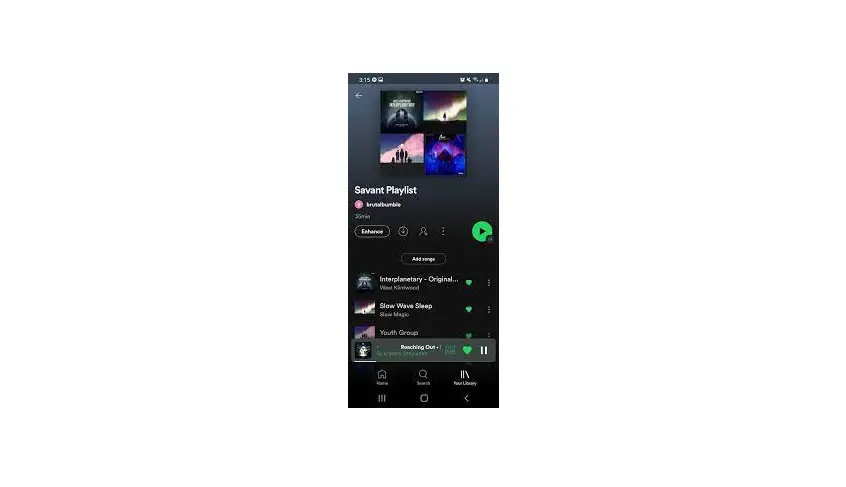
The “Playing Now” section displays the currently playing song,
artist, and playlist. You can stop or restart the music using the
stop and play icons. It also shows audio messages and scheduled
silence.
Recently played songs:
To view recently played songs and artists, tap on the clock icon
in the “Playing Now” section. The time and date of playback will be
displayed.
Library:
The “Library” section contains playlists that are available for
playback in the location/zone.
Tips & Recommendations:
For using the app in a business environment:
- Keep your phone or tablet connected to a charger to avoid
interruptions due to low battery. - Put the device in silent mode or Do Not Disturb mode to
eliminate unexpected distractions. - Turn off notifications.
- Remove apps that play music or videos.
Frequently Asked Questions:
Answers to common questions:
- The Mood Harmony app works on both Apple and Android tablets
and phones. - To play music through a Bluetooth speaker, ensure Bluetooth is
enabled on your phone or tablet, and pair it with the speaker
following the manufacturer’s instructions. - To play music through your location’s overhead speakers,
connect an appropriate cable from the device to your
amplifier. - If you lose your internet connection, you can still play music
from cached playlists on your device. However, it is recommended to
keep your device online for the latest playlist updates.
GETTING STARTED GUIDE
MOOD HARMONY APP | USING A DEVICE AS A MUSIC PLAYER
Setup basics
Download the app from the appropriate app store.
Device setup options
When you open the app for the first time, select the option to Use this device to play music option. This enables the device to function as a music player.
Playback key
Enter the playback key provided by Mood Media and press the Continue button.
Keep the app open. Music will start playing soon. If you receive an error message when activating the app, please contact us on our support page.
MOOD HARMONY APP | USING A DEVICE AS A MUSIC PLAYER
VERSION 2.2
Home screen
The Home screen will be displayed after you have successfully entered the playback key for your device. Device information The business’ location name and zone are displayed at the top of the screen.
Playing Now This section displays the song, artist and playlist that is currently playing. It also displays the current status of the music – if it has been stopped, or if an audio message is playing. Today’s Program This section displays the scheduled program(s) for this location/zone. Library The Library contains playlists that are available for playback in the location/zone.
Volume control Use the volume adjustment buttons on the device to control the music volume.
Customer Service
The Harmony icon in the top right corner of the screen will connect you with the Customer Service portal where you can find more information or submit a request to our team.
You can also contact Customer Service directly: https://moodmedia.custhelp.com/app/ask
MOOD HARMONY APP | USING A DEVICE AS A MUSIC PLAYER
VERSION 2.2
Playing Now
This section displays the song, artist and playlist that is currently playing. Tap the stop icon to stop the music; the play icon to restart it. Audio messages and scheduled silence are also noted in this section.
Recently played songs
Tap the clock icon in the Playing Now section to view songs and artists that have recently played. The time and date of the playback will be displayed.
Library
This section houses a collection of playlists that can override the scheduled music program. Tap a playlist in the Library to view the playlist genre, content rating, and sample artists. Tap the Play now button to select the playlist. Music from the selected playlist will begin when the song currently playing comes to an end. The playlist will continue to play until an alternative playlist is selected. The player will return to the scheduled content after 24 hours or Return to scheduled content can be manually selected at any time.
MOOD HARMONY APP | USING A DEVICE AS A MUSIC PLAYER
VERSION 2.2
FREQUENTLY ASKED QUESTIONS
TIPS & RECOMMENDATIONS Do you have any tips for using the app in a business environment? We recommend keeping your phone or tablet connected to a charger so that it doesn’t run out of power and interrupt your music.
To limit interruptions, we suggest the following: – Put the device in silent mode and if possible, Do
Not Disturb mode to eliminate unexpected distractions. – Turn off notifications. – Remove apps that play music or videos.
GENERAL QUESTIONS Will the Mood Harmony app work on a tablet or just a phone?
The Mood Harmony app works on both Apple and Android tablets and phones.
How do I play music through a Bluetooth speaker? First, make sure your phone or tablet supports Bluetooth and Bluetooth is enabled, then pair it with the speaker following the manufacturer’s instructions.
How do I play music through my location’s overhead speakers? Connect an appropriate cable directly from the device to your amplifier to send the music audio through your overhead sound system.
What happens if I lose my internet connection? You will be able to play music from playlists that have been cached on your device however, we recommend you keep your device online to get the latest playlist updates.
How do I request a playback key? Tap the Harmony icon in the top right corner of the screen, then select Customer Service and submit a request in the form. You can also reach out to our Customer Service team directly: https://moodmedia.custhelp.com/app/ask
Are playback keys case-sensitive? No. You can type in the playback key as you see fit.
Do the playback keys expire? No. Playback keys do not have an expiration date, but they can only be used once.
Is it possible to remove my device from a location? Yes. Tap the Harmony icon in the top right corner of the screen, then select Forget Device.
How do I stop the music that is playing on my device? Press the Stop icon in the Playing Now section and the music will stop. To restart the music, press the Play icon.
How do I request a Harmony Portal login so that I can select playlists for the app? The music selection in the app’s library is managed through the Harmony Music web portal. If you don’t already have an account, please contact our Customer Service team.
If a playlist is selected from the library, will it interrupt the song playing? No. The new playlist will begin when the song that is currently playing ends.
MINIMUM REQUIREMENTS Device capacity – no min requirements Operating system – Apple operating system – iOS 13+ – Android operating system – Android 5+
MOOD HARMONY APP | USING A DEVICE AS A MUSIC PLAYER
VERSION 2.2
 Harmony
 Contact Us