BenQ QP20 QCast Mirror HDMI Wireless Dongle User Manual
Copyright
© 2020 BenQ Corporation. All rights reserved. No part of this publication may be reproduced, transmitted, transcribed, stored in a retrieval system or translated into any language or computer language, in any form or by any means, electronic, mechanical, magnetic, optical, chemical, manual or otherwise, without the prior written permission of BenQ Corporation.
All other logos, products, or company names mentioned in this document may be the registered trademarks or copyrights of their respective companies, and are used for informational purposes only.
Disclaimer
BenQ Corporation makes no representations or warranties, either expressed or implied, with respect to the contents hereof and specifically disclaims any warranties, merchantability or fitness for any particular purpose. Further, BenQ Corporation reserves the right to revise this publication and to make changes from time to time in the contents hereof without obligation of BenQ Corporation to notify any person of such revision or changes.
Screen images and icons in this manual are simulated for illustrative purposes only. Actual displays may vary.
BenQ is not responsible for the content of the websites or of similar resources, which are maintained and controlled by third parties, that may be linked from this product. Providing links to those websites or to similar resources does not mean that BenQ makes any warranty or representation to their content by expression or by implication.
Any third party content or service preinstalled in this product is provided “as is”. BenQ does not, by expression or by implication, make any warrant to the content or to the services provided by third parties. BenQ does not warrant or guarantee that the content or services provided by third parties are accurate, effective, most up-to-date, legal, or complete. Under no circumstances shall BenQ be liable for the content or services provided by third parties including their negligence.
Services provided by third parties may be terminated temporarily or permanently. BenQ does not warrant or guarantee that the content or services provided by third parties are in good condition at any time, and is not liable for the termination of the said content and services. In addition, BenQ is not involved in any transactions you conduct in the websites or similar resources maintained by third parties.
You should contact the content or service providers for any questions, concerns, or disputes.
Package Contents
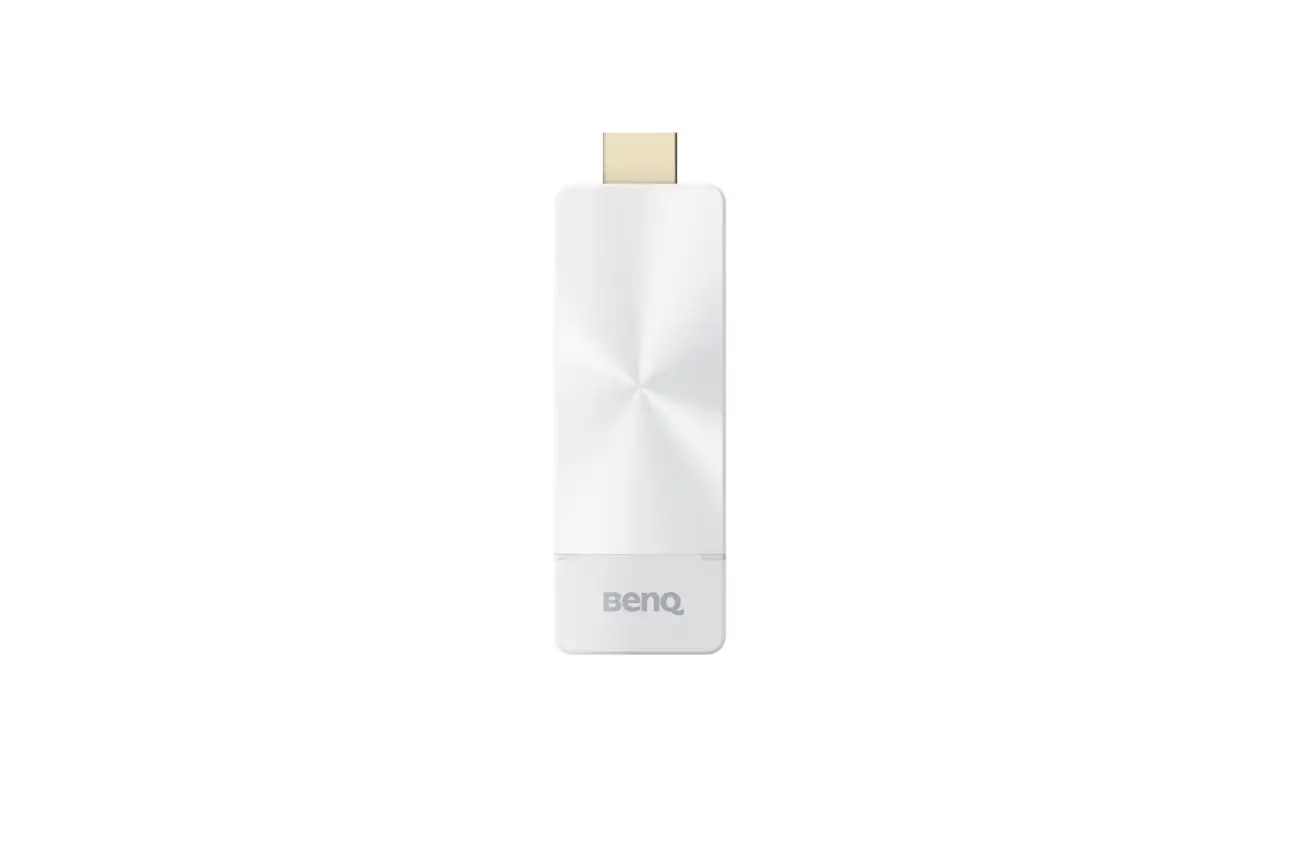
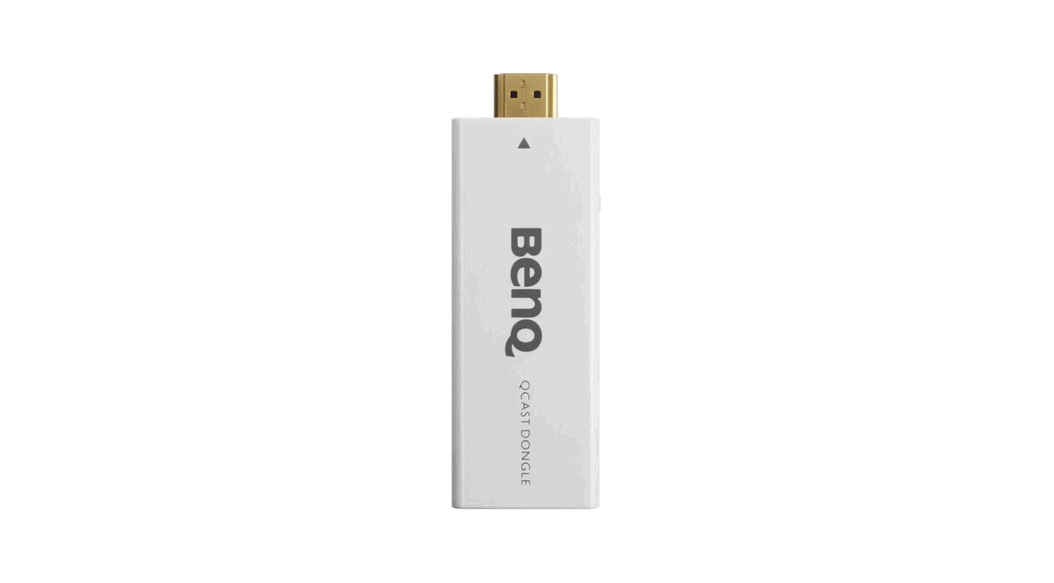
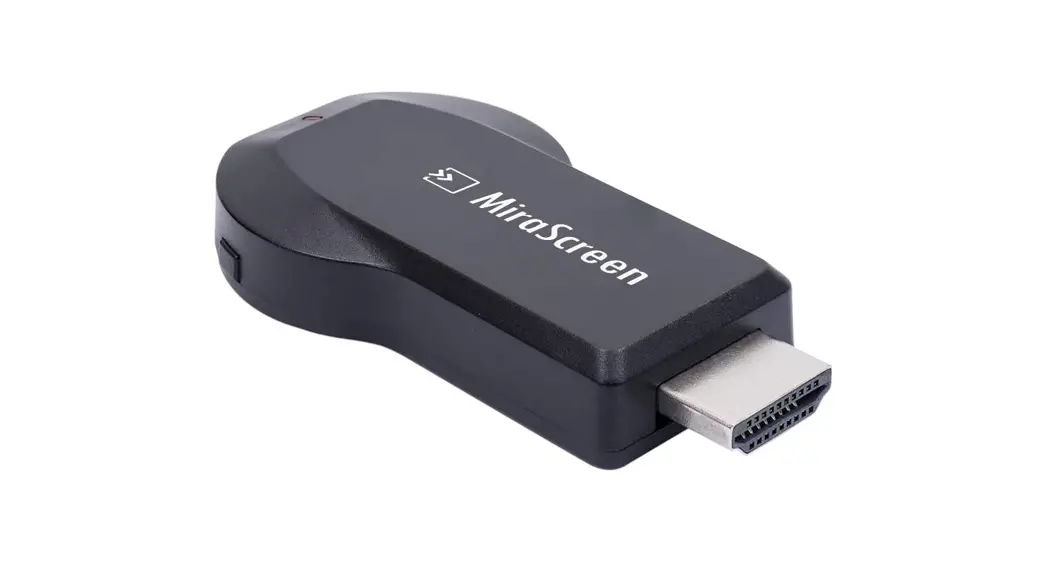
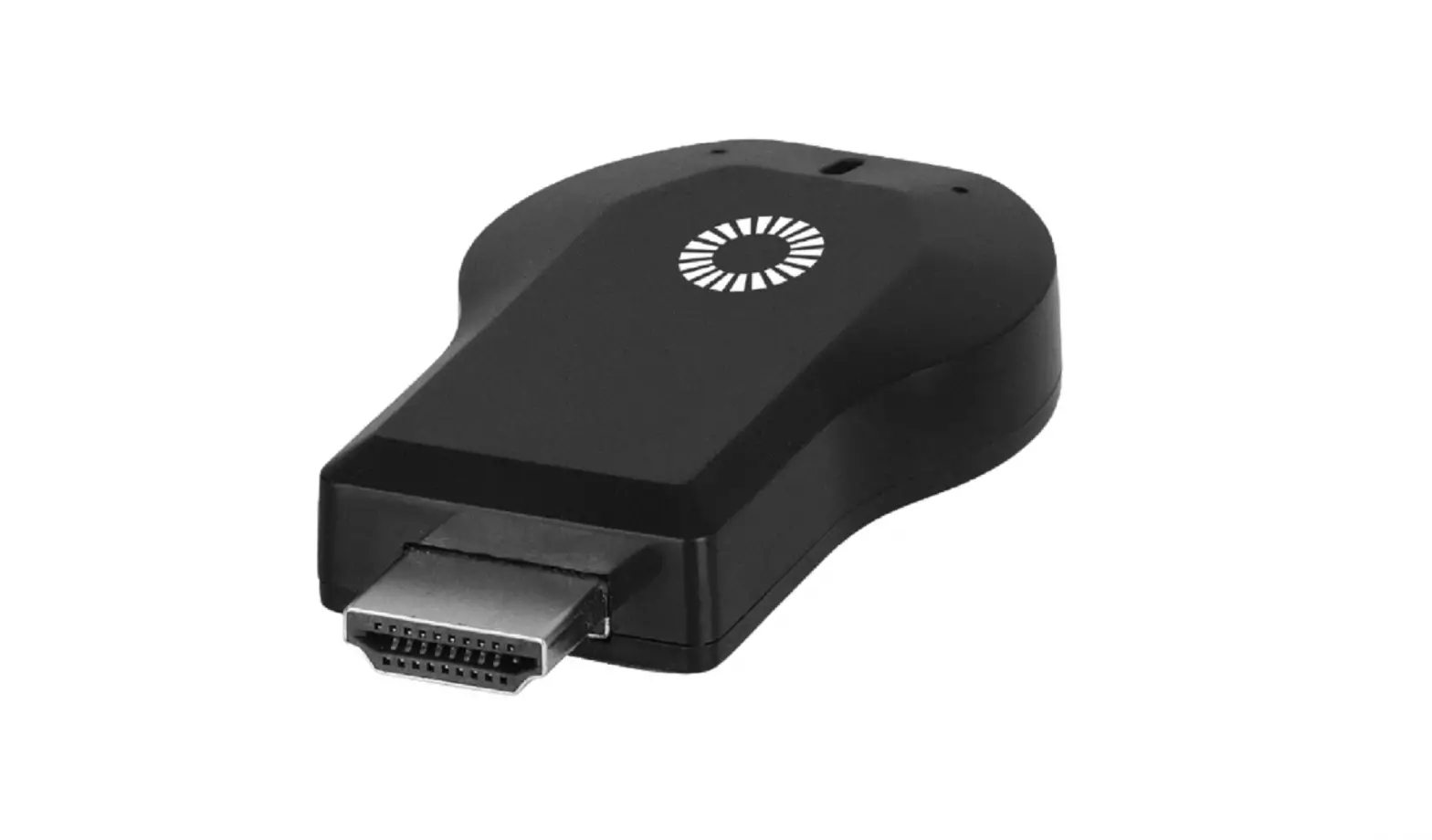
- QCast Mirror HDMI wireless dongle

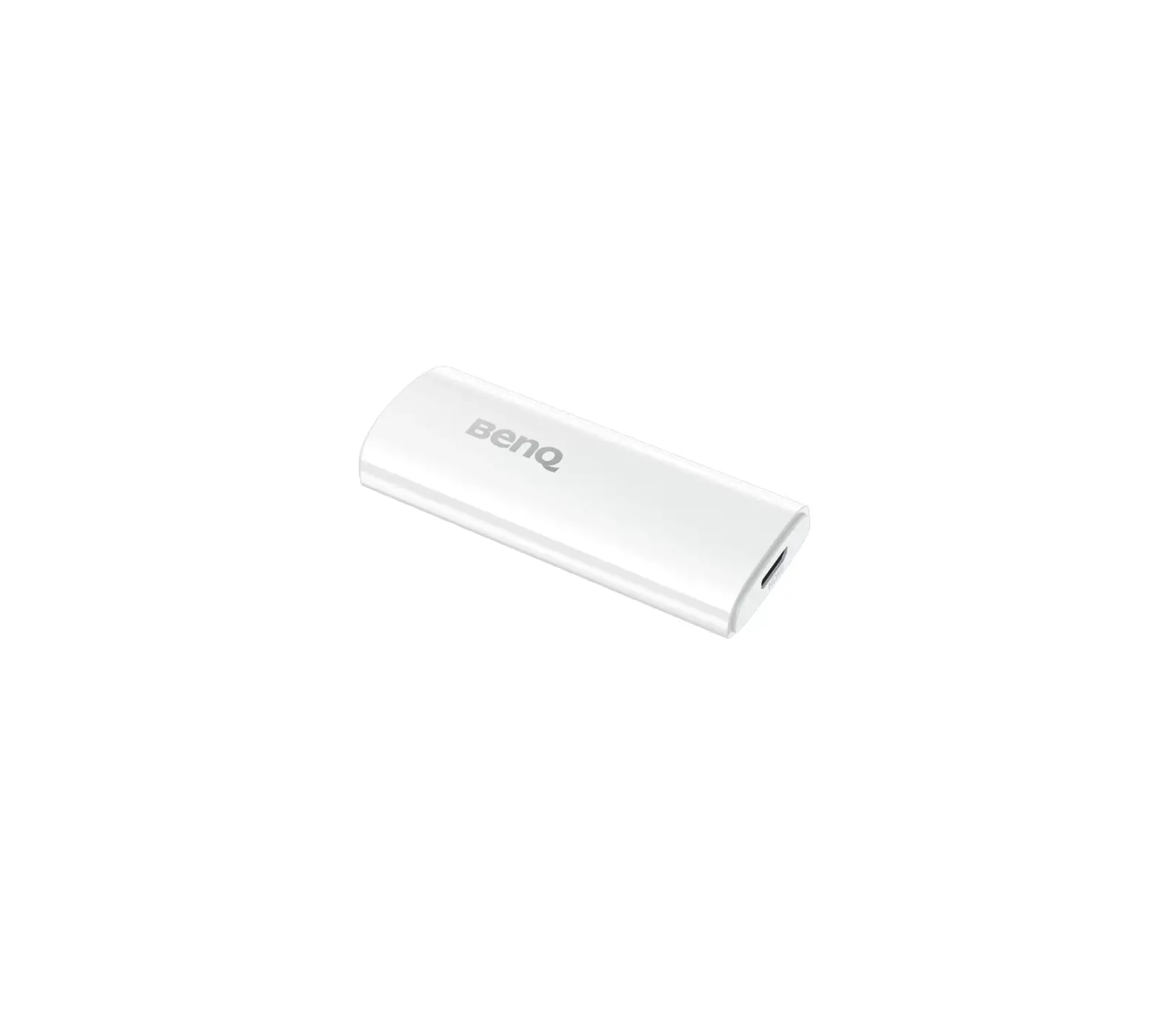
- Micro-USB cable

- Quick start guide

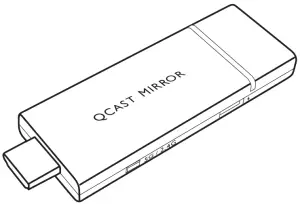
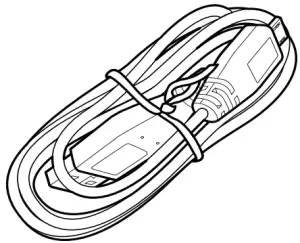

Product Overview
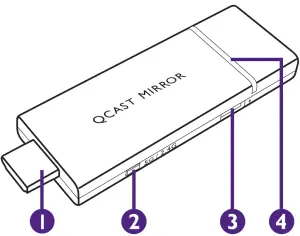
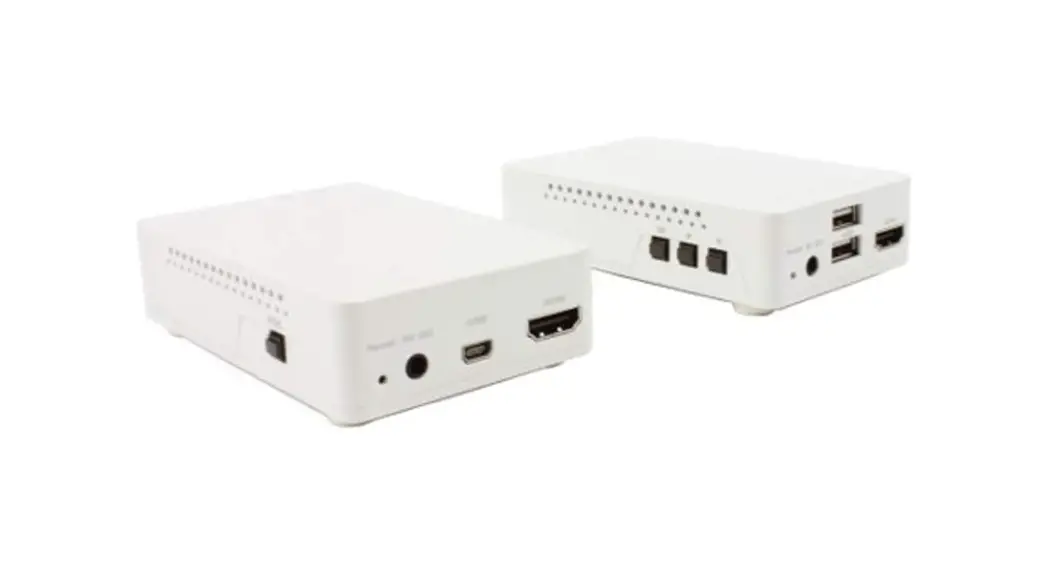
- HDMI Connector
Connects to the projector. - 2.4/5G Wi-Fi Switcher
Switches the Wi-Fi signal between 5G and 2.4G when pushed, the default setting for the signal is 5G for details on switching Wi-Fi signals via the Advanced Settings menu - USB Port
Connects to the display’s USB port (or a standard adapter head) via the Micro-USB cable to supply the dongle with power. - LED Indicator
Lights up blue when power is supplied.
Operating Instructions
Connecting the dongle to your projector Depending on your device’s operating system, different installation procedures and setup are required. Read this document and on-screen instructions (if provided) carefully
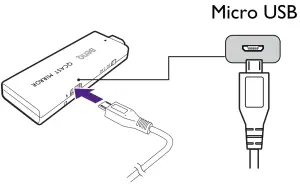
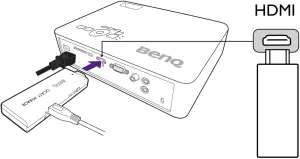
- Connect the Micro-USB cable to the Micro-USB port on the dongle.

- Plug the dongle into the HDMI port on the projector

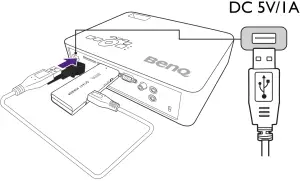
- Connect the USB type-A connector of the Micro-USB cable to the USB port on the projector, the LED indicator on the dongle will light up blue
 The USB port on the projector that you connect the cable to must provide 5V/1A power. If the LED indicator on the dongle does not light up blue, the USB port on your projector may not supply enough power and you may need to connect the cable to a power socket via a standard USB power adapter
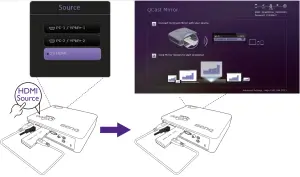
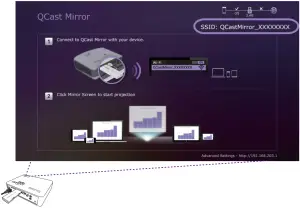
- Switch the input source on the projector to HDMI, a standby screen may appear. Once the QCast Mirror screen is shown you can begin the mirroring process.

Mirroring the content from your device
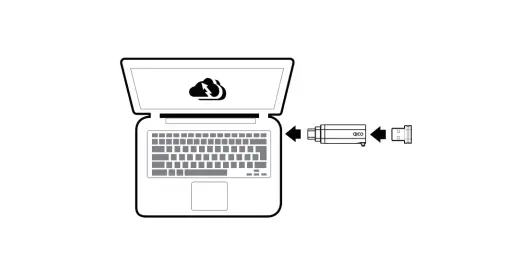
The QCast Mirror allows you to mirror the screen of smartphones, tablets, and computers via a WiFi signal. Devices that do not have Wi-Fi capabilities are not able to mirror their screen via the QCast Mirror. The steps to begin mirroring are described below.
For Smartphones/Tablets (iOS/Android
- iOSO
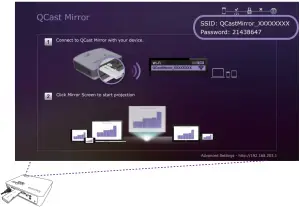
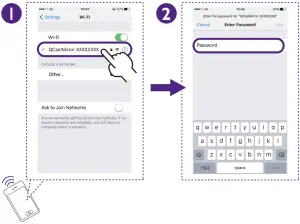
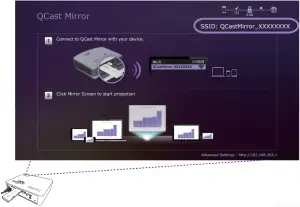
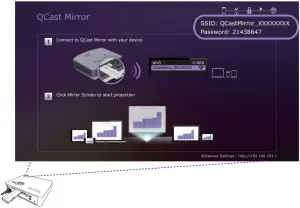
- pen your iOS device’s Wi-Fi menu and connect to the SSID displayed on the top right side of the QCast Mirror screen.
- Enter the security password displayed below the SSID on the QCast Mirror screen.
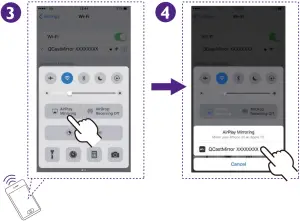
- Tap the iOS screen mirroring button in the iOS Control Center menu.
- Select the QCast Mirror from the list of available mirroring devices.


- Android
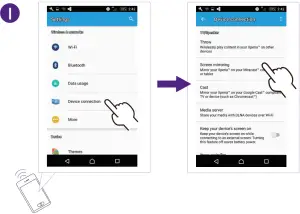
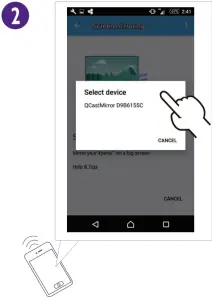
- Open your Android device’s Screen Mirroring menu.
- Select the QCast Mirror from the list of available mirroring devices.


For Desktop/Laptop Computers
- Mac OS
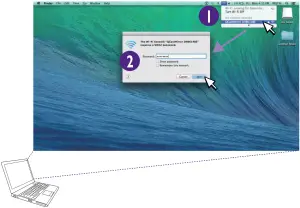
- Enter your Mac’s Wi-Fi menu and connect to the SSID displayed on the top right side of the QCast Mirror screen.
- Enter the security password displayed below the SSID on the QCast Mirror screen.
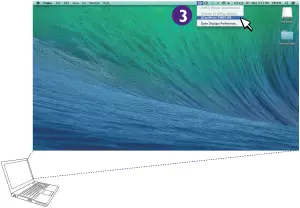
- Open the Mac screen mirroring menu in the Mac OS home screen, and then select the QCast Mirror from the list of available mirroring devices.

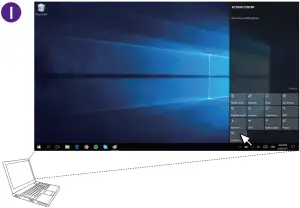
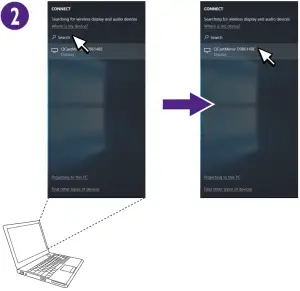
- Windows OS
- Select the Connect button from Windows Action Center.
- Select the QCast Mirror from the list of available mirroring devices.

Advanced Settings
 Use a smartphone / tablet to configure settings.
The Advanced Settings menu for the QCast Mirror allows you to configure various settings for the QCast Mirror. To access the Advanced Settings menu:
- Enter your device’s Wi-Fi menu and connect to the SSID displayed on the top right side of the QCast Mirror screen.
- Enter the security password displayed below the SSID on the QCast Mirror screen.
- Open a web browser on your device and enter the URL http://192.168.203.1, the Advanced Settings menu will open in the browser.

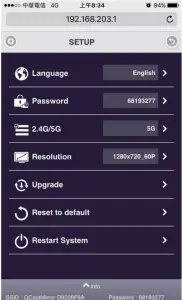
The following items are configurable in the Advanced Settings menu:
- Language: Sets the language for the Advanced Settings page.
- Password: Changes the Wi-Fi password for the dongle.
- 2.4G/5G: Toggles between a 2.4G or 5G Wi-Fi signal.
- Resolution: Sets the output resolution.
- Upgrade: Updates to the latest firmware. Your device must be connected to the internet in order to upgrade the dongle’s firmware.
- Reset to default: Returns all dongle’s settings to the preset factory values.
Before leaving the Advanced Settings page, select Restart System to reboot the QCast Mirror, and then close the Advanced Settings page. After that, establish the connection again for screen mirroring.
Product Specifications
| Model Name | QP20 – QCast Mirror HDMI Wireless Dongle | |
| Dimensions | 84 x 11 x 32 mm (W x H x D) | |
| Input Terminals | Micro USB | |
| Output Terminals | HDMI 1.2 | |
| Weight | 30g approx. | |
| Wireless Standard | IEEE 802.11a/b/g/n/ac | |
| Security | WPA/WPA2 | |
| LED | Blue LED indication for Power and WiFi status | |
| Output Resolution | 1280×720 @60hz | 1920×1080 @24hz |
| 1920×1080 @30hz | ||
| Frequency Band | 2.4G/5G (default setting) | |
| Color | White | |
| CPU | AM8252 | |
| DRAM | DDR3 128MB | |
| NAND | 128MB | |
| Power | DC 5V/1A, through Micro USB port | |
| Video support | Max. 1080p@30p video decode | |
System Requirements
PC | Windows OS | Windows 8.1 and above with Miracast support
|
| Mac OS | Mac OS X 10.11 and above with Mirror Screen support
| |
Tablet/Smartphone | iOS | iOS 9.3 and later with Mirror Screen support |
Android | Android 4 above with Mirror Screen support | |
Windows Phone | Windows Phone 8.1 and later with Mirror Screen support |
- Make sure your device has been upgraded to a proper OS version that supports screen mirroring.
- 5G Wi-Fi only supports Band 1 (5.150 – 5.250 GHz).
Transmission quality depends on the Wi-Fi environment and the screen mirroring compatibility of mobile devices from different brands. To ensure the best transmission quality, visit http://www.benq.com/ for the list of compatible devices. - For further information, please visit: http://www.benq.com/
FAQ
 Is my device able to use QCast Mirror?
 Any device with screen mirroring capabilities is able to use QCast Mirror. How can I tell if my device has screen mirroring capabilities? For smartphones/tablets:
Check to see if the operating system for your device matches the system requirements for QCast
Mirror, see “System Requirements” on page 12 for more details
For PCs:
- Check to see if the version of your PC’s operating system matches the versions listed in “System Requirements” on page 12. If you are using a PC with Windows 8.1 or above continue with the steps below:
- Swipe-in from the right edge of the screen or press Windows+P, and then tap Devices. Tap or click Project. If you see Add a wireless display, your PC supports screen mirroring.
- Get the current drivers for your PC.
- Make sure Windows Update has installed all of the important and optional updates for your PC.
- Check the Support page on your PC manufacturer’s website and install the drivers for your PC located on the page.
- If your PC matches all the software requirements for QCast Mirror and you are still unable to mirror your PC’s screen, you can check the hardware specifications from the manufacturer for your PC to see if the following specification categories matches the hardware requirements for screen mirroring:
- Graphics
- Chipset
- Wi-Fi adapter
- Graphics Driver
Am I able to connect to the internet when I am screen mirroring.
Yes, your device is able to connect to the internet while screen mirroring via an already established (Wi-Fi router or mobile broadband 3G/4G) internet connection. Devices running the Android platform supports Wi-Fi router or mobile broadband 3G/4G internet connections when screen mirroring; devices running the iOS platform only supports mobile broadband 3G/4G internet connection when screen mirroring.
How many devices can connect to the QCast Mirror simultaneously? Can more than one device mirror their screen at the same time?
Up to 10 devices can be connected to the QCast Mirror simultaneously, but only one device can mirror its screen at a time. The device mirroring its screen must disconnect before another device can mirror its screen.
How do I switch between 2.4G and 5G Wi-Fi frequency?
You can switch Wi-Fi frequency in two ways:
- Press the 2.4G/5G Wi-Fi switcher button located on the dongle.
- Enter the Advanced Settings menu of the dongle and change the 2.4G/5G field to your desired frequency, and then restart the device.for details on the Advanced Settings menu.
How do I restore the QCast Mirror to its original factory settings?
You can restore the QCast Mirror to its original factory settings in two ways:
- Press and hold the 2.4G/5G Wi-Fi switcher button located on the dongle for 10 seconds then release the button. The QCast Mirror will restart with all the user-defined settings deleted.
- Enter the Advanced Settings menu of the dongle and select the Reset to default
button, and then restart the device. for details on the Advanced Settings menu.
How do I reboot the QCast Mirror?
If your QCast Mirror has frozen or you have changed the configurations in the
Advanced Settings menu you will need to reboot your dongle using any one of the following methods:
- Re-connect the QCast Mirror’s Micro-USB cable to the power source.
- Select the Restart System button in the Advanced Settings menu.
- With BenQ Wireless Projectors (M6 series), press the Menu key and enter the advanced OSD and set the USB power switch to Off and then On. Visit www.BenQ.com for compatible projector models.
What do I do if videos shown via QCast Mirror lag or are choppy?
When videos shown via QCast Mirror lag or are choppy, the most likely factors are Wi-Fi signal strength or the video bitrate :
- For videos located locally on the mirrored device: The most likely factor is the video’s bitrate.
- For online videos: The most likely factor is the QCast Mirror’s Wi-Fi signal is not strong enough,it is suggested that the dongle be placed in an ideal location in terms of Wi-Fi signal strength. Transmission quality depends on the Wi-Fi environment and the screen mirroring compatibility of mobile devices from different brands.
What is the ideal location for Wi-Fi signal strength?
The maximum effective range of connection between the mirrored mobile device and the QCast Mirror is 10 meters (for 2.4G Wi-Fi signal) or 5 meters (for 5G Wi-Fi signal) without any obstacles or radio interference.
It is suggested that the mobile device be located behind the dongle within the effective range. And make sure there is no wall or objects obstructing the signal between the connected devices.
How do I update the QCast Mirror to the latest firmware OTA (Over-The-Air)?
 Connect to the QCast Mirror’s SSID/Password from your mobile device.
- Open the mobile device’s web browser and open the URL http://192.168.203.1 to view the Advanced Settings menu.
- If the Upgrade field shows “New Version!”, select Upgrade.
- Select the Wi-Fi router you want the dongle to connect to in order to download the upgrade files.
- Wait for the confirmation of the upgrade process.
2020-03-18 Guide Regimentation DAS Vf Decree 2019-1186 of 15 November 2019 relating to the display of the specific absorption rate of radio electric equipment.
The minimum distance between the user and/or any bystander and the radiating structure of the transmitter is 20cm.

 BenQ.com
 BenQ.com