6940 OfficeSuite Contact Center Services
Product Information
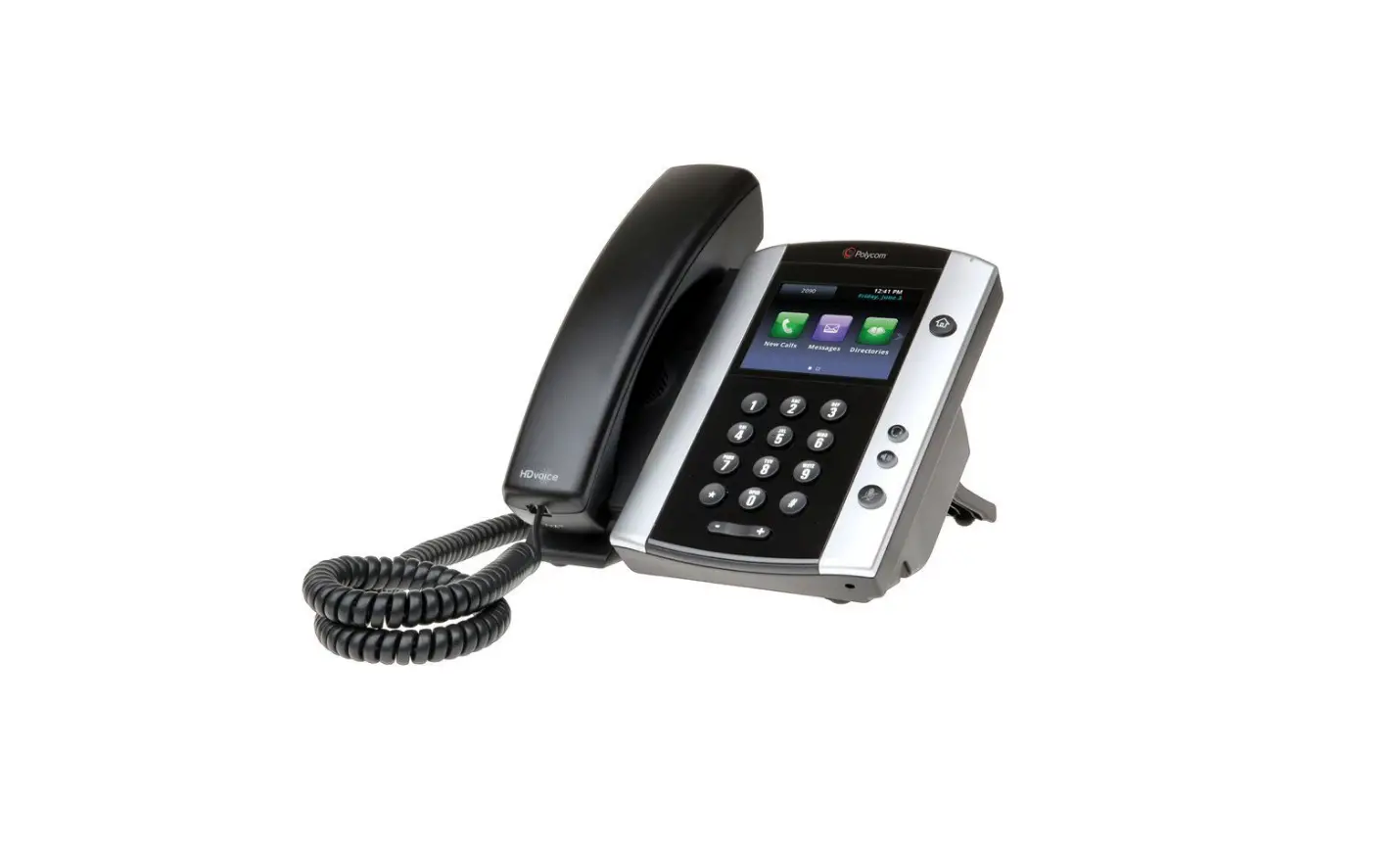
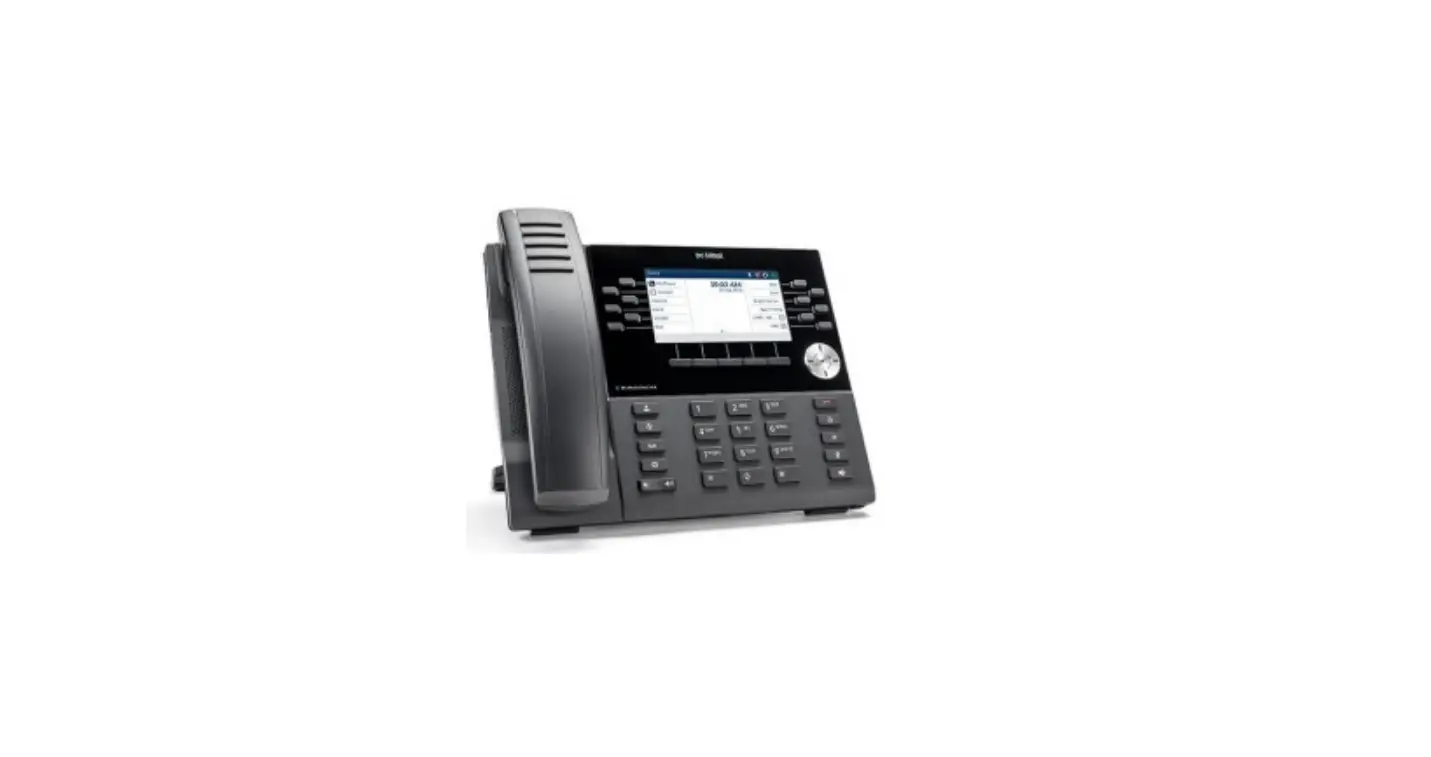
The Mitel 6940 Phone is a versatile communication device that
offers various features and functions to enhance your calling
experience. It includes programmable keys, softkeys, a touchscreen
UI, voicemail access, volume adjustment, call history, and more.
Additionally, there is a variant of the 6940 IP Phone called the
6940w IP Phone, which offers added features such as embedded WiFi,
Bluetooth 5.0, and Energy Efficient Ethernet capability.
Main Features:
- Contacts: Displays a list of your contacts.
- Call History: Displays a list of missed, outgoing, and received
calls. - Programmable Keys: Up to 96 programmable keys, with a maximum
of 16 per page. - Softkeys: Six state-sensitive softkeys for quick access to
functions. - Goodbye: Ends active calls and used for exiting menus.
- Voicemail: Provides access to your voicemail service.
- Settings: Customizable services and options for your
phone. - Volume: Adjusts the volume for the ringer, handset, speaker,
and headset. - Redial: Displays Call History with a list of outgoing
calls. - Hold: Places an active call on hold or resumes a call from
hold. - Mute: Mutes/unmutes all outgoing audio from headset, handset,
or speaker.
6940w IP Phone Additional Features:
- Embedded WiFi: Allows wireless connectivity.
- Bluetooth 5.0: Enables wireless pairing with compatible
devices. - Energy Efficient Ethernet: Supports IEEE 802.3az standard for
power-saving.
Accessories:
The 6940w IP Phone supports the same accessories as the regular
6940 IP Phone.
Product Usage Instructions
Activating your Mitel 6940 Phone:
- Follow the Installation Guide to connect the phone to your
network. - Once the phone boots, press the ACTIVATE softkey.
- Enter your numeric OfficeSuite UC extension.
- Enter your numeric PIN.
- Press ENTER or the # key to login.
- Your phone is now ready for use.
Programming Speed Dial and Feature Keys:
To program speed dial and feature keys, login to the WE Connect
portal at we.windstream.com.
Basic Call Handling:
Making a call:
- Lift the handset or press the Line programmable key, and dial
the number.
Ending a call:
- Place the handset back in its cradle.
- Press the End Call softkey.
- Press the Goodbye key.
Answering a call:
- Lift the handset for traditional operation.
- Press the Answer key for hands-free operation.
Redialing a number:
- Press the Redial key to call the last dialed number displayed
on the screen. - Swipe up and down to scroll through the Call History
entries. - Select the desired entry.
- Tap the Dial softkey to redial the selected number.
Muting and unmuting:
- Press the Mute key while on an active call to mute the
microphone for your handset, headset, or speaker. - Press the Mute key again to unmute the audio.
Holding and resuming a call:
- To place an active call on hold, press the Hold key. The (hold)
icon will flash on the respective Line key. - To resume the call, press the respective Line key.
If you need more information about your OfficeSuite UC services,
visit the OfficeSuite
online community.
OFFICESUITE UC MITEL PHONES QUICK REFERENCE GUIDE
OfficeSuite UC® Mitel Phone
6940 and 6940w
Mitel 6940 Phone
Getting started
Activating your phone
Contacts Displays a list of your contacts.
Call History Displays a list of missed, outgoing and received calls.
Programmable Keys Up to 96 programmable keys, a maximum of 16 programmable keys per page.
Softkeys Six state-sensitive softkeys.
Goodbye Ends active calls and used for exiting menus.
Follow the Installation Guide for the Mitel 6940 IP Phone to connect the phone to your network. After the phone boots, press the ACTIVATE soft key. Enter your numeric OfficeSuite UC extension, and then enter your numeric PIN. Press ENTER or the # key and your phone will login and be ready for use. To program speed dial and feature keys, login to the WE Connect portal at we.windstream.com
Voicemail Provides access to your voicemail service.
Settings Provides services and options that allow you to customize your phone.
Volume Adjusts the volume for the ringer, handset, speaker and headset.
Redial Displays Call History with a list of outgoing calls.
Hold Places an active call on hold or resumes a call from hold.
Mute Mutes/unmutes all outgoing audio from headset, handset or speaker.
LCD Touchscreen UI navigation is performed using the LCD touchscreen. On the Home screen, swipe left and right on the programmable key area to access additional key pages. In the application and settings menu, swipe up and down to scroll through lists. To select an item, tap the respective item on screen.
Speaker/Headset Toggles the phone’s audio between speaker and headset.
Basic call handling
Making a call
1. Lift the handset or press the
key, and dial the number.
2. Press the Line programmable key and dial the number.
Ending a call
Place the handset back in its cradle, press the End Call softkey, or press the
key.
Answering a call Lift the handset or press the
key for hands-free operation.
Redialing Press the Redial softkey once or the Home screen or
key twice to call the last dialed number as displayed on the
Press the
key once to access the Call History application with a list of recently dialed numbers. Swipe up
and down to scroll through the entries, select the entry, and tap the Dial softkey to redial the selected number.
Muting Press the Press the
key while on an active call to mute the microphone for your handset, headset, or speaker. key again to unmute the audio.
Holding and resuming
1. To place an active call on hold, press the
key. A
2. To resume the call press the respective Line key.
(hold) icon flashes on the respective Line key.
Help is available For more information about your OfficeSuite UC services, visit the OfficeSuite online community at windstreamenterprise.com/support/communities
Mitel 6940w
A new variant of the 6940 IP Phone is available called the 6940w IP Phone. The 6940w IP Phone is physically identical to the 6940 IP Phone. The new features supported by the 6940w IP Phone relative to the 6940 IP Phone are embedded WiFi, Bluetooth 5.0, IEEE 802.3az standard (Energy Efficient Ethernet) capability. The 6940w IP Phone also support the same accessories as the current 6940 IP Phone.
Before you use 6940w IP Phone, ensure you:
Power on your phone by:
+ Connecting an Ethernet cable into the network port marked with back of your phone.
on the
+ Plugging the other end of the Ethernet cable directly into the network jack of a wall. Ensure your network provides 802.3af/802.3at compliant inline power, in order to power on the phone through the network.
Note: If your network does not provide inline power, use the latest power adapter (sold separately) with your phone and plug your phone into a power source. If you use an old power adapter that does not supply enough power to the phone, there is a possibility of the phone to reboot.
Connecting to WiFi on 6940w IP Phone
The 6940w IP Phone has built-in wireless connectivity and functions as an 802.11a/b/d/g/n dual-band wireless network device which allows your phone to join a secure, high-speed network.
You can connect your phone to either a enterprise network or a home network: + Connecting to a WPA2 Enterprise network + Connecting to a home network
To connect to a WiFi network, WiFi functionality must be enabled by your System Administrator. If WiFi is not enabled “Please contact system administrator to enable Wifi” message is displayed on the phone. Press Close softkey and contact your System Administrator to enable WiFi.
3
Connecting to WPA2 Enterprise network 1. Navigate to Settings > WiFi.
2. The Available Networks settings menu is displayed after approximately 30 seconds.
4
3. Select the name of the enterprise WiFi network; for example, Mitel from Available Networks. Note: You can connect to only one SSID. If multiple SSIDs are listed, their relative signal strength is displayed. The phone does not retain memory of previously discovered networks.
4. Enter the username of your enterprise network and select the Save softkey.
5. Enter the password for the network and select the Save softkey. Note: If you enter an incorrect password the Connection failed dialog box appears.
6. The Save and Connect? dialog box appears. Click Yes to connect. The connected network (Mitel) is listed under Saved Network. Note: After the phone connects to WiFi, LAN and PC ports are disabled (as it relates to network communications). However, the LAN port still provides power to the phone.
5
7. To disconnect from WiFi (Mitel) and use the LAN port again, under Saved Network press the Disconnect softkey.
8. Click Close softkey to return to the Settings menu. Connecting to a home network 1. Navigate to Settings > WiFi.
2. The Available Networks settings menu is displayed after approximately 30 seconds.
3. Select an SSID (that is, the name of a WiFi network; for example, Home Network) from Available Networks press Connect softkey. If the SSID is secured, a password prompt appears. Note: You can connect to only one SSID. If multiple SSIDs are listed, their relative signal strength is displayed. The phone does not retain memory of previously discovered networks.
4. Enter the password for the network and select the Save softkey. Note: If you enter an incorrect password a Connection failed dialog box appears.
6
5. The Save and Connect? dialog box appears. Click Yes to connect. The connected network (Home Network) is listed under Saved Network.
6. To disconnect from WiFi (Home Network) and use the LAN port again, under Saved Network press the Disconnect softkey.
7. Click Close softkey to return to the Settings menu. Note: After the phone connects to WiFi, LAN and PC ports are disabled (as it relates to network communications). However, the LAN port still provides power to the phone.
WiFi Network Connected/WiFi Network Disconnected If your phone successfully connects to the WiFi network, name of connected network is listed under Saved Network.
If your phone is disconnected from the WiFi network WiFi disconnected symbol is shown in the Saved Network.
For more product help, visit windstreamenterprise.com
0336 I 11.22 ©2022 Windstream Intellectual Property Services, LLC. All Rights Reserved. 7
 we.windstream.com
 Windstream Enterprise | Cloud-Enabled Network & Voice Solutions