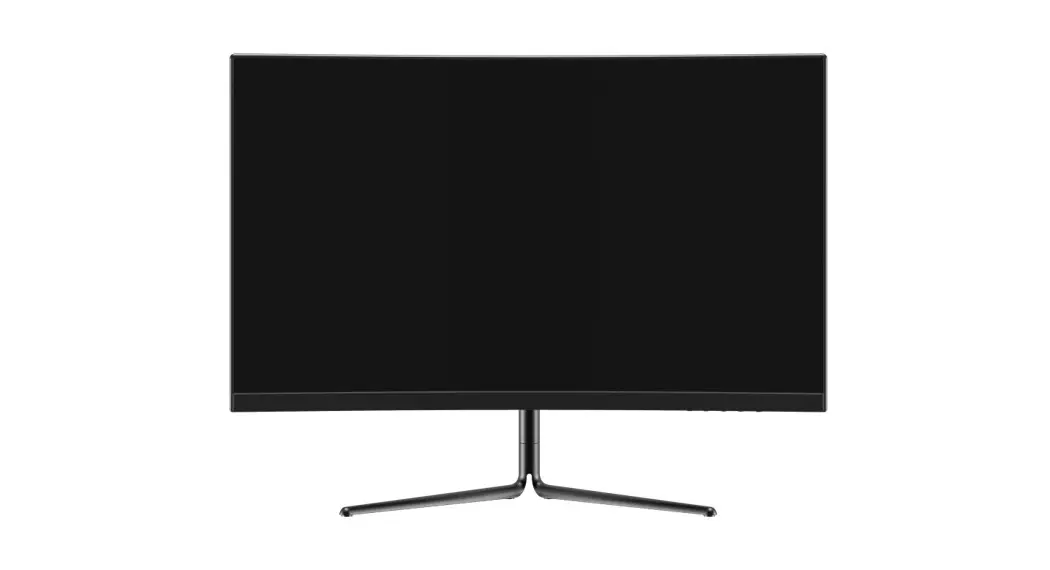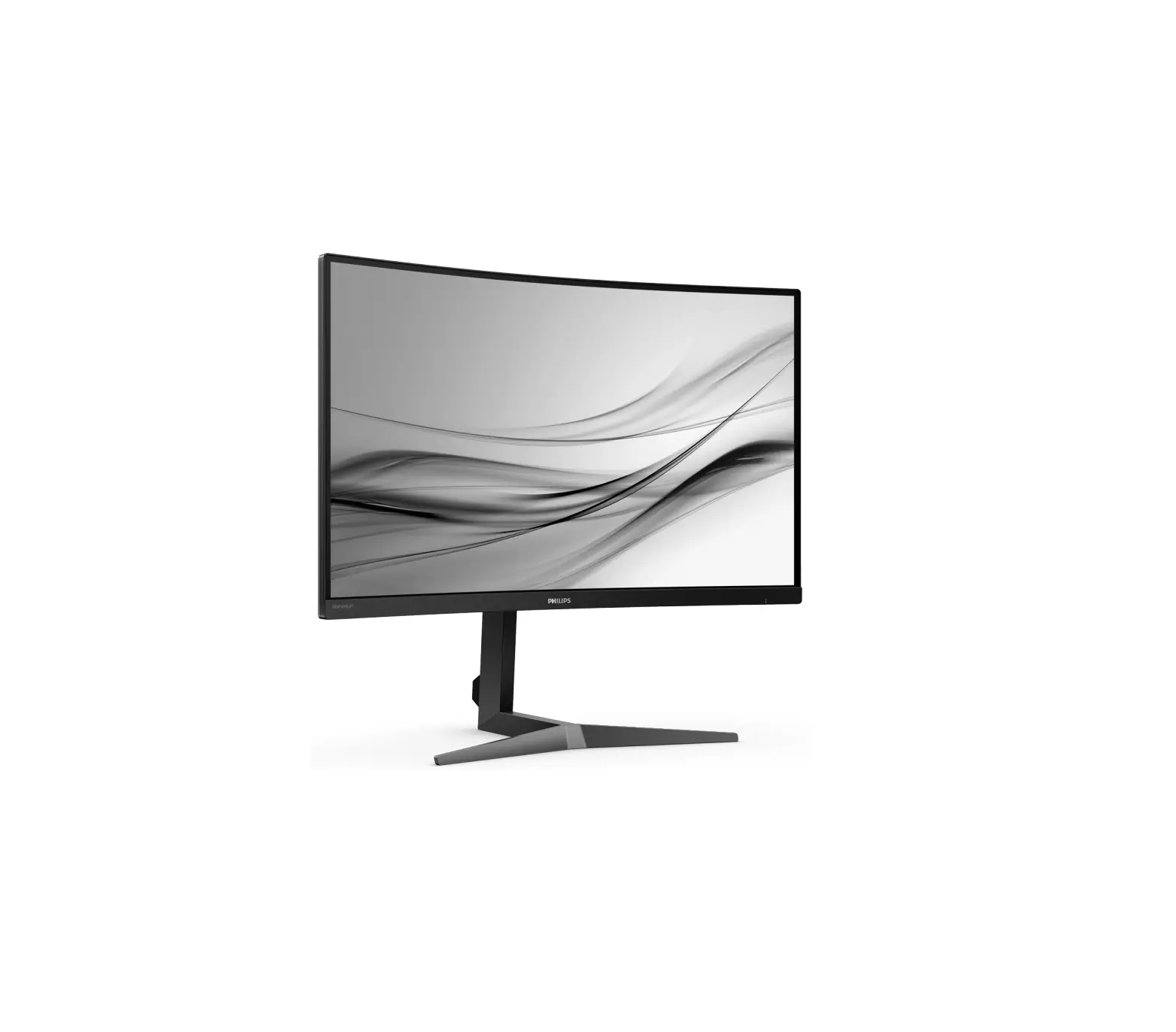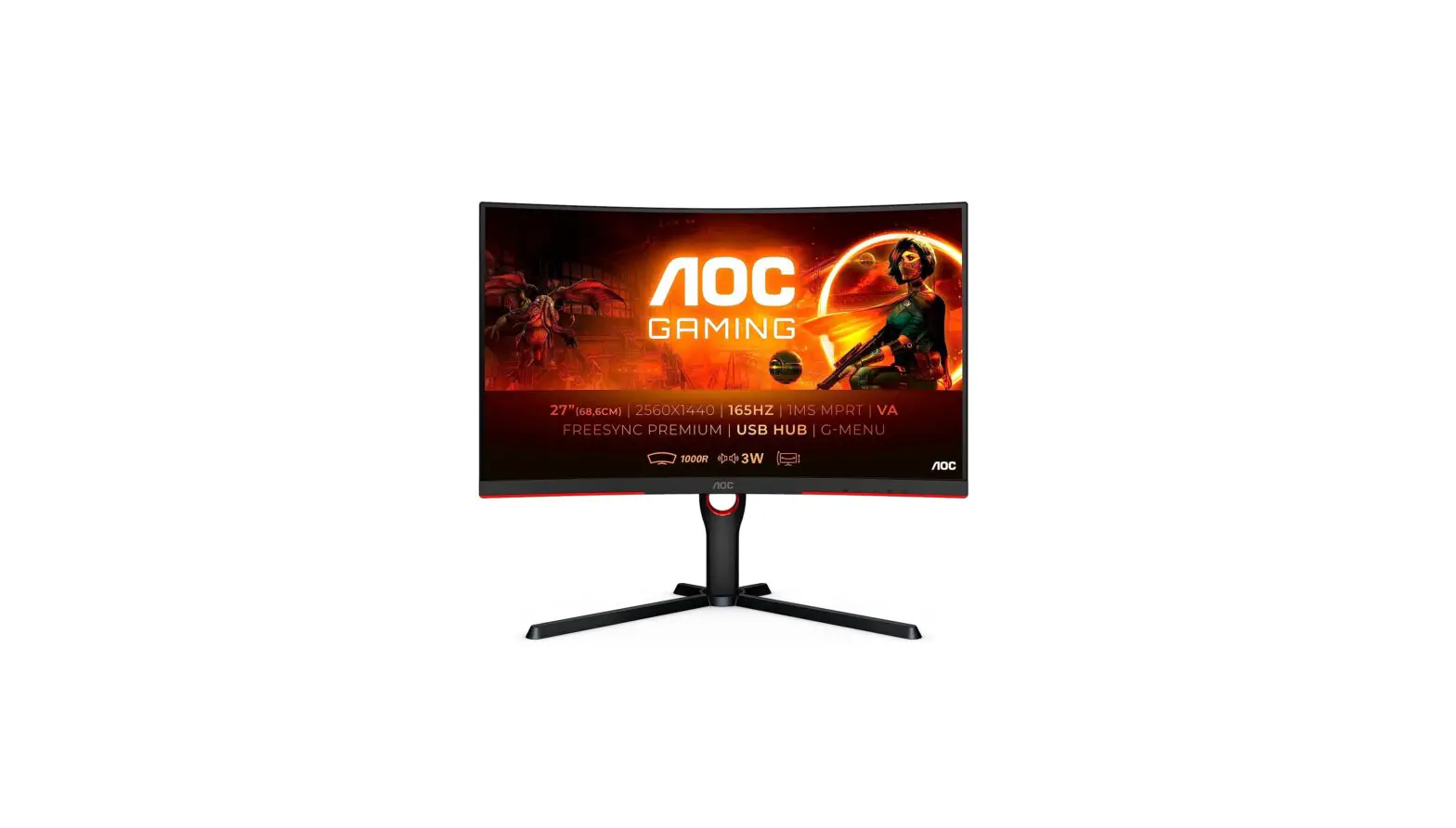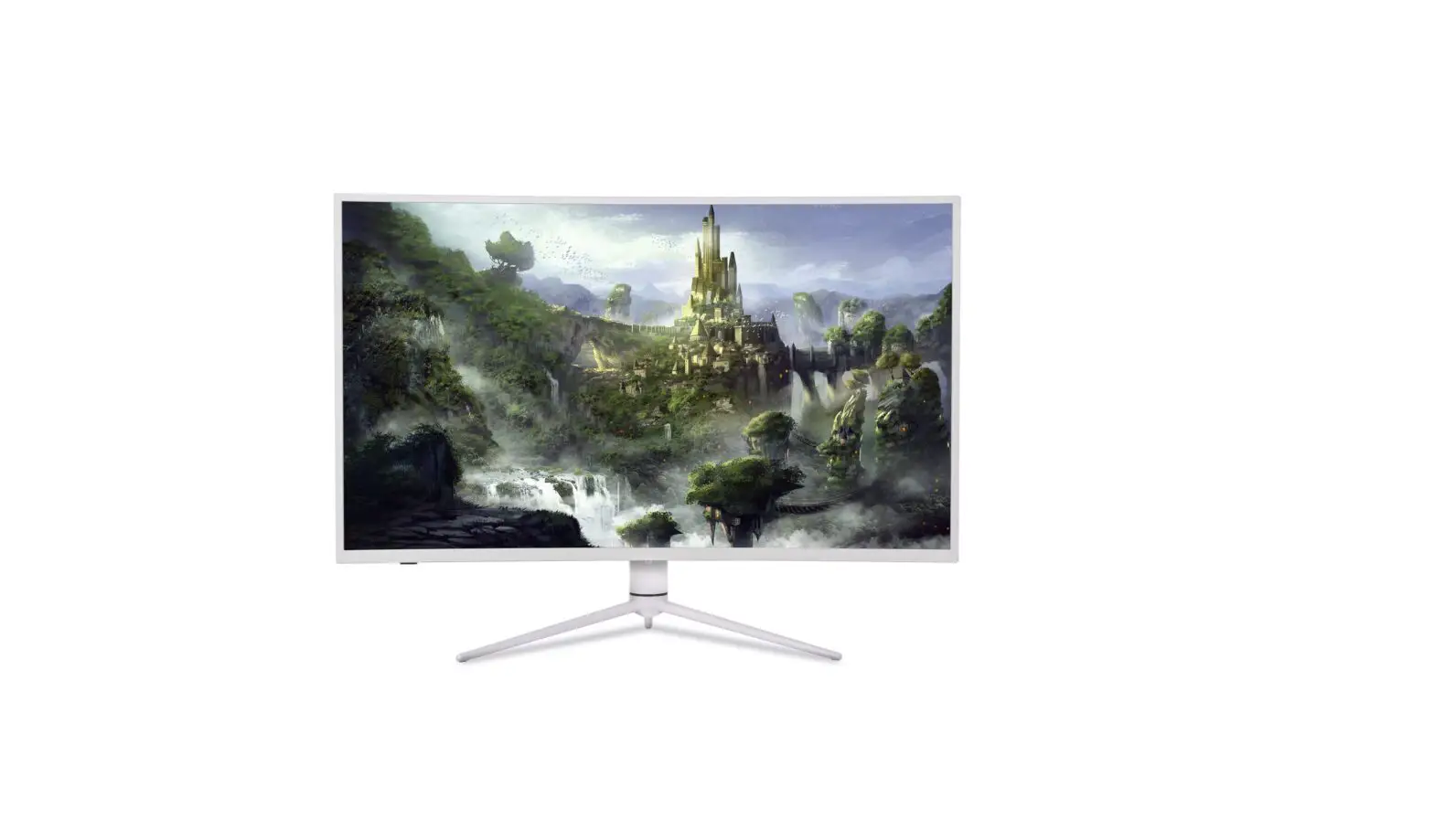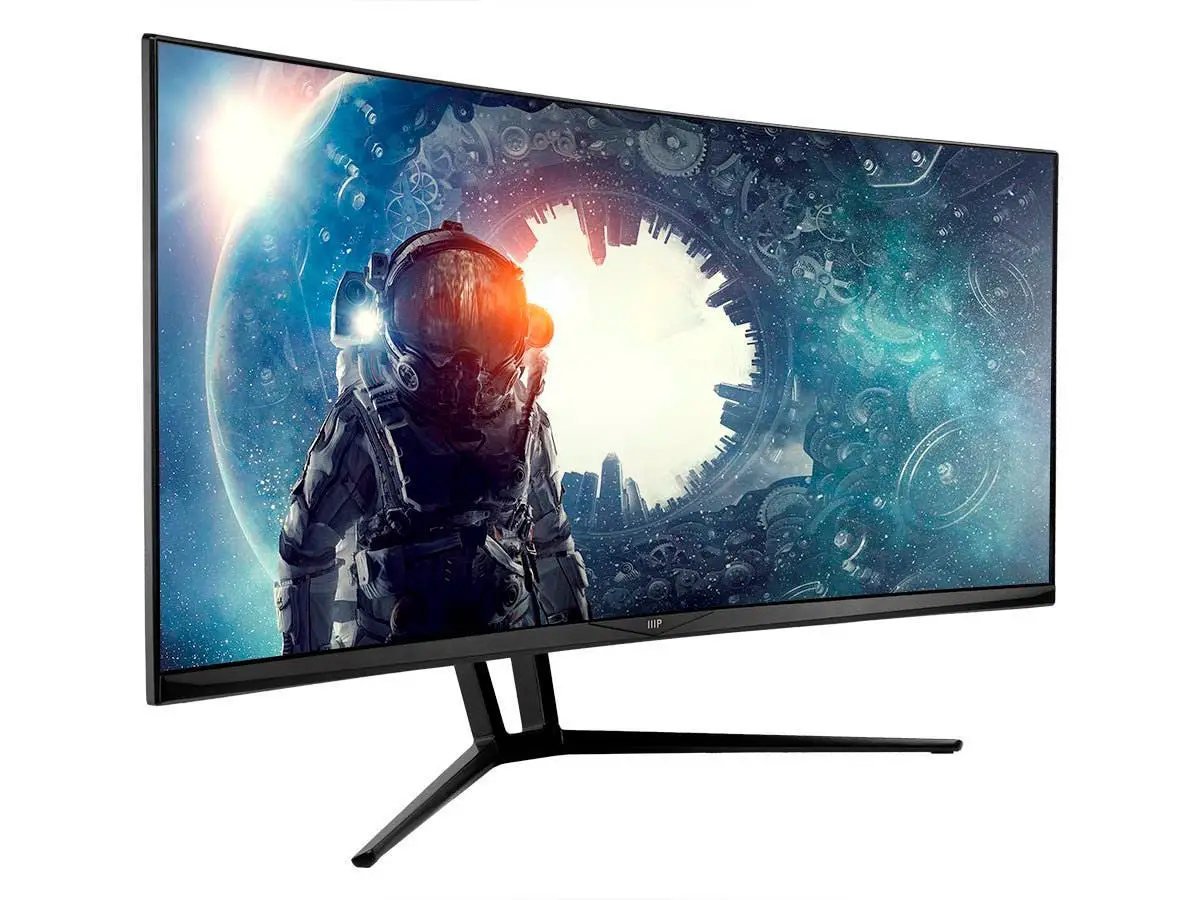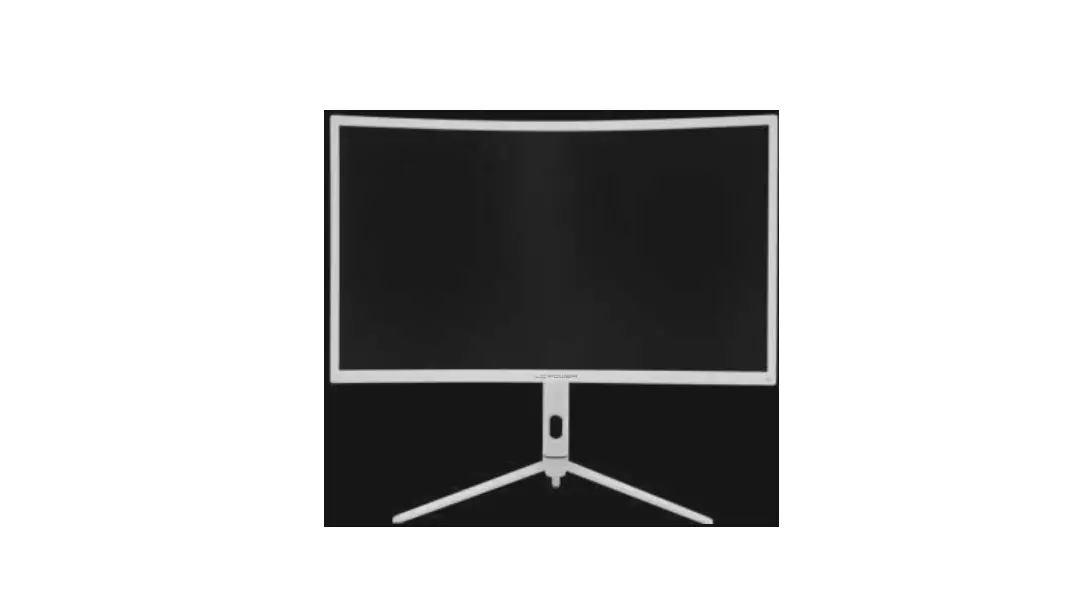

GAME HERO HDR1000 27 inch Curved Gaming Monitor Ultra-Wide QHD
1. Safety Precautions
Do not expose the monitor to a humid environment, rain or other liquids. Do not open the monitor housing to avoid any shock due to electrical or mechanical hazards.
Operation:
- Keep the monitor out of direct sunlight or other heat sources like stoves.
- Keep the monitor away from any liquid.
- Remove any object that could fall into the ventilation holes.
- Do not block the ventilation holes to avoid overheating.
- Do not knock or drop the monitor.
Maintenance
CAUTION: Unplug the power cable from the outlet before cleaning the monitor.
- To clean your screen, slightly moisten a soft, clean cloth with water.
- Please use a special screen-cleaning tissue if possible.
- Do not use benzene, thinner, ammonia, abrasive cleaners or compressed air.
- Inappropriate cleaning solutions may damage the monitor or leave a milky film on screen or housing.
- Unplug the monitor if you are not going to use it for a longer time period.
- Do not expose the monitor to dust, liquids or a humid environment.
- In case the monitor gets in touch with any liquid, wipe it down
immediately using a dry cloth. - In case any liquid gets spilled into the ventilation holes, do not use the monitor anymore. Please contact a professional service technician.
Legal notice:
The terms HDMI and HDMI High Definition Multimedia Interface, and the HDMI Logo are trademarks or registered trademarks of HDMI Licensing Administrator, Inc. in the USA and other countries.
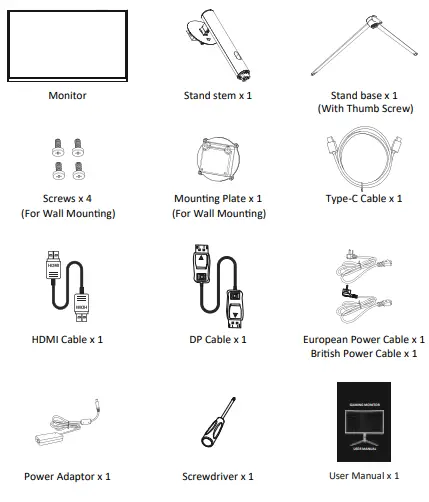
Box Contents
Product Overview
Monitor Buttons
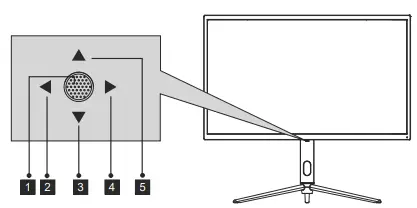
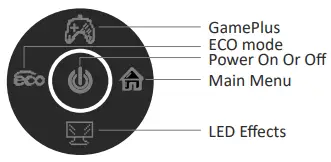
 When the monitor is off, pressing this button will turn on the monitor. When the monitor is on, press and hold this button to turn off the monitor.
 In the absence of OSD, this joystick direction will turn on the ECO mode, and then Switch the scene mode. After opening the OSD, use the joystick direction to exit the OSD menu.
 With no OSD, pulling the joystick towards you opens the LED effect, allowing you to enter the LED effect system console to make a selection. With the OSD open, pull the joystick toward you to move the selection down. When an option is turned on, this button will also decrease the adjustment value.
- When there is no OSD, this joystick direction will open the OSD menu. After opening the OSD, Use the joystick to select or enter the selected
option.  With no OSD, pushing the joystick away from you adjusts the monitor’s Game Plus. While the OSD is active, pushing the joystick away from you moves the selection upwards. This button will also increase the value of an adjustment while an option is open.
Monitor Ports

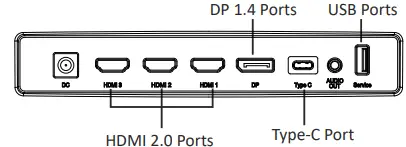
- Power Connector : Insert the power cable to supply power to the monitor.
- HDMI 2.0 Connectors : Insert one end of the HDMI cable into the computer’s HDMI output and connect the other end to the monitor’s HDMI port.
- DP 1.4 Connectors : Insert one end of the DP cable into the computer’s DP output and connect the other end to the monitor’s DP port.
- Type-C Connectors: Insert one end of the Type-C cable into the computer’s Type-C output and connect the other end to the monitor’s Type-C port.
- Audio Output : Insert the audio cable for output of audio signals.
- USB Connectors : Plug one end of the USB cable into the USB output of the computer/other device, and connect the other end to the USB port of the monitor.
 When the monitor is off, pressing this button will turn on the monitor. When the monitor is on, press and hold this button to turn off the monitor.
 In the absence of OSD, this joystick direction will turn on the ECO mode, and then Switch the scene mode. After opening the OSD, use the joystick direction to exit the OSD menu.
 With no OSD, pulling the joystick towards you opens the LED effect, allowing you to enter the LED effect system console to make a selection. With the OSD open, pull the joystick toward you to move the selection down. When an option is turned on, this button will also decrease the adjustment value.
 When there is no OSD, this joystick direction will open the OSD menu. After opening the OSD, Use the joystick to select or enter the selected
 With no OSD, pushing the joystick away from you adjusts the monitor’s Game Plus. While the OSD is active, pushing the joystick away from you moves the selection upwards. This button will also increase the value of an adjustment while an option is open.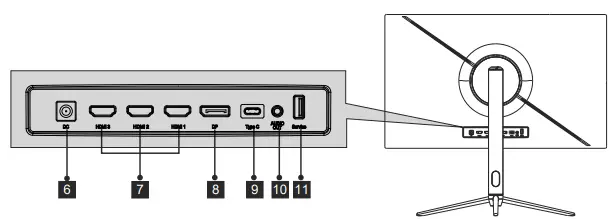
Stand lnstallation
Keep the foam underneath the monitor before attaching the stand.
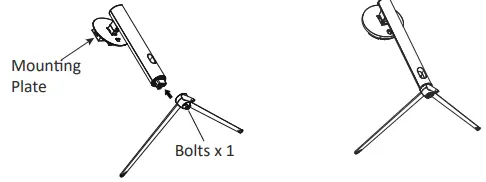
- Open the packing box, take out the bracket and the base, and use one bolt (the bolt can be found at the base) to attach the base of the stand to the upright section, as shown below:

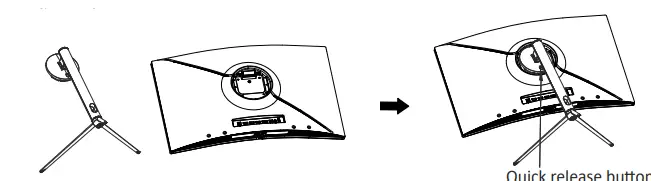
- Attach the stand onto the rear of the monitor by locating the top of the upright section into position on the rear of the monitor before clipping in the bottom of the mounting plate. Ensure the mounting plate is fully located.

- Once it is inserted press downwards on the neck until you hear a click sound.
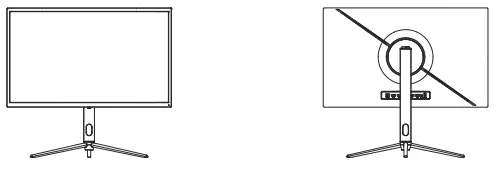
- Use both hands to stand the assembled monitor on a flat desktop.

The stand can be removed from the rear of the monitor by pressing the quick release button on the rear of the monitor.
Wall Mounting
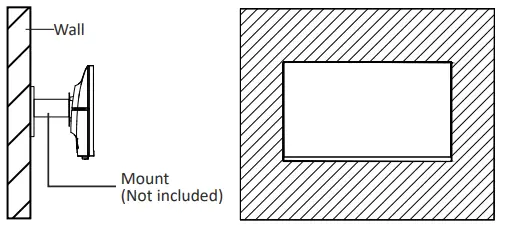
VESA and/or mounting accessories not included.
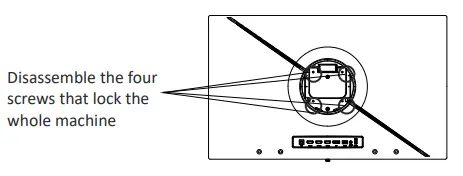
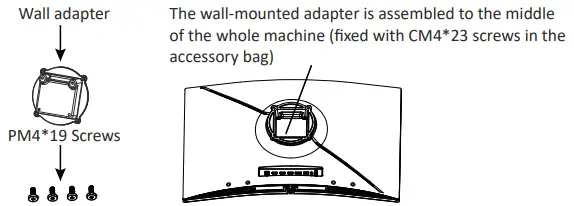
- Use a screwdriver to remove the four screws locked in the middle of the whole machine (when disassembling the screws, the display screen can leave the polyol foam to prevent the screen from breaking)

- Take out the wall-mounted adapter four PM4*19 screws from the accessories, assemble it in the middle of the whole machine, and
fix it by locking.
- Do not pinch the screen directly with your hands during the process of hanging the product to prevent the screen from breaking.

Basic Operation
- Plug one end of the DisplayPort (DP) cable into the graphics card of the PC. For convenience, a DP cable and an HDMI cable are included. You can also use an HDMI cable.
- Connect the other end of the cable to the corresponding connector on your monitor.

- Connect the power cable to your monitor then connect the other end to your power source. It is recommended that you use a surge protector with adequate voltage if a wall outlet cannot be reached directly.
- Locate the power button on the monitor and press it to turn the monitor on.
Adaptive-Sync
This feature is off by default. To activate, you must have hardware with Adaptive-Sync capability, a DP or HDMI cable, and the latest graphic drivers. After connecting your computer and monitor with a DP or HDMI cable, you may receive a prompt to enable the feature on your computer. If you do not, you may need to enable the function in your graphics card menu. See your graphics card manufacturer’s documentation for instructions.
lndicator Light and Light Senor
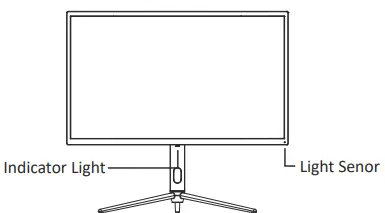
- Indicator Light: Solid blue light indicates power is on and the monitor is operating normally. Flashing blue light indicates no video source, no horizontal/vertical signal has been detected or voltage is low. Please ensure your computer is on and all video cables are fully connected.
- Light Senor: When the light sensor is turned on, the screen brightness changes with the ambient light, and the brighter the ambient light, the brighter the screen. When the light sensor is turned off, return to the user’s original brightness setting.
The monitor includes one touch options to access common settngs.
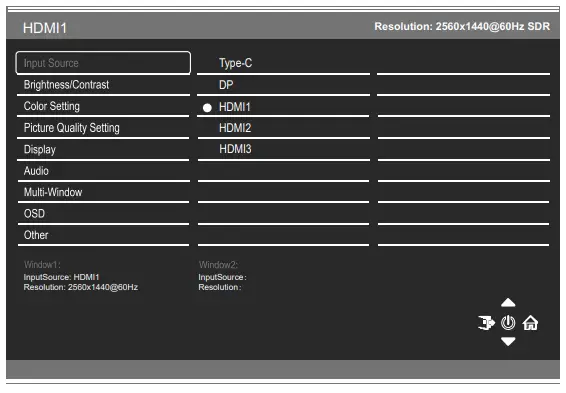
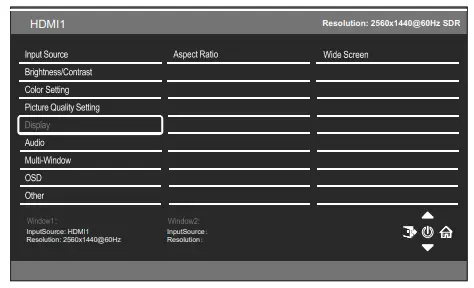
The menu for the monitor can be accessed by pressing the menu button on the control panel. This menu is separated into the following sub menus: Input source, Brightness/Contrast, Colour Settings, Picture Quality Settings, Display, Audio, OSD (On screen display), and other. Details of each menu can be found in the following section.
When using the monitor for the first time, settings will automatically adjust to optimal settings according to your computer’s configuration and parts etc.
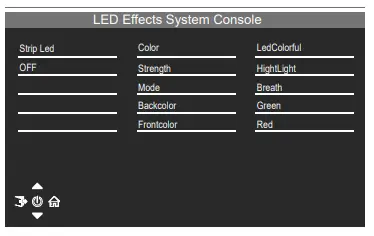
- LED Effects System Console

- Picture Mode

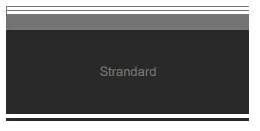
Picture Mode Switch the scene mode shortcut button you can change the picture mode directly: Standard, Photo, Movie, Game, FPS and RTS. - Collimation Mode
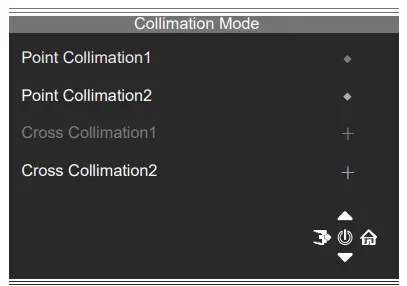
Used to choose the Crosshairs that can be displayed in the centre of the screen.

- Input Source


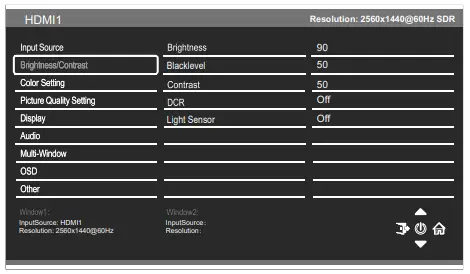
- Brightness/Contrast

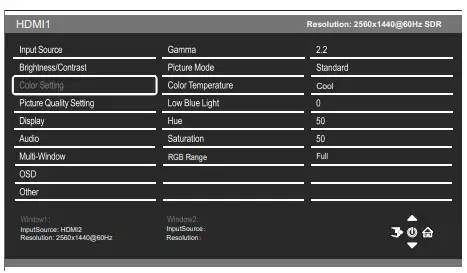
Brightness Adjust the brightness of the display between 0 and 100. Blacklevel Adjust the black level of the display between 0 and 100. Contrast Adjust the contrast of the display between 0 and 100. DCR Turn the Dynamic Contrast Ratio Feature On or Off. LightSensor Turn the Light Sensor Feature On or Off. - Color Setting

Gamma Change the Gamma value for the display between 1.8, 2.0, 2.2, 2.4, 2.6 Picture Mode Change the picture mode between Standard, Photo, Movie, Game, FPS and RTS. Colour Temperature Change the Colour Temperature of the display to Normal, Warm, Cool or User. When the User Mode is selected, the Red, Green, and Blue values can be adjusted independently between 0 and 100. Low Blue Light Change the blue light emitied by the display between0 and 100.
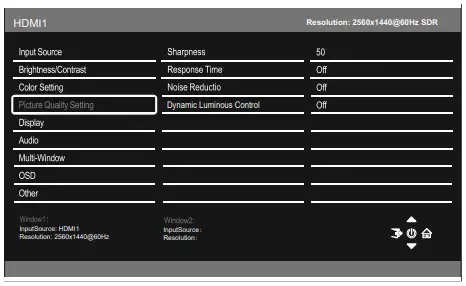
Hue Change the Hue value between 0 and 100. Saturation Change the Saturation of the display between 0 and 100. RGB Range Change the RGB Range the display Full and Limited. - Picture Quality Settings

Sharpness Change the display Sharpness between 0 and 100. Response Time Turn the Response Over Drive feature between Off, High, Middle of low Noise Reduction Adjust the level of Noise Reduction between Low, Middle, High, or Off. Dynamic Luminance Control Turn the Dynamic Luminance Control feature On or Off. - Display
Chan ge the image aspect ratio to Wide Screen. 4:3, Auto, 1:1
Aspect Ratio - Audio

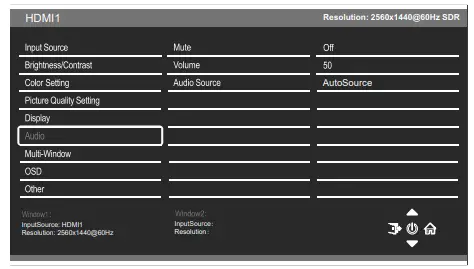
Mute Turn On and off to mute and unmute the audio output. Volume Adjust the output volume between 0 and 100. Audio Source Chose which source the audio is output from Type-C, DP, HDMI1, HDMI2, HDMI3, AutoSource - Multi-Window

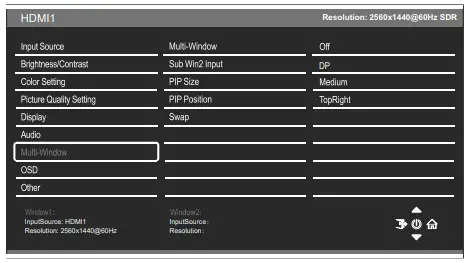
Multi-Window Choose the different formats of multi window display between Off, Picture in Picture (PIP) and Picture By Picture (PBP 2Win) Sub Win2 Input Choose the source of the second window between DP, Type-C, HDMI1, HDMI2, HDMI3 PIP Size Adjust the size of the secondary source in PIP and PBP modes between Small, Medium and Large PIP Position Set the position of the secondary source in PIP and PBP modes between Top Right, Top Left, Bottom Right and Bottom Left. SWAP Swap the Primary and Secondary inputs on screen. - OSD

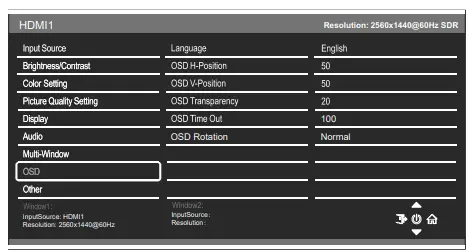
Language Change the OSD Menu display language between English, Chinese, Korean, Russian, Spanish, Japanese, French, Deutsch.
OSD H- Posi�on
Change the horizontal posi�on of the OSD Menu between 0 and 100. OSD V- Position
Change the vertical position of the OSD Menu between 0 and 100. OSD Transparency
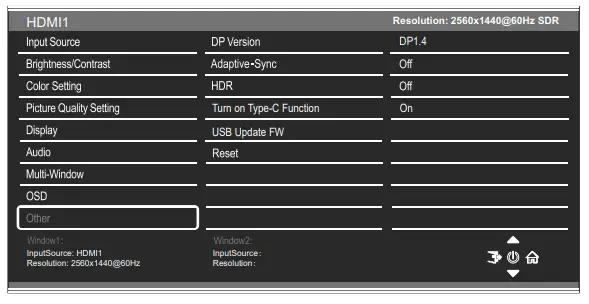
Change the transparency value of the OSD Menu between 0 and 100. OSD Time Out Change how long the OSD Menu is on before it automatically exits. OSD Rotation Change the OSD Rotation Normal, 90, 180, 270 - Other

DP Version Change the DP version Adaptive-Sync Turn Adaptive-Sync On or Off. HDR Turn the HDR600, HDR1000 or off. Turn on Type-C Function
Turn the Type-C Function on or off. USB Update FW Use for update software Reset Restore factory default setting.

Technical Specifications
| Model | LC-M27-QHD-165-C-K |
| Screen Size | 27 inch |
| Aspect Ratio | 16:9 |
| Backlight | E-LED |
| Brightness | TYP650cd/m2,HDR1000cd/m2 |
| Panel | VA |
| Resolution | DP1.4: 2560*1440@165Hz HDMI 2.0: 2560*1440@144Hz Type-C: 2560*1440@60Hz |
| Refresh Rate | 165Hz |
| Response Time | Fast 1ms |
| Viewing Angle | 178°(H) / 178°(V) |
| Contrast Ratio | 3000:1 |
| VESA Mounting | 100 x 100mm |
| Colours | 16.7M |
| Adaptive-Sync | Yes |
| Signal Input | DP 1.4*1, HDMI 2.0*3, USB*1, Type-C*1 |
| Power Input | DC 19.5V 9.23A |
| Audio | |
| Speakers | No |
| Audio Out | Yes |
| Accessories | |
| Power Cable | Yes |
| Power Adaptor | Yes |
| HDMI Cable | Yes |
| DP Cable | Yes |
| Additional Functions | |
| Low Blue Light | Yes |
| Physical Dimensions | |
| Dimensions (w/ Stand) | 615.8*269.06*559.5mm |
| Dimensions (w/o Stand) | 615.8*122.39*371.9mm |
| Net Weight | 5.18Kg |
| Gross Weight | 8.4Kg |