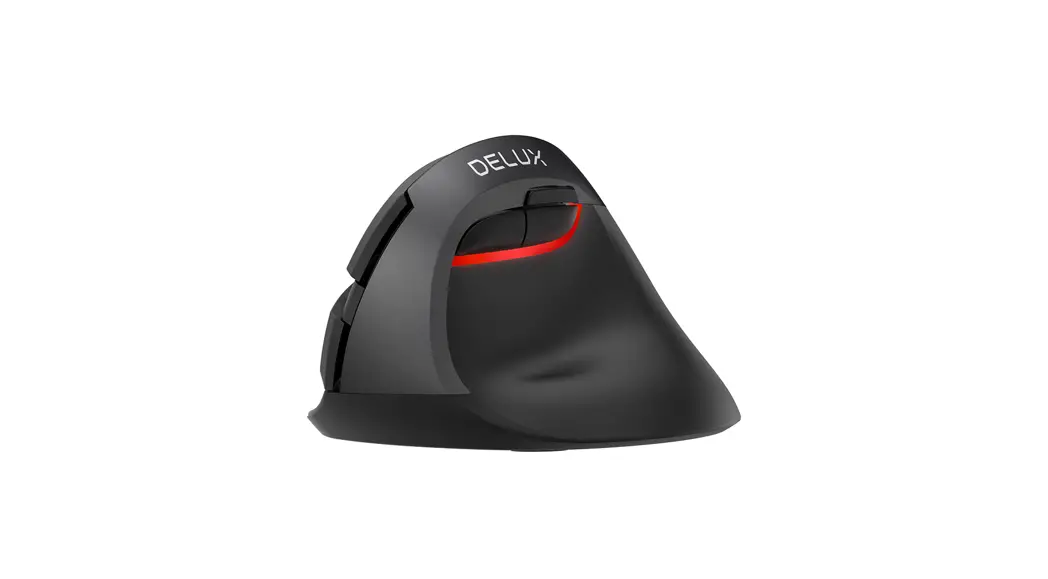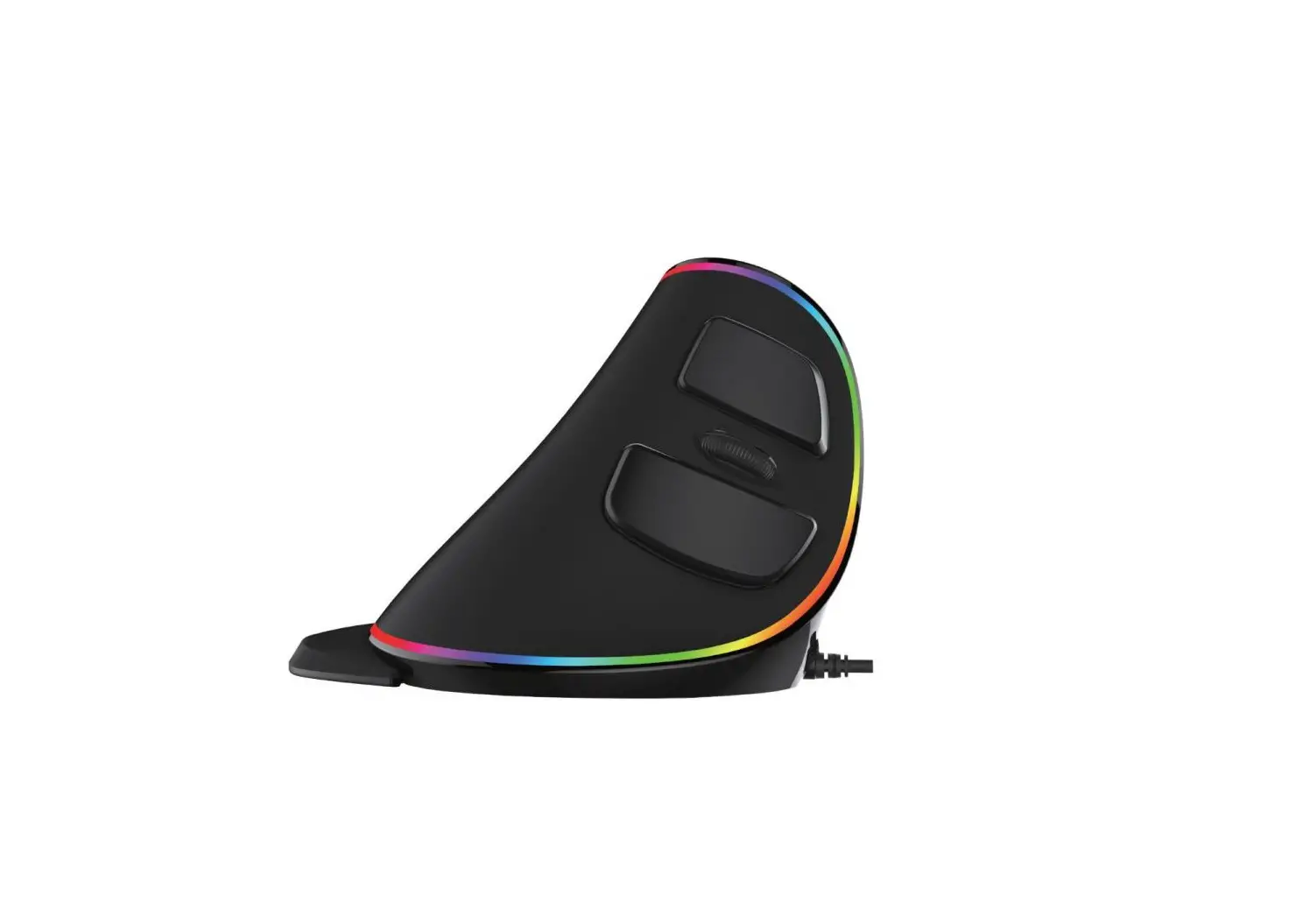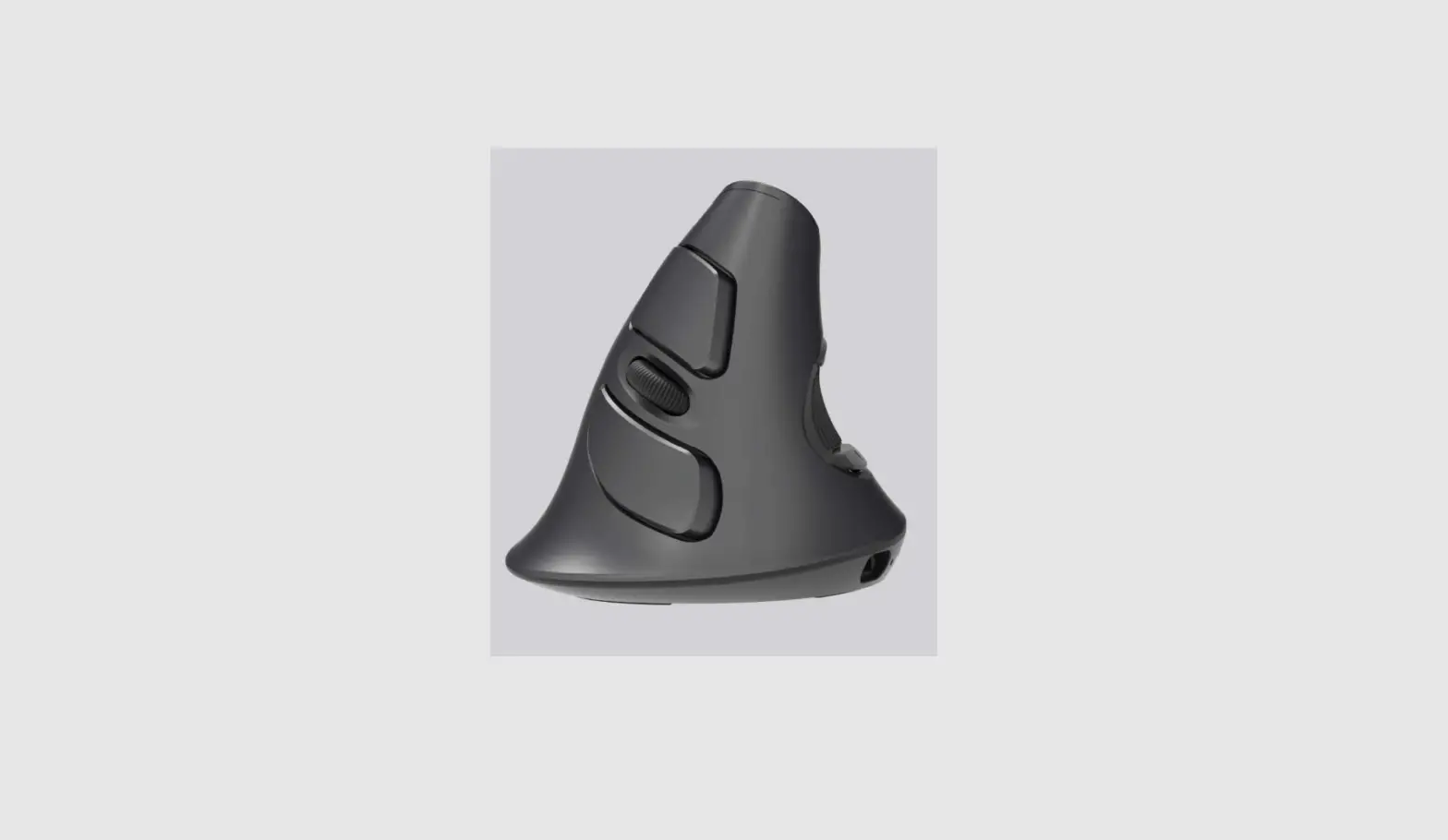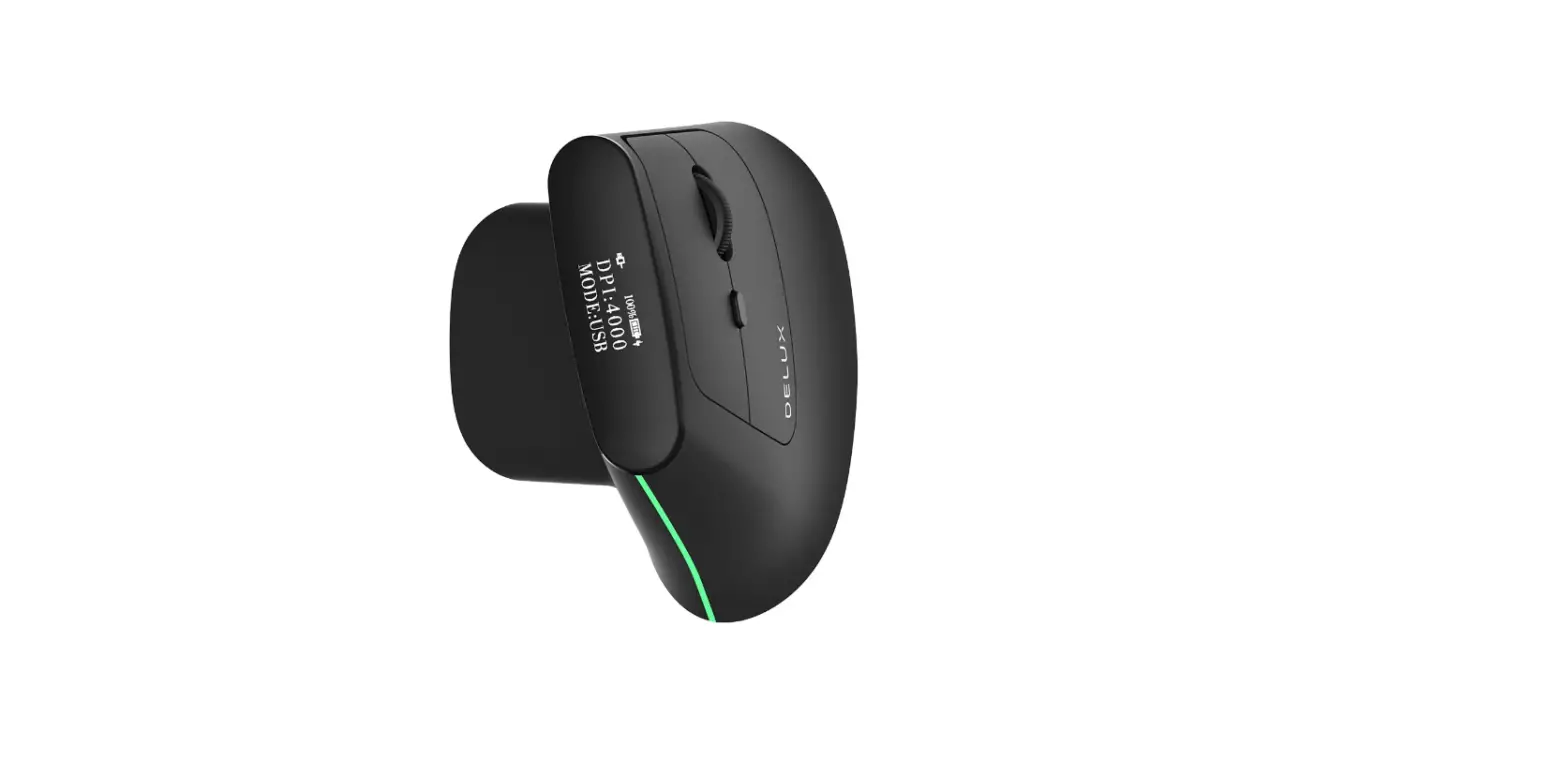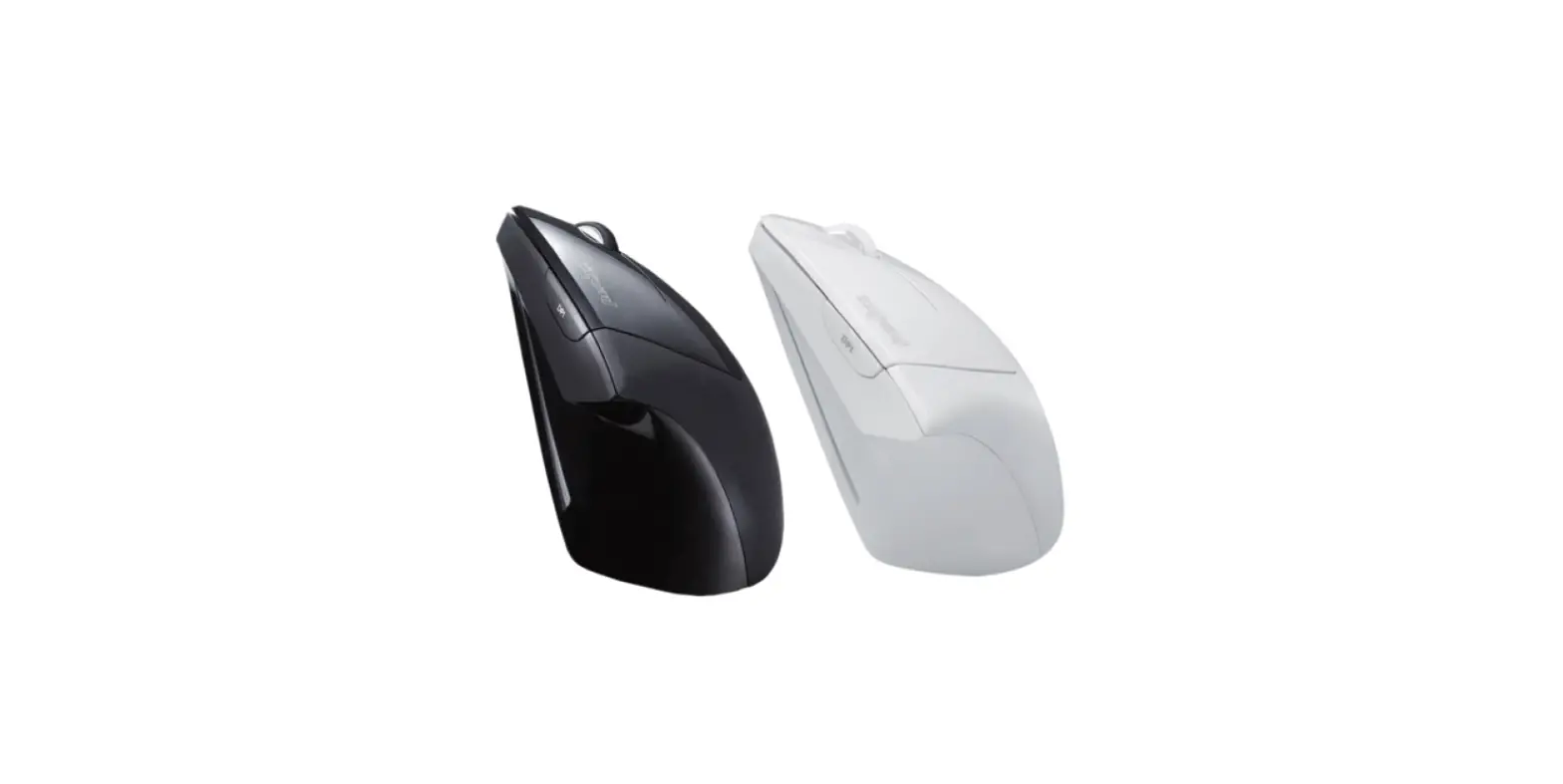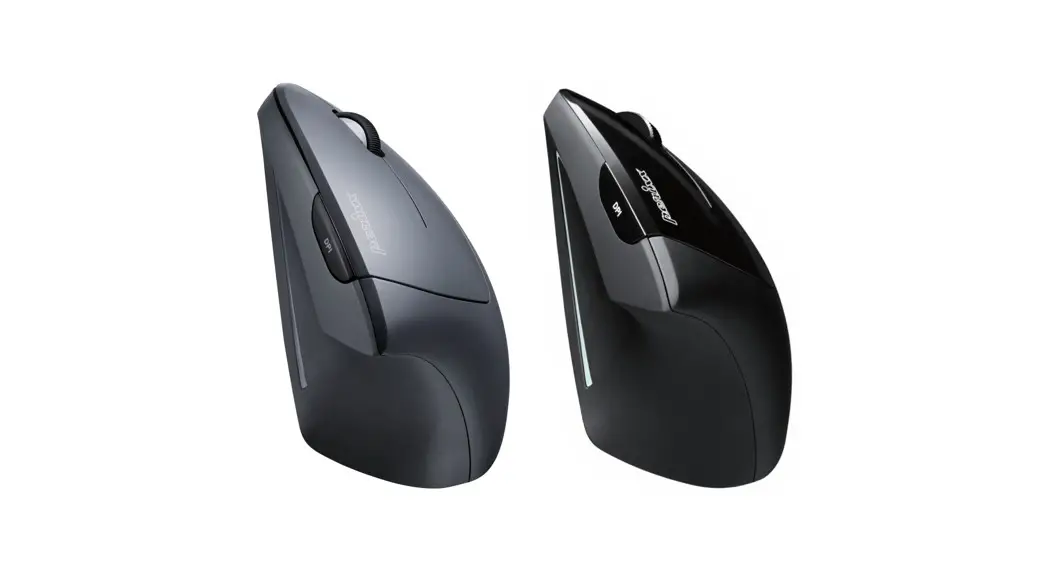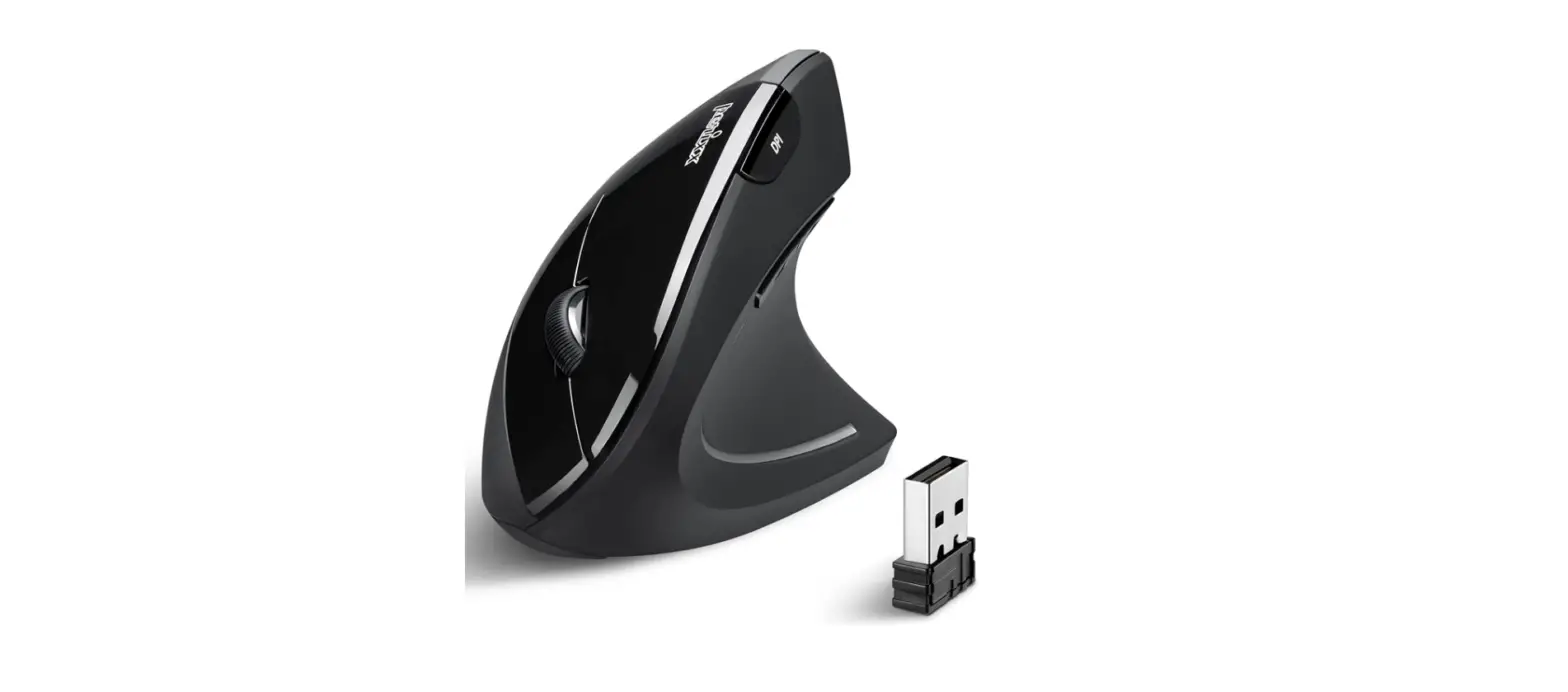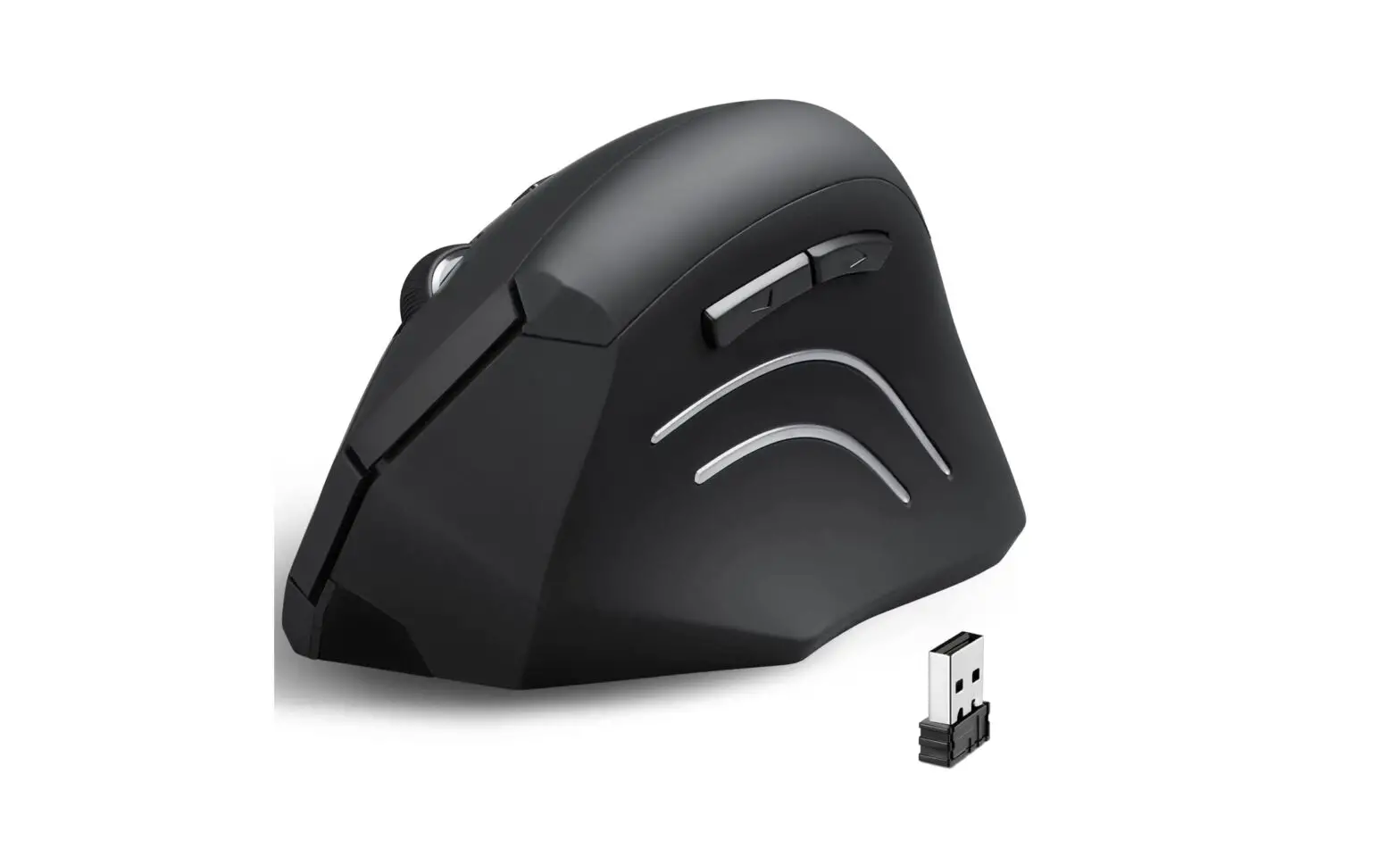

M618ΧSD
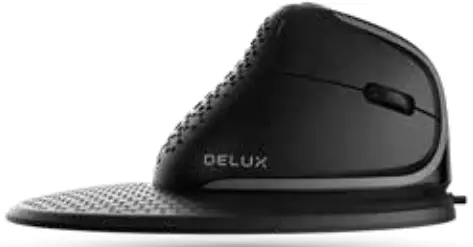
Vertical Mouse
User Manual
Thank you for choosing DELUX SEEKER, please read all instructions thoroughly before beginning the installation.
SYSTEM
Windows7/Windows8/Windows10/MacOS.
FUNCTIONS
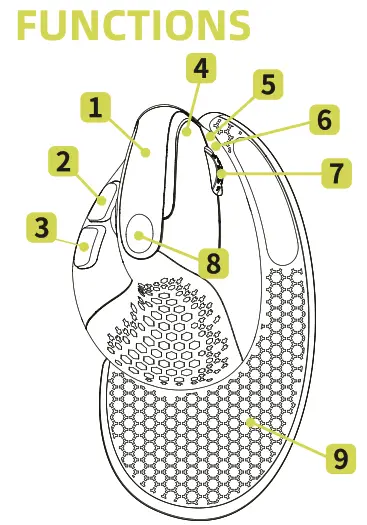
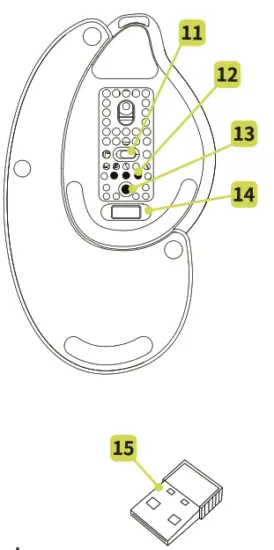
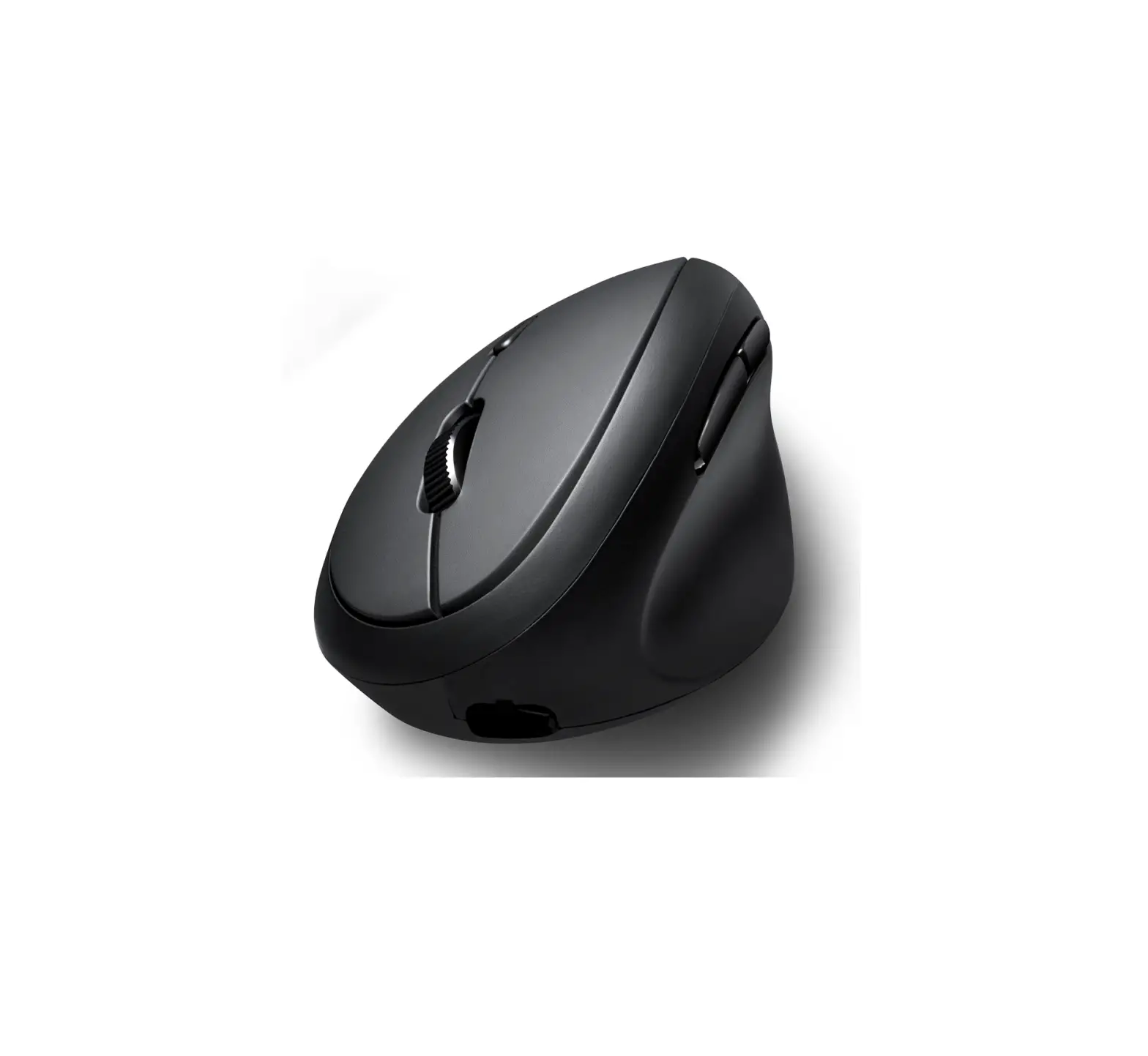
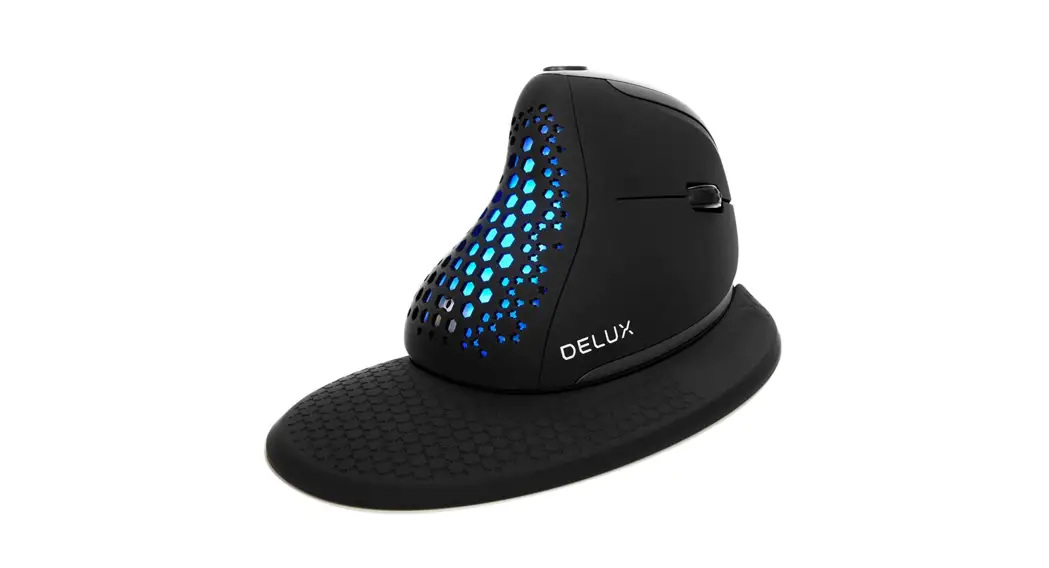
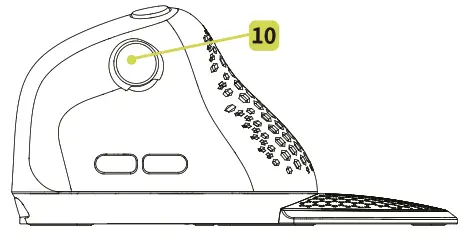
| 1 OLED Screen 2 Forward 3 Backward 4 Left button 5 Right button 6 Charging indicator 7 Scroll wheel | 8 DPI 9 Palm rest 10 Thumb scroll wheel 11 ON/OFF 12 Mode indicator 13 Mode switching button 14 Receiver storage slot 15 Receiver |
 Charging Mode
 Charging Mode
Connecting the mouse to the USB port via type C. The indicator light turns red when charging, the light goes off after full charged.
Wired /2.4G wireless / bluethooth switching
Tap the mode switching button can switch the connected mode, the corresponding mode indicator flashes (the light goes off when wired connected)when you in one status,and the OLED screen will show you the connected mode.
Connected mode
Wired mode : Connecting the mouse to the computer via type C, tap the switching button until the light goes off PS. Wired mode is available to use when you turn ON or OFF the mouse.
2.4G Wireless mode : Turn on the mouse after inserting the receiver into the device,then tap the switching button to 2.4G wireless mode. The mouse can be used when the corresponding indicator light goes off. (If you need to reset the mode: press the switching button for about 3s when you are in the 2.4G mode, the indicator light flashes quickly then goes off means you reset the mode successfully.)
BT mode : Turn on the mouse, tap the switching button to BT1 /BT2 mode. The corresponding indicator light flashes means you entered the BT mode. The indicator light will flash quickly when you press the switching button for about 3s, then you can find “BT5.0MOUSE1” or “BT5.0MOUSE2” to connect. The indicator light will go off when you connect successfully.
Light mode switching
5 types of light can be switched when you press right button and backward button at the same time. (the driver can adjust the backlight too)
Automatic sensing Light
The default is to turn on the light sensor. The backlight goes off when your palm is close to the mouse. Press the right and left buttons at the same time for about 3s, the light sensation turns off when flashed 2 times white light. Long press the right and left buttons to reopen the light sensation.
Hotkey to close the side button’s function Press forward button + backward button for 3s can close this two buttons function. Long press this two-button can reopen the function.
DPl switching
Tap the DPI button to switch the DPI. 800 (red light) – 1200 (green light) – 1600 (blue light) – 2400 (purple light) – 4000 (yellow light), Switching DPI successfully when the corresponding light flashed twice. Default DPI : 1200 (600-4000).
Report rate
Wired/2.4G mode: 125Hz-250Hz-500Hz-1000Hz, BT mode : 125Hz Default 500Hz, can be changed by the driver.
Thumb scroll wheel
Rolling up – Moving to the left
Rolling down -9 Moving to the right
(can be used in office software, browser, etc)
Driver installation
• Installation
Download from the DELUX website: www.deluxworld.com.
• Setting
Opening the driver (when using the mouse) to set the functions.
• Multi-group file configuration
Click “+” on the top left of the interface to create a new configuration file.
Click  The current configuration file can be deleted.
Click  The current configuration file can be copied.
Click  The current configuration file can be renamed.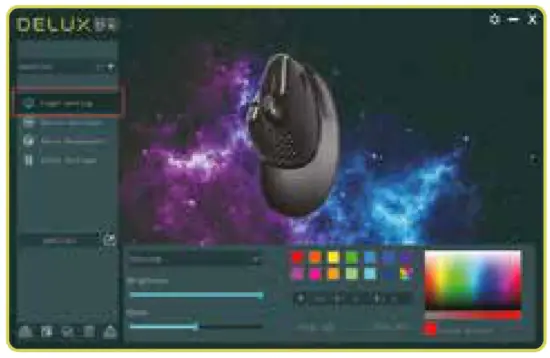
• Light setting
Click “Light setting” to set the light.
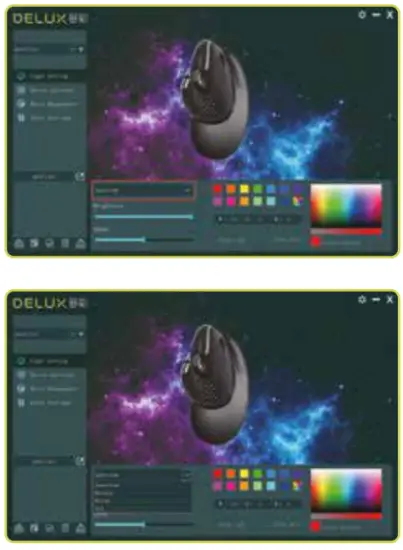
• Button setting
Click “Button settings” to set the buttons.
Click after all settings are done.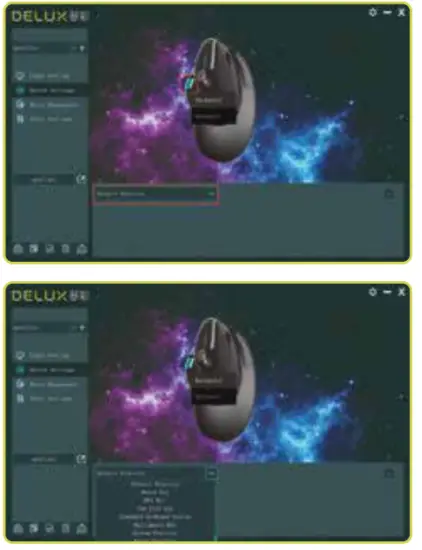
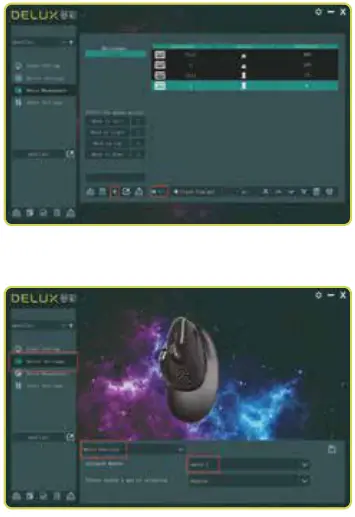
• Macro management
Click “Macro management” to set the Macro.
Click “s.” to create a new Macro, then click “REC” to record. Enter the key that you need on the keyboard when recording. Click “STOP” to stop the Macro recording.
Import Macro instruction:select the button you need to set, then click “Macro function” to choose Macro name, then click “save” to complete the setting. 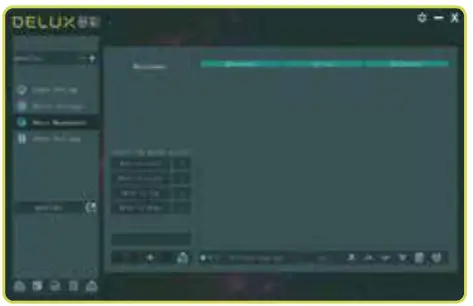
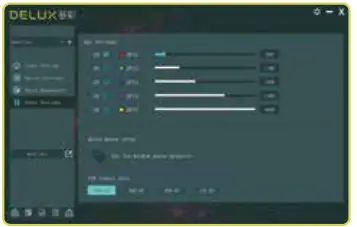
• DPI setting
Click “Other settings” to set the DPI.
• Default Settings
Click  to reset, then click “OK” to complete the setting.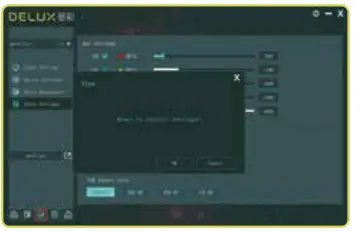
 DELUX | GAMING DEVICE | ERGONOMIC MOUSE AND KEYBOARD | OFFICE DEVICE