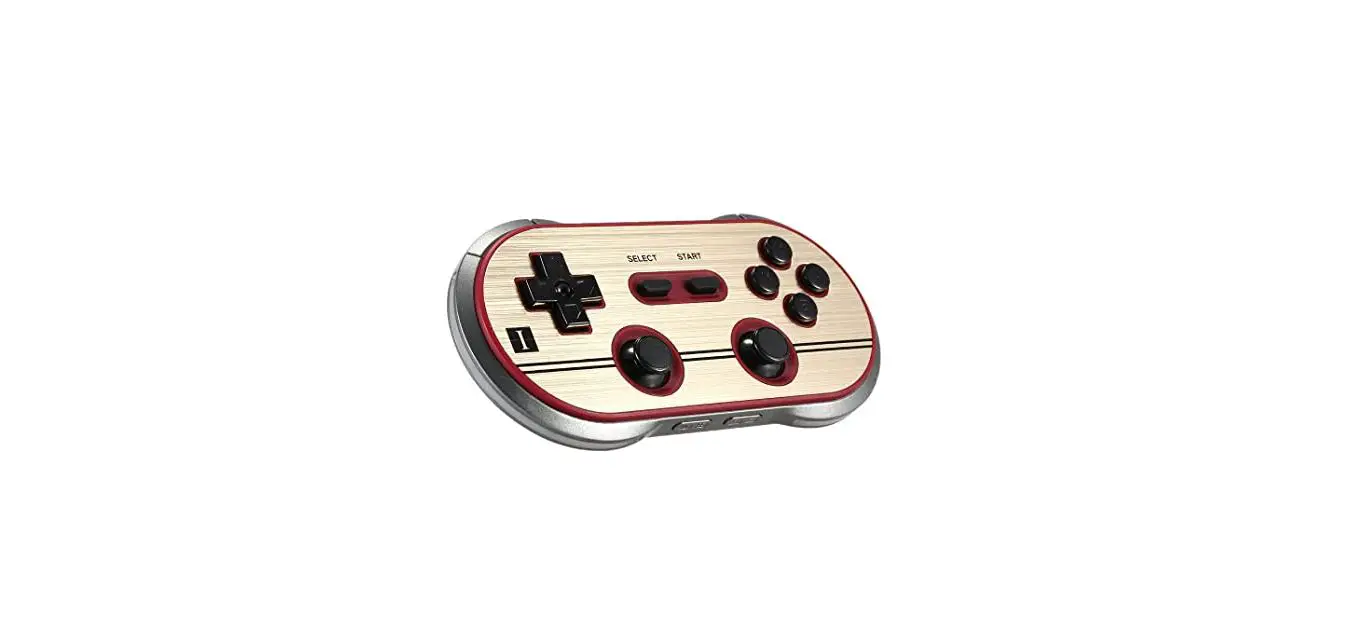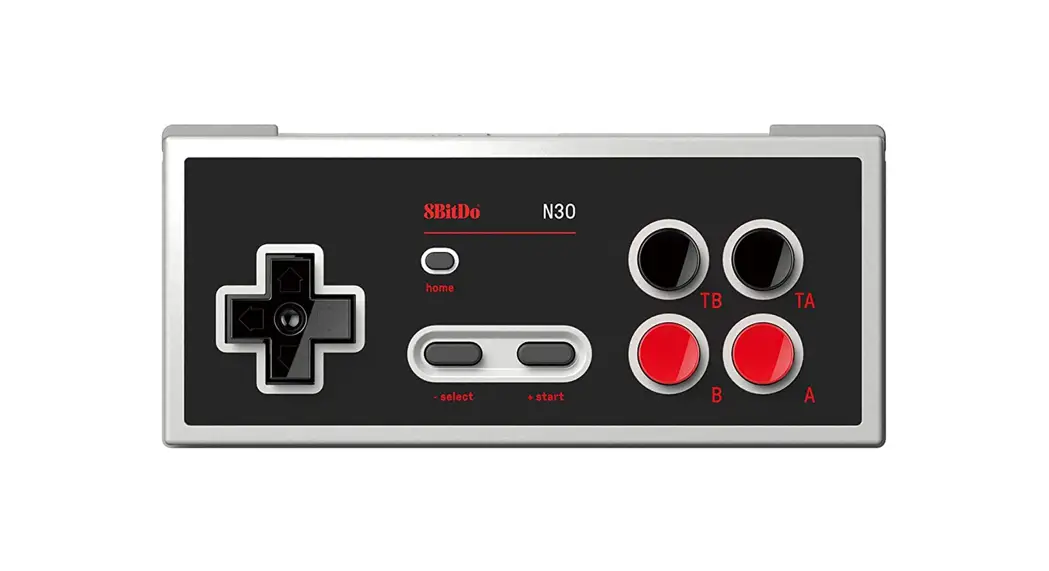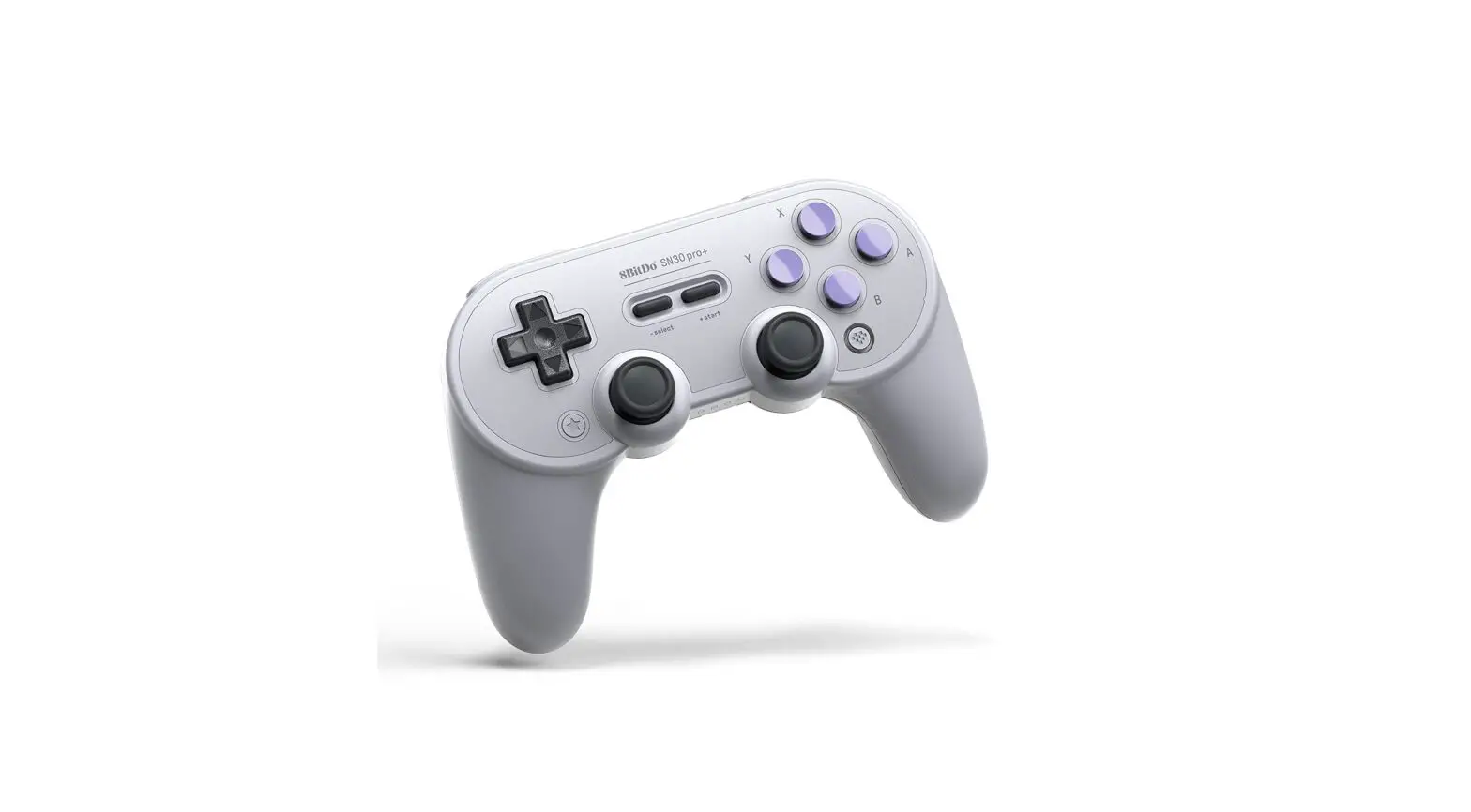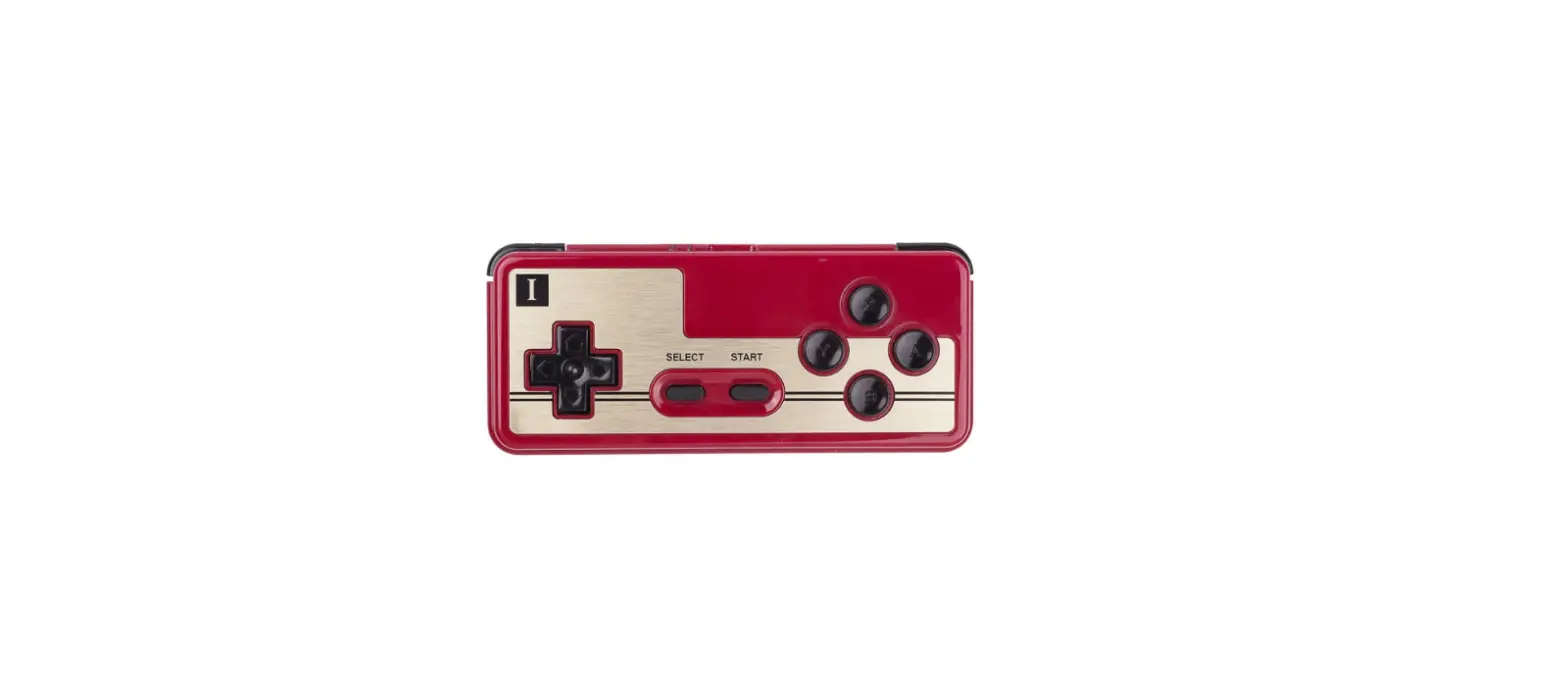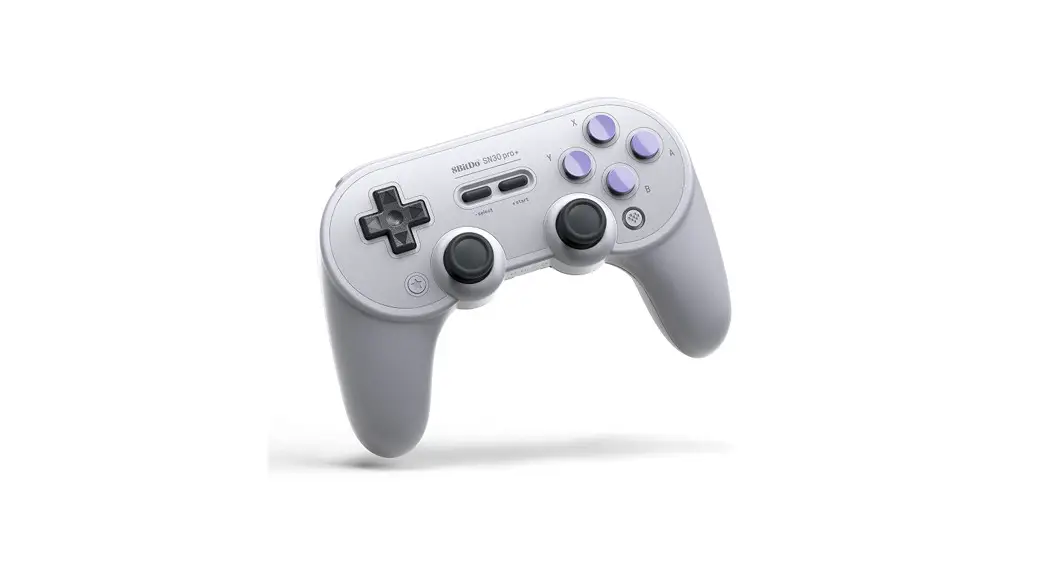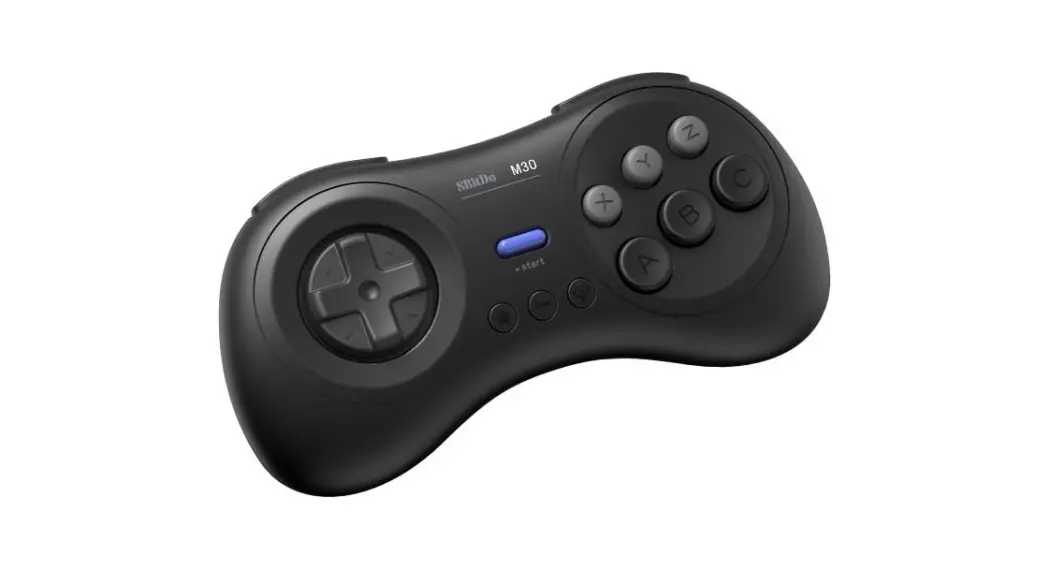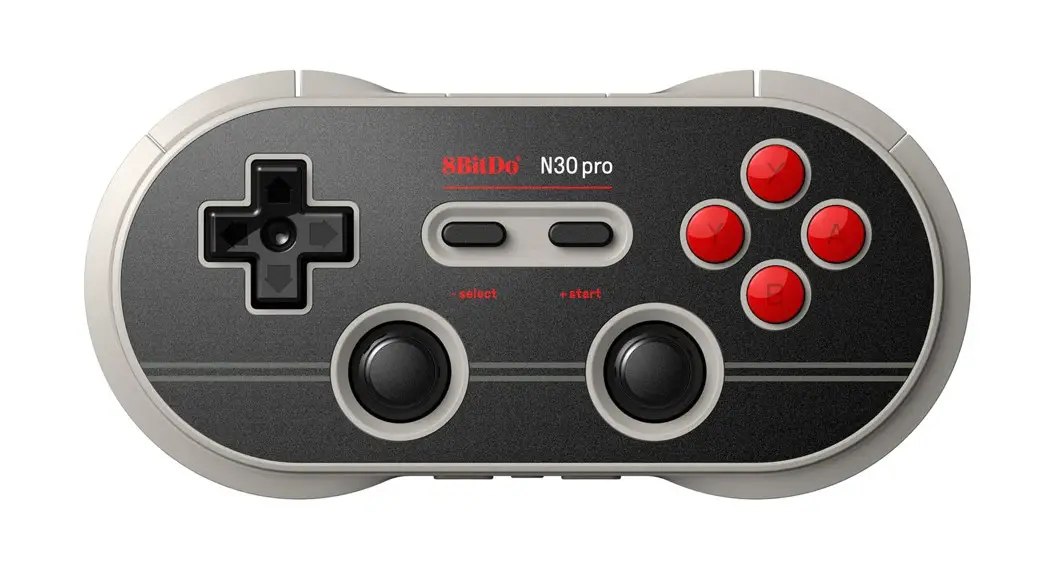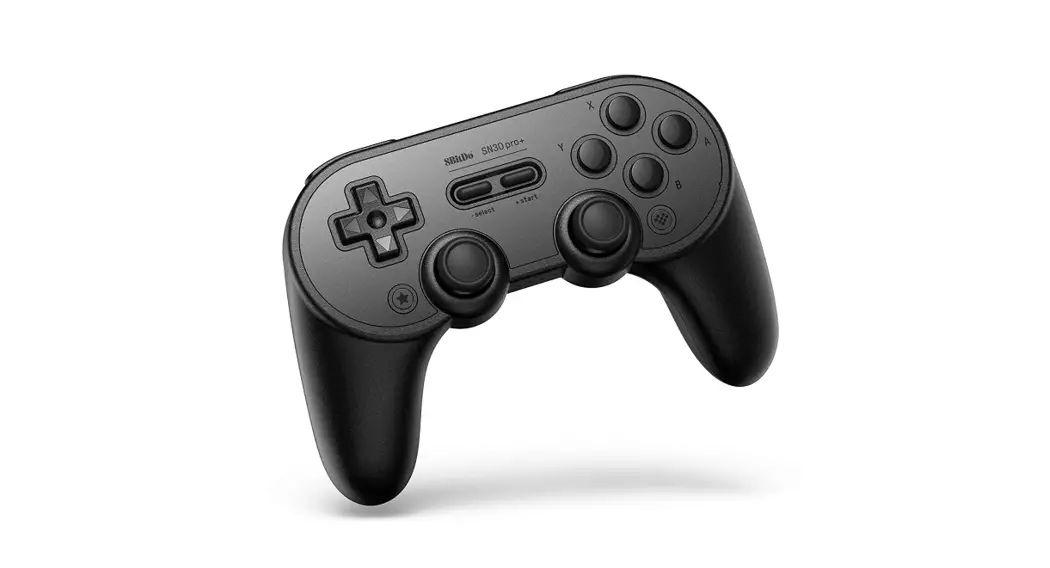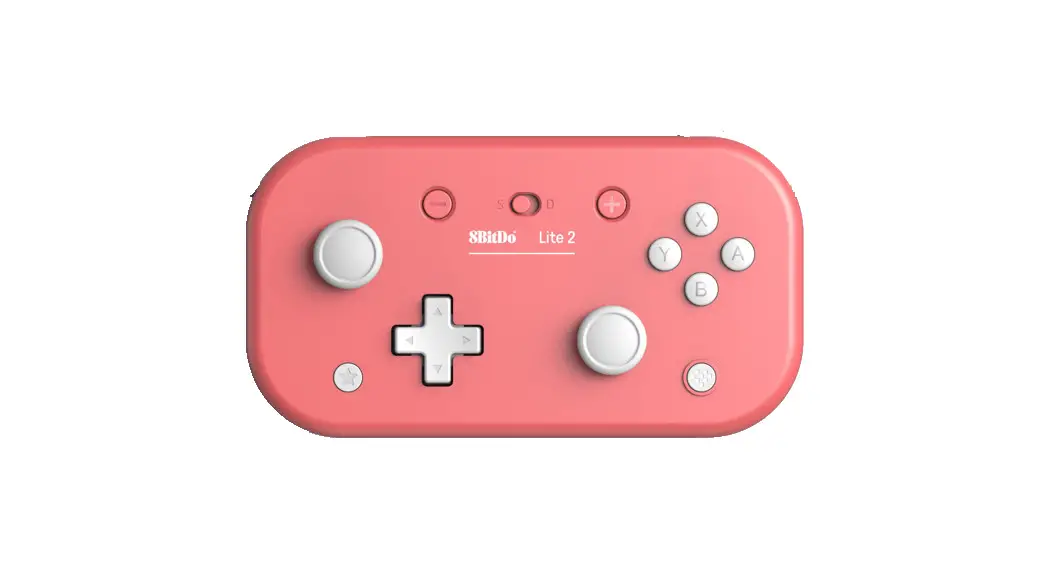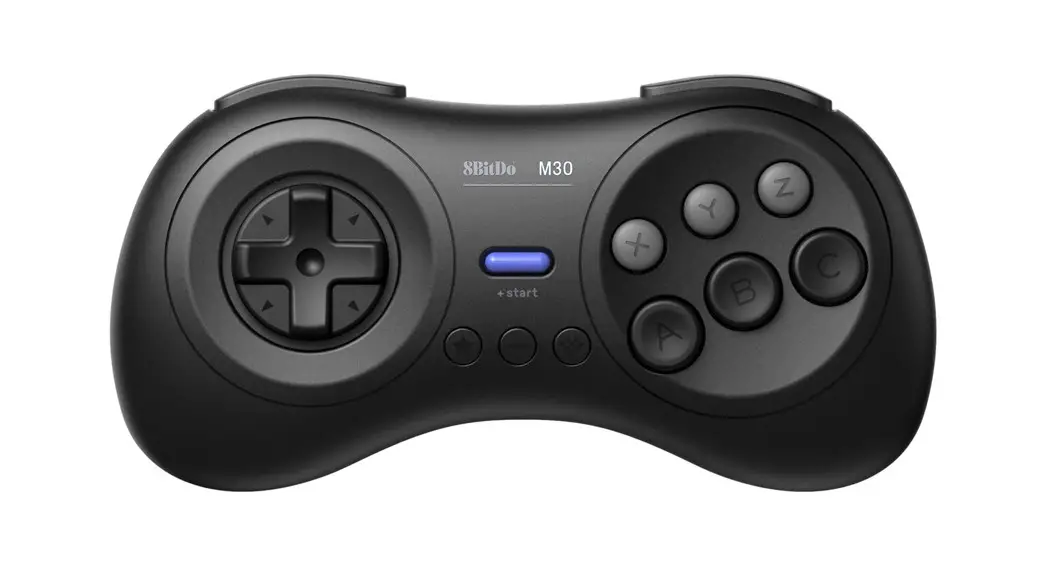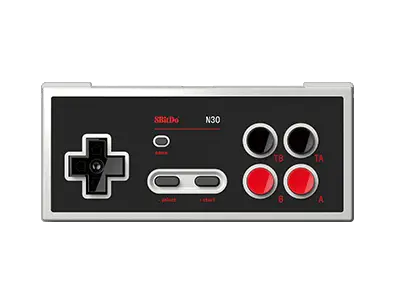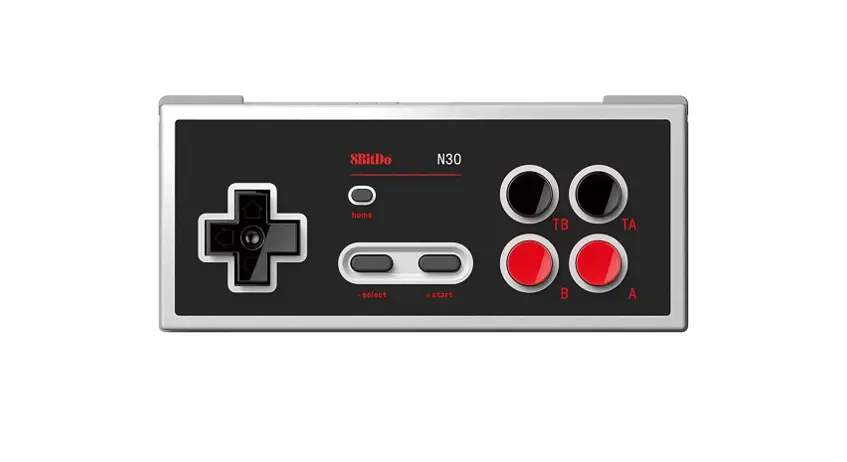
8BitDo F30 Gamepad Bluetooth Wireless Controller Instruction Manual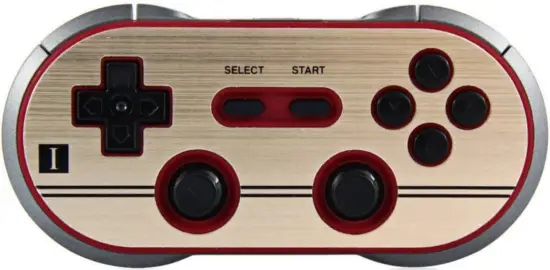
Bluetooth Connection
- Controllers will auto reconnect to your devices once they have been paired.
 Android (D-Input)
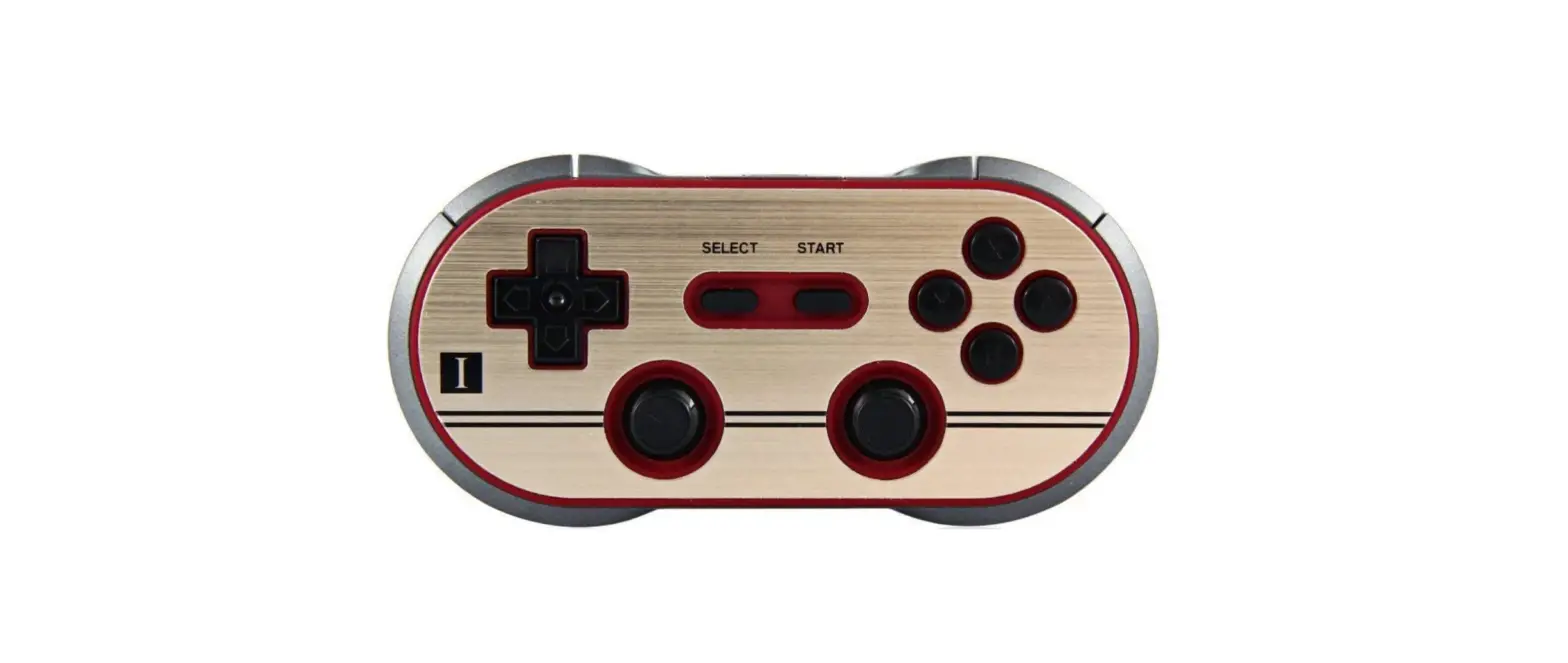
- Press and hold START for 1 second to power on the controller, LED will blink once per cycle.
- Press and hold SELECT for 3 seconds to enter pairing mode. Blue LED will rapidly blink.
- Go to your Android device’s Bluetooth setting, pair with [8Bitdo NES30 GamePad] or [8Bitdo FC30 GamePad].
- LED will be solid blue when connection is successful.
- USB Connection: connect your 8Bitdo controller to your Android device via USB Cable after step 1.
 Windows (X-Input)
- Press and hold START + X for 1 second to power on the controller, LED will blink twice per cycle.
- Press and hold SELECT for 3 seconds to enter pairing mode. Blue LED will rapidly blink.
- Go to your Windows device’s Bluetooth setting, pair with [8Bitdo NES30 GamePad(x)] or [8Bitdo FC30 GamePad(x)].
- LED will be solid blue when connection is successful.
- USB Connection: connect your 8Bitdo controller to your Windows device via USB Cable after step 1.
 macOS
macOS
- Press and hold START + A for 1 second to power on the controller, LED will blink three times per cycle.
- Press and hold SELECT for 3 seconds to enter pairing mode. Blue LED will rapidly blink.
- Go to your macOS device’s Bluetooth setting, pair with [Wireless Controller].
- LED will be solid blue when connection is successful.
- USB Connection: connect your 8Bitdo controller to your macOS device via USB Cable after step 1.
Switch (by default)
- Press and hold START + Y for 1 second to power on the controller, LED will blink four times per cycle.
- Go to your Switch Home Page to click on Controllers, then click on Change Grip/Order.
- Press and hold SELECT for 3 seconds to enter pairing mode. Blue LED will rapidly blink. 4. LED will be solid blue when connection is successful.
- When connected to your Switch, DOWN+SELECT = Switch HOME button.
Battery
| Status | LED Indicator |
| Low battery mode | LED blinks in red |
| Battery charging | LED blinks in green |
| Battery fully charged | LED stops blinking in green |
- Built-in 480 mAh Li-on withl8 Hours of play time.
- Rechargeable via USB cable with 1 – 2 hour charging time.
- Press START for 8 second to force turn off your controller.
Power Saving
- Sleep mode – 1 minute with no Bluetooth connection.
- Sleep mode – 15 minutes with Bluetooth connection but no use.
- Press START to wake up your controller.
Support
- Please visit http://support.8bitdo.com for further information and additional support.