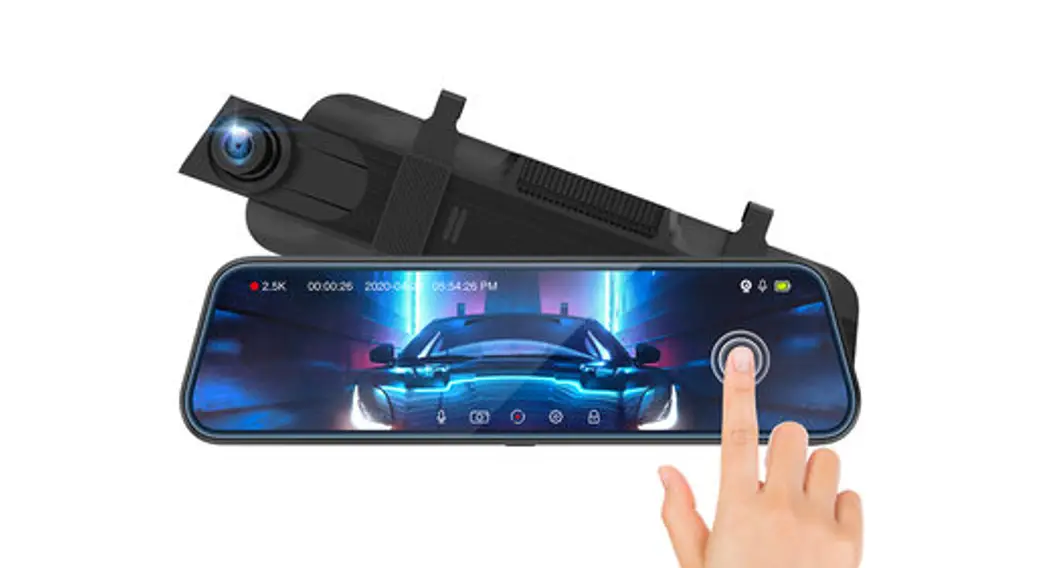
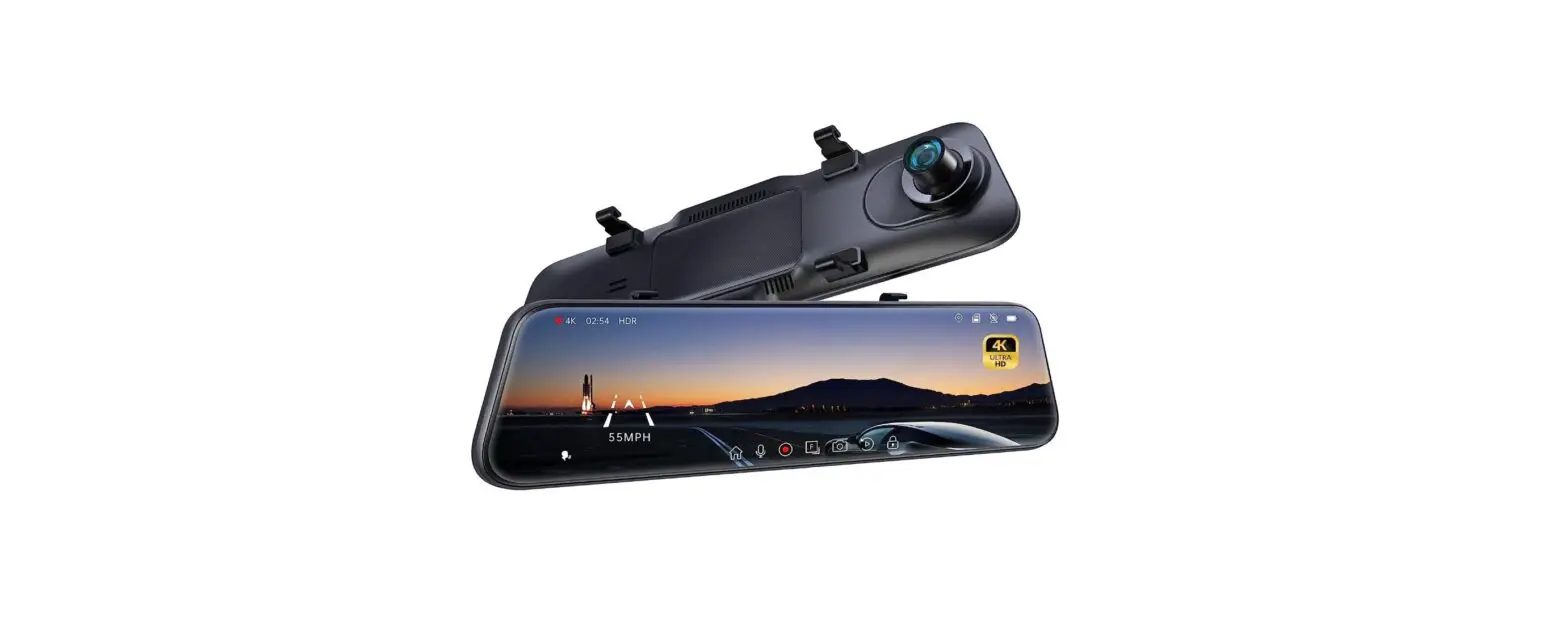
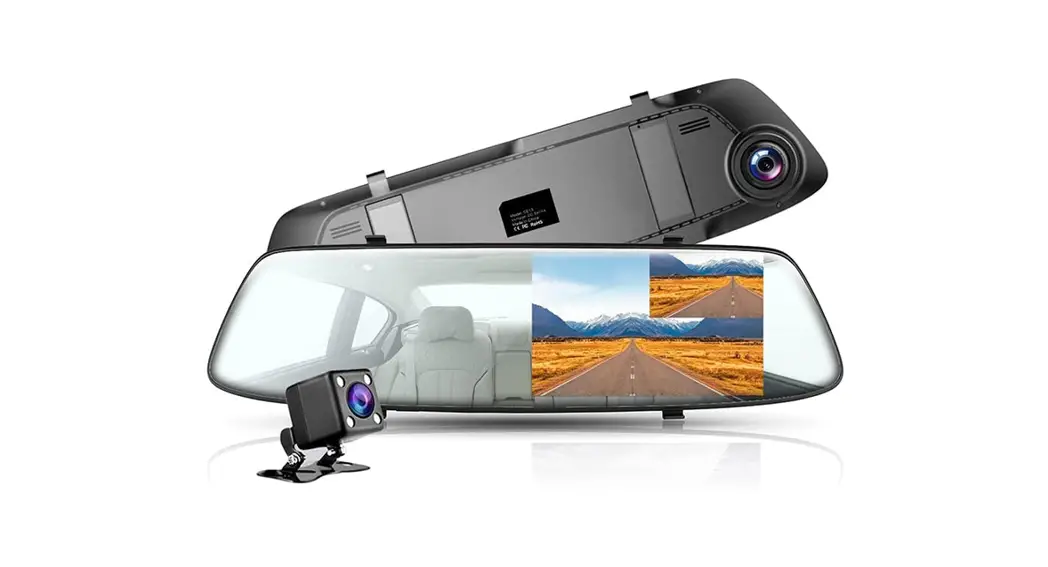
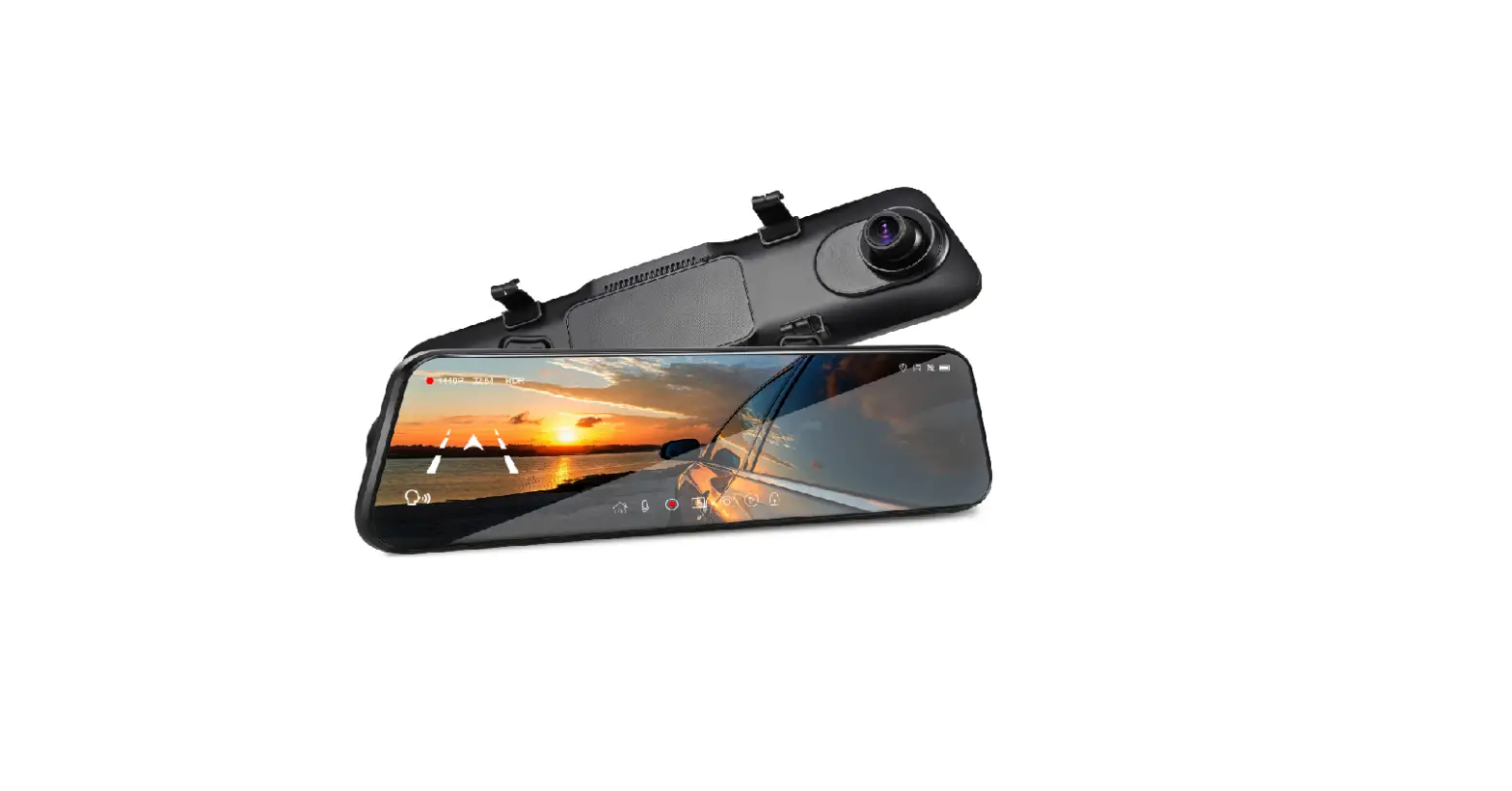
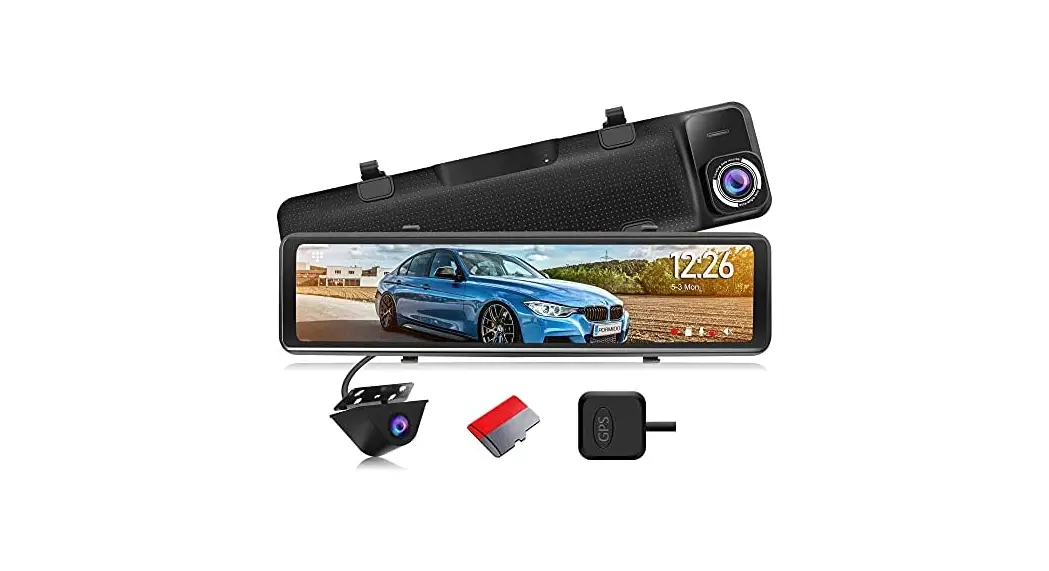
CV4 Dual Lens Mirror Dash Cam
Dual Lens Mirror Dash Cam – CarView 4
Product Information:
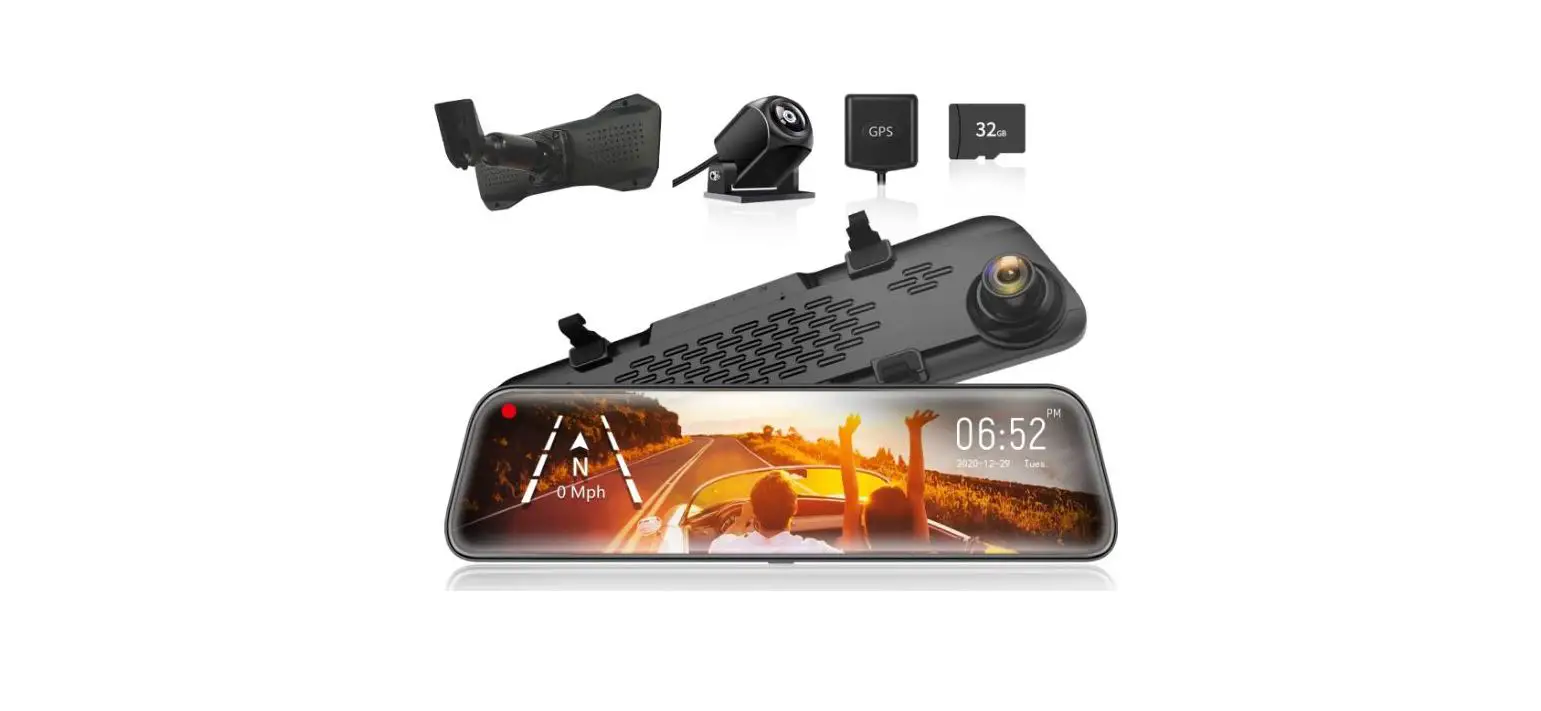
| What’s Included | English |
|---|---|
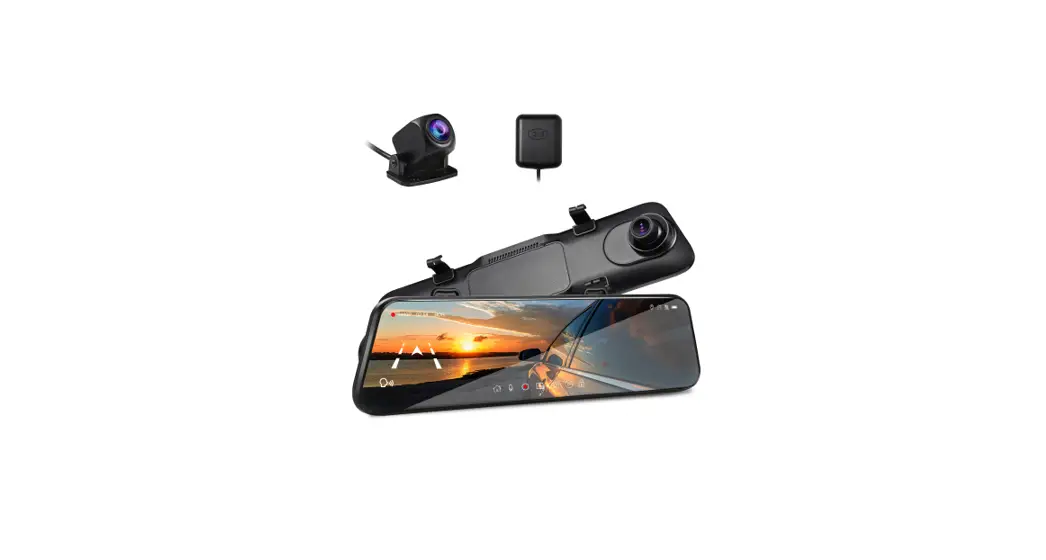
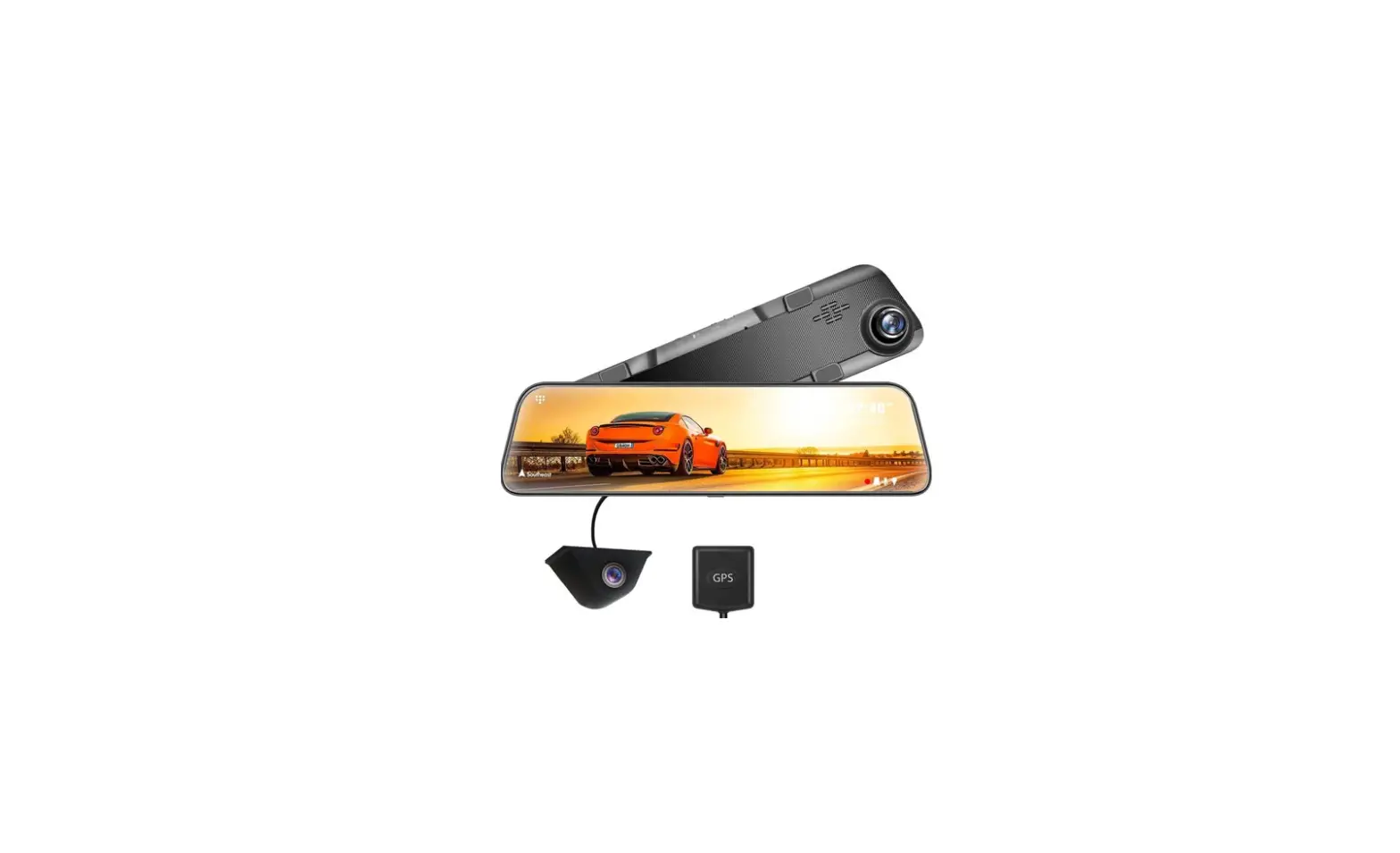
| Mirror Dash Cam | Rear Camera With 0.5M Cable |
| 7.5M Rear Camera Cable | GPS Module |
| Car Charger With Additional USB | Pry Tool |
| 3M Glue For Rear Camera | User Manual (EN 01) |
Layout:

Installation Instructions:
- Insert a TF Card (not included). Supports up to 128GB (Over
U1). Please format the TF Card in the camera before first use. - Install the Mirror Dash Cam to the Car.
- Refer to the Front Camera Installation Wiring Diagram for
proper installation. - Install the Rear Camera:
- A: Installed on the front windshield for in-car recording.
- B: Installed on the rear windshield for recording outside the
car. - C: Installed near the license plate for recording the rear
areas of the car.
- Mount the rear camera properly as shown in the picture.
- Connect the Rear Camera Cable to the Dash Cam.
- Connect the Red Wire with the Reversing Light to enable
automatic switching to rearview when in reverse gear. - Connect the Mirror Dash Cam to power using the Car
Charger.
Get Started:
- Screen On / Off: Simply press the Power Button once to switch
the screen off when the Mirror Dash Camera is ON, press it again or
tap the touchscreen to wake the camera up. Note: When recording,
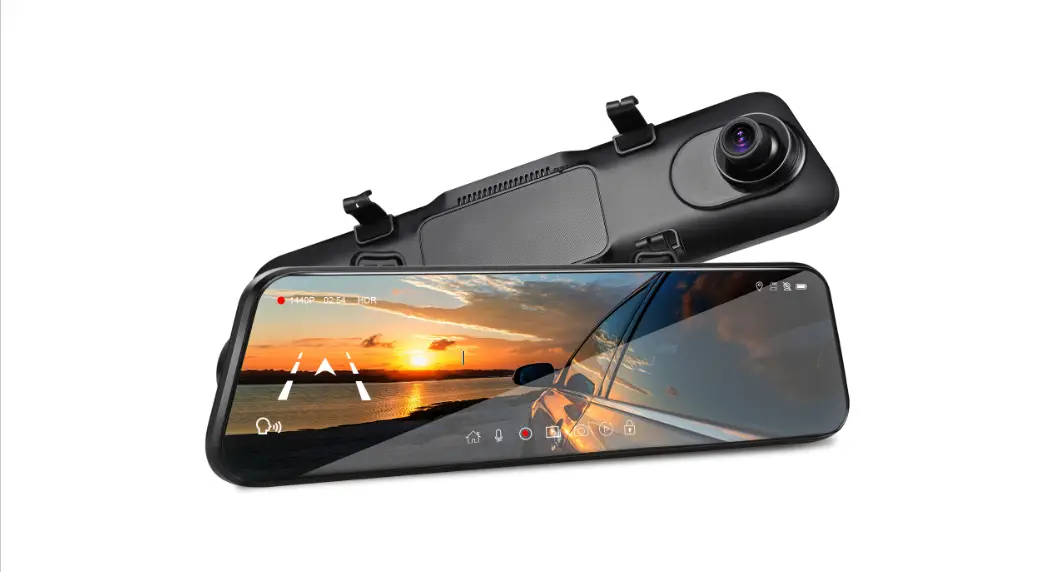
switching the screen off will not stop the recording. - Touch Screen Overview:
- A: Tap the Audio On / Off Icon
- B: Tap the Photo Taking Icon
- C: Tap the video recording icon
- D: Tap the menu icon
- E: Tap the playback icon
- F: Tap the emergency lock icon
Dual Lens Mirror Dash Cam
CarView 4
USER MANUAL
USER MANUAL ……………………………………. 01 Guide de démarrage rapide ……………………. 20 Deutsche Anleitung ……………………………….. 39 Guida di Operazione Rapida …………………… 58 …………………………………….. 77 Manual de usuario …………………………………. 96 ……………………. 115
What’s Included
English
Mirror Dash Cam
Rear Camera With 0.5M Cable
7.5M Rear Camera Cable
GPS Module
Mounting Strap × 4
Car Charger With Additional USB
Rear Camera Screw × 2
Pry Tool
3M Glue For Rear Camera
EN 01
User Manual
Layout
1
2
6 7 8 9 10 11
34
5
1 Reset 2 Front Lens 3 Power Button 4 Speaker 5 Rear Lens
EN 02
6 Touch Screen 7 Back Clip Fixed Hook 8 Mini USB Port 9 Rear Camera Port 10 TF Card Slot 11 GPS Port
Installation Instructions
1.Insert A TF Card (Not included) Supports up to 128GB (Over U1). Please format the TF Card in the camera before first use.
Note 1.To keep your TF card in good condition, please format it regularly. As reformatting erases all of your contents, be sure to back up your photos and videos first. 2.Please remove the TF card in the power-off state to avoid damage to the memory card. 3.To prevent the loss of important data, please pay attention to backup.
EN 03
2.Install the Mirror Dash Cam to the Car Or
3.Front Camera Installation Wiring Diagram
EN 04
4.Install the Rear Camera The installation location of rear camera is actually quite flexible, so there are some recommended locations with different angles of visions.
A B C
Mount the rear camera properly as shown in the picture
A:Installed on the front windshield for in-car recording B:Installed on the rear windshield for recording outside the car C:Installed near the license plate for recording the rear areas of the car
EN 05
Mounting Bracket Rear Camera
7.5 Meters Rear Camera Cable Trigger Wire for Reverse Light (Red)
AV Out Connect to Dash Cam
Connecting the Red Wire with the Reversing Light Please identify the wire that feeding the Reverse Light from the rear light cluster, although its placement may vary, so be sure to refer to your car’s manual. Once spotted, use a pair of pliers or wire strippers to peel the rubber to expose the live wire. For safety, make sure you do this while the car is turned off. Tie the Red Trigger Wire with the positive terminal of the correct wire and then wrap it with electrical tape.
Note: 1.DO NOT connect the Red Trigger Wire with Brake Light or Tail Light. 2.While on reverse gear, it will make the dash camera’s screen automatically changes to the rearview in order to view the reversing situation.
Note: * The installation illustrations are for your reference only. The placement of the devices and cables may vary depending on the car model. If you encounter any problems during installation, contact a skilled installer (such as the service personnel of the car) for assistance.
EN 06
5.Connect to Power
Mini USB Port
AV-IN Port
Rear Camera Cable (24ft)
Car Charger
Front Camera
Rear Camera The Red Wire
EN 07
Get Started
1.Power On / Off æ Auto Power On / Off with Ignition When powered by the car charger, the dash cam will automatically turn on when you start your car engine. When turning off your car, the camera will automatically turn off after approximately 5 seconds. ç Manual Power On / Off To manually turn the camera On / Off, press and hold the power button at least 3 seconds. Note: In low power status, the dash cam will automatically shut down after it displays low battery.
2.Screen On / Off Simply press the Power Button once to switch the screen off when the Mirror Dash Camera is ON, press it again or tap the touchscreen to wake the camera up. Note: When recording, switch the screen off, the dash cam will also keep recording.
3.Touch Screen Overview
A BCDE F
EN 08
Operation A Tap the Audio On / Off Icon B Tap the Photo Taking Icon C Tap the video recording icon D Tap the menu icon E Tap the playback icon F Tap the emergency lock icon
Function Open / Close Audio Recording Take a photo Start / stop video recording Enter into the setting menu Enter into the playback mode Manually lock / unlock the file
More Gestures Operation: * Swipe upward and downward on the left part of the touch screen to fine tuning the angle of the front and rear camera. * Swipe upward and downward on the right part of the touch screen to adjust the display brightness. * Swipe the touch screen from right to left to switch among the view from the rear cameras, the View from the front camera, and the view from both cameras. * Swipe the touch screen from left to right to enter into playback mode.
4.Asr (Automatic Speech Recognition) The below operations can be controlled by voice. Only available in specific English or Japanese sentences.
Operation Switch the screen on / off
Stop / start audio recording Take a photo Switch the camera display mode Lock the emergency video
Voice Control Turn on / off screen Turn on / off audio Take photo Show front camera / Show rear camera / Show both cameras Lock the video
EN 09
5.Video Mode In the main interface, tap the video recording icon to start recording, the screen will appear a red dot and flash slowly, indicating the video is recording. Tap the lock icon to lock the recording, the screen will appear a yellow dot and flash slowly,indicating the video is locked. Tap the photo taking icon to take a photo.
6.Playback Mode Swipe the touch screen from left to right or tap the playback icon to enter playback mode. Note: When entering the playback mode, recording stops. Start recording again when returns. View videos and photos by category, tap the folder name to switch.
Front ordinary video
Front ordinary video Front photo
Front urgent video Rear ordinary video
Rear photo Rear urgent video
00:00/00:30
EN 10
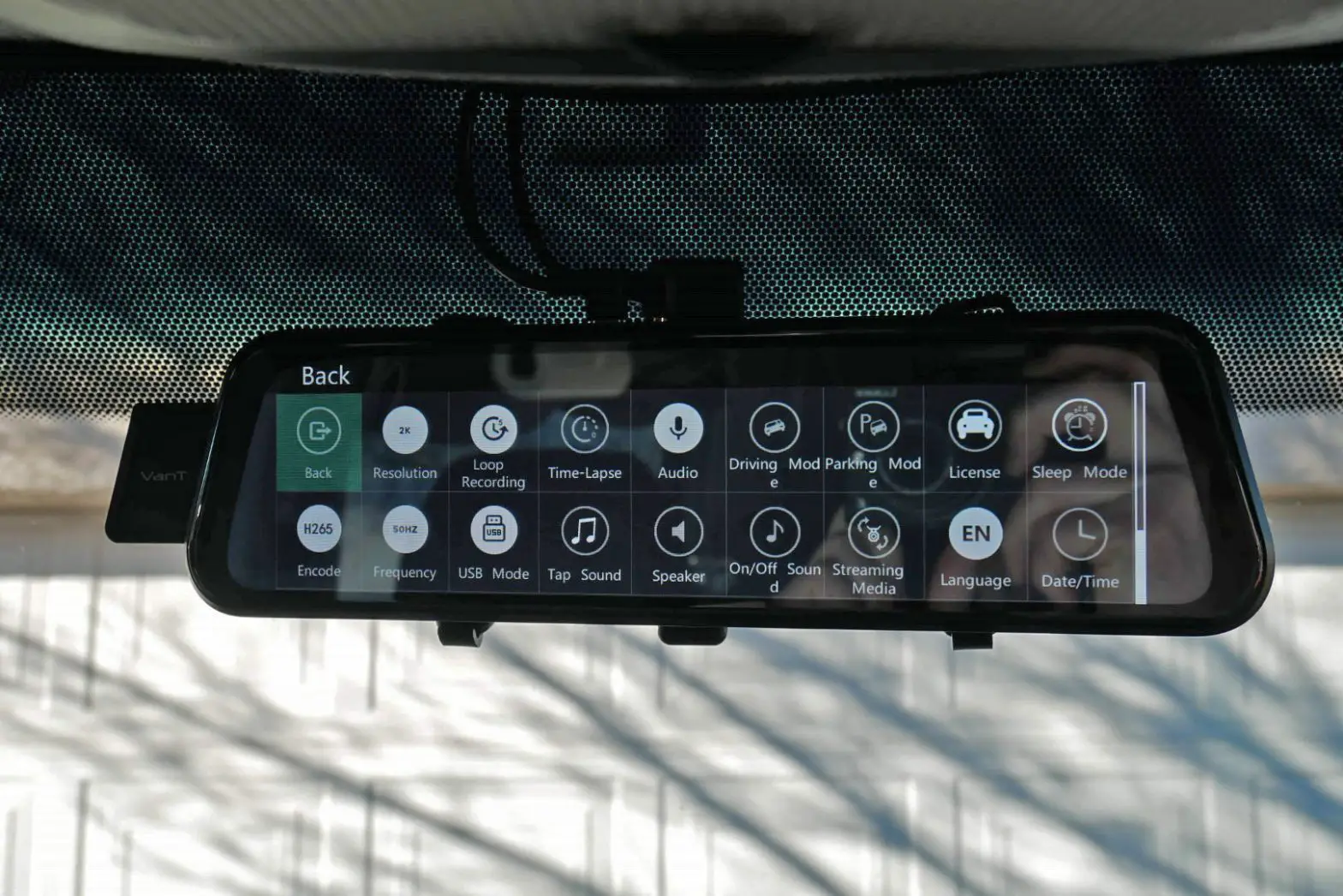
Menu Settings Instruction
Back
4k
Resolution
1
Loop Record
0 Time-Lapse
Record Audio
Datestamp
G-Sensor
P
Parking Guard
License
zzz 50Hz
Auto Power Off Screen Saver Power Frequency Back Mirror
Speaker
Boot Sound
Key Sound
*When in video mode, tap ” ” to enter into video setting menu and the recording stops. Start recording again when returns.
Back Return back the main interface. 4k Resolutions 4K / 2K / 1080P
Loop Recording In the case of recording and saving at interval of 1 / 3 / 5 minutes, the dash cam will automatically overwrite the earliest file in the memory card once the card is full.
EN 11
Time-Lapse Note: An extra hardwire kit (also called the step-down line or buck line, sold separately) is required for using the Time-lapse function (Off / 1s / 2s / 3s).
Mini USB Port: Connect to the dash cam
GND GND Wire (Black ): Connect to any metal in the car
Hardwire Kit
BAT Battery Wire(Yellow): Connect to always powered constant fuse
ACC ACC Wire (Red): Connect to ACC (Connect to on/off ignition switched fuse)
* When using the hardwire kit to supply power for the dash cam, and when the car engine turns off: If you set time-lapse at off, the dash cam will power off automatically. If you set time-lapse at 1s, the camera will capture 1 frame per 1s and merge them into a video. Selecting 2s indicates that the camera will capture 1 frame per 2s, and selecting 3s indicates that will capture 1 frame per 3s. * When using the hardwire kit to supply power for the dash cam, and when the car engine turns on: The dash cam will exit the time-lapse function, and start recording normally.
EN 12
Note: If you connect both the Battery Wire and ACC Wire to always powered constant fuse, and when the car engine turns off, you will realize 24-hour recording. (But the Time-Lapse doesn’t work)
Audio record Date Stamp G-sensor After turning on G-sensor, it will lock the recording when detecting a collision during the recording. The G-sensor sensitivity can be selected Off / Low / Middle / High in the menu.
Parking Guard After parking, the dash cam will auto-start and record when it detects a collision. It will turn off after continuously recording 30 seconds.
License Auto Power Off When your camera is not recording, CarView 4 will automatically power off after 1 / 3 / 5 minutes. zzz Screen Saver Off / 1 / 3 / 5 min 50HA Power Frequency Back Mirror Turn on to view the mirror image of the rear camera.
EN 13
Speaker Boot Sound Key Sound EN Language Date/Time Format All files will be deleted in format mode. Default In default setting, all user information set before will be cleared. AI Asr (Automatic speech recognition) Off by default, turn on Asr to control specific operations by speaking specific English or Japanese sentences. Version
Troubleshooting
If the machine freezes, reboots repeatedly and fails to boot, please try the following methods: 1.Replace the power cable. 2.Pull out the TF card and turn on the machine again. If it works, it means there is a problem with the TF card, please format the TF card or replace the TF card. 3.Pull out the TF card, press and hold the reset button to turn on.
EN 14
GPS Antenna
1.Getting Started 1.Install the external GPS antenna at the corner of the center console.
66mp/h
Best mounting location
EN 15
2.Connect the external GPS antenna to the GPS slot of the dash cam Power on dash cam. A yellow ” ” will appear in the upper left corner of the screen while the GPS module is establishing satellite and location. This will be replaced by a green ” ” when the satellite and location are established. Then the GPS module will automatically embed your GPS coordinates and speed in all video recordings.
Red: Not connected
66mp/h
Yellow: In preparation Green: Operates normally
The icon turns “Red” to indicate that no satellite and location has been found, and “Green” indicates that the search for the satellite is completed and the positioning is accurate. “Yellow” indicates that the satellite is being searched.
EN 16
3.Setting Once connect the GPS antenna to the GPS slot of the dash cam, 3 new GPS setting options will appear in the setting mode. Tap the ” ” button to enter the setting mode and set GPS options. 1. GPS Test Check the GPS information, including GPS status, GPS satellites in view, Accuracy(feet), Azimuth(degrees), Coordinate(Lon/Lat), Speed and UTC Time. 2. Time Zone Set the real-time time zone in your living area from UTC -12:00 to UTC +12:00. After setting the Time Zone, the time of dash cam will synchronize with the Time Zone. 3. Speed Unit Set the speed unit to be displayed in the dash cam, including KM/H and MP/H.
EN 17
4.Open GPS Video File on PC 1.Import video files from TF card to computer. 2.Download the dedicate GPS player via link, click here: http://www.thieye.com/download/gpsplayer Note: With TF card inserted, when the GPS Module connects to the dash cam, an installation file of the GPS player will be generated in the root directory of the TF card. Clink on this file (gpsplayer.exe) to install the GPS player to a Windows computer. (For the Mac OS X computer, please download the file from website)
æ ç
EN 18
æ Settings Change language English, ChineseJapanese, German, French, etc. And change your unit of speed measurement from MPH to KMH. çMap Record and display your location information in real time. The front camera video folder is “front_norm” and the backup camera video folder is “back_norm”. The front camera lock folder is “front_emr” and the backup camera lock folder is “back_emr”. Factors that GPS Cannot Locate: * The Signal Strength of the Position is not Strong Enough or Under the Shelter: For example, the position is near dense high-rise building, or in the valleys, canyons, tunnels, underground parking garages. Place subject to electrical electromagnetic interference or metal composition shelter, etc. * Weather Factors: Sunspots; Severe weather (such as typhoon, etc.) * Other Factors: Human interference (such as SA policy, Microwave transmitter); GPS satellite orbit; Electroma netic interference noise around GPS equipment; Surrounding transmitting stations or mobile base station, etc.
EN 19
 GPS Player - Google Drive