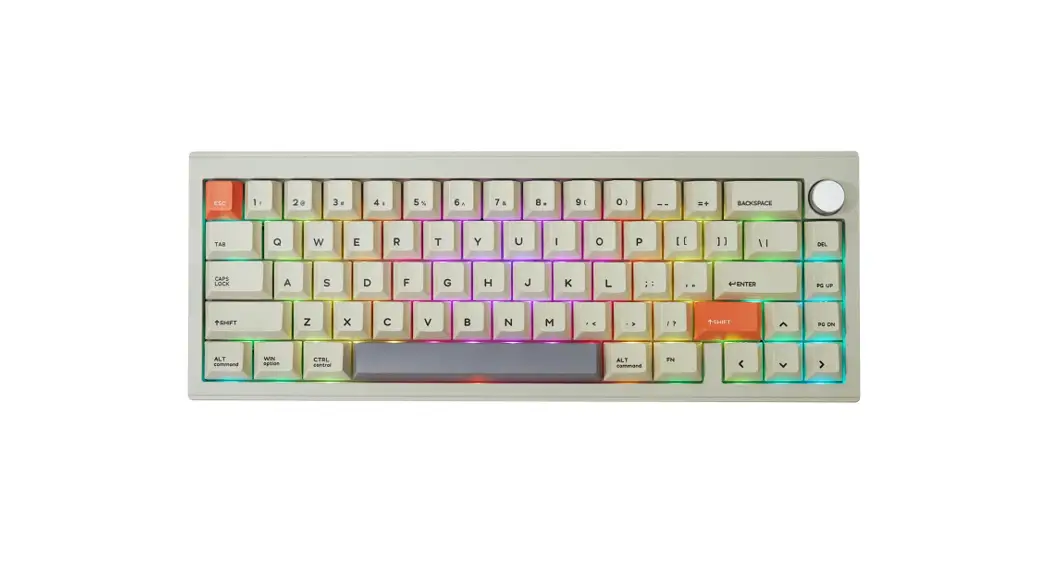
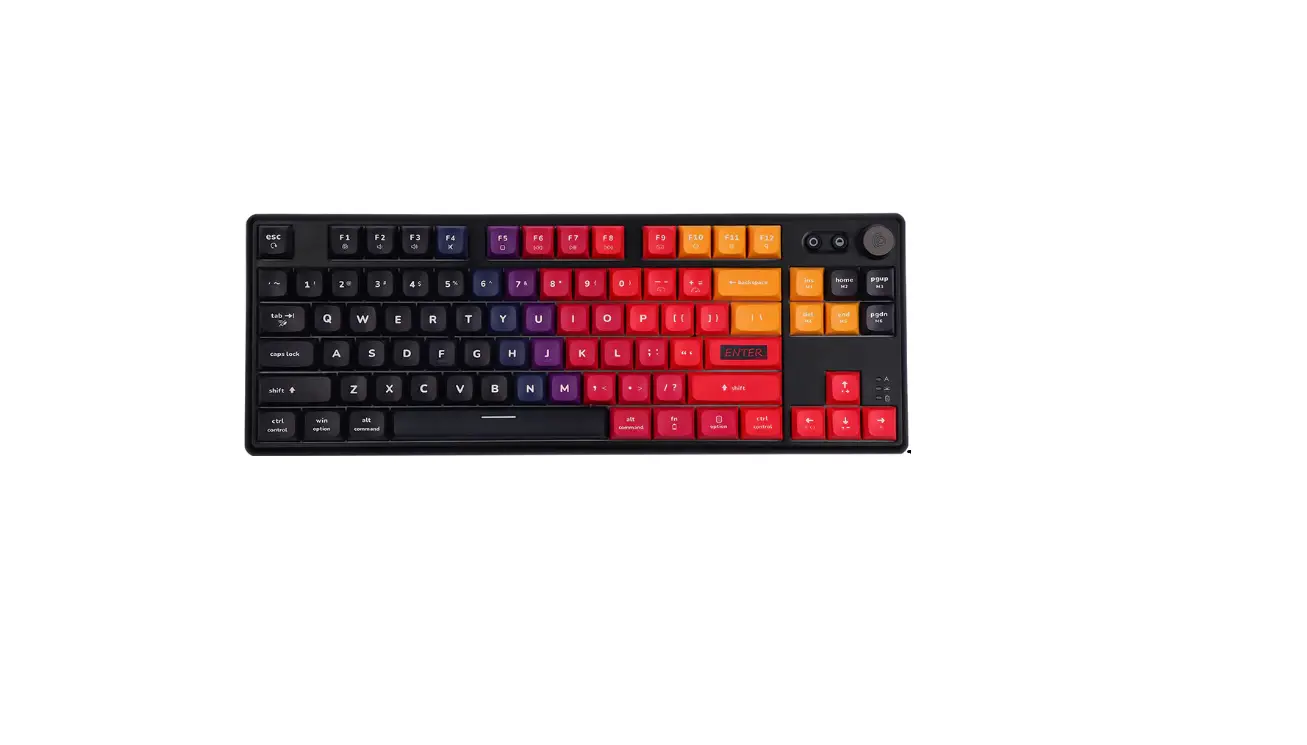
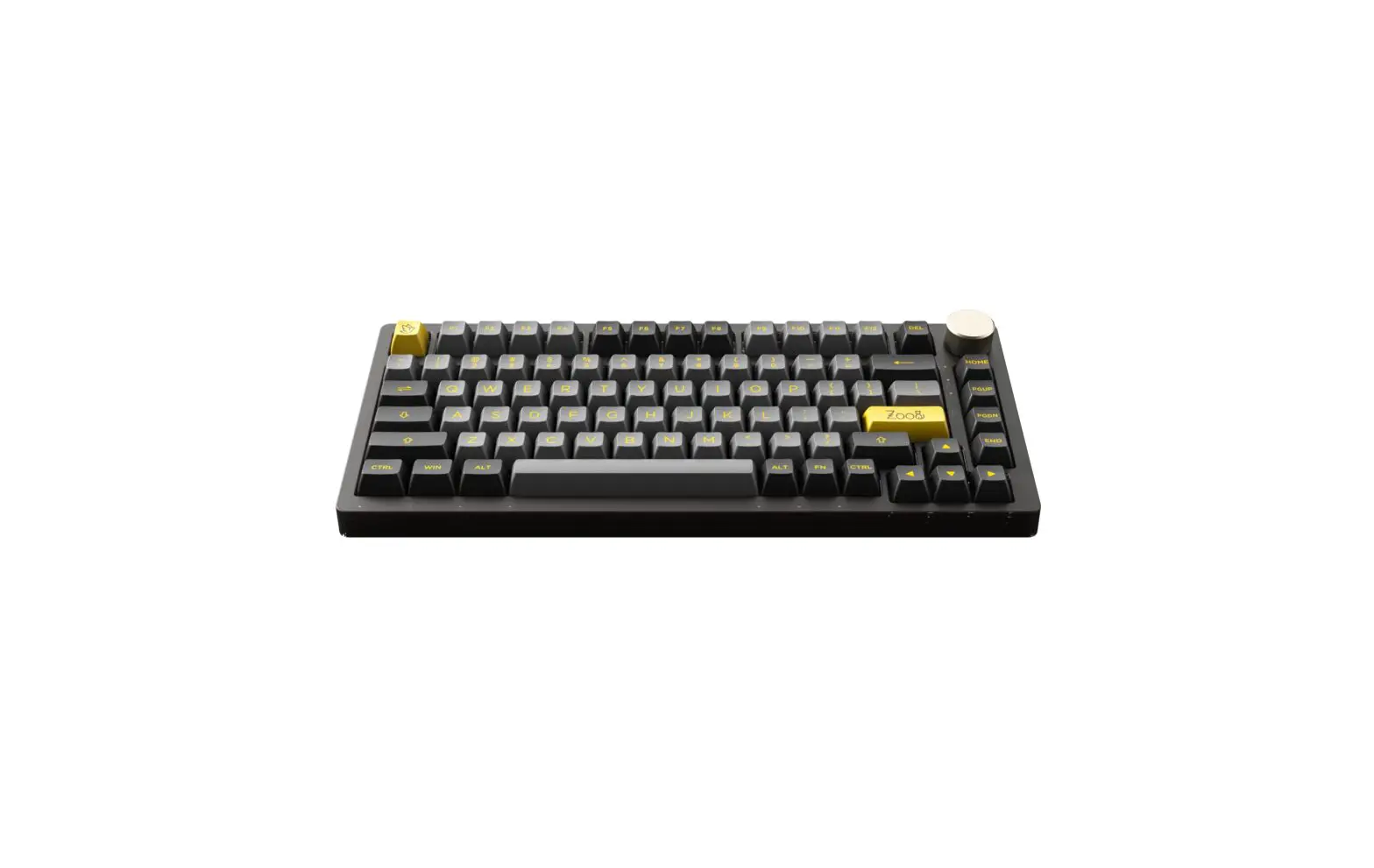
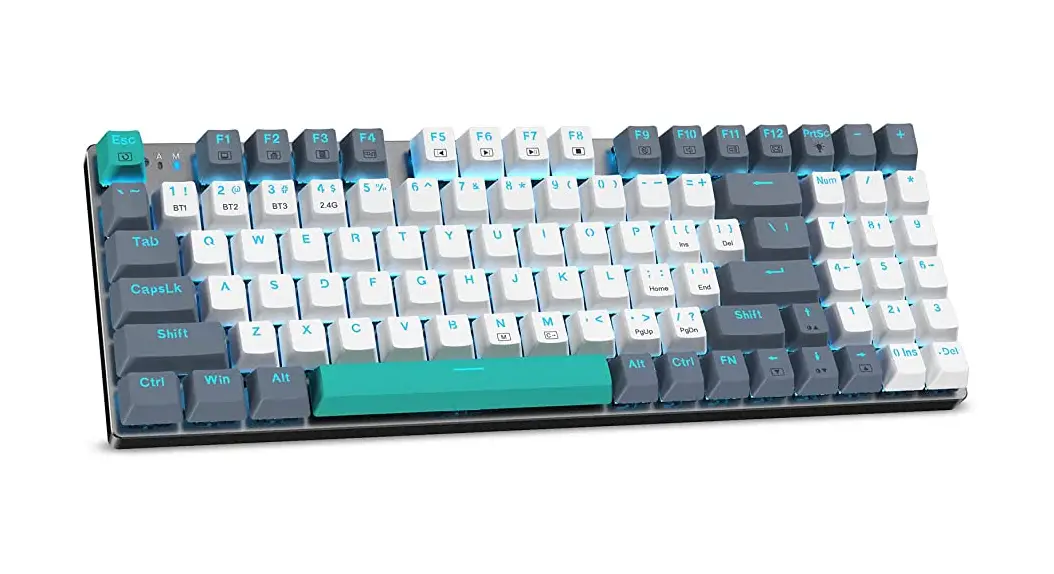
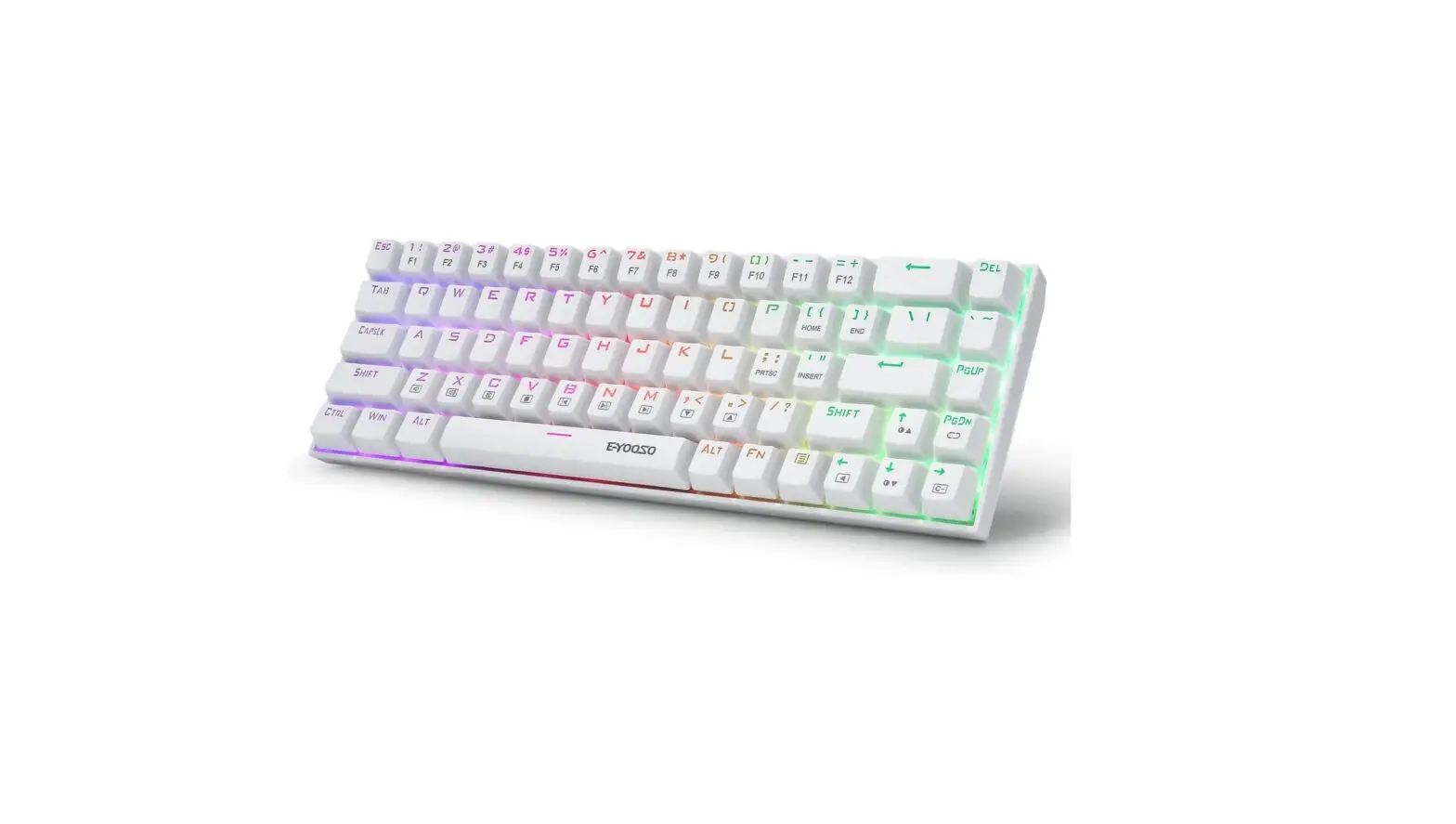
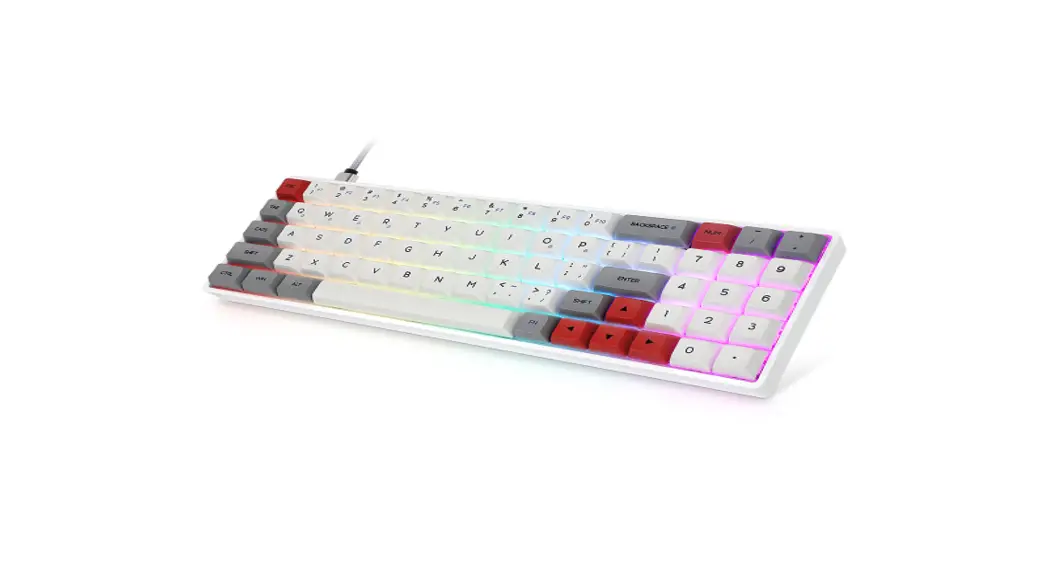
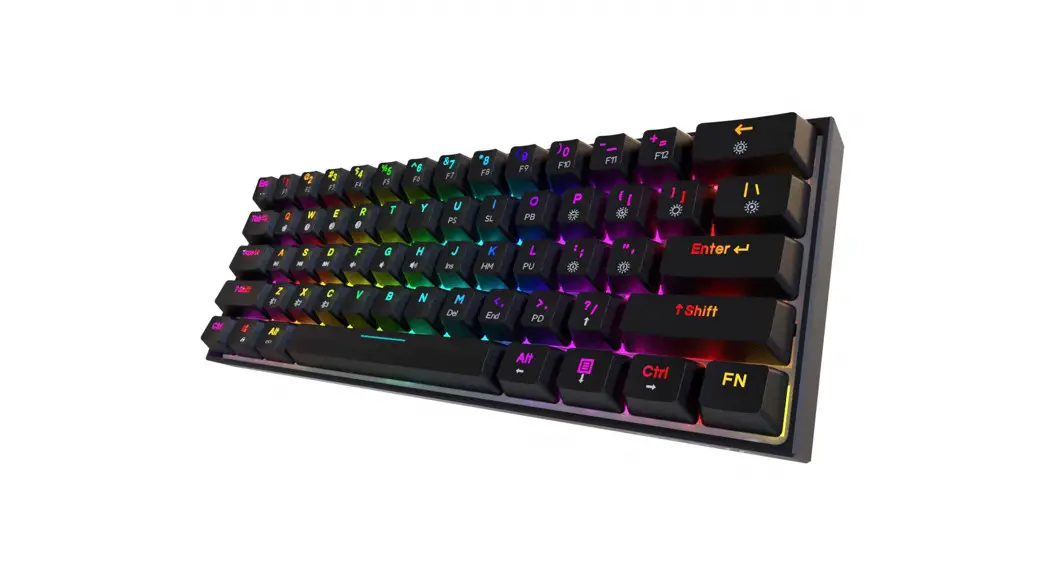
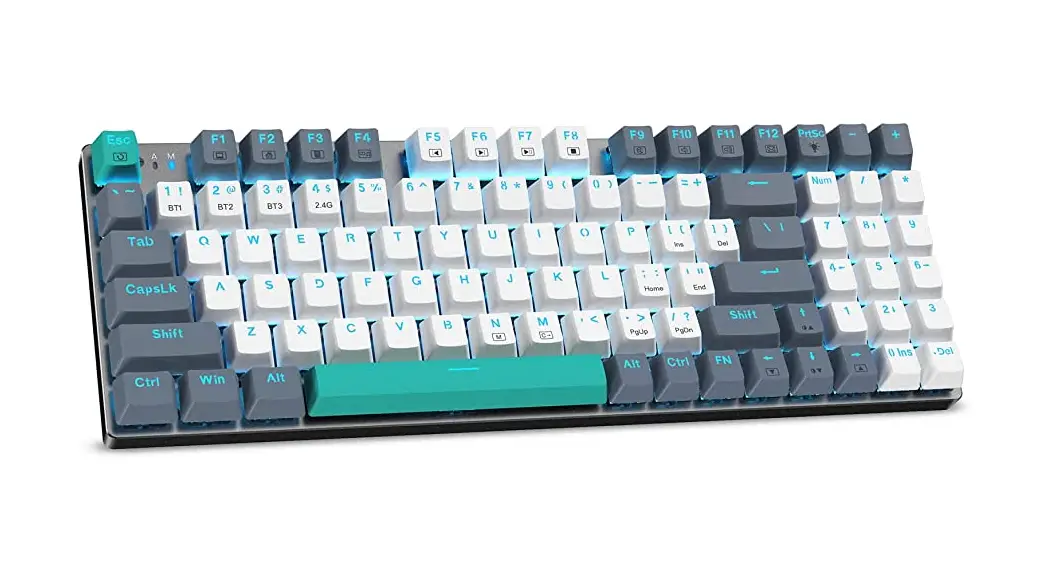
V75-1 VIA Tri Mode Aluminum Mechanical Keyboard
V75 Mechanical Keyboard
The V75 mechanical keyboard is a customizable keyboard that
supports VIA software and comes with USB Wired/BT5.0/2.4G Tri Mode
Pairing Method.
Product Information
- Tri-mode pairing method: USB Wired/BT5.0/2.4G
- Keys: QWE, FN + Q, FN + W, FN + E
- Backlight: RGB
- VIA software support
- Special keys setting
- LED backlight brightness and hue control
Product Usage Instructions
USB Wired Mode
- Toggle the mode switch to wired mode (From left to right are
2.4Ghz WiredBT). - Insert the USB cable into your computer.
- The keyboard backlight lights on and turns to the default of
RGB backlight effect, indicating successful connection.
2.4Ghz Pairing Instruction
The keyboard’s 2.4Ghz mode is default paired. If you need to
re-pair 2.4Ghz mode, please perform the following operations:
- Plug the receiver into the USB port of the device.
- Press FN + R for 3-5 seconds until the keyboard backlight
flashes. - The keyboard backlight turns to RGB and indicates a successful
connection.
BT5.0 Pairing Instruction
Please refer to your device’s Bluetooth pairing
instructions.
Special Keys Setting
To remap the key to replace the special key to the key you want,
follow these steps:
- Download the latest VIA application for your computer’s OS from
https://github.com/WestBerryVIA/via-releases/releases. - Install and open the VIA software.
- Import Keymap JSON/USB JSON 2.4G JSON files for CIDOO V75-2.4G
and CIDOO V75-USB. - Remap the key to replace the special key to the key you
want. - Save the changes and exit the VIA software.
LED Setting Keys
Use the following keys to control the LED backlight:
- FN + ]}: LED backlight brightness increase
- FN + [{: LED backlight brightness decrease
- FN + =+: LED backlight hue increase
Note: Layer1 will be activated when your keyboard’s system
toggle switched to Windows or Mac system and long press Fn1(3)
key.
V75
FN+:
FN+:
FN+:
FN+:
FN+|:
FN+ -_:
FN+=+ :
FN+]}:
FN+[{:
FN+Backspace : /
FN+PG UPLOGO
FN+PG DN: LOGO
FN+Space: FN+Space
FN+A: Windows FN+F1: FN+F3: FN+F5: FN+F7: FN+F9: FN+F11: FN+WIN : WIN FN+HOME:END
FN+S: Mac FN+F2: FN+F4: FN+F6: FN+F8: FN+F10: FN+F12: FN+DEL: INSERT
/5.0/2.4G
USB(2.4G )USBRGB
:
1.V75 3. (2.4G). QWE FN + Q FN + W FN + E 3-5. . 2.FN + Q CIDOO V75-1FN + WCIDOO V75-2FN + E CIDOO V75-3 3. FN+QFN+W FN+E
CIDOO V75
2.4G: USB( 2.4G),RUSB R2.4G
2.4G: 2.4G. FN+R 3~5″R”USB”R” RGB
2.4G5 30 RGB
3.5VFN FN FN
V75VIA VIA : 1.https://github.com/WestBerryVIA/via-releases/releases VIA .
2.CIDOO V75-2.4G.JSONCIDOO V75-USB.JSON VIA WWW.CIDOOO.COM . VIA File Import Keymap, JSONUSB JSON 2.4G JSON2.4G
3.VIA.
VIA VIA VIA VIA. CIDOO V75VIA . CIDOO V750-34. .
QMK CIDOO V75 VIARGB .
CIDOO V75 CIDOO V750-3 0Win0 0Mac0 Left Alt=Left Option Left Win=Left Command Right Alt= Right Option
3Win/MacVIA MO(3)MO(3)3
1Win/MacFn1(3)1
2Win/MacVIA MO(2)MO(2)2
Hue+ Sat+ RGB Md+ RGB Tog… Win… Mac… HueSatBT 1 BT 2
+
RGB / Windows
Mac 1 2
BT 3 Brght+ Lock Win USB Mode RGB SPD BrghtRGB SPI Fn1(3) MO(2) MO(3)
3 + Windows USB RGBRGB+ Fn1(3),1 MO(2),2 MO(3),3
PRO
VIA Tri-mode Aluminum Mechanical Keyboard
Cidoo VIA Tri-mode Aluminum Mechanical Keyboard A Customizable Keyboard that Supports VIA Software
Thank you for purchasing our V75 mechanical keyboard , We hope you
USB Wired/BT5.0/2.4G Tri Mode Pairing Method:
2.Plug the receiver into USB port of the device .The “R ” key will cease
1.Please visit https://github.com/WestBerryVIA/via-releases/releases to
3.The VIA software is installed and connected successfully if it is show as
This is important for smaller keyboards, where there aren’t enough physical
Layer1This layer will be activated when your keyboard’s system toggle
Keys Descriptions:
will be pleased with both the product and service you received . The
flashing and the keyboard backlight turns to the default of RGB backlight
download the latest VIA application for your computer’s OS here. As following
below photo.
keys to do all the functionality you need.
switched to Windows or Mac system and long press Fn1(3) key.
following is a detailed introduction of the functions and operation method
Wired Mode:
effect, it means connection successful.
photo shows:
Hue+
Hue Increase
of this product.
Default Hot Keys Hold FN + listed keys to activate
Please toggle the mode switch to wired mode .(From left to right are 2.4Ghz WiredBT) and then insert USB cable into your computer, the keyboard backlight lights on and turns to the default of RGB backlight effect, it means
2.4Ghz pairing instruction The keyboard 2.4Ghz mode is default paired . If you need to re-pair 2.4Ghz
Special keys setting Here you can remap the key to replace the special key to the key you want, to achieve the quick operation of the function.
Sat+ RGB Md+ RGB Tog…
Light Saturation+ RGB Mode Next Turn On/Off Backlight
connection successful.
mode , Please perform the following operations :
QMK LED light
Win…
Switch to Windows mode
LED Setting Keys
FN+: LED backlight brightness Increase FN+: LED backlight brightness decrease FN+: LED backlight hue increase
Bluetooth® Pairing Instructions: Perform the following steps to pair this keyboard with your device(s).
Long press FN+R key enter 2.4g pairing mode . At this time, “R” key flashes green color quickly. Insert 2.4G dongle to USB port . After the connection is successful, “R” key stops blinking and goes to steady color and turns to the default of RGB backlight effect, it means connection
CIDOO V75 VIA software provides many different RGB lighting effects by default. You can change the lighting brightness, speed, color and customize the lighting effect you want. You can also change the key to operate the
lighting effect you set.
Mac… HueSat-
Switch to Mac Mode Hue Decrease Light Saturation
FN+: LED backlight hue decrease
1.This Bluetooth keyboard can be paired with up to three devices at the
successful.
BT 1
Bluetooth Device 1
FN+|: Toggle LED backlight mode FN+ -_: LED backlight speed decrease FN+=+ : LED backlight speed increase FN+]}: LED backlight saturation decrease
same time. Please toggle the mode switch to the Bluetooth mode .(From left to right are 2.4Ghz Wired BT ). Q key or W key or E key will flash .
2.Long press FN + Q or FN+W or FN+E for 3~5 seconds to enter pairing
Auto sleep mode In Bluetooth and 2.4G mode, after 5 minutes without key press ,the
Others custom CIDOO V75 Layers allow you to configure your keyboard with more behaviors than its number of physical keys .
Layer2This layer will be activated when your keyboard’s system toggle
BT 2 BT 3 Brght+
Bluetooth Device 2 Bluetooth Device 3 Backlight Brightness Increase
FN+[{: LED backlight saturation increase
mode. At this time, the Q /W/E key will flash blue quickly indicates that
backlight will turn off to conserve the battery , any key press will be
CIDOO V75 default customized 0-3 layer keyboard layout.
switched to Windows or Mac and key mapped any key to MO(2), save and
Lock Win
Lock Windows Key
FN+Backspace :Turn off/on the key area backlight FN+PG UPToggle LOGO LED light mode FN+PG DN: Toggle LOGO LED light color FN+Space: Long press FN+Space for 3 seconds to reset the keyboard to the factory setting.
Media Keys
FN+A: Windows System FN+F1: Music Player FN+F3: Volume + FN+F5: Previous FN+F7: Next FN+F9: Email
FN+S: Mac System FN+F2: Volume FN+F4: Mute FN+F6: PlayPause FN+F8: Stop FN+F10: Web
keyboard is ready to connect.
3.Open the Bluetooth settings on your device and scan for available devices. Locate and select the device name entry. “CIDOO V75-1” for FN+Q ; “CIDOO V75-2” for FN+W , “CIDOO V75-3” for FN+E .
4. Once the keyboard has connected to your device, the Q/W/E key will cease flashing, and light on after Bluetooth pairing was successful. Short press “FN” and “Q” or “FN” and “W” or “FN” and “E” keys to switch paired Bluetooth device.
The Bluetooth connection has memory . It will disconnect when power off the keyboard ,and the keyboard will re-connect to the last device when power on the keyboard again.
awaken the keyboard.
In Bluetooth mode, the deep sleep mode will be entered after 30 minutes without key press, and the Bluetooth is disconnected. Press any key to exit the deep sleep mode, and the RGB back light will turn up and connect back to Bluetooth.
Battery Charging Indicator
When the battery power of the keyboard is low (the battery power is less than 3.5V), the FN key will keep flashing red. When charging, the FN key will be steady red light. After fully charged ,the FN key will turn off red light and back to current RGB backlight .
2.Download CIDOO V75-2.4g JSON or CIDOO V75-USB. json file from CIDOO official website (WWW.CIDOOO.COM )and upload it to VIA software, Open VIA software, select `File’, then `Import Keymap’, then select the corresponding JSON file, USB JSON file should be used in wired mode, 2.4G JSON should be used in 2.4G mode. As shown below:
If VIA software does not recognize your keyboard, please contact our customer service staff for assistance
VIA will automatically detect your keyboard compatibility if it’s plugged in. Keyboard memory is persistent, which means that wherever you plug in keyboard, it remembers the settings.
On the top half of VIA software, choose one key which you want to change by your mouse, and then select the key on the bottom half of VIA software, and it was effected.
See below for more information about configuration Macros setting
Layer0This layer will be activated when your keyboard connected to the Windows system. Layer0This layer will be activated when your keyboard connected to the Mac system. Left Alt=Left Option Left Win=Left Command Right Alt= Right Option
then long press it.
USB Mode
Switch To USB Mode
RGB SPD
RGB Speed Increase
Brght-
Backlight Decrease
RGB SPI
RGB Speed Increase
Fn1(3)
Layer 1 will be activated
V75
when long press Fn1(3)
MO(2)
Layer 2 will be activated
when long press MO(2)
MO(3)
Layer 3 will be activated
when long press MO(3)
FN+F11: Calculator
FN+F12: Search
FN+WIN : Lock Unlock Win
FN+DEL: INSERT
FN+HOME:END
The upper right knob switch rotates clockwise to increase volume, counter
clockwise to decrease volume, and presses down to mute.
2.4G mode Usage method:
1.Please toggle the mode switch to 2.4Ghz mode . From left to right are 2.4Ghz Wired BT. “R” key will flashes green .
Custom Configuration
CIDOO V75 supports using the VIA program to change key layout NoteMake sure your keyboard is properly plugged into your computer . VIA installation steps are as follows:
Macro Settings
CIDOO V75 does not have physical multimedia keys, you can remap the keys through the VIA software to achieve the function. CIDOO V75 is configured with 4 layers from 0 to 3 by default, and each individual key can have multiple functions.
Layer3This layer will be activated when your keyboard’s system toggle switch to Windows or Mac , key mapped any key to MO(3), save and then long press it.
 机械键盘|机械键盘青轴|RGB机械键盘|压感机械键盘|赤度cidooo
 Releases · WestBerryVIA/via-releases · GitHub