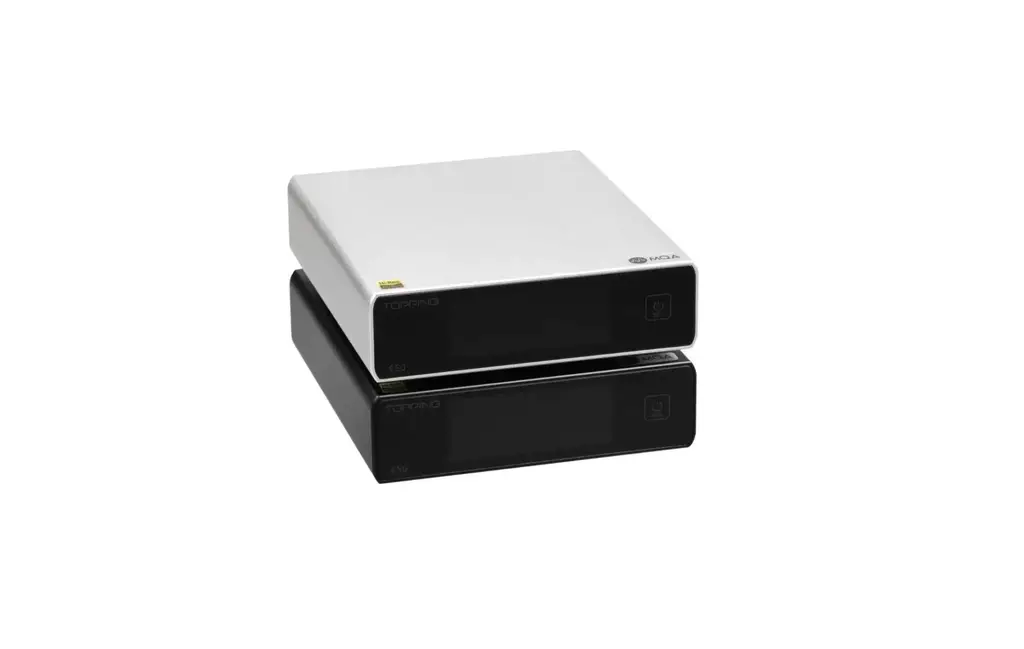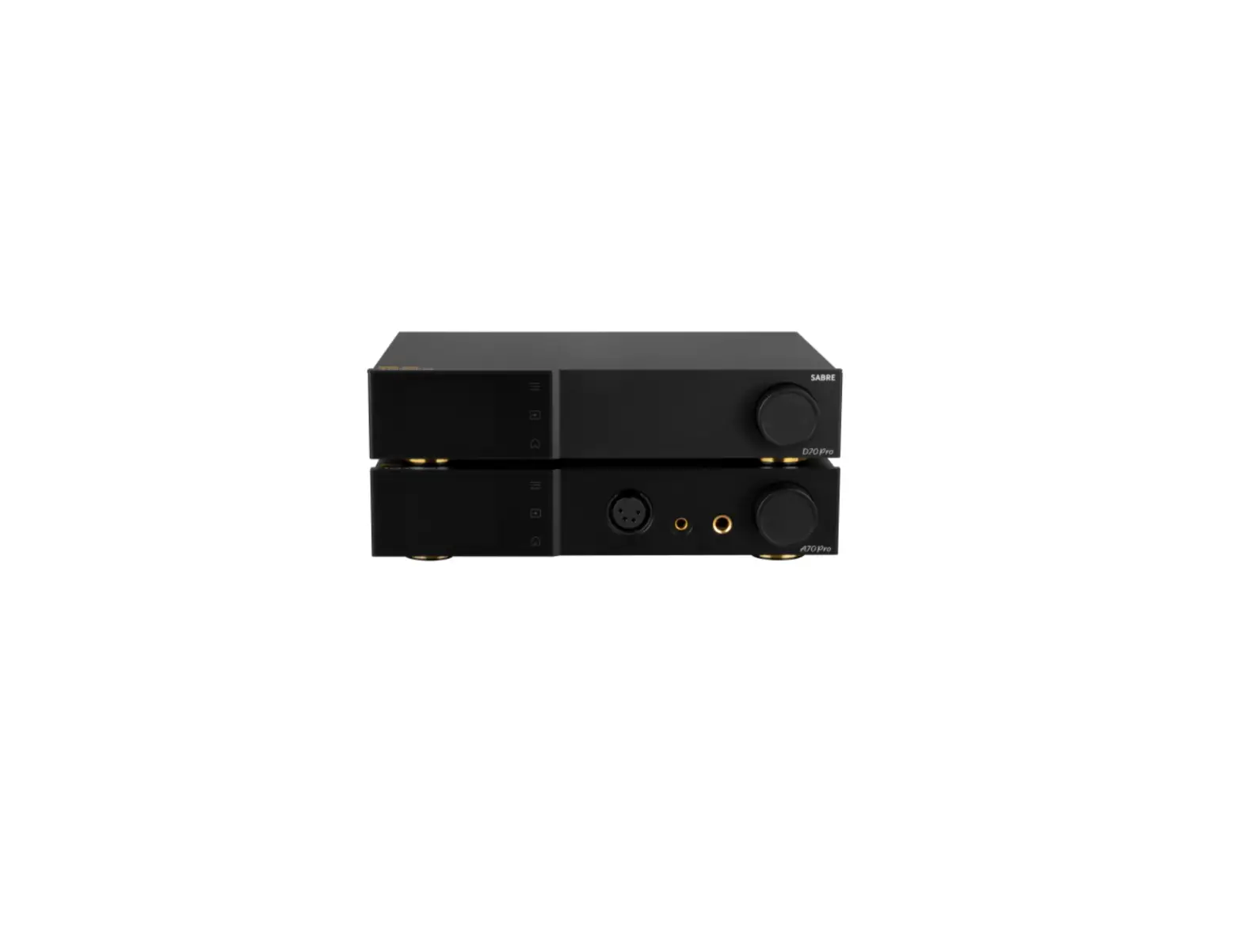
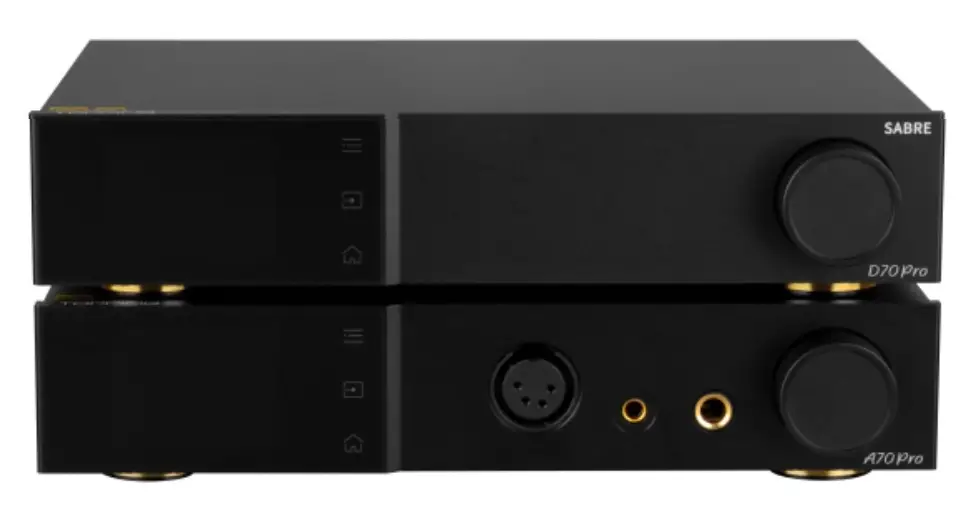
TOPPING TP-129 D70 Pro SABRE Digital to Analog Converter
Contents list
D70 Pro SABRE: x1
Remote control: x1
USB cable: x1
AC cable: x1
Bluetooth antenna: x1
User manual: x1
Warranty card: x1
Note: You can download the driver and user manual on http://www.topping.audio/.
Part names
Attribute
| Measured | 22.2cm x 17 .6cm x 4.8cm (Include protruding parts) |
| Weight | 1050g |
| Power input | 100-240VAC 50Hz/60Hz |
| Signal input | USB/BT/OPT/COAX/AES |
| Line Out output | XLR/RCA |
| Other connectors | 12V Trigger In (3.5mm jack) 12V Trigger Out (3.5mm jack) |
| Display | 2inch LCD |
| Bluetooth range | >10M |
Input range
| USBIN | PCM 44.1 kHz-768kHz/16bit-32bit DSD DSD64-DSD512 (Native) , DSD64-DSD256 (DoP) |
| COAX/OPT/AES IN | PCM 44.1 kHz-192kHz/16bit-24bit DSD DSD64 (DoP) |
| BTIN | AAC/SBC/APTX/APTX HD/APTX-Adaptive/LDAC |
Attribute
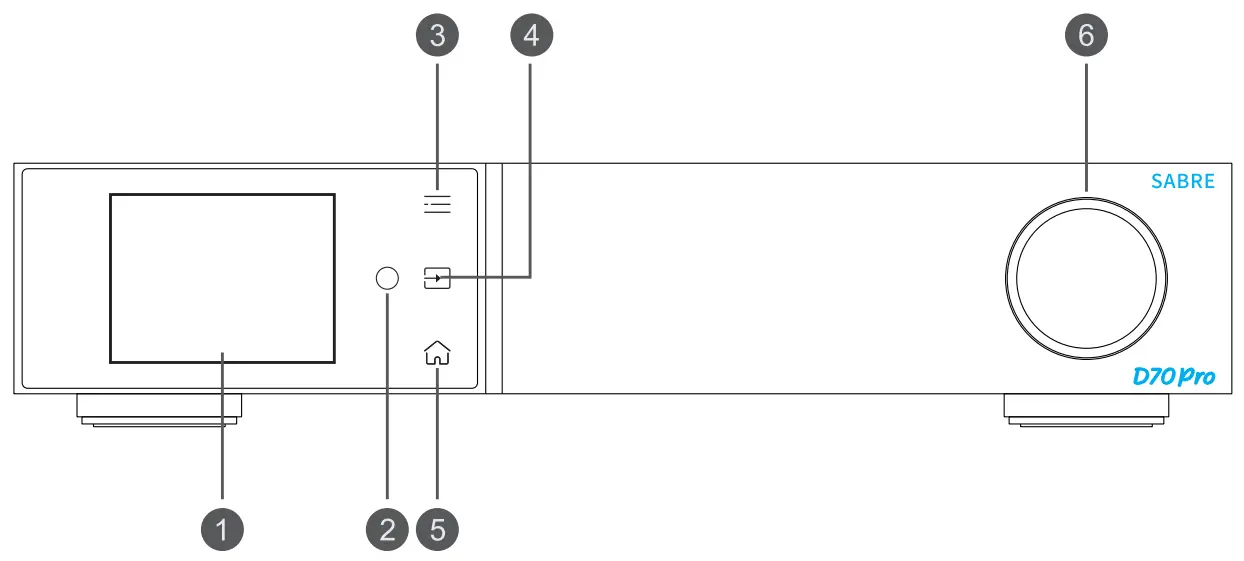
Front panel
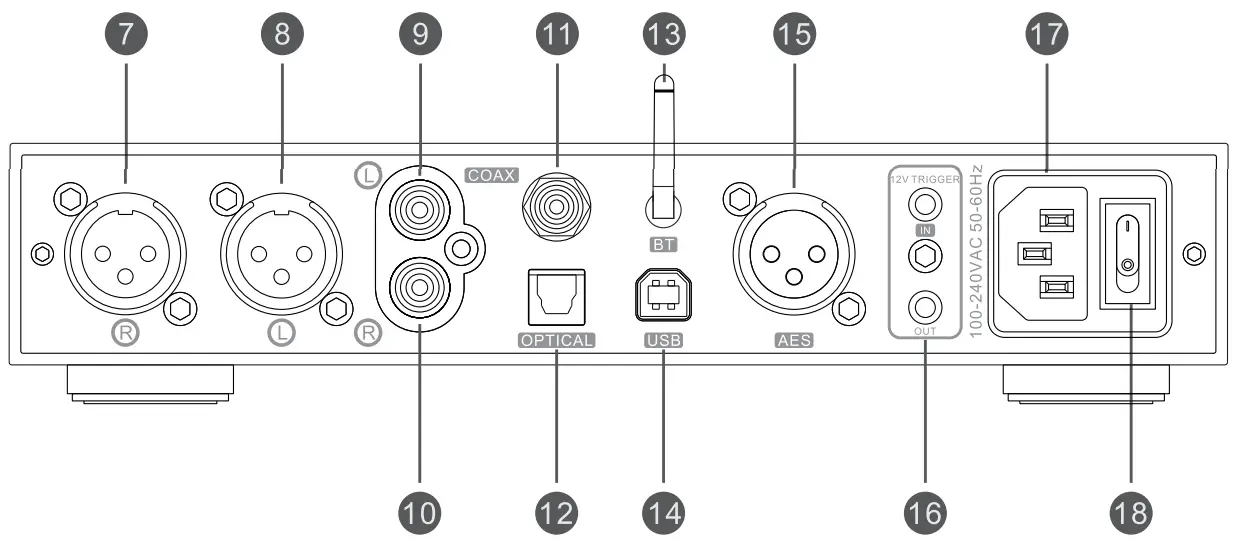
Rear panel
- Screen
- Remote control receiver
- Menu
Enter/exit the setup menu or return to the parent menu - Input channel switching
- Home page switching
- Volume knob & User-defined button
Rotate the knob: Adjust the volume.
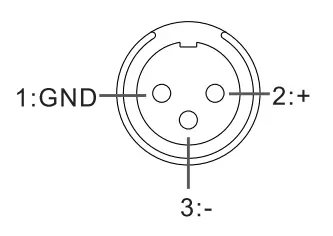
Press the knob: User-defined function. Please set it at [Setup Menu Advanced- Button]. - Right channel balanced XLR output
- eft channel balanced XLR output
- eft channel single-ended RCA output
- Right channel single-ended RCA output
- Coaxial SPDIF input
- Optical SPDIF input
- Bluetooth receiver
- USB input
- AES input
- 12VTrigger IN/OUT
The 12V Trigger IN/OUT allows the D70 Pro SABRE to be activated by other devices or to activate other devices via a 3.5mm AUX cable. The connected device must be equipped with a 12V Trigger In/Out to use this feature.
*Before using the Trigger IN function, you need to set the [Setup Menu On/ Off trigger] to “12V” - Power input (AC 100-240V 50Hz/60Hz)
- Power switch
Display
There are three types of home page displays: Normal, VU and FFT, which can be switched by touching them button on the  front panel or set in the menu [Setup Menu – Display- Home].
The home page display in DAG mode and PRE mode will be slightly different. [Setup menu-Advanced-DAG mode]
PRE mode: Volume is adjustable.
DAG mode: D70 Pro SABRE keeps the maximum volume output and the volume is not adjustable.
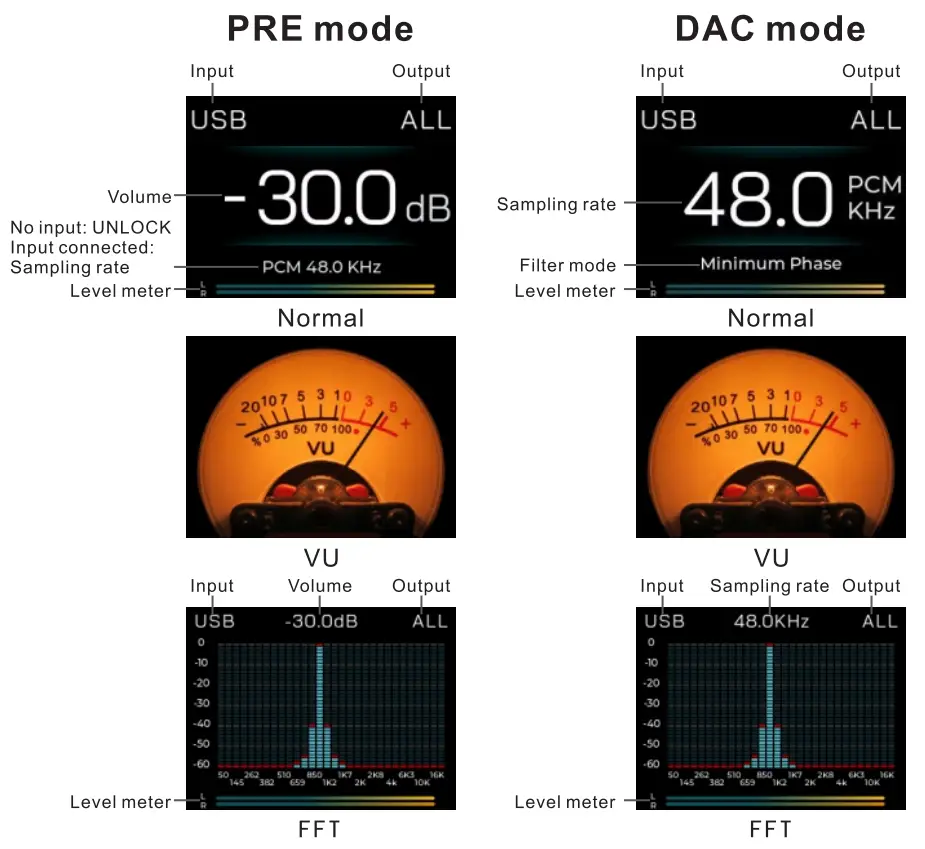
*VU Meter, FFT and Level meter monitor or reflect D70 Pro SABRE’s output level. (They won’t be affected by the volume in PRE mode.)
D70 Pro SABRE has 3 output modes: SE, BAL and ALL [Setup menu- Output select]. In SE output mode, the VU Meter, FFT and Level meter reflect RCA output level. In BAL/ALL mode, the output level of XLR is reflected.
*vu Meter, FFT and Level meter do not support DSD512.
Remote control
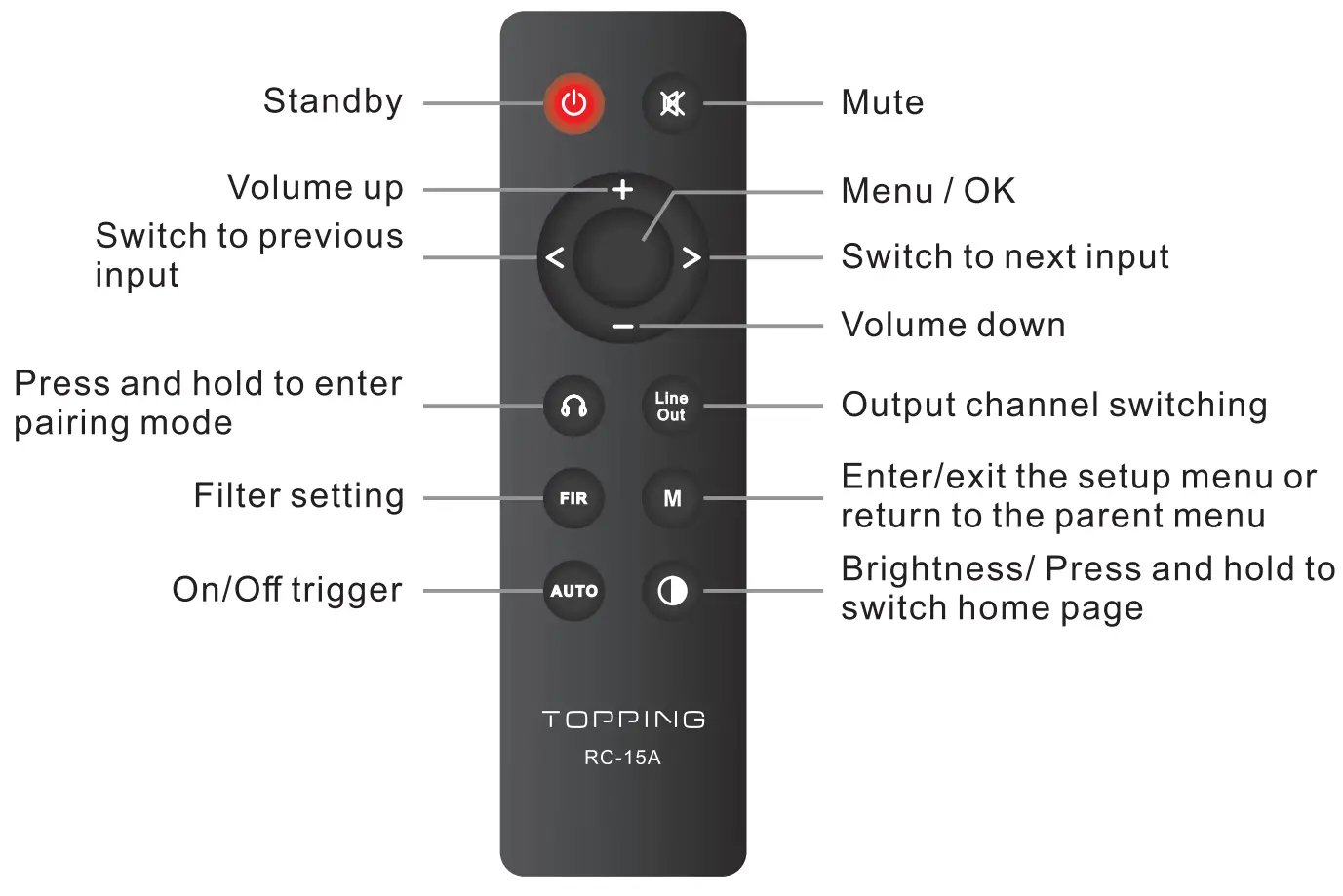
 See “4. On/Off trigger” in the “Setup Menu”, below.
 See “1-2 Brightness” in the “Setup Menu”, below.
Connection
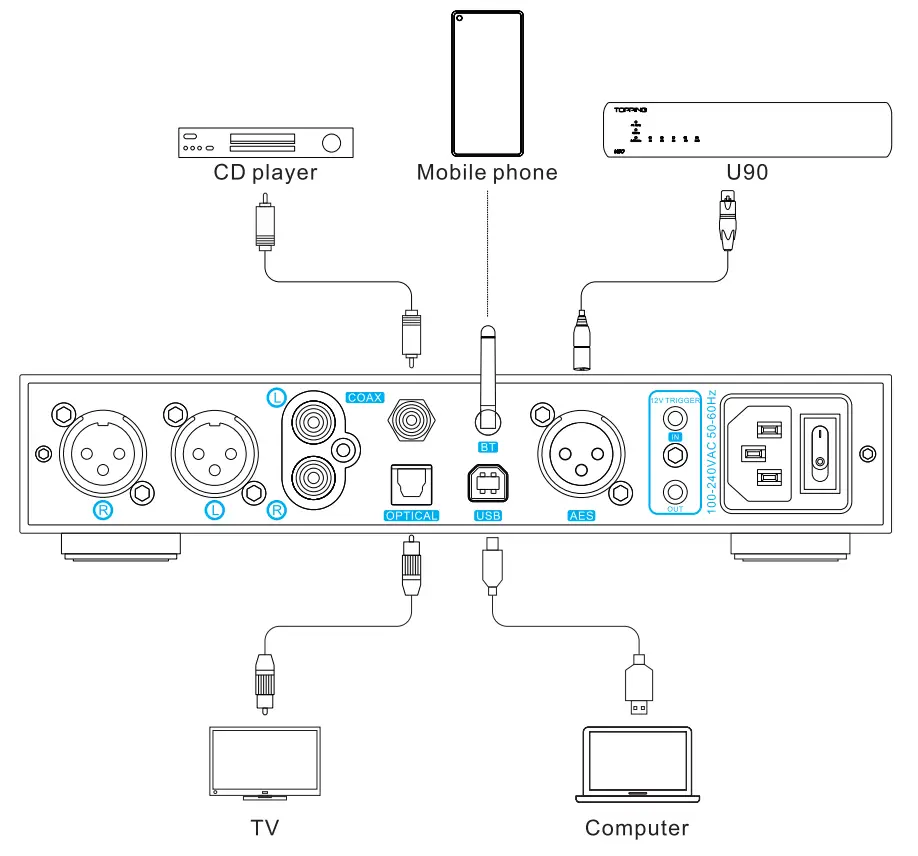
Connect to the input source
Support USB, Coaxial, Optical, Bluetooth, AES input.
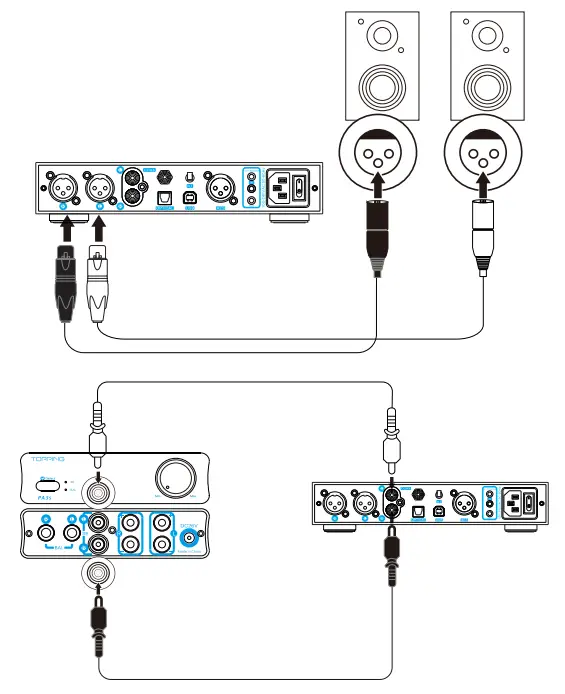
Connect to amplifier or active speakers
Use XLR or RCA cables to connect to amplifiers or active speakers. In order to avoid damage to your devices, please turn off the amplifier or active speakers before you connect them to D70 Pro SABRE.
Operation
Power on & off / standby operation
(1) Power on & off: Press the power switch on the rear panel to turn
D70 Pro SABRE on or off.
(2)Standby setting:
When it is working, press and hold the knob on the front panel to enter standby state and press to exit standby state when it is standby. Or you can press the standby button  on remote control to enter or exit standby state.
Volume setting
(1) Mute and unmute: Press the mute button  on the remote control to mute D70 Pro SABRE, press the mute button again or adjust the volume to exit mute state.
(2) Volume adjusting: You can turn the volume knob or press the  and
and  button on the remote control to adjust the volume. Note that long pressing the and button on the remote control will quickly change the volume, so please be careful in order to protect your hearing.
Note: Volume is fixed to 0dB in DAC mode and volume adjusting is invalid in this mode. [Setup menu-Advanced-DAG mode]
Input channel switching
Touch the  button on the front panel or press the
  or
or  button on the remote control to switch the input circularly.
Output channel switching
Press the  button on the remote control to switch the output in cycle. You could also switch the output channel by pressing the knob, but note that you need to set [Setup Menu-Advanced-Button] to “Output select”. (Default)
The button on the front panel
Touch  : Enter/exit the setup menu or return to the parent menu
Touch : Exit the setup menu
Rotate the knob: Choose setting item
Press the knob: Change the setting/OK/Enter the sub menu
The remote control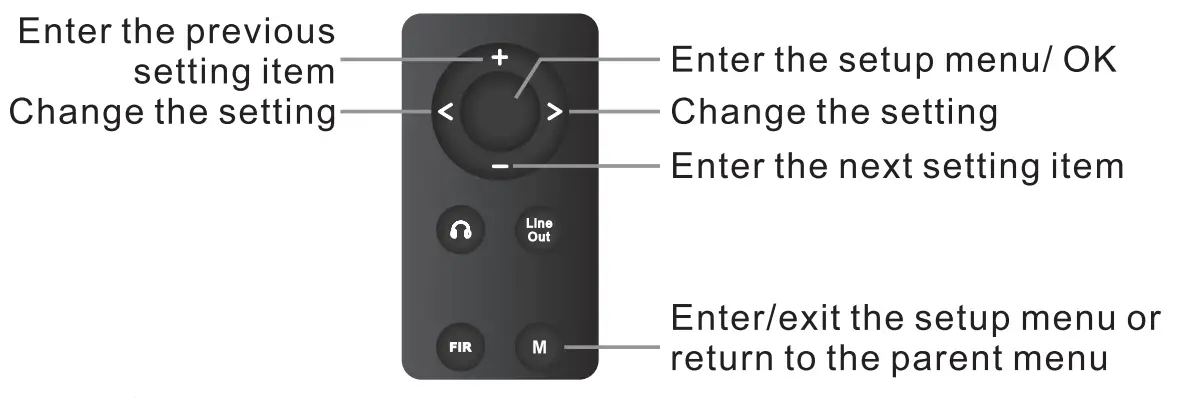
Setup menu
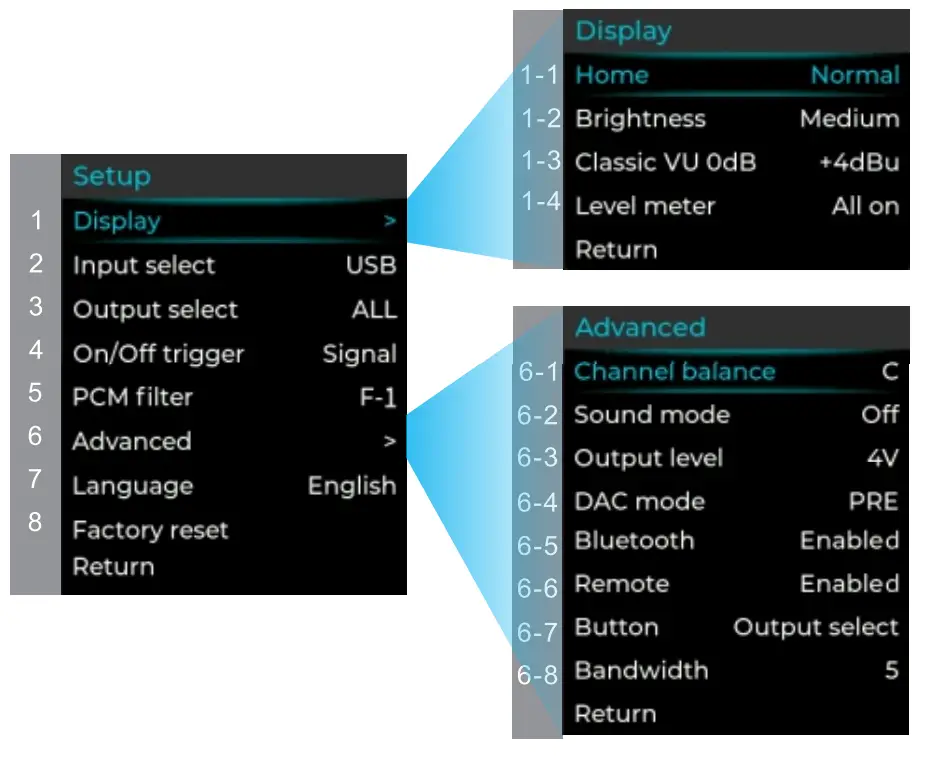
Display
Home
Choose home page
Normal (Default), VU, FFT
Brightness
Low, Medium (Default) , High, Auto
Auto has the same brightness as Medium. The difference is that when there is no operation after 30 seconds under Auto mode, the screen will be automatically turned off and only display the current input. You can press any button to light up the screen.
Classic vu OdB
Set 0dB reference voltage for VU meter. For example, if set to +4dBu, when the pointer swings to 0dB, the current output level of the D70 Pro SABRE is +4dBu.
+4dBu ( Default) , +1 0dBu
Level meter
All on (Default) , Normal page, FFT page, All off
lnput select
USB (Default) , OPT, COAX, AES, BT
0utput mode
SE: only RCA output
BAL: only XLR output
ALL (Default): Both RCA and XLR can have output.
On/Offtrigger
Signal (Default) : Input signal will trigger the device to turn on, but if the current input is not connected or input signal is invalid in 1 minute, ii will automatically enter the standby state. Once having detected valid signal, it will automatically return to working state.
12V: 12V signal will trigger the device to turn on. When D7a Pro SABRE’s Trigger In is connected to another device’s 12V Trigger Out, D70 Pro SABRE’s on/standby state can be controlled through this device. The D7a Pro SABRE will remain in standby state until Trigger In detects the signal change from av to 12V. When changing back to av, the D7a Pro SABRE will return to standby state.
Off: Disabled this function.
PCM filter
F-1: Minimum Phase ( Default)
F-2: Linear PhaseApodizing
F-3: Linear Phase Fast Roll-off
F-4: Linear Phase Slow Roll-off
F-5: Minimum Phase Fast Roll-off
F-6: Minimum Phase Slow Roll-off
F-7: Minimum Phase Slow Roll-off Low Dispersion
Advanced
Channel balance
Setting range: C (Balance), L +a.5-9.5dB or R+a.5-9.5dB. (Default: C)
*When using the knob, press the knob to enter the setting, rotate the knob to set the parameter, and press the knob again to exit the setting.
Sound mode
Off (Default), Valve, Transistor
Output level
Maximum output level at adBFS 4V (Default) , 5V
DAC mode
PRE (Default): Volume is adjustable.
DAG: Keep the maximum volume output and the volume is not adjustable.
Bluetooth
Enabled (Default), Disabled
Remote
Enabled (Default), Disabled
Button
Customize the function of the press knob. Output select (Default), Home select, Brightness select, Dim the screen, Filter select, Mute, Input select
Bandwidth
Customized settings from 4 to 15, the larger the number is, the stronger the ability to adapt to jitter, and the smaller the number, the better the performance. (default: 5)
*When using the knob, press the knob to enter the setting, rotate the knob to set the number, and press the knob again to exit the setting.
Language
English,’PY:
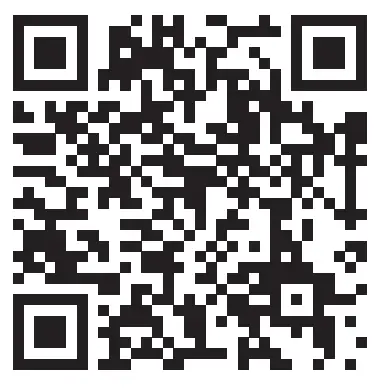
Scan the QR code on the right for the video.
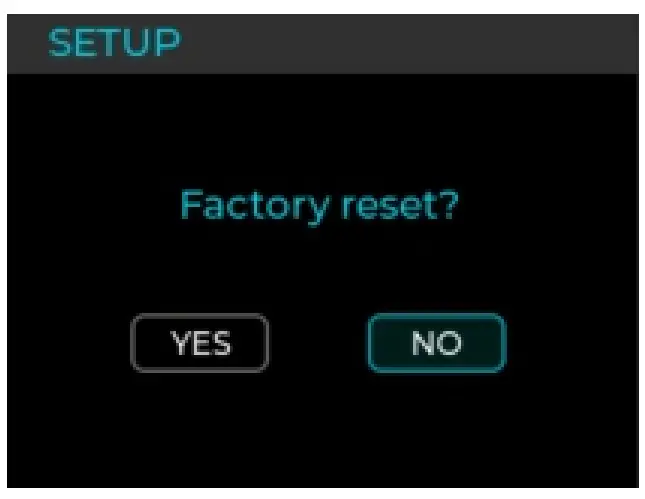
Factory reset
Select factory reset will have a pop-up, select Yes/No (blue for selected), then press the middle button on the remote or the front-panel knob to confirm.
Trouble shooting
| Phenomenon | Cause | Solution |
| No sound | Wrong input was selected | Select the correct input |
| Wrong output was selected | Select the correct output | |
| Incorrect cable connections | Check and reconnect | |
| Sound is muted | Turn up the audio | |
| Audio source no output | Adjust or check it | |
| USB did not recognize | USB cable did not connect properly | Check or change the cable |
| PC’s USB port damaged | Change another port | |
| The PC does not work | Check or try with another PC | |
| The OTG function of the phone is not enabled | Enable OTG functio n | |
| USB input, no sound | Too low volume on PC | Adjust volume |
| 070 Pro SABRE is not selected as the output device on the PC | Set the 070 Pro SABRE as the default output device | |
| Cannot pair D70 Pro SABRE Bluetooth | Bluetooth is disabled on D70 Pro SABRE | Enable Bluetooth in the setup menu [Setup menu-Advanced-Bluetooth] |
| D70 Pro SABRE is already connected to other Bluetooth device | Let D70 Pro SABRE enter pairing mode first. | |
| Weak signal due to long dis tance | Take the device closer to D70 Pro SABRE and connect again | |
| Bluetooth input, no sound | Too low volume on phone | Adjust volume |
| DAC abnormal | DAC abnormal | Do not connect the D70 Pro SABRE to any other devices, unplugandre-plug the power cable and reboot the unit. |
| DIR abnormal | DIR abnormal | |
| PN voltage abnormal/ low /high | PN voltage abnorma l/low /high | |
| 5V voltage abnormal/ low /high | 5V voltage abnormal/low /high | |
| Ak4377 abnormal | AK4377 abnormal | |
| If you still have problems or questions, pleasecontact us ( [email protected]) | ||