XU-2496-C XLR to USB Type-C Audio Interface
Product Information:
The Senal XU-2496-C is an audio interface that allows you to
connect your dynamic or condenser XLR microphone to your Mac or
Windows computer. It supports a 96-kHz/24-bit sampling rate,
providing studio-quality sound for your recordings. The interface
features switchable phantom power for condenser microphones and
offers latency-free headphone monitoring. With the monitor level
control, you can adjust the balance between playback audio and your
live microphone.
Product Usage Instructions:
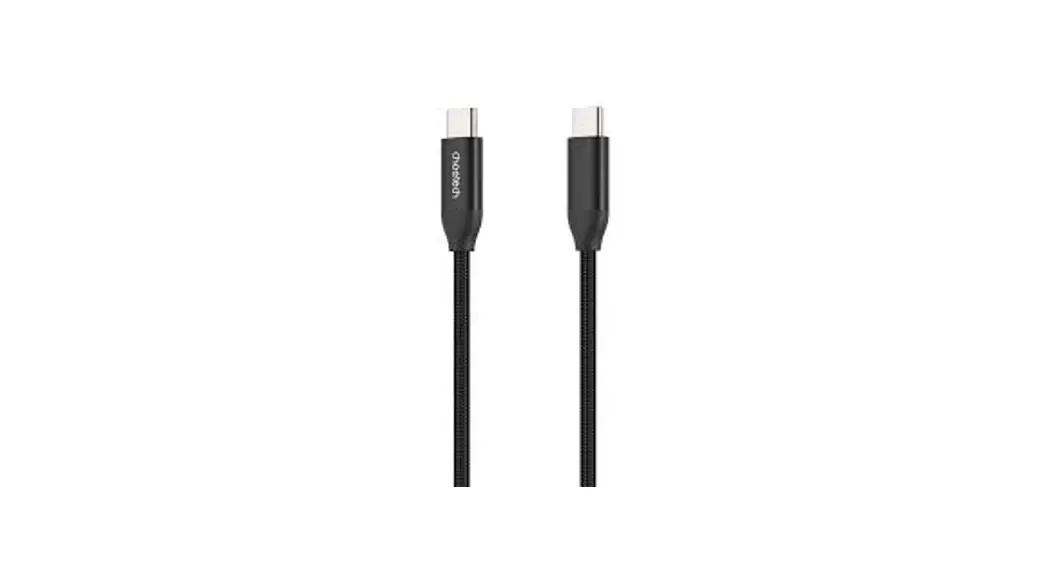
- Plug the XU-2496-C into your computer using the included USB
cable. Ensure that you connect it to a powered USB port. - Connect your microphone to the XU-2496-C’s XLR connector. If
you are using a condenser microphone, press the phantom power
button to activate the +48V phantom power. - To set the XU-2496-C as your computer’s audio interface:
- For Windows:
- Open Windows’s Start Menu and click Settings.
- Select System and click Sound.
- Choose the XU-2496-C as the default device for both input and
output.
- Open System Preferences and select the XU-2496-C as the default
device for input and output.
- Plug your headphones directly into the XU-2496-C.
- Before plugging in your headphones, ensure that the headphone
volume is turned down. - Use the headphone level control to adjust the volume.
- Use the monitor mix level control to adjust the balance between
your live microphone and the computer’s playback audio. - Note: Use audio recording software to prevent feedback.
- Use the Mic Gain control to adjust the input gain level of your
microphone. - The peak level indicator displays three levels of gain: green
(audio signal present), yellow (highest level before clipping), and
red (clipping).
- Use the included straps to secure the XU-2496-C to your mic
stand.
- If the XU-2496-C does not turn on, make sure it is connected to
both the USB port on the device and the computer’s USB port. Also,
ensure that the USB port is powered. - If there is no sound coming from the headphones or they are too
quiet, make sure they are plugged into the XU-2496-C’s headphone
output.
USER’S GUIDE
XU-2496-C
AUDIO INTERFACE
Thank you for choosing Senal.
The Senal XLR to USB Type-C Audio Interface enables you to plug your dynamic or condenser XLR microphone into your Mac or Windows computer and record with your favorite app. The 96-kHz/24-bit sampling rate delivers studio-quality sound, and the interface provides switchable phantom power for condenser microphones. Enjoy latency-free headphone monitoring and use the monitor level to adjust the balance between playback audio and your live microphone.
Warning
· Please read and follow these instructions, and keep this manual in a safe place.
· Exposure to high sound levels can cause permanent hearing loss. Avoid listening at high volumes for extended periods of time.
· Keep this product away from water, flammable gasses, and liquids.
· Do not attempt to disassemble or repair this product–doing so may expose you to electric shock and will void the warranty. Senal will not be responsible for any damage.
· Clean this product with only a soft, dry cloth. · Make sure this product is intact and
that there are no missing parts. · All images are for illustrative purposes only.
2
Introduction
Overview
1
XLR connector
2 Peak level indicator 3 Phantom power
indicator
4
+48 V phantom power switch
5 Mic gain level
6 Monitor mix level
7
Headphone volume level
8
USB power indicator
+48V Phantom
Mic Gain
Monitor
MIC
PB
Volume
9
3.5 mm headphone jack
USB XU-2496-C
10
USB Type-C port
Also Included
· USB cable
· User manual
3
Overview
Getting Started
1. Plug the XU-2496-C into your computer via the included USB cable. The USB power indicator will glow blue.
Note: Make sure to use a powered USB port.
2. Plug your microphone into the XU-2496-C’s XLR connector. If you’re using a condenser microphone, press the phantom power button to power your microphone. The phantom power indicator will glow green.
+48V Phantom
Mic Gain
Monitor
MIC
PB
Volume
USB XU-2496-C
Setting the XU-2496-C as Your Computer’s Audio Interface
Your computer will automatically detect the XU-2496-C, but it may not set it as your default sound device.
Windows
Mac
Open Windows’s Start Menu and click Settings.
Select System and click Sound.
Open up System Preferences and select XU-2496-C as the default device for input and output.
Select the Senal XU-2496-C for the Input and Output.
4
Instruction3s
Monitoring with Your Headphones
You can plug your headphones directly into the XU-2496-C to monitor your live microphone and computer’s playback audio without latency.
Warning! Turn down the headphone volume before plugging in your headphones.
Volume
Use the headphone level to adjust the headphone volume.
Use the monitor mix level to adjust the balance between the live microphone and the computer’s playback audio.
Note: audio recording software to prevent feedback.
Monitor
MIC
PB
Setting the Microphone Input Gain
Use the Mic Gain to adjust your microphone’s input gain level.
Mic Gain
The peak level indicator displays three levels of gain. Green : There is an audio signal, and it will stay green while recording. Yellow : Audio is at the highest level before clipping. Red : Clipping.
Attaching the XU-2496-C to a Mic Stand
Use the included straps to attach the XU-2496-C to your mic stand.
5
Instructions
Troubleshooting
Problem
Solution
The XU-2496-C
·
Make sure the USB is plugged into the XU-2496-C
will not turn on.
and the computer’s USB port.
·
Make sure the USB port is powered.
The microphone · will not record.
·
·
Make sure the microphone is plugged into the XU-2496-C.
If you’re using a condenser microphone, press the phantom power button.
Make sure you have selected the XU-2496-C as the default sound recording/audio input device.
There is no sound ·
coming from the
headphones, or
the headphones
·
are too quiet.
·
·
·
Make sure the headphones are plugged into the XU-2496-C’s headphone output.
Turn up the headphone level and MIC Gain on the XU-2496-C.
Turn up the volume on your computer.
If your headphones have their own built-in volume control, turn it up.
Make sure you have selected the XU-2496-C as the default sound recording/audio input device.
The sound is
·
distorted.
·
·
The playback
·
audio is not
audible.
The playback
·
audio is delayed.
Turn down the XU-2496-C’s microphone level. If your microphone has a built-in gain control, turn it down. Move your microphone farther away from the sound source.
Turn up the monitor level.
audio recording software.
7
Troubleshooting
Specifications
Analog Audio I/O
3-Pin XLR mic input 1/8 in. (3.5 mm) TRS headphone output
Input impedance 4.7 k
Input gain
37 dB
Signal to noise ratio
87 dB
Sampling rate
Up to 96 kHz
Bit depth
24, 16 bit
Phantom power
Frequency response
20 Hz to 20 kHz ±1 dB
USB connector Type-C
Power requirements
USB bus power
Minimum system Windows 7 (32/64)
requirements
Mac OS X 10.6.x
Cable length
9.7 ft. (2.96 m)
Dimensions (H × W)
6 × 1.3 in. (15.2 × 3.3 cm)
Weight
8 oz. (227 g)
6
Specifications
One-Year Limited Warranty
This Senal product is warranted to the original purchaser to be free from defects in materials and workmanship under normal consumer use for a period of one (1) year from the original purchase date or thirty (30) days after replacement, whichever occurs later. The warranty provider’s responsibility with respect to this limited warranty shall be limited solely to repair or replacement, at the provider’s discretion, of any product that fails during normal use of this product in its intended manner and in its intended environment. Inoperability of the product or part(s) shall be determined by the warranty provider. If the product has been discontinued, the warranty provider reserves the right to replace it with a model of equivalent quality and function.
This warranty does not cover damage or defect caused by misuse, neglect, accident, alteration, abuse, improper installation or maintenance. EXCEPT AS PROVIDED HEREIN, THE WARRANTY PROVIDER MAKES NEITHER ANY EXPRESS WARRANTIES NOR ANY IMPLIED WARRANTIES, INCLUDING BUT NOT LIMITED TO ANY IMPLIED WARRANTY OF MERCHANTABILITY OR FITNESS FOR A PARTICULAR PURPOSE. This warranty provides you with specific legal rights, and you may also have additional rights that vary from state to state.
To obtain warranty coverage, contact the Senal Customer Service Department to obtain a return merchandise authorization (“RMA”) number, and return the defective product to Senal along with the RMA number and proof of purchase. Shipment of the defective product is at the purchaser’s own risk and expense.
For more information or to arrange service, visit www.senalsound.com or call Customer Service at 212-594-2353.
Product warranty provided by the Gradus Group. www.gradusgroup.com
Senal is a registered trademark of the Gradus Group. © 2023 Gradus Group LLC. All Rights Reserved.
GG1
 Gradus | Gradus Group
 Senal | Precision Engineered Microphones and Monitoring