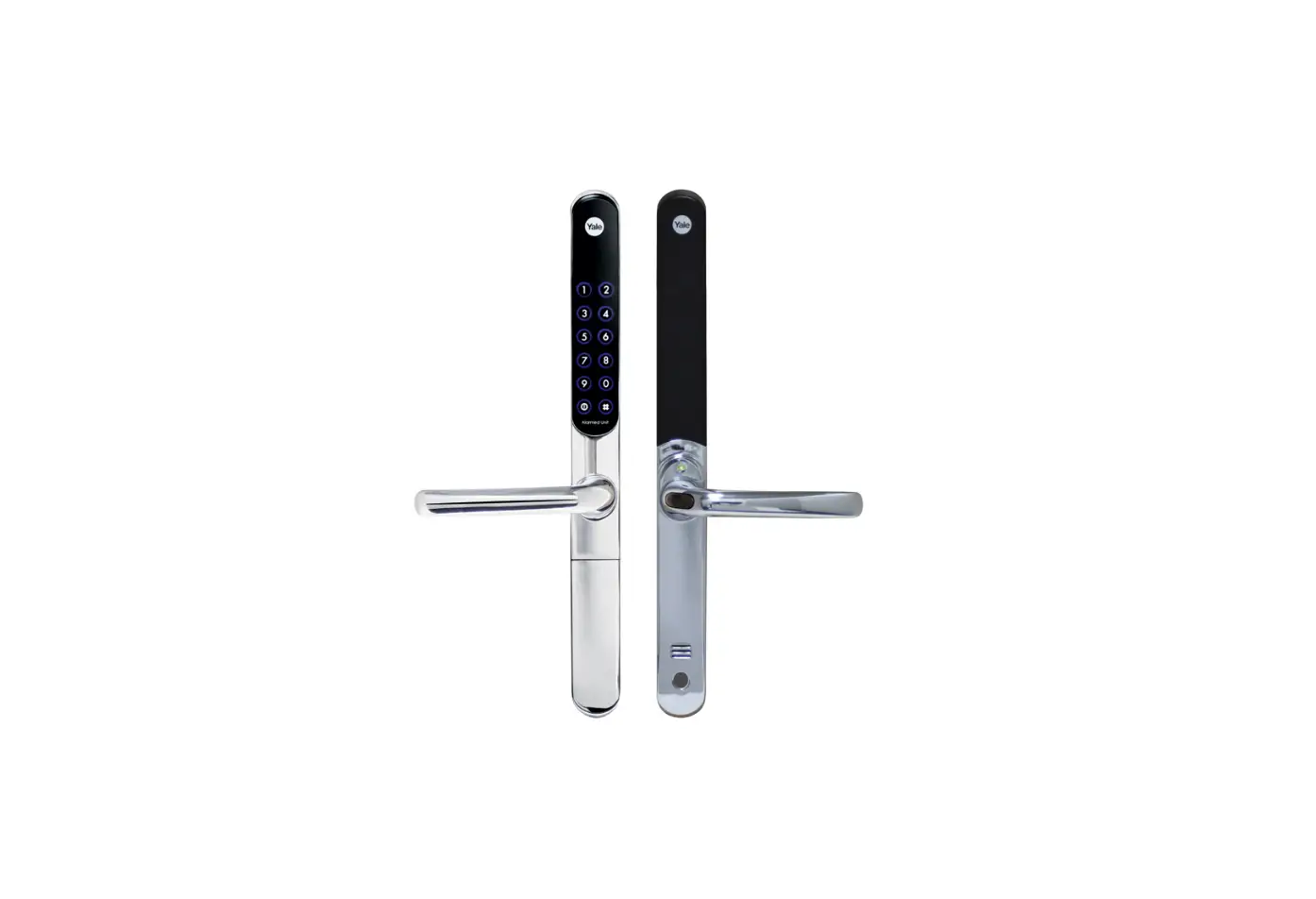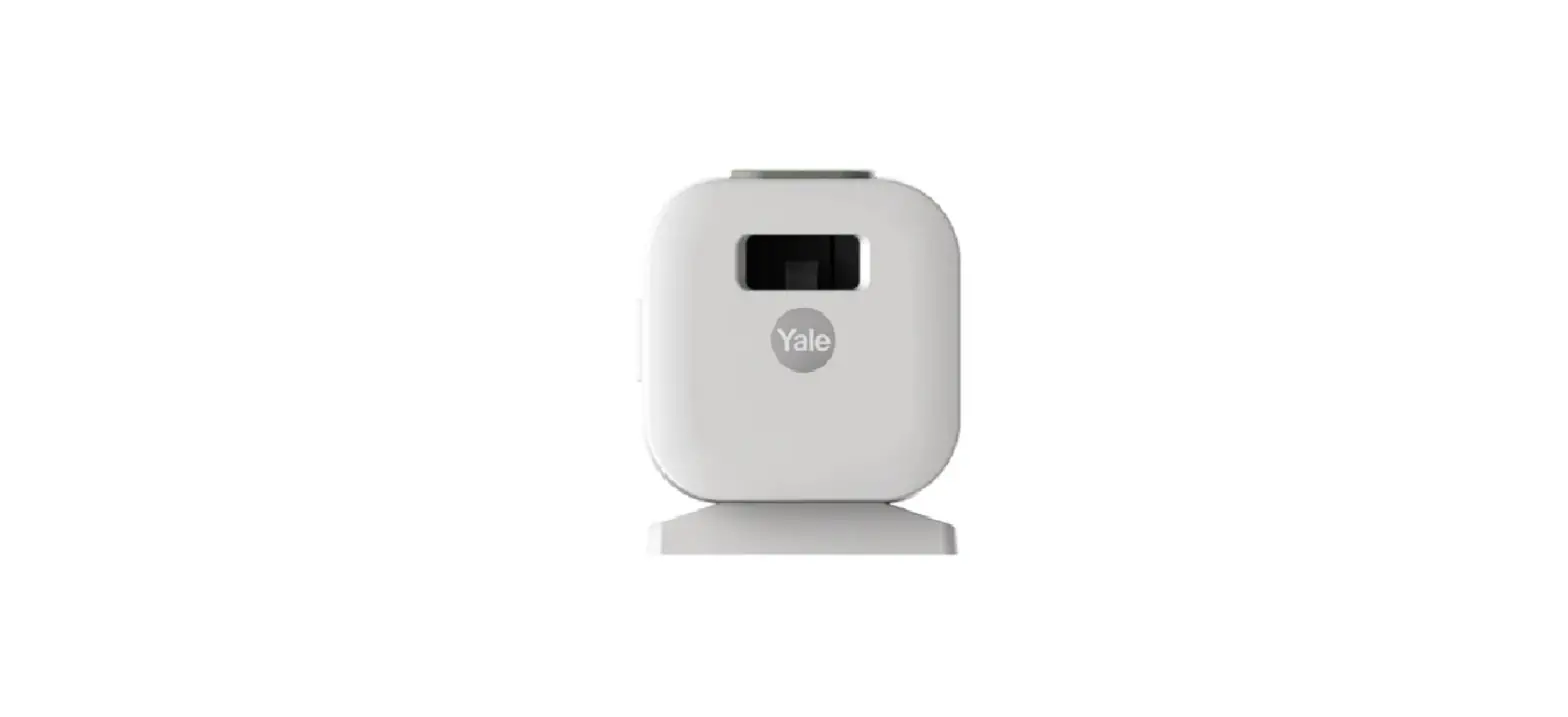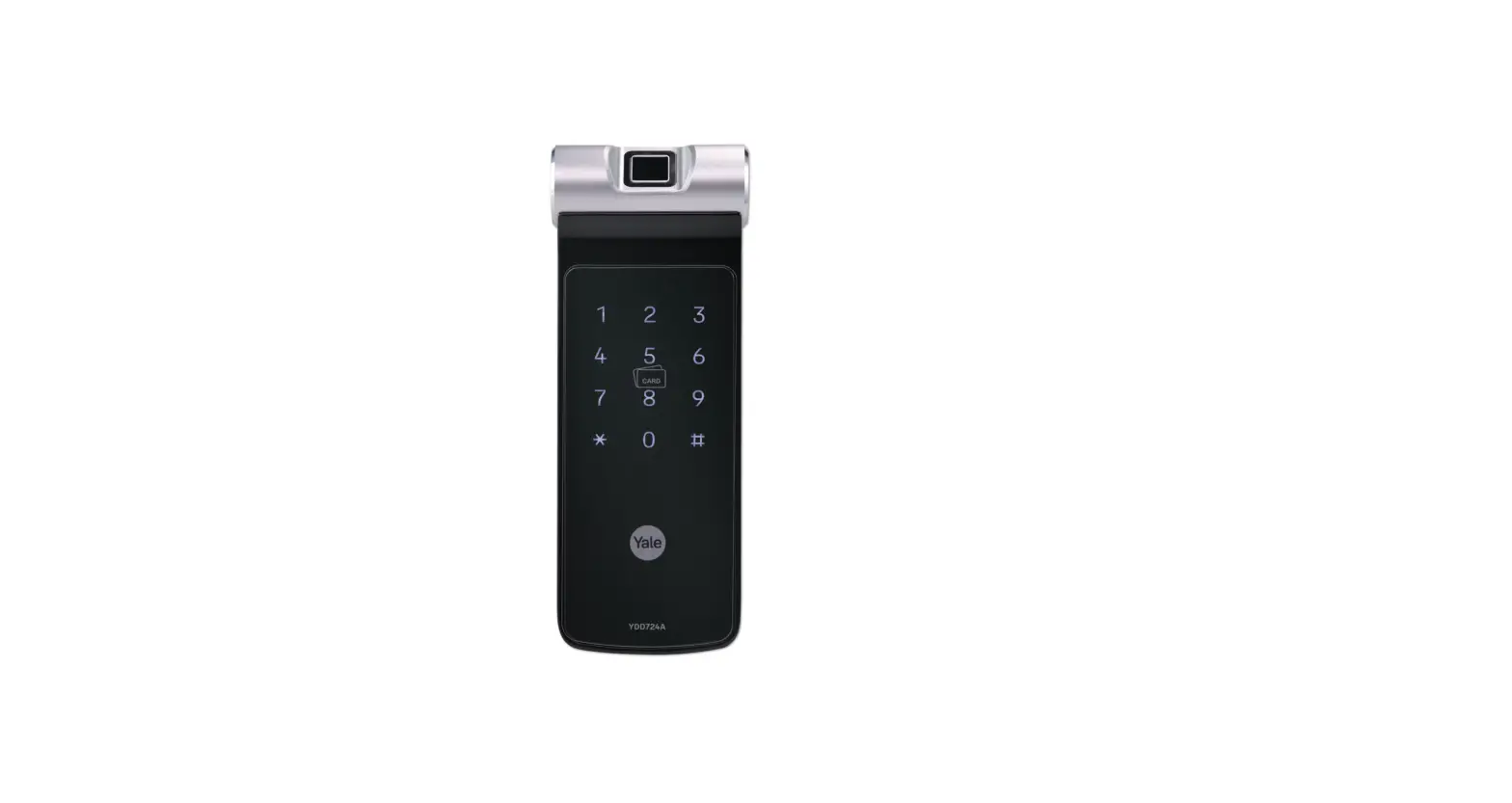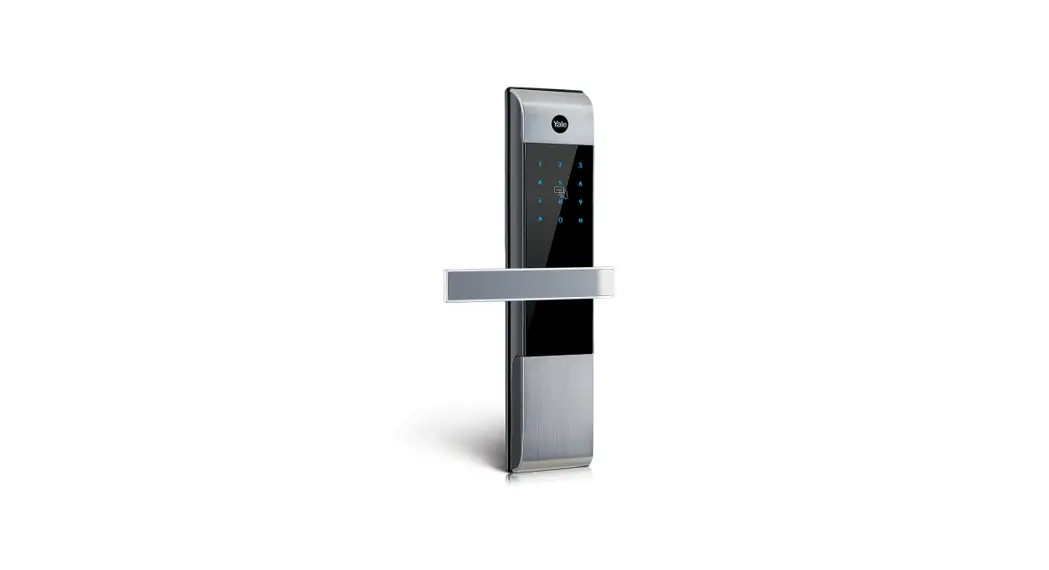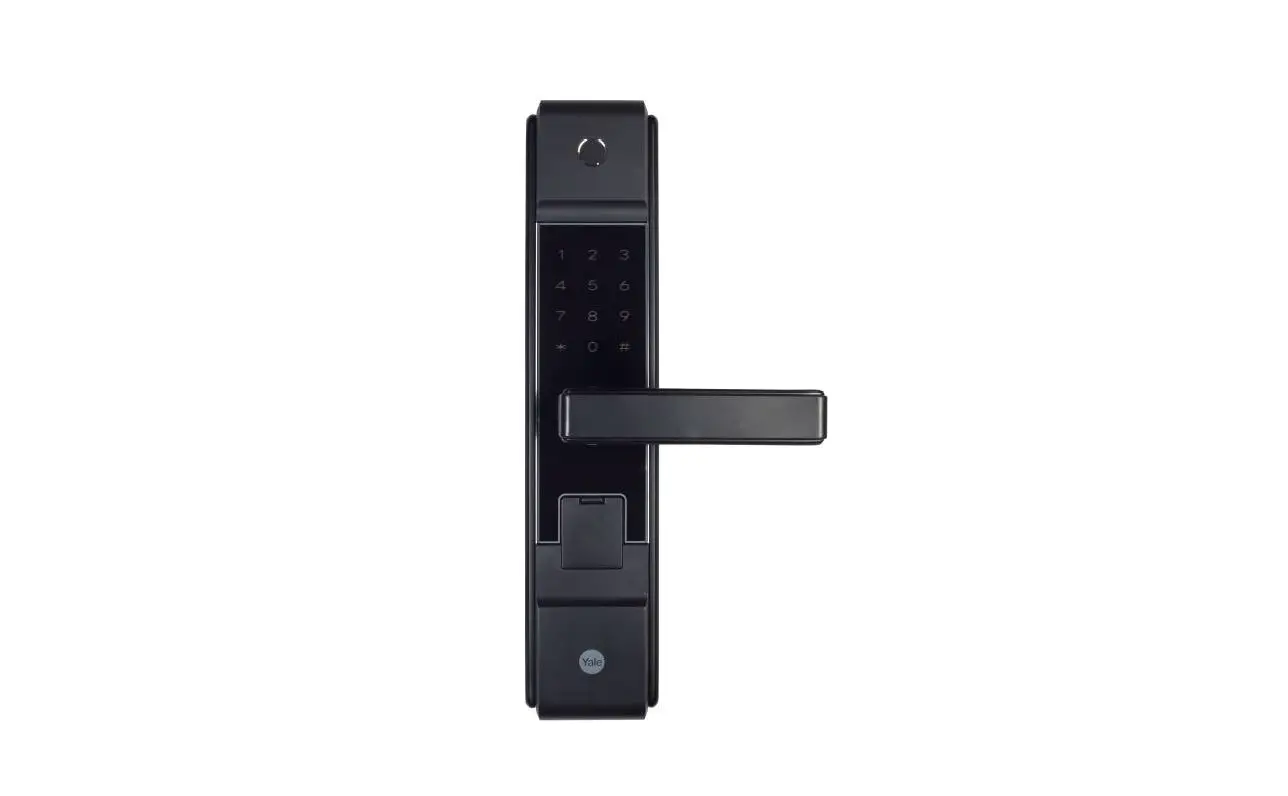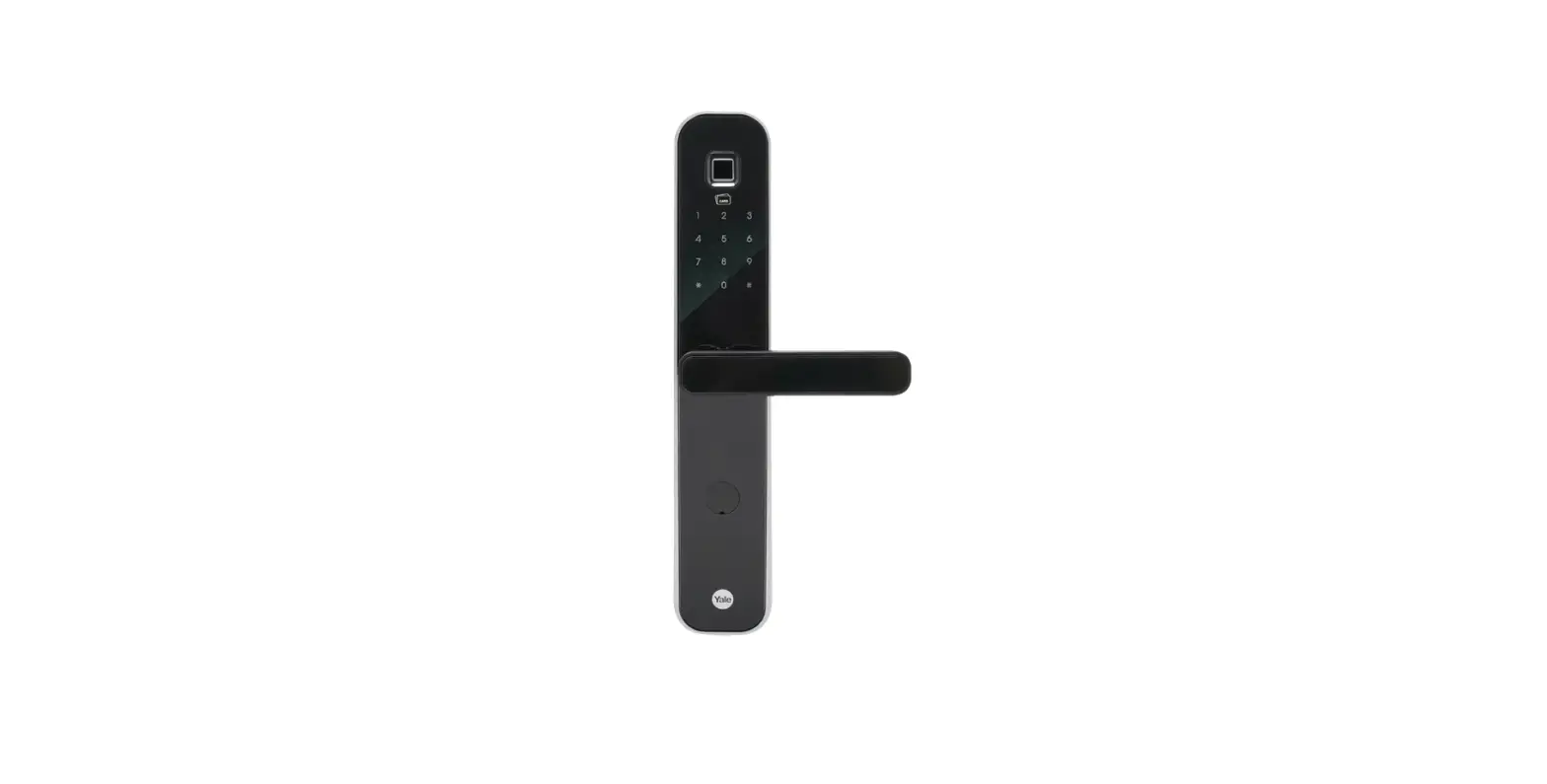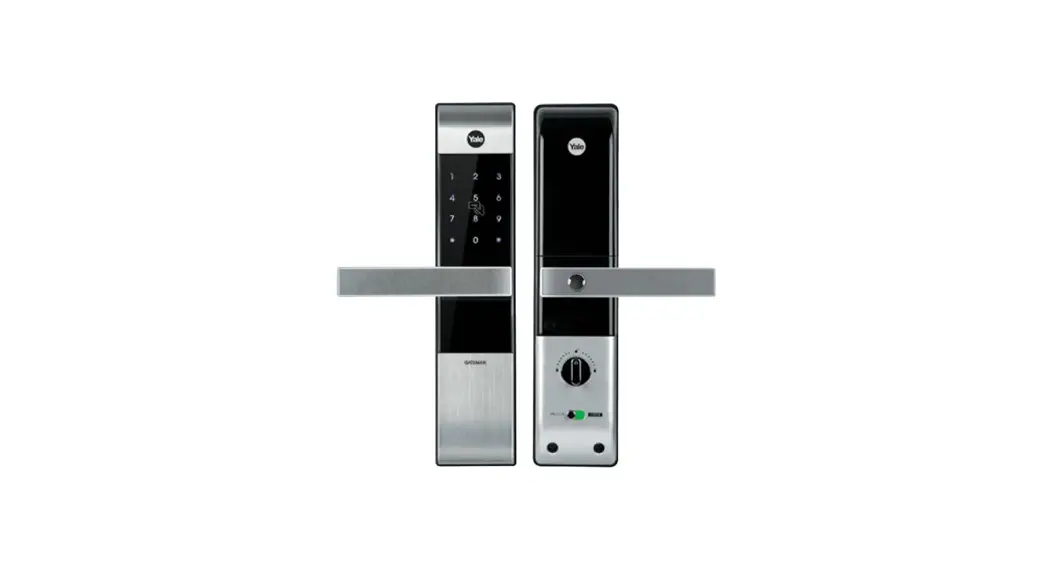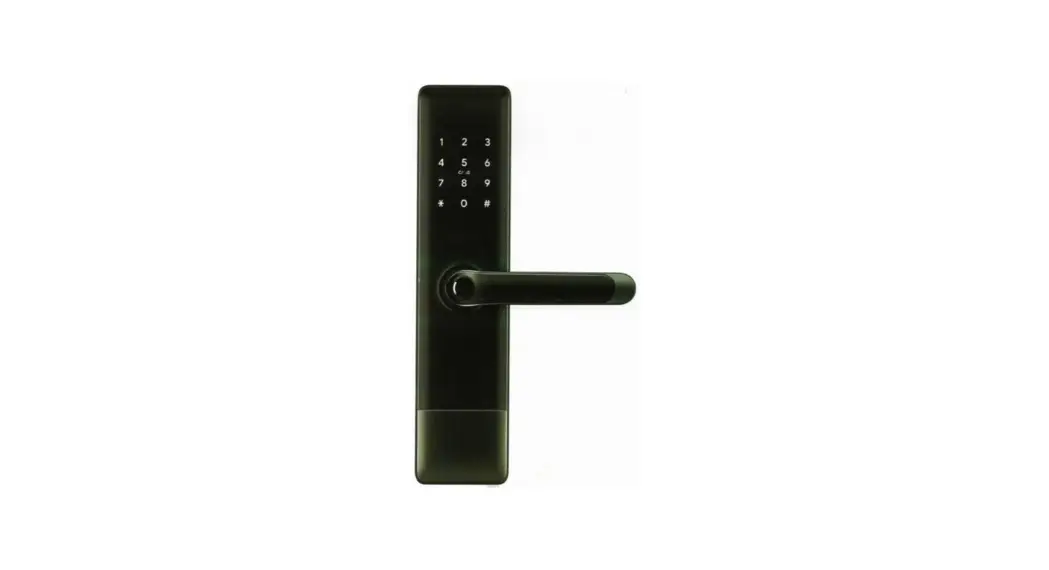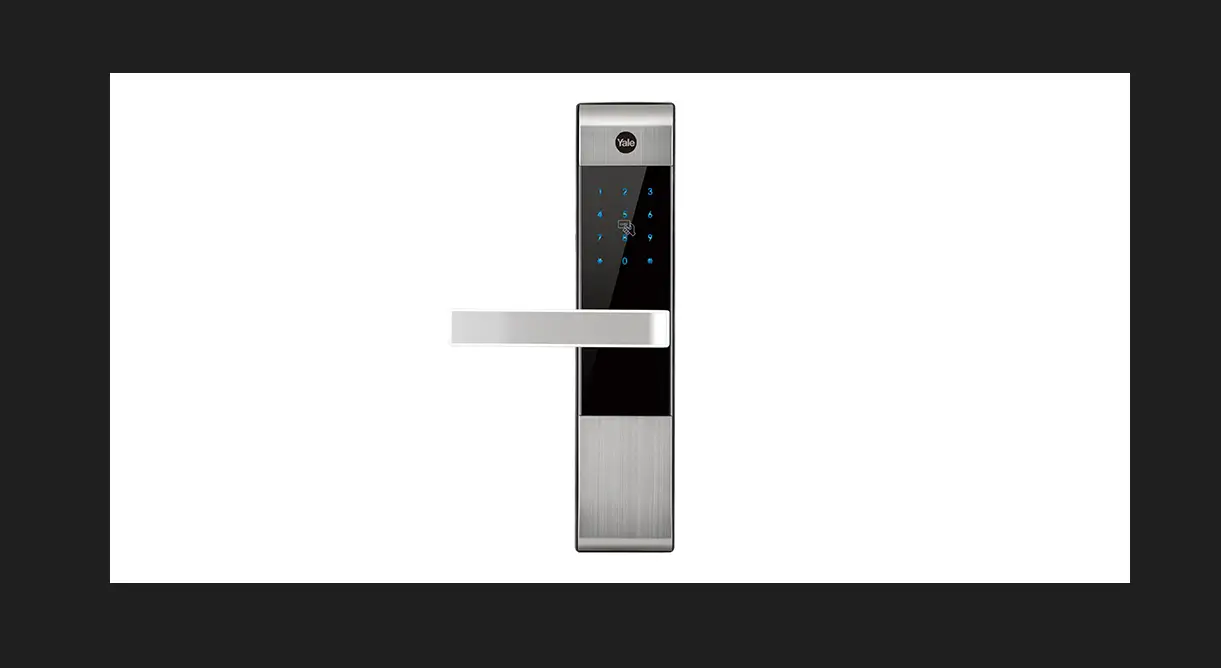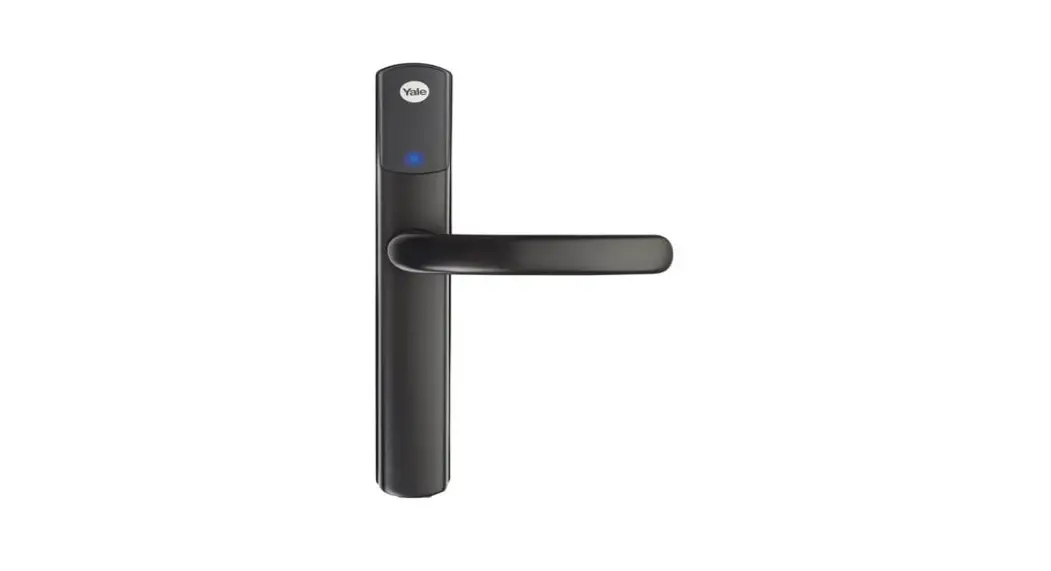
 Conexis L2 Smart Lock
User Manual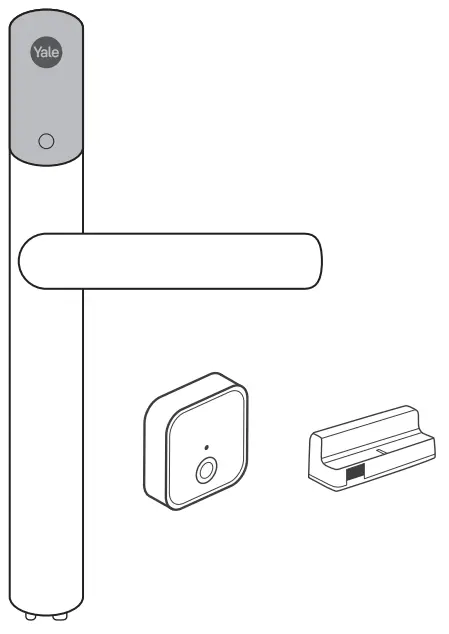 Conexis® Smart Lock L2
User Manual
Hereby, ASSA ABLOY Ltd declares that the Conexis® Smart Lock L2 is in compliance with Directive 2014/53/EU. The full text of the EU declaration of conformity is available at the following internet address: https://yalehome.co.uk/declarations-of-conformity
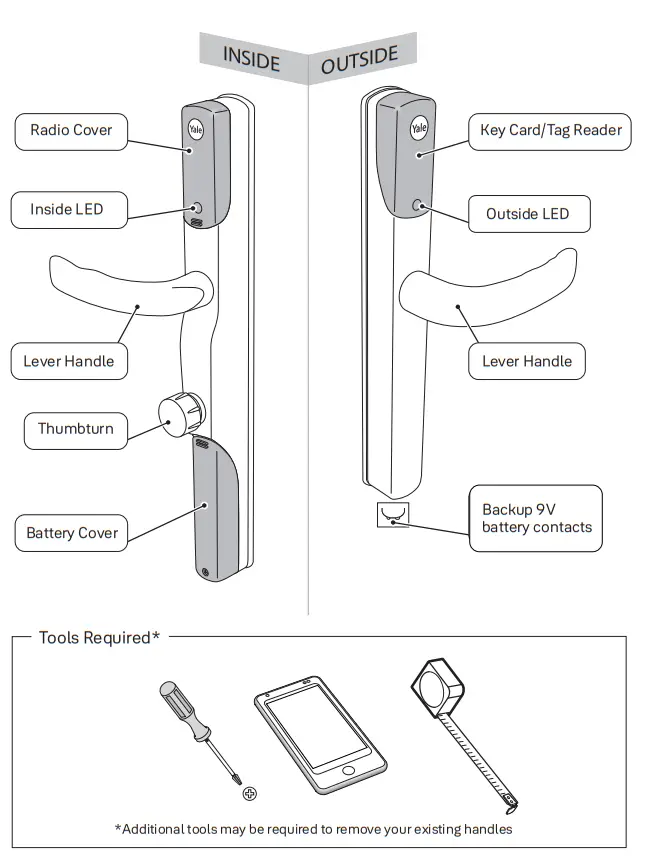
Conexis® Smart Lock L2 Product Overview
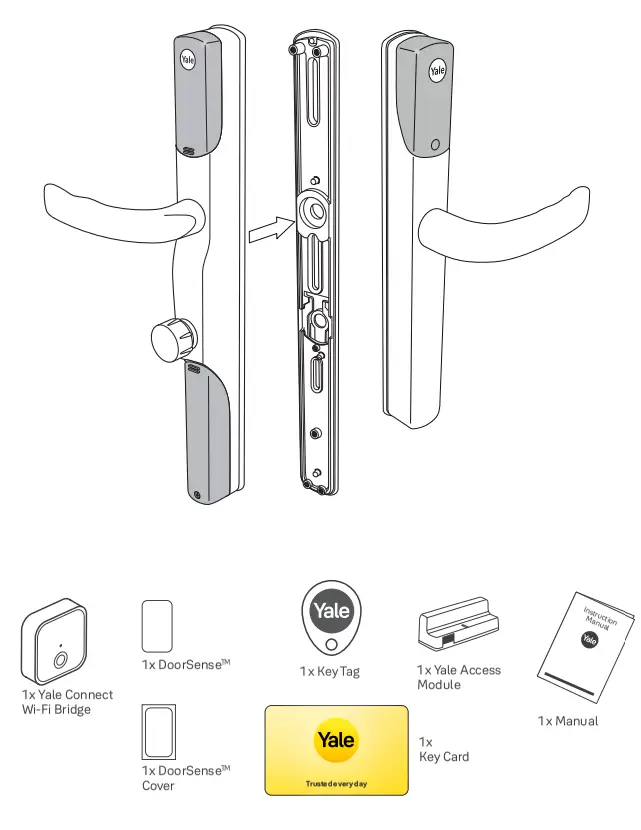
Inside The Box
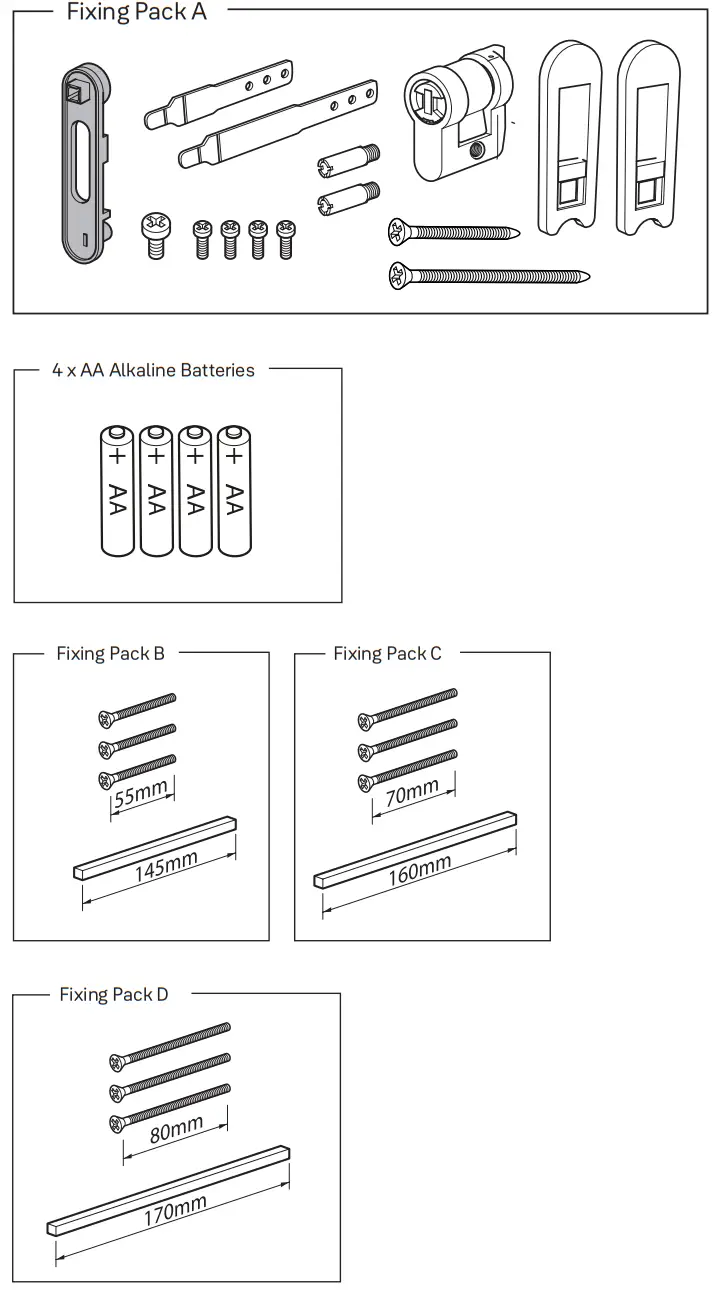
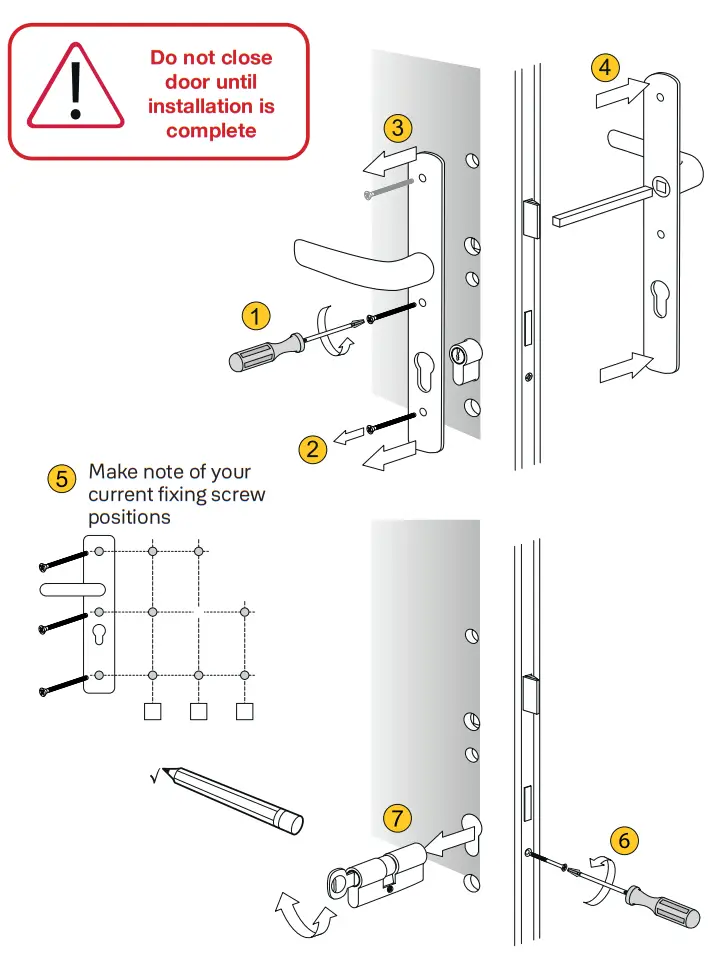
Removing Existing Handle And Cylinder
Measuring Your Door
Measure the thickness of the door to select the correct fixing pack.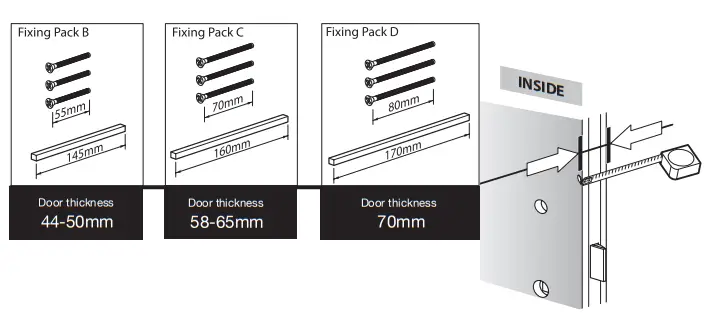 Measure the distance between the centre of the lock and the inside of the door to select the correct tailbar.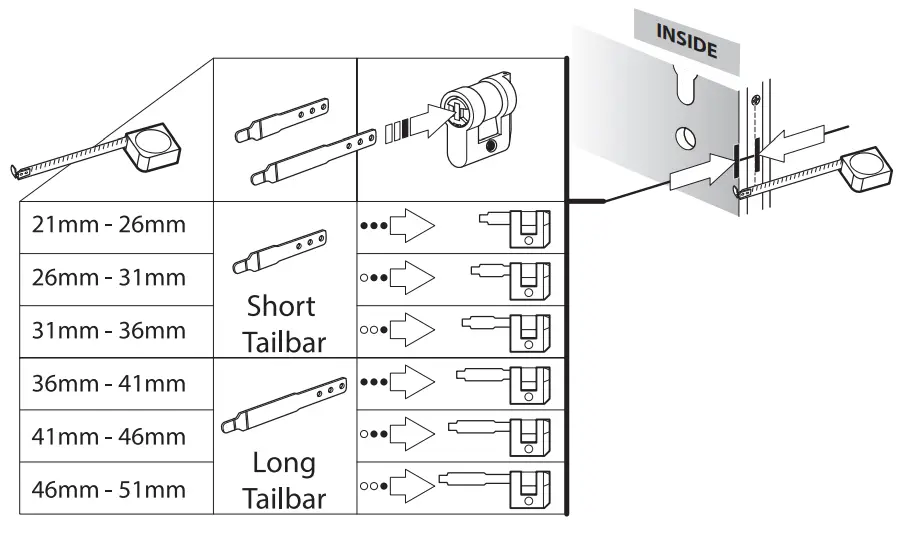
Installing The Actuator
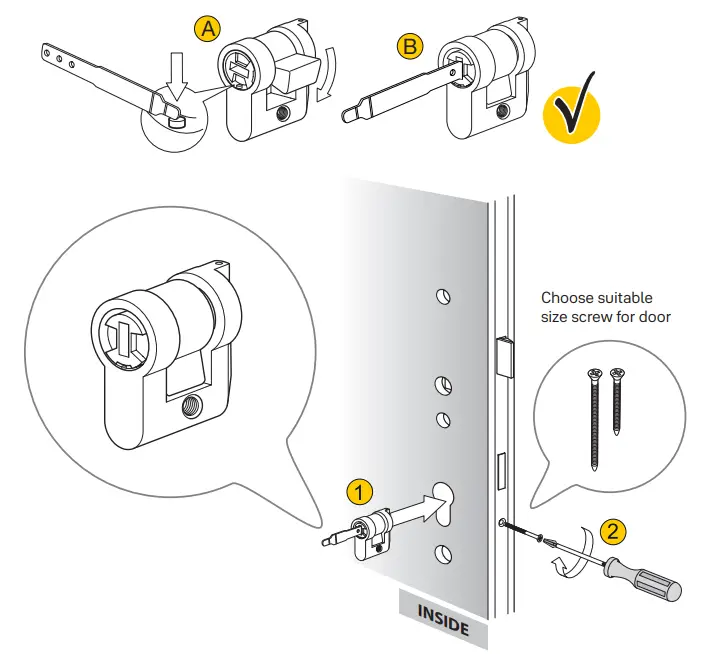 INSID
INSID
3 Once installed in the door, turn the tailbar left and right, do not turn past angle shown on diagram. Does it move freely?
Yes, if it moves freely, please proceed.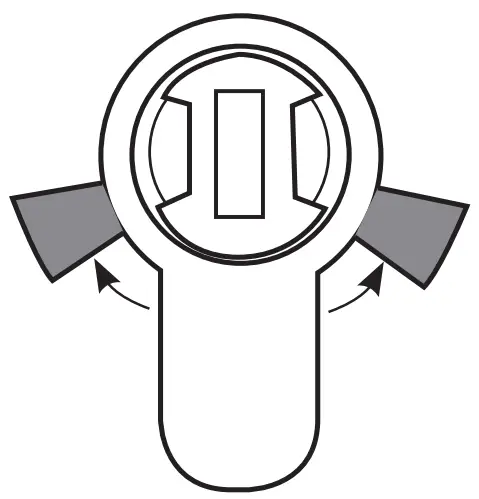 No, remove the actuator from door and realign until it moves freely.
Tip: You may need to reset the actuator so that the tailbar is in the vertical position before continuing.
Installing External Handle
Refer to current fixing screw positions 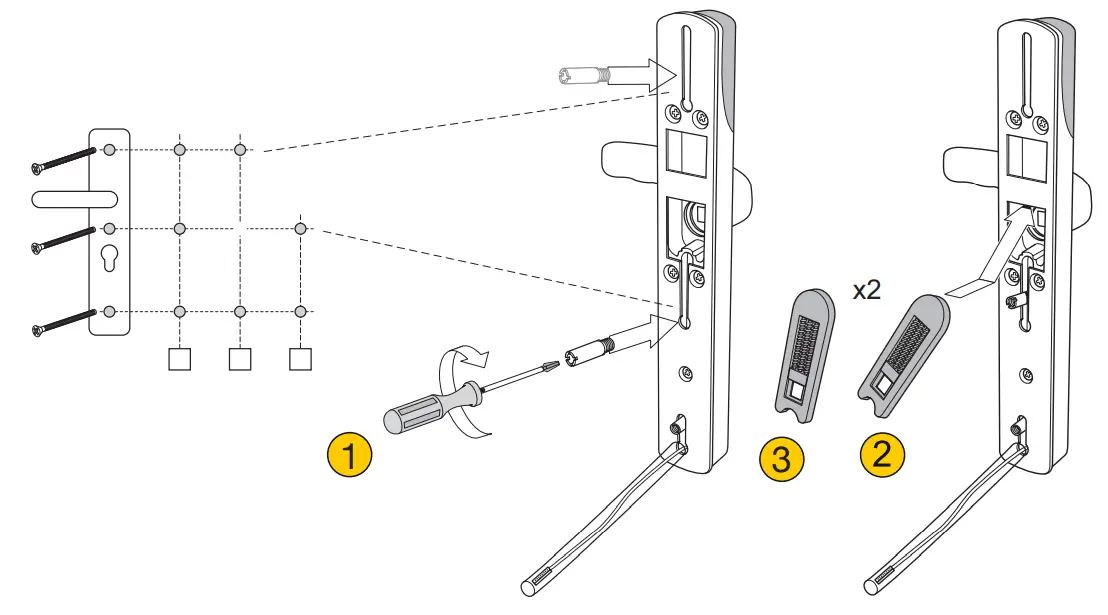 You may need to screw in an additional lug from fixing pack A.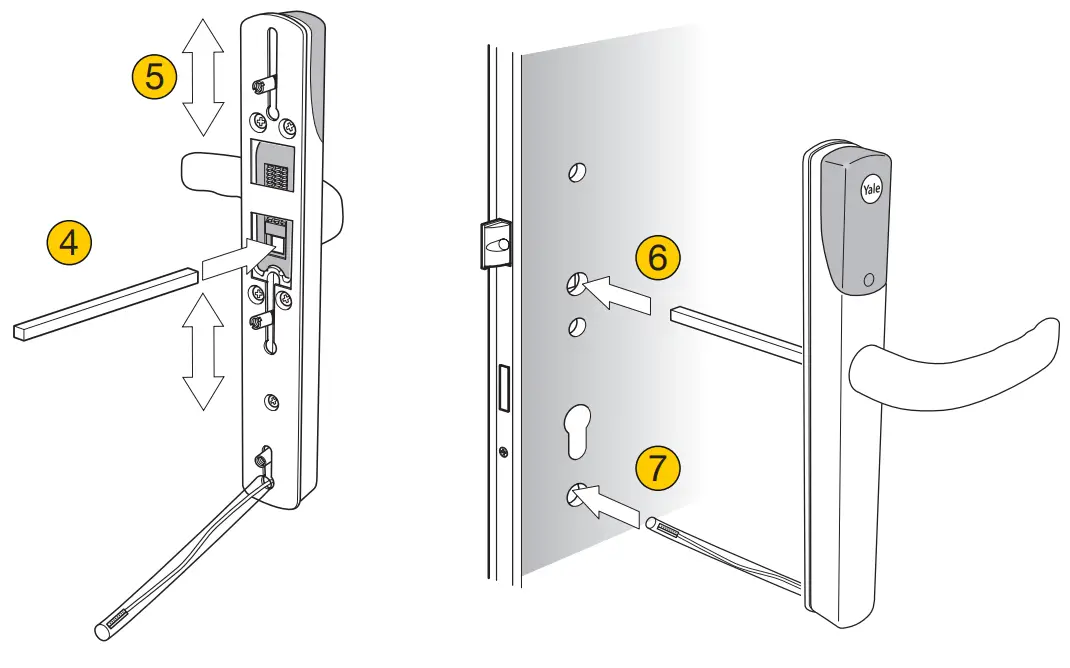
Installing Internal Fixing Plate
 Ensure correct fixing pack is used for width of door. Do not fully tighten as the handle needs to be aligned in the next step.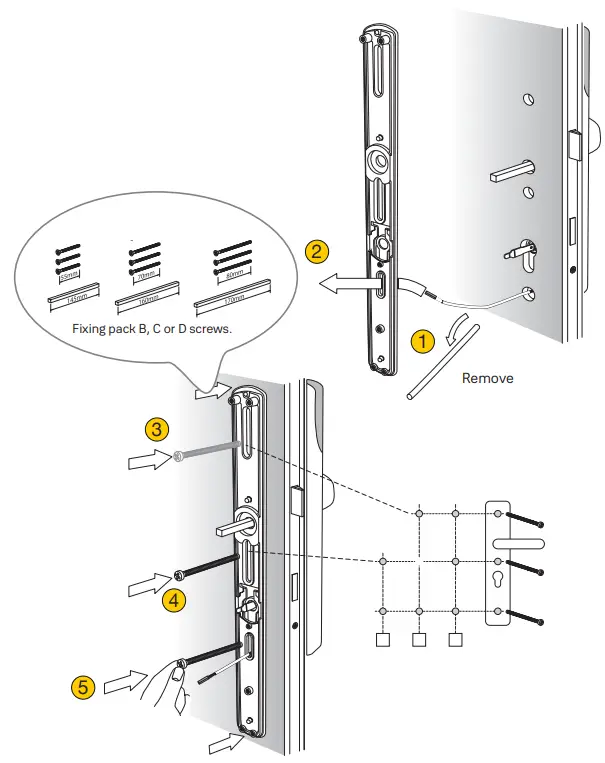
Aligning Handle
Ensure exterior handle and fixing plate are parallel before finally tightening screws.
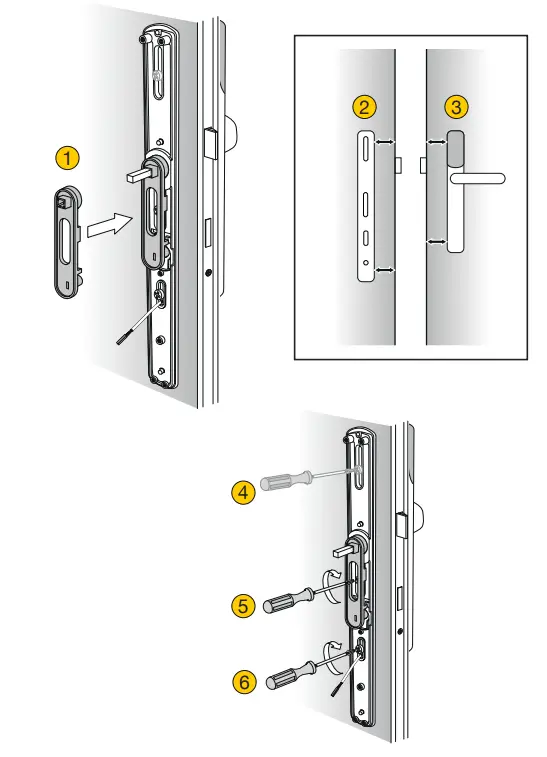 Please ensure that alignment tool is flat against the door as screws are tightened. This ensures the motor is aligned correctly.
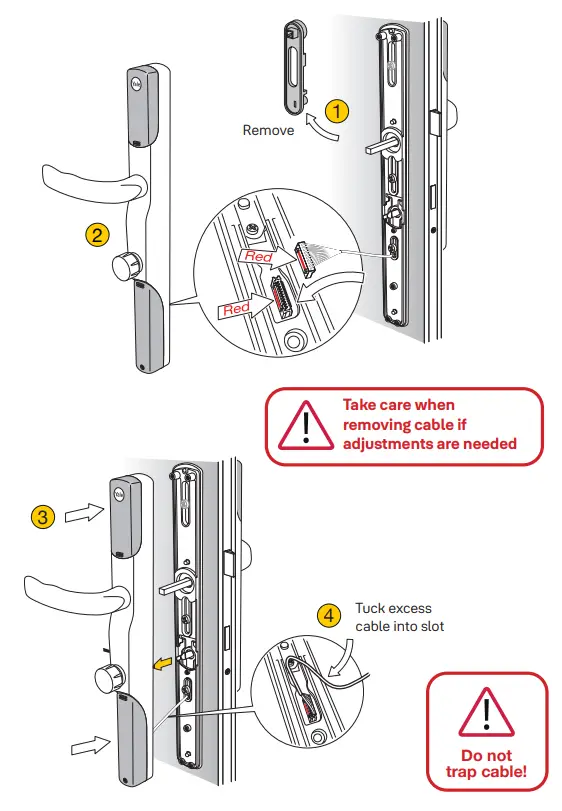
Installing Internal Handle
Do not turn thumbturn until installation is complete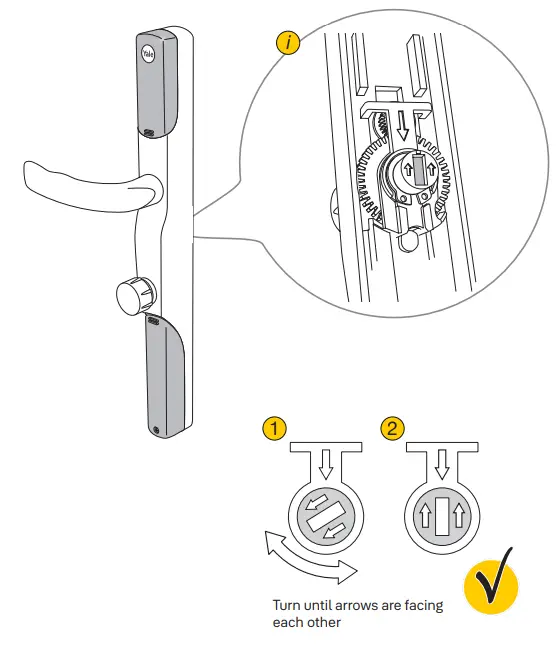
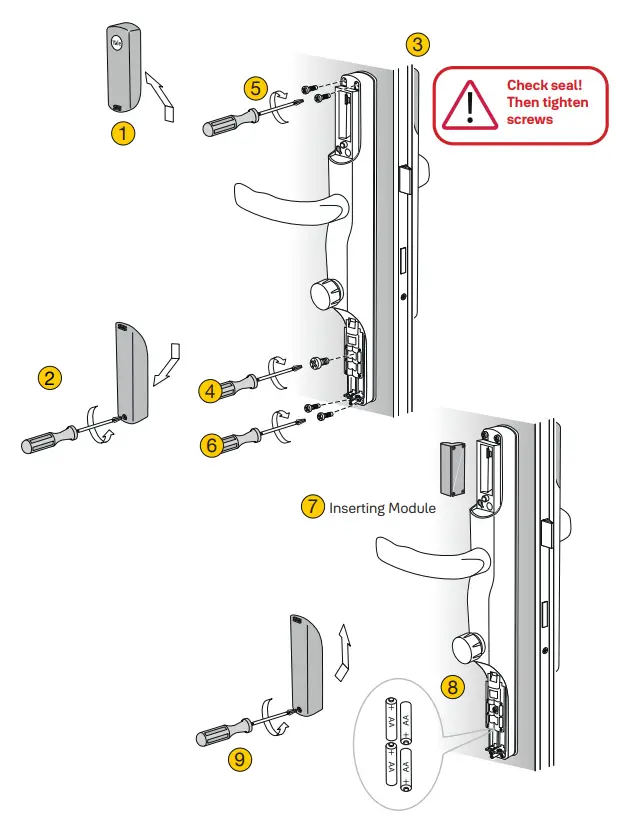 Handing The LockIf these steps are not completed the door will not lock. If the lock sounds like it is struggling to lock, check actuator installation shown on page 8
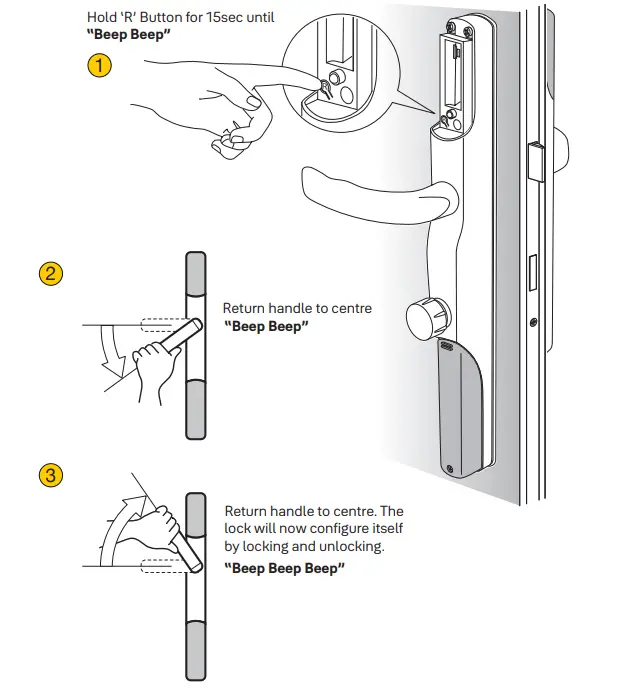 If after completing this step you get 8 related beeps and ared light, this indicates there is an issue with alignment. To fix this please uninstall the unit & go back to page 8.
Yale Access Module & Yale Connect Wi-Fi Bridge Set-up Guide
1) Download the Yale Access App from the Google Play Store or the Apple App store and follow the on-screen instructions to create your Yale Access account.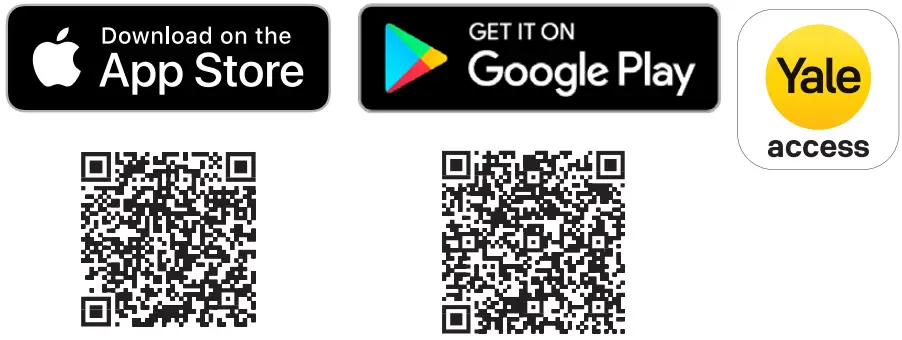 https://apps.apple.com/gb/app/yale-access/id1450980221
https://play.google.com/store/apps/details?id=com.august.bennu&hl=en_GB&gl=US
2) To set up a device – When prompted, please scan the QR code which can be found on the back of the Yale Access Module or below and follow the in-app instructions.
Please Note: Bluetooth must be enabled on your mobile device prior to set-up.
The Yale Access App will guide you through the set up of your Yale Access Module and Connect Wi-Fi Bridge, as well as showing you how to add and remove Keycards and tags.
If you have any questions, please contact us at https://support.yalehome.com/ Google Play and the Google Play logo are trademarks of Google LCC Apple, the Apple logo, iPhone, are trademarks of Apple Inc., registered in the U.S. and other countries and regions. App Store is a service mark of Apple Inc.
Locking the Conexis® Smart Lock L2Please make sure your door remains open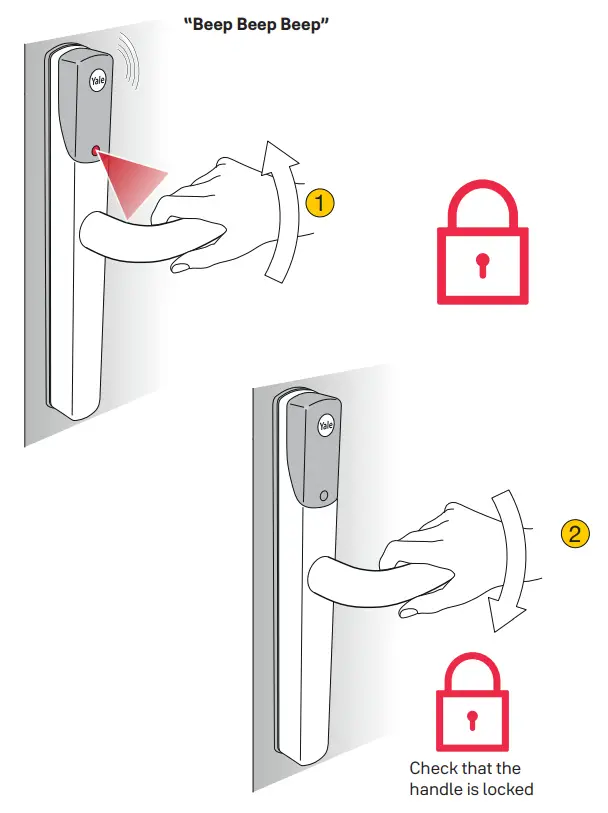
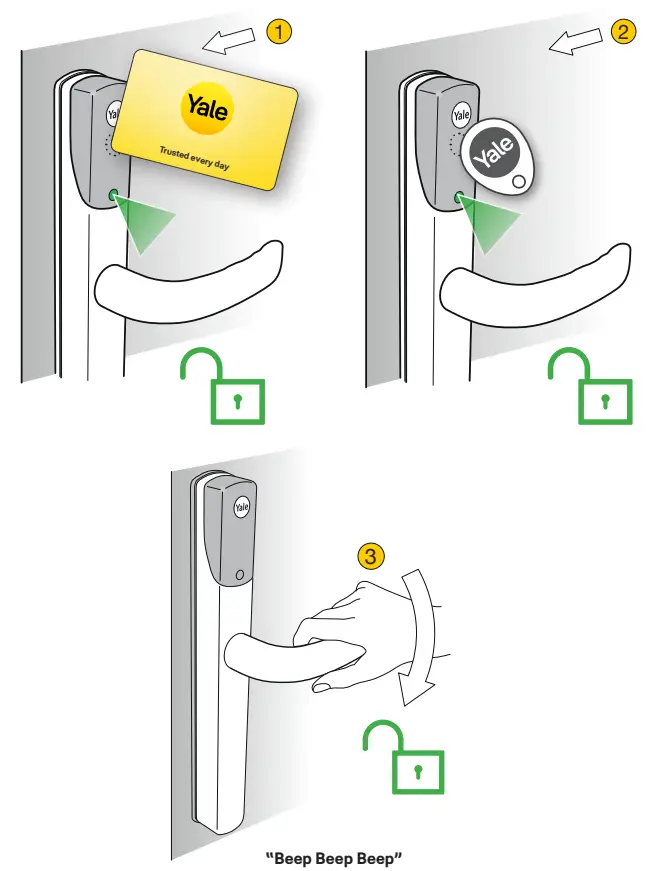
Unlocking with Key Card or Key Tag*
*This process should be done after module is added.
Installation Checklist
Before shutting your door in the frame, please test the following things…
- Download Yale Access app.

- Install the Yale Access Module and Connect Wi-Fi Bridge.
- Ensure you can see your Conexis® Smart Lock L2 in your Yale Access App. Test you can lock and unlock the door via the app.
- While the door is open, lift the lever handle to lock.Make sure the motor operates smoothly.
- Test to make sure the lever handle cannot be pushed down.
- Push the thumbturn in on the inside handle and turn 180 degrees to unlock the door.
- Push the lever handle down and make sure it returns by itself.
- Lift the lever handle to lock again.
- Tap the paired card or tag on the outside handle under the Yale logo. Make sure it unlocks and the lever can be pushed down.

Battery Indicator
 Low BatteryWhen the battery is low, you will receive a notification in the Yale Access app and via text message.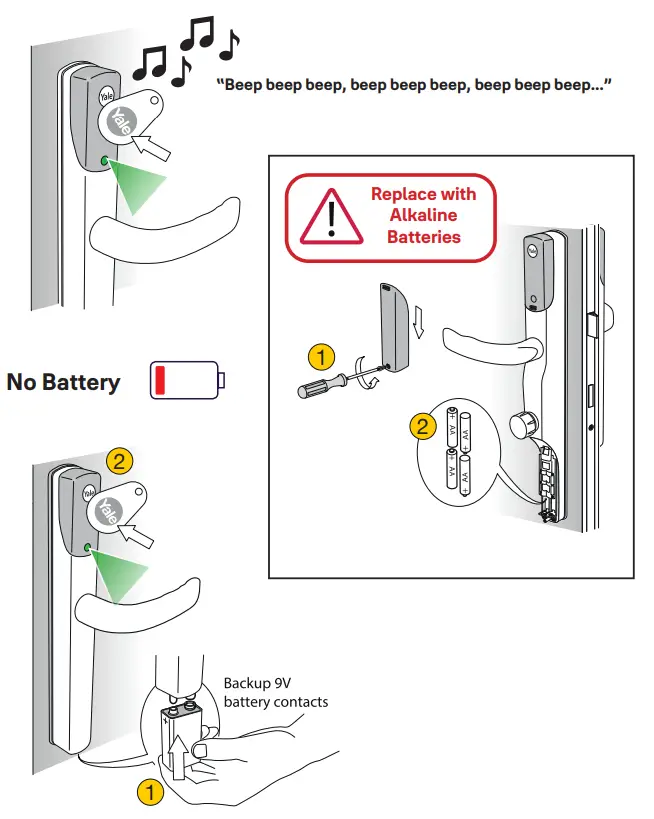
Factory Reset
Factory reset the lock in the Yale Access App before you do a factory reset of the escutcheons!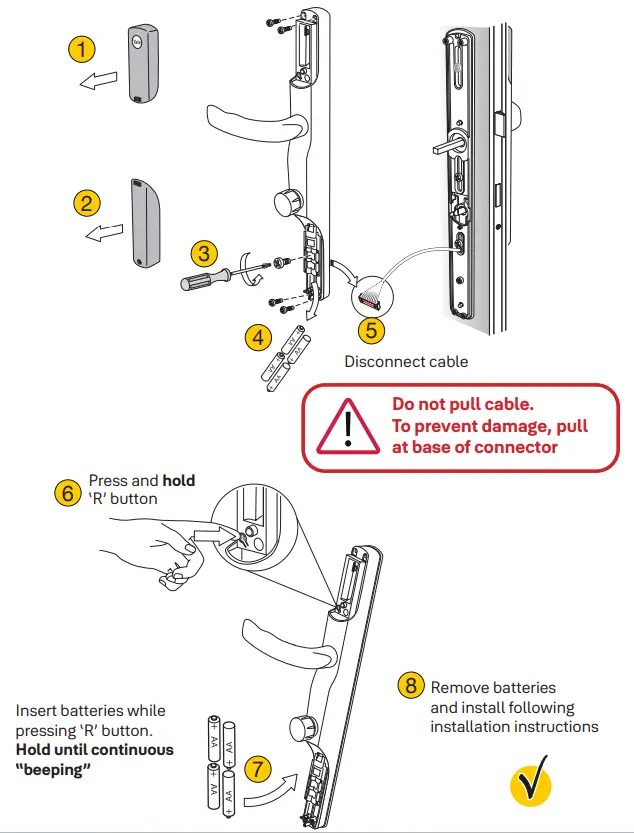
The 2 year guarantee for this product is active from the date of Purchase.
Part of ASSA ABLOY
Customer Services:
Visit: yalehome.co.uk/help-support
Yale UK, School Street, Willenhall, WV13 3PW

 Help & Support
 Knowledge Base