 Broadcast A/V Division
M-LYNX-702 V.3
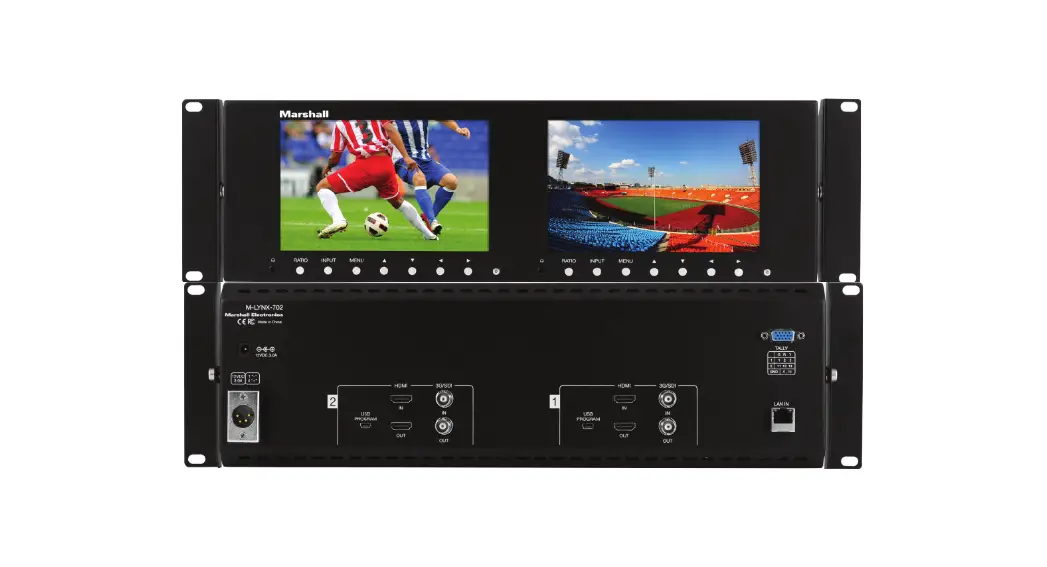
Dual 7” LCD Display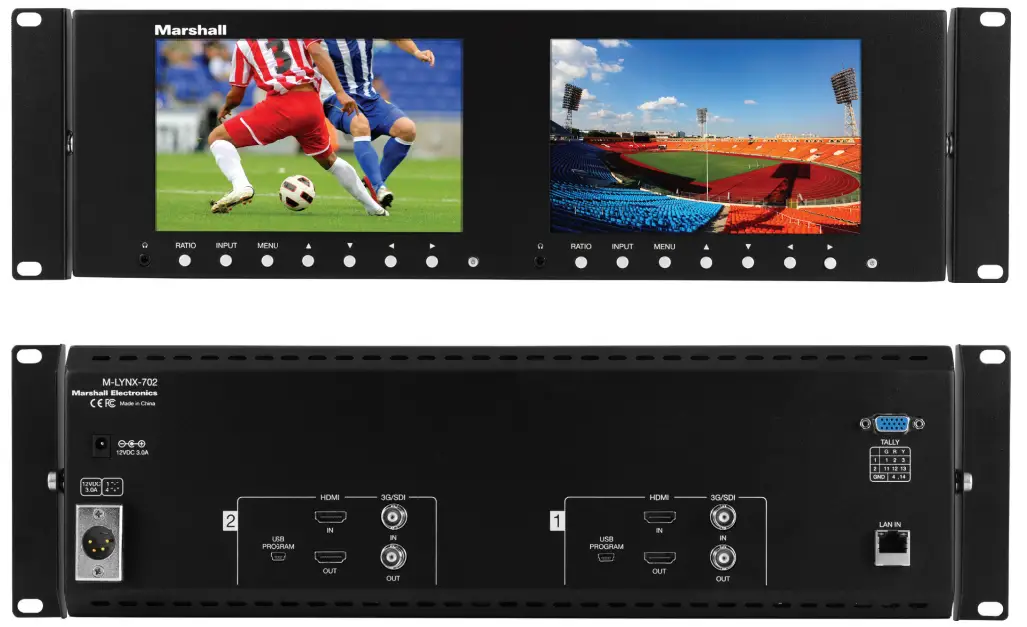
User Manual
Package Includes
- One M-LYNX-702 Monitor
- One universal AC power adapter
- One AC power cord
- Information card
Product Description
2.1 Front Panel
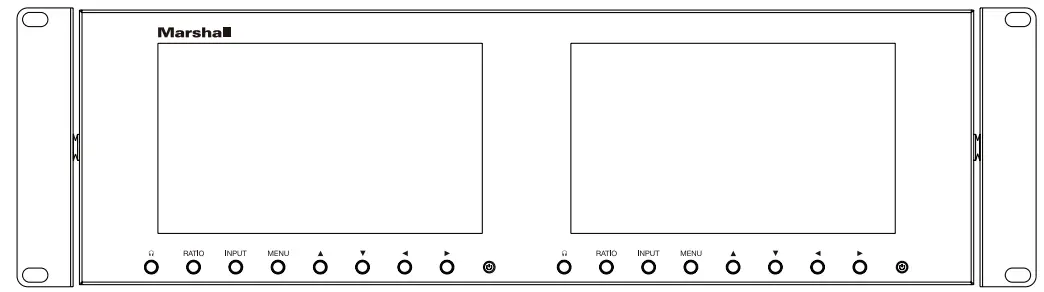
 Headphone jack (one per screen). Monitor channels 1 and 2 of embedded audio from HDMI or SDI source.
RATIO: Aspect ratio button provides quick selection of Full Screen, 16:9, and 4:3.
INPUT: HDMI/SDI button switches between HDMI or SDI inputs.
MENU: Accesses the on-screen menus. Press the menu button a second time to clear the screen or wait 10 seconds and it will clear itself. : Short cut key to change Brightness. When menu is on screen, moves selection up.
 : Short cut key to change Contrast. When menu is on screen, moves selection down.
 : Short cut key to decrease Volume. Use after or short cuts to decrease brightness or contrast.
When menu is on screen, use to change selected parameter. : Short cut key to increase the Volume. Use after or short cuts to increase brightness or contrast.
When menu is on screen, use to change selected parameter. Power button. Press to turn screen on or off.
2.2 Rear Panel Connections
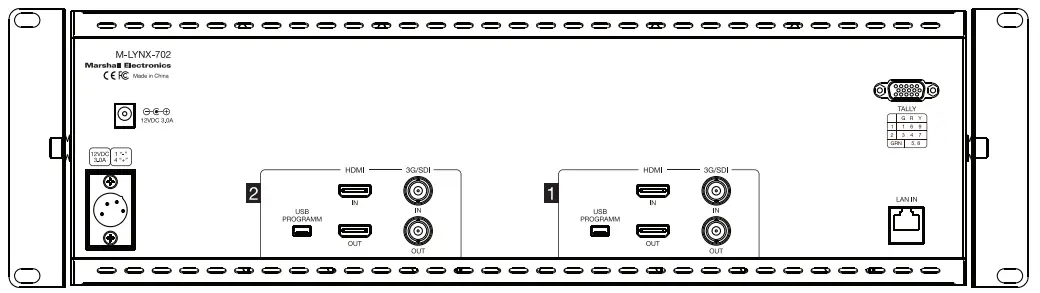
Power Input
The M-LYNX-702 V.3 monitor can be powered using either the included 12-Volt power supply plugged into the small coaxial connector or standard 12-Volt camera-type power supply connected to the 4-pin XLR connector. It is recommended to connect only one type of power supply at one time.
USB Port
The USB port is used for service functions only.
HDMI Input and Loop Out
Connect a standard HDMI source here. For details, see the Compatible Input Formats section below. Active loop out allows “daisy-chaining” to other devices. (Loop out continues to function when the screen is turned off.)
3G/SDI Input and Loop Out
Connect a serial digital source here. It is compatible with SDI, HD SDI, or 3G SDI sources. Active loop out allows “daisy-chaining” to other devices. (Loop out continues to function when the screen is turned off.)
TALLY
The 15-pin D-Sub connector on the back panel is used to control the on-screen colored tally indicators. The Red, Green, or Yellow border color can be turned on by connecting the appropriate pin on this connector to the ground pin via “dry contact” or “open collector” type source. Refer to the table printed next to the connector for wiring information. Note: External power should not be applied to this connector.
LAN Port
Ethernet LAN “RJ-45” Connector. The monitor can be operated from a PC using the application provided with the unit.
Access the main menu by pressing the Menu button on the front panel.
Use the / keys to move within the main menu.
Use the key to access a sub-menu.
Once in a sub-menu, use the / keys to select an item to adjust and use the / keys to change values or choices within their range.
Use the “Menu” key to return to main menu from the sub-menus.
To exit from the on-screen menus, press the “Menu” key again.
3.1 Main Menu Categories
Video – Contrast, Brightness, Saturation, Sharpness, Color Temp., Picture Mode, Aspect Ratio, Check Field (selection of individual color), H/V delay (Only available on SDI signal), Scan Mode.
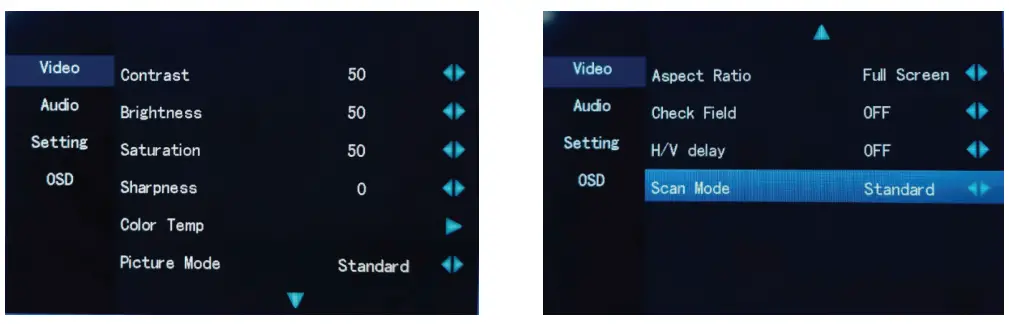
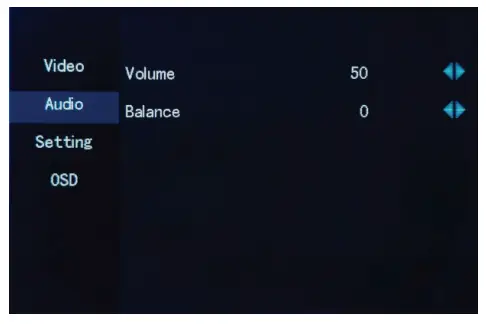
Audio – Volume, Balance.
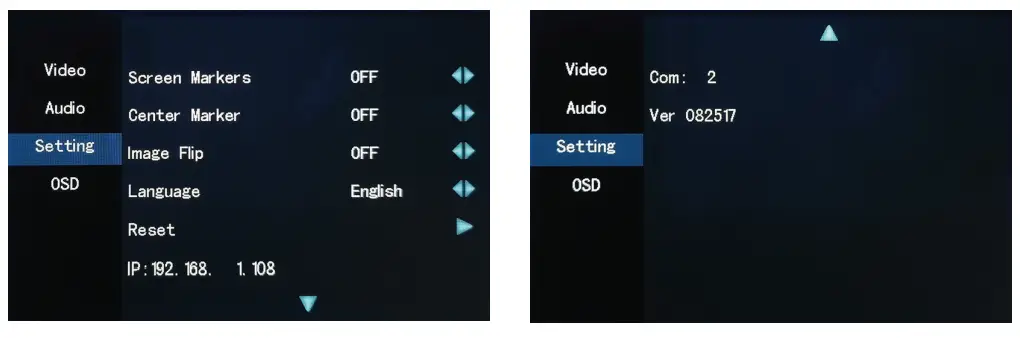
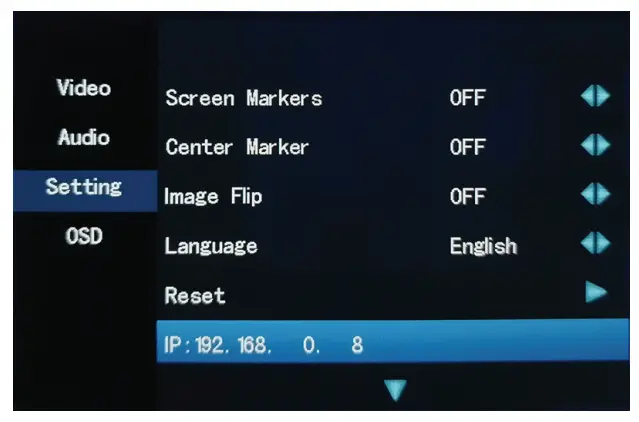
Setting – Screen Markers, Center Marker, Image Flip, Language, Reset, IP, Com, Ver.
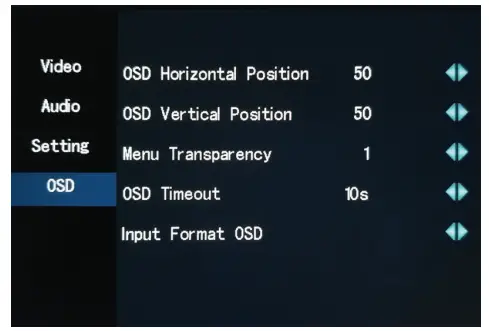
OSD – Setup On-Screen Menu Display. Has selections for Horizontal Position, Vertical Position, Menu Transparency, Menu Timeout, and display of Input Format.
3.2 Sub-Menu Descriptions
The default settings shown are the values the unit comes with “out-of-the-box.” In most cases, these are the mid-range settings for a given function and are not intended to be used as “ideal” values or choices. Best settings will depend on the application.
3.2.1 Video
| Contrast | • (0 – 100, 50 = default) |
| Brightness | • (0 – 100, 50 = default) |
| Saturation | • (0 – 100, 50 = default) |
| Sharpness | • (0 – 100, 0 = default) |
Color Temp (6500K=Default)
- 6500K (approximates REC 709 standards)
- 7300K
- 9300K
- User (0 – 255, 128 = default)
- (Allows fine-tuning display white balance)
Picture Mode
| Standard | • Contrast, Brightness and Saturation = 50 |
| Soft | • Contrast = 40, Brightness and Saturation = 45 |
| User | • Returns display to most recent User settings for Contrast, Brightness and Saturation |
| Vivid | • Contrast = 60, Brightness = 55, Saturation = 75 |
Aspect Ratio (Full Screen = Default)
| Full Screen | • Picture is sized to fit the 16:10 display area |
| 4:03 | • Display is set to exact 4:3 aspect ratio |
| 16:09 | • Display is set to exact 16:9 aspect ratio |
| 14:09 | • Display is set to exact 14:9 aspect ratio |
| Zoom1 | • The picture is expanded |
| Zoom2 | • The picture is expanded twice as much as Zoom1 |
| Panorama | • Display is set for 1.85 aspect ratio |
| Pixel to Pixel | • Incoming video pixels are mapped 1:1 to display pixels. This may result in an apparent shrinking or expansion of the image depending on the incoming format. (In other words, the resulting image will appear in native resolution without scaling.) |
Check Field (Off = Default)
| Off | • Default |
| Mono | • Picture will be displayed as black & white, all other color information is removed |
| Red | • Only red color information is displayed |
| Green | • Only green color information is displayed |
| Blue | • Only blue color information is displayed |
H/V Delay (Only available on SDI signal. Off = Default)
- Off
- H/V delay
- V delay
- H delay
Scan Mode
| Standard | • Normal picture size |
| Overscan | • Expands picture by 5% |
| Underscan | • Shrinks picture by 5% |
3.2.2 Audio
Volume (0 – 100, 50 = default)
- Increase or decrease headphone volume
Balance (-10 – +10, 0 = default) - Increase or decrease headphone volume
3.2.3 Setting
Screen Markers (OFF = Default)
Set size of reference frame mark to show area of interest.
- OFF
- 96%
- 93%
- 90%
- 85%
- 80%
Center Marker (OFF = Default)
Displays a red “+”mark on the screen to indicate the center position
- OFF
- ON
Image Flip (OFF = Default)
- OFF
- V – Flips the image vertically
- H – Flips the image horizontally
- V/H – Simultaneously flips the image vertically and horizontally
Language (English = Default)
Select language used for the on-screen menus
- English
- Español
Reset
Selecting Reset will produce this message: Reset function values?: Yes / No Press /
/  keys to select “Yes” or “No” and press the front panel “MENU” key to confirm the selection. Selecting “Yes” will reset the monitor back to factory default values and choices.
IP: 0. 0. 0. 0
Displays the monitor default IP address: 192. 168. 0. 8 when monitor is not connected to network.
Displays IP address assigned by DHCP enabled server or router when monitor is connected to network.
Com: 1 or 2
“Com: 1” is screen 1, “Com: 2” is screen 2.
Ver: Firmware version.
3.2.4 OSD (On-Screen Display)
| OSD Horizontal Position (0 – 100, 50 = default) | • Moves Menu Display Horizontally |
| OSD Vertical Position (0 – 100, 50 = default) | • Moves Menu Display Vertically |
| Menu Transparency (0 – 10, 1 = default) | • Darken or Lighten the background behind the menus |
| OSD Timeout (5s / 10s / 15s / 60s, 10s = default) | • The input video format will be displayed for the selected number of seconds whenever the input source is changed |
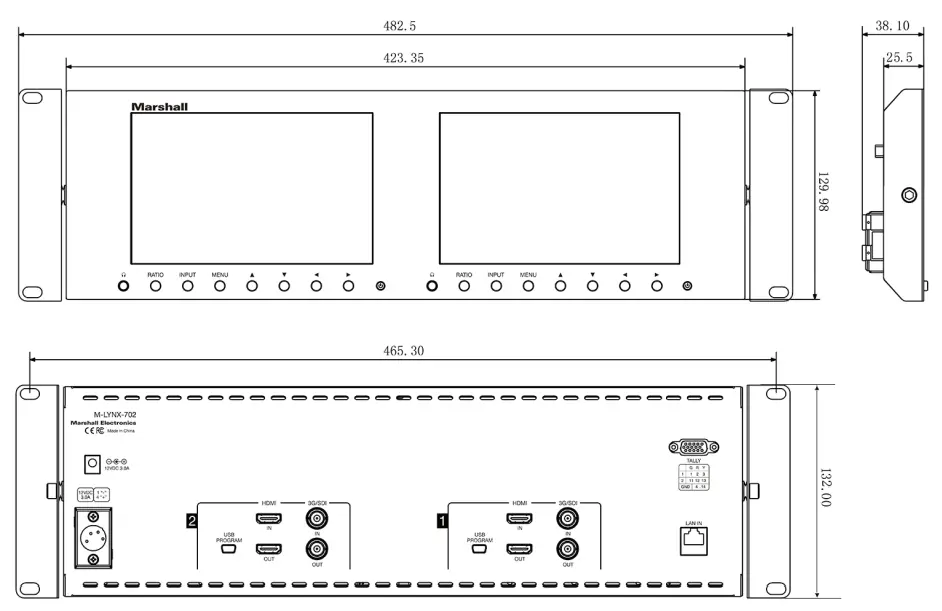
Dimensions (mm)
Parameters
| Screen | 7″ screen x 2 |
| Screen Resolution | 1280 x 800 |
| Dot pitch | 0.117 (H) x 0.117 (V) |
| Ratio | 16:10 |
| Brightness | 400 cd/m2 |
| Contrast | 800:1 |
| Response Time | 14ms |
| Back light | LED |
| View angle | 89°/89°, 89°/89° (L/R,U/D) |
| Input | HDMI-IN, SDI-IN per screen |
| Output | HDMI-OUT, SDI-OUT per screen |
| Control | Ethernet |
| SDI input formats | SD: 480159.94 / 576i 50 |
| HD: 720p 25, 29.97, 30, 50, 59.94, 60 / 1080p 23.98, 23.98sF, 24, 24sF, 25, 29.97, 30/ 1080i 50, 59.94, 60 | |
| 3G-Level A: 1080p 50, 59.94, 60 | |
| HDMI input formats | SD: 480159.94/480p 59.94/576i 50/576p 50 |
| HD: 720p 25, 29.97, 30, 50, 59.94, 60 | |
| 1080150, 59.94, 60 | |
| 1080p 23.98, 23.98sF, 24, 24sF, 25, 29.97, 30, 50, 59.94, 60 | |
| Power consumption | < 24W |
| Voltage | 11 – 17 VDC |
| Operating current | 1.61A |
| Work temperature | 0° – 35°C / 32°F – 95°F |
| Store temperature | -10°C – 50°C /-14°F – 122°F |
| Size | 482.50 x 132.00 x 25.50 mm / 19″ x 5.2″ x 1″ |
| Weight | 1.85 kg / 4 lbs |
Network Control
Please download related Windows application from the Marshall website at: http://www.lcdracks.com/monitors/LYNX/M-LYNX-702.php
- On the monitor, select Menu/Setting and read the IP address.
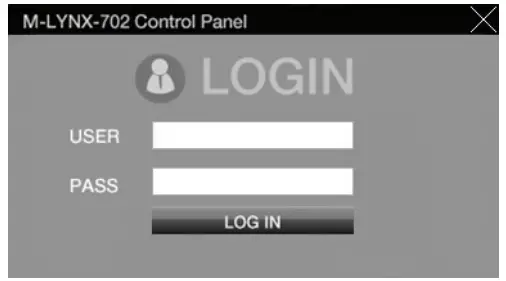
Note: It is best to connect to the network first then connect power supply. In this way, the monitor will correctly display the IP information. (See Menu/Setting screen below.) • Open the application you have downloaded, Then, Input: User / Password, Click Log In.
 PLEASE NOTE:
The default username is: marshall
The default password is: 1
• After login, Click: Add monitors.
- Input IP address shown in the monitor Menu under “Setting” option, then click connect.
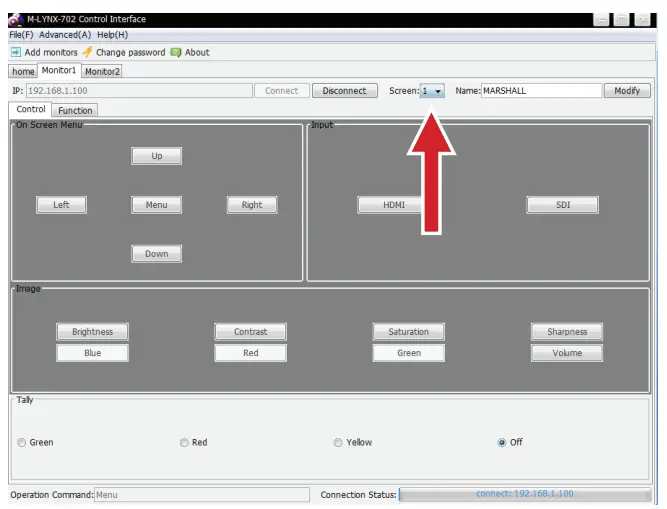
 • Select Screen 1 (left) or Screen 2 (right).
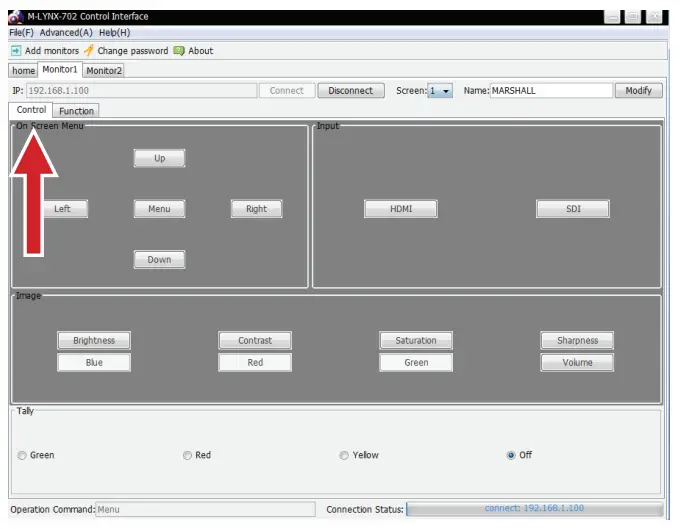
 • Then, select Control to operate basic menu settings.
 • Or, select Function then click on the desired choices. The monitor will immediately respond.
 • Open the application you have downloaded, Then, Input: User / Password, Click Log In.
 PLEASE NOTE: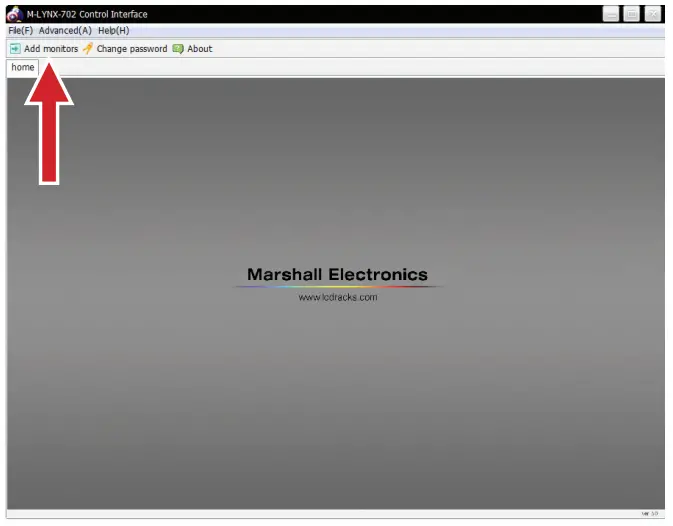
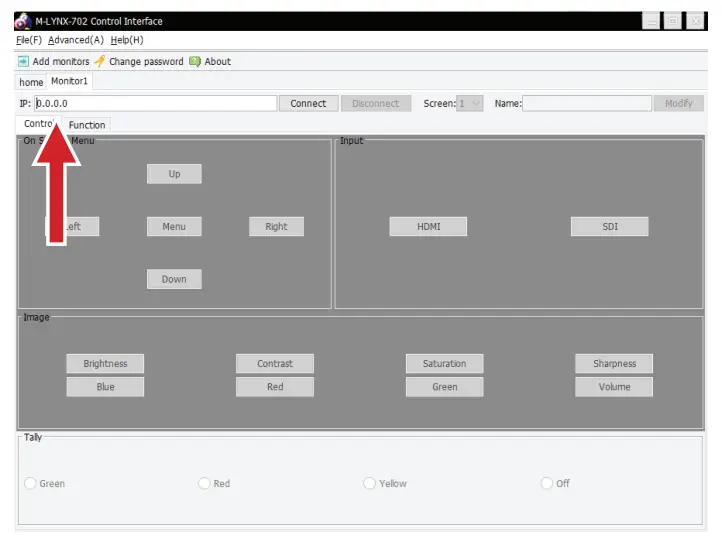 • Select Screen 1 (left) or Screen 2 (right).
 • Then, select Control to operate basic menu settings.
 • Or, select Function then click on the desired choices. The monitor will immediately respond.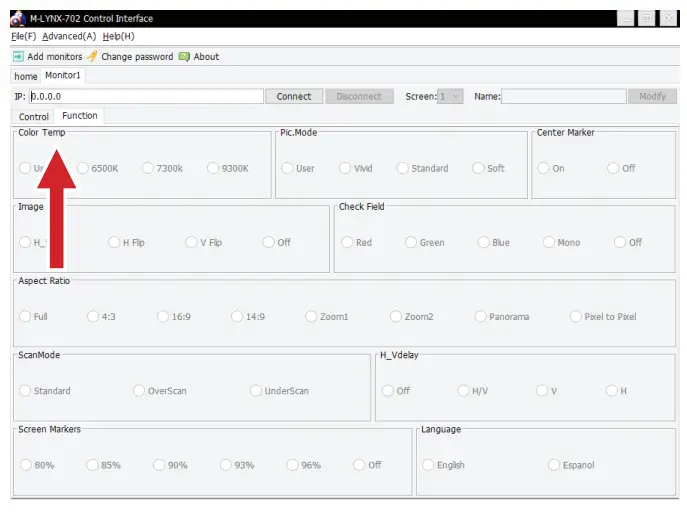
Warranty
Marshall Electronics warranties to the first consumer that this device will, under normal use, be free from defects in workmanship and materials, when received in its original container, for a period of two years from the purchase date. This warranty is extended to the first consumer only, and proof of purchase is necessary to honor the warranty. If there is no proof of purchase provided with a warranty claim, Marshall Electronics reserves the right not to honor the warranty set forth above. Therefore, labor and parts may be charged to the consumer. This warranty does not apply to the product exterior or cosmetics. Misuse, abnormal handling, alterations or modifications in design or construction void this warranty. No sales personnel of the seller or any other person is authorized to make any warranties other than those described above, or to extend the duration of any warranties on behalf of Marshall Electronics, beyond the time period described above.
Due to constant effort to improve products and product features, specifications may change without notice.
20608 Madrona Avenue, Torrance, CA 90503
Tel: (800) 800-6608 / (310) 333-0606 • Fax: 310-333-0688
www.marshall-usa.com
[email protected]
 Marshall Electronics - Professional Broadcast Miniature/Compact/Indoor 4K/UHD/HD Cameras, 4K Rack Mount/Desktop Monitors, Hardware, and Accessories.