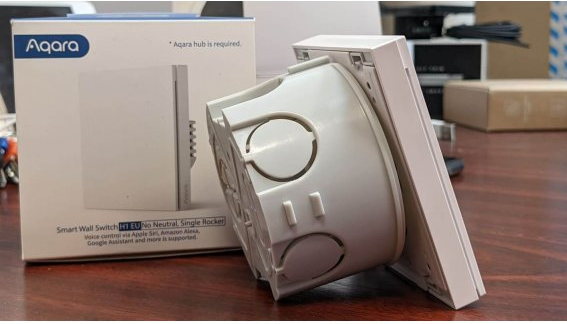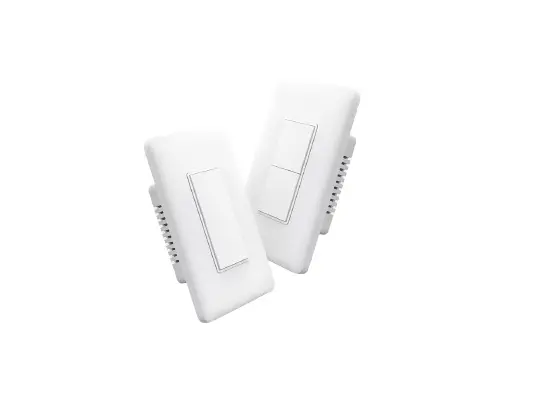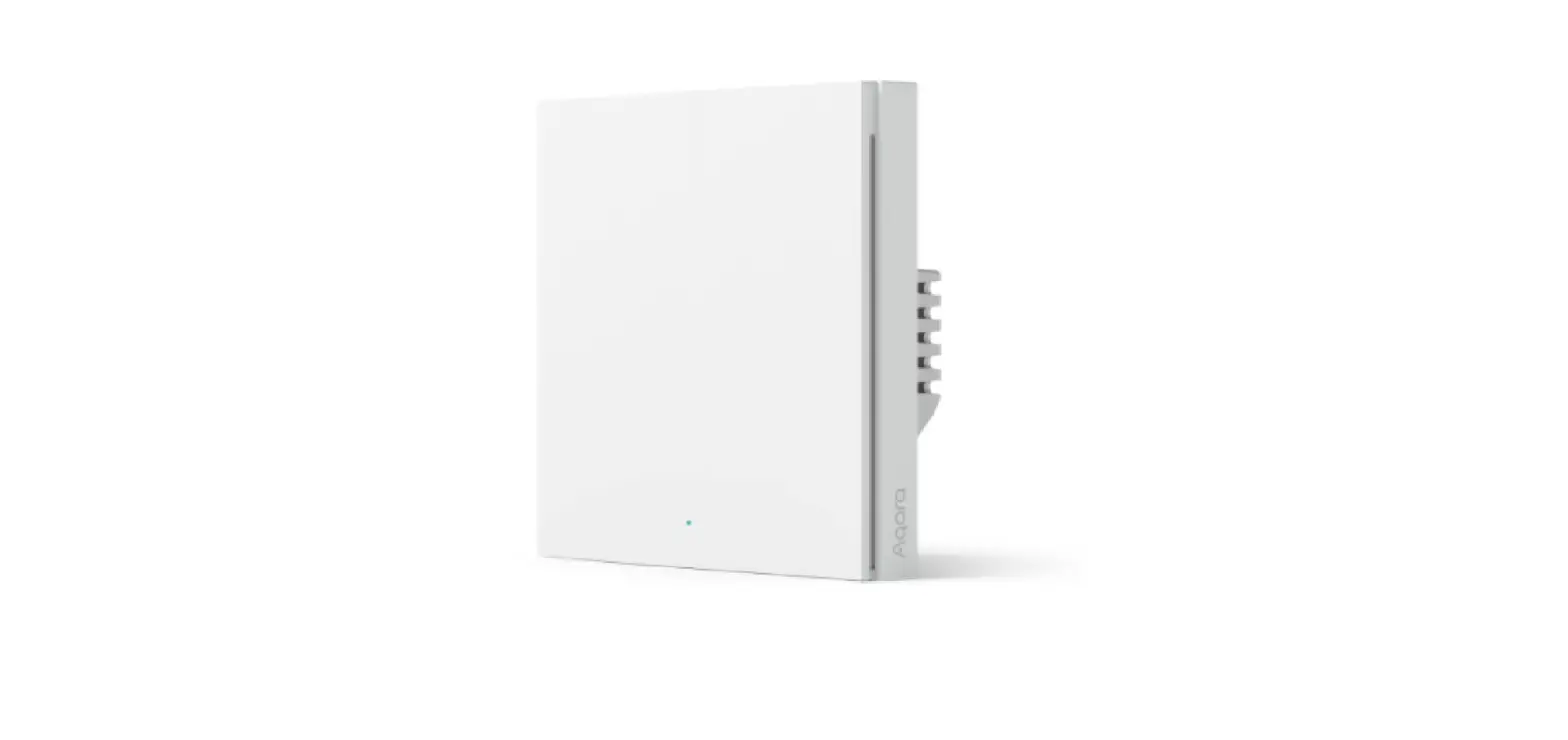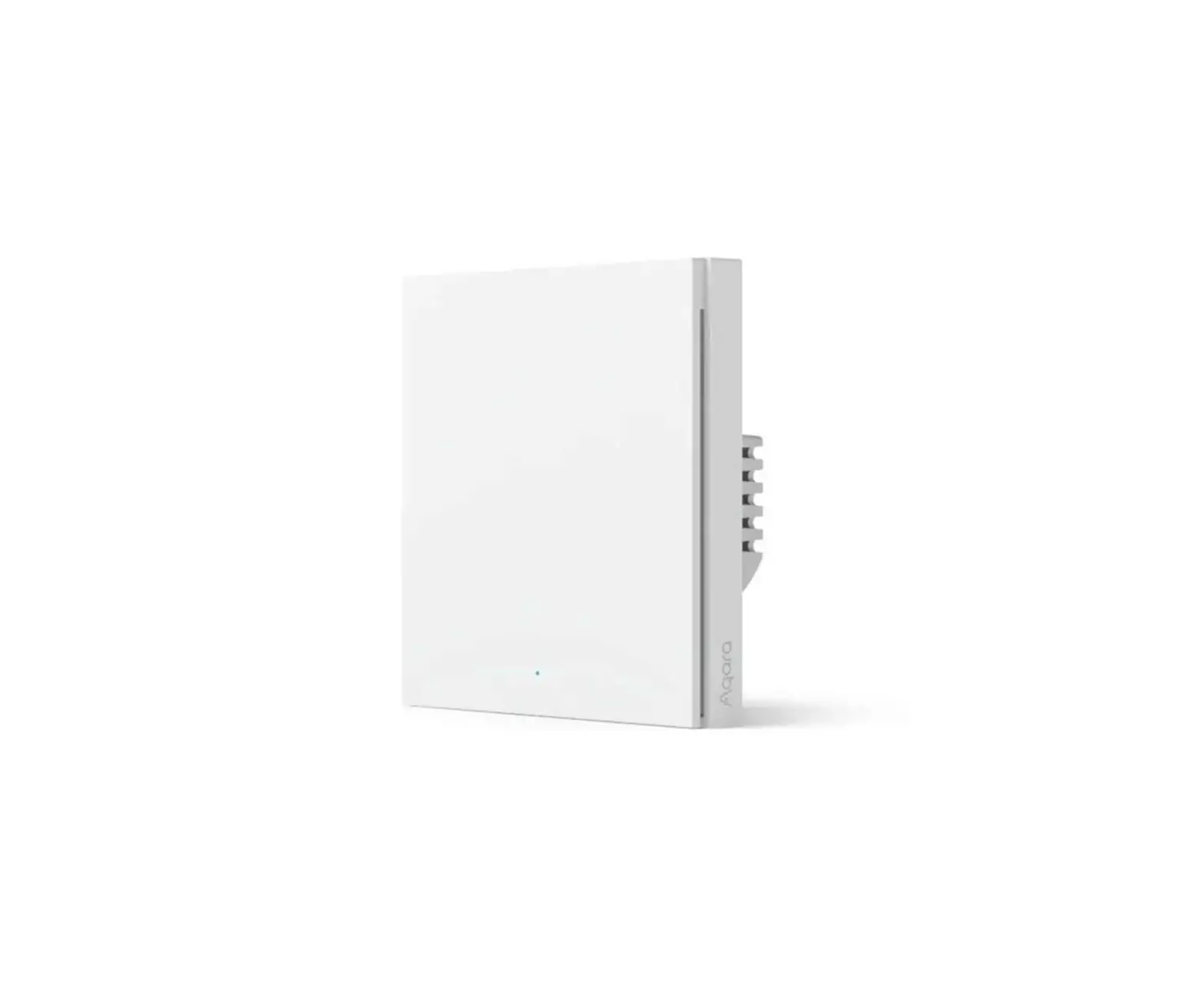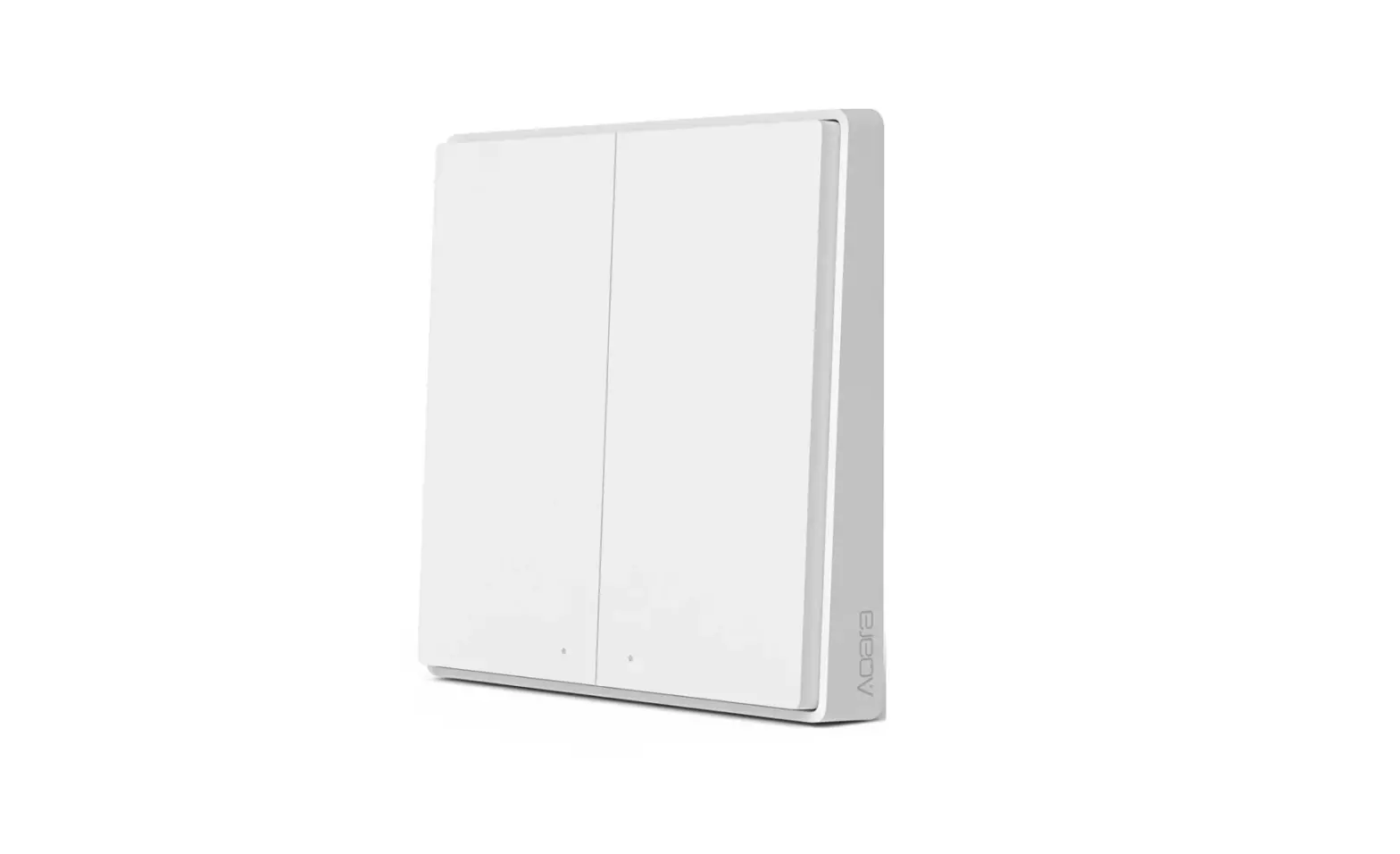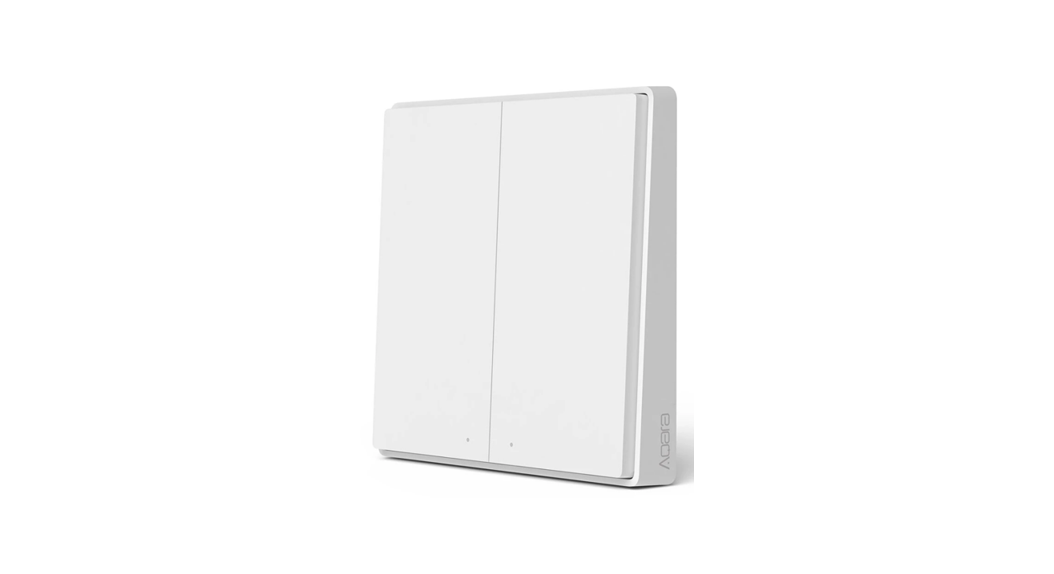
H1 EU Smart Wall Switch
USER MANUAL
Product Profile
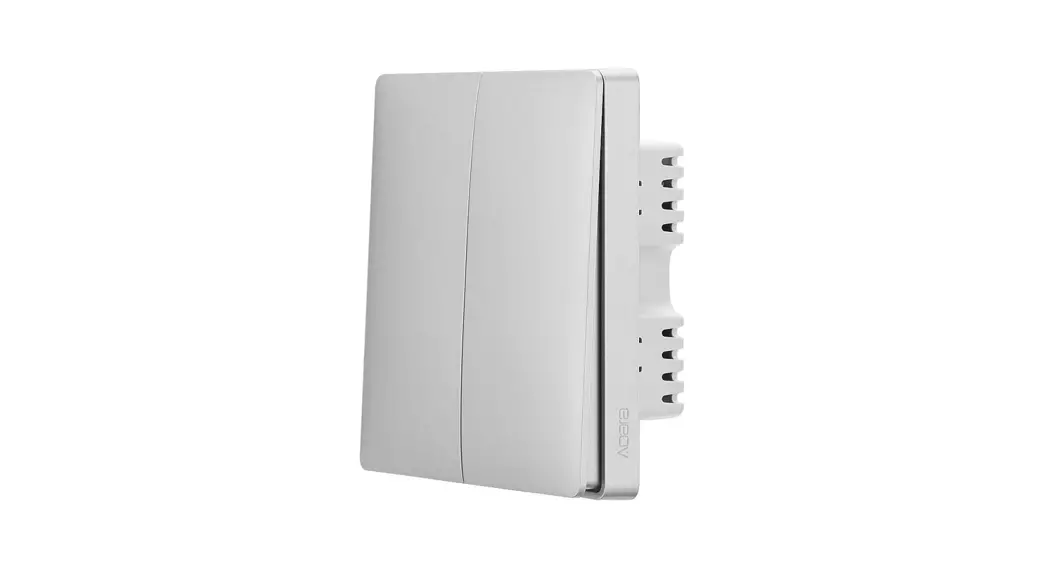
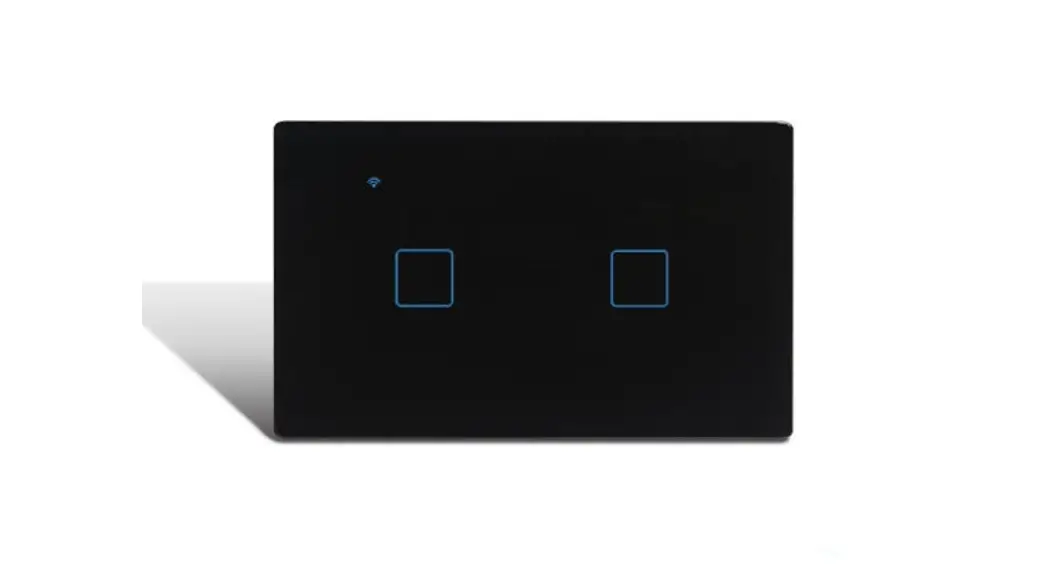
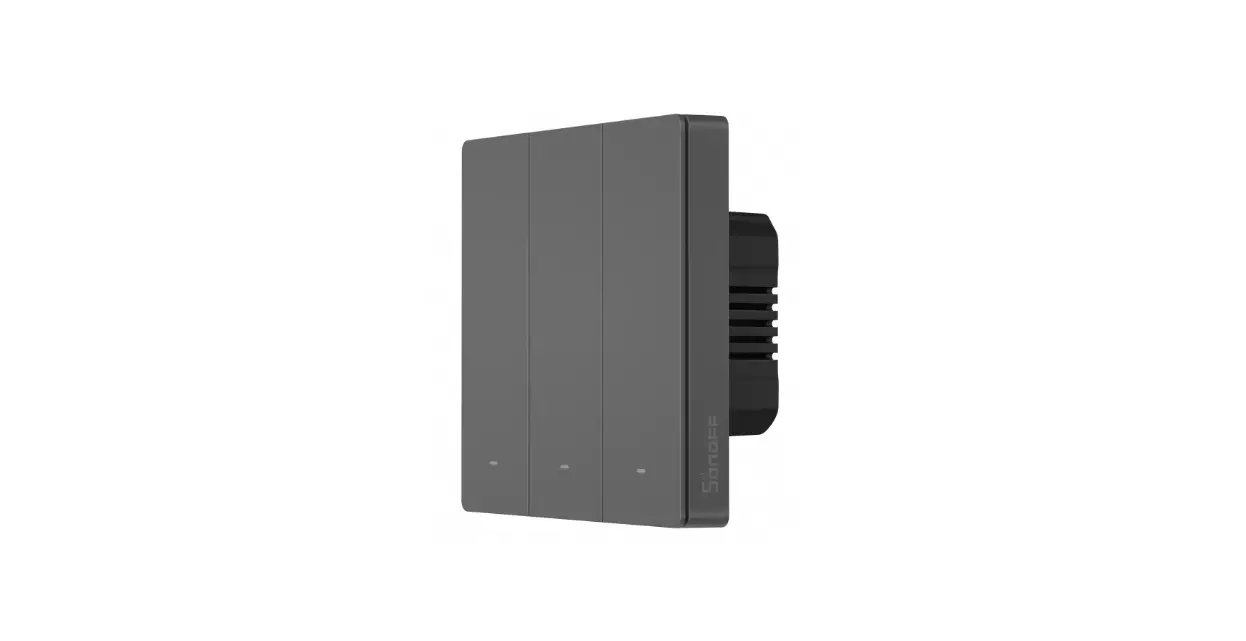
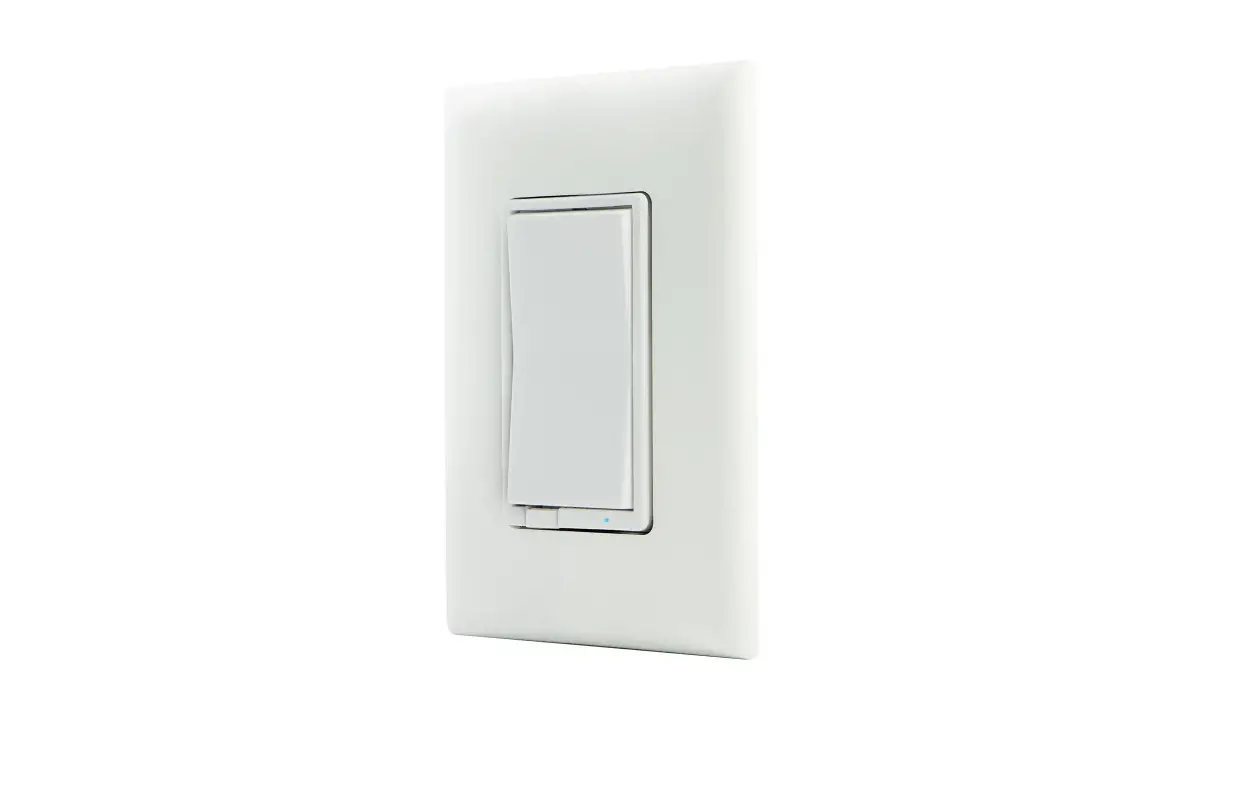
Based on the Zigbee 3.0 wireless communication protocol, the Aqara Smart Wall Switch H1 EU (No Neutral) is a smart switch that turns on and off the power of lights and other electrical devices. After binding with an Aqara hub, it can implement remote control via the Aqara Home app, timed control and other functions, and can work with other smart devices in smart home automations.
- * This product requires a compatible Zigbee 3.0 hub. Some features require a specific hub. For a detailed list, please visit: www.aqara.com/support
Warnings
- This product is not a toy. Please keep children away from this product.
- This product is designed for indoor use only.
- Do not use in humid environments or outdoors.
- Beware of moisture. Do not spill water or other liquids onto the product.
- Do not place this product near a heat source. Do not place it in an enclosure unless there is normal ventilation. Do not attempt to repair this product by yourself. All repairs should be performed by an authorized professional.
- This product is suitable for improving the quality of your home life and reminding you about the device status. If a user violates the product use instructions, the manufacturer will not be liable for any risks and property losses.
Installation Method (The picture shows the Double Rocker version as an example)
Please make sure that the power at circuit breaker or fuse box is turned off before wiring!
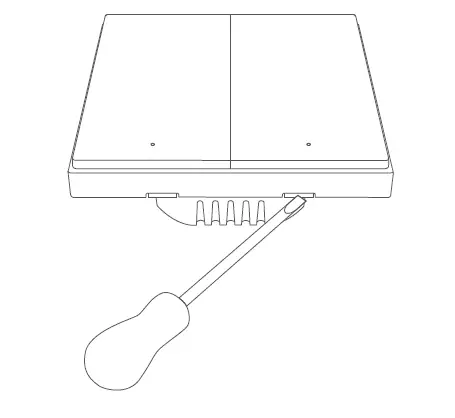
1. Open the switch panel with a flat-blade screwdriver.
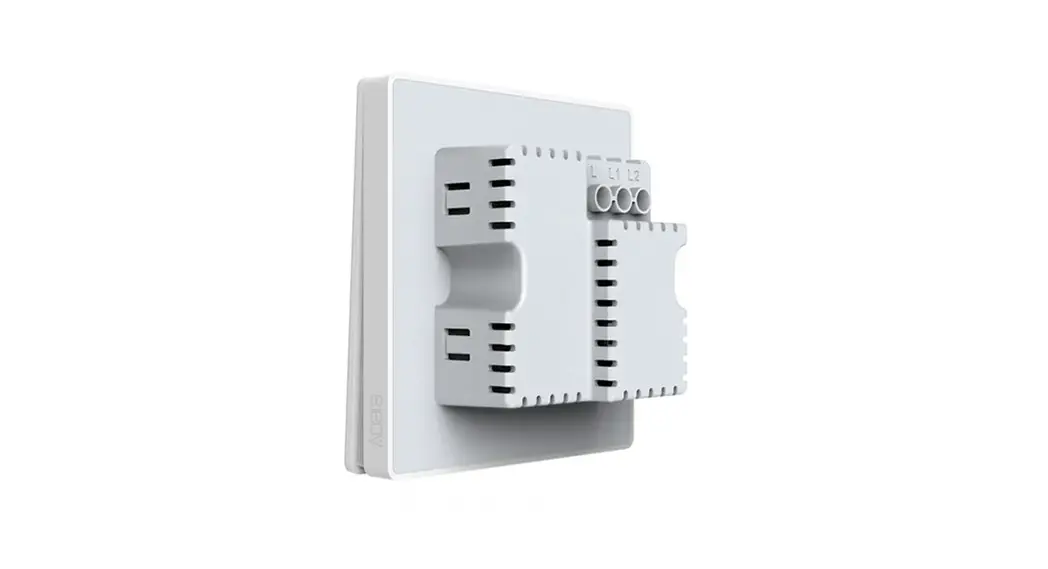
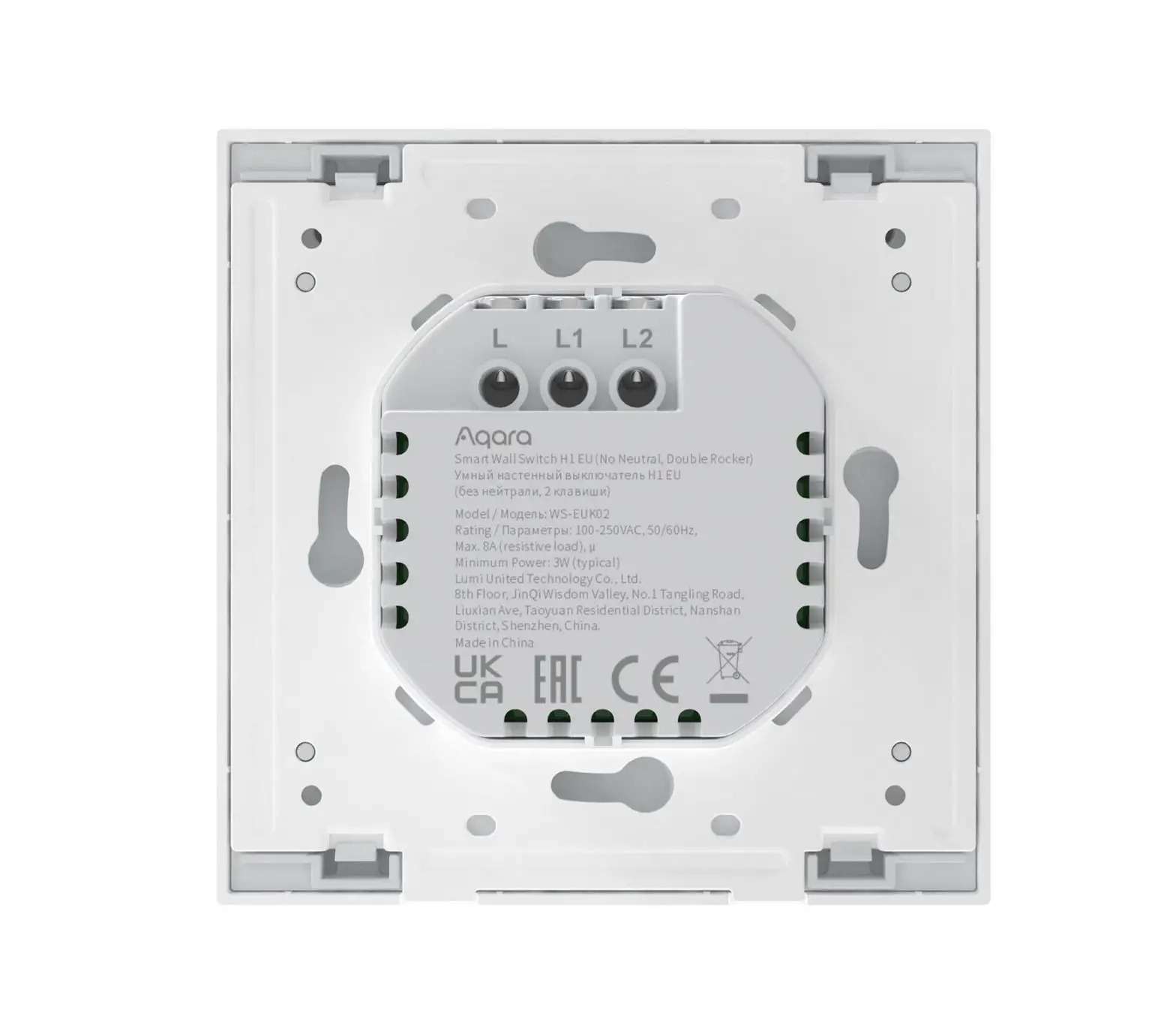
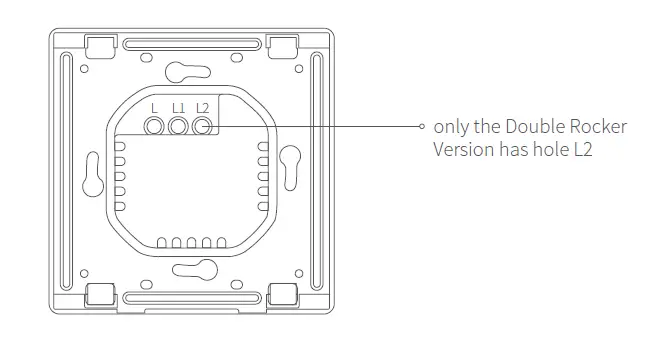
2. Loosen the terminal screw on the back of the switch with the screwdriver, connect the live wire to the hole L, and the load (light) wire to the hole L1 and L2 (corresponding to the left and right buttons respectively), and tighten the terminal screws after confirming that the wiring is correct.
3. Mount the switch to the wall junction box with the attached screws and mount the switch plate.
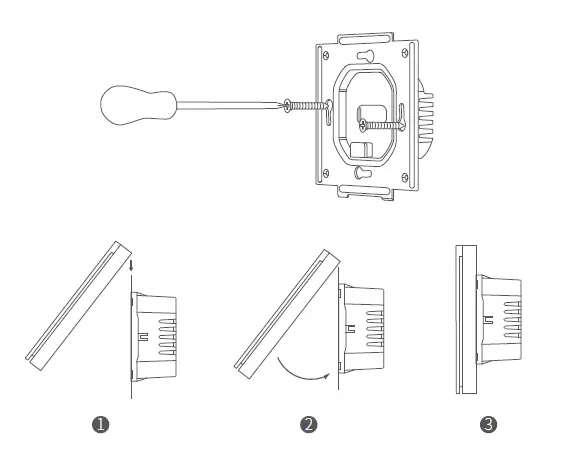
4. Turn on main power at the circuit breaker, and test the switch by pressing the button. If the light can be controlled normally, the switch is working properly!
Quick Setup
- Please add the hub to the Aqara Home app according to the Hub Quick Start Guide.
- Please open the Aqara Home app, and then tap “+” in the top right corner to enter “Add Device (Accessory)” page. Tap the code-scanning icon on the upper right corner, and scan the QR code on the package box, user manual or the back of the switch, or find and select “Smart Wall Switch H1 EU (No Neutral, Single Rocker/Double Rocker)”, and add it according to instructions.
* If the connection fails, please move the hub closer to the switch, connect to power and try again.
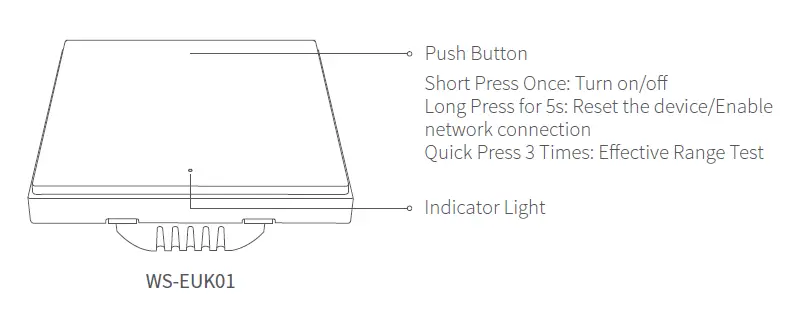
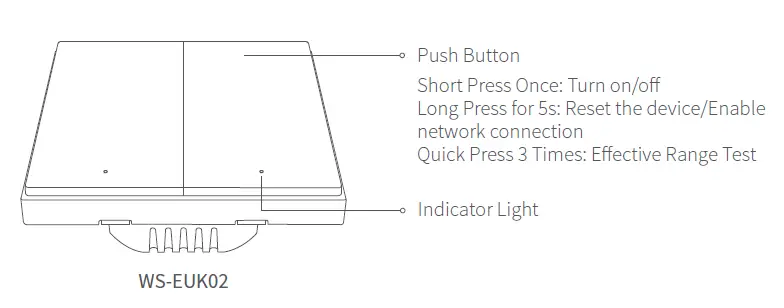
Effective Range Test: Quick press the button on the device 3 times. If the Hub makes voice prompts, it indicates that the device can communicate effectively with the Hub.
Indicator Light Description
| Indicator Light Status | Description |
| Blue light flashes once | Device is powered on |
| Blue light flashes quickly | Zigbee network is connecting |
| Blue light is steady on | Zigbee network works properly and the switch is turned on |
| Red light flashes quickly | Overload and high temperature alarm |
| Red light flashes slowly | Zigbee network is not connected |
| Red light is steady on | The switch panel does not match the in-wall power supply module |
Specifications
Model: WS-EUK01 / WS-EUK02
Dimensions: 85.8×86×37.55mm
Wireless Protocol: Zigbee 3.0
Electrical Rating: 100-250VAC, 50/60Hz, Max. 8A (resistive load),
Minimum Power: 3W (typical)
Operating Temperature: 0C-40C(32°F-104°F)
Operating Humidity: 0%~95% RH, Non-condensing
Zigbee Operation Frequency: 2405-2480MHz
Zigbee Maximum Output Power: 13dBm
What’s in the Box: Smart Wall Switch x 1, Quick Start Guide x 1, Screw x 2
 Home
Home