KEYMECHER MANO-703UB Wireless Trackpad User Manual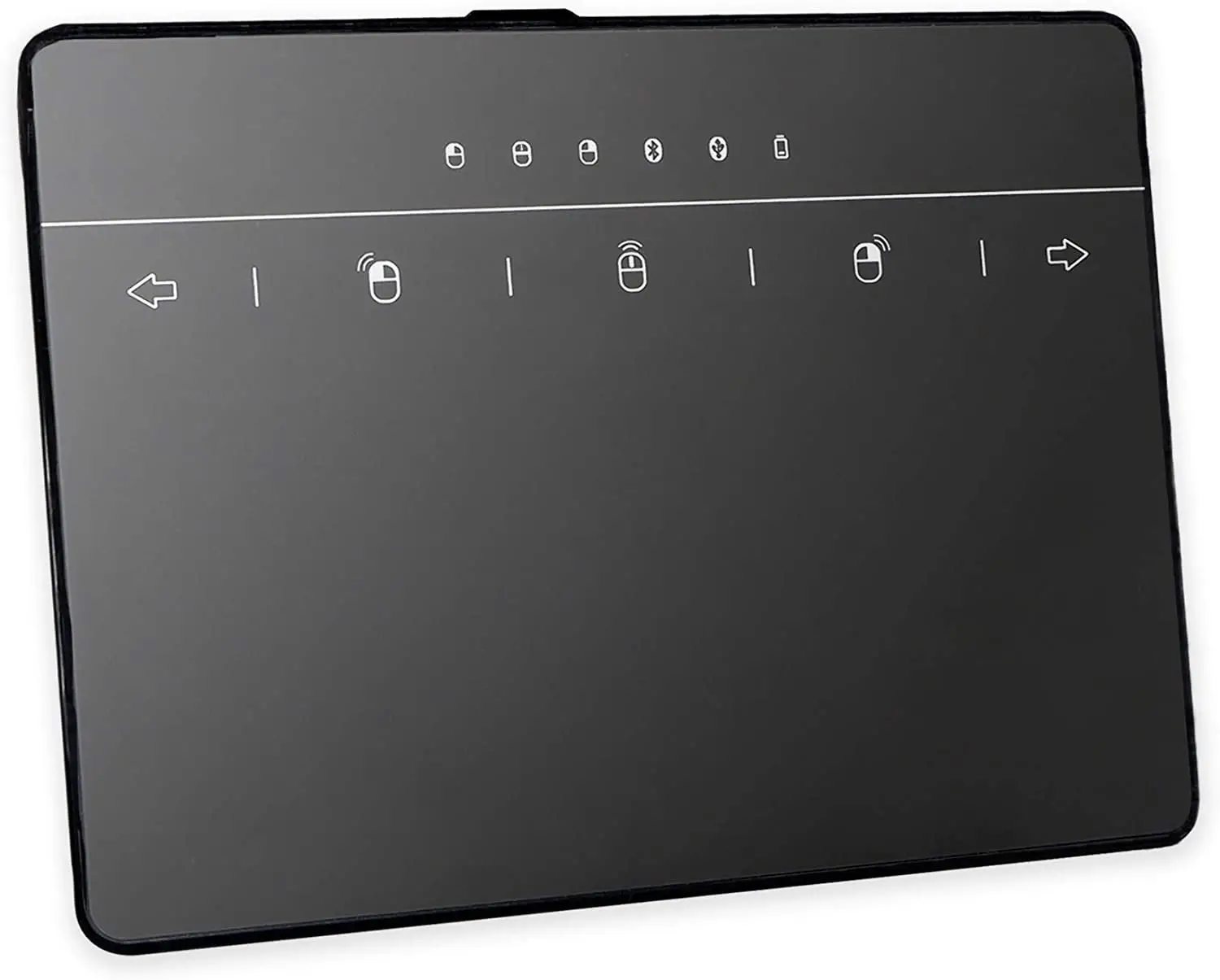
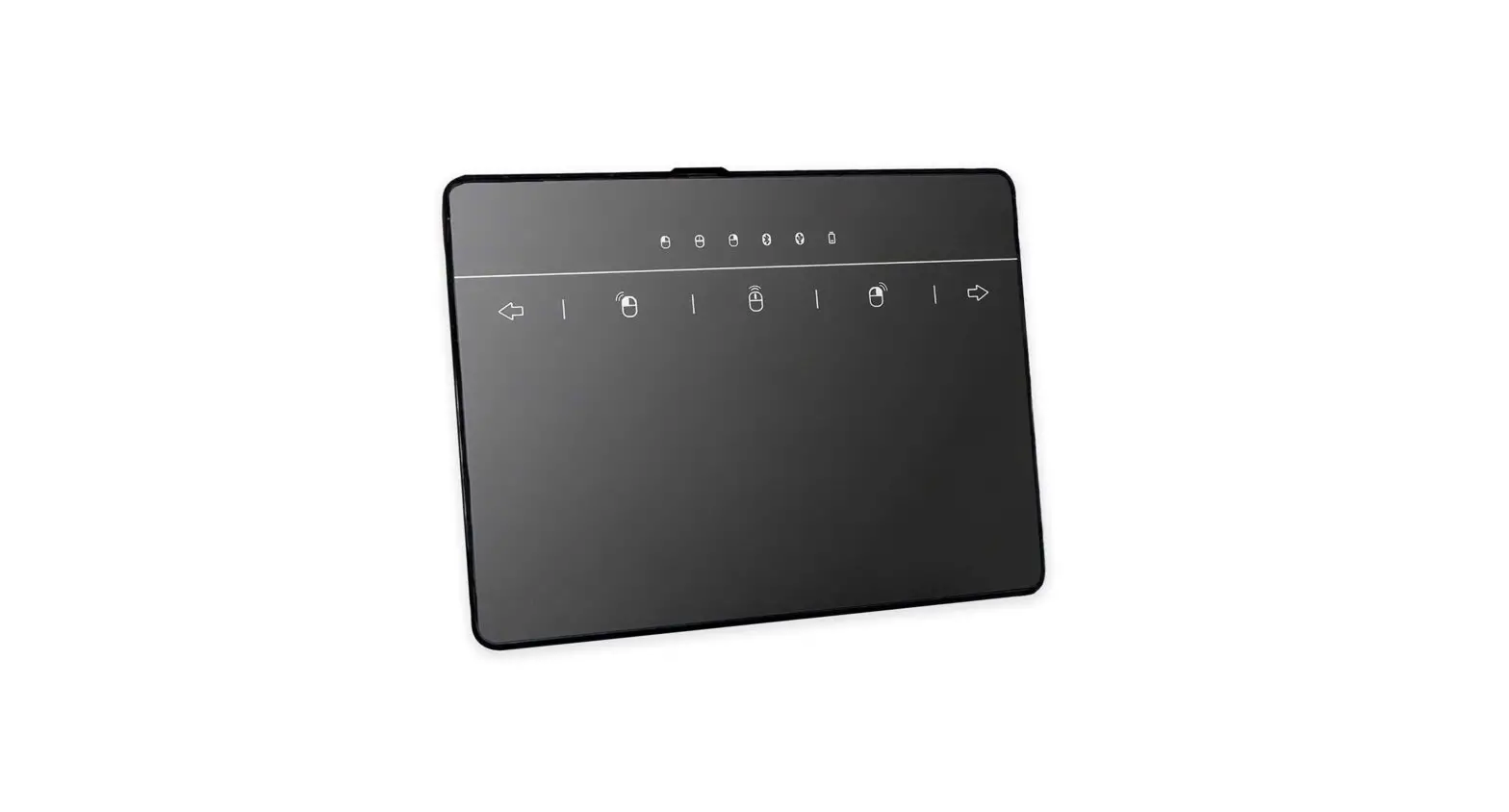
Product View
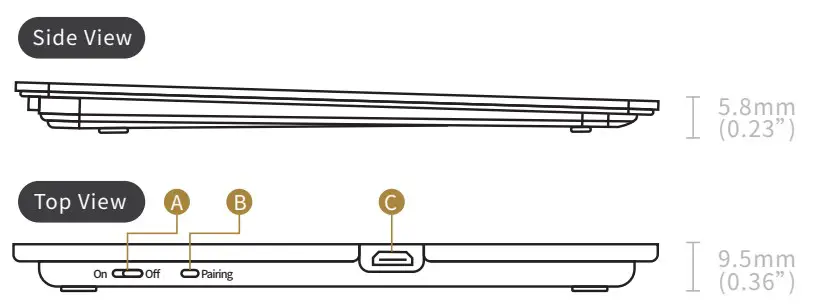
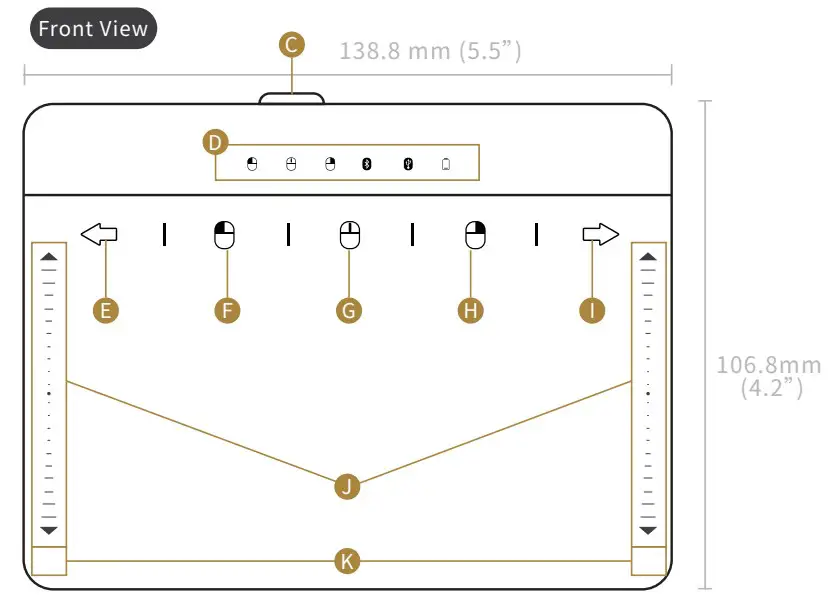
Functions
- A. Bluetooth Toggle
- B. Bluetooth Pairing
- C. USB Plug
- D. LED Indicator
- J. Scroll Wheel
- K. Mouse Left Key
| Indicator | 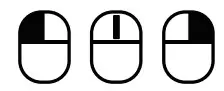 | 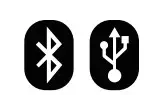 |  |
| Function | Indicators for Mouse Touch-Button | Indicators for Bluetooth and USB connection | Battery Status indicator |
| Touch-Button |  |  |  |  |  |
| Function | E Previous | FLeft Locked-Key (on/off) | GMiddle Locked-Key (on/off) | HRight Locked-Key (on/off) | I Forward |
Note
- When the bluetooth power is off, the USB interface can be connected to both Windows 10 / 7 device. When the bluetooth power is on, the Bluetooth interface can be connected to a Windows 10 device only. (A – Bluetooth Toggle)
- When low battery, the indicator will be turn the red light on. If you are charging the battery, the indicator will be turn on the green light. The indicator will be turn off when the battery is complete charging. (D – Battery Indicator)
- Touch-button can operated by 1-finger tap only. And will be disabled if gesture is operating. (E-I)
- Under Bluetooth connection, touchpad automatically goes into power-saving mode after 15 minutes of idle. Use finger-sliding can wake it up.
- Device can work up to 20 days after 1-2hr charging.
- The Windows 10 provides a setting page for users to redefine the touchpad functions, including the gesture function, the pointer speed, the wheel’ s rolling-di-rection and speed, the touchpad sensitivity and others of related functions. (P.6-7)
Descriptions
This touchpad fully supports Microsoft Windows 10’s precision touchpad capabilities, and integrates the mouse’s button and wheel functions so that users can operate all the features of the touchpad and mouse simultaneously in all applications. This touchpad provides USB and Bluetooth (BLE) connections for Windows system of desktop computer, laptop, tablet, TV box and computer TV.
Features
- Fully supports Microsoft Windows gestures. (p.4-5)
- 2 in 1 Wired / Wireless options. Wireless operating range is up to 10 meters. (Bluetooth pairing instruction, p.4)
- Ergonomically designed housing to effectively reduce wrist joint injuries.
- Integrates mouse button, shortcuts and wheel functions.(p.1-2, E-K)
- Indicators to display status of mouse button and connection. (p.1-2, D)
Specifications
- Brand: Keymecher Model: MANO-703 UB
- Interfaces: Bluetooth 5.0 and Micro-USB 2.0
- System Support: Windows 10 (USB/BT), 7 (USB)
- Touchpad Protocol: Microsoft Precision Touch pad Protocol
- Touch Area: 6.0 Inch (Diagonal Dimension)
- Dimensions: 138.8 mm x 106.8 mm x 5.8 – 9.1 mm (5.5″ x 4.2″ x 0.23-0.36″)
- Weight: 93 gm. (0.20 lb)
- Power Consumptions: 20mA, @3.7V/5.0V
- Cable Length: 5ft.
- Included contents: Touchpad x 1, USB Cable x 1, User Manual x 1
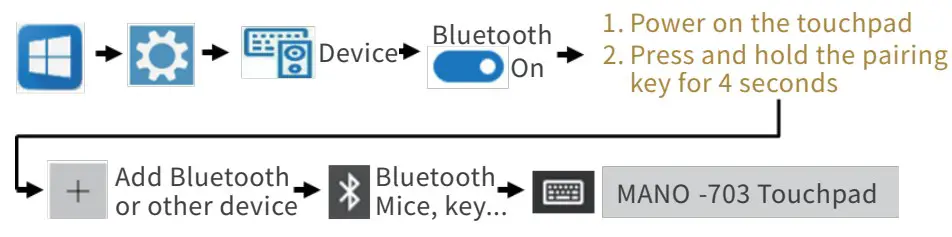
Bluetooth Pairing
Follow below steps to connect the touchpad to a Windows 10 computer via Bluetooth:
Gestures Control
 Tap
Tap Double Tap
 Touch (do no leave)
 Moving direction
Gestures – One Finger
 Left Click
Tap on Touch Area Open / Select Object
Double Tap on Touch area
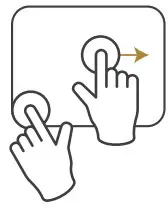
 Drag
Drag
Tap on (The key will be locked) then drag within the touch area
 Hold down on the bottom Left/Right then drag simultaneously with the other finger
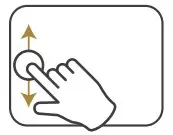
 Scrolling
Slide up / down on wheel
Gestures – Two Fingers
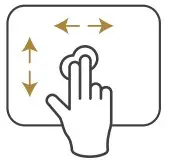 Right Click
Tap
 Horizontal Scroll (Win 10)
Slide left / right
 Vertical Scroll
Swipe up / down
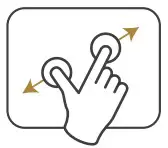
 Zoom in
Stretch
 Zoom out
Pinch
Gestures – Three Fingers
Redefine in Win setting
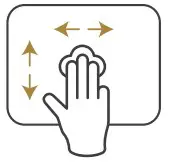 Search Bar (Win 10)
Tap
Mission Switch
Slide left / right
Mission Control / Return Desktop
Swipe up / down
Gestures – Four Fingers
Redefine in Win setting
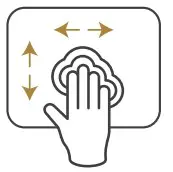 Play & Pause i Action Center (Win 10)
Tap
 Switch Track
Swipe left / right
Volume
Slide up / down
Touchpad Setting Page
Follow below steps to launch the touchpad settings page in Windows 10: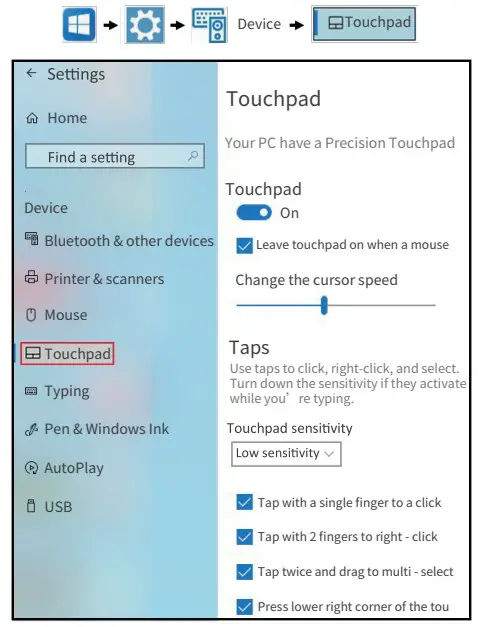
Setting – Pointer Accuracy
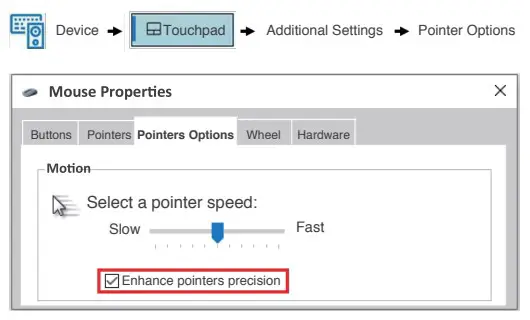
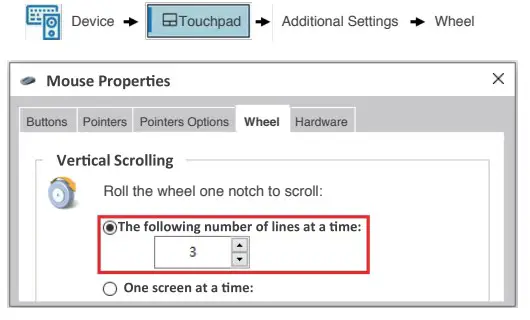
Setting – Wheel Speed
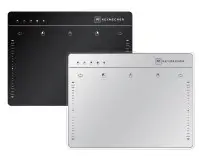
MANO-603U
Compact USB Trackpad
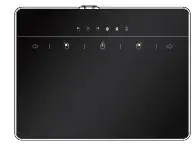
MANO-703UB
Bluetooth + USB Trackpad
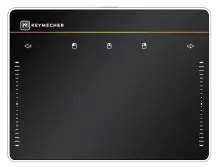
MANO MAX-620U
Oversized USB Trackpad
| color | Black/Silver | Black | Black |
| Interface | Micro USB 2.0 | BLE50/MicroUSB20 | Micro USB 2.0 |
| Material | Aluminum | Plastic | Aluminum |
| ‘Touch Area | 62″ | 60″ | 73” |
| Thickness | 0.6″ -0.24″(4.1mm -6.1mm) | 0.23″-0.36″(58mm-9.1mm) | 0.21″-0.38″(64-9.7mm) |
| Dimensions | 5.4″ (137.4 mm)*4.02″(102.2 mm) | 5.5″ (138.8mm)*4.2″ (106.8mm) | 63″ (160.5 mm)*4.74″ (120.5 mm) |
| Weight | 0.20 6(92g) | 0.20 161938) | 0.30 (140g) |
| Support System | Windows 10,7 | Windows 10,7 | Windows 10,7 |
Limited Product Warranty
All our products are covered by a 1 Year Limited Warranty. Keymecher warrants the Product to be free from defects in materials and workmanship (subject to the terms set forth herein) when used normally in accordance with the official documentation for the applicable Warranty Period from the date of retail purchase. If the Product is, or contains, a rechargeable battery, Keymecher does not provide any warranties for the battery life, as all rechargeable batteries can be expected to lose charging capacity over time and this is not considered a defect. Your actual battery life will vary depend- ing on the conditions in which it is used.
If you need assistance or have a question please use the website Contact’s Form or email us at [email protected]
Federal Communication Commission Interference Statement
This equipment has been tested and found to comply with the limits for a Class B digital device, pursuant to Part 15 of the FCC Rules. These limits are designed to provide reasonable protection against harmful interference in a residential installation.
This equipment generates uses and can radiate radio frequency energy and, if not installed and used in accordance with the instructions, may cause harmful interfer- ence to radio communications. However, there is no guarantee that interference will not occur in a particular installation. If this equipment does cause harmful interference to radio or television reception, which can be determined by turning the equipment off and on, the user is encouraged to try to correct the interference by one of the following measures:
- Reorient or relocate the receiving antenna.
- Increase the separation between the equipment and receiver.
- Connect the equipment into an outlet on a circuit different from that to which the receiver is connected.
- Consult the dealer or an experienced radio/TV technician for help.
FCC Caution: To assure continued compliance, any changes or modifications not expressly approved by the party responsible for compliance could void the user’s authority to operate this equipment. (Example – use only shielded interface cables when connecting to computer or peripheral devices).
FCC Radiation Exposure Statement
This equipment complies with FCC RF radiation exposure limits set forth for an uncontrolled environment. This equipment should be installed and operated with a minimum distance of 0.5 centimeters between the radiator and your body. This transmitter must not be co-located or operating in conjunction with any other antenna or transmitter.
The antennas used for this transmitter must be installed to provide a separation distance of at least 0.5 cm from all persons and must not be co-located or operating in conjunction with any other antenna or transmitter.
This device complies with Part 15 of the FCC Rules. Operation is subject to the following two conditions: (1) This device may not cause harmful interference, and (2) This device must accept any interference received, including interference that may cause undesired operation.

Windows Precision Touchpad