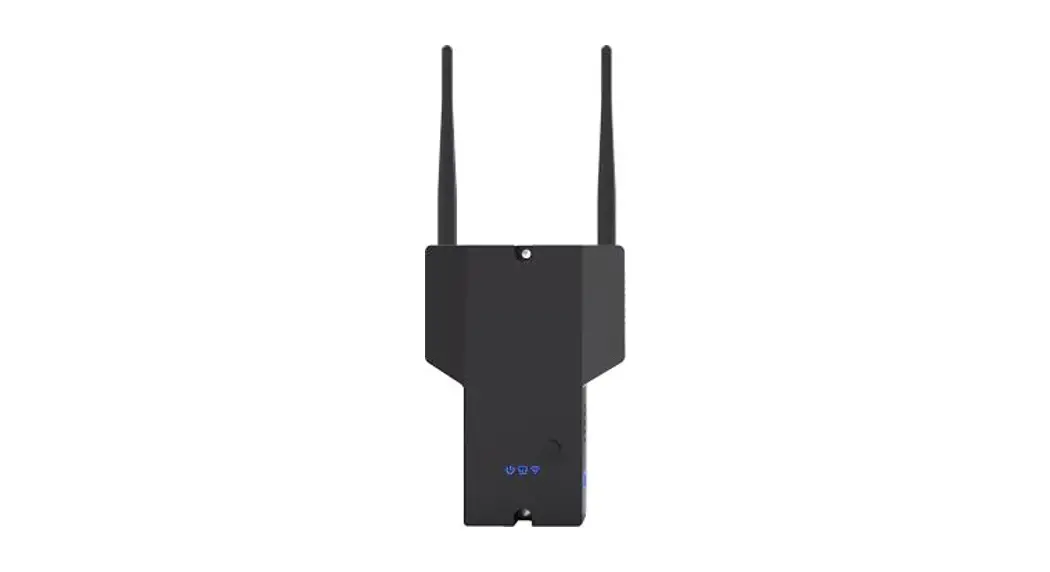
700-875-WIF51 REX 100 Router
Product Information: REX 100 Router
The REX 100 Router is an industrial router designed for remote
access to IPv4-capable end devices such as PLC, HMI, IP cameras,
etc. It comes in different variants with order numbers:
700-875-WAN01, 700-875-LTE01, 700-875-LTE11, 700-875-LTE51,
700-875-LTE61, 700-875-WIF01, and 700-875-WIF51. The device can be
operated worldwide depending on the variant and comes with firmware
V 2.2.11. The device has an integrated modem and should be
installed and operated with a minimum distance of 20 cm between the
radiator/antenna and the user’s body. The latest version of the
user manual can be found on the manufacturer’s website.
Product Usage Instructions
Safety Instructions
When using the REX 100 Router, it is important to observe
relevant recommendations to prevent unauthorized access to
installations and systems as it is a network infrastructure
component and an important element in the security consideration of
a plant.
For device variants with an integrated modem, the device should
be installed and operated with a minimum distance of 20 cm between
the radiator/antenna and the user’s body to prevent RF
radiation.
Introduction to the Function of the REX 100
The REX 100 Router is designed for remote access to IPv4-capable
end devices and can be used without integration into a PLC
engineering tool by means of a GSDML file. System states can be
viewed and diagnoses can be carried out on the password-protected
website of the device.
Preparation and Connection
The following steps should be taken to prepare and connect the
REX 100 Router:
- Mount the router to a suitable location using the mounting kit
provided. - Connect the power supply to the router and plug it into a power
source. - Connect the Ethernet cable to the WAN port on the router and
connect the other end to the network switch. - Connect the Ethernet cable to the LAN port on the router and
connect the other end to the end device (PLC, HMI, IP camera,
etc.) - Power on the router and wait for it to start up.
Access to the myREX24 V2 Portal
To access the myREX24 V2 portal, follow these steps:
- Open a web browser and enter “https://www.myrex24.com/” in the
address bar. - Enter the login credentials (username and password) provided by
the manufacturer and click “Login”. - Once logged in, select “REX Devices” from the menu and click on
“Add Device”. - Enter the device information and click “Save”.
Initial Router Configuration via the myREX24 V2 Portal
To configure the router via the myREX24 V2 portal, follow these
steps:
- Select the device from the list and click “Configure” to open
the configuration page. - Configure the necessary settings such as network settings,
security settings, VPN settings, etc. - Click “Save” to save the configuration.
Router Configuration Transfer Options
The REX 100 Router configuration can be transferred using a USB
flash drive or synchronization. Follow the steps below:
Transferring the Configuration using a USB Flash Drive
- Insert the USB flash drive into a computer and copy the
configuration file to the drive. - Eject the USB flash drive from the computer and insert it into
the USB port on the REX 100 Router. - Login to the myREX24 V2 portal and select the device from the
list. - Click “Configure” and select “Load Configuration” from the
menu. - Select “USB flash drive” as the transfer method and click
“Next”. - Select the configuration file from the USB flash drive and
click “Next”. - Verify the configuration settings and click “Finish” to
complete the transfer.
Synchronization
- Login to the myREX24 V2 portal and select the device from the
list. - Click “Configure” and select “Synchronization” from the
menu. - Follow the prompts to complete the synchronization
process.
Connection to the Machine Network
To connect the REX 100 Router to the machine network, follow
these steps:
- Connect an Ethernet cable from the WAN port on the router to
the machine network switch. - Configure the IP address settings for the router and ensure it
is on the same subnet as the machine network.
Restoring the REX 100 Router to its Default Settings
To restore the REX 100 Router to its default settings, follow
these steps:
- Press and hold the reset button on the router for at least 10
seconds. - The router will restart and the default settings will be
restored.
Load Configuration/Firmware Update from USB Stick
To load configuration or firmware update from a USB stick,
follow these steps:
- Insert the USB stick into a computer and copy the configuration
or firmware update file to the drive. - Eject the USB stick from the computer and insert it into the
USB port on the REX 100 Router. - Login to the myREX24 V2 portal and select the device from the
list. - Click “Configure” and select “Load Configuration” or “Firmware
Update” from the menu. - Select “USB flash drive” as the transfer method and click
“Next”. - Select the configuration or firmware update file from the USB
stick and click “Next”. - Verify the settings and click “Finish” to complete the
process.
Technical Data
For technical data on the REX 100 Router, refer to the user
manual provided by the manufacturer.
Quick Start Guide REX 100 Router
Order numbers: 700-875-WAN01 700-875-LTE01 | 700-875-LTE11 700-875-LTE51 | 700-875-LTE61 700-875-WIF01 | 700-875-WIF51 from firmware V 2.2.11
Version
12 en
Helmholz GmbH & Co. KG | Hannberger Weg 2 | 91091 Großenseebach | Germany Phone +49 9135 7380-0 | Fax +49 9135 7380-110 | [email protected] | www.helmholz.de
03.05.2023
Content
1 Safety instructions …………………………………………………………………………………… 4 2 Introduction to the function of the REX 100………………………………………………… 5 3 Prepare and Connection …………………………………………………………………………… 5
3.1 Power supply ………………………………………………………………………………………………………………. 5 3.2 Power source requirement …………………………………………………………………………………………….. 5 3.3 Terminals and Interfaces ………………………………………………………………………………………………… 6 3.4 Installation position/minimum clearances…………………………………………………………………………. 6 3.5 Digital inputs/outputs IO1 and IO2 …………………………………………………………………………………. 6
3.5.1 Inputs ……………………………………………………………………………………………………………………… 6 3.5.2 Outputs …………………………………………………………………………………………………………………… 6 3.6 REX 100 WAN ………………………………………………………………………………………………………………. 7 3.7 Antenna connection ……………………………………………………………………………………………………… 7 3.7.1 REX 100 WiFi…………………………………………………………………………………………………………….. 7 3.7.2 REX 100 LTE (4G) ………………………………………………………………………………………………………. 7 3.8 REX 100 LTE + WAN und REX 100 WiFi + WAN …………………………………………………………………… 8 3.9 Boot process………………………………………………………………………………………………………………… 8
4 Access to the myREX24 V2 portal ………………………………………………………………. 9
4.1 Registration …………………………………………………………………………………………………………………. 9 4.2 Login to the myREX24 V2 portal server …………………………………………………………………………… 10 4.3 Navigation in the portal ……………………………………………………………………………………………….. 10 4.4 Simple and extended views ………………………………………………………………………………………….. 10
5 Initial router-configuration via the myREX24 V2 portal……………………………….. 11
5.1 Creating a new project ………………………………………………………………………………………………… 11 5.2 Creating a new device …………………………………………………………………………………………………. 12 5.3 Configure REX 100 (connection data) …………………………………………………………………………….. 12 5.4 Step 1 “Device” Selection of the type and name ……………………………………………………………. 13 5.5 Step 2 “Internet” Network settings ……………………………………………………………………………… 13 5.6 Step 3 “Configuration” Coupling/pairing the router with the portal …………………………………. 14
6 Router configuration transfer options ………………………………………………………. 14
6.1 Transferring the configuration using a USB flash drive ………………………………………………………. 15 6.2 Synchronization………………………………………………………………………………………………………….. 16
7 Connection to the machine network ………………………………………………………… 17 8 Tips and tricks ………………………………………………………………………………………. 18
QuickStart Guide REX 100 | Version 10 | 03.05.2023
2
8.1 Checking the device status …………………………………………………………………………………………… 18 8.2 VPN port and China gateway ………………………………………………………………………………………… 19 8.3 Diagnostics page ………………………………………………………………………………………………………… 20 8.4 Is a MAC address filter activated in the firewall? ……………………………………………………………….. 20 8.5 Is the connection established over a proxy? …………………………………………………………………….. 21 8.6 Device configuration: Services NTP server …………………………………………………………………….. 21 8.7 Device configuration: Services Mail settings ………………………………………………………………….. 21 8.8 Mobile connection is interrupted …………………………………………………………………………………… 21
9 Remote maintenance of Ethernet CPUs …………………………………………………….. 22
9.1 Device settings: Services Firewall SNAT ……………………………………………………………………… 22 9.2 Search over IP …………………………………………………………………………………………………………….. 22
10 Description of LEDs and buttons……………………………………………………………. 23
10.1 Function and status LEDs in normal operation …………………………………………………………………. 23 10.2 RJ45 network LEDs………………………………………………………………………………………………………. 23 10.3 Buttons……………………………………………………………………………………………………………………… 23 10.4 myREX24 V2 portal LEDs ……………………………………………………………………………………………… 24
11 Restoring the REX 100 router to its default settings …………………………………. 24 12 Load configuration/firmware update from USB stick………………………………… 25 13 Technical data ……………………………………………………………………………………. 26
13.1 REX 100 WAN …………………………………………………………………………………………………………….. 26 13.2 REX 100 WiFi ……………………………………………………………………………………………………………… 27 13.3 REX 100 LTE Europe/Asia ……………………………………………………………………………………………… 28 13.4 REX 100 LTE north America versions / ,,NAG” ………………………………………………………………….. 29
QuickStart Guide REX 100 | Version 10 | 03.05.2023
3
1 Safety instructions
Target audience
This description is only intended for trained personnel qualified in control and automation engineering who are familiar with the applicable national standards. For installation, commissioning, and operation of the components, compliance with the instructions and explanations in this operating manual is essential. The specialist personnel is to ensure that the application or the use of the products described fulfills all safety requirements, including all applicable laws, regulations, provisions, and standards.
Intended use
The device has a protection rating of IP 20 (open type) and must be installed in an electrical operating room or a control box/cabinet in order to protect it against environmental influences. To prevent unauthorized operation, the doors of control boxes/cabinets must be closed and possibly locked during operation. The consequences of improper use may include personal injury to the user or third parties, as well as property damage to the control system, the product, or the environment. Always use the device as intended, so that, for example, it can never be used as the sole means of averting dangerous conditions on machines and systems.
Operation
Successful and safe operation of the device requires proper transport, storage, setup, assembly, installation, commissioning, operation, and maintenance. Operate the device only in flawless condition. The permissible operating conditions and performance limits (technical data) must be adhered to. Retrofits, changes, or modifications to the device are strictly forbidden. . The devices contain components that can be damaged or destroyed by electrostatic discharge. When handling the devices, observe the necessary safety measures against electrostatic discharge (ESD) in accordance with EN 61340-5-1 and EN 61340-5-2.
Security
The device is a network infrastructure component and therefore an important element in the security consideration of a plant. When using the device, therefore, observe the relevant recommendations to prevent unauthorized access to installations and systems.
RF radiation
Device variants with an integrated modem should be installed and operated with a minimum distance of 20 cm between the radiator / antenna and your body.
Information
This document explains the initial commissioning of the REX 100 Router. The latest version of the document and a detailed manual can be found at www.helmholz.de or scan the QR code directly.
QuickStart Guide REX 100 | Version 10 | 03.05.2023
4
2 Introduction to the function of the REX 100
The REX 100 is an industrial router suitable for worldwide remote access (depending on the REX variant) to IPv4-capable end devices (PLC, HMI, IP cameras, etc.). This Quick Start Guide explains the basic settings in the myREX24 V2 portal and shows how to transfer the configuration made there to the REX 100 unit.
No integration into a PLC engineering tool by means of a GSDML file is necessary and system states can be viewed and diagnoses can be carried out on the password-protected website of the device.
Internet access and a valid account for the myREX24 portal are required for the configuration. The free of charge software shDIALUP for Windows operating systems is available to you by downloading from www.helmholz.de.
We recommend using the current version (from V3.7R1.0) of the “shDIALUP” client software for commissioning. For a successful and secure connection to the myREX24 V2 portal, the firmware status of all REX 100 routers should be checked regularly and, if necessary, updated with the help of the system settings in your myREX24 account.
3 Prepare and Connection
Depending on the REX variant, the LAN ports P1 to P4 or P2 to P4 are available for connection to the machine network. Internal switch functions are active even if the REX 100 router is not connected to the Internet.
For devices with a modem, antennas available as accessories and a mini-SIM card (except for Wi-Fi variants) are required for access to a GSM network. This serves the purpose of identification for the network operator. The insert is found on the left housing side. In order to unlock and remove the insert, please press the recessed yellow button next to the card reader. Please use the supplied tool (SIM card ejector) for this.
When selecting a mobile phone contract, please use a standard mobile phone data tariff. Please avoid IoT tariffs, because these are often only designed for small amounts of data or low transmission speeds.
3.1 Power supply
The REX 100 is designed exclusively for operation with safety extra-low voltage (SELV / PELV) and is supplied with 24 V DC via the supplied connector.
The housing of the REX 100 is not earthed. Please make sure to connect the functional earthing connection (FE) of the device to the reference potential of your control cabinet or system structure in order to ensure correct ESD derivation of the antenna and network sockets.
3.2 Power source requirement
This device may only be operated with power supplies that meet the requirements of EN 62368-1 for power sources of limited power. Otherwise, the device must be operated in a housing that meets the requirements of fire protection according to EN 62368-1.
QuickStart Guide REX 100 | Version 10 | 03.05.2023
5
3.3 Terminals and Interfaces
Rigid copper wires with a max. diameter of 1.5 mm² can be clamped onto the provided connector plug. Network cables corresponding to at least category 5/5e (CAT-5) should be connected to the RJ-45 sockets.
3.4 Installation position/minimum clearances
The router was designed to be mounted on DIN rails (as per DIN EN 50 022) and intended for installation in switch cabinets. Installation and mounting must take place in accordance with VDE 0100/IEC 364. The router can be installed in any position. It is recommended that minimum clearances to neighboring assemblies are observed during assembly. If the distances 30 mm on the top and on bottom and 10 mm on each side are maintained, easy access to the connections and contact options on the router is possible without having to remove other system parts. In addition, there should always be enough space for the necessary cable routing.
3.5 Digital inputs/outputs IO1 and IO2
The bidirectional connections IO 1 and IO2 can – independently of one another be configured as digital inputs (standard setting) or as digital outputs.
3.5.1 Inputs
The alarm inputs can be activated with potential-free switches, buttons or relay contacts. IN1 can, for example, be used for the VPN establishing of connection with the myREX24 portal. An alarm can be triggered with the IN2.
Example wiring of the inputs:
3.5.2 Outputs
When selecting for the output circuit, the REX can provide the status of an active Internet, VPN or user portal connection as a signal. Each output can have a max. 0.5A (@ 24 V).
Example wiring of the outputs:
The parameterization is carried out via the alarm management in the myREX24 V2 portal. Alternatively, the input and output functions could also be displayed in a dashboard using the data point functions.
QuickStart Guide REX 100 | Version 10 | 03.05.2023
6
When using outputs O1 and O2, the corresponding input signals I1 and I2 assume the respective output status and can themselves no longer be used externally for other alarm input signals.
3.6 REX 100 WAN
Connect the WAN interface of the REX 100 (P1 WAN) with a patch cable with the higher level (company) network/router. 3 LAN ports are available for connection to the machine network and for commissioning via PC.
3.7 Antenna connection
Only connect antennas that are included in the Helmholz accessories and ensure prior to installation that the antenna is positioned in such a way that the modems receive a permanent radio signal to a WLAN access point or can connect to an adequate 4G mobile network. Also be sure to follow the instructions from the technical data sheets of the antenna manufacturer and do not install these into metal housings (e.g., control cabinet).
3.7.1 REX 100 WiFi
The WLAN radio module only works in the 2.4 GHz range and it must be ensured that the required internet connection can be established via an existing access point in the (company) network. The required WLAN antenna is connected to the RP-SMA socket. The 4 LAN ports are then available for connection to the machine network and for commissioning/diagnosis via PC.
3.7.2 REX 100 LTE (4G)
For radio reception, a suitable antenna must at least be screwed onto the SMA socket “MAIN”.
In order to improve the data throughput, a second antenna terminal is available on the REX 100 LTE router with the SMA socket “Rx” that can be used as an option. This functionality is called antenna diversity in the “WCDMA mode” and Downlink-MIMO in the “LTE mode”.
The second receiver antenna should not be located in the immediate vicinity of the main antenna. In order to improve the diversity gain and reduce other reciprocal interactions (interference effects), the two antennas should be (taking the space available in the application into account) installed with the greatest possible distance between them.
For the same reason, the second antenna should be mounted cross-polarized (rotated by 90° in relation to the main antenna).
QuickStart Guide REX 100 | Version 10 | 03.05.2023
7
3.8 REX 100 LTE + WAN und REX 100 WiFi + WAN
With this device variant, a failover can be parameterized in the configuration if required (see chapter 5.5). For this application, connect the WAN interface (P1 WAN) of the REX 100 with a patch cable to the higher-level (company) network/router. 3 LAN ports are available for connection to the machine network and for commissioning via PC. Furthermore, the requirements from points 3 and 3.6 must be met. The VPN connection is primarily implemented via the WAN interface. If the connection is not established or is interrupted, the REX 100 automatically switches to the appropriate wireless connection. As soon as WAN is available again, it switches back.
Connection examples REX 100:
3.9 Boot process
The PWR LED lights up when the 24-volt supply voltage is applied. The boot process starts following the internal system check, which is indicated by the blinking RDY LED. The REX 100 is ready for operation as soon as the PWR LED and RDY LED light up continuously (duration: approx. 90 sec.).
The 4G products 700-875-LTE01 and 700-875-LTE51 are intended for use in Europe and Asia. For use in North America, please use the “NAG” variants 700-875-LTE11 or 700-875-LTE61. Before using an LTE router, please compare the LTE frequency bands of the selected device with the supported frequency bands of the provider in the country of use.
If you have any further questions on this issue, our technical sales team will be happy to help you.
QuickStart Guide REX 100 | Version 10 | 03.05.2023
8
4 Access to the myREX24 V2 portal
The complete configuration of the REX 100 takes place via the myREX24 V2 portal. A secure connection to the portal is required for this:
The shDIALUP remote client software enables you to administrate the myREX24 V2 portal and realize a VPN tunnel to a REX router. The software (shDIALUP) can be found in the download area at www.helmholz.de. There you can also download more documents with additional information at any time.
Alternatively, you can create the REX configuration with an HTTPS-secured direct call from your browser. The call is possible via the following URL: https://v2.myREX24.net. However, it is not possible to realize a VPN remote maintenance via the browser.
Always use your myREX24 V2 account data to log in.
4.1 Registration
You should only register at www.myREX24.net if you do not yet have a myREX24 V2 portal account or have not received user access from a myREX24 account administrator.
Fill out the required fields there. After your data is checked by our service team (Mon. to Fri., 8 a.m. to 5 p.m. CET), you will receive two separate e-mails with the access data.
One e-mail contains the username, and the second the password.
QuickStart Guide REX 100 | Version 10 | 03.05.2023
9
4.2 Login to the myREX24 V2 portal server
Install the shDIALUP software with administrative rights under a Windows operating system. After opening the program, select the “V2.myREX24.net” server in the top menu bar and then log in to the myREX24 V2 portal with your access data.
Your login name can be comprised of your username and company name separated by the @ symbol, for example: admin@helmholz
Following the initial login, you will be prompted to register a new, individual password for your account. As the account administrator, you can create and administer additional users after logging in to the myREX24 V2 portal if necessary.
4.3 Navigation in the portal
Once a user has logged in for the first time, he or she is guided through a tutorial. Navigation, basic settings and switching from the simple view to the extended view are shown.
4.4 Simple and extended views
You can choose between the two views in the menu interface of the myREX24 V2 portal. The “simple view” is active the first time you log in. You can switch to the “extended view” at any time without changes being lost or losing their validity. The simple view is mainly used throughout the rest of this Quick Start Guide. The extended view is also presented in some places for purposes of illustration.
QuickStart Guide REX 100 | Version 10 | 03.05.2023
10
5 Initial router-configuration via the myREX24 V2 portal
The following information describes the basic configuration steps required to set up a REX router for a VPN connection. A description of the extended functions can be found in the online help or in the manuals/white papers. You can go to the online help in the myREX24 V2 portal using the question mark symbol in the lower left-hand area of the screen.
When you log in for the first time, the myREX24 portal guides you through a brief tutorial. It is recommended to re-issue the password for your myREX24 account once in accordance with the tutorial.
5.1 Creating a new project
A project is the highest level for carrying out the following tasks: – – Device administration – – Remote maintenance – – Monitoring and alarms – – Data logging – – Visualizations
Initially, at least one new project must be created in which a router is assigned. Navigate to the Administration section by using the marked symbol (the tutorial also brings you to this point).
QuickStart Guide REX 100 | Version 10 | 03.05.2023
11
A unique project name is now issued in this menu. Additional account users, if created, can be assigned to this project on the “Access” tab.
5.2 Creating a new device
A router can be added to the tree structure using the green plus symbol or with a right-click of the mouse.
If a project does not yet have a router, the same function is made available in the main view by way of the green button “Create new device”.
Clicking the respective button starts the configuration assistant, which guides the user through the settings.
5.3 Configure REX 100 (connection data)
Three simple steps are enough for minimal configuration of the router.
– Selection of the device type – Network settings – Transfer of the configuration to the REX router
QuickStart Guide REX 100 | Version 10 | 03.05.2023
12
5.4 Step 1 “Device” Selection of the type and name
In the first step, the correct device type (matching the device order number) must be selected. A unique, freely selectable name should be assigned to this router.
Only numbers and letters may be used (0 to 9, A to Z, a to z and no spaces or special characters).
5.5 Step 2 “Internet” Network settings
In Step 2, the network configuration for the LAN, WAN and, depending on the version, the LTE cellular or the WiFi settings must be defined.
LAN
All REX 100 routers come with the IP address 192.168.0.100/24 as a default. If necessary, modify the IP address and subnet mask according to the specifications from the machine network to be maintained remotely.
WAN
The required information for the DHCP or static IP settings is provided by the respective network administrator. DHCP is preset at the factory.
Modem
The parameters for the APN access point (Access Point Name) of the card provider and the correct SIM PIN must be available to you and be stored here. There are already several providers available for selection (sorted by country). In the event that the correct provider is not present, this can also be entered manually.
WLAN
Enter the Wi-Fi-specific access data. The corresponding data provides you with the responsible network administrator.
If you use DHCP, make sure that the DHCP server does not assign an IP address the WAN interface
that is already active on the LAN side. IP addresses from two different subnets must be assigned to each router’s LAN and WAN interfaces.
QuickStart Guide REX 100 | Version 10 | 03.05.2023
13
Examples: LAN network settings, WLAN or APN access data and download
5.6 Step 3 “Configuration” Coupling/pairing the router with the portal
In step 3, the basic settings of a minimum configuration for the REX 100 are now stored in your portal account and must now be transferred to the device. By clicking on the download button (here marked in red), the configuration file is downloaded from the portal server and can then be transferred to the REX router using a FAT-formatted USB stick.
We recommend the “Download configuration to PC” variant for the initial configuration.
6 Router configuration transfer options
Newly created or subsequently modified device configurations can be transferred to the REX 100 in a variety of ways.
QuickStart Guide REX 100 | Version 10 | 03.05.2023
14
1. Download configuration to PC (via USB flash drive). The configuration file is saved on the PC and can subsequently be transferred to the REX 100 using a USB stick (subsequent procedure described in chapter 6.1).
2. Synchronize (recommended for subsequent modifications). If the router has already been configured and a connection with the portal is established, each subsequent change to the configuration can be carried out via the existing VPN remote connection (further procedure described in Section 6.2).
3. Transfer configuration to the device (with LAN connection, only possible via shDIALUP). For this configuration option, the REX 100 must be accessible directly in the LAN from the PC. The PC must also be logged in on the Internet via the shDIALUP dial-up client using your myREX24 account at the same time.
The transfer via USB stick (point 1) is explained in this Quick Start Guide, and how retroactive changes can be transferred via the function “Synchronization” (Point 2).
6.1 Transferring the configuration using a USB flash drive
Ensure that the power supply is connected to the REX 100. Download the configuration file provided through the myREX24 portal to the FAT-formatted USB flash drive connected to your PC using the download symbol.
The myrex24.mbn(x) configuration file must be stored in the root directory of your USB flash drive and may not be renamed.
Now carry out the steps described in chapter 12 “Load configuration/ firmware update from the USB stick”.
QuickStart Guide REX 100 | Version 10 | 03.05.2023
15
6.2 Synchronization
As soon as the REX 100 has logged into your account in the portal, you can transfer subsequent changes at any time with “Synchronize”. Where there is an existing myREX24-V2 portal connection, the REX 100 checks cyclically whether there is a new configuration available for its serial number and then loads it automatically. As soon as you have modified and saved one or more parameters, a gray exclamation mark symbol appears next to the in green animated online LED with the tooltip: “Device configuration not up to date”. Click this symbol (or the “Synchronize” button) to start the process. Synchronization in the simplified view:
Synchronization in the extended view:
QuickStart Guide REX 100 | Version 10 | 03.05.2023
16
The synchronization function is confirmed through the following dialog:
In this menu, you can select optional user-defined settings, such as the sending of information/confirmation mails. The REX router now accepts the new settings and restarts automatically. As soon as the boot process has concluded, the REX router logs into the portal again.
7 Connection to the machine network
The following steps presume that the REX 100 has already been configured and that you have successfully logged into your account with shDIALUP. A secure VPN connection to the end device cannot be implemented via the browser view (https://v2.myREX24.net). Logged-in REX 100 routers are identified with a green circle in the dashboard. The secure VPN connection between the PC and REX router is not established until the connection button is clicked.
Effective immediately, you can view the setup of your REX router and the functional overview of the myREX24 V2 portal very easily online. https://youtu.be/r4KxlV-VgdY Video tutorial (3:22 min.)
QuickStart Guide REX 100 | Version 10 | 03.05.2023
17
The active connection status to the REX 100 is represented by an animated orange connection button. The number of active connections made using this account is shown with details in the menu bar.
Once the VPN connection to the REX 100 has been established, all the IPv4 packets valid for the applicable LAN network on the system side will be forwarded. The parameters (port, VPN IP, LAN IP etc.) used for this connection are also shown with details in the status bar at the bottom.
To end the remote access connection, click the Disconnect button and accept the final security query.
8 Tips and tricks
8.1 Checking the device status
The device status website of the REX 100 shows the connection status and the active configuration data of the router. To this purpose, the REX 100 must be accessible in the LAN, meaning that the TCP/IP address of a PC must be in the same IP subnet. To this purpose, enter the LAN IP address of the REX 100 into the address bar of a browser.
Authenticate yourself with the standard
user:
helmholz and the
password: router
QuickStart Guide REX 100 | Version 10 | 03.05.2023
18
By clicking on one of the green info symbols in the status fields, you can view further information on each step of the connection.
If the website of the REX 100 is not accessible, please check the corresponding setting in the myREX24 portal. Make sure that there are no address space conflicts with any other network interfaces (do not assign the same IP address more than once) in order to be able to communicate with the REX 100.
8.2 VPN port and China gateway
By default, the REX 100 tries to establish an outgoing VPN connection via port 1194 (TCP) to the address https://vpn-v2.myrex24.net (5.39.123.21).
If necessary, the alternative ports 80 or 443 can be set (device management: “Services” -> “VPN” -> “VPN Port”).
Please clarify all details about the settings in advance with your local IT department. In order to be able to establish a secure connection to the myREX24 V2 server with shDIALUP or the REX 100, at least one of the following TCP ports (80, 1194 or 443) must be enabled for the VPN tunnel in the customer firewall.
QuickStart Guide REX 100 | Version 10 | 03.05.2023
19
China gateway: By default, No Gateway is set.
If the REX Router is used in China, the Gateway “China Shenzhen Datacenter” can be selected. URL: vpncn-v2.myrex24.net IPv4 Adresse: 43.247.70.163 ((if name resolution does not work).
Do not use the China Gateway outside China!
8.3 Diagnostics page
In the event of irregularities or interruptions when establishing the connection, the diagnostics page can provide troubleshooting assistance. In the event of an error, Helmholz technical support requires the respective result from the individual and autonomous test functions.
8.4 Is a MAC address filter activated in the firewall?
It may be necessary to approve the MAC address of the REX 100 in the higher-level DSL modem or the firewall. Should it not be possible to establish a connection, please ask the responsible network administrator whether such a MAC address filter has been activated.
QuickStart Guide REX 100 | Version 10 | 03.05.2023
20
8.5 Is the connection established over a proxy?
If a connection is not established on the customer network, the required proxy settings may not have been stored or may be faulty. These settings may be adjusted on the configuration page of the REX 100 in the Internet settings.
8.6 Device configuration: Services NTP server
For the internal system time of the REX 100, this carries out a comparison using a time server on the Internet at regular intervals. Where necessary, you can individually set the preset NTP server entry and the interval.
Various functions in the myREX24 portal require a current time setting in the REX 100.
8.7 Device configuration: Services Mail settings
If you would like to use the REX 100 function for the automatic sending of e-mails, port 25 (SMTP) may not be blocked in the firewall of the customer network. You can also use alternative e-mail servers to send e-mails.
8.8 Mobile connection is interrupted
If the provider for mobile communication remote maintenance interrupts the connection of your REX 100 router, this may have occurred for the following reasons, among others: – Wrong username/ password – Ports blocked by the provider – Credit of prepaid SIM cards used up
QuickStart Guide REX 100 | Version 10 | 03.05.2023
21
9 Remote maintenance of Ethernet CPUs
The LAN ports are suitable for 100 Mbps and full duplex operation and support auto- crossover and auto-negotiation. No special PROFINET functions are supported. When connecting additional Ethernet participants (PLC/panel) on the REX 100, it must be ensured that the IP addresses of the devices lie within the address range of the LAN interface of the REX 100.
9.1 Device settings: Services Firewall SNAT
With a REX 100, the SNAT function is activated as a default. With this setting, participants for which no gateway*/router has been entered are accessed via the VPN tunnel. For the CPUs and panels of some manufacturers, it can be the case that you need to explicitly enter the gateway* and deactivate the SNAT function in order that a remote connection with the end device is possible.
*Gateway: This refers to the configured LAN IP address of the REX 100.
To access a PLC or panel via the VPN tunnel, the OpenVPN adapter must be selected in the corresponding engineering tool as the interface. The virtual network connection responsible for this is the TAP Windows Adapter V9.
The excerpt shown here shows the setting to be selected in the PG / PC interface module from the SIMATIC STEP 7/TIA software.
9.2 Search over IP
With the SEARCHoverIP function activated, unparameterized network components (PLCs with IP address: 0.0.0.0) can be found and configured remotely. However, this search function is not supported by all control manufacturers!
When SEARCHoverIP is activated, the “remote maintenance network” (remote client) is connected one-to-one with the LAN network on the device (router) via Layer2. These broadcasts and multicasts on the remote maintenance side generate additional data traffic through the VPN tunnel. Under certain circumstances this can lead to IP address conflicts and network disruptions on the router LAN side. It is therefore recommended to deactivate this function in normal remote maintenance mode!
In the delivery state, SEARCHoverIP is not activated.
QuickStart Guide REX 100 | Version 10 | 03.05.2023
22
10 Description of LEDs and buttons
10.1 Function and status LEDs in normal operation
PWR RDY CON
USR
Indicator light for the power supply
Readiness indicator (this LED must show a solid light after a max. of 110 sec.)
Off: There is no active Internet or VPN connection Solid light: Internet connection active or possible, but VPN connection inactive Flashing (1.5 Hz): VPN connection is active. Rapid flashing (3 Hz): The router is attempting to establish a VPN connection
Solid light: When loading default settings, firmware files, or device configurations Flashing (1.5 Hz): A portal configuration was recognized on the USB stick (see FCN button) Rapid flashing (3 Hz): A firmware file was recognized on the USB stick (see FCN button)
10.2 RJ45 network LEDs
LED WAN & LAN
LED-color Orange Green
LED-status LED on LED flashing
Description Network connection present Network data traffic active
10.3 Buttons
FCN
1. Function key for manually establishing the connection with the portal server.
2. If the USR LED starts flashing, this means that you have ten seconds to press this button in order to load data from an
inserted USB stick.
RST
Reset button for restarting the router
Use the provided tool to activate the buttons (SIM card ejector).
QuickStart Guide REX 100 | Version 10 | 03.05.2023
23
10.4 myREX24 V2 portal LEDs
The device is not connected with the portal. The device has logged in at the portal and is thus online.
Depending on the device type, the router is connected to: – a machine (PLC) connected on the REX – the website of a connected machine – the integrated web server of the device (router) The device configuration is not up to date. This means: the configuration of a newly created device has not yet been transferred to the device or the changed configuration of an existing device has not yet been transferred to the device/no synchronization has been carried out. This symbol can be displayed in connection with any of the symbols named above.
Example of the visual representation of the information points on the status of the interfaces in the “simple view”.
11 Restoring the REX 100 router to its default settings
In order to reset the REX 100 to the factory settings, the following steps are necessary: · Apply a supply voltage (or press “RST”) until the PWR LED lights up. · Wait until the RDY LED flashes. · Press the FCN button for approx. 1015 seconds until the USR LED flashes orange. · After you release the FCN button, the REX 100 reboots and once again has the factory settings.
The IP address of the REX 100 LAN interface is reset to 192.168.0.100/24.
QuickStart Guide REX 100 | Version 10 | 03.05.2023
24
12 Load configuration/firmware update from USB stick
To provide the REX 100 with a configuration or perform a firmware update from a USB stick, please carry out the following steps:
· The start process of the device must be completed (PWR & RDY LEDs light up continuously). · Save the file in the root directory of a standard FAT-formatted USB stick. Important! Do not
change the file name. · Insert the USB stick into the USB interface of the REX 100. · Once the USR LED starts flashing, you will have ten seconds to press the FCN button. Then hold
it pressed until the USR LED lights steadily. · During the operation, the voltage supply should not be interrupted. · Once the USR LED lights up continuously, you can release the FCN button, at which point the
data will be loaded from the USB stick. · The process is complete once the PWR and RDY LEDs light up again permanently.
Ensure that either only the firmware file or only the configuration file is found in the root directory of the USB stick. If you wish to update both the firmware and the configuration, carry out the following steps consecutively for each file.
Once the configuration file has been successfully transferred, the file will automatically be renamed “Xmyrex24.mbn(x)”, making it impossible to accidentally reuse it a second time.
The firmware and the client software ,,shDIALUP” of the REX 100 can be easily updated via the website. Please download the desired file from www.helmholz.com or scan the QR code.
REX 100 firmware and ,,shDIALUP” dial-up client
QuickStart Guide REX 100 | Version 10 | 03.05.2023
25
13 Technical data
13.1 REX 100 WAN
Order no. Article designation Dimensions (D x W x H) Weight Number of inputs | type Number of outputs | type WAN-interface
Type Connection Transmission rate LAN-interface Type Connection Transmission rate USB-interface Protocol Connection Status indicator Voltage supply Current draw Power dissipation Environment requirements Ambient temperature Transport and storage temperature Relative humidity Pollution degree Protection rating VPN Protocol
Encryption method
Authentication Certifications UL
Voltage supply Pollution degree Altitude Temperature cable rating
700-875-WAN01 REX 100 WAN 32,5 x 58,5 x 76,5 mm Approx. 130 g 2 | DC 24 V, as per DIN EN 61131-2 Type 2 2 | DIN EN 61131-2 Type 3 1x 10-Base-T/100-Base-T RJ45 socket 10/100 Mbit/s 3x 10-Base-T/100-Base-T RJ45 socket 10/100 Mbit/s 1x USB 2.0 Host USB-A-socket 4 LEDs, functional status, 8 LEDs, Ethernet-status DC 24 V, 18 … 30 V DC max. 100 mA with DC 24 V max. 2,4 W
-40 °C … +75°C -40 °C … +85 °C 95 % r. H. without condensation 2 IP20
OpenVPN, 1 tunnel Control Channel: TLSv1.2, cipher ECDHE-RSA-AES256-GCM-SHA384 Data Channel: Cipher ‘AES-256-GCM’ initialized with 256 bit key Pre-Shared-Key, X.509 UL UL 61010-1/UL 61010-2-201 DC 24 V (18 … 30 V DC, SELV and limited energy circuit) 2 Up to 2,000 m 87°C
QuickStart Guide REX 100 | Version 10 | 03.05.2023
26
13.2 REX 100 WiFi
Order no. Article designation Dimensions (D x W x H) Weight Number of inputs | type Number of outputs | type WLAN-interface
Type Frequency range Maximum output power
Transmission speed
Wireless security methods Network-interfaces (device-dependent)
Type Connection Transmission rate USB-interface Protocol Connection Status indicator Voltage supply Current draw Power dissipation Environment requirements Ambient temperature Transport and storage temperature Relative humidity Pollution degree Protection rating VPN Protocol
Encryption method Authentication Certifications UL (only 700-875-WIF01) Voltage supply Pollution degree Altitude Temperature cable rating FCC
700-875-WIF01/700-875-WIF51 REX 100 WiFi 32,5 x 58,5 x 76,5 mm Approx. 130 g 2 | DC 24 V, as per DIN EN 61131-2 Type 2 2 | DIN EN 61131-2 Type 3 RP-SMA socket IEEE802.11b/g/n EU (2.412 GHz – 2.472 GHz, 1-13 Channel) 19 dBm EIRP, RF power including maximum antenna gain (3 dBi) 802.11b: 1, 2, 5.5, 11 Mbps 802.11g: 6, 9, 12, 18, 24, 36, 48, 54 Mbps 802.11n: MCS0-MCS7 (max 72.2Mbps) AES/CCMP, WEP/TKIP 4x LAN (700-875-WIF01); 3x LAN + 1x WAN (700-875-WIF51) 10-Base-T/100-Base-T RJ45 socket 10/100 Mbit/s 1x USB 2.0 Host USB-A-socket 4 LEDs, functional status, 8 LEDs, Ethernet-status DC 24 V, 18 … 30 V DC max. 120 mA with DC 24 V max. 2,9 W
0 °C … +60°C -40 °C … +60 °C 95 % r. H. without condensation 2 IP20
OpenVPN, 1 tunnel Control Channel: TLSv1.2, cipher ECDHE-RSA-AES256-GCM-SHA384 Data Channel: Cipher ‘AES-256-GCM’ initialized with 256 bit key Pre-Shared-Key, X.509 UL UL 61010-1/UL 61010-2-201 DC 24 V (18 … 30 V DC, SELV and limited energy circuit) 2 Up to 2,000 m 87°C FCC ID: XPYLILYW1 IC: 8595A-LILYW1
QuickStart Guide REX 100 | Version 10 | 03.05.2023
27
13.3 REX 100 LTE Europe/Asia
Order no. Article designation Dimensions (D x W x H) Weight Number of inputs | type Number of outputs | type GSM modem
Antenna terminal SIM-Card type GSM frequency bands UMTS frequency bands LTE frequency bands (MHz)
Output power
Data transmission rate Network-interfaces
Type Connection Transmission rate USB-interface Protocol Connection Status indicator Voltage supply Current draw Power dissipation Environment requirements Ambient temperature Transport and storage temperature Relative humidity Pollution degree Protection rating VPN Protocol
Encryption method
Authentication UL Certification (only700-875-LTE01)
Voltage supply Pollution degree Altitude Temperature cable rating
700-875-LTE01/700-875-LTE51 REX 100 LTE 32,5 x 58,5 x 76,5 mm Approx. 130 g 2 | DC 24 V, as per DIN EN 61131-2 Type 2 2 | DIN EN 61131-2 Type 3 Multiband 2G/3G/4G Data Interface SMA socket (exterior thread) Mini SIM(2FF), 1,8 V/3 V B3, B8 B1, B3, B8 B1, B3, B7, B8, B20 [from HW 5-3A], B28A [from HW 5-3C] Class 1 (1W) DCS 1800, Class 4 (2W) GSM 900, Class 3 (0,25W, 23dBm) 3G, Class 3 (0,2W, 23 dBm) LTE LTE Cat.4 – Uplink max. 50 Mbps | Downlink max. 150 Mbps 4x LAN (700-875-LTE01); 3x LAN/1x WAN (700-875-LTE51) 10-Base-T/100-Base-T RJ45 socket 10/100 Mbit/s 1x USB 2.0 Host USB-A-socket 4 LEDs, functional status, 8 LEDs, Ethernet-status DC 24 V, 18 … 30 V DC max. 200 mA with DC 24 V max. 4,8 W
-40 °C … +75°C -40 °C … +85 °C 95 % r. H. without condensation 2 IP20
OpenVPN, 1 tunnel Control Channel: TLSv1.2, cipher ECDHE-RSA-AES256-GCM-SHA384 Data Channel: Cipher ‘AES-256-GCM’ initialized with 256 bit key Pre-Shared-Key, X.509 UL 61010-1/UL 61010-2-201 DC 24 V (18 … 30 V DC, SELV and limited energy circuit) 2 Up to 2,000 m 87°C
QuickStart Guide REX 100 | Version 10 | 03.05.2023
28
13.4 REX 100 LTE north America versions / ,,NAG”
Order no. Article designation Dimensions (D x W x H) Weight Number of inputs | type Number of outputs | type GSM modem (4G)
Antenna terminal SIM-Card type GSM/GPRS/EDGE frequency bands
HSxPA frequency bands
LTE frequency bands (MHz)
Network-interfaces Type Connection Transmission rate
USB-interface Protocol Connection
Status indicator Voltage supply Current draw Power dissipation Environment requirements
Ambient temperature Transport and storage temperature Relative humidity Pollution degree Protection rating VPN Protocol
Encryption method
Authentication FCC modem
700-875-LTE11/700-875-LTE61 REX 100 LTE (NAG) 32,5 x 58,5 x 76,5 mm Approx. 130 g 2 | DC 24 V, as per DIN EN 61131-2 Type 2 2 | DIN EN 61131-2 Type 3 Multiband GSM/GPRS/WCDMA/LTE data interface SMA socket (exterior thread) Mini SIM(2FF), 1,8 V/3 V 850, 1900 MHz; max. 236kbps 1900 (B2), 850 (B5) MHz; Downlink max. 21 Mbps, Uplink max. 5,76 Mbps 700 (B17), 850 (B5), AWS 1700 (B4), 1900 (B2) for AT&T and T-Mobile, not suitable for Verizon! 4x LAN (700-875-LTE11); 3x LAN/1x WAN (700-875-LTE61) 10-Base-T/100-Base-T RJ45 socket 10/100 Mbit/s 1x USB 2.0 Host USB-A-socket 4 LEDs, functional status, 8 LEDs, Ethernet-status DC 24 V, 18 … 30 V DC max. 200 mA with DC 24 V max. 4,8 W
-40 °C … +75°C -40 °C … +85 °C 95 % r. H. without condensation 2 IP20
OpenVPN, 1 tunnel Control Channel: TLSv1.2, cipher ECDHE-RSA-AES256-GCM-SHA384 Data Channel: Cipher ‘AES-256-GCM’ initialized with 256 bit key Pre-Shared-Key, X.509 FCC ID: R17LE910NA
This device variant is not suitable for operation in the European Economic Area (EEA)! We recommend using an AT&T SIM card to use the 700-875-LTE11/61 in the United States. The required frequencies are supported for the network operator Verizon, but this operator refuses to establish the connection because only approved devices are accepted in the Verizon GSM network.
QuickStart Guide REX 100 | Version 10 | 03.05.2023
29
The contents of this Quick Start Guide have been checked by us so as to ensure that they match the hardware and software described. However, we assume no liability for any existing differences, as these cannot be fully ruled out. The information in this Quick Start Guide is, however, updated on a regular basis. When using your purchased products, please make sure to use the latest version of this Quick Start Guide, which can be viewed and downloaded on the Internet from www.helmholz.de.
Our products contain open-source software, among others. This software is subject to the respectively relevant license conditions. We can send you the corresponding license conditions, including a copy of the complete license text together with the product. They are also provided in our download area of the respective products under www.helmholz.de. We also offer to send you or any third party the complete corresponding source text of the respective open-source software for an at-cost fee of 10.00 Euro as a DVD upon request. This offer is valid for a period of three years, starting from the date of product delivery.
Our customers are important to us, we are happy to receive suggestions and ideas for improvement. If you have any questions regarding the use of the product, please contact Helmholz Support by phone or send an e-mail to [email protected].
All trademarks shown or mentioned in this document are the property of their respective owners or manufacturers. The representation and naming serve exclusively to explain the use and setting options of the products documented here.
QuickStart Guide REX 100 | Version 10 | 03.05.2023
30
References
 Login
Login Helmholz
-
Helmholz – Compatible with you | Automatisierungstechnik
-
Helmholz – Compatible with you | Automatisierungstechnik
-
Industrie-Router | Ethernet Router | Industrial Remote Solutions | Produkte | Helmholz – Compatible with you | Automatisierungstechnik
-
Industrie-Router | Ethernet Router | Industrial Remote Solutions | Produkte | Helmholz – Compatible with you | Automatisierungstechnik
 Zugang beantragen | myREX24 V2 | Service & Support | Helmholz – Compatible with you | Automatisierungstechnik
-
Login
 Login
Login
 Helmholz
 Helmholz – Compatible with you | Automatisierungstechnik