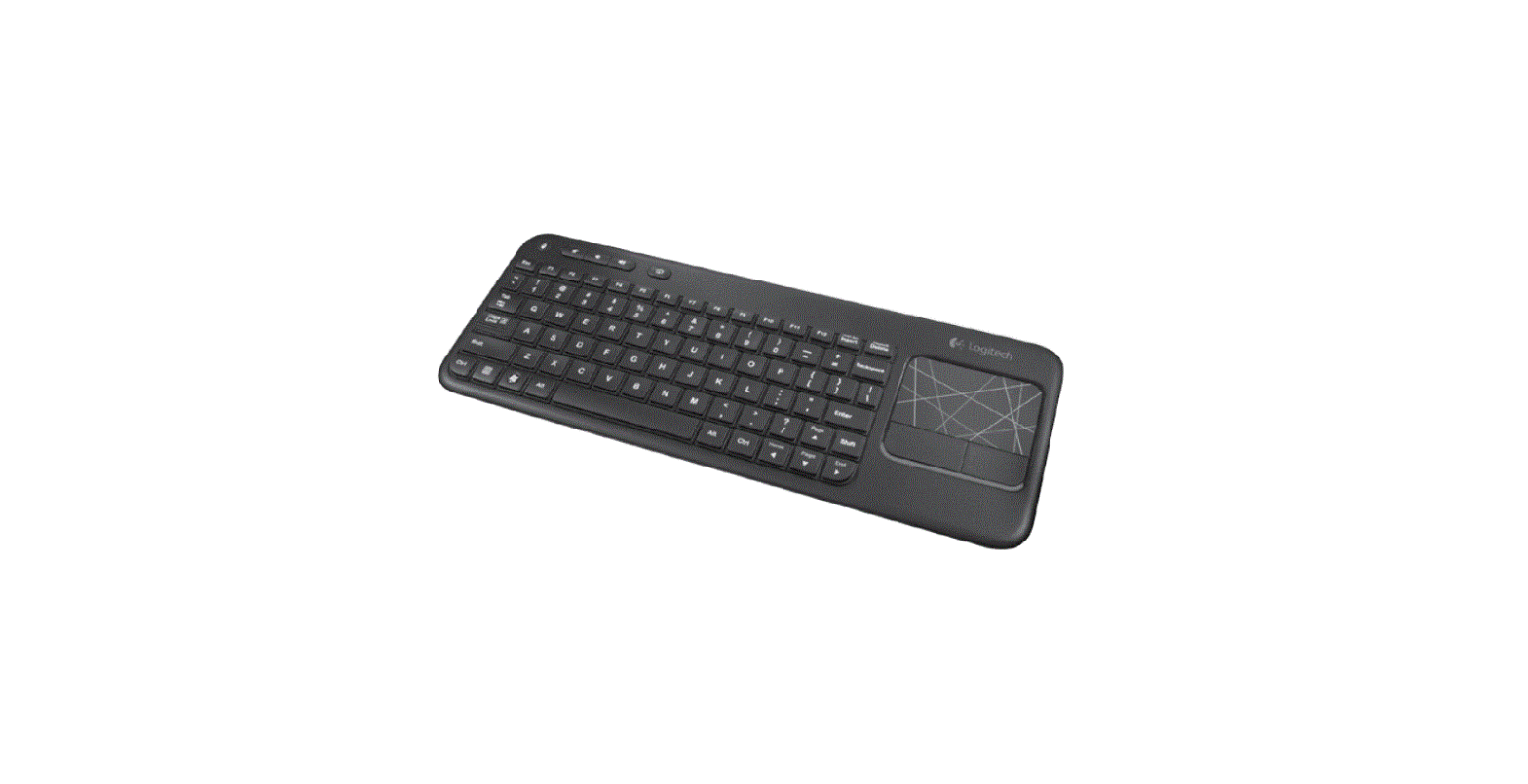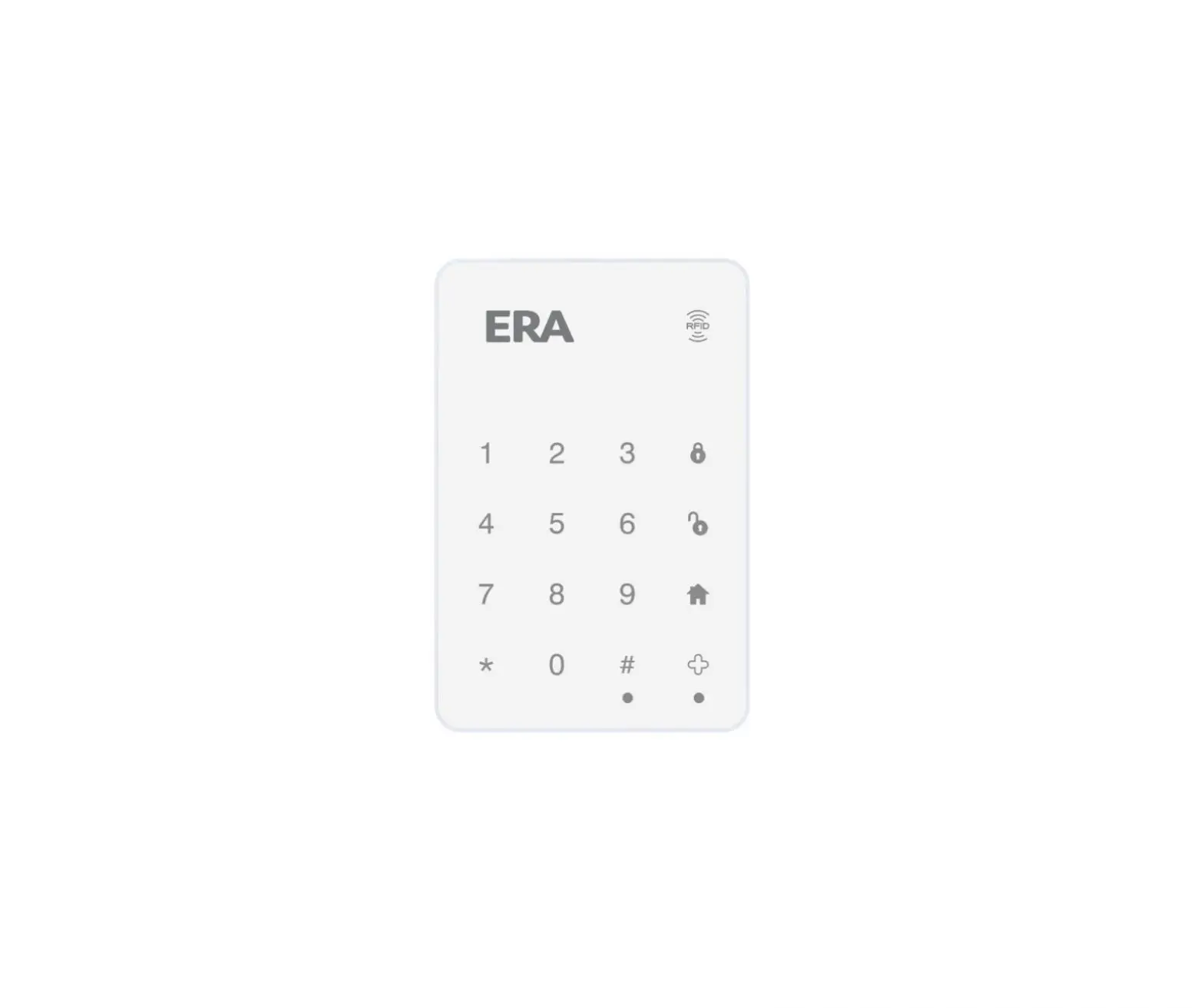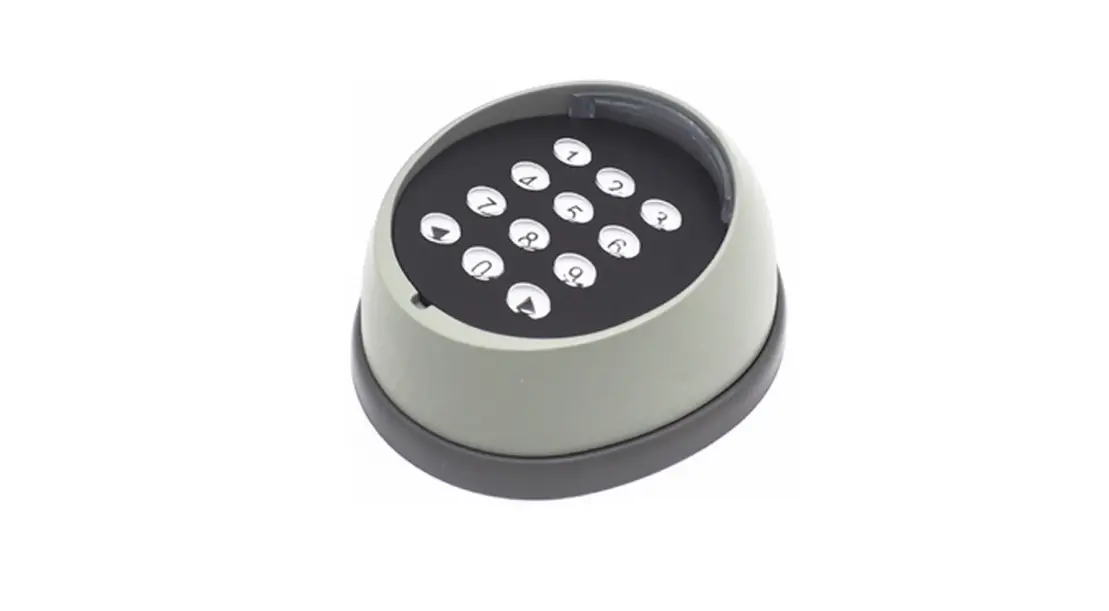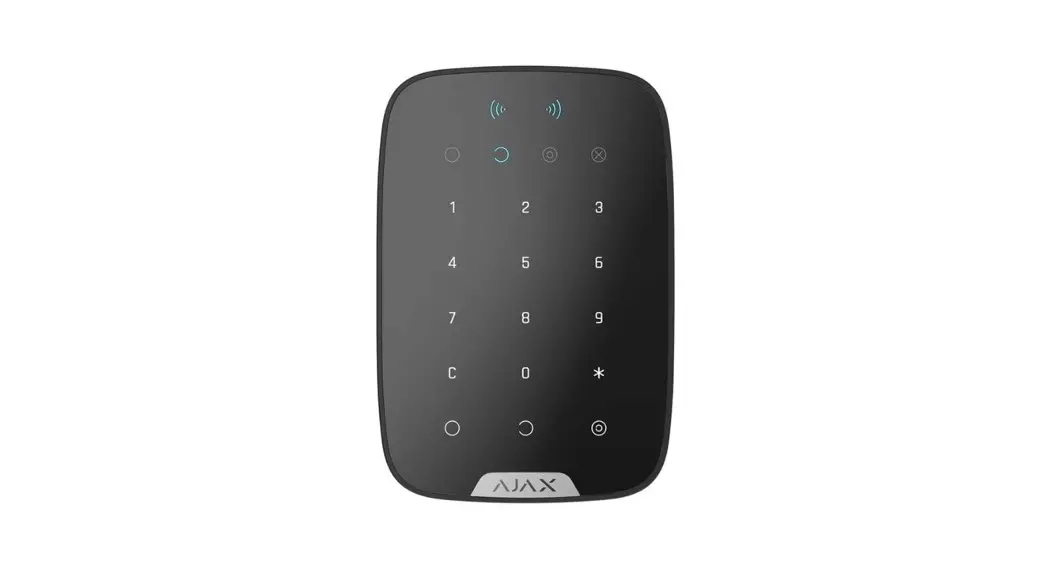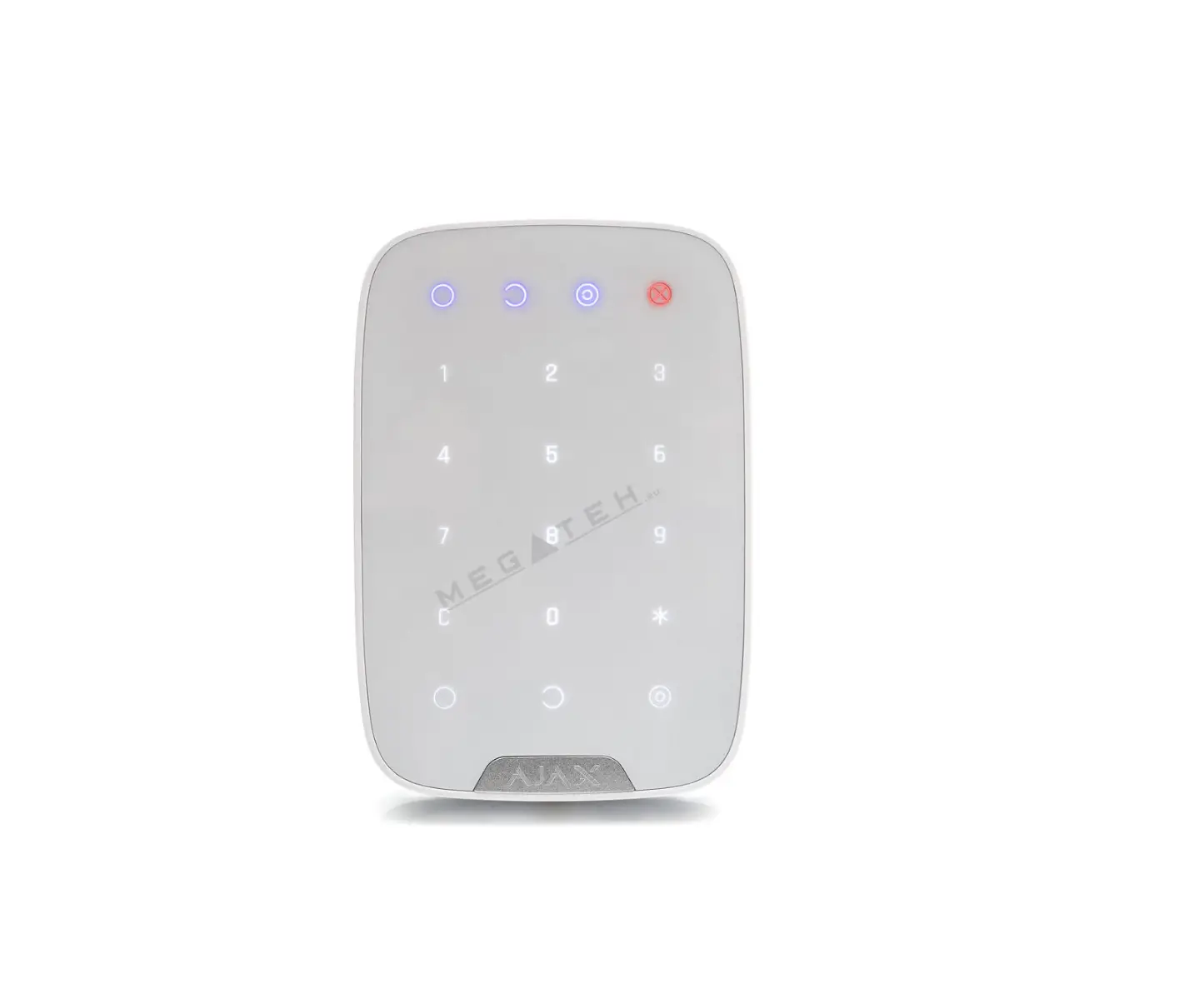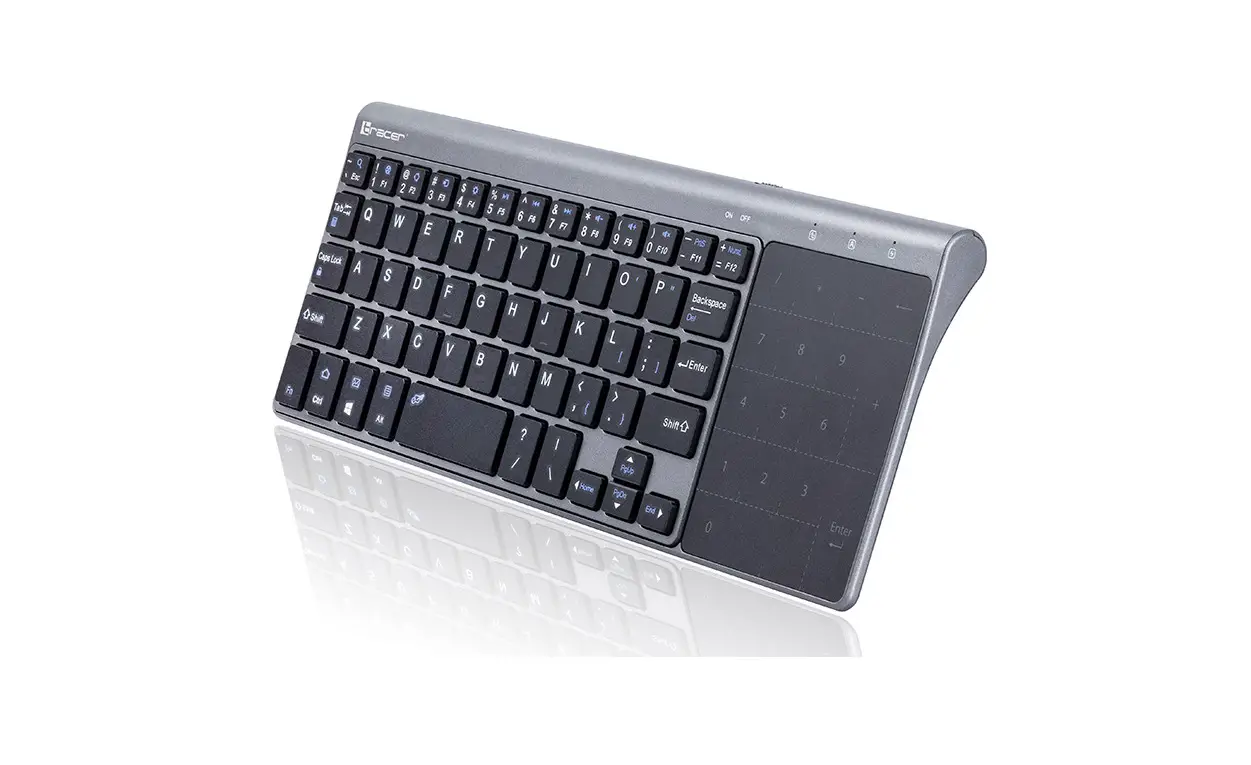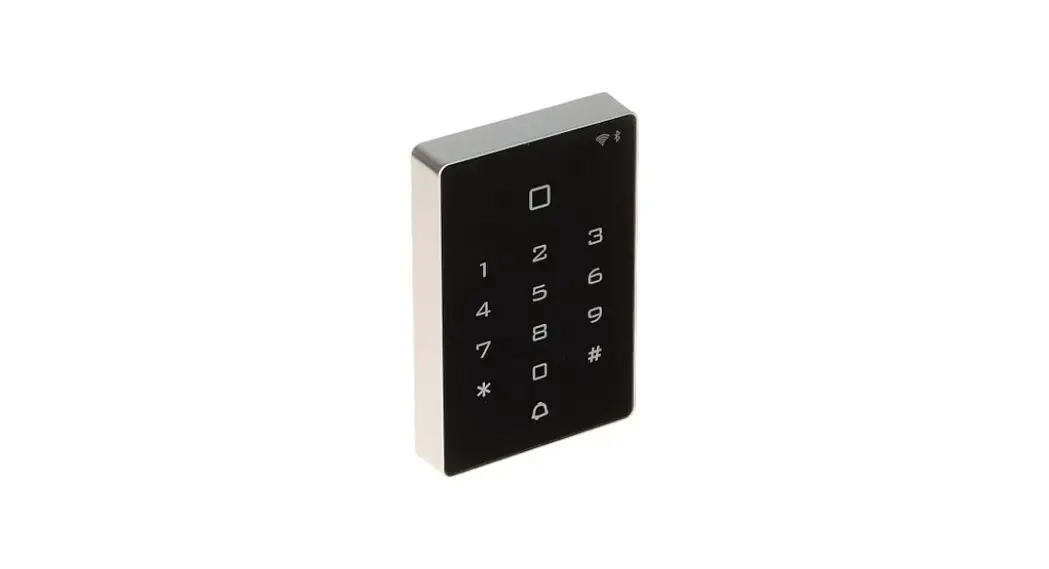
 Keypad Fingerprint Access Control
User Manual
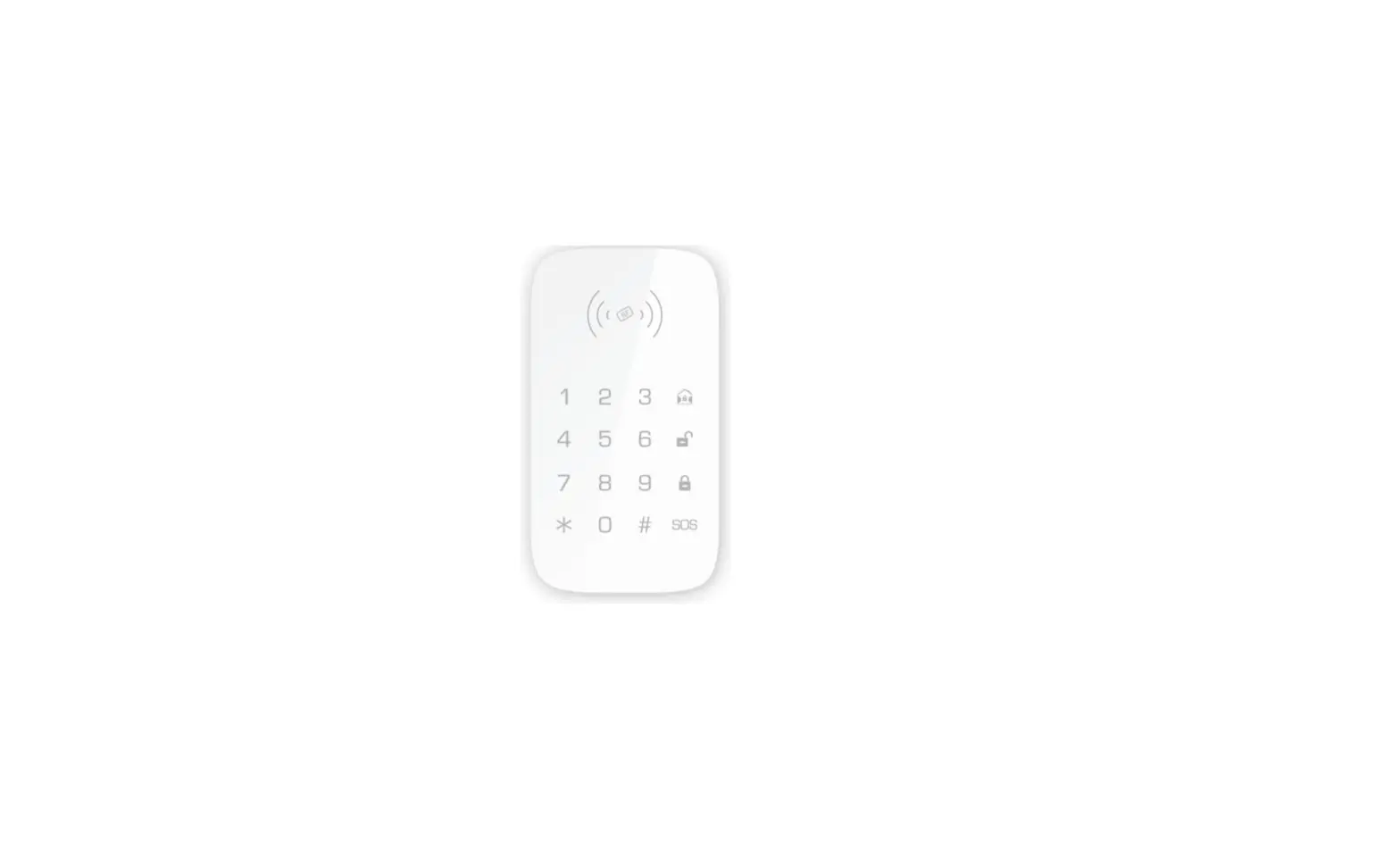
KPFRW-2TM Stand Alone Wifi Touch Keypad
Please read and understand this instruction completely before installation or operation
Introduction
This series’product is a new generation of multi-function standalone access control. It adopts new ARM core 32-bit microprocessor design, which is powerful, stable and reliable. It contains reader mode and standalone access control mode etc.. It’s widely applied to different occasions, such as office, residential communities, villa, bank and prison etc..
Features
➢ Read 125KHz EM Card and HID Card (Optional)
➢ Read 13.56MHz Mifare card and CPU card (Optional)
➢ Metal backlight keypad
➢ Contain reader mode, the transmission format could be adjusted by user.
➢ Support seven access ways
➢ Support admin add card and admin delete card
➢ 10,000 card/pin users and 600 fingerprint users.
Technical Specifications
➢ Operating Voltage: DC 12-24V
➢ Standby Current: ≤35mA
➢ Operating Current: ≤100mA
➢ Operating Temperature: -40℃~60℃
➢ Operating Humidity: 0%~95%
➢ Access ways: Fingerprint, card, code, or multiple combination methods
Installation
➢ Remove the back cover from the keypad using the supplied special screw driver
➢ Drill 2 holes on the wall for the self-tapping screws and I hole for the cable
➢ Put the supplied rubber bungs to into the two holes
➢ Fix the back cover firmly on the wall with 2 self tapping screws
➢ Thread the cable through the cable hole
➢ Attach the keypad to the back cover. (See the figure below)
Wiring
| No. | Color | Marks | Description |
| 1 | Green | D0 | Wiegand input (Wiegand output as reader mode) |
| 2 | White | D1 | Wiegand input (Wiegand output as reader mode) |
| 3 | Grey | ALARM | Alarm signal MOS tube drain output end (optional) |
| 4 | Yellow | OPEN/ BEEP | Exit button input end (Beeper input as reader mode) |
| 5 | Brown | D_IN/ LED | Door contact switch input (LED input as reader mode) (optional) |
| 6 | Red | +12V | Positive power supply or AC power supply end |
| 7 | Black | GND | Negative power supply |
| 8 | Blue | NO | Relay NO end |
| 9 | Purple | COM | Relay COM end |
| 10 | Orange | NC | Relay NC end |
Diagram
6.1 Common Power Supply
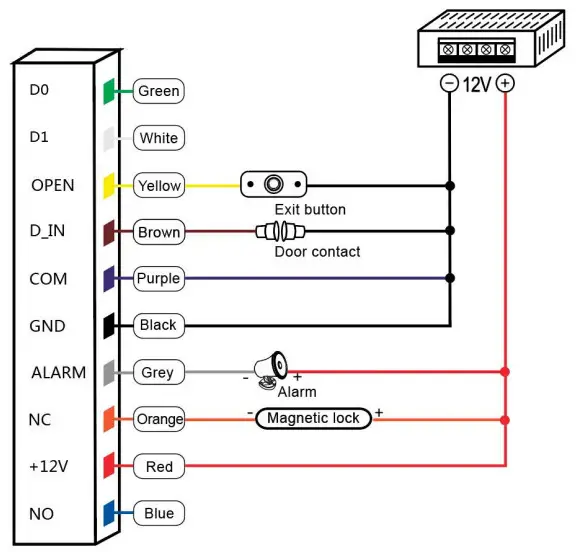
Note: The door contact and alarm function are optional
6.2 Special Power Supply
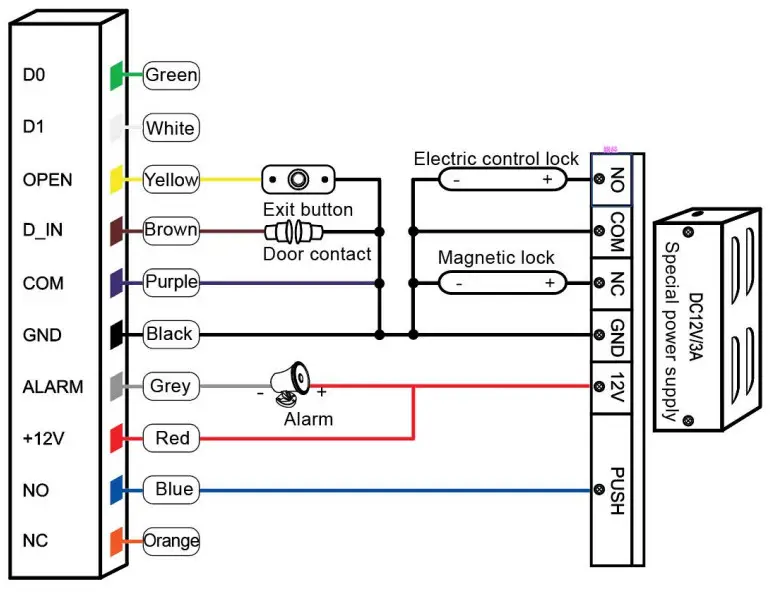
Note: The door contact and alarm function are optional
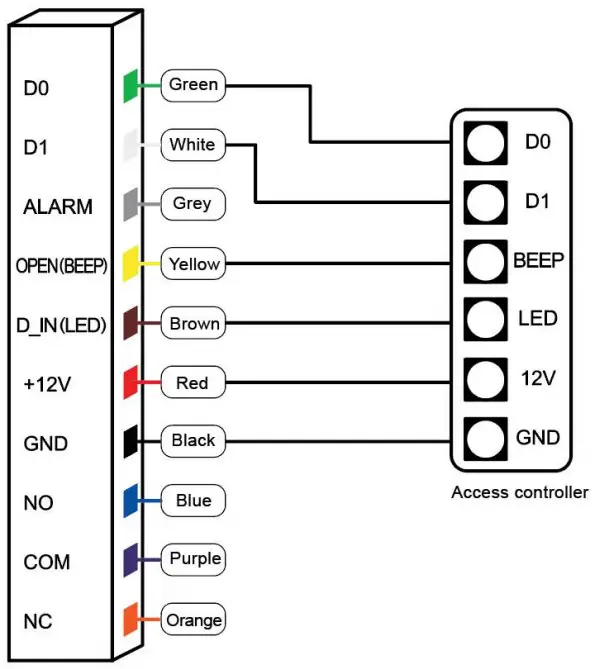
6.3 Reader Mode
Sound and Light Indication
| Operation Status | Light indicator | Buzzer |
| Stand by | Red | |
| Operation successful | Green | Beep— |
| Operation failed | Beep-Beep-Beep | |
| Admin card enter programming | Beep-Beep | |
| Admin card exit programming | Beep— | |
| Press digital key | Beep | |
| Press * key | Beep— | |
| Press access code | Red indicator flash slowly | |
| Read card under card plus code mode | Red indicator flash slowly | |
| Read multi user cards | Red indicator flash slowly | |
| Enter programming mode | Red indicator flash slowly | |
| Enter setting status | Orange | |
| Unlocking | Green | |
| Buzzer alarm | Red indicator flash quickly | Alarm |
8.1 Standalone Mode Settings
Device Management
| Enter programming | Menu | Operation steps | Description | Default value |
| Press ‘ Admin code # (Default admin code is “999999”) | 0 | New admin code # new admin code # | Change admin code | 999999 |
| 1 | Read card/ Input a fingerprint twice ‘ | Set admin add card or admin add fingerprint | ||
| 2 | Read card/ Input a fingerprint twice * | Set admin delete card or admin delete fingerprint | ||
| 3 | 0# | Reader mode | 1 | |
| 1# | Standalone access control mode | |||
| 2# | Relay toggle mode | |||
| 8 | WIFI matching | Optional | ||
| 9 | Unlocking code # (4-6 digits) | Public code |
Add and Delete Users
| Enter programming | Menu | Operation steps | Description | Default value |
| Press * Admin code # (Default admin code is “999999”) | 11 | Read card / Input a fingerprint twice… * | Add card users or fingerprint users continuously | “…” means repeating the previous peration, Press * key to exit. |
| Press 8 or 10 digits card number # … * | Add card users by card number | |||
| Press ID number # read card/ Input a fingerprint twice … * | Add card users or fingerprint users by specific ID number | |||
| Press ID number # press 8 or 10 digits card number # … | Add card users by specific ID number and card number | |||
| Press ID number # press code # … * | Add an independent user code by specific ID number | |||
| 12 | Read user card, input the first fingerprint twice, input the second fingerprint twice…* | Match fingerprints to a card (Maximum 2 fingerprints) | ||
| 13 | Press ID number # press 8 or 10 digits card number # input card quantity # | Add conductive number card | ||
| Delete users | ||||
| 21 | Read card I Input a fingerprint once … * | Delete card users by reading card / Delete fingerprint users by inputting fingerprint | ….. means repeating the previous operation, Press • key to exit. | |
| Press 8 or 10 digits card number #… * | Delete card users by card number | |||
| Press ID number # … * | Delete users by ID number | |||
| 20 | 0000# | Delete ALL users | ||
Access Ways
| Enter programming | Menu | Operation steps | Description | Default value |
| Press * Admin code # (Default admin code is “999999”) | 31 | 0# | Forbidden opening door | 4 |
| 1# | Entry by code only | |||
| 2# | Entry by card only | |||
| 3# | Entry by card+ code/fingerprint + code | |||
| 4# | Entry by card, fingerprint or code | |||
| 5# | Entry by fingerprint only | |||
| 6# | Entry by fingerprint + card | |||
| 7# | Entry by multi-fingerprint / multi-card | |||
| 32 | 1# | Set door open by 1 user card/user fingerprint | 1 | |
| 2-10 # | Set door open by 2-10 user cards/user fingerprints |
Advanced Settings
| Enter programming | Menu | Operation steps | Description | Default value |
|
Press * Admin code # (Default admin code is “999999”) | 41 | (0-300) # | Door opening time range: 0-300S 0 equals to 50mS | 5 |
| 42 | 0 # | Alarming time sets 0S, means no alarm | 0 | |
| (1-99) # | Alarming time range: 1-99 min | |||
| 61 | 0# | Normal working mode | 0 | |
| 1# | The external alarm and built-in buzzer will work if wrong operations are over 5 times. | |||
| 2# | The device will be locked out for 10 min if wrong operations are over 5 times. | |||
| 62 | 0# | Disable light indicator | 1 | |
| 1# | Enable light indicator | |||
| 63 | 0# | Disable the keypad backlight | 1 | |
| 1# | Enable the keypad backlight | |||
| (2-99) # | Time of keypad backlight: 2-99 sec | |||
| 64 | 0# | Disable buzzer | 1 | |
| 1# | Enable buzzer |
8.2 Reader Mode Settings
| Enter programming | Menu | Operation steps | Description | Default value |
| Press * Admin code # (Default admin code is “999999”) | 00 | New admin code # new admin code # | Change admin code | 999999 |
| 01 | Read card / Input a fingerprint twice * | Set admin add card or admin add fingerprint | ||
| 02 | Read card / Input a fingerprint twice * | Set admin delete card or admin delete fingerprint | ||
| 03 | 0# | Reader mode | 1 | |
| 1# | Standalone access control mode | |||
| 2# | Relay toggle mode | |||
| 11 | Input a fingerprint twice, … * | Add fingerprint users continuously | “…” means repeating the previous operation, Press * key to exit. | |
| Press ID number # Input a fingerprint twice … * | Add fingerprint users by specific ID number | |||
| Press * Admin code # (Default admin code is “999999”) | 21 | Input a fingerprint once … * Input the 2nd fingerprint … * | Delete fingerprint users continuously | |
| Press ID number # … * | Delete users by the specific ID number | |||
| 20 | 0000# | Delete ALL users | ||
| 42 | 0# | Alarming time sets 0S, means no alarm | 0 | |
| (1-99)# | Alarming time range: 1-99 min | |||
| 51 | (0-255)# | Set device number | 0 | |
| 52 | (26-58)# | Wiegand output:26-58 bits | 26 | |
| 53 | 0# | Keypad transmission format 4 bits | 0 | |
| 1# | Keypad transmission format 8 bits | |||
| 2# | Virtual card number output | |||
| 62 | 0# | Disable light indicator | 1 | |
| 1# | Enable light indicator | |||
| 63 | 0# | Disable the keypad backlight | 1 | |
| 1# | Enable the keypad backlight | |||
| (2-99)# | Time of keypad backlight: 2-99 sec | |||
| 64 | 0# | Disable buzzer | 1 | |
| 1# | Enable buzzer |
Admin Card Operation
9.1 Add Card
Read admin add card , Read the 1st user card Read the 2nd user card …,Read admin add card
Note: The add card is used to add card users continuously and quickly. When you read the admin add card at the first time, you will hear short “BEEP” sounds twice and the indicator light turns orange, it means you have entered into add user programming, when you read the admin add card at the second time, you will hear long “BEEP” sound once and the indicator light turns red, it means you have exited the add user programming.
9.2 Delete Card
Read admin delete card , Read the 1st user card Read the 2nd user card … , Read admin delete card
Note: The delete card is used to delete card users continuously and quickly. When you read the admin delete card at the first time, you will hear short “BEEP” sounds twice and the indicator light turns orange, it means you have entered into delete user programming, when you read the admin delete card at the second time, you will hear long “BEEP” sound once, the indicator light turns red, it means you have exited the delete user programming.
User Operation
10.1 Change the User Code
Change the user code by card
Press * Read card Old code # New code # New code #
Note: The default code “1234” of matching card can’t open the door unless revising other codes.
Change the user code by fingerprint
Press * Input fingerprint Old code # New code # New code #
Note: The default code “1234” of matching fingerprint can’t open the door unless revising other codes.
Change the user code by ID number
Press * ID number # Old code # New code # New code #
Note: ID number has to be known from admin before changing the code, user code can’t be default code “1234”.
Other Operation
11.1 Remove Alarm
Read admin card or Read valid user card or Input valid fingerprint or Press admin code #
Note:When the alarm is activated, user can remove the alarm by reading a valid card or Input valid fingerprint or pressing valid admin code .
11.2 Reset to Factory Default
Users can reset to the factory default when the admin code is forgotten, or the default settings have been modified, operation as below:
Method 1: Power off, power on, press the # key when the indicator light turn orange, hearing beep sound twice, release the # key , the admin code has been reset to 999999, factory default settings is successful.
Method 2: Power off, press the exit button continuously, power on, hearing beep sound twice, the admin code has been reset to 999999, factory default settings are successful.
Note: Registered user data won’t be deleted when reset to factory default.