
E500AC50C Element 50 Inch 4K UHD HDR Xumo TV
Product Information:
Welcome to Xumo TV! This user manual provides instructions on
how to set up and use your Xumo TV remote. The remote requires 2
AAA batteries (included) and can be paired with your TV and sound
system.
Setting up your remote:
- Push the battery cover down and slide it off the remote.
- Insert the 2 included AAA batteries, matching the (+) and (-)
ends with the indicators in the battery compartment. - Slide the battery cover back onto the remote.
Pairing your remote:
To pair your remote to a new TV:
- Put batteries into your remote within 15 minutes of plugging in
your TV for the first time. The remote will automatically pair to
your TV.
To pair your remote to an existing Xumo TV:
- Press the settings button on your remote.
- Select Remote > Pair your remote to your TV on your TV.
- Follow the on-screen instructions.
- If pairing fails, turn off your TV, unplug it from the power
source, then try the reset remote steps. Plug the TV back in and
repeat steps 1 to 3.
To pair your remote to a sound system:
- Press the settings button on your remote.
- Select Remote > Pair your remote and sound system on your
TV. - Follow the on-screen instructions.
Resetting your remote:
- Hold the and + buttons on your remote until the LED at the top
turns GREEN. - Press 9, then 8, then 1.
- Wait for the LED to flash RED to finish resetting your
remote.
Using your remote:
Your remote’s buttons include Input, Power, and Volume. You can
change your TV’s input, turn it on or off, and adjust the volume
using these buttons.
Setting up your TV:
When you first turn on your TV, you’ll receive step-by-step
instructions on how to set it up. This includes connecting your TV
to the Internet and other devices. To use all the features, connect
your TV to the Internet. You may need to visit tv.xumo.com/activate
and create a Xumo TV account with a payment method for purchases
(optional). After setup, you’ll be directed to the home screen.
Once setup is complete, you’ll be directed to the home screen.
You can return to the home screen at any time by pressing the home
button on your remote. If your TV is connected to the Internet, you
can also say “Home screen” or “Home” using the voice control button
on your remote.
USER MANUAL
1
Copyright
© 2023 Comcast Corporation (“Comcast”). All rights reserved. All material in this user manual is the property of Comcast and is protected under US and international copyright and/or other intellectual property laws. Under the aforementioned laws, reproduction or transmission of these materials in whole or in part and in any manner including electronic, print, or otherwise, is forbidden without Comcast’s prior written consent. No part of this publication may be stored, reproduced, transmitted, or distributed in whole or in part in any manner, electronic or otherwise, and whether or not for a charge, without Comcast’s prior written consent. Requests for permission to store, reproduce, transmit, or distribute this publication in whole or in part may be made to the following address: Comcast Corporation One Comcast Center 1701 JFK Blvd. Philadelphia, PA 19103 Xumo TV, Xumo Play, the Xumo logos, and all other Xumo product names, logos, slogans or marks are the trademarks of Xumo or its licensors.
2
Disclaimer
Subscriptions or other payments may be required to access content through some applications. Some or all of the included or downloaded application services in this device may not function depending on the internet connection, local limitations of included applications, or other reasons outside of Comcast’s control. COMCAST EXPRESSLY DISCLAIMS RESPONSIBILITY FOR ANY APPLICATION SERVICE FROM NOT FUNCTIONING AT ANY TIME, FOR CONTENT IN ANY APPLICATION SERVICE, FOR DISRUPTIONS OF SERVICE, LOCAL OR REGIONAL LIMITATIONS, WARRANTIES OF TITLE, WARRANTY OF NON-INFRINGEMENT, AND FOR IMPLIED WARRANTIES OF MERCHANTABILITY OR FITNESS FOR A PARTICULAR PURPOSE. By purchasing and using this device, you accept this disclaimer without any claim on Comcast at any time. Images throughout this document are for illustrative purposes only and may differ from the actual device.
3
Contents
Contents………………………………………………………………………………………………………………………………………………….. 4 Welcome to your Xumo TV! …………………………………………………………………………………………………………………… 6 Setting up your remote …………………………………………………………………………………………………………………………. 7 Pairing your remote………………………………………………………………………………………………………………………………. 7 Using your remote ………………………………………………………………………………………………………………………………… 9 Turning your TV on or off …………………………………………………………………………………………………………………….. 11 Setting up your TV ………………………………………………………………………………………………………………………………. 12 Navigating your home screen ………………………………………………………………………………………………………………. 13 Connecting your TV to the Internet ………………………………………………………………………………………………………. 14
Connecting to a WiFi network…………………………………………………………………………………………………………… 14 Connecting to a network using an Ethernet cord ………………………………………………………………………………… 14 Connecting devices to your TV ……………………………………………………………………………………………………………… 15 Connecting an antenna ……………………………………………………………………………………………………………………. 16 Connecting an HDMI device ……………………………………………………………………………………………………………… 16 Connecting a device with a composite video cable ……………………………………………………………………………… 16 Connecting headphones…………………………………………………………………………………………………………………… 16 Connecting speakers or other sound systems …………………………………………………………………………………….. 16 Using Settings …………………………………………………………………………………………………………………………………….. 20 Quick settings …………………………………………………………………………………………………………………………………. 20 Network …………………………………………………………………………………………………………………………………………. 20 Picture and sound……………………………………………………………………………………………………………………………. 20 Accessibility ……………………………………………………………………………………………………………………………………. 20 Language………………………………………………………………………………………………………………………………………… 21 Privacy …………………………………………………………………………………………………………………………………………… 21 Parental controls …………………………………………………………………………………………………………………………….. 21 Antenna and inputs …………………………………………………………………………………………………………………………. 22 Remote ………………………………………………………………………………………………………………………………………….. 22 Screen Saver …………………………………………………………………………………………………………………………………… 22 Help ………………………………………………………………………………………………………………………………………………. 23 Apps and Subscriptions ……………………………………………………………………………………………………………………. 23 Using Device Settings ………………………………………………………………………………………………………………………….. 24 About …………………………………………………………………………………………………………………………………………….. 24 Device name …………………………………………………………………………………………………………………………………… 24 Power preferences ………………………………………………………………………………………………………………………….. 24 Xumo TV app ………………………………………………………………………………………………………………………………….. 24
4
Time and location ……………………………………………………………………………………………………………………………. 24 Updates …………………………………………………………………………………………………………………………………………. 25 Factory reset…………………………………………………………………………………………………………………………………… 25 Common issues and solutions ………………………………………………………………………………………………………………. 26 Xumo TV terms of use …………………………………………………………………………………………………………………………. 27
5
Welcome to your Xumo TV!
The Joy of StreamingTM Xumo TV is super simple to use and has all of your favorite apps so you can experience the joy of streaming. Get to your favorite shows faster with quick-loading apps and your included voice remote that allows you to search across apps. Every time you turn on your TV, we greet you with all your favorite apps in one place to make finding what you want a breeze. Quickly pick up where you left off with your recently watched programs. Plus, My List lets you bookmark all your favorited content in one place, so you spend less time searching within apps. Watching on your Xumo TV means less waiting, less searching, and more joy.
6
Setting up your remote
Before you can use your remote, you’ll need to insert the batteries. To do that: 1. Push the battery cover down and slide it off the remote 2. Insert the 2 included AAA batteries, making sure to match the (+) and (-) ends of the batteries with the (+)
and (-) ends indicated in the battery compartment 3. Slide the battery cover back onto the remote
Be careful when handling batteries! · Remove the batteries from your remote if you don’t plan on using it for a while · Don’t mix old and new batteries · Don’t mix alkaline, standard (carbon-zinc), or rechargeable (NiCd or NiMH) batteries · Properly dispose of old batteries in a designated area don’t throw them into a fire or in the garbage · If the batteries leak, be sure to clean the battery compartment and wash any skin that might have come in contact with battery chemicals · Contact your TV manufacturer and stop using your remote immediately if it gets warm or hot during use
Pairing your remote
Before using your remote, you’ll need to pair it with your TV. If you’re using a sound system, you can also pair your remote to that.
Pairing your remote to a new TV
If you put batteries into your remote within 15 minutes of plugging in your TV for the first time, your remote will automatically pair to your TV.
Pairing your remote to an existing Xumo TV
1. Press the settings button
on your remote
2. On your TV, select Remote > Pair your remote to your TV
7
3. Follow the on-screen instructions 4. If the pairing fails, try turning off your TV, unplug it from the power source, then try the reset remote steps
again. Then plug the TV back and try the pairing steps remote steps 1 to 3 again after your TV is on
Pairing your remote to a sound system
1. Press the settings button
on your remote
2. On your TV, select Remote > Pair your remote and sound system
3. Follow the on-screen instructions
Resetting your remote
Resetting your remote could also help resolve most issues. 1. Hold the and + buttons on your remote until the LED at the top of the remote turns GREEN 2. Press 9, then 8, then 1 3. Wait for the LED at the top of the remote to flash RED to finish resetting your remote
8
Using your remote
Images throughout this document are for illustrative purposes only and may differ from the actual device. Your remote’s buttons are outlined above. To learn more about what your remote can do, see the guide below. Input: Change your TV’s input so that you can use connected devices like media players, gaming systems, and sound systems Power: Turn your TV on and off Volume: Make your TV louder or softer
9
Voice control: Search across your apps and control your TV with just your voice just press and hold the button, say a command, then release it Mute: Turn your TV sound on and off Settings: Press once to open the Settings menu, or press twice to access your accessibility shortcut More: See more options like program descriptions depending on which screen you’re on Navigation pad: Select up, down, left and right. Select: Confirm your selection Last/back: Return to the previous screen Add: Add the TV show or movie you’ve selected to My List Home: Return to the home screen App shortcuts: Launch the labeled app when your TV is connected to the Internet
10
Turning your TV on or off
To turn your TV on, connect the power cord to the back of the TV, then plug the power cord into a power outlet. Once the TV is plugged in, press Power on your remote or press the Power button on your TV. To turn off your TV, press Power on your remote. If your TV is on and tuned to a live channel or an input with no signal, it will automatically shut off after 15 minutes of no activity. Please note that even when your TV is off, it’s still consuming some power. To completely disconnect power, remove the TV’s power cord from the power outlet.
11
Setting up your TV
When you first turn on your TV, you’ll get step-by-step instructions on how to set it up. These instructions include how to connect your TV to the Internet, how to connect other devices like media players and stereos to your TV, and more. To use the full suite of features on your TV, you must connect your TV to the Internet. You will need the following:
· WiFi network name (SSID) and password OR an Ethernet cord (not included) · A mobile device, computer, or tablet so that you can activate your TV. Once you see the activation
code on the TV screen, go to tv.xumo.com/activate and create your Xumo TV account with a payment method if you would like to make purchases on your TV. Note: Xumo TV account is optional Once you’re done setting up your TV, you’ll be directed to the home screen.
12
Navigating your home screen
When you first turn on your TV, you’ll get step-by-step instructions on how to set it up. Once you’re done, you’ll be directed to the home screen. You can also return to the home screen at any time by pressing the home button on your remote. If your TV is connected to the Internet, you can also go home by pressing and holding the voice control button on your remote and saying, “Home screen” or “Home”.
Navigating your home screen when your TV is online
When your TV is connected to the internet, your home screen gives you access to: · Launchpad: Your recently watched titles and recently used inputs · Popular apps: Fan-favorite apps like Netflix, YouTube, Disney+, Peacock, Hulu, and Prime Video · Movies and TV: Grouped titles so you can see what’s trending, the hottest movies by genre, and more · Live TV: Channels you get if your TV is connected to an antenna · Inputs: Recently used inputs such as HDMI or Composite Video
Navigating your home screen when your TV is offline
When your TV is not connected to the Internet, your home screen gives you access to: · Live TV: Channels you get if your TV is connected to an antenna · Inputs: Recently used inputs such as HDMI or Composite Video
13
Connecting your TV to the Internet
Connecting your TV to the Internet gives you access to all the things that make your TV smart, including apps, voice controls, and more. When you first turn on your TV, you’ll be prompted to connect your TV to the Internet. If you choose to get connected then, you’ll get step-by-step instructions on your TV screen. If you choose not to connect your TV during your initial setup, you can always get online later on by following the instructions below.
Connecting to a WiFi network
1. Go to Settings > Network > Connect to a WiFi network on your TV 2. If you have a WPS modem or router, click Connect using WPS and follow the on-screen instructions 3. If you don’t have a WPS modem or router, choose your WiFi network from the list of available
networks 4. If you don’t see your WiFi network name or if it’s hidden (SSID), click Connect to a private network
and enter your network name 5. Enter your WiFi password
Connecting to a network using an Ethernet cord
1. Go to Settings > Network > Connect using Ethernet on your TV 2. Plug one end of your Ethernet cord into your TV’s LAN port 3. Plug the other end of your Ethernet cord into your modem or router’s LAN port
14
Connecting devices to your TV
Images throughout this document are for illustrative purposes only and may differ from the actual device. When you first turn on your TV, you’ll be prompted to connect any devices you might have, such as antennas, cable boxes, gaming systems, and media players. You’ll get step-by-step instructions on your TV screen. If you choose not to connect your devices during the initial setup, you can always connect them later by following the instructions below. Please note that in order to connect these devices to your TV, you’ll need the appropriate cables and adapters, none of which are included with your TV.
15
Connecting an antenna
To connect your TV to an antenna, plug one end of a coax cable (not included) into your TV’s ANT/CABLE port, and the other end into your device’s ANT OUT port (see Table 1). For the best picture and color, make sure your cables are connected securely.
You’ll need to scan for channels after setting your antenna up. To do that:
1. Turn your TV on and press the home button on your remote 2. Select the Antenna tile, or open Settings > Antenna and inputs > Antenna > Channel scan 3. Follow the on-screen instructions, then select Scan for channels 4. Wait while your TV scans for channels this can take several minutes 5. When the channel scan is finished, you’ll see the number of channels that were added 6. Click Continue
If you’re using an antenna with a twin-lead cable, you may need a 300-75 Ohm adapter (not included) to be able to use your twin-lead cable with your TV. If you’re using multiple antennas, you may also need a combiner (not included).
Connecting an HDMI device
To connect an HDMI device, plug one end of an HDMI cable (not included) into 1 of your TV’s 3 HDMI ports (see Table 1 below). Then plug the other end into your device.
Connecting a device with a composite video cable
To connect to a device using a composite video cable, plug the red, white, and yellow ends of the composite video cable (not included) into your TV’s AV IN port (see Table 1). Then plug the other end into your device.
Connecting headphones
To connect headphones (not included) to your TV, plug them into your TV’s HEADPHONE port (see Table 1). The sound from the built-in speakers of the TV will be disabled when the headphones are connected.
Connecting speakers or other sound systems
To connect speakers or other sound systems to your TV, plug one end of an audio cable (not included) into your TV’s HDMI-eARC port . Then plug the other end into your device. The sound from the built-in speakers of the TV will be disabled when the HDMI-eARC port is connected to a speaker or other sound system, and that device is turned ON.
If you’re using a digital audio cable (not included), plug one end of the cable into your TV’s DIGITAL AUDIO 16
OUT port. Then plug the other end into your device’s DITIAL AUDIO IN port. Then, go to Settings > Picture and sound > Audio settings and turn off Built-in speakers.
17
18
Images throughout this document are for illustrative purposes only and may differ from the actual devic 19
Using Settings
Customize your preferences in Settings. To view and change your settings, press the settings button on your remote, or go to the home screen and select the settings icon. If your TV is connected to the Internet, you can also press and hold the voice control button on your remote and say “Settings.”
See the guide below for more information on each setting.
Quick settings
Find the Closed Captions toggle and your 2 most recently used settings under Quick settings.
Network
See whether your TV is online or offline. If it’s online, you can find your network details under Network. If it’s offline, you can connect to a Wi-Fi network or connect to your network using an Ethernet cord. If you need help, refer to the Connecting your TV to the Internet section.
Picture and sound
Adjust your picture and sound preferences, including: · Picture settings: Configure your picture settings using preset modes, or by editing custom mode · Dolby Vision alerts: Get notified when you start watching Dolby Vision titles · Zoom settings: Stretch or zoom native 4:3 content · Audio settings: Adjust your TV’s sound quality, disable your TV speakers, and more · Reset picture and sound settings: Clear your current picture and sound preferences and reset them to your TV’s default settings
Accessibility
Change your accessibility preferences, including: · Closed captions: See a visual display of the audio portion of video programming · Closed caption settings: Adjust the font style, size, color, opacity, and background color of closed captions · Audio Description (AD/SAP): Narrate TV programs and movies with audio descriptions of key visual elements 20
· Voice Guidance: This talking guide reads what’s on your screen out loud · Voice Guidance speech rate: Make your talking guide speak faster or slower · Set remote shortcut: Set a remote shortcut for closed captions, audio description or voice
guidance once you’re done, you can turn that feature on or off by pressing the settings button twice on your remote · Magnify text: Display focused text bigger in a highlighted window
Language
Adjust the default language settings for your TV, including for: · Closed captions: See visual display of the audio portion of video programming · Closed caption settings: Adjust the font style, size, color, opacity, and background color of closed captions · Display language: Change the TV’s user interface to English or Spanish · Preferred audio language: Change the TV’s audio to English or Spanish · Voice search language: The language your TV recognizes for voice commands
Privacy
Manage privacy preferences, including: · Watch history: See what you’ve been watching on all your apps and channels · App watch history: Share your watch history for Peacock or Amazon to get recommendations from Xumo TV · Show recommendations: Get recommendations based on your watch history · Media casting: Allow apps and devices to pair with your TV · Personalized ads: See ads that are tailored to your interests and watch history · Reset your advertising ID: Replace your current advertising ID with a new one · Clear cookies and app data: Delete cookies and data from third-party apps · Privacy policy: View the Privacy Policy on your TV
Parental controls
Set parental controls, including: · Viewing restrictions: Require a parental control PIN to watch live TV channels based on US movie and TV ratings · Movie ratings: Require a PIN to watch live broadcast movies via antenna with a specific MPAA rating · TV ratings: Require a PIN to watch live broadcast TV via antenna with a specific rating · Unrated content: Require a PIN to watch live broadcast TV via antenna that is unrated
21
· Lock apps: Require a PIN to use the locked app(s) · PINs: Set up your parental control PIN and purchase PIN, turn them on or off, and see when
your PINs were used and what they were used for · Reset parental controls: Clear your current parental control settings and restore your TV’s
default settings
Please note that parental controls do not apply to third-party apps. When you enter a PIN incorrectly more than 5 times, you’ll have to wait 10 minutes before you can try again.
Antenna and inputs
Adjust your antenna and inputs, including: · HDMI 1, HDMI 2 (ARC), HDMI 3, and Composite inputs o Go to input: Switch from your current input to the input you’ve selected if your TV is connected to the Internet, you can also change inputs by saying your input’s name into your voice remote o Customize input: Change your input’s name or icon to make them easier to find o HDMI Compatibility: Support specific devices that might have connectivity issues. HDMI 2.0 and HDMI 4.0 available · Antenna: Scan for free local live TV channels · HDMI-CEC: Allow your connected devices to control each other. If this is off, you won’t be able to use HDMI-ARC devices
Remote
Adjust your remote’s settings, including: · Overview: See your remote’s battery level, model, operating mode, and firmware version · Pair your remote to your TV: Pair a new remote to your TV, or re-pair an existing remote · Voice search language: Choose which language your TV will recognize for voice commands · Pair your remote and sound system: Select your sound system brand to control it with your remote. Not necessary if using HDMI-eARC/ARC · Xumo TV app: Pair a mobile device so that you can control your TV without your remote · Set remote shortcut: Set a remote shortcut for closed captions, audio description or voice guidance once you’re done, you can turn that feature on or off by pressing the settings button twice on your remote
Screen Saver
Manage your screen saver settings, including: · Preview screen saver: See what your selected screen saver will look like before choosing it · Start after: Choose how long your TV should be inactive before your screen saver starts 22
· Sleep timer: Set a timer for your TV to turn off
Help
Help troubleshoot common issues, including: · Hardware support: Visit hardware website for help and support including FAQ’s, digital manuals, tutorials, and more
Apps and Subscriptions
Manage all apps and subscriptions set up on your TV. You can also manage your subscriptions by visiting https://tv.xumo.com/account .
· Manage Xumo TV subscriptions: View and updated all active subscriptions for supported apps purchases on this TV
· Lock apps: Require a PIN to use apps
23
Using Device Settings
Customize your TV in Device settings. To view and change your settings, press the settings button on your remote and select Device settings, or go to the home screen and navigate UP to Settings > Device settings. See the guide below for more information on each setting.
About
View your TV’s serial number, software version, and other information.
Device name
Change your TV’s device name by choosing from a list of preset names or creating a custom name.
Power preferences
Update your power preferences, including: · Wake with media casting: Wake the TV when casting from apps and devices · Auto-off: Choose when your TV turns off after a period of inactivity · Restart: Turn your TV off and then on again this can often solve common issues · Power light: Turn the front light on when your TV is plugged in
Xumo TV app
Pair a mobile device so that you can control your TV without your remote. You can also manage your paired devices.
Time and location
· Time format: Set your TV’s time to display in a 12- or 24-hour format · Time zone: Select your TV’s time zone
24
Updates
Update your TV software: · Update manually: If your TV is offline, or if you’re experiencing issues and are not able to update automatically, visit www.tv.xumo.com/usb-update to download the latest update and learn how to install it manually
Factory reset
Clear your current settings and restore your TV’s factory settings. You’ll need to set up your TV again using the same step-by-step on-screen instructions from when you turned your TV on for the first time. If you have a parental control PIN set, you’ll need to enter it before you can restore your factory settings. Unless instructed otherwise, restore factory settings when selling, returning, or giving away the TV to remove personal data.
25
Common issues and solutions
For the latest information on common issues and solutions, visit www.tv.xumo.com/support.
26
Xumo TV terms of use
For the terms of use, visit tv.xumo.com/terms. For the privacy policy, visit tv.xumo.com/privacy.
27
 Privacy - Xumo TV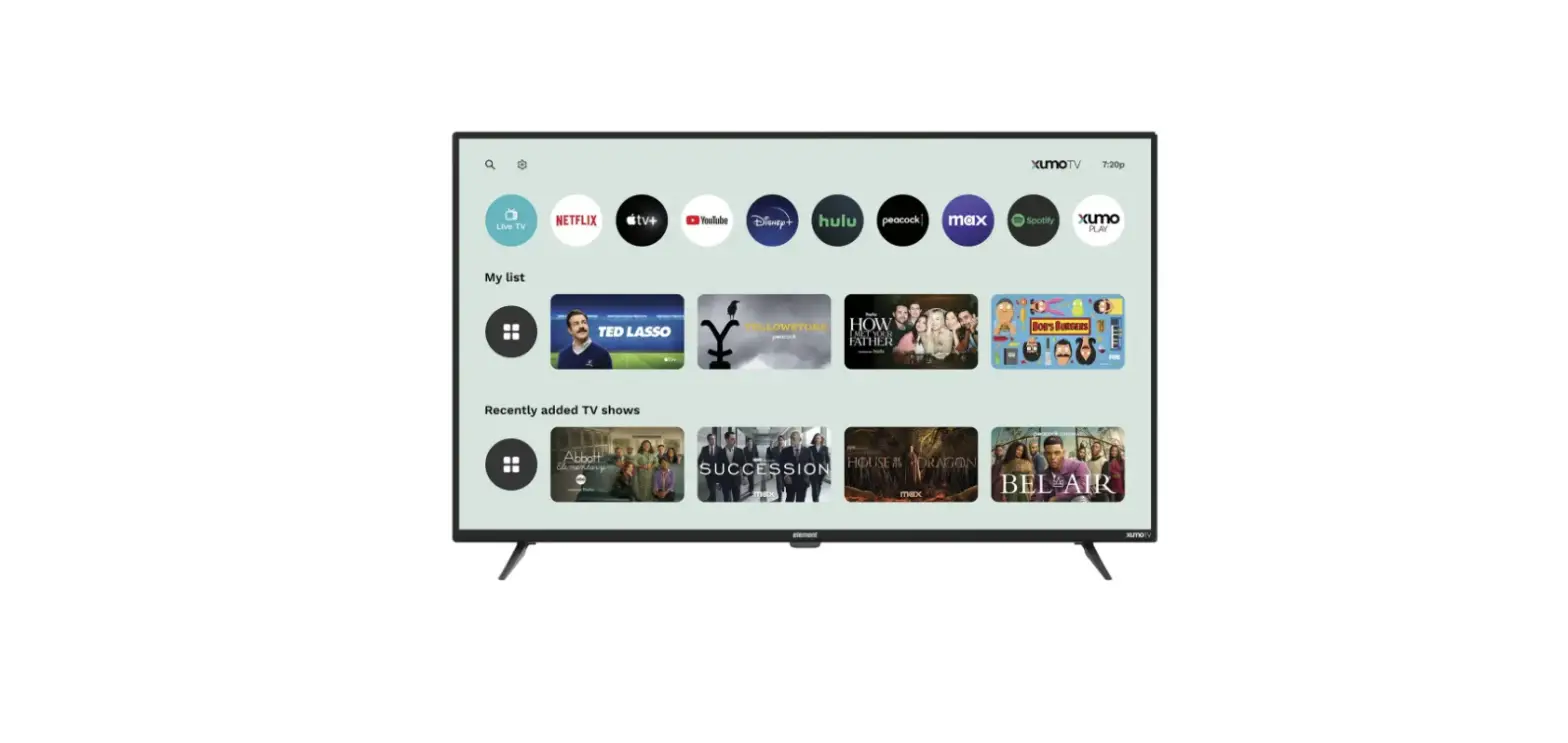


![Sony X950H 4K HDR LED TV [XBR65X950H] User Manual](https://manualsee.com/img/239/15738/2020/12/Sony-X950H-4K-HDR-LED-TV-XBR65X950H-featured-1568x768.png "Sony X950H 4K HDR LED TV [XBR65X950H] User Manual")