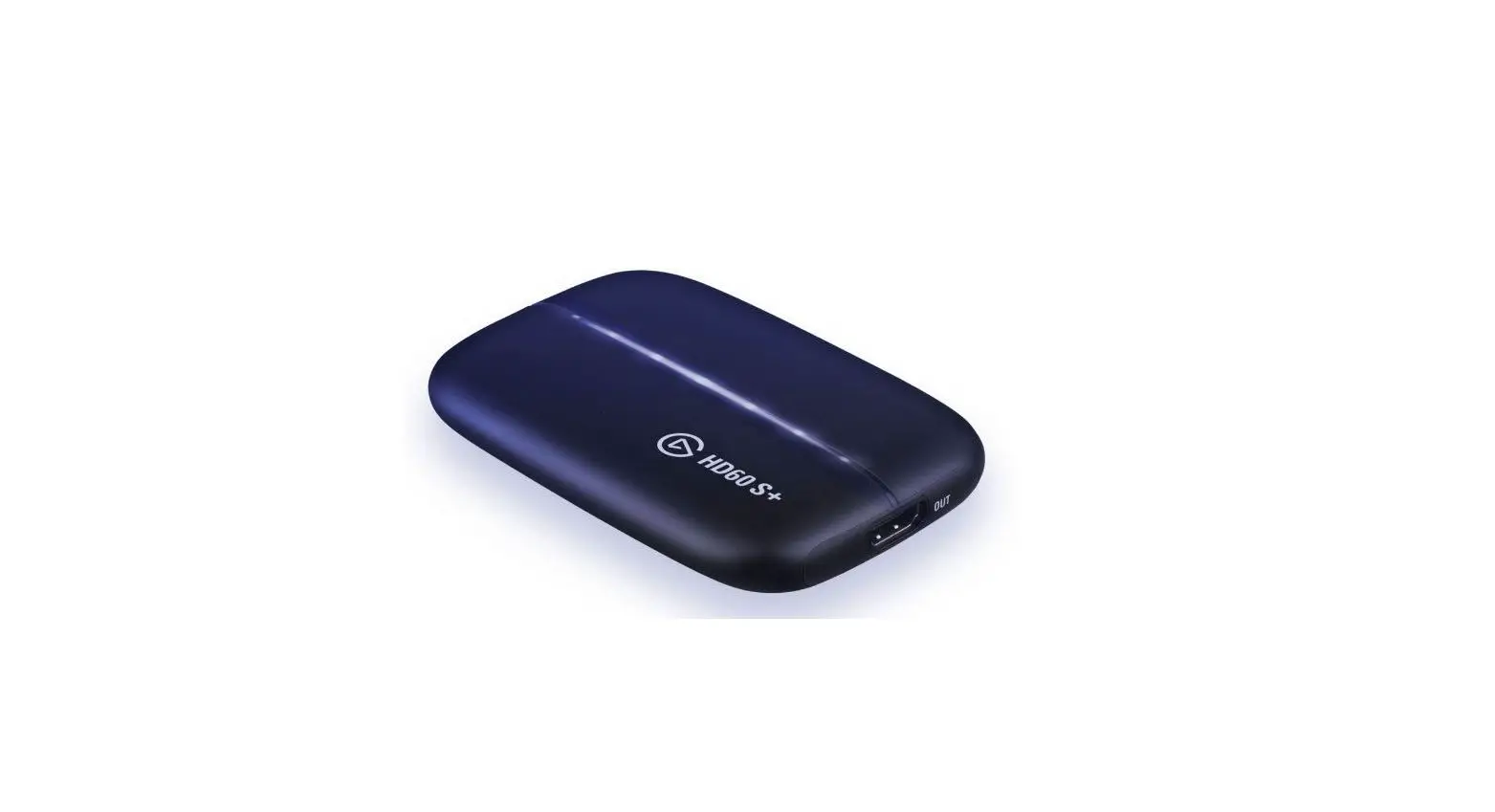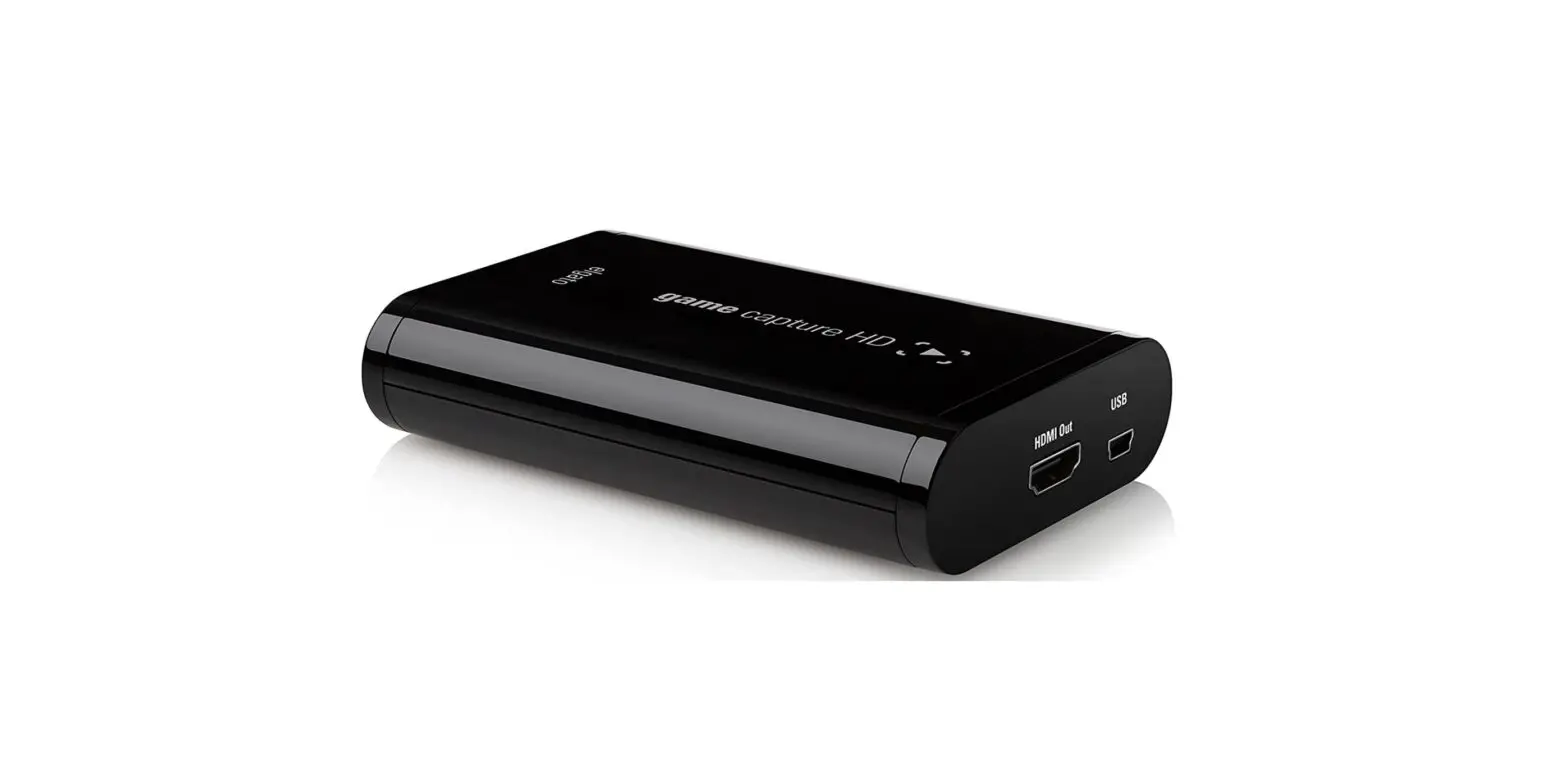
 Elgato HD60 Game Capture User Manual

Introduction
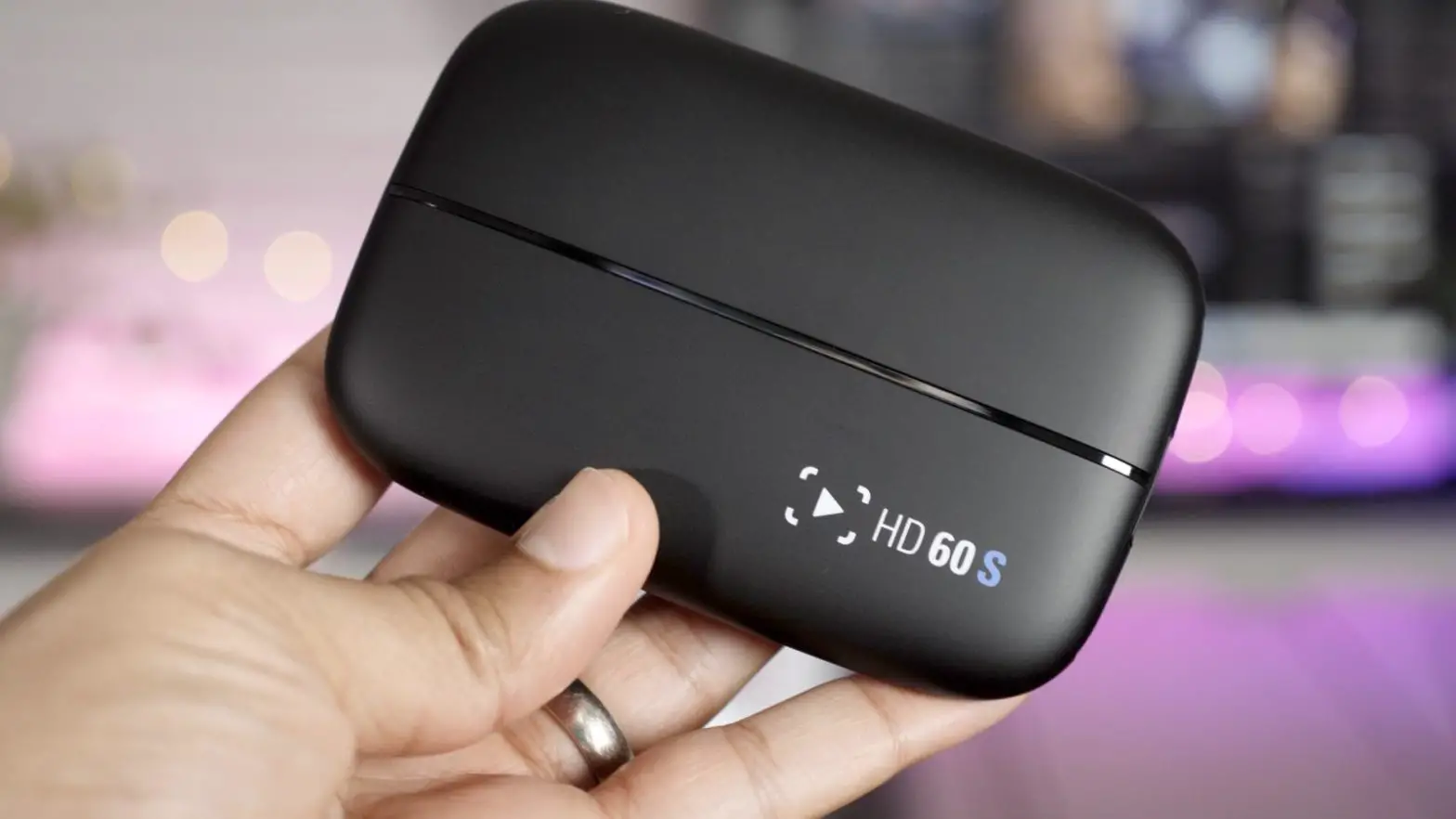
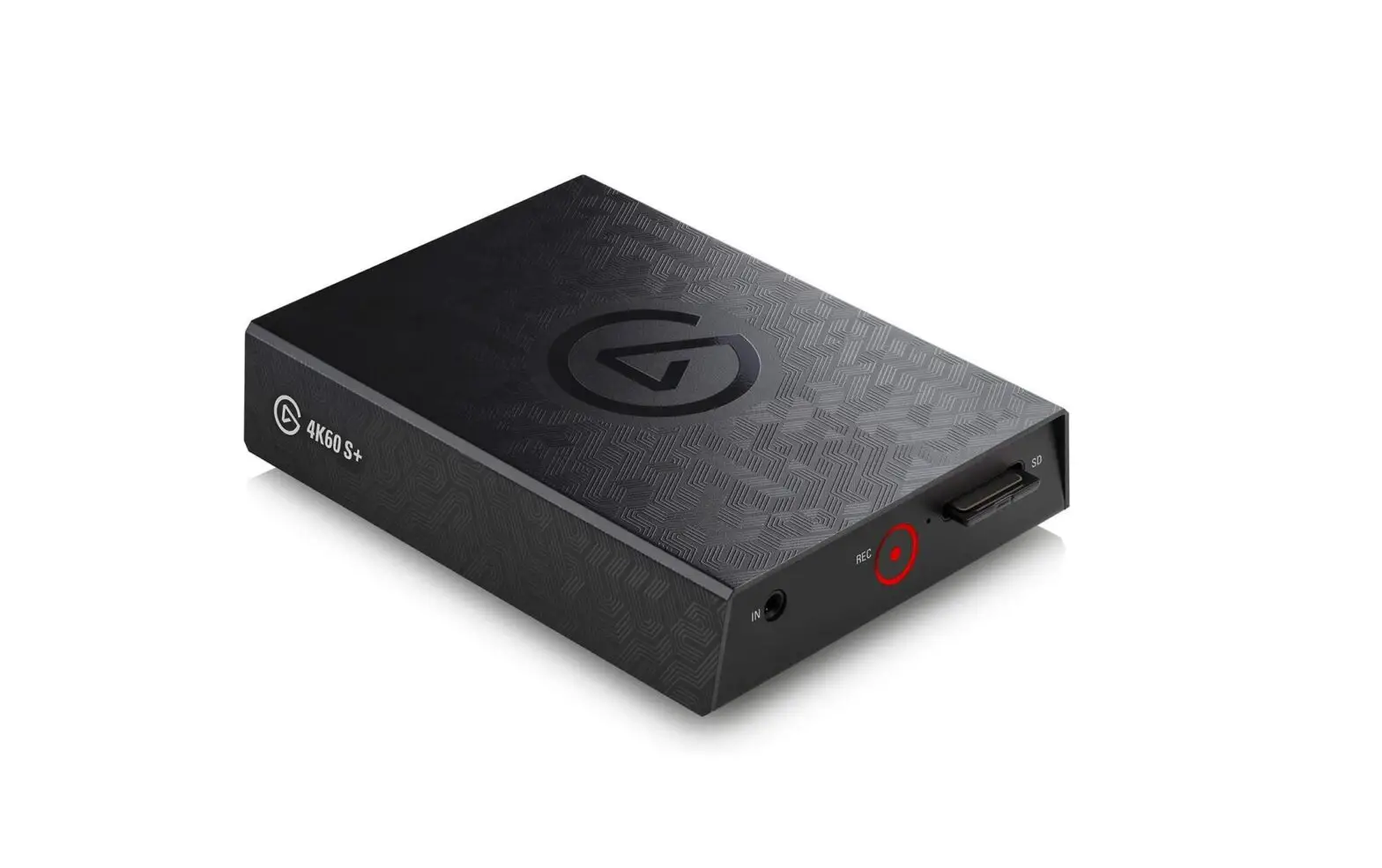
You constantly push the limits, and so should the gaming gear that powers you. With superior H.264 hardware encoding, Elgato Game Capture HD60 raises the bar to a whole new level. Easily capture stunning 1080p with 60 fps, and enjoy incredibly smooth footage in easily manageable files. The next generation of gameplay sharing has finally arrived, and it’s the perfect match for your Xbox One or PlayStation 4. When you’re in the zone, you shouldn’t have to worry about your capture. With Flashback Recording, Elgato Game Capture HD60 has your back – simply slide back in time on your PC or Mac and hit the record button retroactively. The lag-free passthrough to your TV will let you focus on your game, until you’re ready to marvel at your feats. Re-living greatness has never been this easy.
Nothing beats sharing your journey right when it happens. The built-in Live Streaming feature gets you up and running on Twitch, YouTube or Ustream in a snap, but it doesn’t stop there.
Now, puts you in charge: easily add your webcam and overlays, and change your stream layout on-the-fly with scenes. Add your voice with the built-in Live Commentary feature, and you’re all set for the big show.
You’ve achieved epicness, and with Elgato Game Capture HD60, there is no limit to what you’ll be able to do next. Seamlessly capture hours of your best moments in unmatched quality and access them directly right where you need them – you’ll be instantly ready to create history. You don’t even have to choose between live streaming and high quality capture. No matter what resolution you stream, you can simultaneously capture full resolution 1080p, with separate tracks of all of your stream elements. Now, your stream archive is only the beginning.
Inputs and Outputs
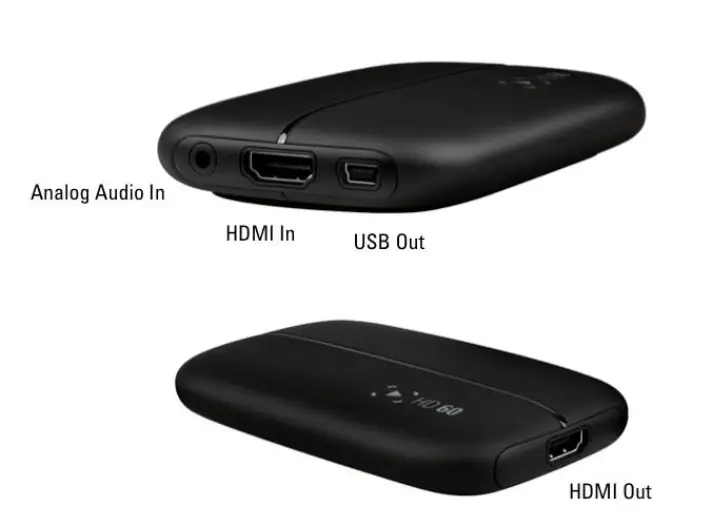
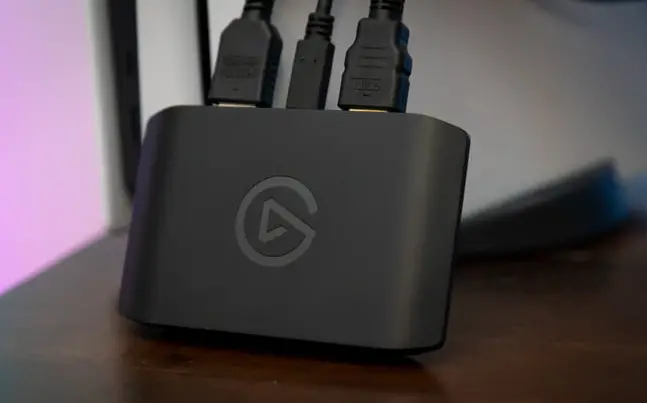
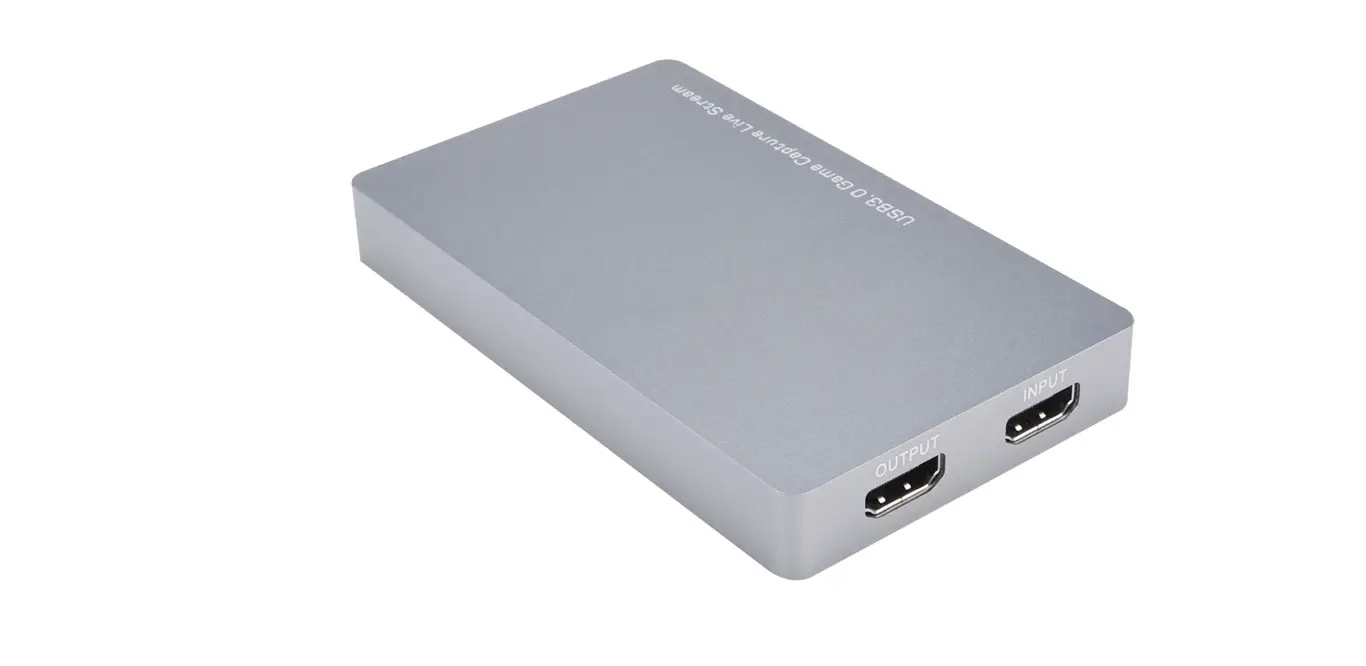
Elgato Game Capture HD60 has two inputs, and two outputs:
HDMI In
This connects to a game console or other video source. Signals protected by HDCP can’t be used.
Analog Audio In
This connects to an analog audio source, using an 3.5mm cable. This is audio line in, and not a microphone port.
USB Out
This sends the H.264 encoded video to your computer via USB 2.0. The signal is delayed from live. The USB cable also powers the Elgato Game Capture HD60 hardware.
HDMI Out
This sends the HDMI signal in real time to a TV or display, so you can play your game normally.
Capabilities
Elgato Game Capture HD60 can capture up to 1080p (1920 by 1080 pixels) via HDMI.
60fps Capture
Maximum Bitrate Compatible HDMI Sources
USB Setup
Elgato Game Capture HD60 connects to your computer using USB 2.0. It comes with an USB cable that has a Mini USB connector on one end, and a standard USB 2.0 connector on the other end.
The USB connection to your computer offers a delayed view of the game, due to the H.264 compression process. To play the game in real time, you can use the HDMI Out port on Elgato Game Capture HD60 to passthrough video to your TV. The USB cable also powers the Elgato Game Capture HD60 hardware.Maximum USB Cable Length Powering Via USB Adapters and Ports USB 2.0 vs. USB 3.0 ports
HDMI Setup
Elgato Game Capture HD60 connects to modern game consoles using HDMI. It can passthrough video to a TV set also using HDMI. An HDMI cable is included in the box. The HDMI passthrough offers real time video of the game, so you can play while watching your TV. Signals protected by HDCP can’t be used. Use Standard (Bi-Directional) HDMI Cables Compatible HDMI Sources
PlayStation 3 Setup (Not Supported)
Elgato Game Capture HD60 does not have an analog video input, so it can’t connect to the PlayStation 3. The HDMI output of the PlayStation 3 is protected by HDCP, and thus can’t be used.
PlayStation 4 Setup
Elgato Game Capture HD60 connects to the PlayStation 4 using HDMI. It can passthrough video to a TV set also using HDMI. An HDMI cable is included in the box. Before you set things up, make sure to connect your PlayStation 4 directly to your TV set or display via HDMI, without using Elgato Game Capture HD60. Then, visit the Settings > System section of the PlayStation 4 interface, and turn off Enable HDCP. After that, you can use your PlayStation 4 with Elgato Game Capture HD60.
PlayStation 4 (PS4) Setup
PS4 Game and Chat Audio Setup Xbox 360 Setup Elgato Game Capture HD60 connects to the Xbox 360 using HDMI. It can passthrough video to a TV set also using HDMI. An HDMI cable is included in the box.
Xbox One Setup
Elgato Game Capture HD60 connects to the Xbox One using HDMI. It can passthrough video to a TV set also using HDMI. An HDMI cable is included in the box. Xbox One Game and Chat Audio Setup
Wii U And Other Consoles Setup
Elgato Game Capture HD60 connects to the Wii U using HDMI. It can passthrough video to a TV set also using HDMI. An HDMI cable is included in the box. Elgato Game Capture HD60 cannot accept analog video, so it can’t connect to older consoles using Component or Composite.
Wii U Setup
Other Game Console Support Elgato Game Capture HD60 can work with a wide variety of digital video sources. HDMI input is supported, as long as standard TV resolutions are used. PAL, NTSC and SECAM are all OK. 720p, 1080i and 1080p sources can be used as well.
Supported Resolutions
Compatible HDMI Sources Composite and S-Video Are Not Supported
Using Video Cameras
Recording From A DVD Player, Blu-ray Player, or VCRThe heart of Elgato Game Capture HD software is the Capture section. When you start the software this is the first section you see, and it lets you view and record video, and also access other features like Live Commentary and Live Streaming.
- Video Capture
- Tags
- Flashback Recording
- Screen Shots
- Scythe foot switch
- Fullscreen Playback
- Timed Recordings Are Not Possible
- Elgato Game Capture HD60 cannot play live games on the computer display
The tailor-made Elgato Game Capture HD software allows you to quickly trim your gaming scenes and pass them on to your favorite editing software.
- Play Recorded Video
- View Library
- Search Library
- Delete Recorded Video
- Editing
- Change Editing Timeline Size Edit Section
With Elgato Game Capture HD, it’s not just about you and the game anymore. With one click, you can share your gameplay with your friends and fans on YouTube, Facebook and Twitter.
- Share A Recording
- YouTube Sharing
- Twitter Sharing
- Facebook Sharing
- Email Sharing
- iMovie Sharing
- Movies folder Sharing
- iPad Sharing
- iPhone Sharing
- Apple TV Sharing
- Shared Video Upload Status
Live Streaming
Capturing gameplay is great – but what if you want to entertain your audience in real-time? It doesn’t get easier than with the Live Streaming feature. Elgato Game Capture HD is the world’s first solution with built-in, one-click streaming to both YouTube and Twitch. And if you want to go pro, masterfully direct your performance with XSplit or OBS, which directly support Elgato Game Capture HD. Stream Command (with Elgato Game Capture HD 2.0 software)
- Open Broadcaster Software (OBS) Streaming
- RTMP Streaming
- witch Streaming
- March 23, 2015: Twitch security issue – reset your password and stream key Ustream Streaming
- YouTube Streaming
- Xsplit Streaming
- Adjusting the XSplit Audio Delay
Live Commentary
Use any microphone that’s connected to your computer, find the perfect balance with your game audio and even automatically lower the volume of your game whenever you speak. With the Live Commentary feature, all of this is only a click away. Now it’s up to you to think of something brilliant to say. Live Commentary Separate Audio Tracks
Headsets
- Gaming Headsets
- PS4 Game and Chat Audio Setup
- Xbox One Game and Chat Audio Setup
Settings
- Finding Video Attributes (Resolution, Bitrate)
- Capture Settings
- Audio Settings
- Picture Settings
- Picture Profile Sharing
Preferences
- Recording Storage Location
- Moving The Recording Storage Location
Troubleshooting – Video
- Video appears on the passthrough TV, but not in the software
- Video appears in the software, but not on the passthrough
- TV No video plays at all
Troubleshooting – Audio
- Audio plays in the software, but not on the passthrough TV
- Audio plays on the passthrough TV, but not in the software
- No audio plays at all
- Status Message: No capture devices found
Troubleshooting – Other
- Improving General Performance
- Lights On Elgato Game Capture HD60 And Their Meaning
- Uninstall Elgato Game Capture HD Software
- Installation Error – “Object Already Exists”
- Installation Error – “Install directory must be on a local hard drive”
- Error Code 43
Other Features
- Keyboard Shortcuts
- Elgato Game Capture HD can’t show
- Closed Captions or Subtitles