 Button User Manual
Updated April 23, 2021
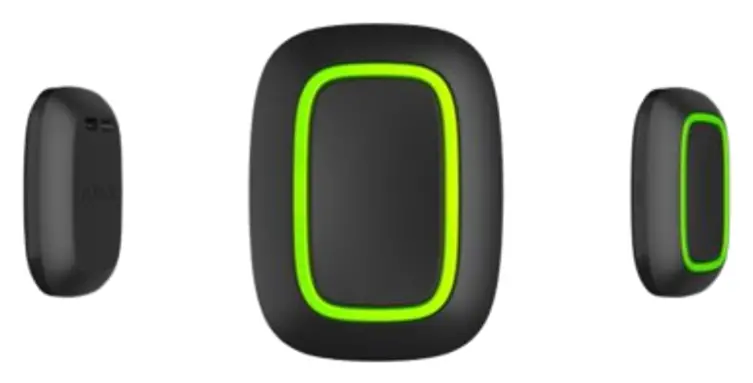
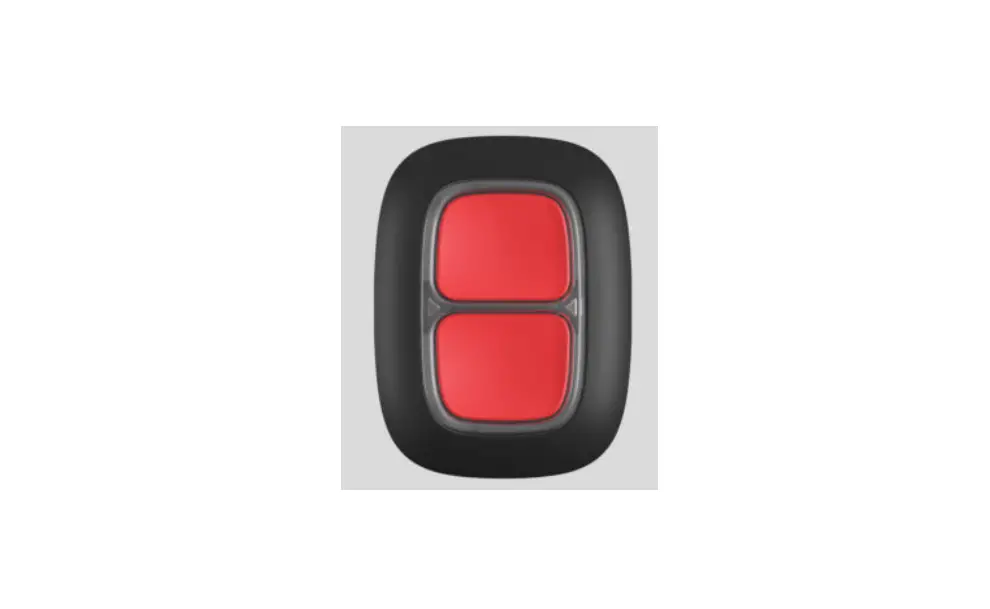
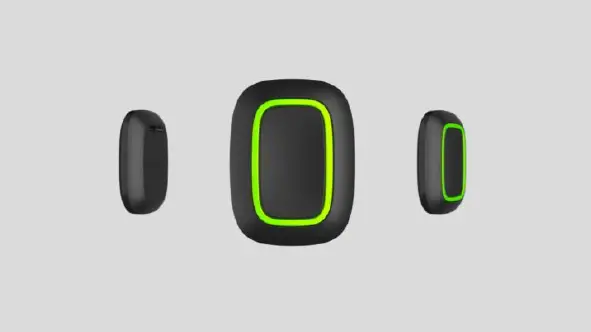
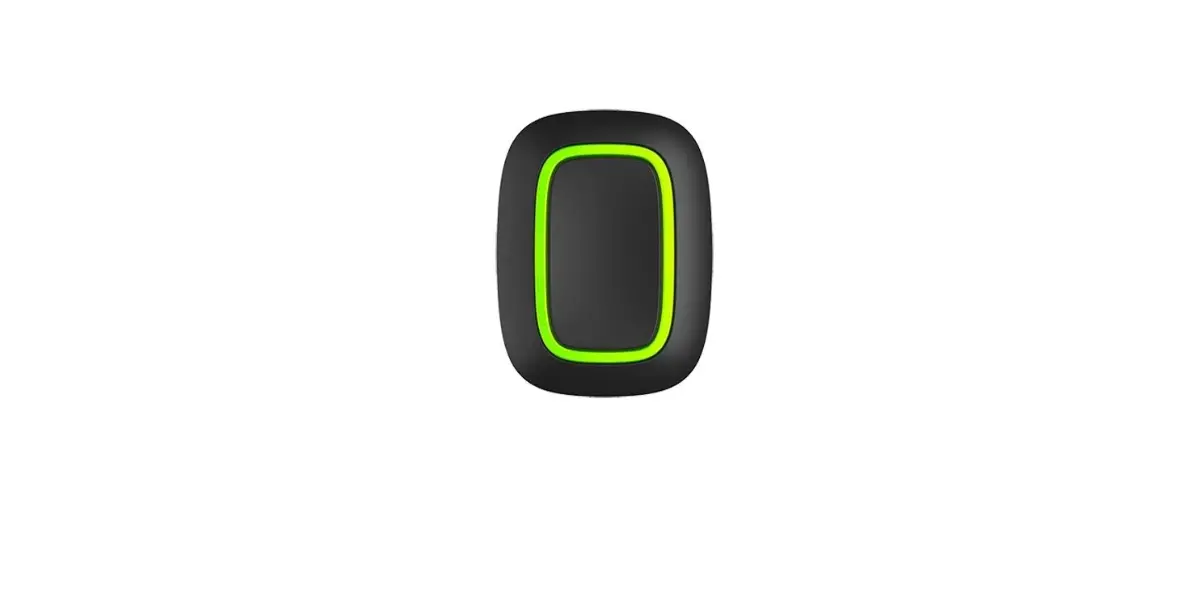
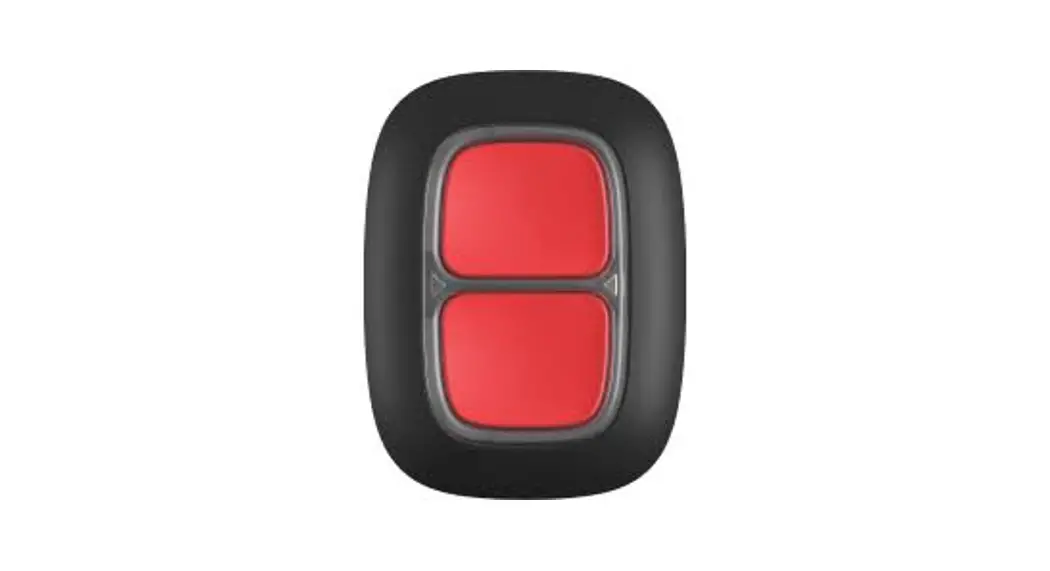
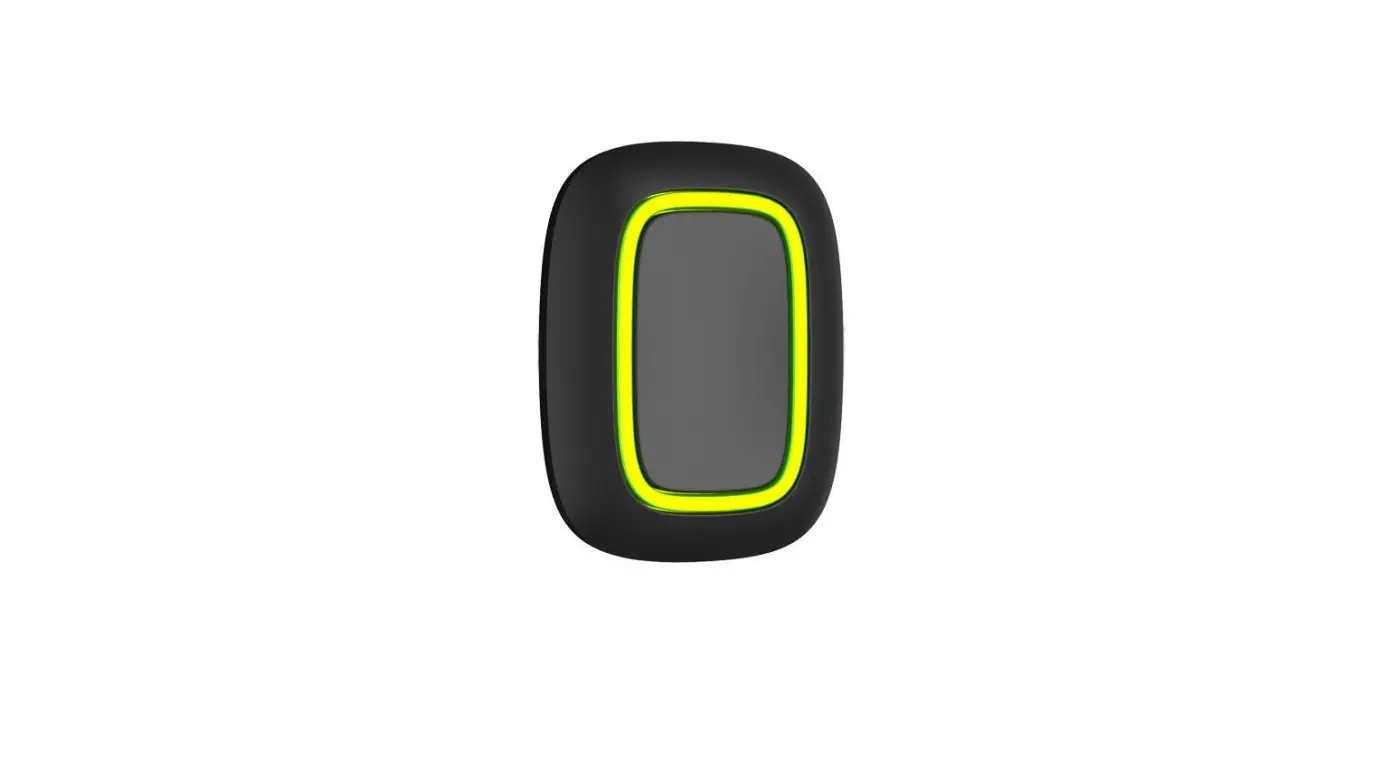
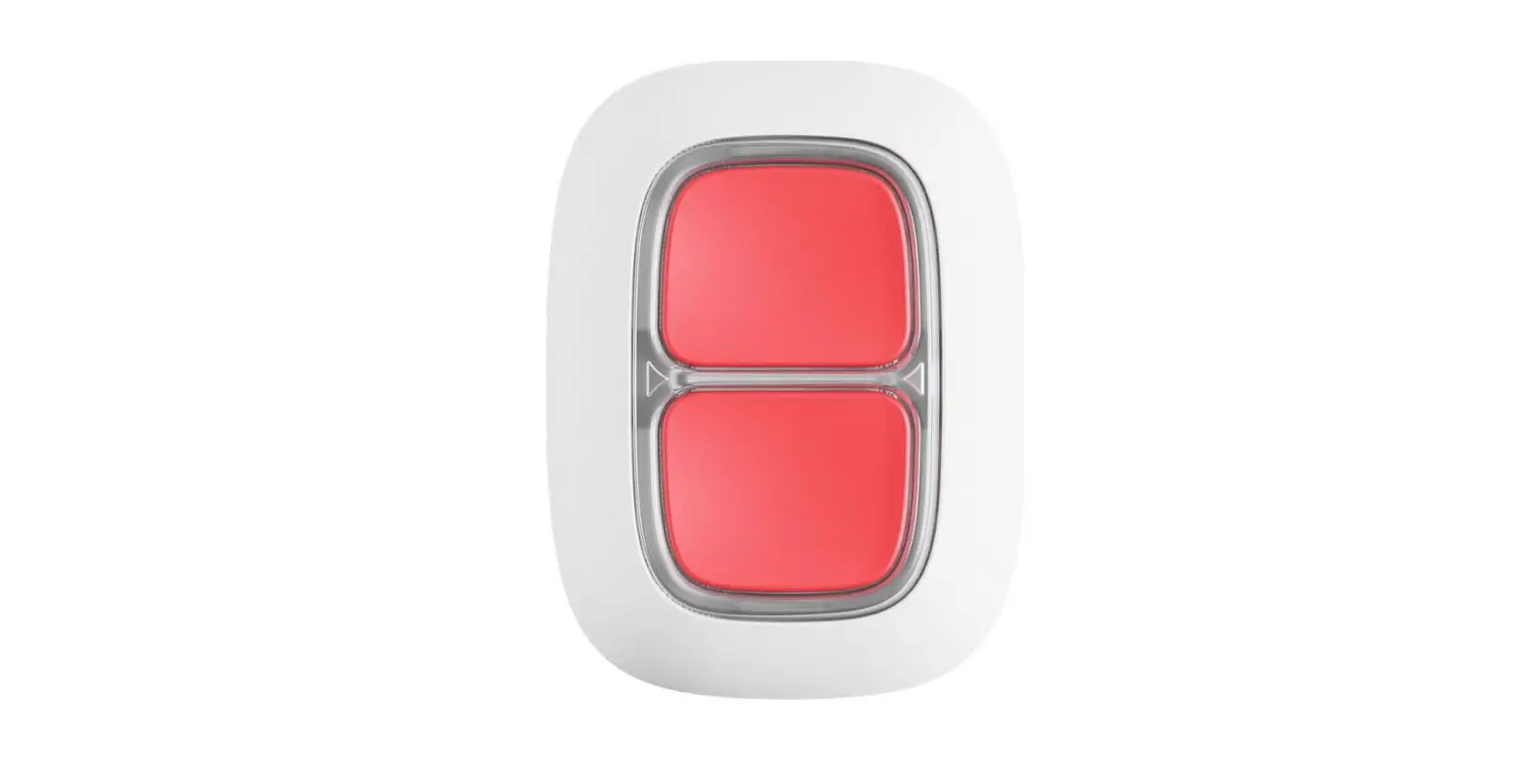
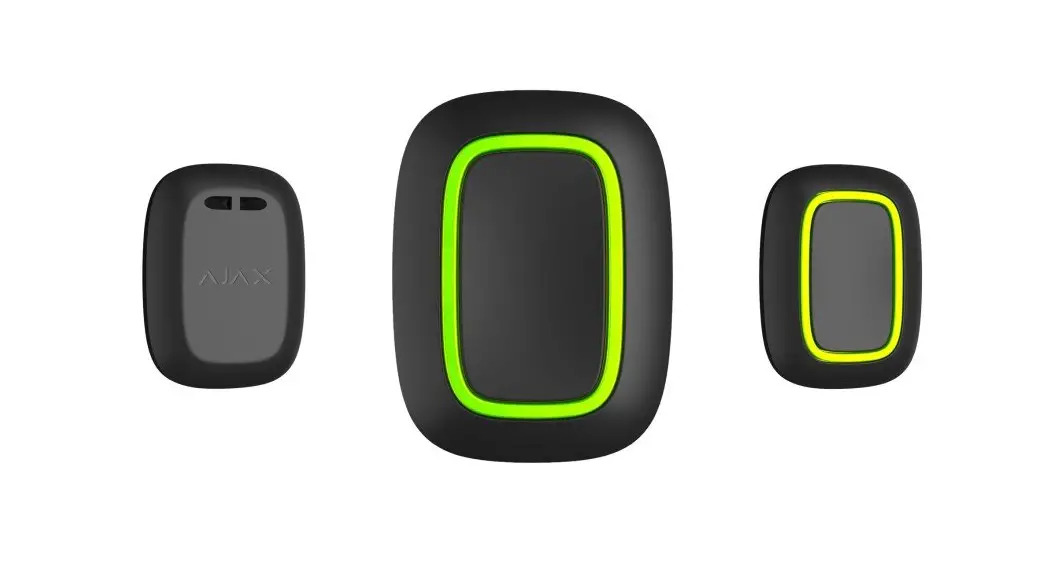
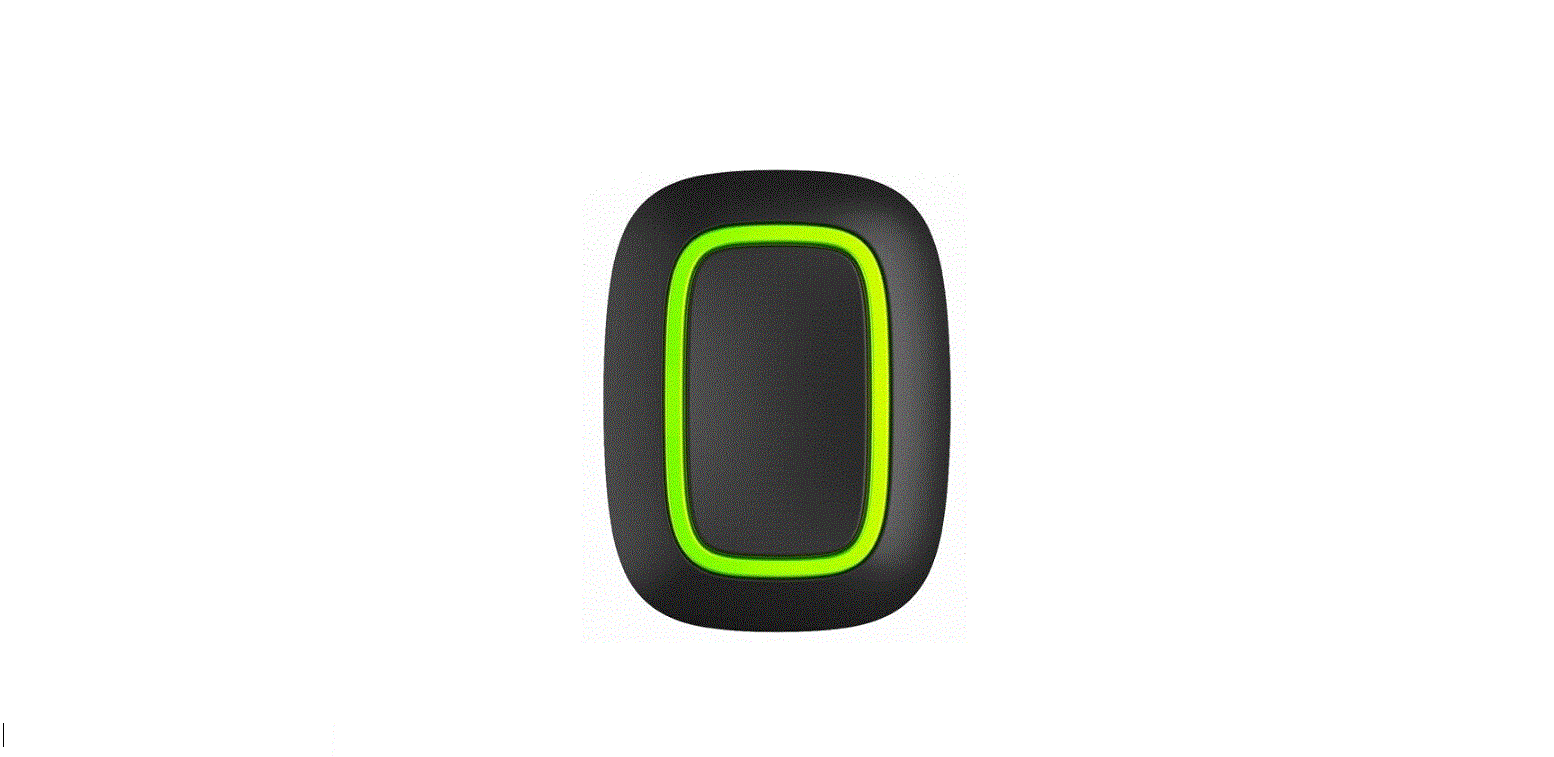
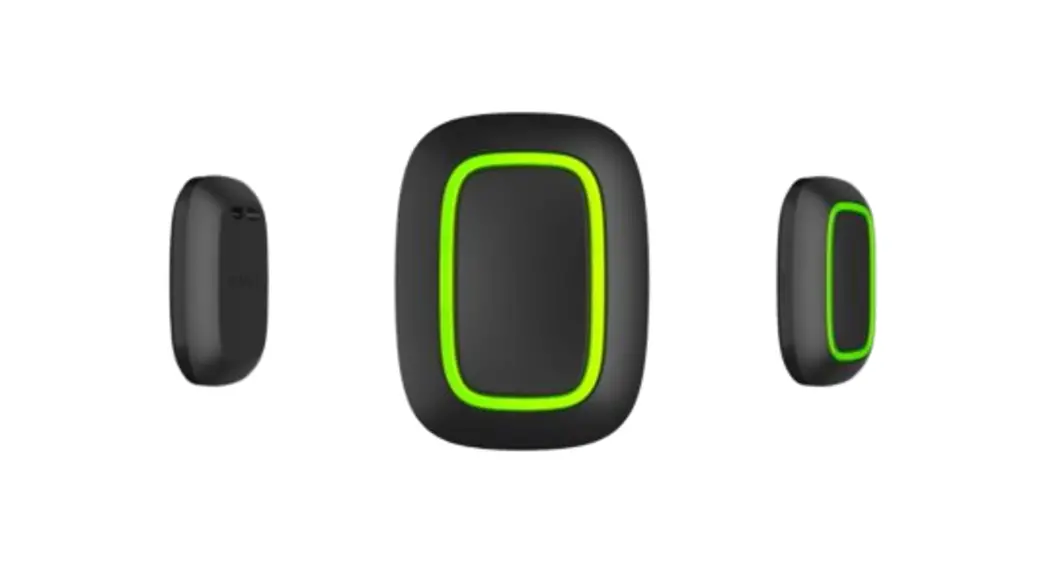
Button is a wireless panic button with protection against accidental press and an additional mode to control. Button is compatible with only. No support for and integration modules!
Button is connected to the security system and configured via on iOS, Android, macOS, and Windows. The users are alerted of all alarms and events via push notifications, SMS, and phone calls (if enabled).
Buy panic button Button
Functional elements
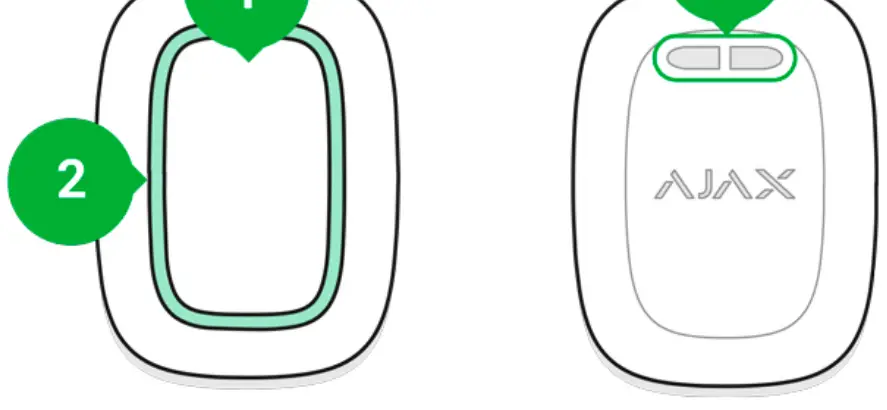
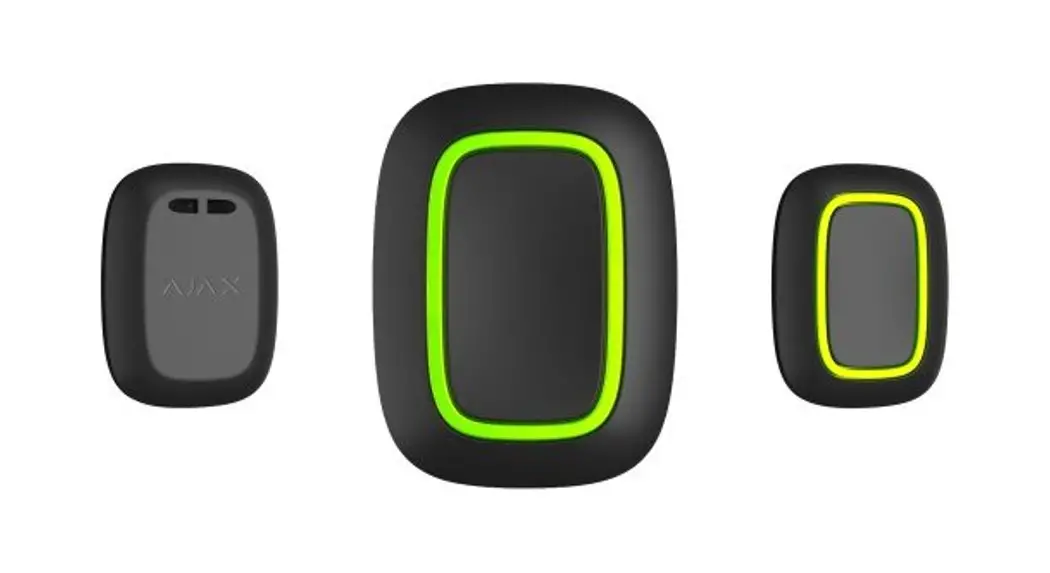
- Alarm button
- Indicator lights
- Button mounting hole
Operating principle
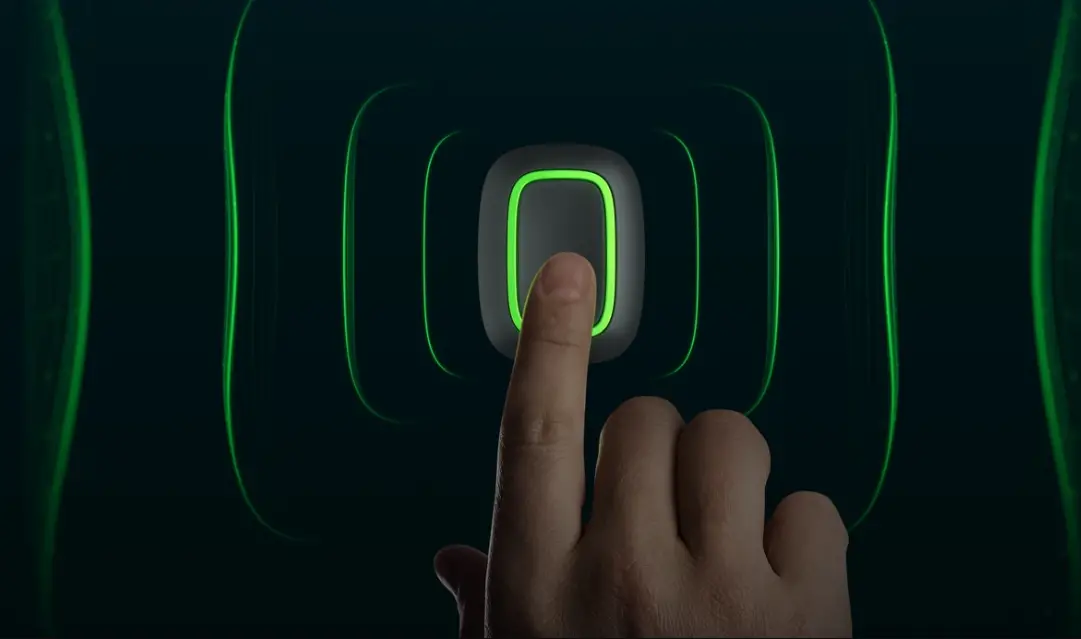
Button is a wireless panic button that, when pressed, transmits an alarm to users, as well as to the security company’s CMS. In Control mode, Button allows you to control Ajax automation devices with a short or long press of a button.
In panic mode, the Button can act as a panic button and signal about a threat, or inform about an intrusion, as well as a fire, gas, or medical alarm. You can
choose the type of alarm in the button settings. The text of alarm notifications depends on the selected type, as well as the event codes transmitted to the central monitoring station of the security company (CMS). You can bind the action of an automation device (Relay, Wa°Switch or Socket) to a button press in the Button settings — Scenarios menu.
The Button is equipped with protection against the accidental press and transmits alarms at a distance of up to 1,300 m from the hub. Please be aware that the presence of any obstructions that impede the signal (for example, walls or floors) will reduce this distance.
Button is easy to carry around. You can always keep it on a wrist or a necklace.When connecting Button via ReX, note that Button does not automatically switch between the radio networks of the radio signal extender and the hub. You can assign the Button to another hub or ReX manually in the app.
Connecting the button to the Ajax security system
Prior to initiating the connection
- Follow the hub instructions to install the Ajax application. Create an account, add a hub to the app, and create at least one room.
- Enter the Ajax app.
- Activate the hub and check your internet connection.
- Ensure that the hub is not in armed mode and is not being updated by checking its status in the app.Only users with administrative rights can add a device to the hub
In order to connect a Button
- Click on Add Device in the Ajax app.
- Name the device, scan its QR code (located on the package) or enter it manually, and select a room and a group (if group mode is enabled).
- Click Add and the countdown will begin.
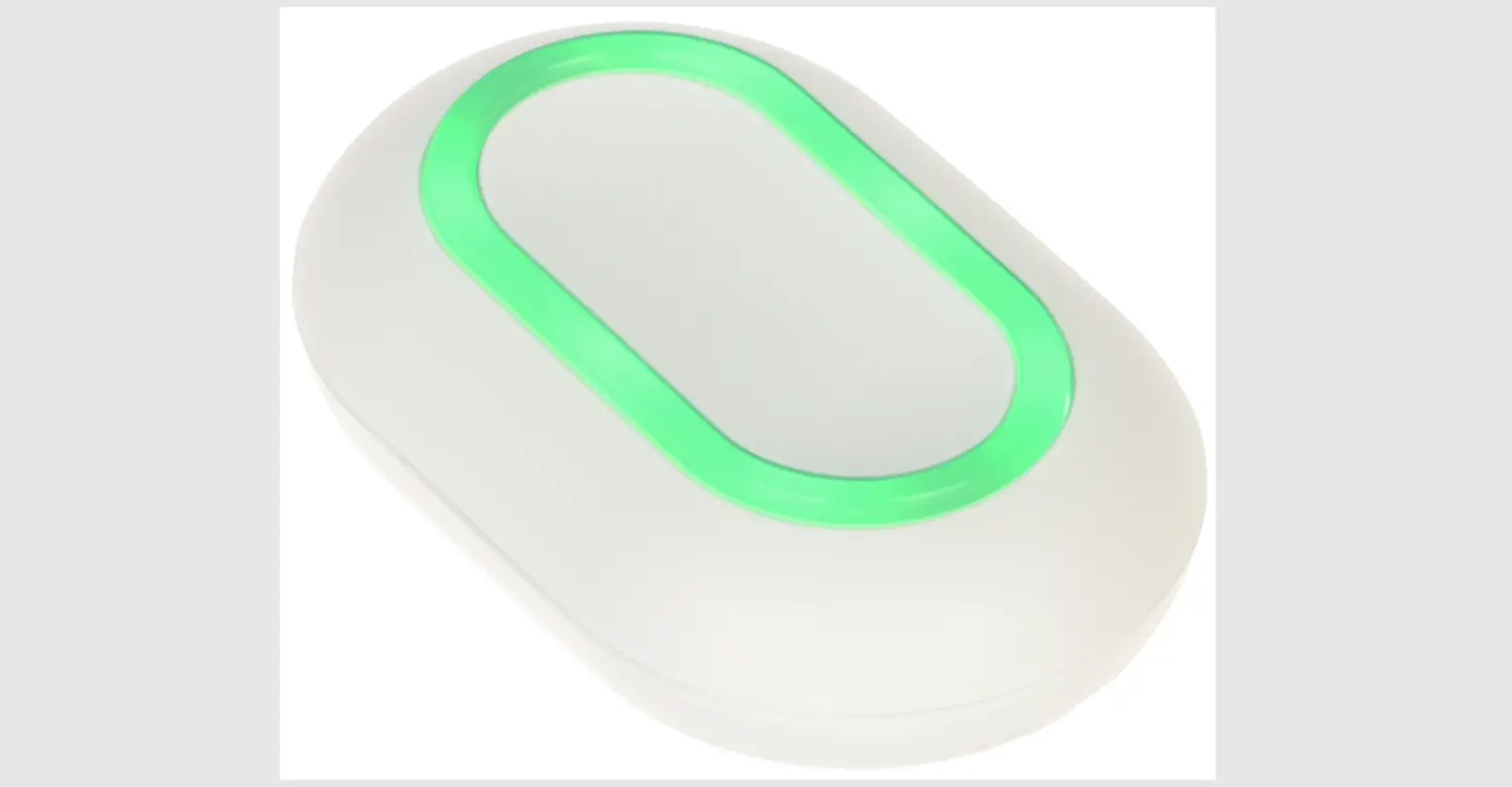
- Hold the button for 7 seconds. When the Button is added, the LEDs will flash green once.
For detection and pairing, the Button must be located within the hub radio communication zone (on the single protected object).
The connected button will appear in the list of hub devices in the application.
The Button only works with one hub. When connected to a new hub, the button Button stops transmitting commands to the old hub. Note that after being added to the new hub, the Button is not automatically removed from the device list of the old hub. This must be done manually through the Ajax application.
States
Button statuses can be viewed in the device menu:
- Ajax Imp Devices
 > Button
Parameter Value Battery Charge Battery level of the device. Two states available: ОК Battery discharged Operating mode
Displays the operating mode of the button. Three modes are available:
Panic Control
Mute Interconnected Fire AlarmLED Brightness
Displays current brightness level of indicator light: Disabled (no display) Low Max Displays the selected type of protection against accidental activation: 1.5 seconds.
Double-pressing — in order to send an alarm you should double-press on the button with a pause of no more than 0.5 seconds.Routed Through ReX Display the status of using the ReX range extender Temporary Deactivation Displays the status of the device: active or completely disabled by the user Firmware Button firmware version ID Device ID
Configuration
You can adjust the device parameters in the settings section:
1. Ajax app devices
 Button Settings
| Parameter | Value |
| First field | Name of the device, can be changed |
| Room | The choice of the virtual room that the device is assigned to |
| operating mode | Displays the operating mode of the button. Three modes are available: Panic — sends an alarm when pressed Control — controls automation devices by short or long (2 sec) pressing Mute Interconnected Fire Alarm — when pressed, mutes the fire alarm of FireProtect/FireProtect Plus detectors. The option is available if Interconnected FireProtect Alarms feature is enabled |
| Learn more |
| Alarm type (available only in panic mode) | Medical Panic button Gas The text of SMS and notifications in the application depend on the selected type of alarm |
| LED Brightness | This displays the current brightness of the indicator lights: Disabled (no display) Low Max |
| Accidental press protection (available only in panic mode) | Displays the selected type of protection against accidental activation: Off — protection disabled. Long press — in order to send an alarm you should hold the button down for more than 1.5 seconds. Double press — in order to send the alarm you should double-press the button with a pause of no more than 0.5 seconds. |
| Alert with a siren if the panic button is pressed | If active, added to the system are activated after panic button pressing |
| Scenarios | Opens the menu for creating and configuring scenarios |
| User Guide | Opens the Button user guide |
| Temporary Deactivation | Allows a user to deactivate the device without deleting it from the system. The device will not execute system commands and participate in automation scenarios. The panic button of a deactivated device is disabled |
| Unpair Device | settings |
Operating indication
Button status is indicated with red or green LED indicators.
| Category | Indication | Event |
| Linking to security system | Green LEDs flash 6 times | The button is not registered in any security system |
| Lights up green for a few seconds | Adding a button to the security system | |
| Command delivery indication | Lights up green briefly | The command is delivered to the security system |
| Lights up red briefly | The command is not delivered to the security system | |
| Long press indication in Control mode | Blinks green briefly | The button recognized the pressing as a long press and sent the corresponding command to the hub |
| Feedback Indication(follows the Command Delivery Indication) | Lights up green for about half a second after the command delivery indication | The security system has received and performed the command |
| Briefly lights up red after the command delivery indication | The security system did not perform the command | |
| Battery status (follows Feedback Indication) | After the main indication it lights up red and goes out smoothly | The button battery needs to be replaced. At the same time, button commands are delivered to the security system |
Use cases
as for emergency notification through the app or sirens. Button support 5 types of alarms: intrusion, fire, medical, gas leak, and panic button. You can choose the type of alarm in the device settings. The text of alarm notifications depends on the selected type, as well as the event codes transmitted to the central monitoring station of the security company (CMS). Consider, that in this mode, pressing the Button will raise an alarm regardless of the security mode of the system.An alarm if Button is pressed can also run a scenario in the Ajax security system.
Button can be installed on a flat surface or carried around. To install on a flat surface (for example, under the table), secure the Button with double-sided adhesive tape. To carry the Button on the strap: attach the strap to the Button using the mounting hole in the main body of the Button.
Control Mode
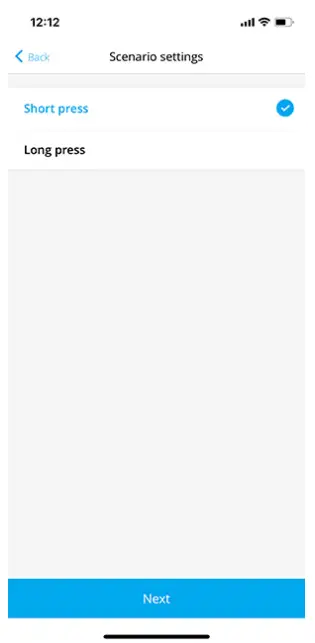
In the Control mode, the Button has two pressing options: short and long (the button is pressed for more than 3 seconds). These pressings can trigger the execution of an action by one or more automation devices: Relay, WallSwitch, or Socket.
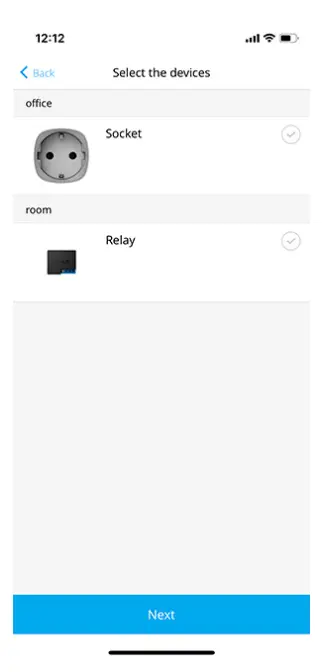
To bind an automation device action to a long or short press of a Button:
- Open the Ajax app and go to the Devices tab.
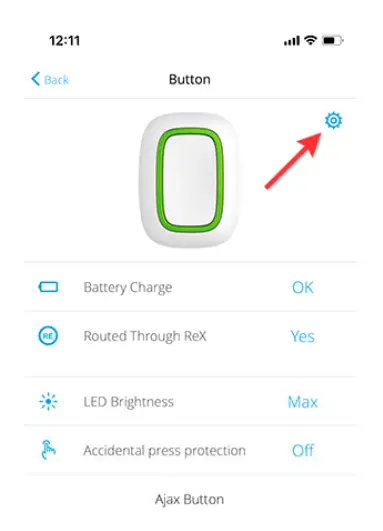
- Select Button in the list of devices and go to settings by clicking the gear icon
 .
.
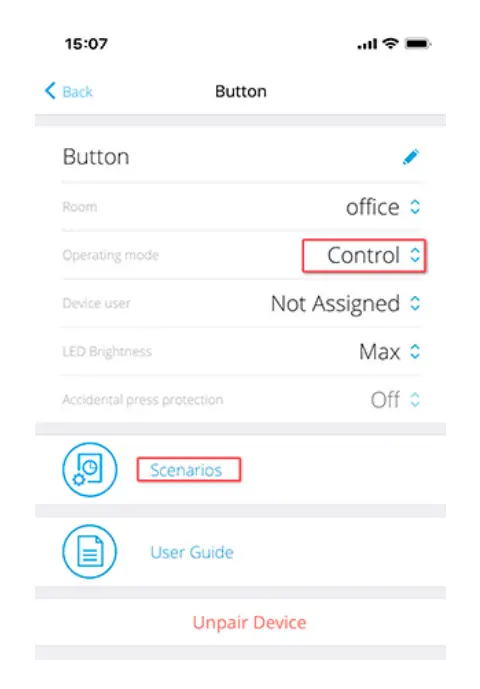
- Select the Control mode in the Button mode section.

- Click the Button to save the changes.
- Go to the Scenarios menu and click Create scenario if you are creating a scenario for the first time, or Add scenario if scenarios have already been created in the security system.
- Select a pressing option to run the scenario: Short press or Long press.

- Select the automation device to execute the action.

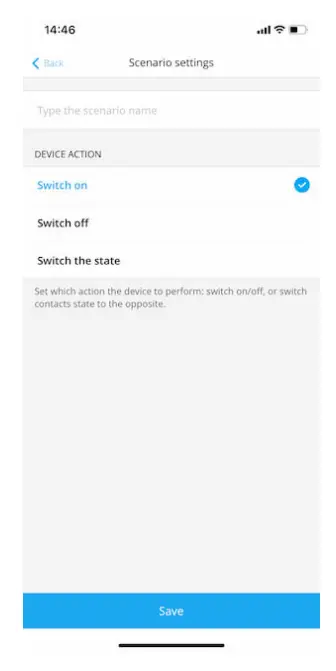
- Enter the Scenario Name and specify the Device Action to be executed by pressing the Button.
• Switch on
• Switch off
• Switch the state
- Click Save. The scenario will appear in the list of device scenarios.
Mute Fire Alarm
By pressing the Button, the interconnected fire detector alarm can be muted (if the corresponding operating mode of the button is selected). The reaction of the system to pressing a button depends on the state of the system:
- The Interconnected FireProtect Alarms have already propagated — by the first press of the Button, all fire detectors’ sirens are muted, except for those that registered the alarm. Pressing the button again mutes the remaining detectors.
- The interconnected alarms delay time lasts — the siren of the triggered FireProtect/FireProtect Plus detector is muted by pressing.
Learn more about interconnected alarms of fire detectors
Placement
Button can be fixed on a surface or carried around.
How to fix Button
To fix Button on a surface (e. g. under a table), use Holder.
To install the button in the holder
3. Fix Holder on the surface using the bundled screws or double-sided adhesive tape.
4. Put Button into the holder. Please note that Holder is sold separately.
Buy Holder
How to carry around Button
The button is convenient to carry with you thanks to a special hole on its body. It can be worn on the wrist or around the neck, or hung on a key ring.
Button has an IP55 protection rating. This means that the device body is protected from dust and splashes. Tight buttons are recessed into the body and software protection helps to avoid accidental pressing.
Maintenance
When cleaning the key fob body, use cleaners that are suitable for technical maintenance.
Never use substances containing alcohol, acetone, gasoline and other active solvents to clean the Button.
cooled significantly, the battery level indicator in the app may show incorrect values until the key fob becomes warmer.
The battery level value is not updated on a regular basis, but only updates after pressing the button.
When the battery has run down, the user will receive a notification in the Ajax app, and the LED will steadily light up red and go out each time the button is pressed.
How long do Ajax devices operate on batteries, and what affects this
Battery Replacement
Technical Specifications
| Number of buttons | 1 |
| LED backlight indicating command delivery | Available |
| Protection against accidental activation | Available, in panic mode |
| Frequency band | 868.0 – 868.6 MHz or 868.7 – 869.2 MHz, depending on the sales region |
| Compatibility | Operates with all Ajax, and features OS Malevich 2.7.102 and later |
| Maximum radio signal power | Up to 20 mW |
| Radio signal modulation | GFSK |
| Radio signal range | Up to 1,300 m (without obstacles) |
| Power supply | 1 CR2032 battery, 3 V |
Compliance with standards
Complete Set
- Button
- Pre-installed CR2032 battery
- Double-sided tape
- Quick Start Guide
Warranty
The warranty for the products manufactured by the AJAX SYSTEMS MANUFACTURING limited liability company is valid for 2 years after purchase and does not extend to the bundled battery.
If the device does not function properly, we recommend that you first contact the support service as technical issues can be resolved remotely in half of the cases!
Warranty obligations
User agreement
Technical support: [email protected]