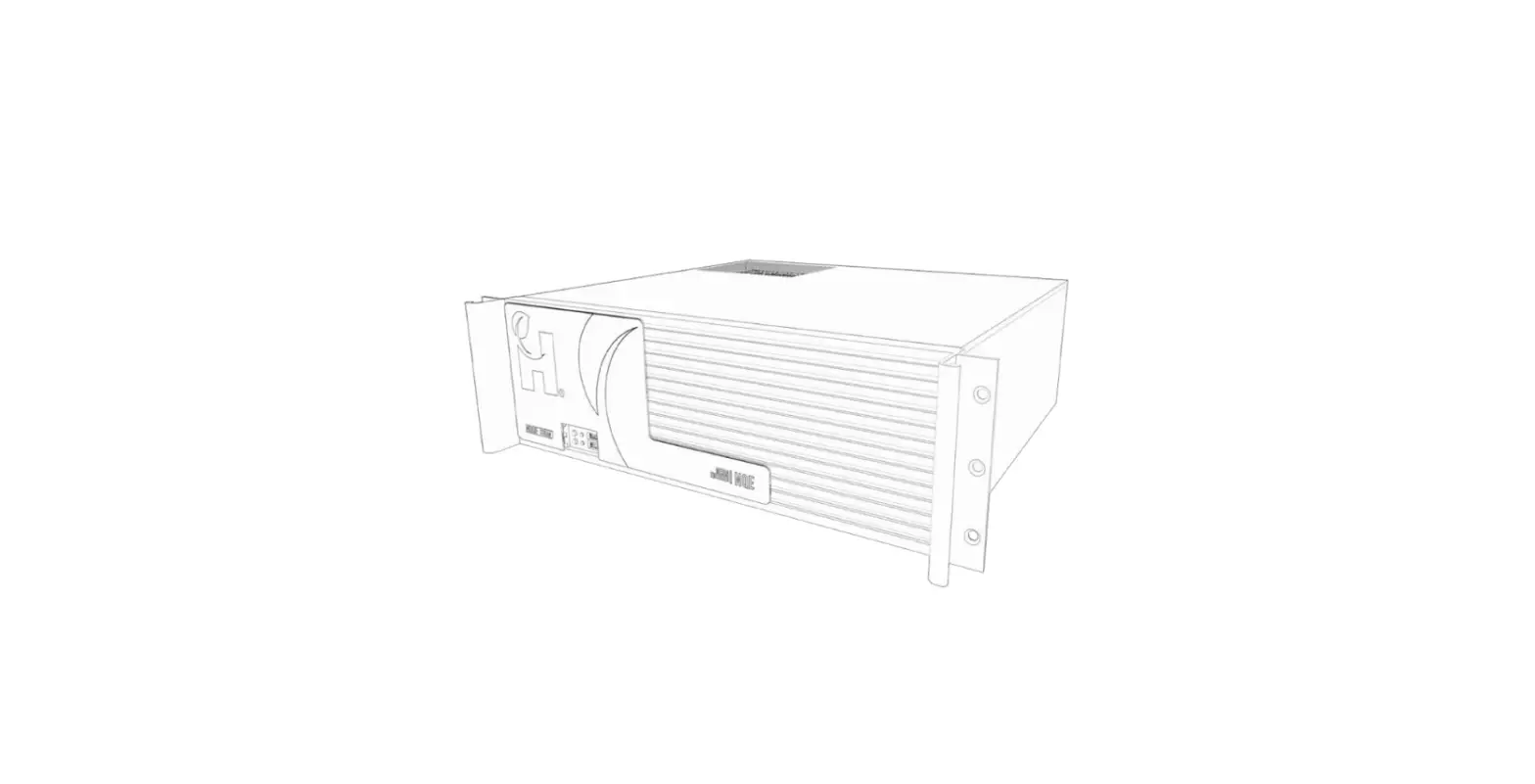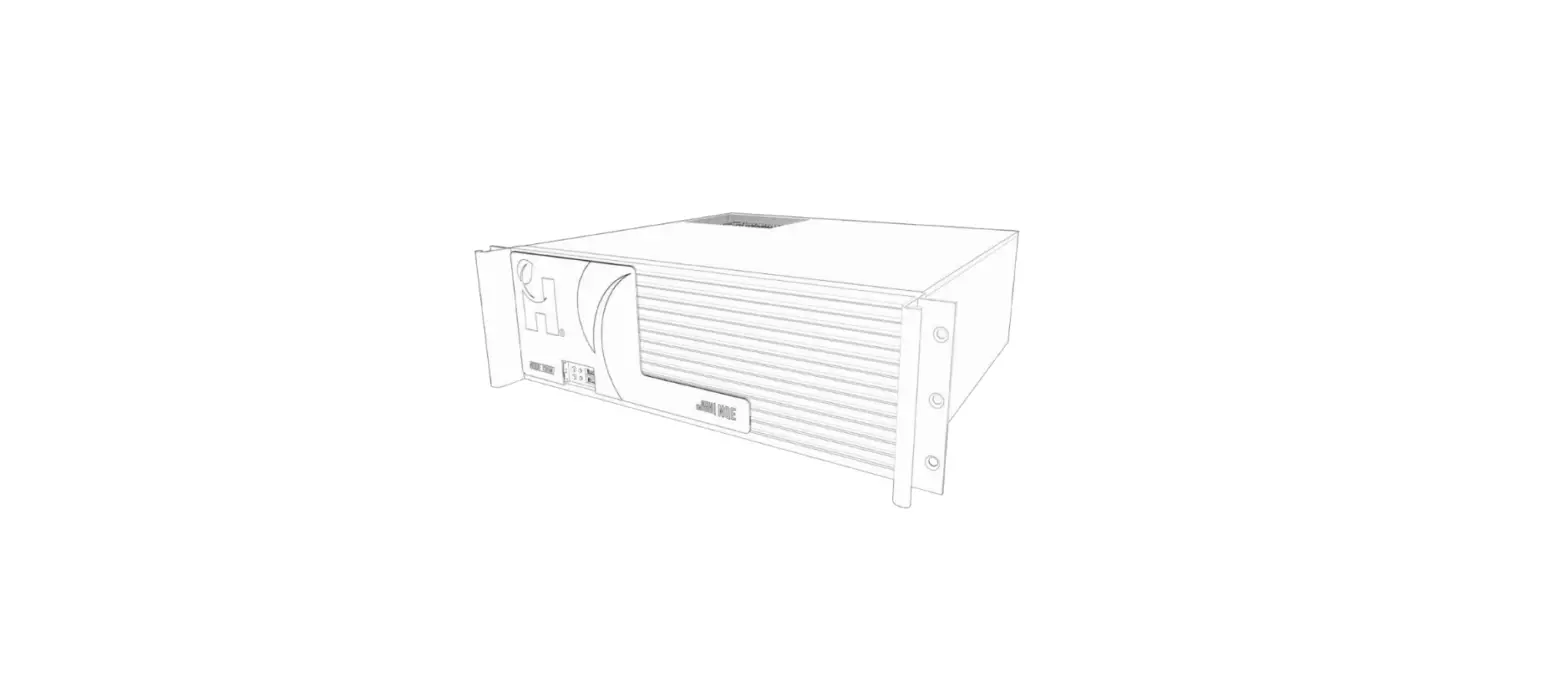

MEDIA ENCODER NQE
Quick Start Guide
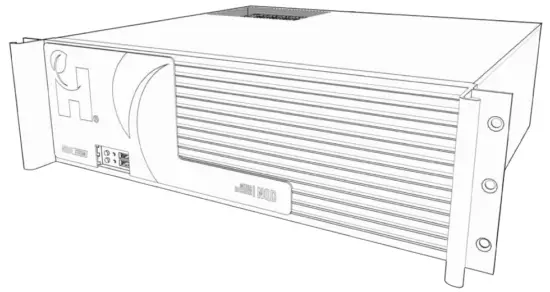
Overview
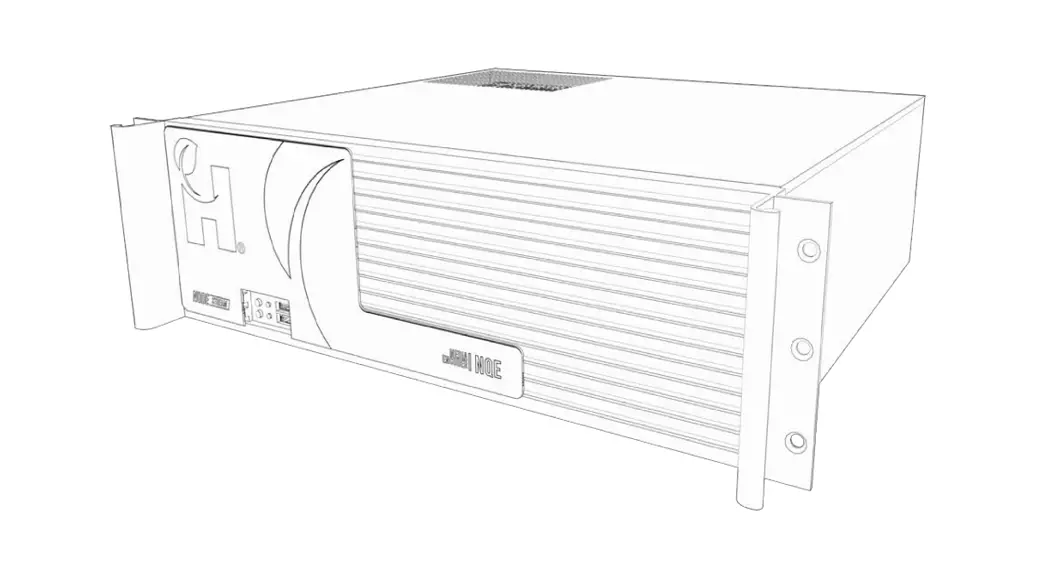
Welcome to the Nodestream Quad Encoder (NQE)
Please read these instructions carefully before using this product and save this quick start guide for future reference. See the User Manual for full details via the QR code on the back page.
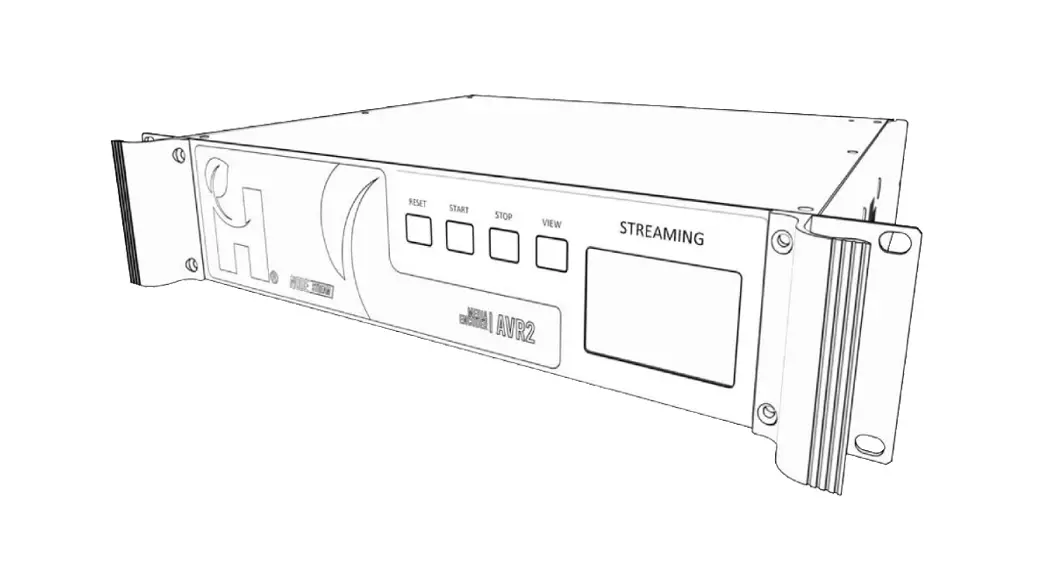
Video and two-way audio streaming solution
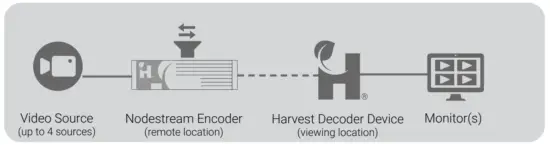
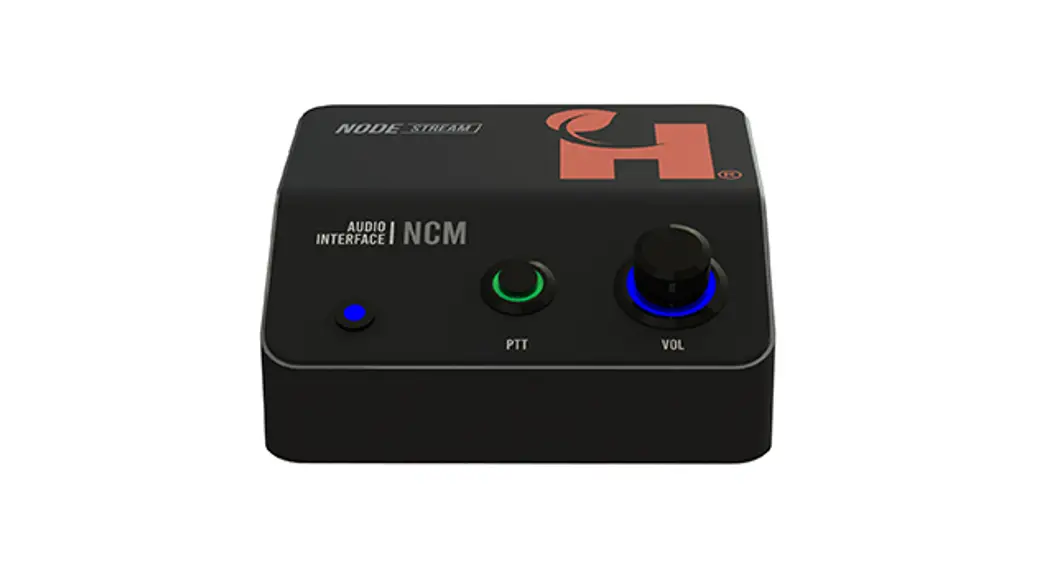
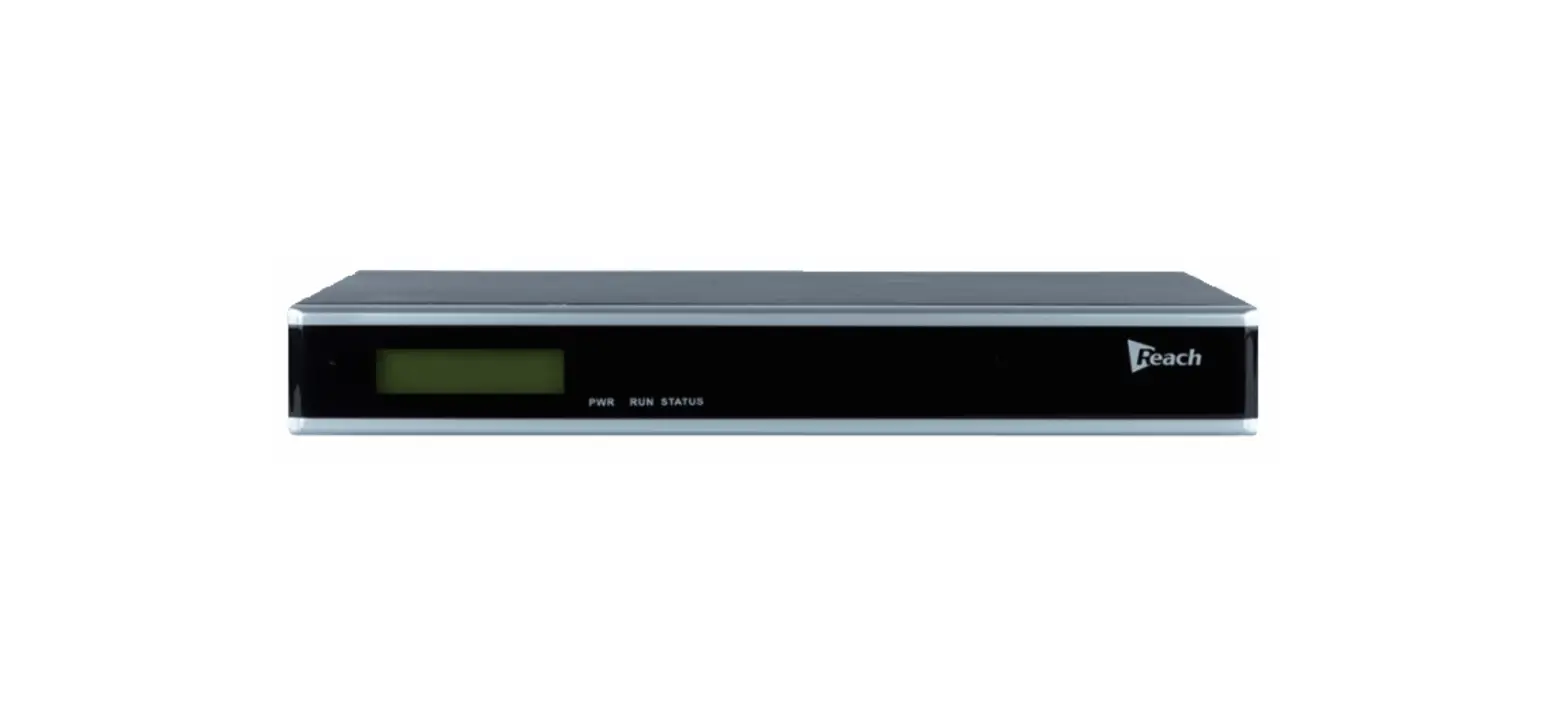
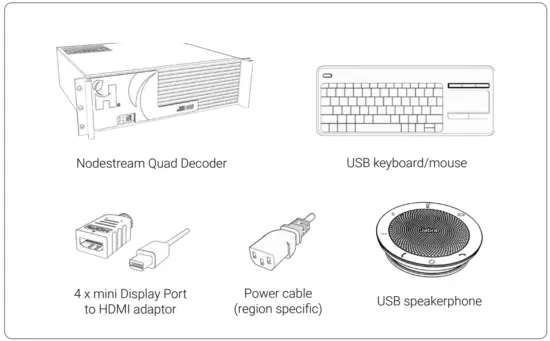
In the Box
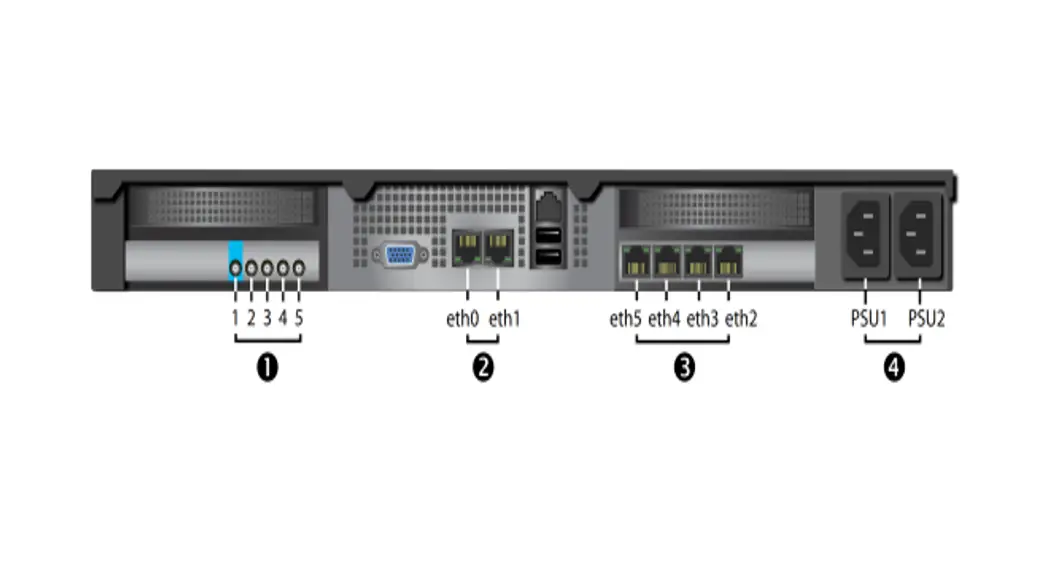
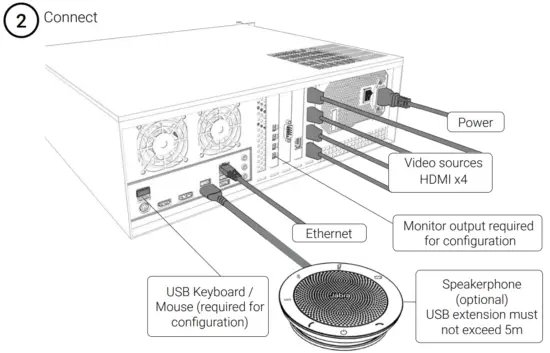
Rear Connections
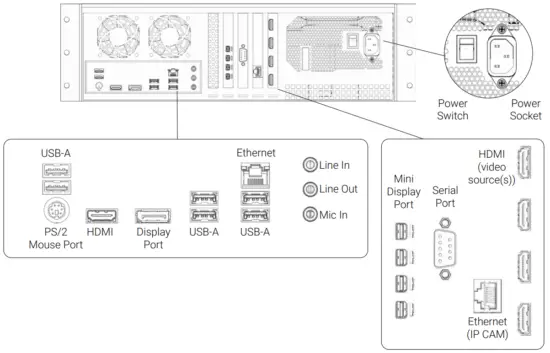
 IMPORTANT: 100-240VAC 47/63HZ only (UPS recommended).
Do not use the Display Port or HDMI for output to a monitor. (Use the Mini-Display port only).
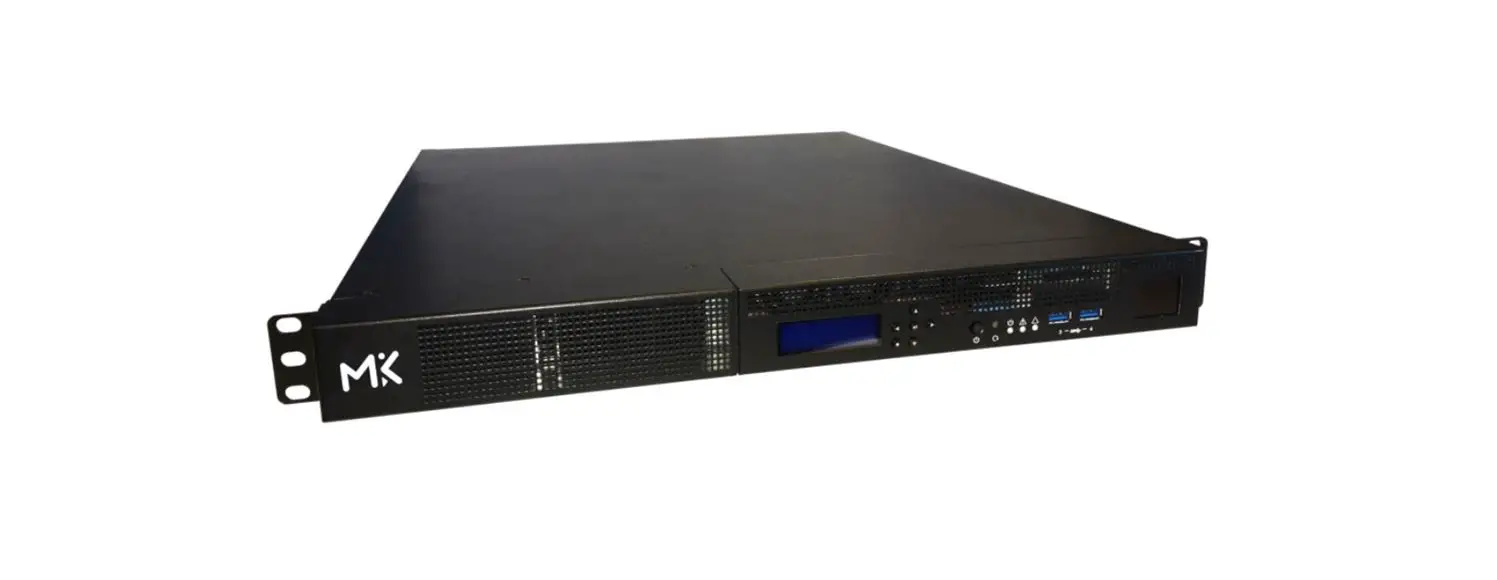
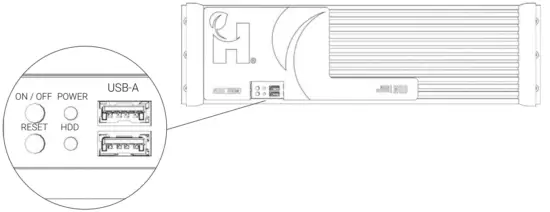
Front Connections
Installation
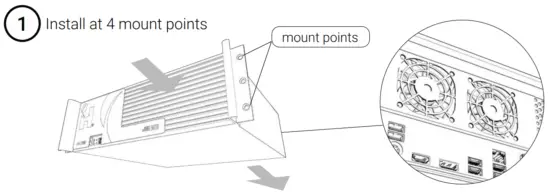
The NQE is designed to be mounted in a standard 19” Rack and occupies 3U of spaceEnsure there is adequate spacing around the NQE device for cooling. Cooling air travels in the direction shown by the arrows. No vertical loading on the NQE device.

 Configuration
 Configuration
- Switch on the power (rear of device)
- Initial Configuration (monitor, keyboard/mouse required) On initial boot an on-screen GUI displays, if required, configure network settings (see User Manual)

- Select Run System to start Nodestream software
- Typical start sequence (with a monitor connected)

- Refer to the Nodester application for device status and connection management

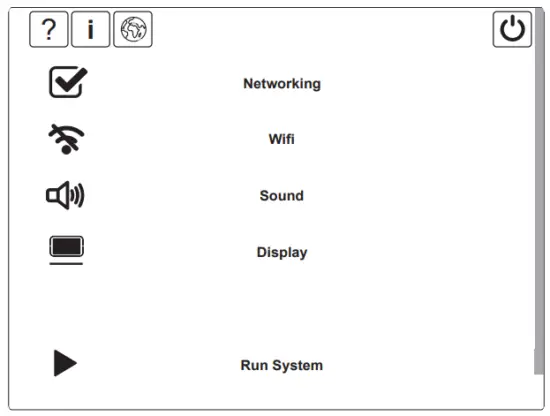
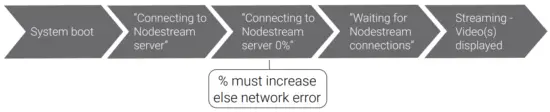
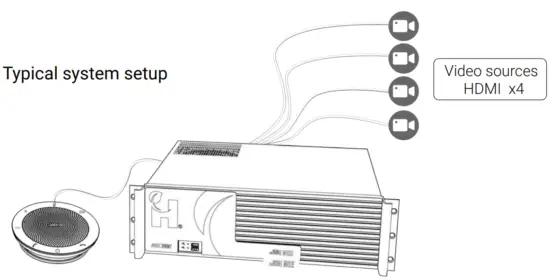
 Once Run System is selected, the Nodestream software will start automatically when the device is power cycled. To access the on-screen GUI, power cycle the device and select stop applications when prompted.
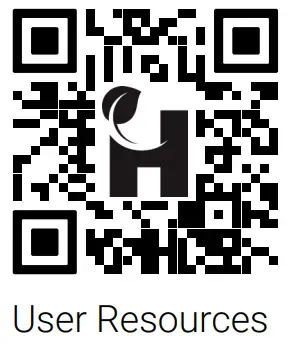 |  |
| https://qrco.de/bcfxAB | Contact and Support [email protected] |
Troubleshooting
| Issue | Cause | Resolution |
| Device not powering | PSU switch is set to off position AC not connected | Confirm AC is connected and switch is in the on position |
| Video sources not displaying | Source(s) not connected or powered on | Confirm video source(s) connected and powered on Test source with alternate display |
| No display output | Video output device not connected or powered on Damaged cable | Confirm video output device is connected and powered on Change out cable |
| No network – “Connection error. Check the network settings message displayed | No connection to the server | Check Ethernet cable plugged in Ensure required firewall ports settings are correct (see User Manual) Check network settings, contact your network 1 |
Harvest Technology Pty Ltd
7 Turner Ave, Technology Park
Bentley WA 6102, Australia
www.harvest.technology
All rights reserved. This document is the property of Harvest Technology Pty Ltd. No part of this publication may be reproduced, stored in a retrieval system, or transmitted in any form or by any means, electronic, photocopy, recording, or otherwise without the written consent of the Managing Director of Harvest Technology Pty Ltd.
HTG-TEC-GUI-001_2
 Turner Rooms for Rent