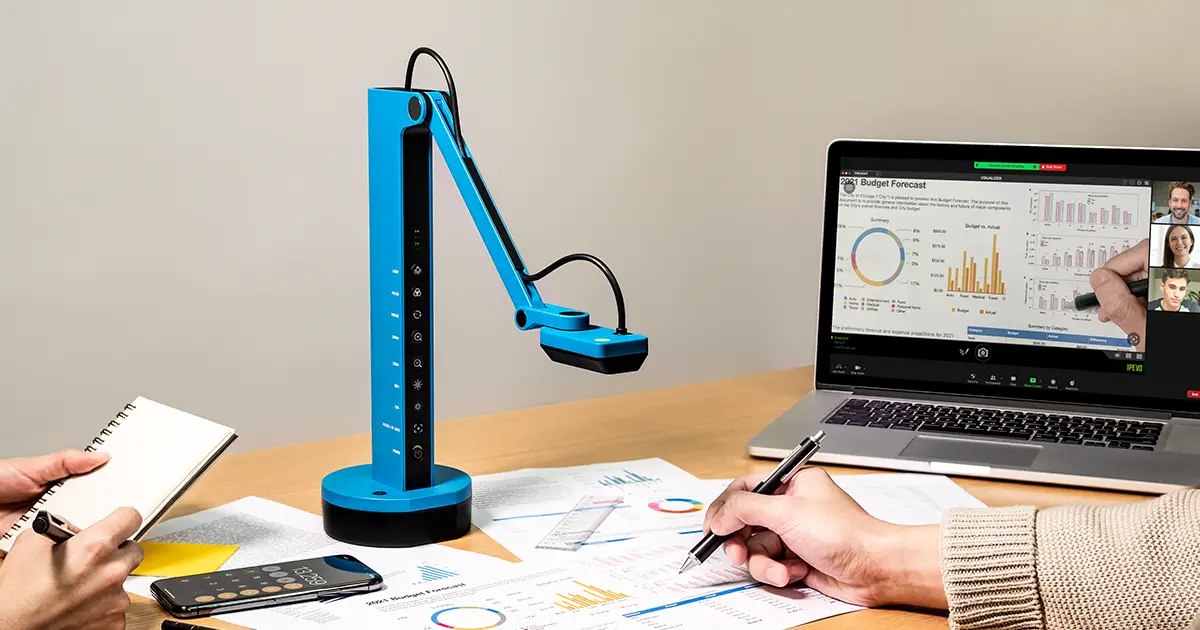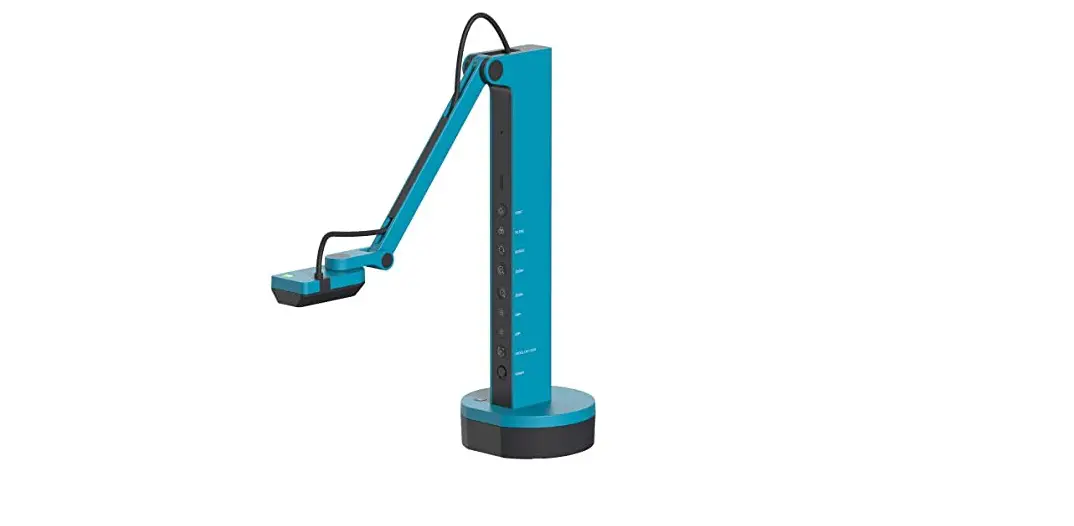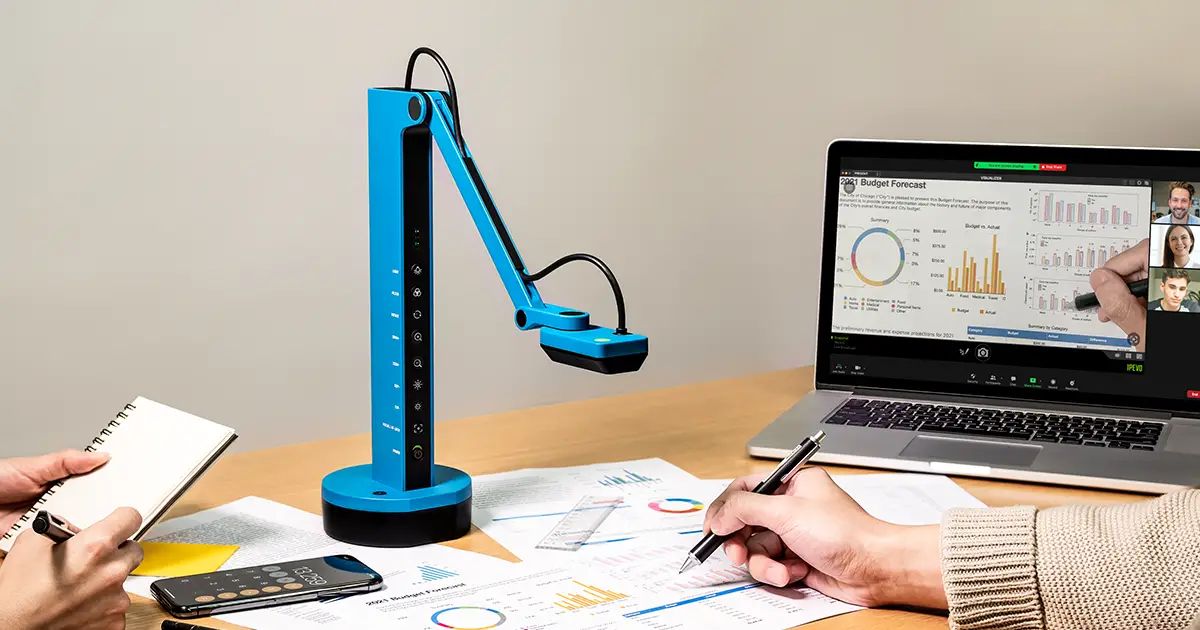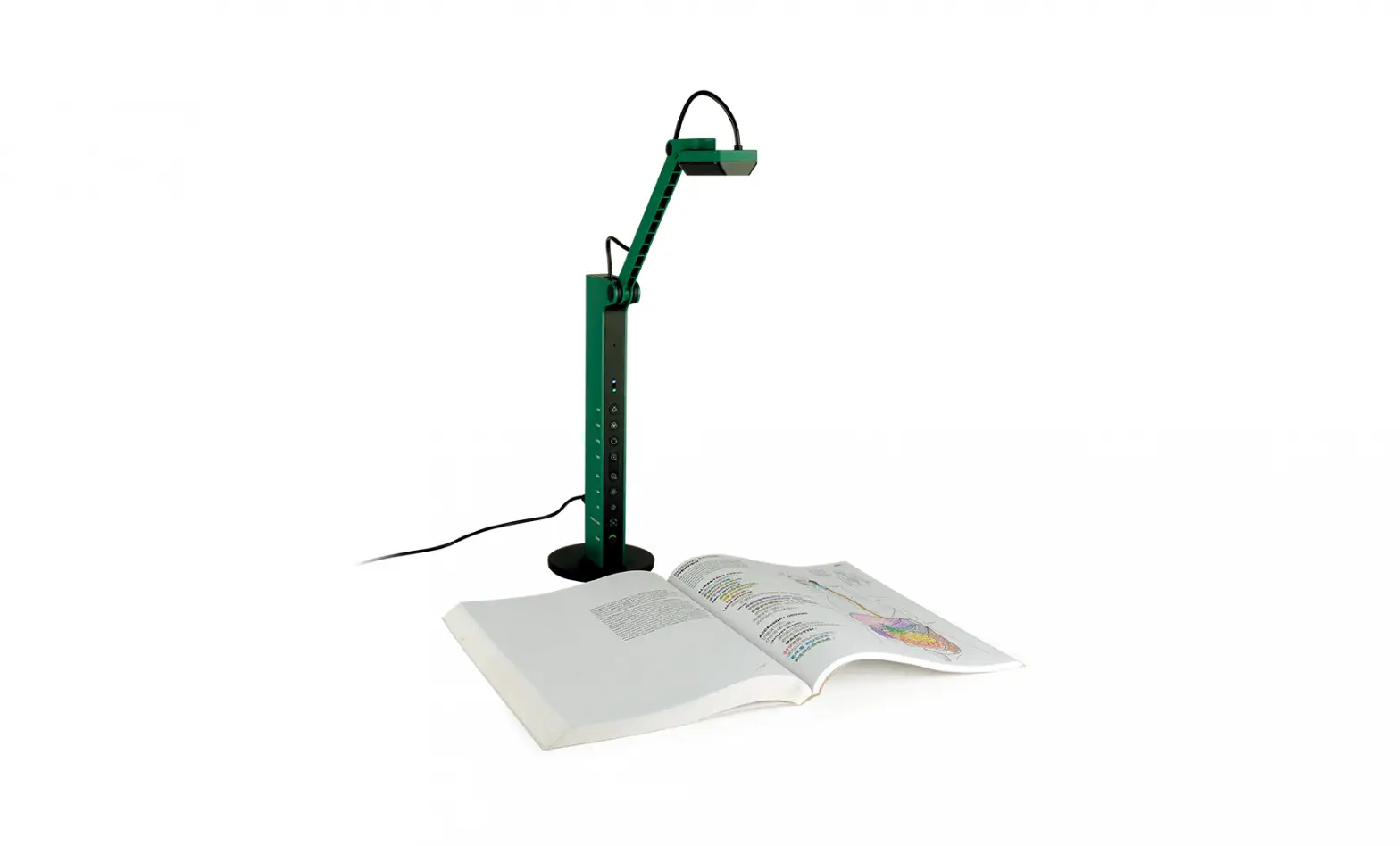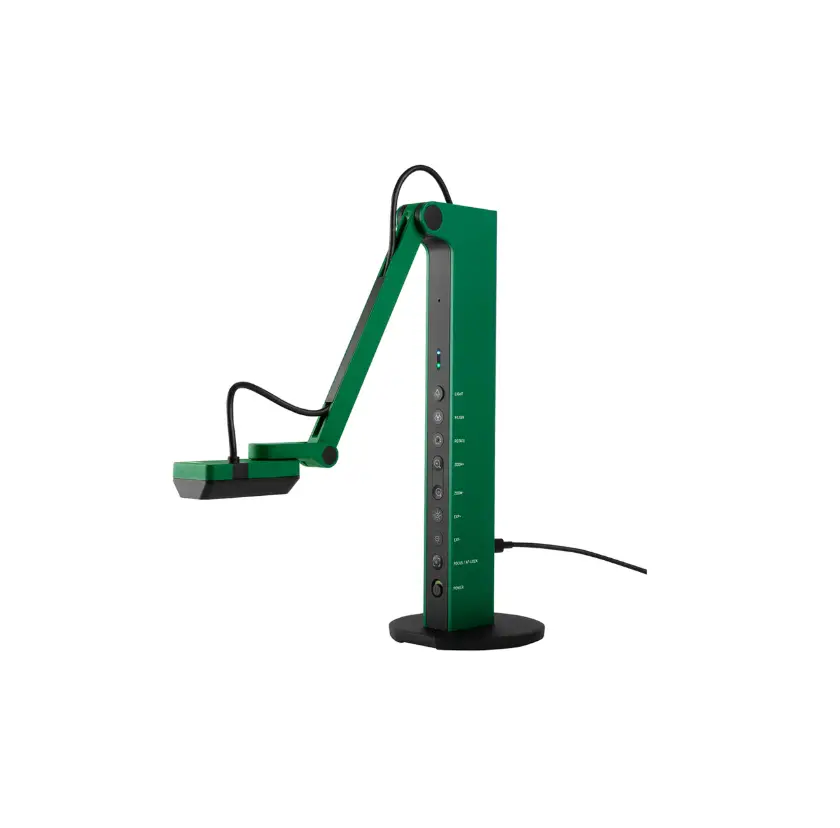
 Stay connected to your network while using VZ-X in Wi-Fi Mode
Step-by-Step Guide 
Step 1
Please connect VZ-X ( with firmware version 2023 or newer ) to your computer via Wi-Fi and open a browser window. Type 10.10.10.1 in the address bar and press “Enter”. This way you will access the VZ-X’s advanced settings.
Step 2
Click on “Connect to AP” on the bar in the upper right corner 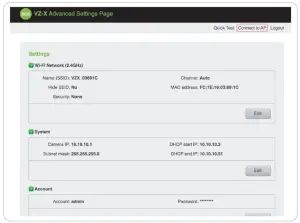
Step 3
Click on the blue refresh button to see the available networks and select the one you want to connect to ( If you have connected to an available network before, you will be connected automatically. Please see the connection status at the bottom left of the page.)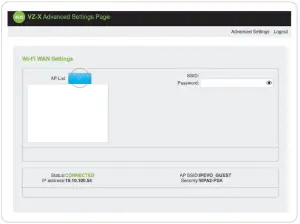 Step 4
After you have selected the network, please type the password in the “Password” field on the right and press “Enter”. 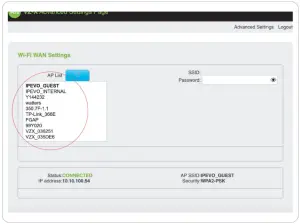
Step 5
Check whether the status in the lower-left section says “connected”. Now you can use VZ-X in Wi-Fi mode and remain connected to the internet.
If not, please repeat the process and make sure to type in the correct Wi-Fi network password.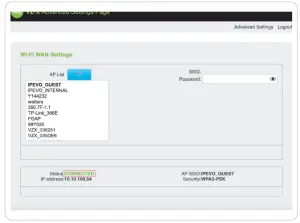
Step 6
Once you connect to the selected wireless network, this network will be saved and VZ-X will connect automatically next time.
Note
To use VZ-X in the wireless mode with Zoom, please go to the support section of the VZ-X website, download the VirtualCam Controller add-on, and install it.
In VirtualCam Controller select VZ-X as the source camera.
In Zoom then select IPEVO Virtual Cam as your camera.