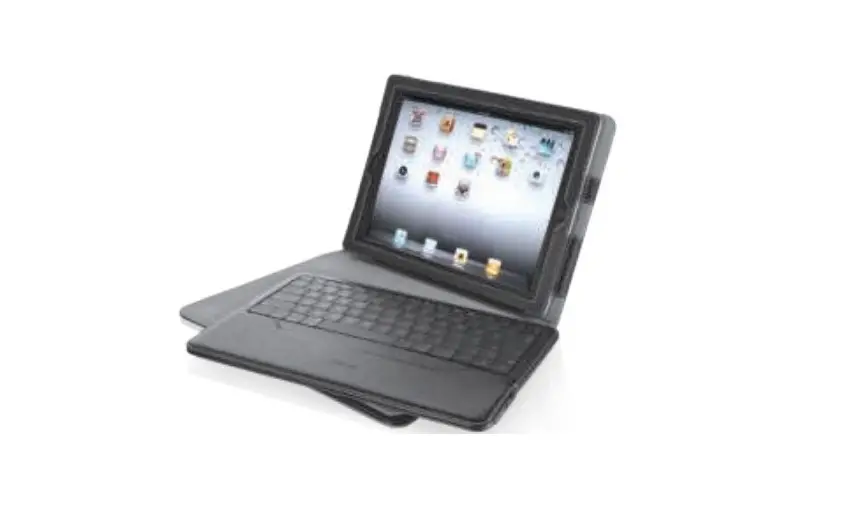
Trust Executive Folio Stand with Bluetooth Keyboard For iPad User Manual

Package contents
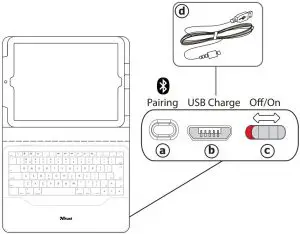
Keyboard:
- (A) Pair button / Bluetooth indicator / Charge indicator / Battery indicator
- (B) Mini-USB (charge) connector
- (C) On/Off switch
- (D) Mini-USB (charge) cable
Charging
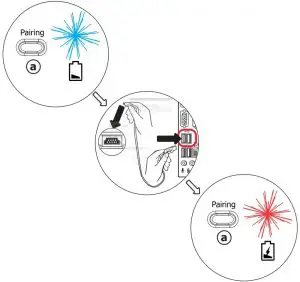
When the Battery Indicator is On permanently, the keyboard is running out of battery.
To charge the keyboard, use the mini-USB cable to connect it to one of your computer’s USB port, or to any device that has a USB charging port.
During the charge, the Charge Indicator remains On until the charge is complete.
Pairing
To pair the keyboard with your iPad,
- Switch On the keyboard
- Press the Pair button
- The Bluetooth indicator blinks.
- Open your iPad’s Bluetooth Settings
- Tap Settings, General, Bluetooth
- Tap the “Bluetooth Keyboard” line in the list of detected devices
- Devices are detected only if Bluetooth is On (blue)
- Your iPad will display a passkey
- A unique passkey is generated every time you pair your devices
- Type the passkey on the keyboard, and press Enter
 Keep away credit and bank cards from the magnetic field of the folio stand.
 Keep away credit and bank cards from the magnetic field of the folio stand.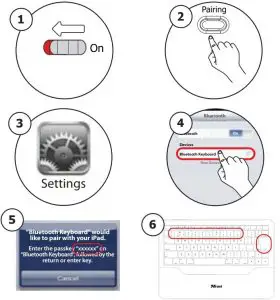
Special keys (Special keys)
 Homescreen
 Search
- Picture frame
 Display on-screen keyboard
 Previous track
- Play/Pause
- Next track
- Mute
- Volume down
- Volume up
 Homescreen
 Search
 Picture frame
 Display on-screen keyboard
 Previous track
 Play/Pause
 Next track
 Mute
Mute Volume down
 Volume up
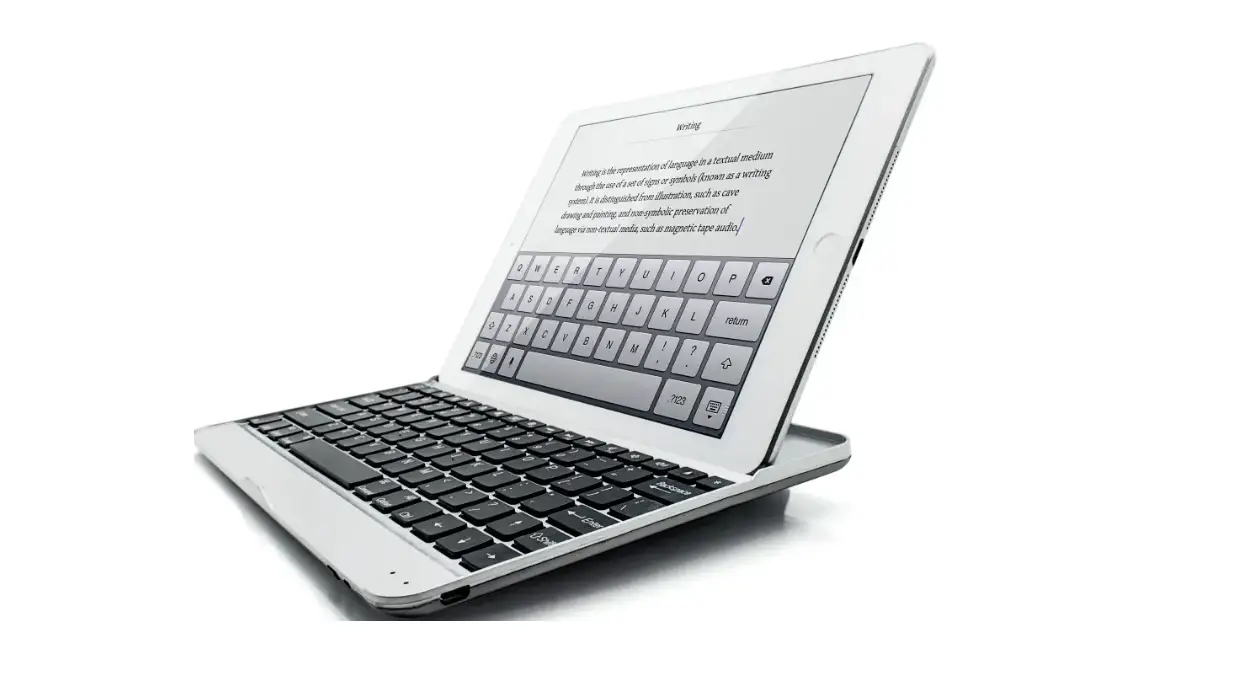
 Trust.com - Executive Folio Stand with Bluetooth Keyboard for iPad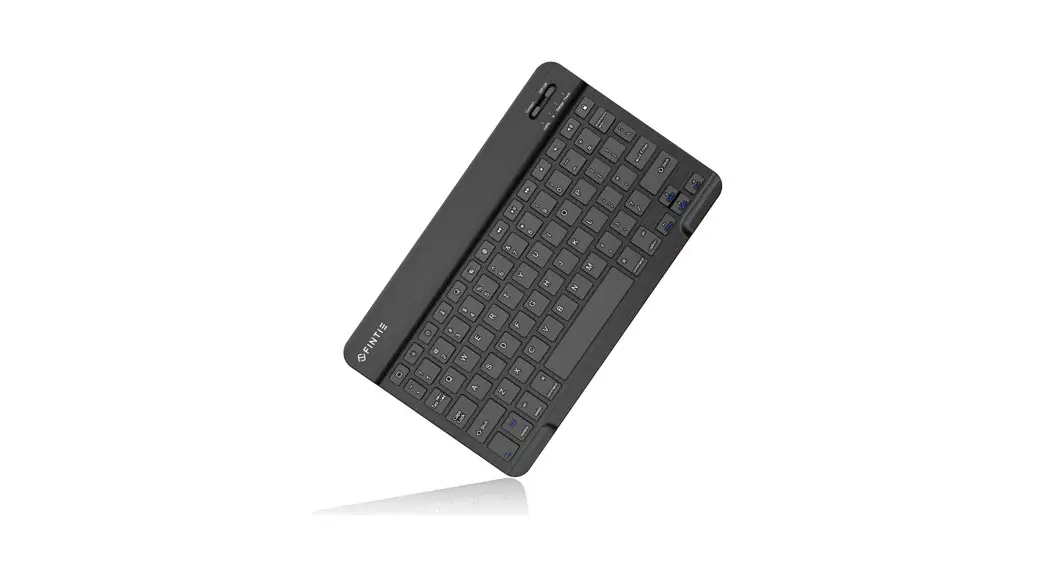





![Logitech Slim Folio Keyboard For Ipad [ 5th, 6th, 7th, 8th And 9th Gen ] User Manual](https://static-data1.manualsee.com/1/img/171/4594230/2022/09/Logitech-SLIM-FOLIO-Keyboard-for-iPad-5th-6th-7th-8th-and-9th-gen.webp "Logitech Slim Folio Keyboard For Ipad [ 5th, 6th, 7th, 8th And 9th Gen ] User Manual")