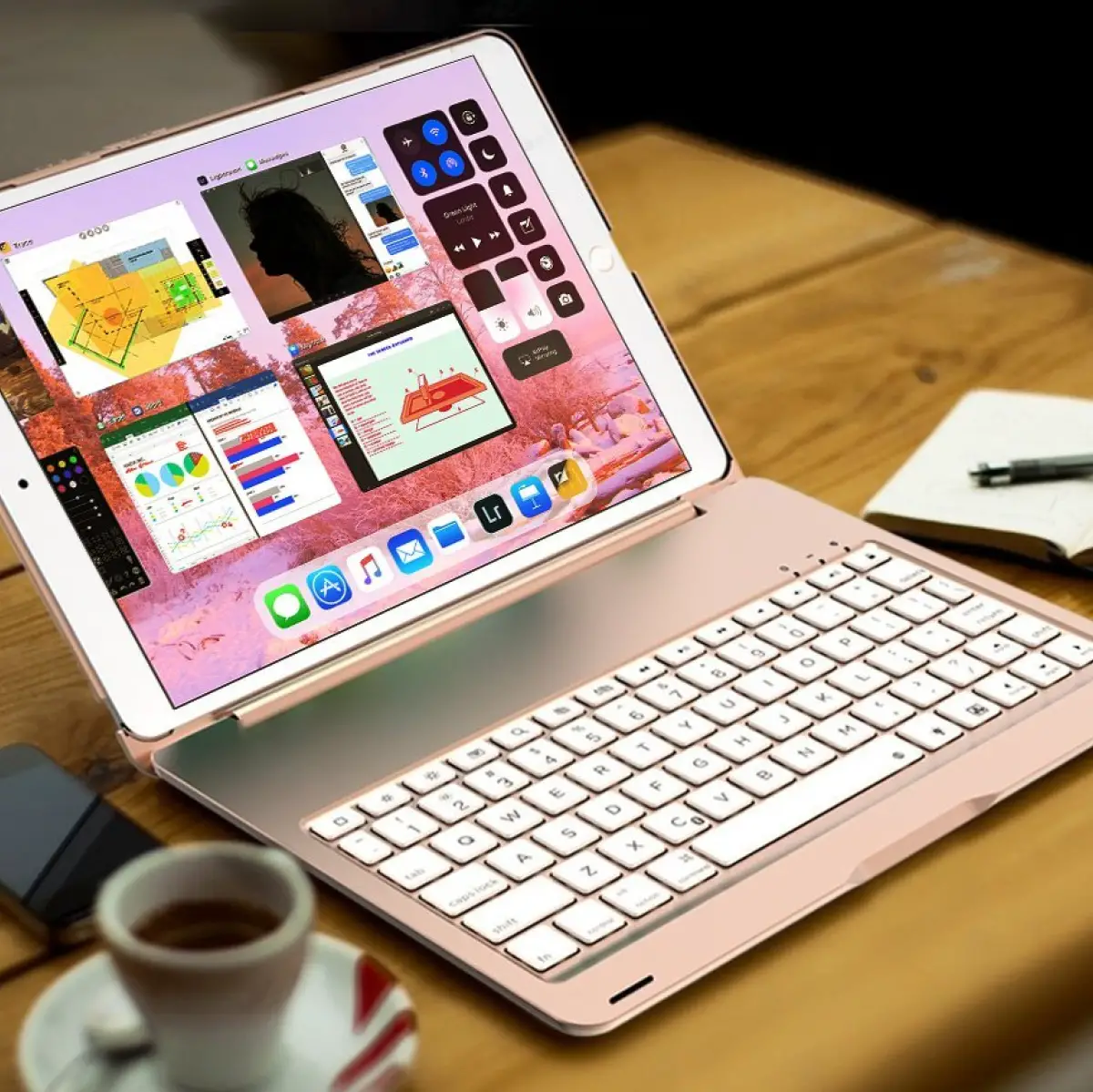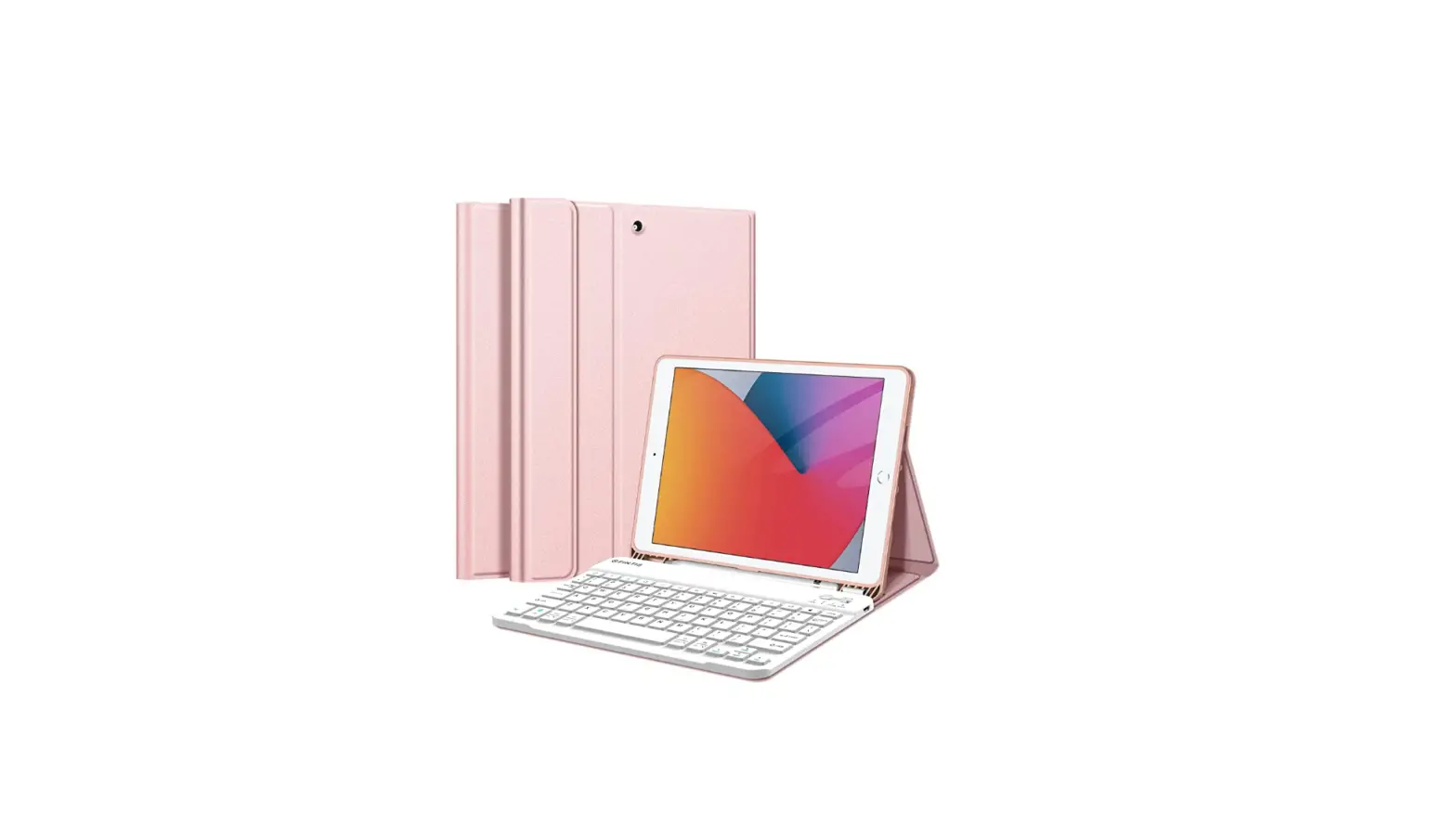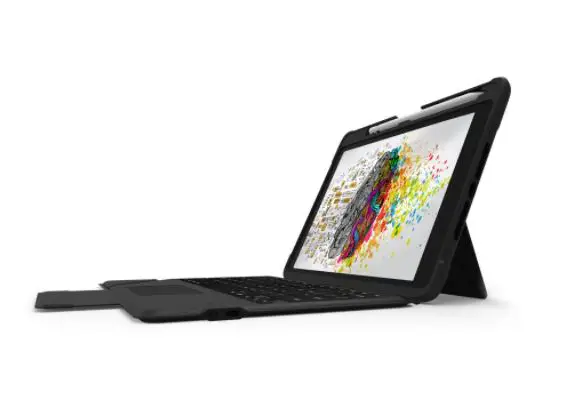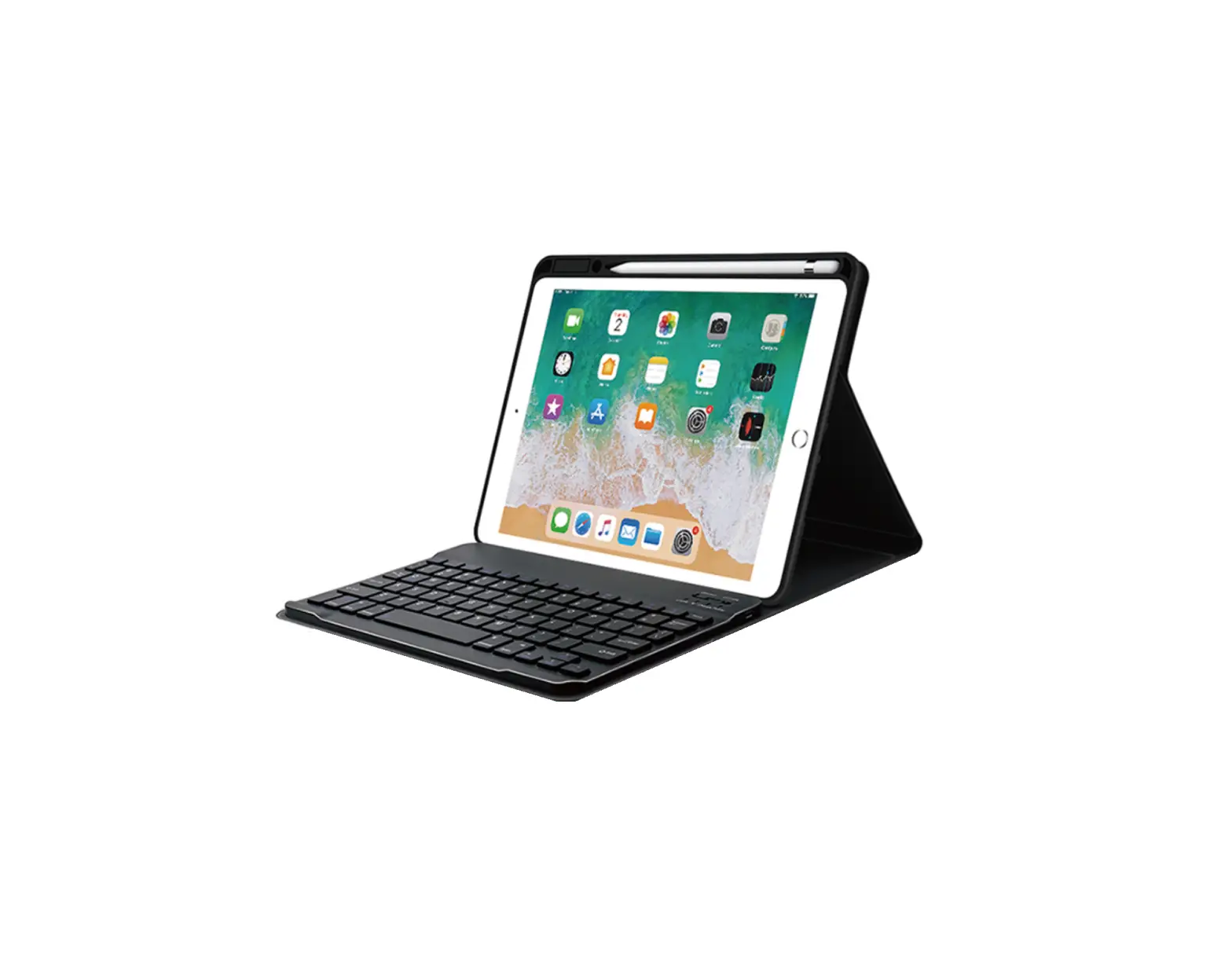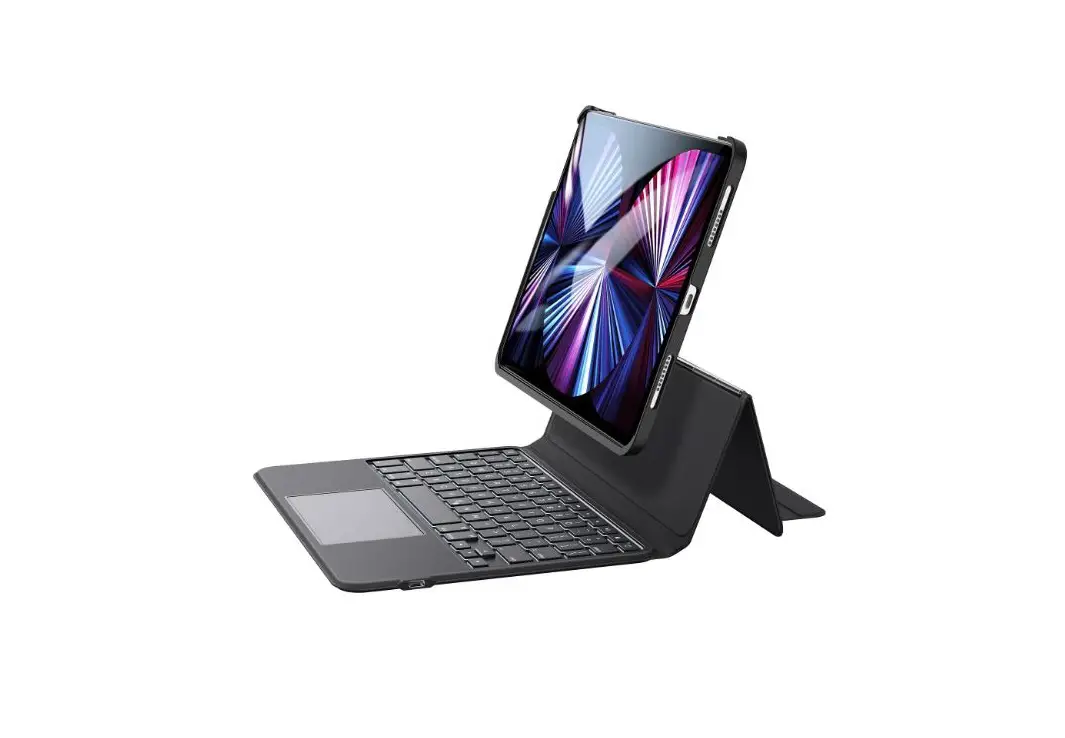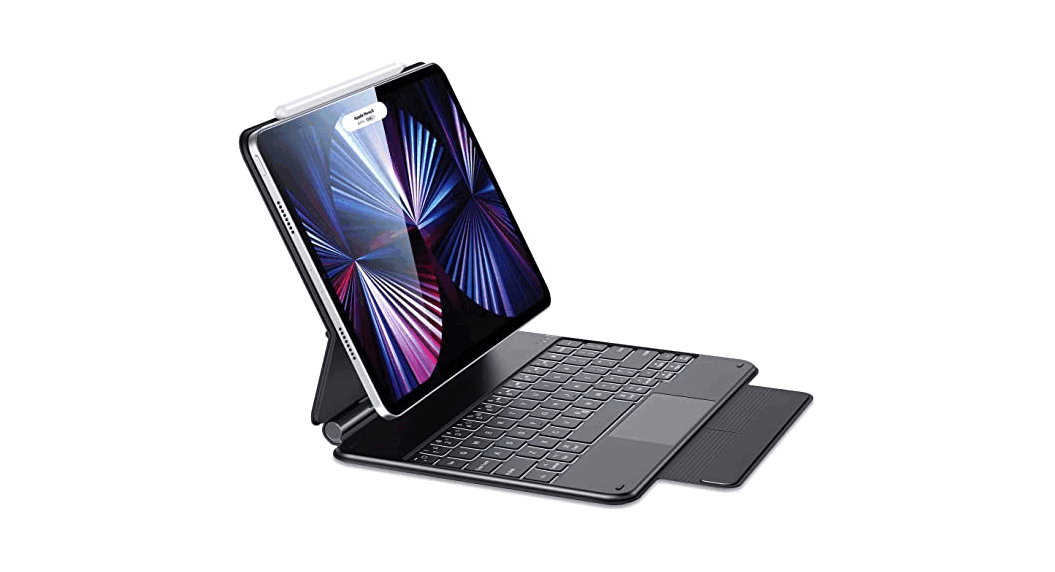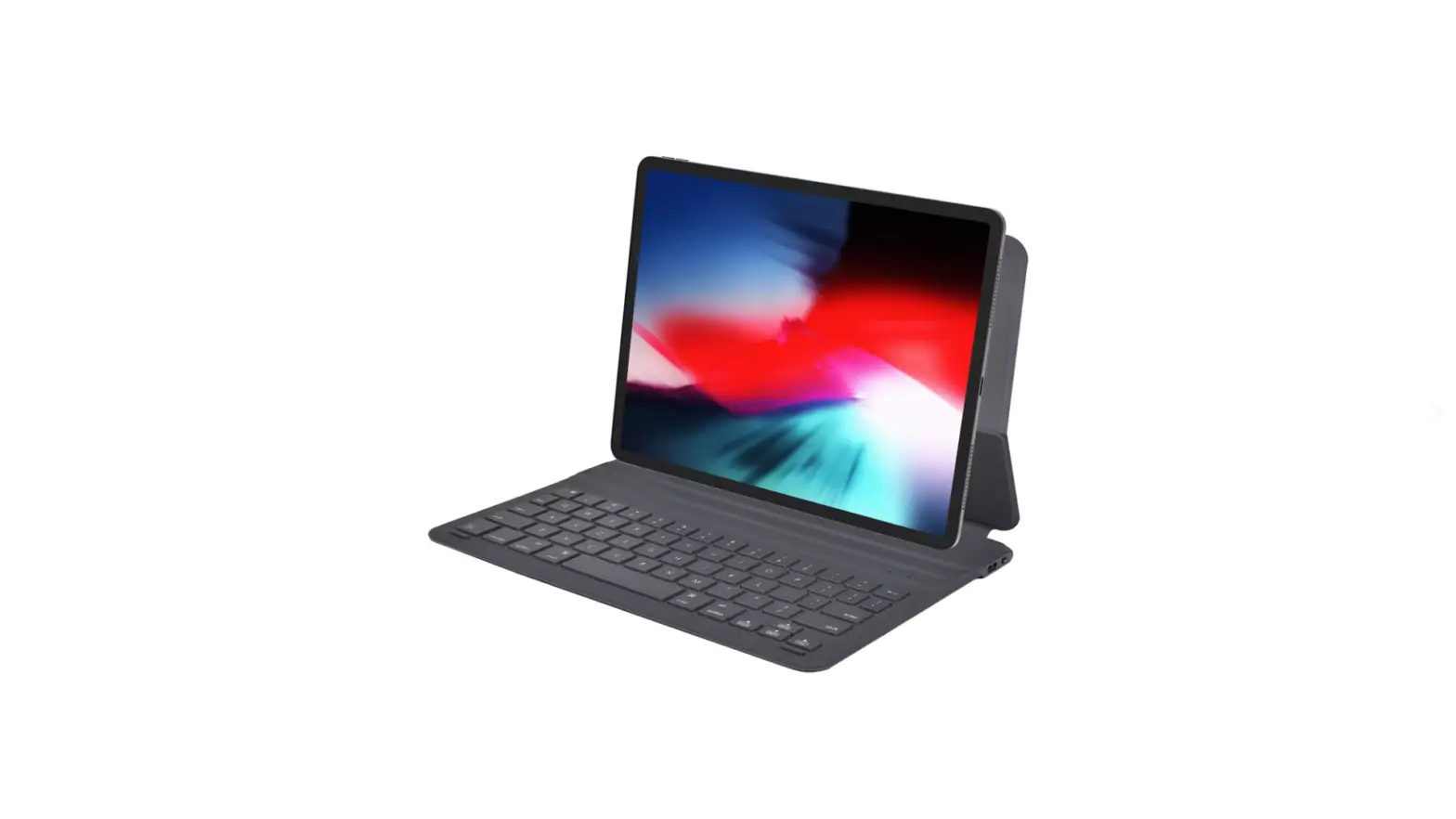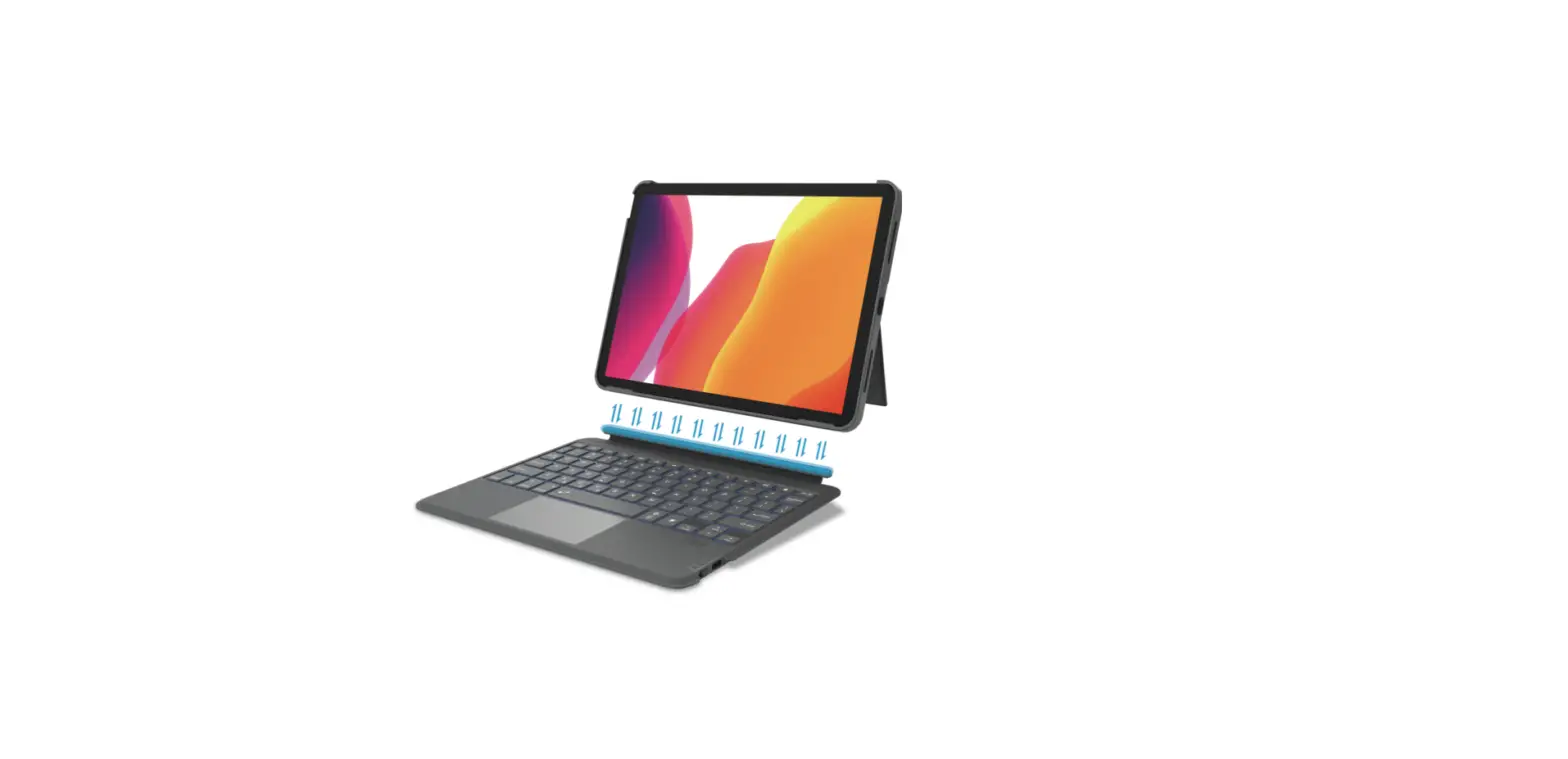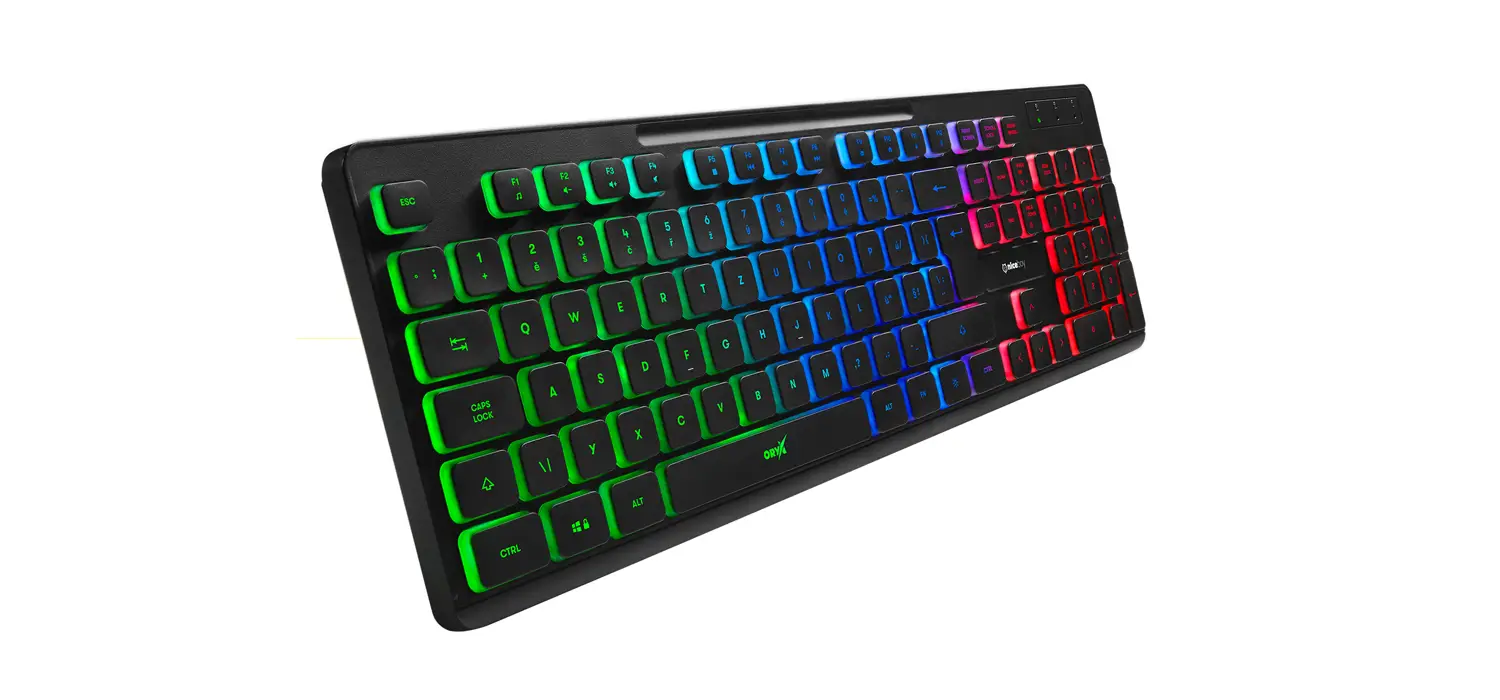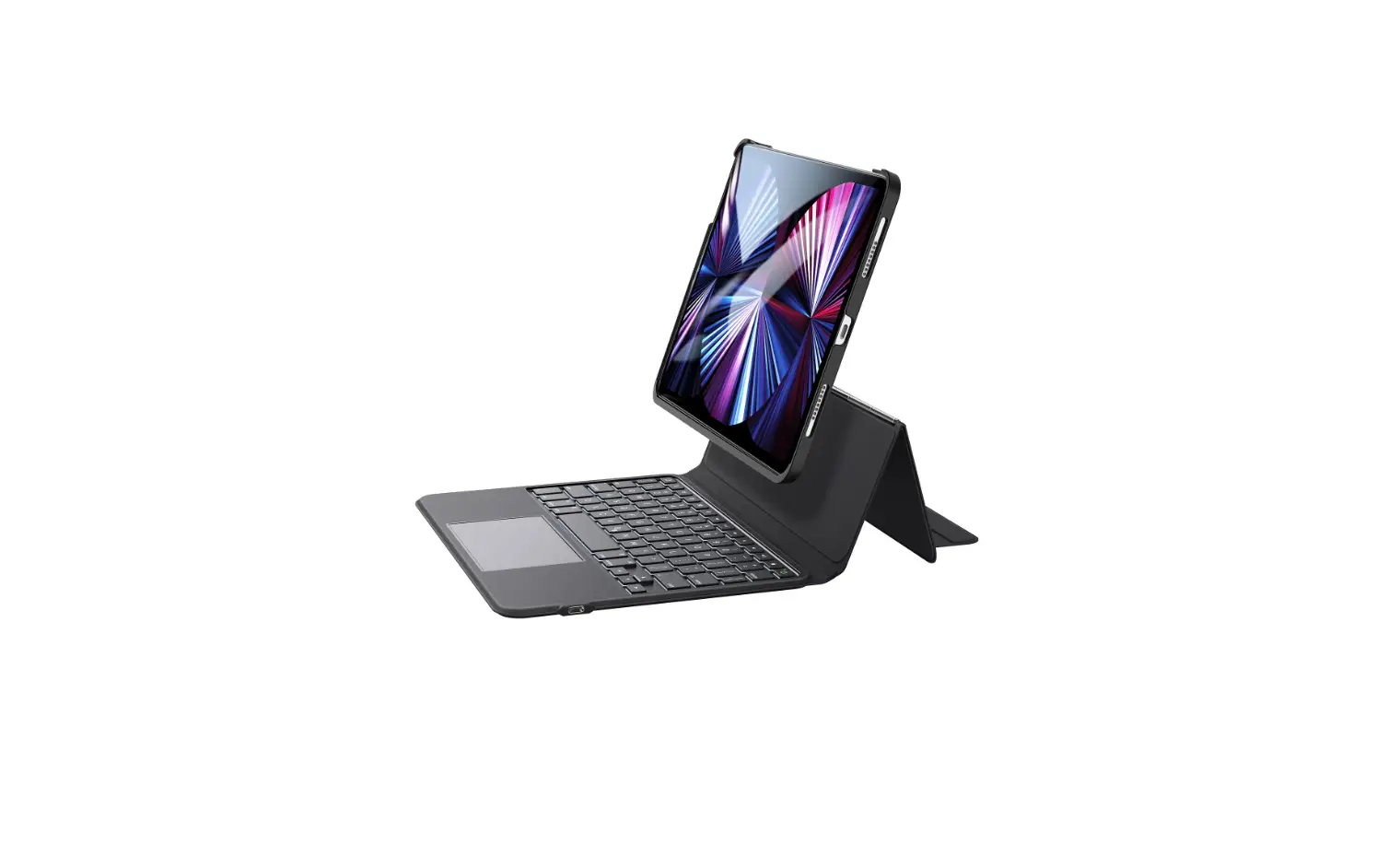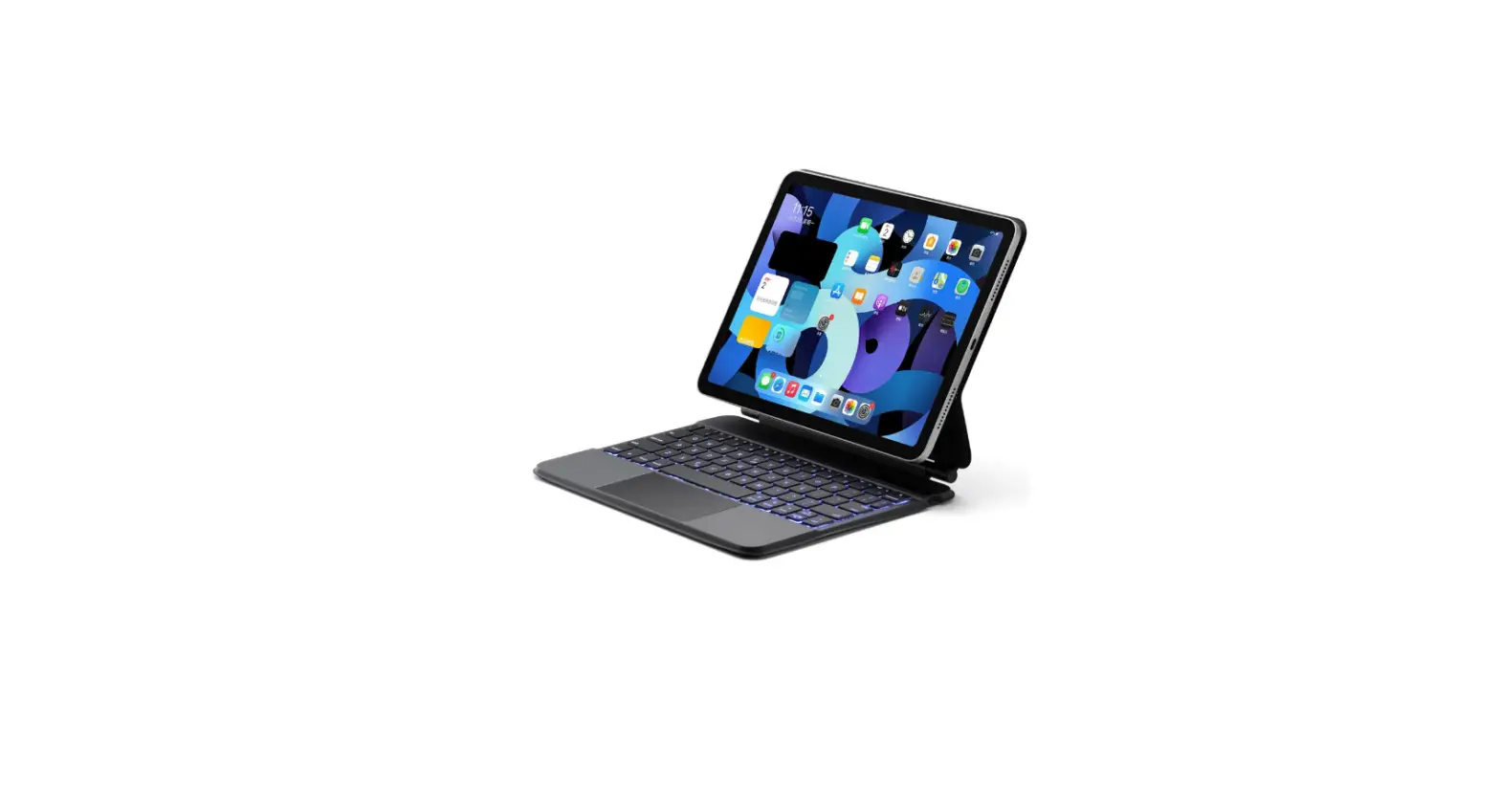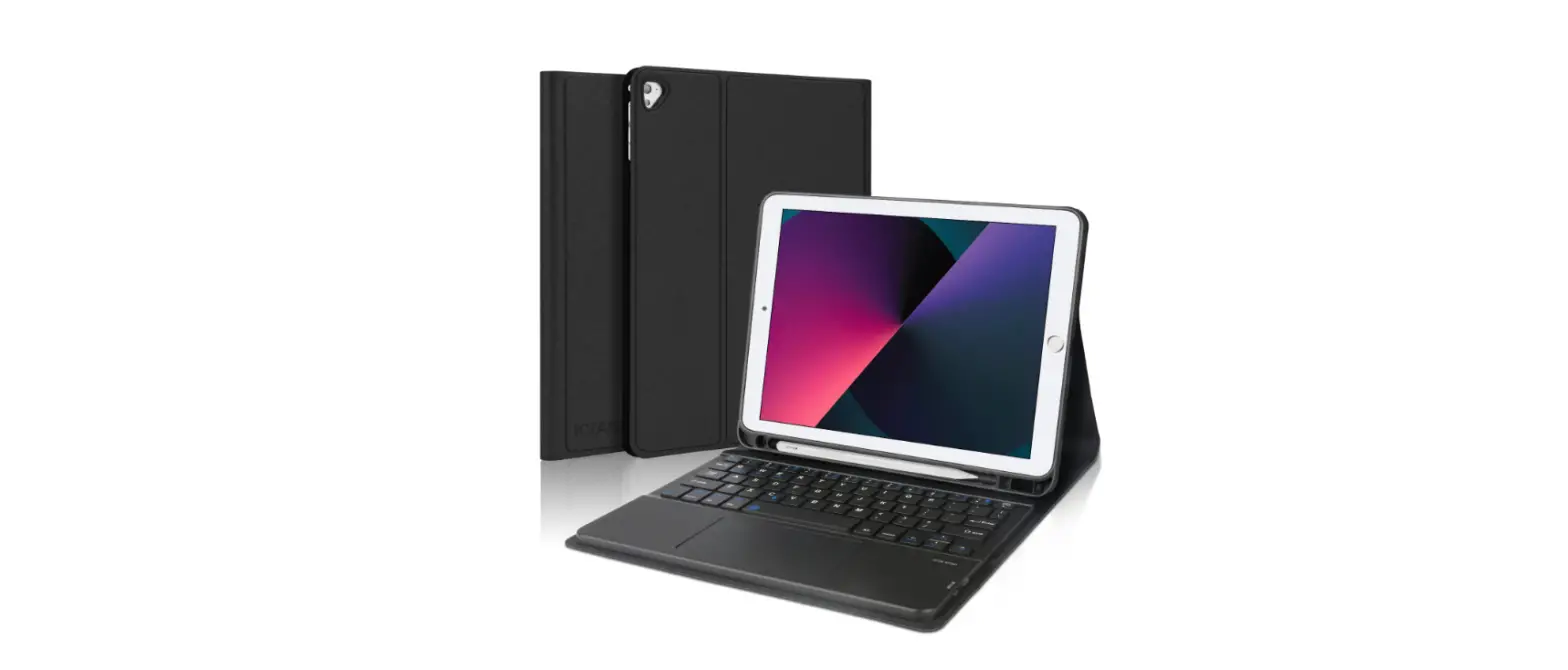

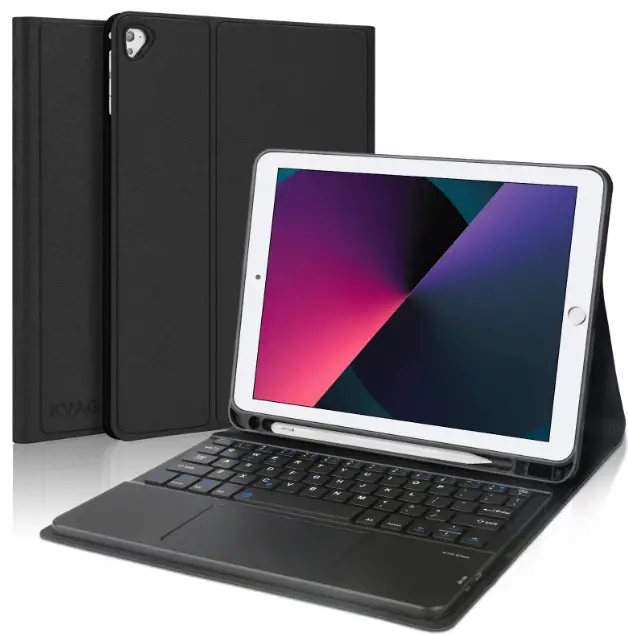
KVAGO MG-K913 Keyboard Case
Product specification
- Type: MG-K913
- Product Name: MG-K913 Keyboard
functional description
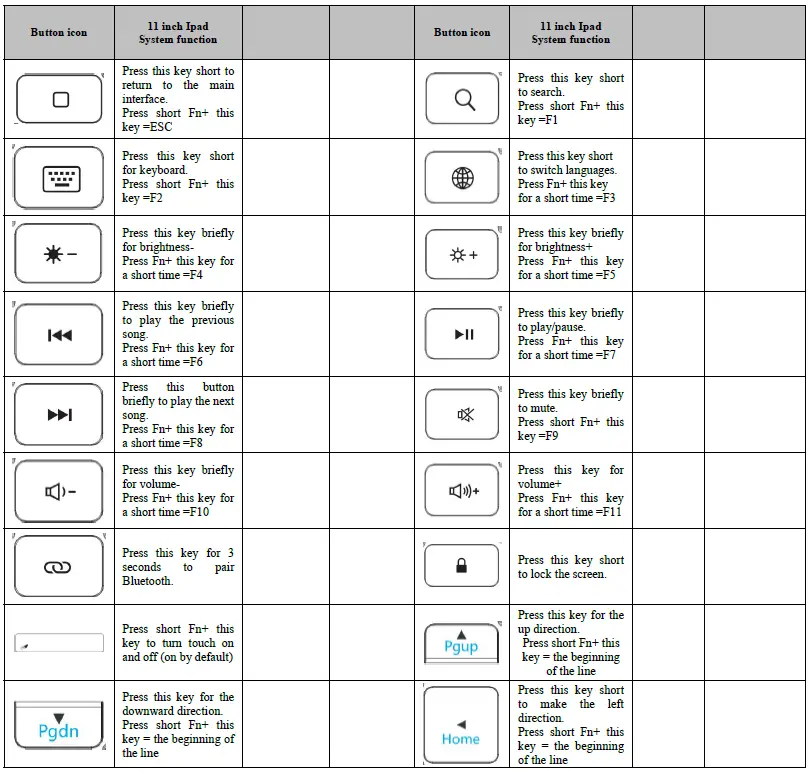
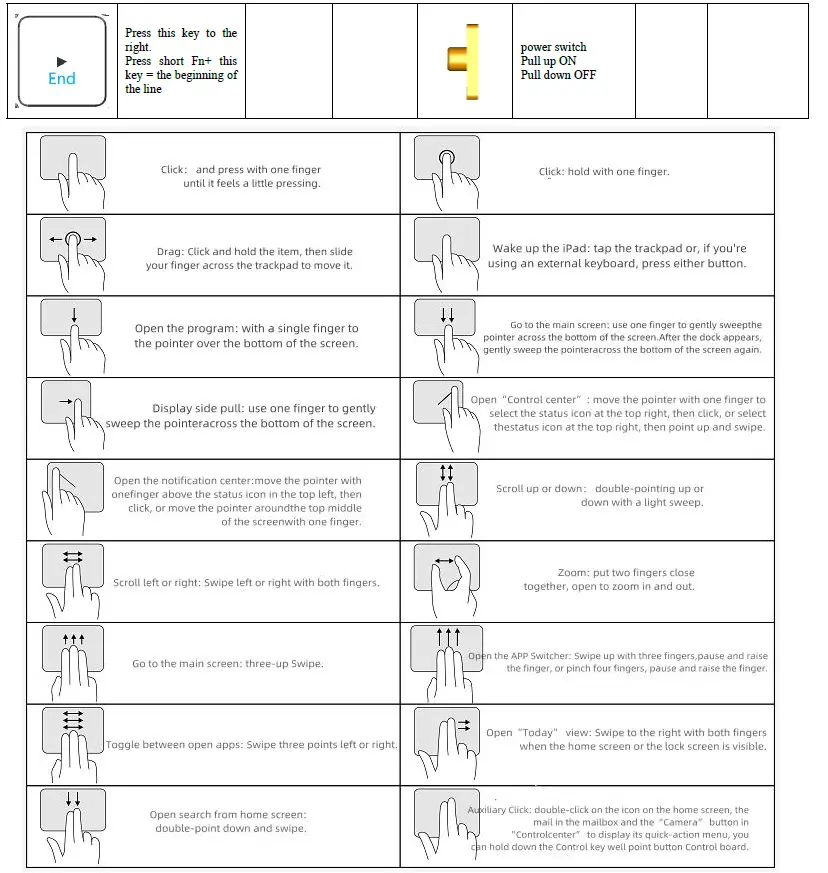
battery protection
Overcharge protection, NTC battery protection temperature 48 degrees/resistance 10K
| item eye | Check the content | ask | result | ||
| point | Zuodeng | Zhongdeng | Right lamp | ||
| Full indicator light green light/ Charging fingering lamp red light/ Electric quantity blue lamp | Case indicator green/ Electric quantity blue lamp | ||||
| to | |||||
| show | |||||
| light measu re | The order of the three lights on the keyboard | Blue Light & Power Blue Light Sharing | OK | ||
| try | |||||
| Start-up-which indicators are displayed and how long they blink? | light | light | light | OK | |
| Indicator brightness | It can’t be too bright or too dark. It’s appropriate. | OK | |||
| Shutdown-which indicators are displayed and how long they blink? | put out | put out | put out | OK | |
| Bluetooth search-which indicators are displayed and how long they blink? | put out | put out | Blue light flashing | OK | |
| Pairing success-which indicators are displayed and how long they blink? | put out | put out | put out | OK | |
| Full charge-which indicators are displayed and how long they blink? | put out | Green light is always on | put out | OK | |
| 40-70% of electricity-which indicators are displayed and how long they blink? | put out | Green light goes on for 3 seconds and goes off. | The blue light goes on for 3 seconds and goes off. | OK | |
| 10-40% of electricity-which indicators are displayed and how long they blink? | Red light goes on for 3 seconds and goes off. | put out | put out | OK | |
| No electricity “10%- which indicators are displayed and how long they blink?” | put out | Red light flashing | put out | OK | |
| Medium charging-which indicators are displayed and the duration of flashing? | put out | Red light is always on | put out | OK | |
|
back light measu re try | Bluetooth auto-search duration | 120S | OK | ||
| Turn on-whether the backlight display is static or dynamic. | correct | OK | |||
| When Bluetooth is not connected, the light will be displayed after debugging the color. | After 30S, it goes out. | OK | |||
| When Bluetooth is not connected, it will automatically turn off after the backlight is turned on, and after any key is pressed. | Memory of the backlight used before, bright for 30S. | OK | |||
| When Bluetooth is not connected, the backlight will automatically turn off after the color is debugged, and after any key is pressed. | Memory of the backlight used before, bright for 30S. | OK | |||
| Is the display sequence of backlight cycle switching correct? | white | OK | |||
| Backlight quality-is there color difference or excessive brightness difference? | without | OK | |||
| After Bluetooth is connected, the backlight will automatically turn off after not operating for a long time. | 30 seconds | OK | |||
| After Bluetooth is connected, it will be displayed by backlight after debugging the color. | omit | OK | |||
| After Bluetooth is connected, the backlight will automatically turn off after power-on, and after any key is pressed | Backlight awakening | OK | |||
| After Bluetooth is connected, press the color key to select the color, and then press any key after the backlight automatically goes out. | Turn on the backlight to display the memory color. | OK | |||
| Turn on/off the long light mode. | omit | OK | |||
| When the long light mode is turned on, the backlight is displayed. | omit | OK | |||
| When the long light mode is turned off, the backlight is displayed. | omit | ||||
| In the long mode, the backlight displays. | without | OK | |||
| The first lamp effect | without | OK | |||
| Light key brightness gear sequence | Low-medium-high-out | OK | |||
| Is the key Color switching function normal? | normal | OK | |||
|
Memory mode or not |
without |
OK | |||
|
accord ing to key succes s can | Is the single key function normal? | normal | OK | ||
| Is the multimedia key function normal? | normal | OK | |||
| Is the combination key function normal? | Power key, currency key, backlight combination key, screen lock key, page turning or line jumping cursor key. | OK | |||
| Typing experience-is it too sensitive, sluggish, heavy or wrong? | without | OK | |||
| Restore factory settings shortcut keys | At the same time, press the first key in the upper left corner+the first key in the upper right corner, and the three indicators will flash three times at the same time to clear the keyboard pairing information. | ||||
| After Bluetooth connection, the backlight will return to highlight white backlight. | |||
| Can the touchpad switch switch normally? | Press the short FN+SPACE key to turn off/turn on the touchpad function. | OK | |
|
blue tooth measu re try | When Bluetooth is connected, the connection plate is beyond the working distance of Bluetooth. After Bluetooth is disconnected, Bluetooth starts automatic search. | Auto-search, Bluetooth light starts flashing. | OK |
| When Bluetooth is connected, the connection plate is beyond the working distance of Bluetooth. When Bluetooth is disconnected and then returned to the working distance, is it automatically connected back? | Automatic reconnection, Bluetooth light goes out. | OK | |
| Bluetooth connection for the first time-is there a Bluetooth indicator? | Bluetooth indicator flashes blue for 120S. | OK | |
| Does the equipment name correspond to the product? | Wireless Keyboard | OK | |
| Pairing mode: automatic pairing, or need to click’ Bluetooth pairing request’ | Need to click | OK | |
| Bluetooth pairing-click pairing and the connection will be successful in a few seconds. | Second | OK | |
| After successful pairing-is the Bluetooth LED off? | be | OK | |
| After the keyboard is turned off-disconnection time | Seconds off | OK | |
| After the keyboard is turned off and turned on-reconnection time | Second | OK | |
| Disconnection time after shutdown of tablet | Seconds off | OK | |
| Connection time after shutdown and restart of tablet | Second | OK | |
| Click the tablet Bluetooth to turn off the disconnection time. | Seconds off | OK | |
| Click Bluetooth on the tablet to turn it off and then turn it back on. | Second | OK | |
| After connecting Bluetooth, turn on the normally-on mode for 10 minutes without operation, disconnect Bluetooth, and press any key to connect Bluetooth back. | OK | OK | |
| Bluetooth range | ≥ 10m | OK | |
| After startup, enter the key immediately before automatic reconnection. Is the reconnection time delayed or disconnected? | without | OK | |
|
Touch functi on | Is the touch switch function normal? | normal | OK |
| Are all touch gestures normal? | normal | OK | |
| Anti-touch function, the touch function is automatically turned off when the key is input, and the touch panel function is automatically restored when the key stops inputting. | normal | OK |
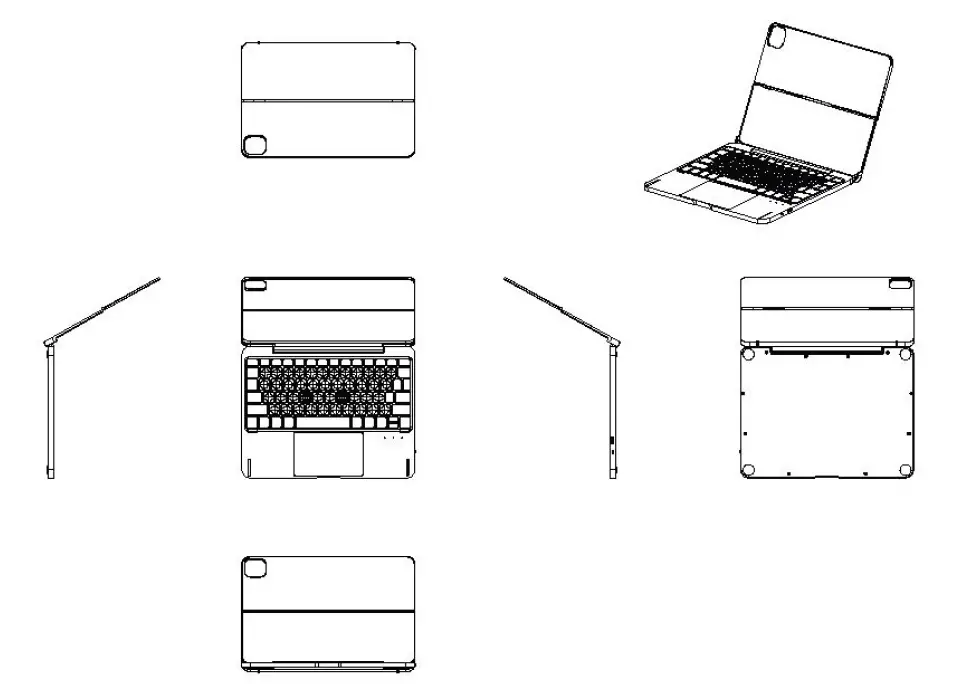
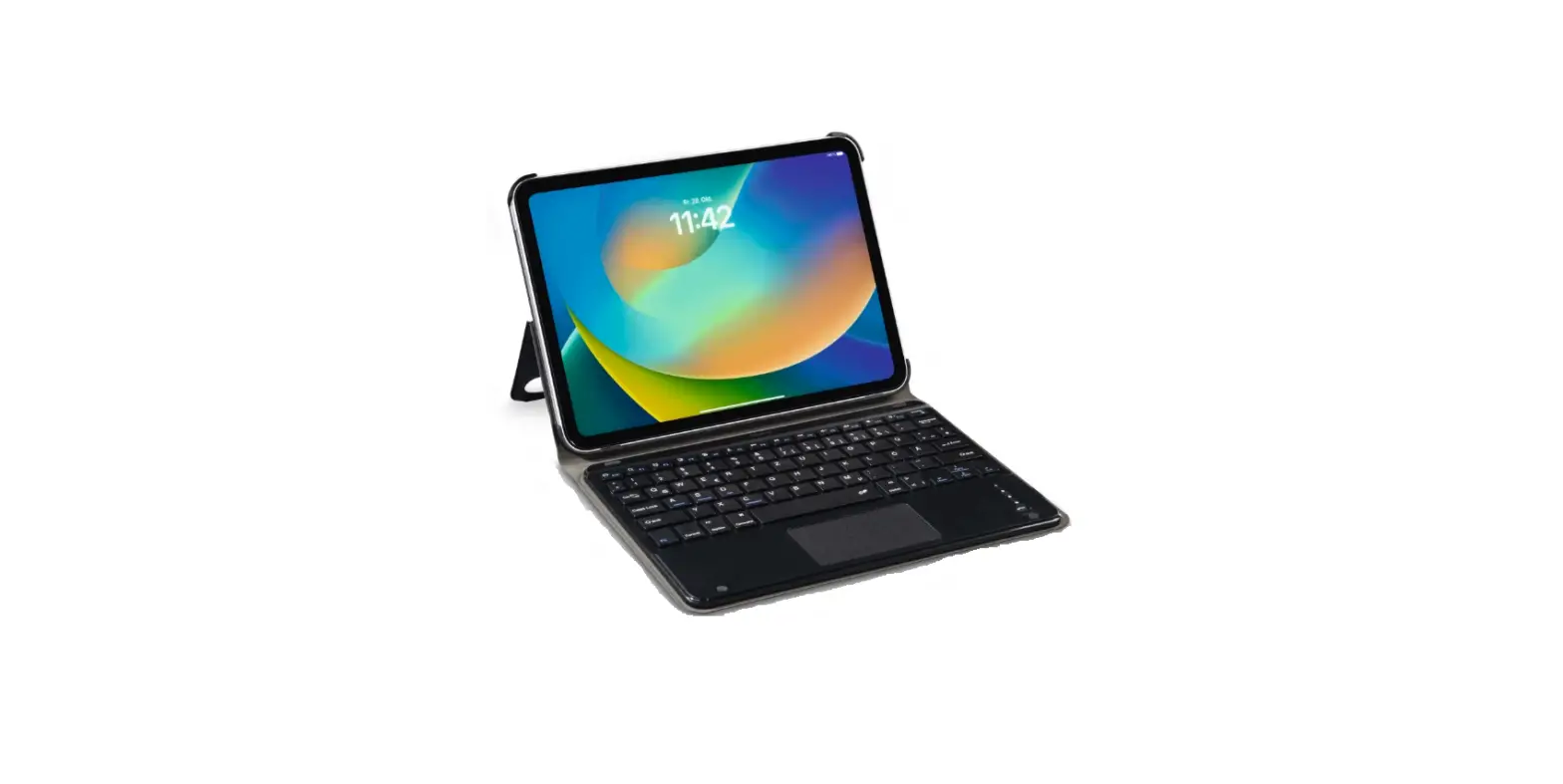
Open state
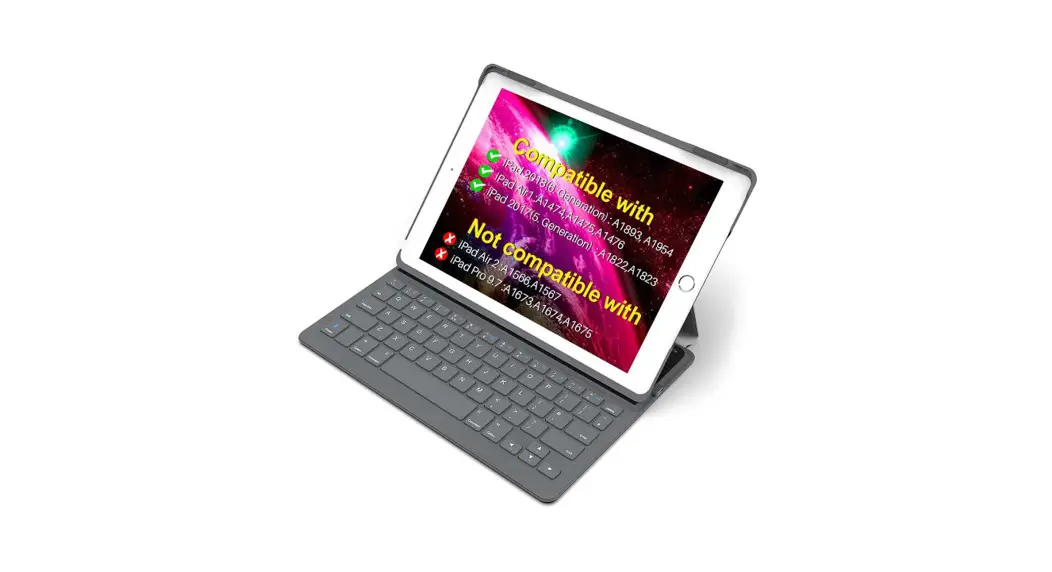
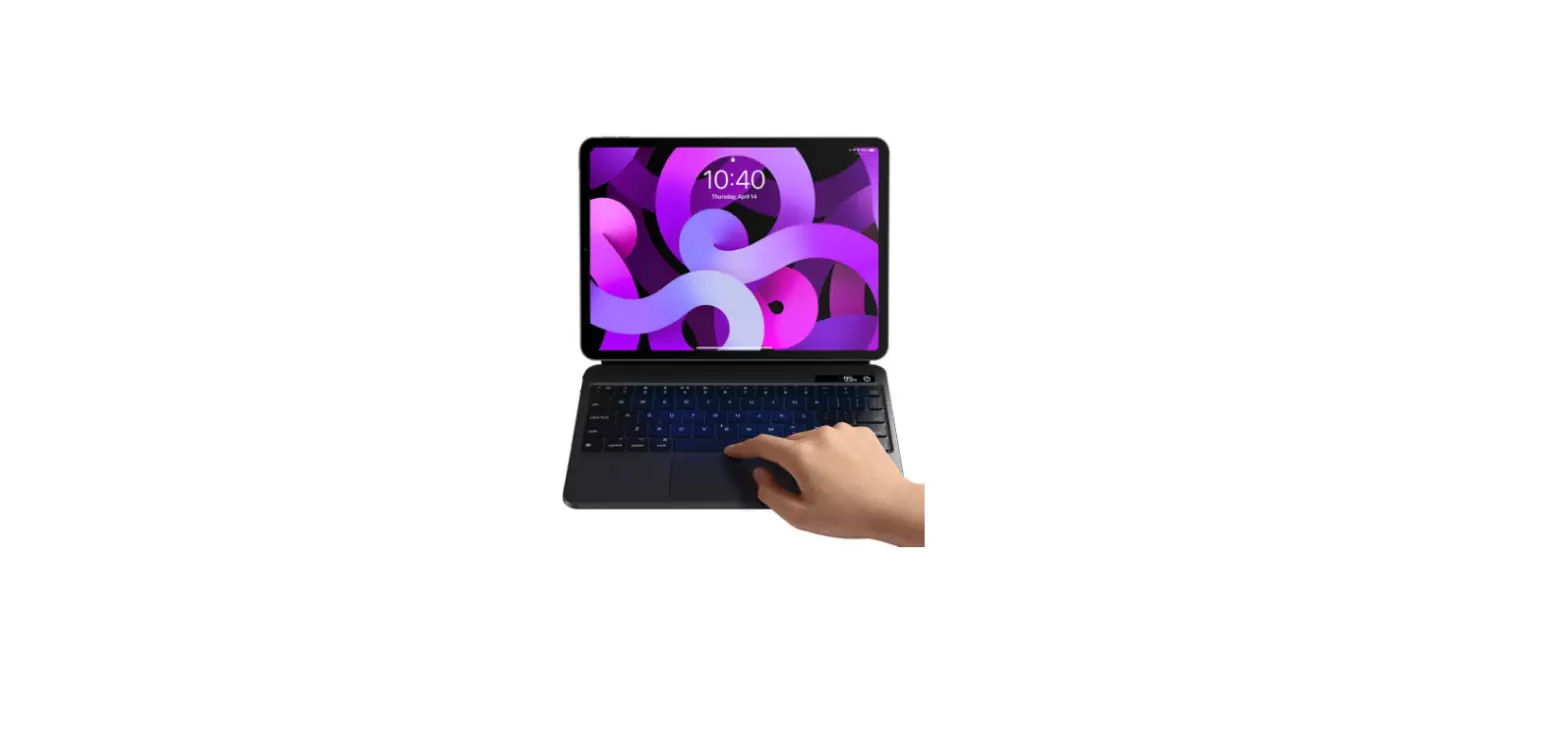
Folding diagram
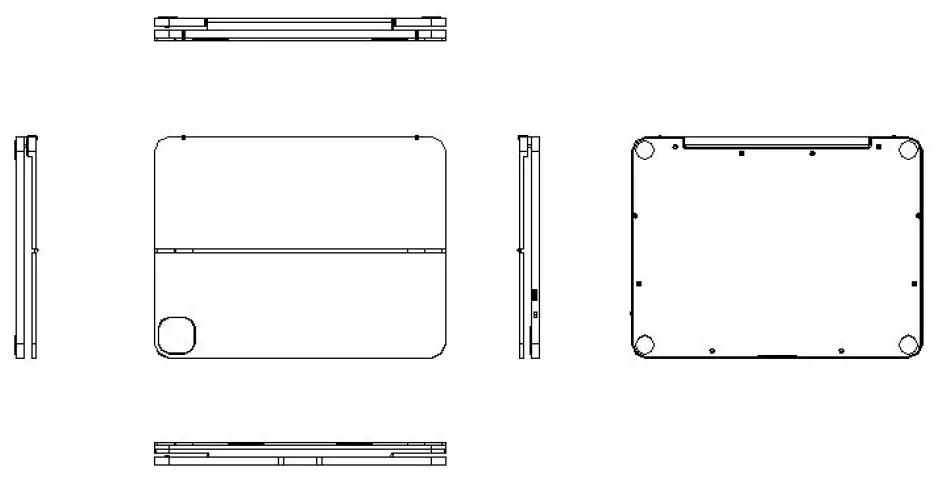
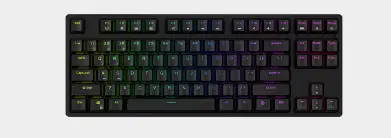
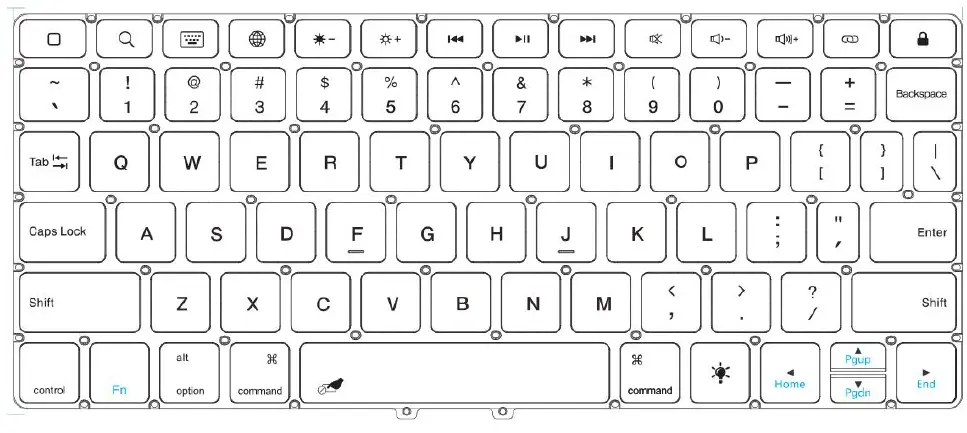
Button Layout(US)
Finished product renderings

FCC Warning
This device complies with part 15 of the FCC Rules. Operation is subject to the following two conditions: (1) this device may not cause harmful interference, and (2) this device must accept any interference received, including interference that may cause undesired operation. Any changes or modifications not expressly approved by the party responsible for compliance could void the user’s authority to operate the equipment.
NOTE: This equipment has been tested and found to comply with the limits for a Class B digital device, pursuant to Part 15 of the FCC Rules. These limits are designed to provide reasonable protection against harmful interference in a residential installation. This equipment generates, uses and can radiate radio frequency energy and, if not installed and used in accordance with the instructions, may cause harmful interference to radio communications. However, there is no guarantee that interference will not occur in a particular installation. If this equipment does cause harmful interference to radio or television reception,
which can be determined by turning the equipment off and on, the user is encouraged to try to correct the interference by one or more of the following measures:
- Reorient or relocate the receiving antenna.
- Increase the separation between the equipment and the receiver.
- Connect the equipment to an outlet on a circuit different from that to which the receiver is connected.
- Consult the dealer or an experienced radio/TV technician for help.
The device has been evaluated to meet the general RF exposure requirements. The device can be used in portable exposure conditions without restriction
Note:
This equipment has been tested and found to comply with the limits for a Class A digital device, pursuant to part 15 of the FCC Rules. These limits are designed to provide reasonable protection against harmful interference when the equipment is operated in a commercial environment. This equipment generates, uses, and can radiate radio frequency energy and, if not installed and used in accordance with the instruction manual, may cause harmful interference to radio communications. Operation of this equipment in a residential area is likely to cause harmful interference in which case the user will be required to correct the interference at his own expense.