 User Manual
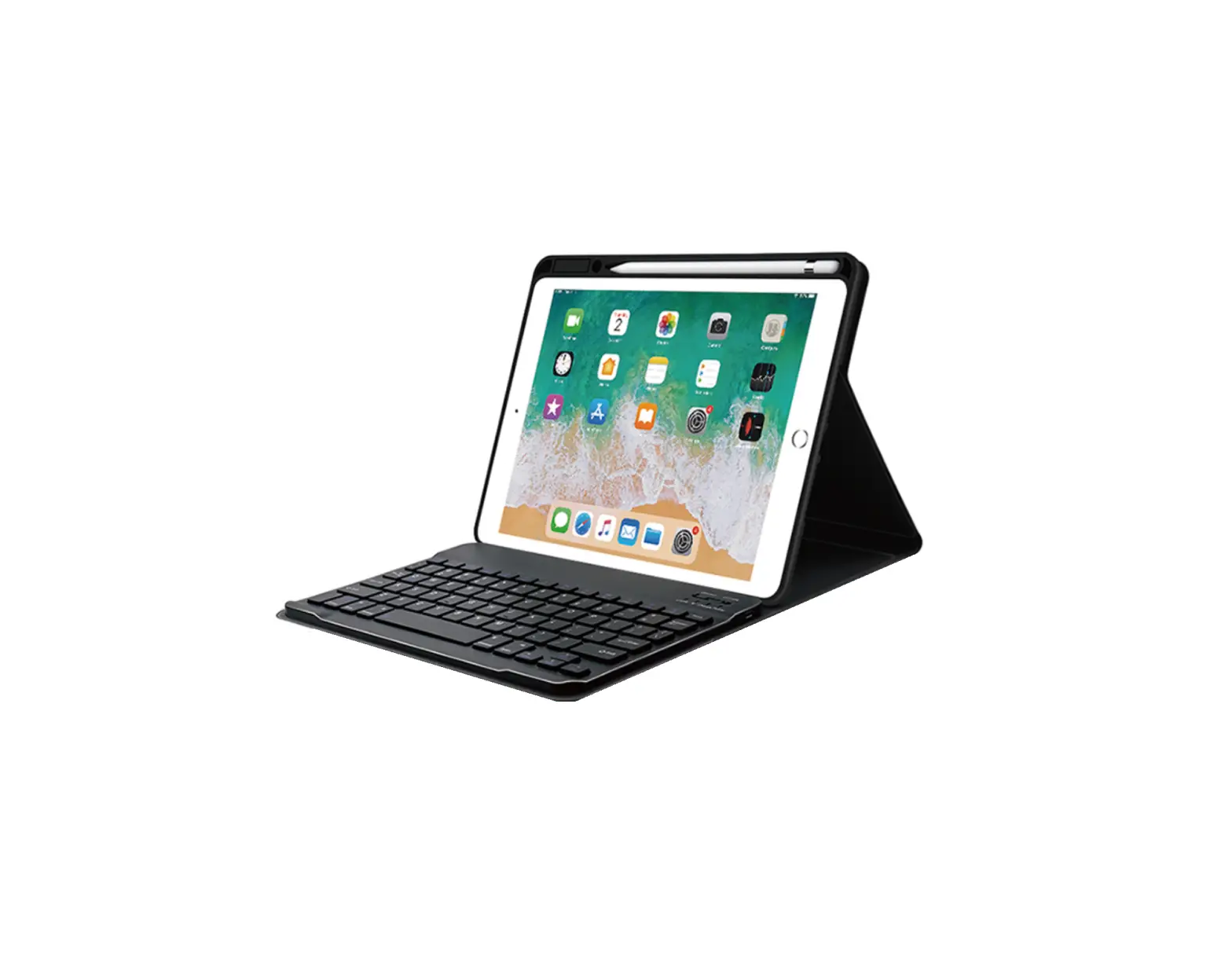
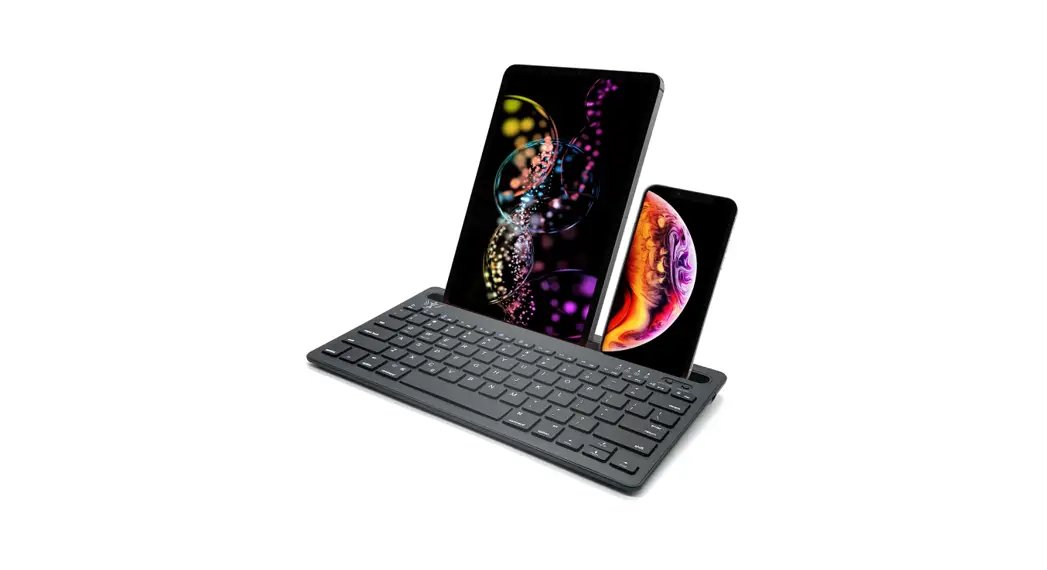
Bluetooth Keyboard Case
105210913 V01
What’s in the Box
VOPOTEK bluetooth keyboard case*1
USB-C charging cable*1
User manual*1
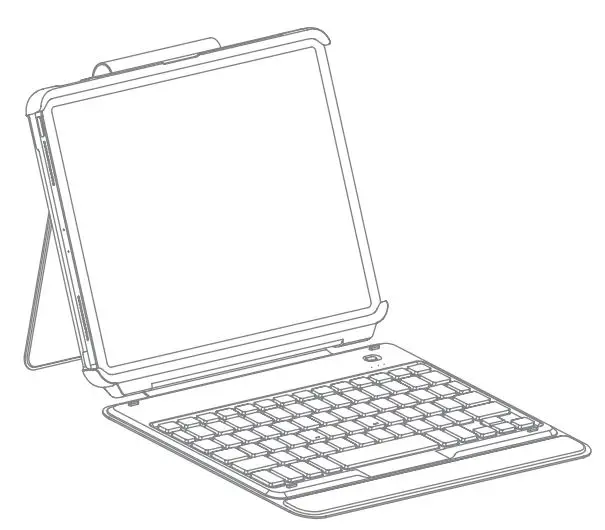
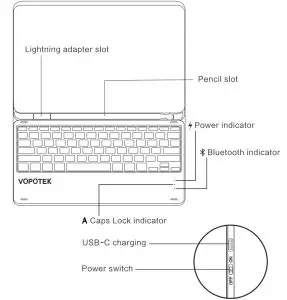
At a Glance
Pairing the keyboard with your iPad
- Toggle the switch to “ON” to turn on the keyboard. All indicators flash four times simultaneously, which means the keyboard is turned on.
- Press and hold the
 simultaneously for 3 seconds. When the blue light begins blinking, it means it’s ready to pair with your iPad.
 - Activate the Bluetooth function of your iPad.
- On your iPad, click “VOPOTEK Keyboard” to connect.
 simultaneously for 3 seconds. When the blue light begins blinking, it means it’s ready to pair with your iPad.
Troubleshooting in Bluetooth Pairing
- After one successful paring, your iPad will automatically connect to the keyboard when it is turned on.
- If the Bluetooth connection fails, or the iPad reminds: Connection Unsuccessful, Make sure “VOPOTEK Keyboard” is turned on and in range. Please follow the steps below to reconnect.
a. Delete all Bluetooth pairing history related to VOPOTEK The keyboard on your iPad.
b. Turn off Bluetooth on your iPad.
c. Follow ‘Pairing the keyboard with your iPad’ to connect again.
Indicator behaviors
| Indicator | Status | Meaning | |
 LED LED | Flashes red | Low battery | |
| LED | Steady red | Being charged. (Red light off when fully charged) | |
 LED LED | Flashes blue | Under Bluetooth pairing mode, waiting for pairing. (Blue light goes off when paired successfully) | |
| All LEDs | Flashes 4 times simultaneously | Power on | |
Function Keys
 Home Home |  Screen Brightness Screen Brightness |  Take a screenshot Take a screenshot |
 search search |  Screen Brightness + Screen Brightness + |  Switch languages Switch languages |
 siri siri |  onscreen Keyboard onscreen Keyboard |  Play/Pause Play/Pause |
 Back Back |  Locks/Unlock iPad screen Locks/Unlock iPad screen |  Forward Forward |
 Mute Mute |  Volume down Volume down |  Volume up Volume up |
| cmd+X Cut | cmd+A Select all | cmd+space Search |
| cmd+C Copy | cmd+V Paste | cmd+tab Switch APP |
option + shift+  US keyboard layout: US keyboard layout: | ||
onion+  US keyboard layout: US keyboard layout: | ||
Troubleshooting in Typing
- To see a list of shortcuts that you can use with an app, press and hold the cmd or globe
 key when you use the app or on the Home screen.
 - if you want to use caps lock Key in normal to switch Languages, please follow the steps below to change the iPad settings.
• On your iPad, find General-Keyboard-Hardware Keyboard: TURN OFF Switch Languages using Caps Lock - Pressing the space key twice might insert a full stop followed by a space on your iPad. If you encounter such a condition while typing the space key, please follow the steps below to change the iPad settings.
• On your iPad, Find General-Keyboard-Hardware Keyboard: TURN OFF “.” Shortcut
Adjusting the backlight of the keyboard
- Press
 simultaneously to adjust the color of the backlight. There are 7 colors available in total.
 - Press
 simultaneously to adjust the brightness of the backlight. There are 7 colors available in total. 3 levels of brightness are at choice.
 simultaneously to adjust the color of the backlight. There are 7 colors available in total.
 simultaneously to adjust the brightness of the backlight. There are 7 colors available in total. 3 levels of brightness are at choice.
Note: When the battery level is lower than 20%, the backlight turns off automatically.
Checking battery status of the keyboard
Press  simultaneously to check the battery level. (Only in non-charging mode)
| Red indicator flashes | Battery Level |
| Once | 0-25% |
| Twice | 25-50% |
| 3 times | 50-75% |
| 4times | 75-100% |
Charging
When the battery level is under 15%, the power indicator will blink in red. The keyboard can be charged with a charger that supports 5V output. It takes about 3 hours to fully charge the keyboard. The indicator light goes off when the battery is full.
Note: You can use the keyboard while it is being charged.
Sleeping Mode
When the keyboard is left idle for 1.5 hours, it goes into deep sleep mode. Wake it up by pressing any button. Under sleep mode, Bluetooth will disconnect automatically, and you can build reconnection by pressing any key.
Specifications
| Bluetooth range | 10m/33ft |
| Keys type | Scissor keys |
| Battery capacity | 650mAh |
| Charging port | USB-C |
| Charging time | 3 hours |
| Rating | 5V 350 mA 350 mA |
| Model | K105, K104 |
Support
We hope you never have the need, but if you do, our service is friendly and hasssle-free. For any inquiries or comments concerning our products, please send an email to [email protected], and we will respond to you as soon as possible.
Regulatory compliance information
FCC Statement
This device complies with Part 15 of the FCC Rules. Operation is subject to the following two conditions: (1) This device may not cause harmful interference, and (2) this device must accept any interference received, including interference that may cause undesired operation.
Note: This equipment has been tested and found to comply with the limits for a Class B digital device, pursuant to Part 15 of the FCC Rules.
These limits are designed to provide reasonable protection against harmful interference in a residential installation.
This equipment generates uses and can radiate radio frequency energy and, if not installed and used in accordance with the instructions, may cause harmful interference to radio communications. However, there is no guarantee that interference will not occur in a particular installation.
If this equipment does cause harmful interference to radio or television reception, which can be determined by turning the equipment off and on, the user is encouraged to try to correct the interference by one or more of the following measures:
- Reorient or relocate the receiving antenna.
- Increase the separation between the equipment and receiver.
- Connect the equipment into an outlet on a circuit different from that to which the receiver is connected.
- Consult the dealer or an experienced radio/TV technician for help.
Changes or modifications not expressly approved by the party responsible for compliance could void the user’s authority to operate the equipment.
FCC ID: 2A2XZ-VPKC361
RF Warning Statement
The device has been evaluated to meet general RF exposure requirements.
The device can be used in portable exposure conditions without restriction.
EU Declaration of Conformity
This product complies with the radio interference requirements of the European Community. Chongqing Xuanbo Technology Co., Ltd. hereby declares that this wireless device is in compliance with the Directive 2014/53/EU.
A copy of the Declaration of Conformity is available at www.vopotek.com/compliance
| Bluetooth frequency | Bluetooth maximum power |
| 2402-2480MHZ | 0dBm |
 EU Representative
EU bridge Advisory GmbH
Virginia Str. 2, 35510 Butzbach, Germany
UK Representative
TAN MET INT’L BUSINESS LTD
9 Pantygraigwen Road, Pontypridd, Mid Glamorgan, United Kingdom, CF37 2RR
Manufacturer
Chongqing Xuanbo Technology Co., Ltd.
Add.: Rm. 1202, Bldg. 5-2, No. 19, Yuyun Rd., Chenjiaba St.,
Wanzhou Dist. , Chongqing, 404028, China