 Quick Installation Guide
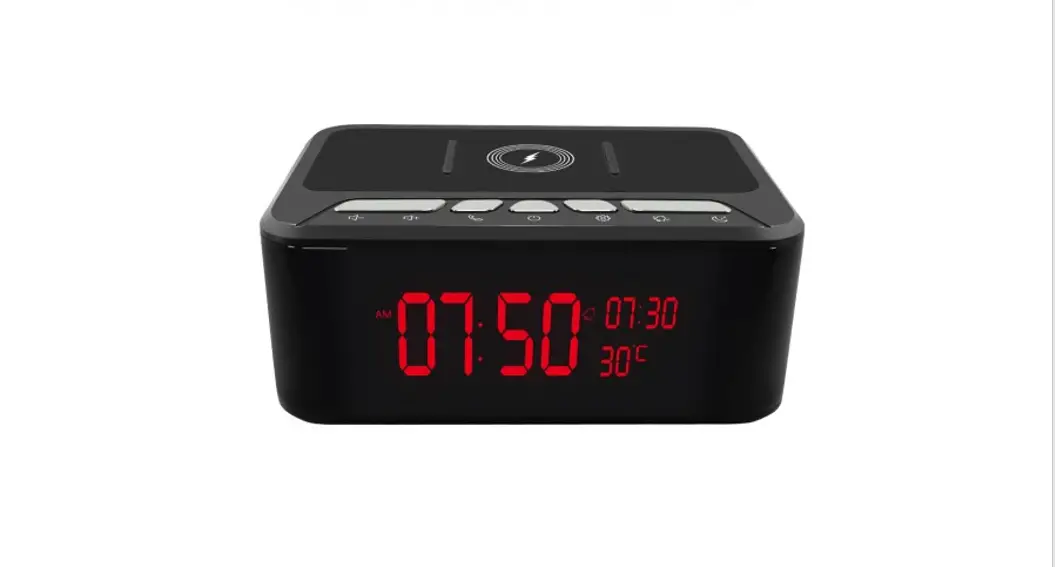
Smart Charger Dock REV4.0
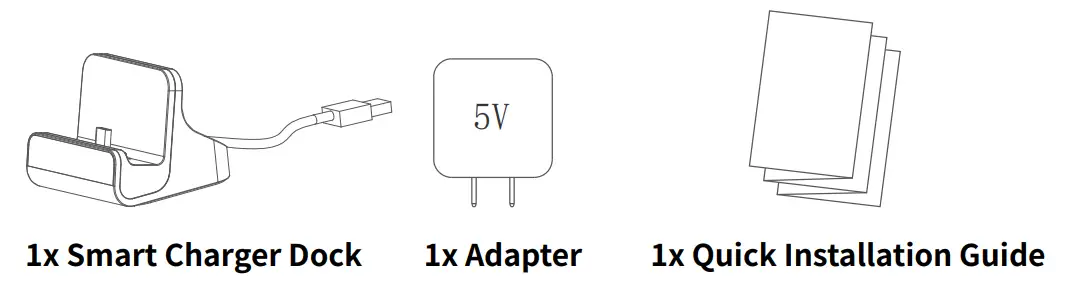
Packing List
Open the package, then make sure the Smart charger dock (device) is intact, and with all the below accessories.
Product Diagram
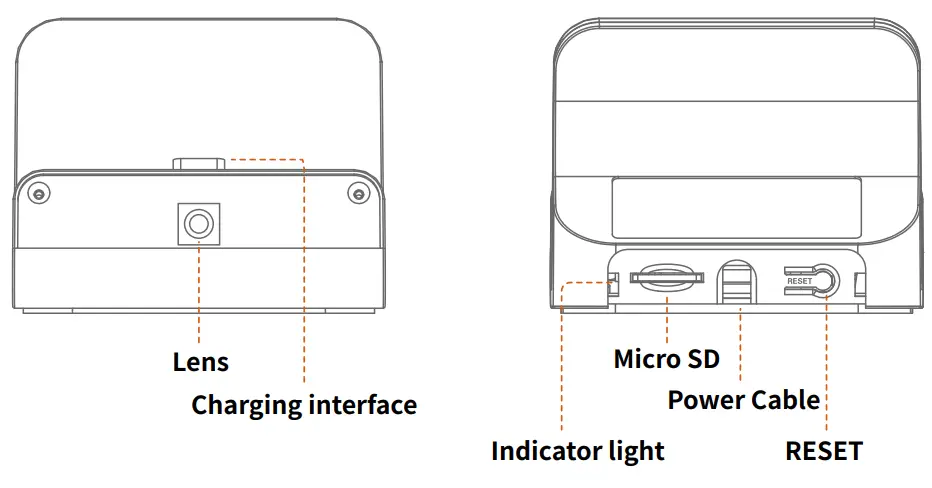
| Description | Introduction |
| Lens | Capture Videos |
| Charging interface | Charging for your mobile devices |
| Micro SD | Support Micro-SD Card Storage(up to 128G) |
| Power Cable | Supply power |
| RESET | Press and hold [RESET] for 5 seconds, the dev-ice will be restored to factory default setting |
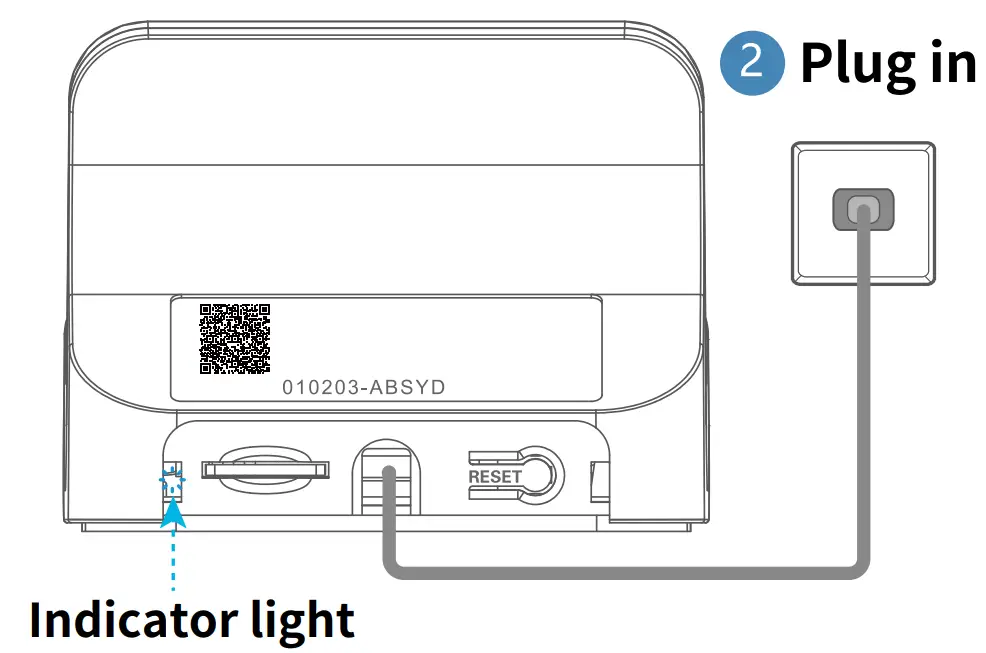
Indicator light
| Blue LED indicator | Light off: No power Light solid: Power on Light blink: System running normally |
| Red LED indicator | Light off: Wi-Fi no connection Light solid: Wi-Fi connected Light blink: Waiting connect to Wi-Fi |
How to Connect The Product
Please download APP before using it. Scan the QR code (Please see the blue card) or download APP from the apple store or google play WARNING
The use of non-original power adapter may cause instability of the devices or WiFi disconnection. To ensure the normal operation of the equipment please use the power adapter provided by the original manufacturer.
Preparation
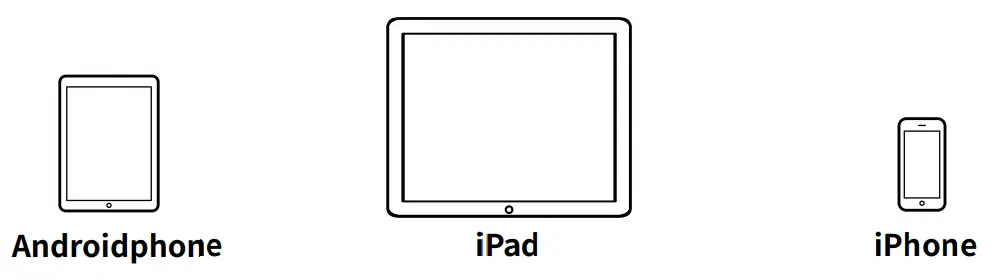
Please prepare the below stuff before you use it.One smartphone or tablet PC with IOS12.0 or Android 8.0 system (higher version system is acceptable)
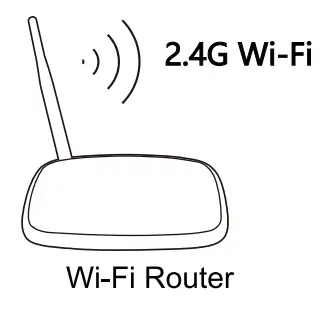
Wi-Fi Router
- Device can only connect to 2.4G Wi-Fi router, 5G Wi-Fi networks are not supported.
- Make sure turn on the DHCP of router, and MAC address should be off.
- Distance between the router and the device should be within 3m during configuration.
- Please don’t use special character such as Chinese, symbol to name the WiFi.
- Please don’t use special character such as Chinese, symbol as the password for the WiFi and Wi-Fi password can not be blank.
Operation Instruction
(please read, IMPORTANT!)
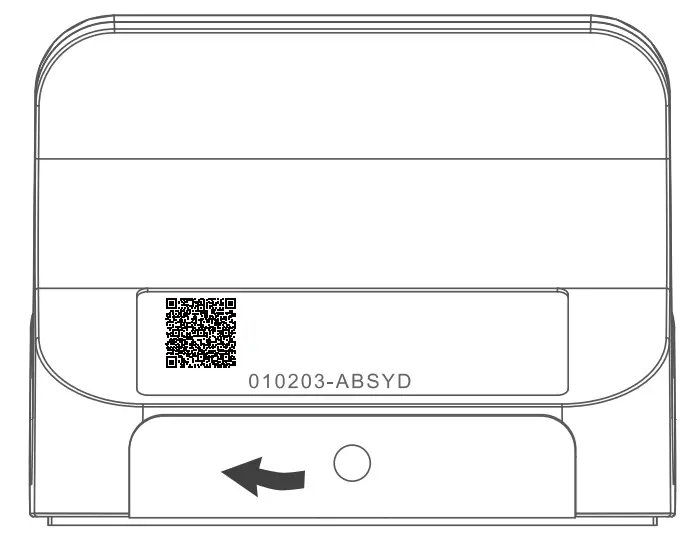
- Open the back cover
- Plug in

- Plug in and wait about 40 seconds, the device starts and the blue LED indicator will blink.
WARNING
Please make sure to use the adapter provided to power the device for first time.
Download and install the app
Please read “App Card”information (must permit all accesses such as album notification, etc.)
Do not open the app yet.(Android devices may not find the app, please see Troubleshoot Guide Android device problems)
Go to your smartphone’s WiFi setting and turn the WiFi ON.
Turn the smartphone’s WiFi ON wait until the camera Blink-xxxx appears(Blink-xxxx.) choose it
Use the WiFi Direct PW:0123456789 and walt until it connects.
It is normal when you get a message such as:-No internet available, unsecured network, etc.. Connect to the camera BLink anyway
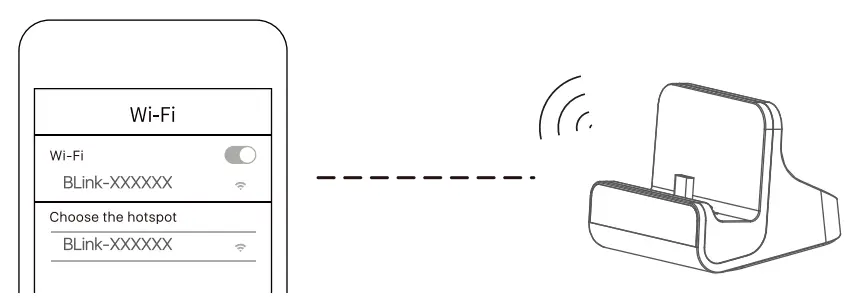
(Some Android devices may not let you connect to the camera, please see the Troubleshoot Guide Android device problems)
WARNING
Sometimes the Blink-xxx is not found, please switch the WIFI button of the mobile phone several times
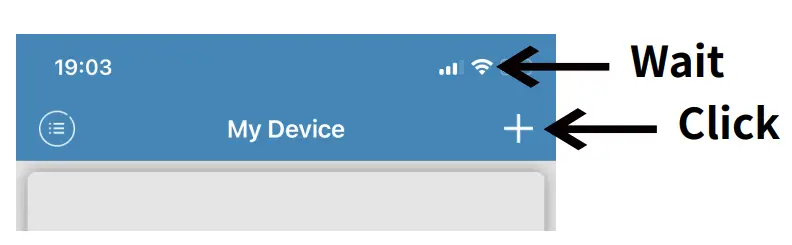
Open the app, wait until the WiFi icon appears.
Then click on the + icon:
Special Statement:
We have 100% percent committed,The camera all information is only available in the device and the cell phone of the bound user, without any third-party storage.
The first time, please plug in the adapter.
Please set the recording mode before disconnecting WIFI router.
lf the device is not linked to the WIFE network it cannot control remote other functions acting normally
If the Video suddenly freezes, the camera with the WIFI router stays less than 10m,or powers off the camera and WiFi router again.
If the WIFI configuration fails, please “reset”the camera and do it again after checking the instructions.
5G WI-IF Router are not supported, Before configuring WiFi, remember to link your phone to 2.4G 5G Wi-Fi networks are