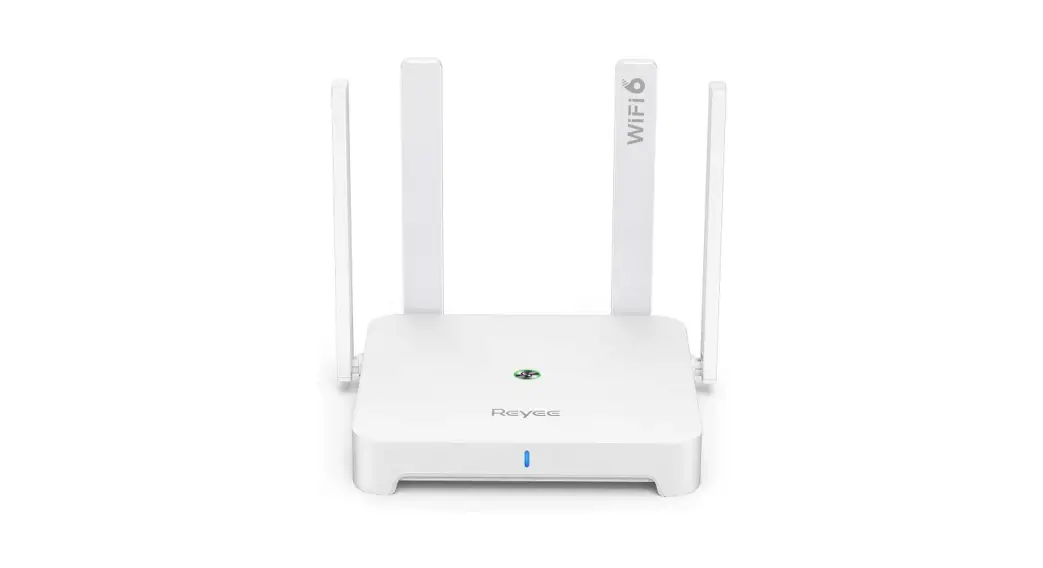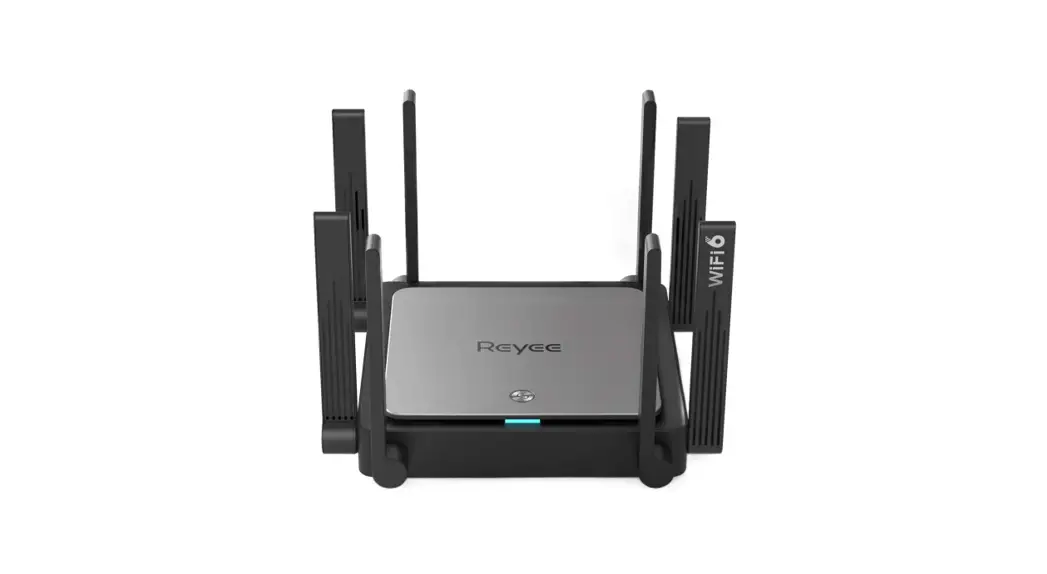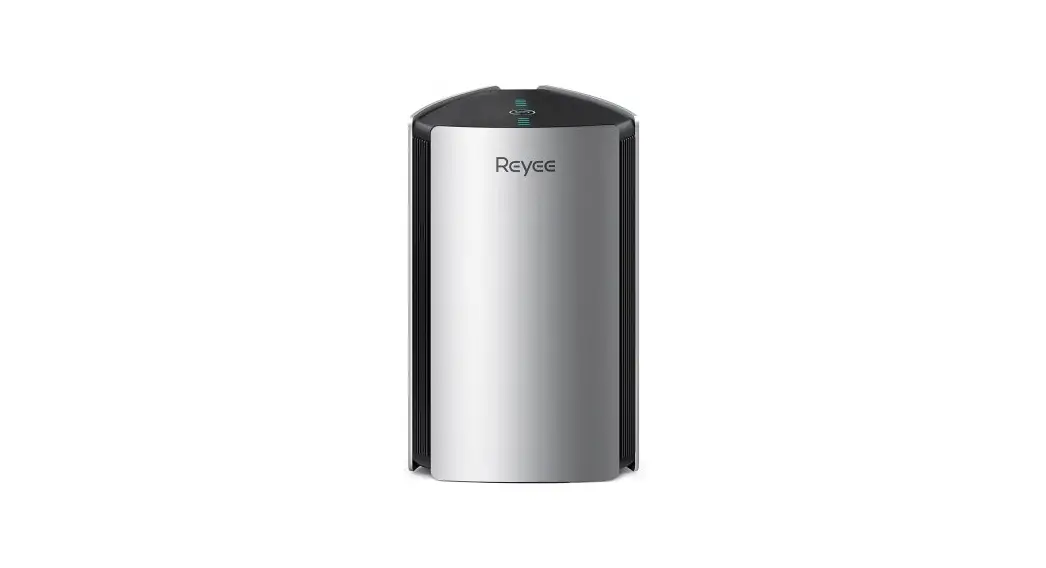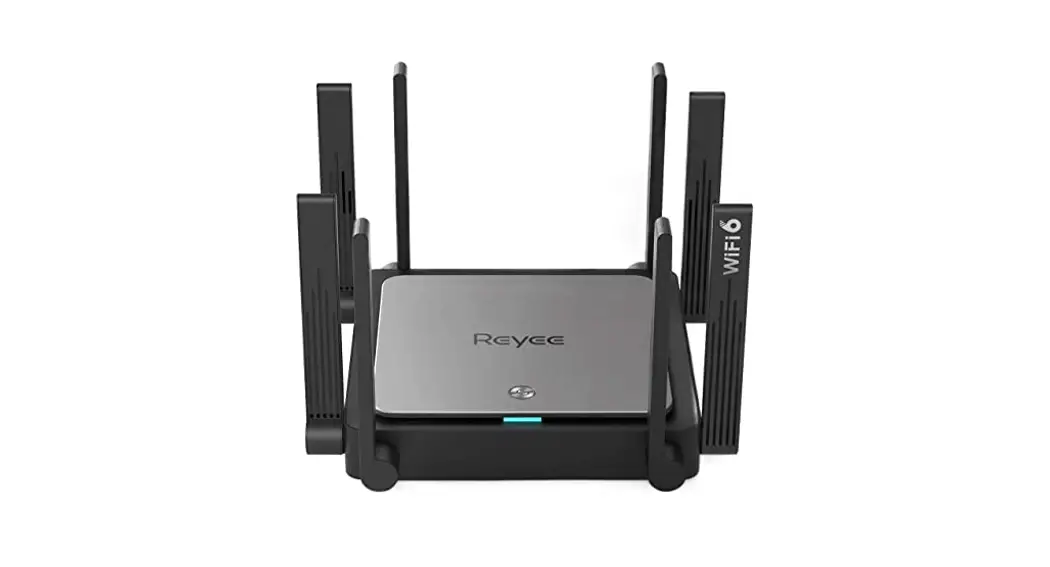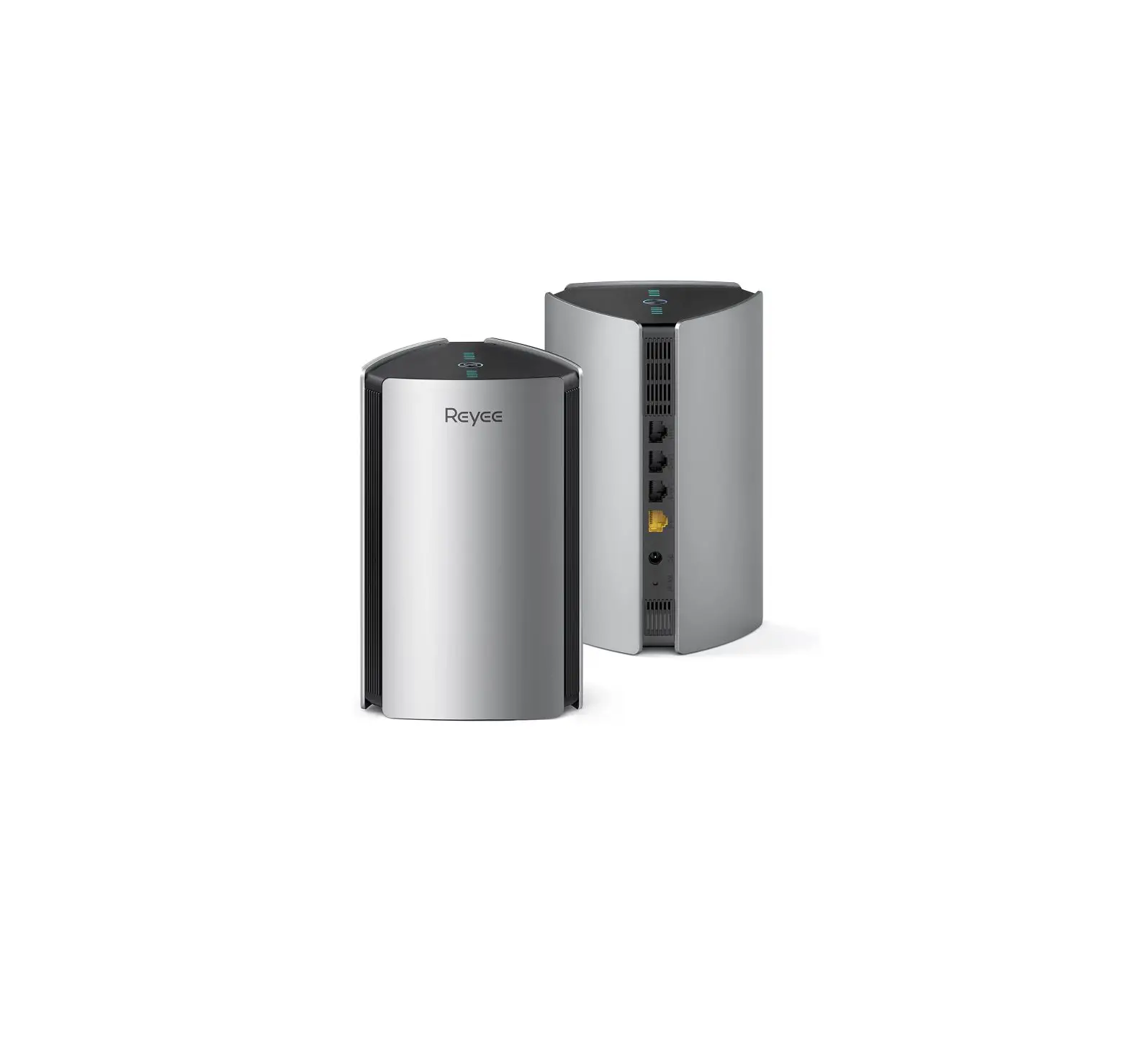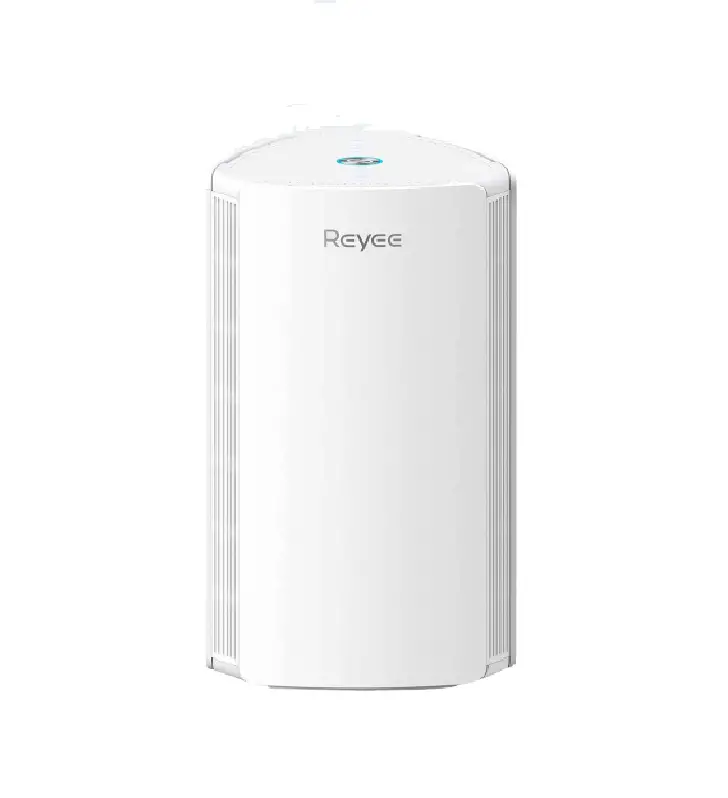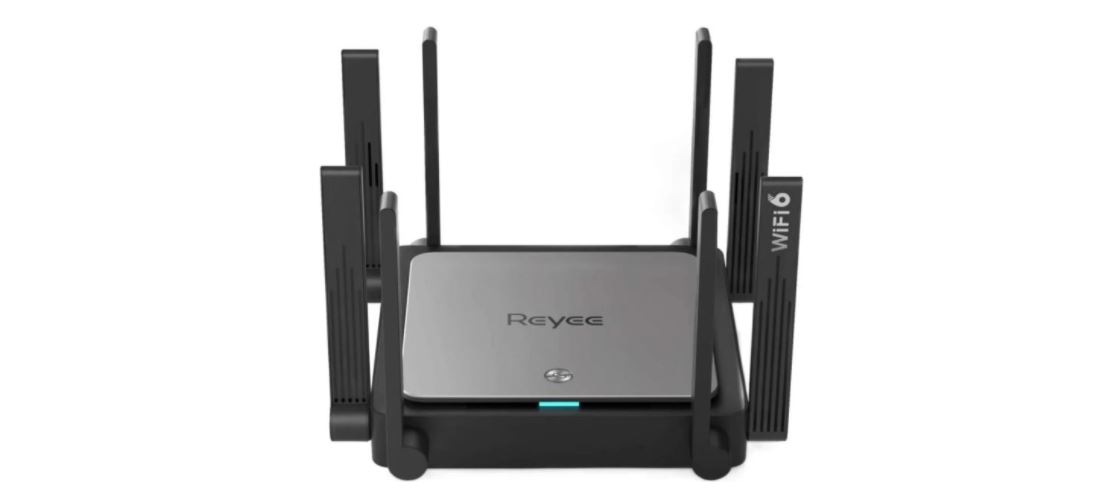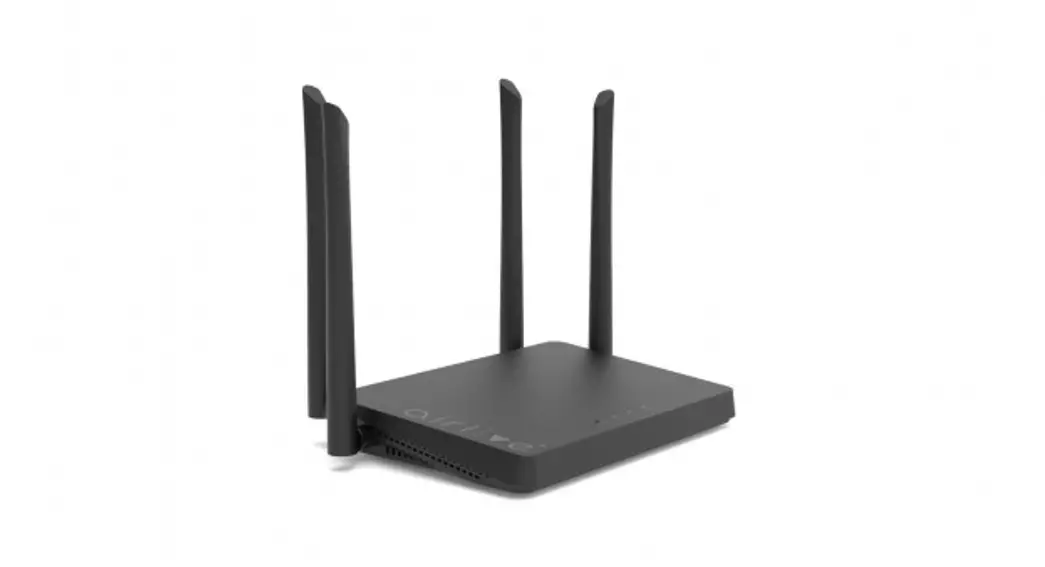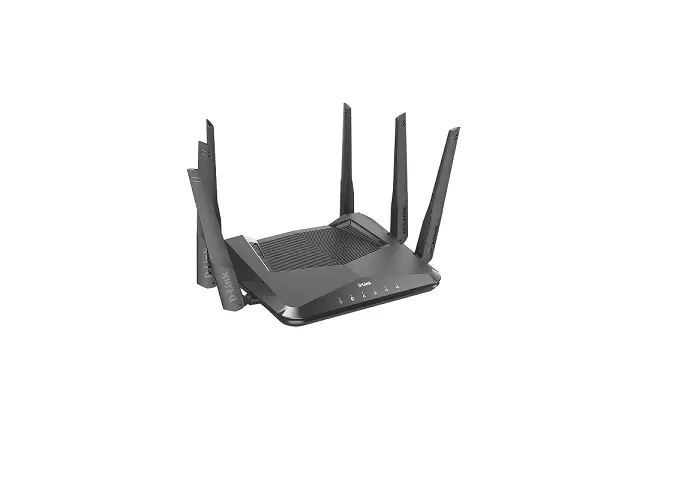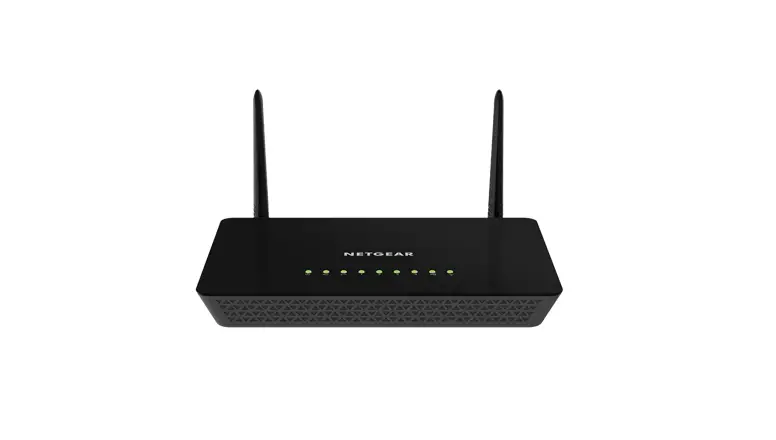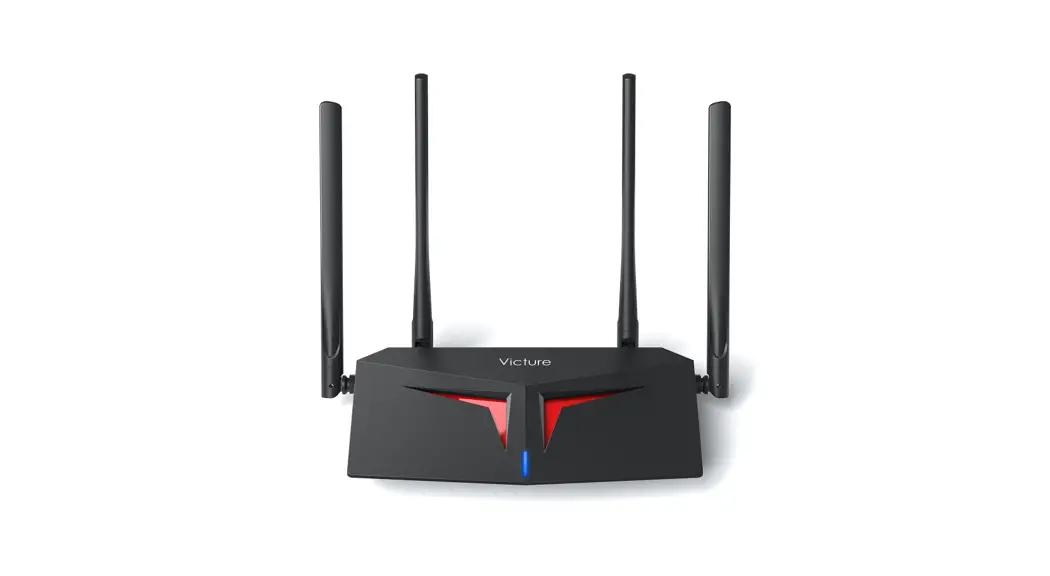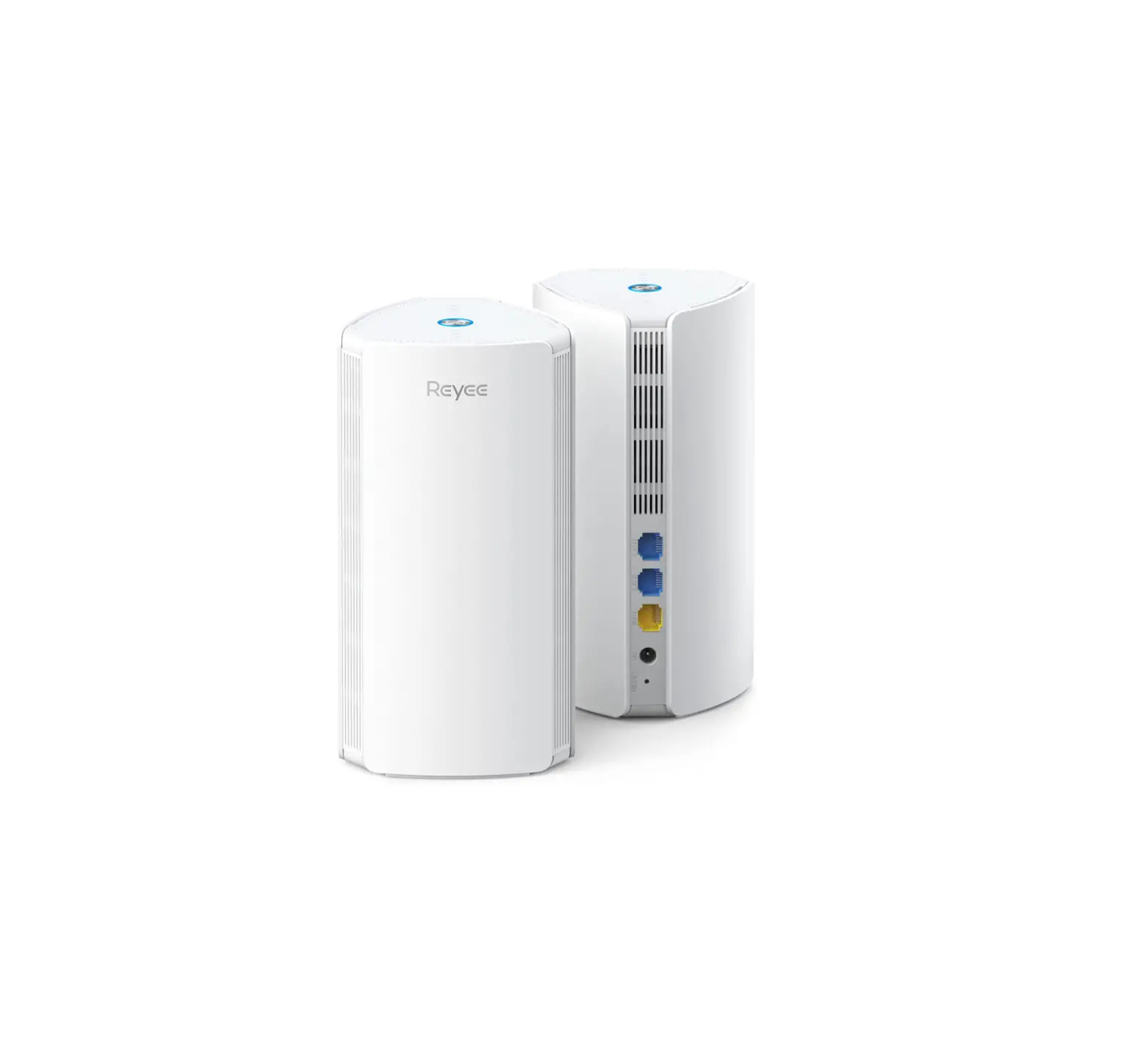
REYEE Mesh Routers AX1800 Smart WiFi 6 Router R4 (2-Pack)
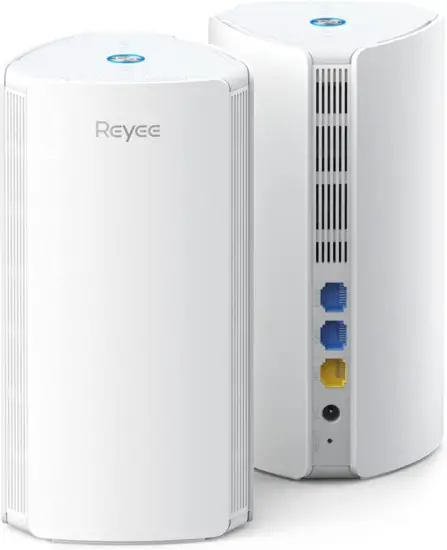
Technical Support
The official website of Reyee: https://www.ireyee.com/support
Conventions
Signs
This document also uses signs to indicate some important points during the operation. The meanings of these signs are as follows:
 Warning
An alert that calls attention to important rules and information that if not understood or followed can result in data loss or equipment damage.
 Note
Note
An alert that calls attention to essential information that if not understood or followed can result in function failure or performance degradation.
 Instruction
An alert that contains additional or supplementary information that if not understood or followed will not lead to serious consequences.
 Specification
An alert that contains a description of product or version support.
Instruction
This manual provides installation steps, troubleshooting, technical specifications, and usage guidelines for cables and connectors. It is intended for users who want to understand the above and have extensive experience in network deployment and management, and assume that users are familiar with related terms and concepts.
Frequently Asked Questions
- Does Reyee Router compatible with the internet service providers in my area?
Reyee Router Works with almost all internet service providers such as AT&T, Verizon, Xfinity, Spectrum, RCN, Cox, CenturyLink, Frontier, Viasat, and more (A modem is required for most internet service providers). - Does Reyee Router work on all devices?
Reyee router works on Apple devices, i.e iPhone, and other smart home devices like security cameras, doorbells, etc. - Does Reyee Router compatible with fiber optic?
No, it doesn’t. A modem is required to use the Reyee router. - Does Reyee Router interfere with other people’s Wi-Fi signals?
Routers do interfere with each other if they are on the same (or close) channels. Reyee Router can automatically choose the best Wi-Fi channel for the least interference. - Can Reyee Router be set as a basic access point to extend coverage?
Yes, you can set it up to work in Access Point mode. Just tap “Connect to the Other Vendor’s Router” in Reyee App. - Does it have parental controls?
Yes, you can use the parental control function in Reyee App to limit your children’s surfing time. - Can Reyee Router be set up on a PC/ mobile App, without using the WAN port cable?
You can either configure it through the internal Web page (192.168.110.1) on a PC. The web management page is a built-in internal web server, it does not require internet access, but requires a physical connection between the Reyee router and the Modem. You can set it up by Reyee App on mobile. - What is the default SSID and password of Reyee router?
For most models, the default SSID and login address can be found on the bottom label of the router. During the first login, you can configure the router directly without a username and password. Please kindly notice that the password of the web, app, and SSID WiFi password is set separately. - Can Reyee Router separate the two Wi-Fi bands 2.4 and 5G to broadcast different names?
SSIDs can be named the same or different. You can set it in Reyee App, go to “Wi-Fi Settings”>>”Smart Connect”. - Can I mesh one R6 router with other Reyee Wi-Fi 6 routers together, or do they need to be the same model?
“Reyee Mesh” can support mesh networks, including all models of Reyee routers.
To expand your high-speed network throughout your home with Reyee routers, press the Mesh button to automatically search for new routers around and perform automatic pairing, or log in to the router management page to select a new router for pairing. After the mesh pairing, the secondary router will synchronize the Wi-Fi settings (SSID and password) of the primary router, and the original Wi-Fi (SSID) will disappear. Up to 5 (1+4) routers are supported.
Please kindly note you can also choose “repeater mode” on Reyee configure Web or App to bridge other brands’ devices to your home network. - Can I use Reyee Router as an AP or a repeater?
I already have a router but I want to extend coverage. Yes, it can be used as an access point or repeater without modifying your current config. - Can I attach a Wi-Fi extender with Reyee Router?
Do I have to Mesh with another router? You can mesh one Reyee router with other Reyee devices. To connect with other brands ‘ devices, you need to choose “repeater mode” on the Web or App. - Can I connect Reyee Router to a Wi-Fi range extender?
Please note that this router is not compatible with other brands’ extenders. We suggest you mesh it with other Reyee routers or bridge it with other routers through wireless repeater mode. - Can Reyee Router turn down the power levels?
To optimize the transmit power, please go to Reyee App (or visit “192.168.110.1” on a PC), in the “Setting” >>”Power” page, you can turn up/down the power levels for both 2.4G and 5G channels. - Does Reyee Router come with the option of guest Wi-Fi?
Yes. Guest Wi-Fi can enable the isolation automatically, which differs from the ordinary SSID. - How many SSIDs can be supported by Reyee Router?
6 SSID by default. - What is the Reyee Router default SSID
@Reyee-Sxxxx - Does the Reyee Router support different SSIDs to obtain different IP address segments?
No. - What is the Reyee Router default password
No password is required for the first login. - My Reyee router doesn’t work with the existing network, why?
Please check your Wi-Fi password, for now, it allows special characters: <=>[]!@#$*(). If still have questions, please contact [email protected]. - Can Reyee Router set up a VPN, Firewall, etc?
PPTP VPN 22. When I have them set to Auto, does the Reyee Router change the 2.4Ghz and 5Ghz channels during use if it finds a different channel with a better signal?
Yes, your Reyee router will automatically switch channels to the better one. - Does Reyee Router support a backhaul connection?
Yes, it supports both wireless and wired backhaul connections. 24. Does Reyee Router support multicast?
Yes. - Does Reyee Router come with a setup manual?
Yes. - Does Reyee Router support authentication?
No. - Does Reyee Router support Layer 3 roaming?
No. - Does Reyee Router support lightning protection?
No. - Does Reyee Router support PoE power?
No. - Does Reyee Router support WPA3?
No. - Does Reyee Router support multiple-WAN
No. - Does Reyee Router support DDNS
Yes, support No-IP DNS
Hardware Specifications
| Specifications | RG-E5 | RG-E3 | RG-R4 | RG-R6 |
| Dimensions )(w×d×h) | 190 mm x 190 mm x 41 mm (antennas not included) | 180 mm x 180 mm x 30 mm (antennas not included) | 91.5mm x 91.5mm x 180.6mm | 119mm x 119mm x 200mm |
| Weight | 0.8kg (packages not included) | 0.55kg (packages not included) | 0.37kg (packages not included) | 0.66kg (packages not included) |
| Wi-Fi Standards | Wi-Fi 6 (802.11ax) | Wi-Fi 6 (802.11ax) | Wi-Fi 6 (802.11ax) | Wi-Fi 6 (802.11ax) |
| MIMO | 2.4GHz, 4×4, MU- MIMO 5GHz, 4×4, MU-MIMO | 2.4GHz, 2×2, MU-MIMO 5GHz, 2×2, MU-MIMO | 2.4GHz, 2×2, MU-MIMO 5GHz, 2×2, MU-MIMO | 2.4GHz, 4×4, MU-MIMO 5GHz, 4×4, MU-MIMO |
| Transmission Rate | 2.4GHz: 800Mbps 5GHz: 2400Mbps | 2.4GHz: 573Mbps 5GHz: 1200Mbps | 2.4GHz: 573Mbps 5GHz: 1200Mbps | 2.4GHz: 800Mbps 5GHz: 2400Mbps |
| Frequency Bandwidth | 2.4GHz: Auto/20/40 5GHz: Auto/20/40/80 | 2.4GHz: Auto/20/40 5GHz: Auto/20/40/80 | 2.4GHz: Auto/20/40 5GHz: Auto/20/40/80 | 2.4GHz: Auto/20/40 5GHz: Auto/20/40/80 |
| Antennas | 8 | 4 | 4 | 4 |
| Antennas Type | External Omnidirectional | External Omnidirectional | built-in dual-band omnidirectional | built-in dual-band omnidirectional |
| WAN Port | 1, 10/100/1000Base-T | 1, 10/100/1000Base-T | 1, 10/100/1000Base-T | 1, 10/100/1000Base-T |
| LAN Port(s) | 3, 10/100/1000Base-T | 3, 10/100/1000Base-T | 2, 10/100/1000Base-T | 3, 10/100/1000Base-T |
| Maximum Number of Clients | 198 | 128 | 64 | 150 |
| Recommended Number of Clients | 96 | 64 | 48 | 78 |
| Power Supply | DC 12V/2A | DC 12V/1.5A | DC 12V/1.5A | DC 12V/2A |
| Transmit Power | 2.4G: 802.11b:26dBm 802.11g:6M 26dBm; 54M 23dBm 802.11n:MCS0 26dBm MCS7:22dBm 5G: | 2.4G: 802.11b:26dBm 802.11g:6M 26dBm; 54M 23dBm 802.11n:MCS0 26dBm MCS7:22dBm 802.11ax:MCS11 20dBm 5G: | 2.4G: 802.11b:26dBm 802.11g:6M 26dBm; 54M 23dBm 802.11n:MCS0 26dBm MCS7 22dBm 802.11ac:MCS0 26dBm MCS9 21dBm 802.11ax:MCS11 20dBm 5G: | 2.4G: 802.11b:27dBm 802.11g:6M 27dBm; 54M 24dBm 802.11n:MCS0 27dBm MCS7 23dBm 5G: |
| Operating Temperature | ‘-10 ~ +45°C (14 ~ 113 °F) | ‘-10 ~ +45°C (14 ~ 113 °F) | ‘-10 ~ +45°C (14 ~ 113 °F) | ‘-10 ~ +45°C (14 ~ 113 °F) |
| Operating Humidity | 5% ~ 95% Noncondensing | 5% ~ 95% Noncondensing | 5% ~ 95% Noncondensing | 5% ~ 95% Noncondensing |
| Certifications | CE/RoHS/FCC/cTUVus/IC | CE/RoHS/FCC/cTUVus/IC | CE/RoHS/FCC/cTUVus/IC | CE/RoHS/FCC/cTUVus/IC |
| Wireless | RG-E5 | RG-E3 | RG-R4 | RG-R6 |
| OFDMA | Support | Support | Support | Support |
| MU-MIMO | Support | Support | Support | Support |
| BSS Coloring | Support | Support | Support | Support |
| Maximum number of SSIDs | 32 | 32 | 32 | 32 |
| Hide SSID | Support | Support | Support | Support |
| 5GPriority | Support | Support | Support | Support |
| Guest Wi-Fi | Support | Support | Support | Support |
| WPA/WPA2 | Support | Support | Support | Support |
| WPA3 | – | – | – | – |
| Roaming | Support | Support | Support | Support |
| Blacklist | Support | Support | Support | Support |
| Reyee Mesh | Support | Support | Support | Support |
| Hop count | <5 | <5 | <5 | <5 |
| Wi-Fi Optimization | Support | Support | Support | Support |
| QoS (WMM) | Support | Support | Support | Support |
| WPS | – | – | – | – |
| Transmission Power adjustment | Support | Support | Support | Support |
| Flash | 16MB | 16MB | 16MB | 16MB |
| Memory | 256MB | 256MB | 256MB | 256MB |
| Color | Black | White | White | White |
| Repeater Mode | Support | Support | Support | Support |
| System LED Indicator | Support | Support | Support | Support |
| Reyee Mesh LED Indicator | Support | Support | Support | Support |
| Reyee Mesh Button | Support | Support | Support | Support |
| Power Button | Support | Support | Support | Support |
| Reset Button | Support | Support | Support | Support |
| Power Consumption | <36W | <18W | <18W | <36W |
| WAN | RG-E5 | RG-E3 | RG-R4 | RG-R6 |
| Static IP | Support | Support | Support | Support |
| DHCP | Support | Support | Support | Support |
| PPPoE | Support | Support | Support | Support |
| VLAN Tag | Support | Support | Support | Support |
| Static IP | Support | Support | Support | Support |
| DHCP | Support | Support | Support | Support |
| PPPoE | Support | Support | Support | Support |
| VLAN Tag | Support | Support | Support | Support |
| LAN | RG-E5 | RG-E3 | RG-R4 | RG-R6 |
| DHCP Server | Support | Support | Support | Support |
| Client List | Support | Support | Support | Support |
| Static IP Assignment | Support | Support | Support | Support |
| Flow Control | Support | Support | Support | Support |
| Features | RG-E5 | RG-E3 | RG-R4 | RG-R6 |
| IPv6 | Support | Support | Support | Support |
| DDNS | Support | Support | Support | Support |
| IPTV | Support | Support | Support | Support |
| Alarm | Support | Support | Support | Support |
| Diagnosis | Support | Support | Support | Support |
| UPnP | Support | Support | Support | Support |
| ARP Binding | Support | Support | Support | Support |
| Port Mapping | Support | Support | Support | Support |
| DMZ Host | Support | Support | Support | Support |
| Rate Limitation of Terminals | Support | Support | Support | Support |
| Hardware NAT | Support | Support | Support | Support |
| MAC Cloning | Support | Support | Support | Support |
| Cloud Management | Support | Support | Support | Support |
| Security | RG-E5 | RG-E3 | RG-R4 | RG-R6 |
| Parental Control | APP/URL/Schedule | APP/URL/Schedule | APP/URL/Schedule | APP/URL/Schedule |
| Protect TCP Flood Attacks | Support | Support | Support | Support |
| Others | RG-E5 | RG-E3 | RG-R4 | RG-R6 |
| Default IP Address | 192.168.110.1 | 192.168.110.1 | 192.168.110.1 | 192.168.110.1 |
| URL Access | Support | Support | Support | Support |
| Local Upgrade | Support | Support | Support | Support |
| Online Upgrade | Support | Support | Support | Support |
| APP Upgrade | Support | Support | Support | Support |
| Syslog | Support | Support | Support | Support |
| Backup | Support | Support | Support | Support |
| Factory Reset | Support | Support | Support | Support |
| Wireless Router | 1 | 1 | 1 | 1 |
| Power Adapter | 1 | 1 | 1 | 1 |
| Quick Start Guide | 1 | 1 | 1 | 1 |
| Cat5E UTP Cable | Cat5E | Cat5E | Cat5E | Cat5E |

 Support Centre | Reyee