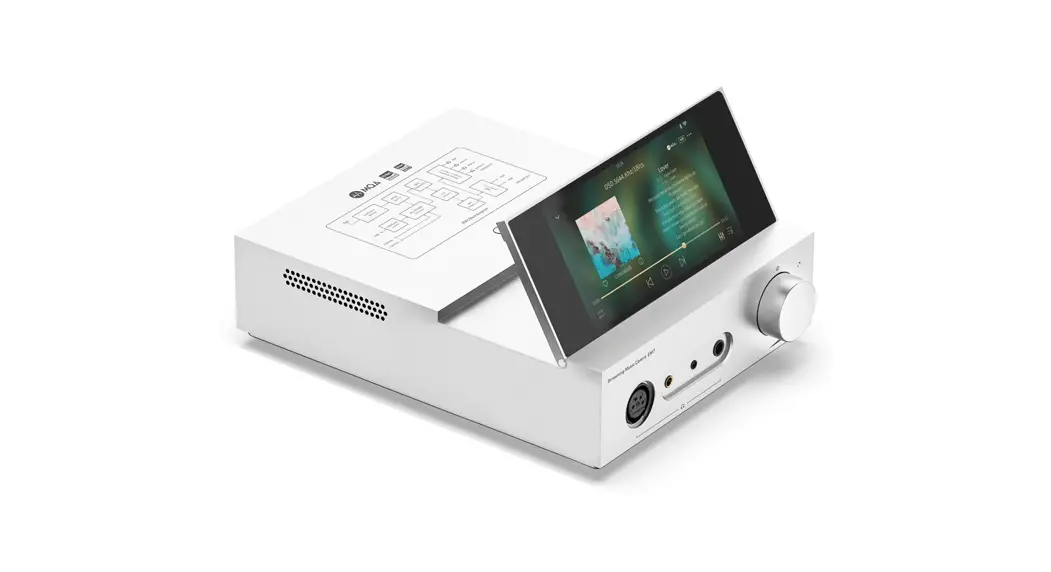
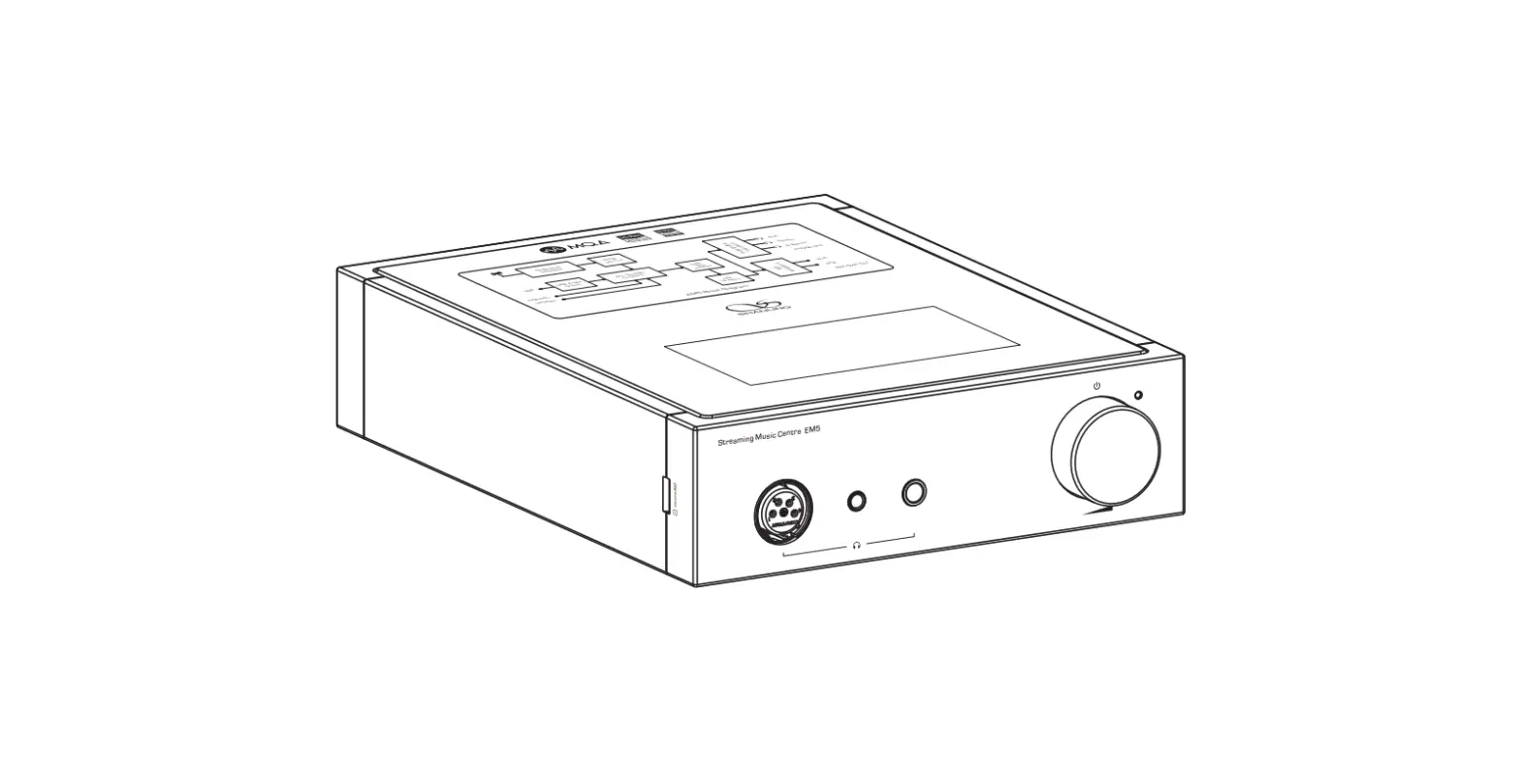
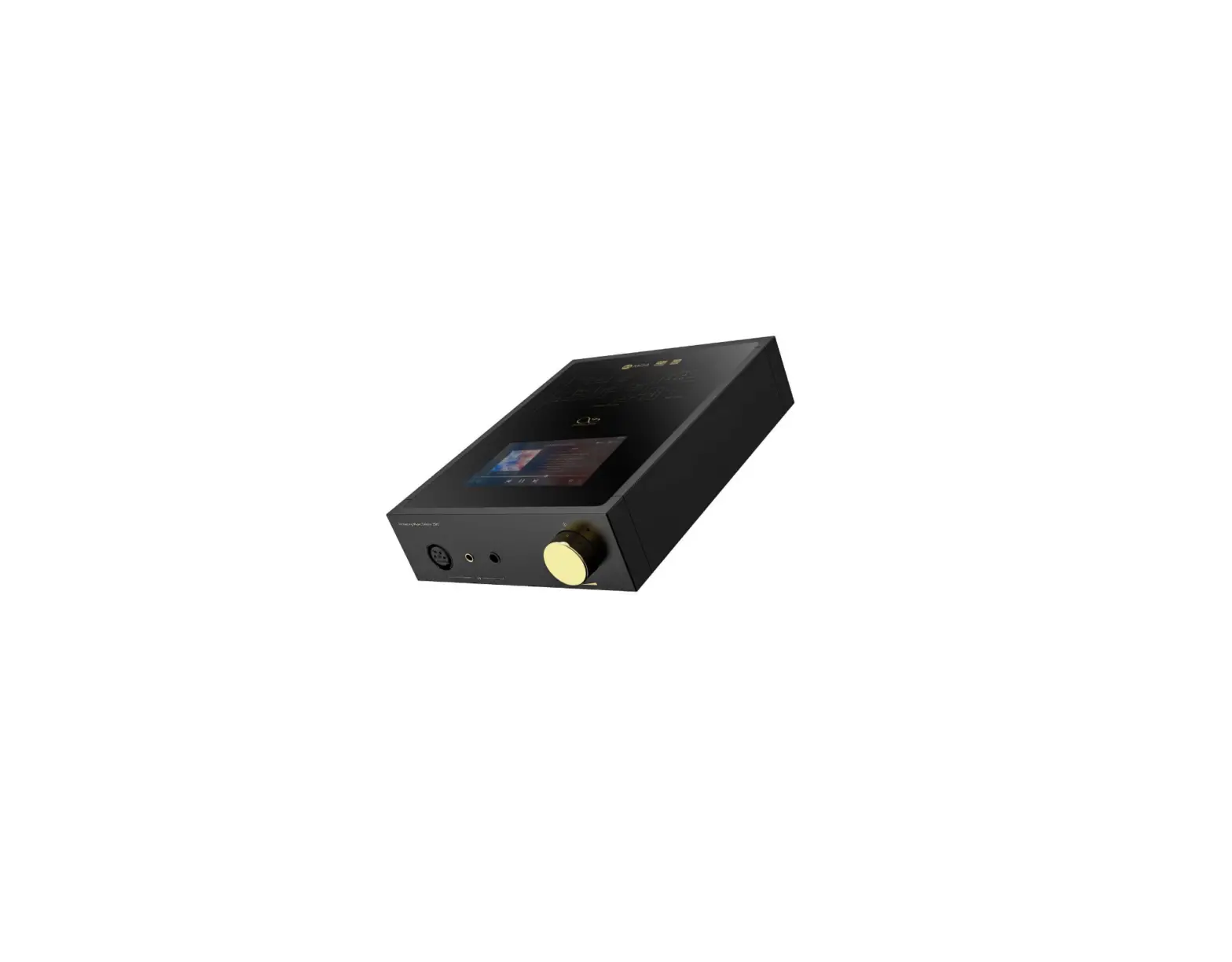
EM7 Shanling Desktop Streamers
Product Information
The product has undergone changes in the main menu, with the
Streaming services and Input Switching menus being moved to a
different location in the system. The new firmware has been updated
to reflect these changes. Additionally, new floating buttons have
been added to the wireless projection on the Eddict player.
The easiest way to access the Input Switching menu is through
the dedicated icon in the Swipe down menu, which is available in
all parts of the system. To do this, swipe down from the top of the
screen to view the menu.
New Location of Streaming Services
Streaming services can now be found in the Input Switching menu.
To access this menu, use the Source floating button or
Input-Switching icon in the Swipe down menu. When opening the
Streaming services menu, there is a slight 5-second delay.
There are two new floating buttons in Wireless projection: an
Exit Button and a Volume Control button. If all floating buttons
are enabled, you will see 4 floating buttons in Wireless
Projection. All of these buttons can be moved around the screen,
making sure they do not cover any UI elements underneath them.
Product Usage Instructions
- To access the Input Switching Menu, swipe down from the top of
the screen to view the Swipe down menu. From there, click on the
dedicated icon to access the menu. - To access Streaming Services, use either the Source floating
button or Input-Switching icon in the Swipe down menu. There is a
slight delay of 5 seconds when opening this menu. - When using Wireless Projection on the Eddict player, there are
now two additional floating buttons: an Exit Button and a Volume
Control button. These buttons can be moved around the screen to
prevent them from covering any UI elements underneath them.
Main menu changes Streaming services and Input Switching menus were moved to a different place in the system. Please read this guide to learn how to access them in the new Firmware. Accessing Input Switching menu Easiest way to access the Input Switching menu is by dedicated icon in the Swipe down menu. Swipe down from top of the screen to view this menu. Available in all parts of the system.
New “Source” Floating button This second floating button was added to the system, allowing for quick access to Input Switching Menu from anywhere in the system. To open Input Switching Menu, hold on the “Source” button for 2 seconds. You can hold and drag this button, to move it around the screen. “Source” button can be disabled in System settings Display Open Audio-Source Floating Ball.
New Location of Streaming services Streaming services were moved to the Input Switching menu. To access this menu, use the “Source” floating button or “Input-Switching” icon in Swipe down menu. When opening the Streaming services menu, there is slight 5 second delay.
New Floating buttons in Wireless Projection on Eddict player There are two new floating buttons in Wireless projection – Exit Button and Volume Control button. If all floating buttons are enabled, you will see 4 floating buttons in Wireless Projection. All of these buttons can be moved around the screen, making sure they do not cover any UI elements underneath them.