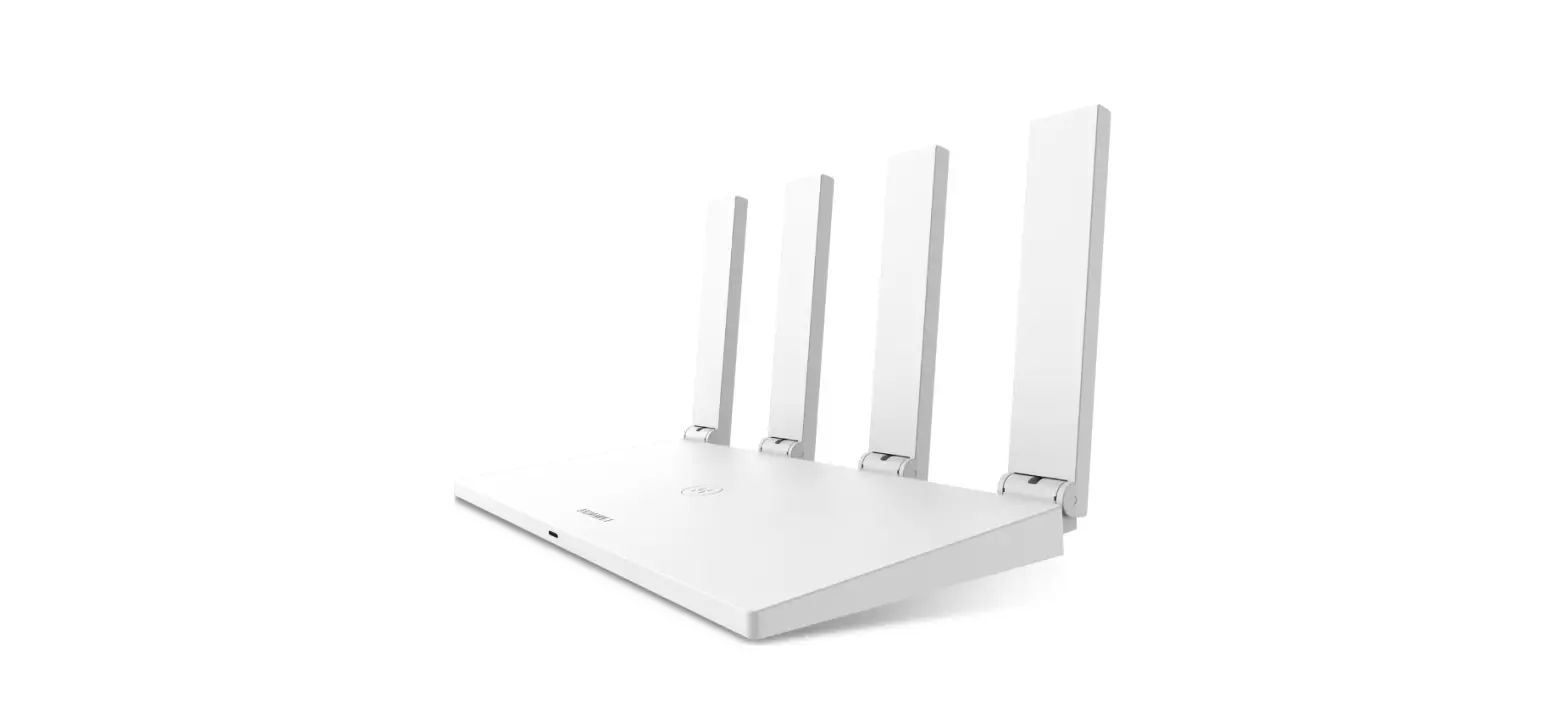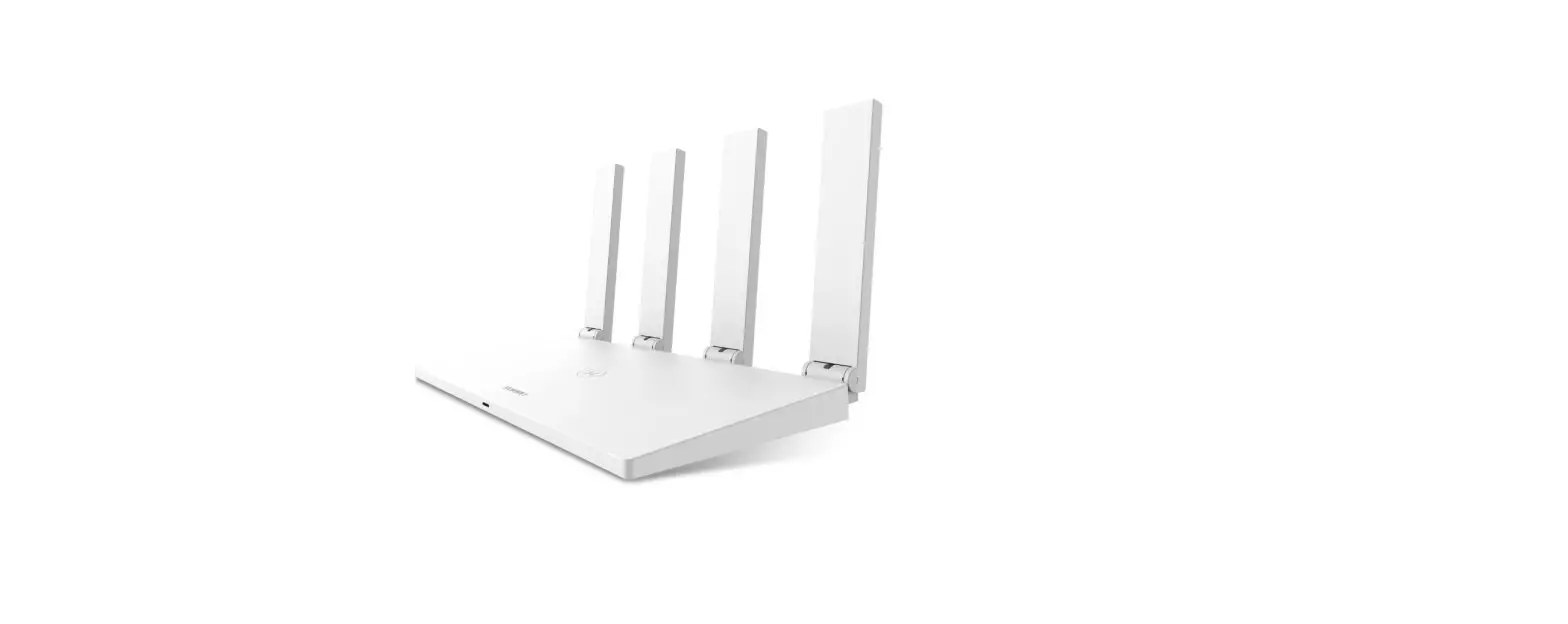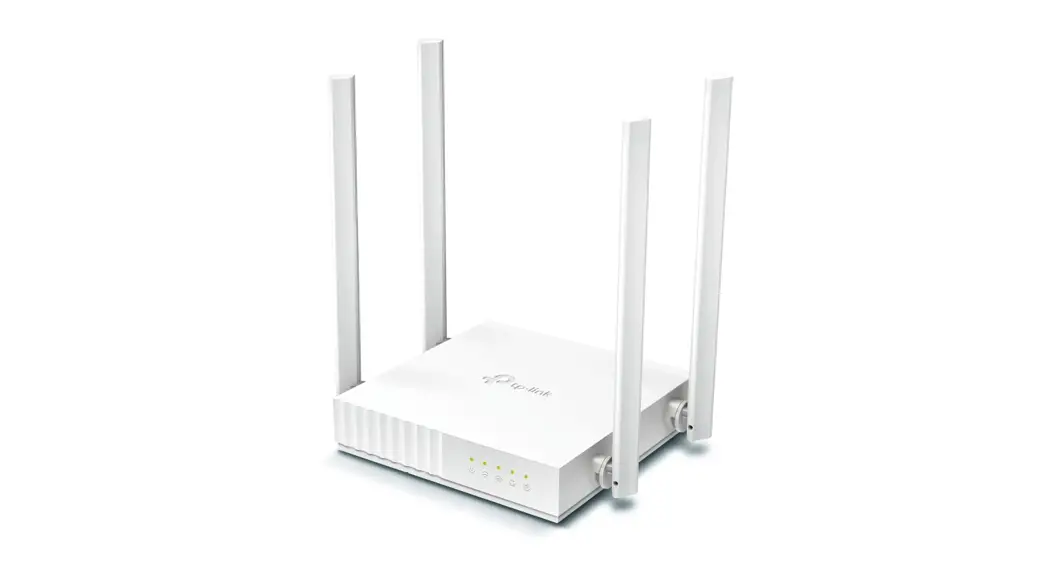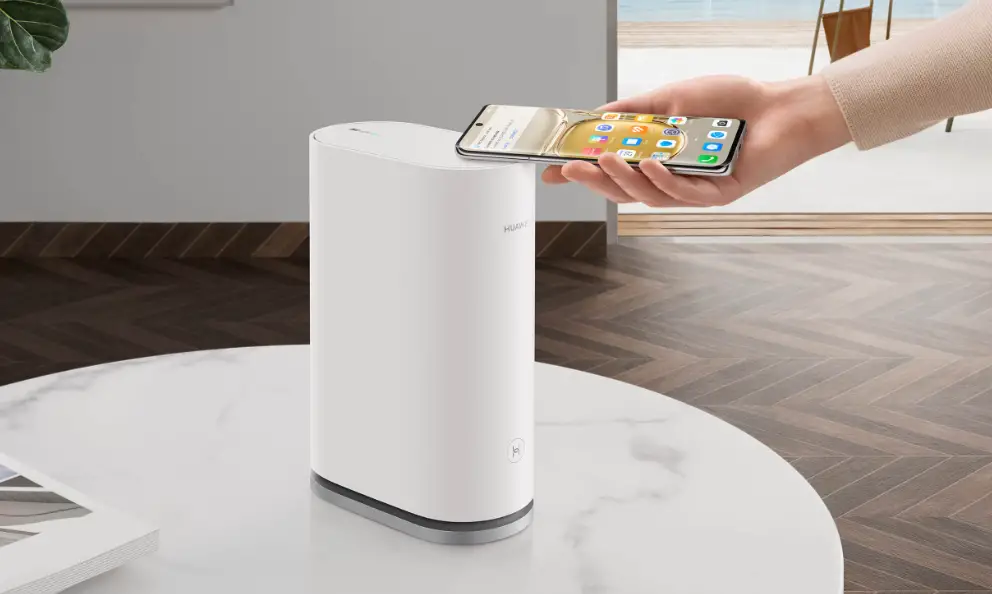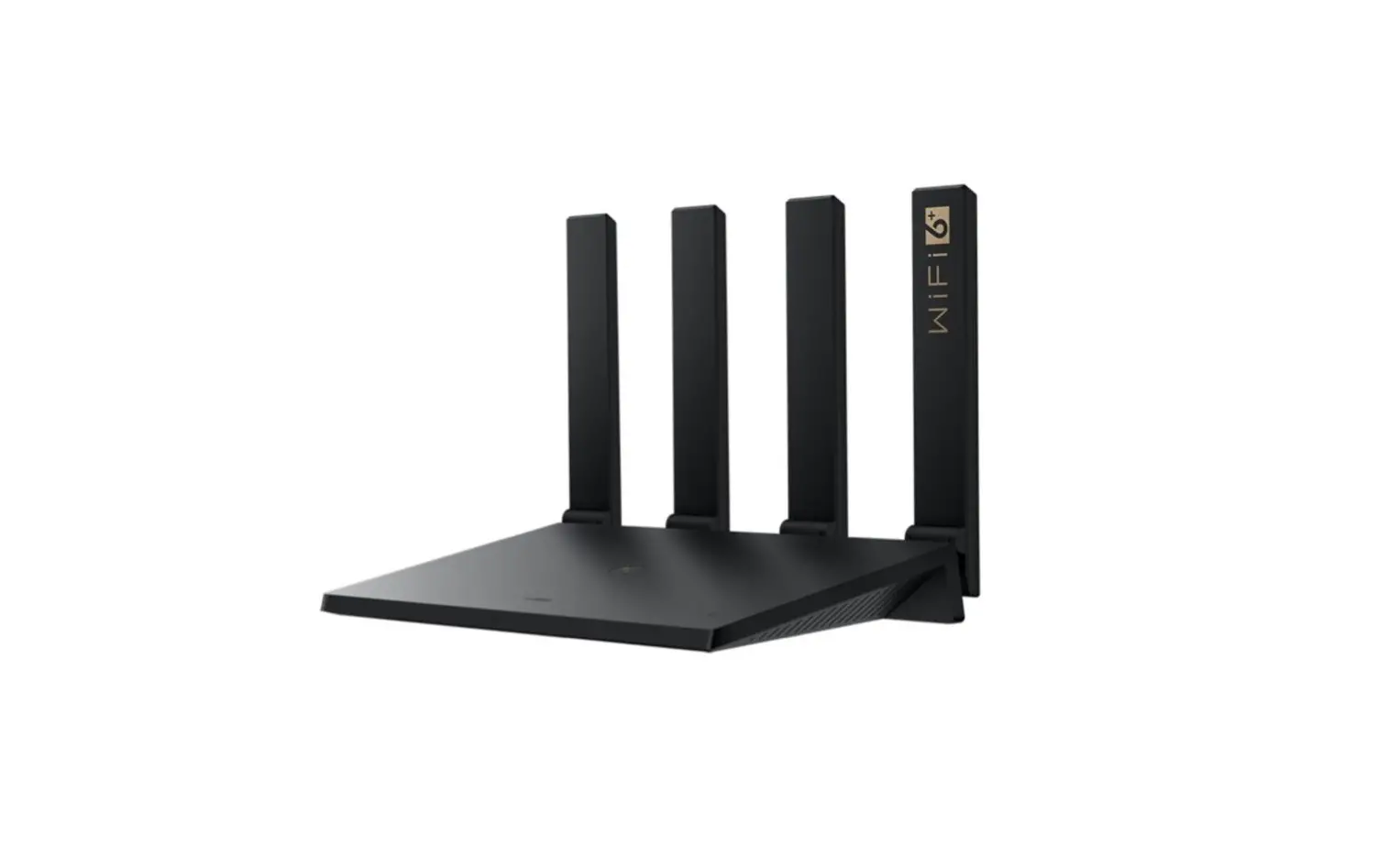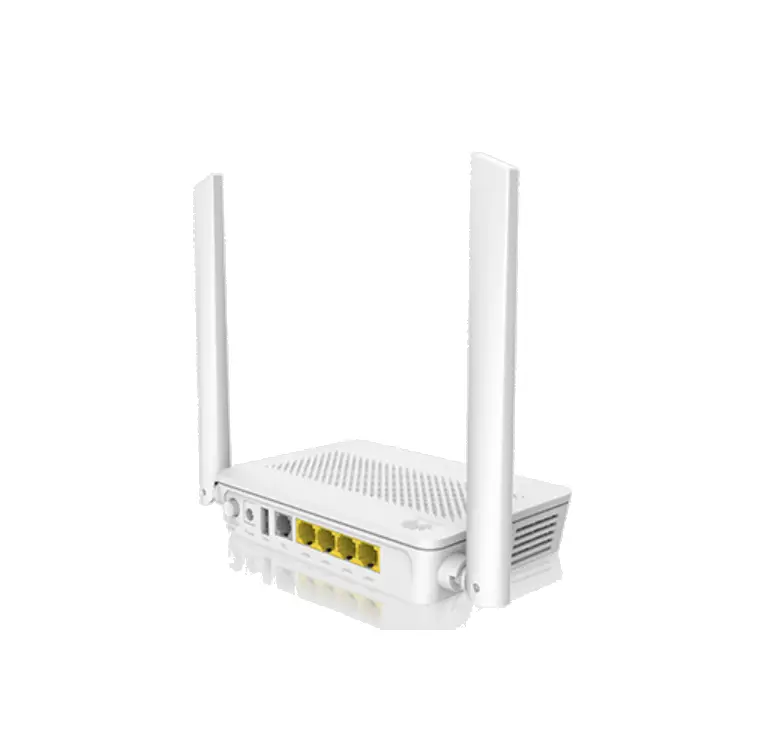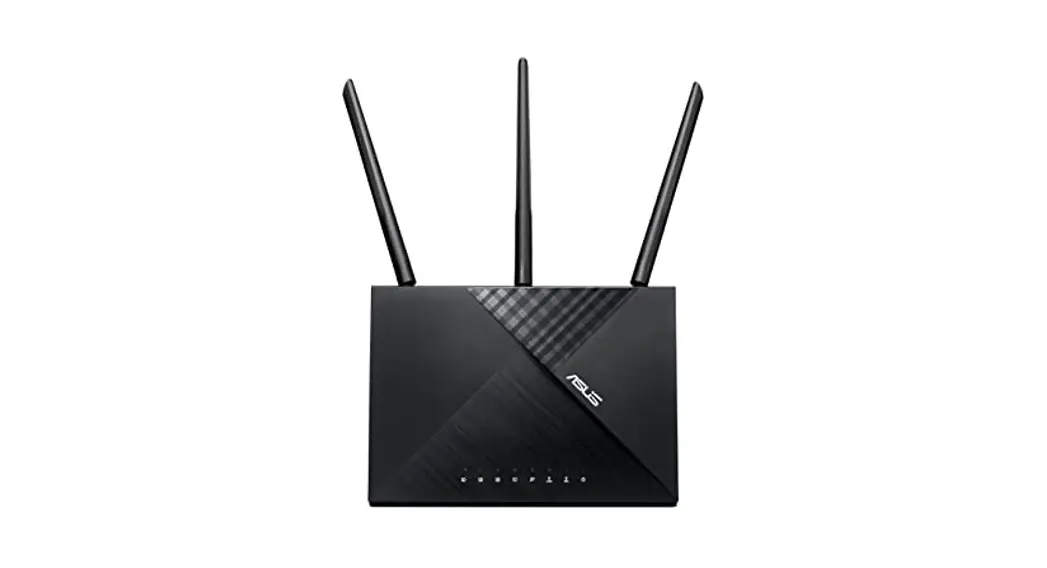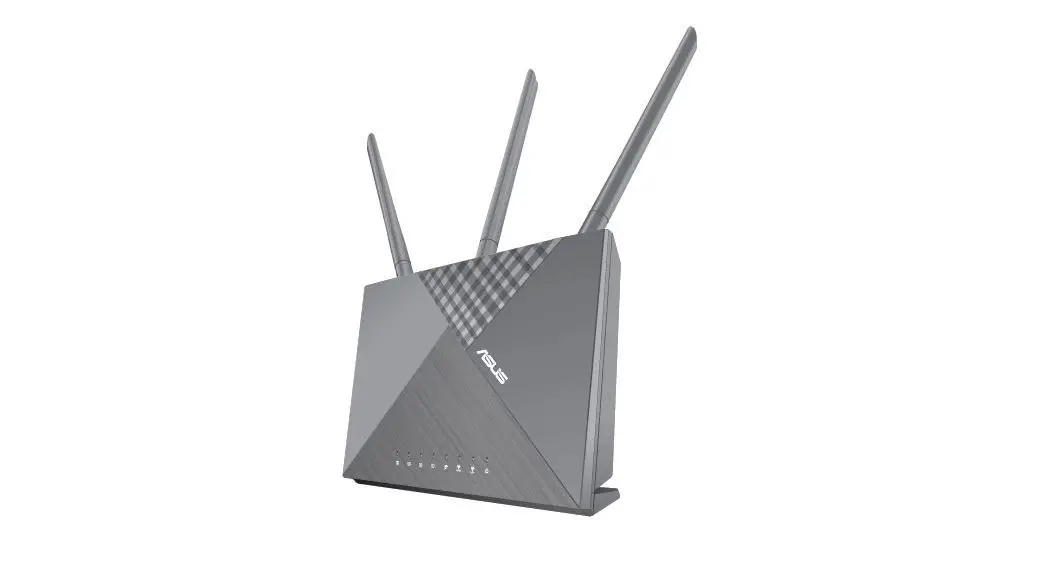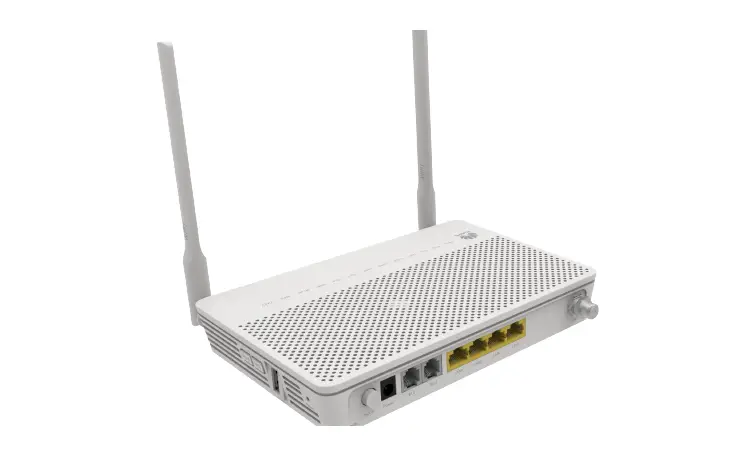

HUAWEI EG8247H5 Dual Band AC WiFi Router
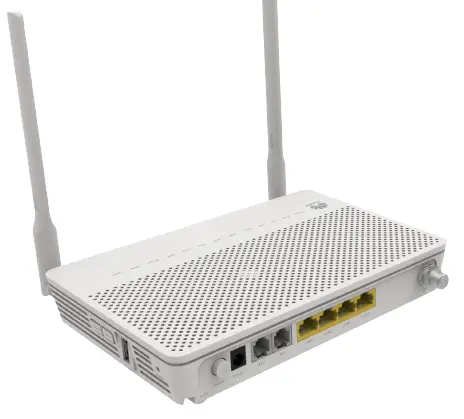
Placing the Device
Note:
- Do not install the ONT outdoors or in an outdoor cabinet.
- The ONT can be mounted onto a wall or placed on a desk. Do not install the ONT in other modes, such as ceiling.
- Keep 10 cm clearance on all sides to ensure adequate ventilation.
- It is recommended that the computer and ONT be put far away from electric appliances that generate strong magnetic or electric fields, such as microwave ovens.
Mounting an ONT on the desk
The figure below shows an ONT that is horizontally placed on a desk.
The appearance shown in this document may be different from the actual appearance of the product. The actual product prevails.
Mounting an ONT onto the wall
- 1Mark two positions with the same spacing as that between the two mounting holes of the ONT using a marker on a wall.
- Select a proper drill bit according to the outer diameter of the screws. Use a hammer drill to drill the marked positions on the wall. Then clean the holes and install two expansion bolts.
- Use a screwdriver to fasten the screws into the expansion bolts, reserving 5 mm ends out of the wall, and mount the ONT onto the screws.
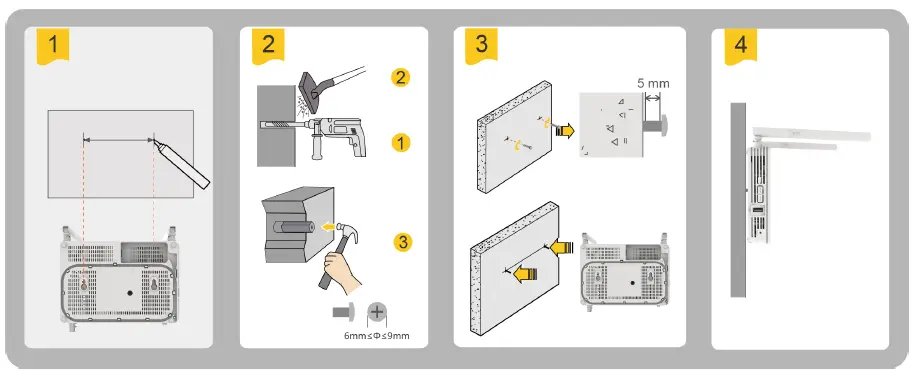
It is recommended that the screw be about 4 mm in diameter and longer than 20 mm.
Connecting Cables
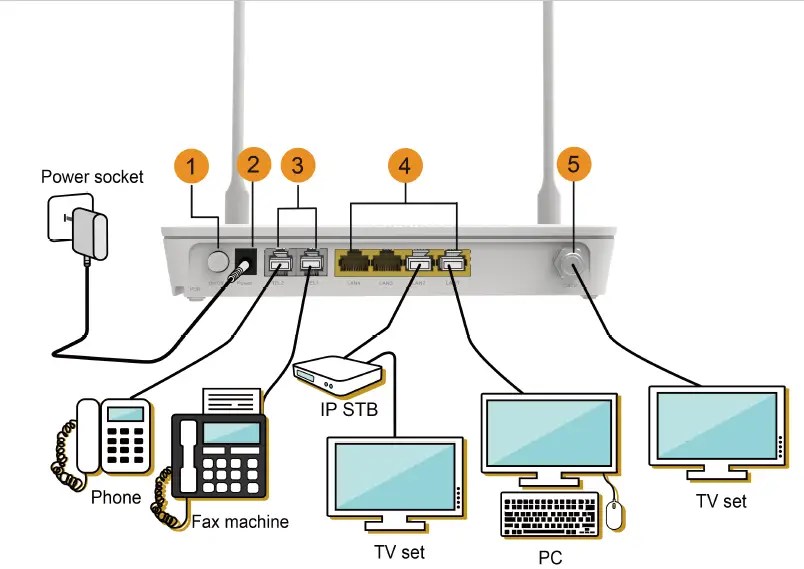
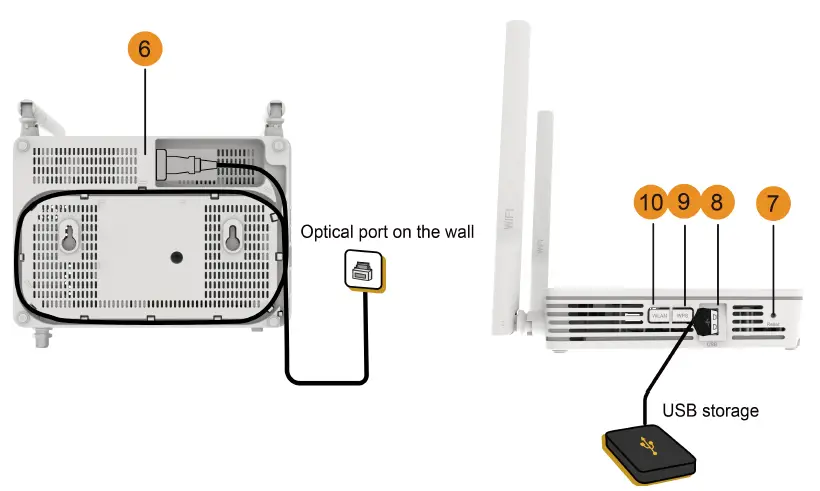
Note:
- The fiber connector connected to the optical port on the wall varies depending on actual conditions.
- To ensure normal use of fibers, make sure that the fiber bending radius is larger than 30 mm.
| No. | Item | Description |
| 1 | On/Off | Powers the ONT on or off. |
| 2 | Power | Connects to a power adapter. |
| 3 | TEL1-TEL2 | Connects to the ports on a telephone or fax machine. |
| 4 | LAN1-LAN4 | Connects to PCs or IP set-top boxes (STBs). |
| 5 | CATV | Connects to a TV. |
| 6 | Optical port | The optical port is equipped with a rubber plug and connected to a fiber for upstream transmission. The type of the optical connector connected to the optical port can be SC/APC. |
| 7 | Reset | Press the button for a short time to reset the device; or press the button for a long time (longer than 10s) to restore the device to the default settings and reset the device. NOTE Reset Huawei ONTs with caution. Otherwise, the ONTs may fail to access the Internet. If an ONT cannot access the Internet after a reset, contact your Internet service provider. |
| 8 | USB | Connects to USB storage devices. |
| 9 | WPS | When the WLAN is on, press the WPS button (> 3s) and release the button to start Wi-Fi protected setup (WPS) negotiation. |
| 10 | WLAN | Used to enable or disable the WLAN function – When the WLAN is disabled, press the WLAN button (> 3s) and release the button to enable the WLAN. – When the WLAN is enabled, press the WLAN button (> 3s) and release the button to disable the WLAN. |
Indicator Description

| Indicator | Status | Description |
| Power | Steady on | The ONT is powered on. |
| Off | The power supply is cut off. | |
| PON/LOS | See the following table . | |
| LAN1-LAN4 | Steady on | The Ethernet connection is in the normal state. |
| Blinking | Data is being transmitted over the Ethernet port. | |
| Off | The Ethernet connection is not set up. | |
| TEL1-TEL2 | Steady on | The ONT is registered with the softswitch but no service flows are transmitted. |
| Blinks twice a second | The ONT is registered with the softswitch, and data is being transmitted on the port. | |
| Blinks once every 2 seconds | The ONT fails to be registered with the softswitch. | |
| Off | The POTS port is disabled. | |
| USB | Steady on | The USB port is connected and working in the host mode, but no data is transmitted. |
| Blinking | Data is being transmitted on the USB port. | |
| Off | The system is not powered on or the USB port is not connected. | |
| WLAN | Steady on | The WLAN function is enabled. |
| Indicator | Status | Description |
| Blinking | Data is being transmitted over the WLAN port. | |
| Off | The WLAN function is disabled. | |
| WPS | Steady on | The WPS function is enabled. |
| Blinking | A Wi-Fi terminal is accessing the system. | |
| Off | The WPS function is disabled. | |
| CATV | Steady on | The CATV function is enabled and CATV signals are received. |
| Off | The CATV function is disabled or CATV signals are not received. |
| Status No. | PON Status | LOS Status | Description |
| 1 | Off | Off | The ONT is prohibited by the upper-layer device or blinks abnormally. Contact the service provider for help. |
| 2 | Blinks twice a second | Blinks twice a second | |
| 3 | Blinks twice a second | Off | The ONT attempts to set up a connection with its upper-layer device. |
| 4 | Steady on | Off | A connection is set up between the ONT and its upper-layer device. |
| 5 | Off | Blinks once every 2 seconds | The ONT is not connected to fibers or does not receive optical signals. |
| 6 | Blinks once every 2 seconds | Blinks once every 2 seconds | The hardware is faulty. |
Technical Specifications
| Product | Function |
| EG8247H5 | ● 4 Ethernet ports ● 2 POTS ports ● 1 USB port ● 1 CATV port ● 2.4 GHz Wi-Fi |
- Power adapter input: See the nameplate on the adapter.
- System power supply: See the nameplate on the device.
- Ambient temperature: 0ºC to +40ºC
- Ambient humidity: 5%–95% (non-condensing)
- Dimensions (H x W x D): 30 mm x 199 mm x 135 mm (without external antenna and pads)
- Weight: About 300g
- Maximum system power consumption: 12 W
FAQs
Note:
The following web page is only for reference. The actual web page of the product prevails.
How do I log in to the Huawei ONT web page?
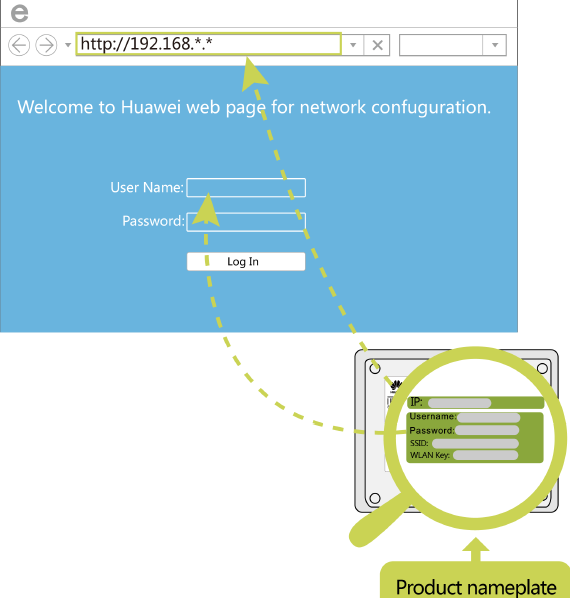
Wireless login
- Connect your mobile phone, pad, or PC to the Wi-Fi network of the Huawei ONT.
- Enter the IP address in the address box of a browser and press Enter. On the displayed login page, enter the username and password. (For details about the IP address, login username, and password, see the product nameplate.)
Wired login
1. Use a network cable to connect a PC to the Huawei ONT.
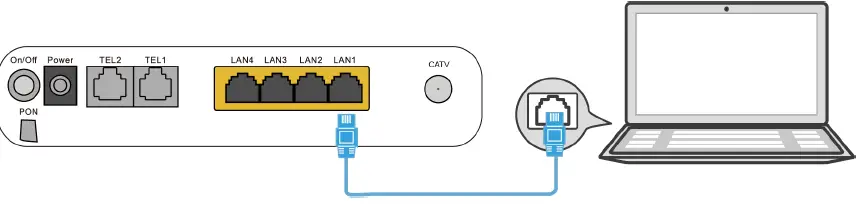
2. Set the IP address of the PC in the same subnet as the web address of the Huawei ONT. For example, if the web address of the Huawei ONT is
192.168.100.1 (for the web address of the Huawei ONT, see the product nameplate), set the IP address of the PC to 192.168.100.100.
Note:
The preceding cable connection diagram and login pages are only for reference, and those of the actual product prevail.
3. Log in to the web configuration page.
a. Open a browser. In the address box, enter the web address (printed on the nameplate of the Huawei ONT). Press Enter.
b. Enter the login user name and password (printed on the nameplate of the Huawei ONT). Click Log In.
Note:
- If you do not perform any operations after logging in to the system within five minutes, you will be logged out, and the system automatically returns to the login interface.
- The system will be locked for one minute if you input incorrect user name and password for three consecutive times.
- Change the initial password after logging in to the web page for the first time.
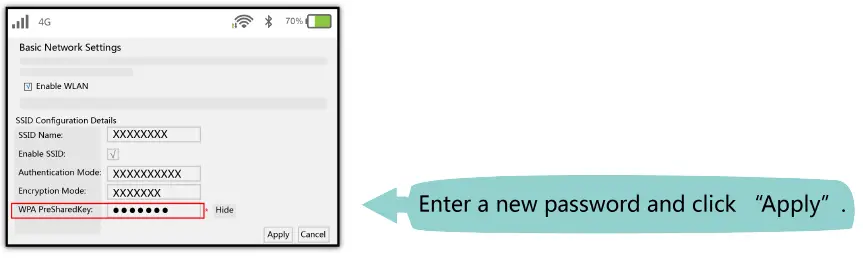
How do I change the Wi-Fi password?
- Log in to the Huawei ONT web page using your mobile phone, pad, or PC. For details, see “How do I log in to the Huawei ONT web page?”
- Choose the Advanced Configuration > WLAN tab and choose Basic Network Settings.
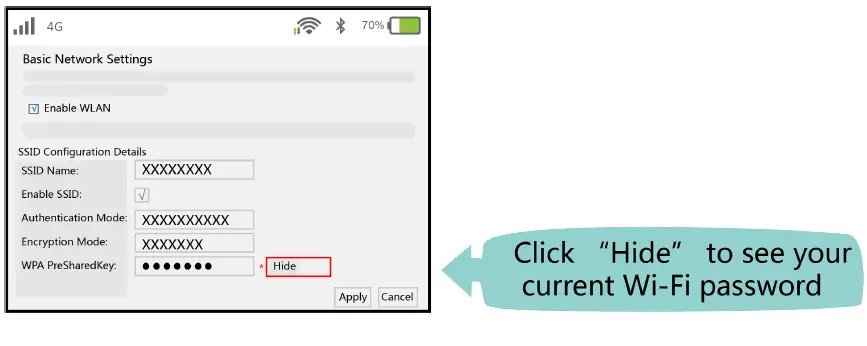
What can I do if I forget the Wi-Fi password?
- Log in to the Huawei ONT web page using your PC by wired login. For details, see “How do I log in to the Huawei ONT web page?”
- Choose the Advanced Configuration > WLAN tab and choose Basic Network Settings.
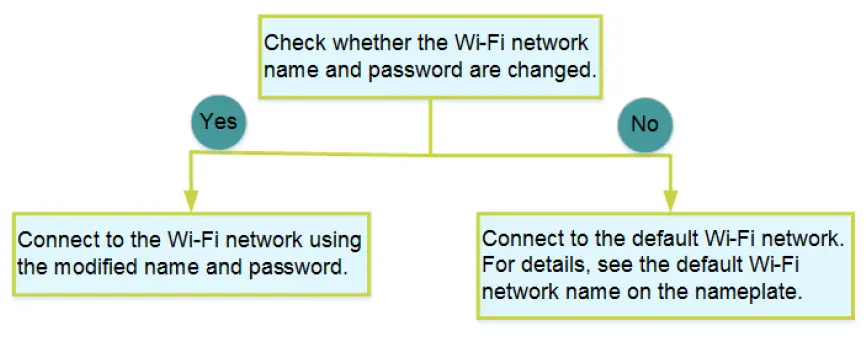
What can I do if I cannot connect to the Wi-Fi network?
How to improve the Wi-Fi speed of a Huawei ONT?
1. Wi-Fi speed relies on the bandwidth provided by the ISP, so the simplest way is to upgrade to faster broadband.
2. Wi-Fi speed is affected by the Wi-Fi signal strength and quality. Ensure that the Huawei ONT is far away from interference sources such as TVs, microwave ovens, refrigerators, cordless phones, and Bluetooth devices, and reduce the number of obstacles between the Huawei ONT and Wi-Fi devices (such as pads, mobile phones, and laptops). You are advised to use repeaters to enhance the Wi-Fi coverage if the area is large.
3. Using the correct radio channel. Generally, the Huawei ONT automatically selects the optimal channel. If the network is slow or the quality turns poor from time to time, you can use a Wi-Fi scanner such as Wi-Fi Stumbler or Wi-Fi Analyzer to search for the optimal channel.
4. To prevent unauthorized network access, log in to the web interface of the router and select MAC address filtering based on your requirements.
What can I do if the network speed is slow?
1. Check whether network cables are properly connected. Remove and then insert the network cables. Then, check whether the network speed is normal.
2. Check whether downloading, network video watching, or other operations occupy a large amount of bandwidth. Due to bandwidth restrictions, if some network applications occupy a large amount of network bandwidth, the network speed is slow.
3. Use another PC, mobile phone, or pad to check whether the network speed is normal.
A phone does not ring upon an incoming call but communication is in normal state when the phone is in off-hook state.
- The ONT supports a maximum of 60 V AC ringing current voltage. Check whether the ringing current voltage of the phone is higher than 60 V AC. If it is higher than 60 V AC, replace the phone.
How do I restore the Huawei ONT to factory setting?
Press Reset by using a needle-type object for longer than 10s to restore factory defaults and reset the Huawei ONT. If the indicator is off and then is lit, the system restarts successfully.
Note:
Exercise caution when restoring factory settings. This function may cause the loss of ONT configuration information and further cause an Internet access failure. If this problem occurs, contact your service provider for help.
How can I download Huawei ONT firmware or ONT software?
Huawei ONT is used with an OLT and NMS of a required version. If the versions are not the required ones, the ONT may not work.
If required, contact your internet service provider to obtain the correct ONT firmware or software.