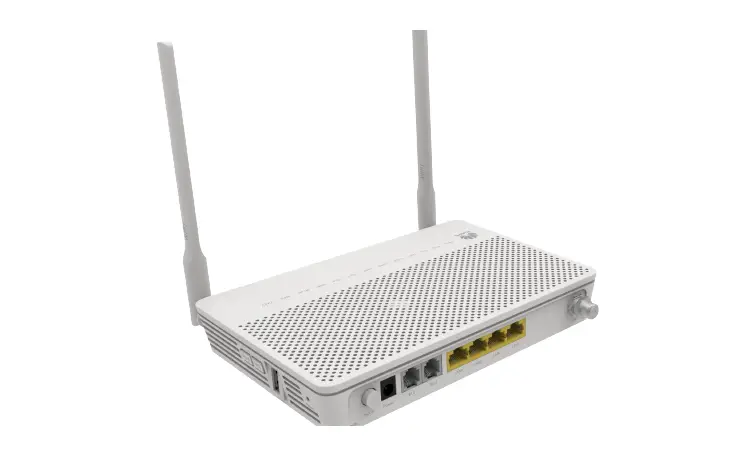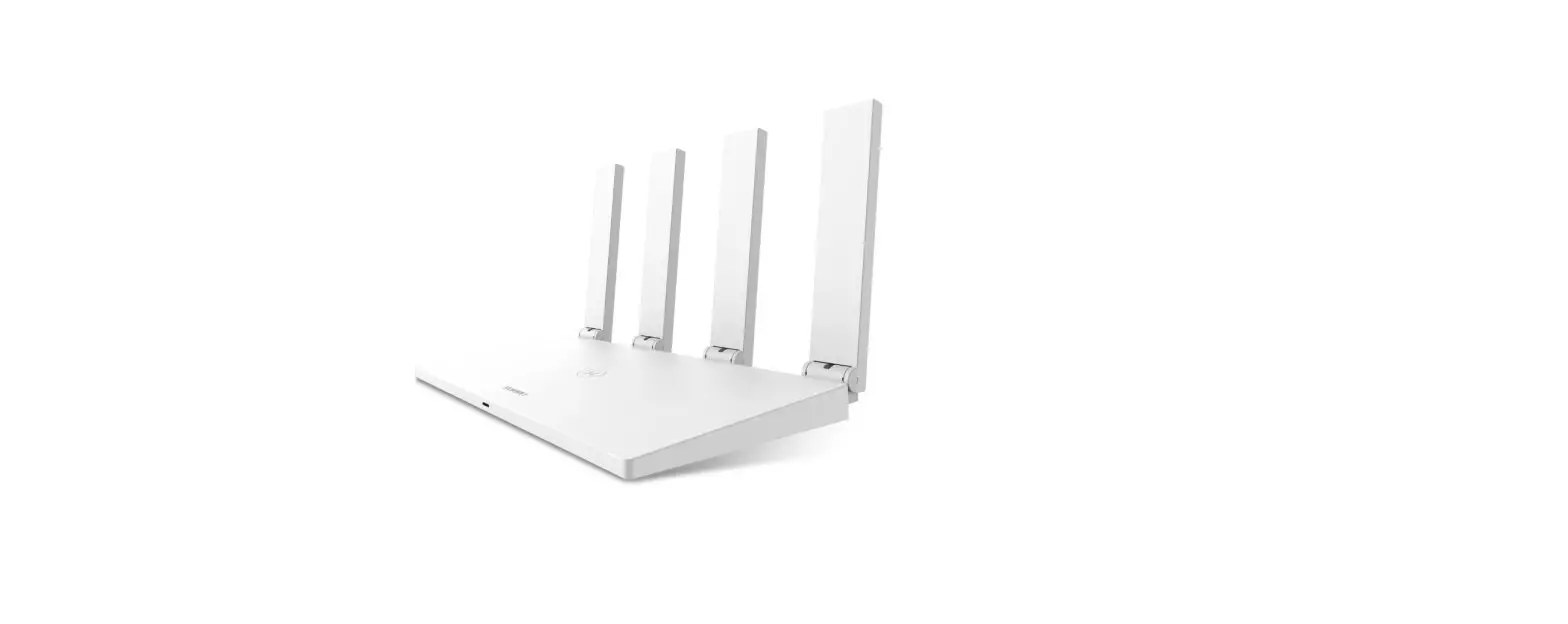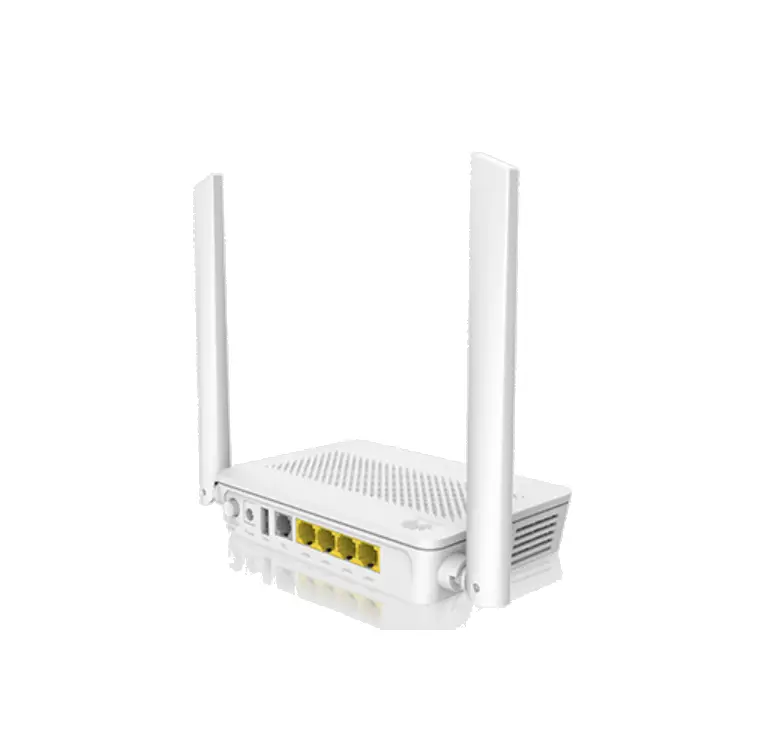
HG8145V5 Dual Band Huawei
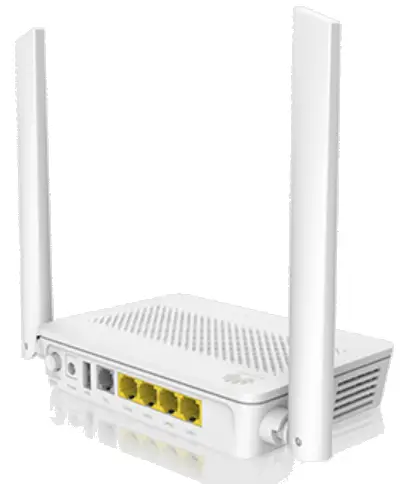
HOW TO INSTALL NEW HUAWEI MESH DEVICES
VIA THE TIME INTERNET APP
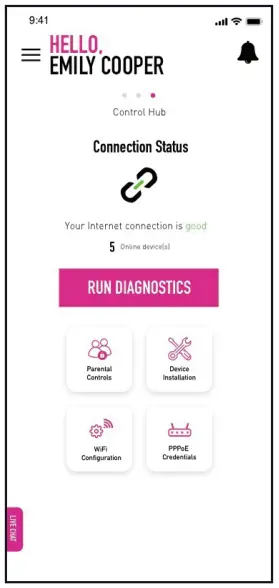
- Tap on the Device Installation icon on the Control Hub screen in your TIME Internet app.

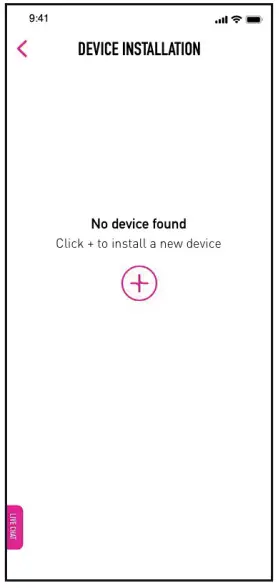
- Tap on the + symbol to add a new device(s).
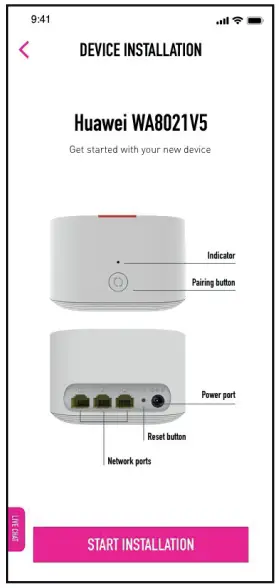
- Tap on Start Installation to begin the process.
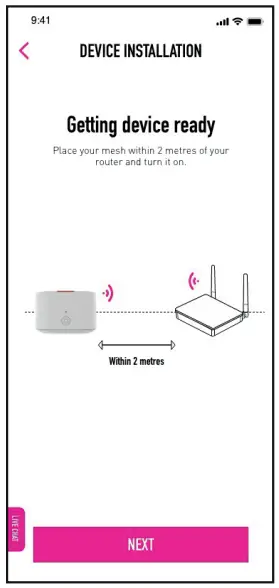
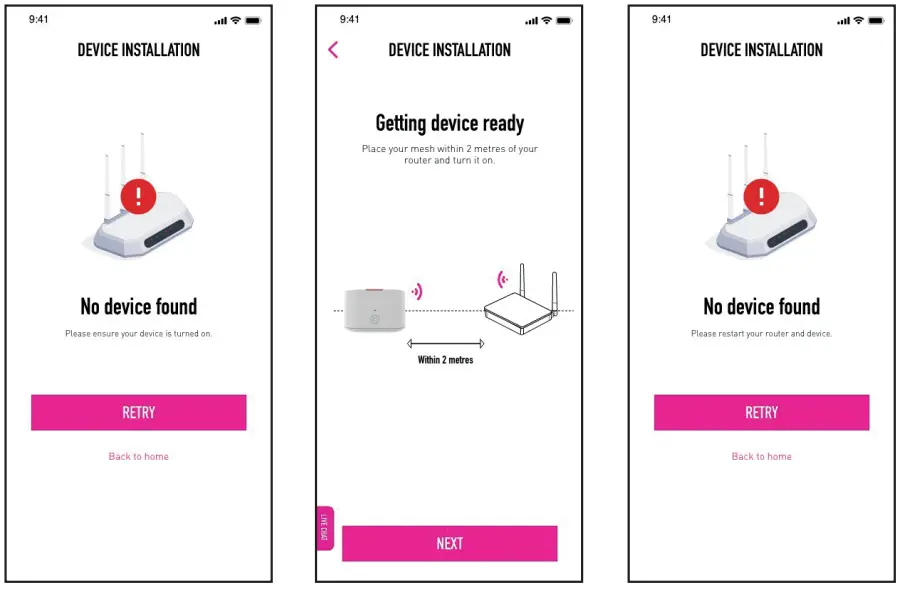
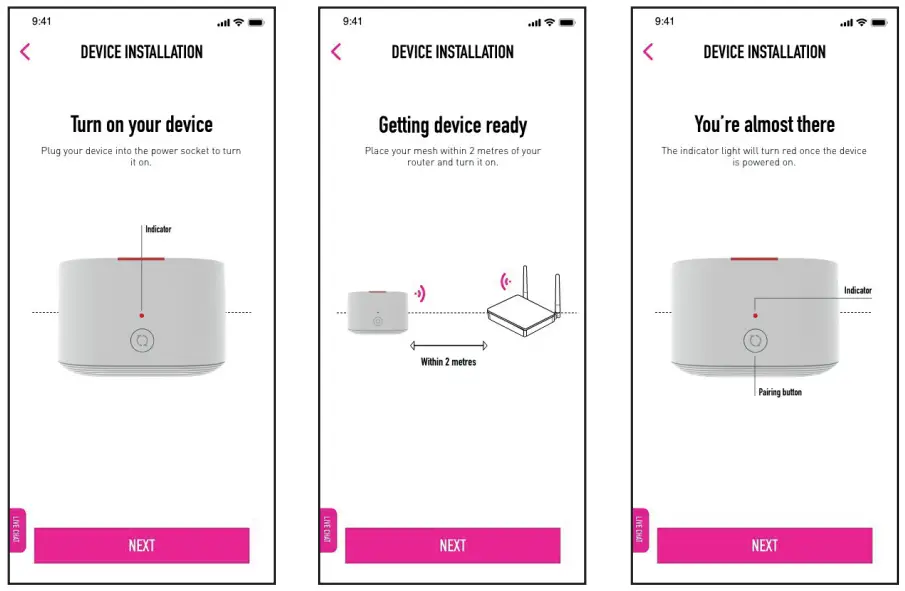
- Ensure your device(s) is placed 2m from your router in order for it to be detected. Should you encounter any errors, simply follow the instructions on screen.
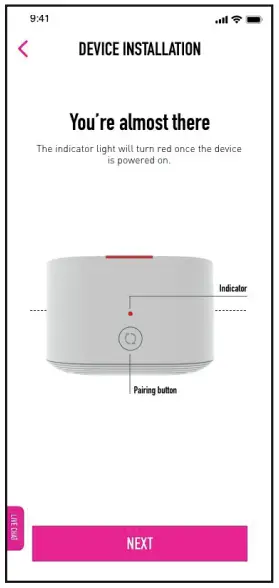
- The indicator light on your device(s) will start to blink once the installation process begins. Tap on Next to proceed.
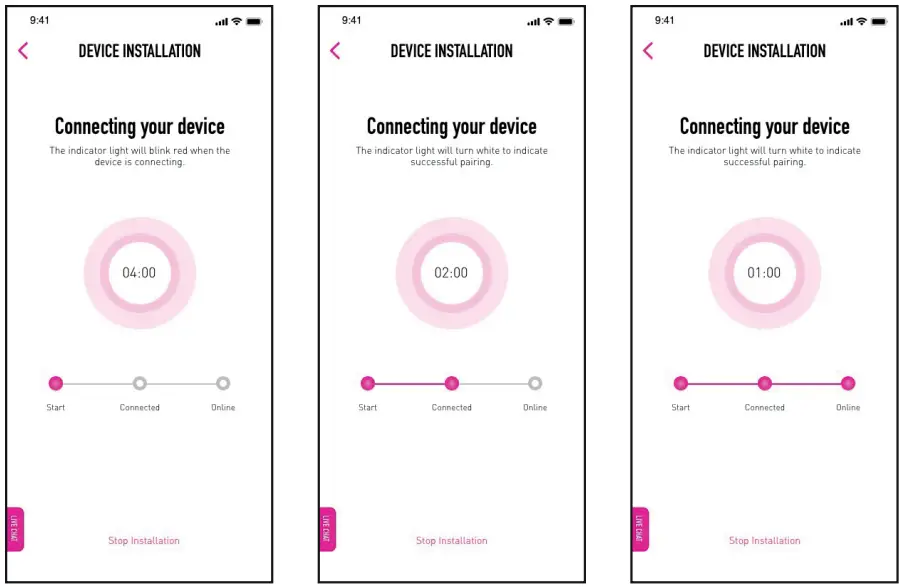
- The app will start connecting your device(s). It will take approximately 4 minutes or less to complete the installation.

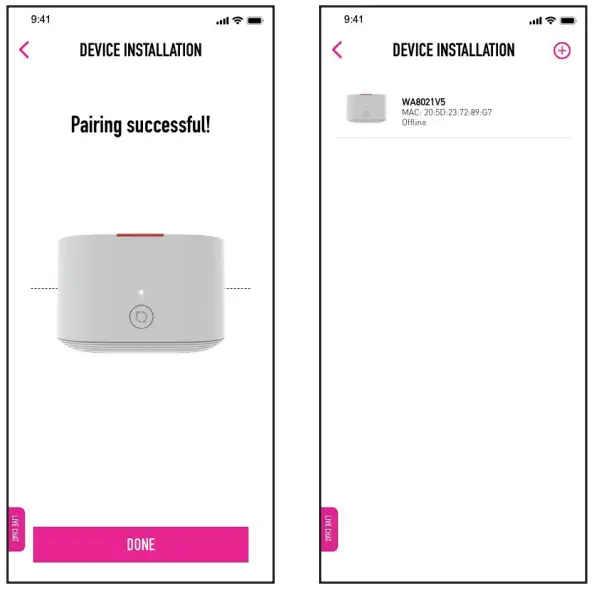
- Once the process is complete, your device(s) will be ready for use. Tap on Done to finish.

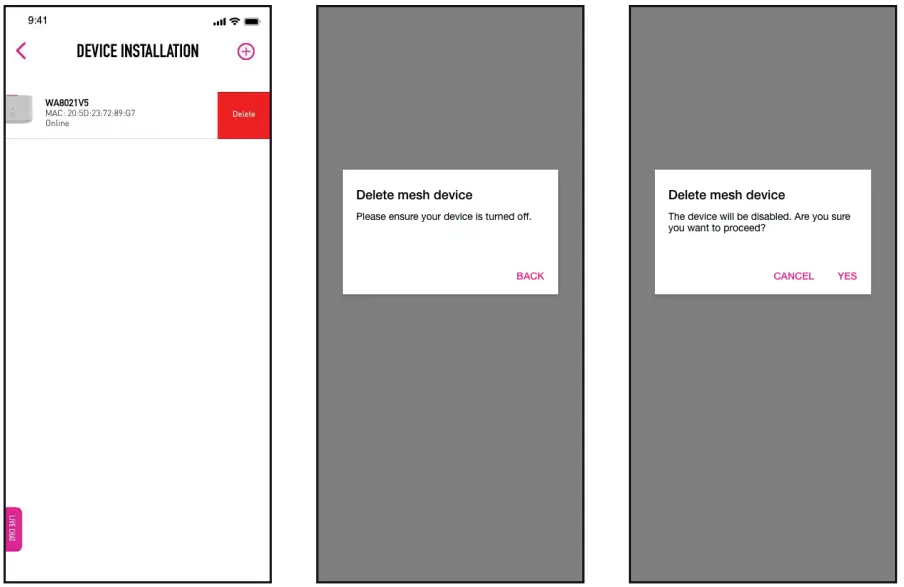
- If you wish to delete your installed device(s), simply swipe left on the selected device and tap on Delete.

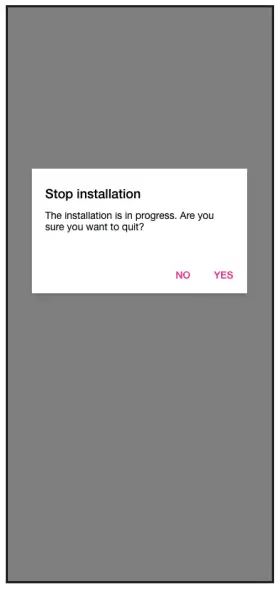
- If you would like to stop the installation, simply tap on Stop Installation.

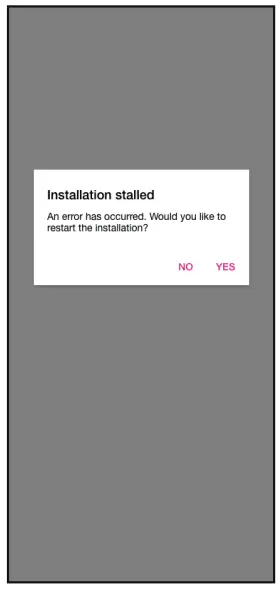
- If the installation is interrupted midway, tap on Yes to restart the process.
- If the app fails to detect your device(s), ensure that it is powered on and placed within 2m of your router. Tap on Retry to start again.

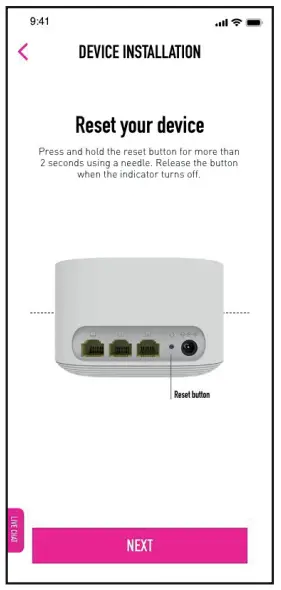
- If the app fails to detect your device(s) after two (2) attempts, reset your device following the steps below:
a. Power off your device by unplugging it from the power socket.
b. Using a needle or a thin piece of metal or plastic, hold the reset button for a few seconds.
c. Release the button once the indicator light goes off.
d. Tap on Next to proceed.
- Plug your device back in to turn it on and tap on Next. This will take you back to the start of the installation process where you can try again.

 .
.